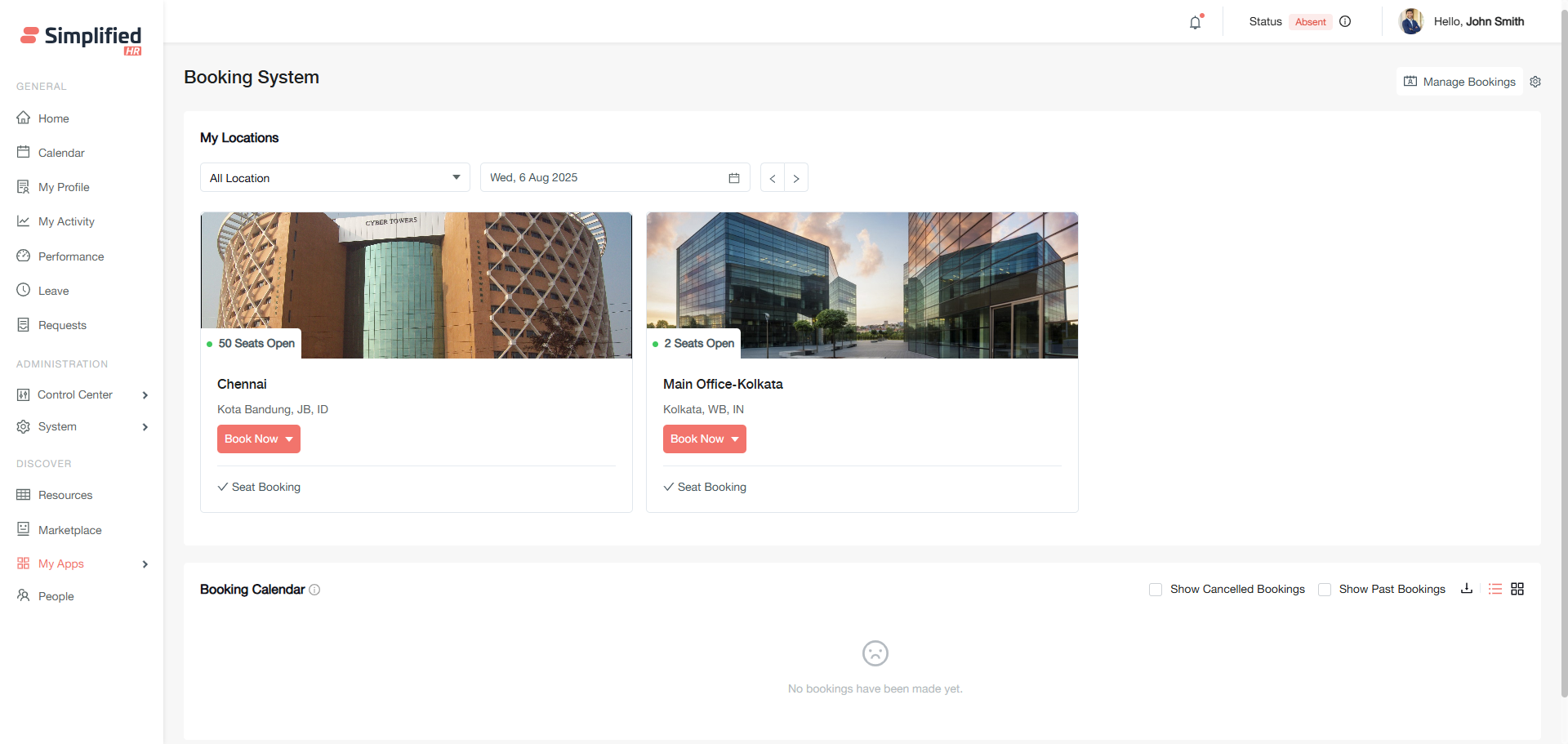
Easybook is a comprehensive seat booking system in Simplified HR that provides an interactive interface for reserving seats across your entire organization. This guide covers the complete setup process, from initial installation to advanced configuration options.
This article is designed for administrators, owners, and users with similar roles who need to configure and manage the Easybook system for their organization.
Prerequisites
-
You must have Owner, Admin, or equivalent role permissions
-
Your organization must have active locations configured in Simplified HR
-
The Marketplace must be accessible in your system
-
A paid plan is required as Easybook is a pro feature.
-
You should understand your organization's seating and booking requirements
Installing and enabling Easybook
Installing the app
-
Navigate to the Marketplace in your Simplified HR system
-
Locate the Easybook app and click Install
-
Wait for the installation confirmation
For detailed installation instructions, refer to the Marketplace Installation Guide.
Assigning proper permissions
Ensure relevant roles have the required permissions to access and use Easybook. Configure these through your Roles and Permissions settings.
Important: Owner, Admin, or similar role members can override most restrictions set up in the configuration.
Accessing Easybook
For administrators and owners
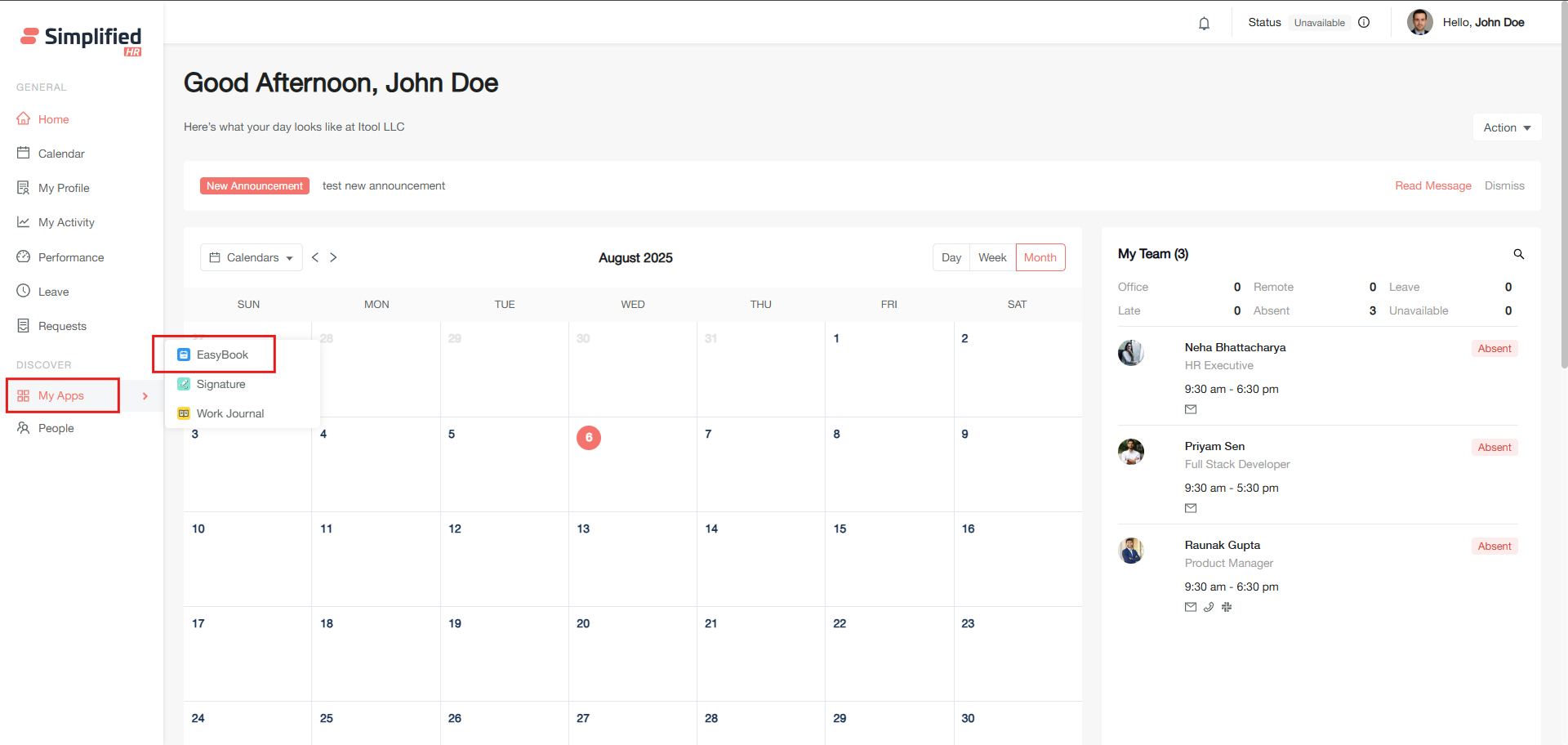
You can access Easybook through multiple entry points:
For general users
Access Easybook through My Apps in the navigation menu.
Accessing configuration settings
-
Navigate to Easybook through any of the access methods above
-
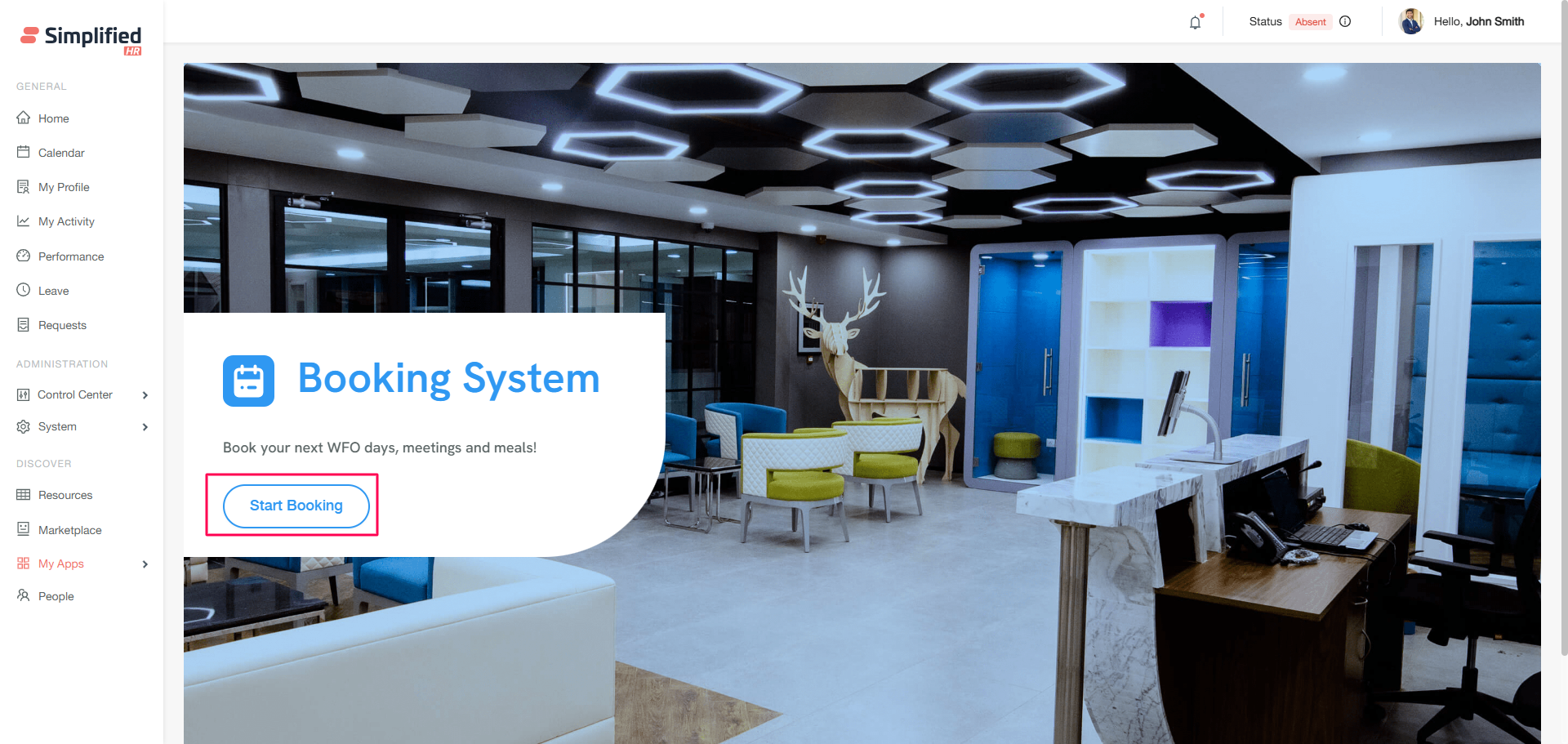
Click the Start Booking button (if this is your first time)
-
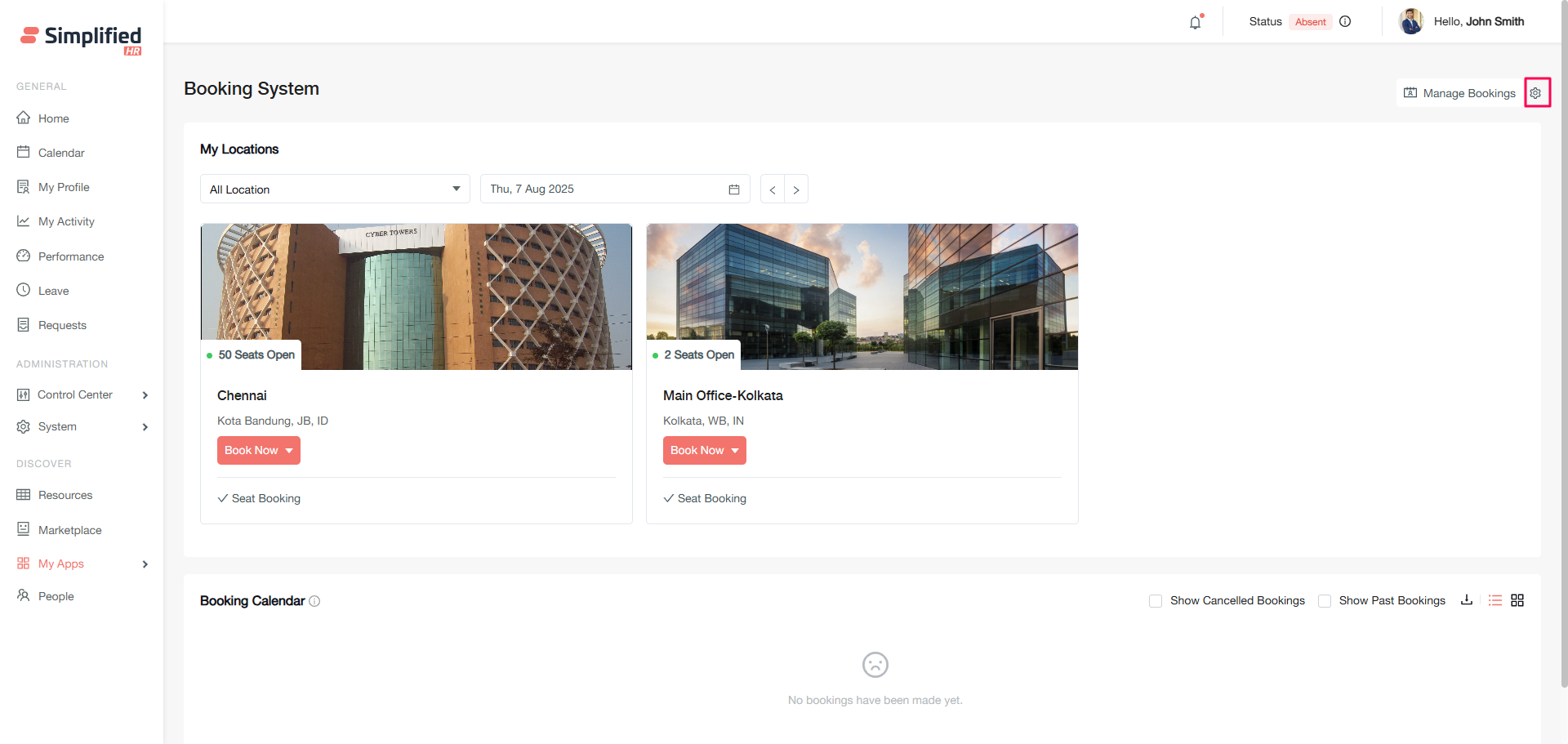
On the Booking System page, click the Settings icon
-
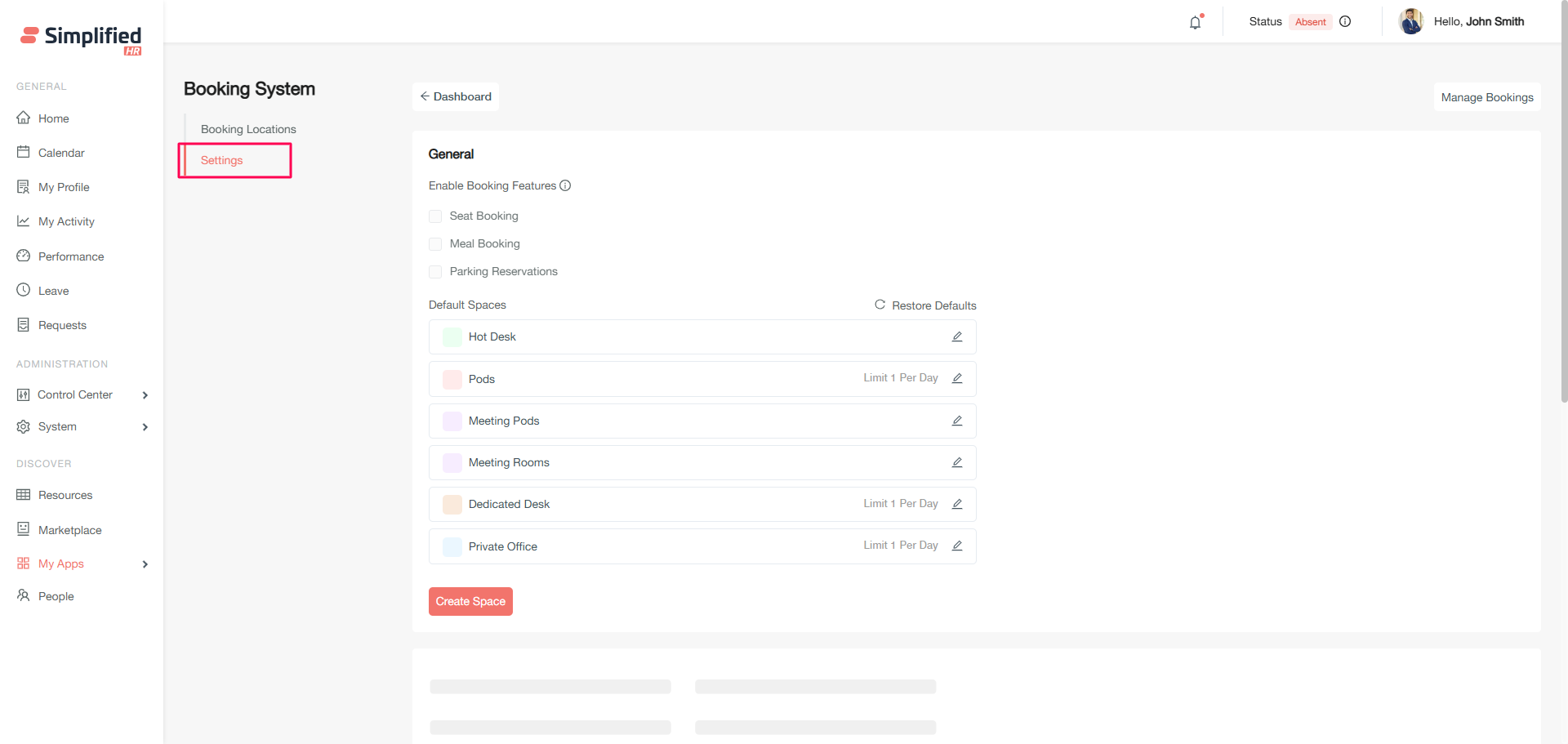
Click the Settings tab on the configuration page
Configuring general settings
Booking features
By default, Seat Booking is enabled and cannot be disabled. This is the primary feature of Easybook.
Managing spaces
Spaces are different seating area types in your organization that define which areas members can access and book.
Default spaces
Easybook comes with these pre-configured spaces:
Creating custom spaces
-
Click Create Space
-
Add a custom space name
-
Select a color from the palette or enter a hex code
-
To add multiple spaces, click Add Another and repeat steps 2-3
-
Click Create
Understanding space limits
Space limits restrict how often users can book specific space types:
-
No limit: Allows unlimited bookings in the space
-
Limited: Set restrictions using per day, per week, or per month
Example: "1 per day for Pods" means a member can book only one Pods seat per day, regardless of location.
Modifying spaces
-
Click the edit button next to any existing space
-
Update the name, color, or limit as needed
-
Click Update
-
Confirmation message validates the changes
Note: Changes affect future bookings and visual displays immediately.
Restoring default spaces
Click Restore defaults to reset space names, colors, and limits to original values. This only affects default spaces, not custom ones.
Deleting spaces
Only custom spaces can be deleted:

-
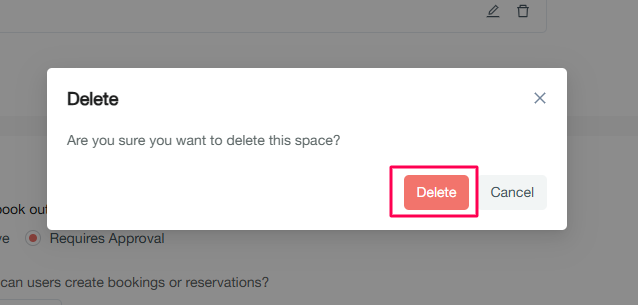
Click the Delete button next to a custom space
-
Confirm deletion in the modal
-
Success message confirms removal
Configuring booking settings
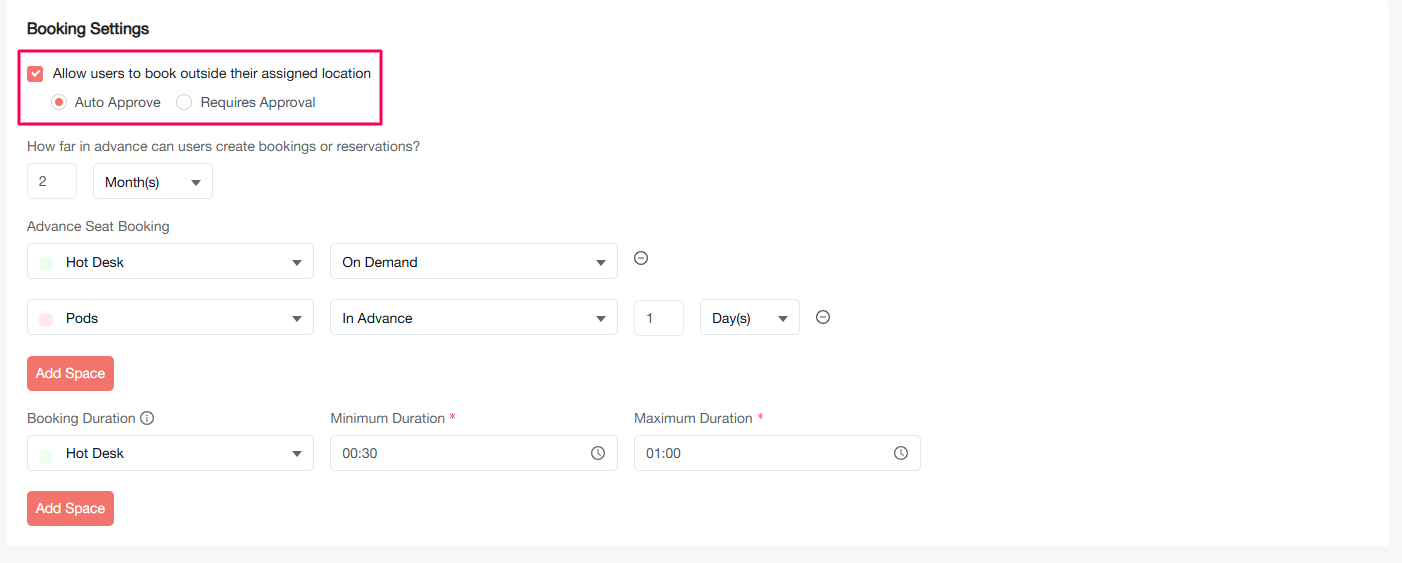
Allow users to book outside their assigned location
A configuration which streamlines the flow when an employee wants to book their seats outside their assigned work location.
Choose between two approval workflows:
Note: Bookings within assigned locations are always auto-approved for any users.
Future booking restrictions
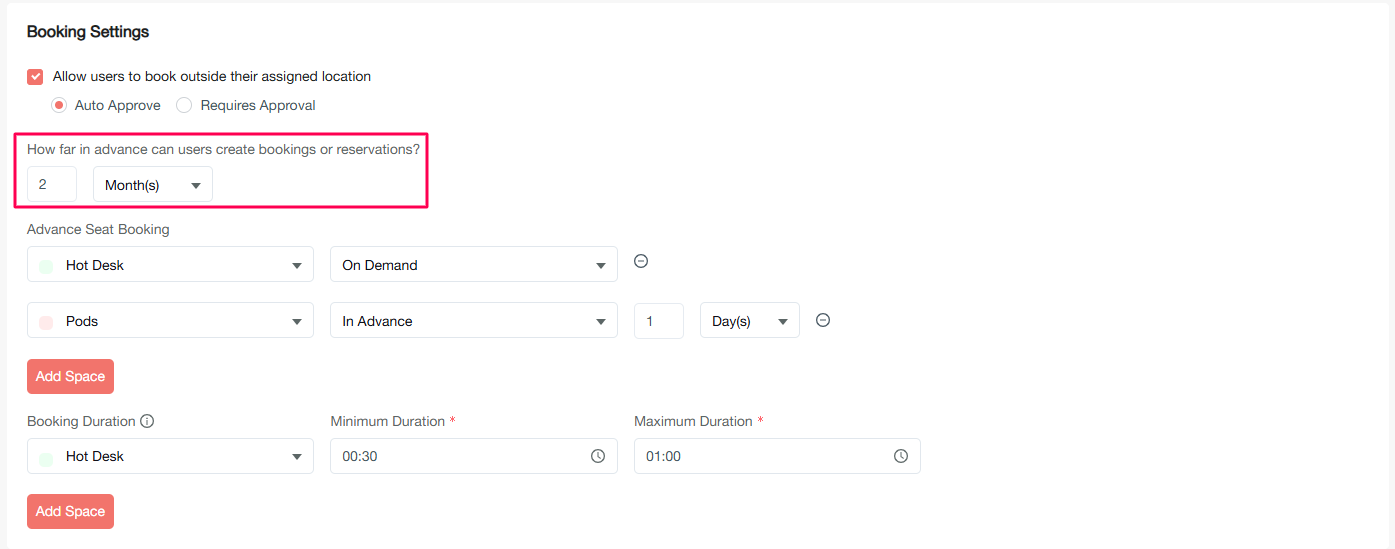
Set how far in advance users can create bookings:
-
Enter a numeric value
-
Select the time period: Day, Week, or Month
-
Scroll down and click Save
Example: "30 days" means users can book up to 30 days in advance.
Advance seat booking
Configure when specific spaces can be booked:
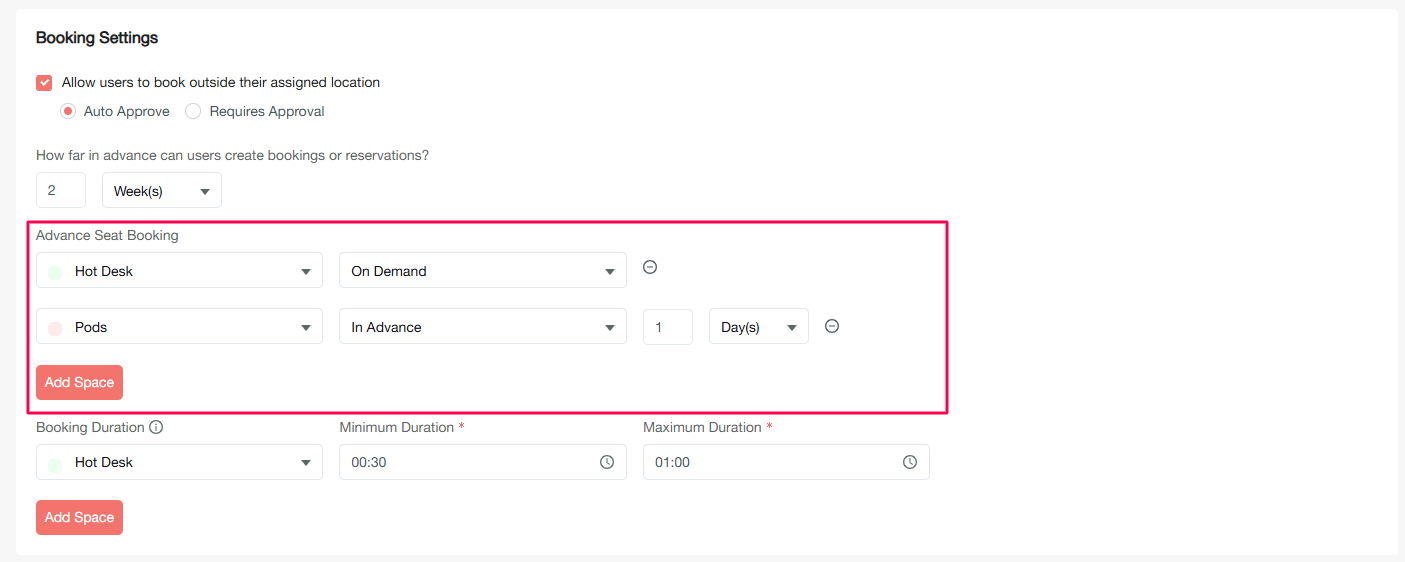
Space on Demand
Members can book seats in these spaces at any time.
-
Click Add Space and select a space
-
Choose On Demand
-
Click Save
Space in Advance
Members must book a specified time before their intended use.
-
Click Add Space and select a space
-
Choose In Advance
-
Enter the advance time requirement
-
Select: Hour(s), Day(s), or Week(s)
-
Click Save
Examples:
-
"1 hour for Pods": Book 1 hour before the intended slot time
-
"1 day for Pods": Book 1 day before the intended date
-
"1 week for Pods": Book 1 week before the intended date
Booking duration
Set minimum and maximum duration limits for time-slot bookings:
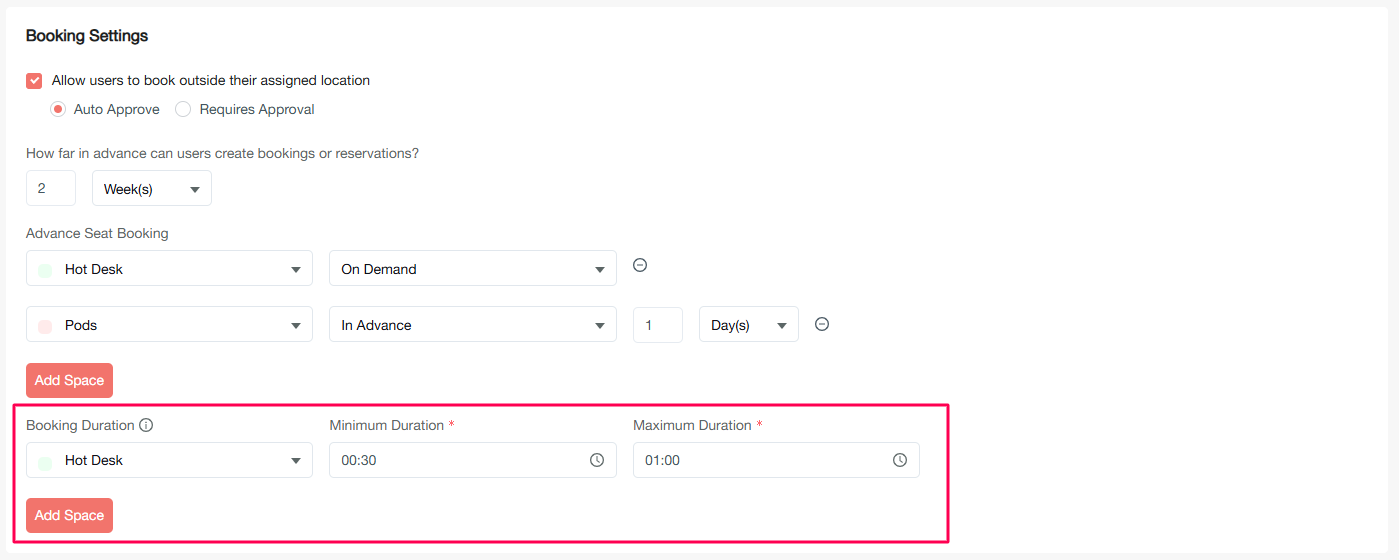
Configure specific spaces to require time-slot selections rather than all-day bookings.
Setting booking restrictions
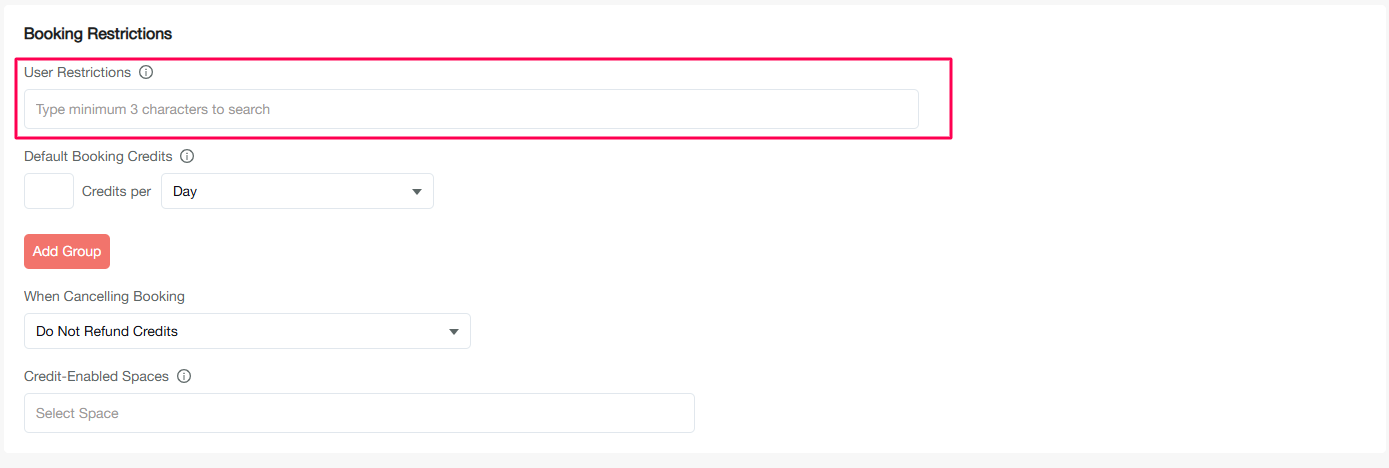
User restrictions
Blacklist specific members from making any bookings:
-
Type the first 3 letters of a member's name
-
Select the member from the search results
-
Add multiple members if needed
-
Click Save
Default booking credits
Set organization-wide booking limits:
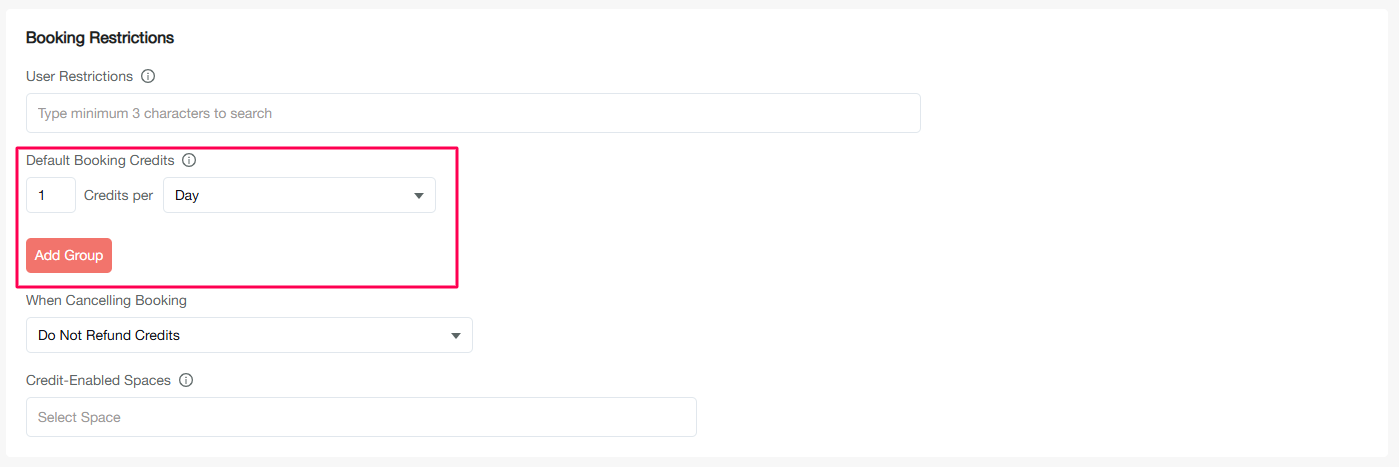
Daily credits
Set Credits per Day to limit daily bookings per member.
Monthly credits
Set Credits per Month to limit monthly bookings per member.
Custom credit groups
-
Click Add Group
-
Set credit amount (daily or monthly)
-
Select specific members for custom limits
-
Click Save
Notes:
-
Each booking consumes 1 credit
-
Modifying booking dates also consumes credits
-
Modifying spaces, floor and room in an existing booking does not consume credits.
-
Empty fields mean unlimited credits
-
Admin roles bypass credit restrictions
Credit refund settings
Configure what happens when bookings are cancelled:
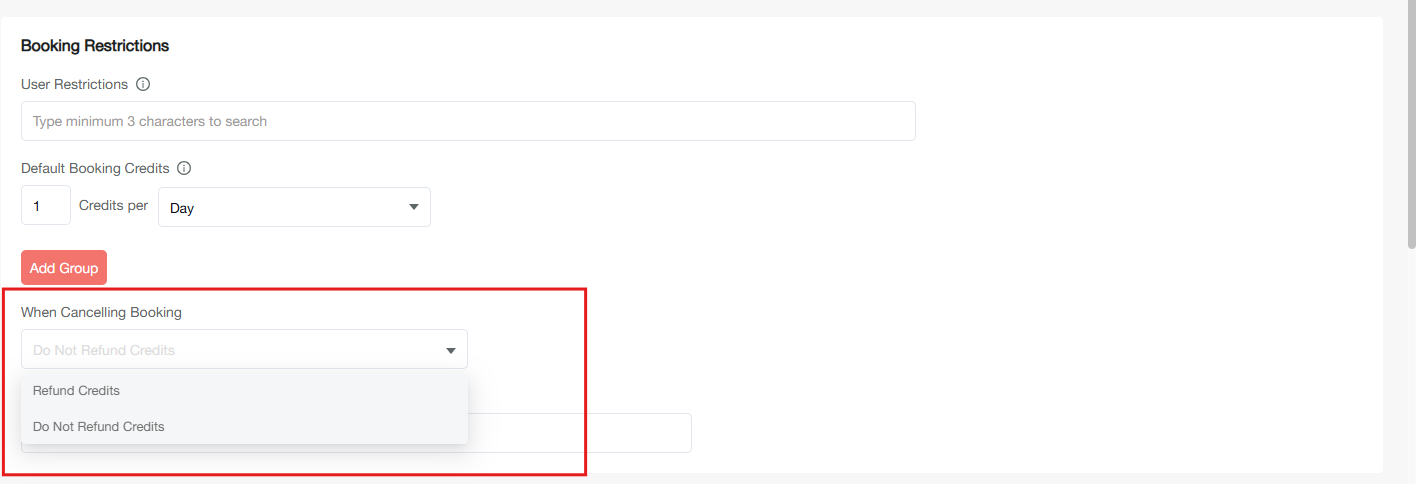
Refund credits option
Set conditions for credit refunds:
No refund option
Select Do not Refund Credits to never return consumed credits.
Credit-enabled spaces
Specify which spaces consume and refund credits: If no space is selected, then booking in active spaces will consume credit.
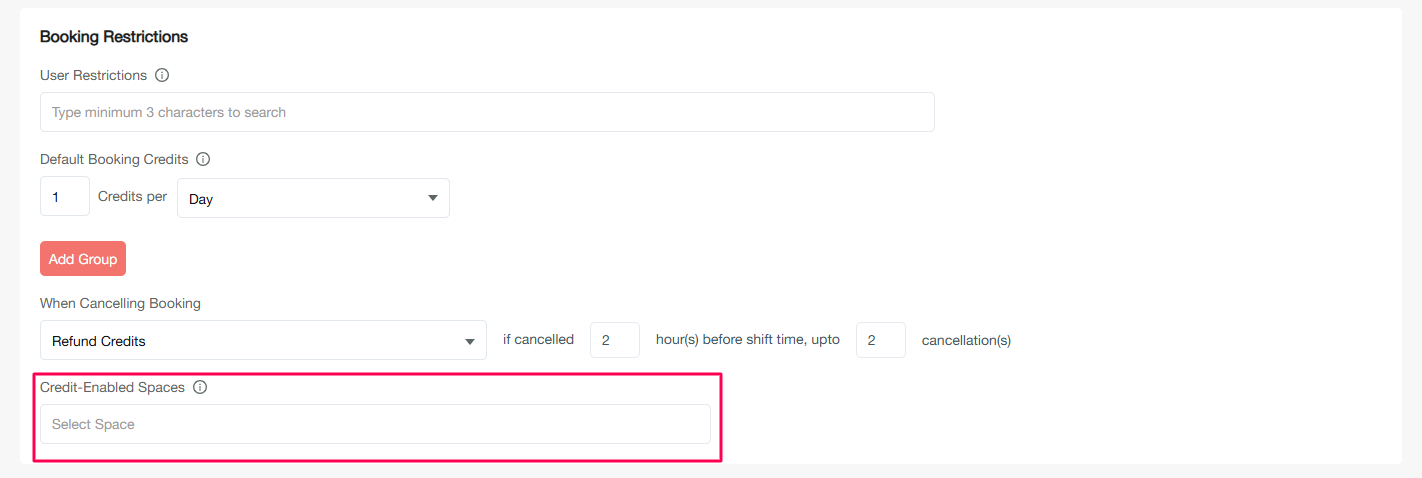

-
Select one or more spaces for credit system
-
Click Save
Notification settings
Configure automated communications for booking events.
Booking reminders
Set reminder timing for users with upcoming bookings:
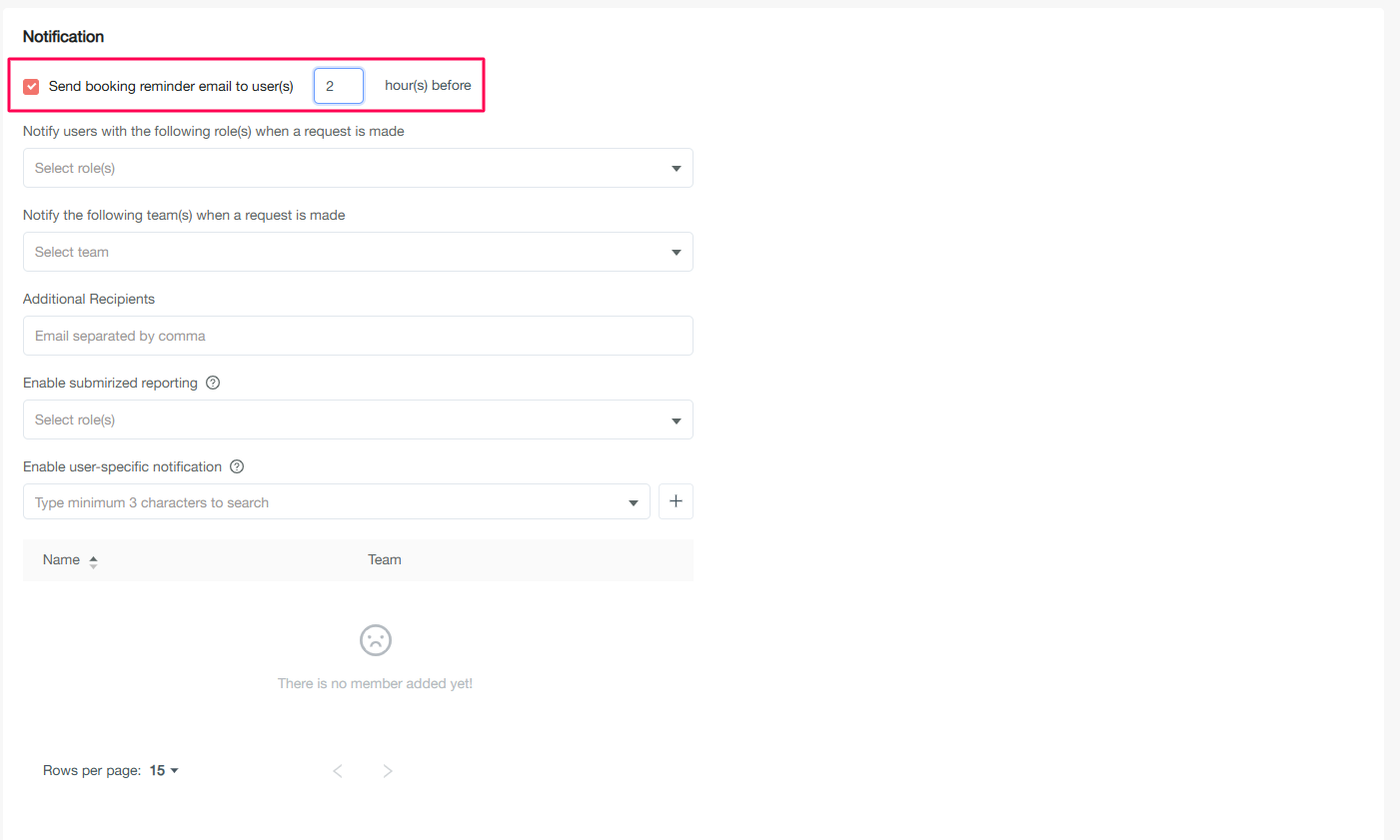
Enter hours before shift time to send reminder emails. These reminders include check-in and cancellation options for Easybook.
Note: Before setting this configuration, the administrative team must confirm that all the members in the organization have updated and approved shift time in
My Profile > Work Profile > Availability
Role-based notifications
Choose which roles receive booking notifications:
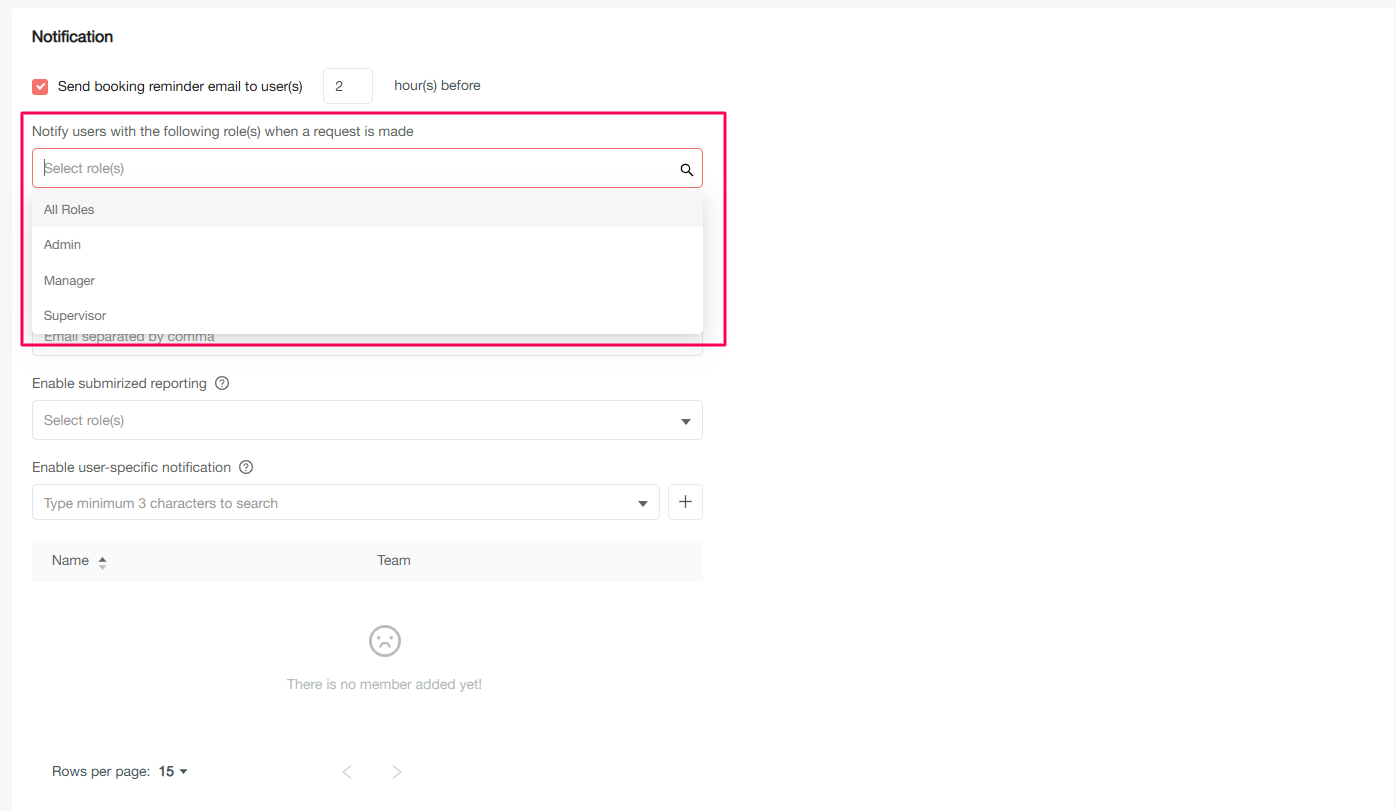
-
All Roles: Admins, managers, and supervisors receive all booking notifications
-
Admin: Only administrators receive notifications
-
Manager: Managers receive notifications for their subordinates' bookings
-
Supervisor: Supervisors receive notifications for their subordinates' bookings
Team notifications
Select specific teams to receive booking notifications:
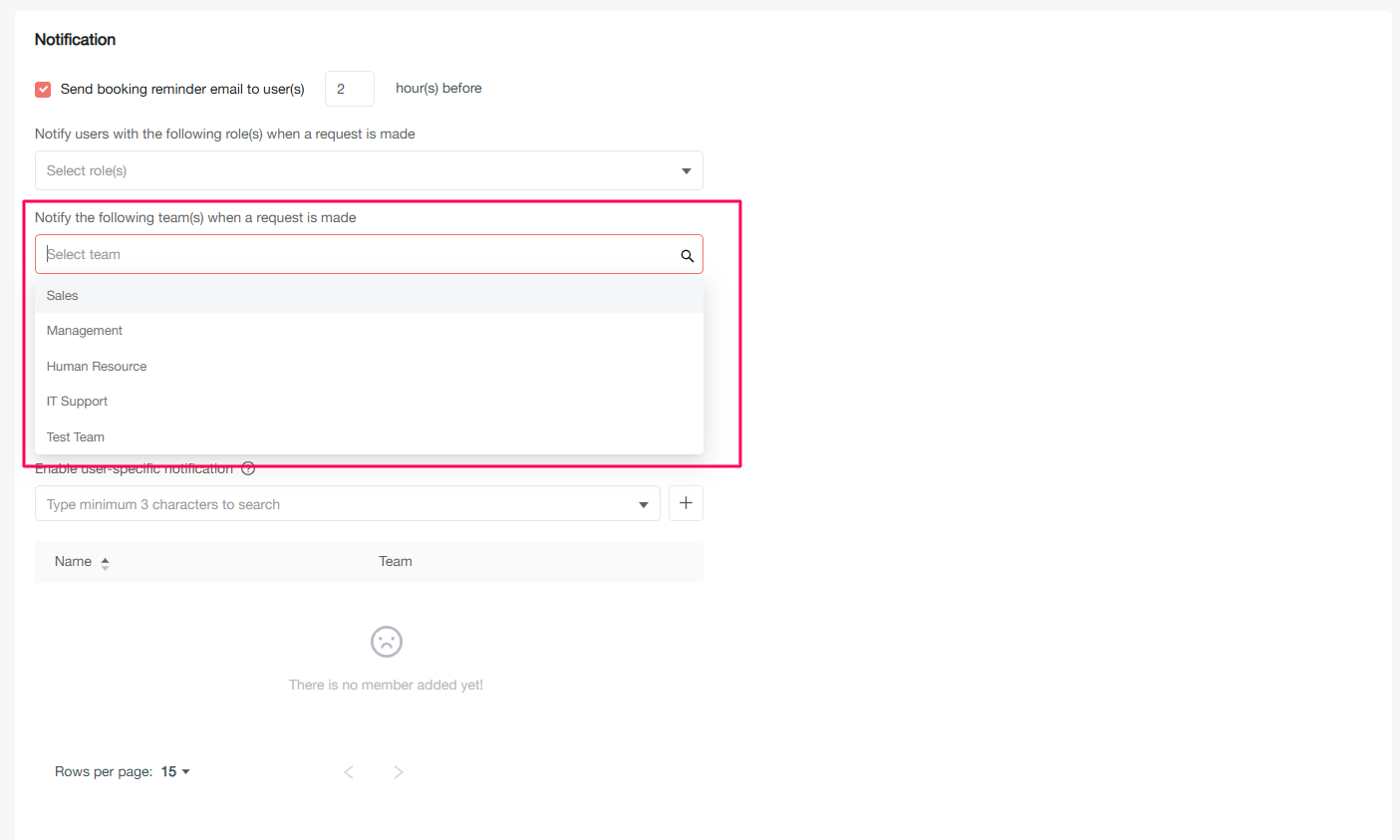
Choose from default and custom teams in your organization.
Additional recipients
Add external email addresses for booking notifications:
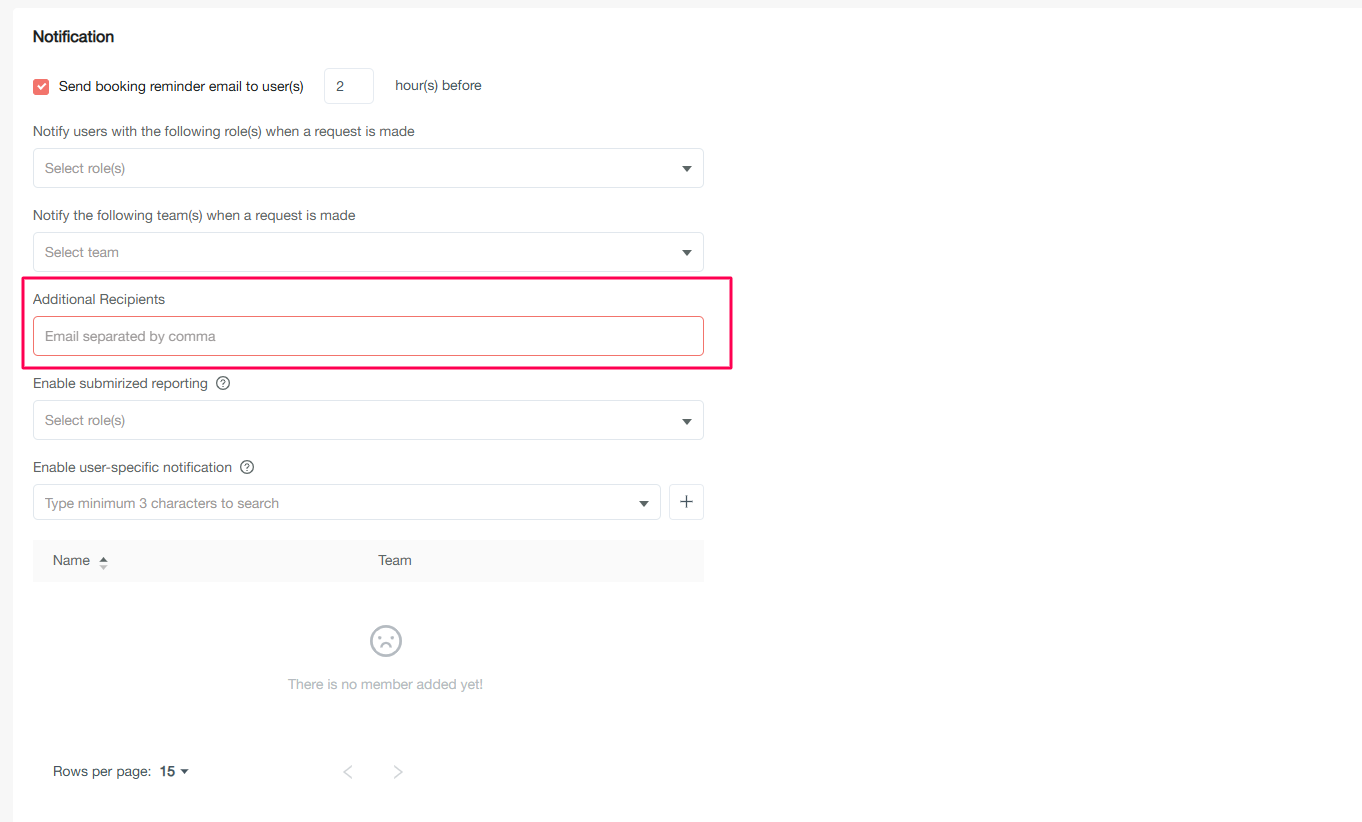
Enter one or more external email addresses to receive booking updates.
Summary reporting
Enable automated booking summaries for managers and supervisors:
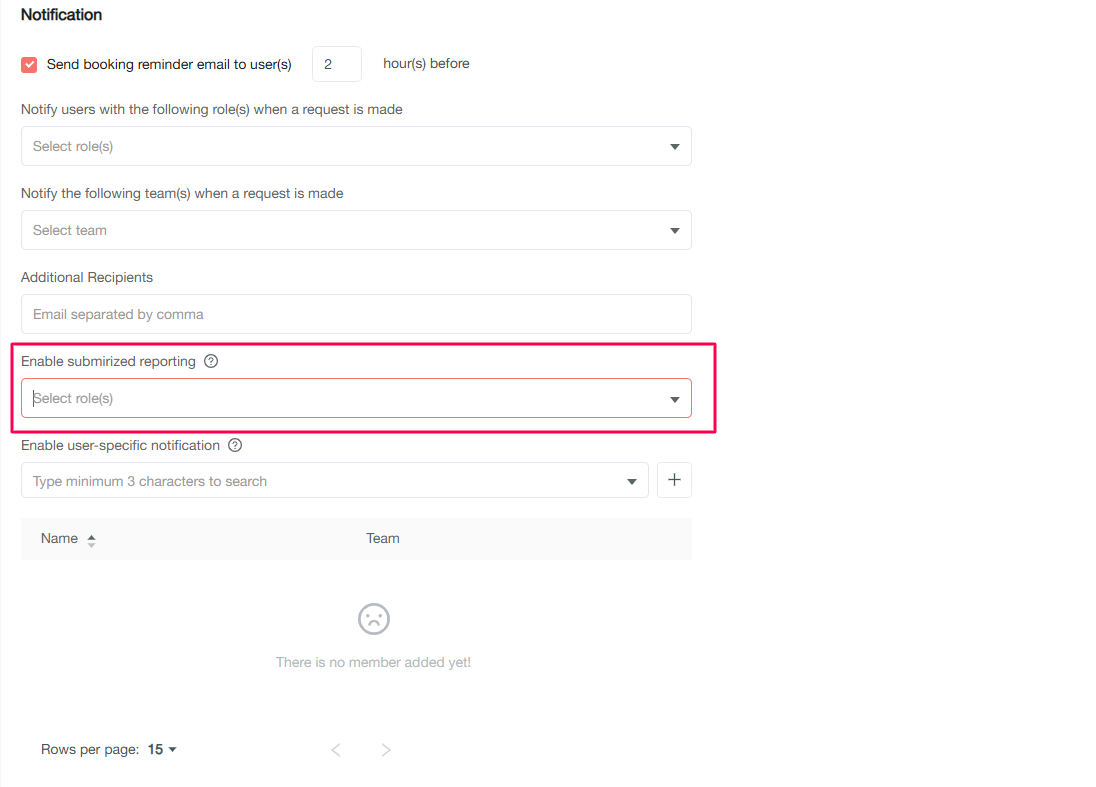
Reports are sent:
User-specific notifications
Configure specific users to receive all organizational booking notifications:
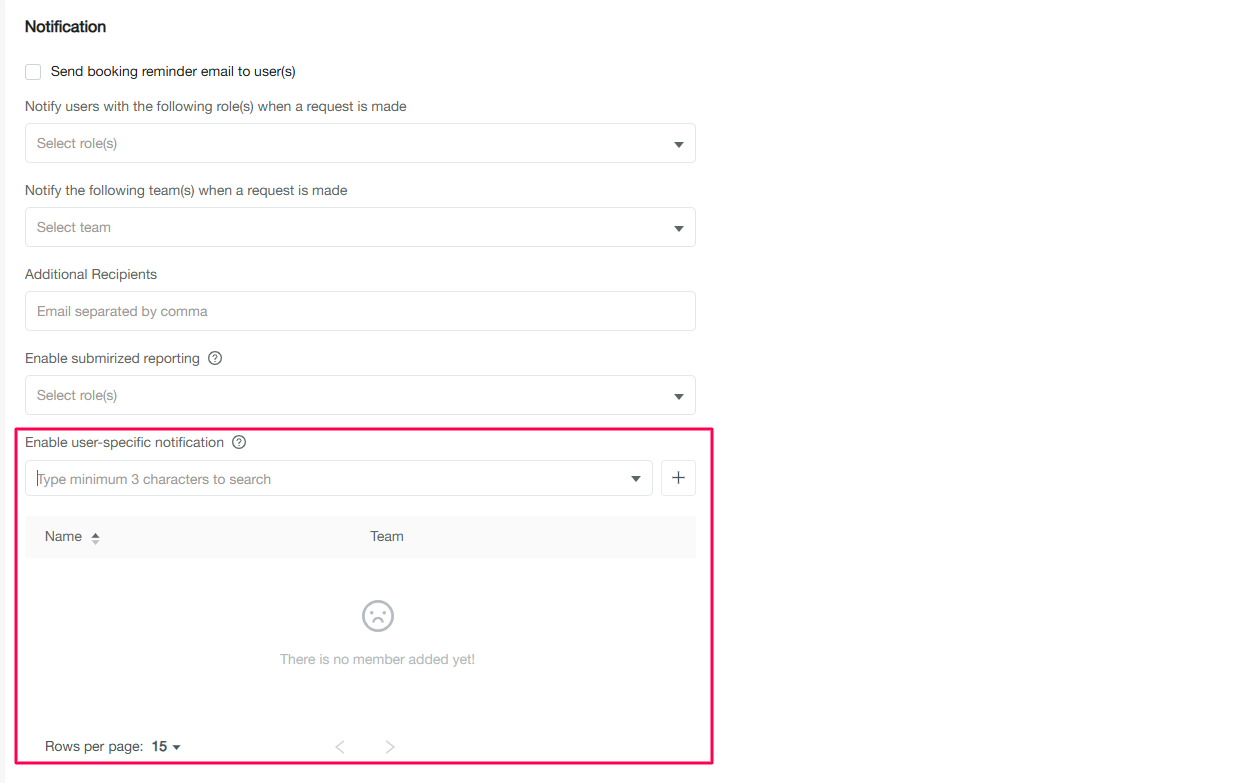
This overcomes restrictions on sending notifications to all administrators.
Managing booking locations
Configure physical locations where seat booking is available.
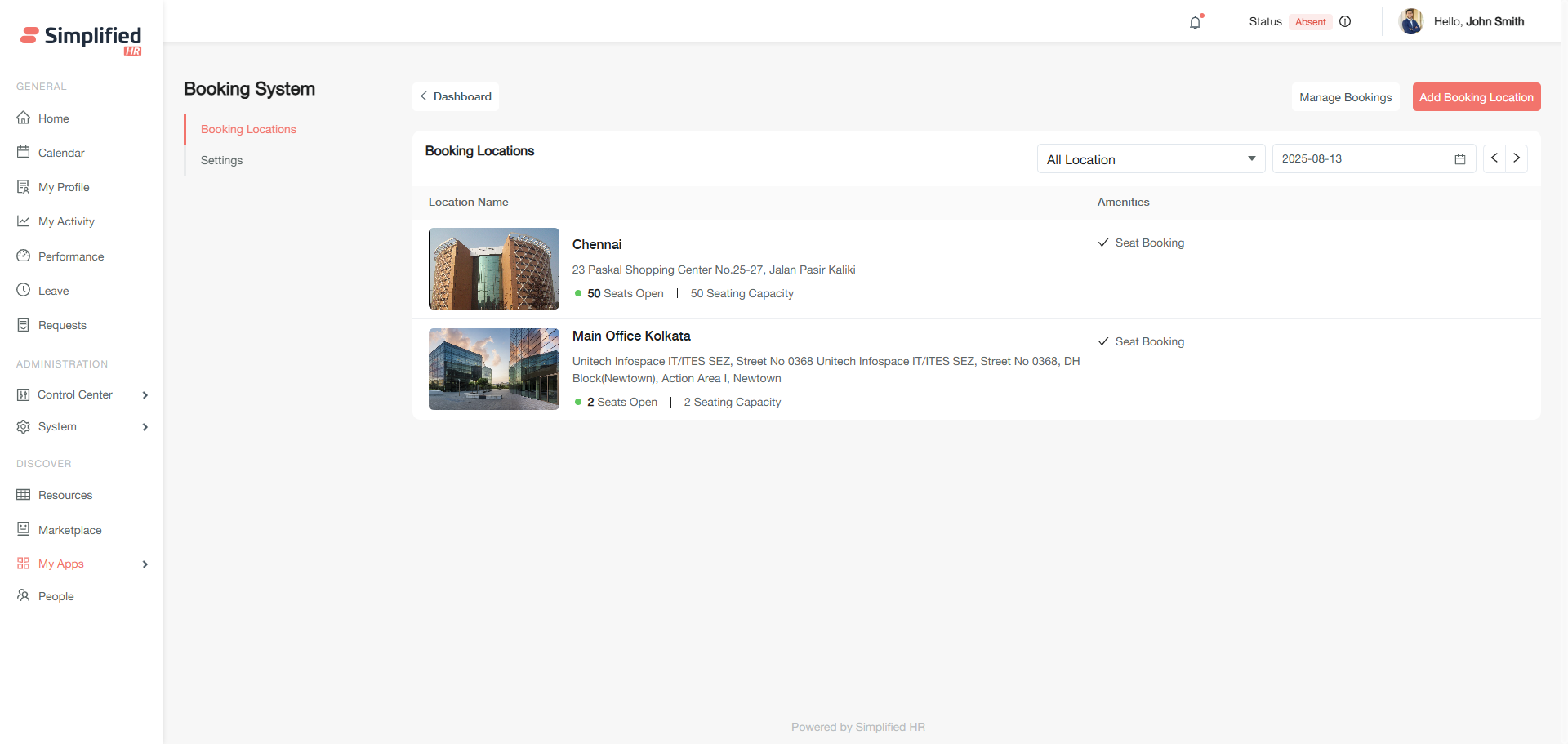
Accessing location management
-
Follow the Easybook access steps above
-
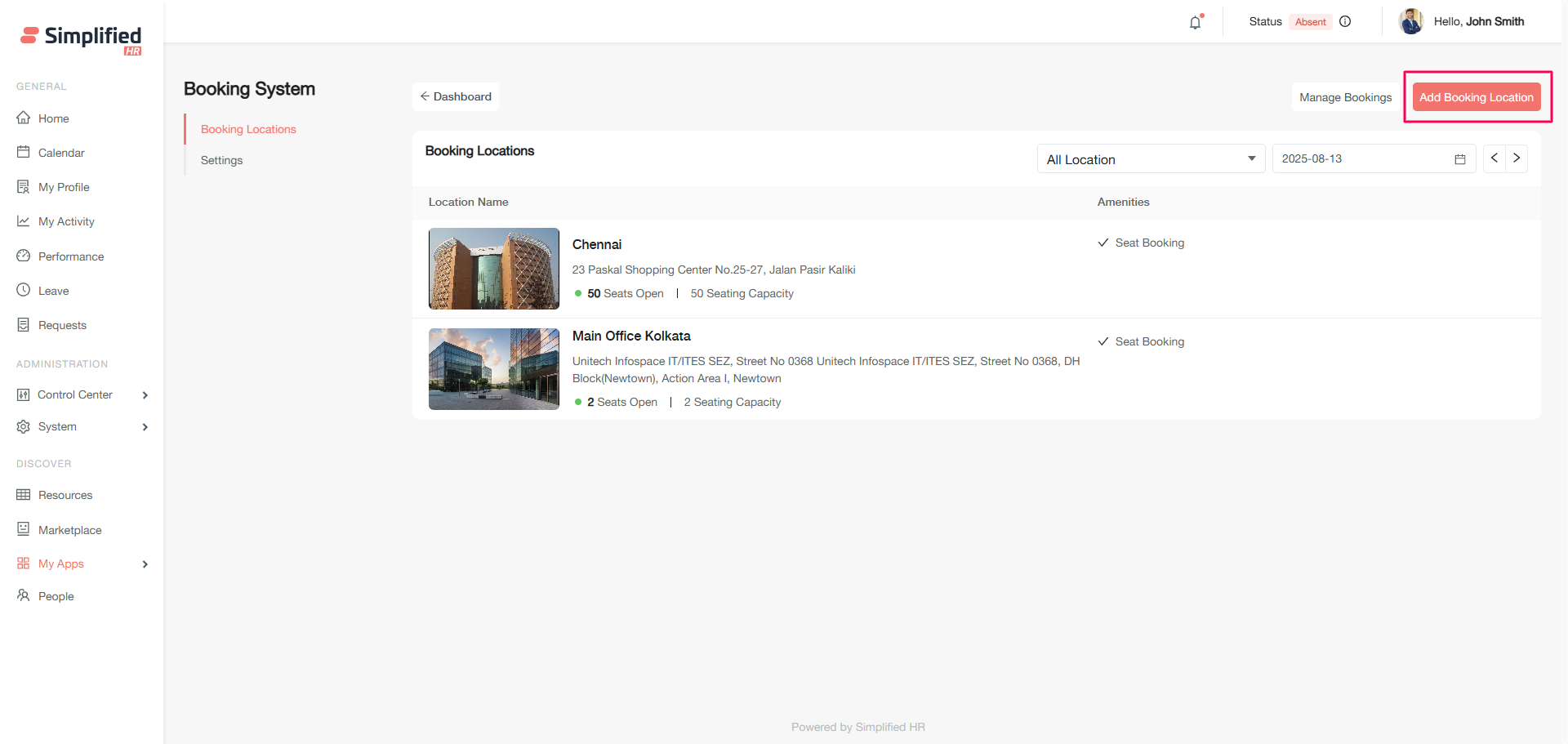
Click the Settings icon
-
Click Add Booking Location on the locations page
Adding new booking locations
Prerequisites
Configuration steps
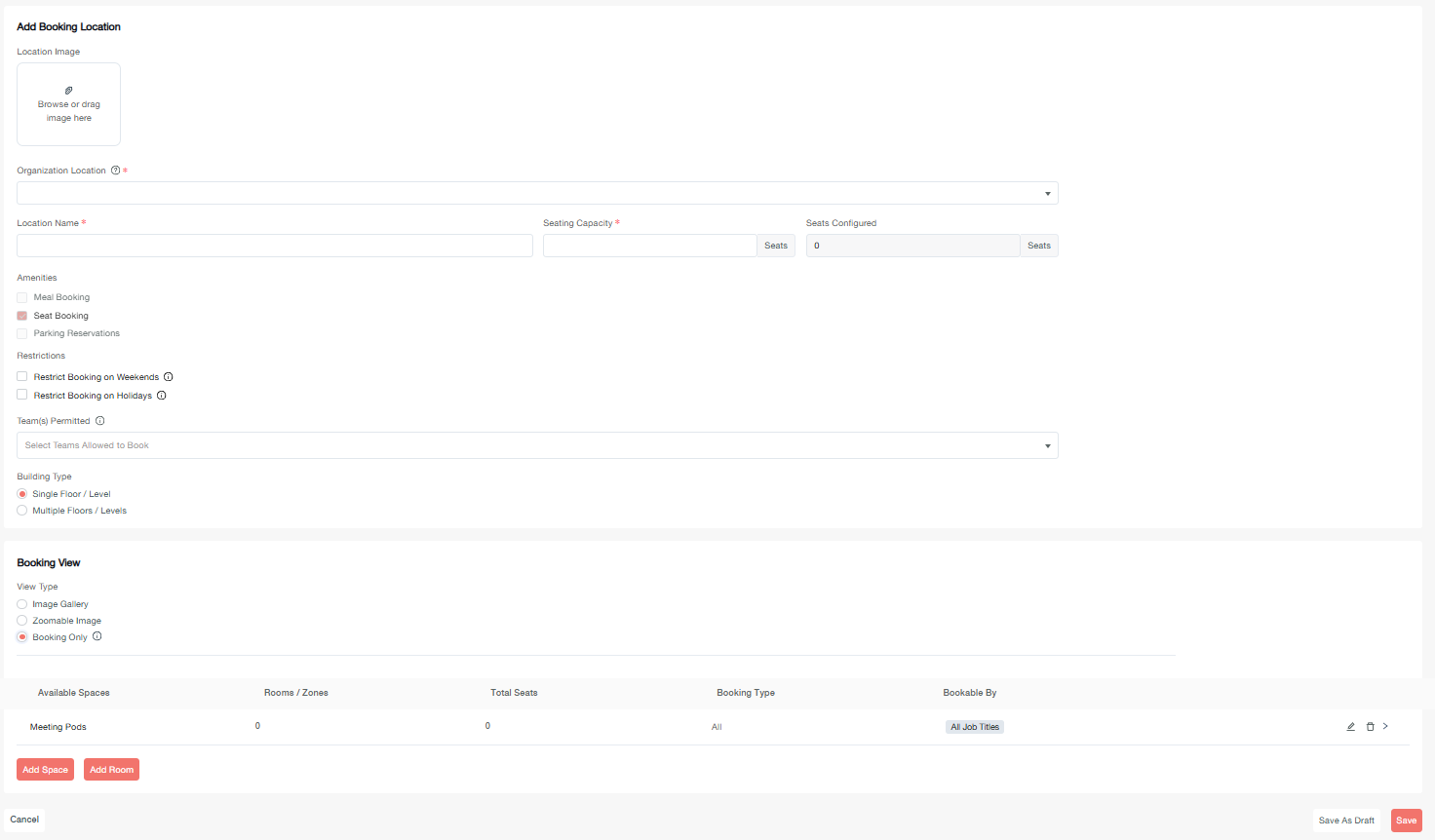
-
Upload location image: Add jpeg, jpg, png, or similar format
-
Select organization location: Choose from available locations
-
Set location name: Auto-populated but can be customized
-
Define seat capacity: Must match configured seat count
-
Configure restrictions:
-
Set team permissions: Choose "All Teams" or select specific teams
-
Configure building type: Single floor or multiple floors
Single floor configuration
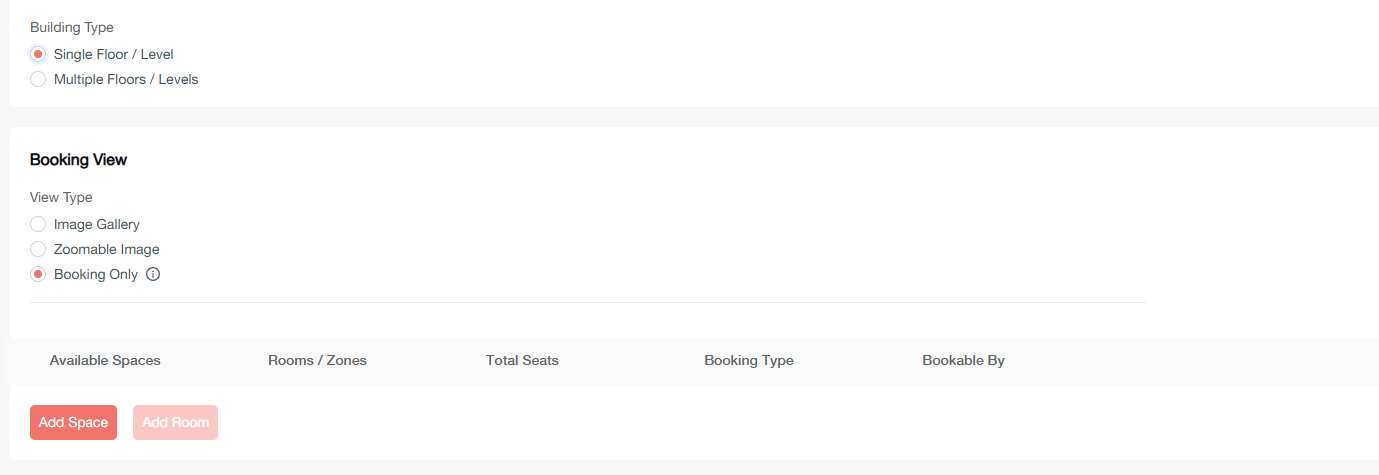
Multiple floor configuration
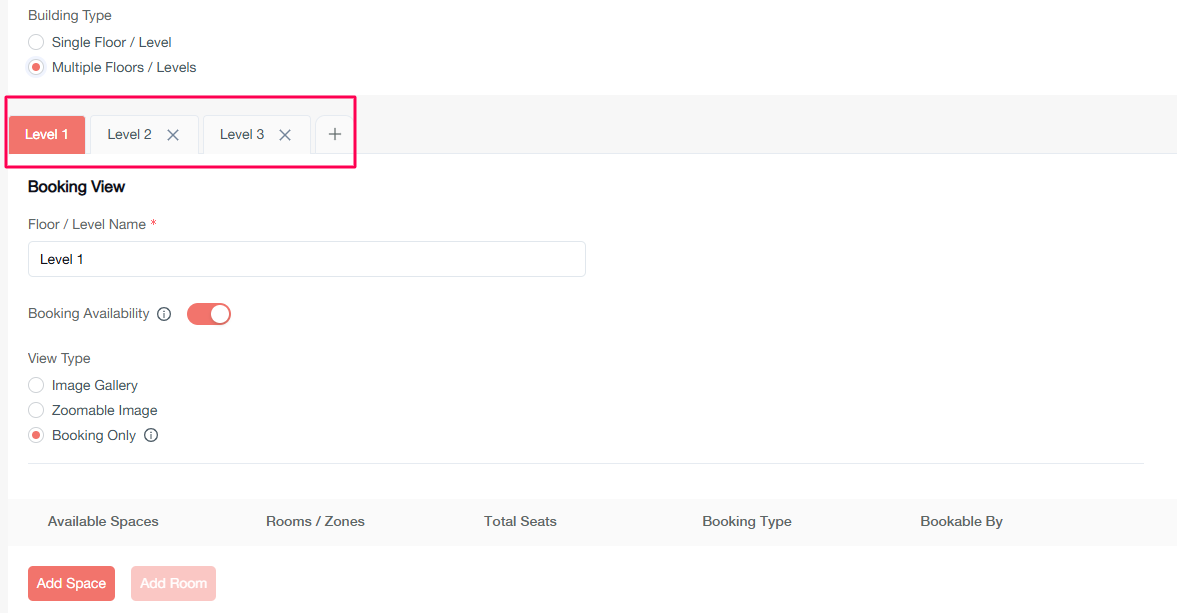
Floor availability management
Disable specific floors when needed:
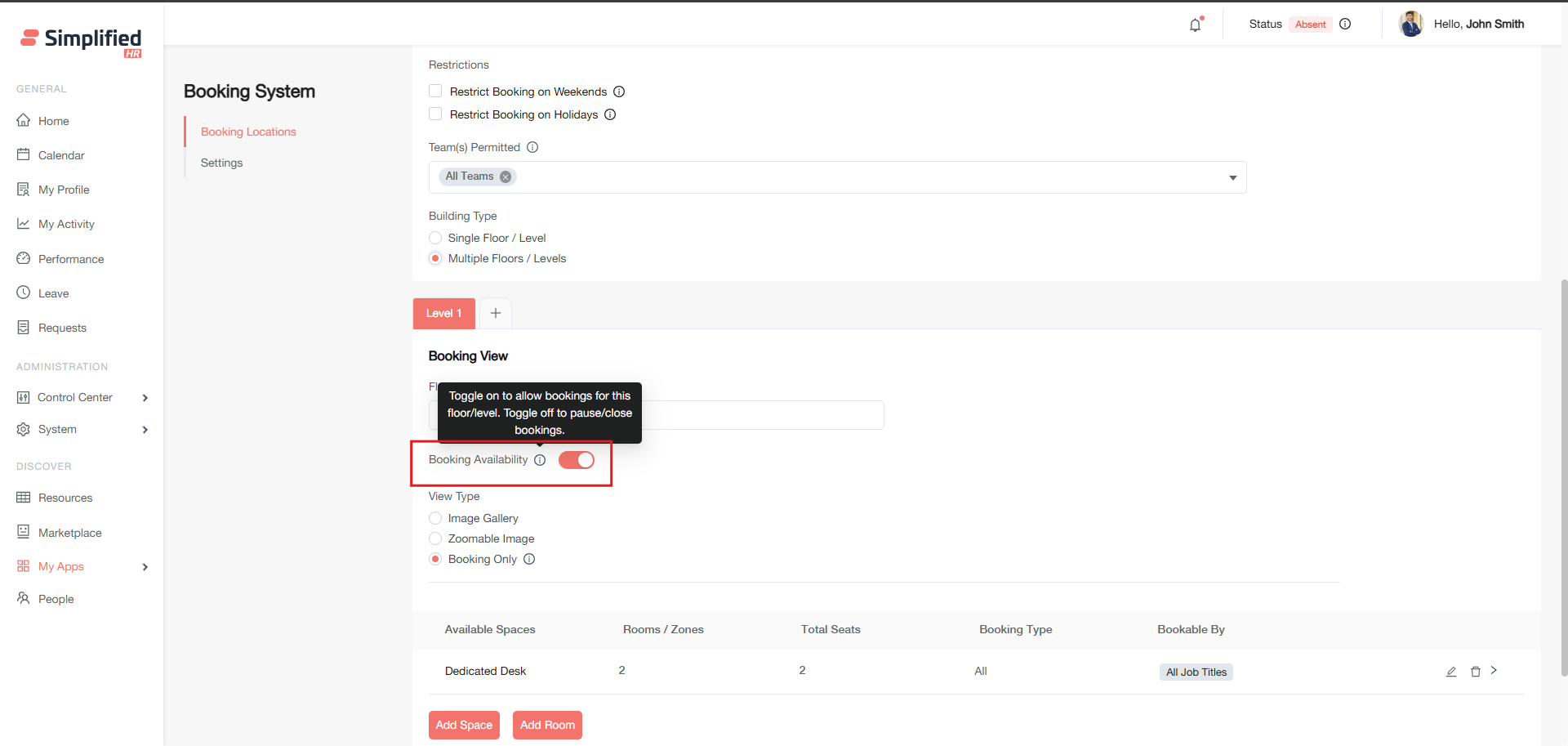
-
Edit the location
-
Navigate to the specific floor
-
Toggle off Booking Availability
Note: Disabled floor spaces and rooms won't appear in booking options.
Configuring spaces and rooms
Adding spaces to locations
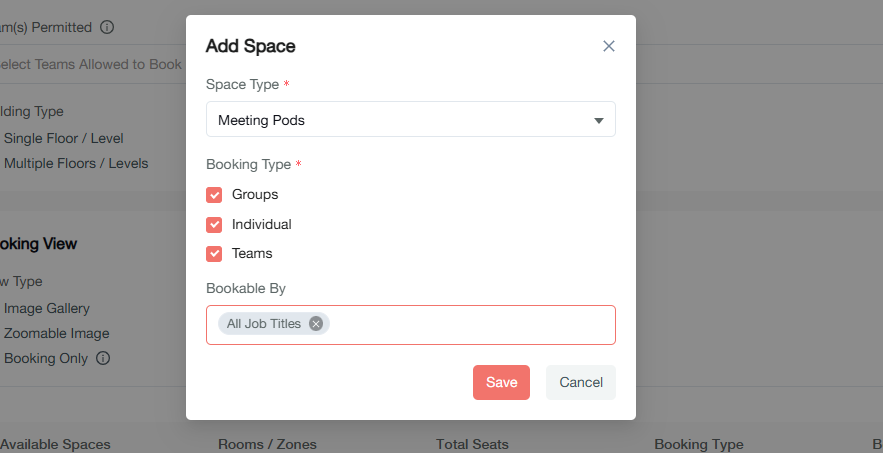
-
Click Add Space
-
Select space type from active spaces
-
Choose booking types:
-
Groups: Allow organization-wide member inclusion
-
Teams: Allow team member inclusion only
-
Individual: Allow booking owner only
- Set job title restrictions:
Adding rooms to spaces
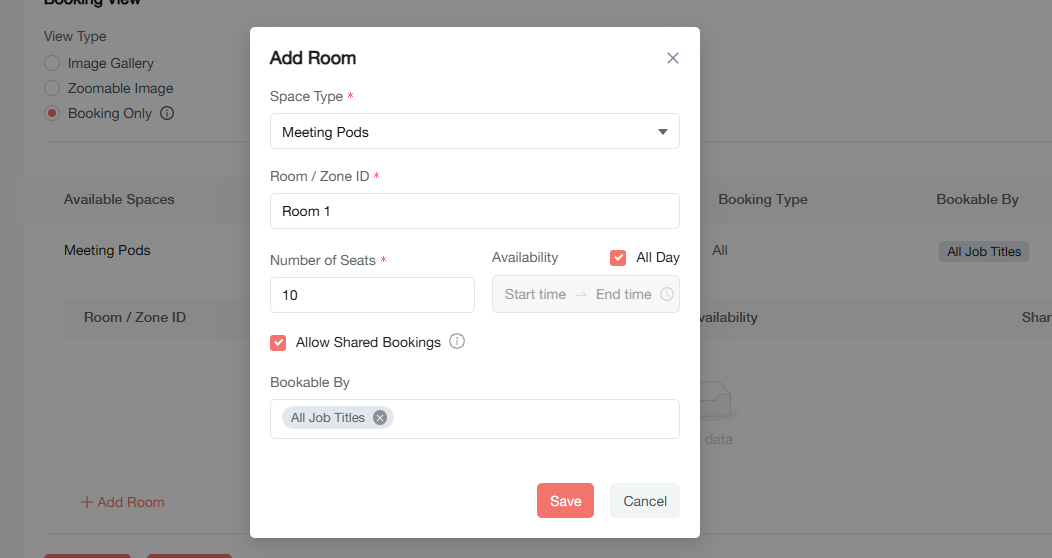
Rooms can be added in two ways:
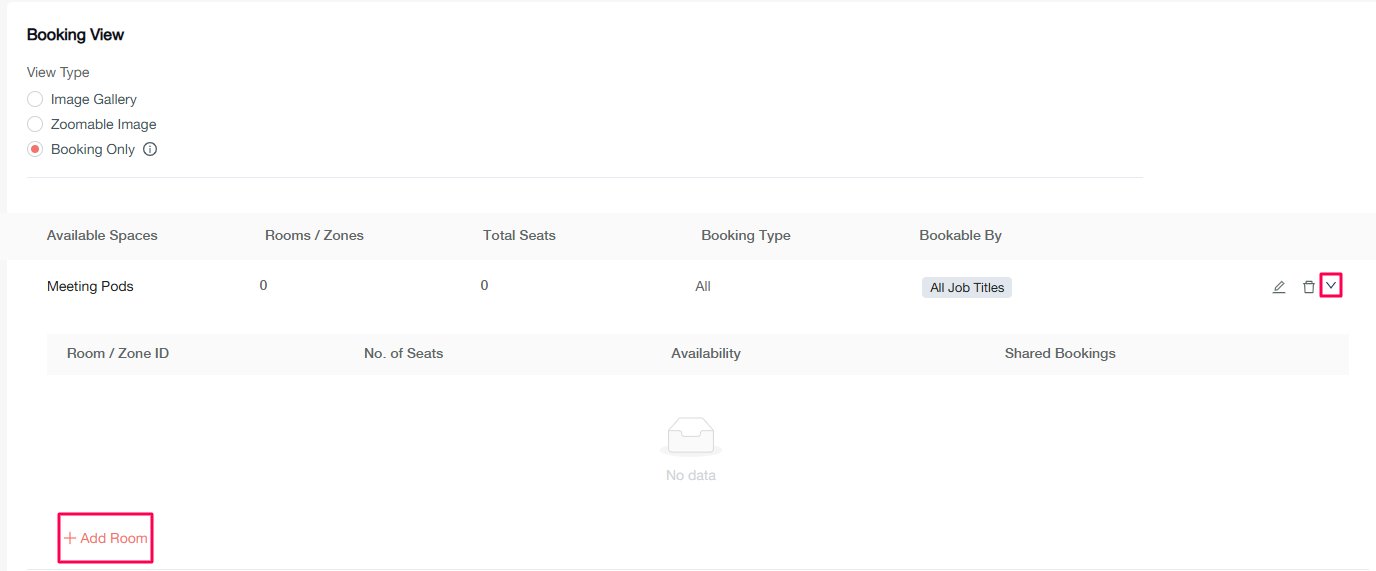
Method 1: Expand existing space
-
Click the expand button on an added space
-
Click Add room
-
Configure room settings:
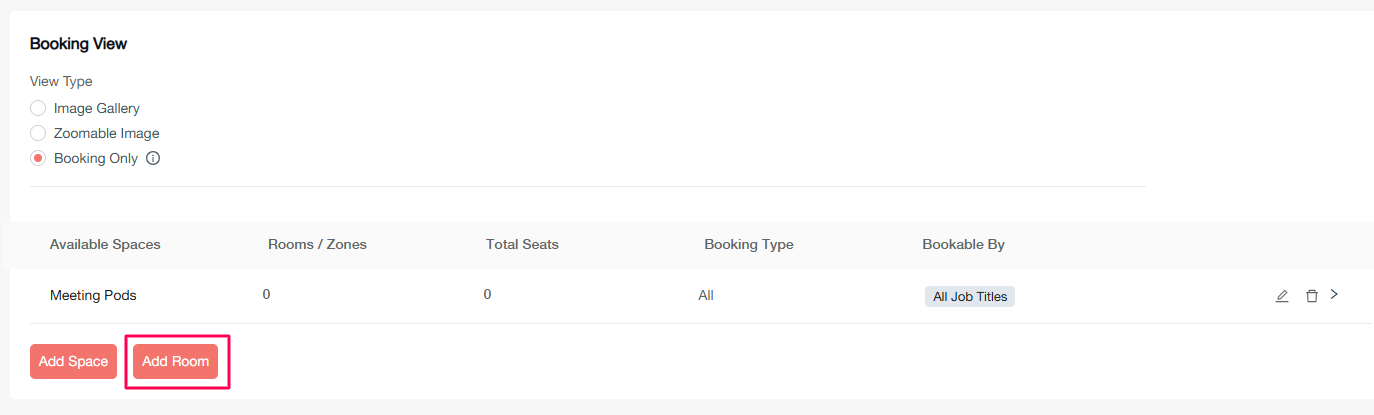
Method 2: Direct room addition
-
Click Add Rooms
-
Select the target space
-
Configure room details using the same process as Method 1
Room management options
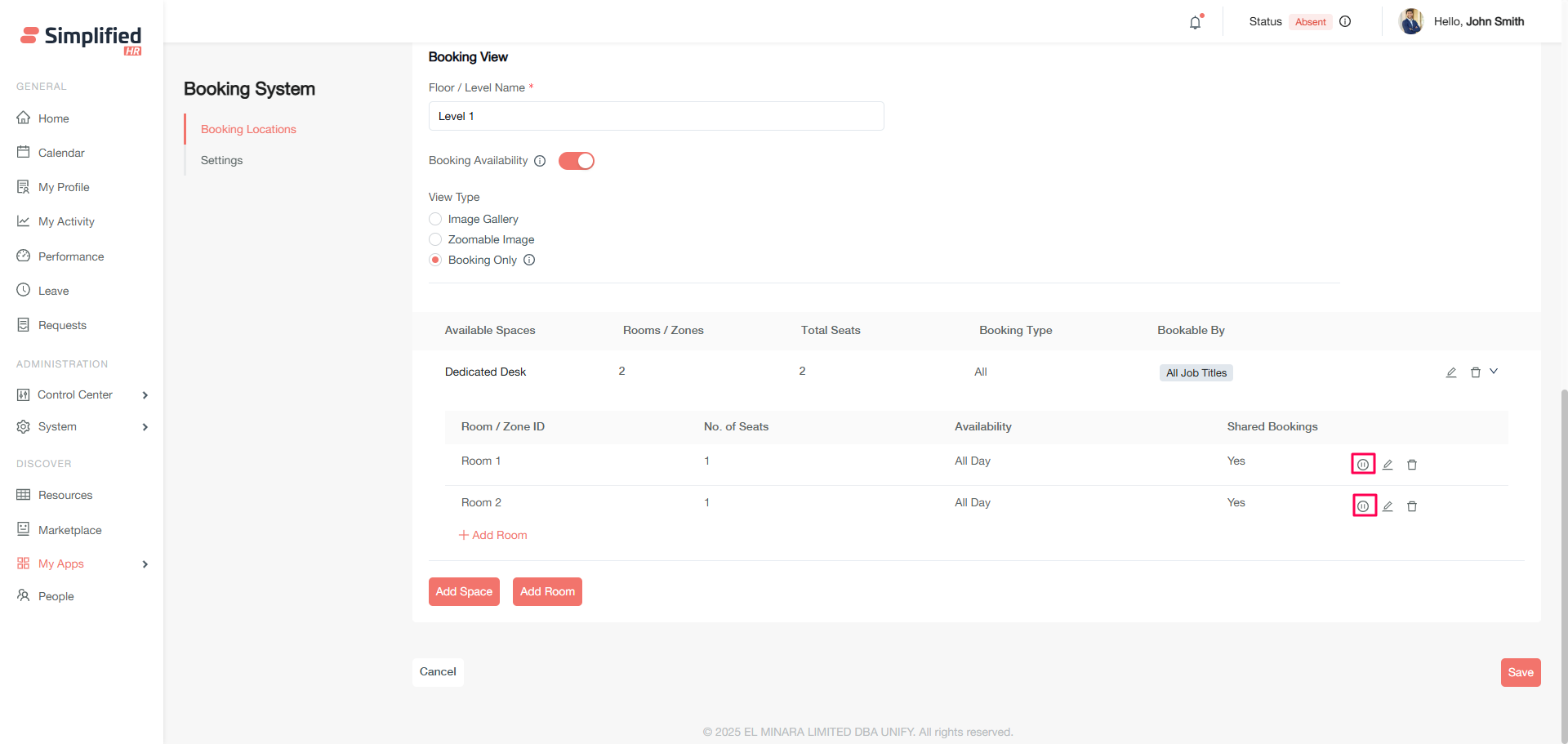
Pausing rooms: Temporarily disable rooms from booking
-
Edit the location
-
Navigate to the specific room
-
Click the pause button
Note: Paused rooms display as unavailable:
Deleting rooms: Permanently remove rooms
-
Edit the location
-
Navigate to the specific room
-
Click the delete button
Booking view configuration
Choose how users interact with room selection:
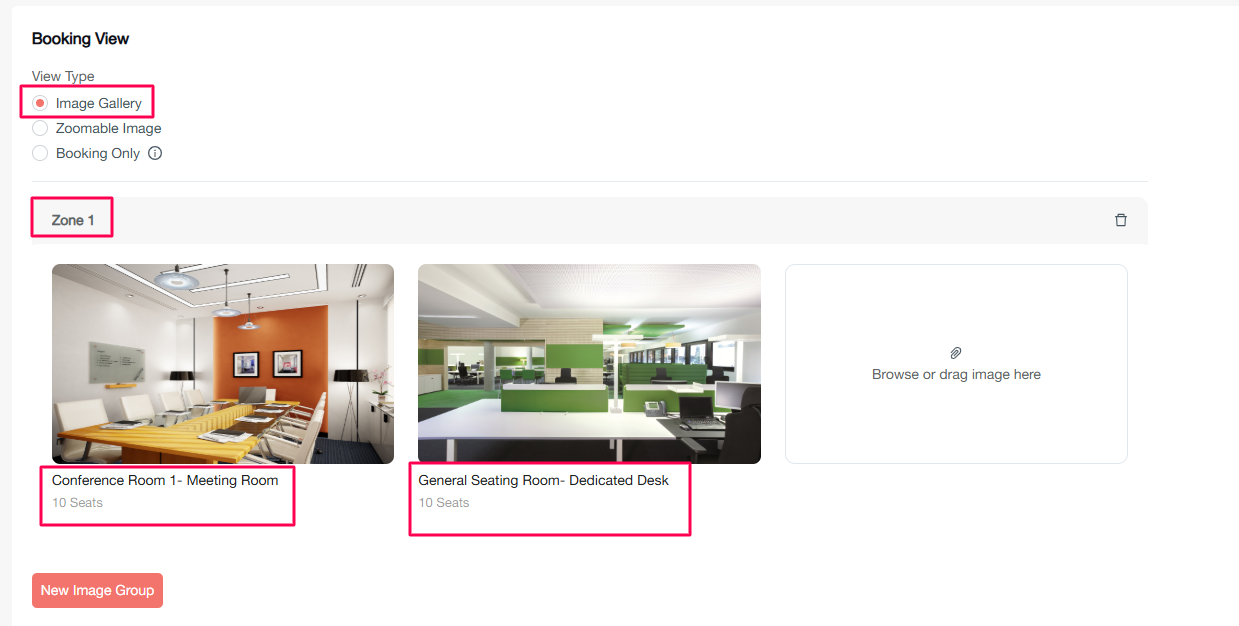
Image gallery
-
Add images for each room grouped by space
-
Include room information and descriptions
-
Display space, room name, and seat count
Zoomable image
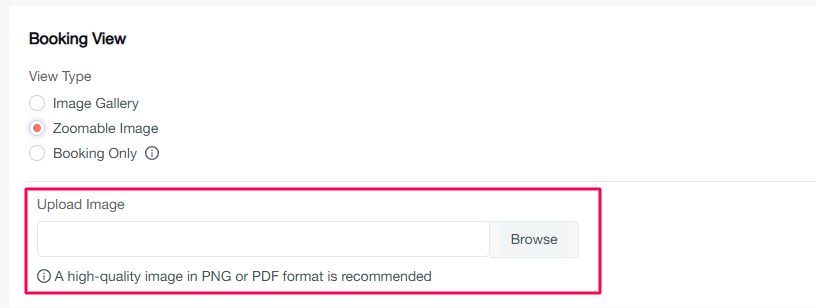
Booking only
Location management operations
Modifying locations
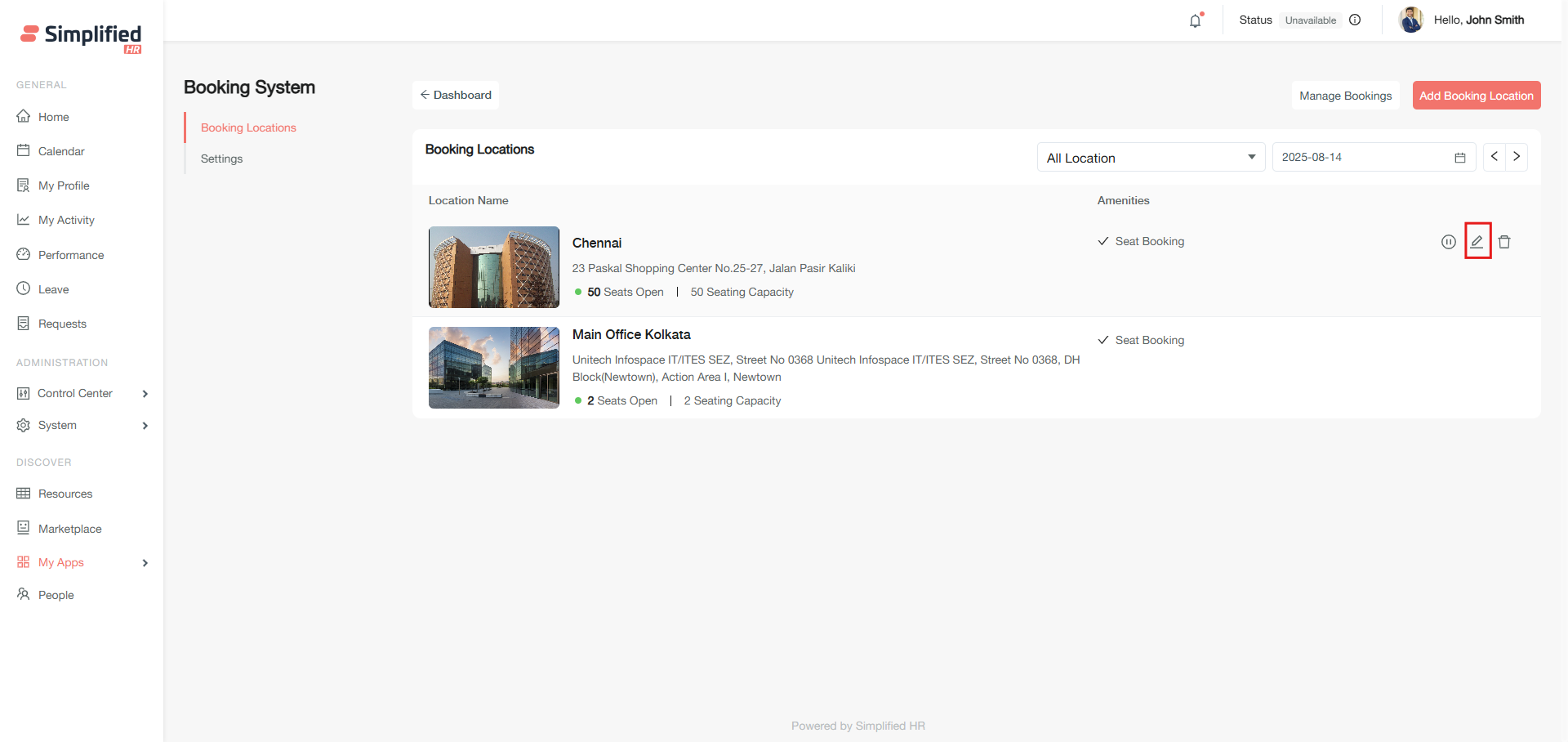
-
Hover over the target location
-
Click the modify icon
-
Update settings as needed
-
Click Save
Pausing locations
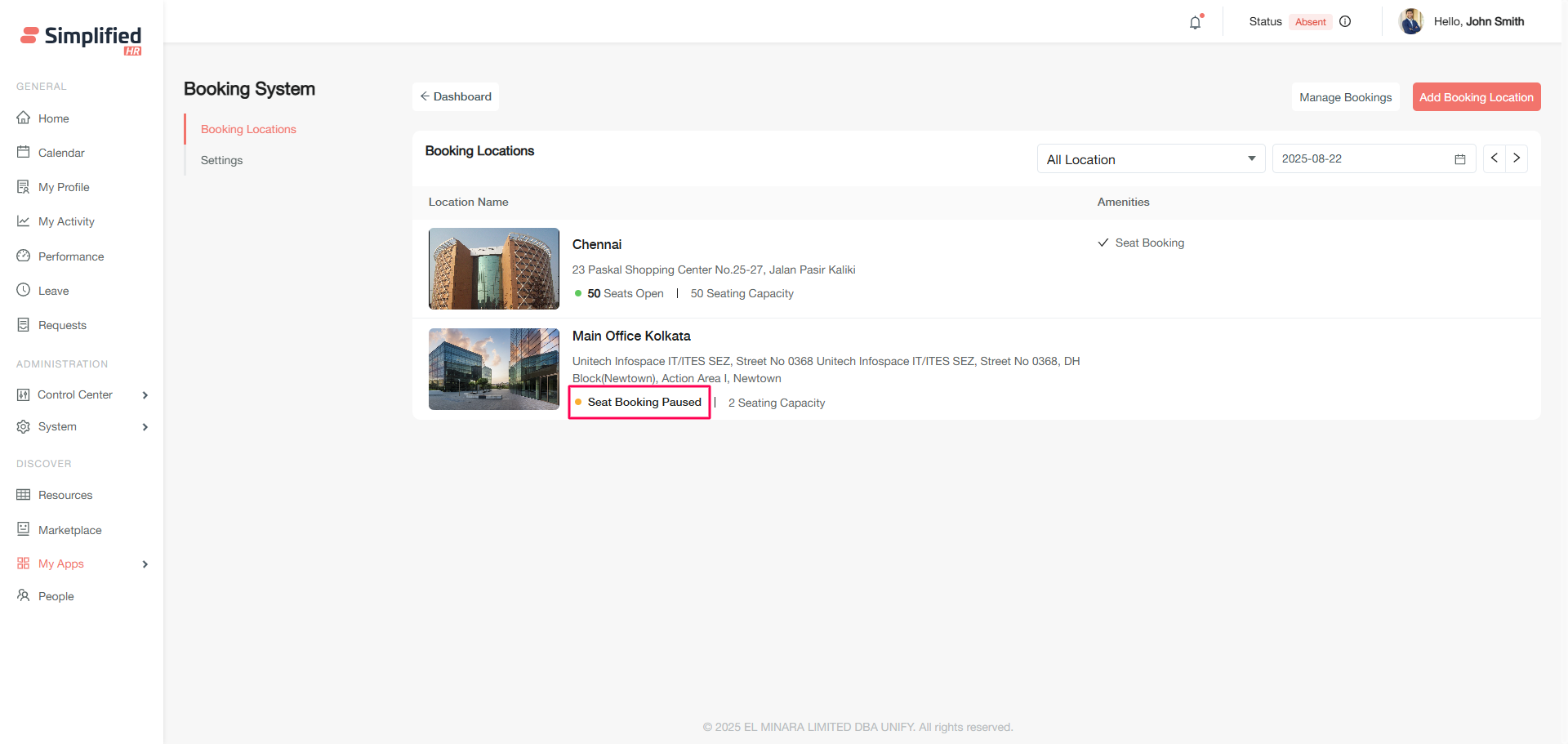
-
Hover over the target location
-
Click the pause icon
-
Confirm the action
Effects of pausing:
-
Past bookings remain unchanged
-
Current date bookings remain but can't be modified
-
Future bookings are automatically cancelled
Deleting locations
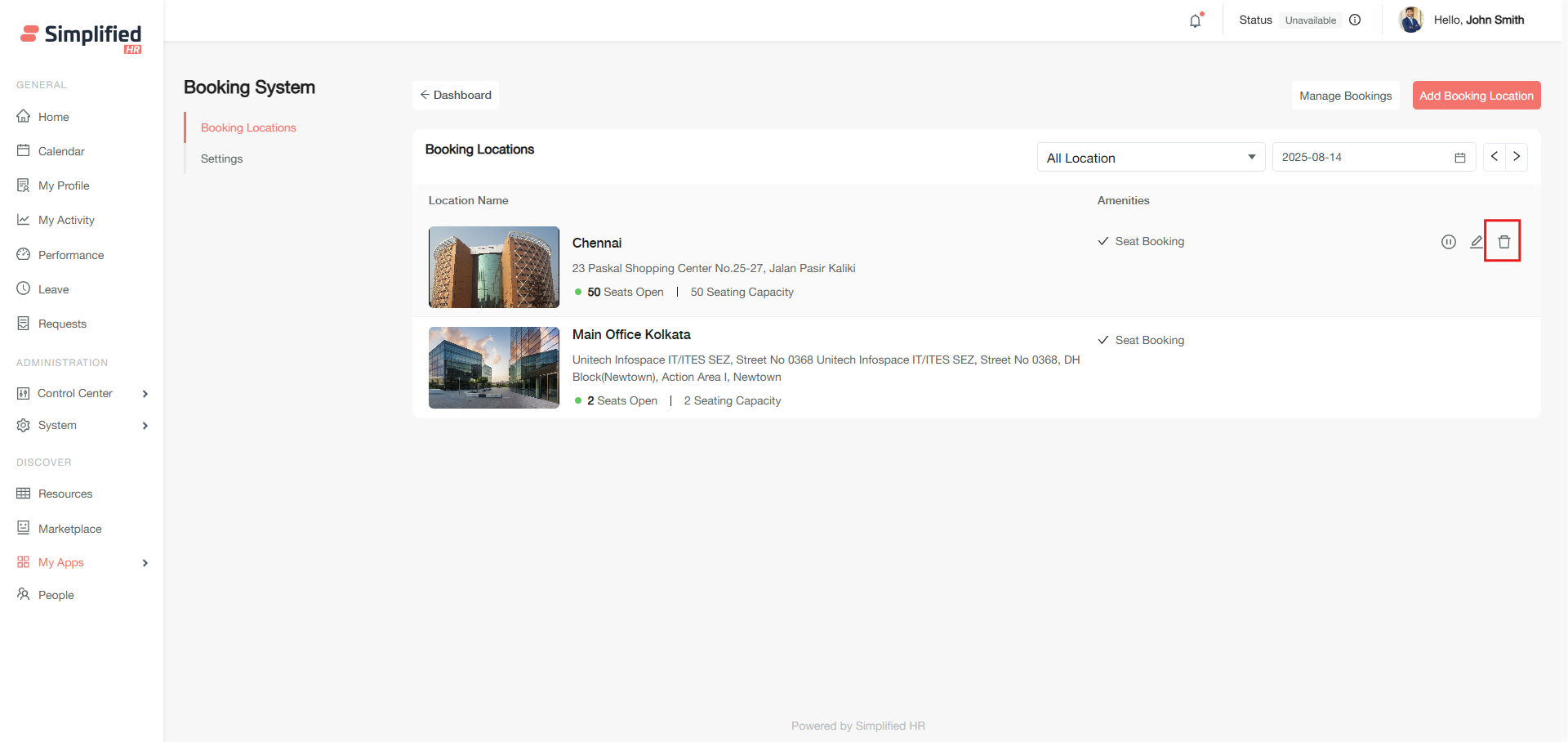
-
Hover over the target location
-
Click the delete icon
-
Confirm deletion in the modal
Troubleshooting
Common configuration issues
-
Spaces not appearing: Ensure spaces are properly saved and active
-
Room configuration errors: Verify seat counts match capacity settings
-
Credit system not working: Check credit-enabled spaces configuration
-
Notifications not sending: Verify email settings and recipient configurations
-
Location access issues: Review team permissions and job title restrictions
Getting help
If you encounter issues not covered in this guide:
-
Review your organization's specific requirements
-
Check user permissions and role assignments
-
Contact system support for advanced configuration needs
Next steps
-
Set up your first booking location using the configuration steps above
-
Configure notification preferences for your organization
-
Train users on the booking process and available features
-
Monitor booking patterns and adjust restrictions as needed
-
Explore advanced reporting and analytics features