Request or opening a ticket is possible from this interface where any member in the organization can raise a request.
Prerequisites for Using Request Feature
-
To raise a request at least default teams or categories must be configured.
-
Proper Roles and permissions should be available to access and raise requests.
-
The request feature must be enabled by the administrator for usage.
Request Specifications
-
Requests can be created or raised from the New Request button.
-
All the requests sections will have the option to search requests with ticket ID or Subject.
-
All the requests sections will have 2 common filters such as filter by team and filter by request status.
-
My Request allows two additional filters by providing date range and by Request Age.
-
All requests allows multiple additional filters by providing:
-
Request Type: Request can be filtered using request types or reasons depending on the selected team. Request types are some pre-defined reasons configured according to the team or department.
-
Date Range: Requests can also be filtered by selecting a date range. A selected date range will filter and show the requests which are created and updated within the range.
-
Request age: Requests can also be filtered by some defined ages. A selected age will filter and sow the request which exactly matches age. Ex: 3 days- Will show those requests which were created exactly 3 days ago.
-
Assignee: Request can be filtered using Assignee. Assignee is a responsible member who will take actions on the raised request once request is assigned.
-
Requester: The member who raises a request is considered a Requester.
-
Tags: Tags are basically keywords which are optional to add in request. Tags can be added by any member who has access to a specific request.
-
Urgency level: Requests are raised with urgency level which determines priority or severity level of resolving requests.
-
Assigned Request also allows multiple filters as available in All Requests.
-
A reset option is available in all the request tabs which will clear search and applied filters.
Note: Search keyword and applied filters will not clear on page refresh and relogin, until members resets manually. This will keep the usage history till not cleared manually.
An export option is also available to export the requests. Will export requests according to the current navigated request tab.
Accessing Request
Request can be accessed in two ways:
Method 1: Side Menu Access
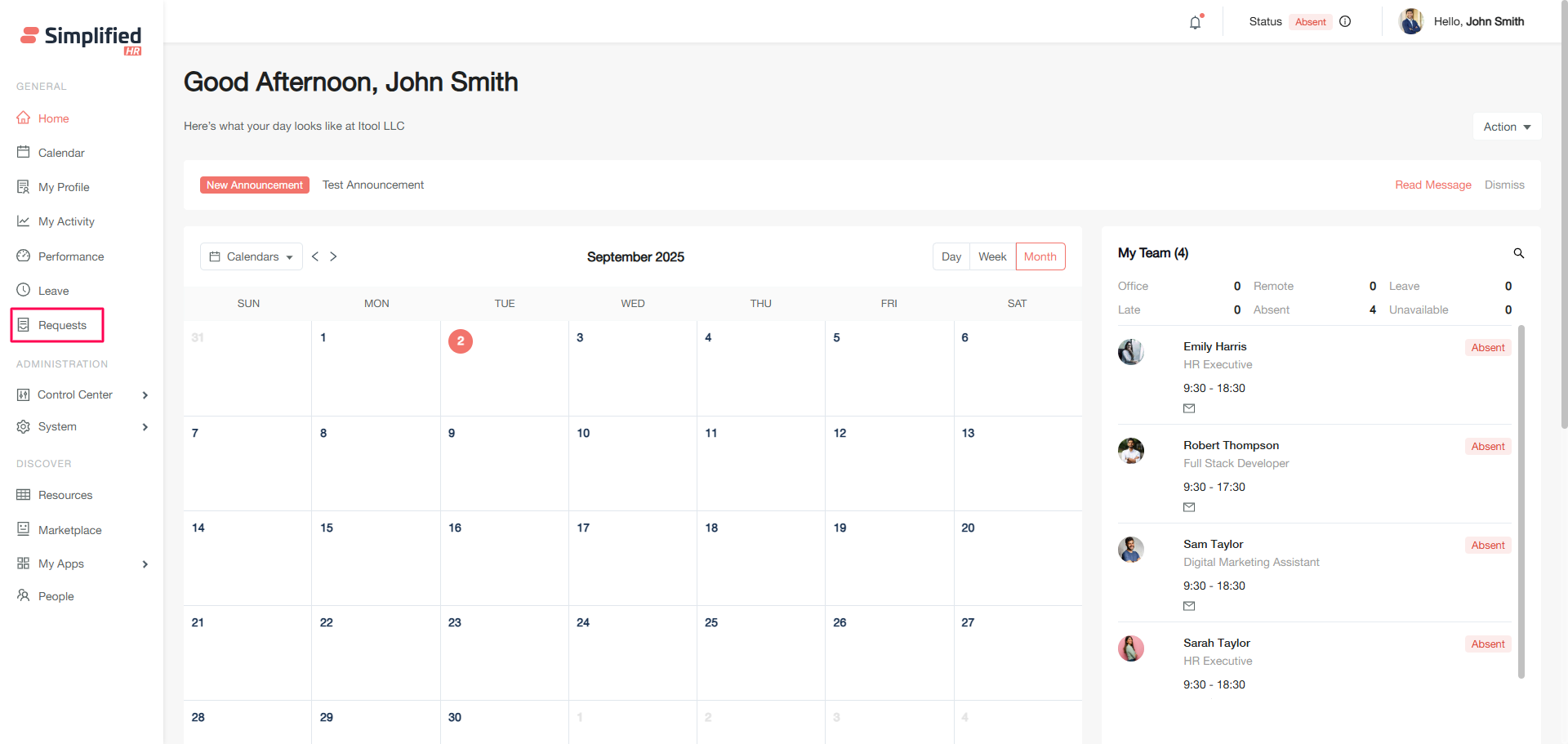
The request menu is available as a side menu bar. Clicking on it will redirect to the Request homepage.
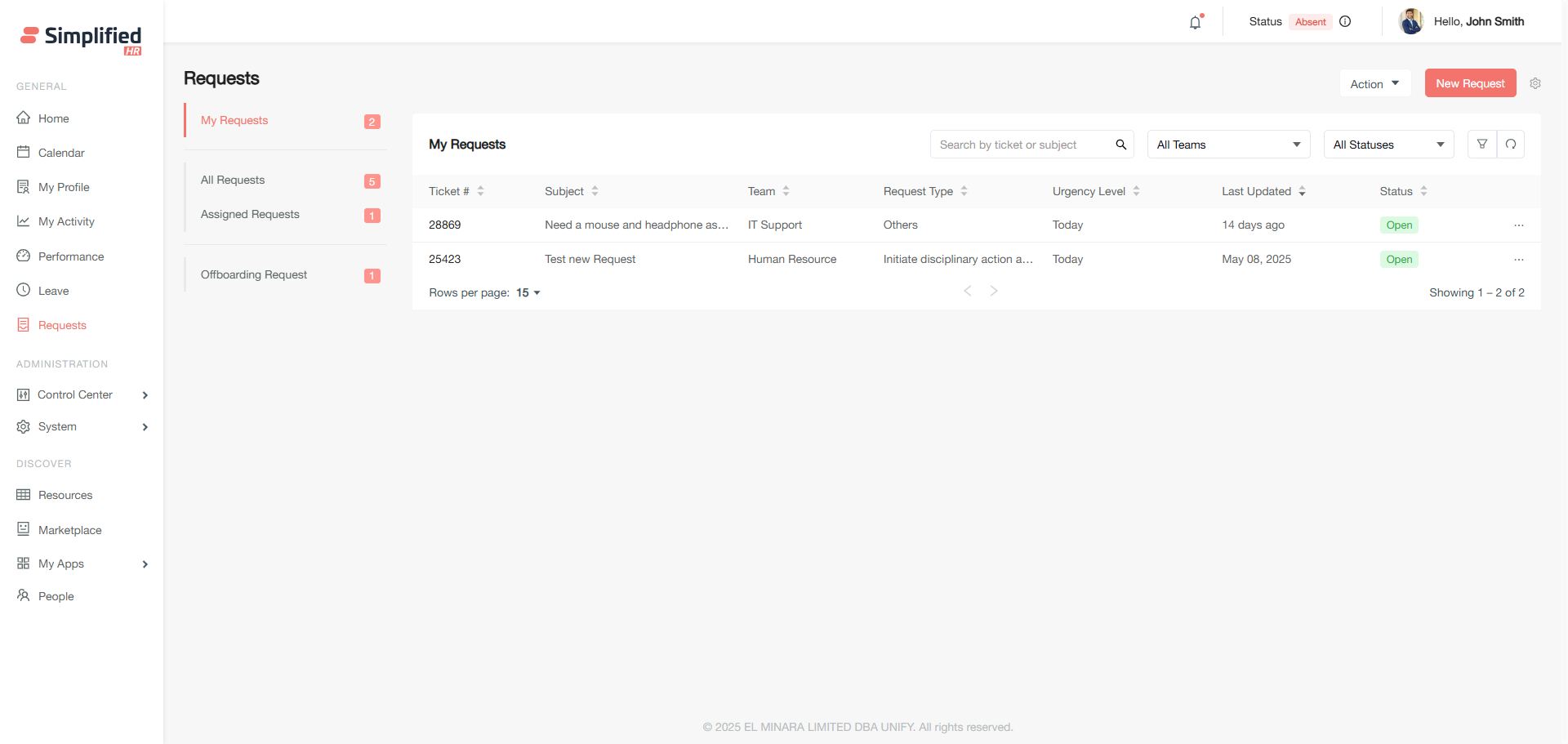
The request feature has 4 tabs where requests are organized and shown accordingly. Each request will show in tabular form with information ticket id, Subject, Team, Request Type, Urgency level, Last updated date and Request status.
Important Note:
-
The owner, administrator or any similar role member can see requests of any team or departments.
-
Non admin members can see requests of their associated teams if requests are raised to any one of their associated teams.
-
Non admin members can also see the request in All Request, if any requester or responder adds them in share with and followed by.
-
Assigned Request: Assigned Request will enlist all those requests which are assigned to the current logged in member.
-
Offboarding Request: This tab appears conditionally and is dependent on the Simplified Offboarding feature.
Method 2: User Details Access
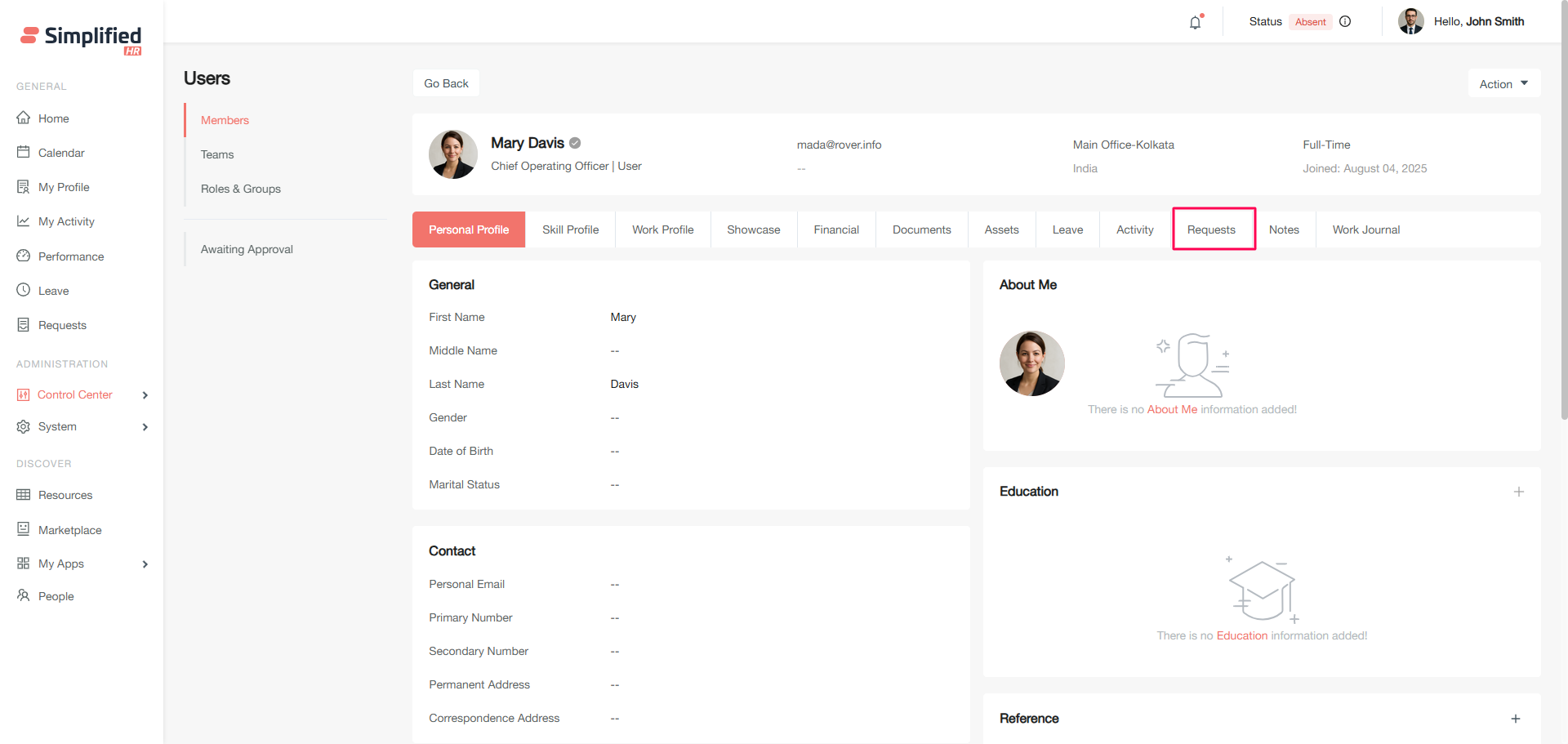
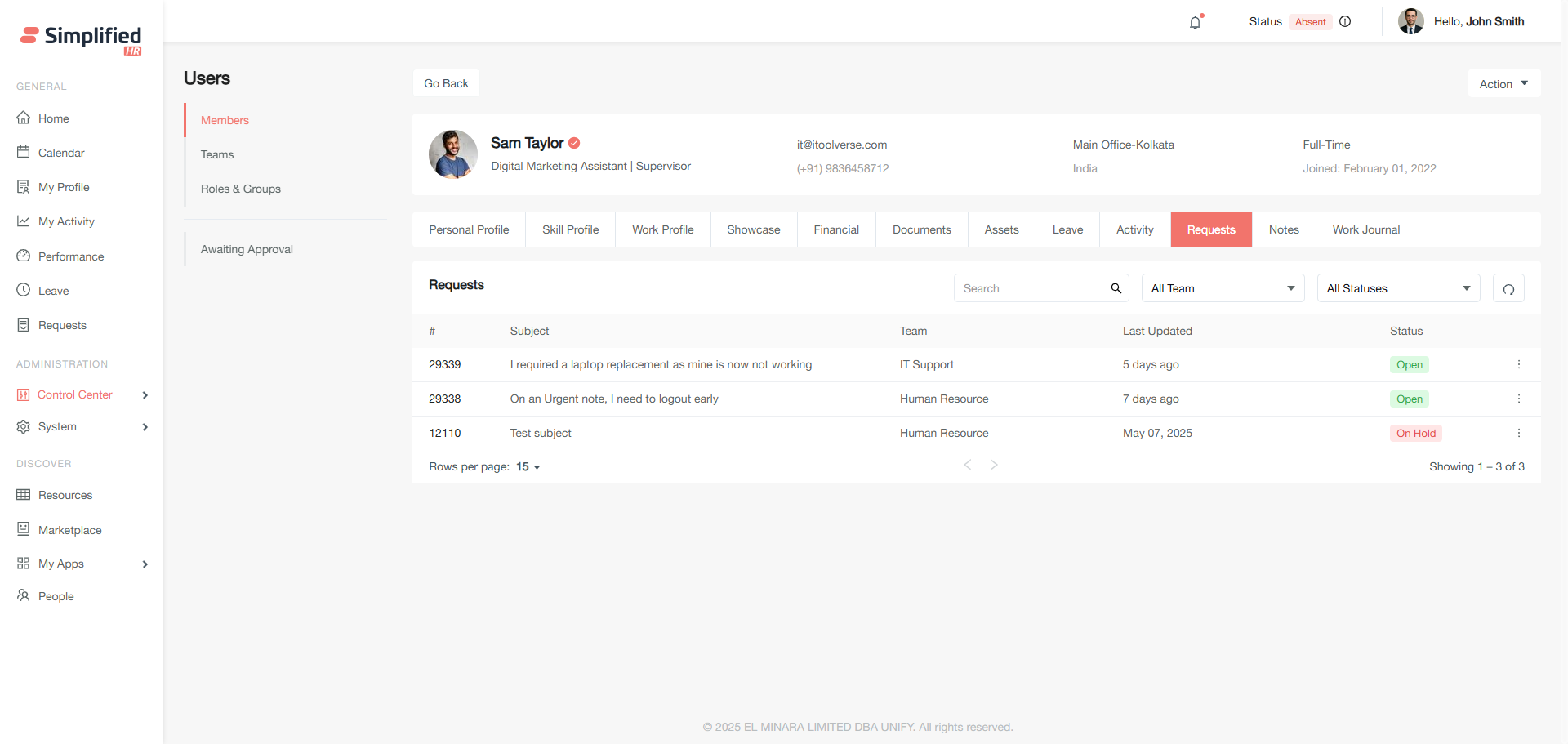
Requests can also be monitored and managed from user details by Owner, admin or similar role members in the organization using the flow Control Center > Users > View Profile > Request Tab
Adding New Request
Requests can be raised by clicking on the New Request Button in Request Homepage.
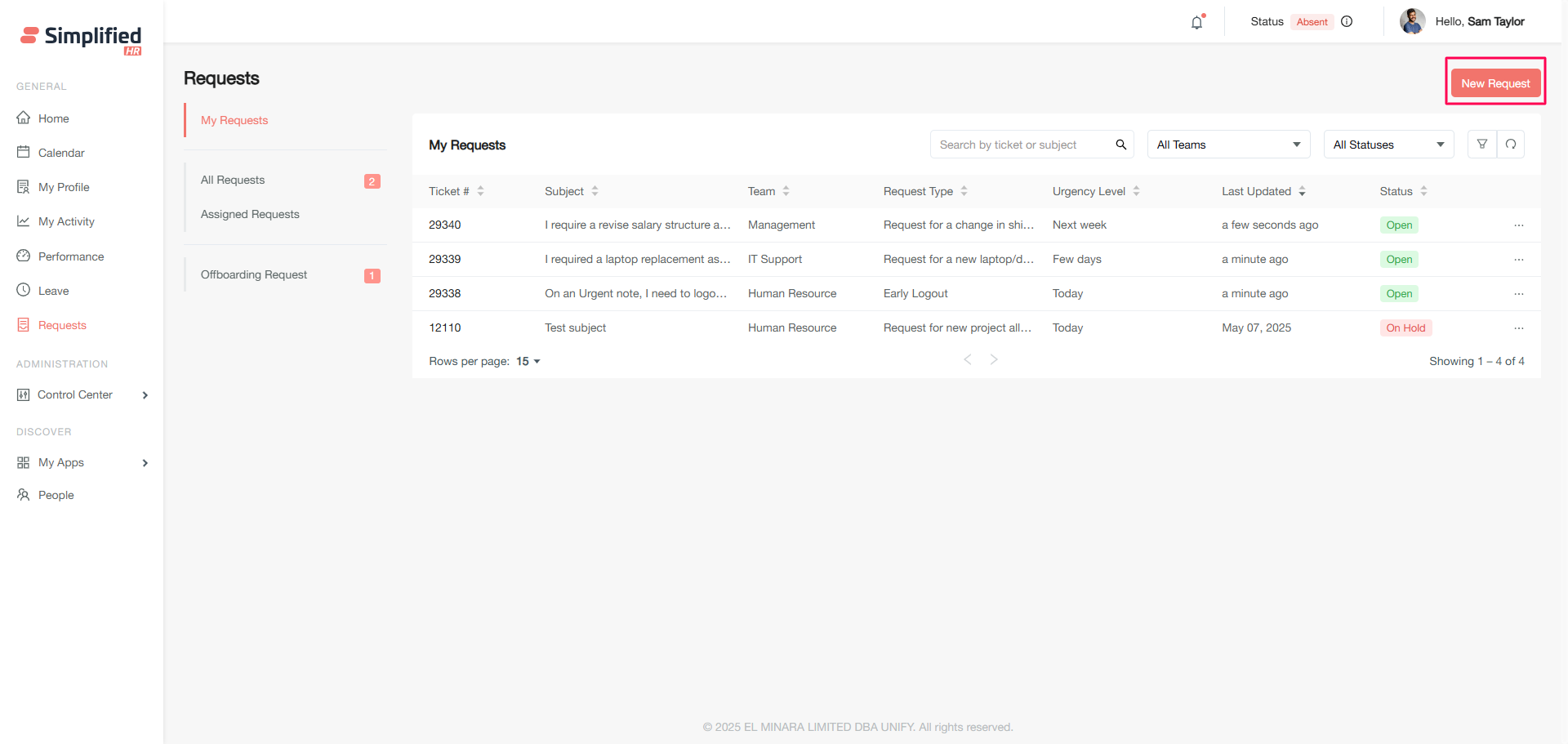
How to Raise a Request
-
Click on New Request
-
A modal will open which requires some input to be provided. 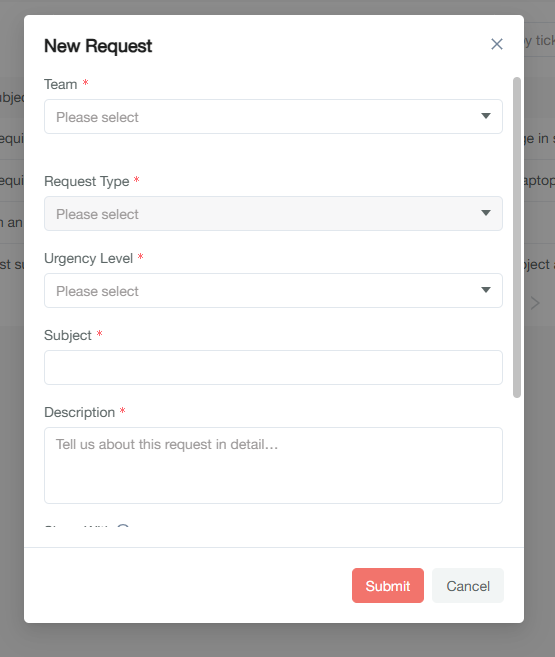
-
Select a relevant team from the drop down where a request will be raised. It's mandatory while raising a request. Ex: If there is any issue, query or request related to HR dept, then need to select Human Resource from the drop down menu.
-
Request types need to be selected depending on the team or category 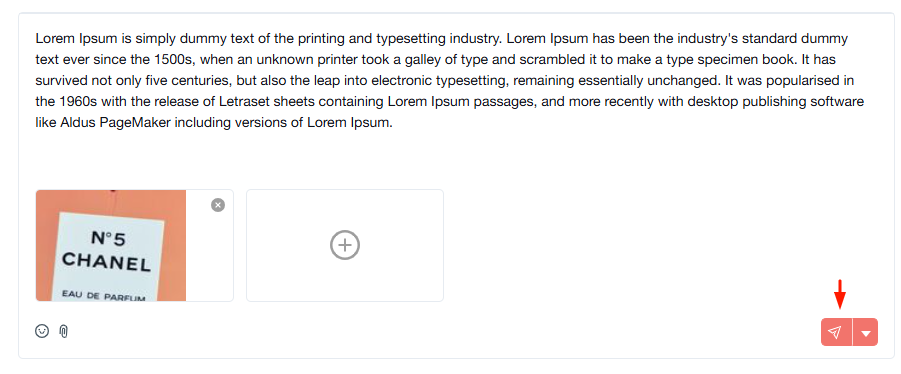 selection to make the request more specific. Request types are some pre-defined reasons configured according to the team or department. It's mandatory while raising a request.
-
Need to select urgency level which determines priority or severity level of resolving requests. It's mandatory while raising a request.
-
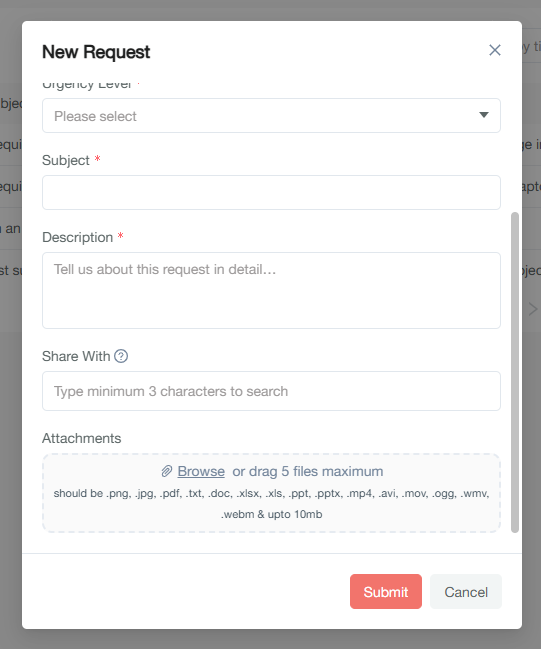
Request subject line or title need to be added as its mandatory to raise a request
-
The request description box will allow you to describe the reason in detailed and elaborated content. It's mandatory to raise a request
-
A share with field will allow you to select any relevant member to the request if needed. It's an optional field. Note: Members showing in Share with, are the members active in the organization but not the members of the current selected request team.
-
File attachments can also be added as proof of request verification. It's an optional field.
-
Click on Submit
-
A toast message will then confirm that the request has been raised.
Updating or Modifying the Request
To update or modify a request, one has to click on View Request or directly click on the required Request. All updates and actions of the request can be made from this UI.
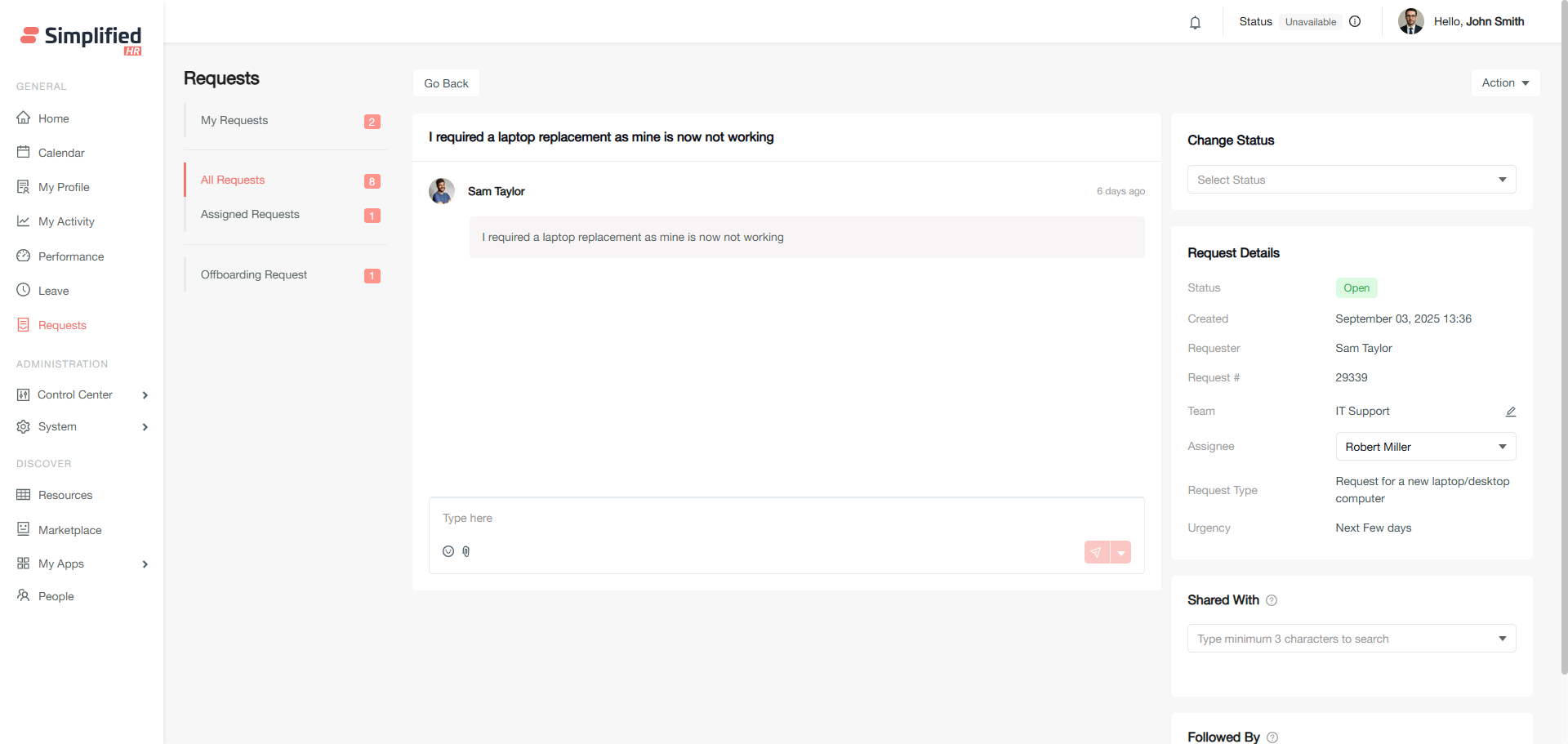
Adding Comments, Notes and Add Attachments to the Request
Specifications
-
Adding Comments, Public and private notes and adding attachments to the Request is possible from the requester end.
-
Adding Comments, Public and private notes and adding attachments to the Request is possible also from the owner, admin or similar role members.
-
Adding Comments, Public and private notes and adding attachments to the Request is also possible from the assignee.
-
Adding Comments, Public and private notes and adding attachments to the Request is also possible from the team members where the request has been raised.
-
Adding Comments, Public and private notes and adding attachments to the Request is also possible from the non admin share with members.Need discussion
How to Add Comment or Note with Attachments to the Request
Add Public Note
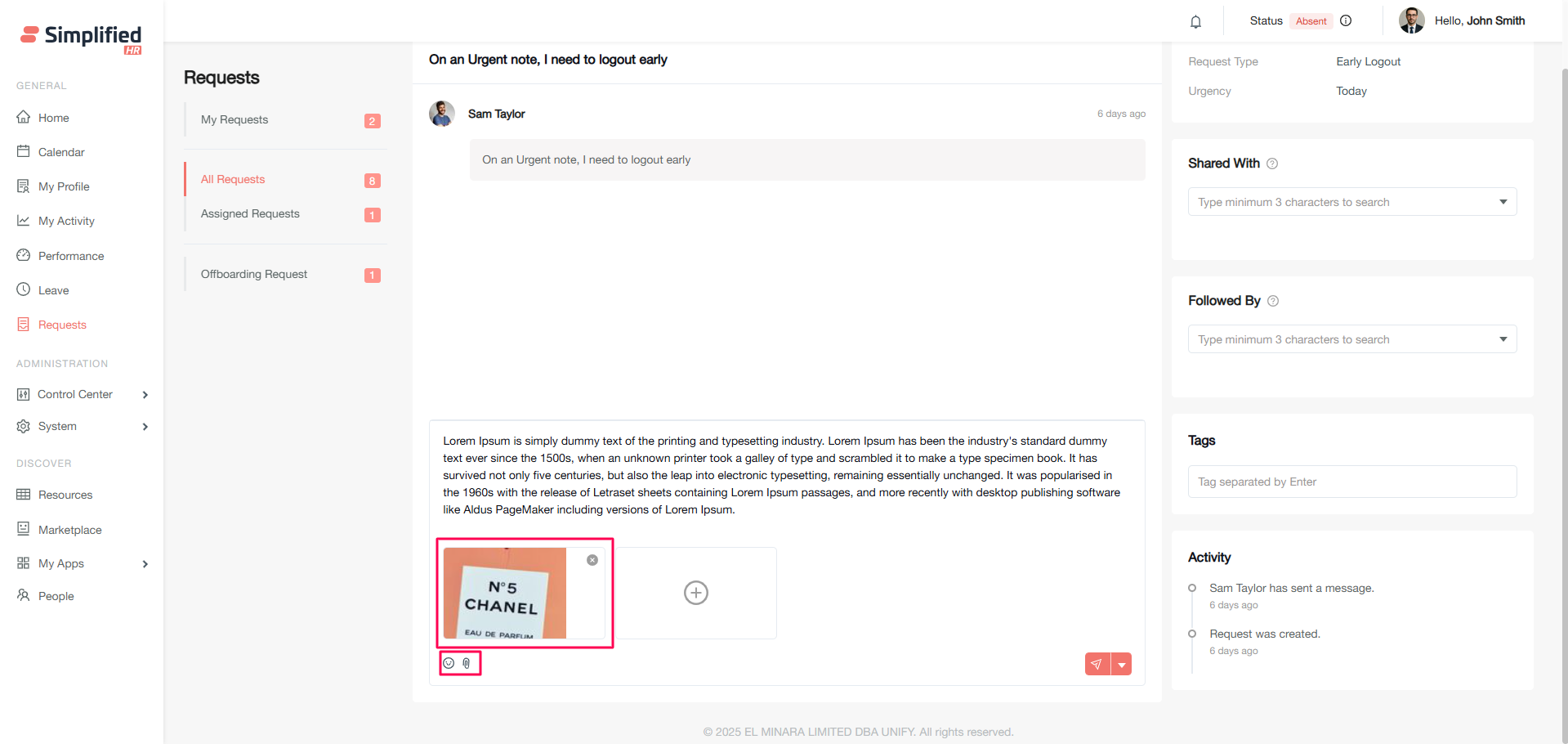
Public notes added will be visible to all the relevant members of the request.
To Add Public note:
-
Provide the required note
-
Also if required, add attachments by clicking on the attachment button
-
Click on the Send Note button
-
Note will be added to the request with attachments(if any selected. Max 5 attachments are allowed with a note)
-
Relevant members will be notified for adding notes
Add Private Note
Private notes added will only be visible to members who add private notes in the request.
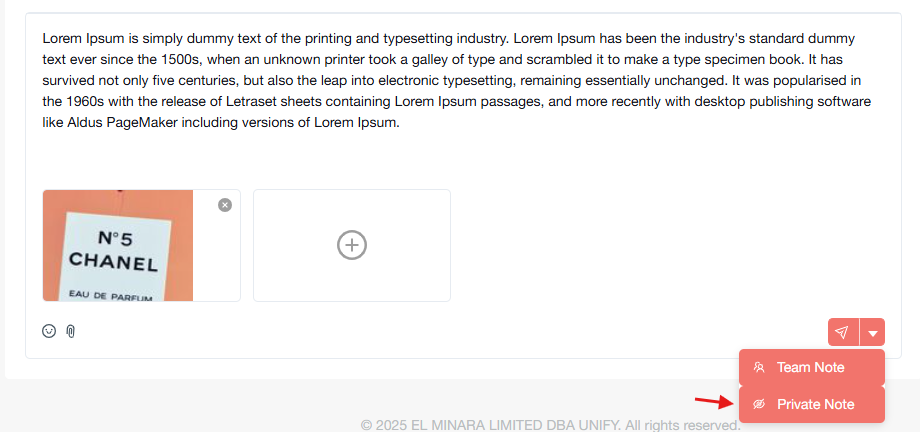
To Add Private note:
-
Provide the required note
-
Also if required, add attachments by clicking on the attachment button
-
Click on the Send Note drop down button to select Private Note
-
Private Note will be added to the request with attachments(if any selected. Max 5 attachments are allowed with a note)
Add Team Note
Team notes will only be added and visible to Request Team members.
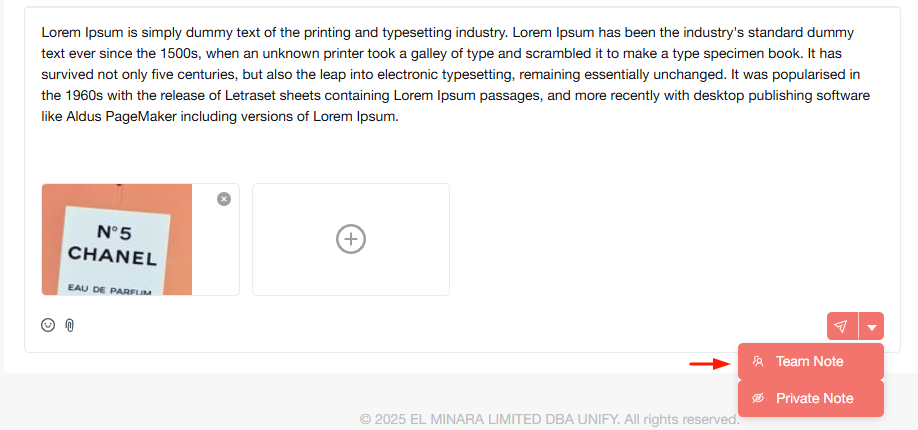
To Add Team note:
-
Provide the required note
-
Also if required, add attachments by clicking on the attachment button
-
Click on the Send Note drop down button to select Team Note
-
Note will be added to the request with attachments(if any selected. Max 5 attachments are allowed with a note)
-
Relevant members will be notified for adding notes
Changing Status of the Request
Specifications
-
Non-admin Requesters can only open and close the request.
-
Admin Requesters can take any actions to their own request.
-
Owner, admin or similar role member, assignee and Request team members can update the status such as Resolve, On hold, Close, New Reply and other custom statuses.
-
Once a request is closed, it can only be reopened by the owner of the organization.
How to Update Status of the Request
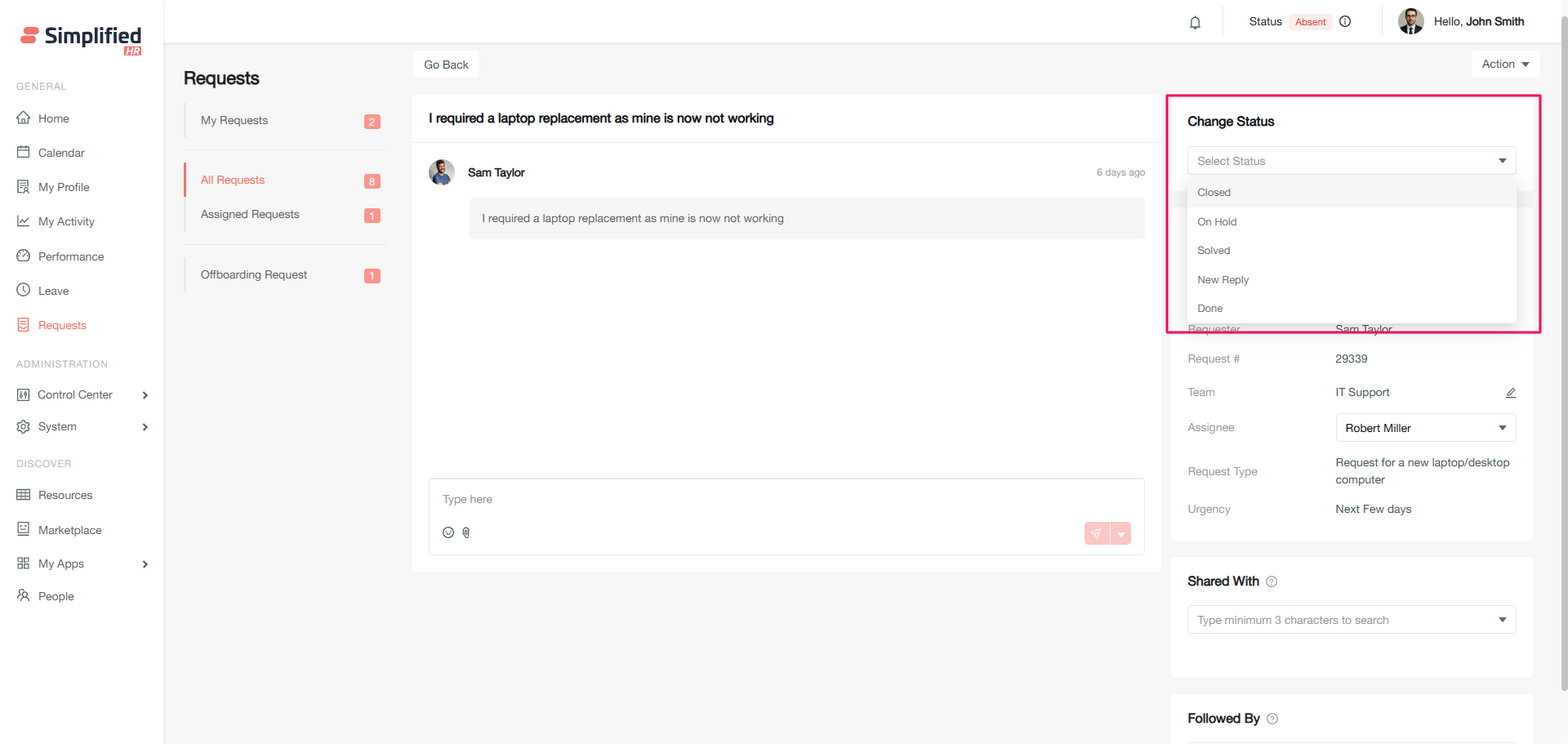
-
Select the required status from the Status drop down in the Status card
-
Request status will be updated
Updating or Changing Team of Any Request
Specifications
-
Changing the team of any request is possible by the Request team members.
-
Changing the team of any request is possible by Owner, Admin or similar role members in the organization.
-
Requesters can also change the team of their request, if the requester belongs to the requested team.
-
While changing the team, it is required to fill up the required information of the new request team.
-
While changing a team, one can update the assignee as well.
-
On updating the team, the requester and new team and its members will also be notified along with the assignee if selected.
How to Change the Team of Request
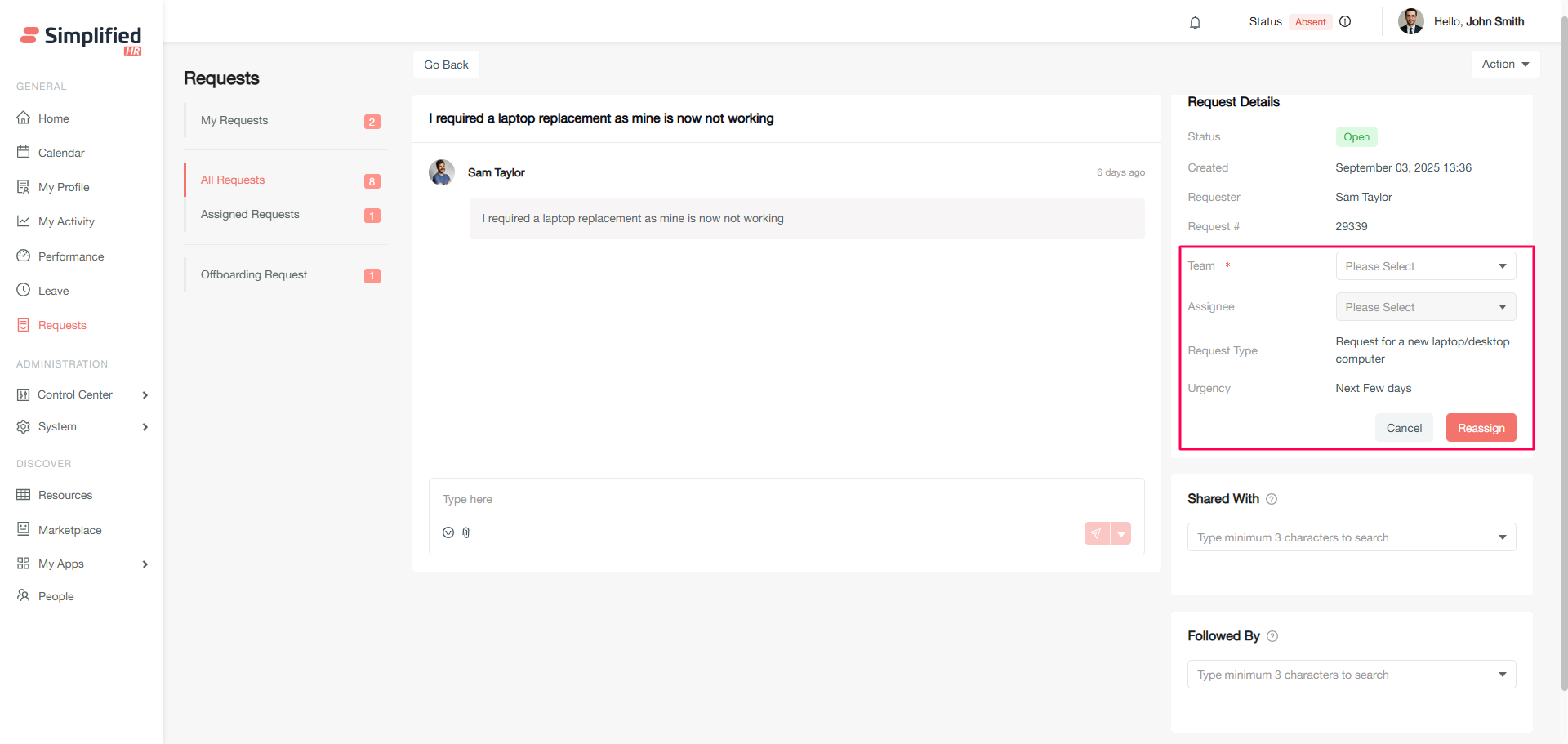
-
In the Request details card, Click on edit option beside team
-
Now select a new team as per requirement and also select the reason and other required details
-
A new assignee can also be selected here as per new selected request team
-
Click on the Reassign button to update the team
Note:
-
As the team gets updated, the updater of the previous request team won't be able to see the request any more in their view. However they can still see the same request if they also belong to the new Request team member or hold owner, admin, or similar role and permission in the organization.
-
A short details will be added about the previous team/request category, request type and other info as well.
Updating Share With Members in Request
Members added in Share with, are the members active in the organization but not the members of the current requested team.
Specifications
-
Requested team members will not be available in Share with.
-
Updating Share with members on request is allowed to Requester.
-
Updating Share with members on request is allowed to owner, admin or similar role members.
-
Share with members can also add comments and notes, change status and change team as well if and only if Share With member holds admin or similar role.
-
Share with members will also get notified for the relevant requests.
-
Added Share with members will not be available to add in Followed By.
How to Add Share With Members in Request
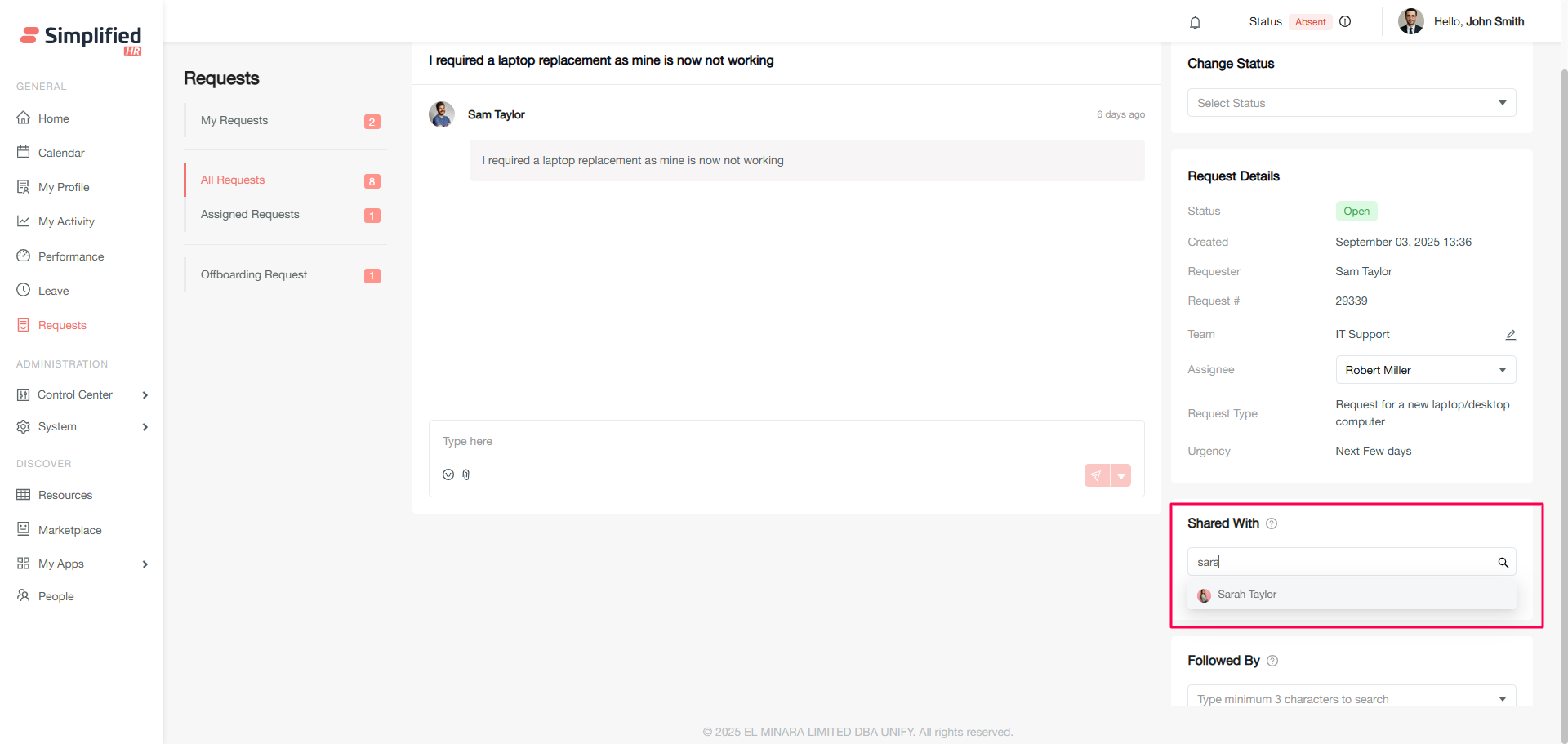
On Share with card, search and select the required members.
Updating Followed By Members in Request
Specifications
-
Requested team members will not be available in Followed By.
-
Added Followed By members will only be able to look over the request. Any kind of action to the request is prohibited.
-
For a request, added Followed by members will not be available in Share with.
-
Followed by members will also get notification for the specifically added request.
How to Add Followed By Members in Request
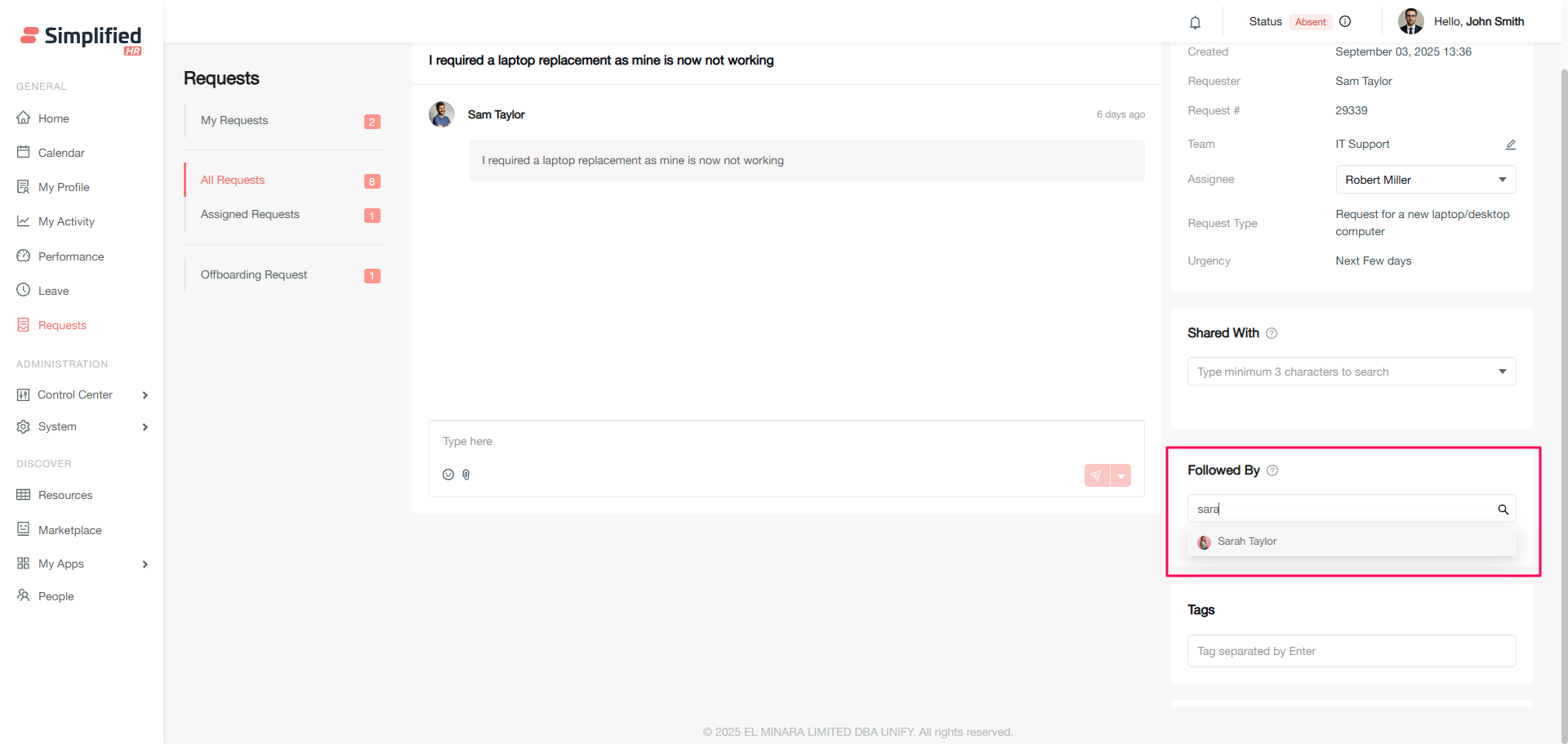
On Share with card, search and select the required members.
Shared With vs Followed By
There is only one difference between Shared with and Followed By members where:
Share With members can add comments to the request but Followed By members can only see the request.
Updating Tags in Request
Tags are basically keywords which are optional to add in request. Updating Tags in request will help other relevant members to get more idea about the request type or genre.
Tags can be added by Requester, Assignee, Request Team members, owner, admin or similar role members.
How to Add Followed By Members in Request
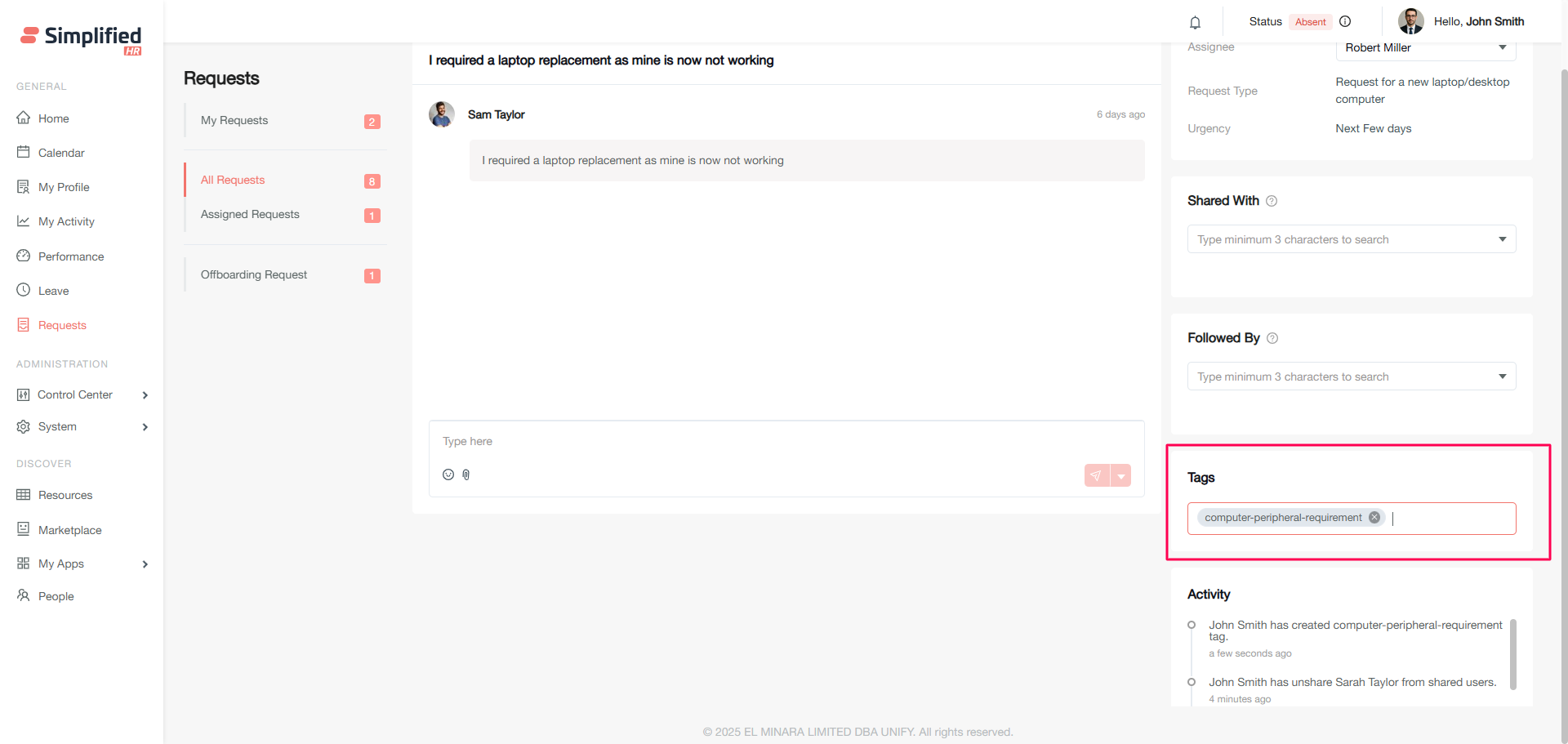
On the Tags card, type the relevant text which will easily set the genre of the request and also will be filtered easily.
Activity Log of a Request
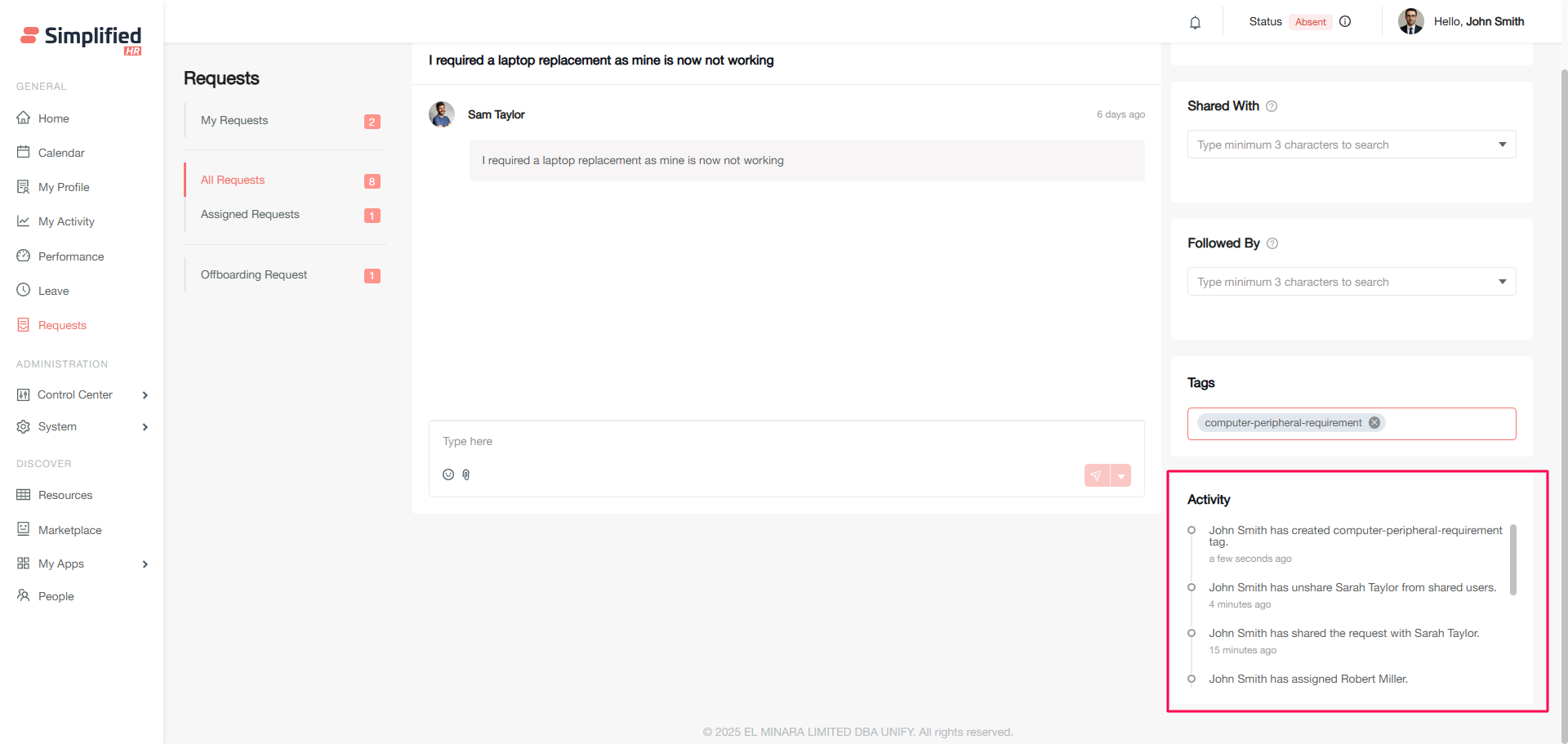
A Request activity can be tracked, as it will show:
-
When the request is raised? The latest activity will be showing on top.
-
Who and when the comment is added?
-
Who assigned whom at what time?
-
Who changed the existing team to what new team and when?
-
Who added whom as followed by at what time?
-
Who added whom in shared with at what time?
-
Who updated what status at what time?
Note: Activity data gets auto added when any of the above actions are made.
Taking Print of the Request
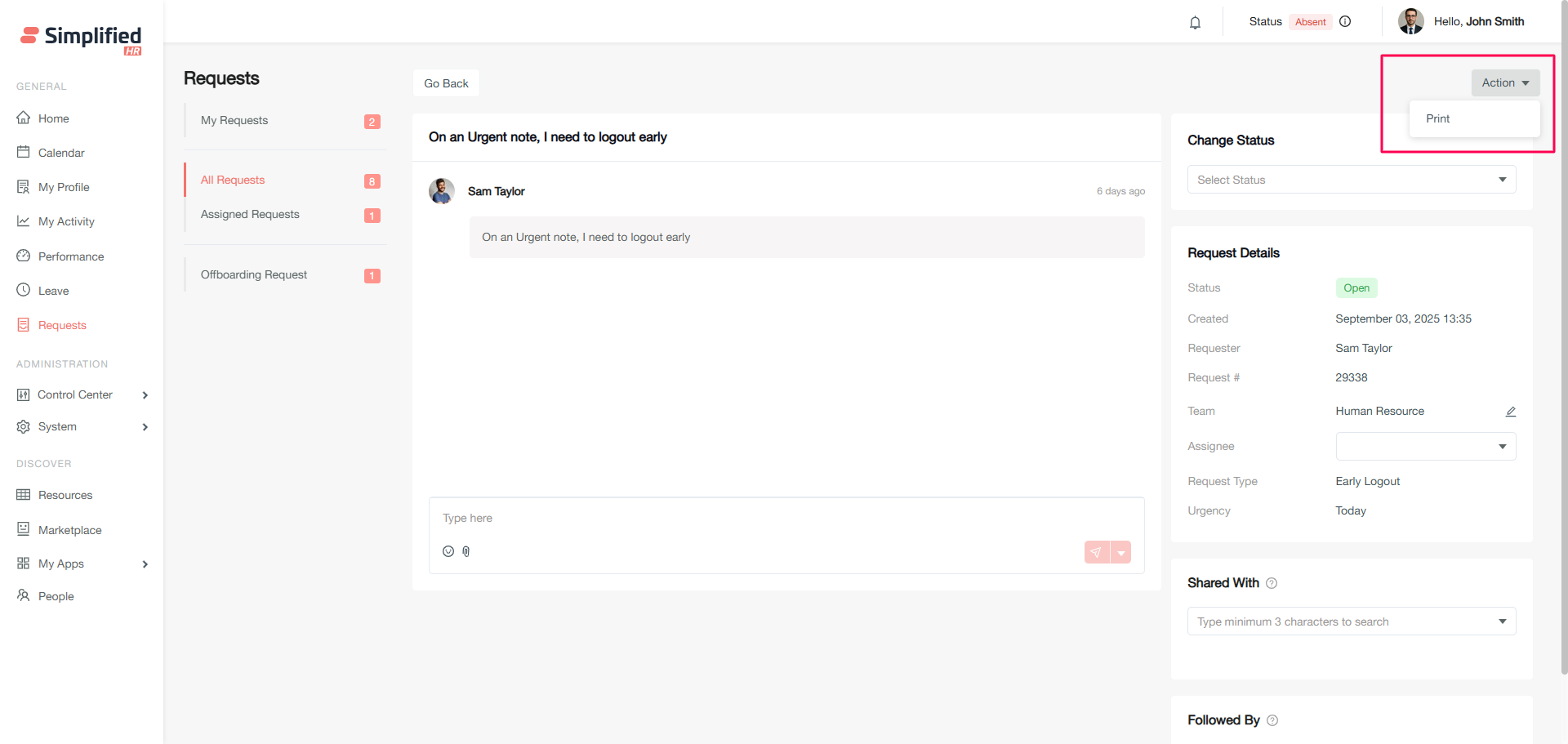
A print feature is available for each request which will allow exporting the details of request including all the added comments.
Note: Any relevant member who have access to the specific Request can take print by clicking on the Actions > Print
Archiving a Request
Archiving a Request, will hide or archive the request only from the archiver's list view. Other relevant members of the request will be able to see the Request as usual in the List.
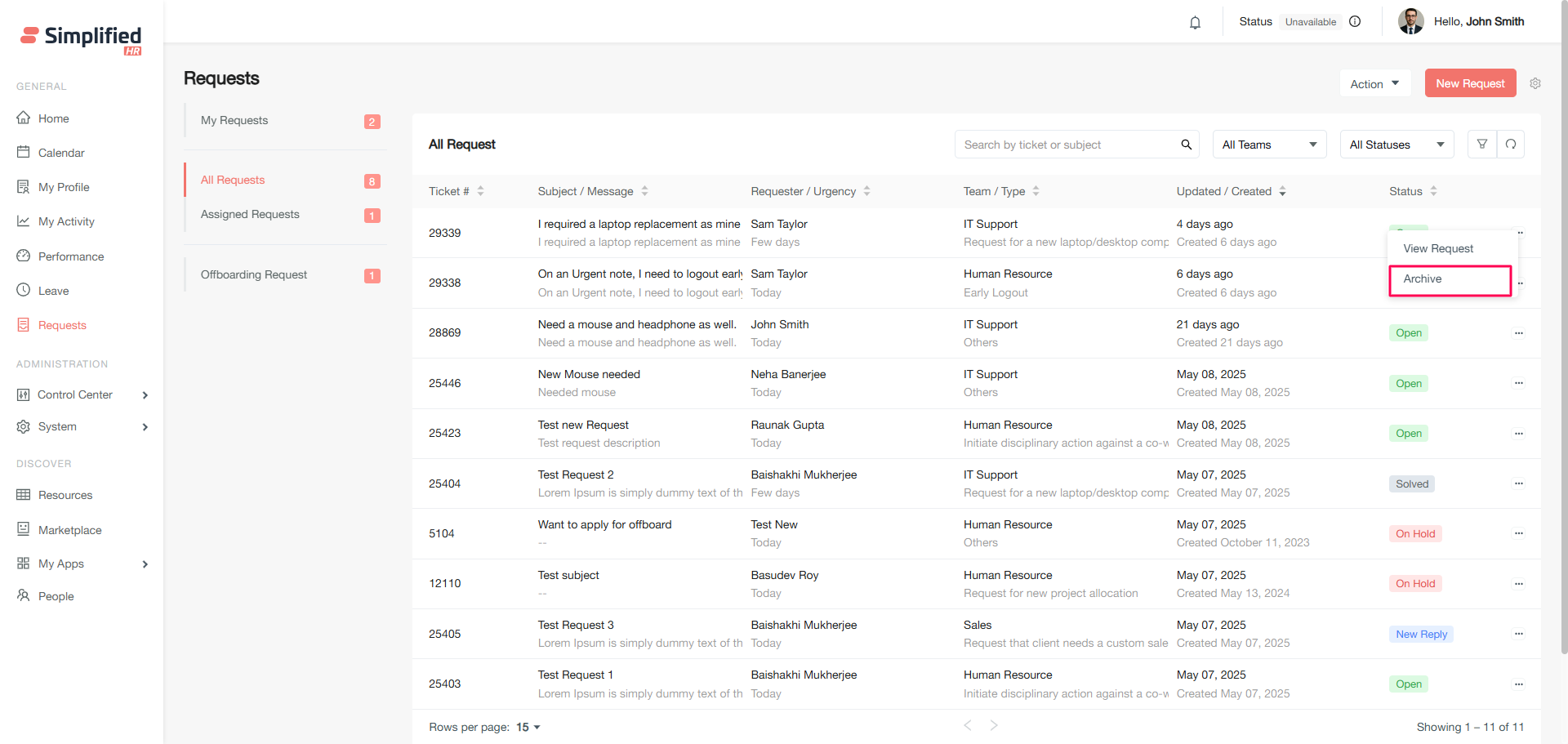
An archiver of the request may be a Requester, Owner, Administrator or similar role member, Request Team members and Assignee.
How to Archive a Request
Click on the vertical dot option of any required Request and choose to Archive.
Exporting Requests
Request allows the data to be exported for the organizational requirements. Certain permissions are required to have this feature available.
Specifications
Requests can be exported by scheduling one time or repetitive manner.
One time Scheduling includes:
Repetitive Scheduling includes:
-
Daily- Requires a fixed time when the request will be scheduled.
-
Weekly- Requires a fixed day when the request will be scheduled.
-
Monthly- Requires a fixed period when the request will be scheduled. Ex: Start/middle/end of the month
-
Quarterly- Requires to select Start of the period by default.
-
Half Yearly- Requires to select Start of the period by default.
-
Yearly- Requires to select Start of the period by default.
-
Requests can be exported to any active members in the organization.
-
Requests will be exported as per active request tab. For ex: If a member is in the All Request tab, then all requests will be exported.
-
Request export allows you to export the list with and without an applied filter.
-
Request can be exported in the following format such as CSV, XLS, XLSX
-
If exported data has huge data, then files are exported as part files.
How to Export
-
Members who have access to request export will click on Action > Export from any of the 3 tabs of the request
-
Members will now be required to enter the export name. By default active request tab name will be populated
-
Members will now select what type of export is required. ie All records or Applied filters
-
On the next step, members will search and select the member whom to export
-
Timezone needs to be selected while exporting which will convert and export the request as per requirement
-
Schedule type needs to be selected
-
Export file type needs to be selected
-
Click on Save