The Activity Module displays users' daily, weekly, and monthly activities. It helps users track their:
Note: The Activity Module is a paid feature and requires a PRO subscription of the Simplified HR application.
Prerequisites
-
PRO subscription to Simplified HR application
-
Activity Module enabled in System > Module Settings
-
Appropriate user permissions for your role
Accessing the Activity Module
For Users
-
Ensure the Activity Module is enabled in System > Module Settings.
-
From the sidebar, click on My Activity to open the module.
-
The dashboard will display the user's personal activity summary, including time logs, activity %, and attendance.
For Admins
Admins can track employee activities individually by navigating to:
Control Center > Users > Members > Activity
This allows the admin to monitor activity details for each employee separately.
My Activity
The My Activity section provides users with an overview of their daily work activity and tracked hours. It includes performance insights and project-level tracking details.
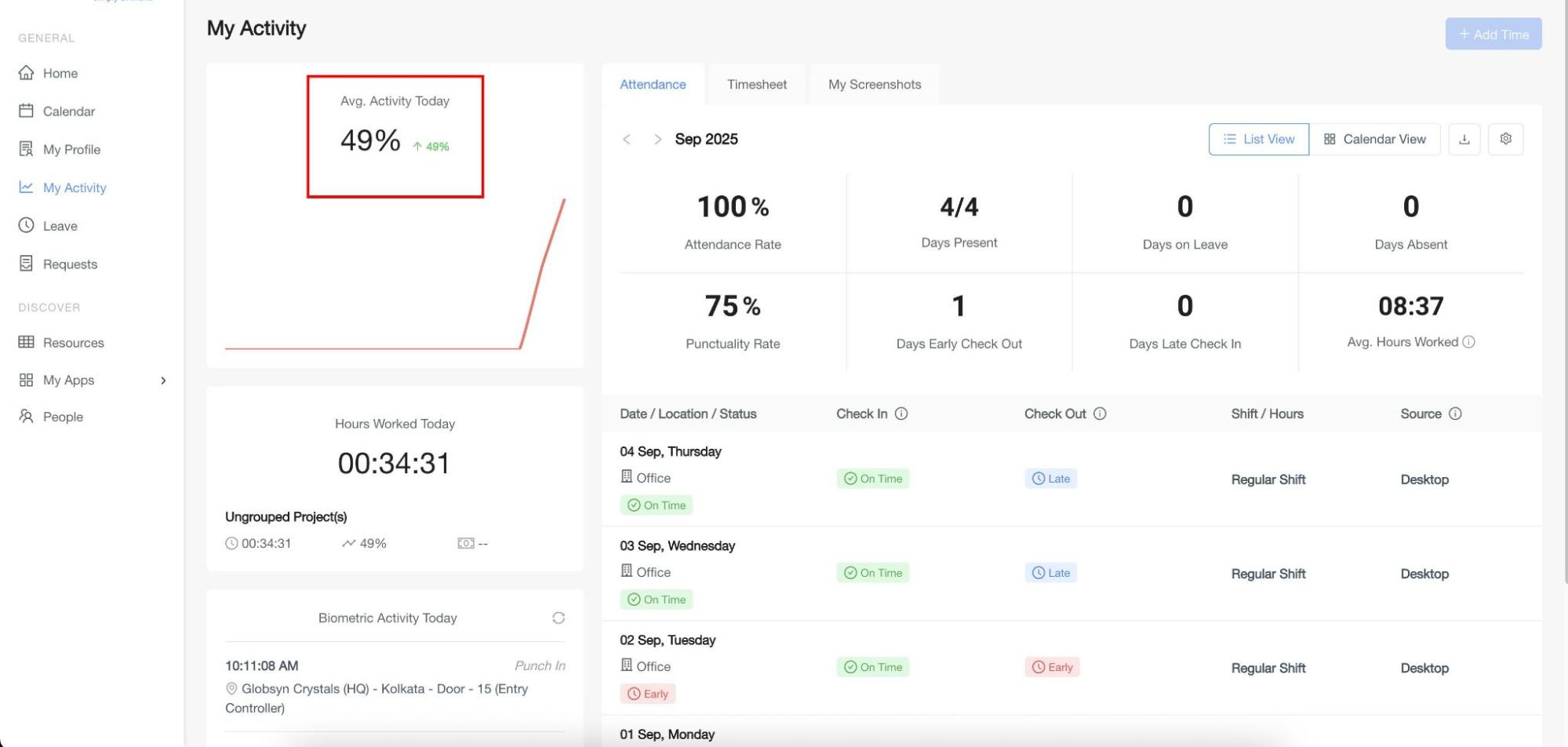
1. Average Activity Today
Displays the average activity percentage (%) for the current day (if the user is tracking time from the Desktop App).
A comparison indicator is shown against the previous day's activity:
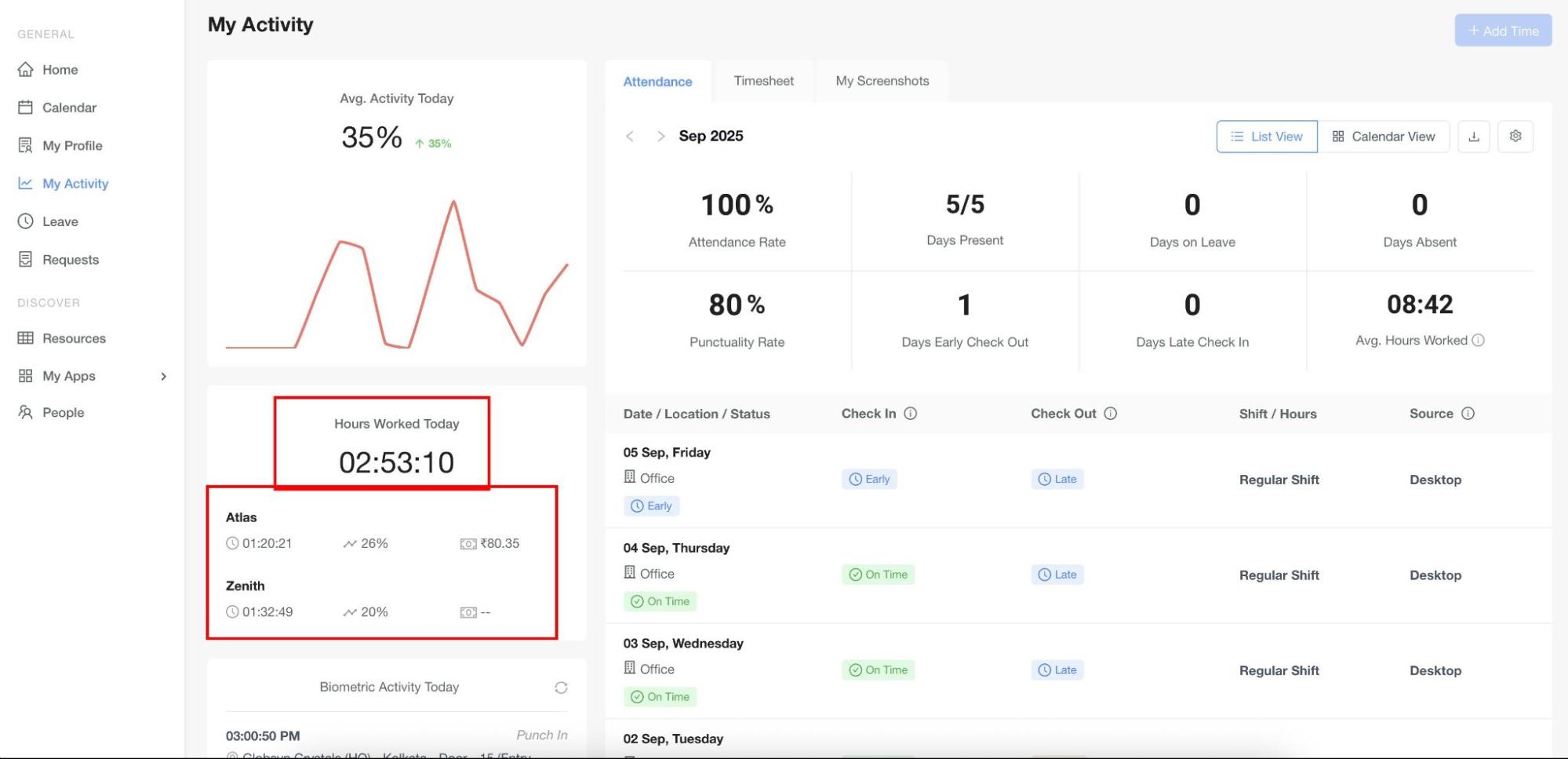
2. Hours Worked Today
Shows the total tracked time for the current day.
Provides a project-wise breakdown including:
-
Activity % for each tracked project
-
Billable amount (if the project is configured as billable)
-
If billable → The calculated bill amount will be displayed.
-
If non-billable → A hyphen (-) will be shown instead of an amount.
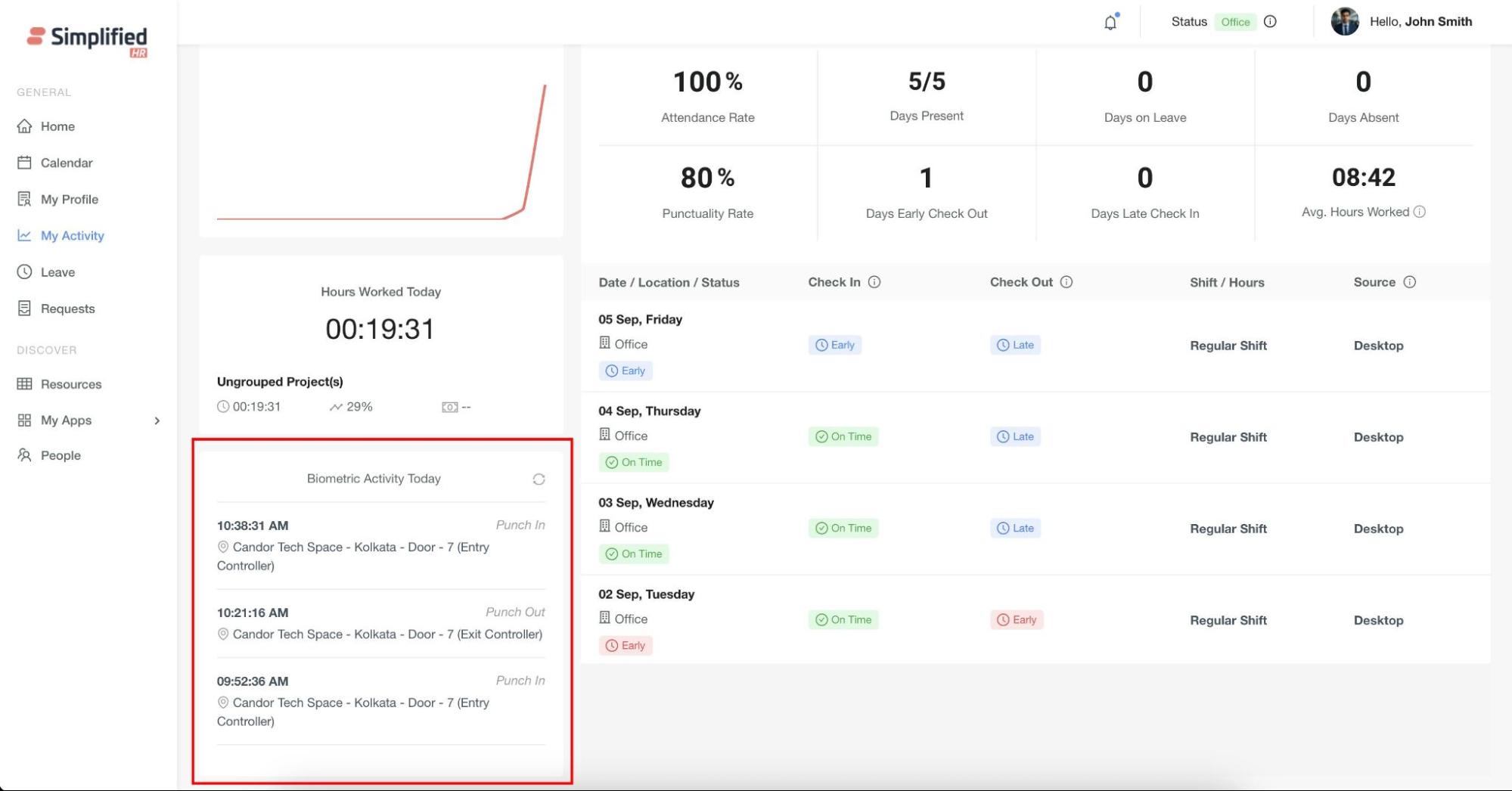
3. Biometric Activity Today
The Biometric Activity Today card displays the user's punch-in and punch-out events for the current day.
This card is visible only if the biometric source is enabled in the Attendance Module settings.
Each biometric event are shown with:
-
Time of the event
-
Location of the punch
Users can fetch the latest biometric data at any time by clicking the Refresh button.
4. Timesheet Section
The Timesheet section in My Activity displays multiple tabs, depending on the configuration set in the My Activity Module Settings.
Available tabs may include:
-
Attendance
-
Timesheet
-
My Screenshots
-
App Usage
-
URL Tracking
-
Projects
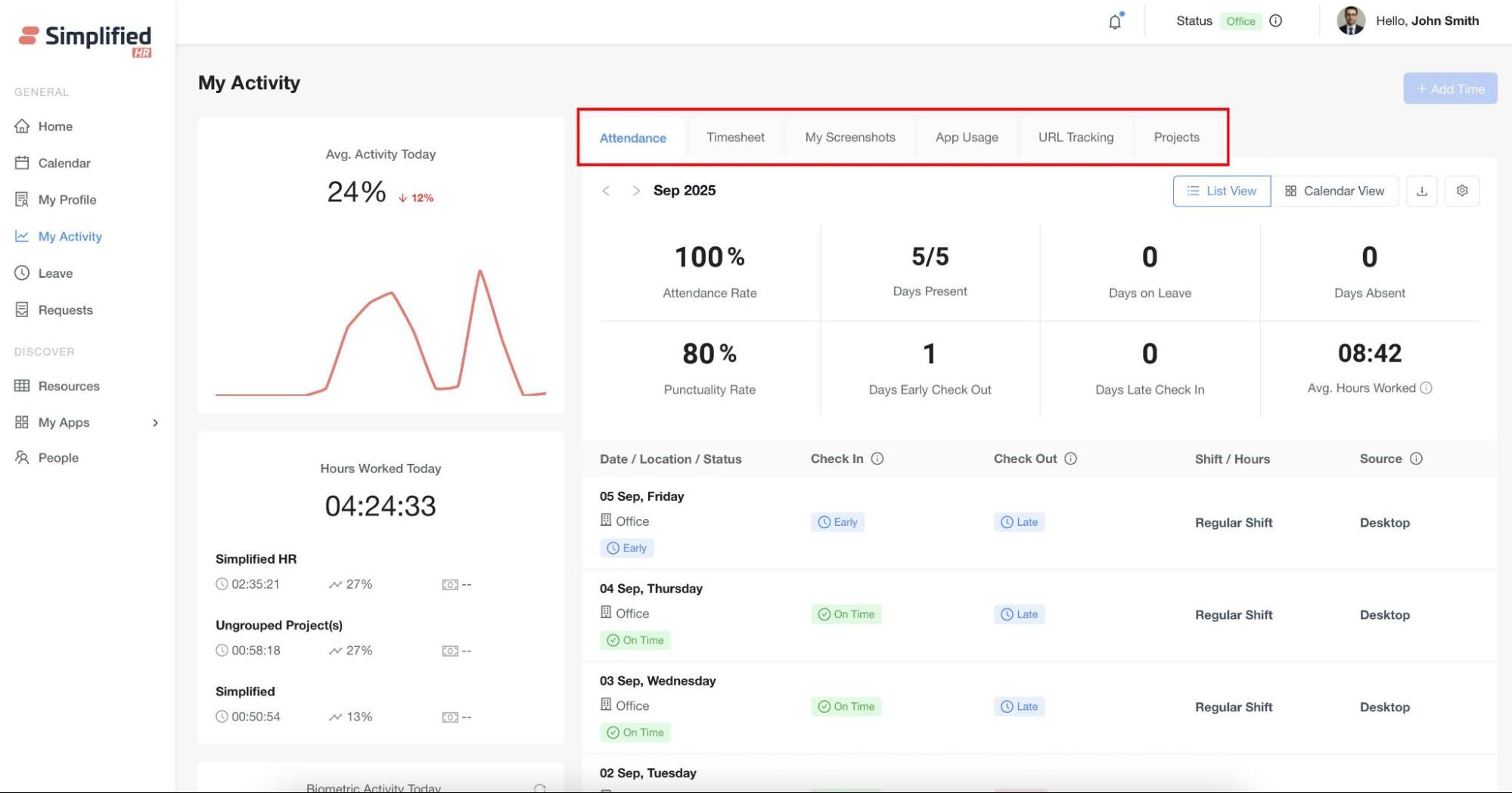
Each tab provides specific data and functionality to help users track their work activity more effectively.
Attendance Tab
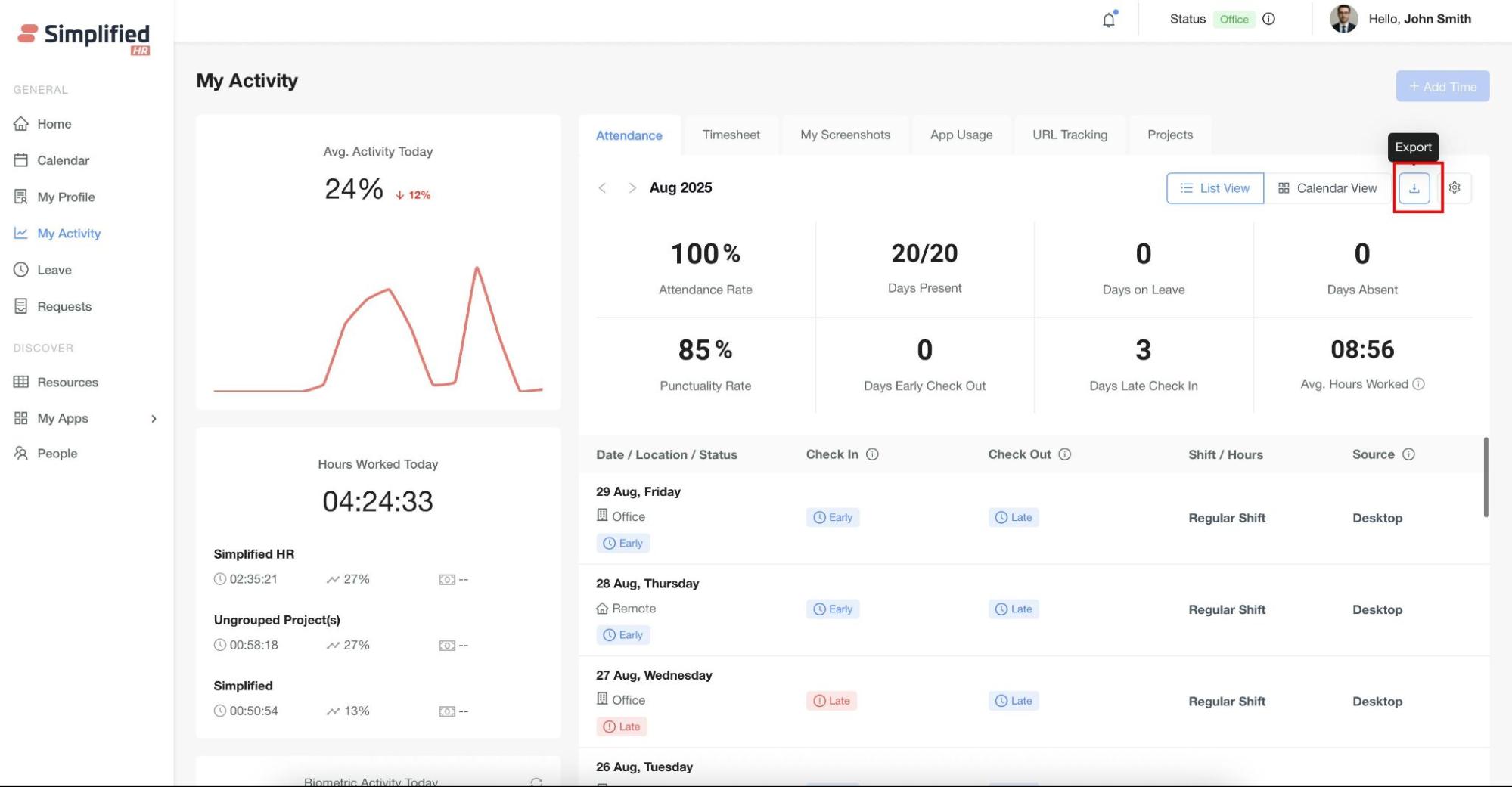
The Attendance tab provides users with a detailed view of their attendance records. By default, it shows the current month, but users can also switch to view data from previous months.
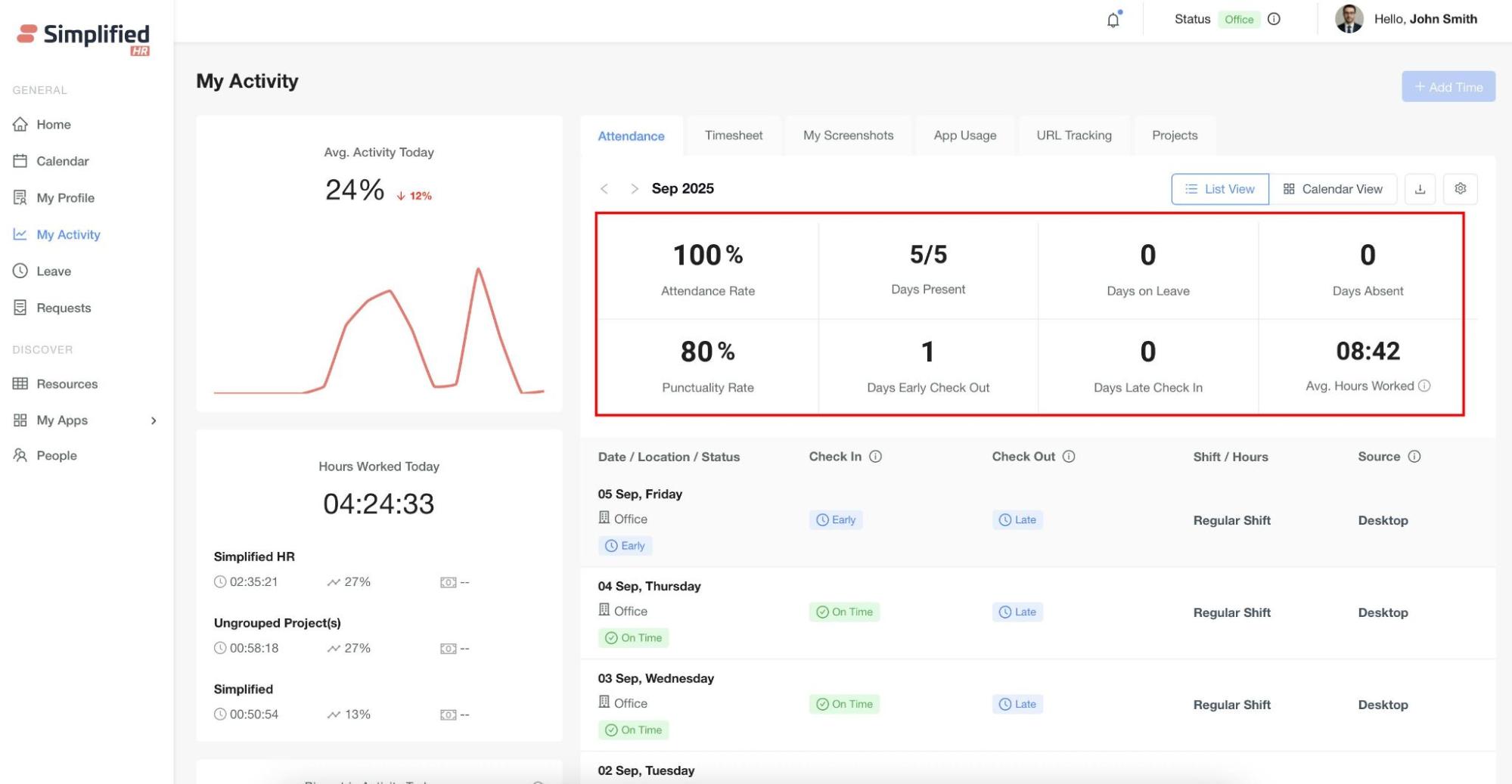
- Overview Section
Displays the user's overall attendance statistics for the selected month, including:
-
Attendance rate (%)
-
Total days present
-
Leave days
-
Absent days
-
Punctuality rate
-
Early checkout days
-
Late check-in days
-
Average hours worked
- Summary Section
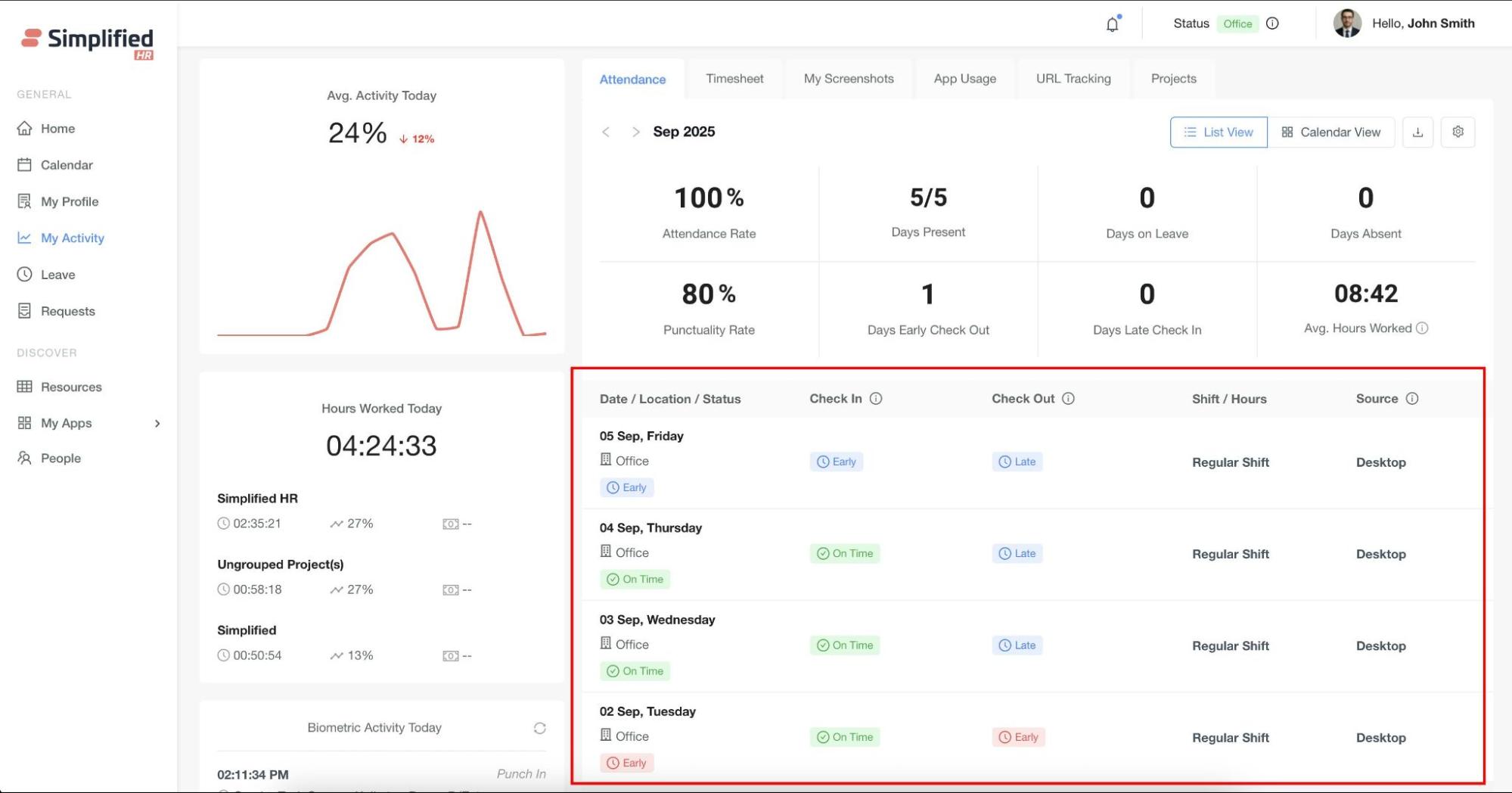
Shows a date-wise breakdown of attendance, including:
-
Check-in and check-out times
-
Daily attendance status (Early, Late, Absent, etc.)
-
Work location (Office, Remote)
-
User's Assigned Shift
-
If the user has a single shift, hovering over the shift text will show "Regular Shift."
-
If the user has multiple shifts, hovering over the shift text will show "Multiple Shifts".
-
In both cases, detailed shift information can be viewed on hover.
-
Attendance source (configured under Module Settings > My Activity)
Views Available
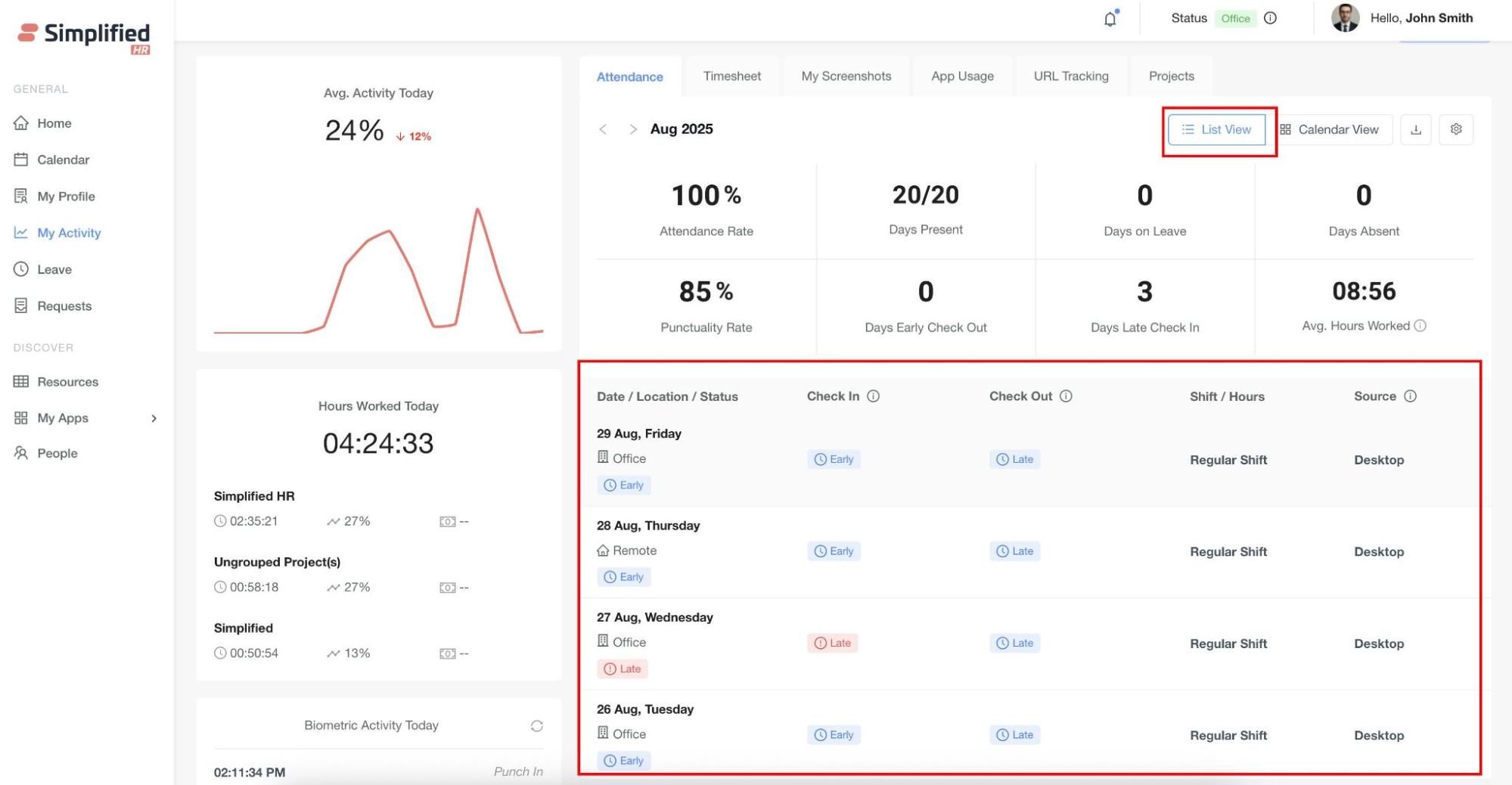
- List View (Default): Displays attendance details in a table format.
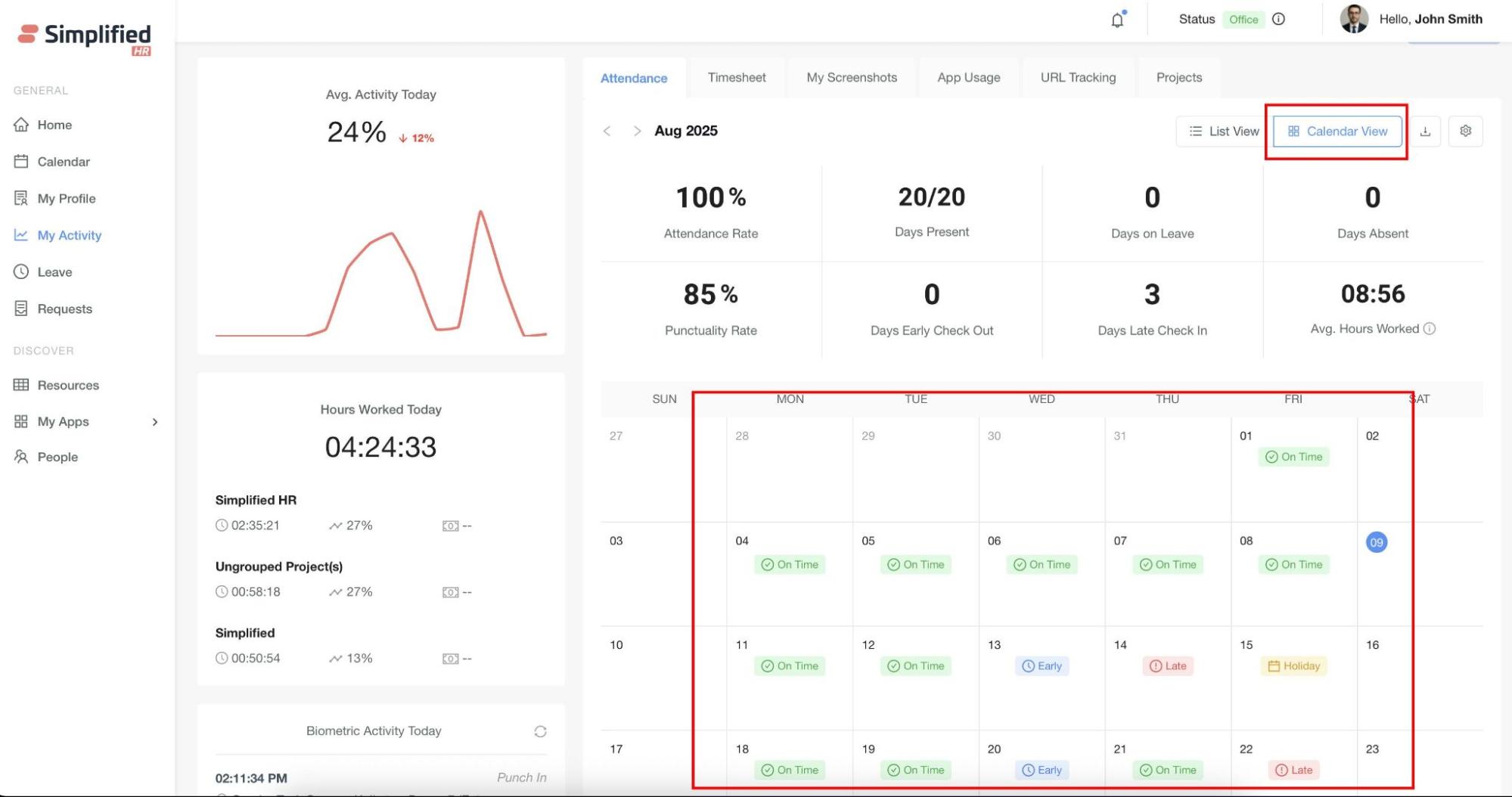
- Calendar View: Provides a visual day-wise status of the user
Additional Features
- Export: Users can export their attendance data for reporting purposes.
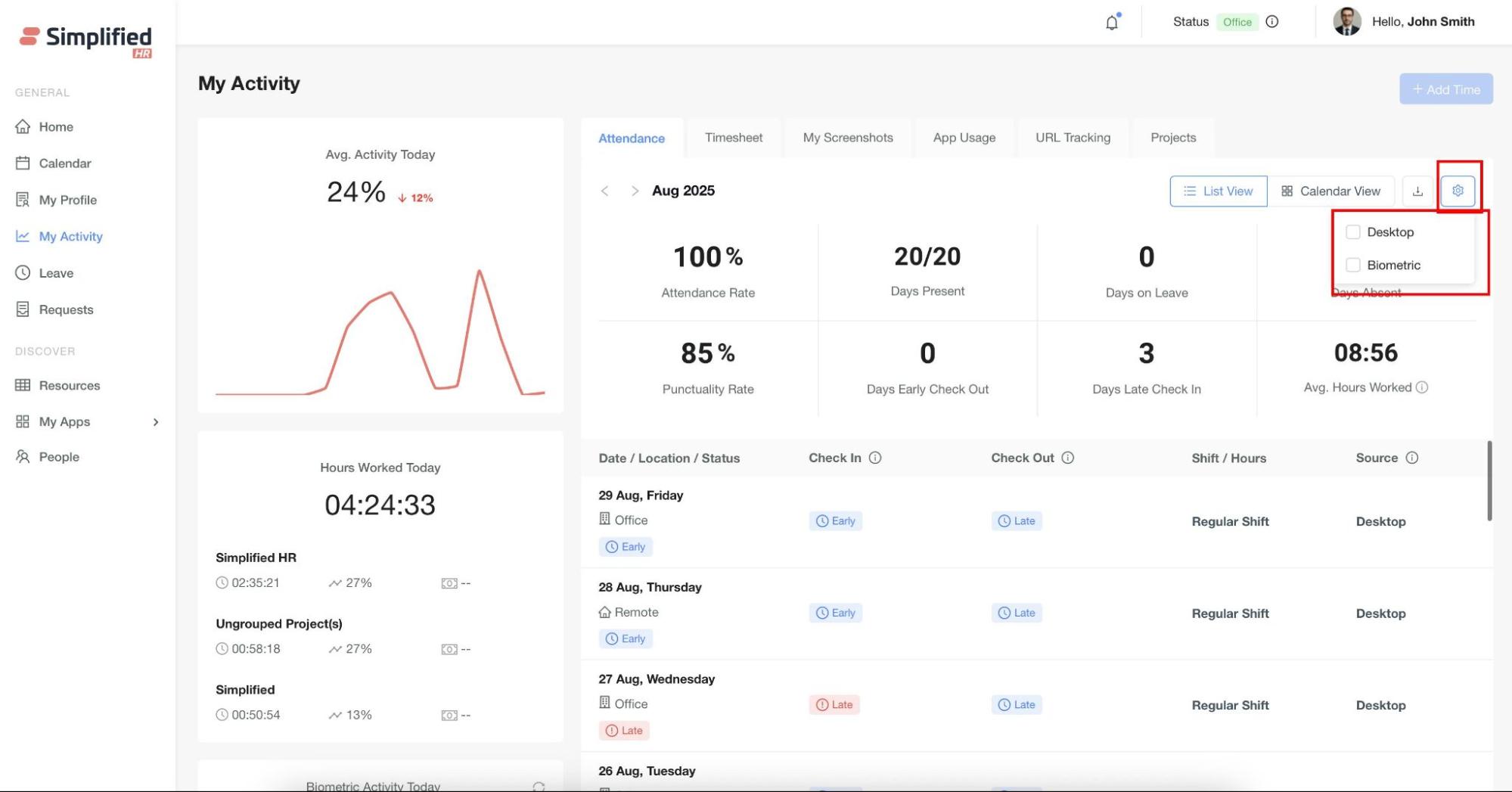
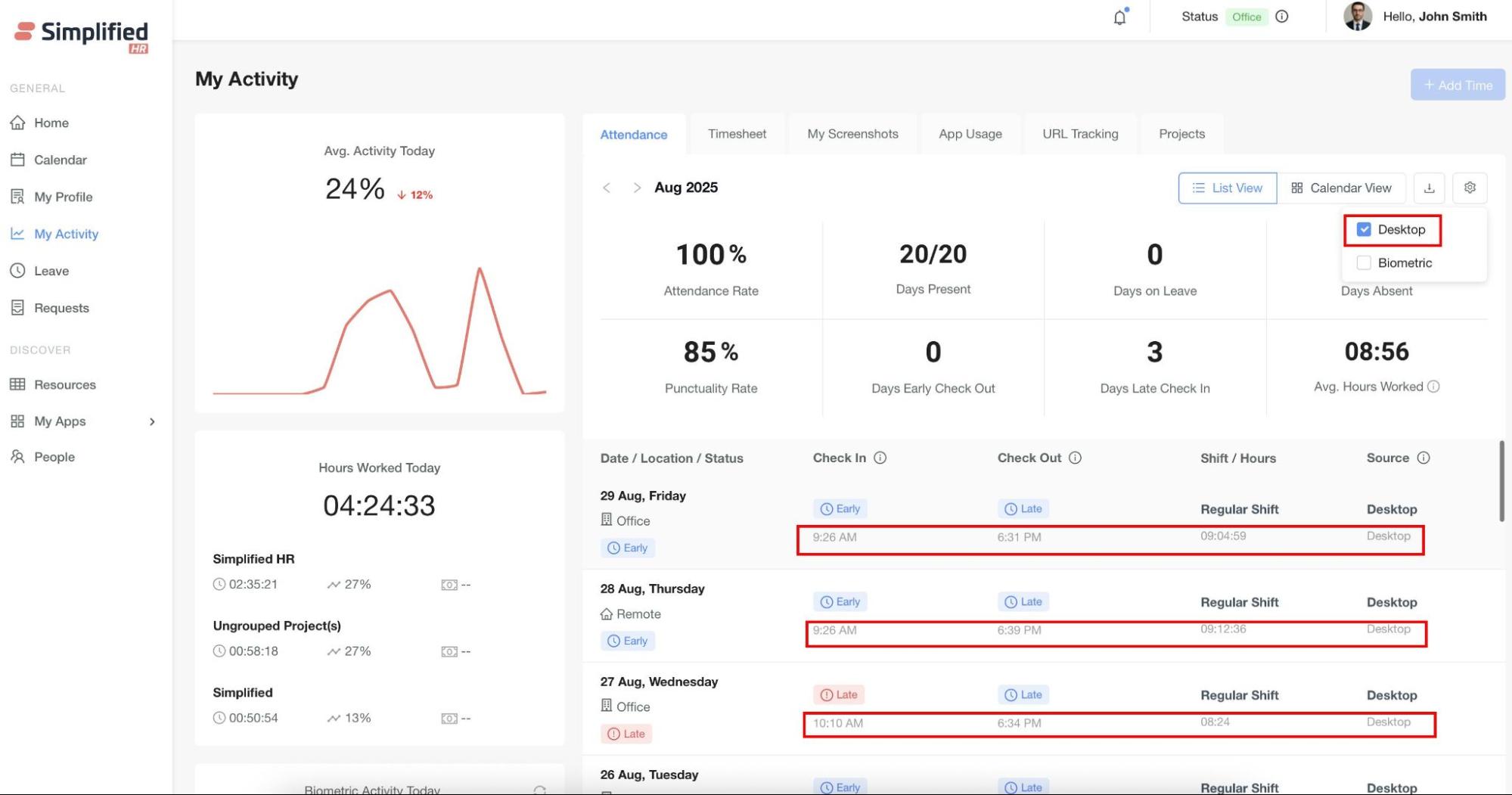
- Based on the selected source, the system will display the corresponding check-in and check-out times in the daily summary.
Timesheet Tab
The Timesheet Tab provides users with a detailed breakdown of their tracked working hours.
Data Sources
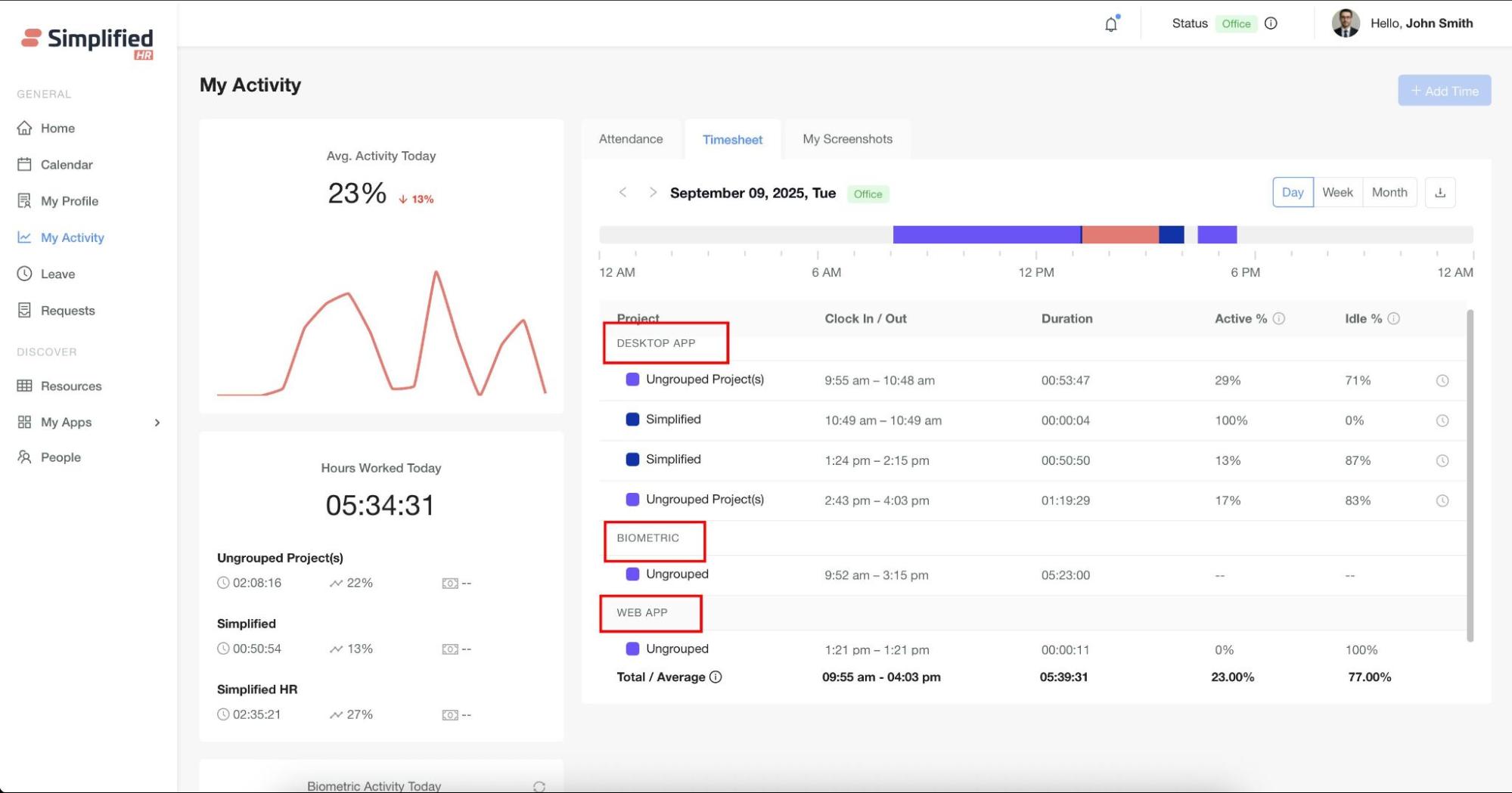
The timesheet consolidates data from all configured activity sources, including:
-
Desktop App
-
Web Check-in
-
Mobile Tracking
-
Biometric Tracking
The data displayed in the Timesheet depends on:
Key Features
- Desktop App Tracking
-
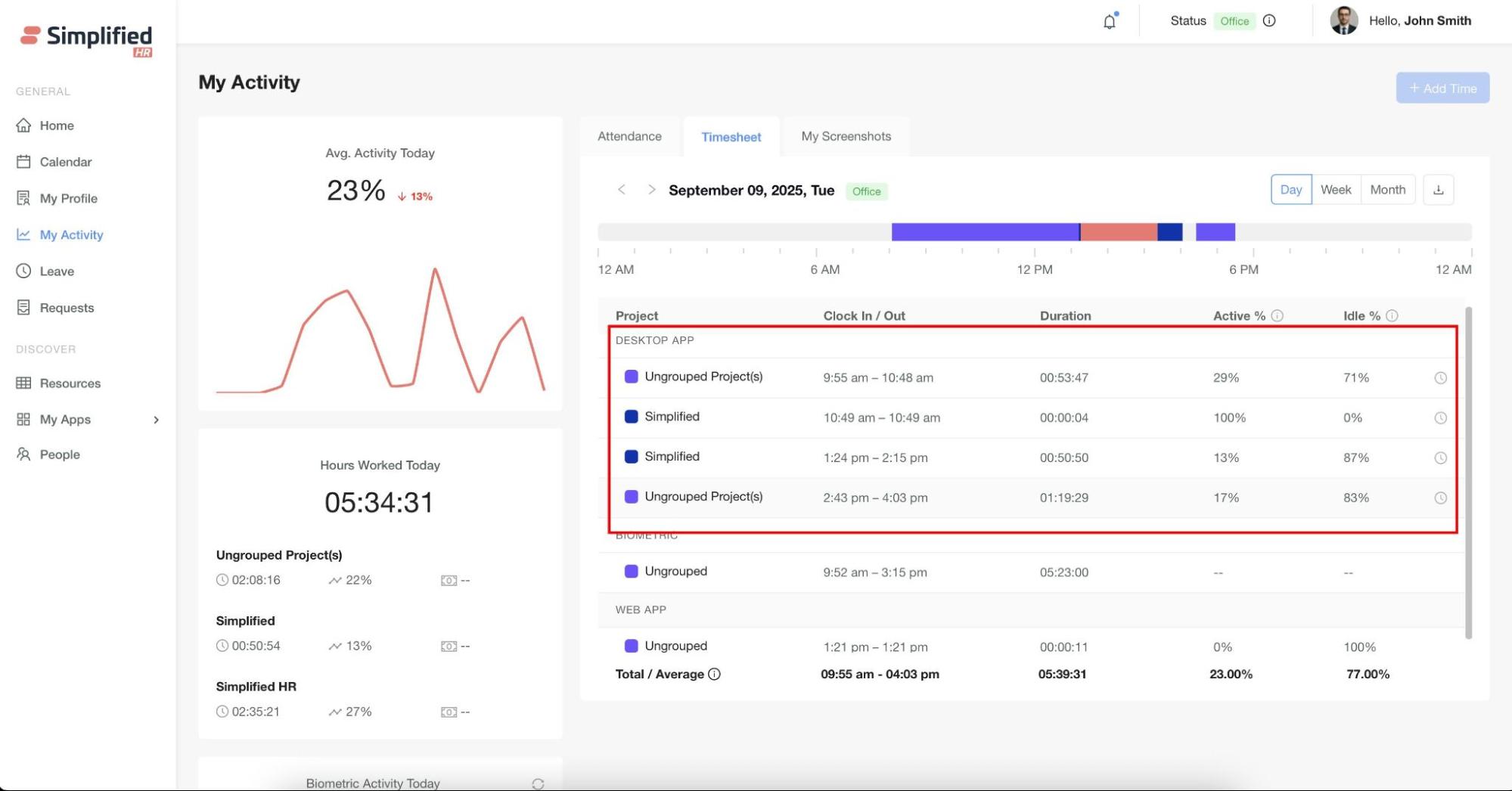
If a user tracks time using the Desktop App, the timesheet will display:
-
Project name associated with the tracked time
-
Start and Stop time
-
Duration
-
Activity % (productive activity level)
-
Idle % (inactive time percentage)
- Multiple Project Tracking
- If a user tracks multiple projects, each project’s time logs will appear separately in the timesheet with corresponding details.
- Breaks in Tracking or Project Changes
-
If tracking is stopped (idle period) or the user switches to another project, the system will not show the non-tracked duration.
-
Instead, the timesheet will automatically create a new row entry starting from the time tracking resumes or when the new project begins.
-
This ensures:
-
Continuous tracked time is shown as one row.
-
Any gap or project change creates a new row with its own start and end time.
-
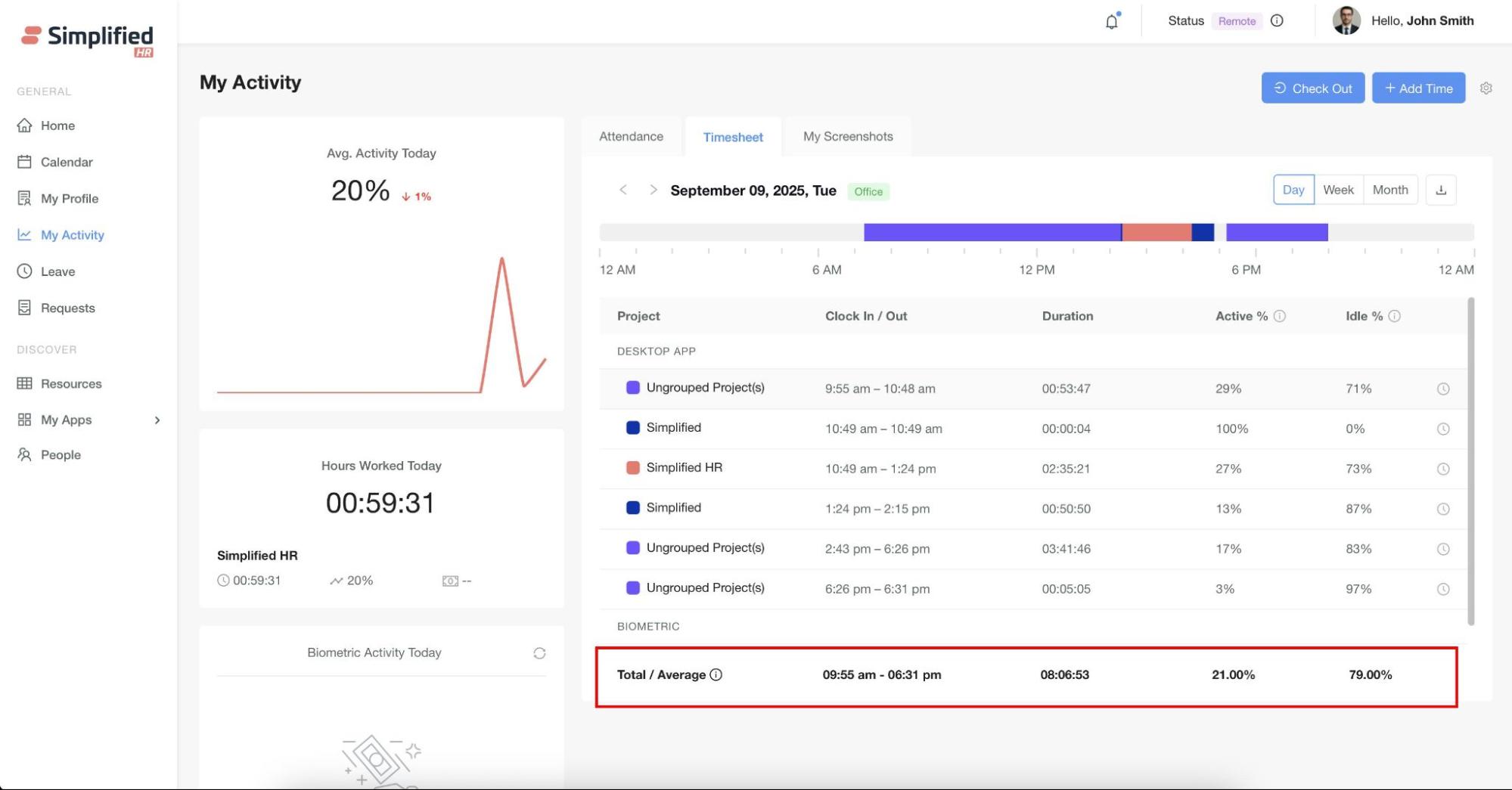
At the bottom of the timesheet, users can view the Total Duration, Average Activity %, and Average Idle % of the day.
-
These totals are calculated only from Desktop App data.
-
Time entries from Web Check-in, Mobile, or Biometric sources do not contribute to these averages.
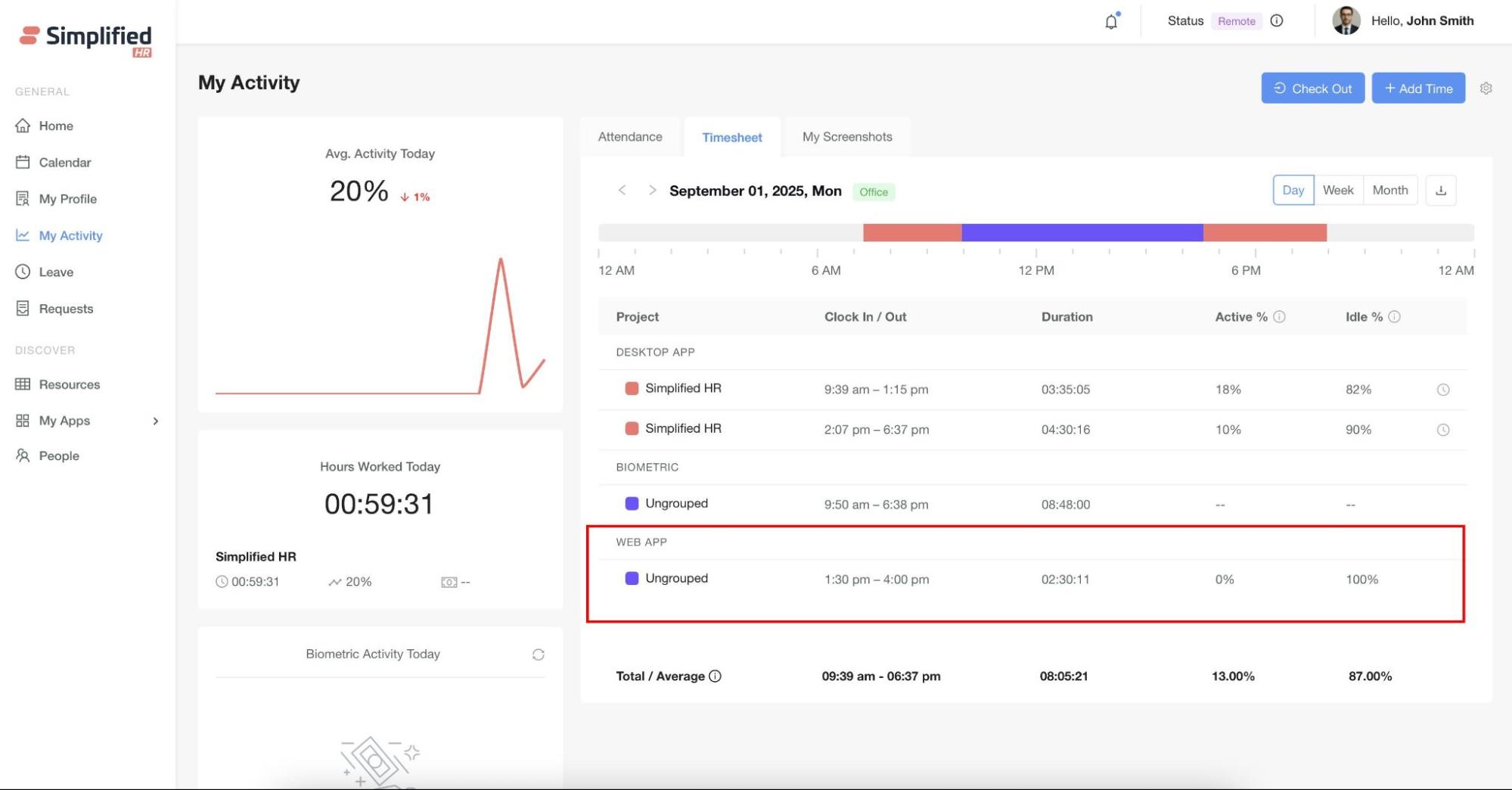
2. Web Check-in
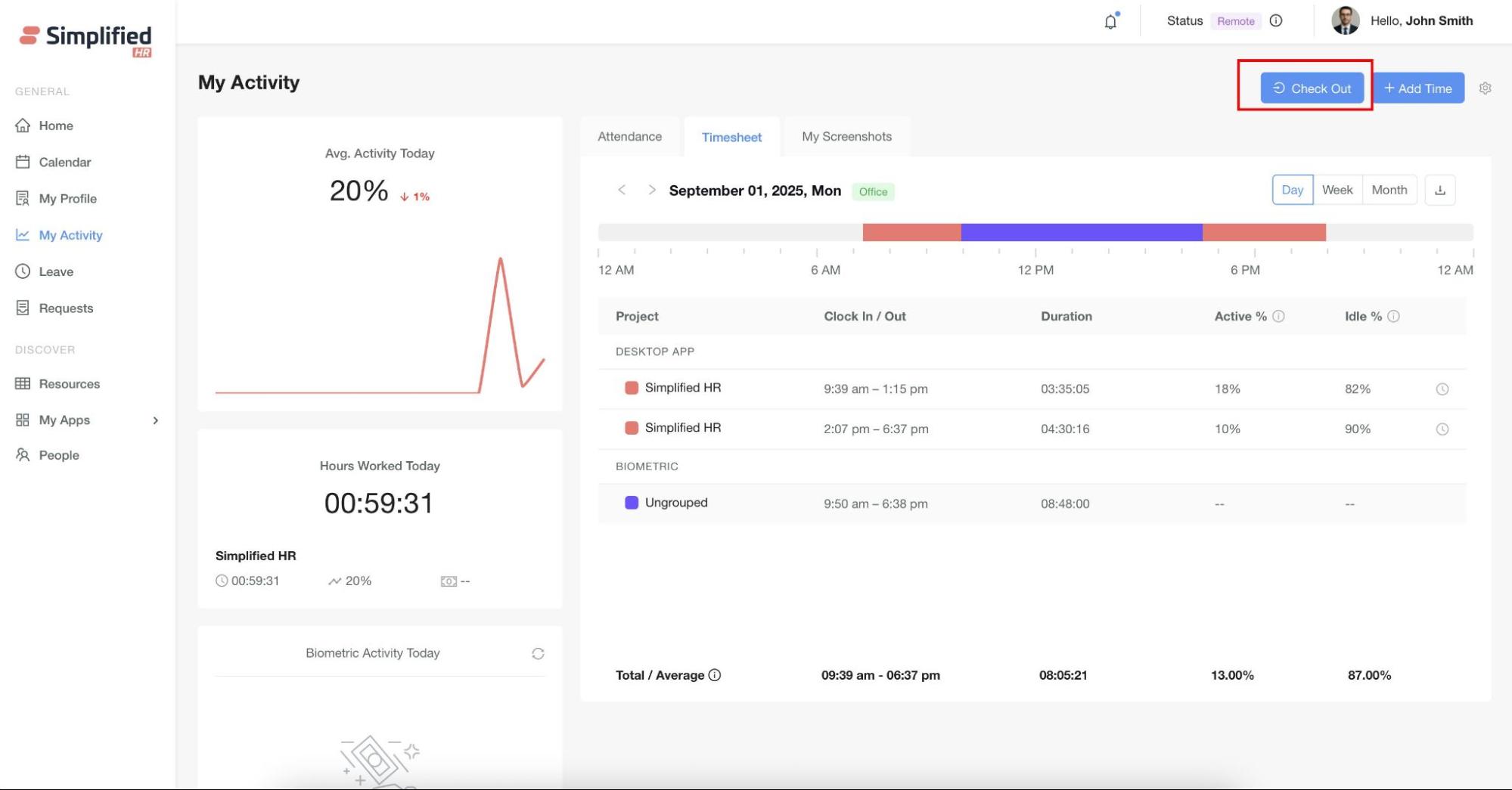
If Web Check-in/out is enabled in Module Settings, users will see a Web Check-in button on the My Activity page.
An employee can only check in if they haven’t already checked in.
Once they check in, the “Check Out” button becomes visible (and “Check In” disappears).
After checking out, the “Check In” button reappears (and “Check Out” disappears).
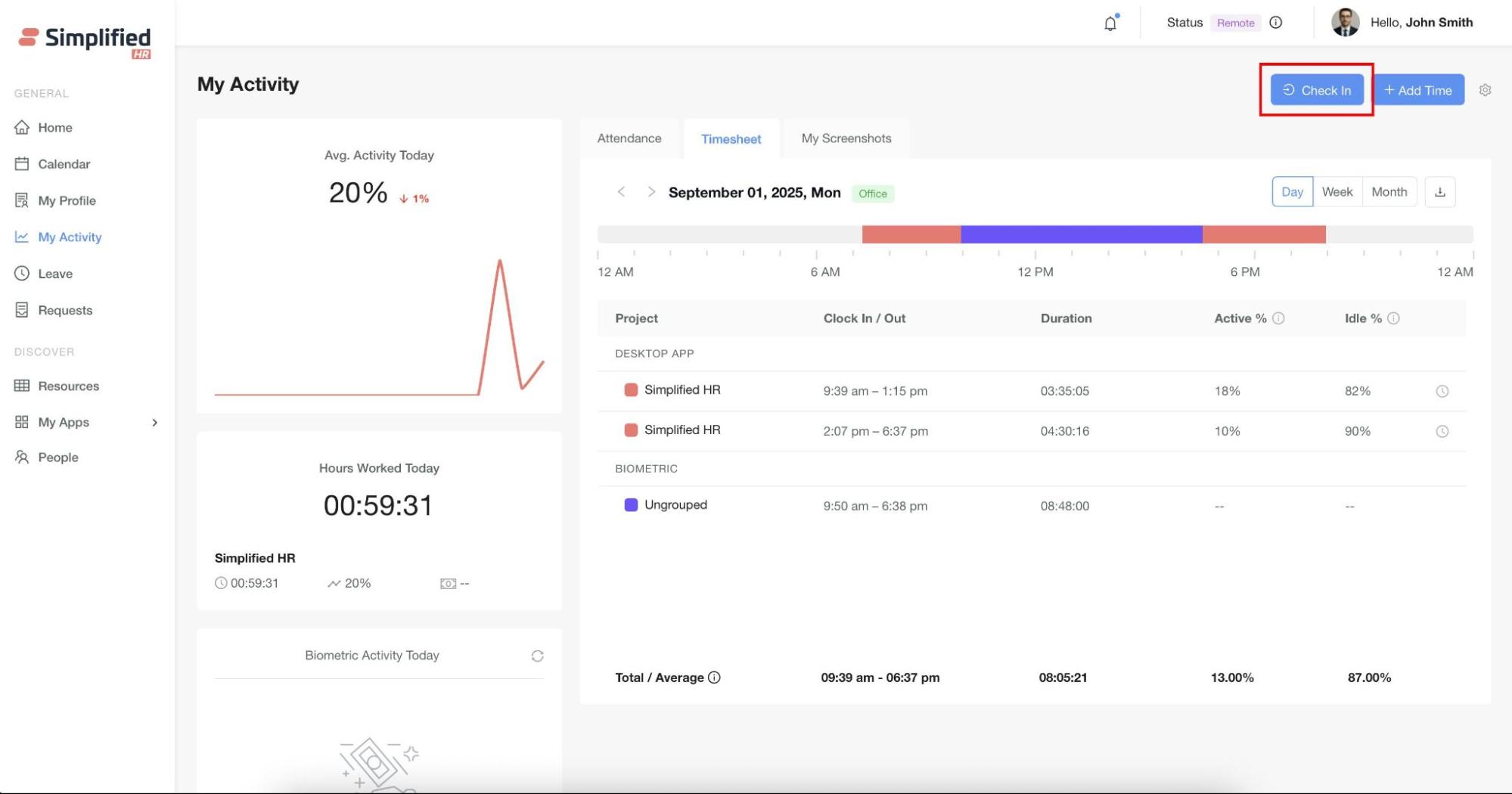
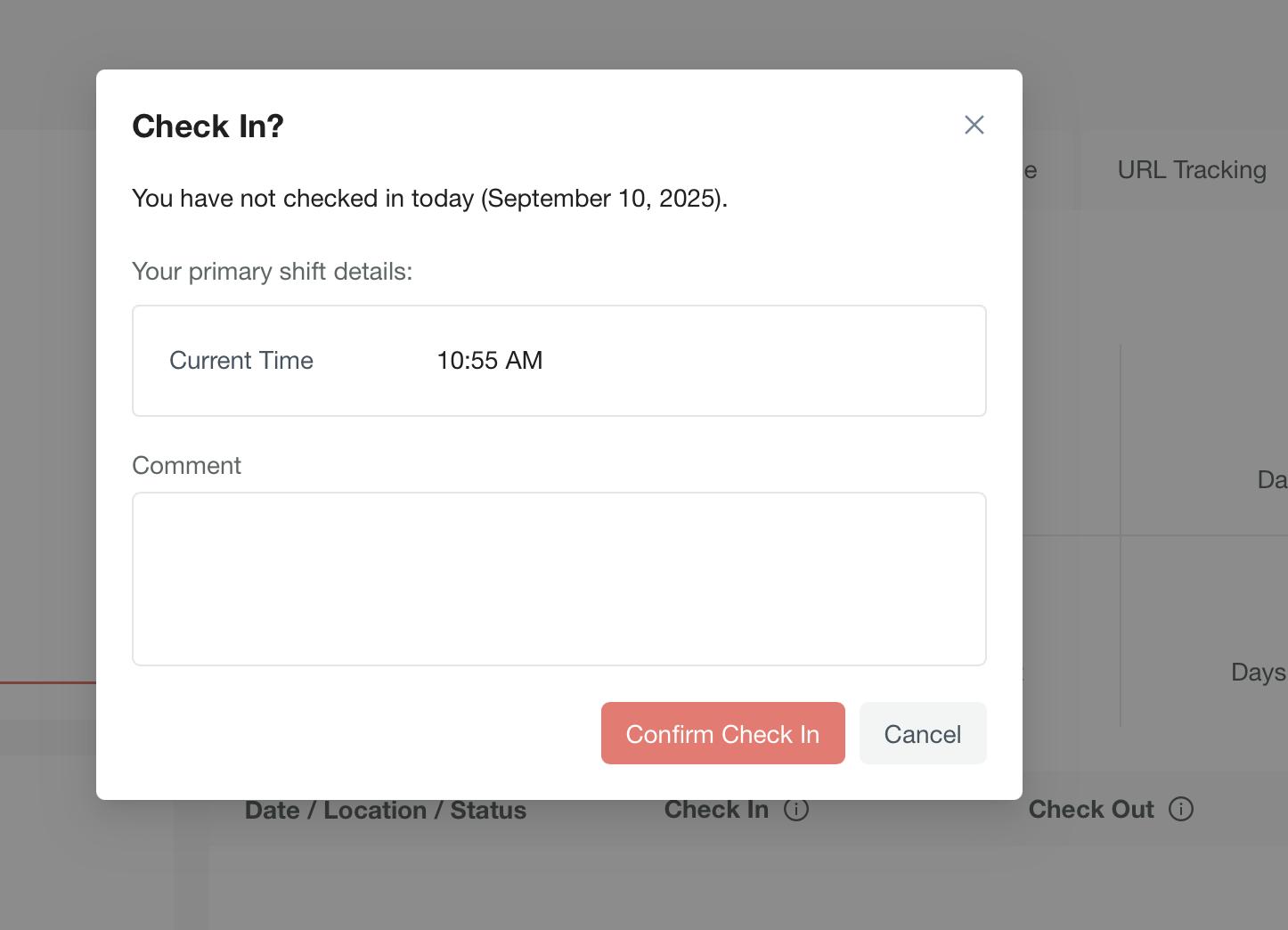
- A modal will appear, click Confirm to check in.
-
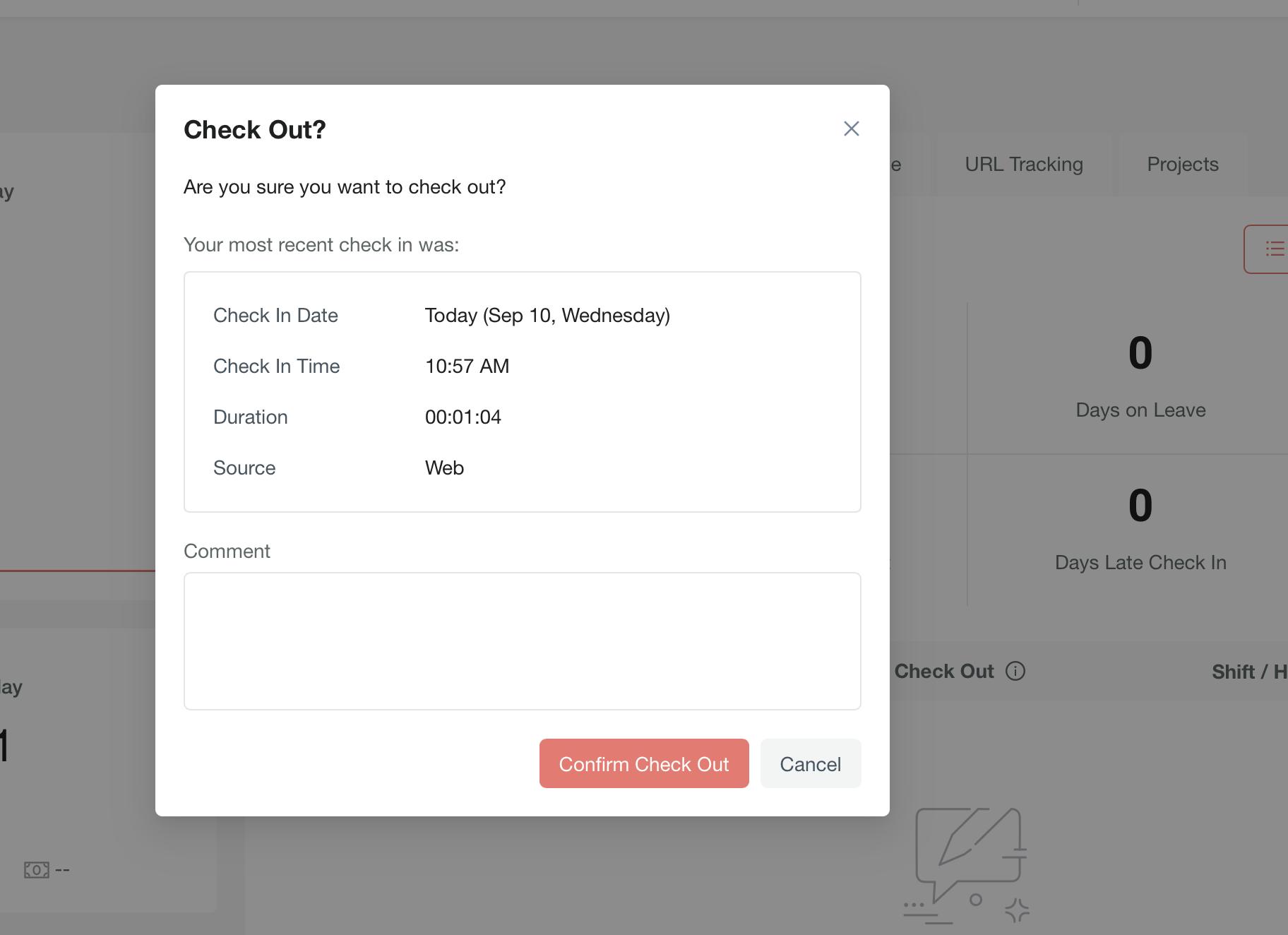
The modal will display Check-in time and total duration.
-
Add an optional comment, then click Confirm Check-out to complete.
3. Mobile Tracking
If the Mobile Activity Tracker is enabled in My Activity Module Settings and the user tracks time from the Mobile App, the data will appear in the Timesheet Tab under the Mobile App section.
4. Biometric Tracking
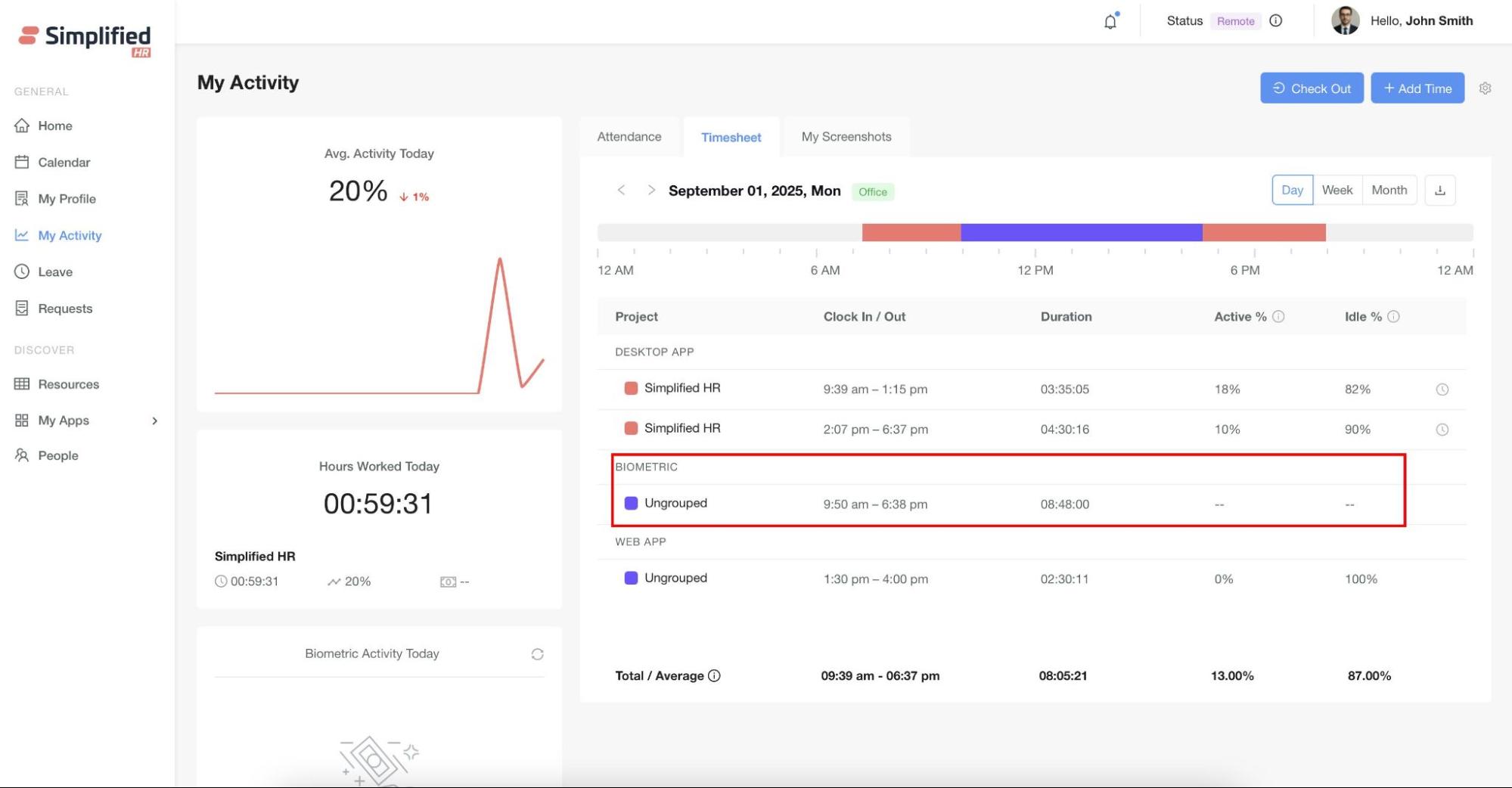
If Biometric Tracking is enabled in My Activity Module Settings and properly configured in the Biometric Module, the timesheet will display:
-
First punch-in time
-
Last punch-out time
-
Total duration
This data will be shown in the Timesheet Tab under the Biometric section.
Views Available
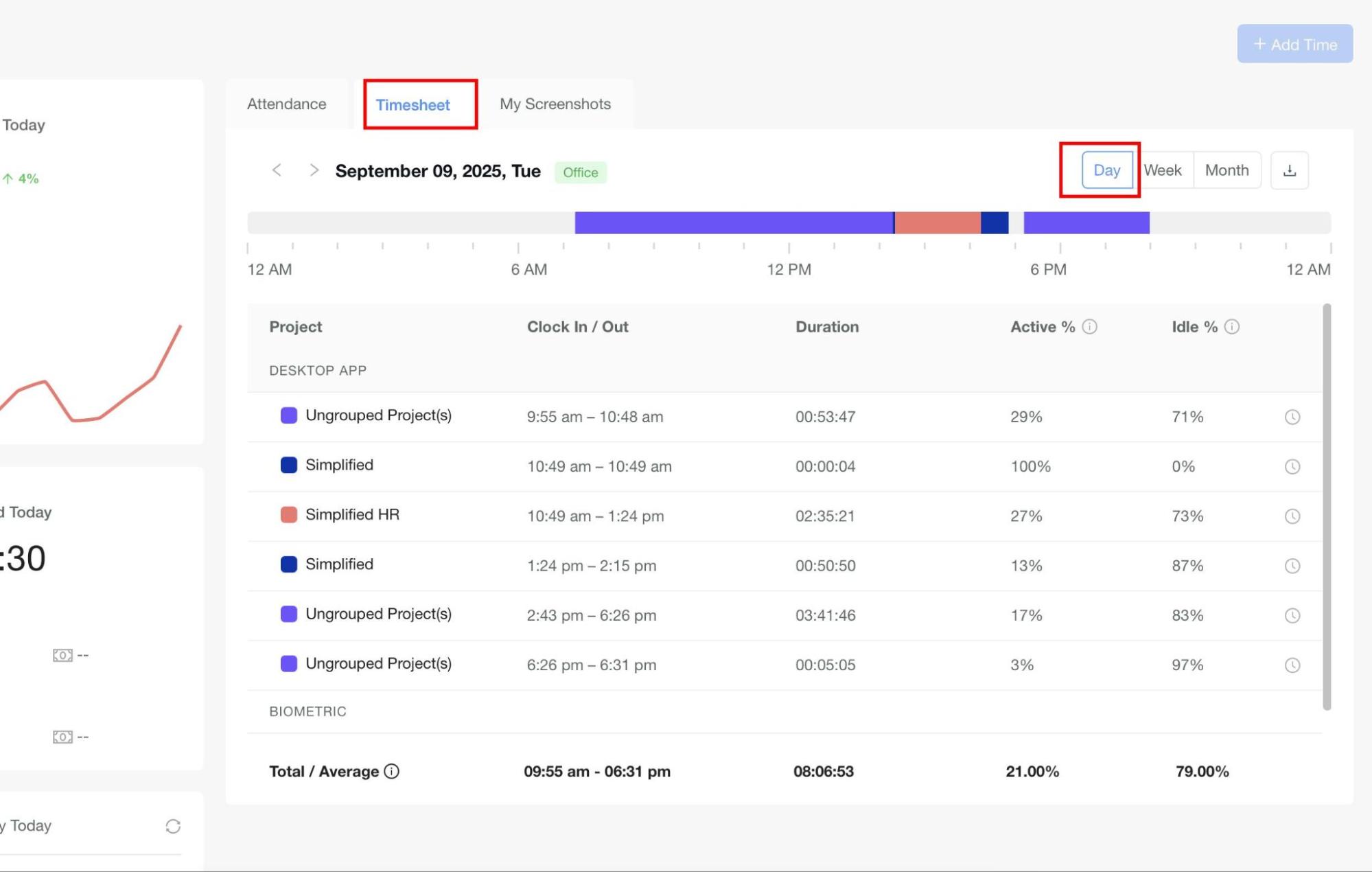
1. Daily View (Default)
-
Displays detailed breakdown of each tracking entry.
-
Shows:
-
Project name (if Desktop App is used)
-
Start and Stop times
-
Duration
-
Activity % and Idle % (from Desktop App)
-
Working location status (Office / Remote / Leave / Flexitime)
-
Breaks in tracking or project changes create new rows to maintain continuity.
-
At the bottom, users can view the total/average duration, activity %, and idle % — these are calculated only from Desktop App data.
2. Weekly View
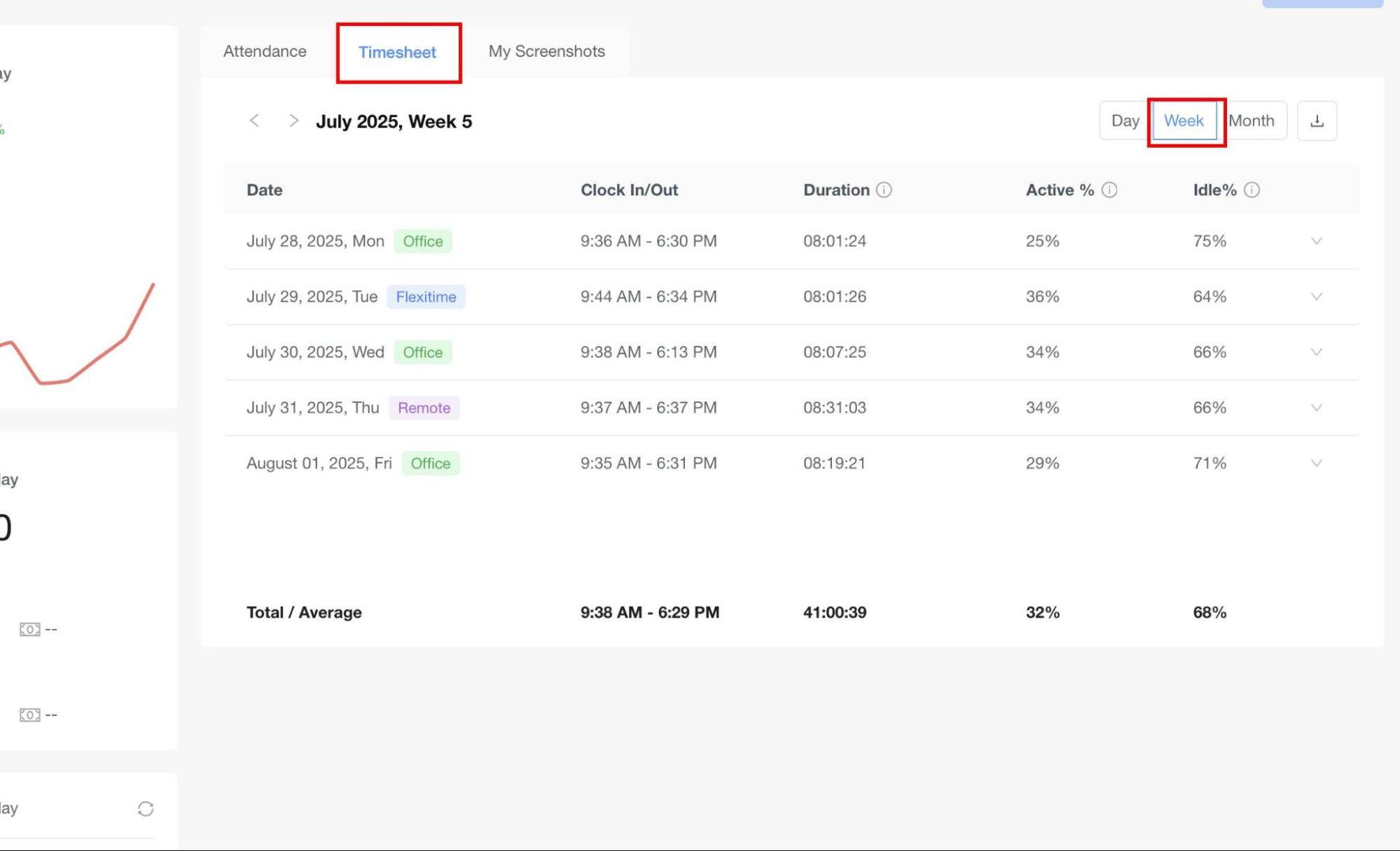
-
Displays timesheet data summarized per week.
-
Users can switch weeks using the navigation buttons.
-
For each day of the week, it shows:
-
First check-in and last check-out time
-
Total duration
-
Activity % and Idle %
-
Working location status (Office / Remote / Leave / Flexitime)
-
The check-in and check-out data comes from the primary attendance source configured in My Activity Settings.
3. Monthly View
-
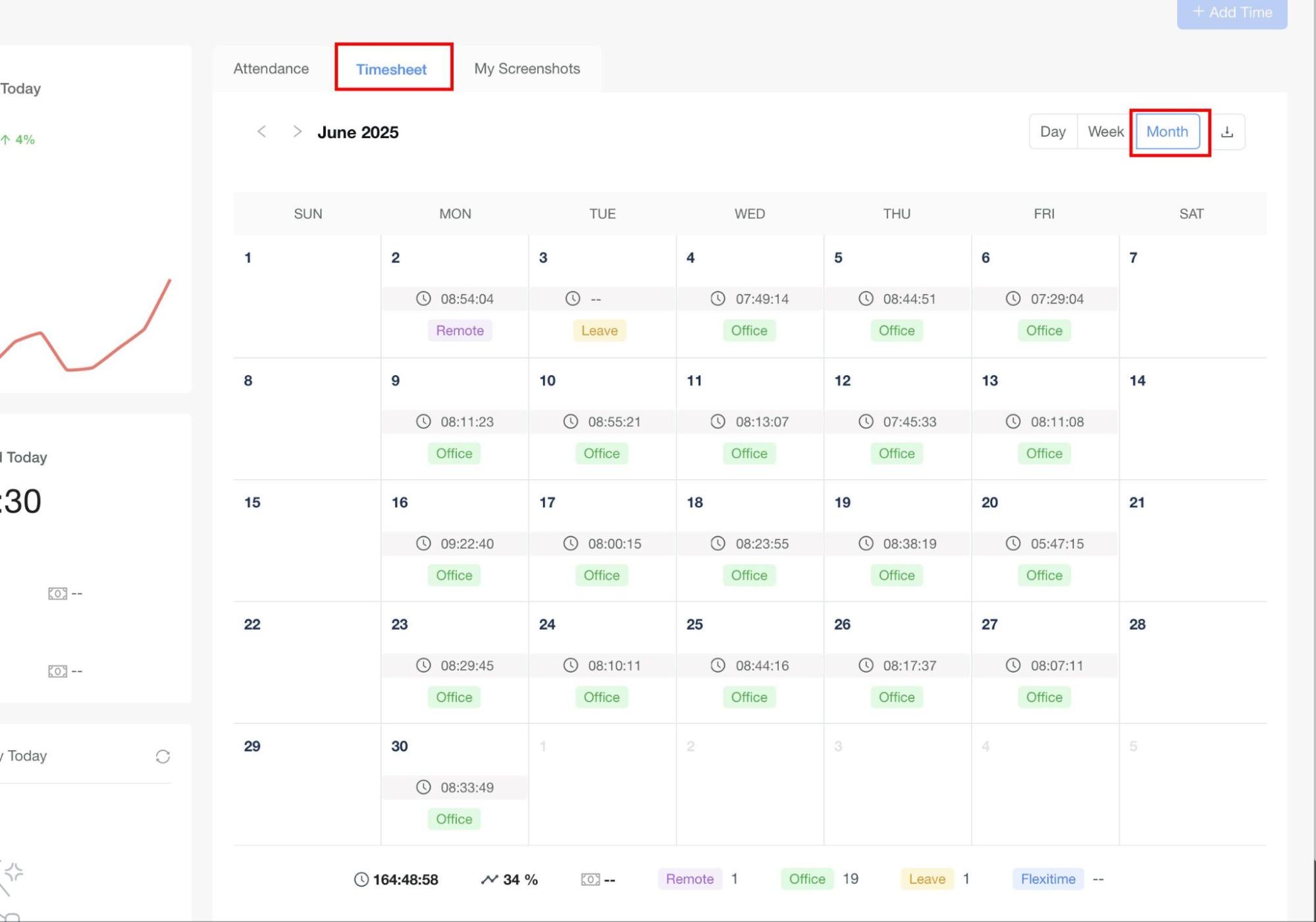
Displays data in a calendar view.
-
Each working day shows:
-
Total duration
-
Location status (Office / Remote / Leave / Flexitime)
-
Flexitime status is shown when the user works half-day and has a half-day leave.
-
At the bottom of the monthly calendar, users can see:
-
Total working hours of the month
-
Average Activity % (from Desktop App data only)
-
Day counts for:
-
Remote days
-
Office days
-
Leave days
-
Flexitime days
5. Add Time
-
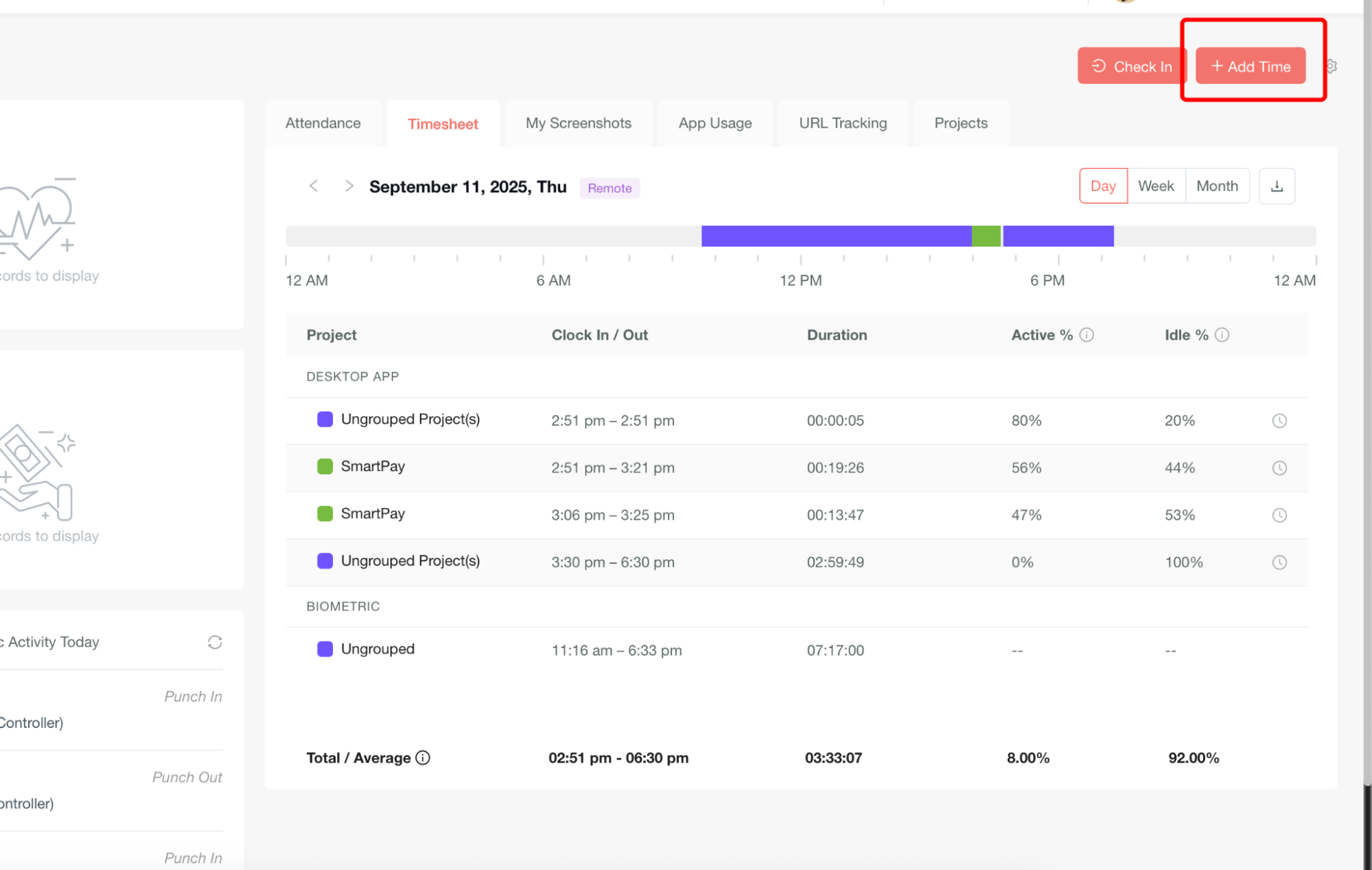
Add Time Button
-
If the user has permission: The Add Time button is enabled, allowing the user to manually add missed time entries.
-
If the user does not have permission: The button will not be visible or clickable.
-
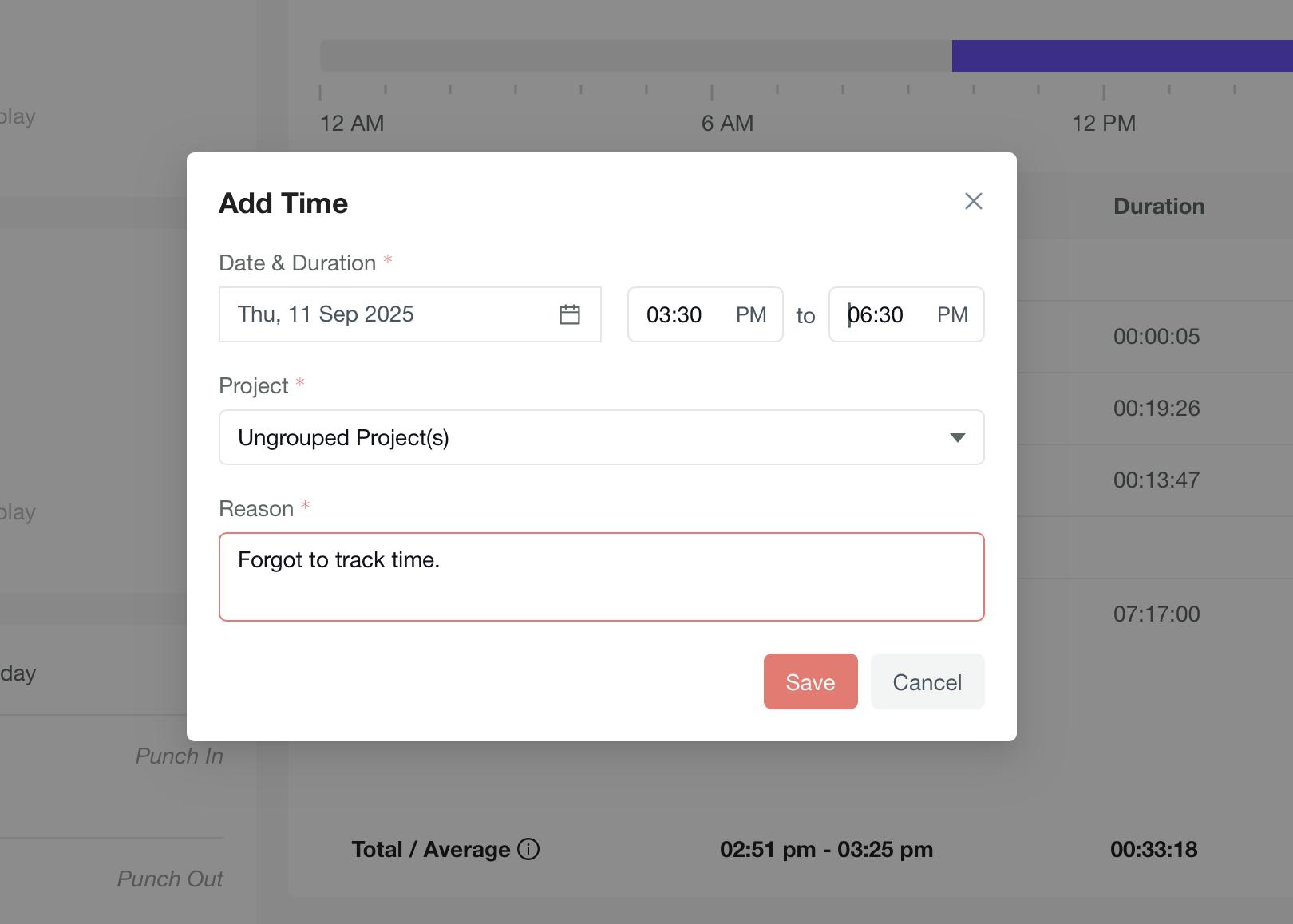
Steps to Add Time:
-
Click on the Add Time button.
-
Select the Date of the missed entry.
-
Choose the Time Range.
-
Select the Project associated with the time.
-
Provide a Reason for adding the time.
-
Click on the Save button.
-
How It Appears in Timesheet:
-
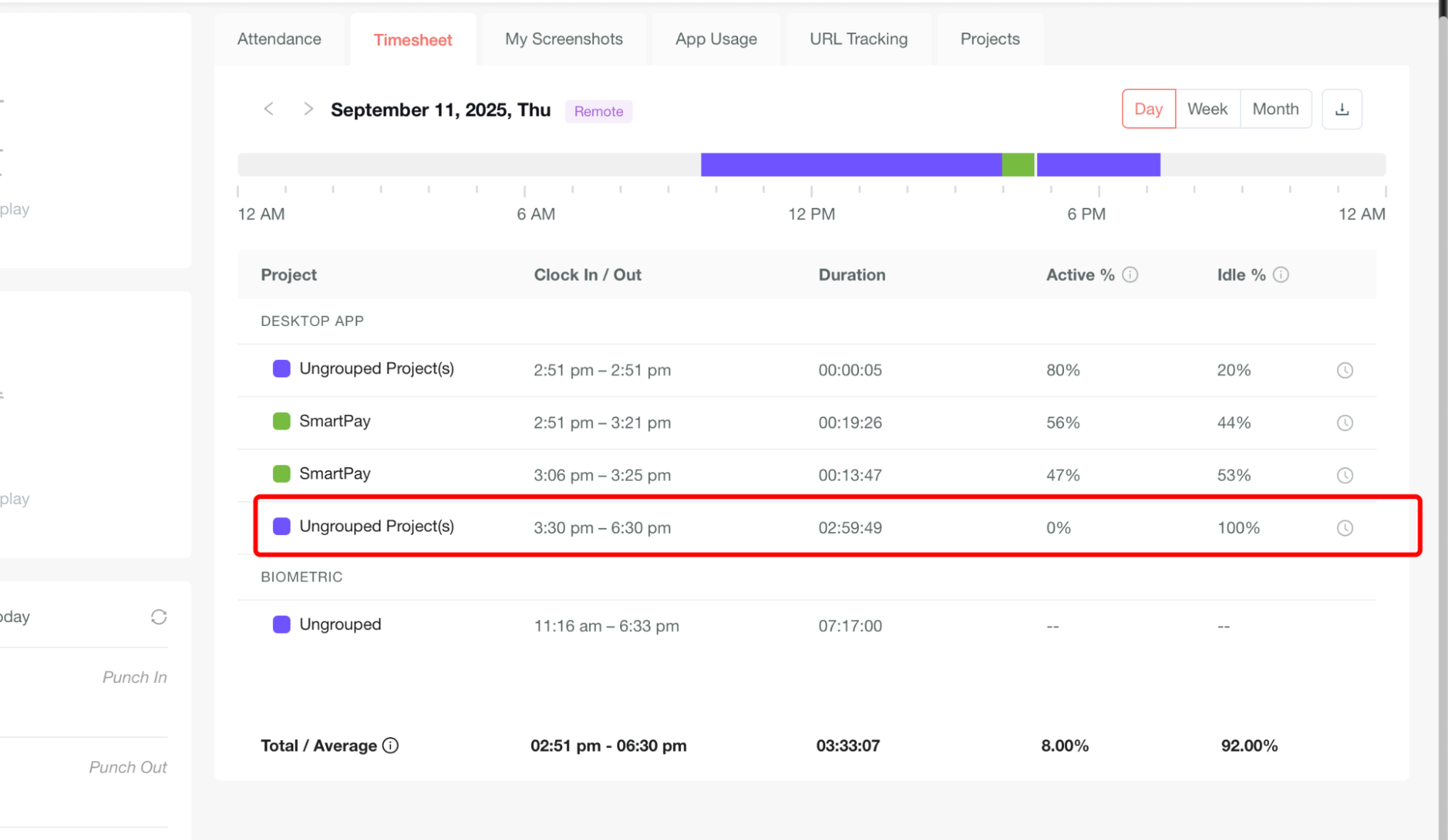
The manually added time is recorded under the Desktop App section.
-
This added time is displayed with 100% Idle, since no activity was tracked during the manually entered duration.
Export Option
-
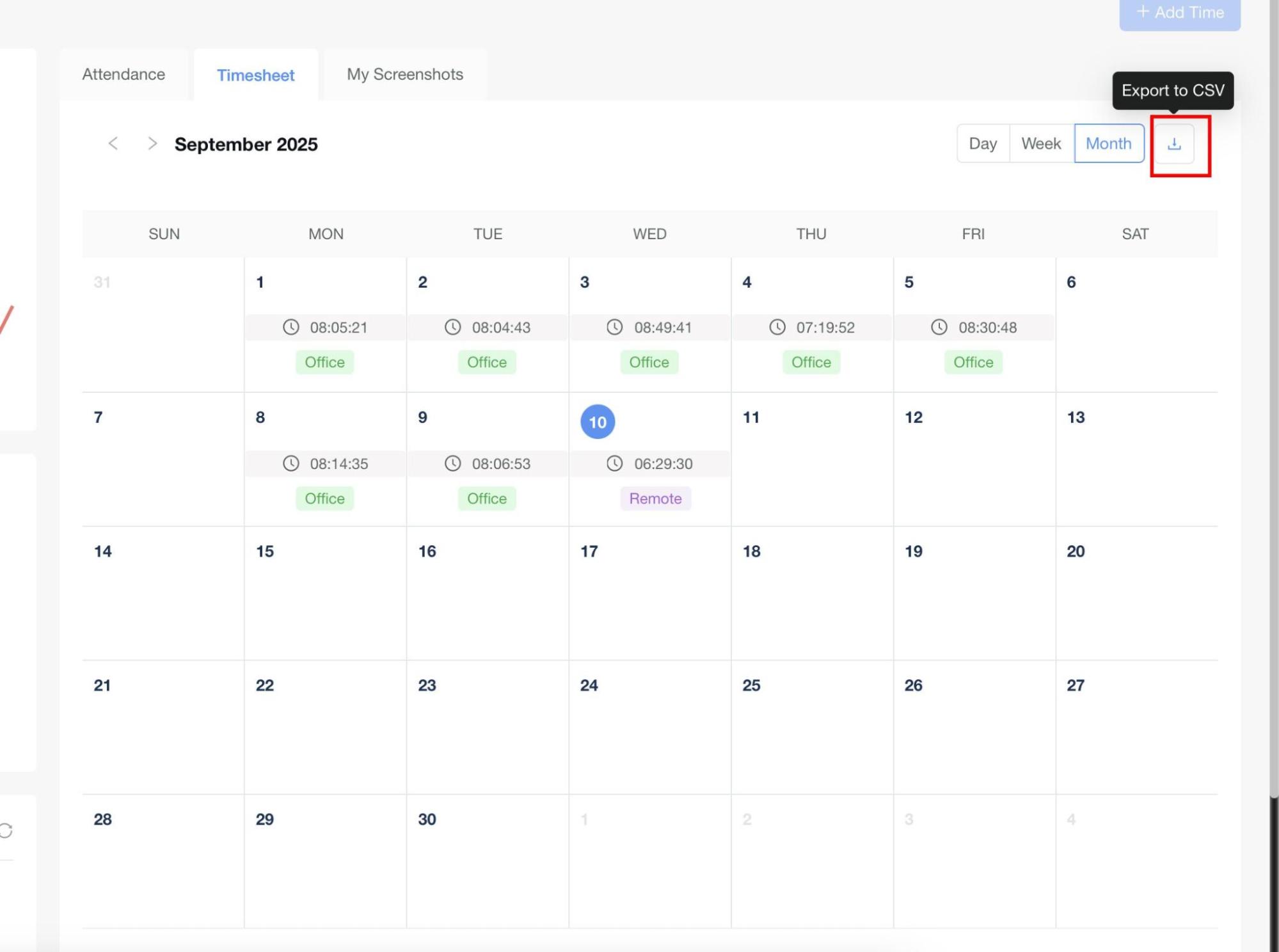
Users can extract their timesheet data by clicking on the Download button.
-
The downloaded file includes all timesheet entries as per the selected view (Daily, Weekly, or Monthly).
Screenshots Tab
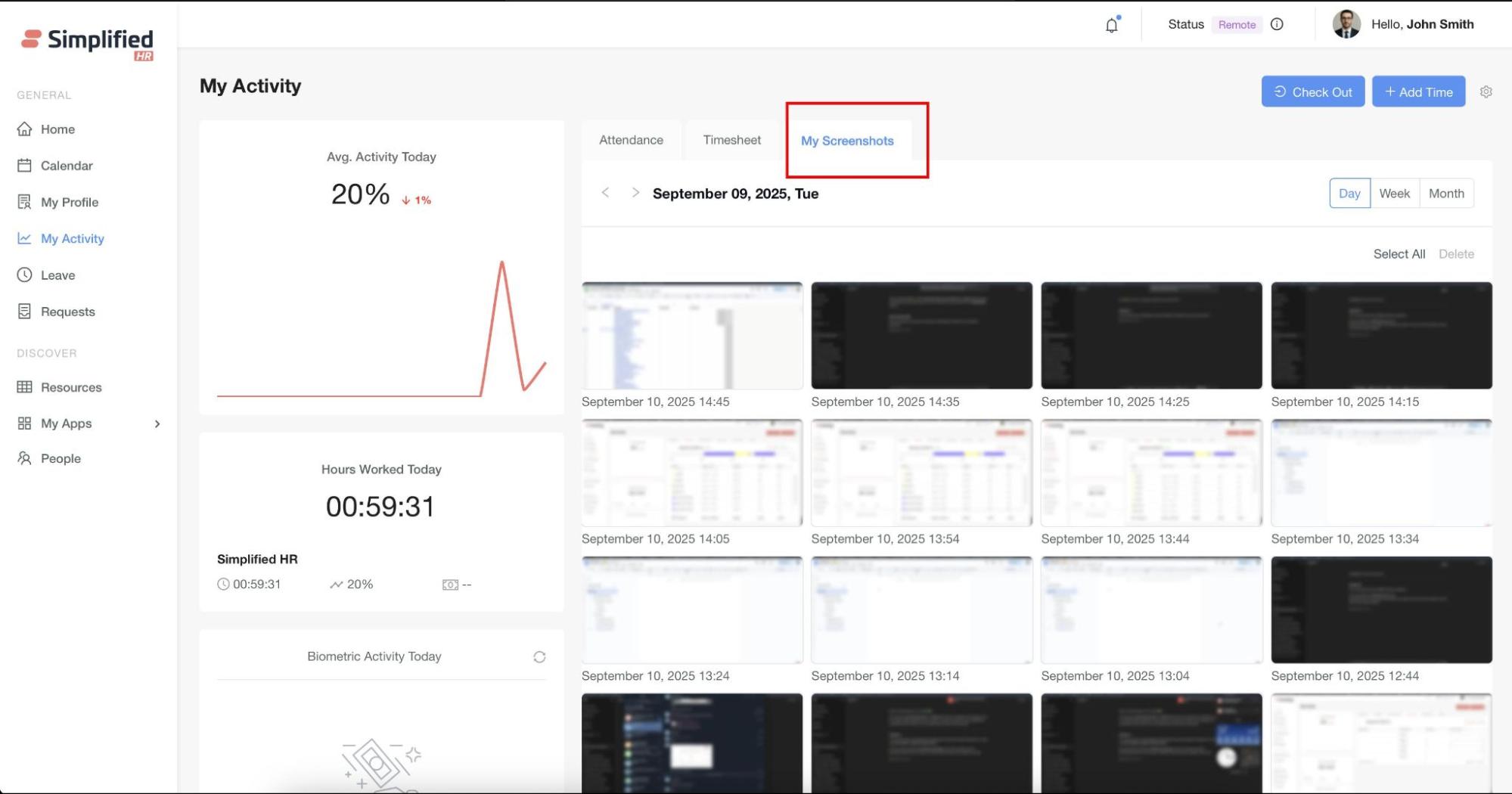
The Screenshots Tab allows users to view screenshots captured automatically by the Desktop App during tracked working hours.
Views Available
Users can view screenshots in the following formats:
-
Daily View – Displays screenshots captured for the selected day.
-
Weekly View – Groups and displays screenshots for the selected week.
-
Monthly View – Provides an overview of screenshots captured across the selected month.
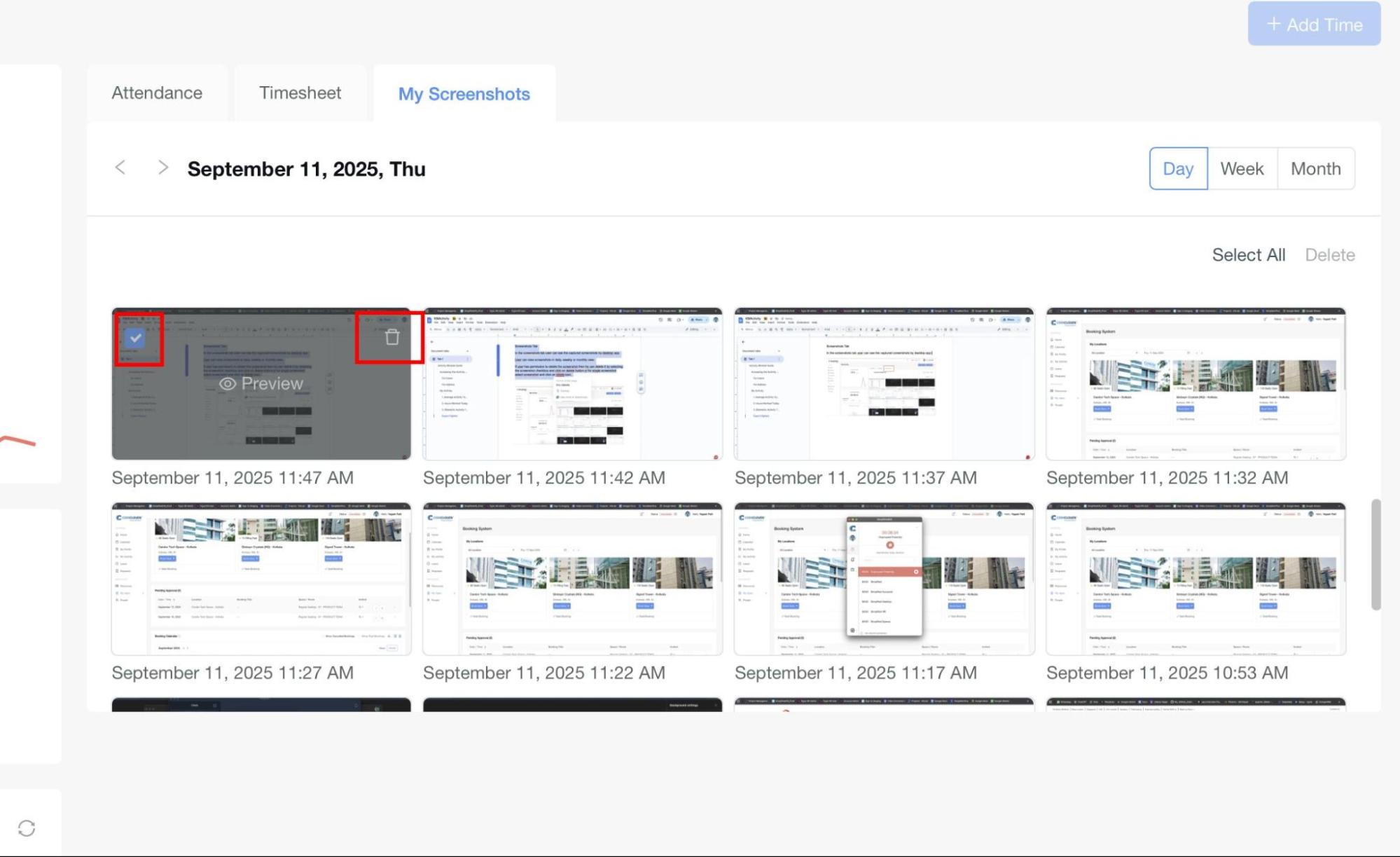
Managing Screenshots
Viewing
Deleting
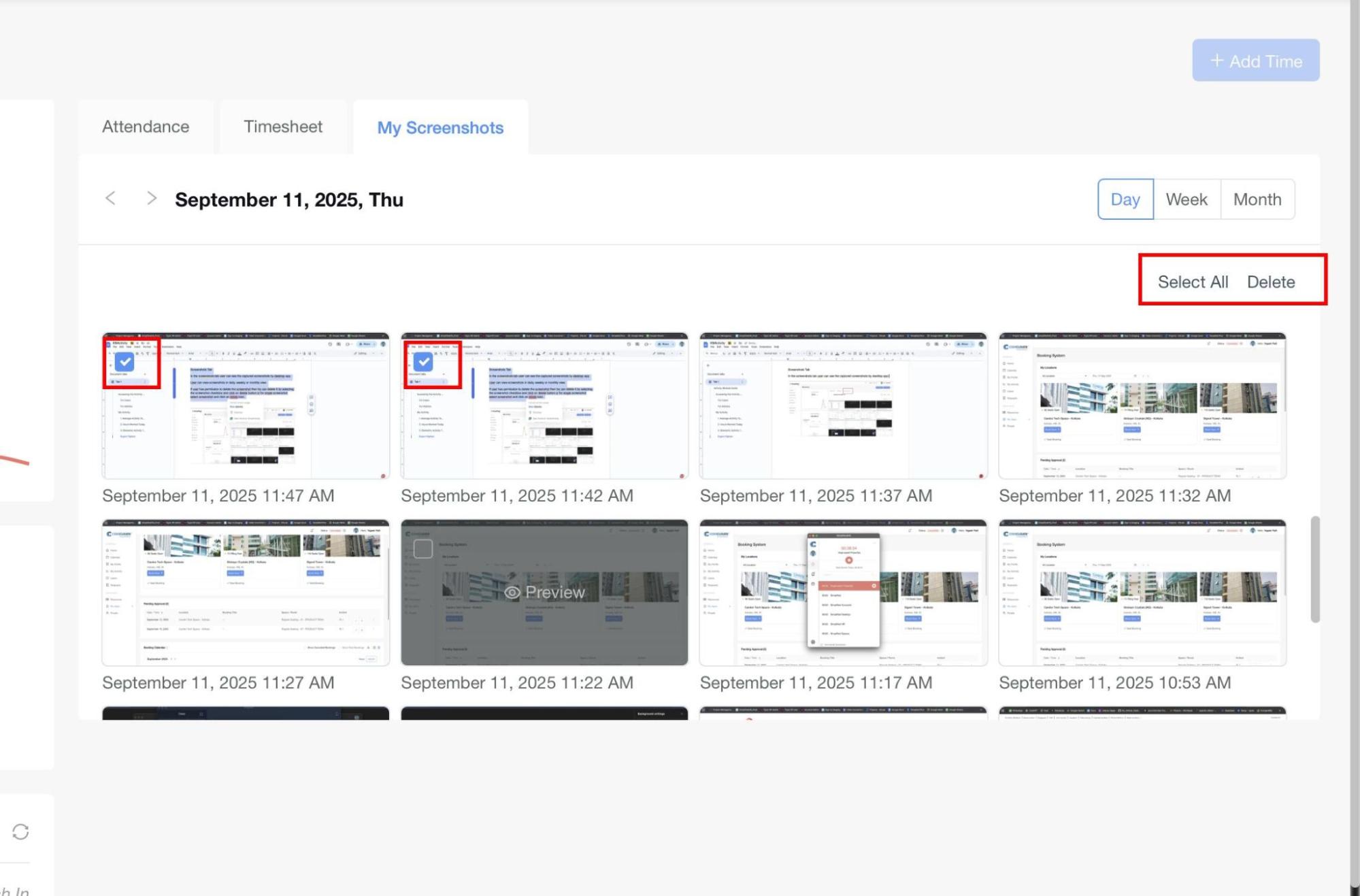
- Delete Single: Select an individual screenshot and click the Delete icon on the screenshot thumbnail.
App Usage Tab
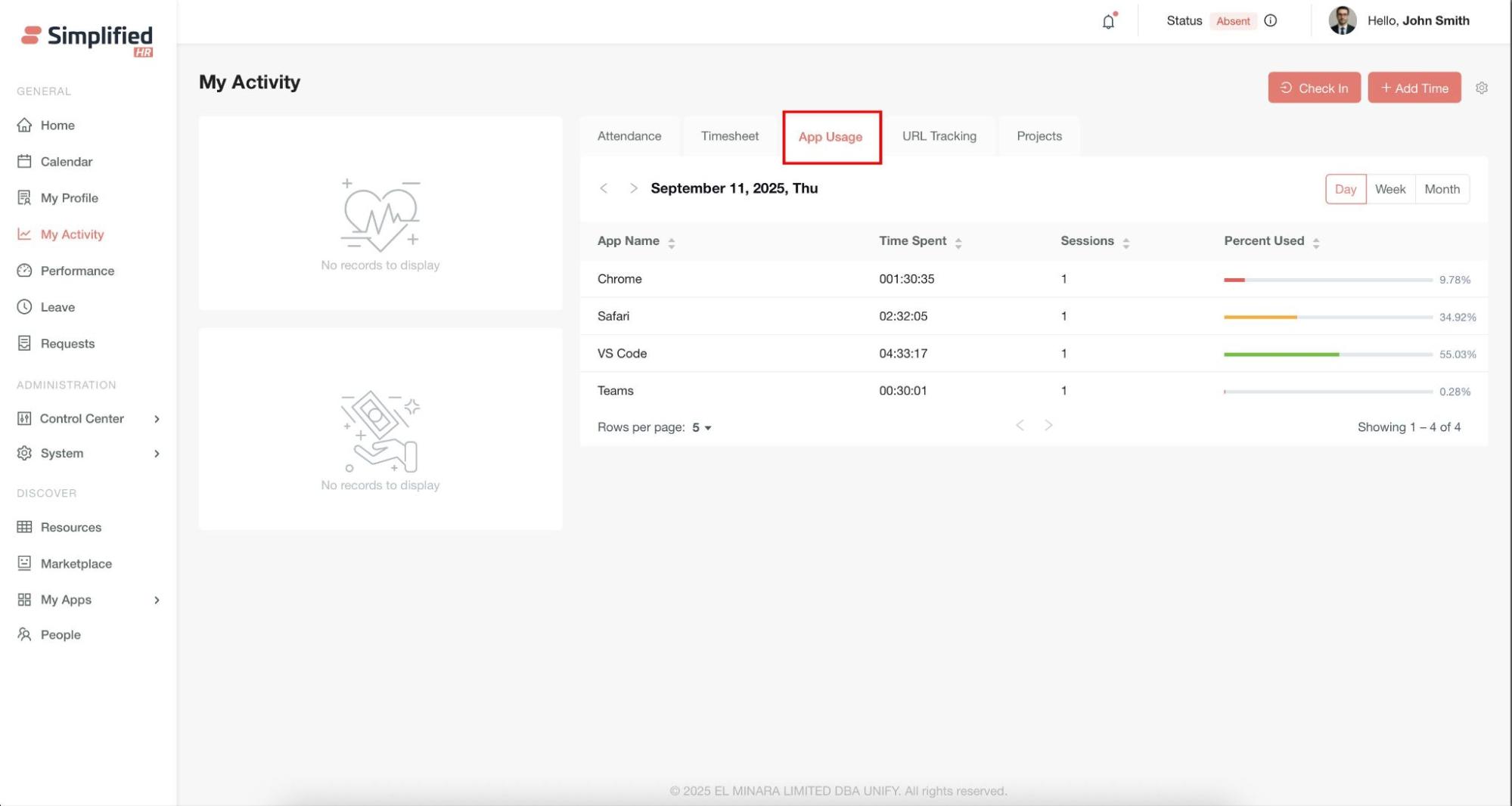
The App Usage Tab provides insights into the applications used by the user during tracked working hours.
This tab is only visible if App Usage Tracking is enabled in Module Settings.
Key Features
-
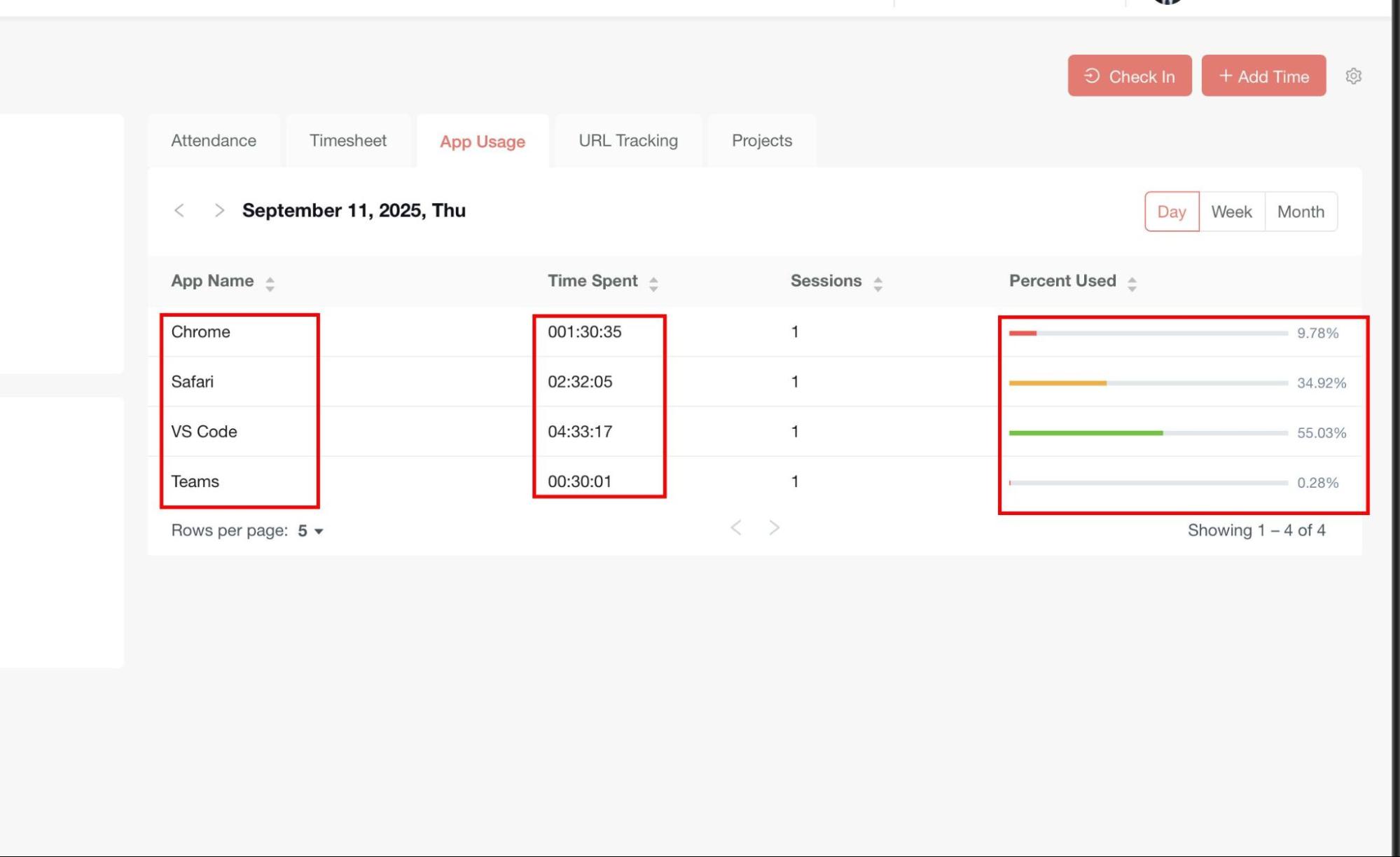
Application Details
-
Displays the list of applications used by the user.
-
For each application, the following information is shown:
-
Total duration of usage
-
Percentage of total time spent in that application
-
Number of sessions (times the app was opened/used)
-
Views Available
-
Daily View – Shows app usage for the selected day.
-
Weekly View – Summarizes app usage across the selected week.
-
Monthly View – Provides an overview of app usage for the entire month.
-
Navigation
-
Users can switch between Day, Week, and Month views.
-
Specific dates can be selected using the navigation buttons to view app usage history.
URL Tracking Tab
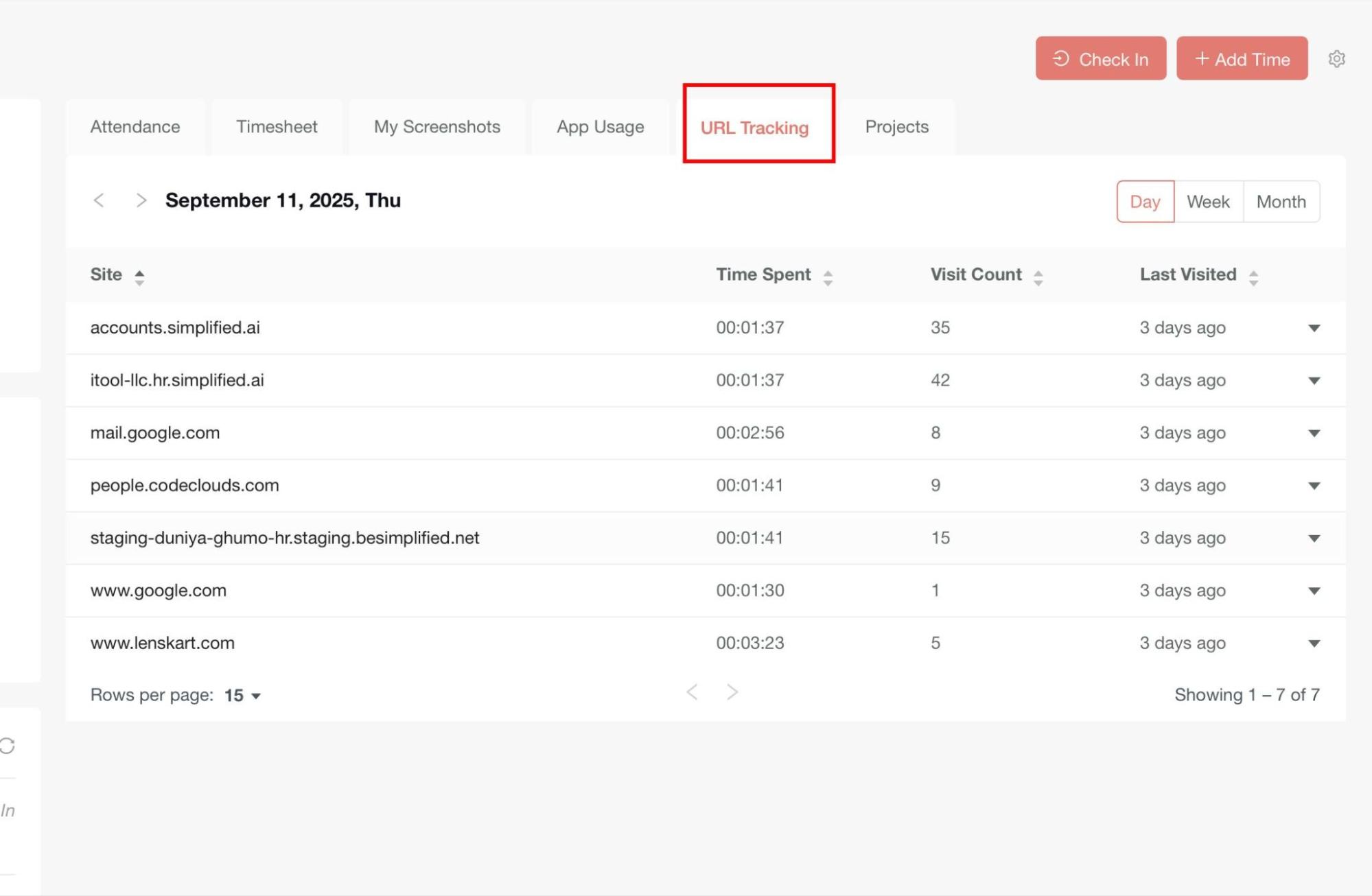
The URL Tracking Tab provides insights into the websites visited by the user during tracked working hours.
This tab is only visible if URL Tracking is enabled in Module Settings.
Key Features
-
Website Details
-
Displays the list of websites visited by the user.
-
For each website, the following information is shown:
-
Total time spent on the site
-
Visit count (number of times the site was visited)
-
Last visited time
-
Detailed View
-
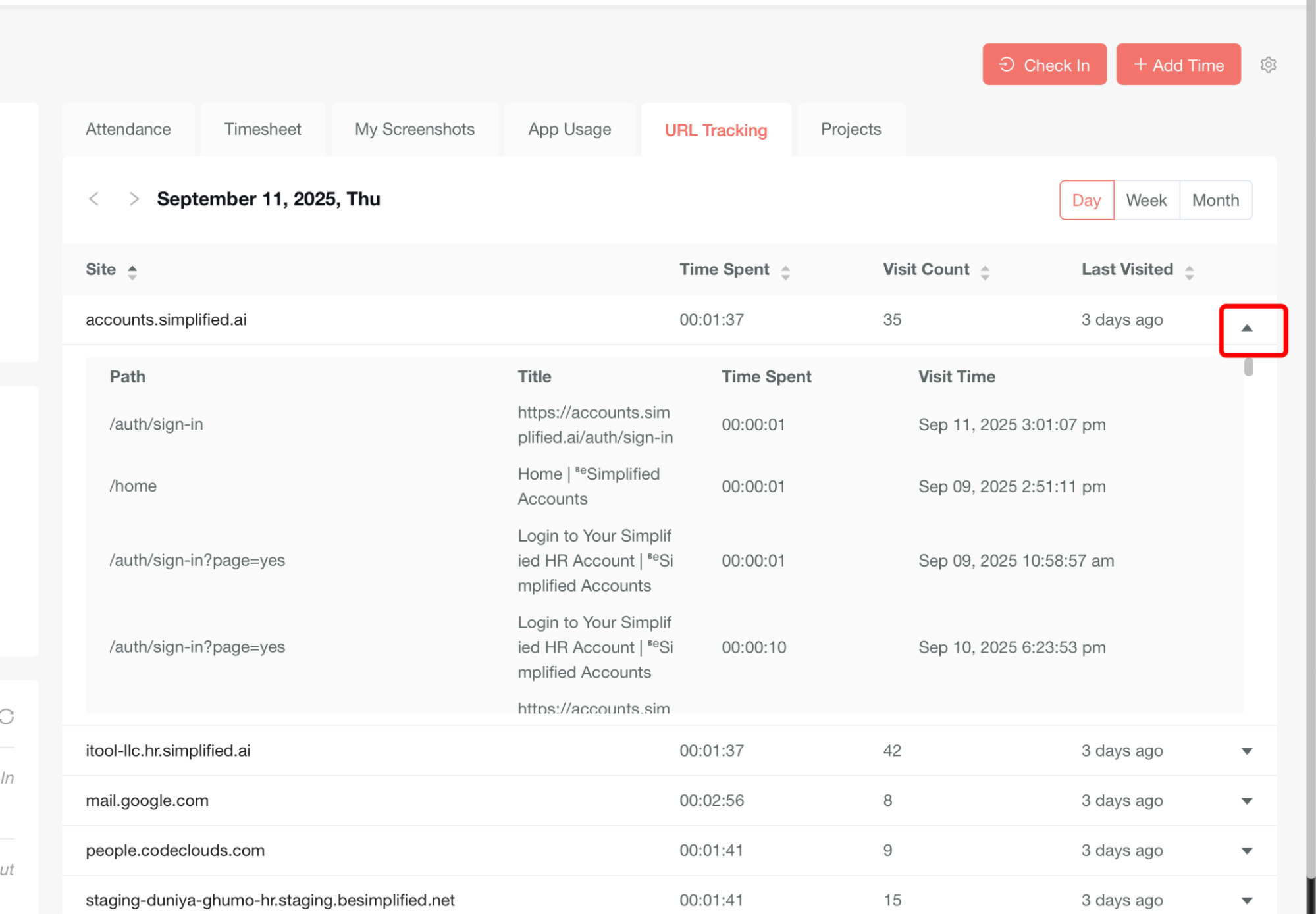
Each website row has a down arrow that can be expanded.
-
Expanding the row opens a panel that shows detailed session-level data, including:
-
Path (specific URL visited)
-
Title (page title of the site)
-
Time Spent (on that session)
-
Visit Time (timestamp of the visit)
-
Views Available
-
Daily View – Shows URLs visited for the selected day.
-
Weekly View – Summarizes site usage across the selected week.
-
Monthly View – Provides an overview of browsing activity for the entire month.
-
Navigation
-
Users can switch between Day, Week, and Month views.
-
Specific dates can be selected using the navigation buttons to view browsing history.