This article explains how to configure and use the offboarding module in your Simplified HR platform. The offboarding module helps you manage the complete employee departure process, ensuring smooth transitions, security compliance, and positive exit experiences.
Overview
The offboarding module is a structured digital system that automates and standardizes the complex multi-departmental process when an employee leaves your organization. It handles various departure scenarios, including resignations, retirements, terminations, and contract completions.
Key features include:
-
Automated task workflows based on the departing employee's role and department
-
Customized checklists for different departure types
-
Automatic task assignment to relevant stakeholders (HR, IT, facilities, managers)
-
Reminder notifications with deadlines to ensure completion
Prerequisites
Before you begin configuring the offboarding functionality, ensure you meet these requirements:
Important: Only users with admin, owner, or similar high-level roles can configure offboarding settings and manage processes across the organization. This restriction ensures proper governance and control.
Permission override: Owner, admin, or similar role members will override any restrictions set up in the offboarding configuration.
For detailed permission setup instructions, refer to the Roles and Permissions User Guide.
Accessing offboarding settings
-
Log in to your Simplified HR application with valid admin credentials
-
Navigate to System > Module Settings
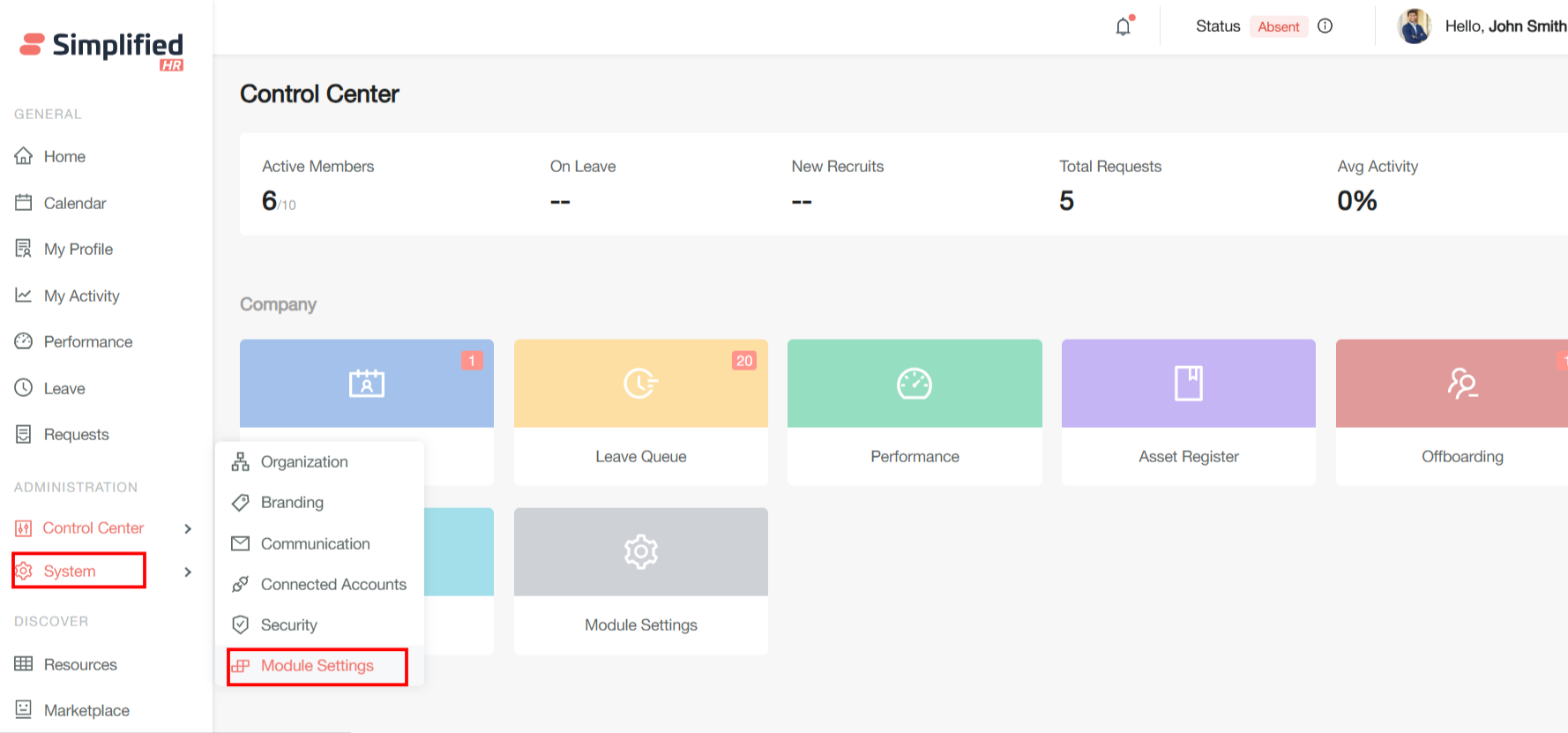
Screenshot showing the System menu with Module Settings option highlighted
- In the Module Settings page, click Offboarding from the left sidebar menu
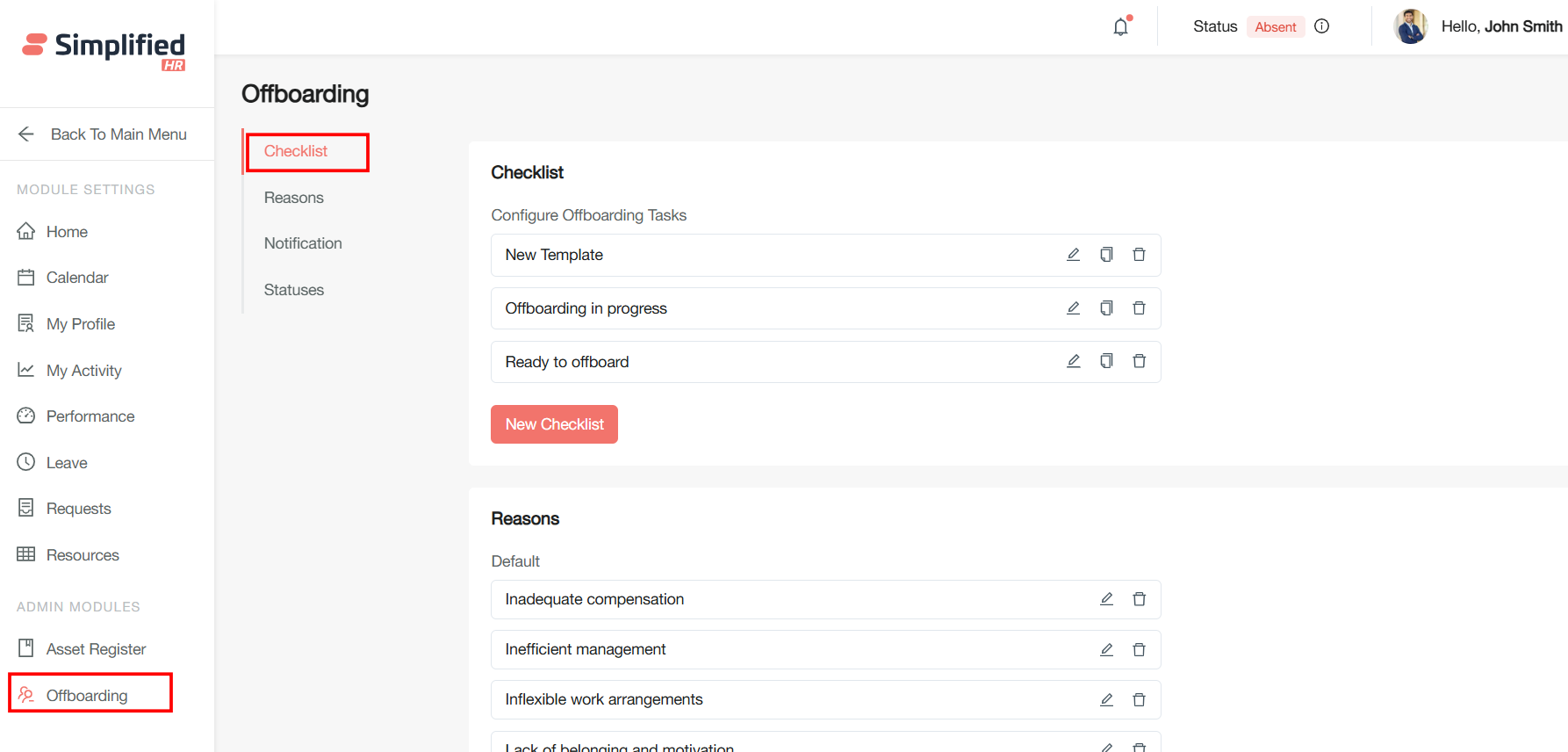
Screenshot showing the Module Settings page with Offboarding selected
Creating offboarding checklists
Offboarding checklist templates are standardized documents that outline all tasks and procedures needed when an employee leaves your organization. They ensure consistent processes across all employee exits while protecting company interests.
Adding a new checklist
- Click the New Checklist button
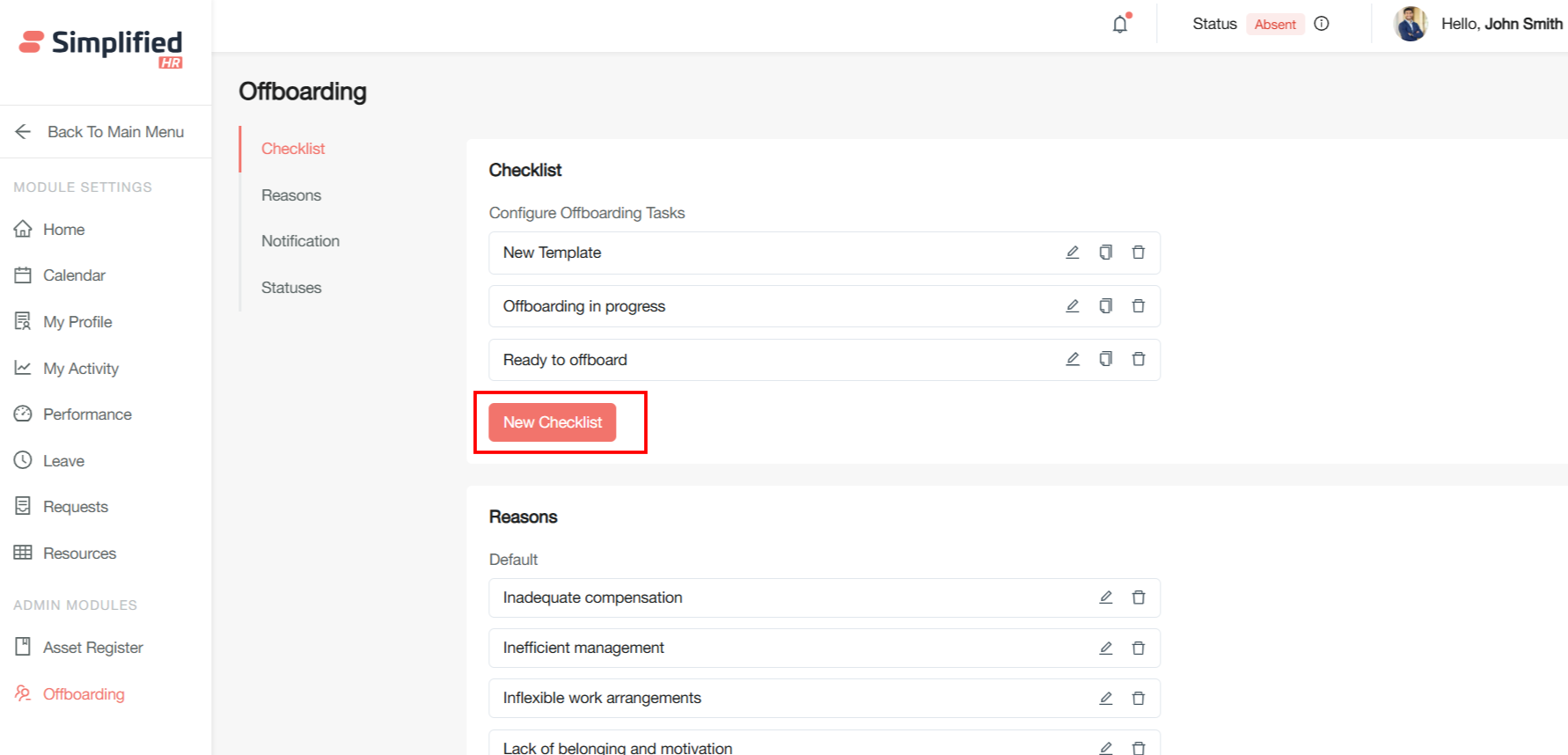
Screenshot showing the New Checklist button
- Fill in the checklist details:
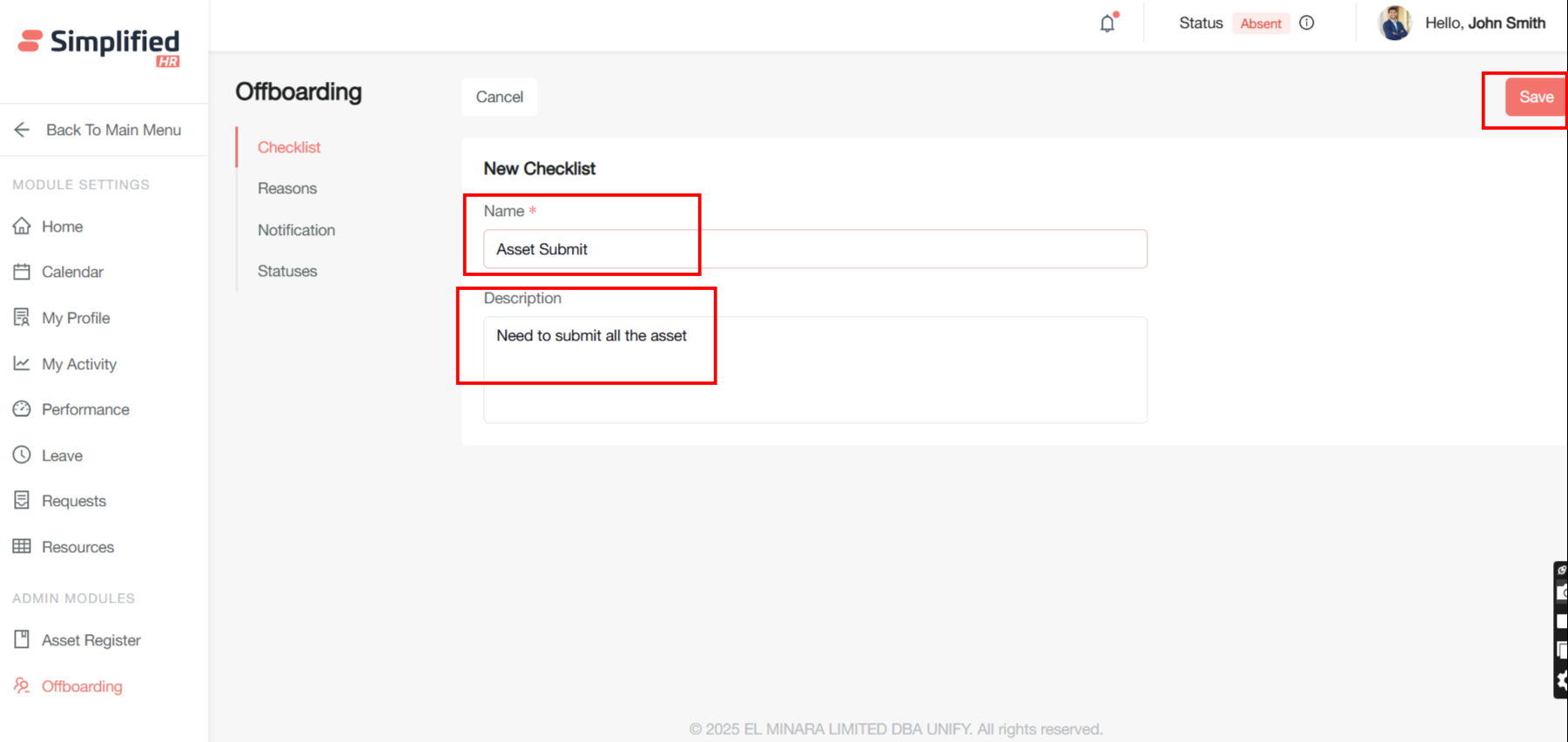
Screenshot showing the checklist creation form
- Click Save to create your checklist
Managing existing checklists
Once you've created checklists, you can manage them using these options:
Editing checklists
- Click the Edit button next to any checklist to modify its name or description
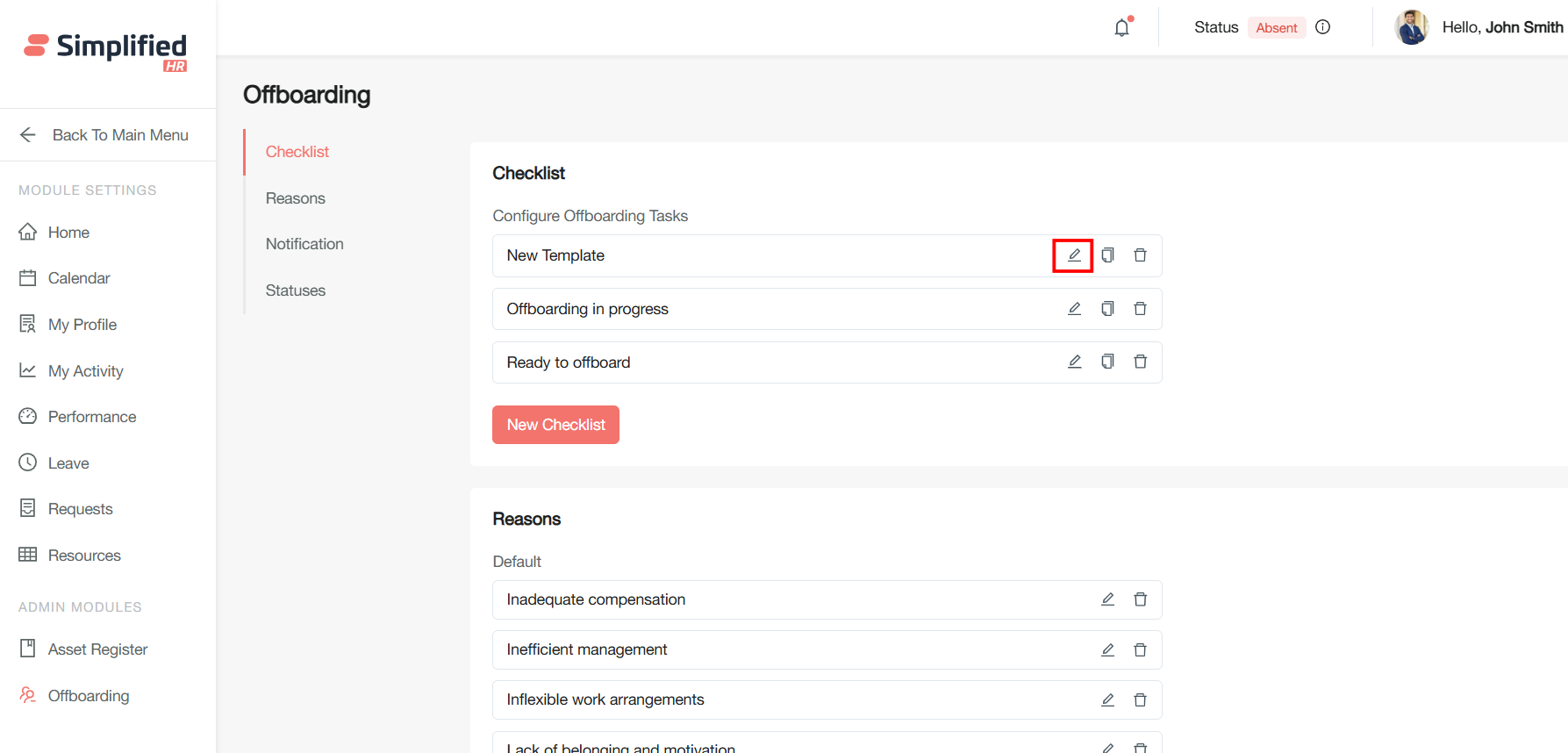
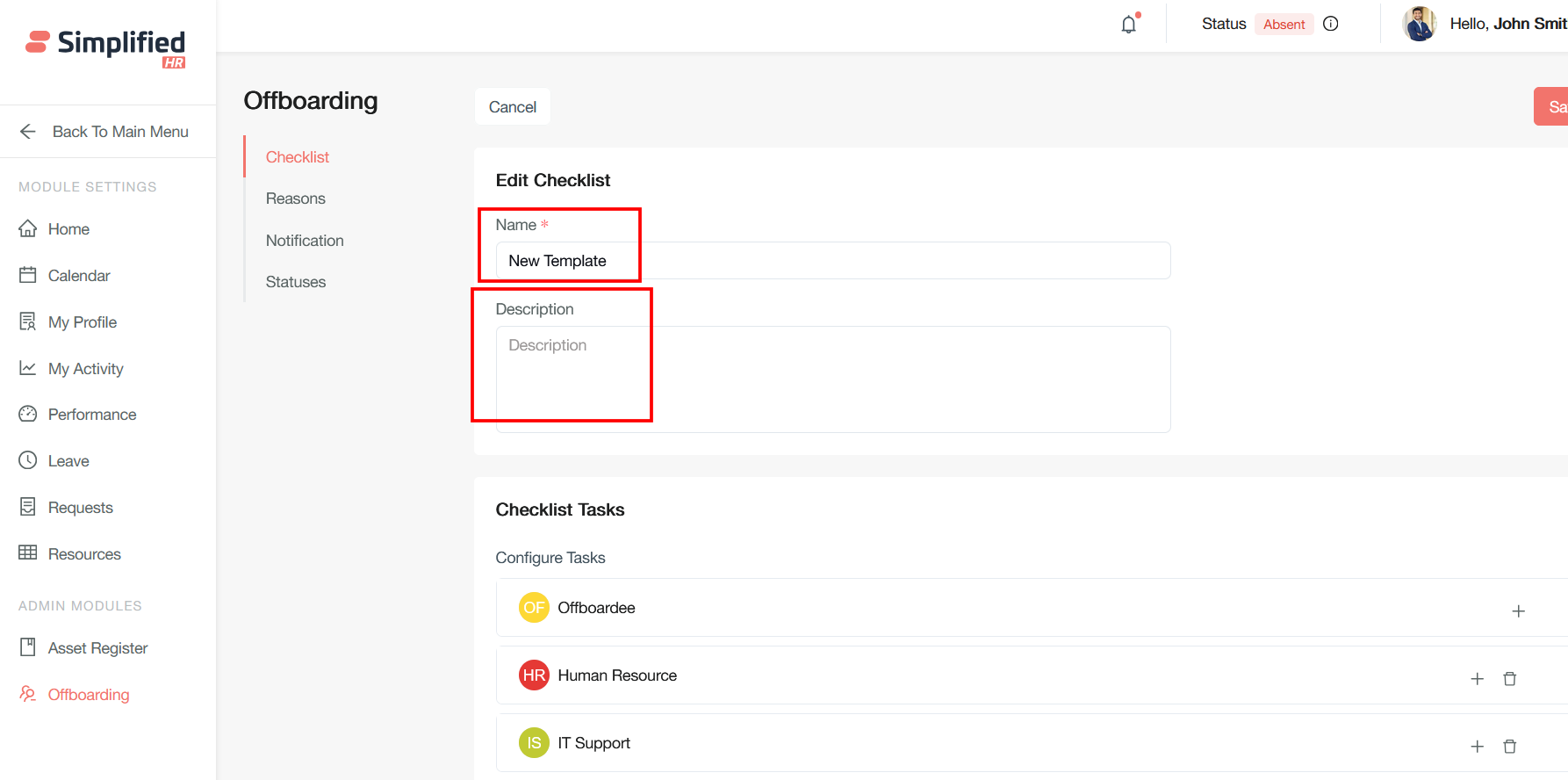
Adding checklists Team
Adding a checklists team involves coordination where HR handles the overall process, but IT managers, the administration team, and departmental executives/supervisors have a major role to play in the employee offboarding process. This collaborative approach ensures that all aspects of employee departure are properly managed across organizational departments
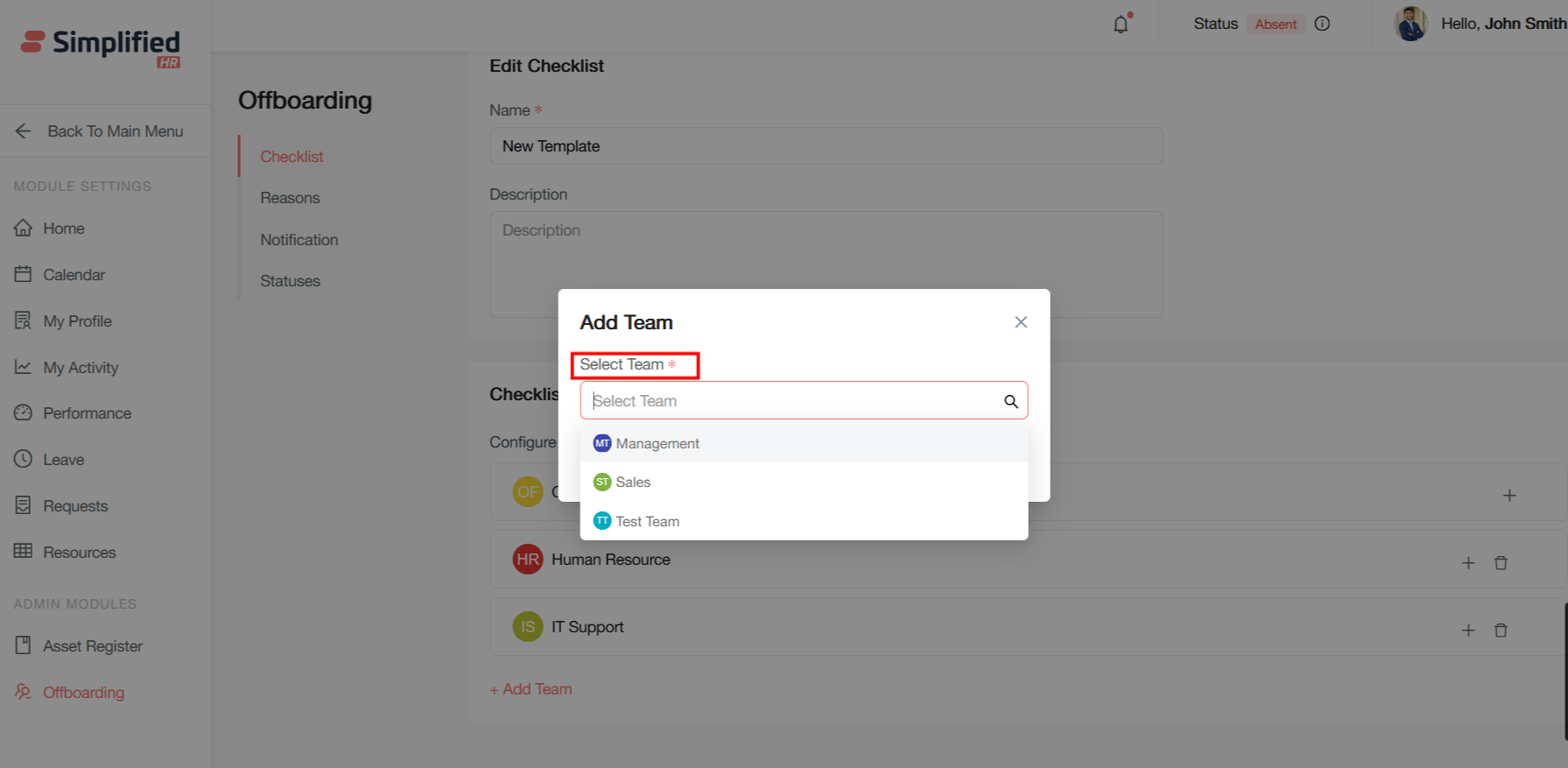
By clicking on the Add team button user can add the team responsible for checklist task
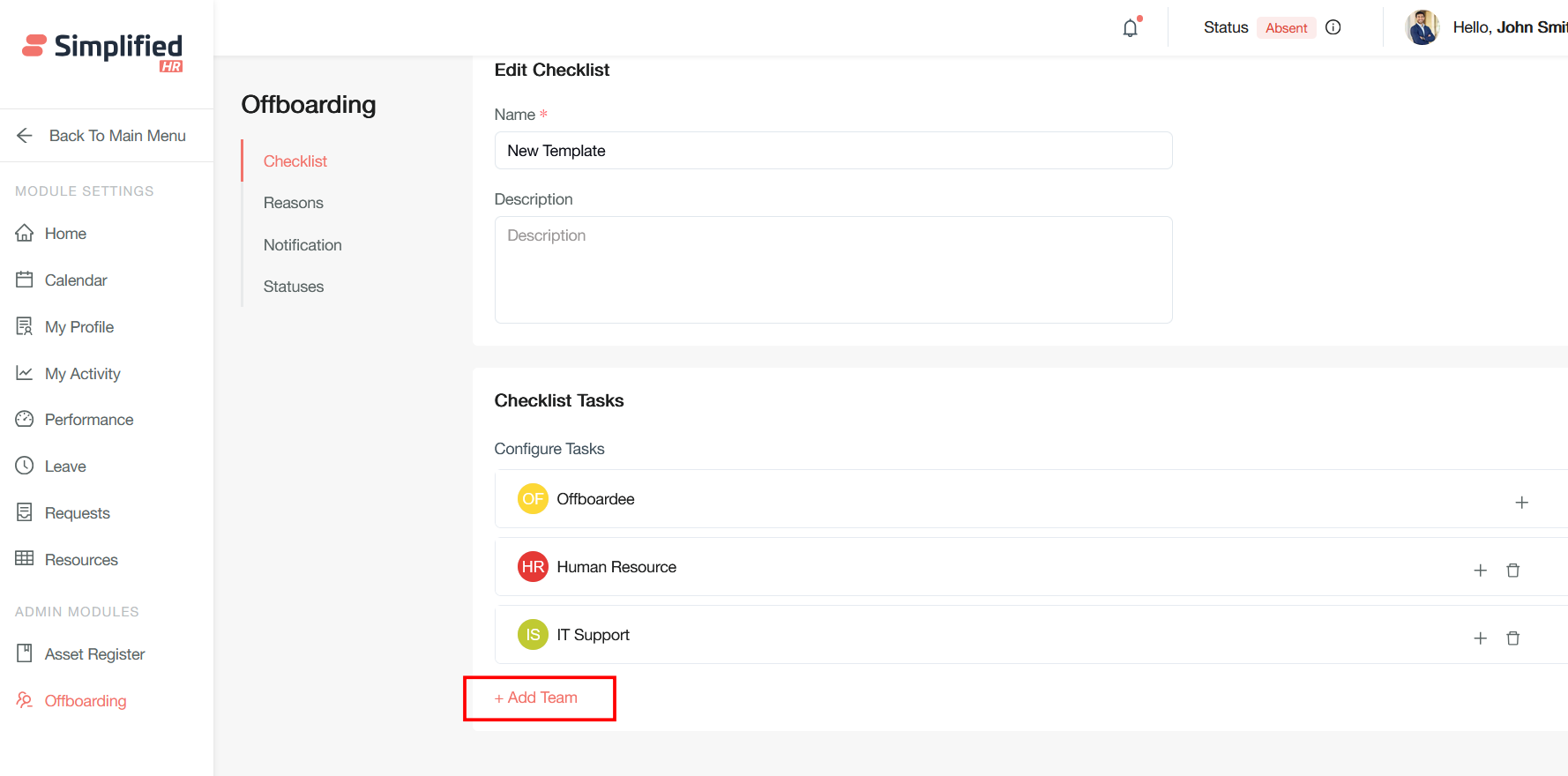
Users can select the corresponding team which are responsible for offboarding checklist task to be completed.
Adding checklists Task
Adding checklist tasks in offboarding refers to the process of creating and incorporating specific actionable items into an employee departure workflow that must be completed by designated stakeholders before the offboarding process is considered complete.
Checklist tasks are individual action items that break down the complex offboarding process into manageable, trackable steps. Each task typically includes:
-
Specific action required (e.g., "Return laptop," "Complete exit interview")
-
Assigned responsible party (HR, IT, manager, or departing employee)
-
Due date for completion
-
Completion status tracking
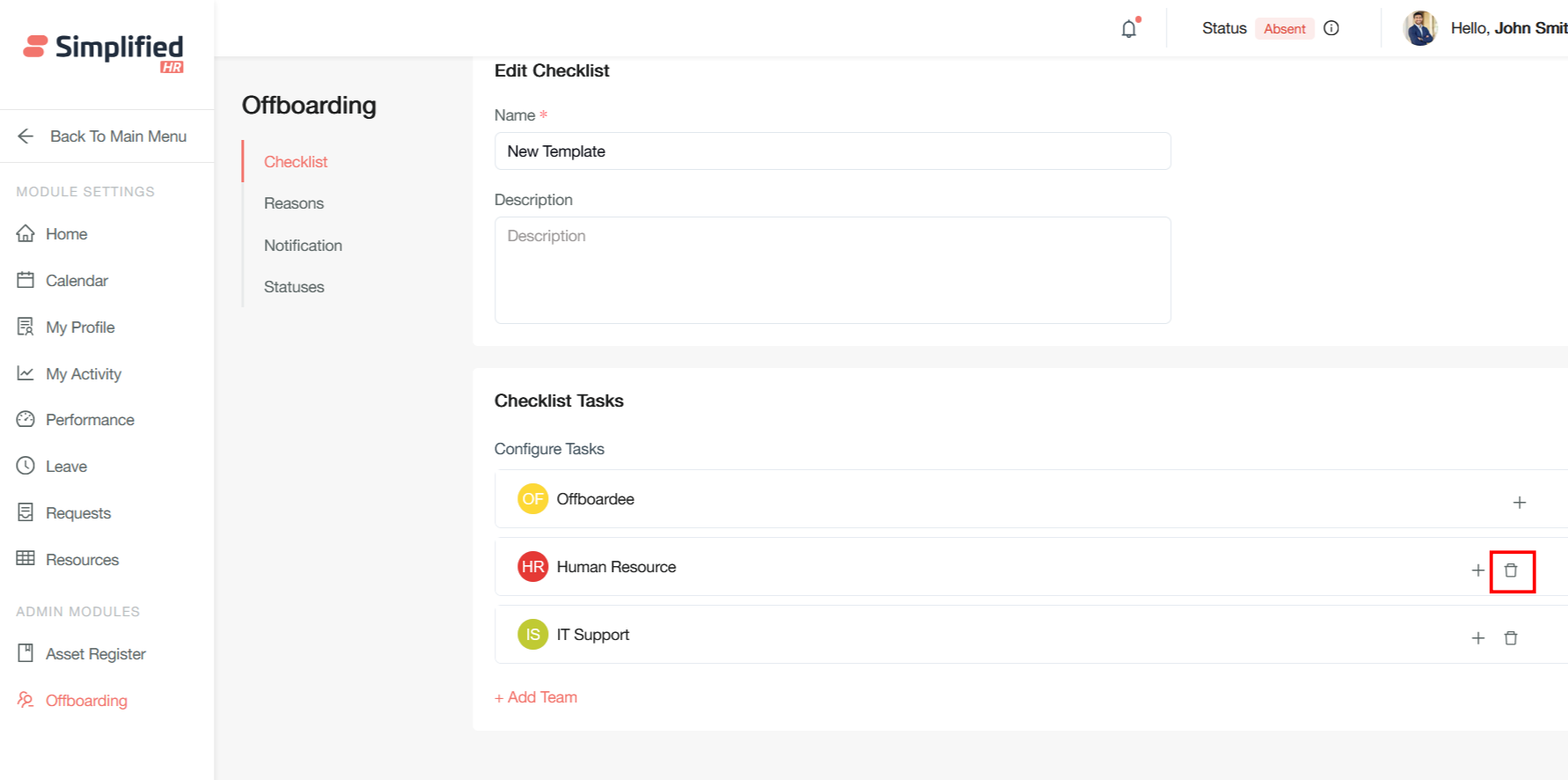
Add checklist by clicking on the add button
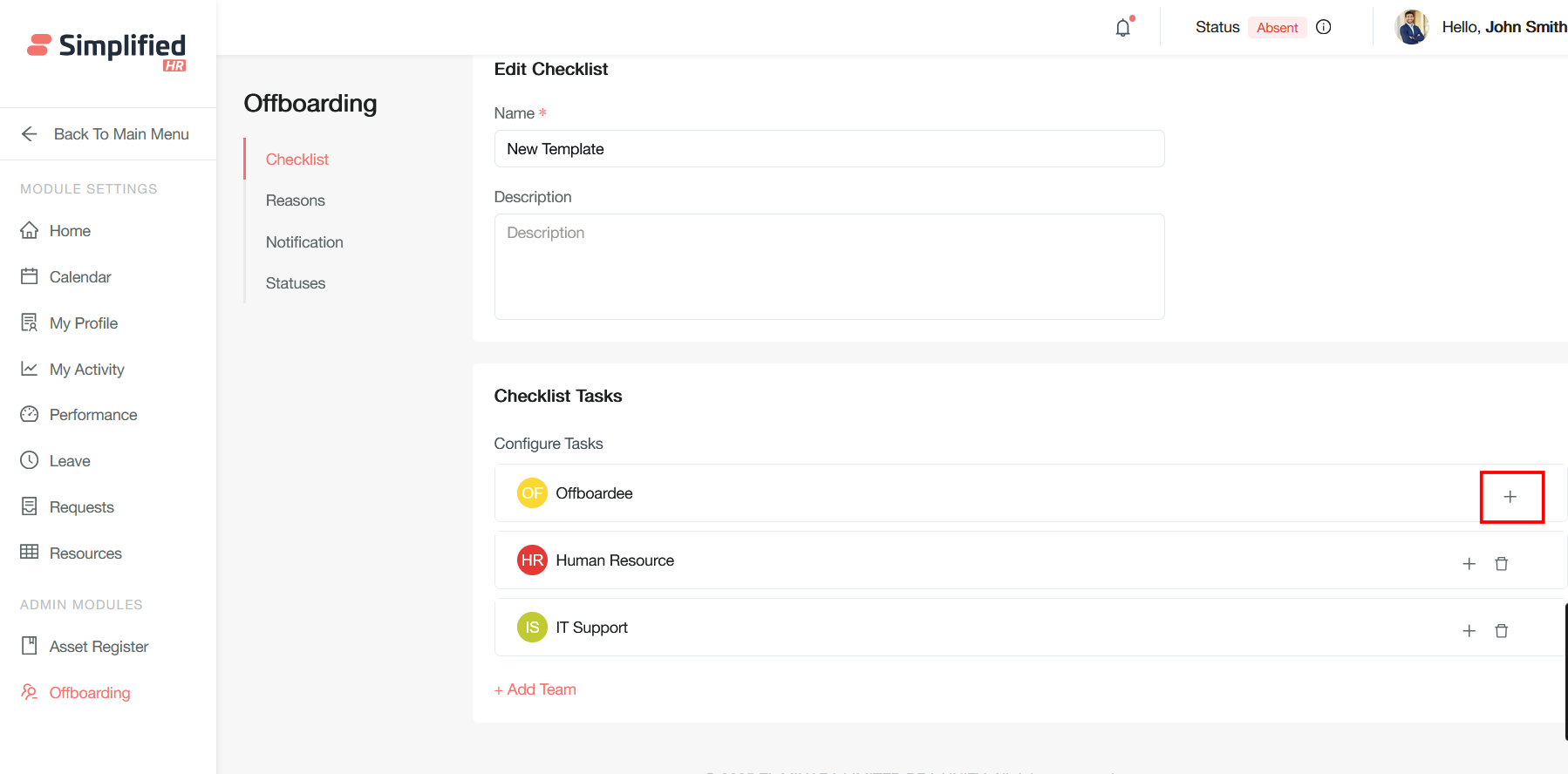
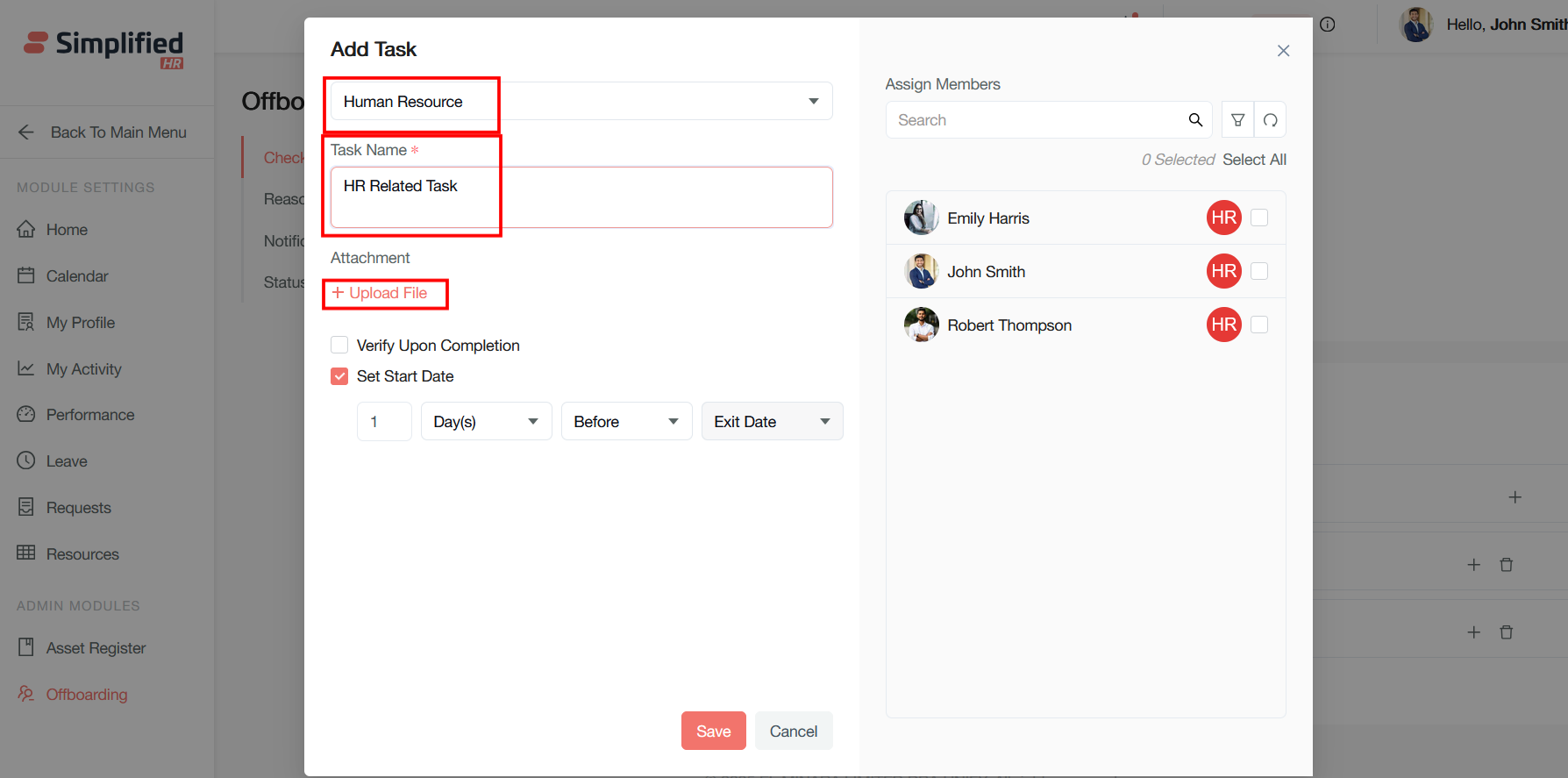
User can select the specific team and task name and can also upload files for the checklist task
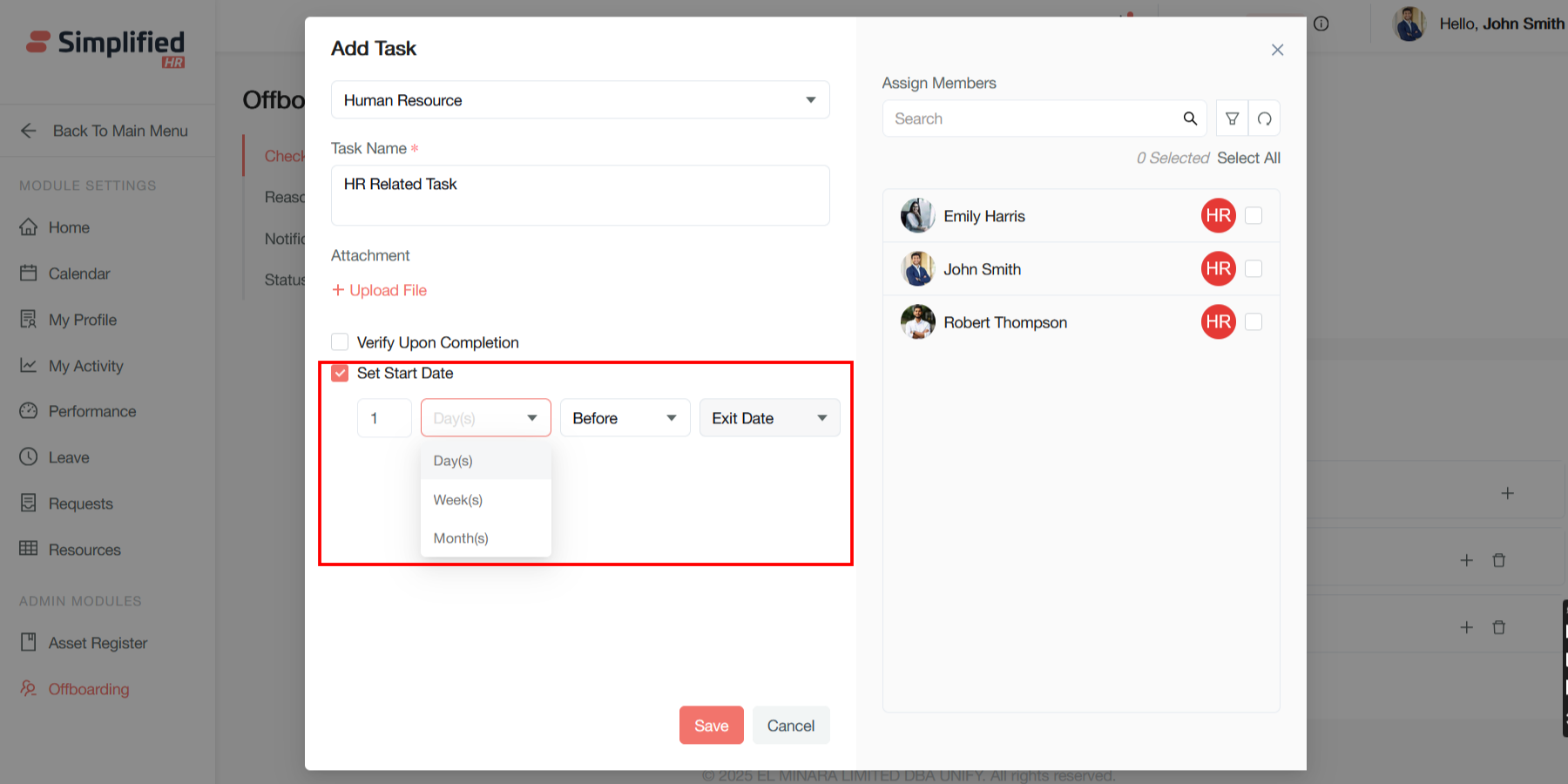
The particular task has a specified start date based on the Day/Week/Month Before/On/After Exit date.
Users can assign members from the team who will be responsible for the checklist task to be completed by the offboarder.
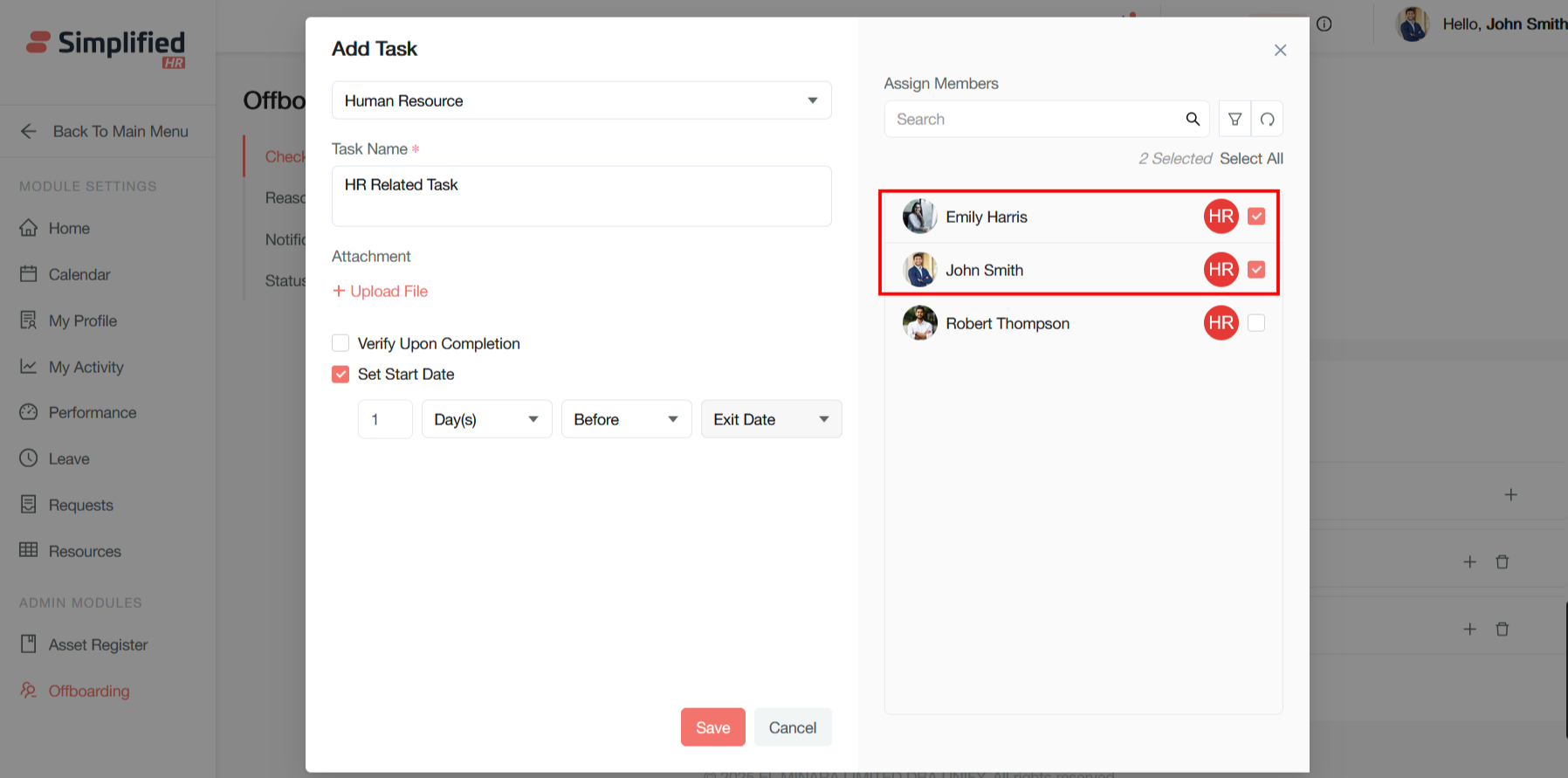
Users can also search by the name of the team member to be included.
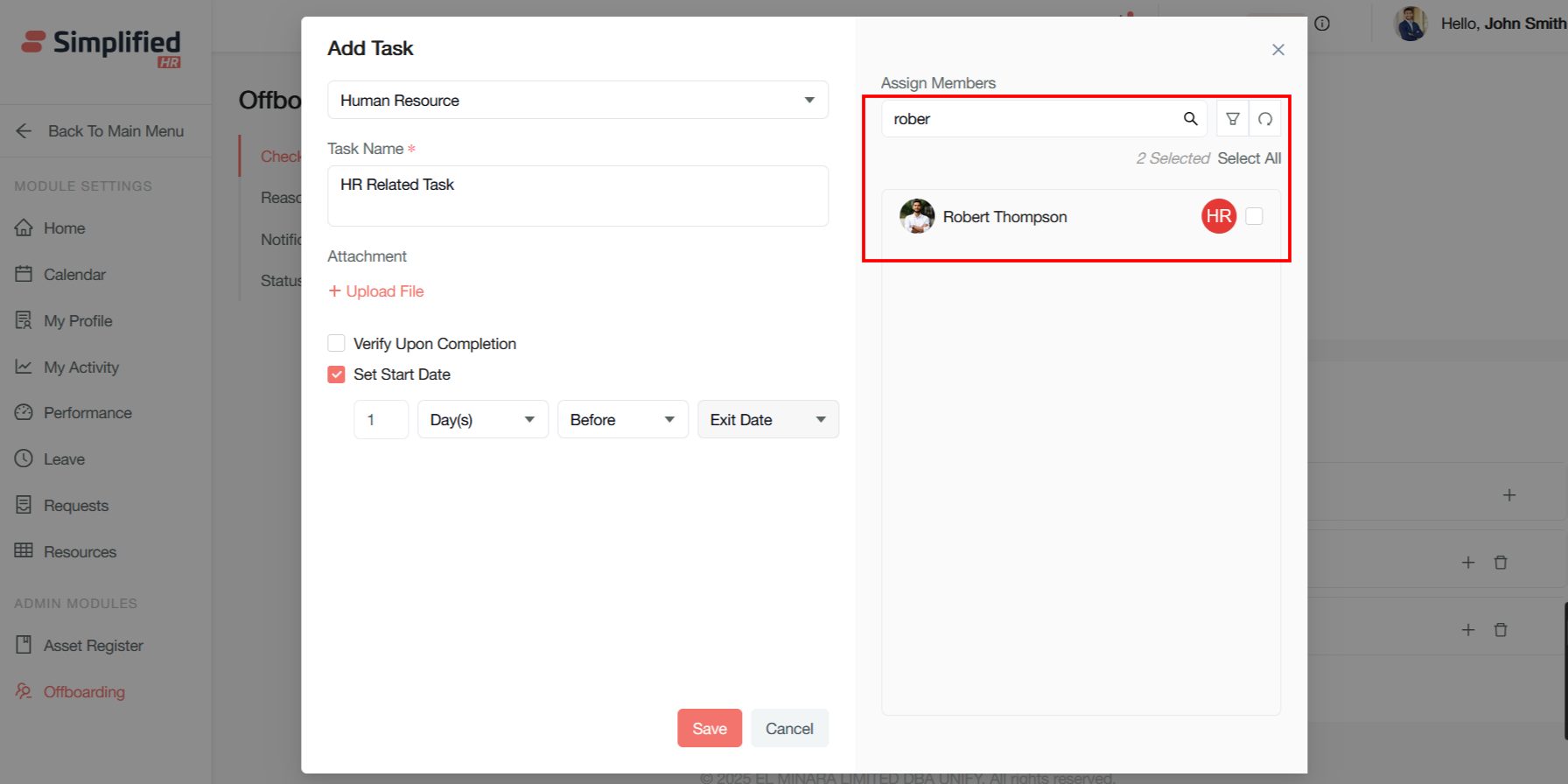
Users can also apply filters to search for team members by team, job title, date of joining, etc., and click Apply or Cancel to complete the search.
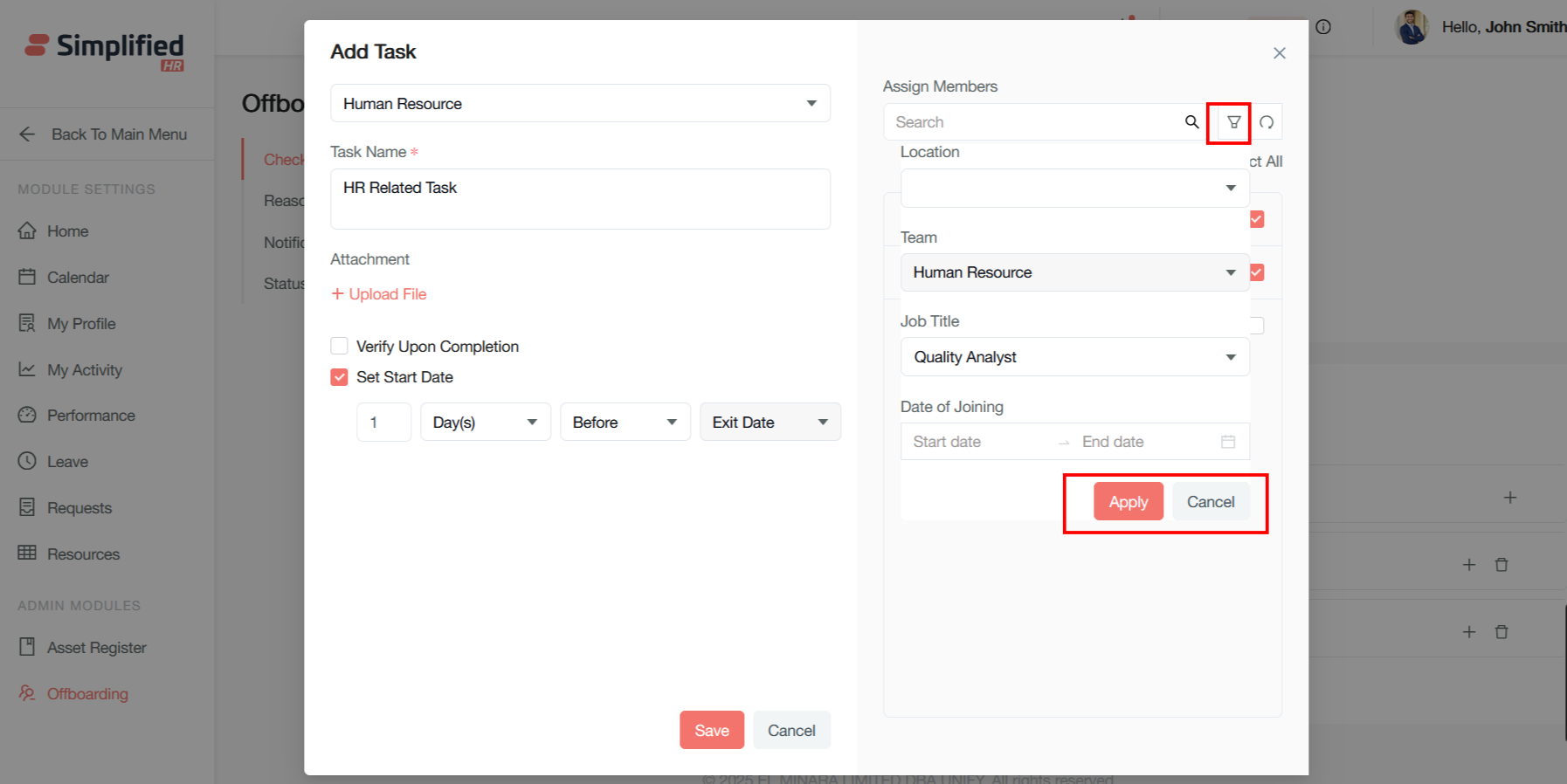
Users can save or cancel the task as per the requirement.
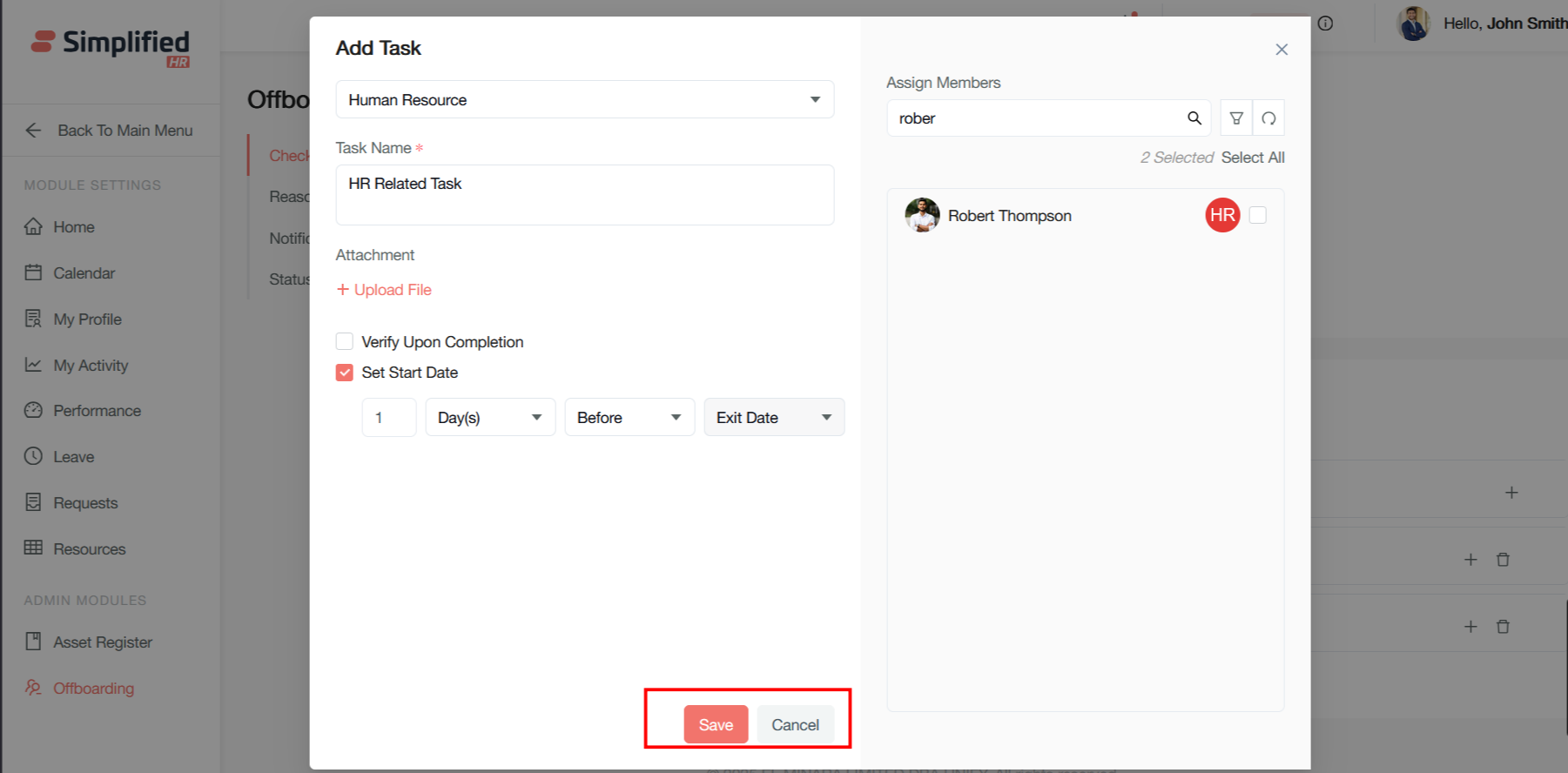
Users can also delete any particular team from the checklist task if they want by clicking on the delete button.
Duplicating checklists
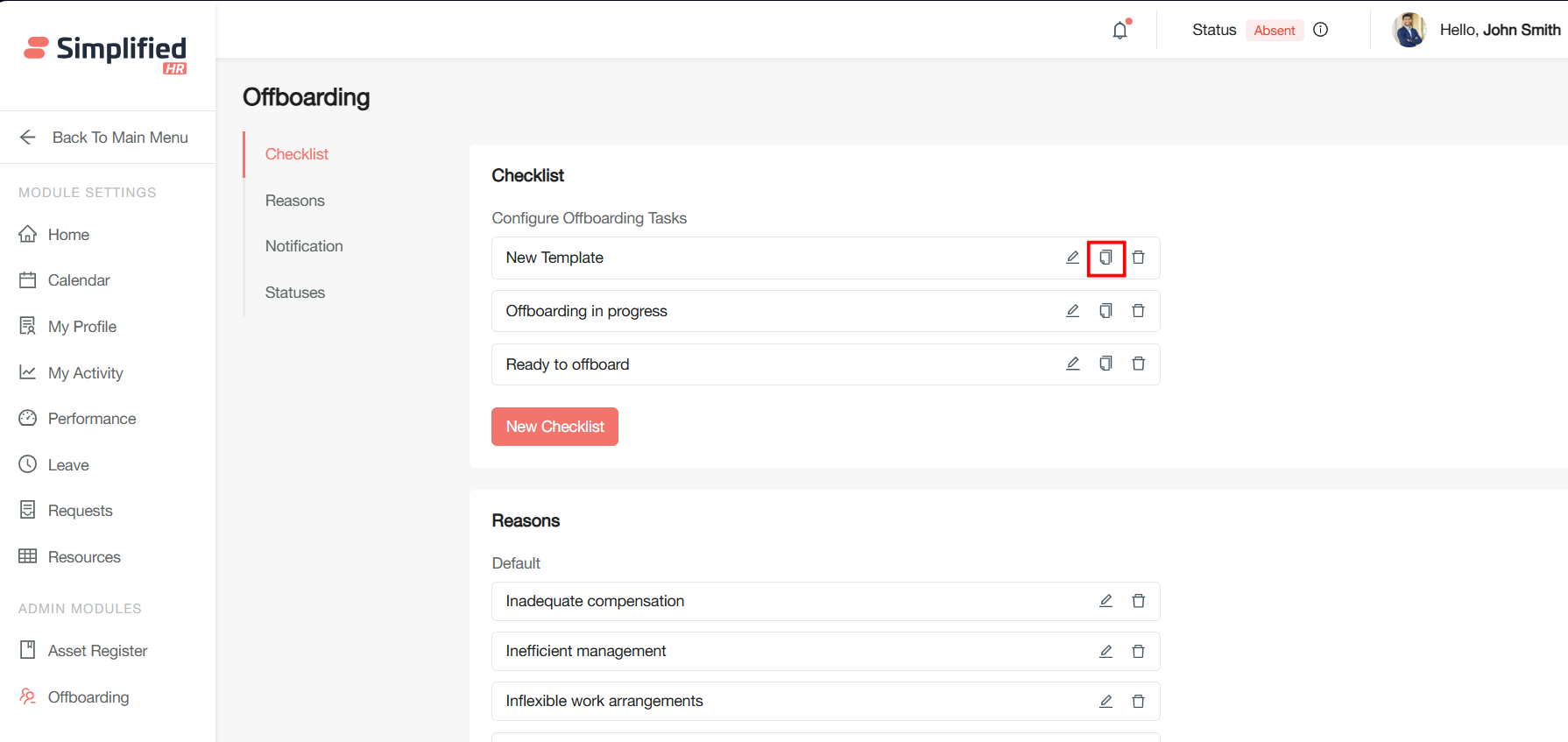
Screenshot showing the duplicate checklist option
Deleting checklists
-
Click the Delete button to remove checklists you no longer need
-
Use caution as this action cannot be undone.
-
A checklist can only be deleted when never been used.
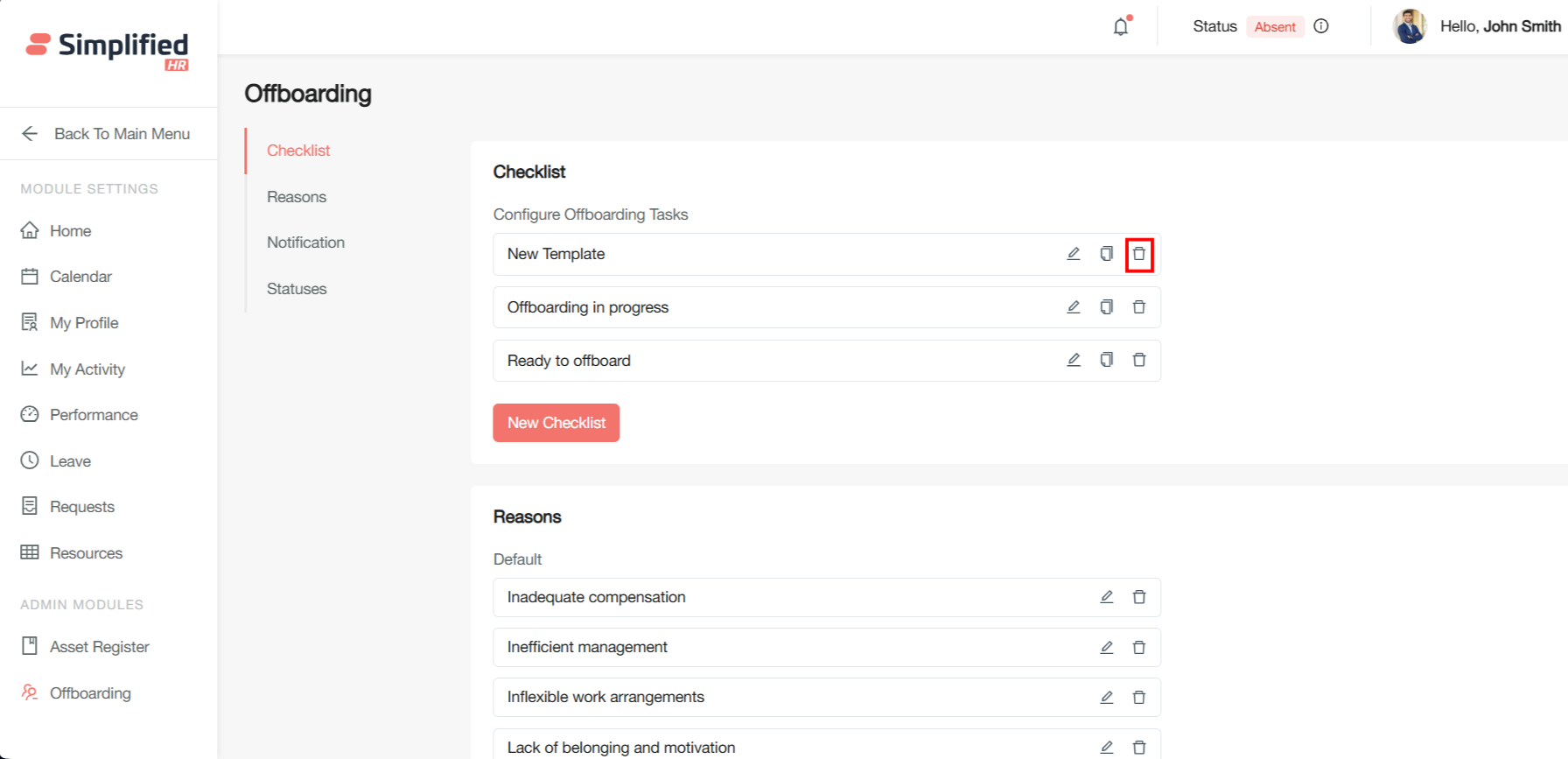
Screenshot showing the delete confirmation dialog
Next steps
After creating your offboarding checklists, you can:
-
Assign specific checklists to different employee types or departments
-
Configure automated workflows and notifications
-
Train your HR team on using the offboarding process
Creating offboarding Reasons
Offboarding reasons refer to the various circumstances that trigger an employee's departure from a company and initiate the formal offboarding process.
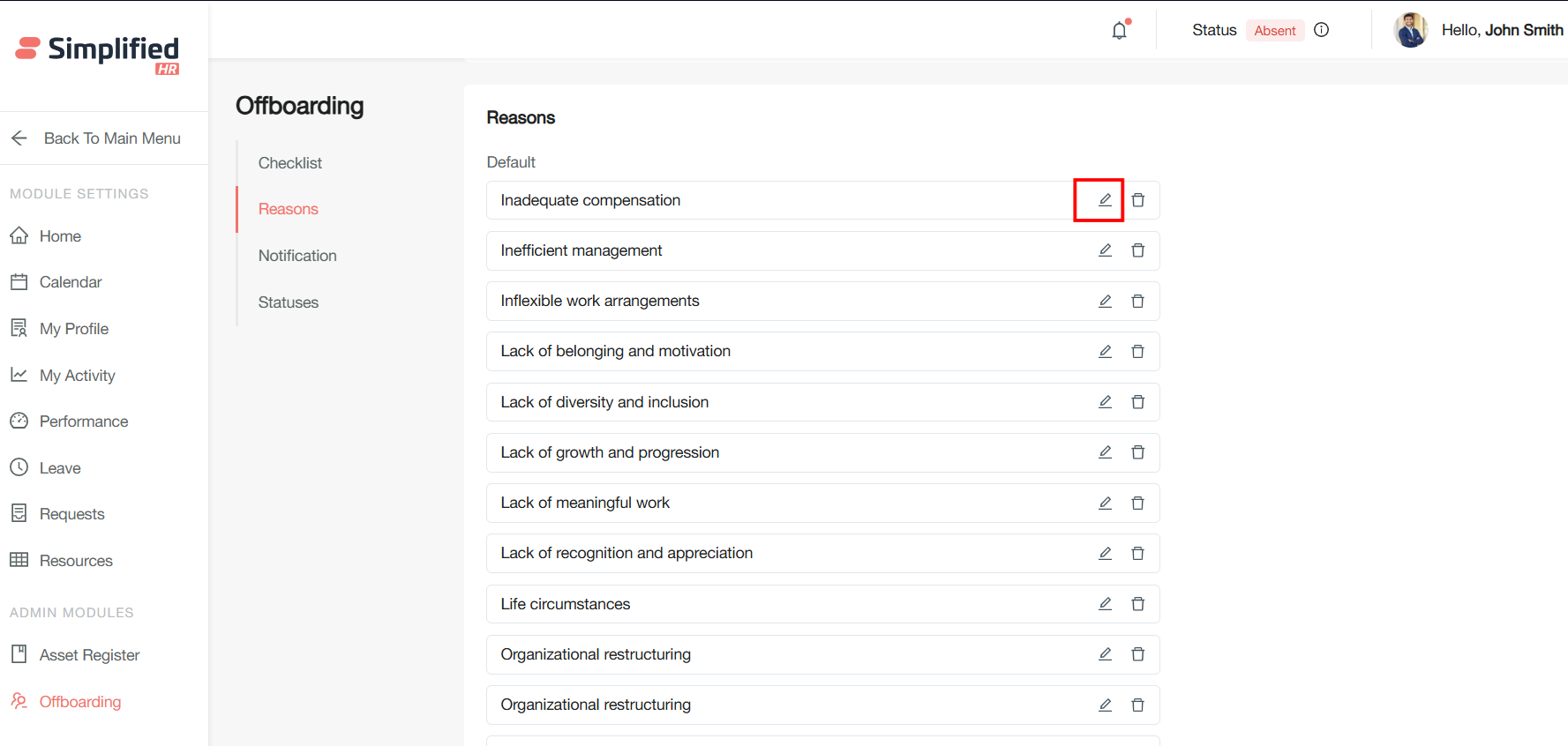
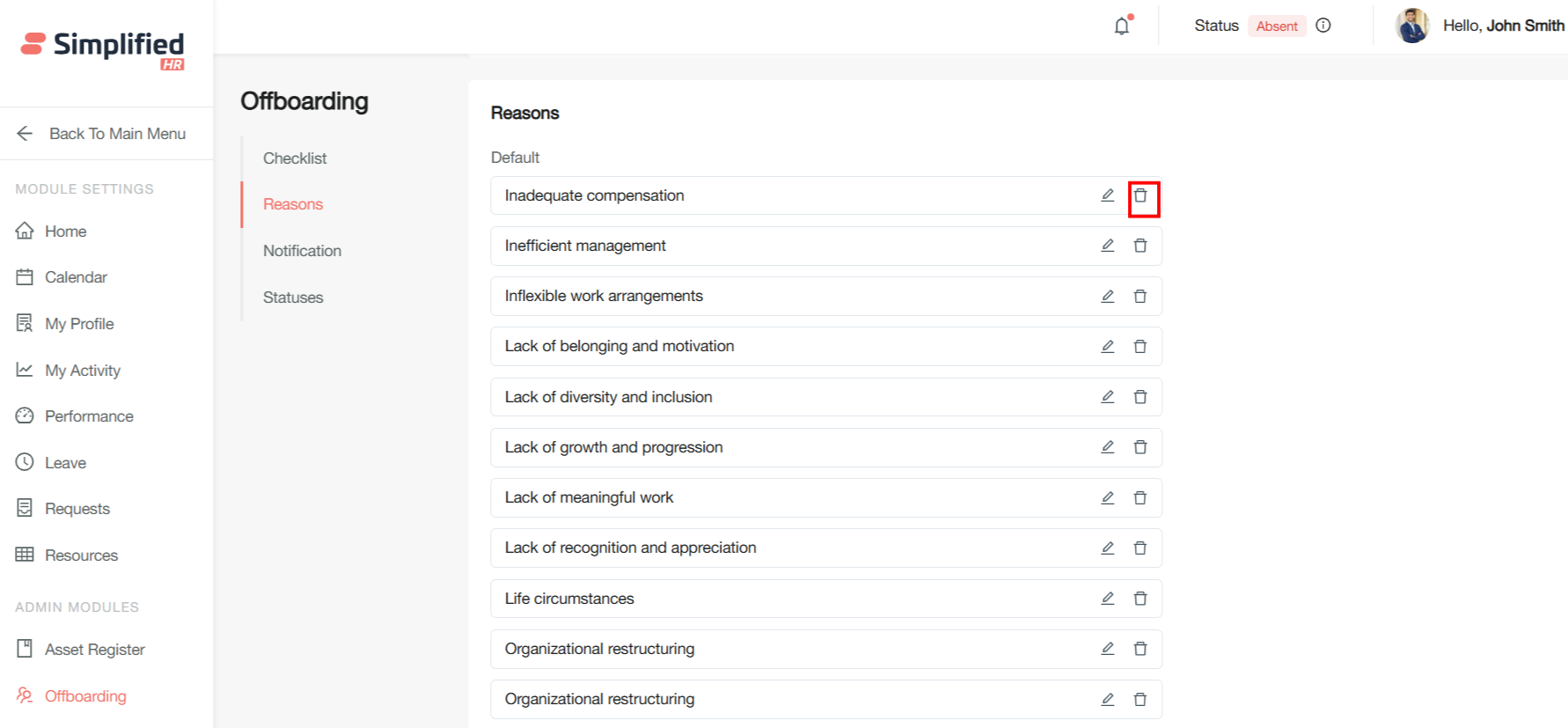
There are some default reasons that are predefined in offboarding configuration
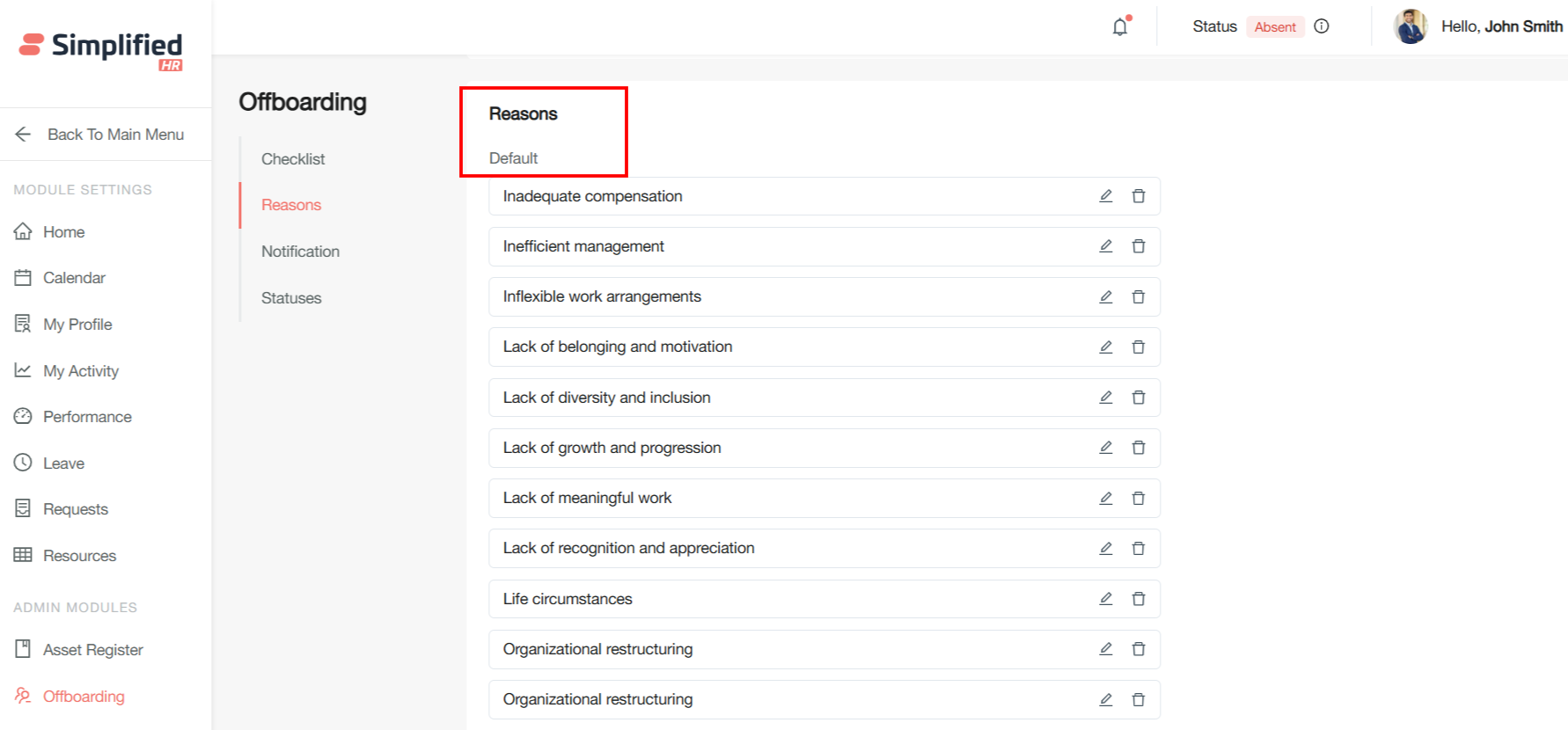
User can edit the default reason if they want by clicking the edit button
User can delete the default reason if they want by clicking the delete button
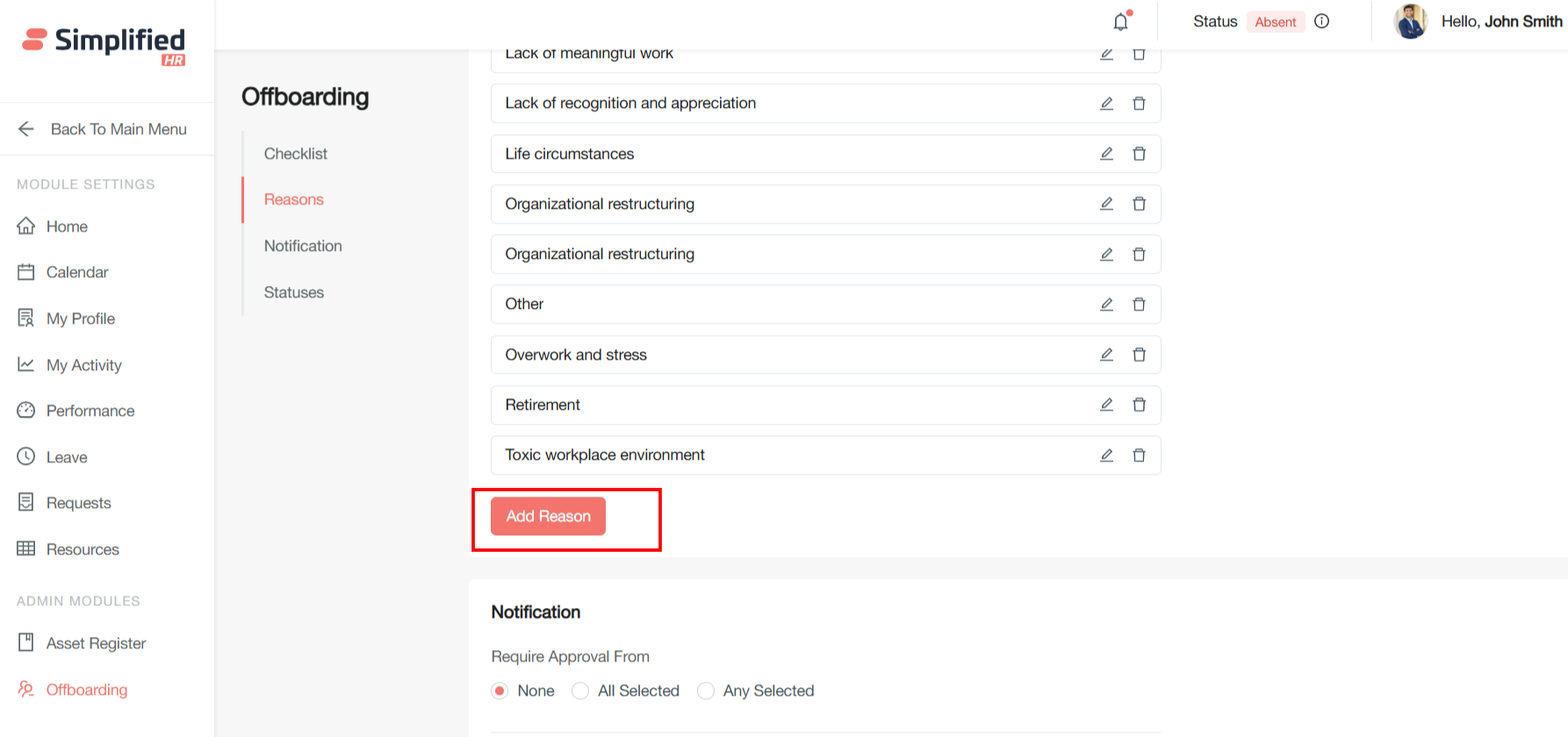
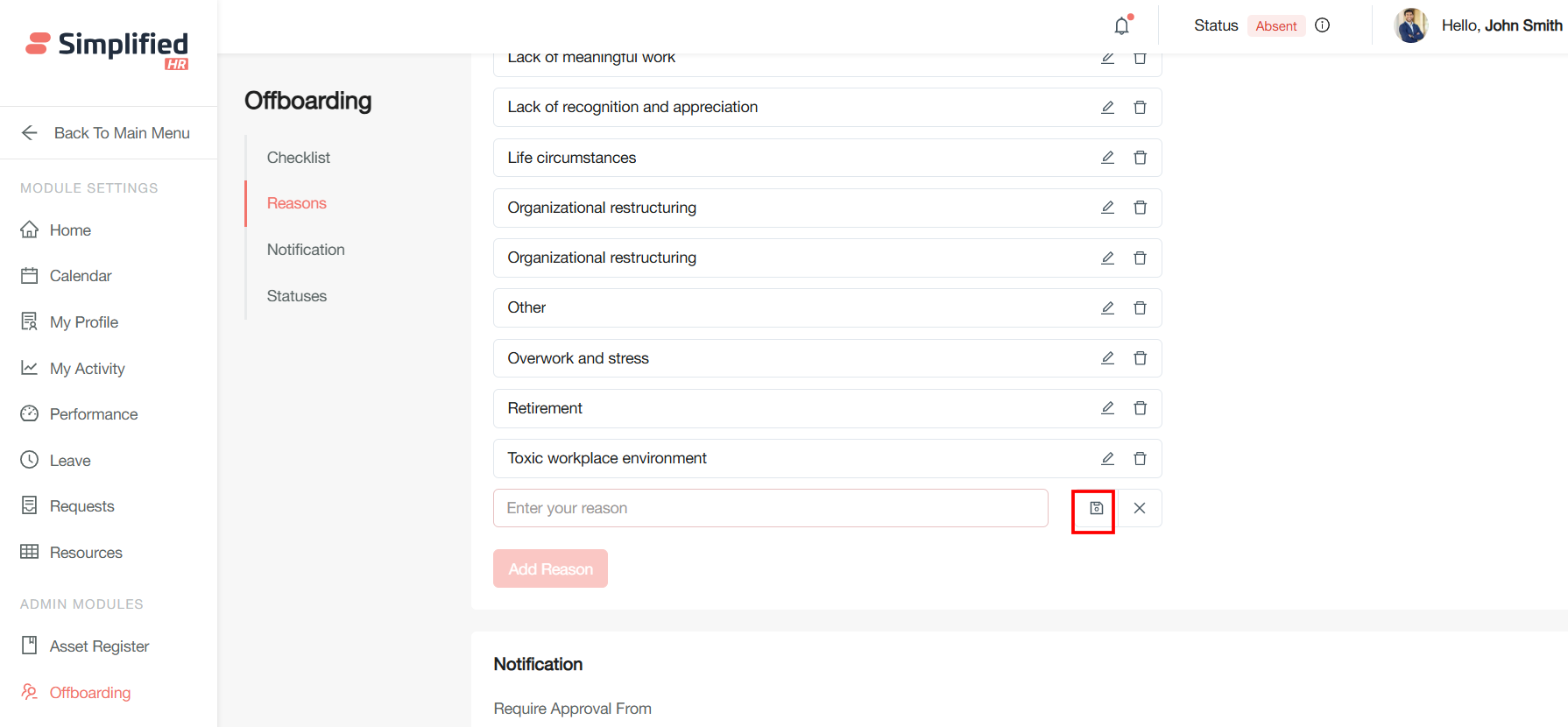
Users can also create custom reason by clicking on the Add Reason button
Users can enter the reason they want to add in the reason text field
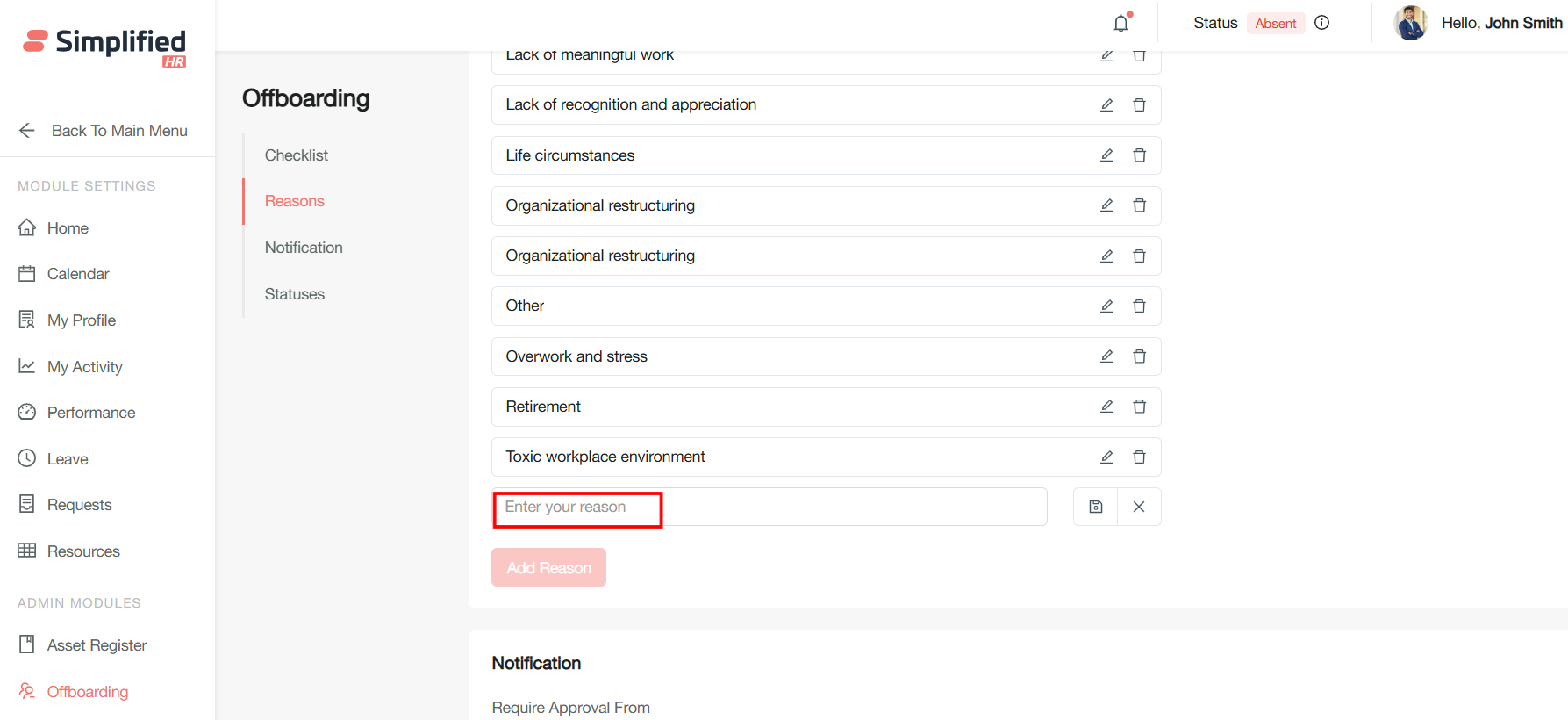
Users can save the reason by clicking on the save button
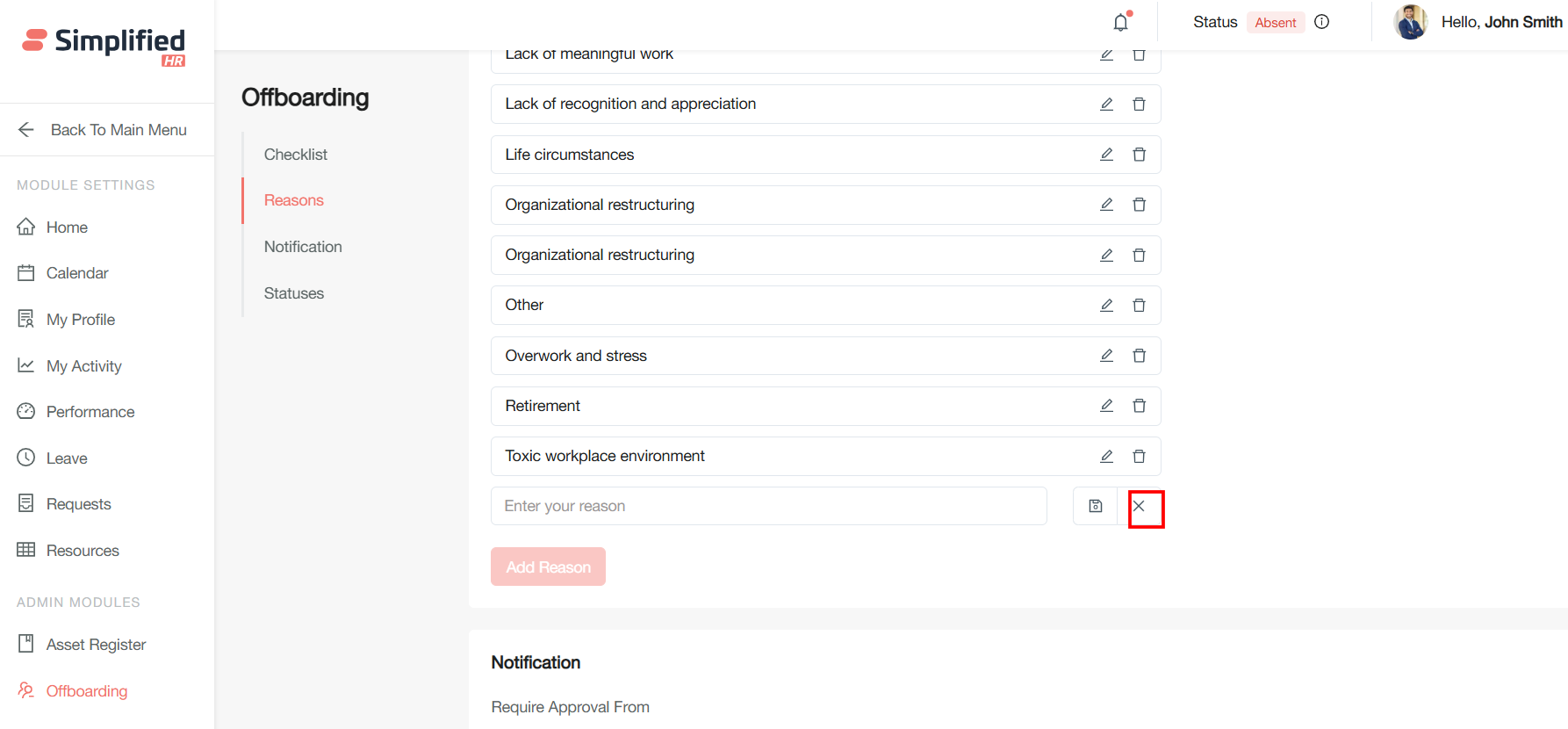
Users can discard the changes by clicking on the cross button
Offboarding Notification
Offboarding notification encompasses the formal communication requirements alerts that must occur when an employee leaves an organization, ensuring proper coordination and legal compliance throughout the departure process.
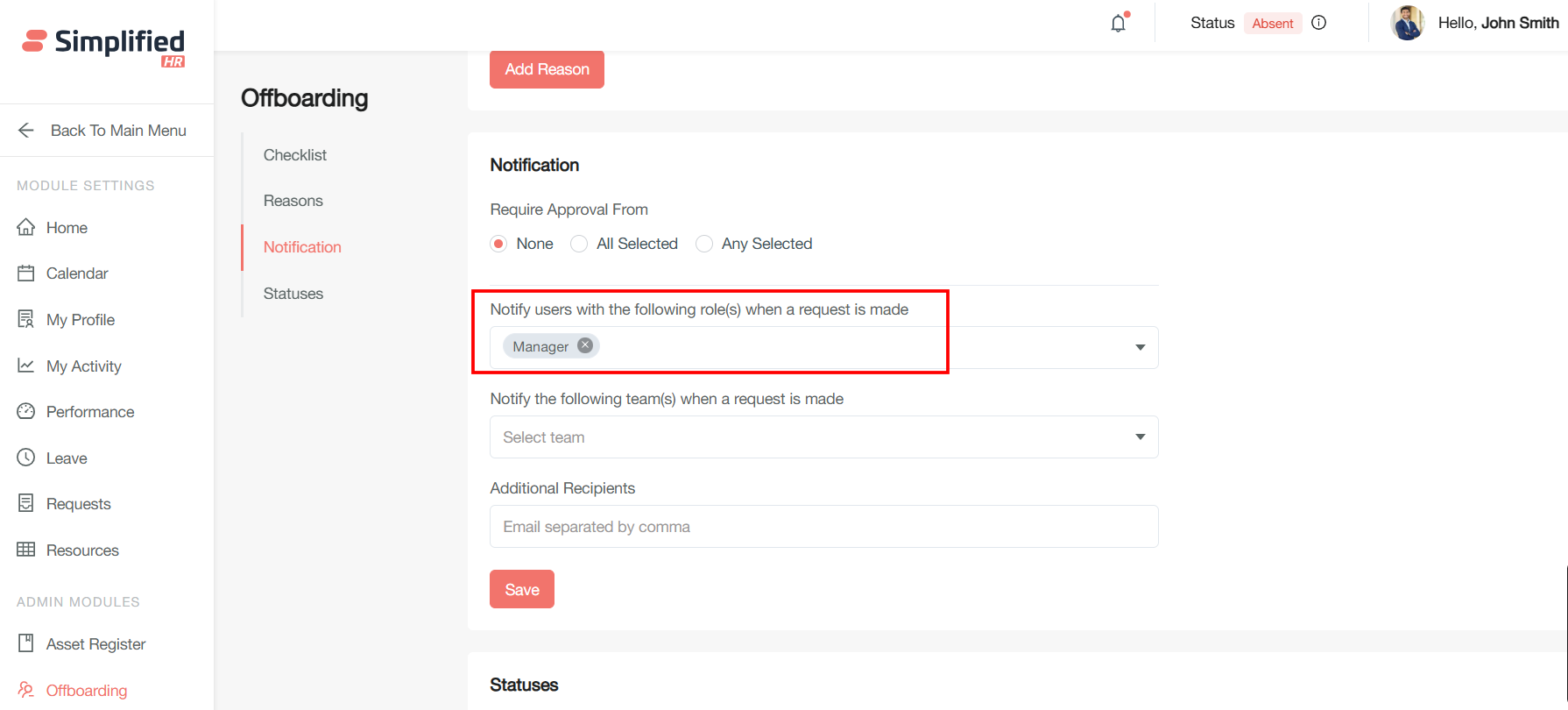
User Notification
User can receive notification about the offboarding status by selecting the users
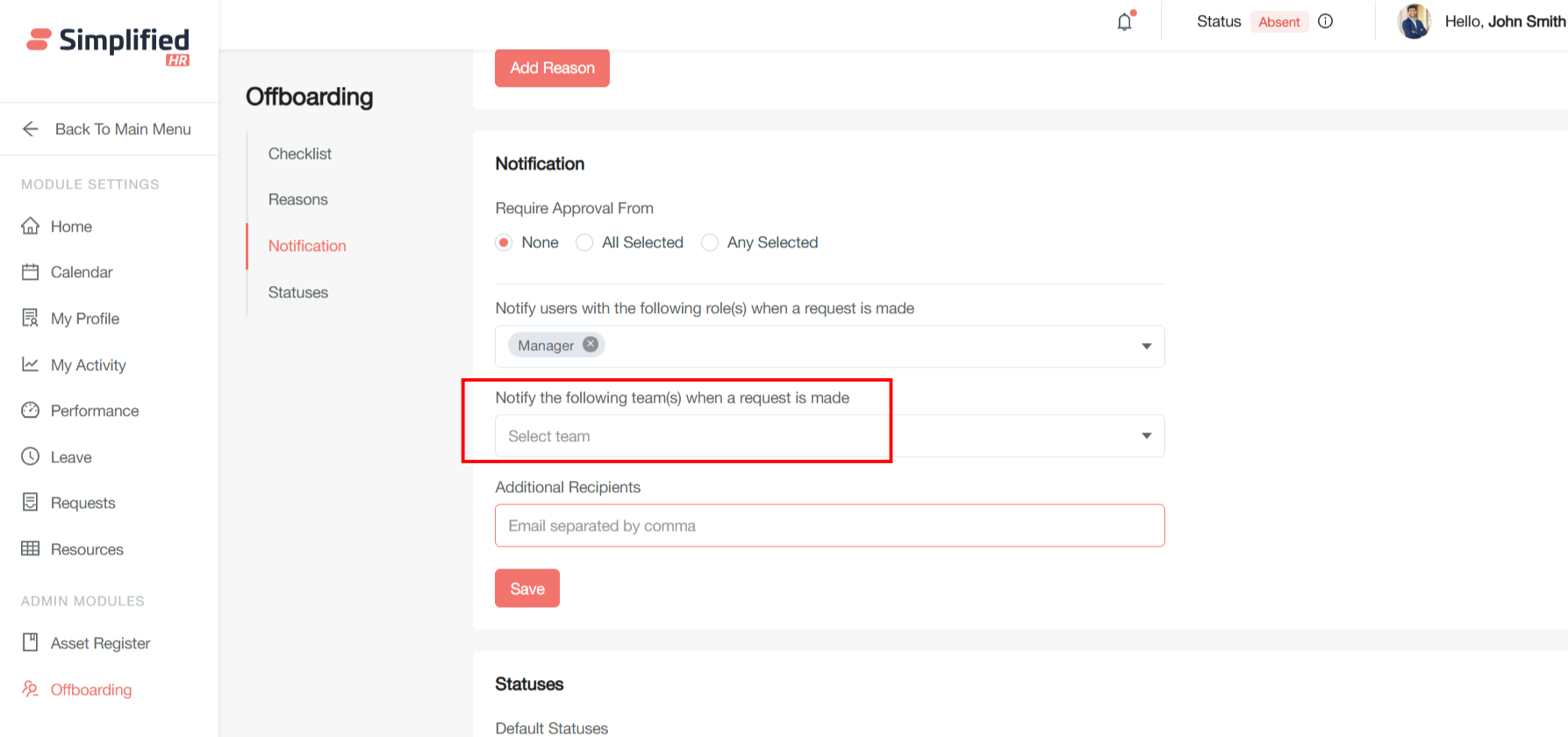
Team Notification
Team can receive notification about the offboarding status by selecting the teams
Additional Recipient Notification
Additional recipient can receive notification about the offboarding status by selecting the Additional recipient
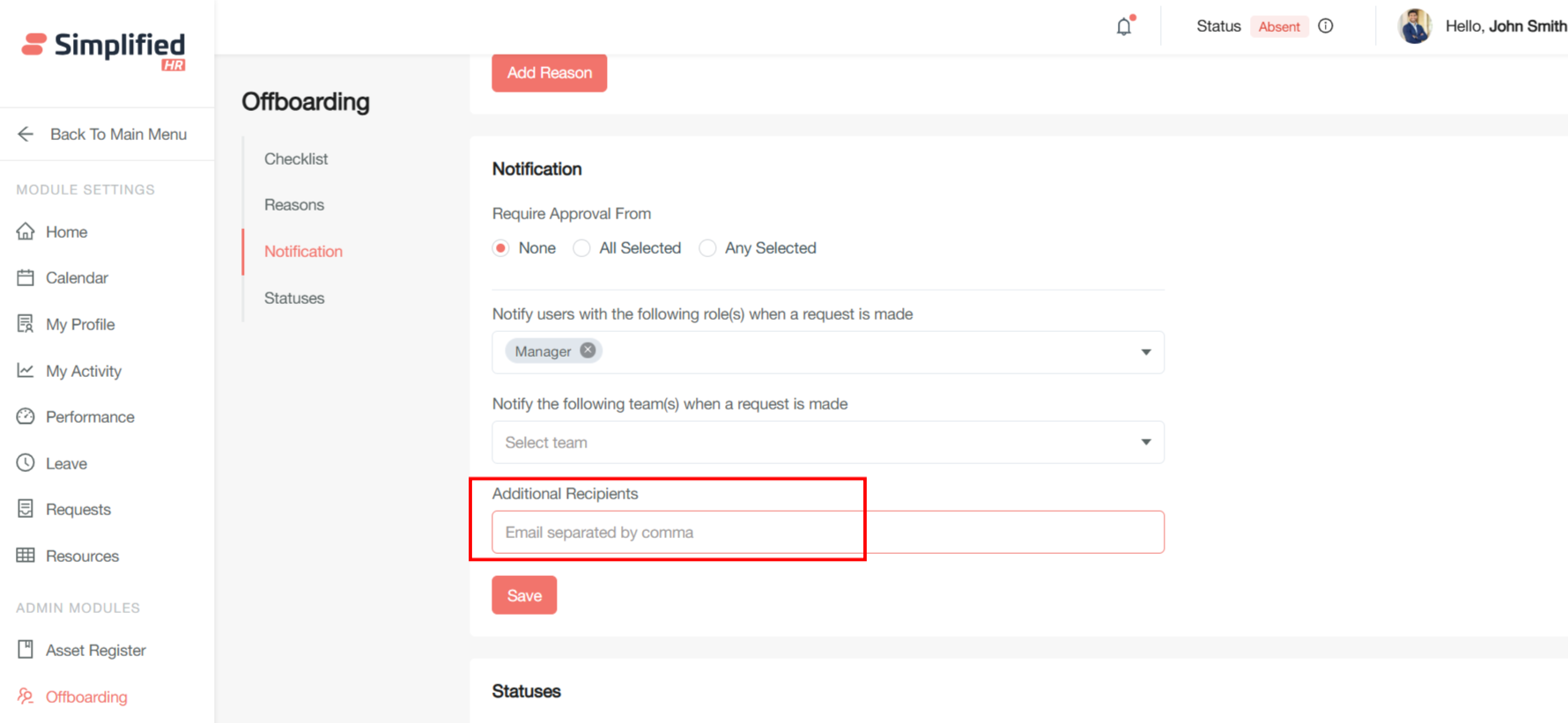
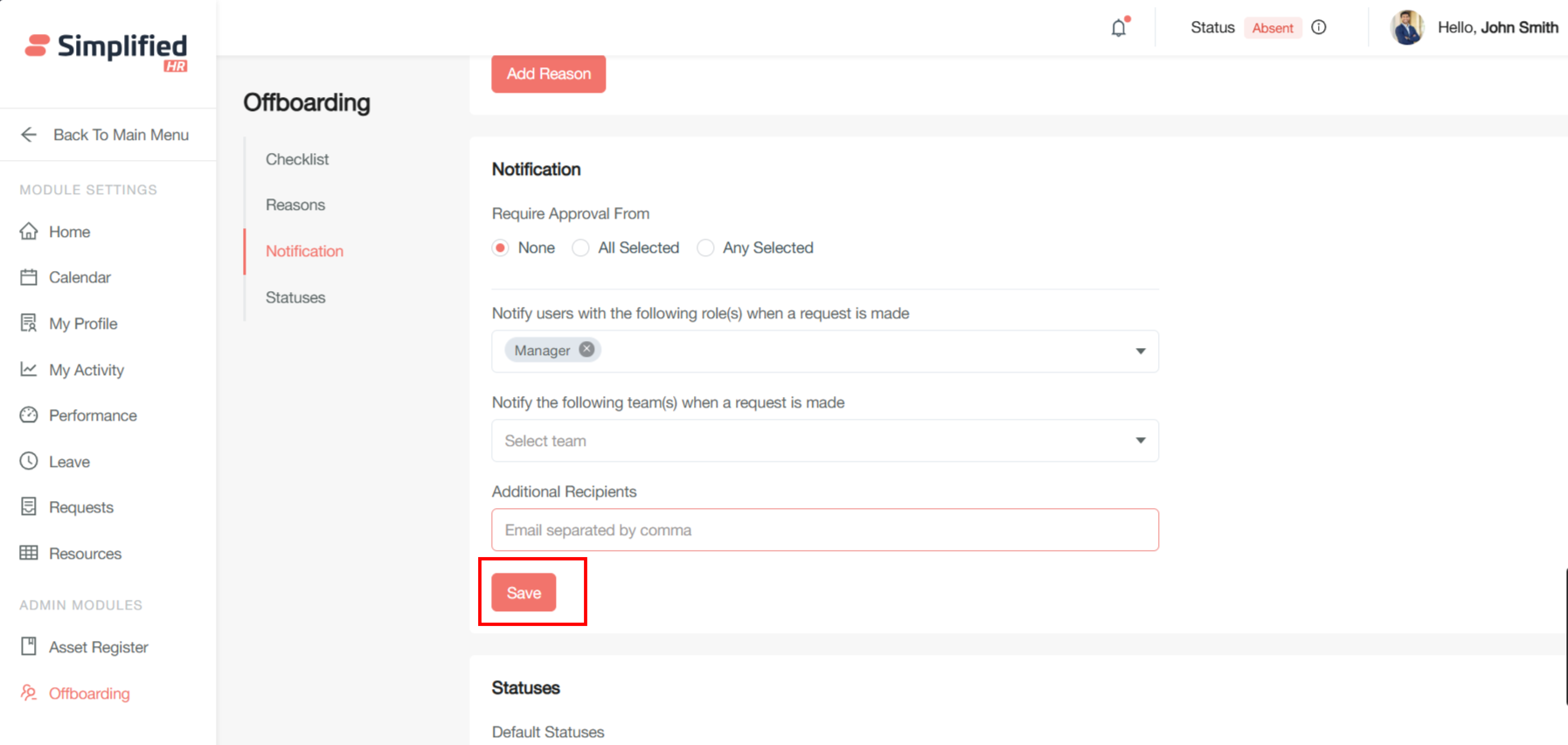
By clicking the Save button user can save the changes made in notification section
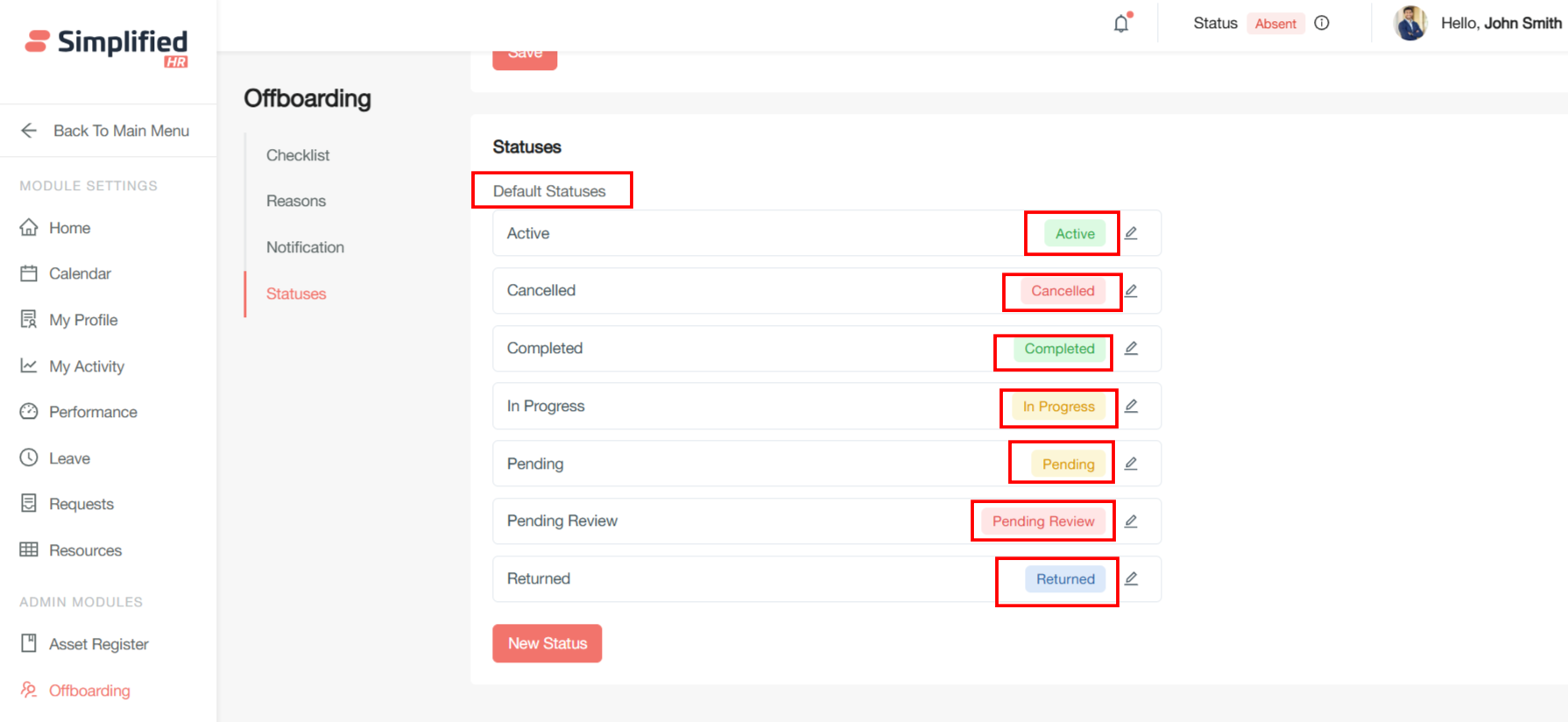
Offboarding Status
Offboarding status refers to the current stage or condition of an employee or device within the formal departure process from an organization or system.
HR/Employee Offboarding Status
In human resources systems, offboarding status tracks where an employee's departure process stands. The offboarding process begins immediately when notification is given that an employee is leaving.
There are some default HR Offboarding Statuses:
-
Active - Active status indicates that an employee or process is currently operational and engaged within the system.
-
In Progress - Active completion of departure tasks like knowledge transfer, asset recovery
-
Pending - Pending status represents a transitional state where action is required or awaiting completion.
-
Pending Review - Awaiting manager or HR approval on exit interviews or documentation.
-
Completed - All offboarding steps finalized.
-
Returned - Returned status indicates successful completion of asset recovery and return processes.
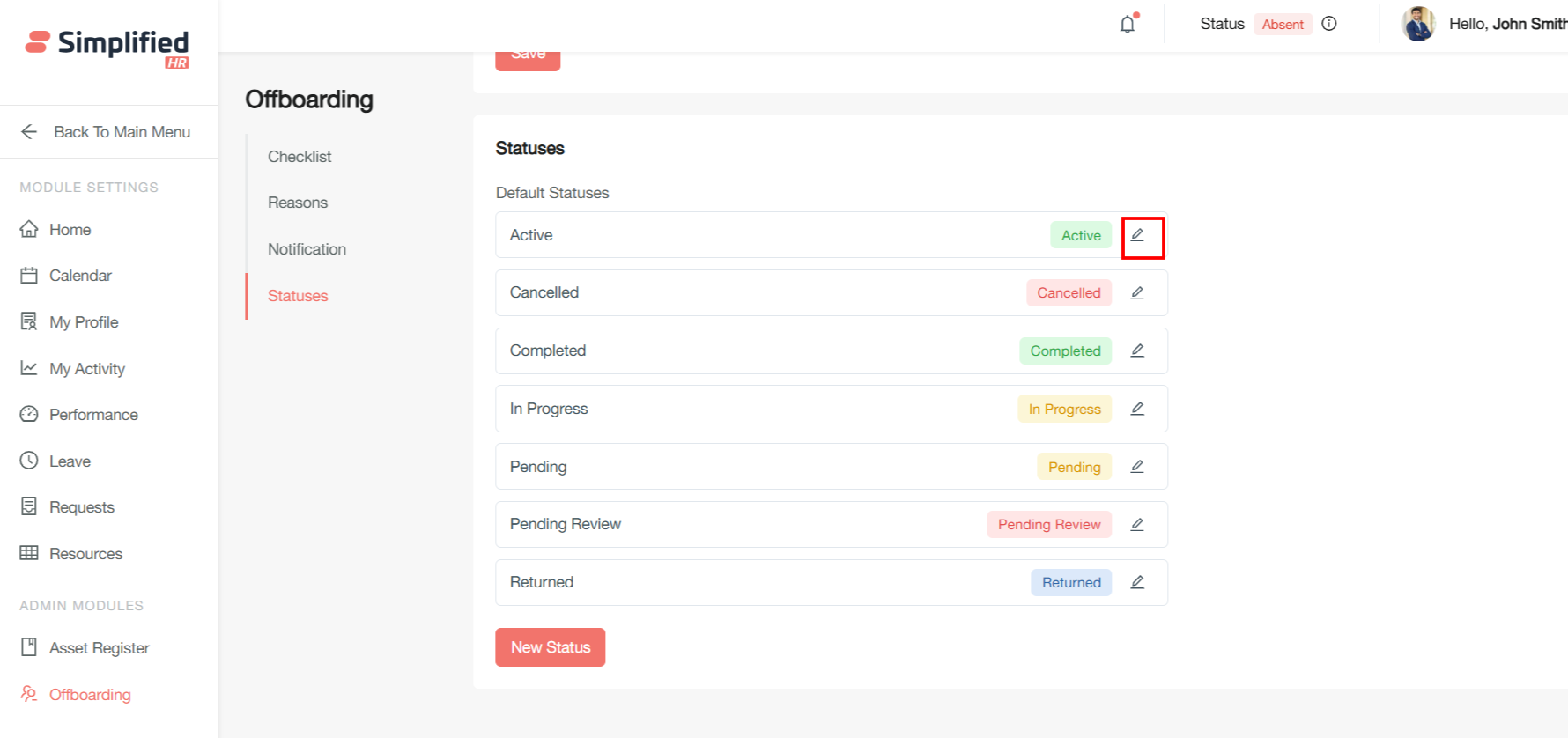
Click on Edit button to edit the default status
User can edit the following details:
-
Status Name
-
Status Type
-
Tag Preview color
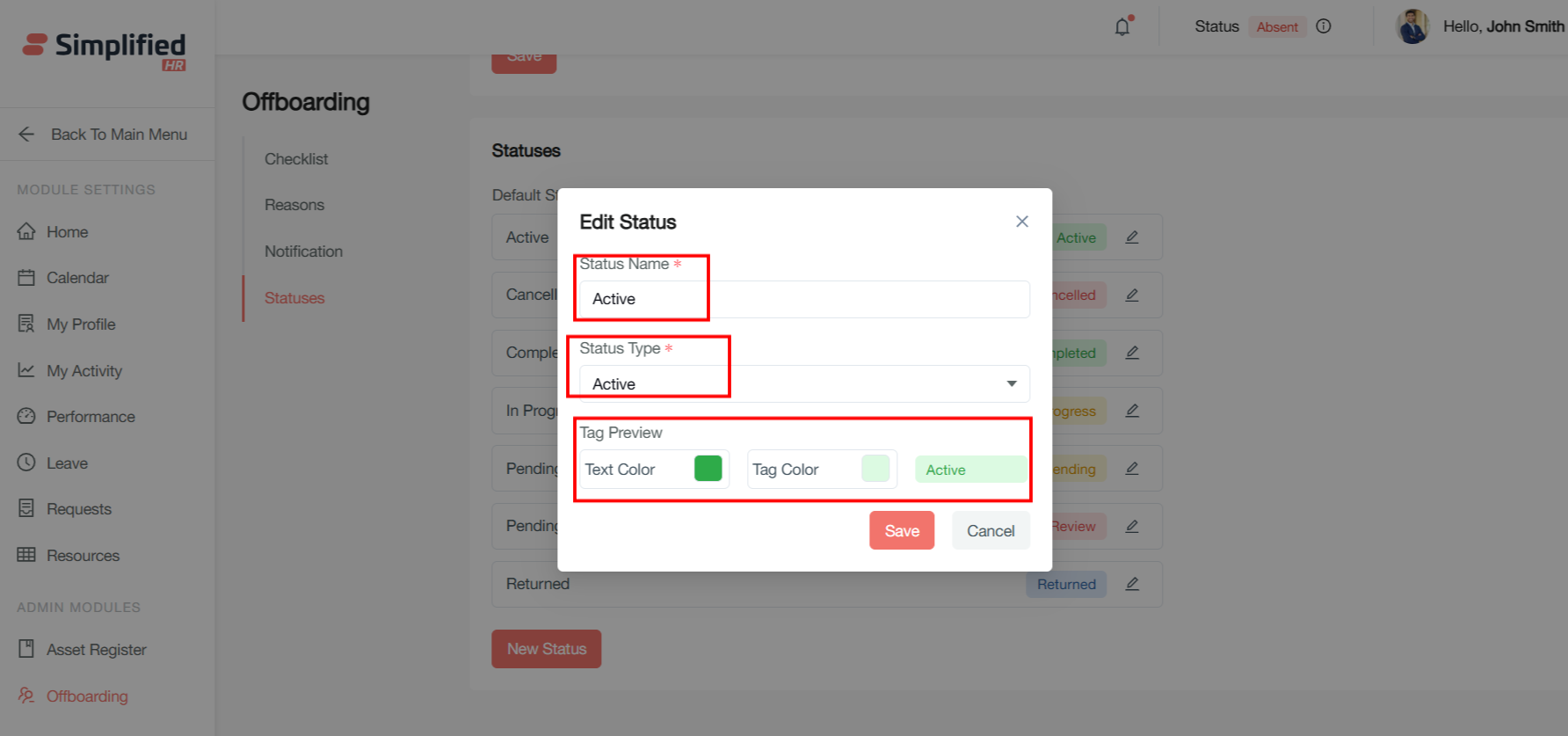
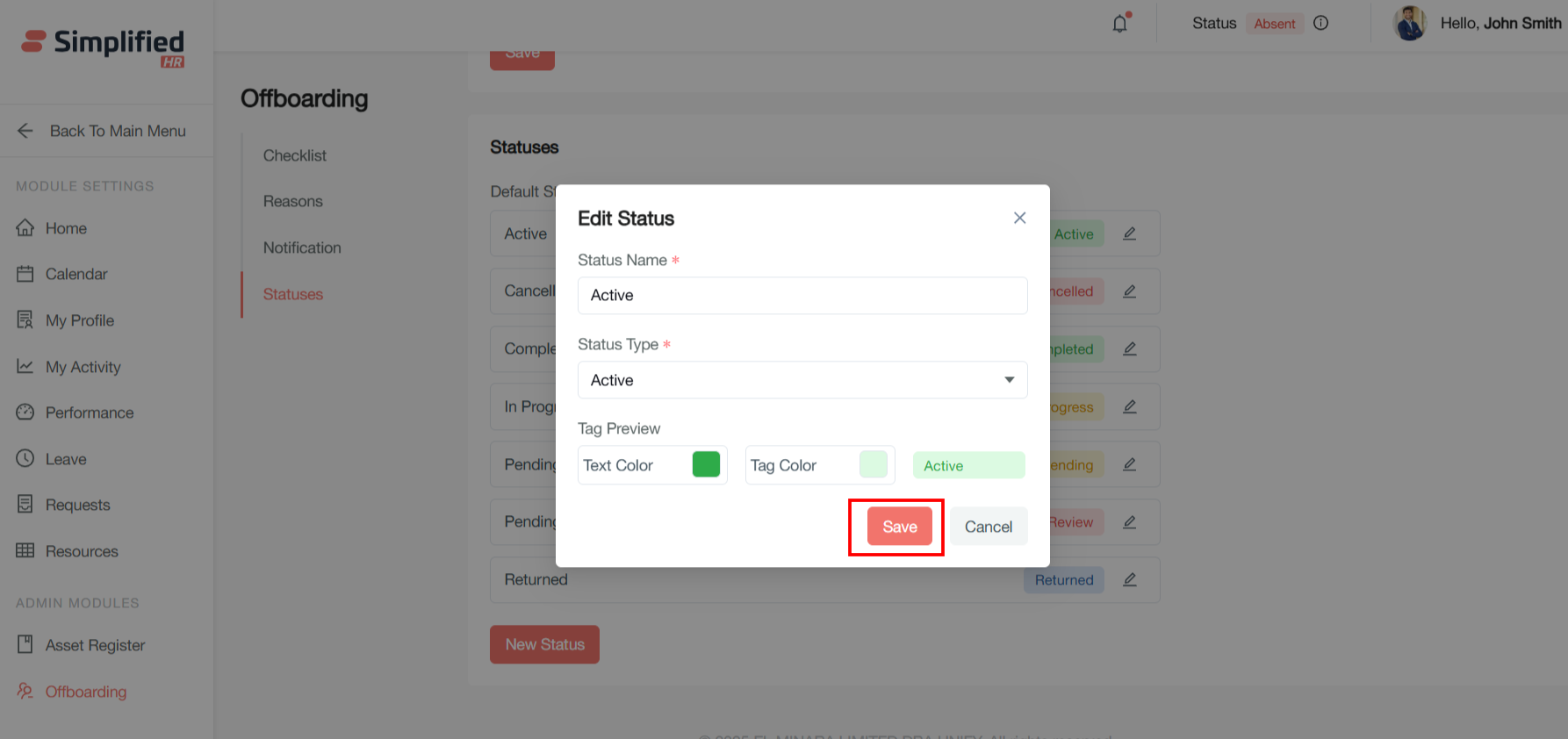
User can save the changes by clicking on save button
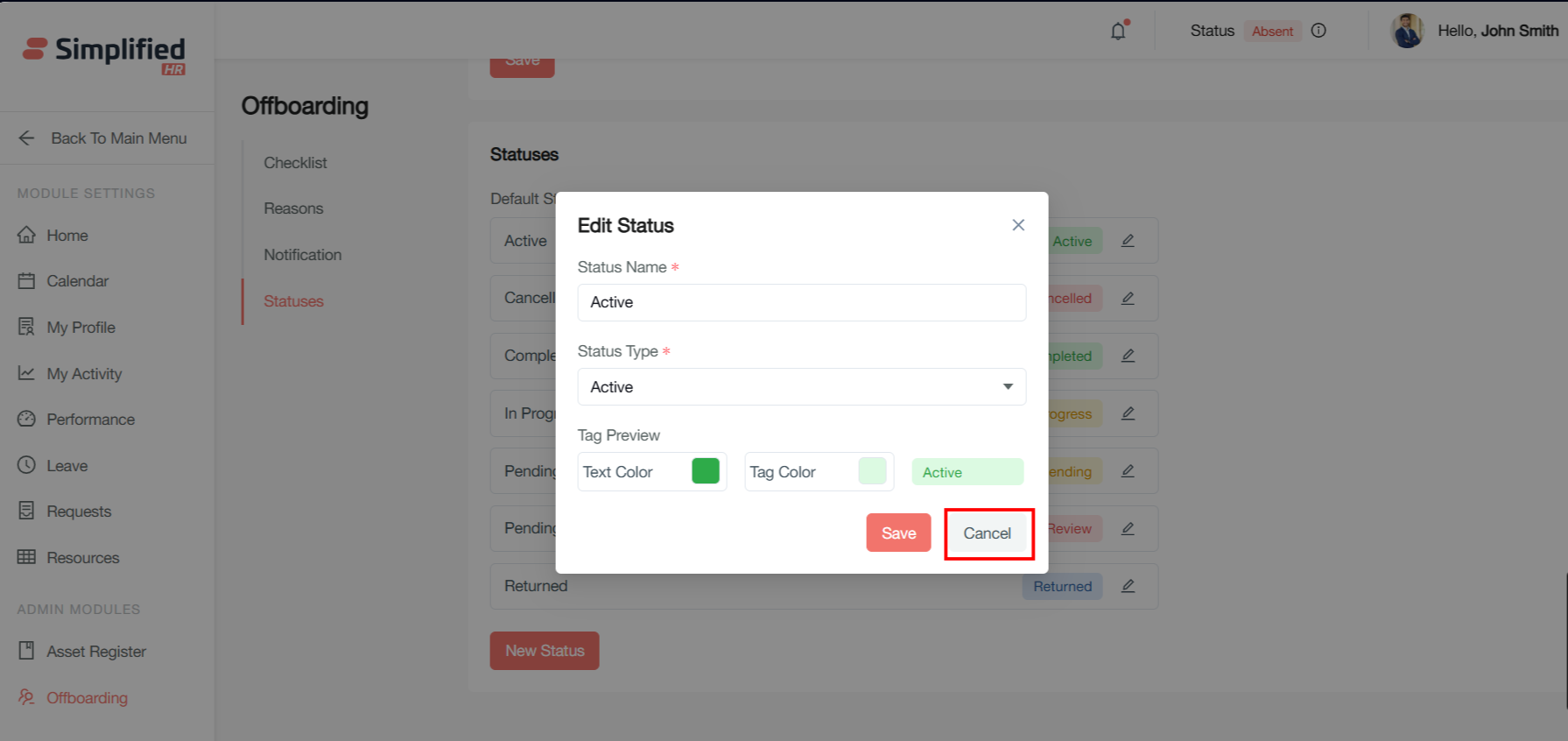
User can cancel the change by clicking on cancel button
Custom Offboarding Status
Custom offboarding status refers to organization-specific status labels and workflow stages that companies create to track employee departures according to their unique business requirements, going beyond standard system defaults.
Custom offboarding status allows organizations to define their own status categories and workflow stages that align with their specific departure processes, compliance requirements, and operational needs. Rather than using generic statuses like "Active," "Pending," or "Complete," companies can create meaningful labels that reflect their actual business processes.
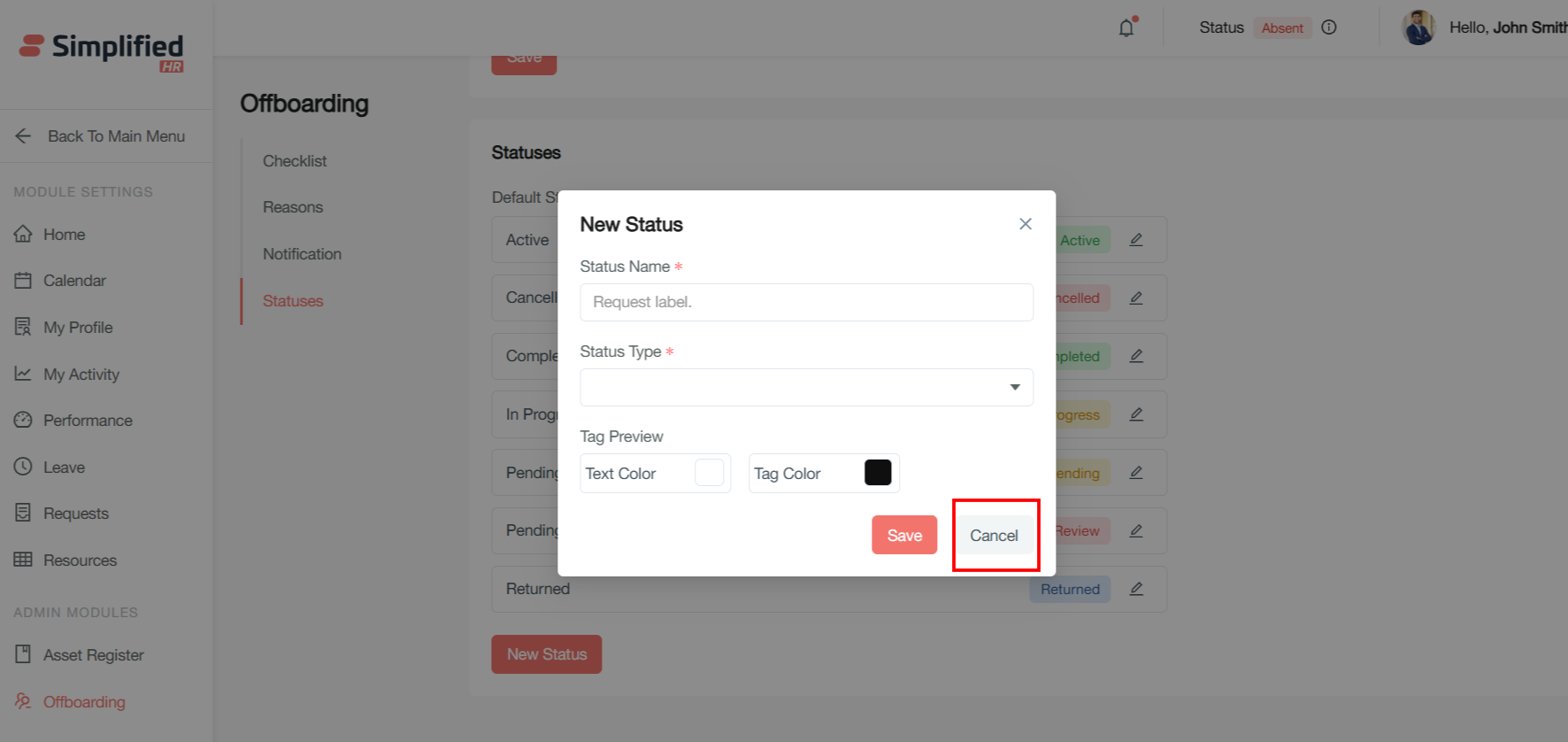
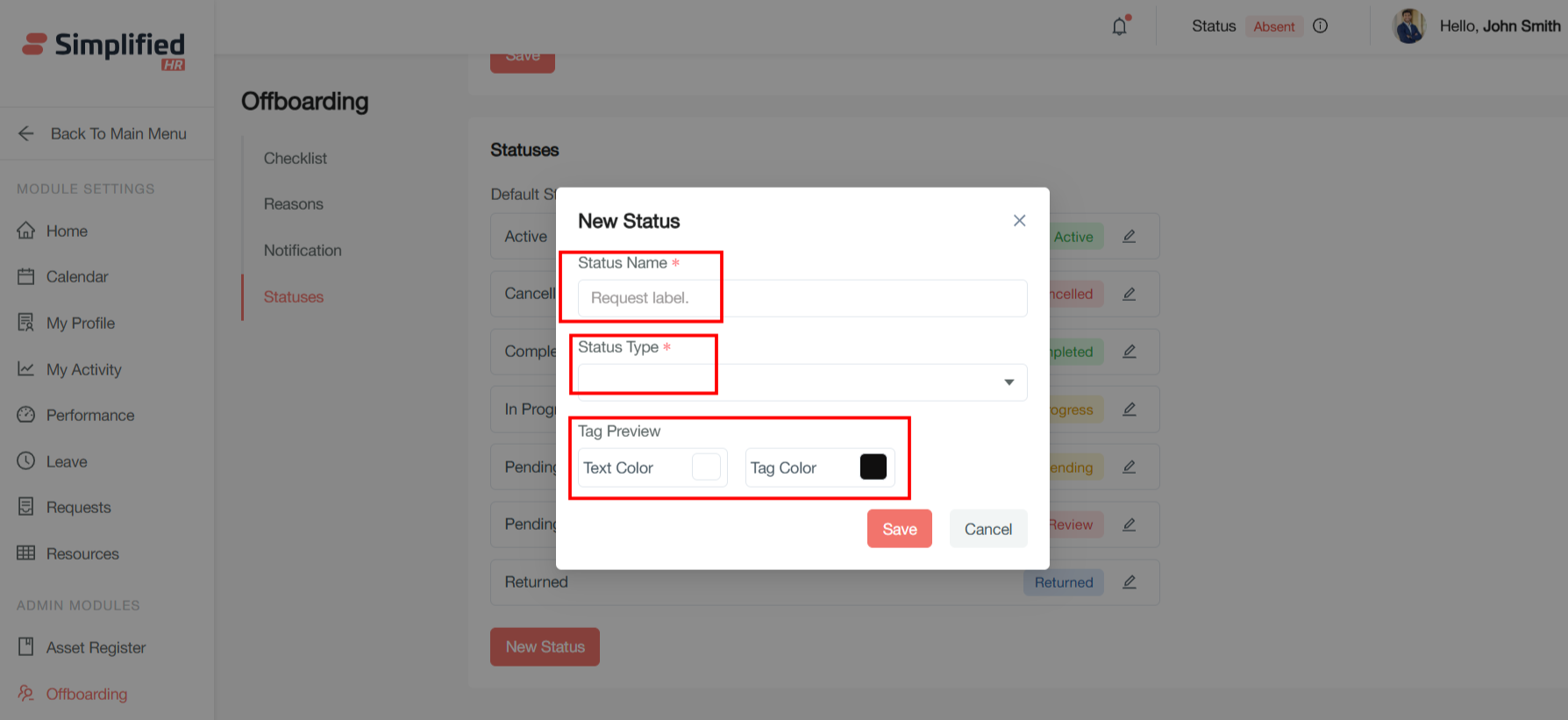
User can create custom offboarding status by clicking on the New Status button
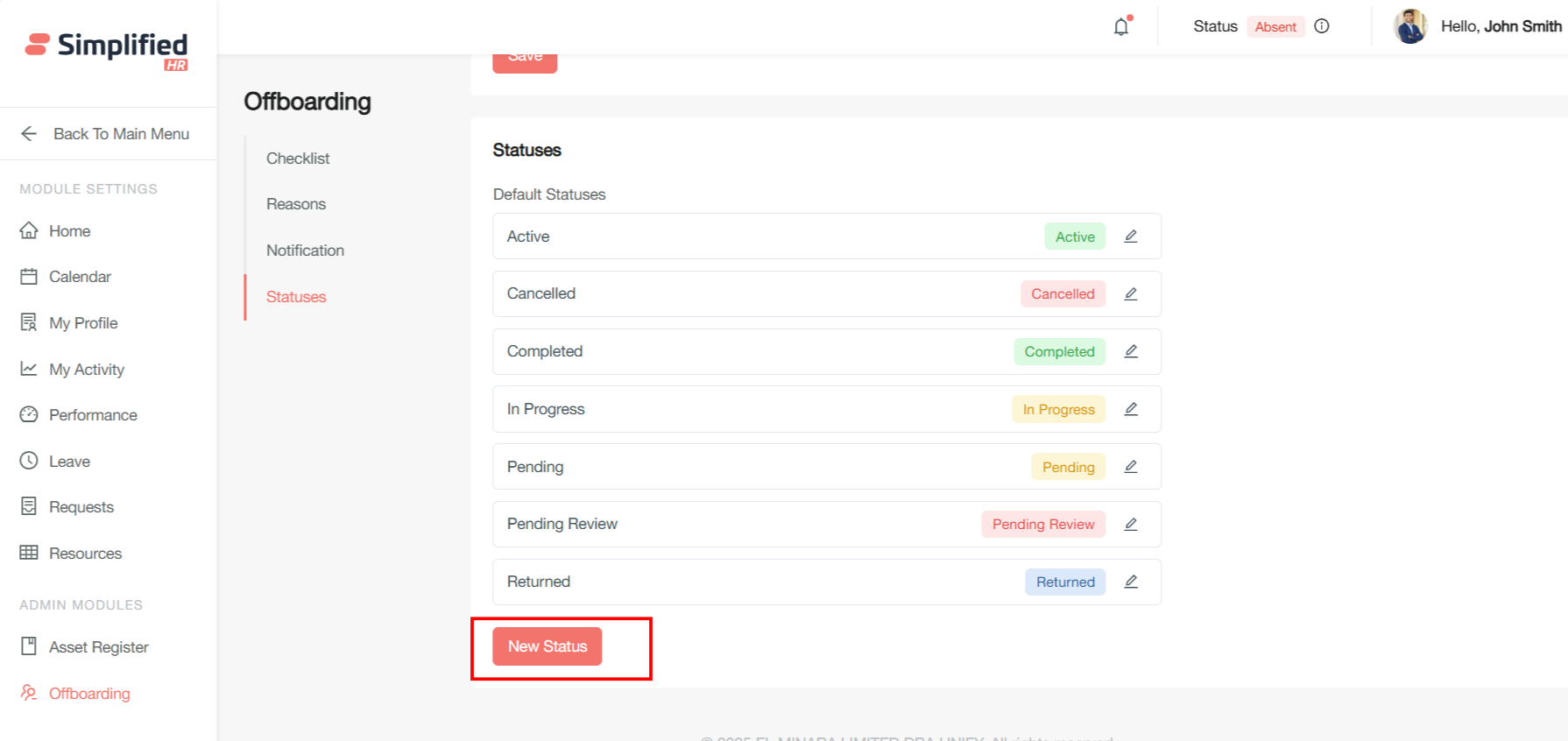
User can add the following details:
-
Status Name
-
Status Type
-
Tag Preview color
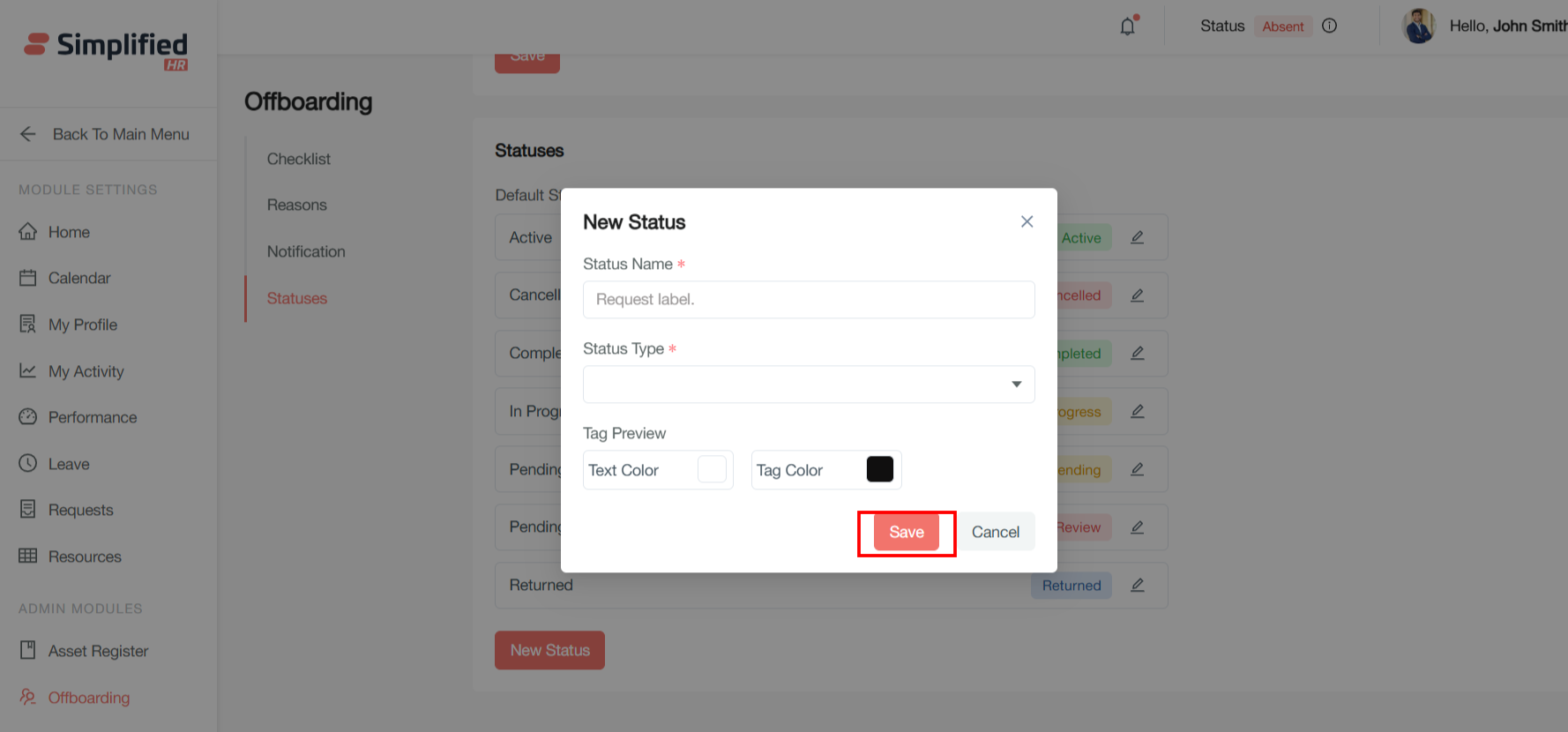
User can save the changes by clicking on save button
User can cancel the change by clicking on cancel button