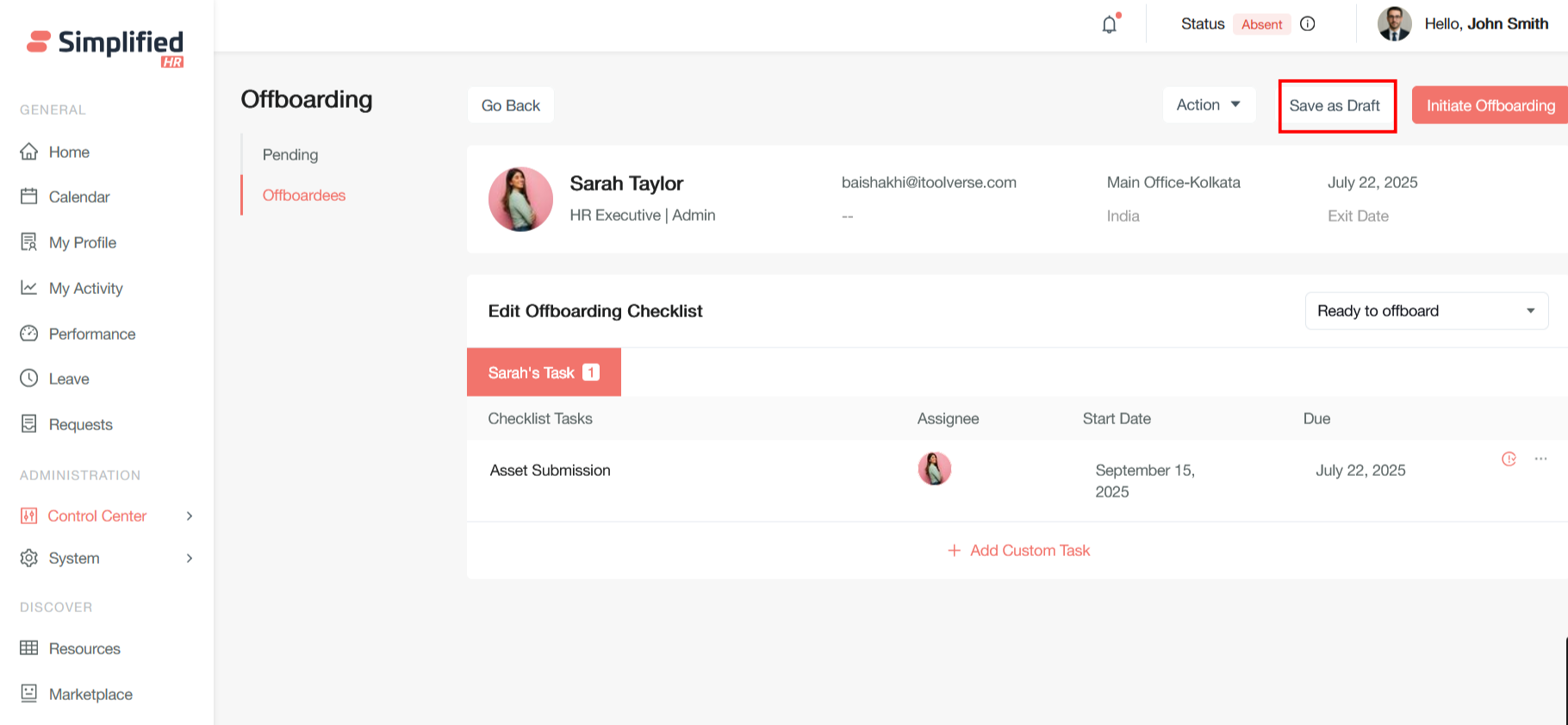
Offboarding requests is the formal initiation of an employee's departure process from an organization. This process involves multiple stakeholders and automated workflows to ensure a smooth, compliant, and secure transition.
To apply for offboarding, navigate to the My profile section.
Under My profile click on Action button and then click on Request Offboarding
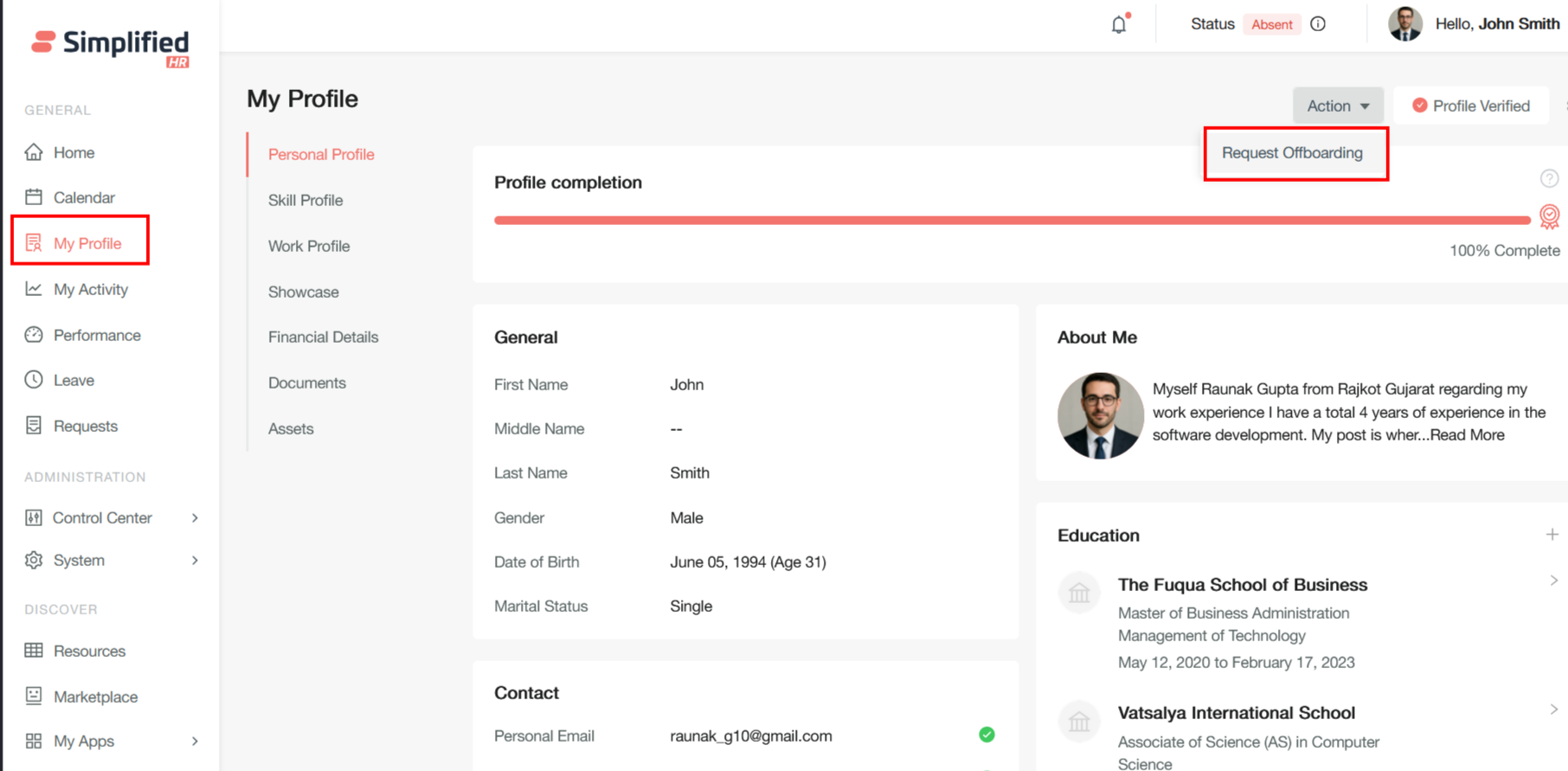
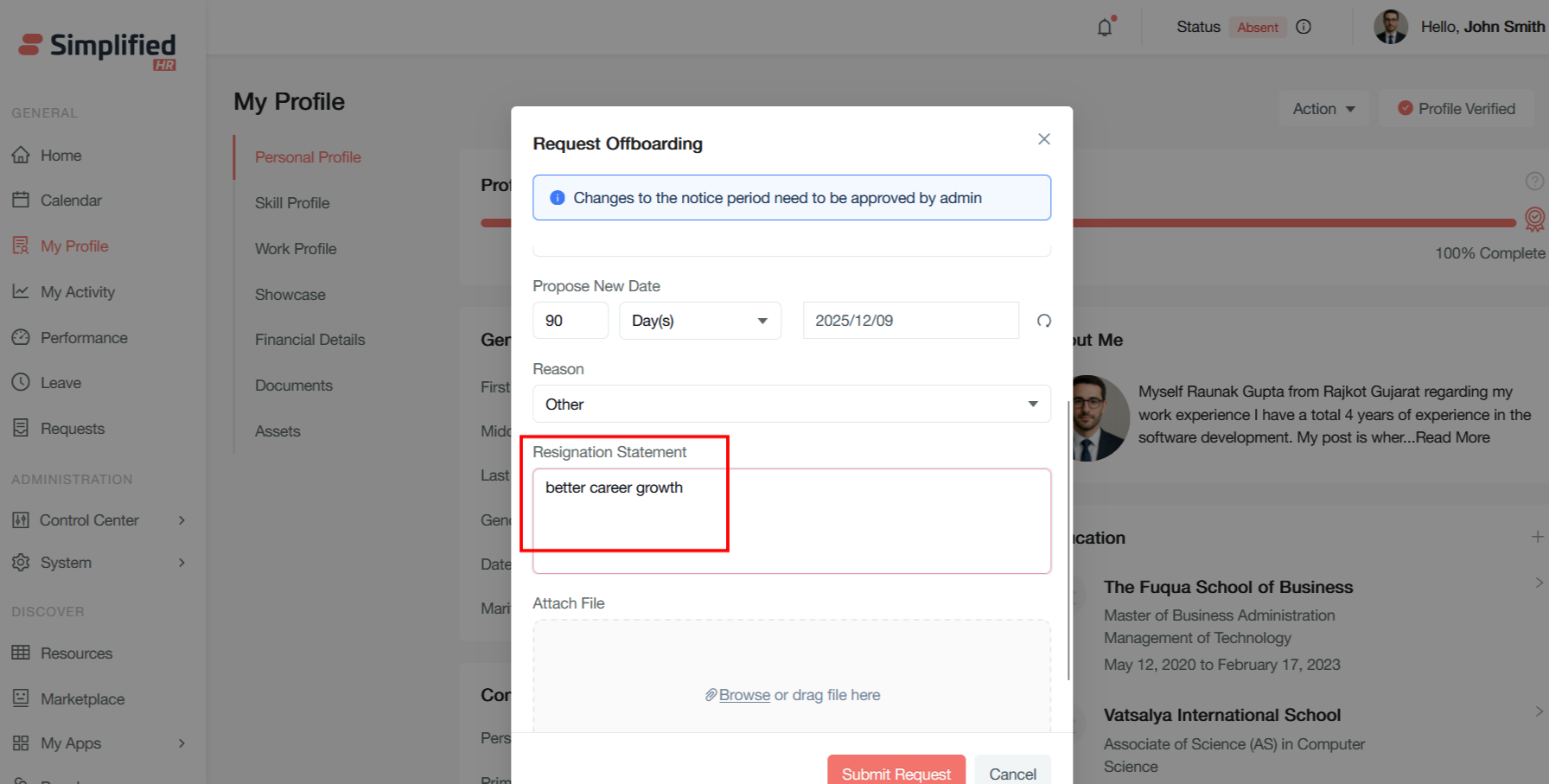
A Request Offboarding pop up modal will appear which will display the following information.
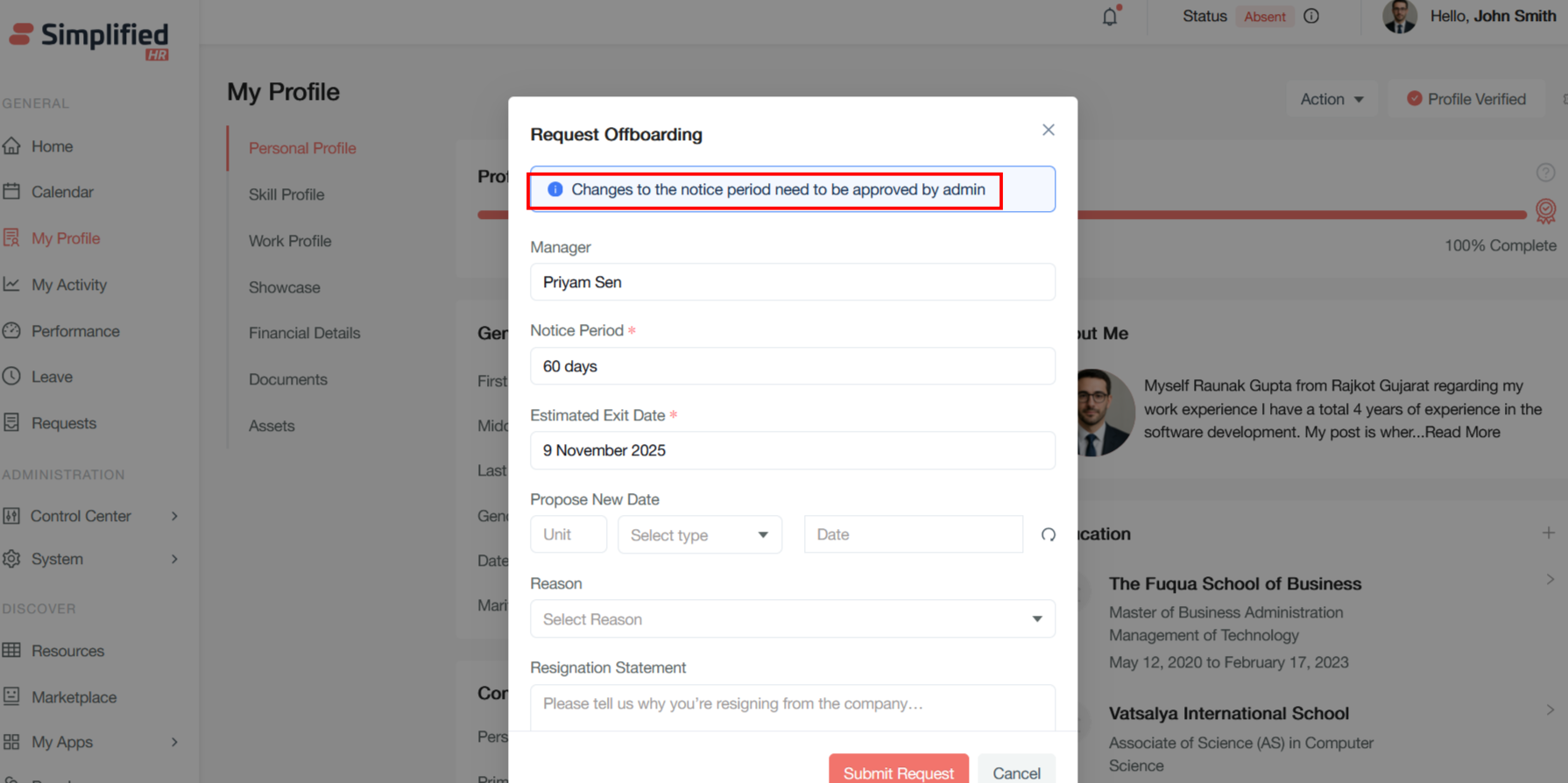
Form Header Information
Administrative Notice
The blue information banner states "Changes to the notice period need to be approved by admin" - this indicates that any modifications to the standard notice period require administrative approval before processing.
Employee Information Fields
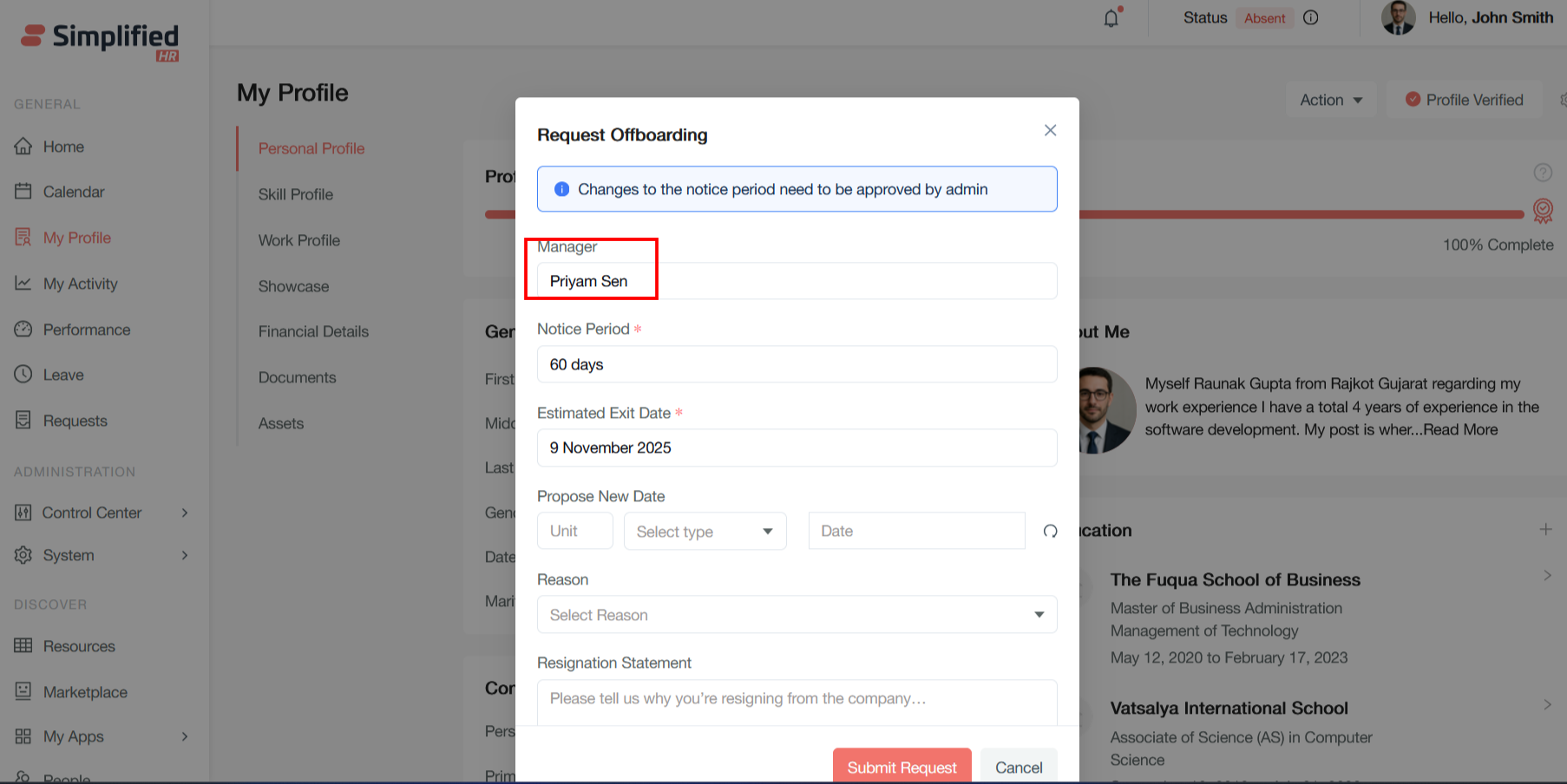
Manager
-
Field Value: Respective manager name
-
Purpose: Identifies the reporting manager or supervisor of the employee requesting offboarding
-
Function: Used for approval workflow routing and stakeholder notification
Timeline Fields
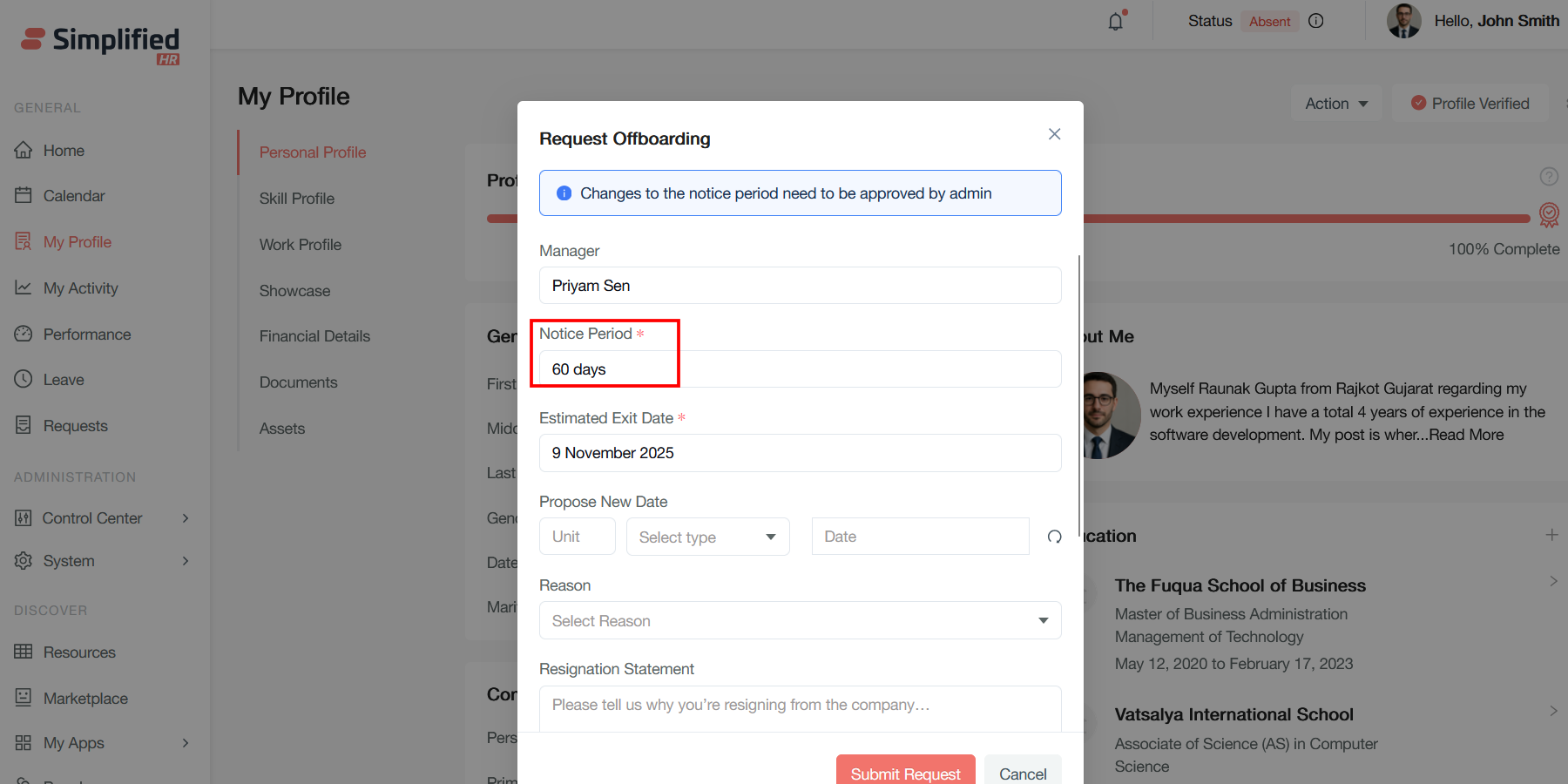
Notice Period (Required)
-
Field Value: The number of days defined in the user work profile
-
Purpose: Specifies the standard notice period the employee must serve
-
Function: Establishes the mandatory waiting period between resignation submission and final exit date
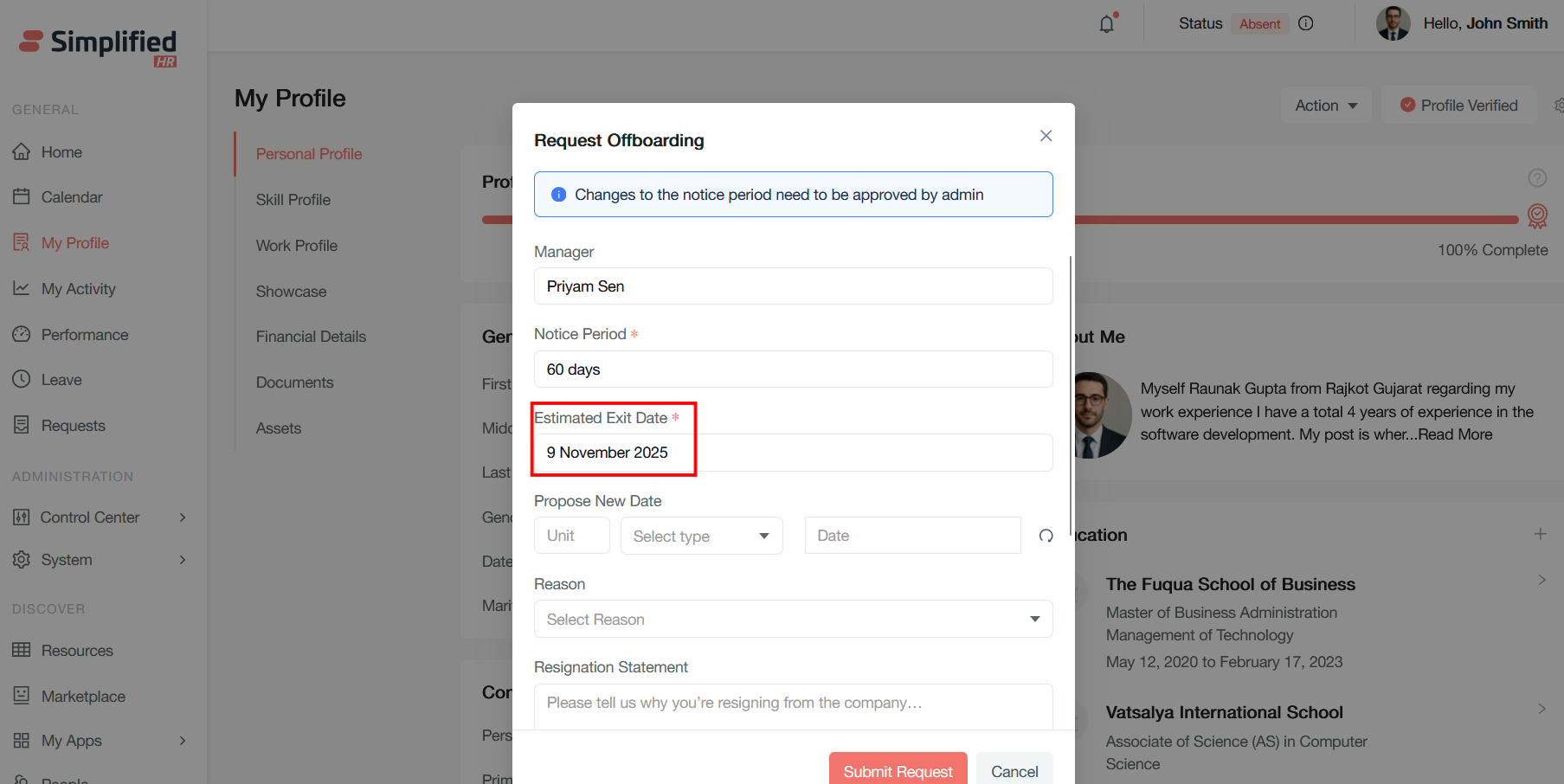
Estimated Exit Date (Required)
-
Field Value: Last working day of the employee calculated as per notice period
-
Purpose: Calculates the projected last working day based on the notice period
-
Function: Provides timeline for offboarding activities and resource planning
Date Modification Section
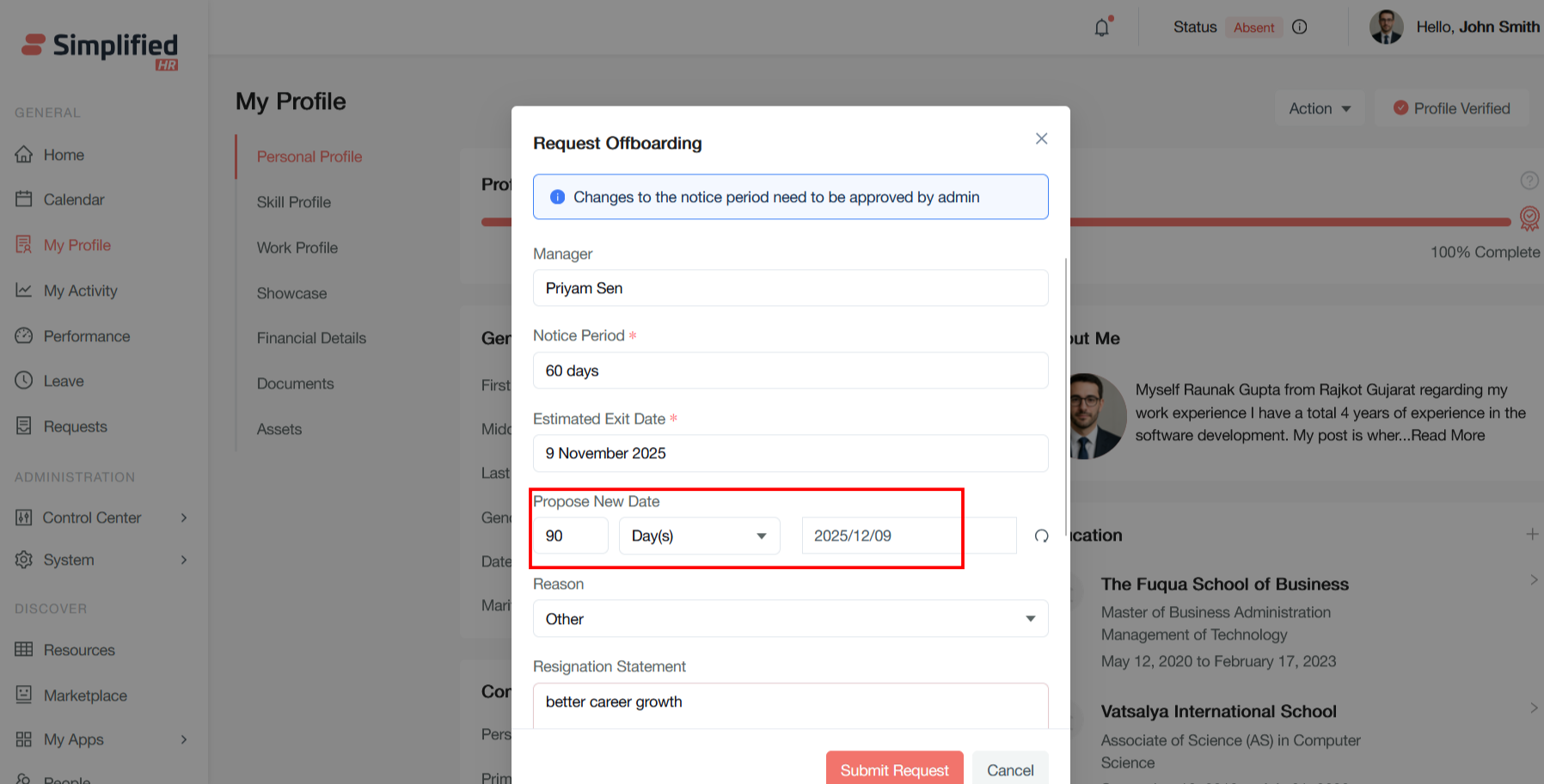
Propose New Date
-
Unit Field: Numerical input for proposed timeline adjustment
-
Select Type Dropdown: Allows selection of time unit (days, weeks, months)
-
Date Field: Specific calendar date picker for alternative exit date
-
Purpose: Enables employees to request modifications to their standard exit timeline.
Ex: If a member wants to leave the organization early or late compared to their calculated exit date in the organization, they can request or propose a new exit date. A new exit date is subject to approval or rejection.
- Function: Triggers admin approval workflow for timeline changes
Departure Details
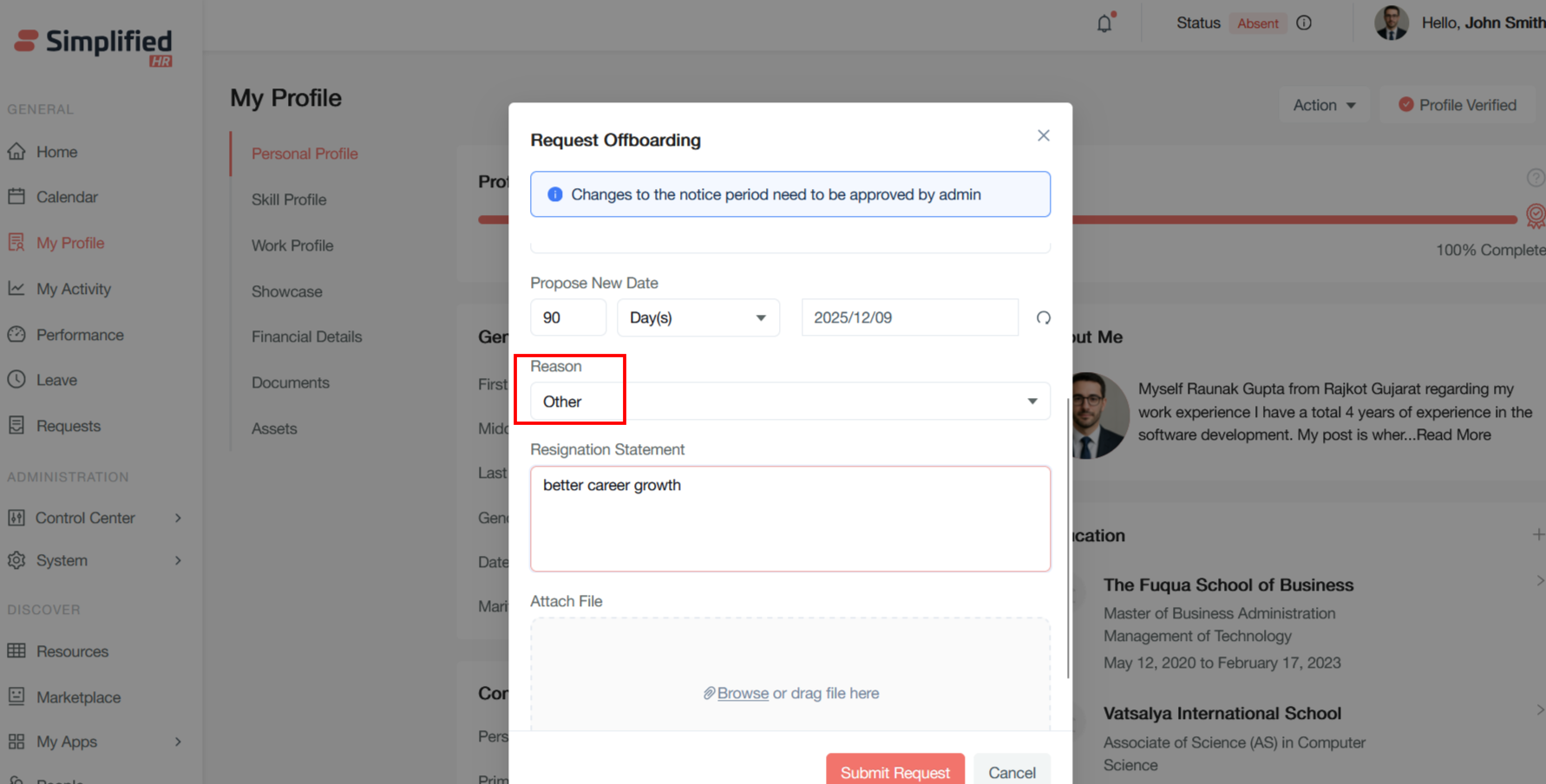
Reason (Dropdown)
-
Current State: Select Reason from dropdown
-
Purpose: Categorizes the type of departure (resignation, termination, retirement, etc.)
-
Function: Used for HR analytics and compliance reporting
Resignation Statement (Text Area)
-
Placeholder Text: "Please tell us why you're resigning from the company..."
-
Purpose: Captures detailed explanation for the departure decision
-
Function: Provides feedback for organizational improvement and exit interview documentation
Action Buttons
Submit Request
- Function: Finalizes and submits the offboarding request to the approval workflow
Cancel
- Function: Abandons the current request without saving any information
This form structure ensures comprehensive data collection while maintaining flexibility for timeline adjustments and proper approval workflows in the HR offboarding process.
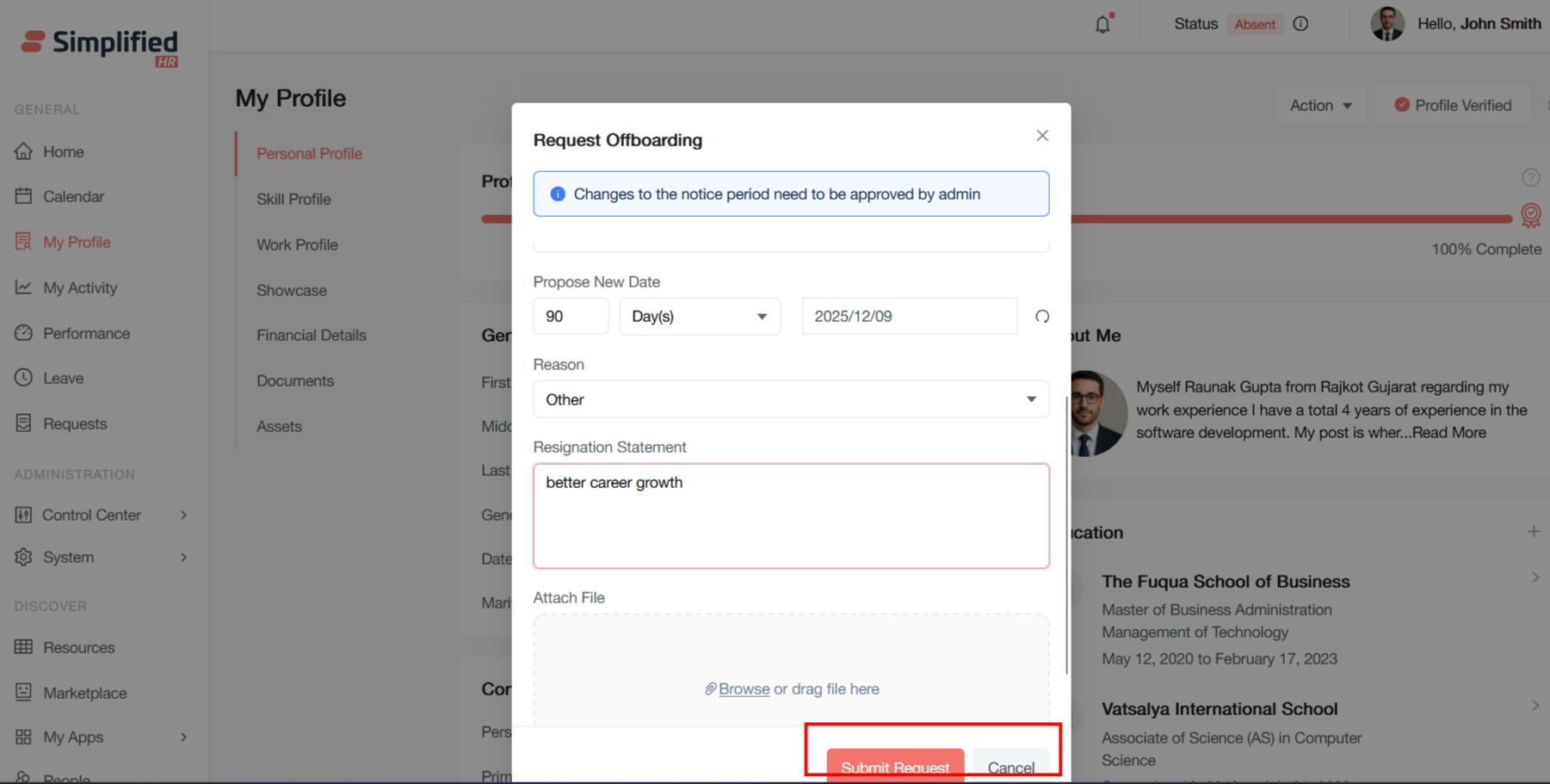
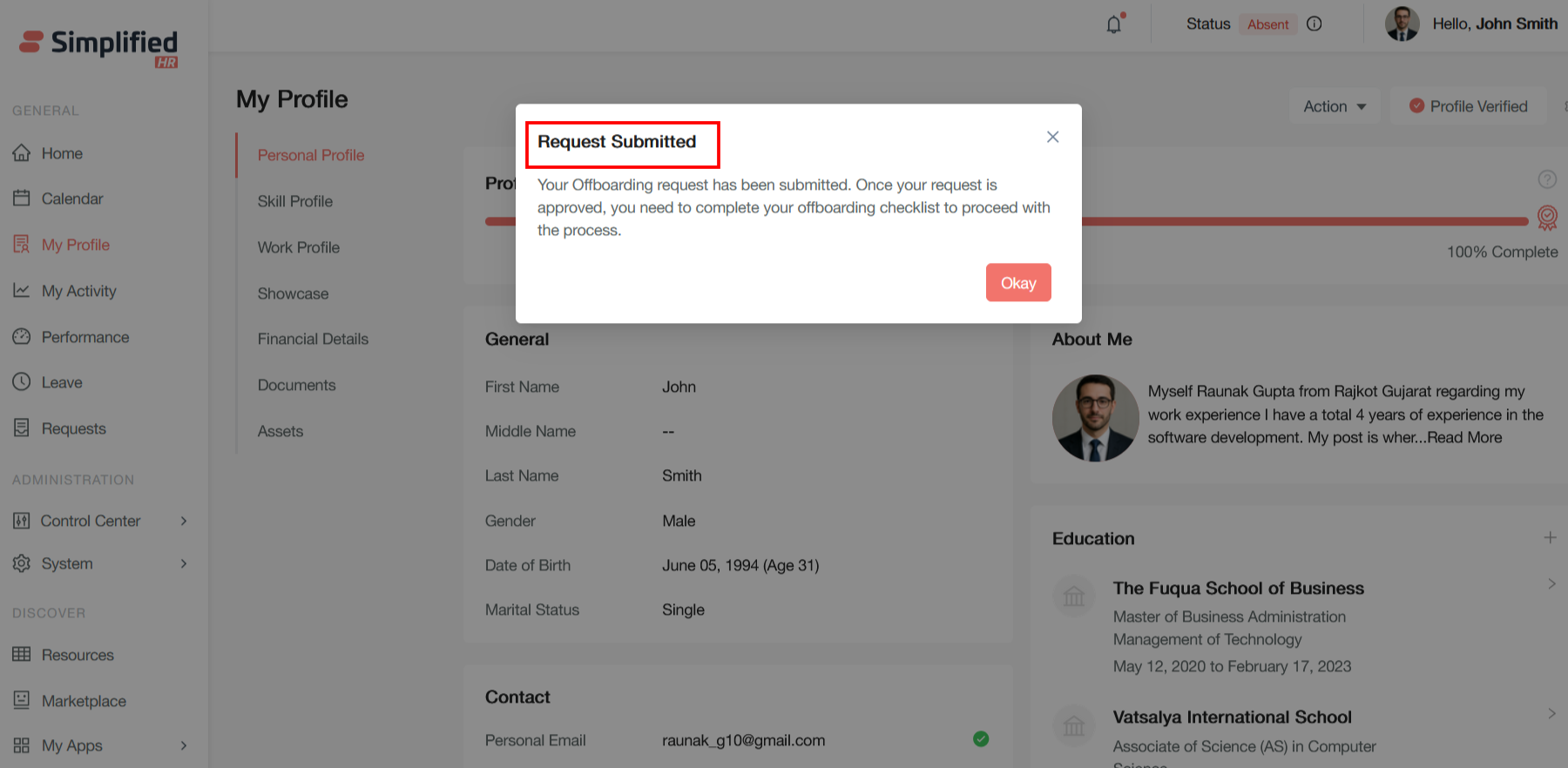
A request submission confirmation pop up will appear after submitting the offboarding.
A details section page will appear in view details section with all the information of the offboarding
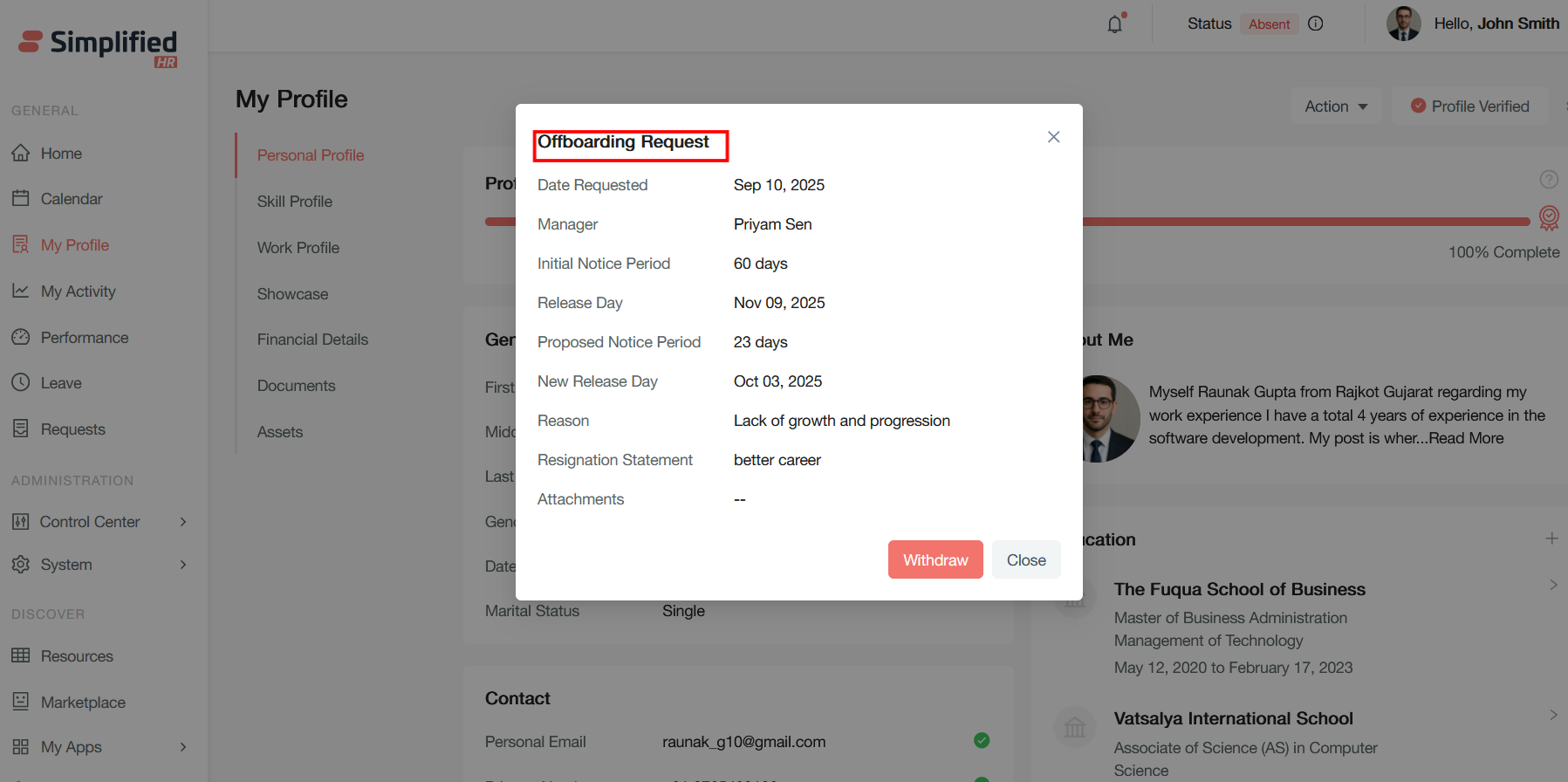
Withdrawing Offboarding Requests
Withdrawing or canceling an offboarding request is a feature available allowing organizations to reverse the departure process when circumstances change. This functionality is essential when employees decide to stay or when departure timelines need adjustment.
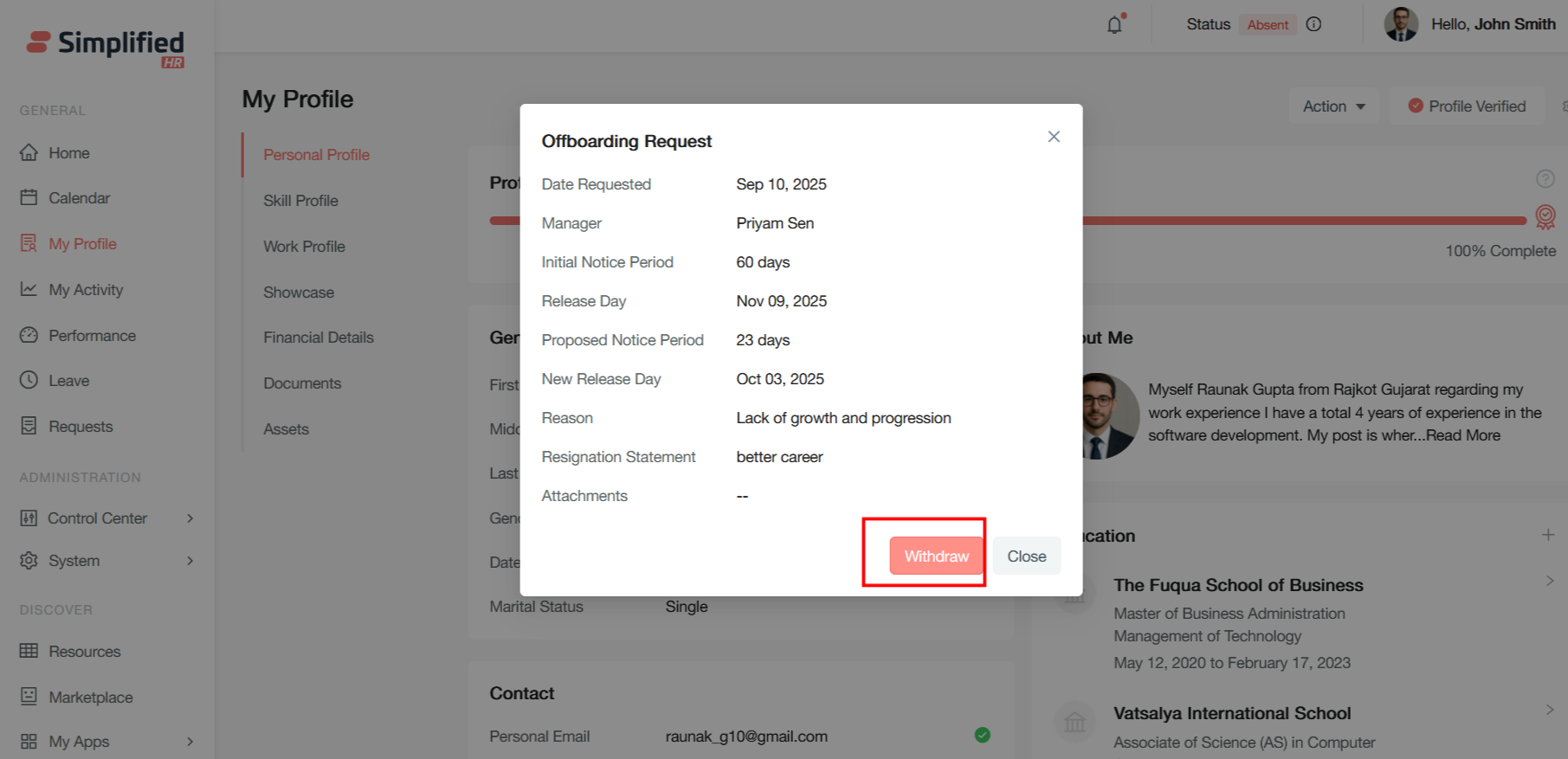
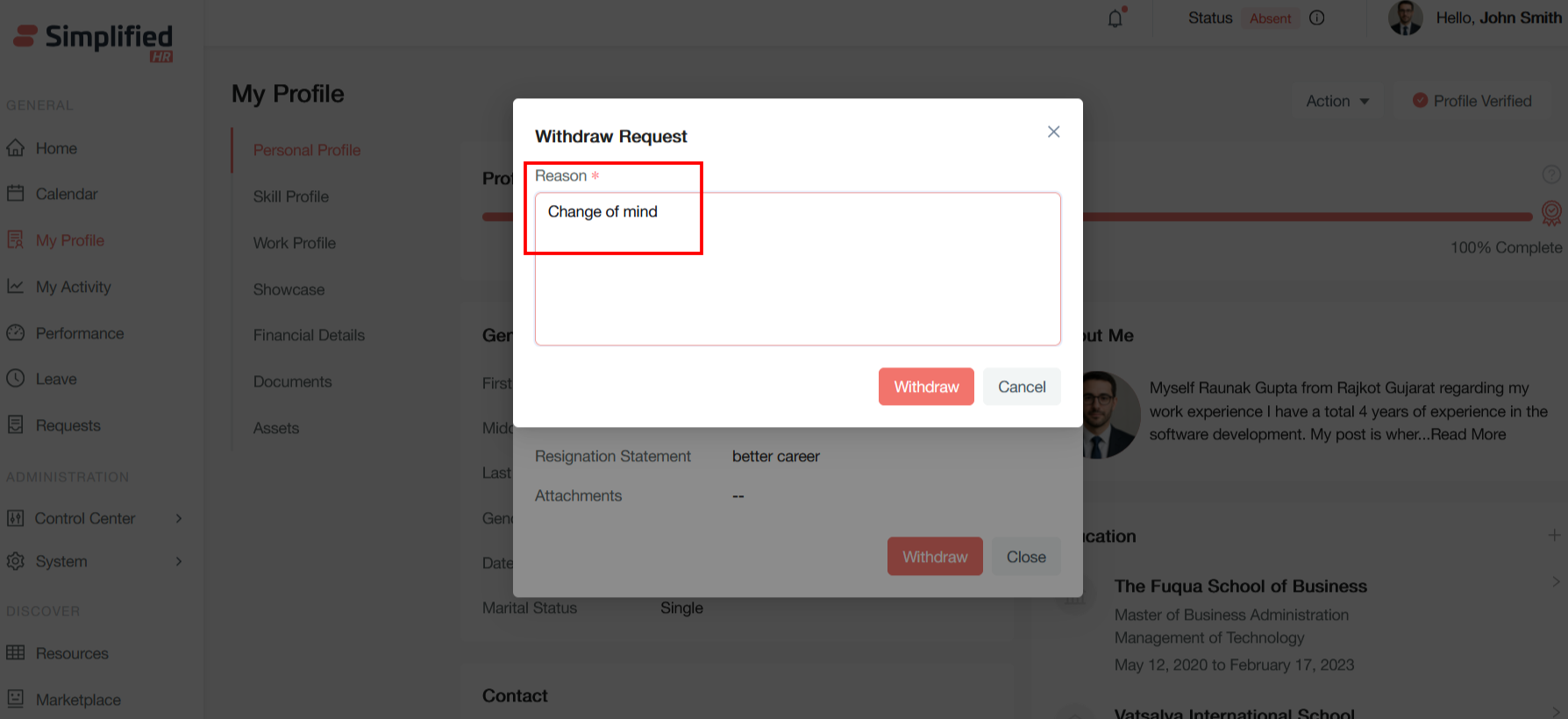
Provide a withdrawal reason and click on withdraw button to withdraw the offboarding request
Offboarding Approval Process
Offboarding approval is a critical workflow stage that ensures proper authorization and oversight before an employee's departure process begins. This multi-step approval system involves various stakeholders and departments to validate departure requests and coordinate the exit process.
Offboarding approval requires completion of comprehensive checklists to ensure all critical tasks are addressed before an employee's departure is finalized. These checklists serve as gatekeepers to prevent security breaches, ensure compliance, and maintain operational continuity.
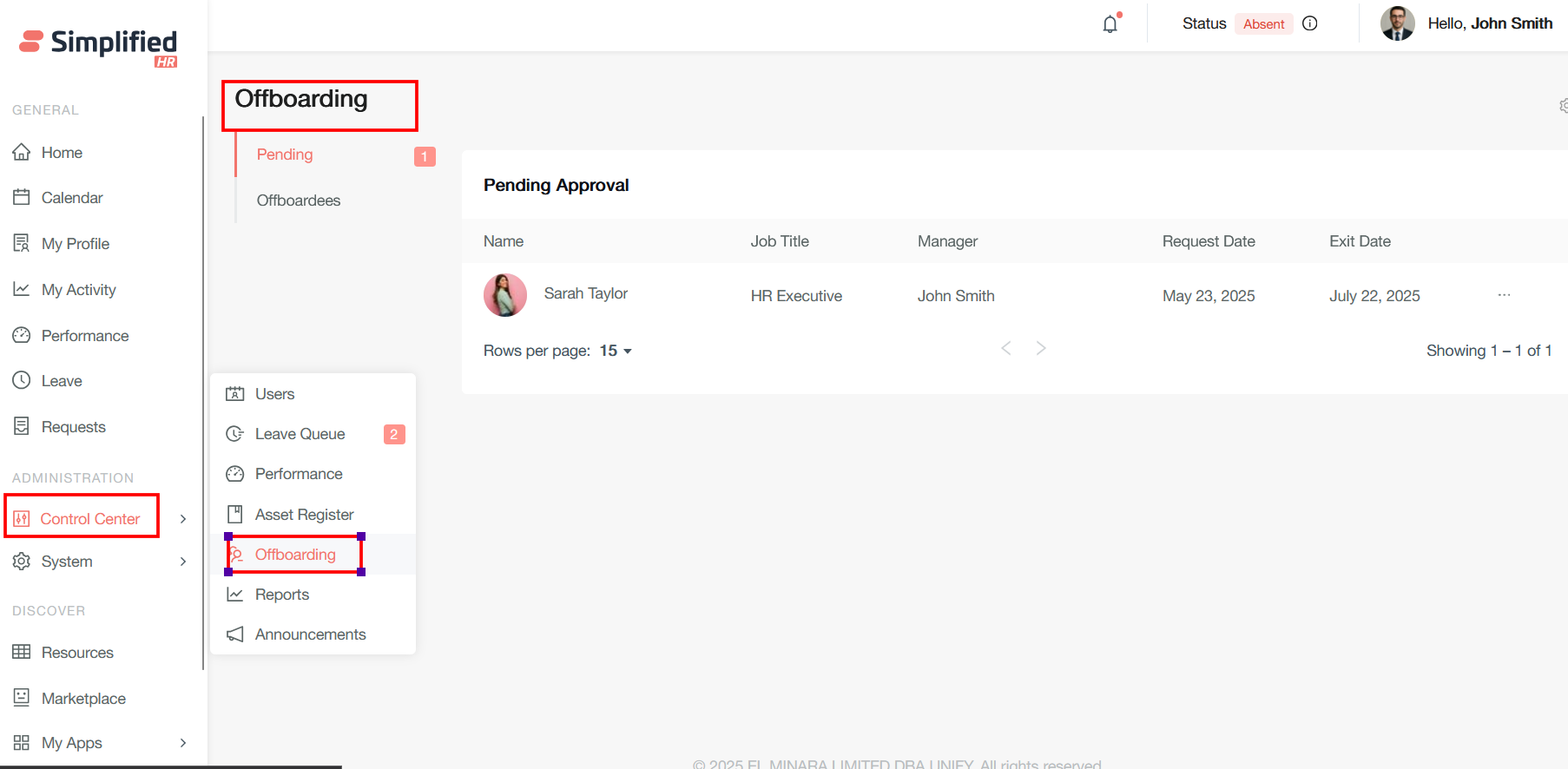
For the approval process navigate to Control center > Offboarding where all the approval requests are submitted.
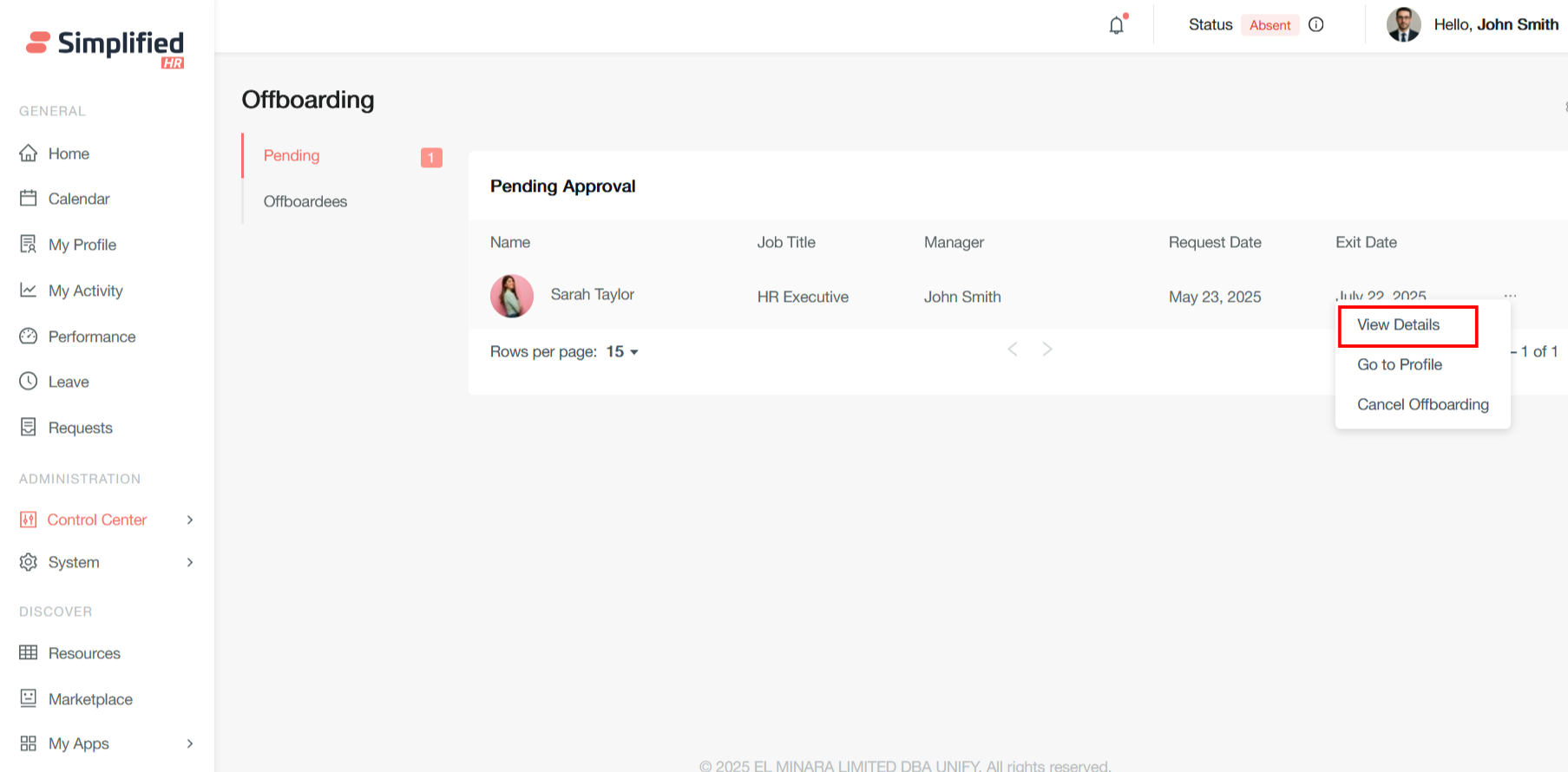
In View Details section admin can get all the information about the offboardee’s
Employee Information Fields
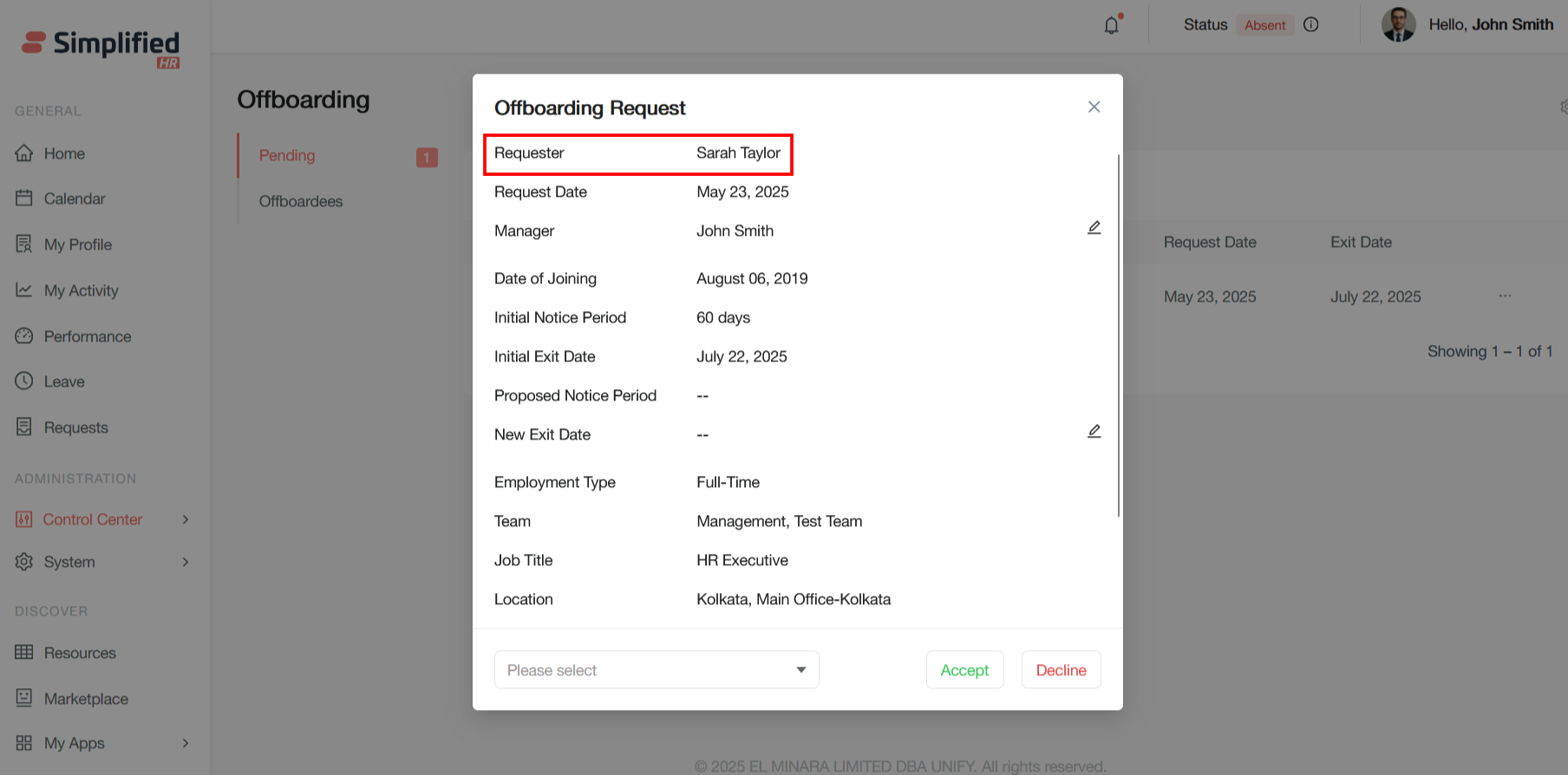
Requester: The employee who is initiating the offboarding process. This is the person requesting to leave the organization.
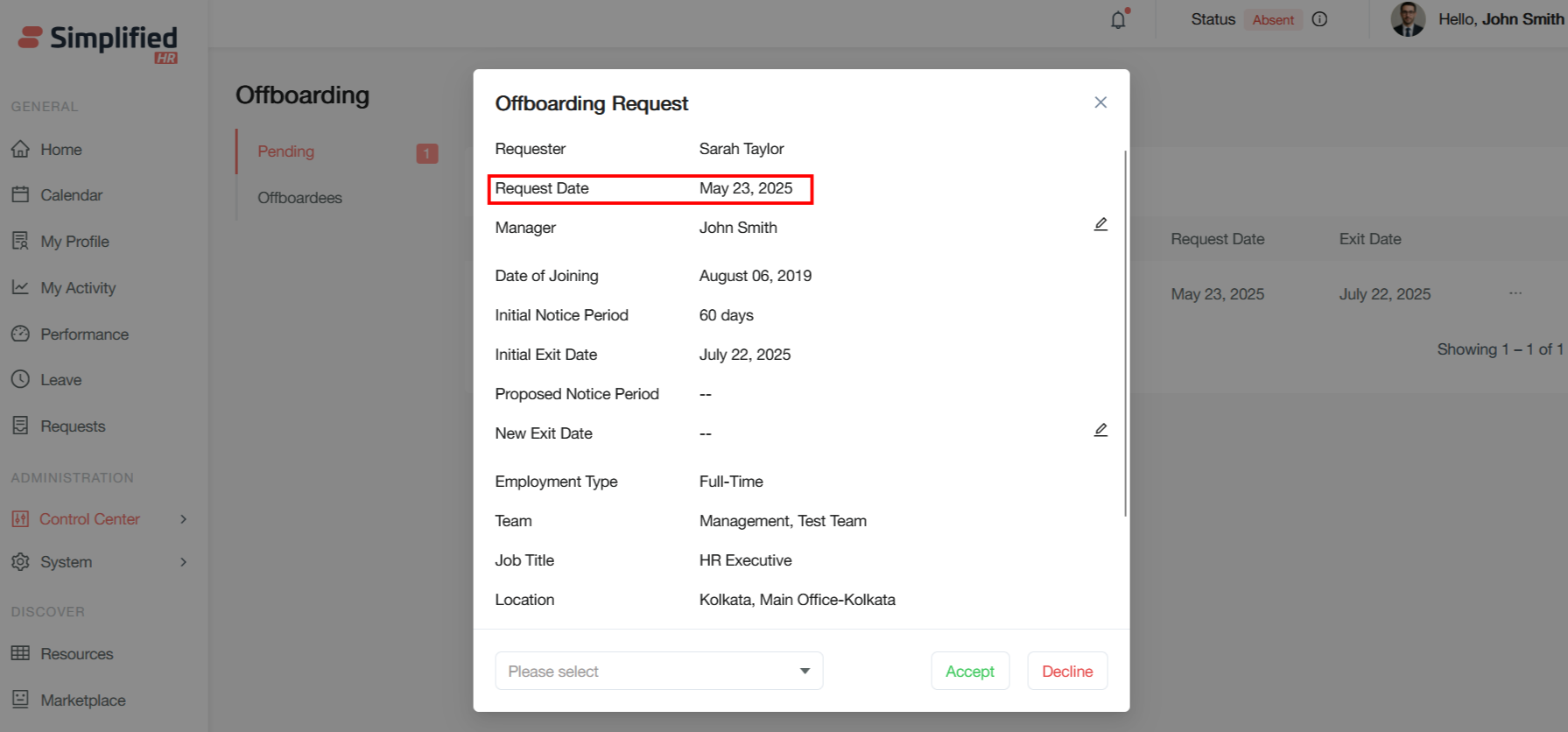
Request Date: The date when the offboarding request was submitted. This marks the official start of the offboarding process.
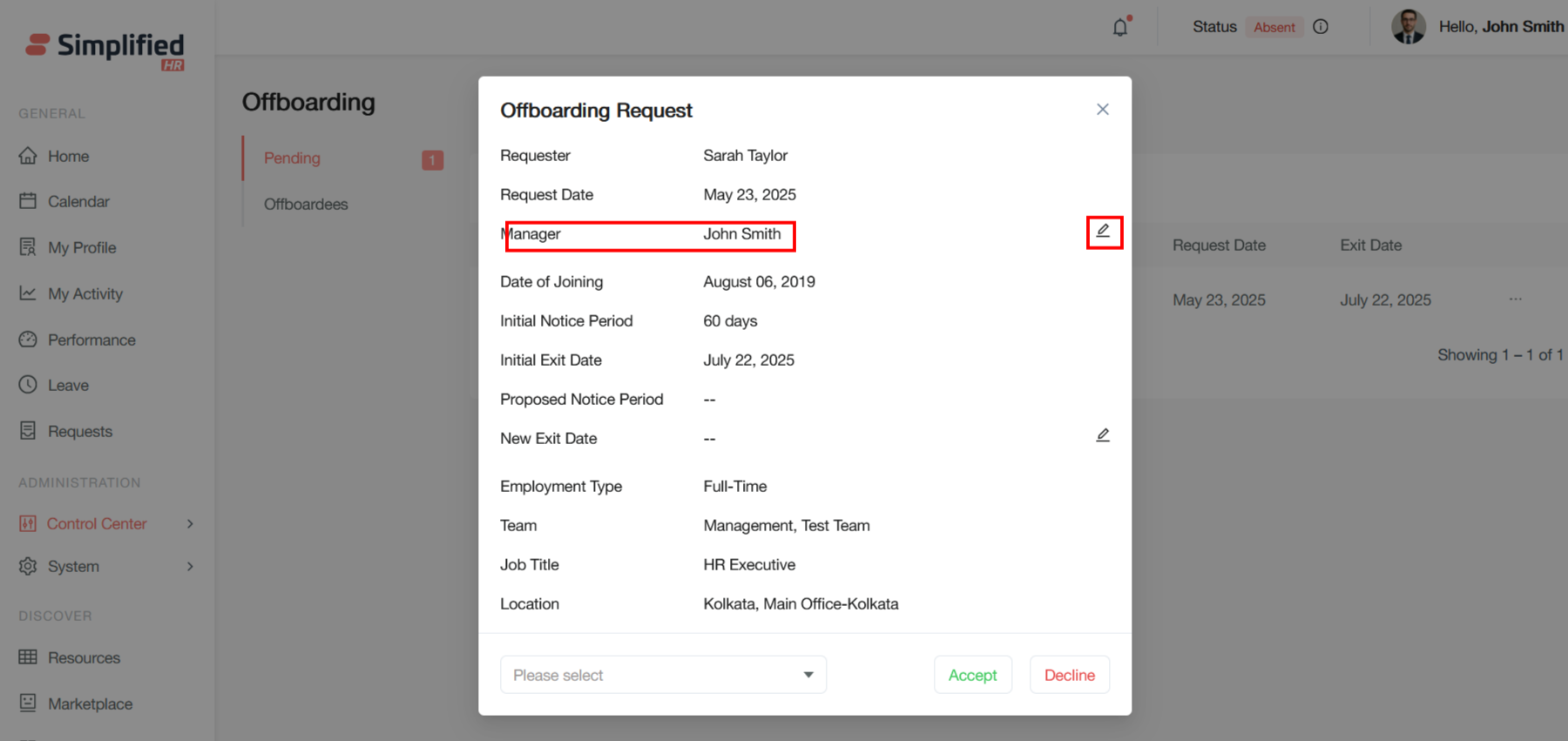
Manager: The direct supervisor or manager of the employee requesting offboarding This person typically needs to approve or review the request.
This field is editable. Admin can switch the manager if required.
Employment History
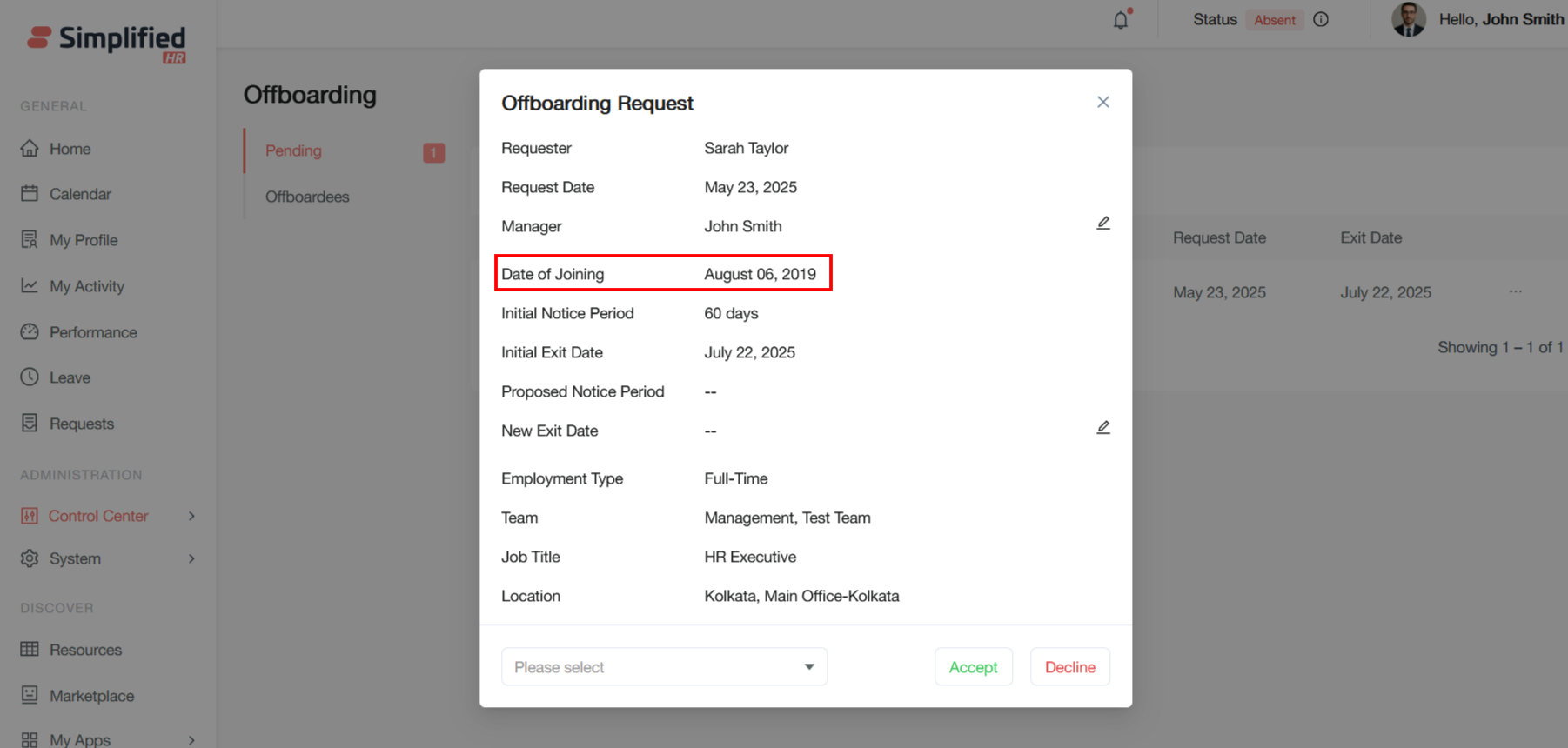
Date of Joining: The original start date when the employee joined the company This helps calculate tenure and may impact notice period requirements or benefits.
Employment Type: The classification of employment - Full-Time, Part-Time, Contract, etc. This affects offboarding procedures and final settlements.
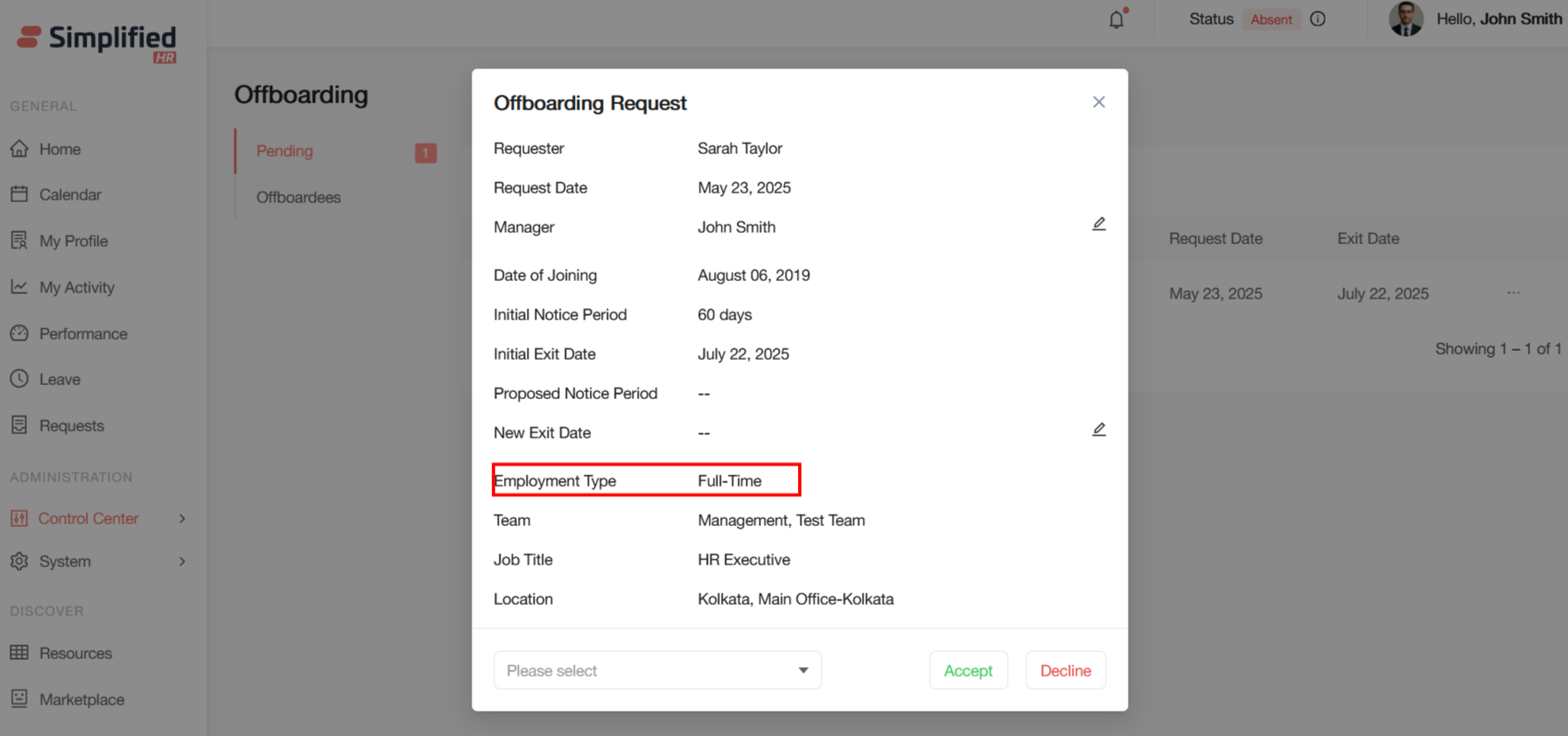
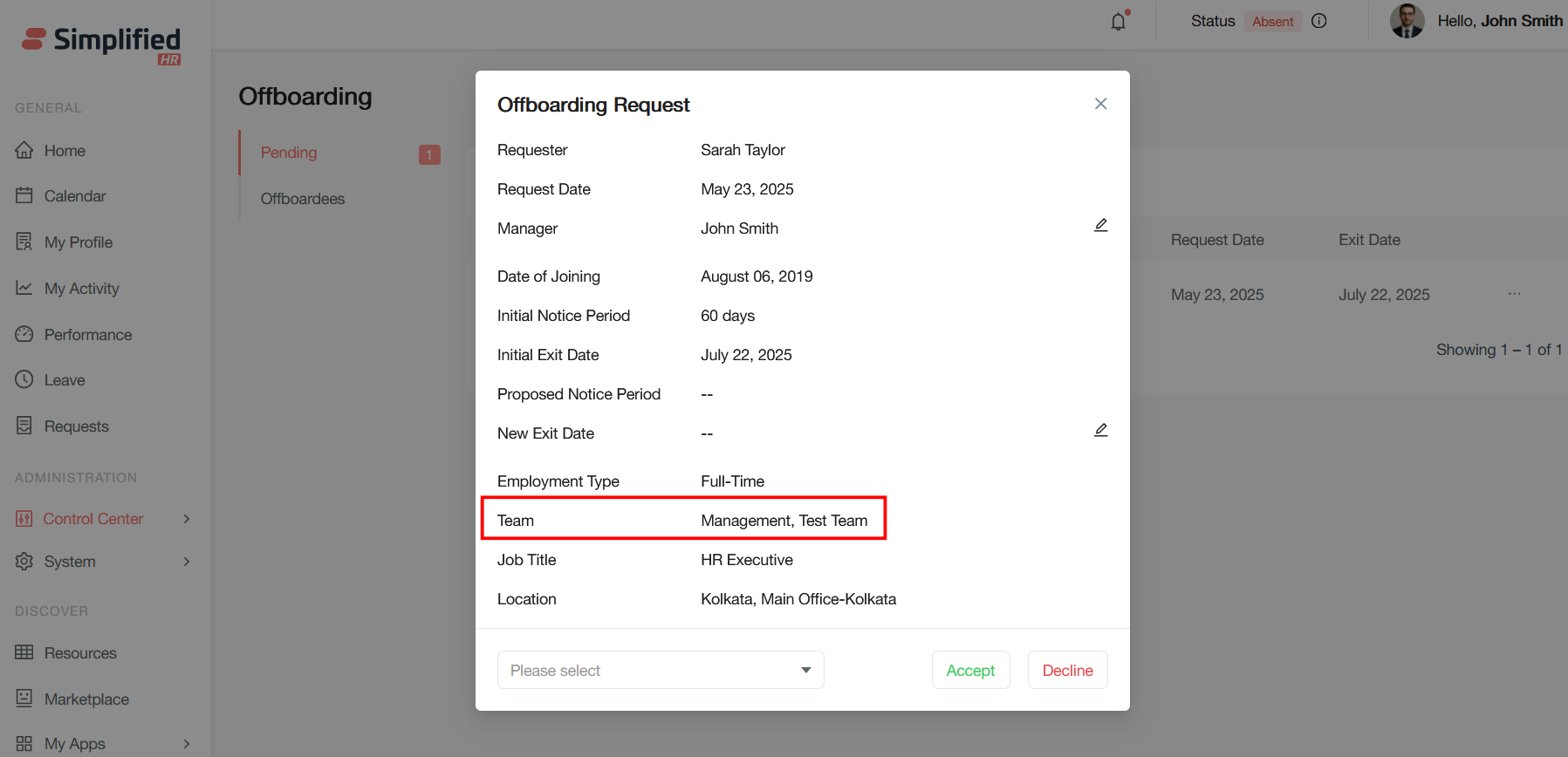
Team: The department or team(s) the employee belongs to (Management, Test Team). Important for reassigning responsibilities and access revocation.
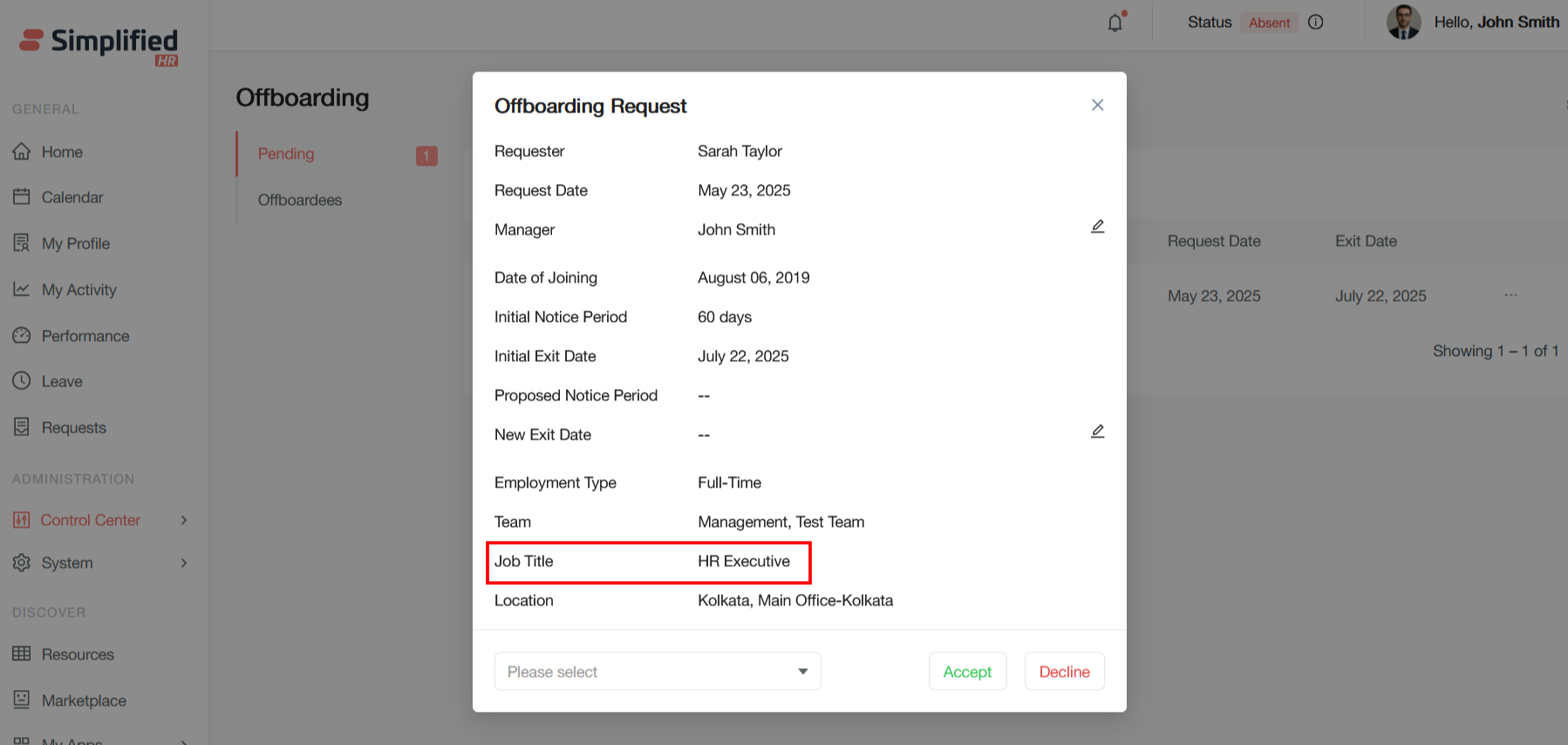
Job Title: The employee's current position (HR Executive). This helps determine handover requirements and replacement planning.
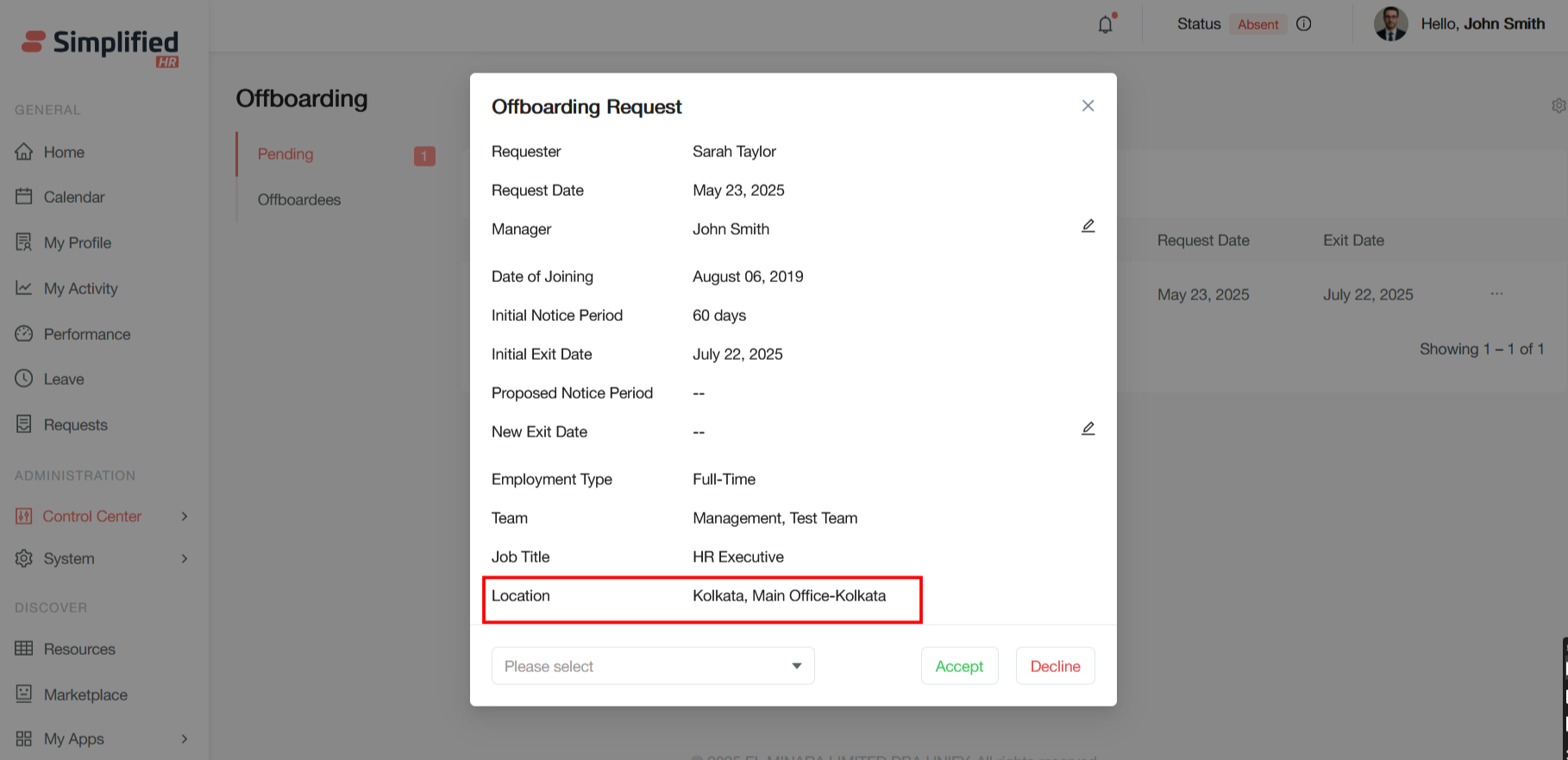
Location: The employee's work location (Kolkata, Main Office-Kolkata). Relevant for asset return, final paperwork, and exit interviews.
Notice Period Management
Initial Notice Period: The standard notice period as per company policy or employment contract mentioned in user work profile. This is the default requirement.
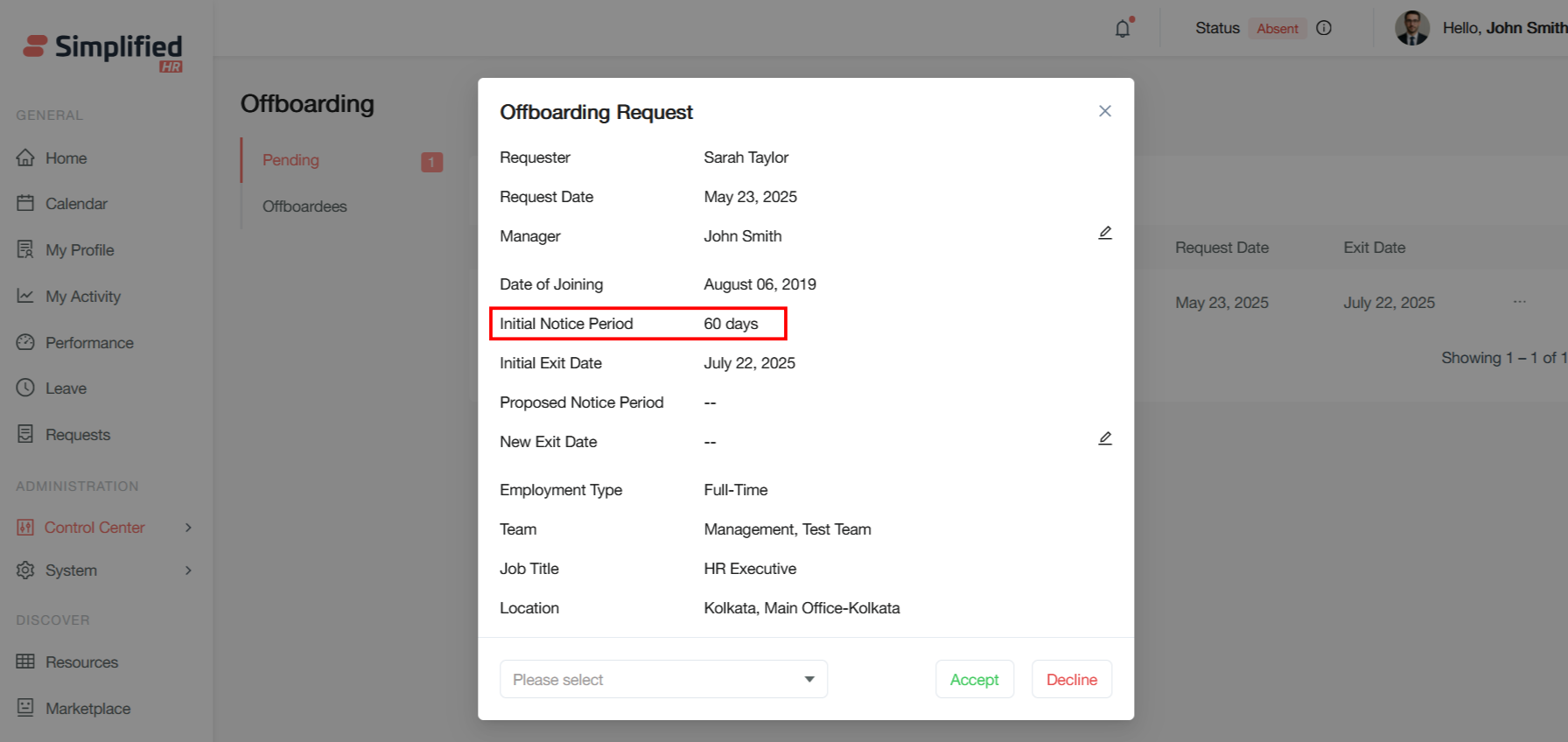
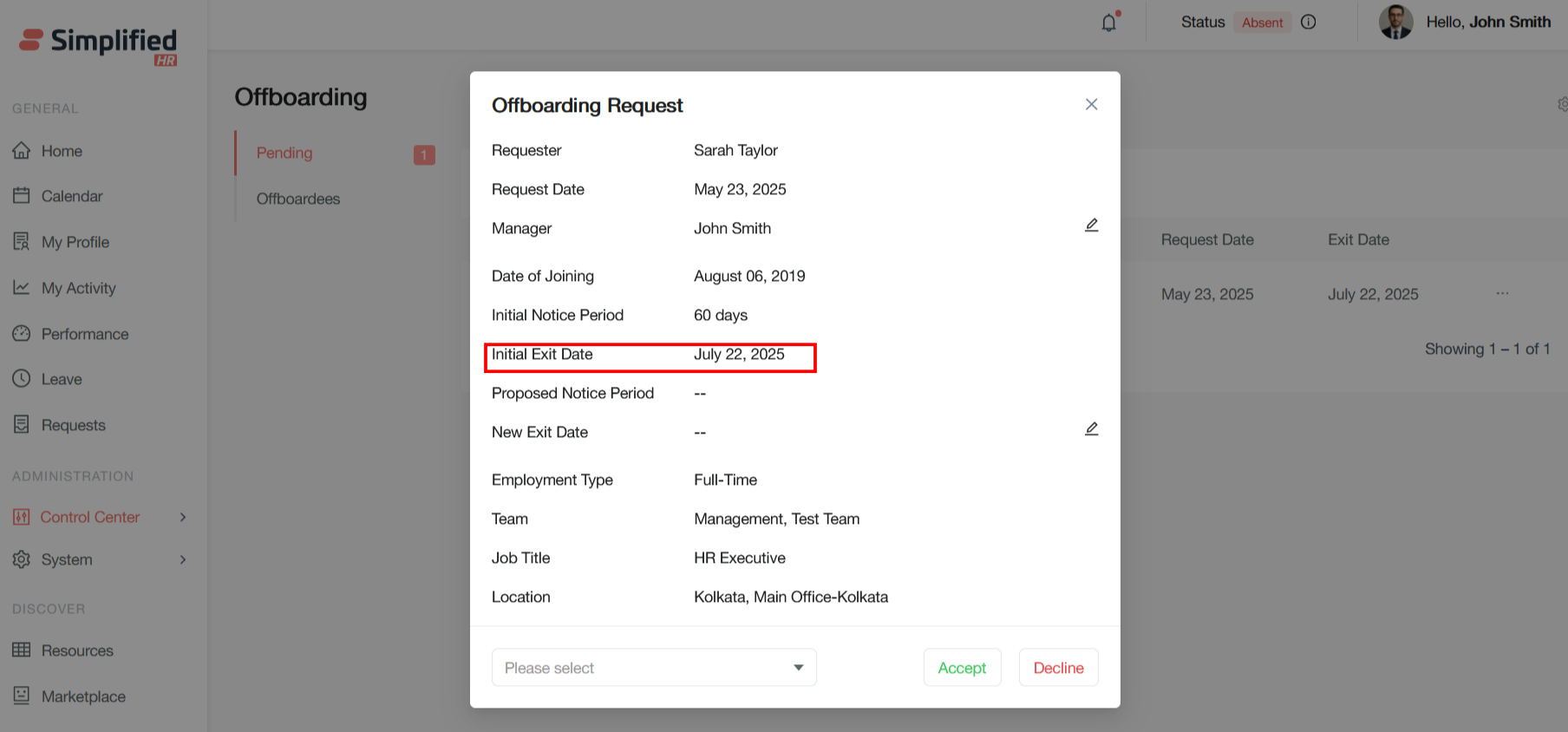
Initial Exit Date: The calculated last working day based on request date and initial notice period (July 22, 2025).
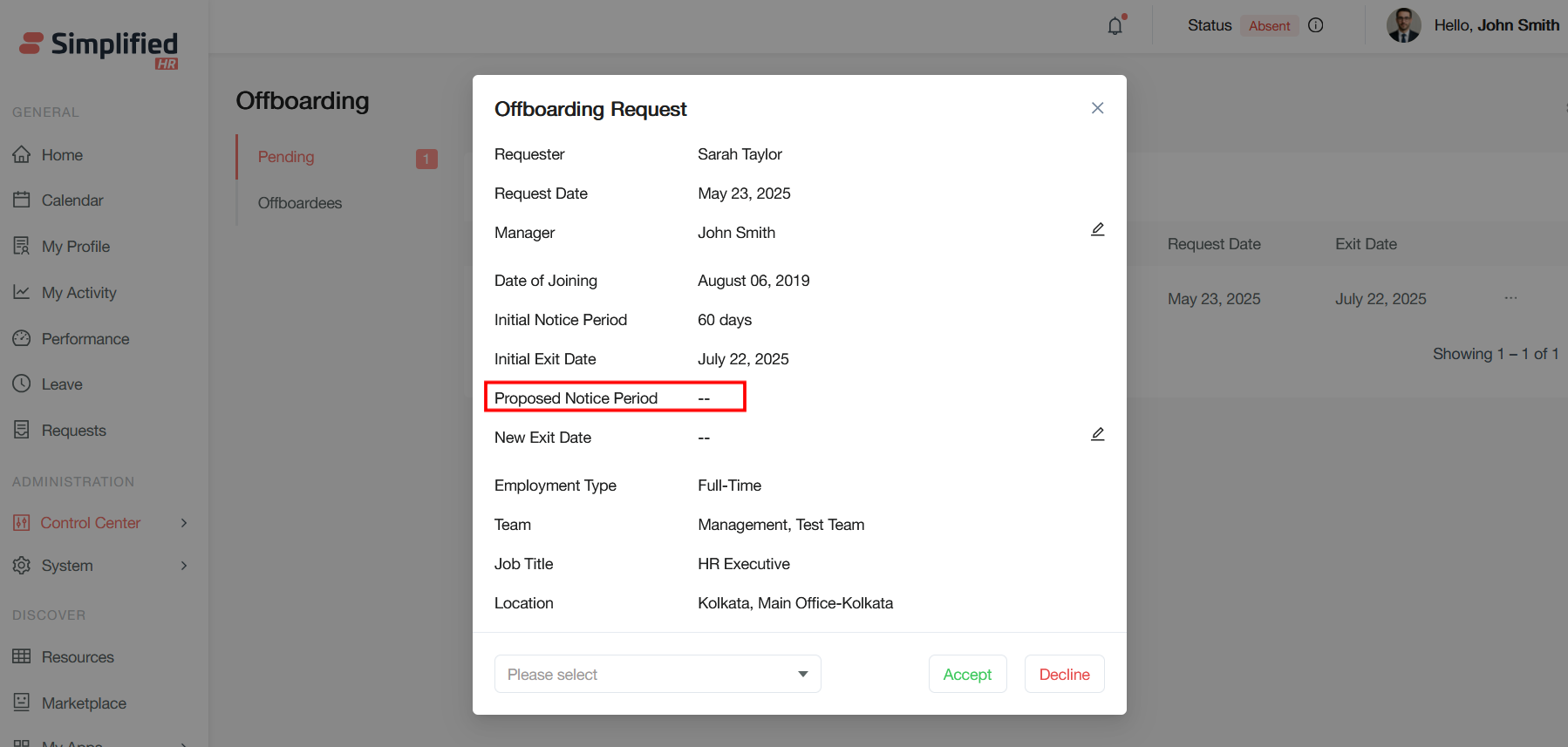
Proposed Notice Period: A field for requesting a different notice period. The employee or manager can propose an alternative.
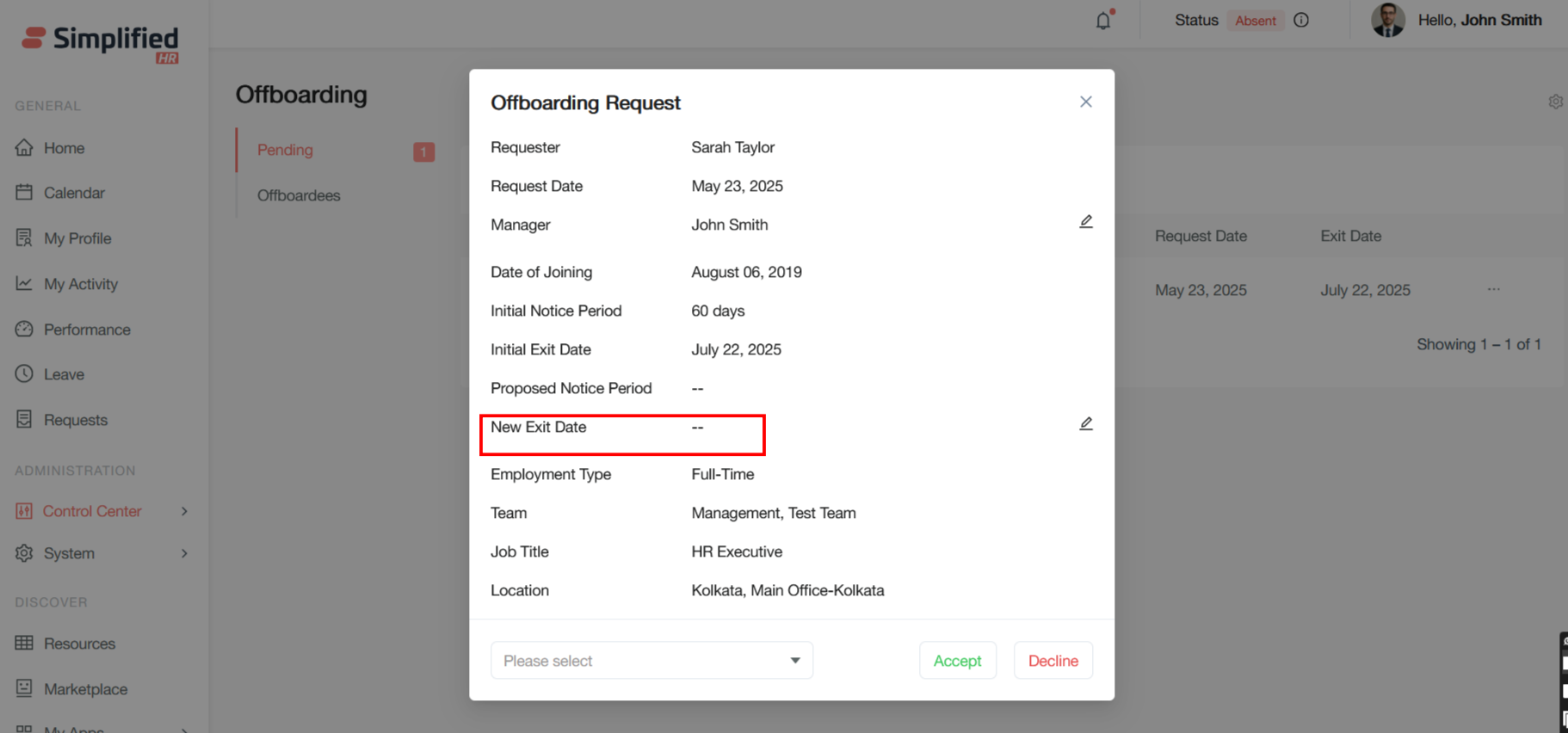
New Exit Date: The last working day can be revised or modified even if the proposed notice period is approved.
Action Controls
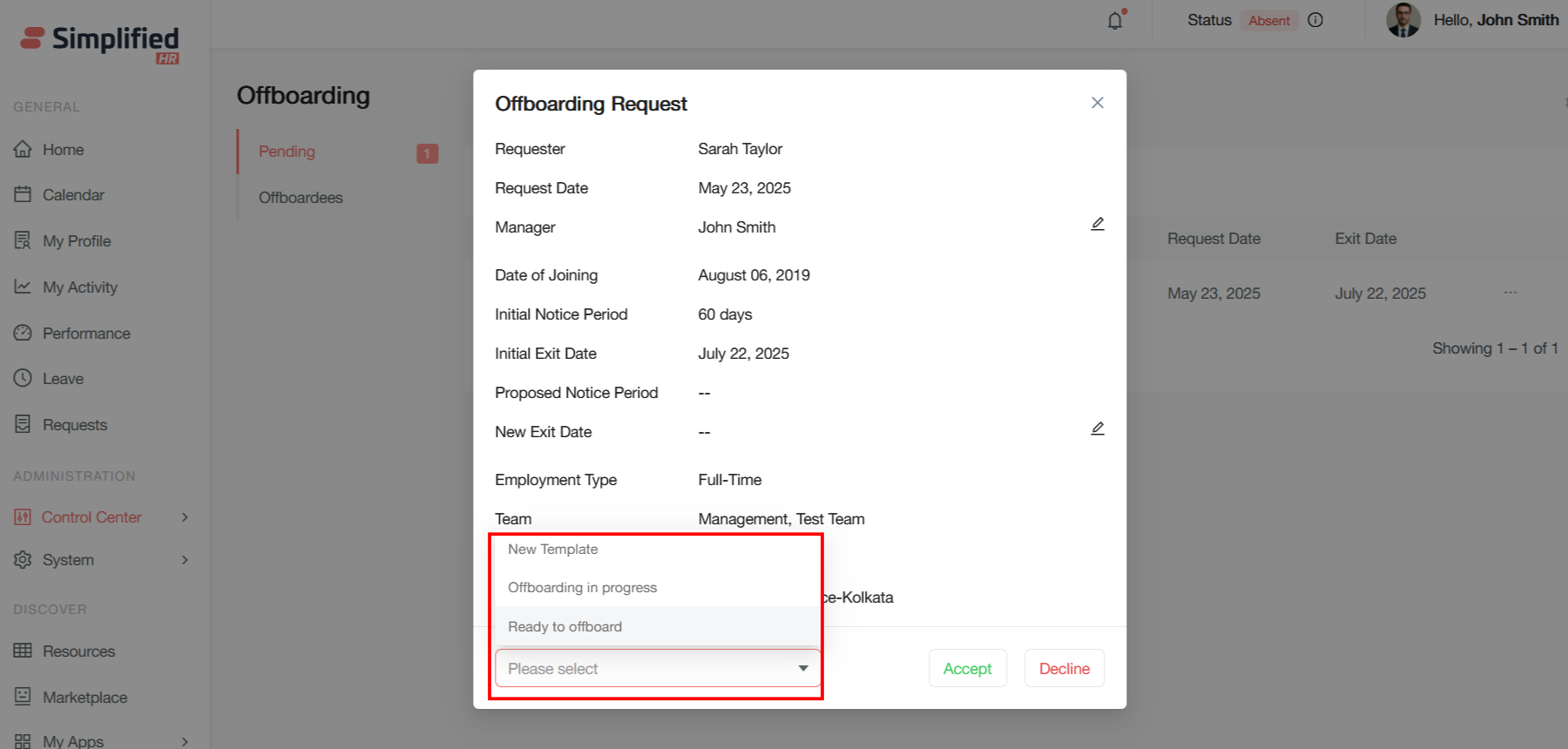
Dropdown Menu: "Please select" - is the checklist task that admin selects for the offboardees to complete the task before he leaves the organization.
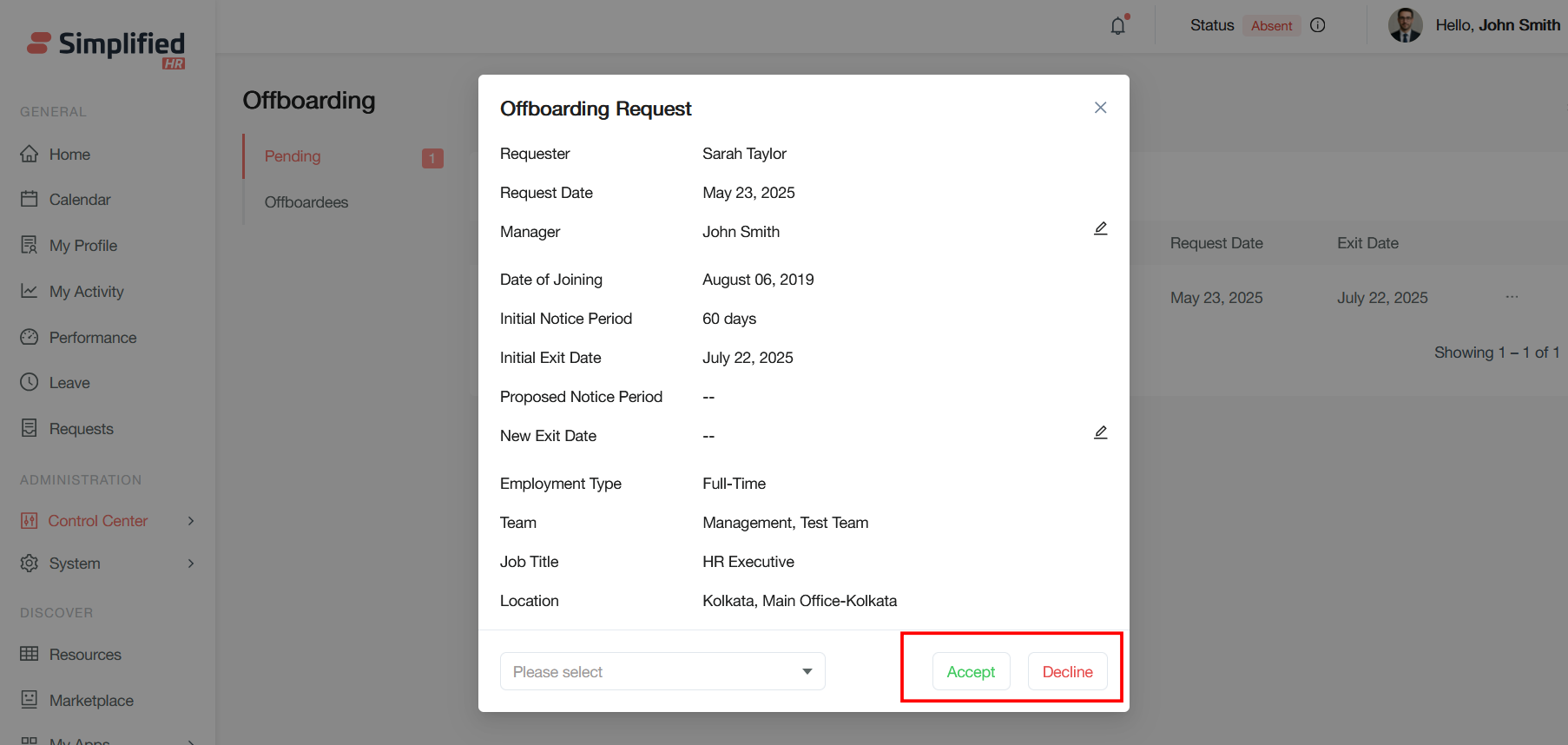
Accept/Decline Buttons: Allow the manager or HR to approve or reject the offboarding request.
This form captures all essential information needed to process an employee's departure systematically while allowing flexibility in notice period negotiations.
Offboardess Status
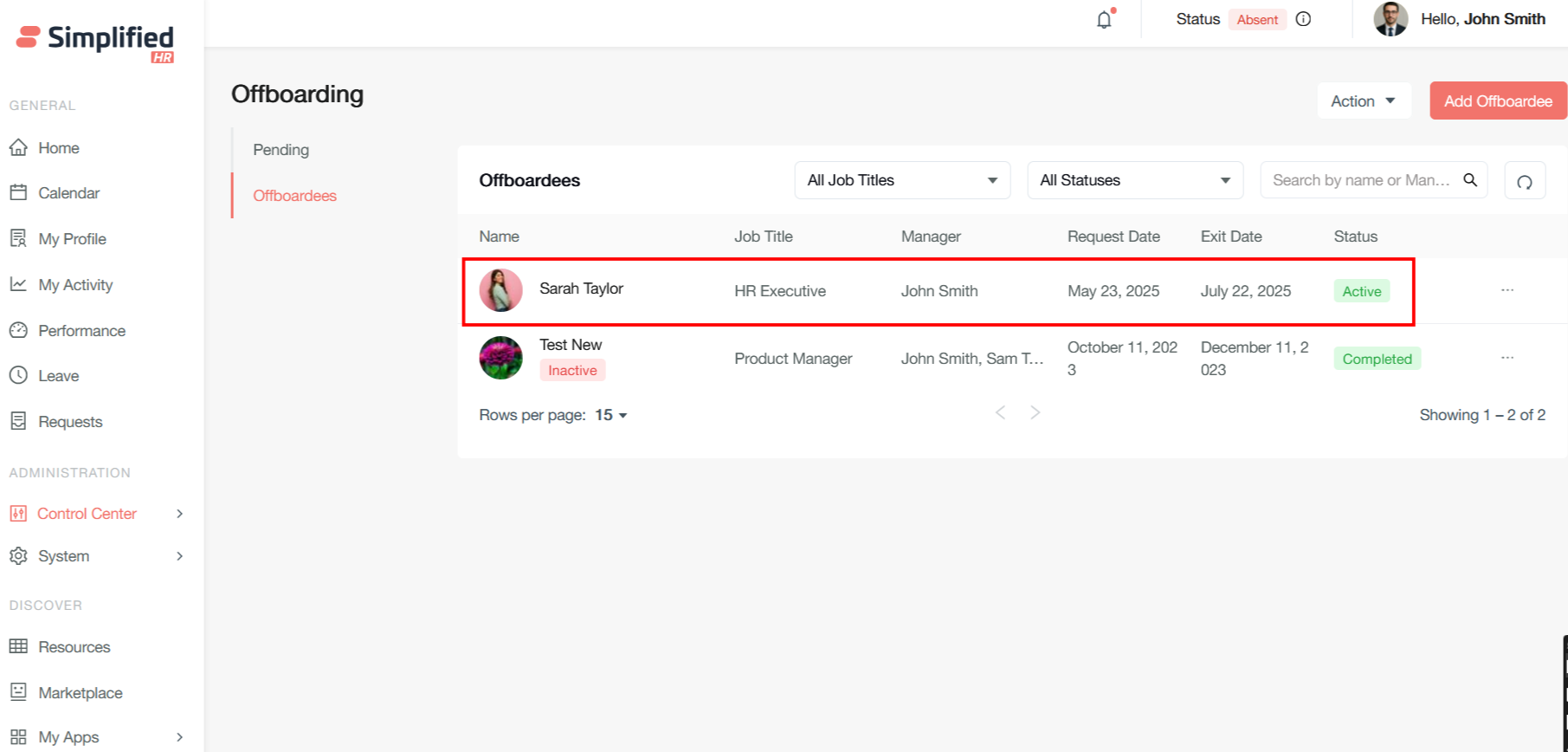
Once an admin adds a checklist and accepts the offboarding of the user, the user record is displayed under the Offboardees section with active status.
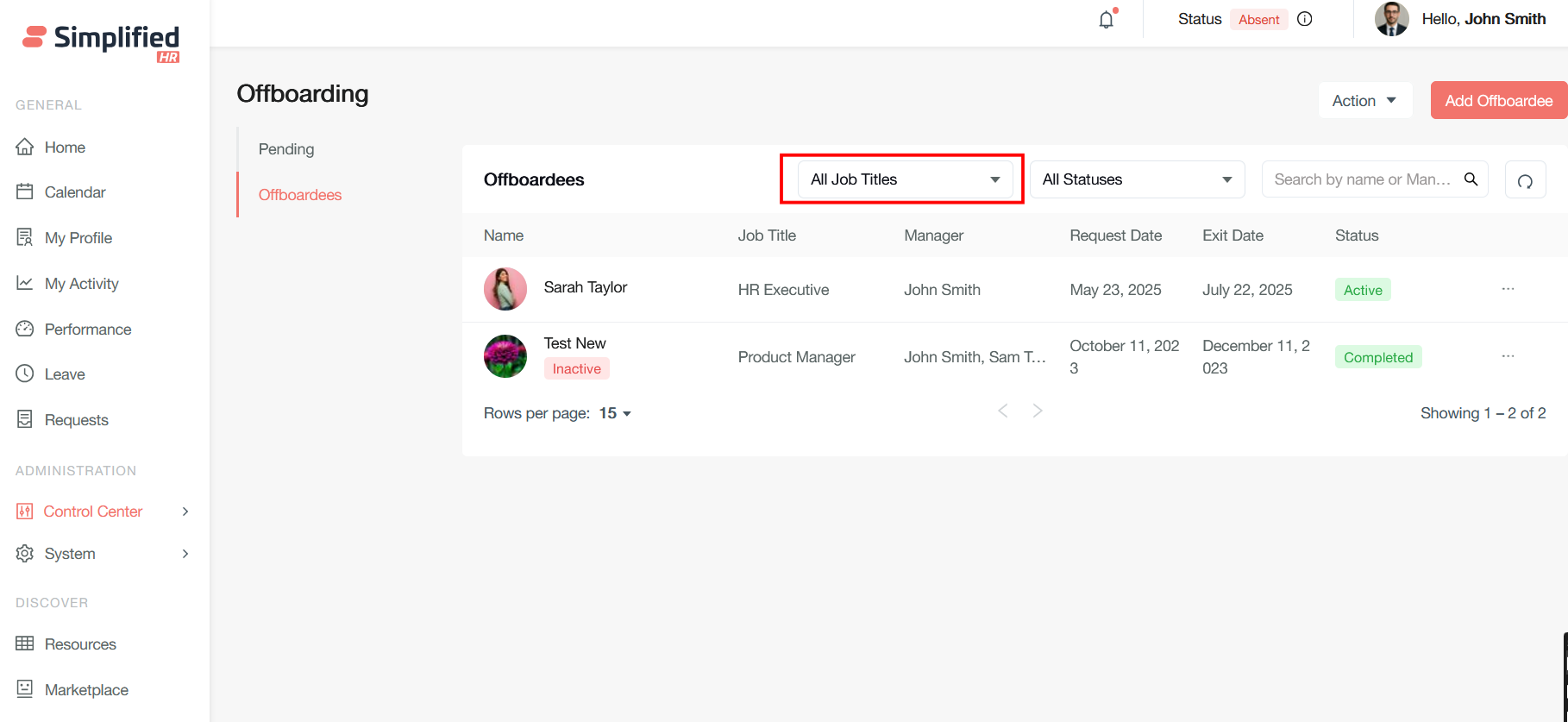
All Job Titles (Dropdown)
This filtering dropdown allows you to narrow down the offboardees list by specific job positions or roles. Instead of viewing all departing employees, you can filter to see only those from particular positions. This is useful for HR teams or managers who want to focus on offboarding for specific roles.
All Statuses (Dropdown)
This filter lets you sort offboardees by their current offboarding status. Based on your previous work on offboarding systems.
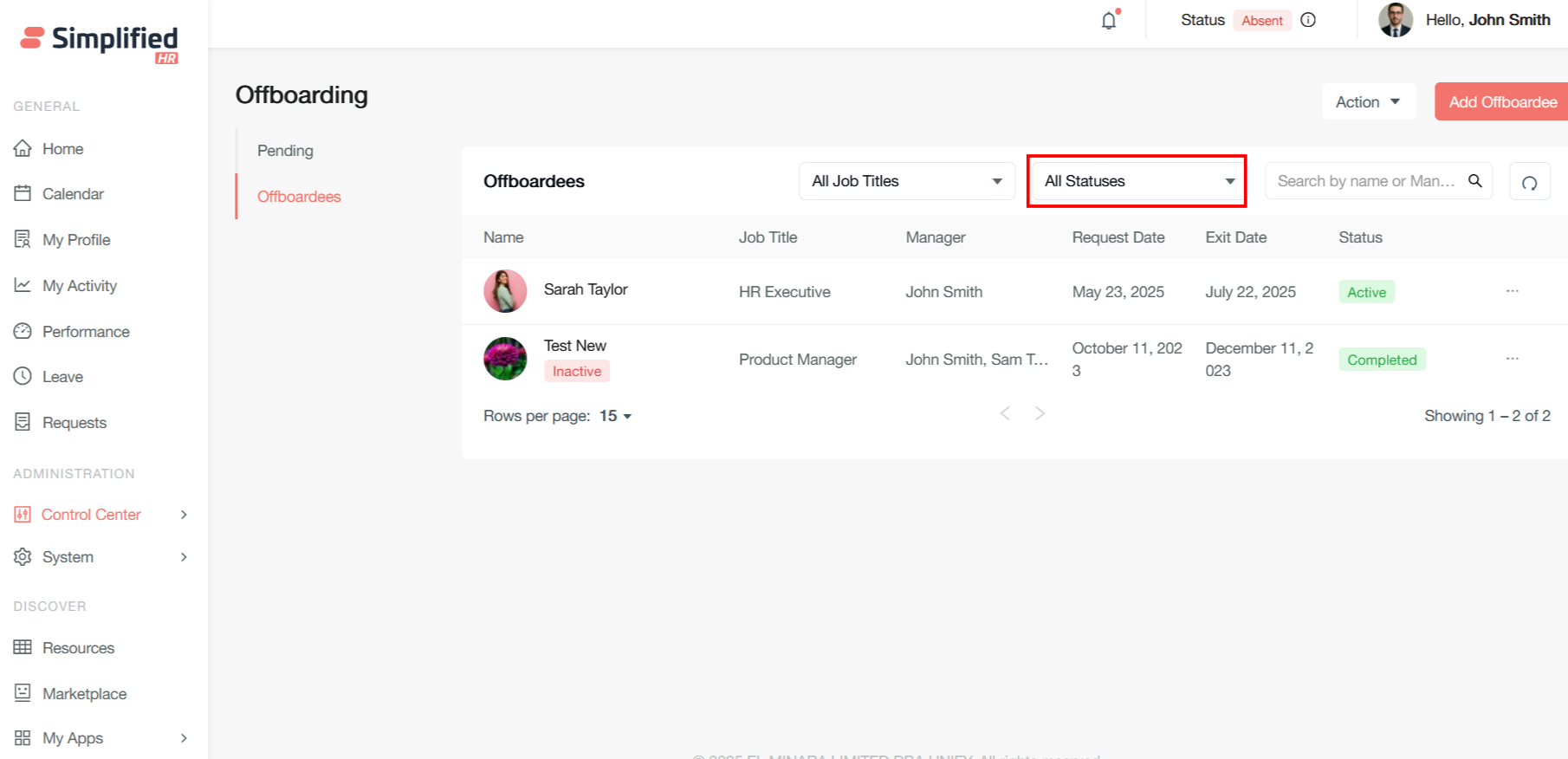
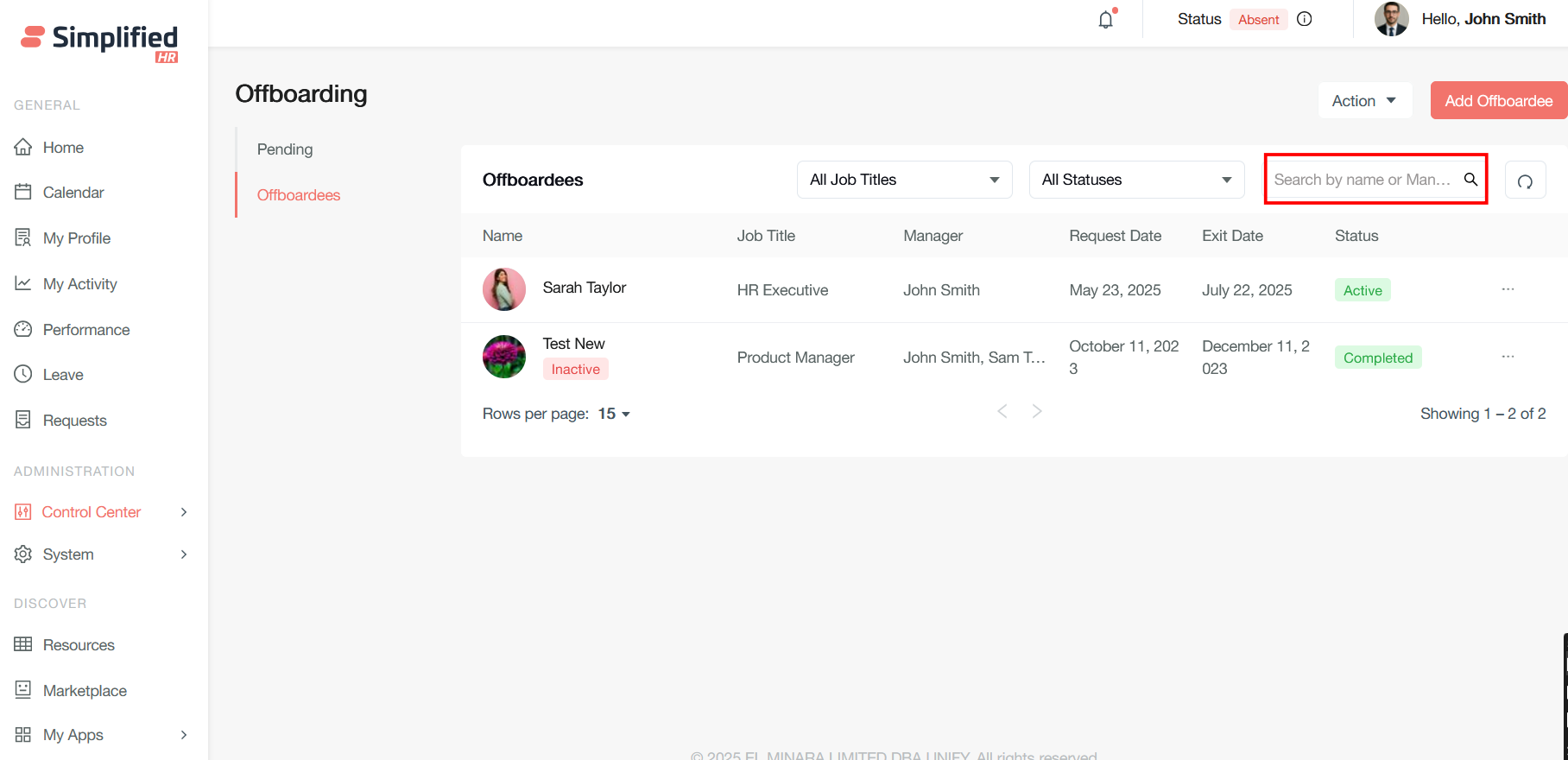
Search by name or manager (Search Field)
This appears to be a search functionality that allows you to find specific offboardees by:
These filtering and search capabilities work together to help HR teams efficiently manage and track employees through the offboarding process, especially in larger organizations where there might be many departing employees at different stages simultaneously.
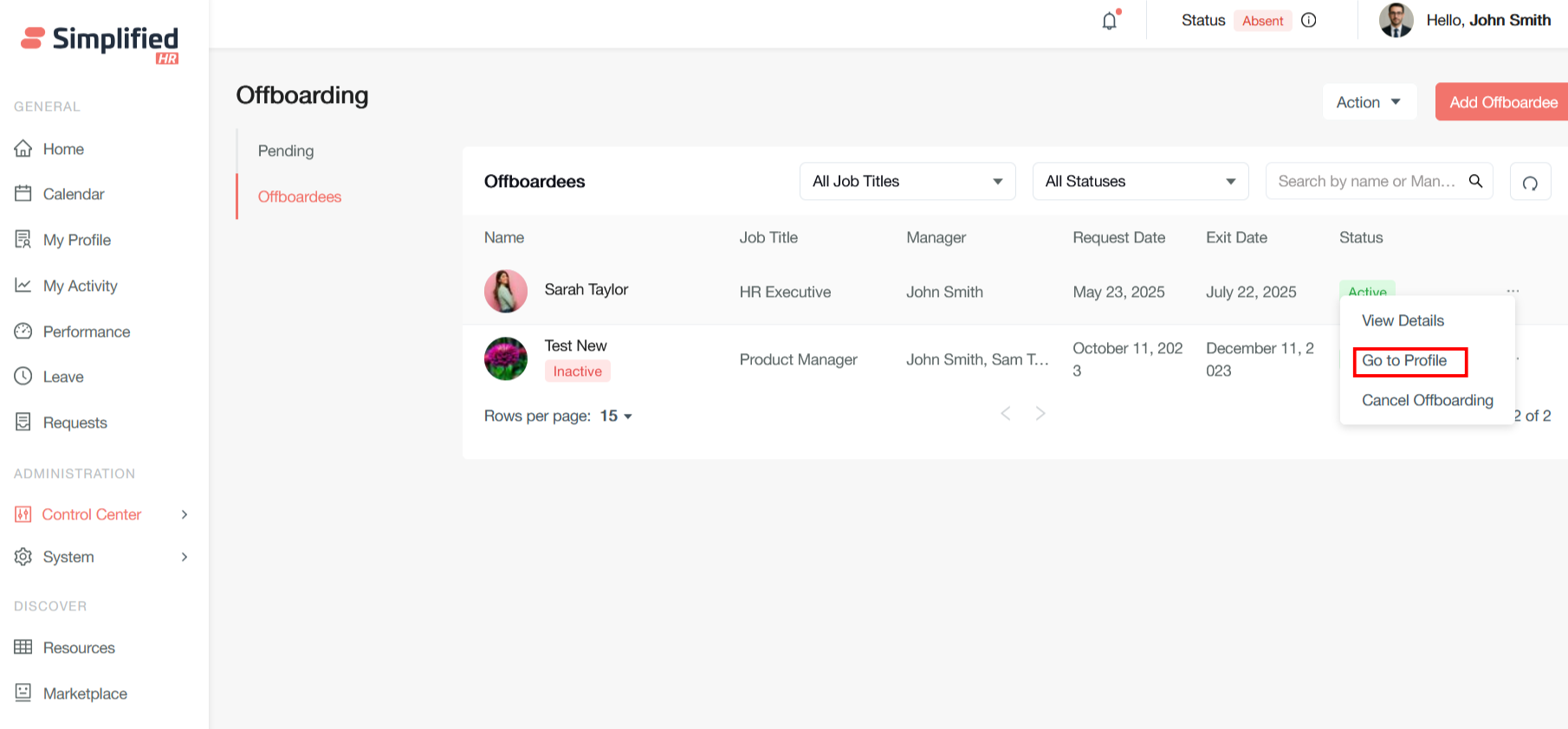
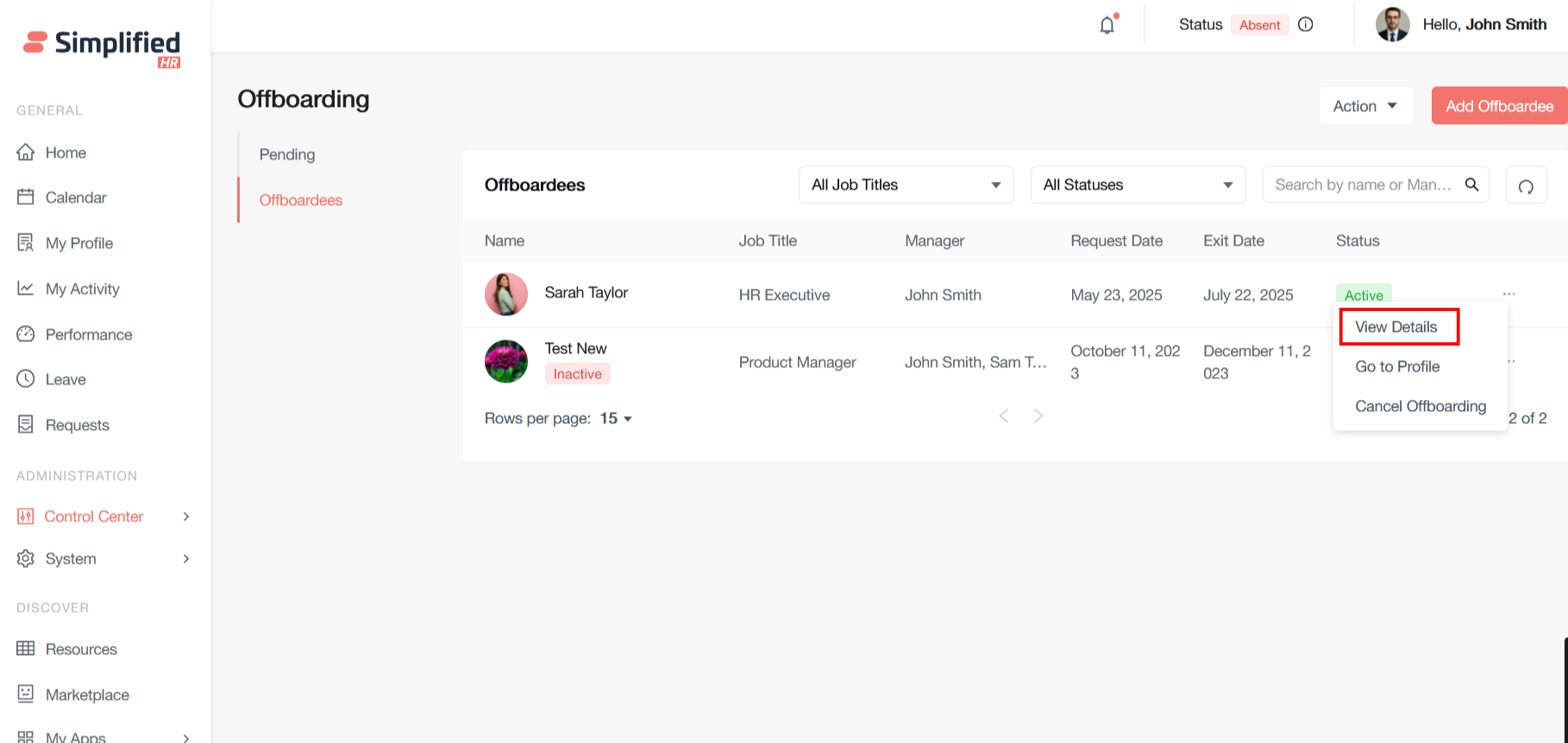
Go to Profile
This navigates to the employee's full HR profile, providing access to their complete employment record beyond just offboarding information. This is useful when you need to review their full employment history, personal details, or other HR-related information during the offboarding process.
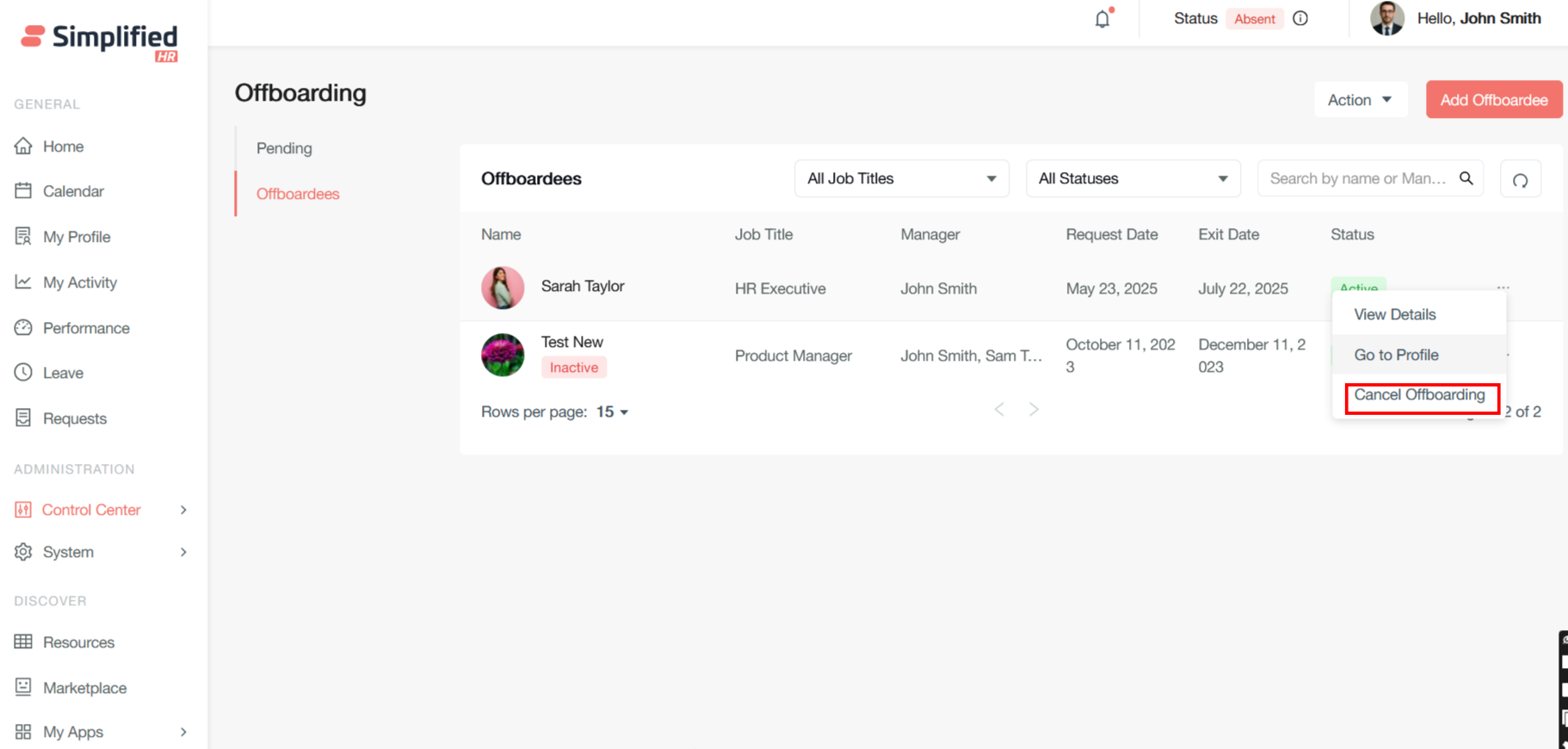
Cancel Offboarding
This critical action allows HR administrators to halt or reverse the offboarding process. This would be used in situations where:
-
An employee decides to stay with the company
-
There was an error in initiating the offboarding
-
The departure is being postponed
-
Management wants to retain the employee
This menu appears when you click on the three dots (⋯) next to an individual employee record in your offboarding management system, providing quick access to the most common actions needed during employee departures.
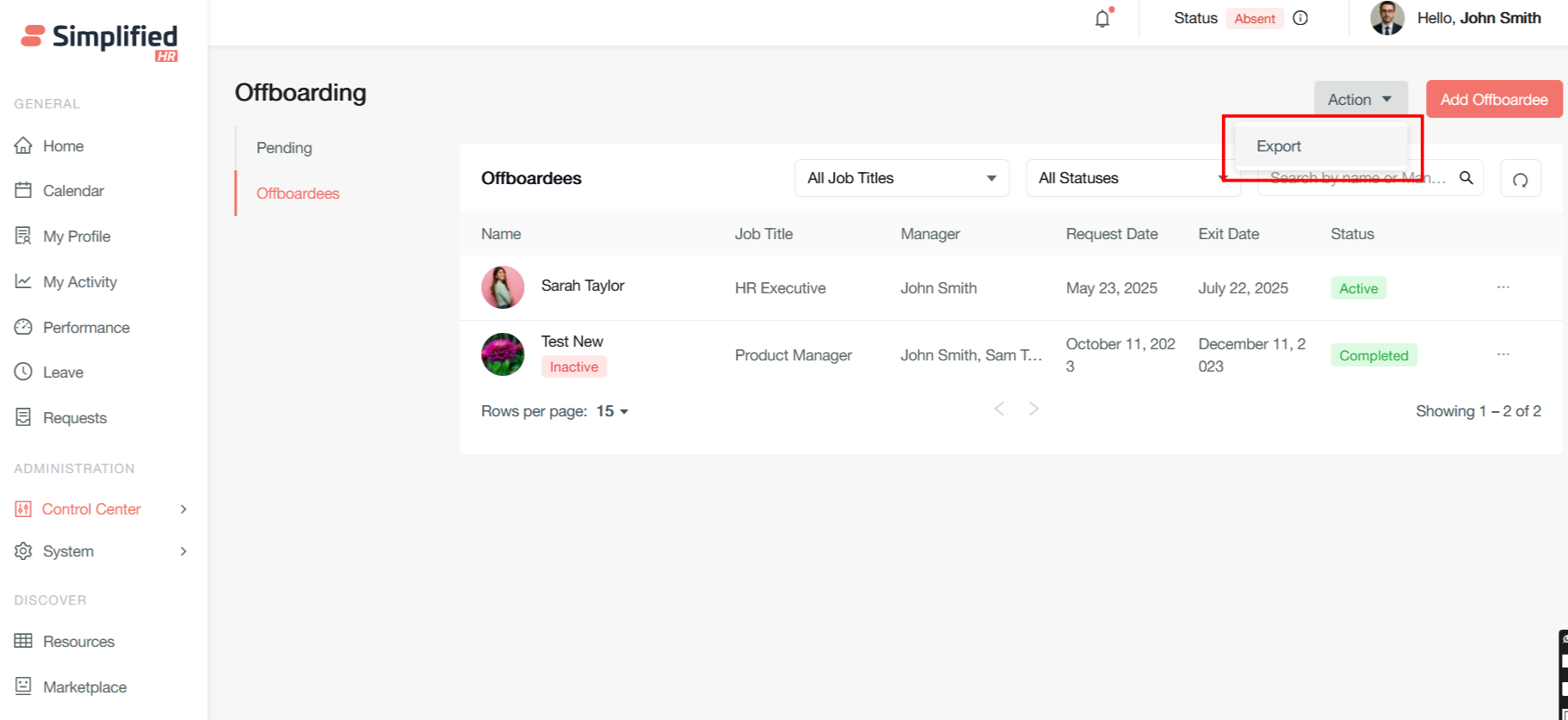
Export
Most modern HR systems support exporting offboarding data to CSV format, allowing you to extract employee departure information for reporting, compliance, and analysis purposes. The CSV export typically includes fields like employee names, departure dates, offboarding status, assigned tasks, and completion tracking.
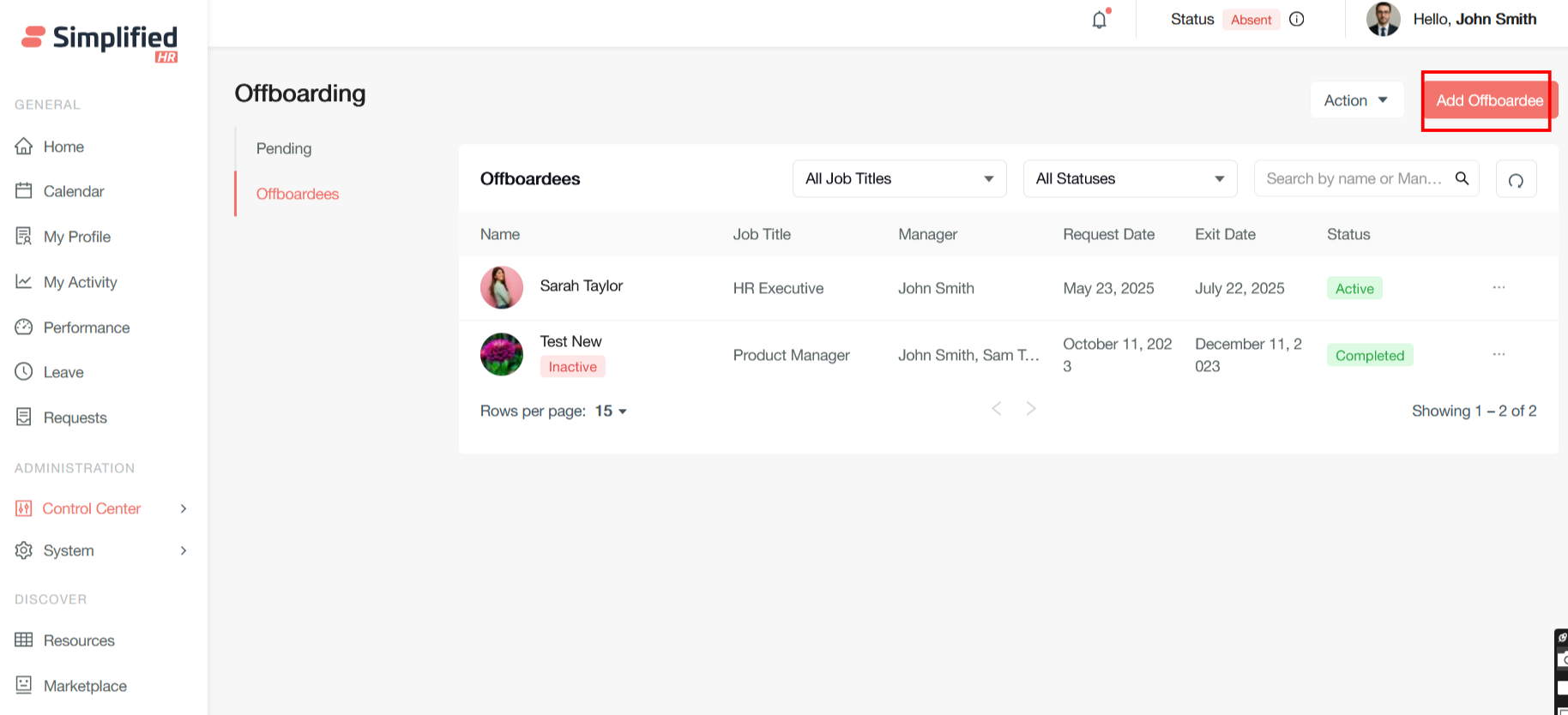
Admin can directly Add an Offboardee by clicking on the Add Offboardee button.
Note: If any offboarding is raised previously by the member or added by the admin, and thereafter not cancelled or rejected, then raising a duplicate offboarding request will be restricted.
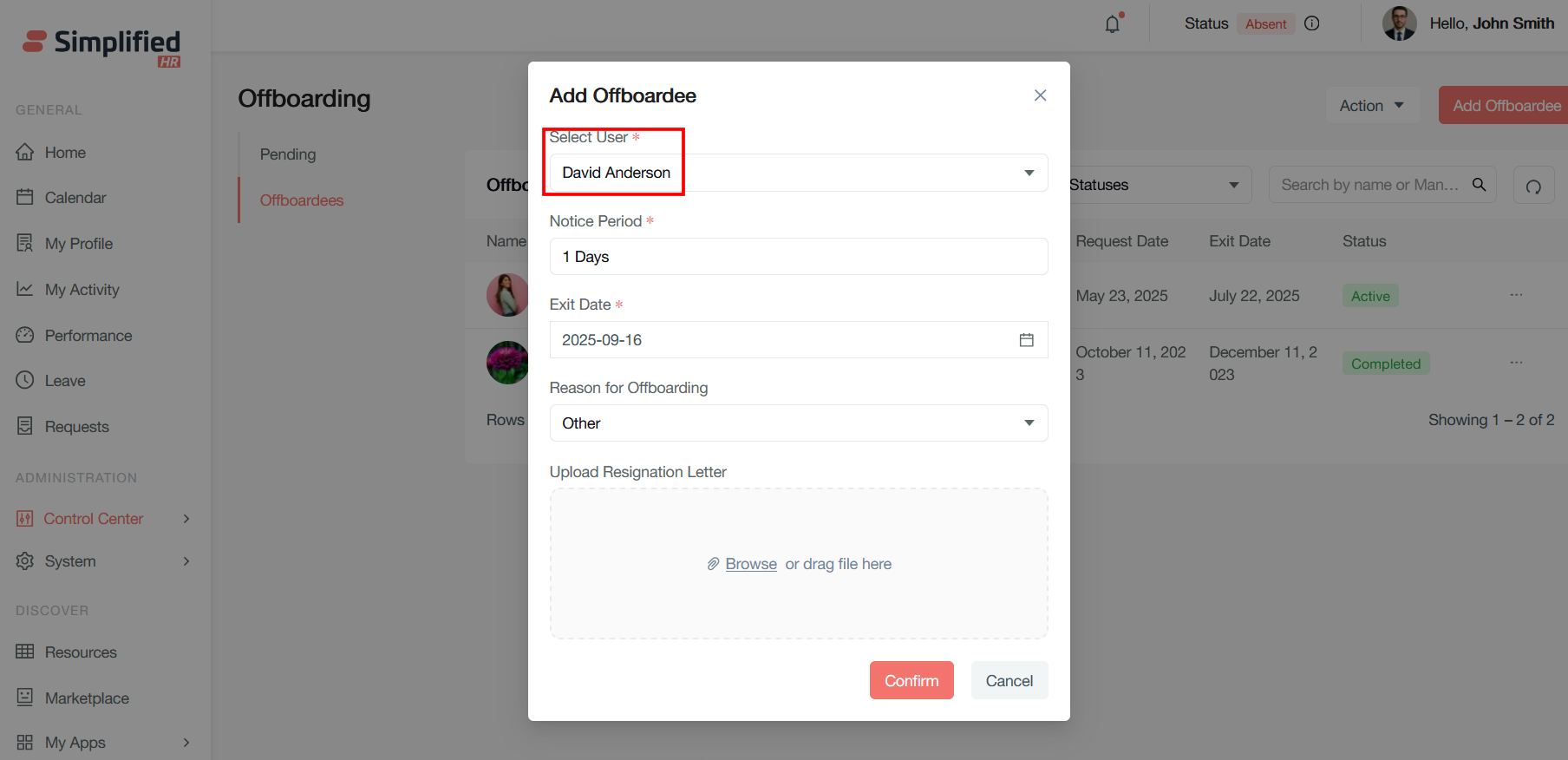
Add Offboardee pop up modal will open after you click on the Add Offboardee button.
Add Offboardee (Header)
This is the main form title indicating you're creating a new offboarding record for an employee who is leaving the organization.
Select User (Required - Red Asterisk)
This dropdown field allows you to choose which employee is being offboarded. In this case, "David Anderson" is selected. This links the offboarding process to the specific employee's HR profile and ensures all departure activities are tracked under their record.
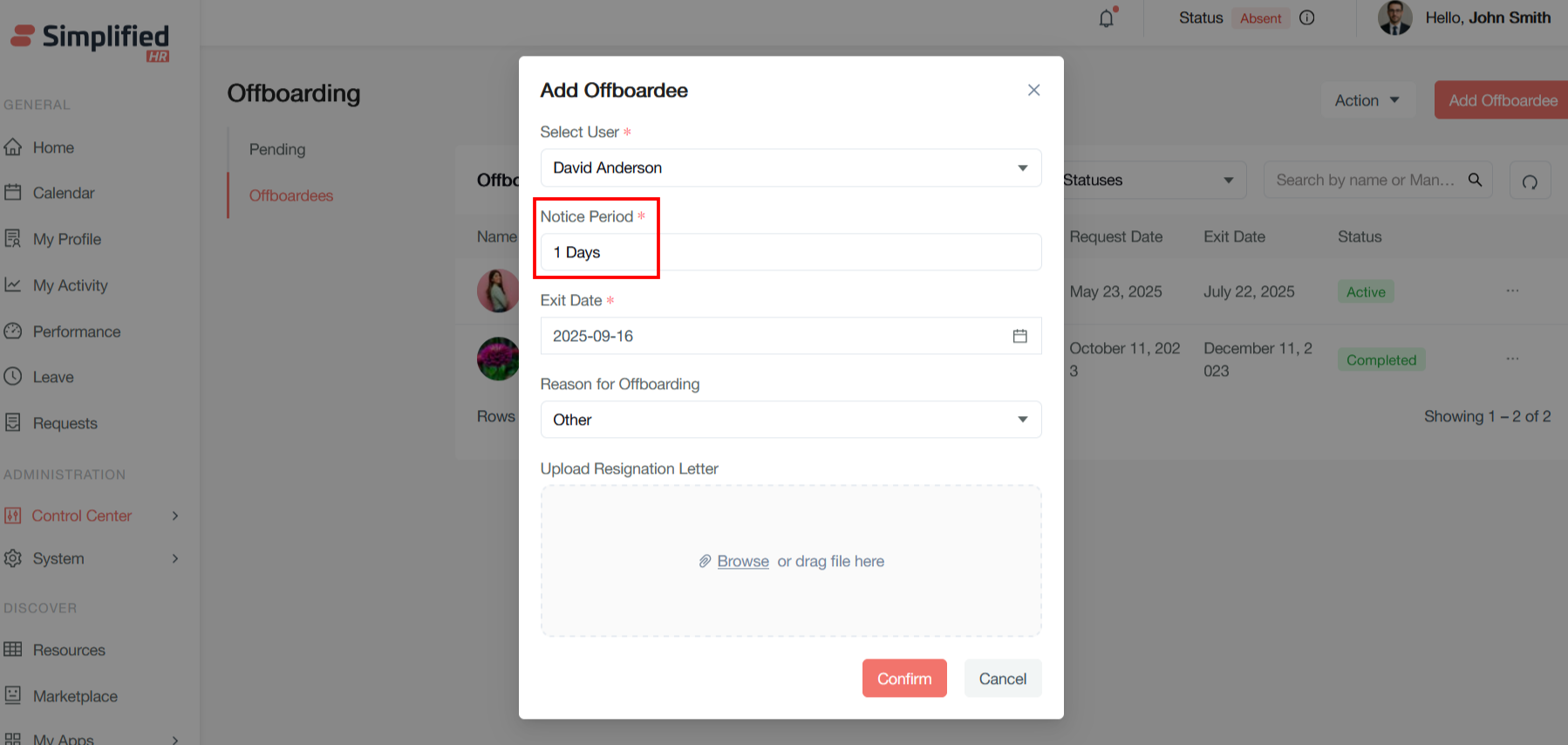
Notice Period (Required - Red Asterisk)
Shows the duration between when the employee gave notice and their actual departure date. Here it's set to "1 Days," which David Anderson provided very short notice. This field helps HR teams plan the transition timeline and determines how much time is available for knowledge transfer and handover activities.
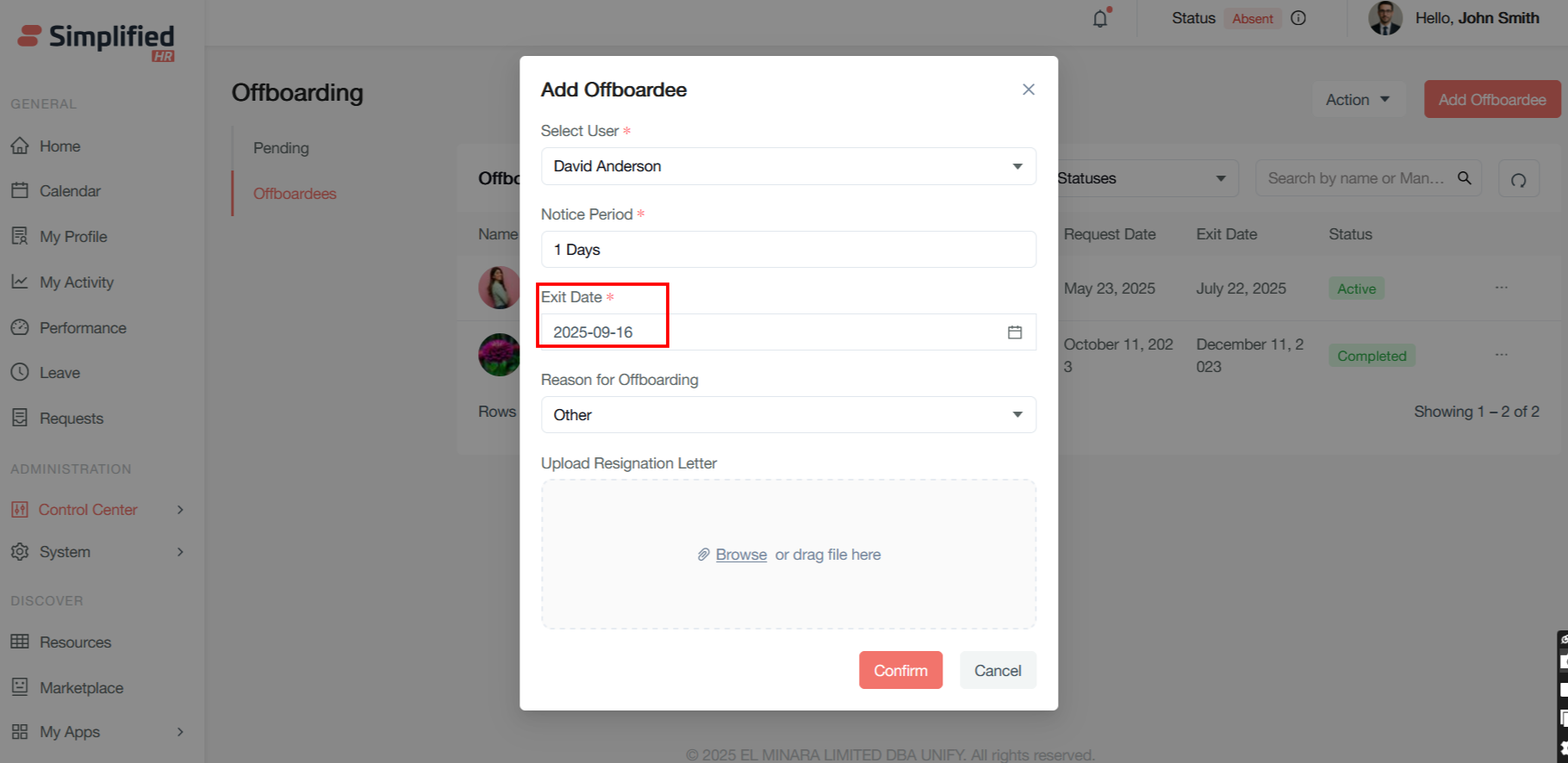
Exit Date (Required - Red Asterisk*)*
The specific date when the employee's employment will officially end. The date shown is "2025-09-16" (September 16, 2025), which is tomorrow based on the current date. This date triggers various automated processes and determines when benefits, access, and other employment-related items should be terminated.
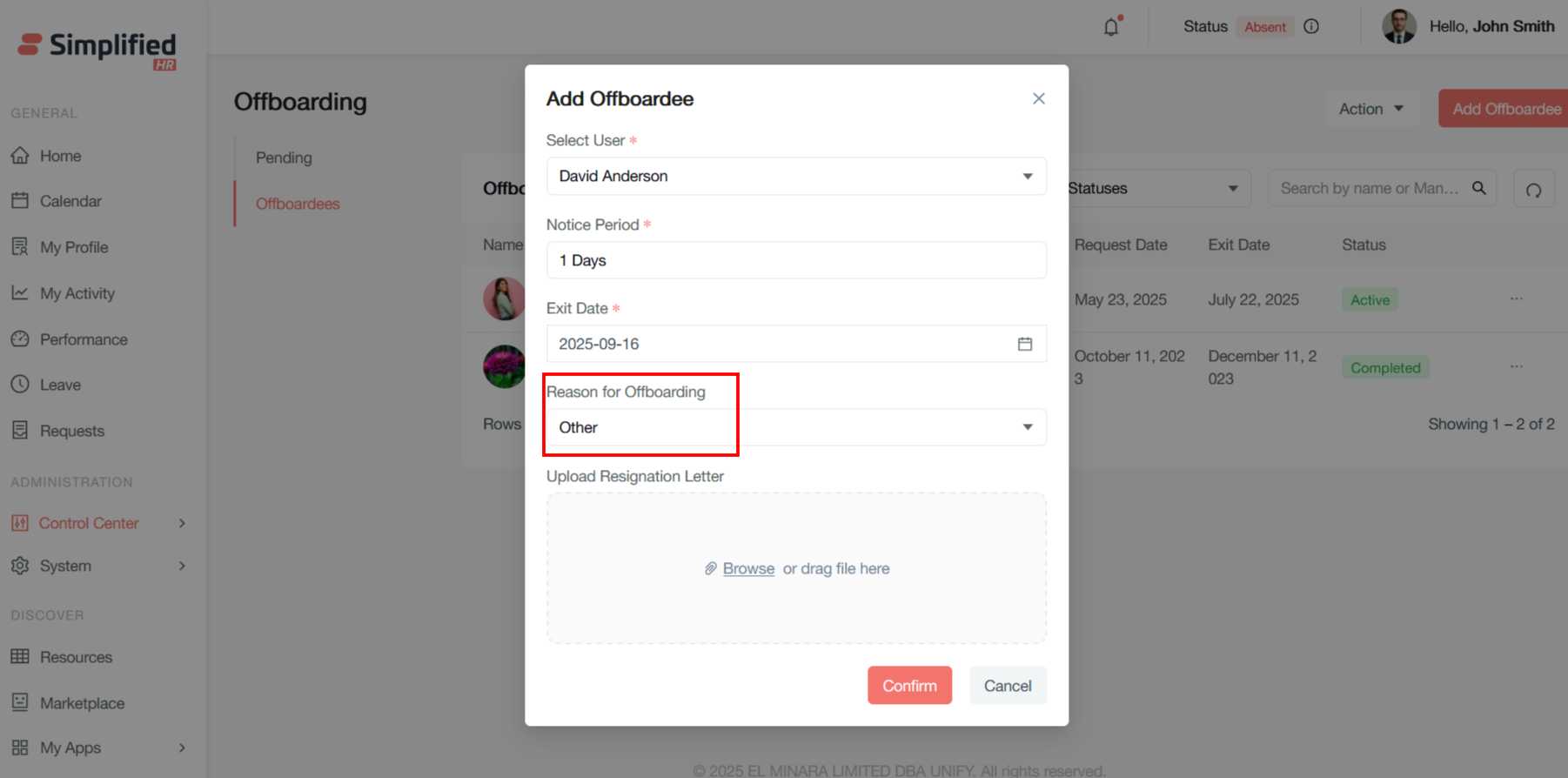
Reason for Offboarding
This dropdown field categorizes why the employee is leaving.
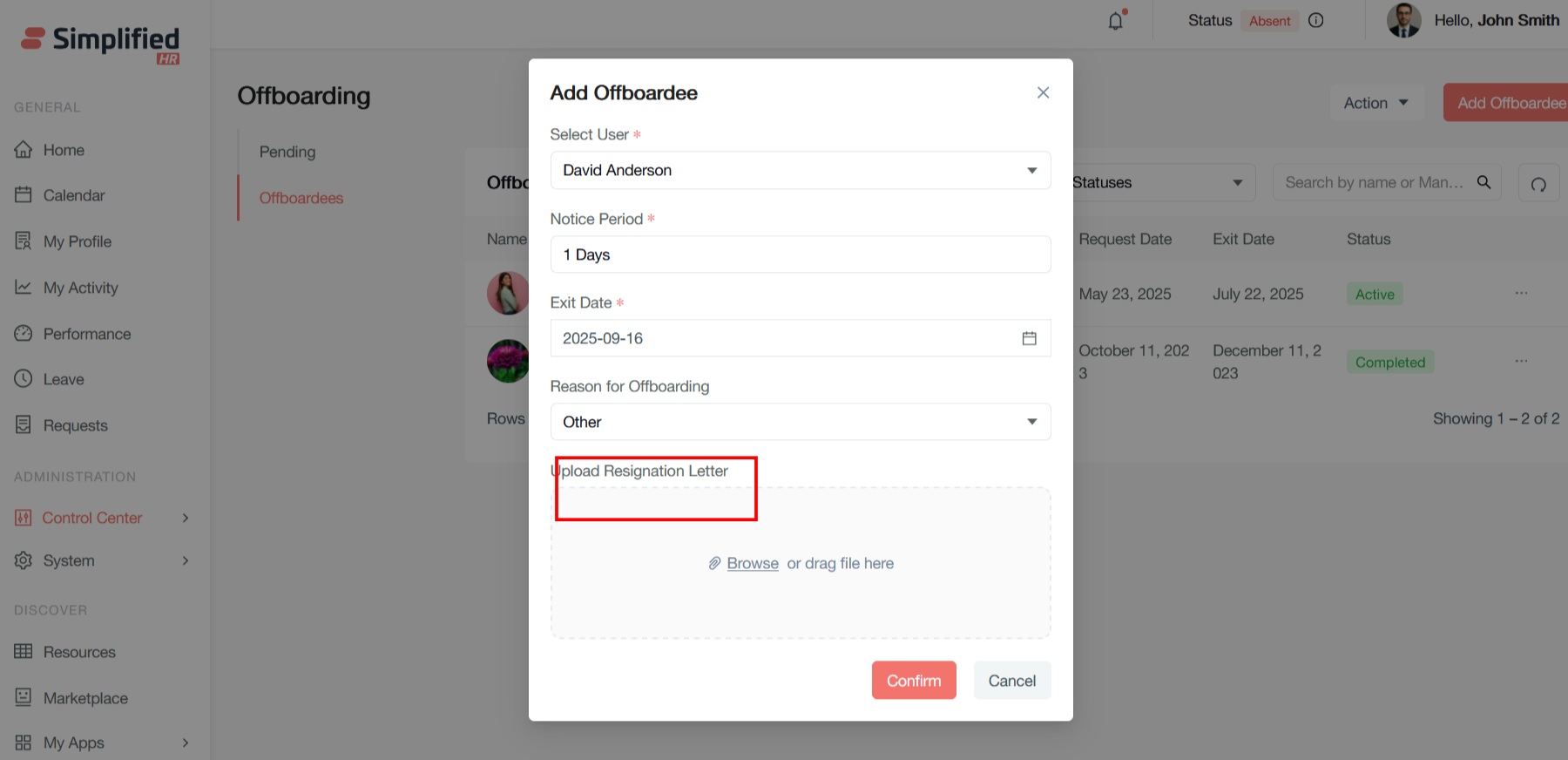
Upload Resignation Letter
This file upload section allows HR to attach the employee's formal resignation letter or termination documentation. The interface shows "Browse or drag file here," providing flexibility in how documents are uploaded. This creates a digital record of the formal departure documentation for legal and compliance purposes.
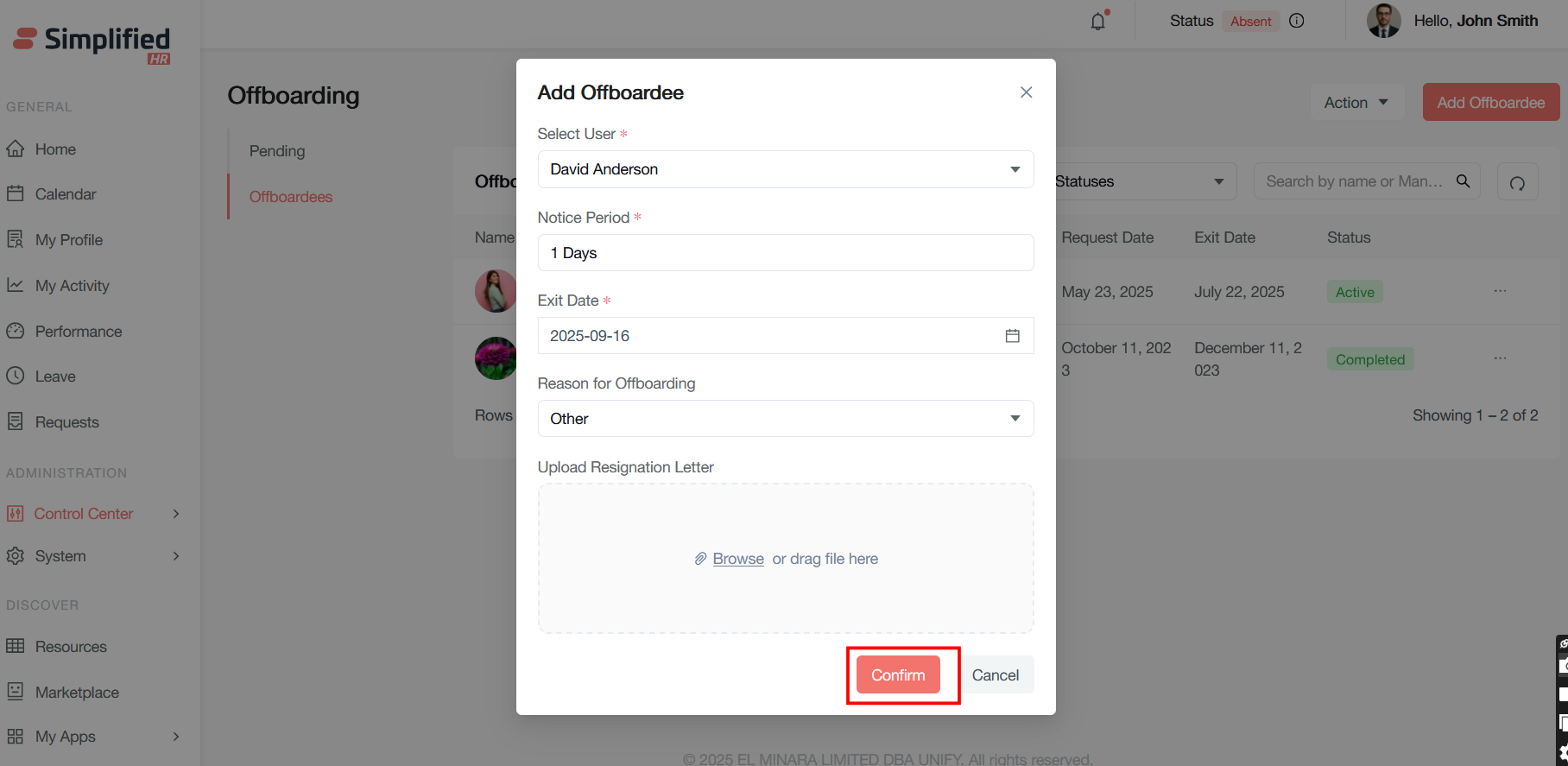
Action Buttons
Confirm
Initiates the offboarding process with the entered information, creating the offboarding record and likely triggering automated workflows, notifications, and task assignments.
Cancel
Discards the form without creating an offboarding record, returning to the previous screen.
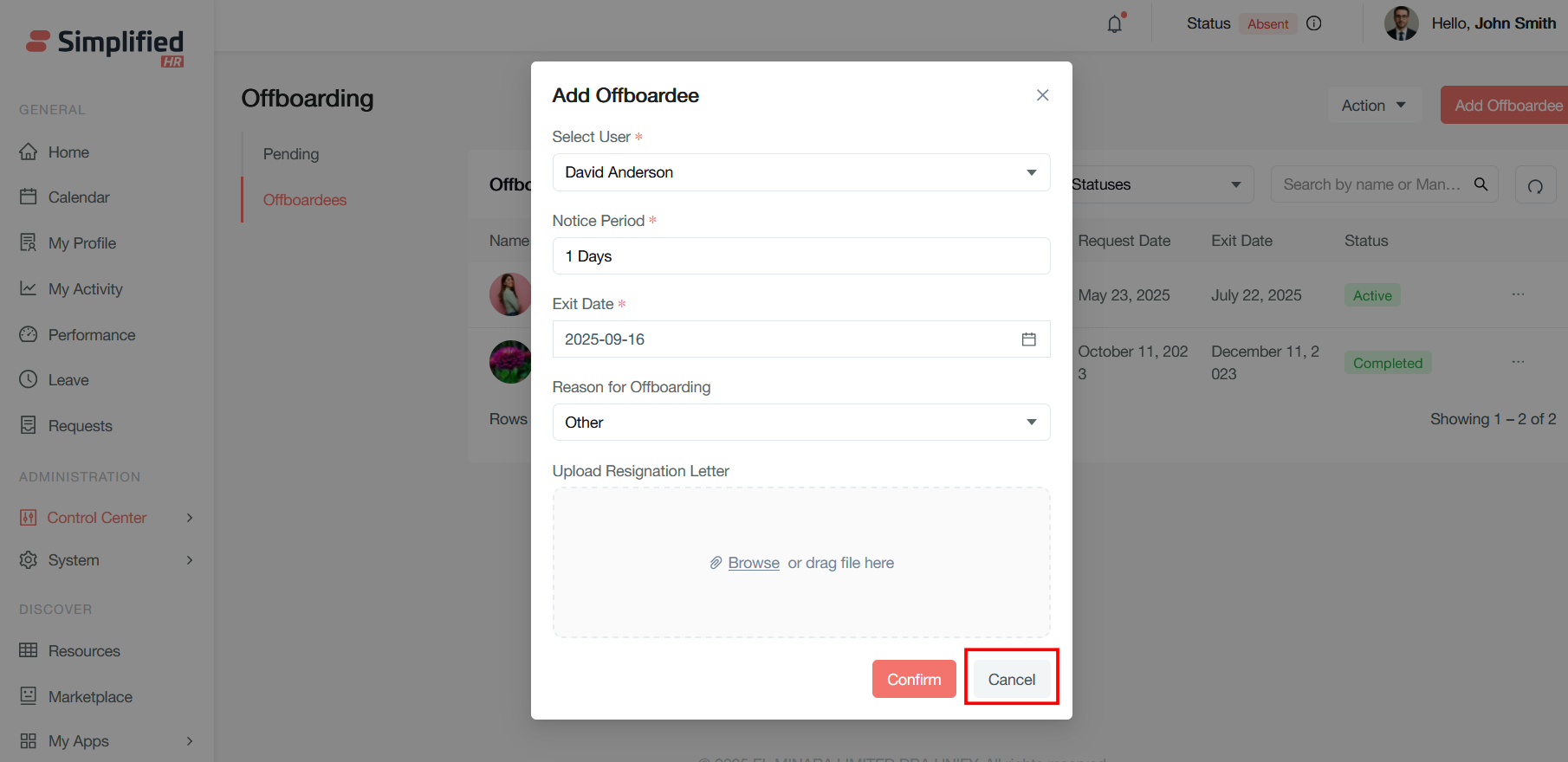
This form captures all the essential information needed to properly initiate and track an employee's departure process within your HR system.
View Details
This option allows you to access comprehensive information about this specific offboardee's departure process.
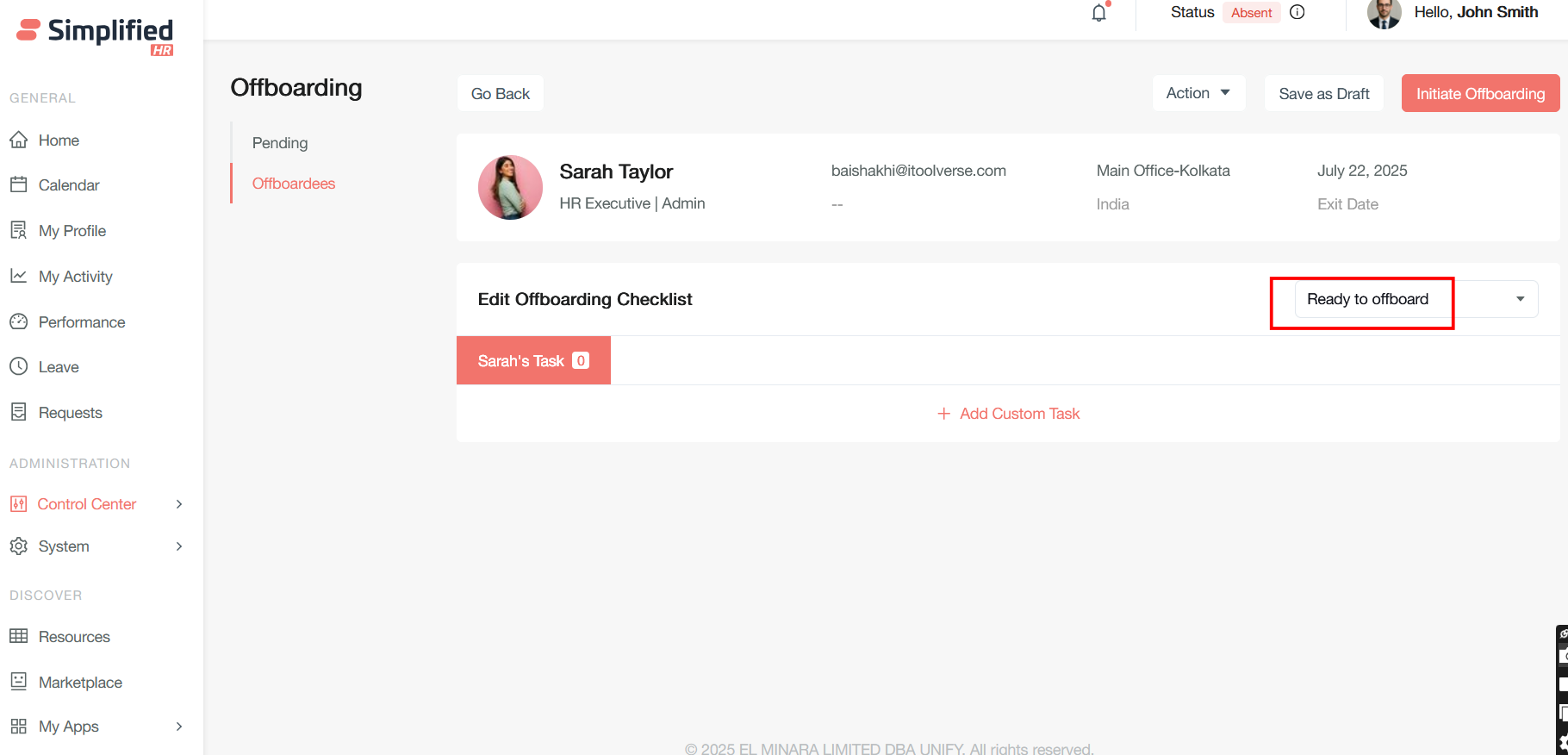
The Checklist which was added by the administrator, should be displayed in details section
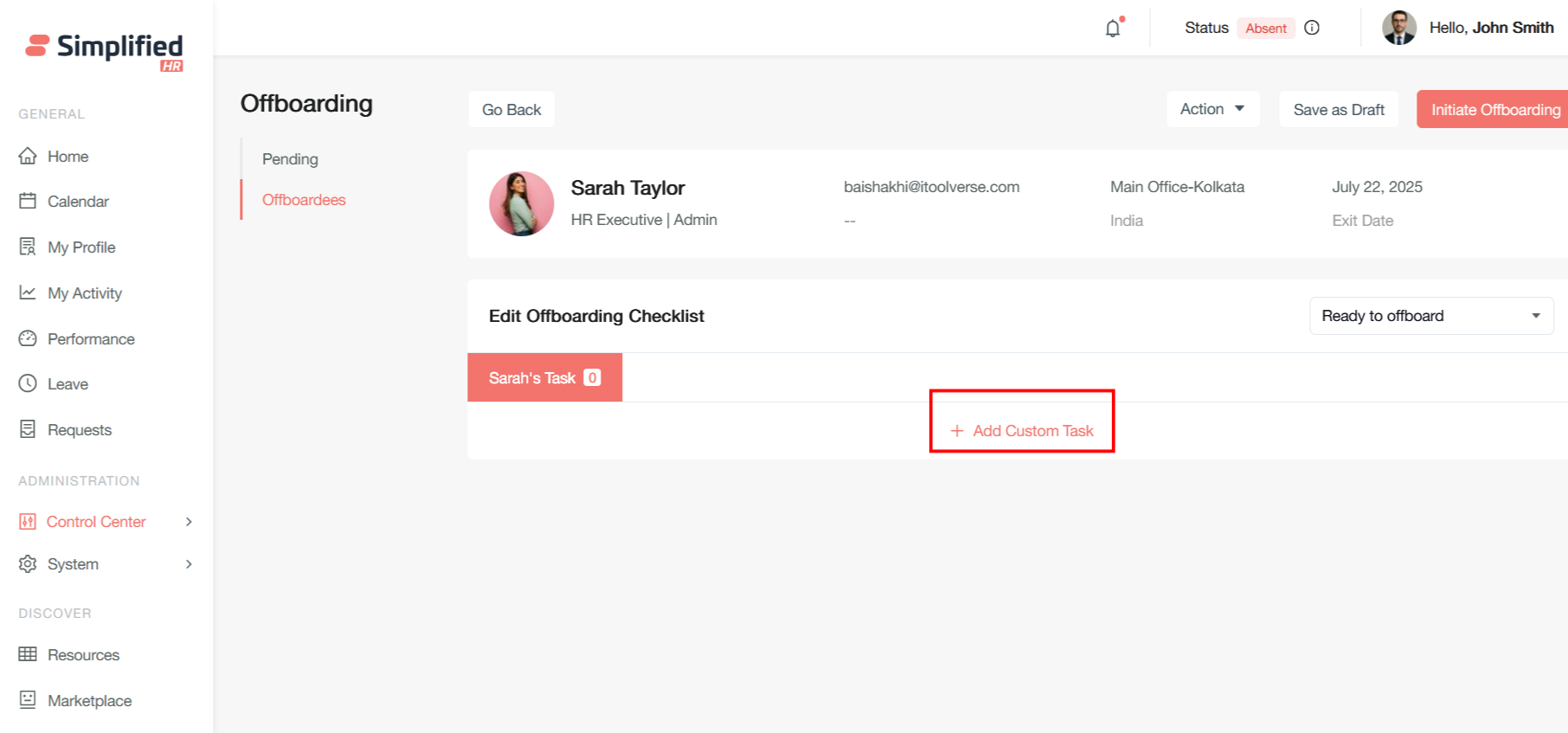
Administrator can also add custom checklist by clicking on Add Custom Task button
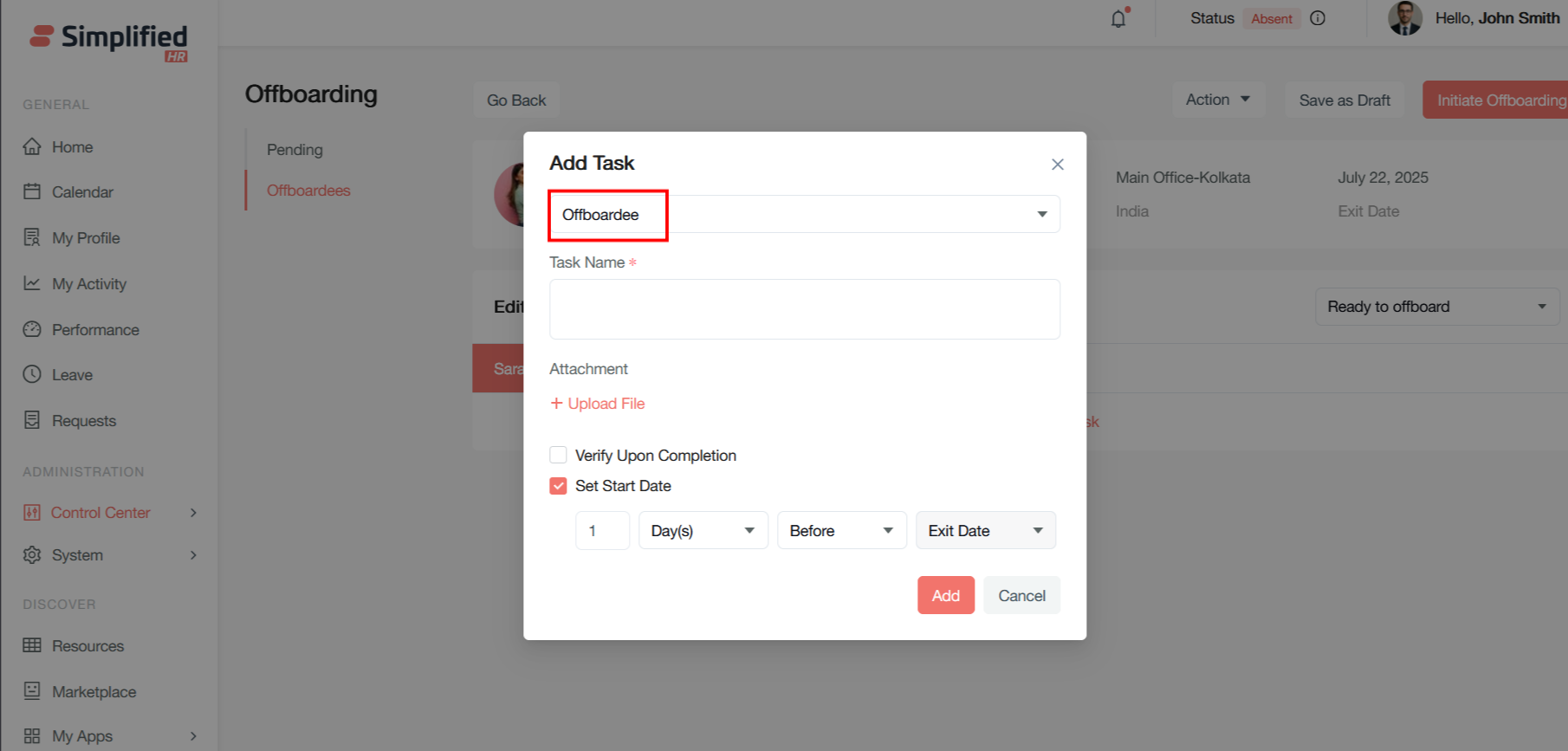
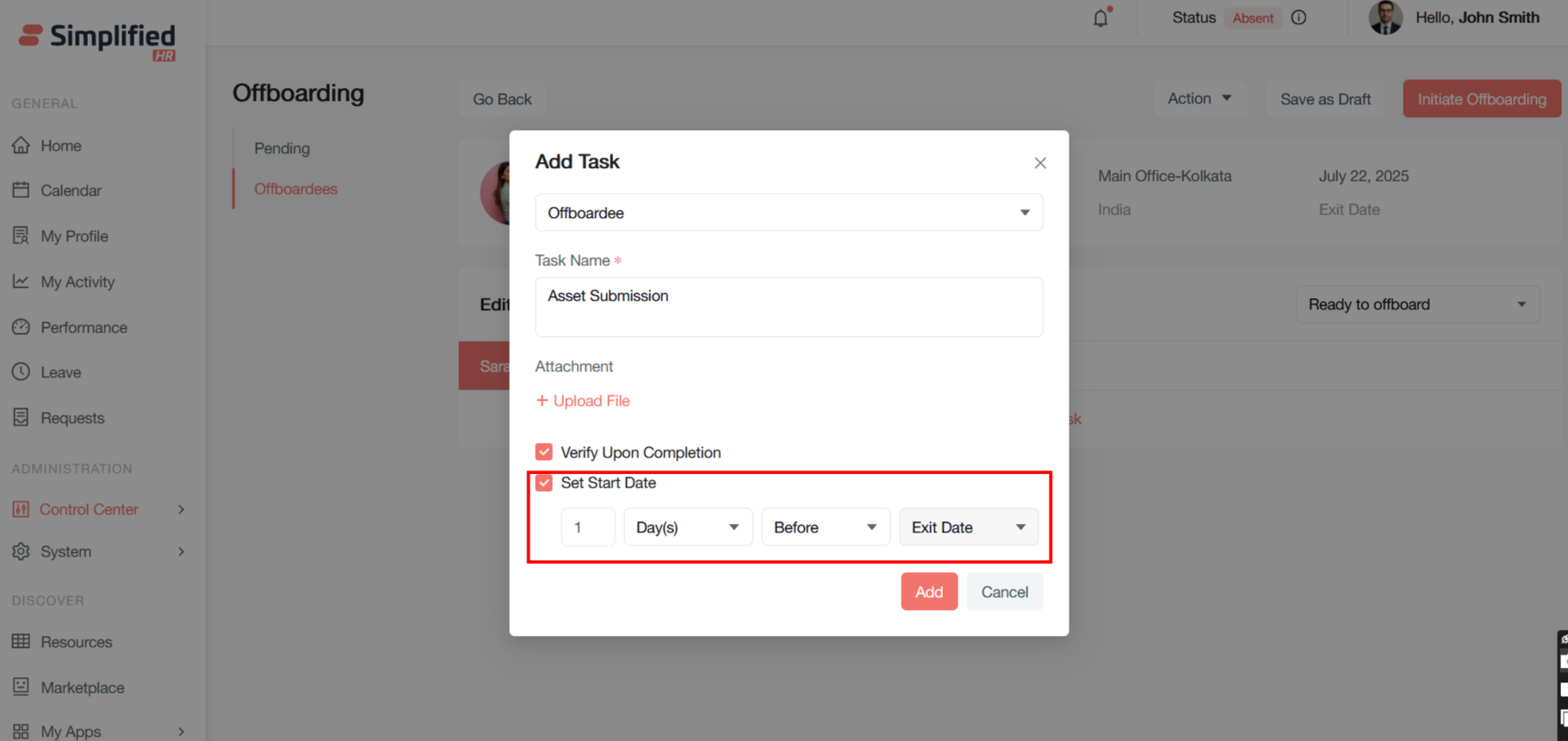
Add Task pop up modal will be opened after clicking on the button
Add Task (Header)
This form allows HR administrators to create specific tasks that need to be completed as part of an employee's offboarding process
Offboardee (Dropdown)
This field lets you select which departing employee this task should be assigned to. It links the task to a specific offboarding case, ensuring tasks are properly organized by individual employee departures.
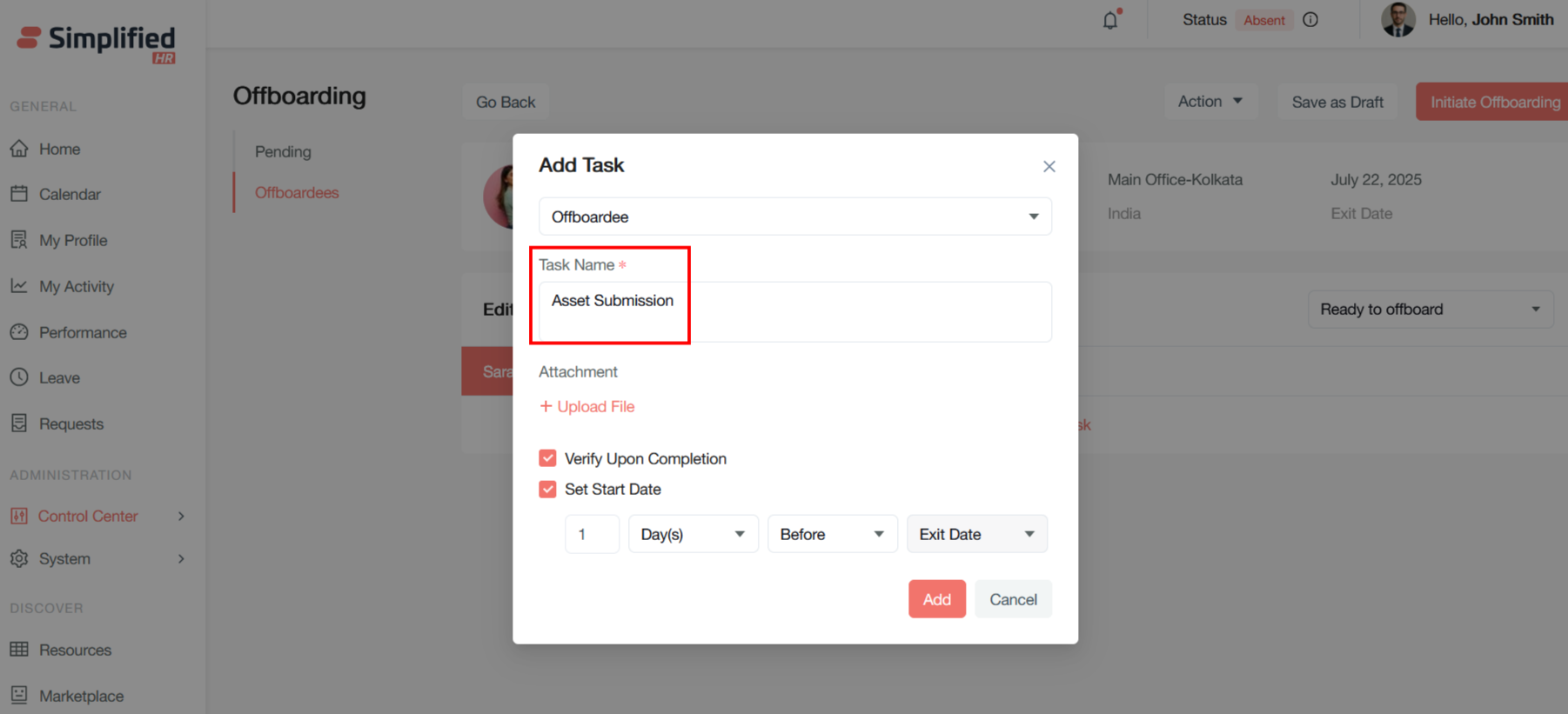
Task Name (Required - Red Asterisk)
A text field where you enter the specific task description, such as "Return laptop," "Complete knowledge transfer," "Submit final timesheet," or "Clear security access." This creates the actionable item that needs to be tracked and completed.
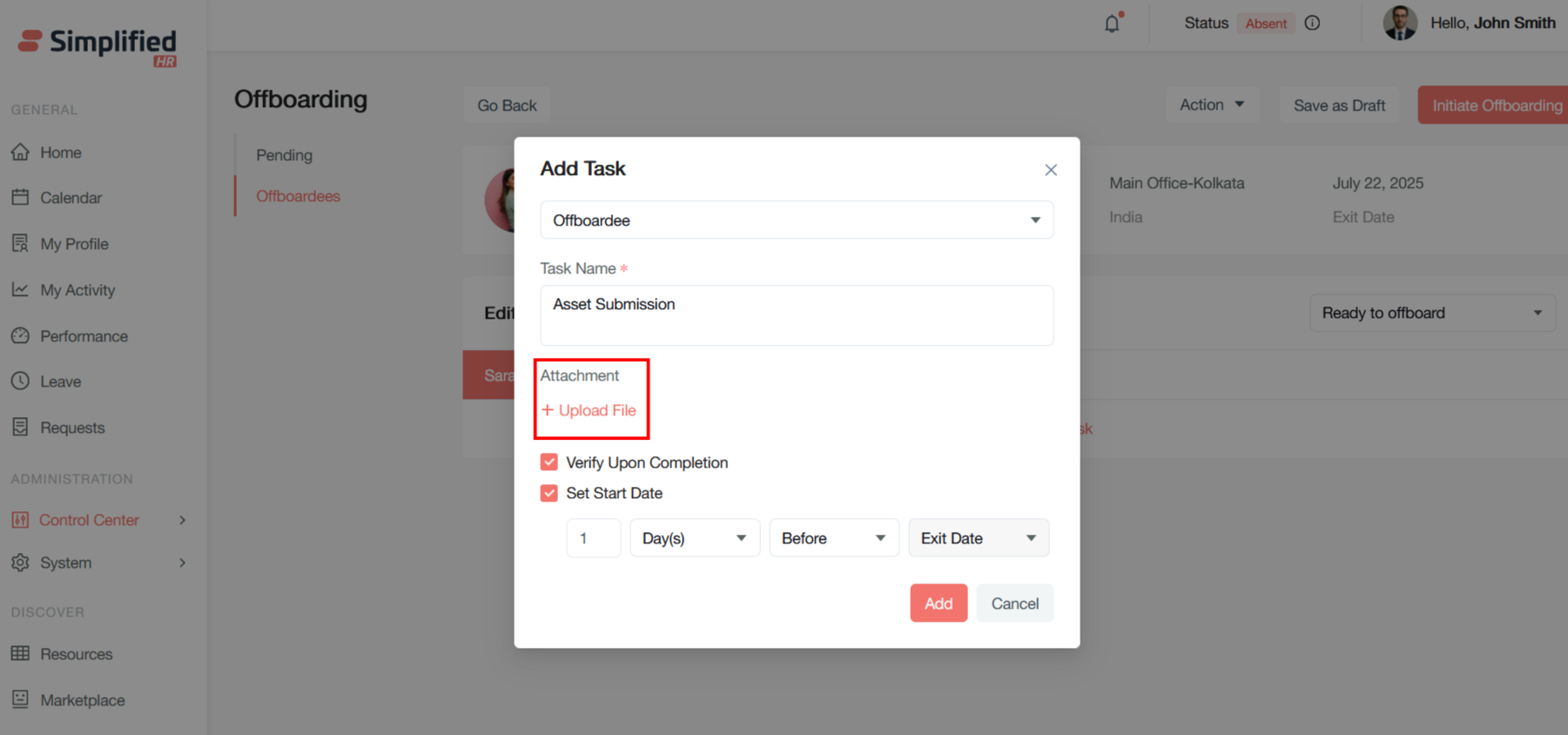
Document Management
Attachment
This section allows you to attach relevant documents, forms, or instructions related to the task.
+ Upload File
A file upload button that lets you attach supporting documentation like forms to complete, checklists, or instructional materials that the assignee might need to complete the task successfully.
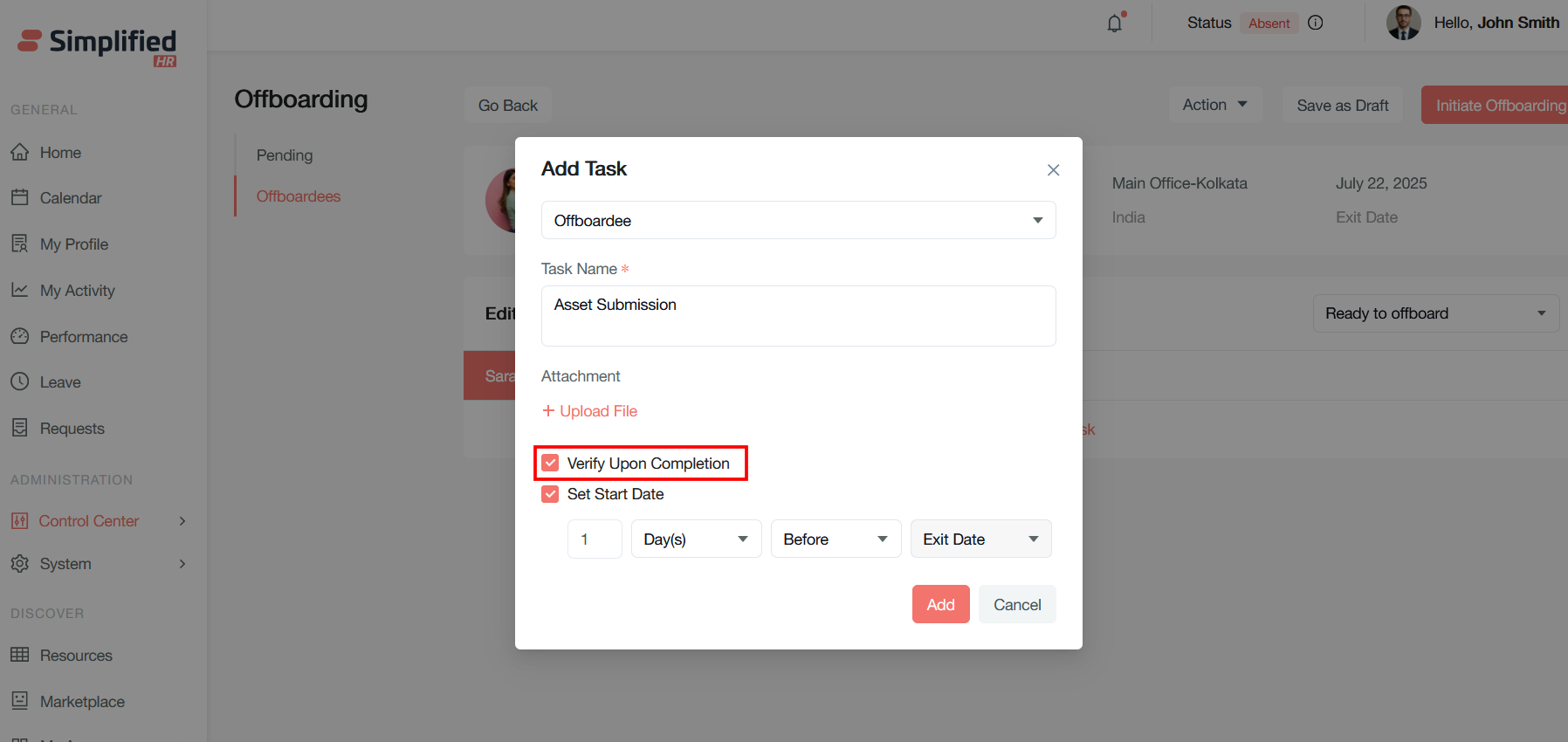
Task Configuration Options
Verify Upon Completion
When enabled, this option likely requires additional verification or approval before the task is marked as complete. This adds an extra layer of oversight for critical offboarding tasks that need confirmation from supervisors or HR.
Set Start Date (Checked/Enabled Checkbox)
This option is currently enabled, indicating that you want to specify when this task should become active or available to work on, rather than making it immediately available.
Timing Configuration
When "Set Start Date" is enabled, you get these timing fields:
"1" (Number Field)
Specifies the numeric value for the timing calculation - in this case, 1 unit of time.
"Day(s)" (Time Unit Dropdown)
Defines the time period unit. Other options likely include hours, weeks, or months depending on the task requirements.
"Before" (Timing Relationship)
Indicates the task should start before the reference point. This could alternatively be "After" depending on when the task needs to occur.
"Exit Date" (Reference Point)
The anchor date for the timing calculation. This means the task will start 1 day before the employee's exit date. Other options might include "Notice Date" or other milestone dates.
Action Buttons
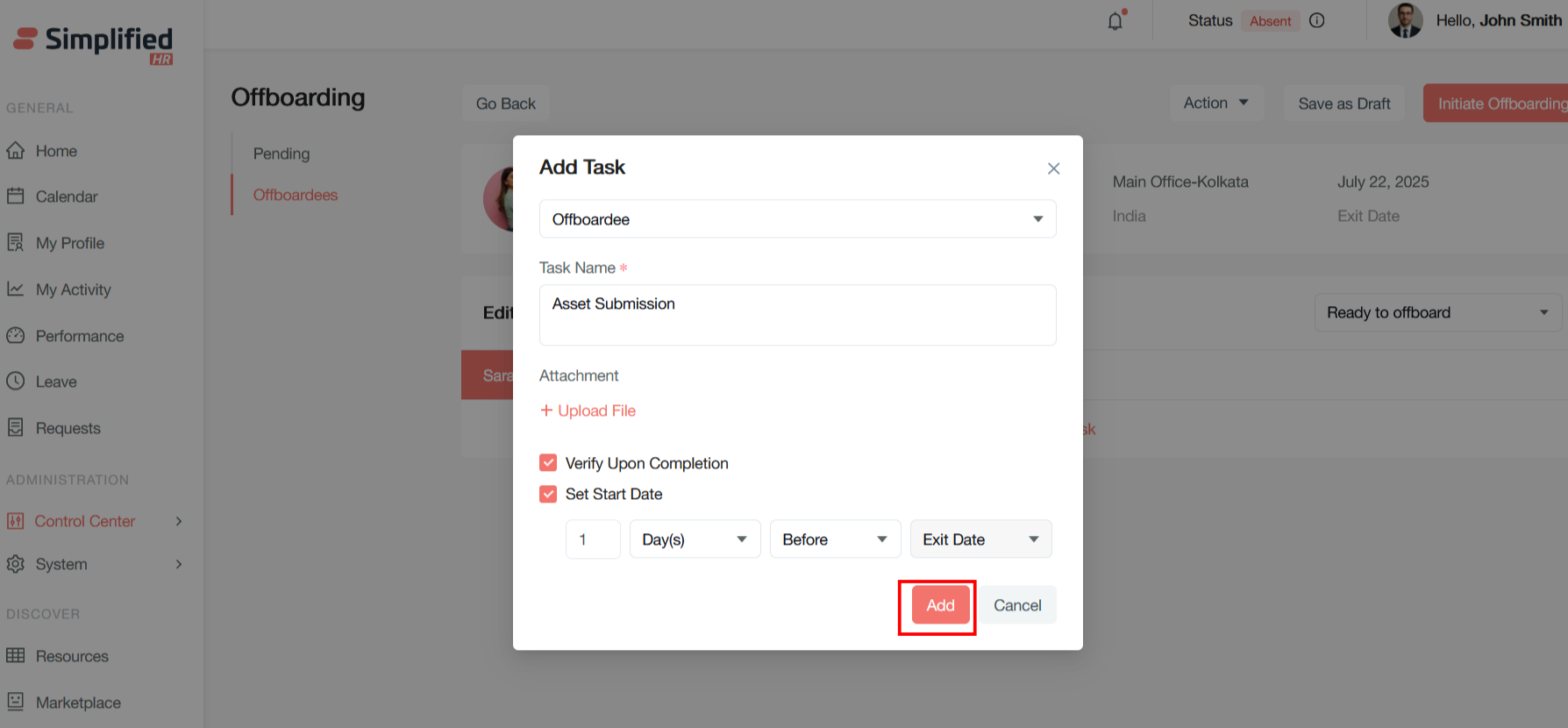
Add Button
Creates the task with the specified configuration and adds it to the selected offboardee's task list.
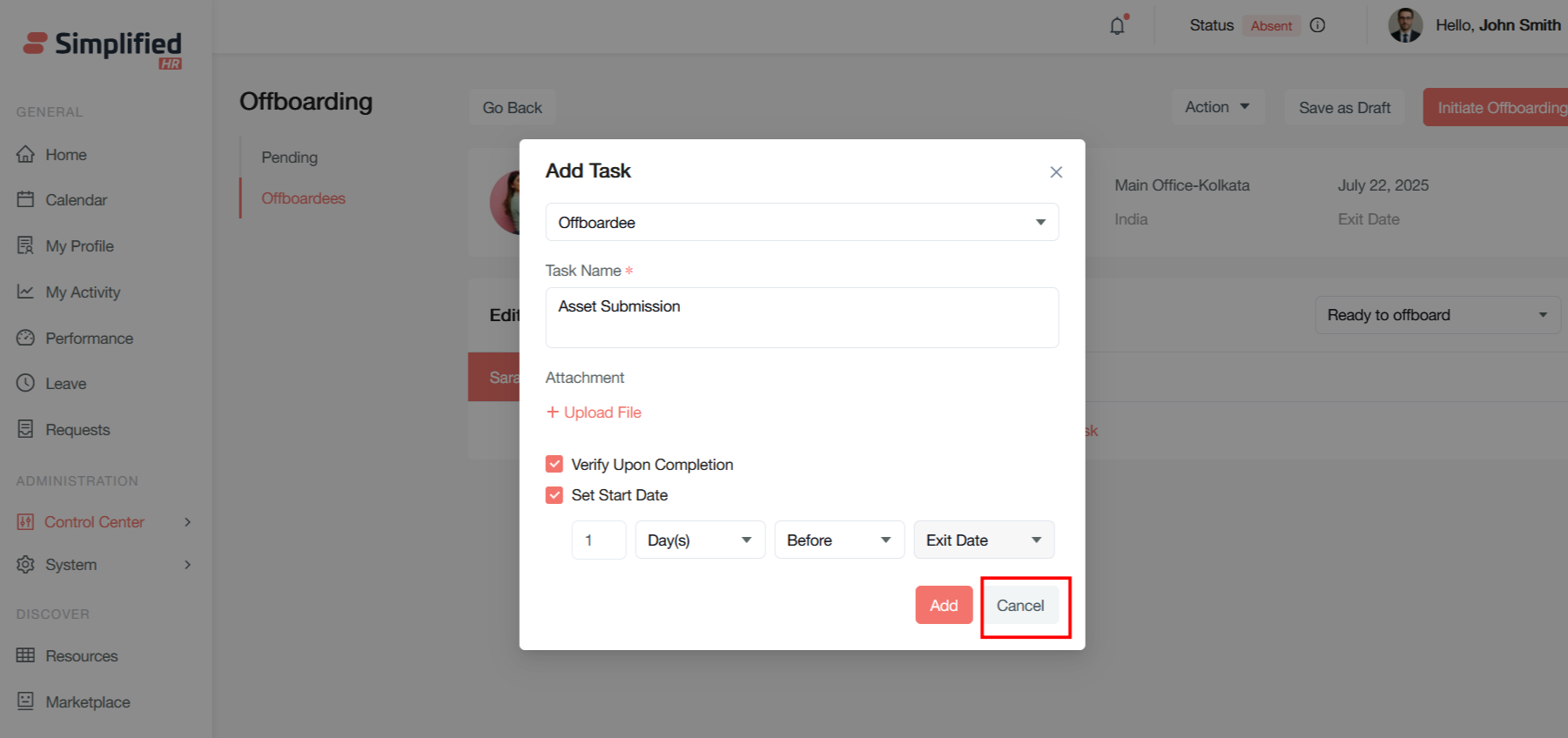
Cancel Button for Add Task
Discards the form without creating the task and returns to the previous screen.
This task management system allows for sophisticated scheduling of offboarding activities, ensuring critical steps happen at the right time relative to an employee's departure timeline.
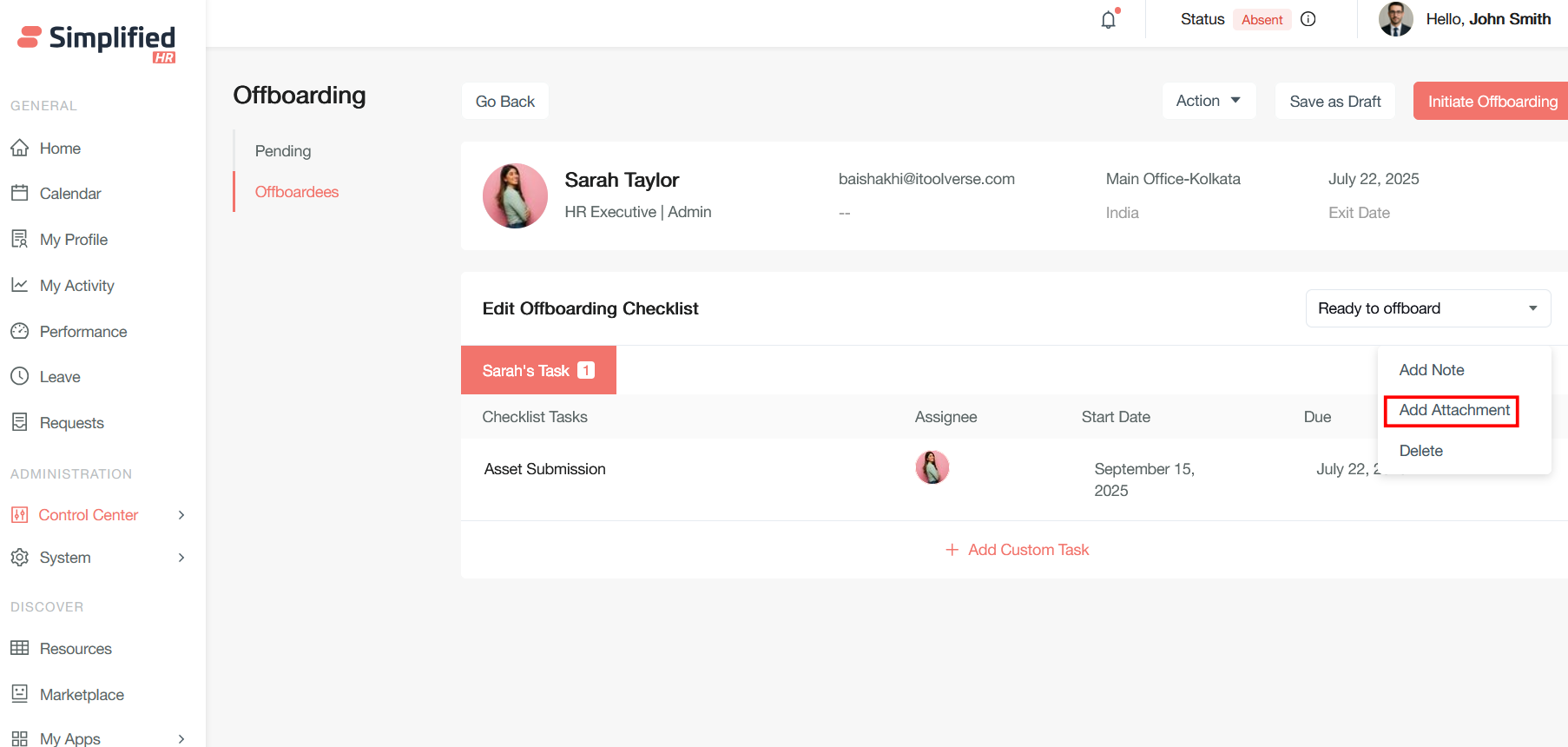
Add Note
This option allows you to attach text-based notes or comments to the current item (likely an offboarding task or employee record). This is useful for adding context, instructions, progress updates, or important reminders that other team members or administrators might need to see. Notes typically provide a way to document observations, special circumstances, or additional details that aren't captured in standard form fields.
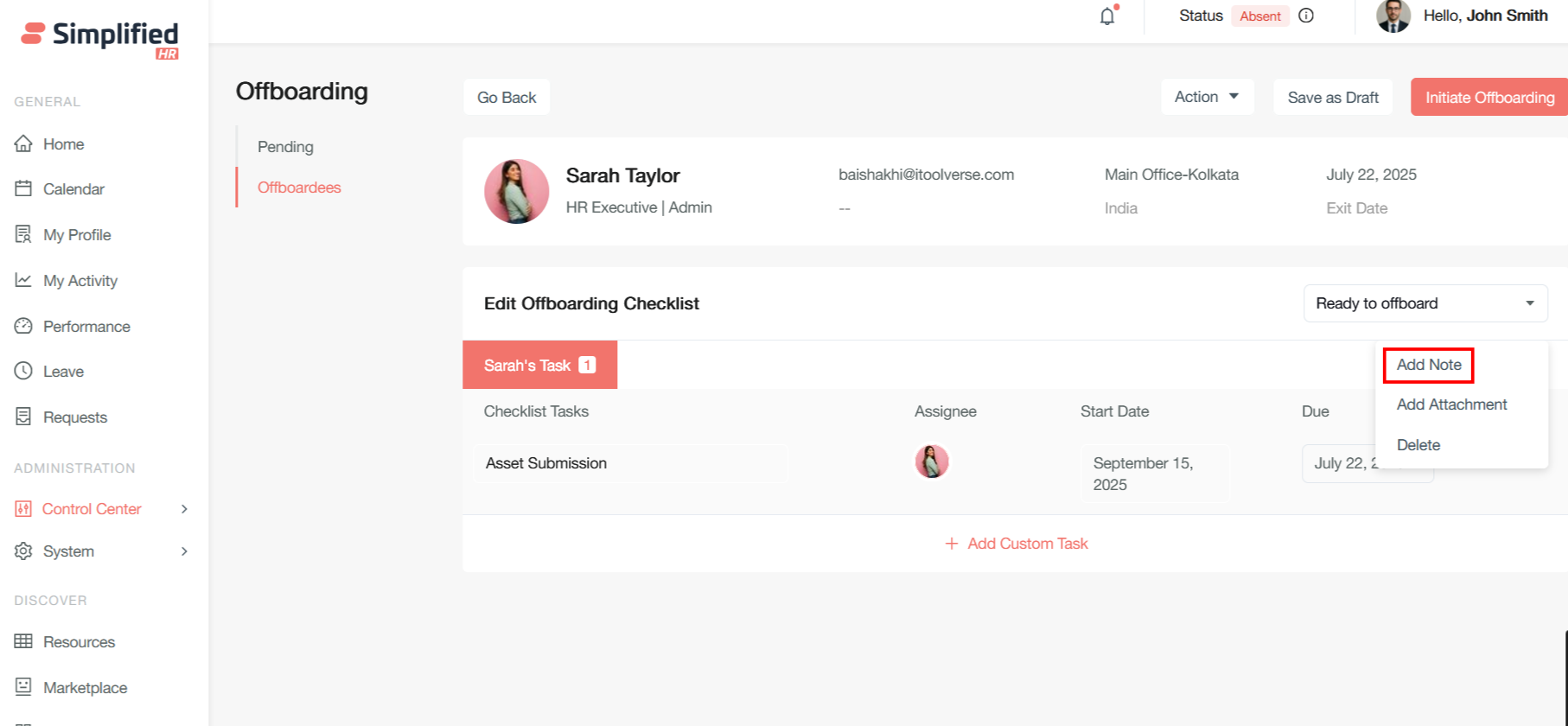
Add Attachment
This option enables you to upload and attach files or documents to the current item.
Delete Custom Checklist
This option allows you to remove the current item entirely from the system
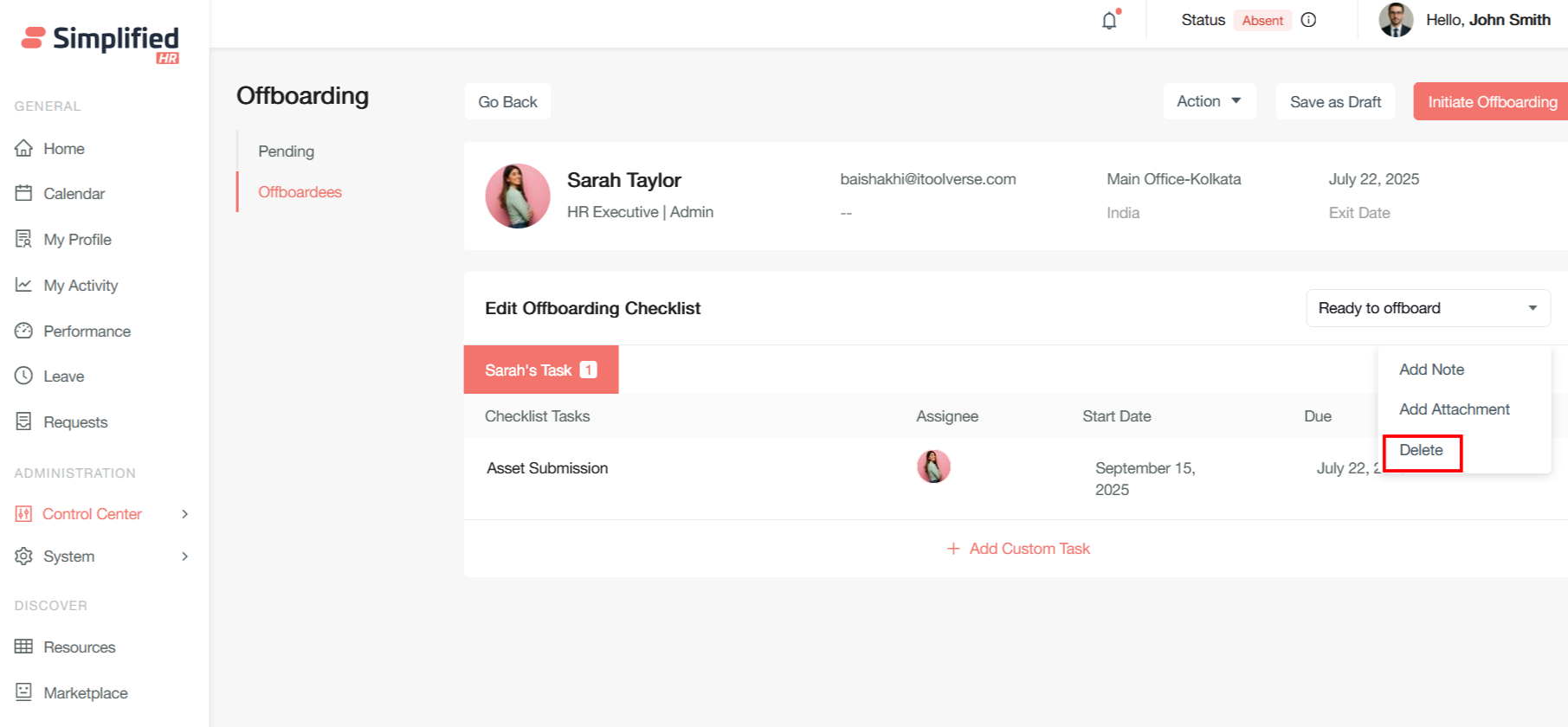
This appears to be a right-click context menu or dropdown menu that provides quick access to these common administrative actions, allowing HR administrators to efficiently manage offboarding documentation and processes without navigating to separate screens or forms.
Save as Draft
Allows saving work in progress without finalizing.