Employee → Leave Management
View Leave Page
The Leave Page is where you can find forms to view and submit requests for leave time and see how much leave time you have accumulated.
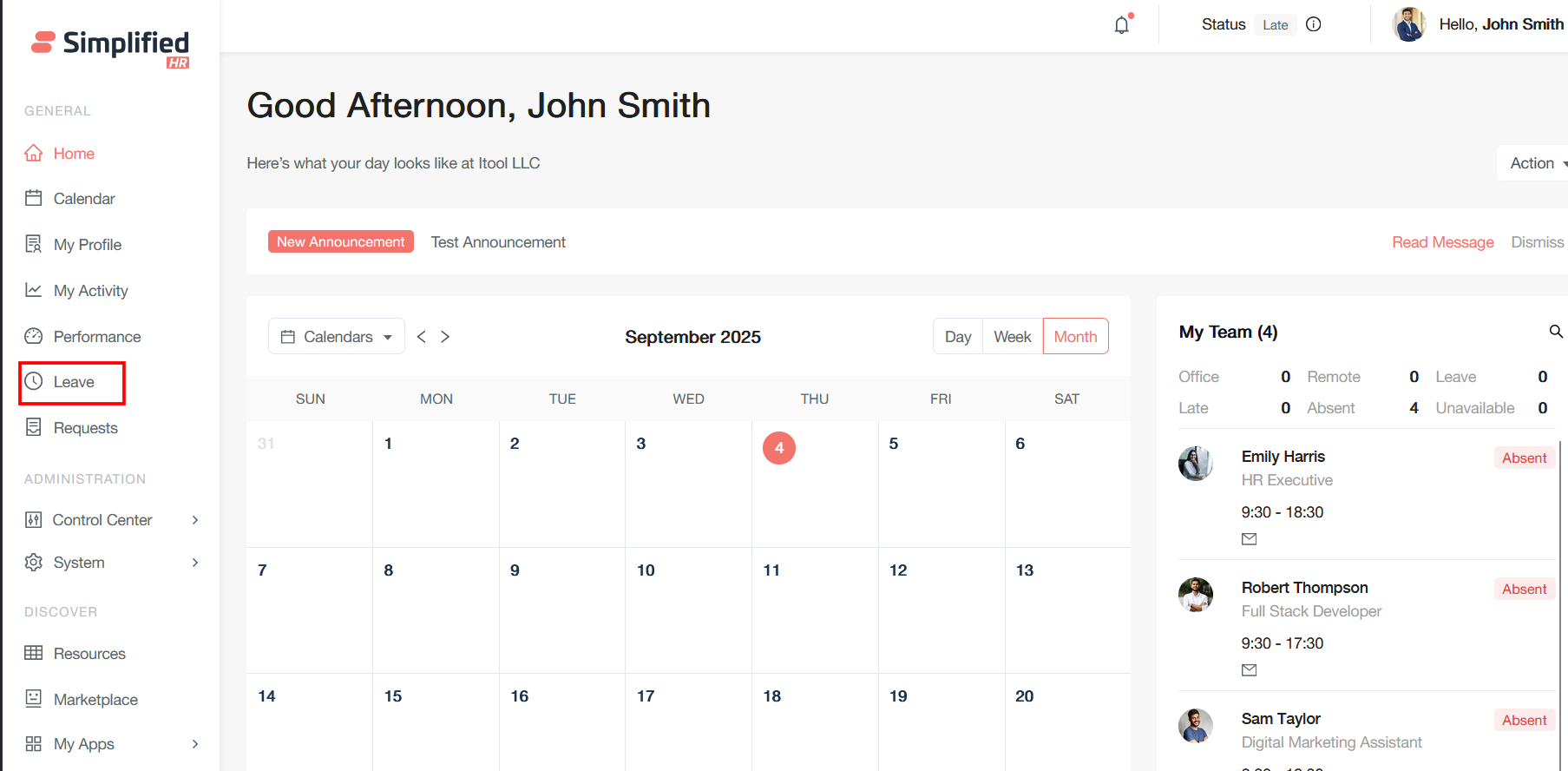
To navigate to the Leave Page from the Simplified HR Home Page, select Leave on the left-hand menu.
View Leave Balance
The Leave Page displays how much leave time you have accumulated for each leave type.
View Leave History
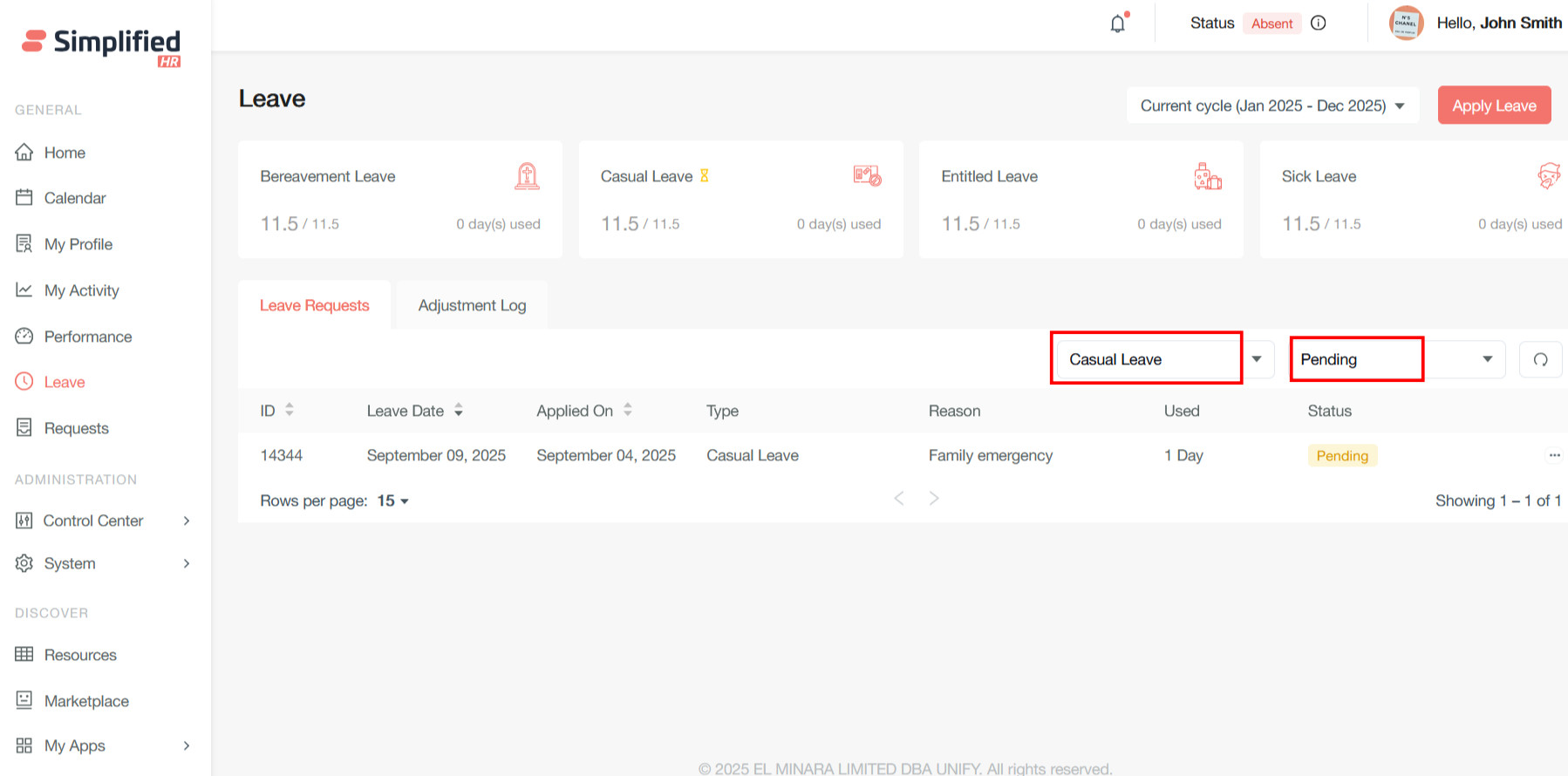
After you apply for leave, the leave request will be displayed in the user leave dashboard, where you can filter by leave type and status.
Filter Leave History
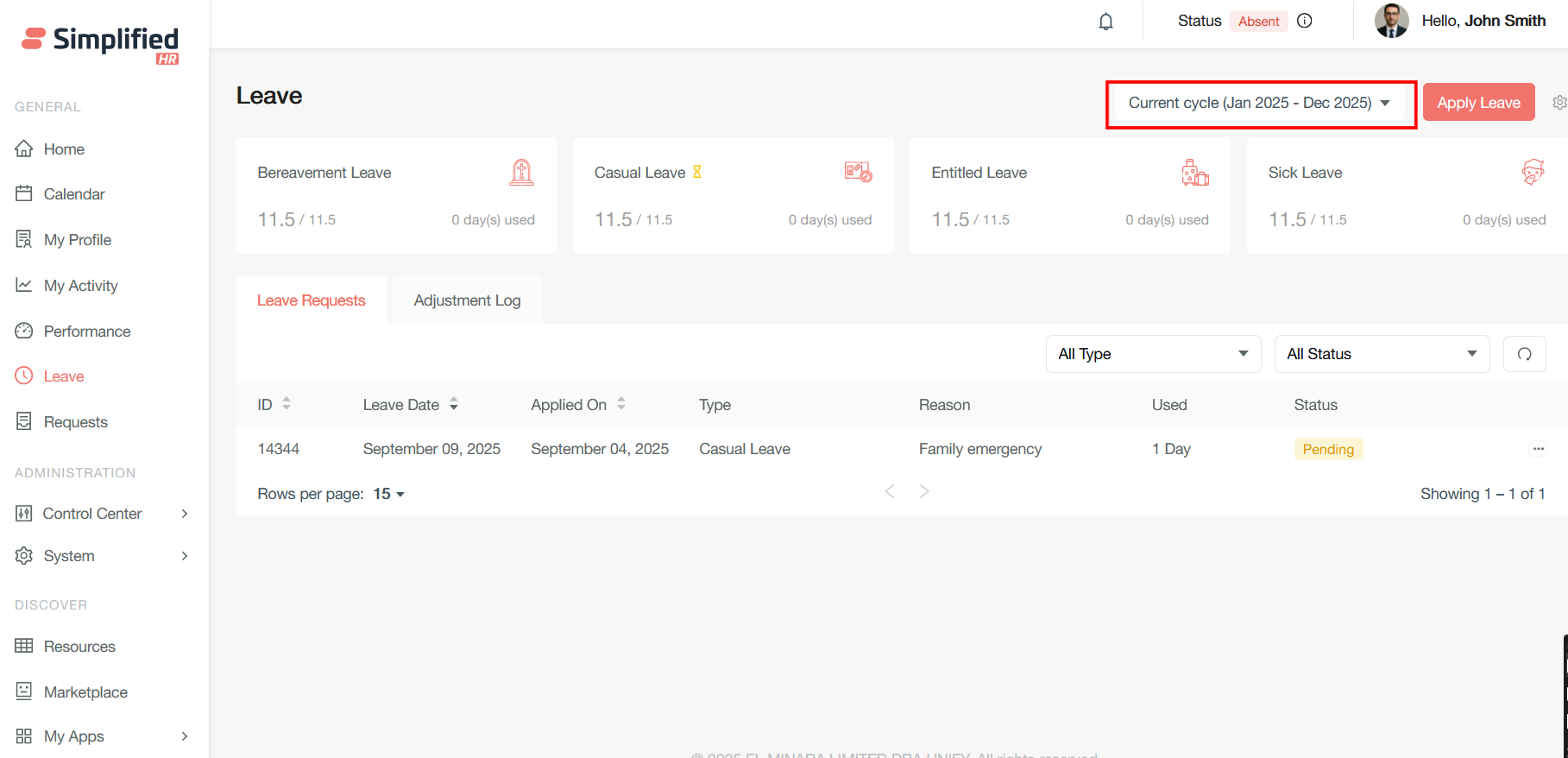
The cycle year dropdown shows the leaves from the current/previous cycle and also the upcoming cycle when the cycle year is about to end in the next two months. The leaves are filtered cycle-wise, according to whatever cycle is followed by the leave policies.
Download Leave Reports
Important: The source documentation lists "download reports" as an Employee capability under Role-Based Access Control, but does not provide further procedural detail. It is included here exactly as described in the source.
Apply for Leave
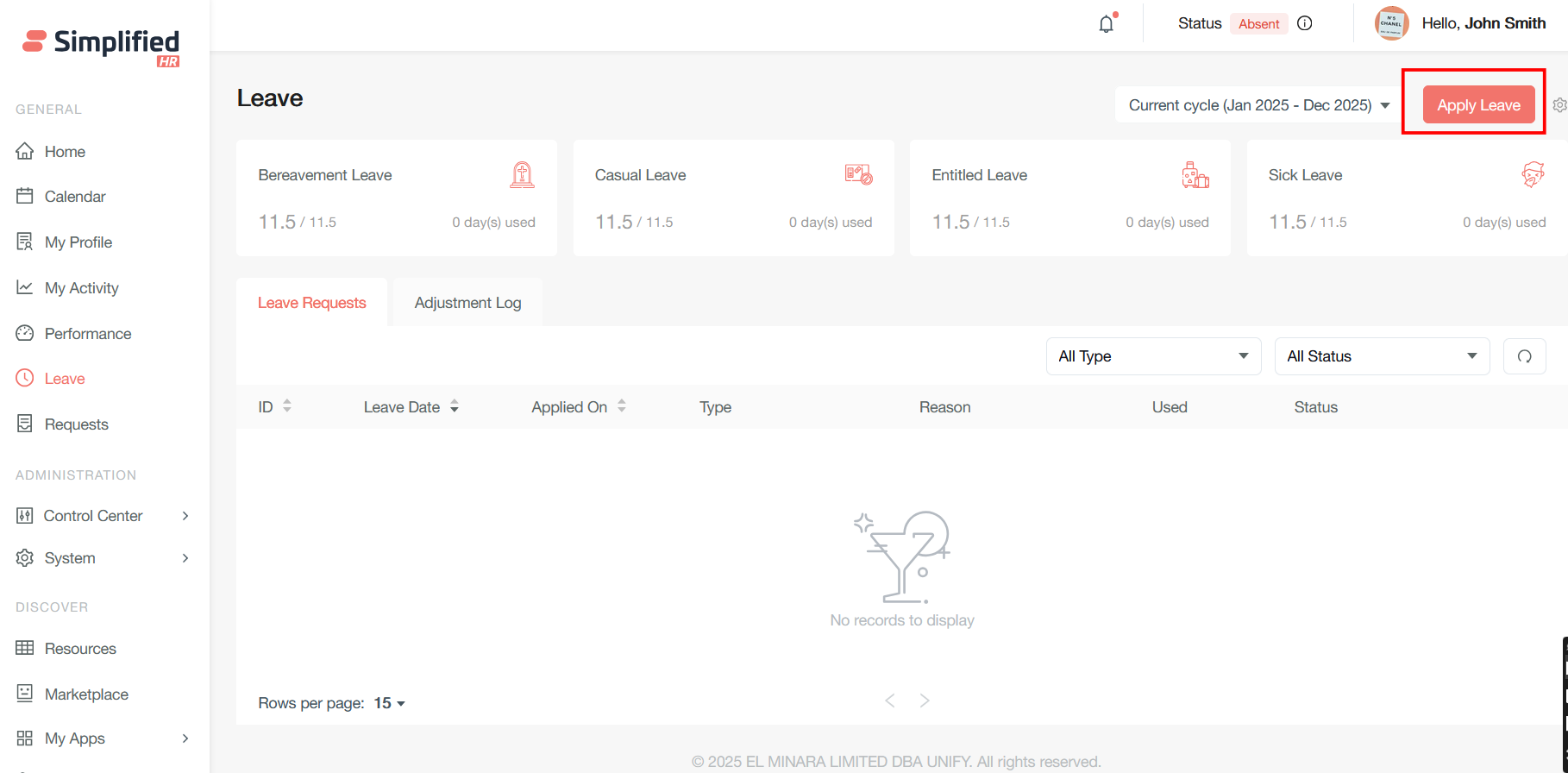
To apply for leave from the Leave Page, select the Apply button.
-
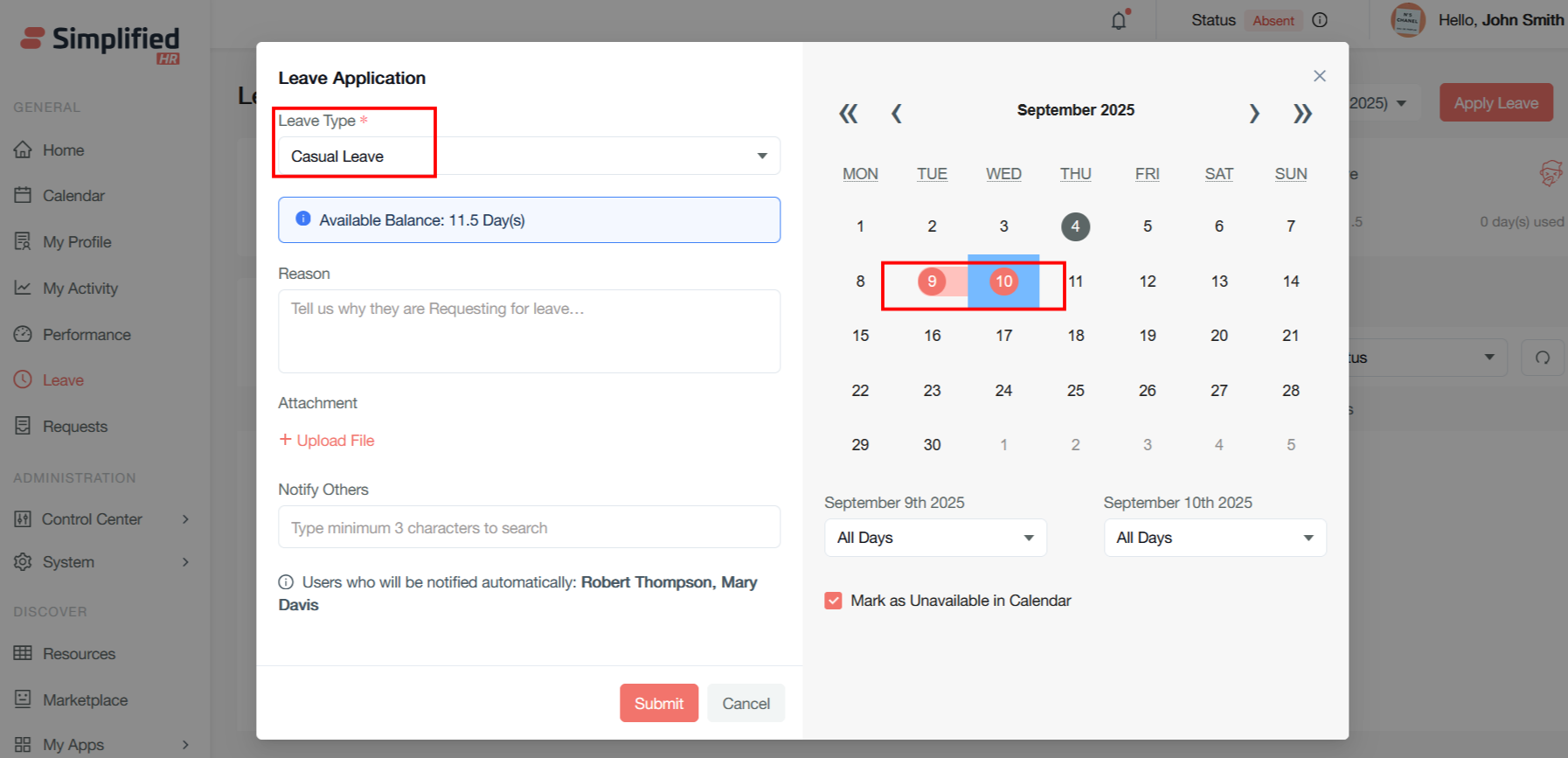
In the Apply for Leave popup window, select the type of leave from the drop-down box.
-
Select the time range in the calendar for which you want to apply for leave.
-
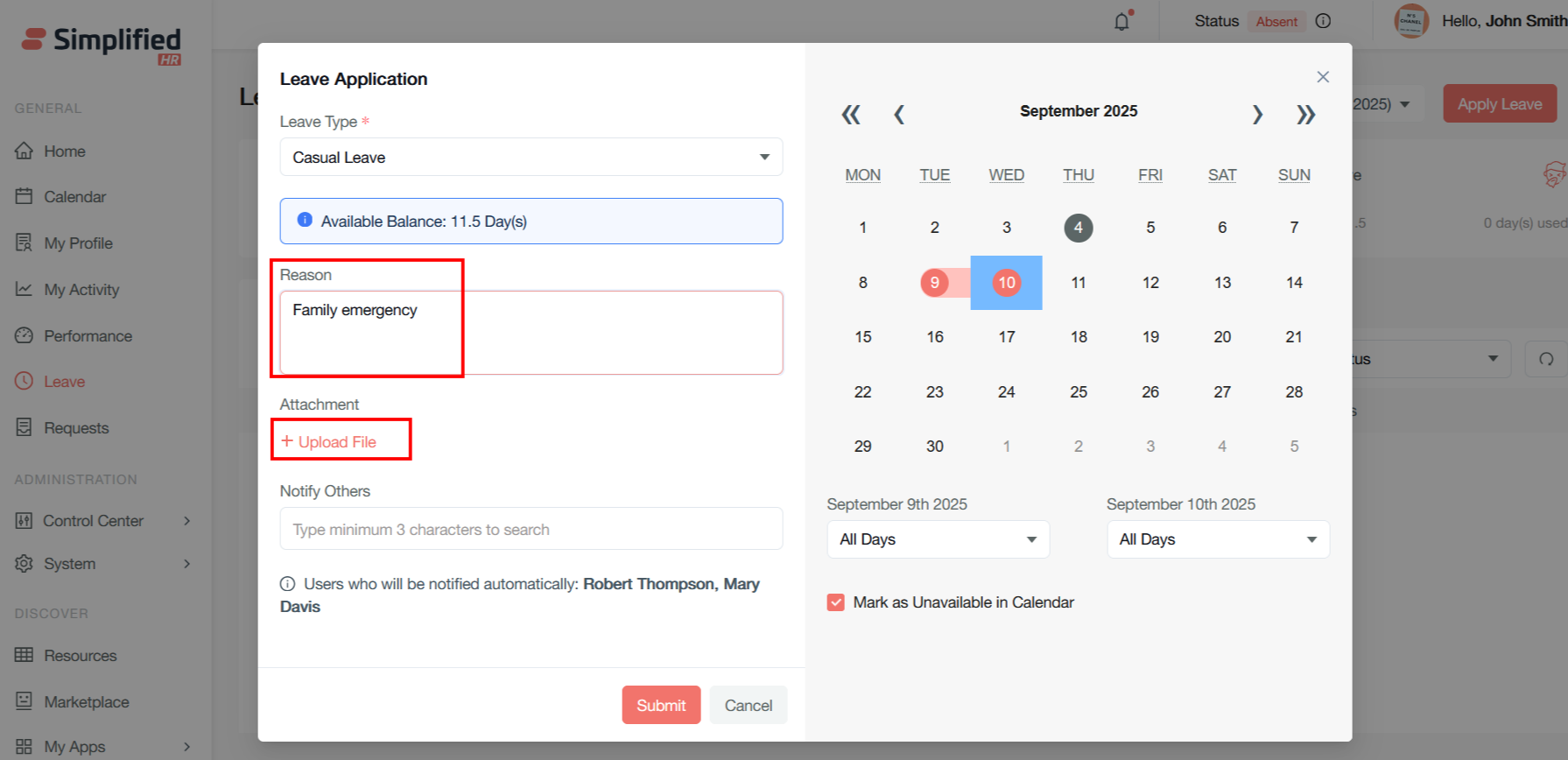
In the reason space, submit any notes for HR about your leave request.
-
Upload any attachments you need to send with your leave request.
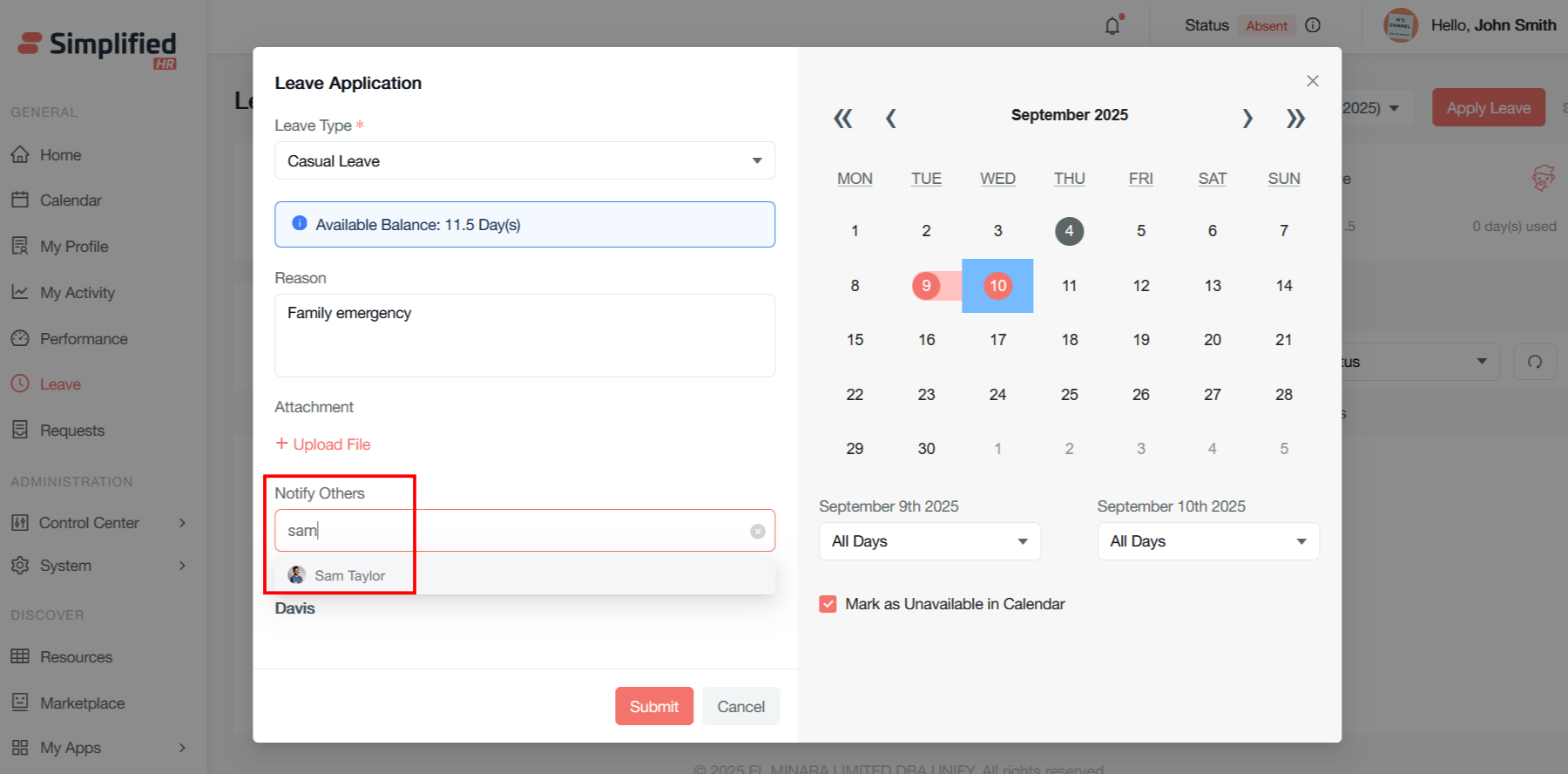
- In the Notify Others section, select any people outside HR to notify about your leave application.
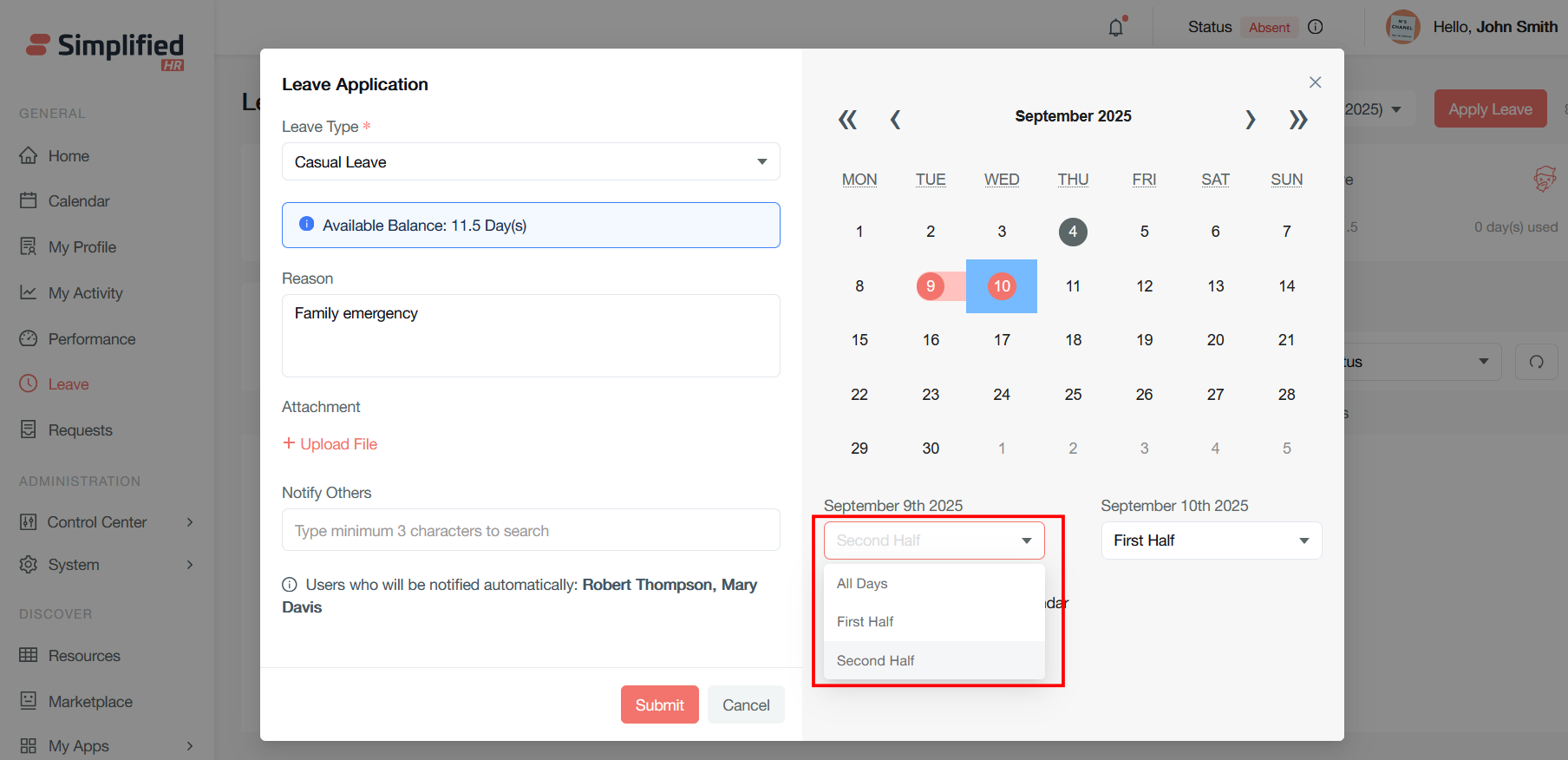
- Using the dropdowns under the calendar, choose to apply for half days of leave for your first and last leave days, if needed.
- Mark as Unavailable in Calendar is checked by default; uncheck it if you do not wish your calendar to show you as unavailable during your leave time.
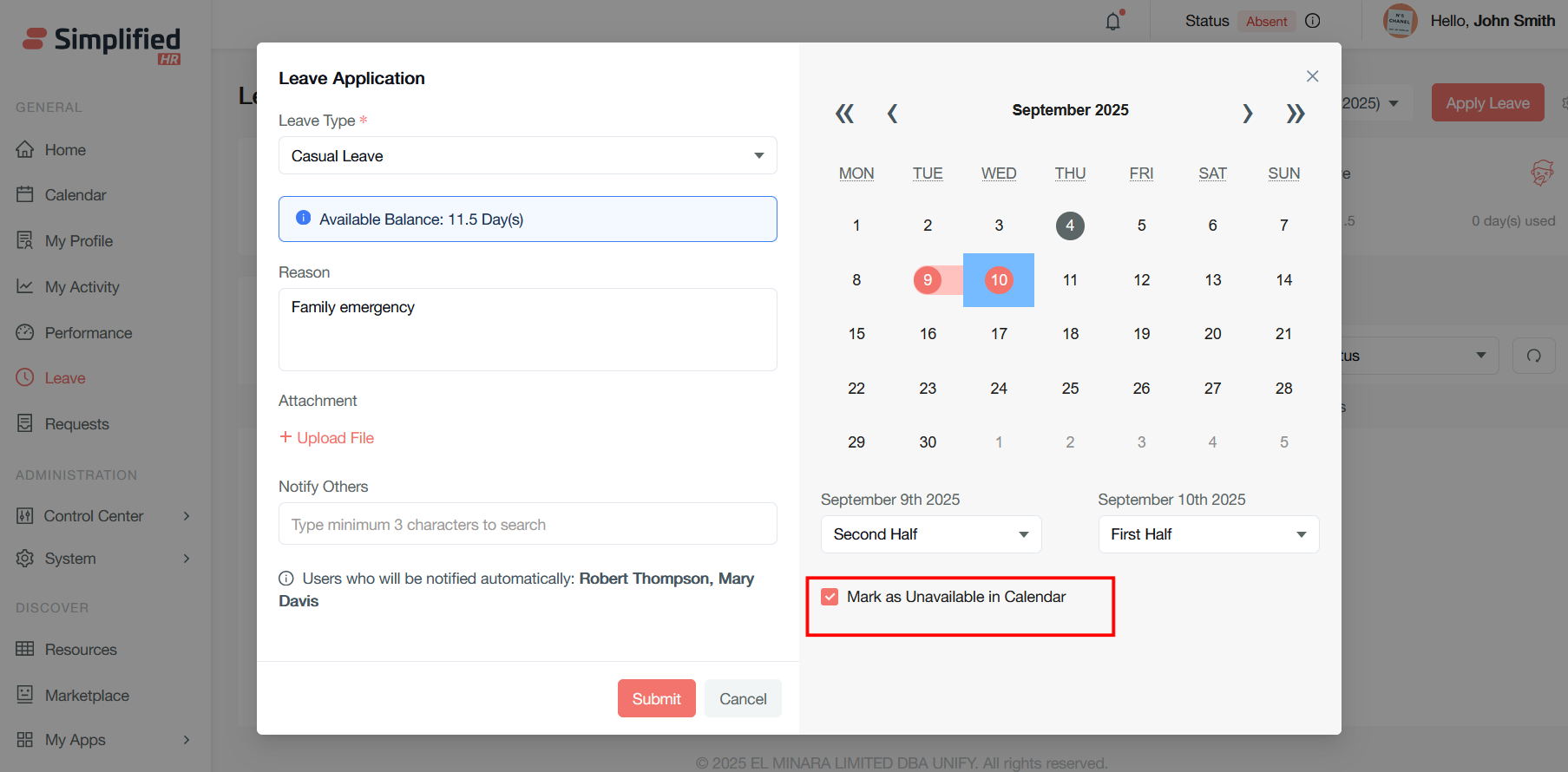
-
Review any alert if your chosen leave dates clash with anyone else on your team.
-
Click Submit to send your leave application.
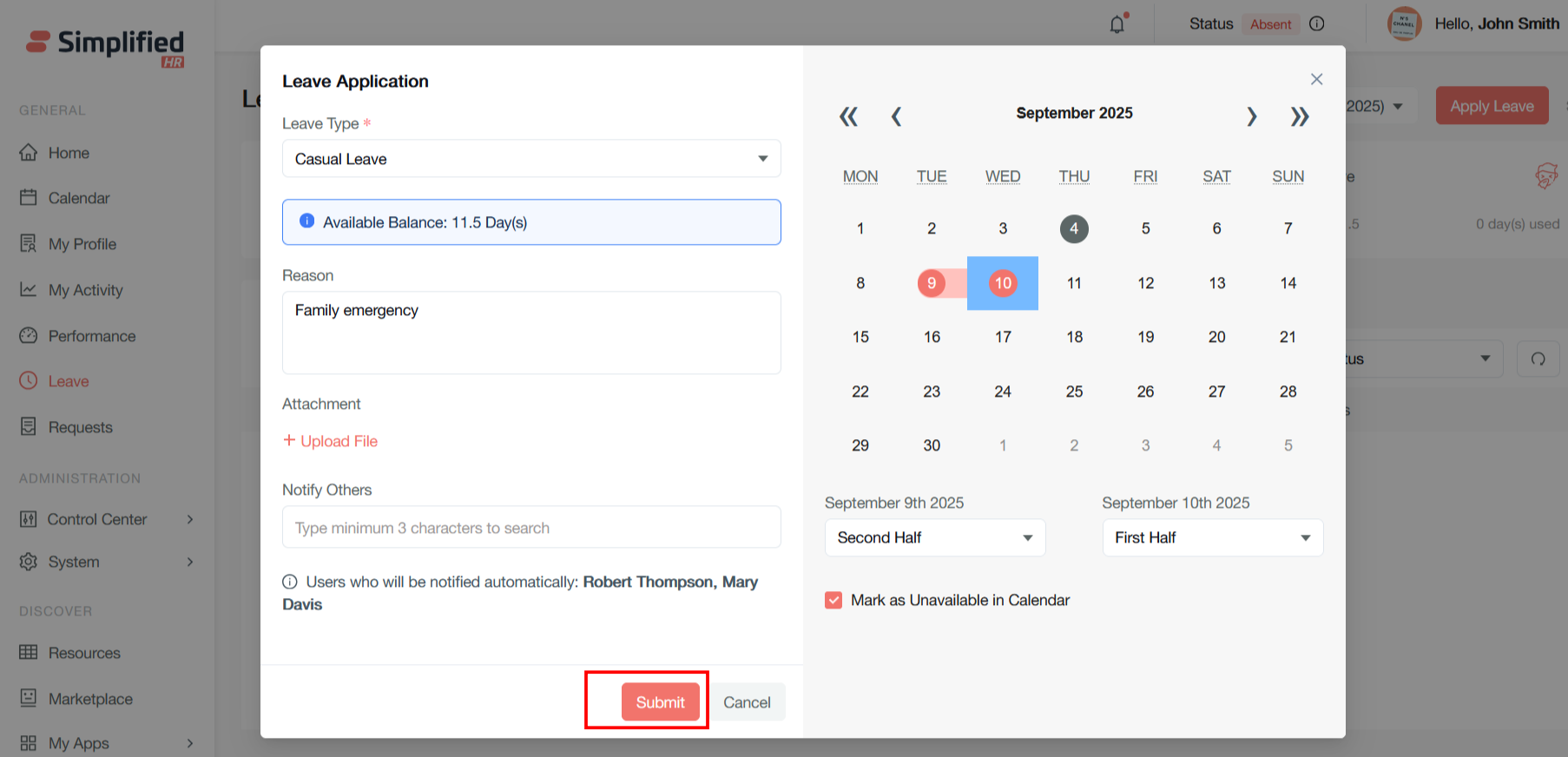
Select Leave Type
In the Apply for Leave popup window, select the type of leave from the drop-down box.
Select Leave Dates
Select the time range in the calendar that you want to apply for leave.
Apply Half-Day Leave
Using the dropdowns under the calendar, you can choose to apply for half days of leave for your first and last leave days.
Add Leave Reason
In the reason space, you can submit any notes for HR about your leave request.
Add Leave Attachment
You can upload any attachments you need to send with your leave request.
Notify Others
In the Notify Others section, you can select to notify other people outside of the HR department about your leave application. To add someone, start typing their name and select them from the dropdown that appears under the Notify Others box.
Mark Leave as Unavailable in Calendar
Mark as Unavailable in Calendar will be checked by default. Uncheck it if you do not wish for your calendar to be clocked out during your leave time.
View Team Leave Conflict
Simplified will alert you if your chosen leave dates clash with anyone else on your team, in case this may change your leave decision.
View Leave Request
Once your leave is requested, the pending leave will be redirected to a specific user in the Leave Queue who will approve the leave. Users can view the leave applications, edit the leave date, and cancel the leave application by clicking the three dots on each row.
View Leave Request Status
When a leave is in pending status, a pending icon is shown in the leave card for the leave type.
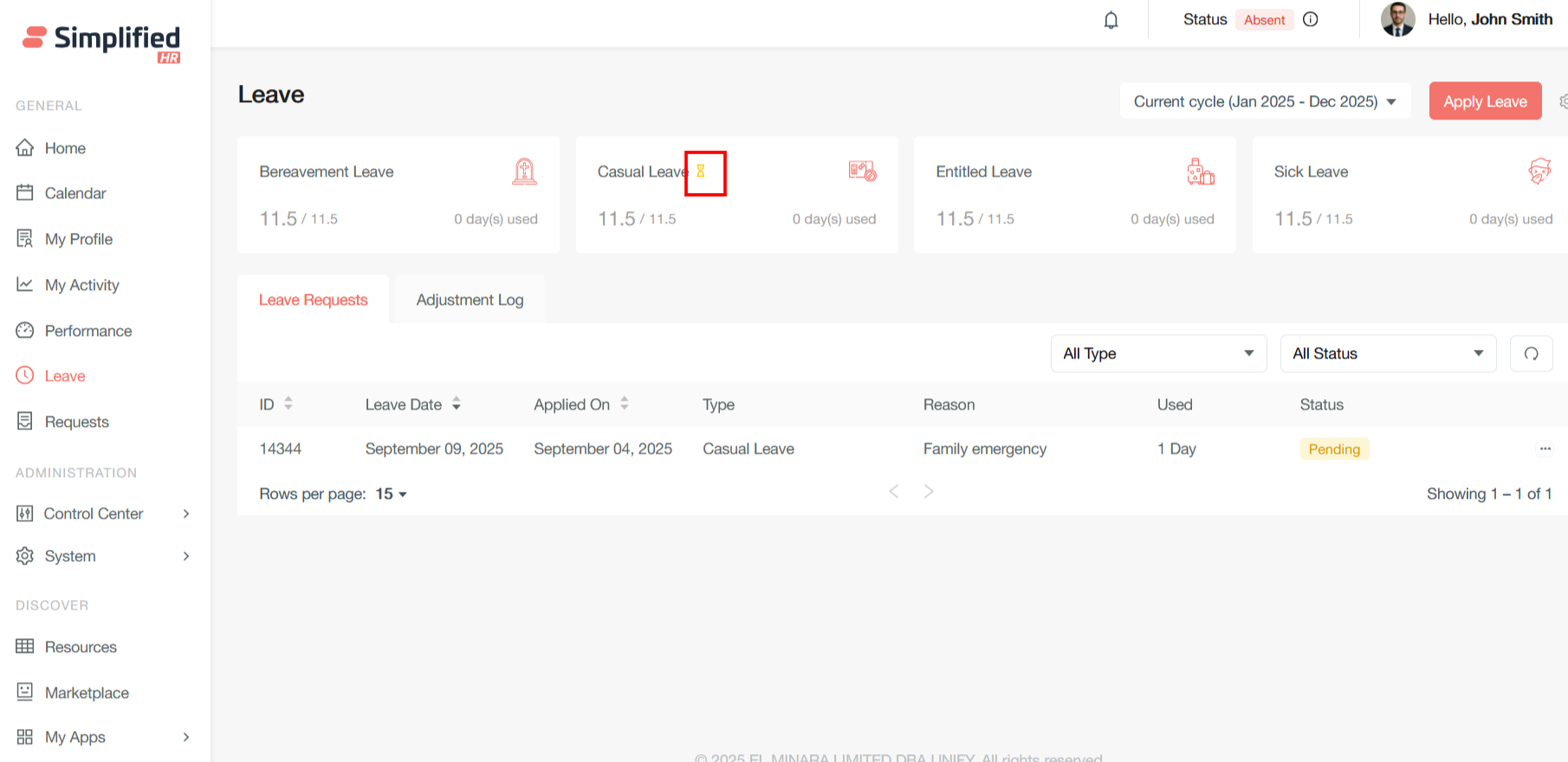
Edit Pending Leave Request
Users can edit the leave date by clicking the three dots on the leave request row.
Cancel Leave Request
Users can cancel the leave application by clicking the three dots on the leave request row.
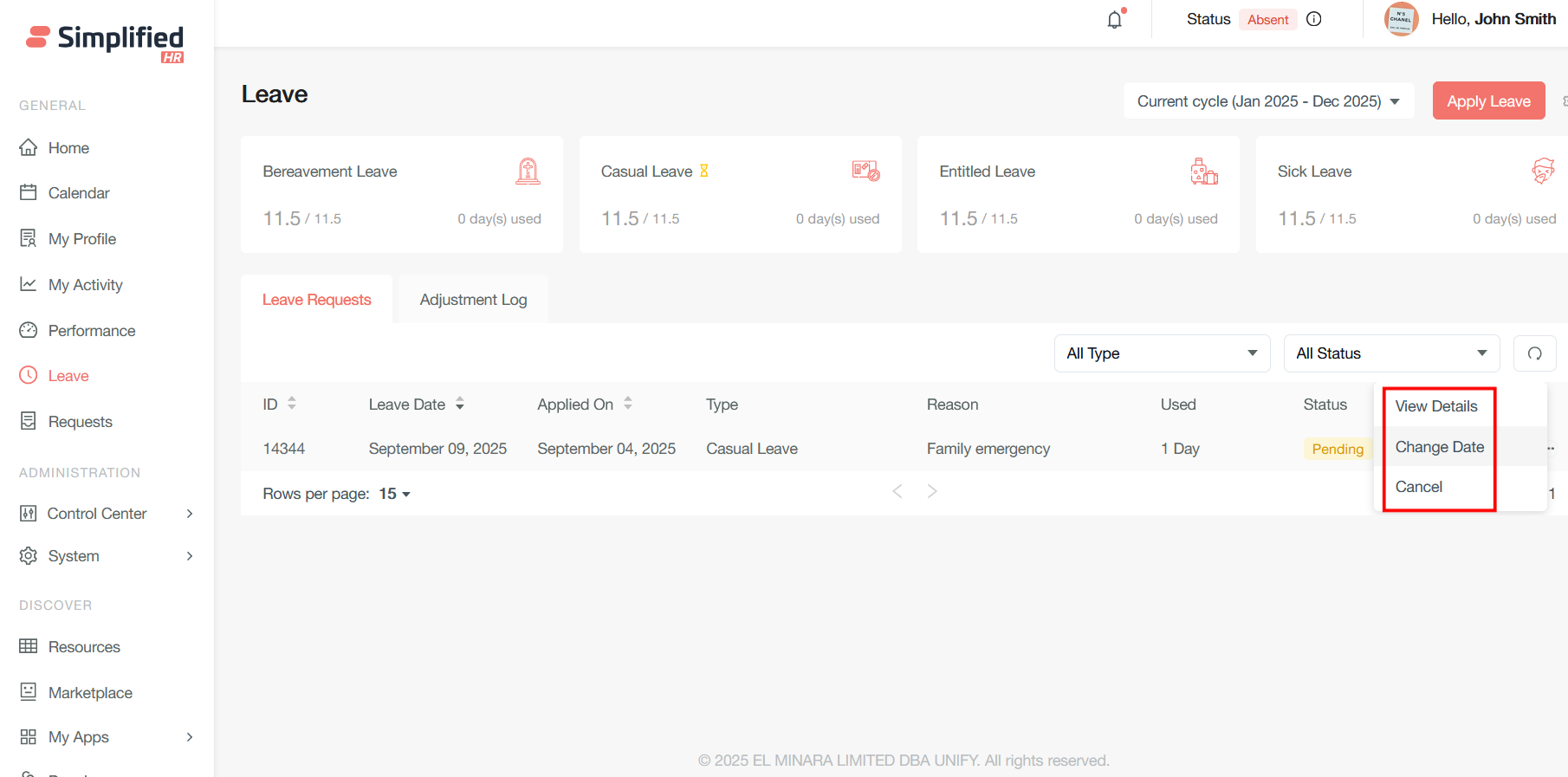
Important: Once the leave is approved, current and past date approved leave cannot be cancelled by the user.
View Pending Leave Indicator
When a leave is in pending status, a pending icon is shown in the leave card for the leave type.
View Leave by Cycle
The cycle year dropdown shows the leaves from the current/previous cycle and also the upcoming cycle when the cycle year is about to end in the next two months. The leaves are filtered cycle-wise, according to whatever cycle is followed by the leave policies.
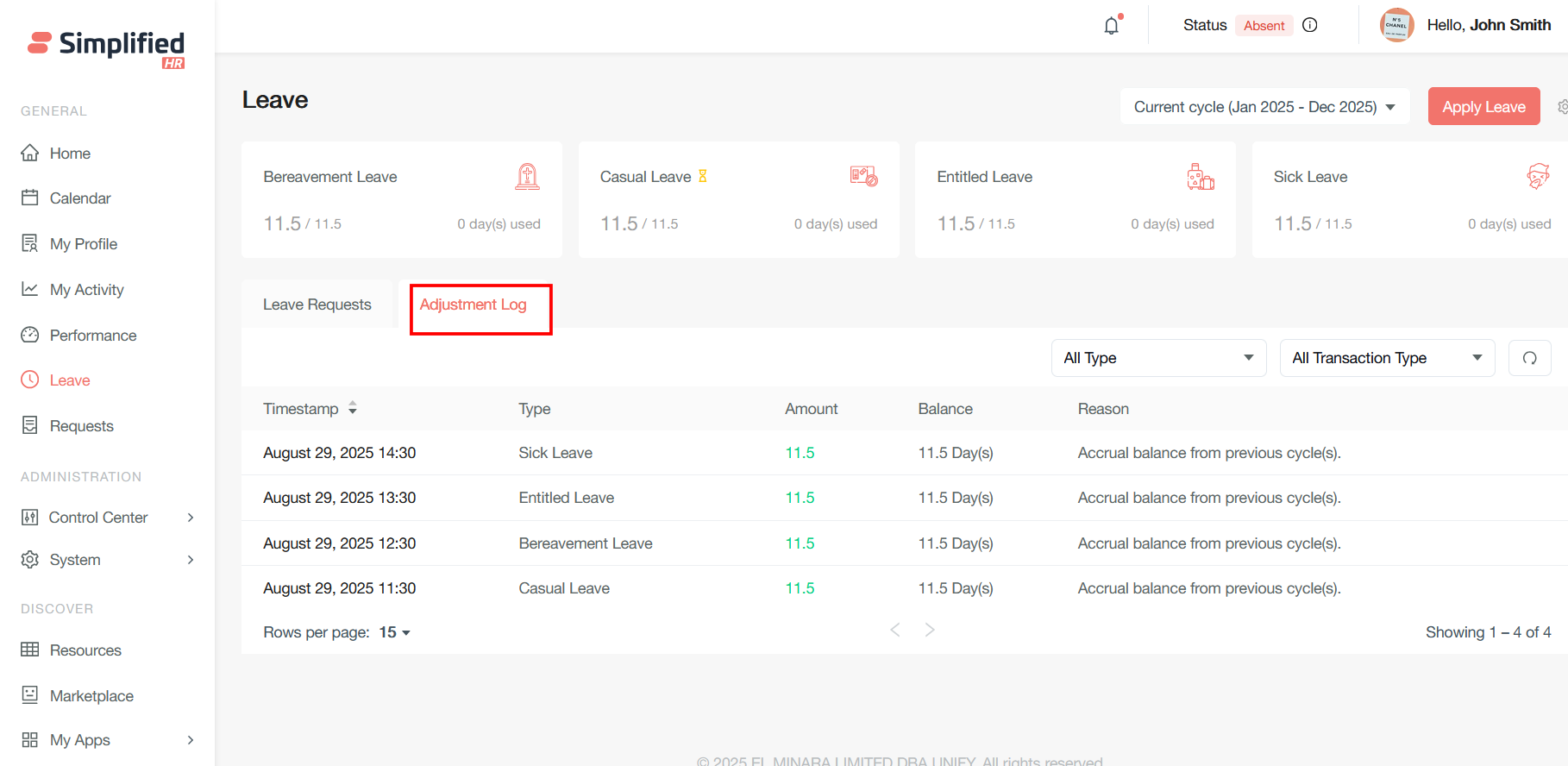
View Leave Adjustment Log
The Adjustment Log tab serves as a comprehensive transaction ledger that records and displays all leave balance modifications across different leave types. This tab provides complete visibility into how leave balances are calculated through credits and debits, including:
-
Automatic accruals based on defined leave policies (monthly, quarterly, or yearly credits).
-
Manual credits by HR administrators for corrections or special allocations.
-
Carry-forward leaves from previous periods.
-
Approved leave days taken.
Understand Leave Policy Restrictions
The following system behaviors, described in the source documentation, affect what an employee can do when applying for leave, depending on how the applicable leave policy is configured:
-
Leave without pay is only available to employees whose accrued balance is zero.
-
Backdated leave is only permitted for employees if the policy explicitly allows applicant backdating, up to the configured number of days.
-
A minimum service period (waiting period) or probation completion may be required before first leave eligibility, depending on the leave type.
-
A leave type may have a maximum number of simultaneous requests allowed.
-
If leave requests are disabled for the organization or an employee group, the employee cannot apply directly but can still view their leave balance; an admin can apply or modify leave on their behalf.
-
If "Require a reason for leave" is enabled, a reason must be entered before the request can be submitted.
-
If a minimum notice period ("Submit Leave Ahead of Time") is configured, leave must be requested that far in advance.