Note on Manager Role: The source documentation describes three distinct roles: Employee, Manager, and HR Admin. Manager/Approver capabilities are documented in the companion "Leave Operations & Approvals" document, since they involve elevated, approval-level access rather than policy configuration. They remain role-restricted to Managers/Approvers/HR Admins in the actual product, not general Employee access.
Leave Management Overview
The employee leave module automates leave management, serving as the hub for time-off requests, balances, and policy compliance.
Policy Configuration
Policy level configuration lets HR create targeted, location- and employment-type-specific policies that apply automatically based on predefined criteria.
Module Structure
Most leave management systems are divided into distinct modules:
Admin Module:
-
Add, update, and delete leave types and departments.
-
Manage employee leave status and leave balance.
-
Process leave applications (approve/reject).
-
Receive notifications for new leave requests.
Employee Module:
-
Login with secure credentials.
-
Update personal profiles.
-
Apply for leave through intuitive forms.
-
View leave history and status.
Role-Based Access Control
The system implements multiple user roles with specific permissions:
-
Employees: Apply for leave, check status, view balances, download reports.
-
Managers: Approve/reject requests, view team leave reports, apply leave on behalf of team members.
-
HR Admin: Configure policies, assign leave balances, reassign requests, generate comprehensive reports.
Important: The source documentation does not provide further step-by-step detail for "download reports" (Employee), "view team leave reports" (Manager), or "reassign requests" and "generate comprehensive reports" (HR Admin). These capabilities are listed here exactly as described, without invented procedures.
Prerequisites
Important: Only users with admin, owner, or similar high-level roles can configure leave settings and manage processes across the organization. This restriction ensures proper governance and control.
Permission Override: Owner, admin, or similar role members will override any restrictions set up in the leave configuration.
Access Leave Settings
-
Log in to your Simplified HR application with valid admin credentials.
-
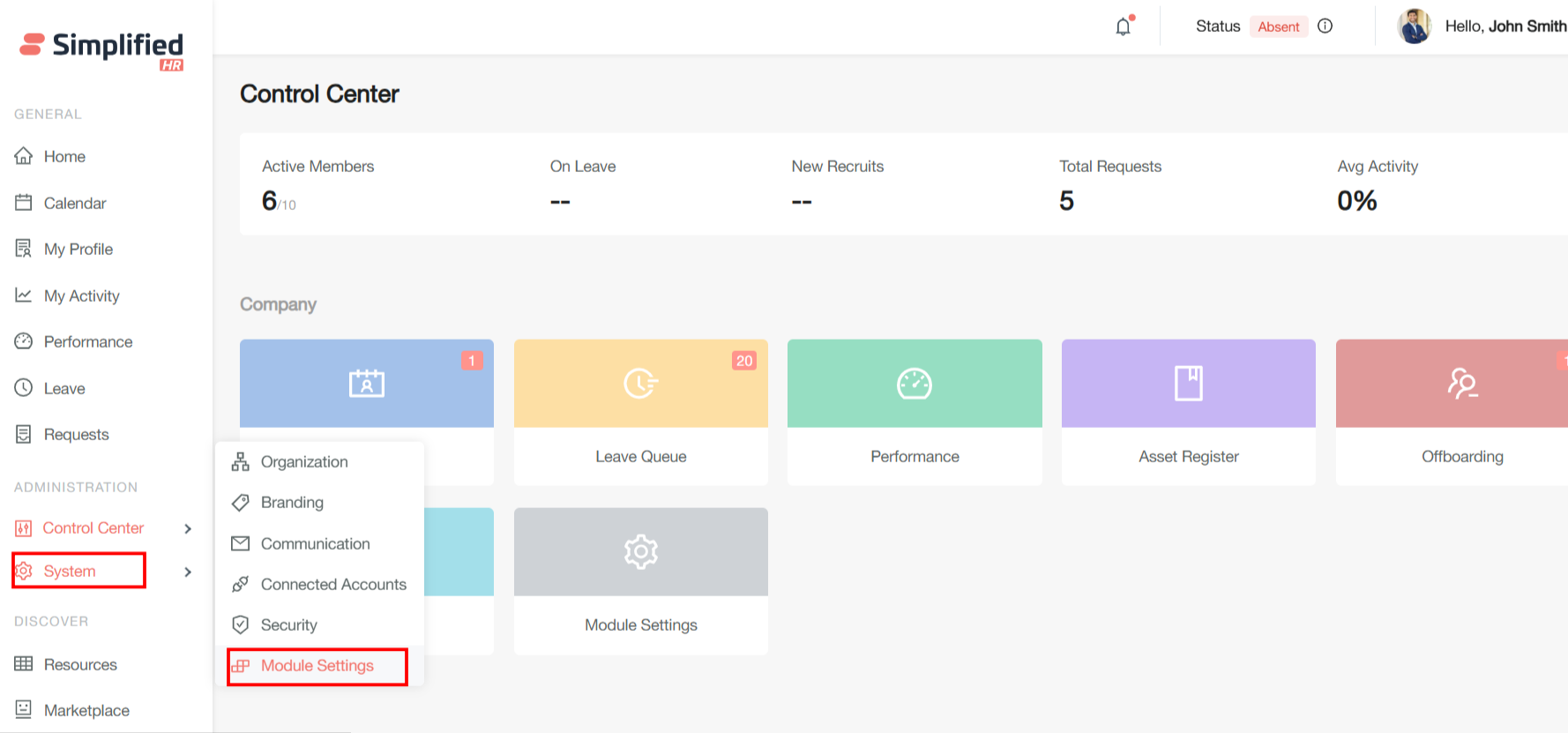
Navigate to System > Module Settings.
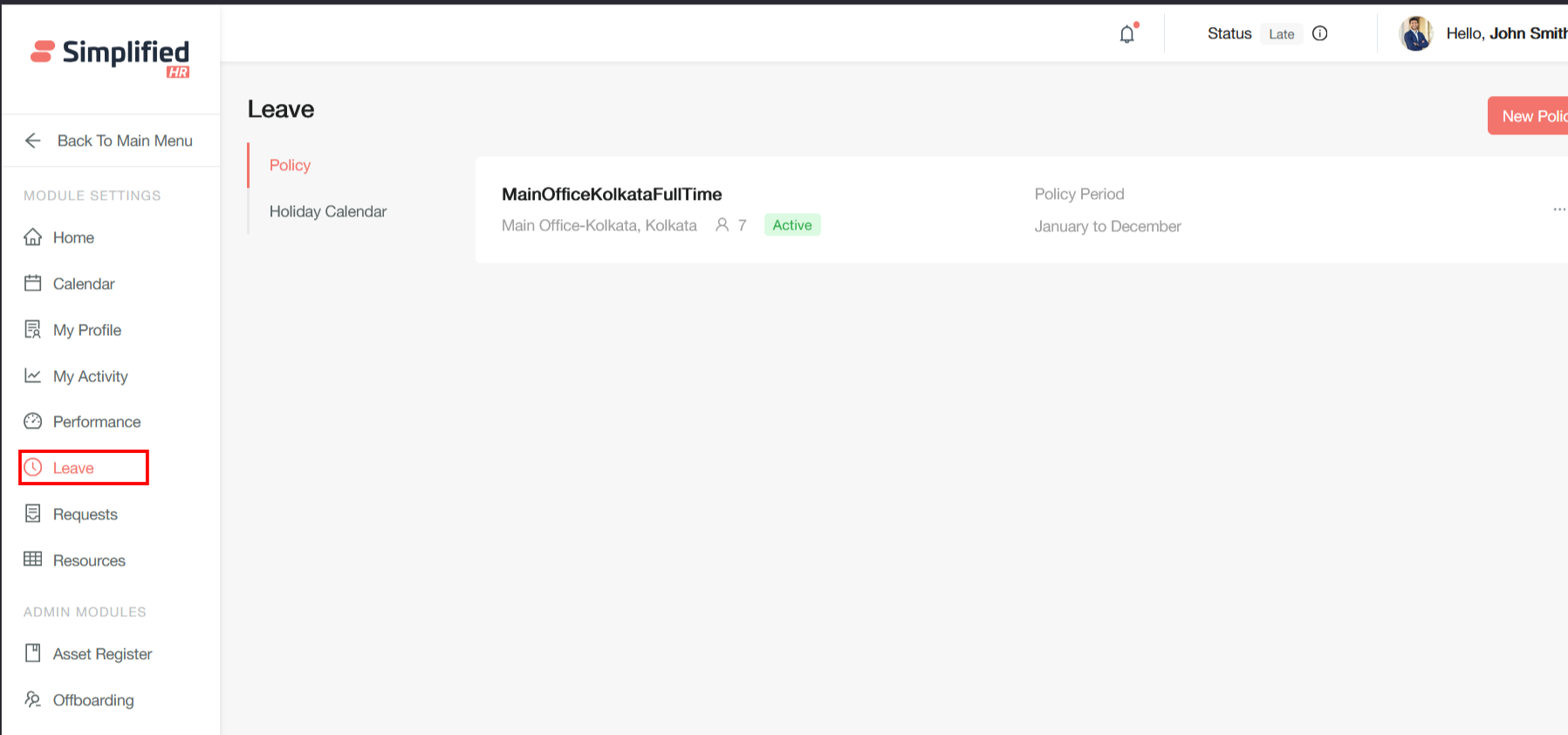
- In the Module Settings page, click Leave from the left sidebar menu.
Create Leave Policy
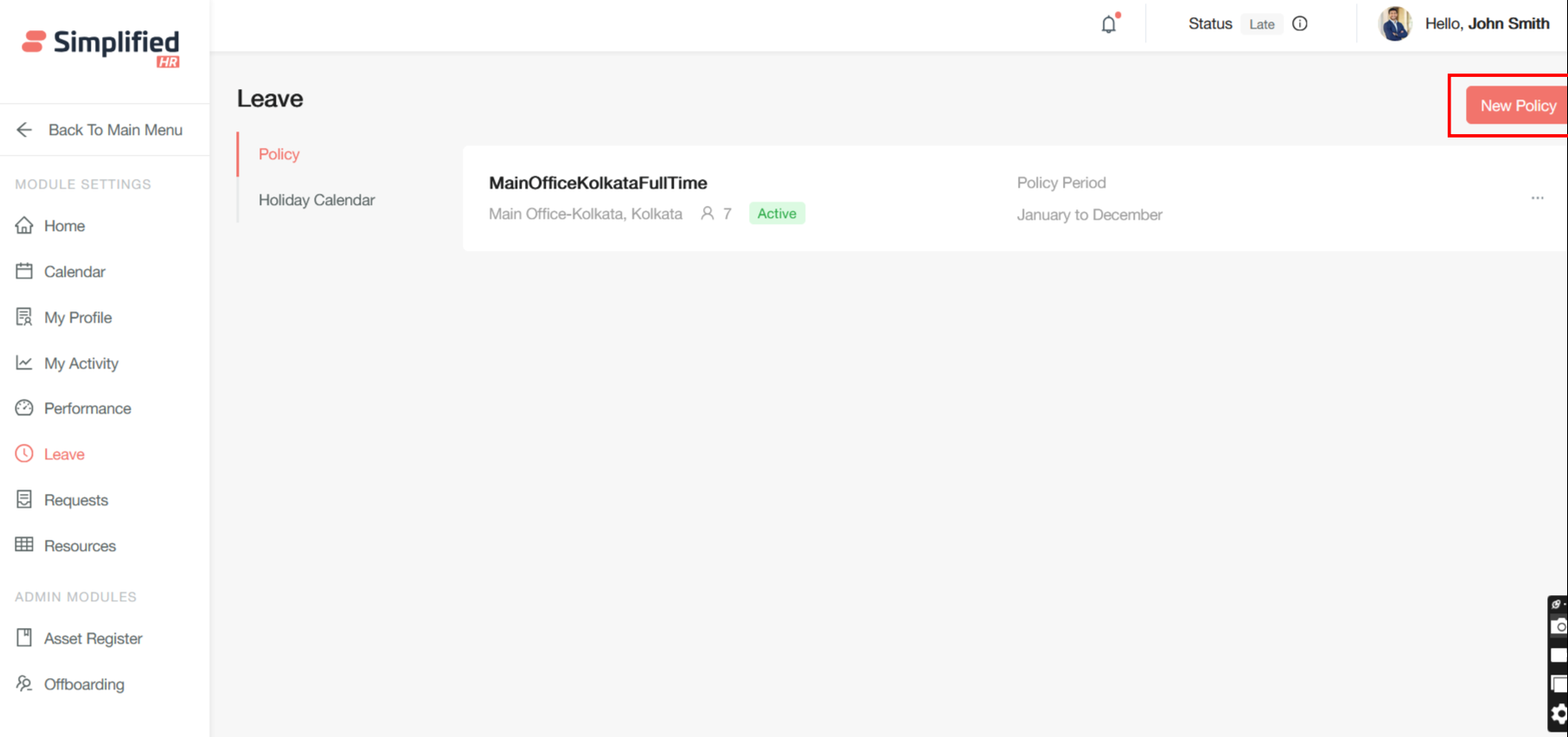
- Click the New Policy button to add a new policy.
-
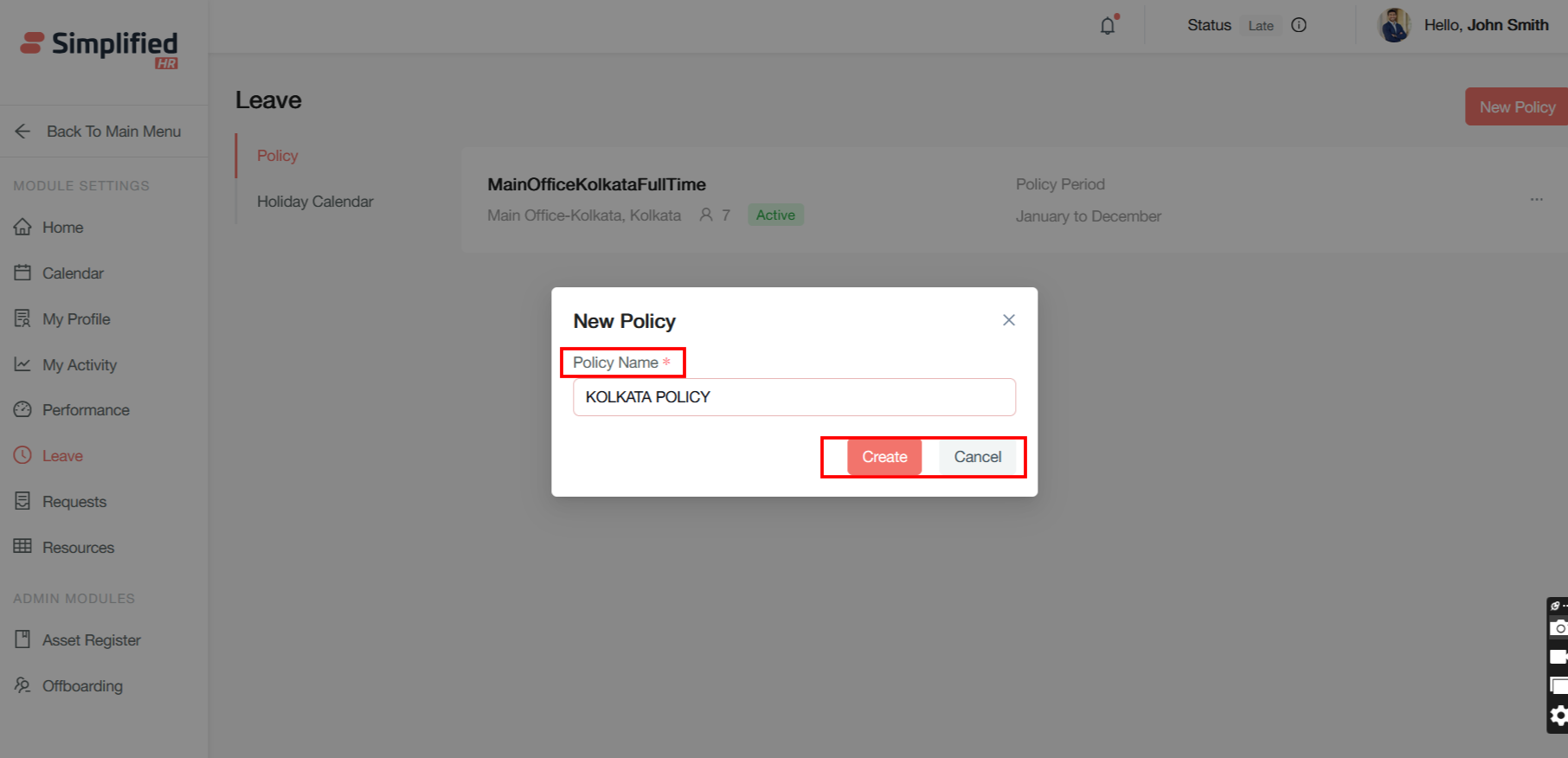
Provide a policy name.
-
Click Create to create the policy, or Cancel to discard it.
- After the policy is created, click the edit button to configure the policy.
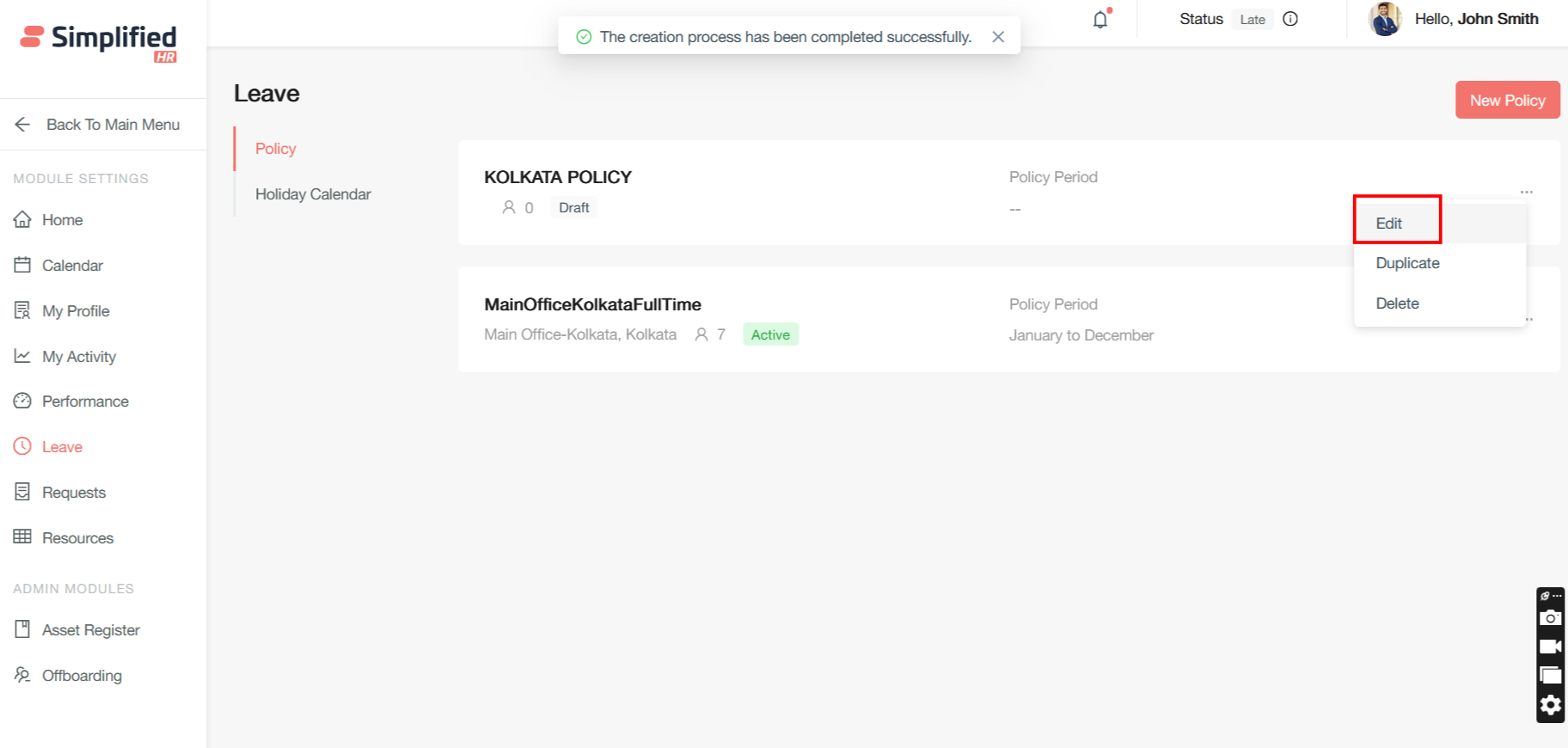
Configure Policy Applicability
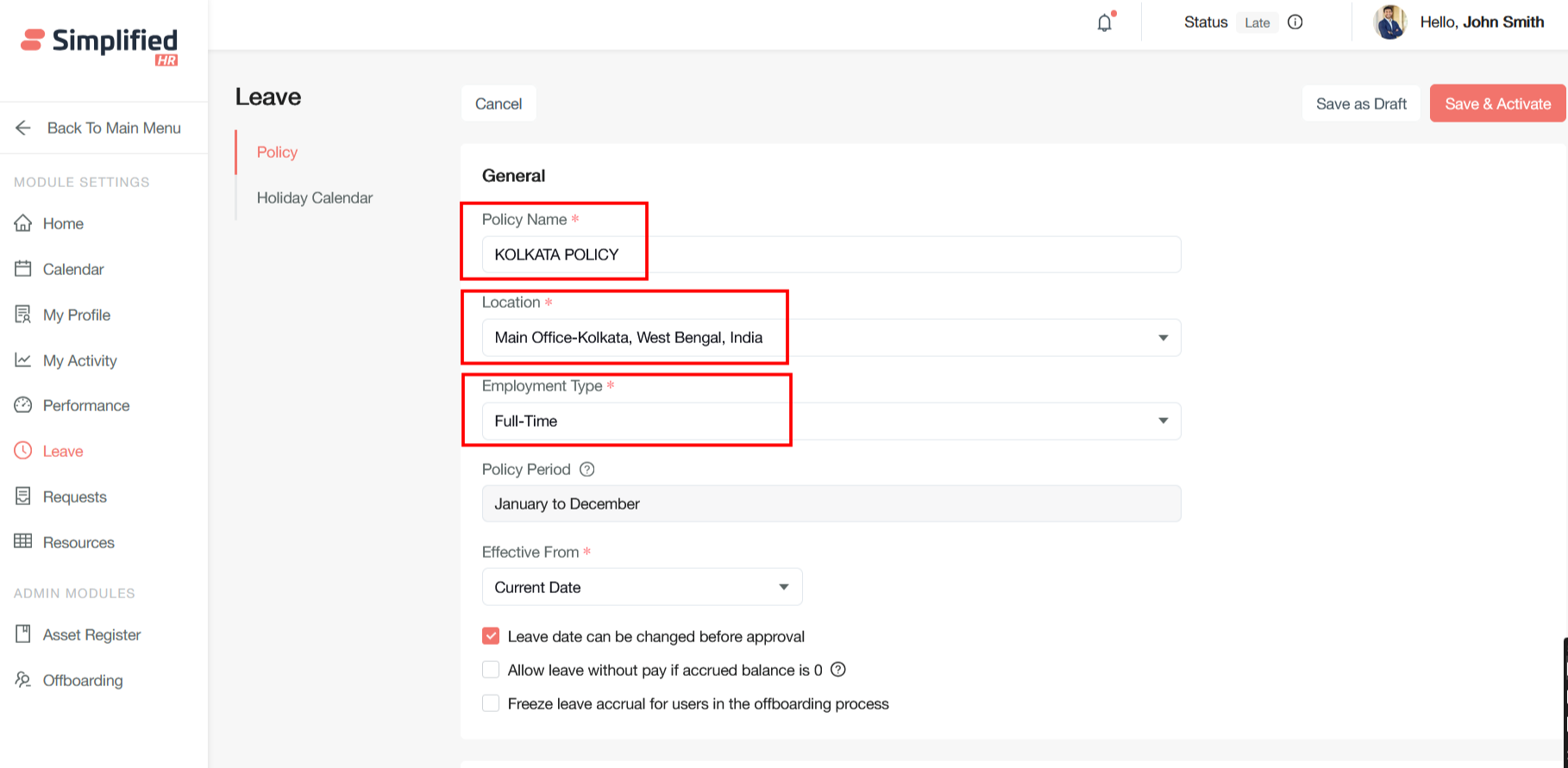
Policy level configuration allows HR systems to create targeted, location-specific, and employment-type-specific policies that automatically apply to the right employees based on predefined criteria.
-
Policy Name — The policy identifier that serves as the foundation for all configuration settings. This name should be descriptive and indicate the policy's purpose and scope.
-
Location-Based Applicability — Geographic targeting ensures policies comply with local regulations and cultural practices.
-
Employment Type-Based Applicability — Employment classification targeting ensures policies reflect different working arrangements and legal requirements.
The policy should be created based on the employee's location and employment type.
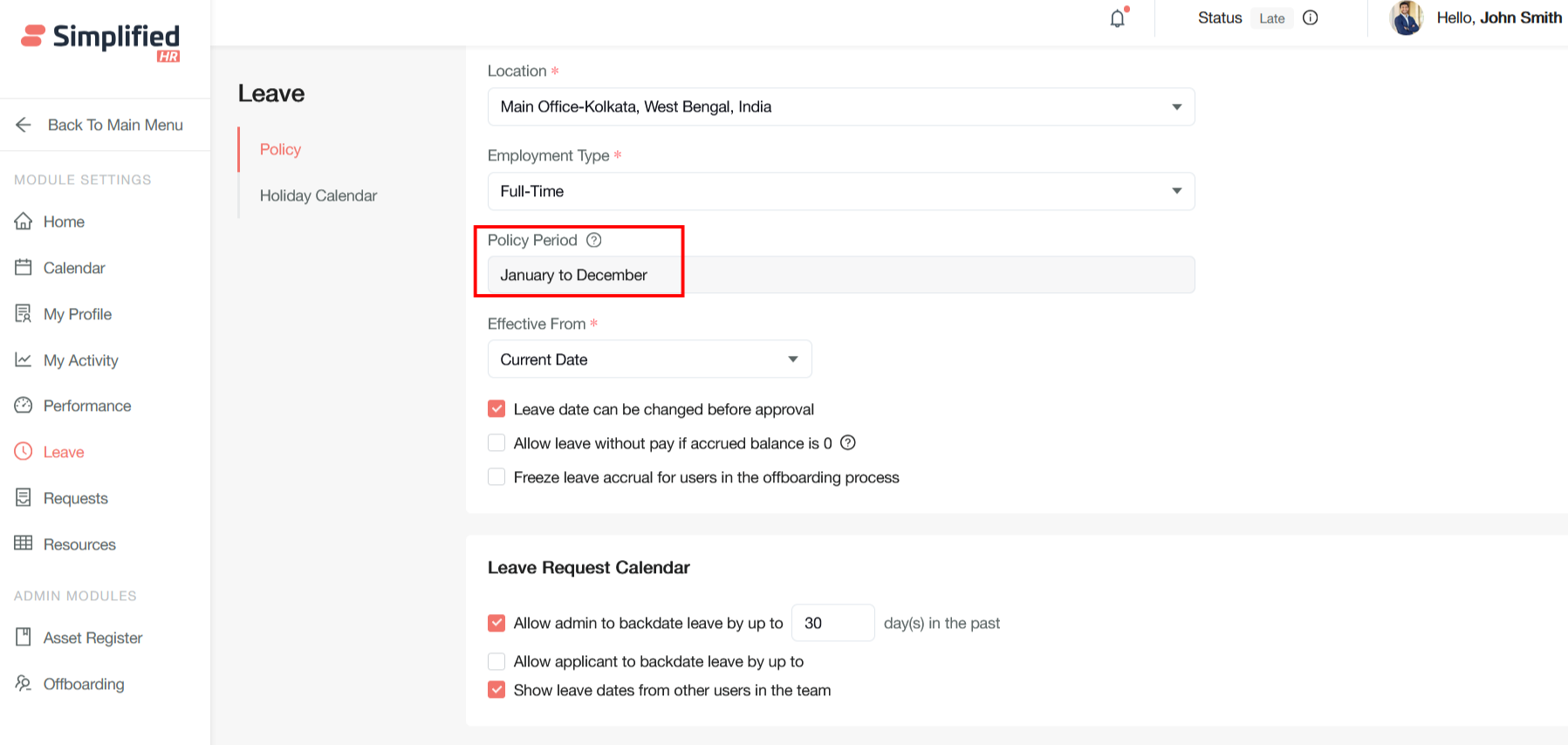
Configure Policy Period
The policy period is based on the work year for the selected location.
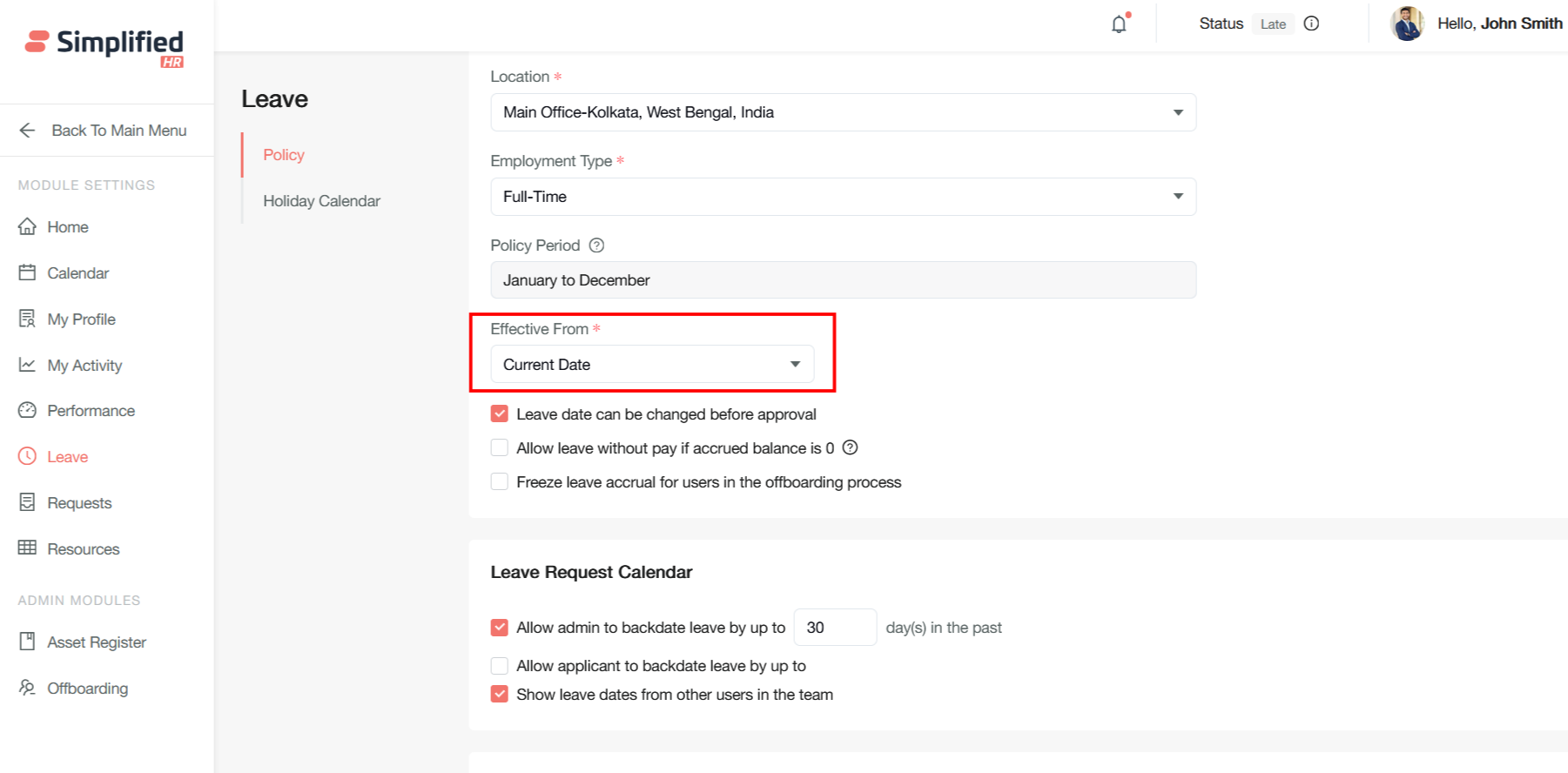
Configure Policy Effective Date
The 'Effective From' setting determines when a new or updated policy becomes active for eligible employees.
Current Date (Immediate Effect)
Policy becomes active immediately upon saving or approval.
Future Date (Scheduled Implementation)
Policy activates on a specific predetermined date.
Next Cycle (Cycle-Based Activation)
Policy becomes effective at the start of the next defined organizational cycle (annual, quarterly, or custom periods).
How it works: The system automatically calculates when the next cycle begins based on:
-
Calendar cycles: Next calendar year, quarter, or month.
-
Custom cycles: Organization-specific periods (e.g., academic year, seasonal cycles).
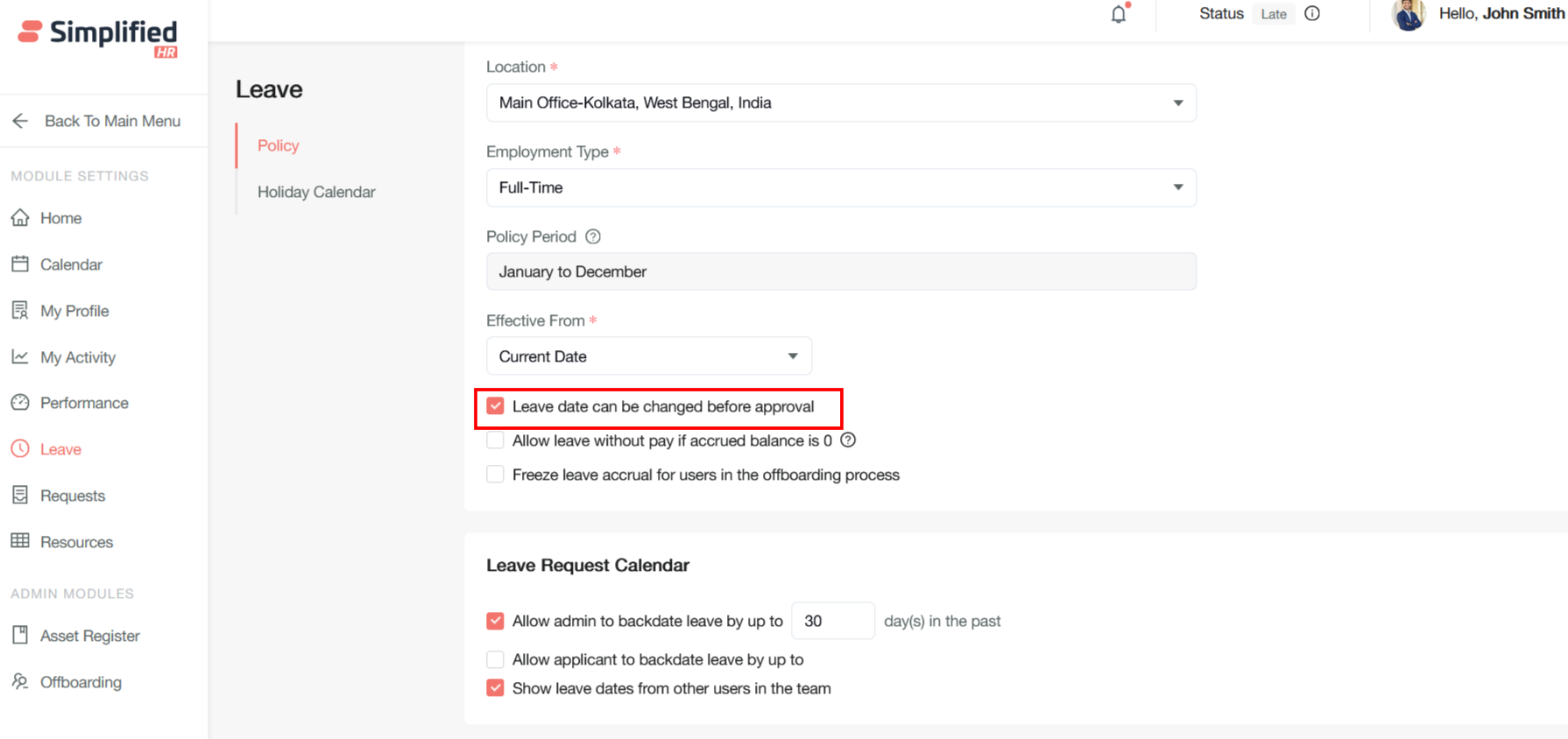
Allow Leave Date Changes Before Approval
Allows employees to modify pending leave request dates during the approval workflow, without needing full resubmission.
Configure Leave Without Pay
The 'Allow leave without pay if accrued balance is 0' setting determines whether employees can request unpaid leave once their paid leave entitlement is exhausted.
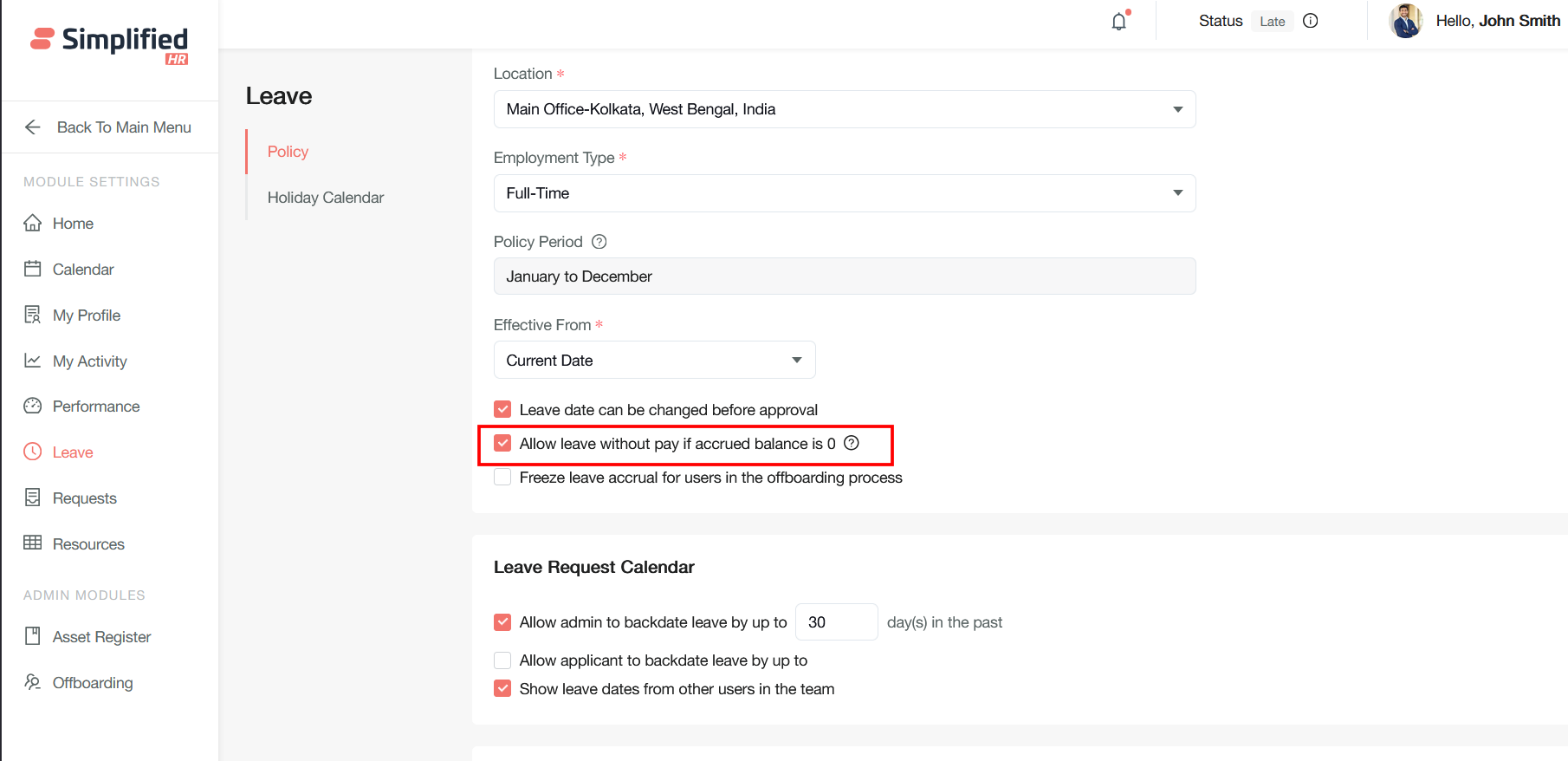
Important: This option is only available for employees with a zero leave balance.
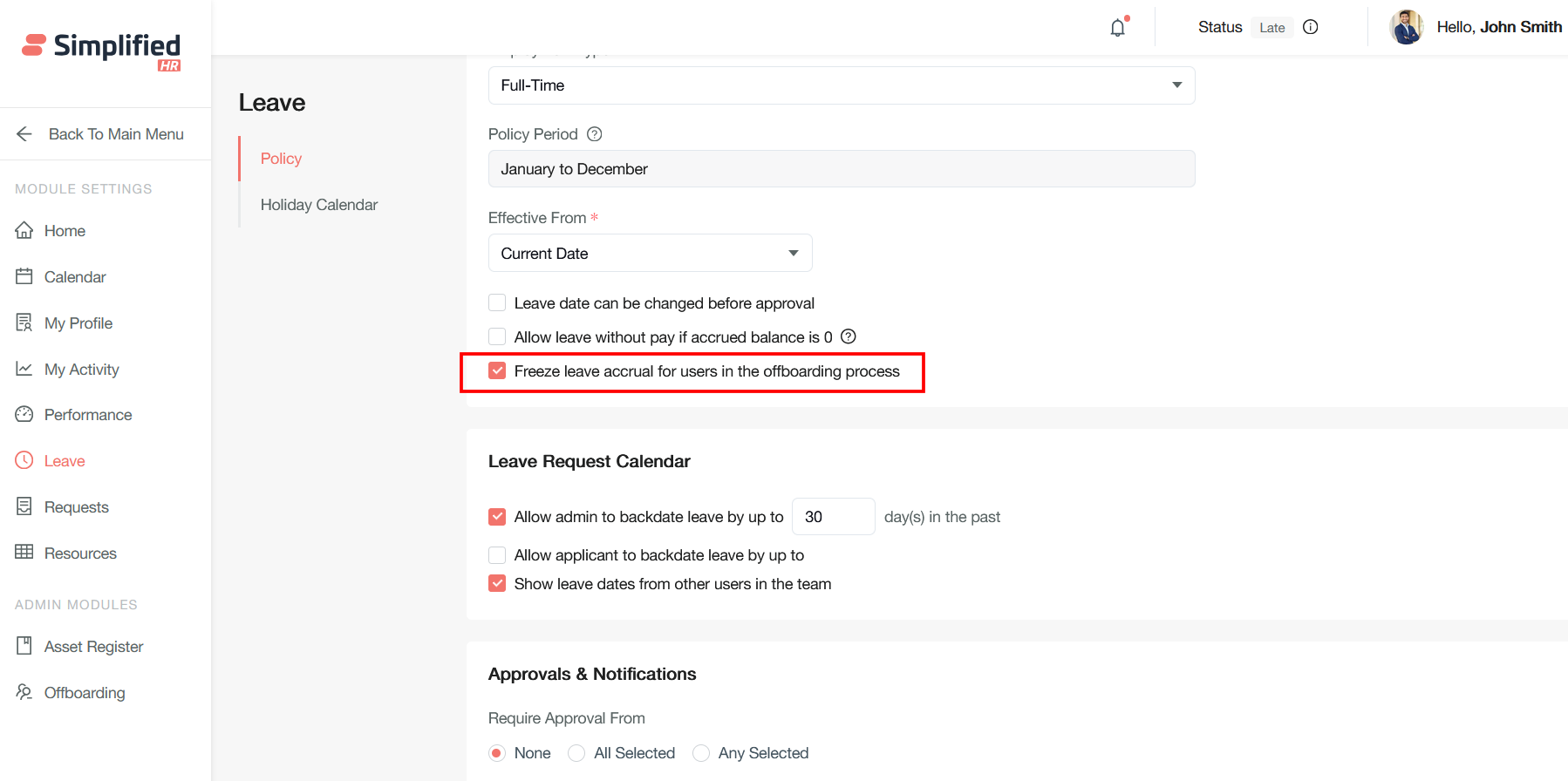
Freeze Leave Accrual for Offboarding Users
This setting stops paid leave from accruing for offboarding employees, ensuring accurate final calculations.
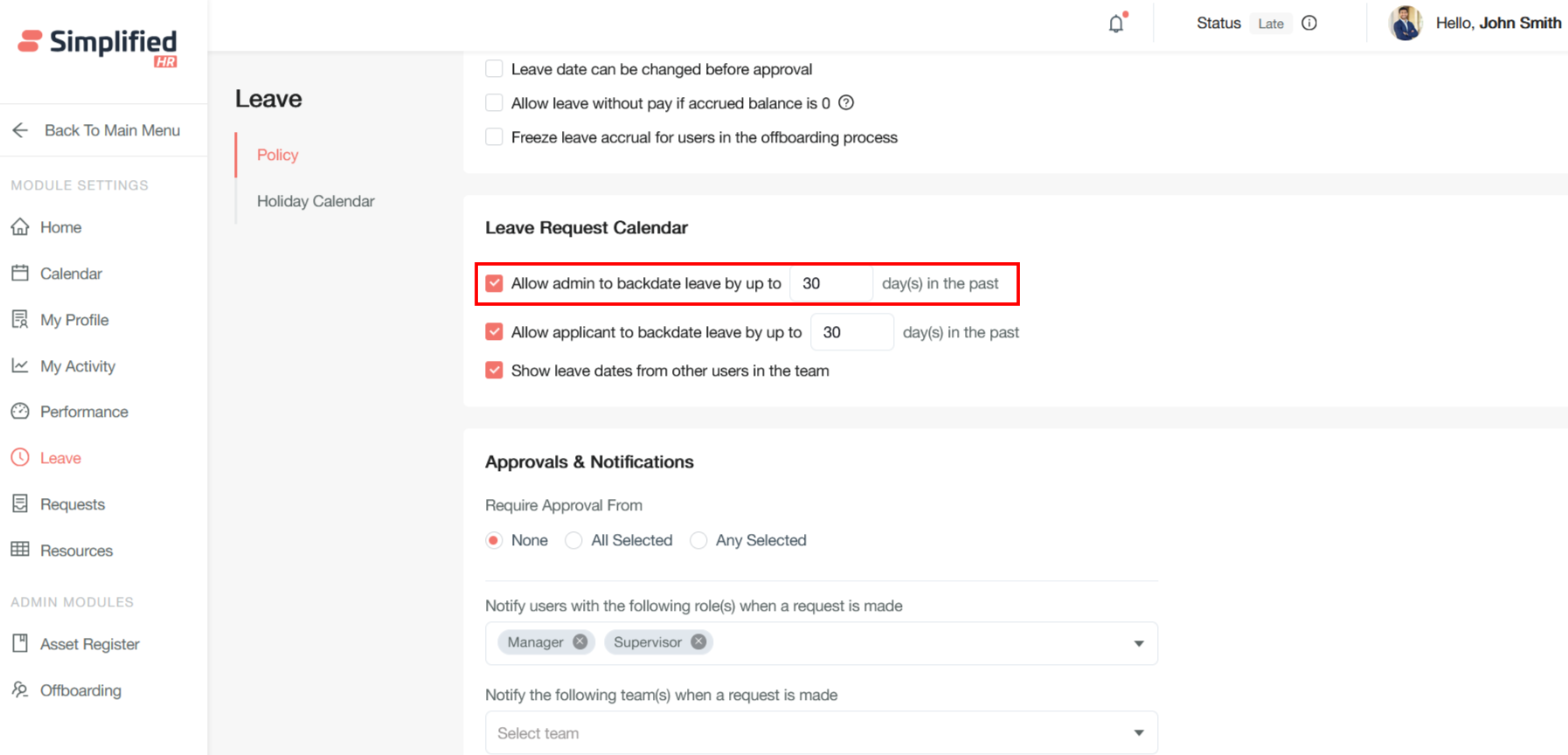
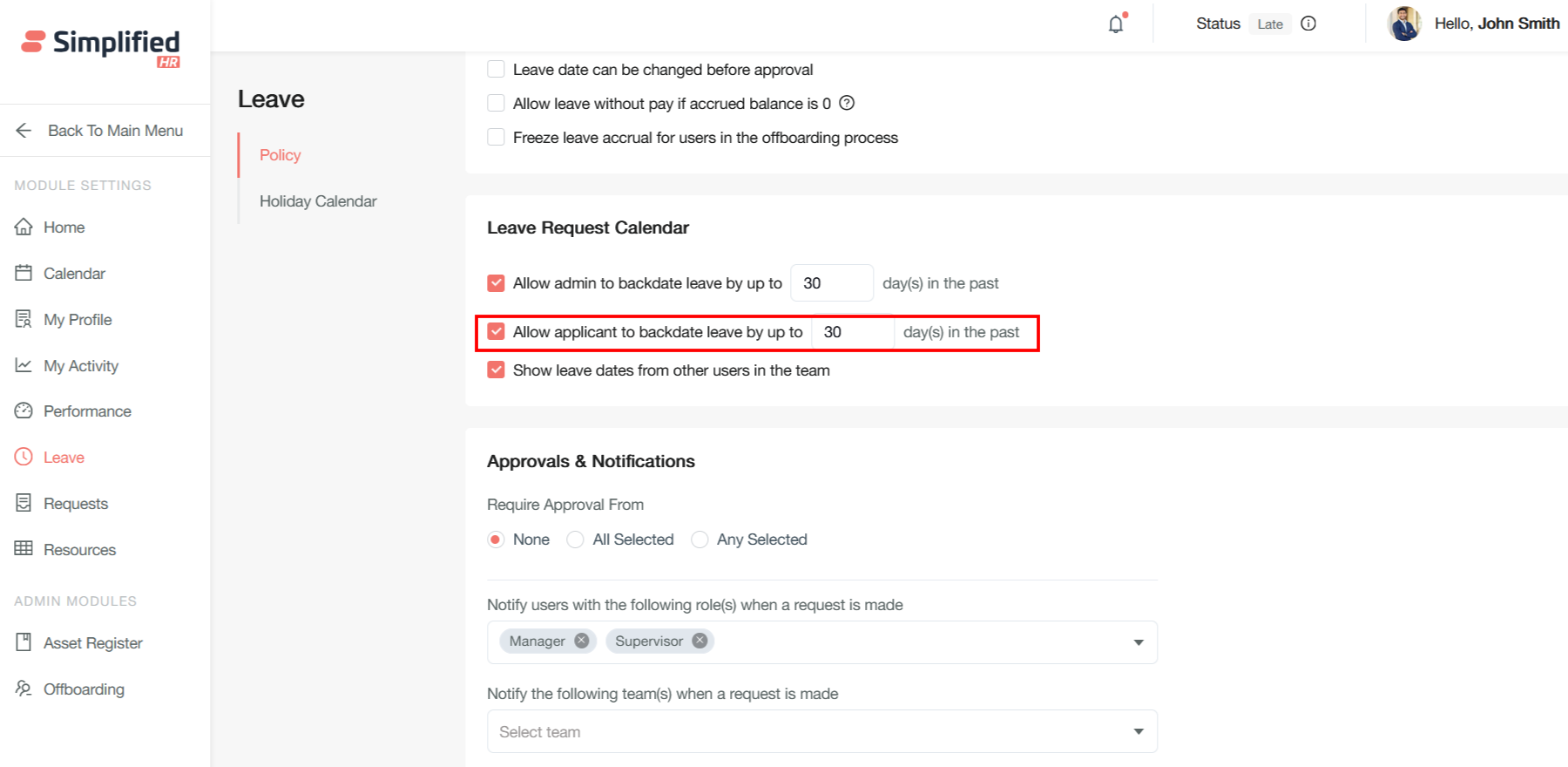
Configure Admin Backdated Leave
This setting lets admins bypass the normal backdating limits placed on regular employees, with the specified number of days determining how far back they can process requests.
Configure Employee Backdated Leave
The "Allow Applicant to Backdate Leave by Up to X Day(s) in the Past" setting lets employees submit past-dated leave applications for genuine cases where timely application wasn't possible, through the self-service portal, up to the specified number of days.
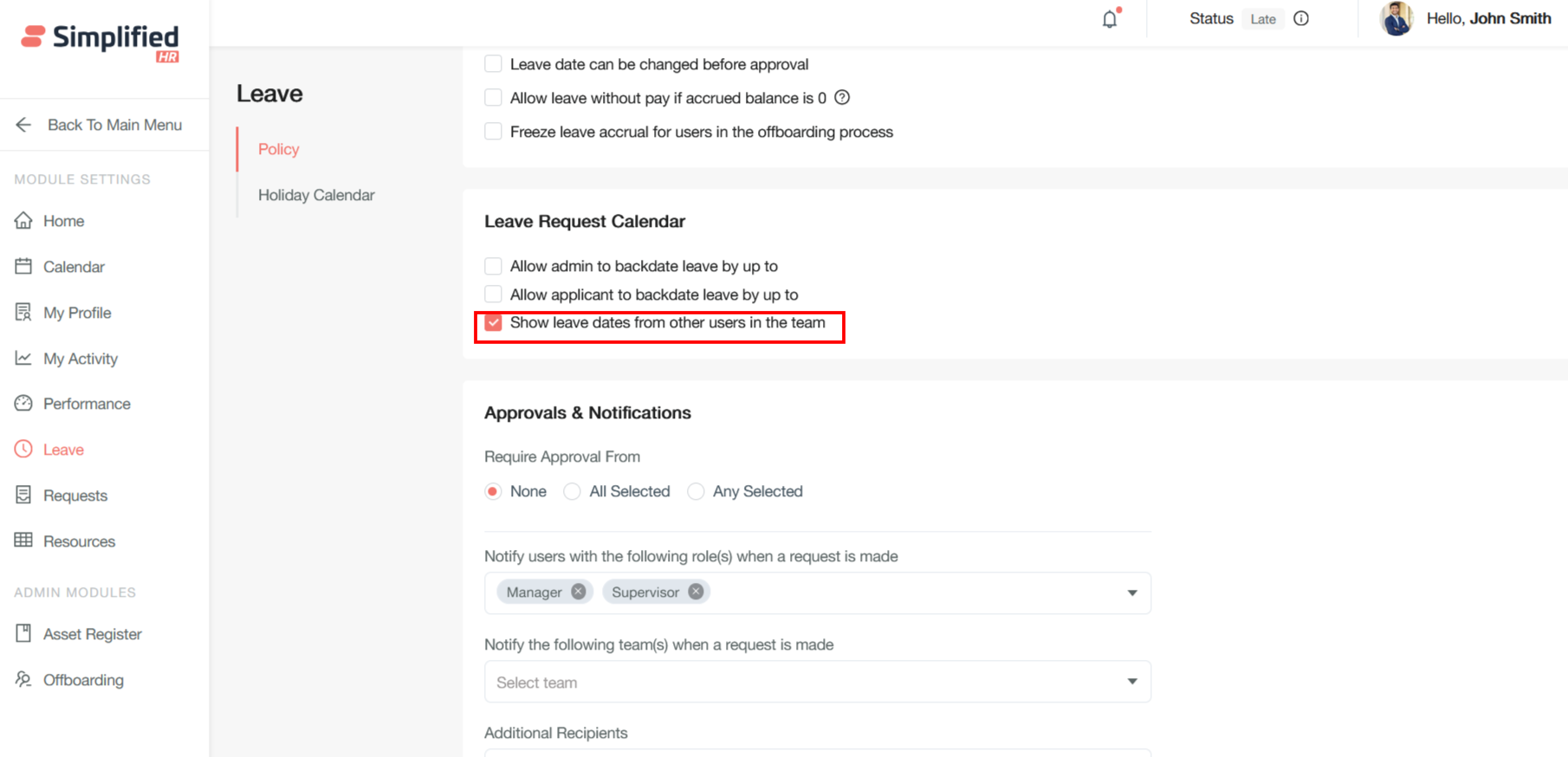
Configure Team Leave Visibility
The "Show Leave Dates from Other Users in the Team" setting lets team members view each other's approved/pending leave schedules, aiding coordination.
Configure Leave Accrual
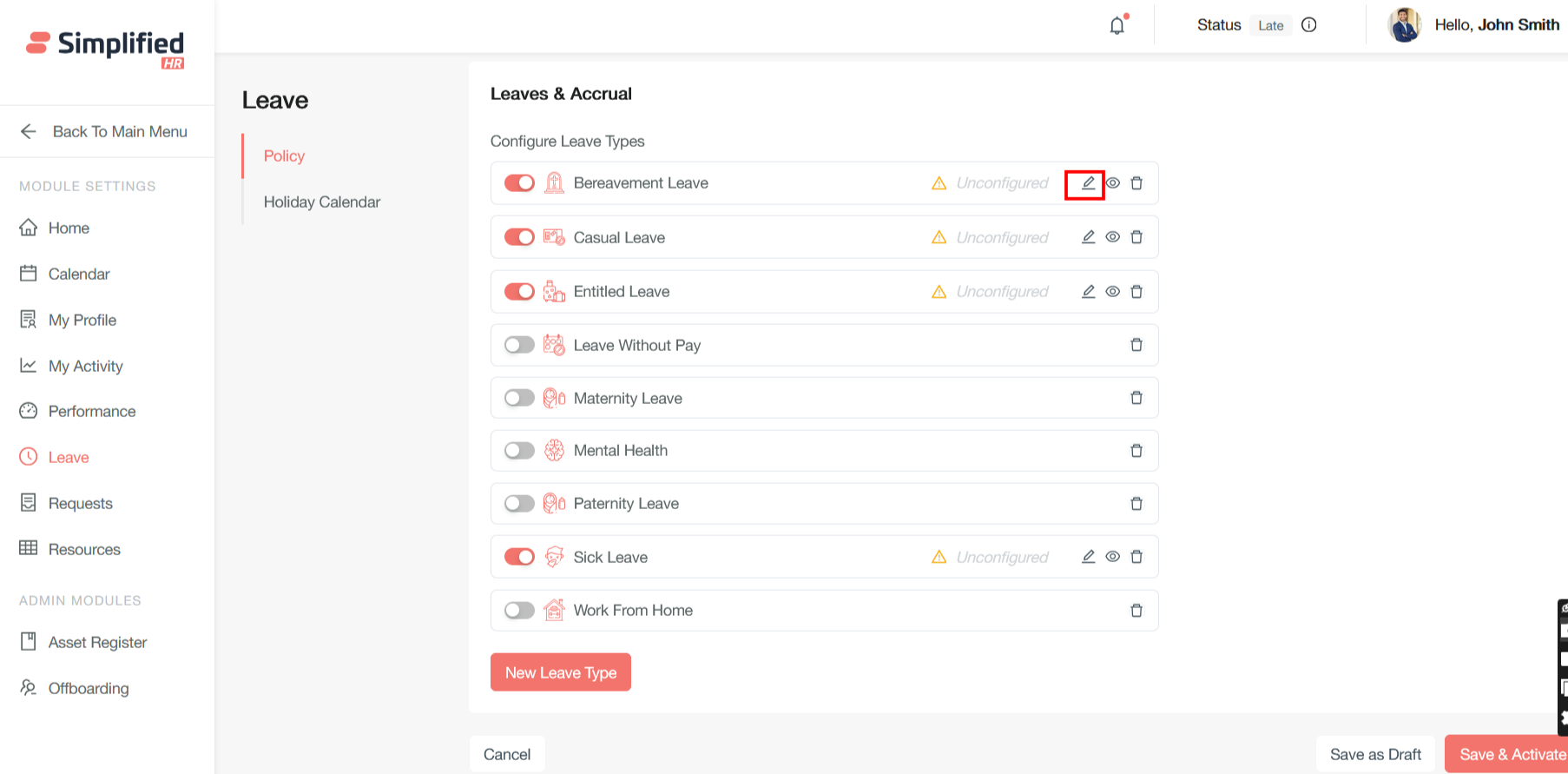
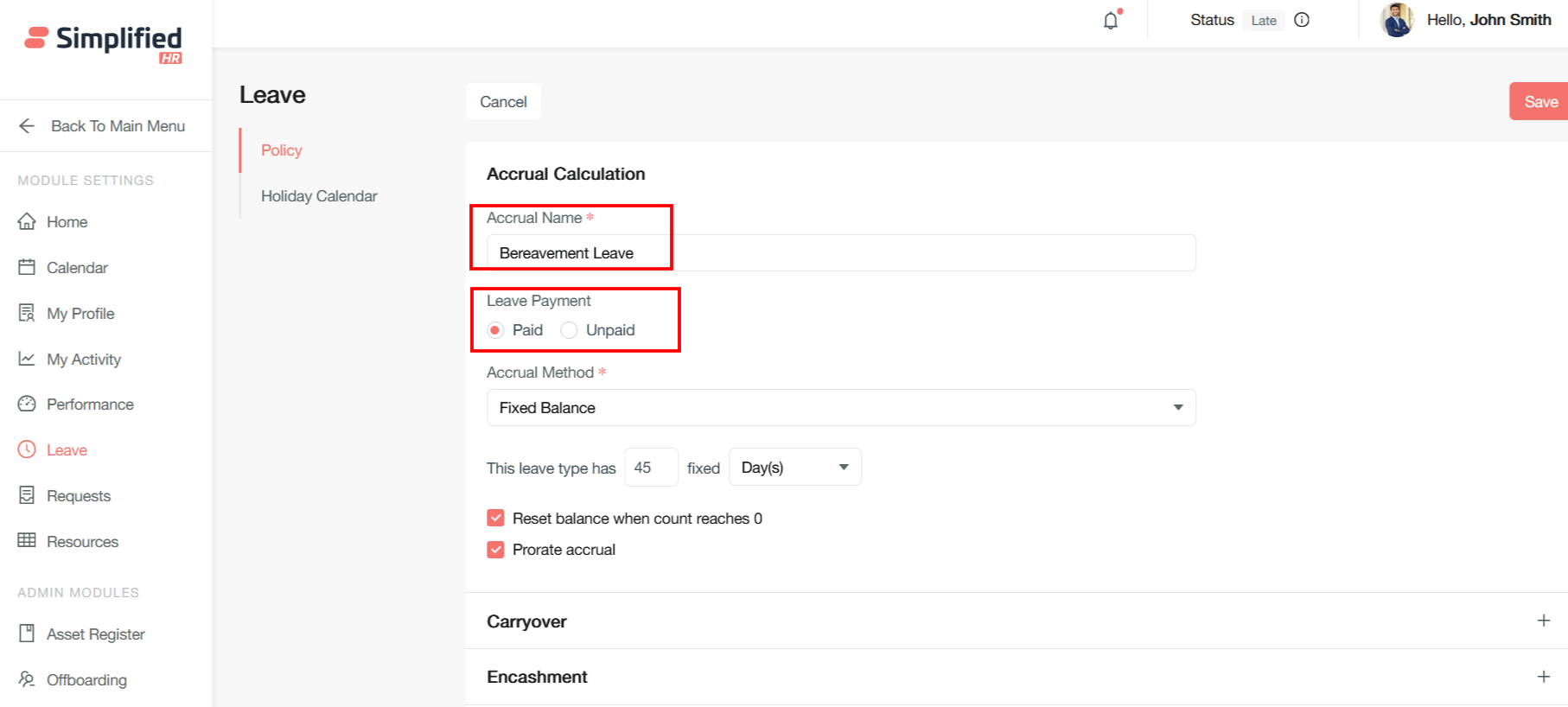
These systems offer extensive customization for varying employment types, leave types, and location-specific regulations. To set up accrual, click the edit icon for a leave type, then provide an accrual name and choose Paid or Unpaid.
Configure Paid Leave
Paid leave is time off during which the employee continues to receive normal salary and benefits.
Configure Unpaid Leave
Unpaid leave is extended time off without compensation, which can create financial challenges for employees.
Important: Only unpaid leave days will be deducted from the salary, unless there is a full month of unpaid leave, in which case the total salary will not be credited.
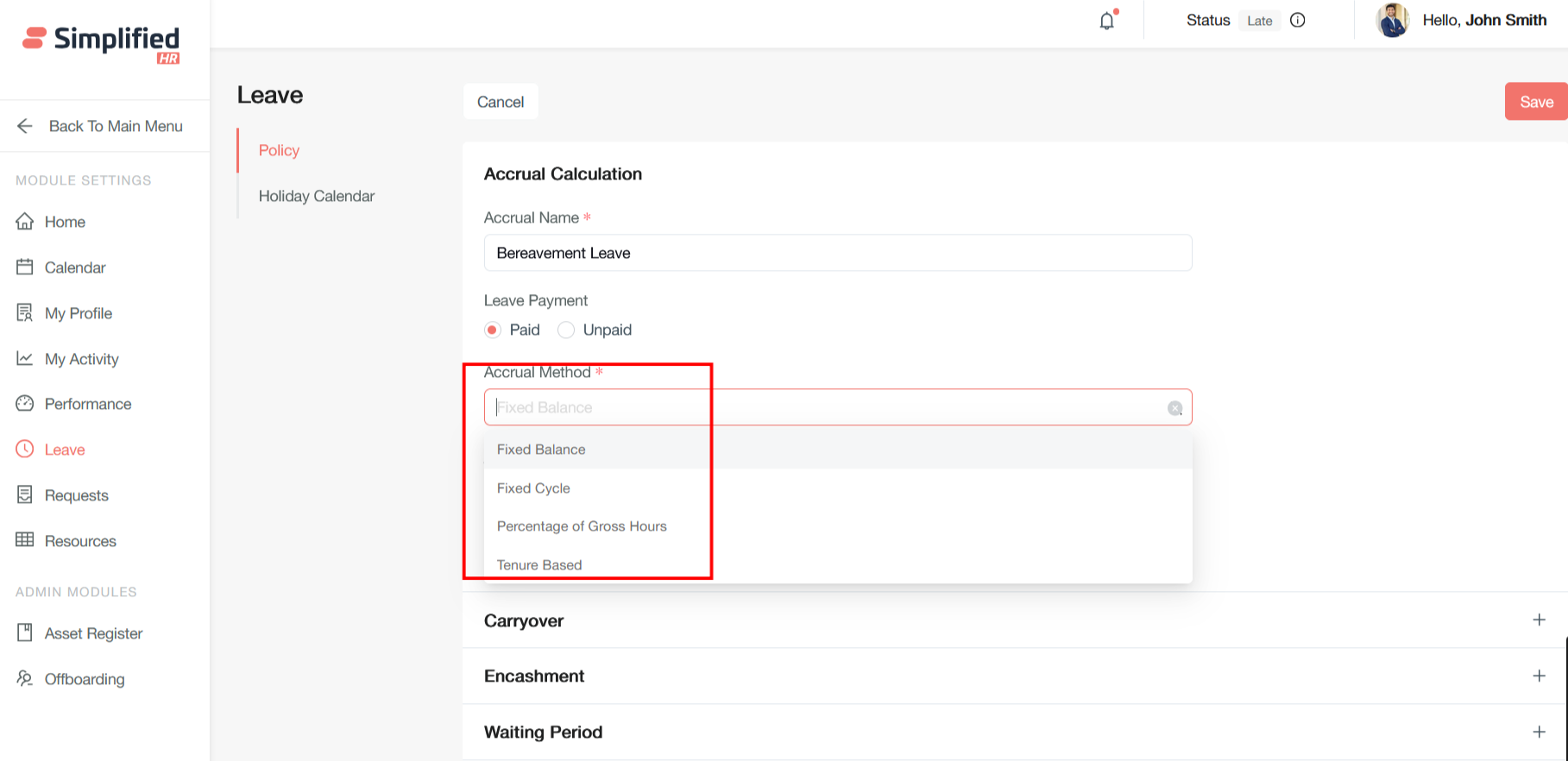
Configure Accrual Method
Accrual methods can be combined/customized to meet organizational policies. Available methods:
-
Fixed Balance — A predetermined lump-sum allocation of leave days/hours credited upfront, typically annually, rather than earned gradually.
-
Fixed Cycle — Leave credited at regular intervals (monthly, bi-weekly, quarterly) regardless of hours worked, for consistent timing.
-
Percentage of Gross Hours — Leave calculated as a percentage of hours worked per pay period, proportional to time worked; suits part-time/variable schedules.
-
Tenure-Based — Accrual rates adjust by length of service, typically rewarding longer tenure as a retention incentive.
Configure Leave Entitlement
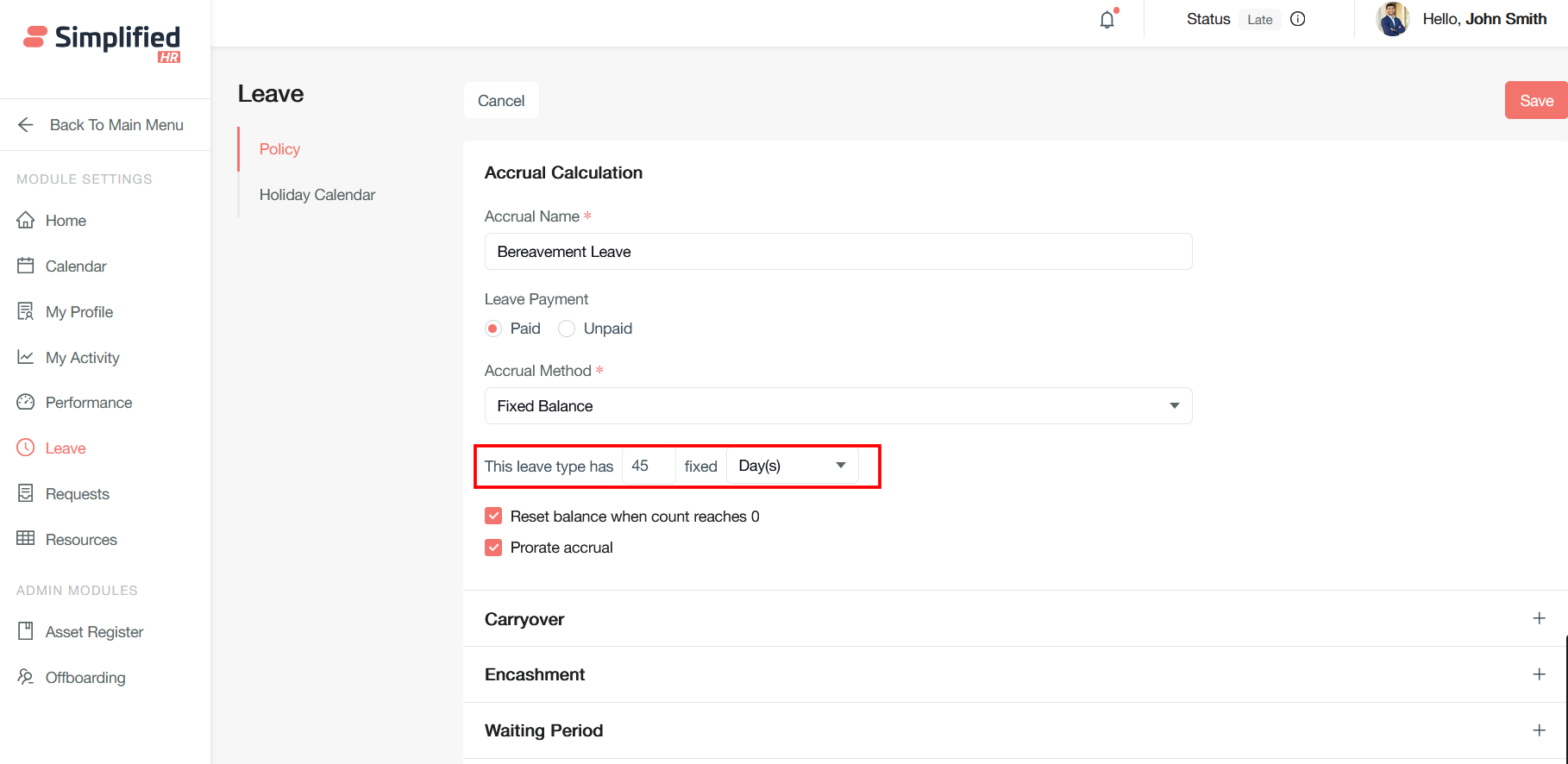
Define the number of days you want to provide for the leave type.
Reset Leave Balance
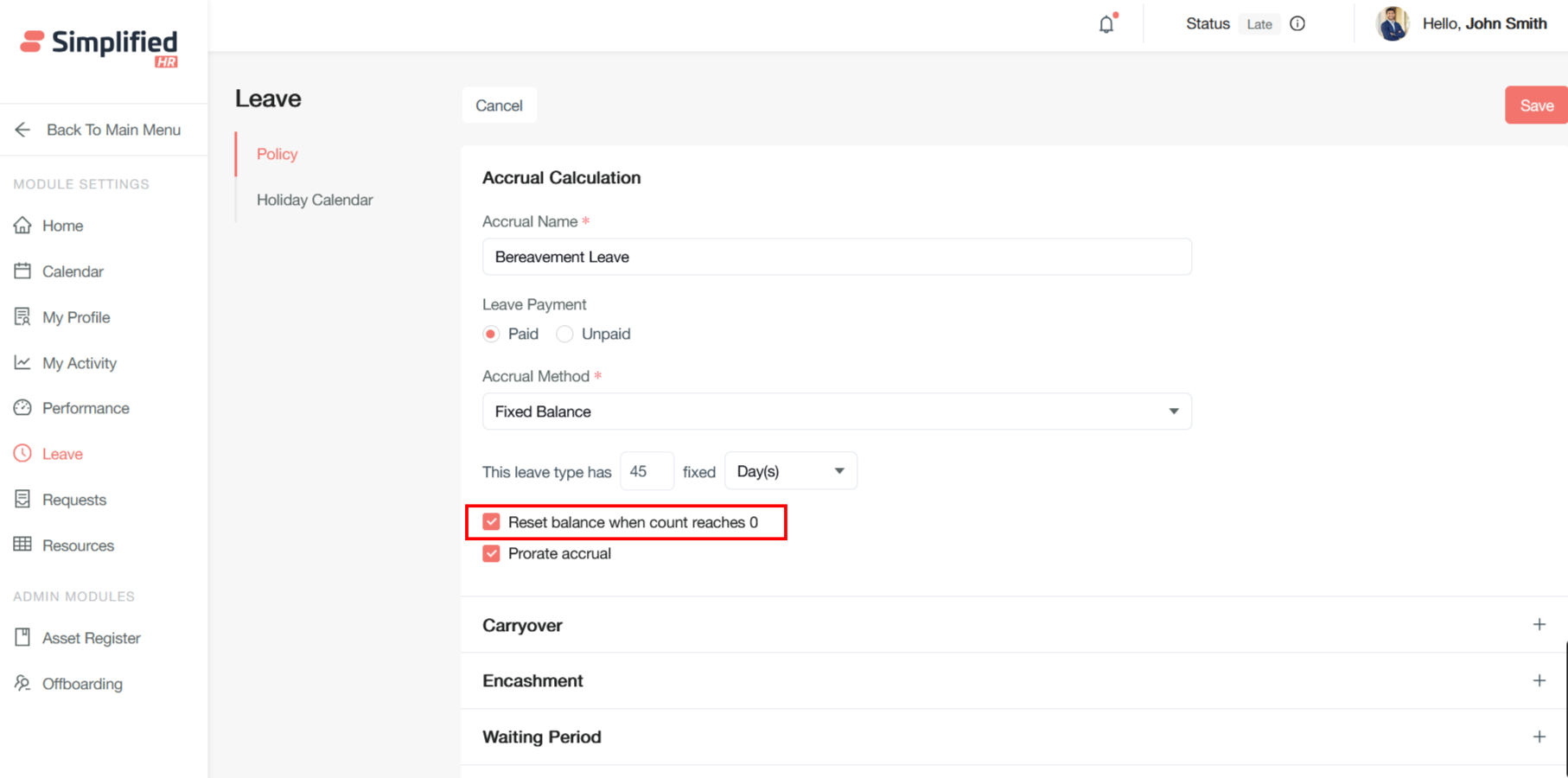
Check "Reset balance when count reaches 0" to control whether the system resets to a predetermined amount or stays at zero until the next accrual period.
Configure Prorated Accrual
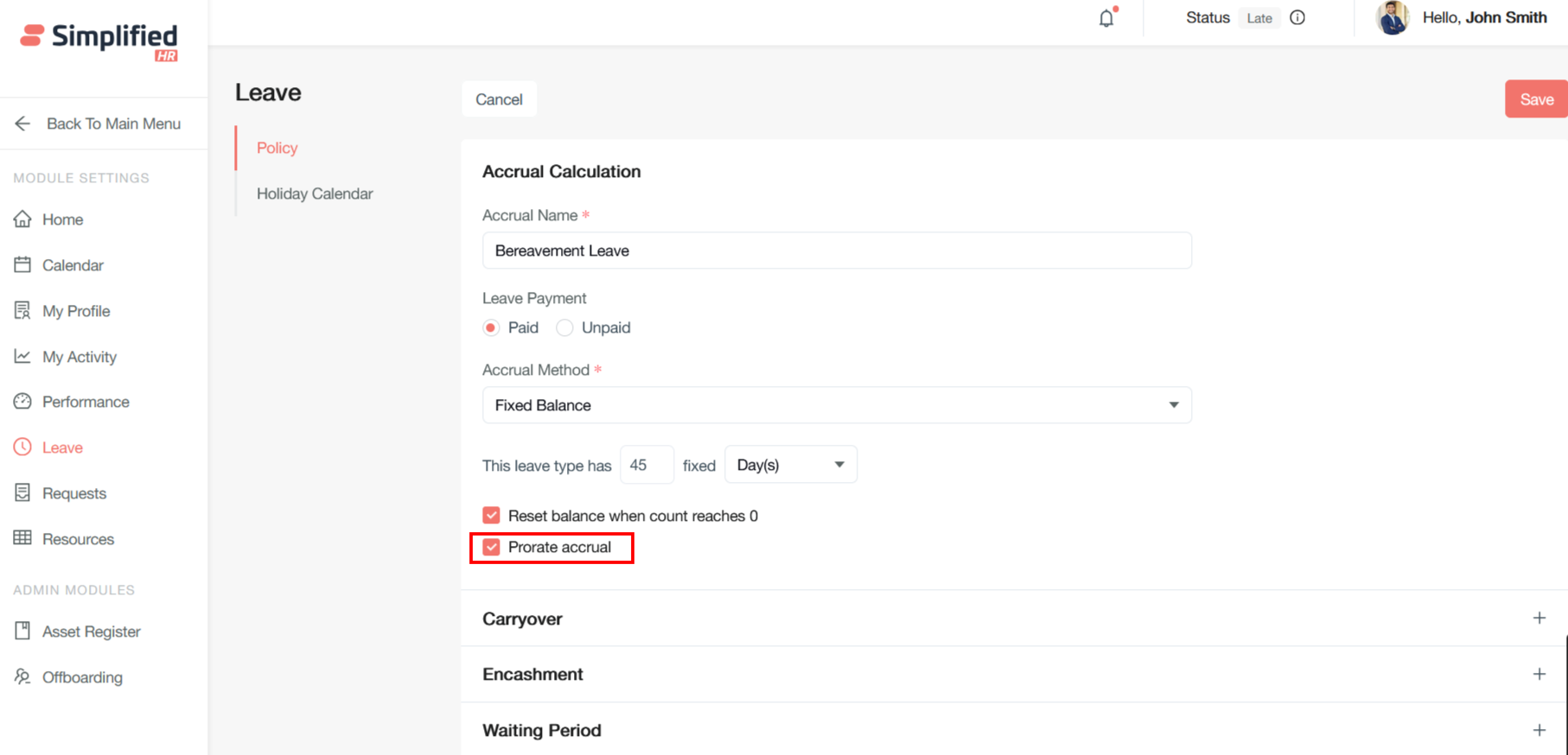
Check "Prorate Accrual" to adjust an employee's leave entitlement proportionally based on actual time worked in the accrual period, ensuring a fair allocation.
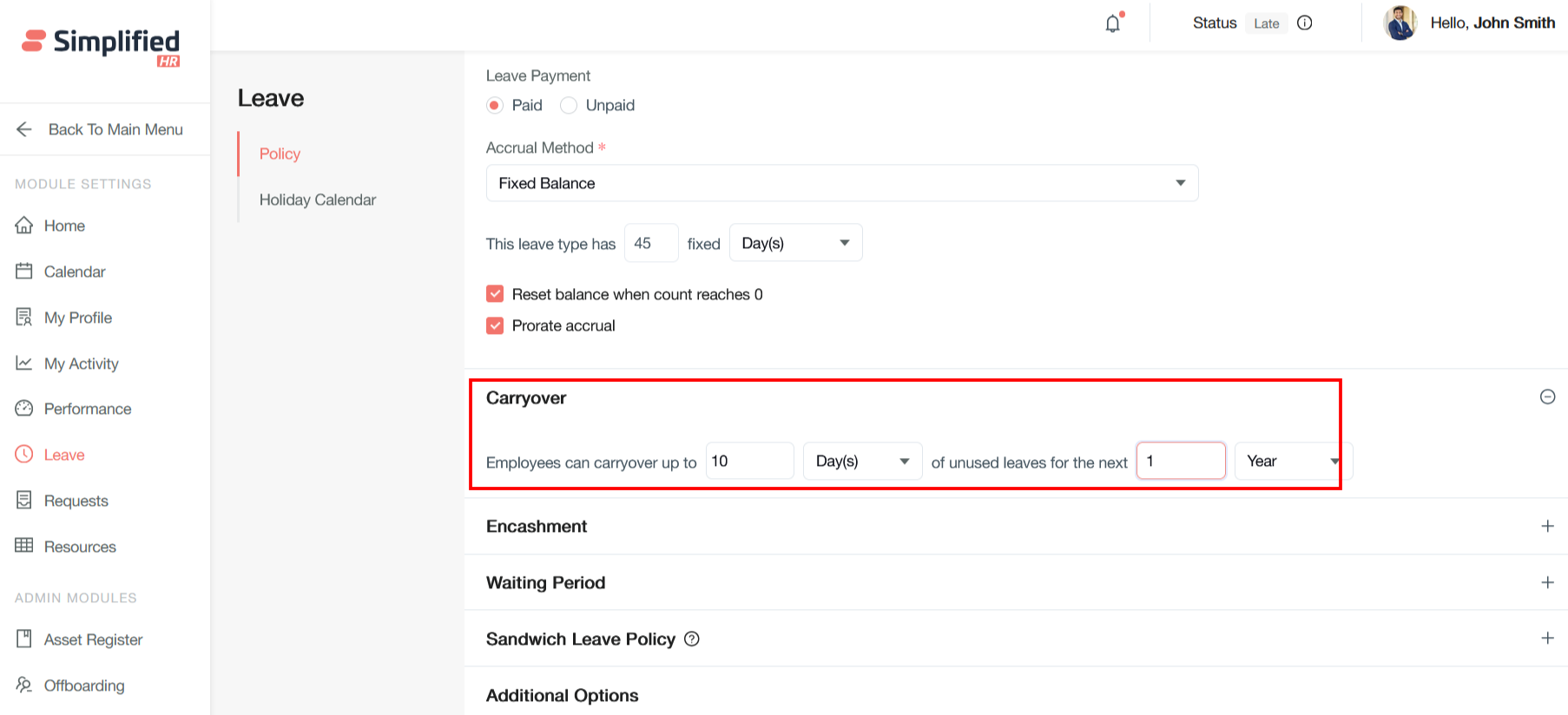
Configure Leave Carryover
The system processes carryover with precedence over encashment. This is a basic transfer of unused leave to the next period, but it expires after a specified period.
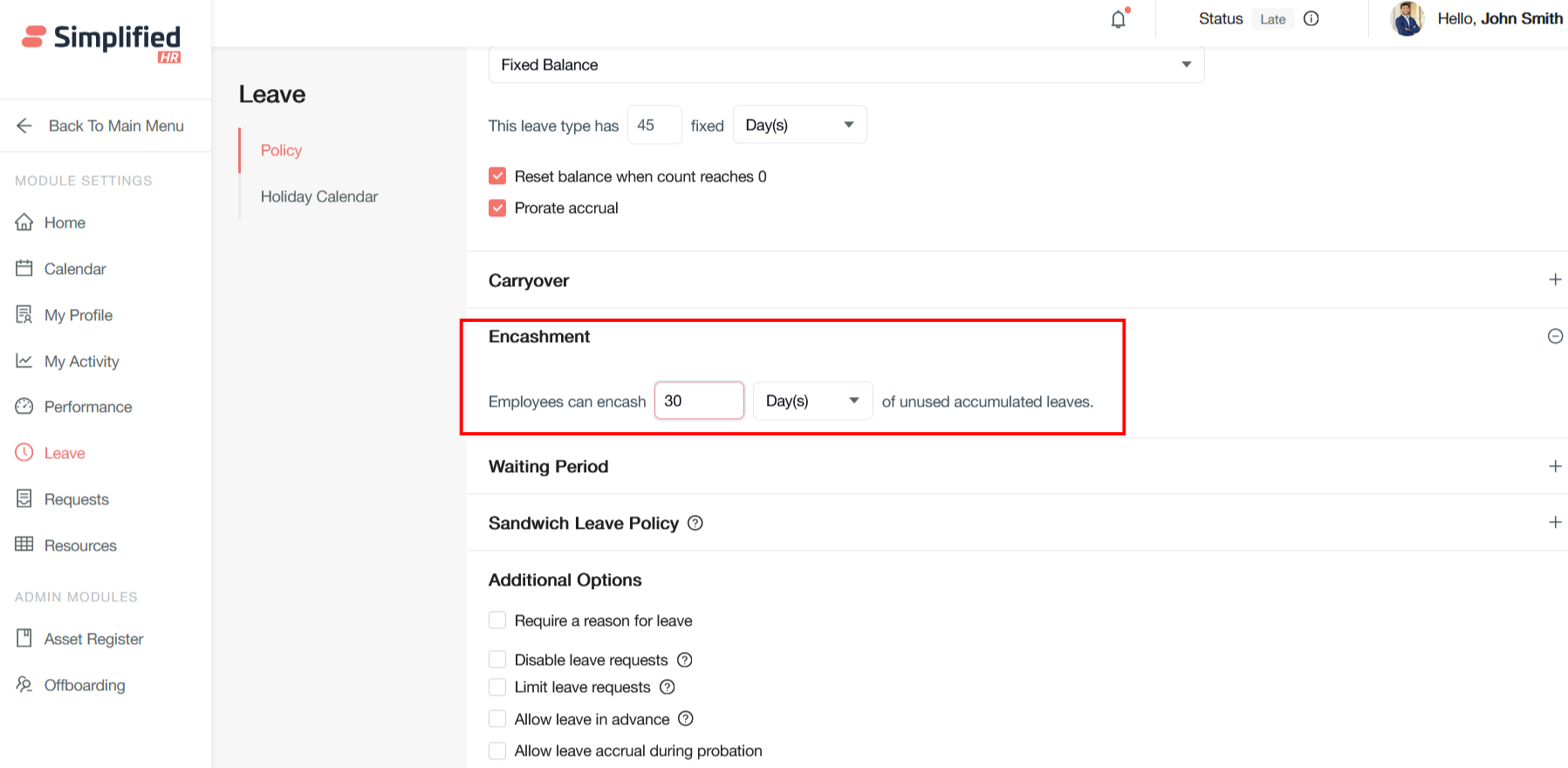
Configure Leave Encashment
Leave encashment converts accumulated leave into monetary compensation.
Process Leave Encashment
The encashment process follows these steps:
-
Accumulation — Unused leave carries over annually.
-
Request submission — Formal application during employment, or automatic during separation.
-
Calculation and approval — HR validates balances and computes entitlement.
-
Disbursement — Payment through next salary or final settlement.
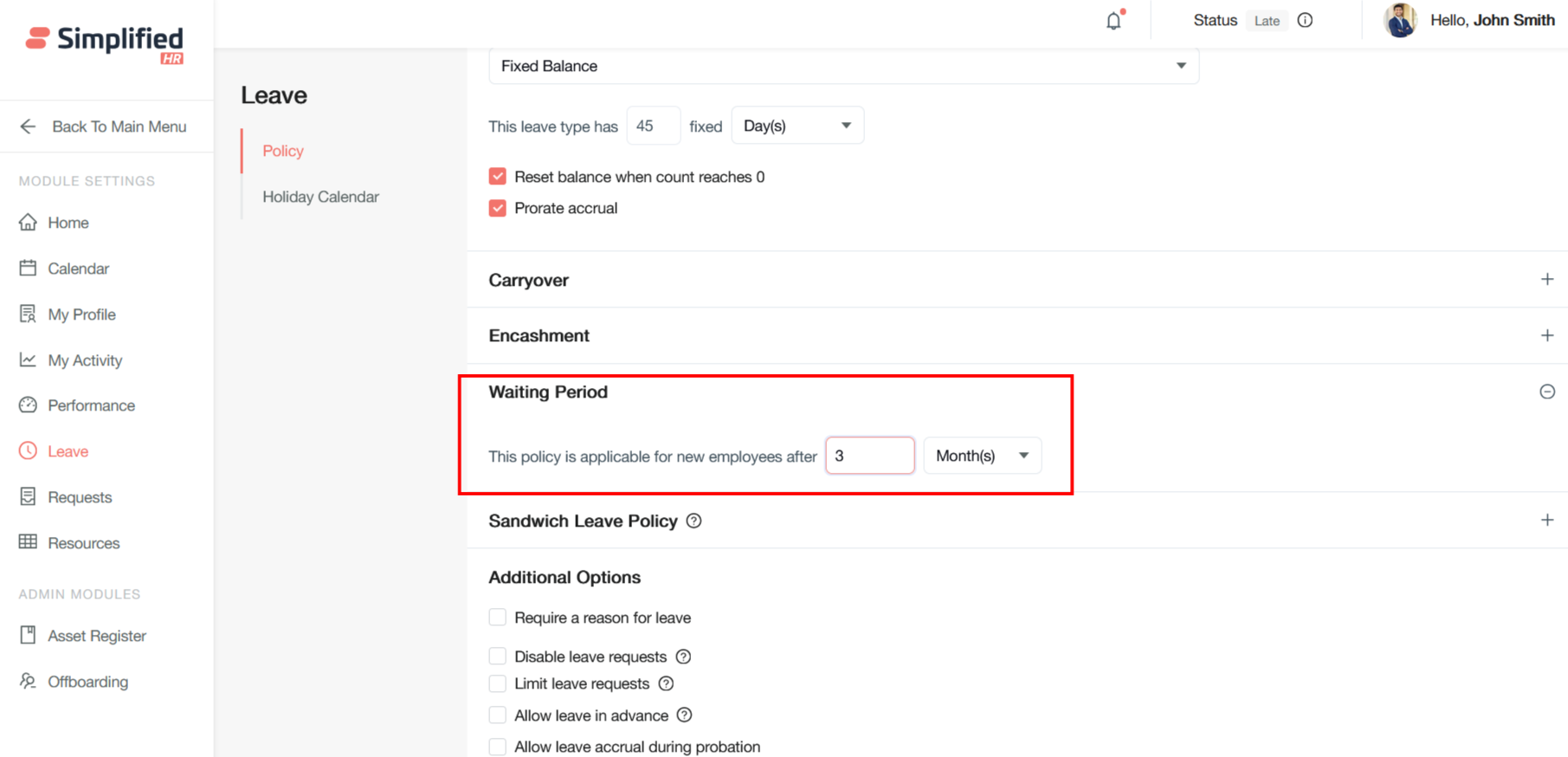
Configure Waiting Period
Service tenure requirements before leave eligibility can be configured with specific parameters.
Key settings:
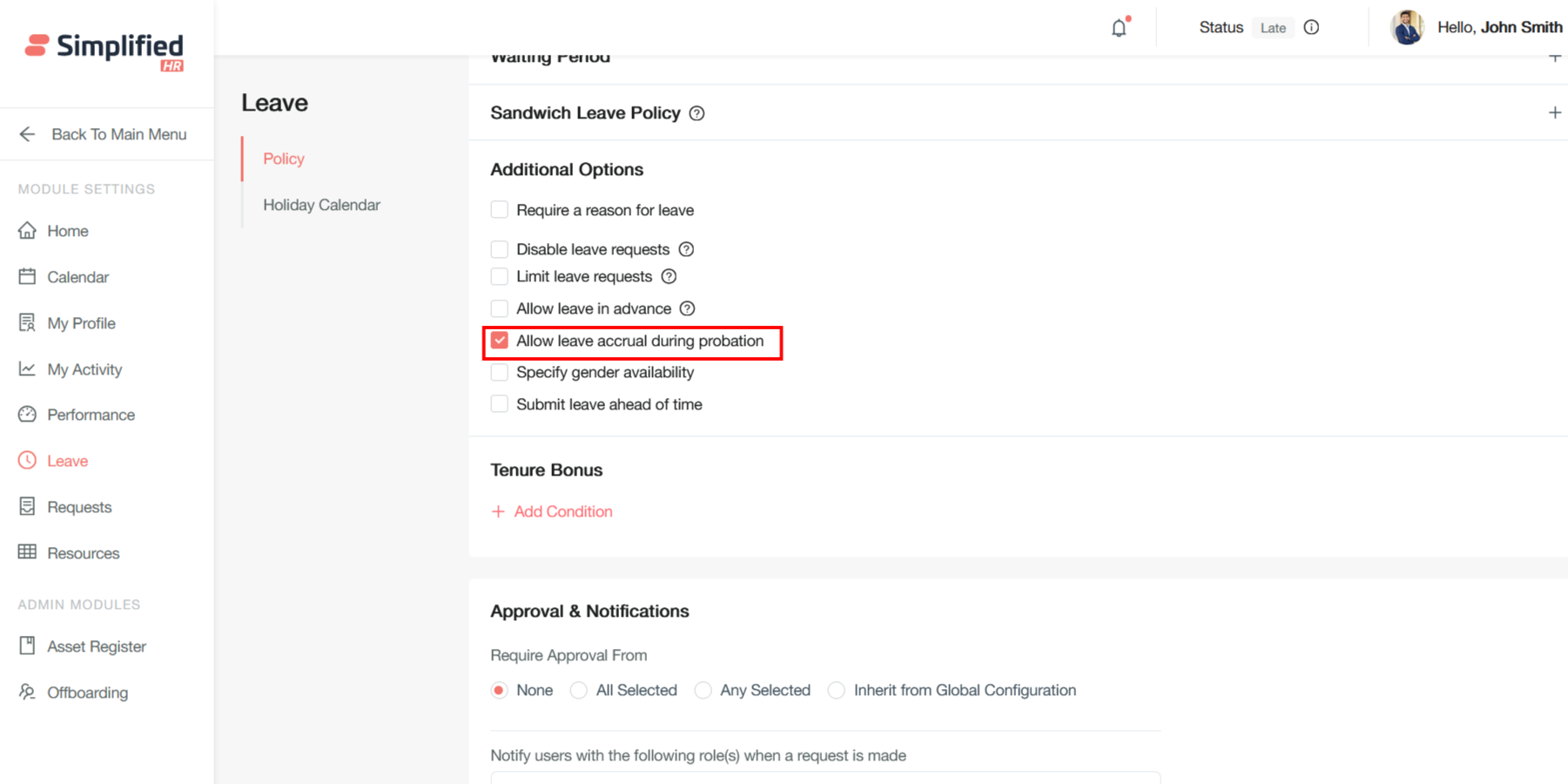
Allow Leave Accrual During Probation
This setting determines whether new employees accumulate leave entitlements from their first day or after completing probationary periods.
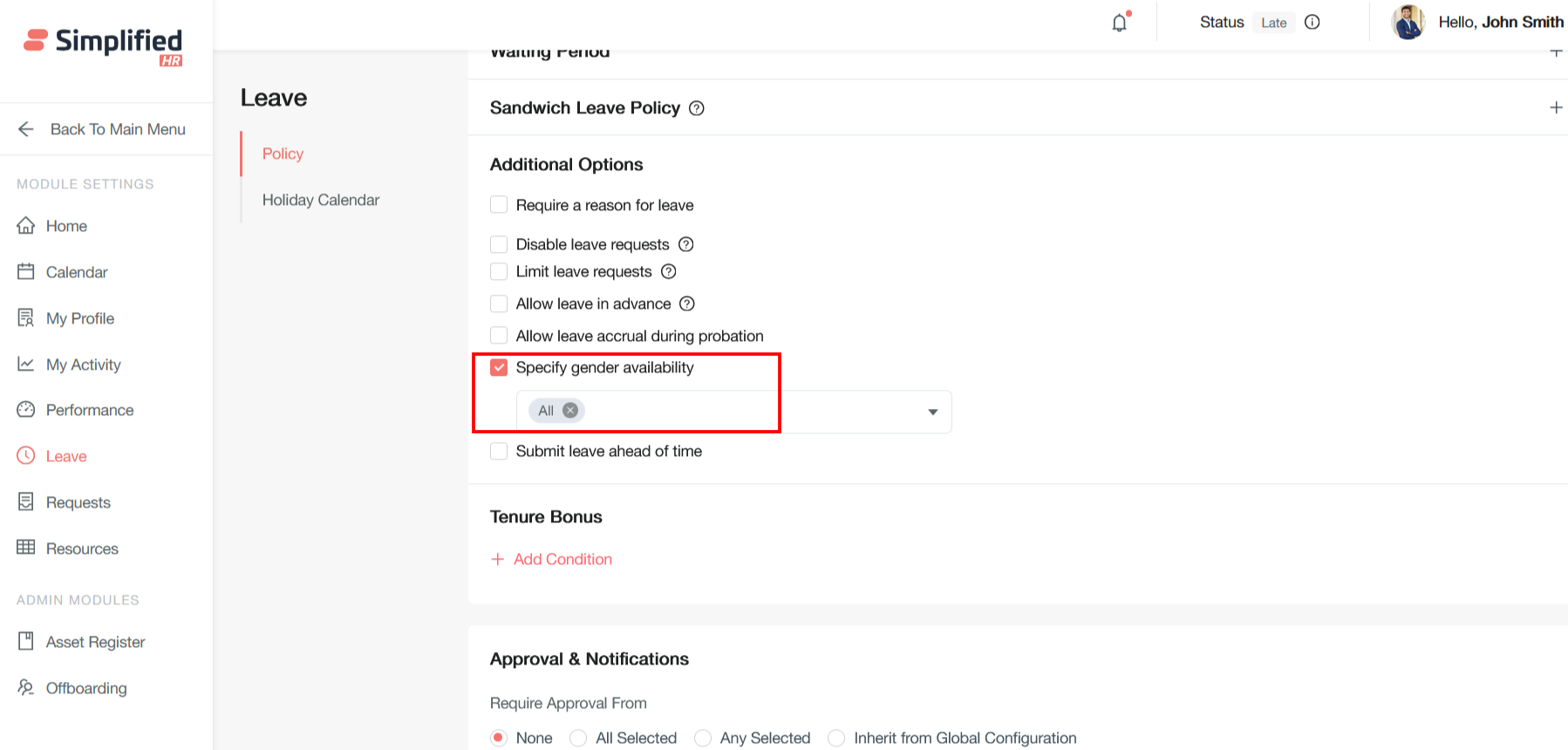
Configure Gender Availability
The "Specify gender availability" setting allows certain leave types to be restricted based on employee gender, particularly relevant for statutory leaves like maternity and paternity leave.
Configure Tenure Bonus
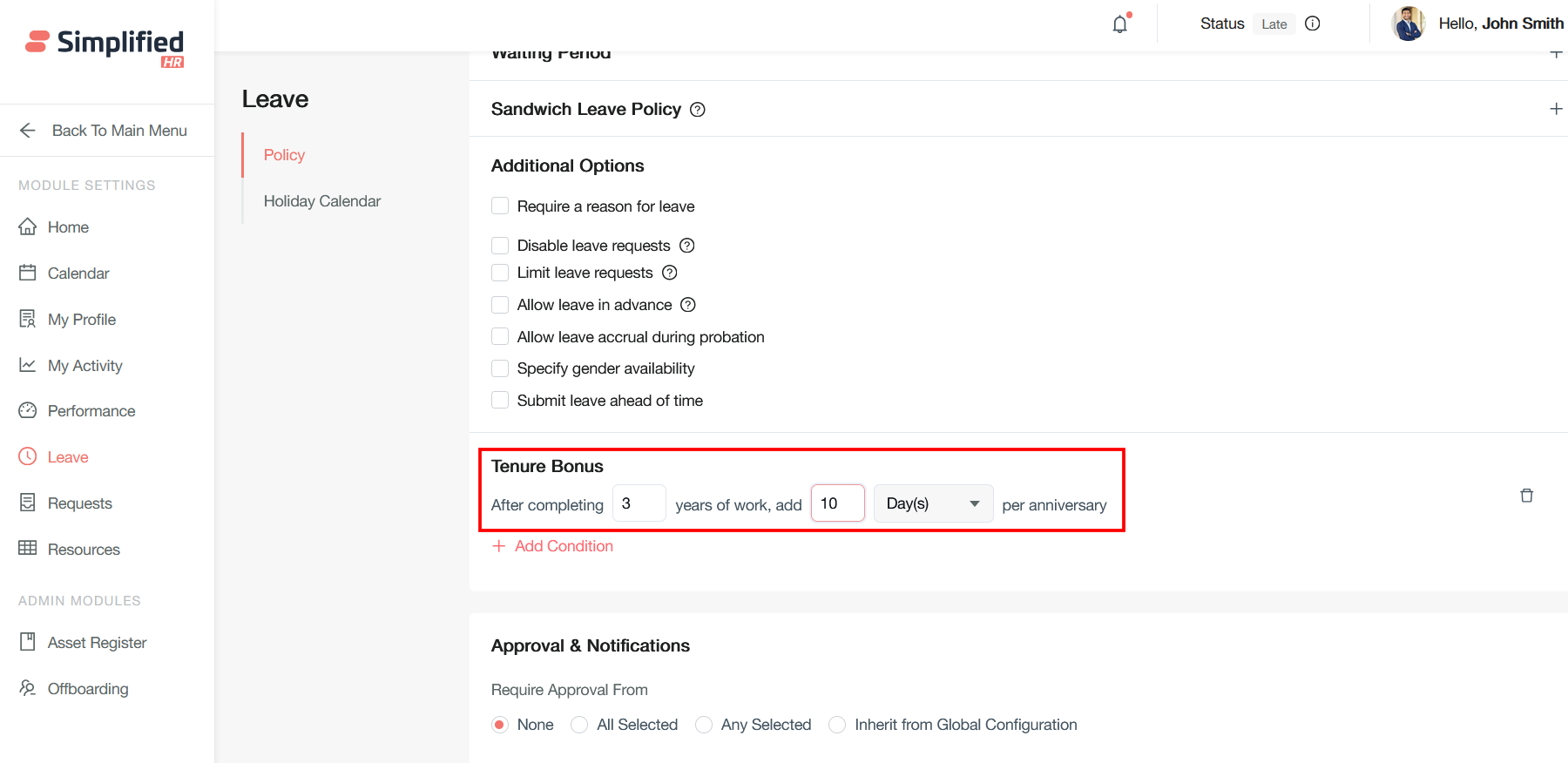
A tenure bonus is a supplemental number of days offered beyond regular leave, to encourage employees to stay with the company for a set period.
An anniversary-based policy adds days per anniversary after specific years of service — a progressive system that increases annual leave entitlement based on tenure.
Configure Sandwich Leave
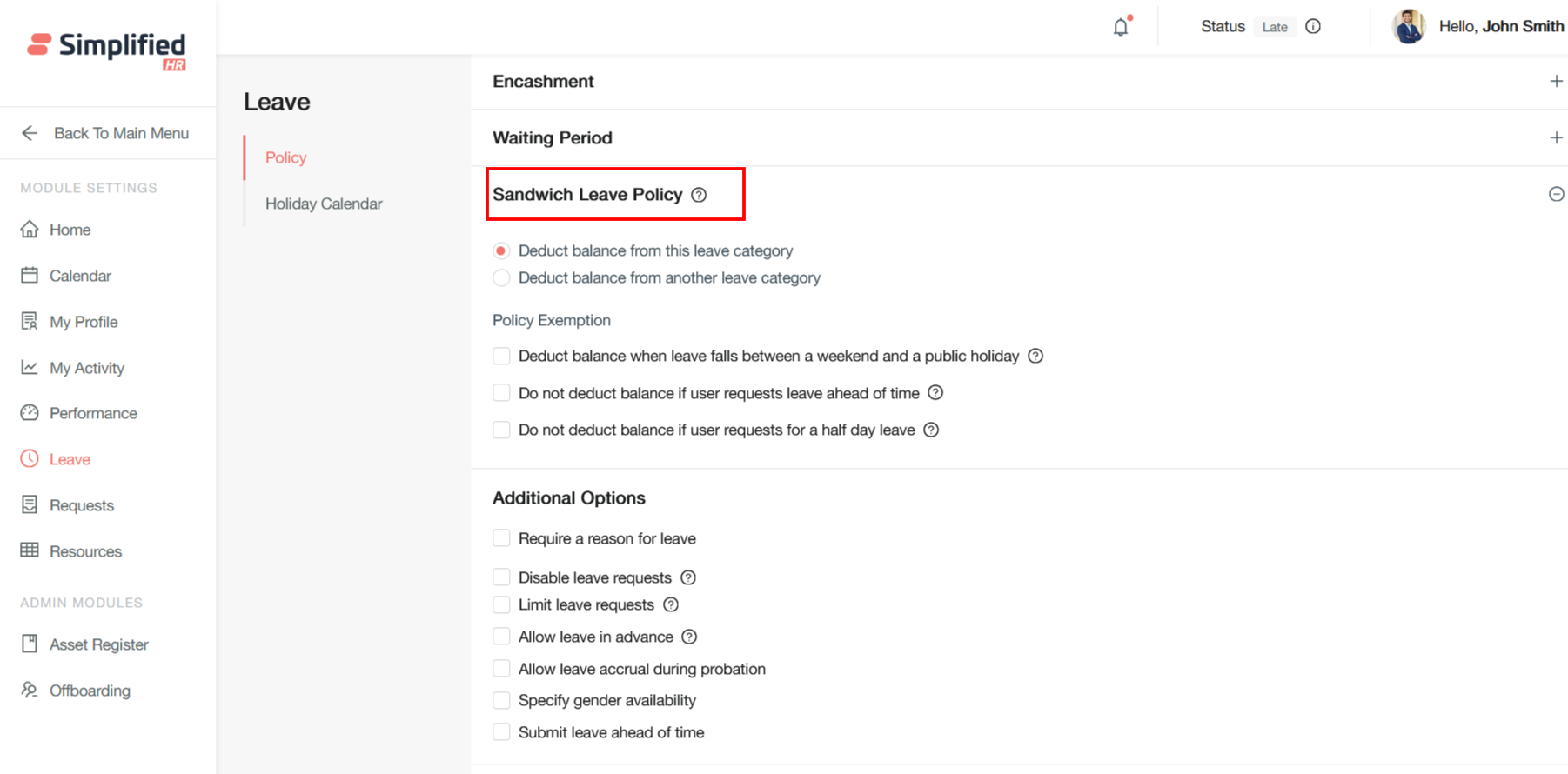
Sandwich leave is when employees take leave immediately before and after weekends or public holidays, creating extended time off.
If leave falls on days before and after non-working days (a weekend or holiday), those non-working days also count as leave and are deducted from balance.
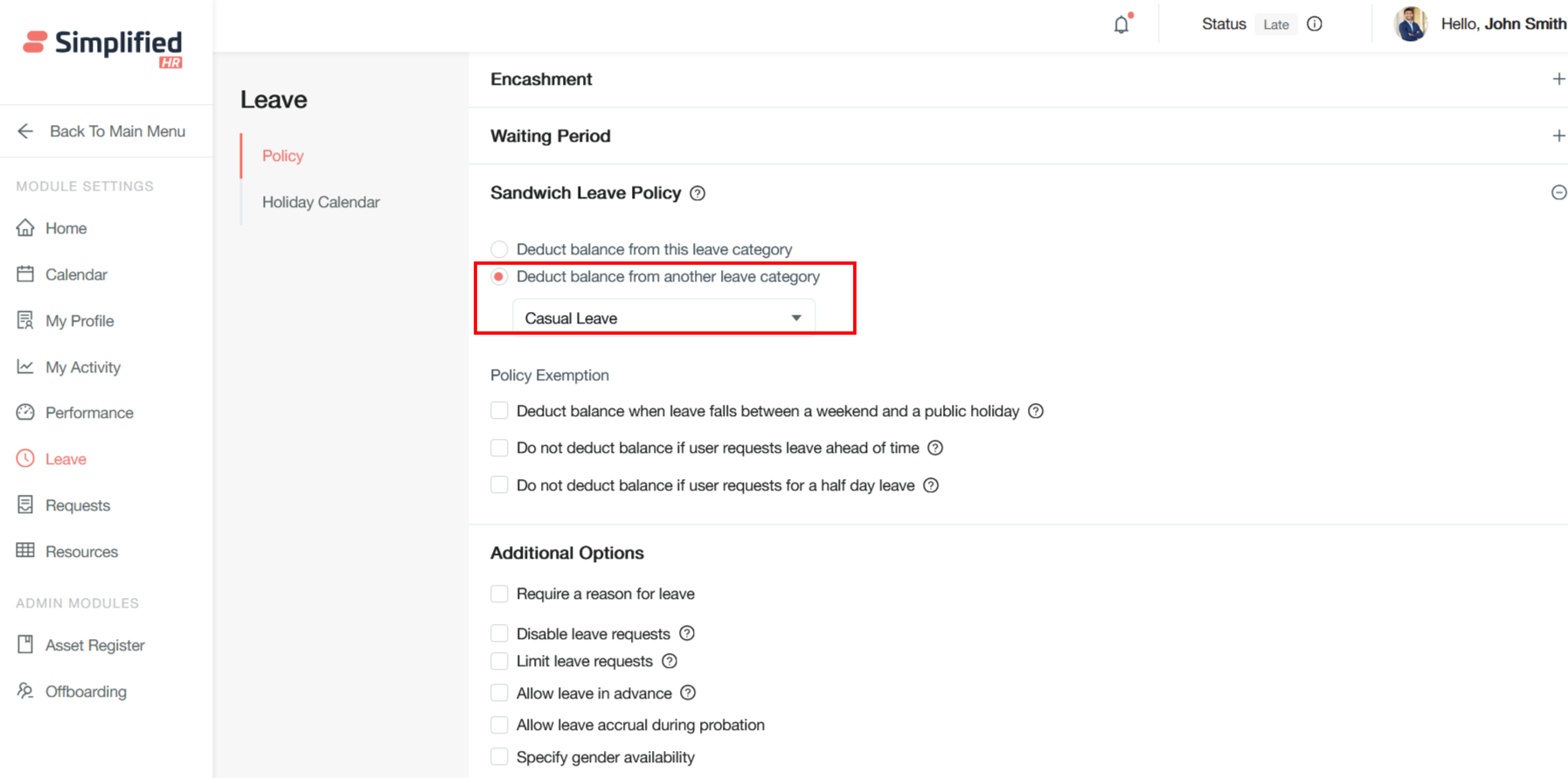
Configure Sandwich Leave Deduction Category
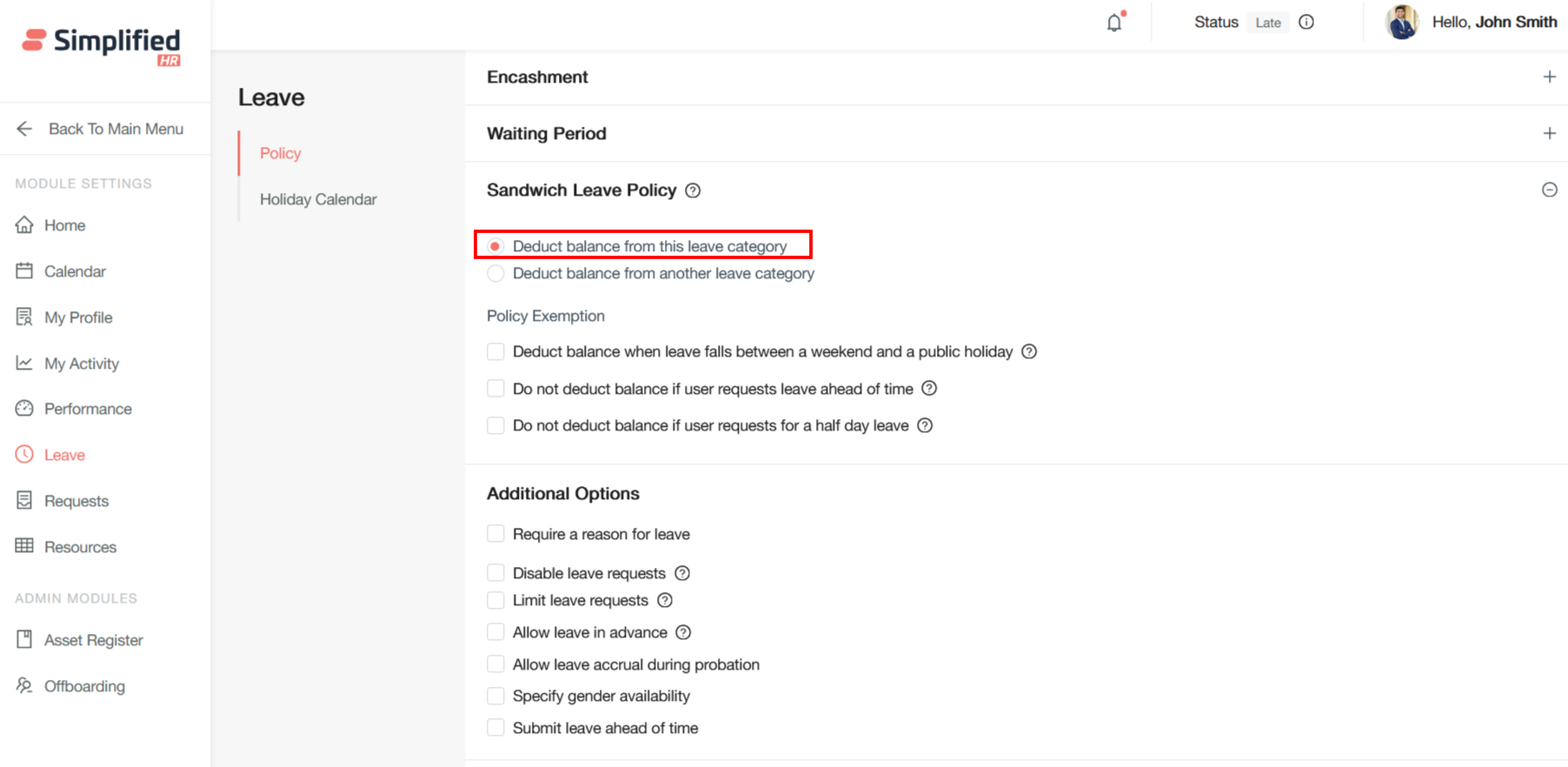
Deduct balance from this leave category: Determines which leave type's balance is reduced when sandwich leave triggers. Selecting the same type (e.g., "Casual Leave") deducts both the original days and sandwiched holidays/weekends from that balance.
Deduct balance from another leave category: Lets HR specify a different category to bear the extra deducted days, instead of the type the employee originally applied for.
Example: Deduct sandwich penalties from "Casual Leave" even if the employee applied for "Bereavement Leave."
Configure Weekend and Public Holiday Deduction
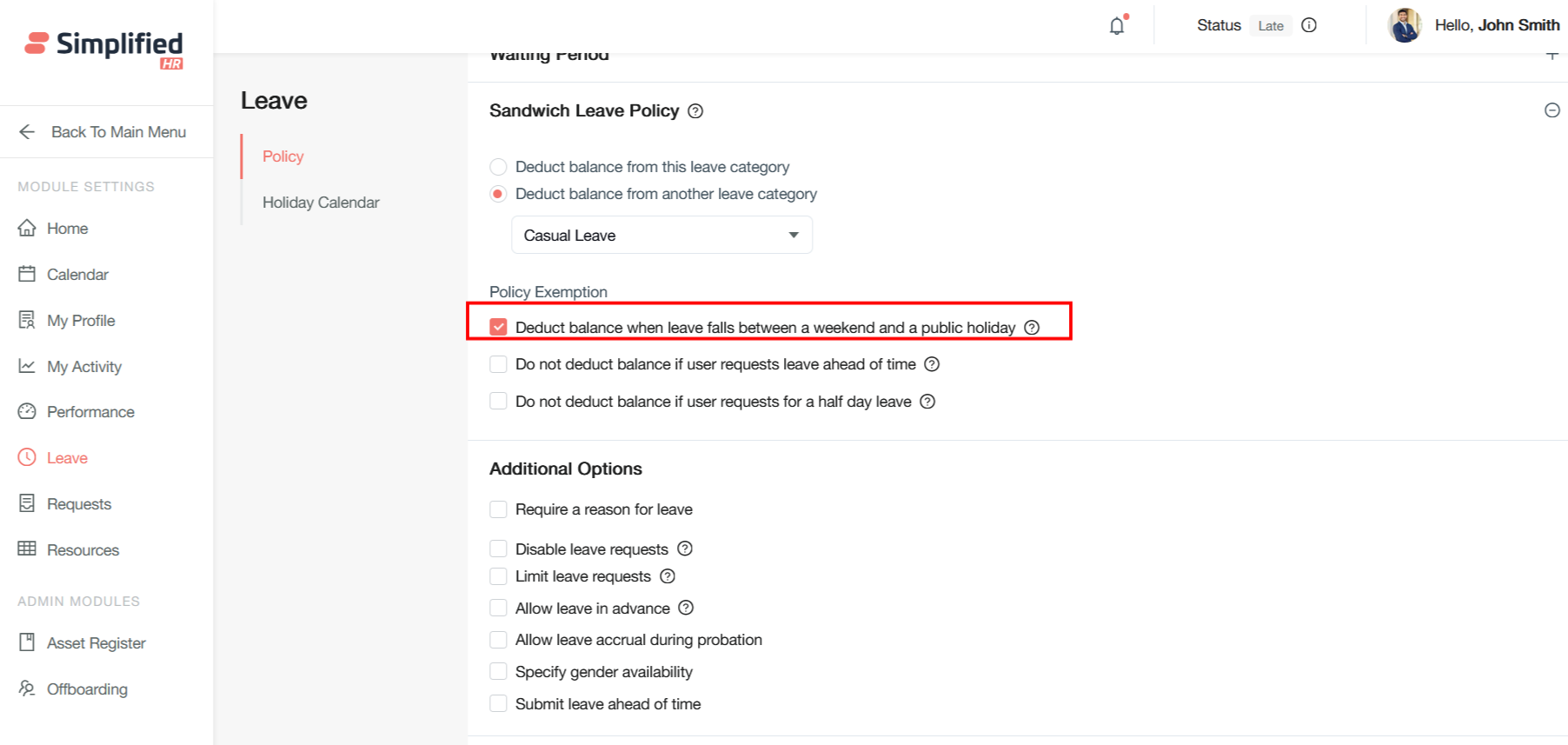
"Deduct balance when leave falls between a weekend and a public holiday": If leave falls on days between non-working days, those days also count as leave. If not selected, all connecting non-working days (in-between and adjacent) count.
If the option is selected
Only non-working days between two leave days count; adjacent weekends/holidays don't.
Example: Leave on Friday and Monday, weekend in between — Sat/Sun deducted. If Tuesday is a holiday and you return Wednesday, Tuesday isn't deducted. Total: 4 days (Fri–Mon).
If the option is NOT selected
All connected non-working days — in-between and adjacent — count.
Example: Same Fri–Mon leave, Tuesday a holiday, return Wednesday — Tuesday also counts (adjacent). Total: 5 days (Fri–Tue).
Configure Future Leave Balance Deduction
"Do not deduct balance if user requests leave ahead of time" prevents immediate balance deduction when employees submit leave requests for future dates.
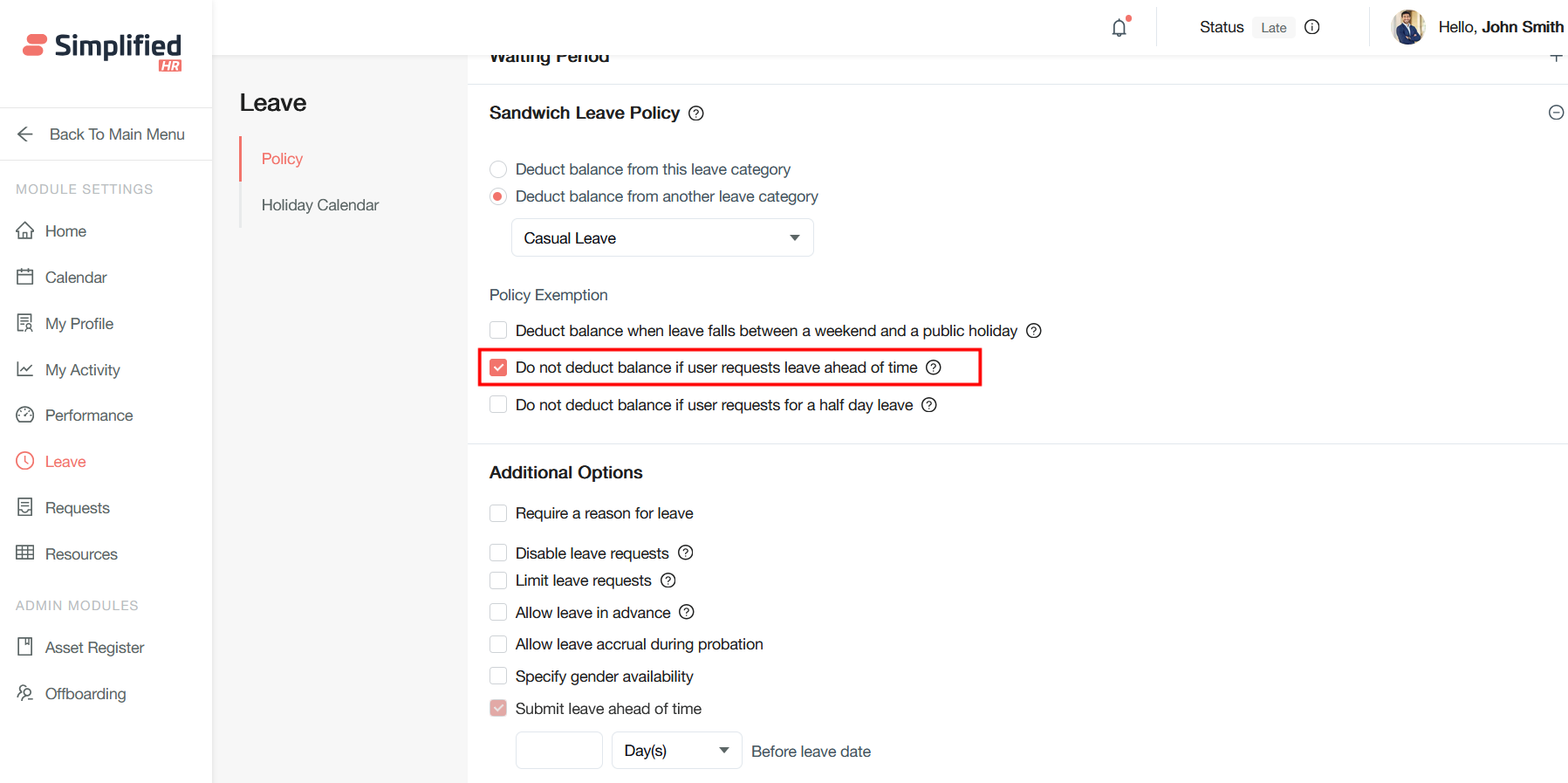
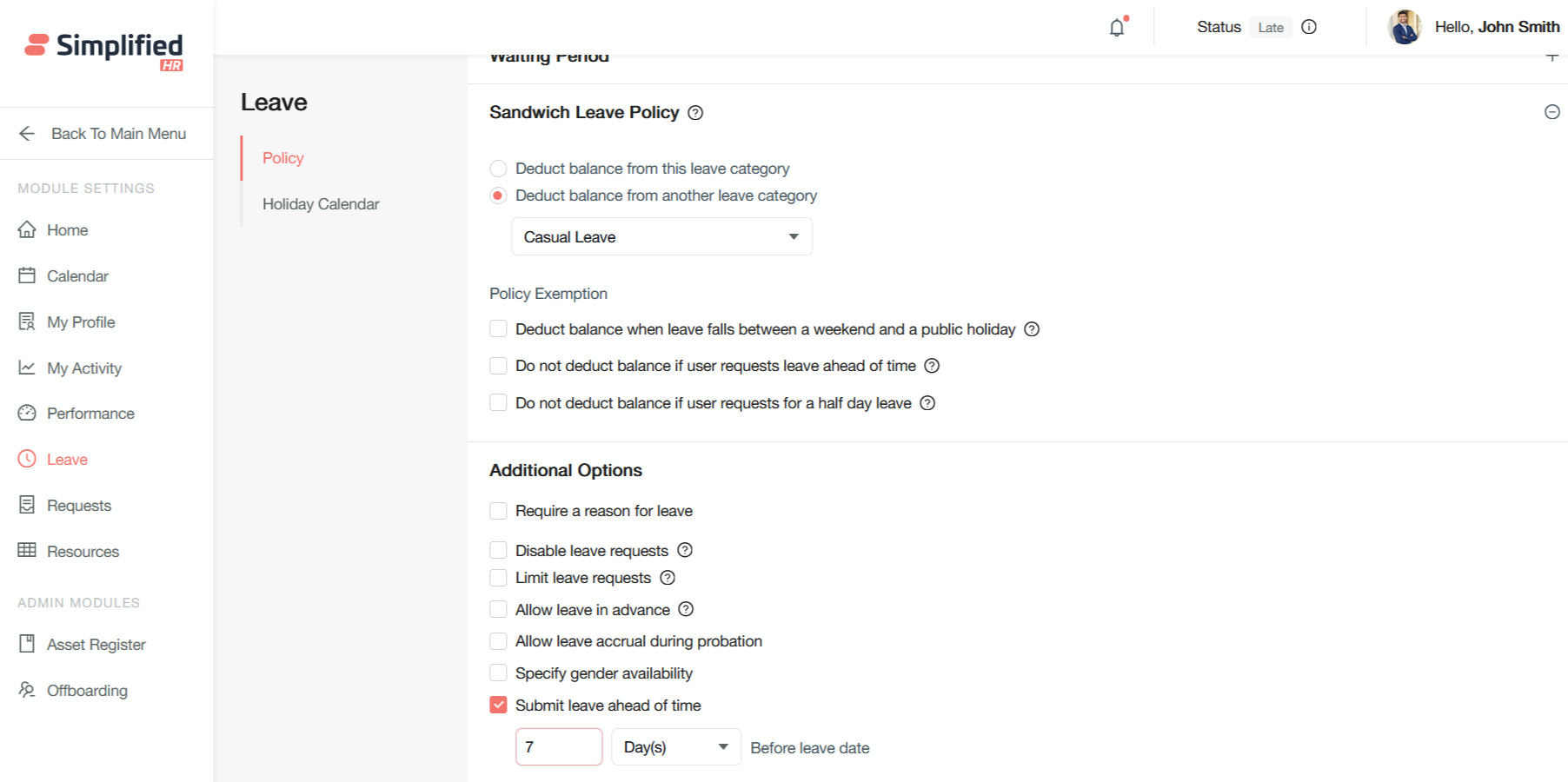
Important: The "Submit Leave Ahead Of Time" setting must be checked under Additional Options for this behavior to apply.
 Configure Half-Day Sandwich Leave
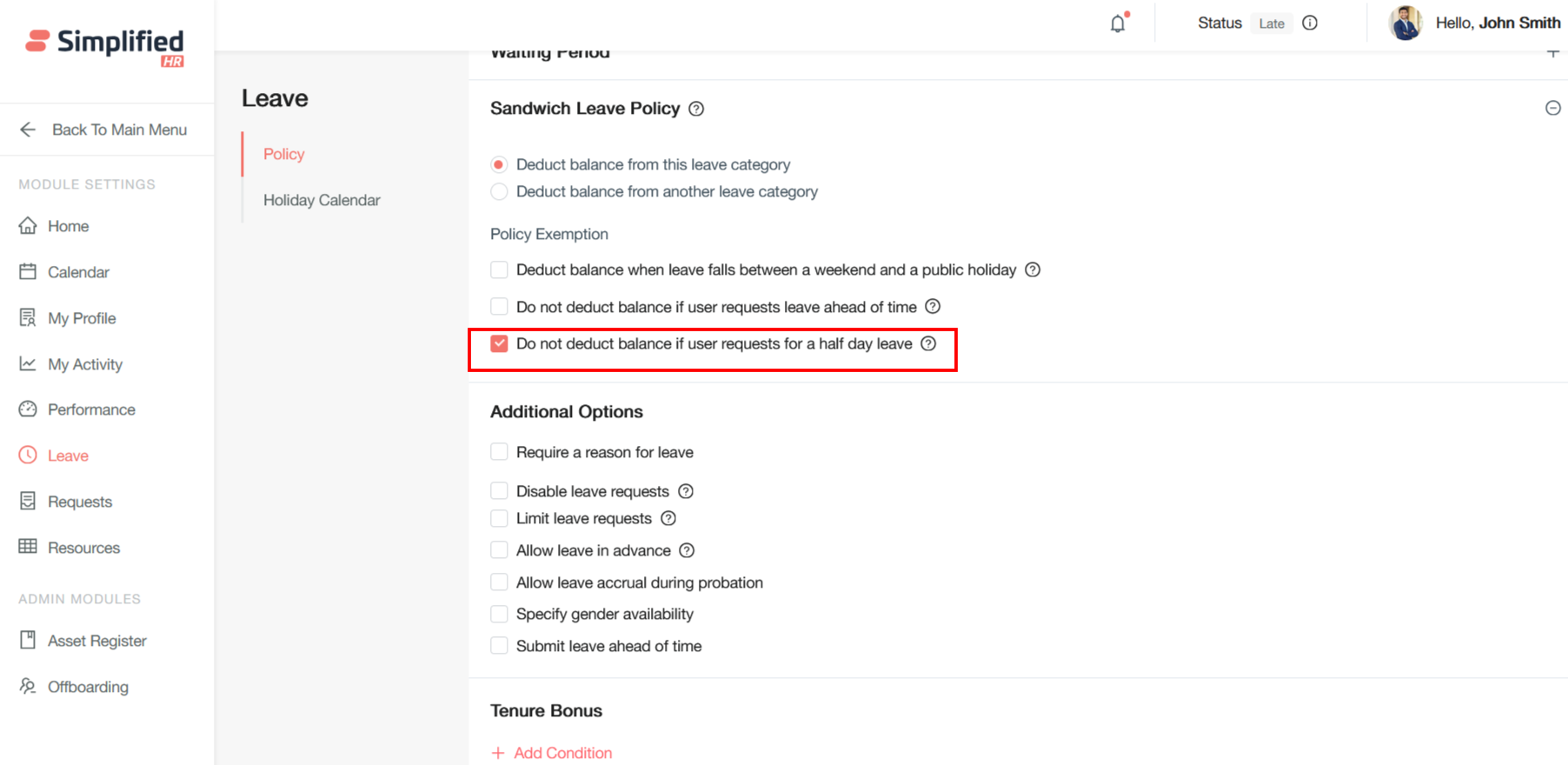
"Do not deduct balance if user requests for a half day leave": If the half-day leave falls at the start of the sandwich period, balance is not deducted.
Require Leave Reason
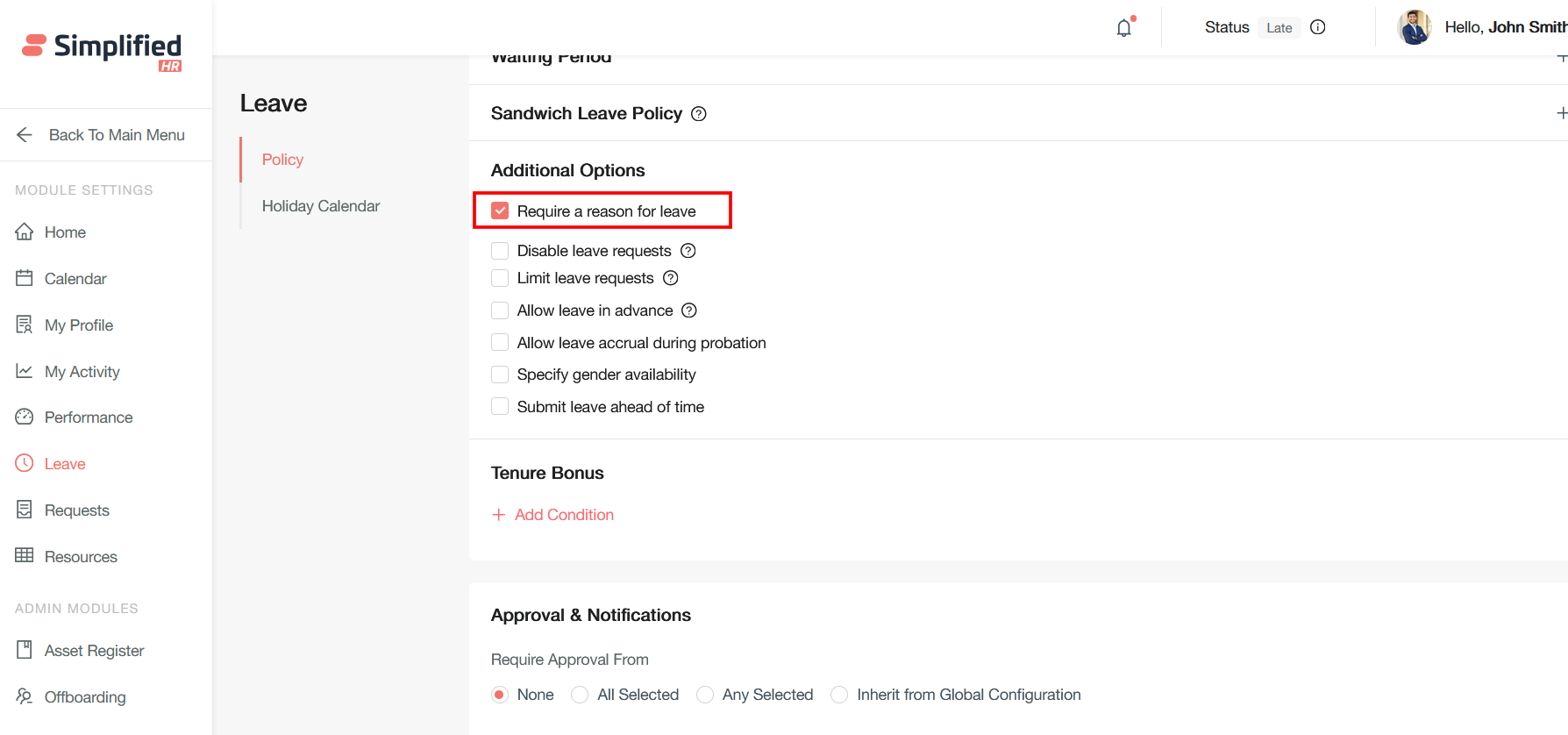
The "Require a reason for leave" setting mandates that employees enter a detailed reason in a text field before submitting their request.
Disable Leave Requests
This control lets HR teams temporarily or permanently block leave applications system-wide or for specific employee groups.
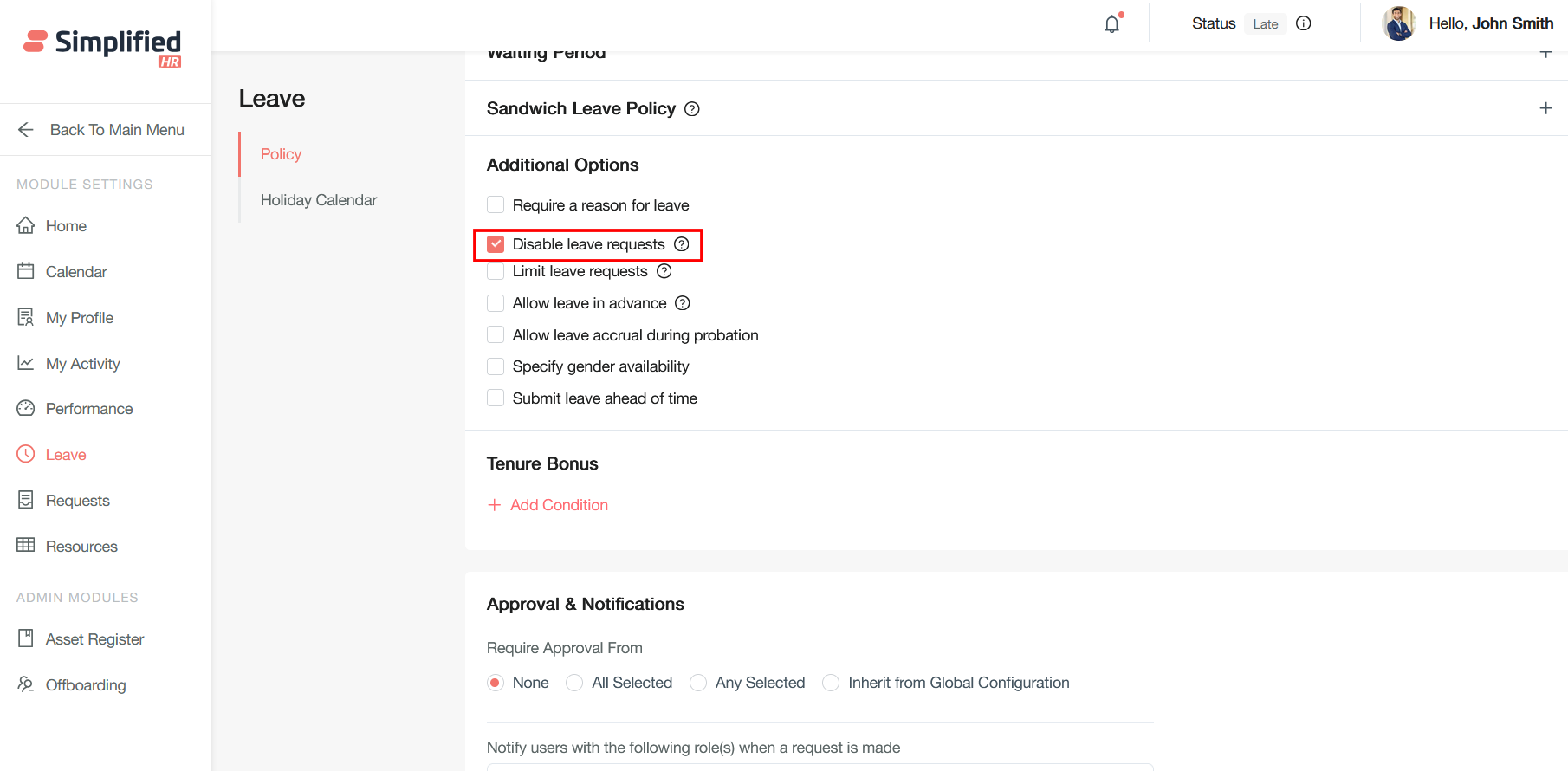
Important: Users cannot apply for leave directly, but can only see their balance. Admins can apply or modify leave on the user's behalf.
Limit Leave Requests
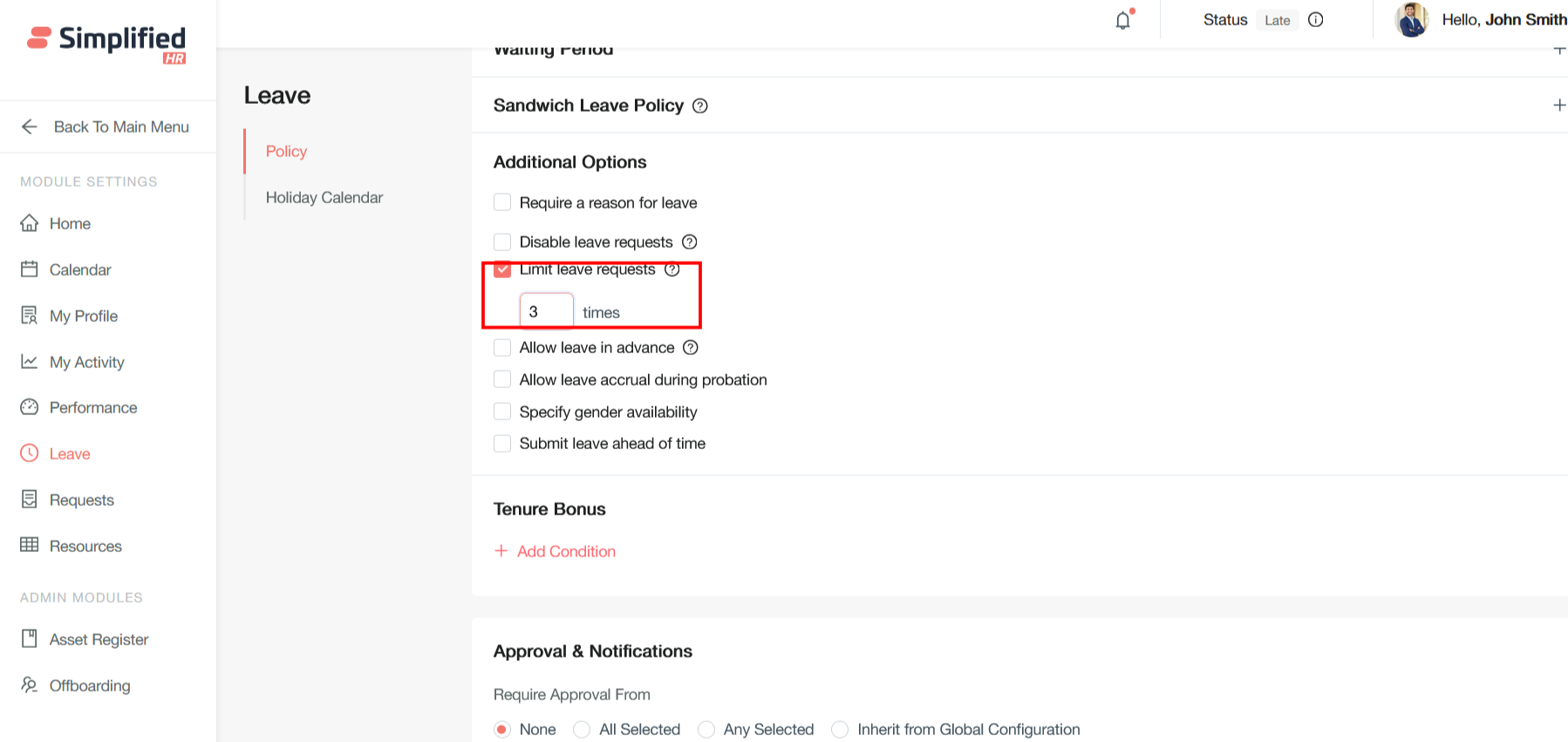
This feature lets organizations cap simultaneous leave requests within teams/departments for adequate staffing, controlling how often a leave type can be requested.
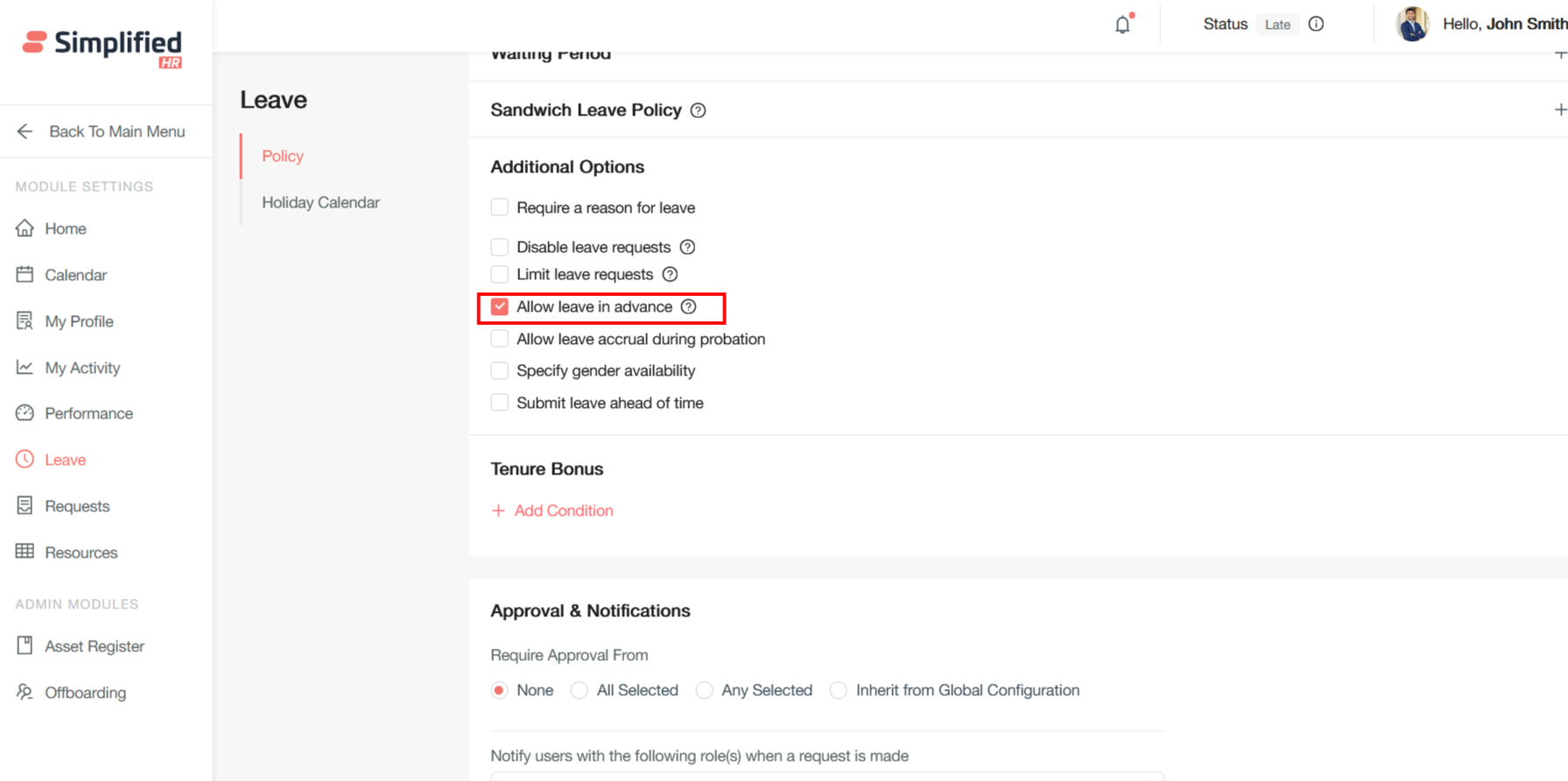
Allow Leave in Advance
This policy lets employees take leave exceeding their accrued balance, creating negative balances that future accruals offset — even without the required balance.
Configure Advance Leave Notice
The "Submit Leave Ahead of Time" setting sets minimum notice requirements before leave, ensuring adequate planning and coverage.
Configure Leave Approval
Leave approval and notification systems automate requesting and approving/denying time off, ensuring transparency.
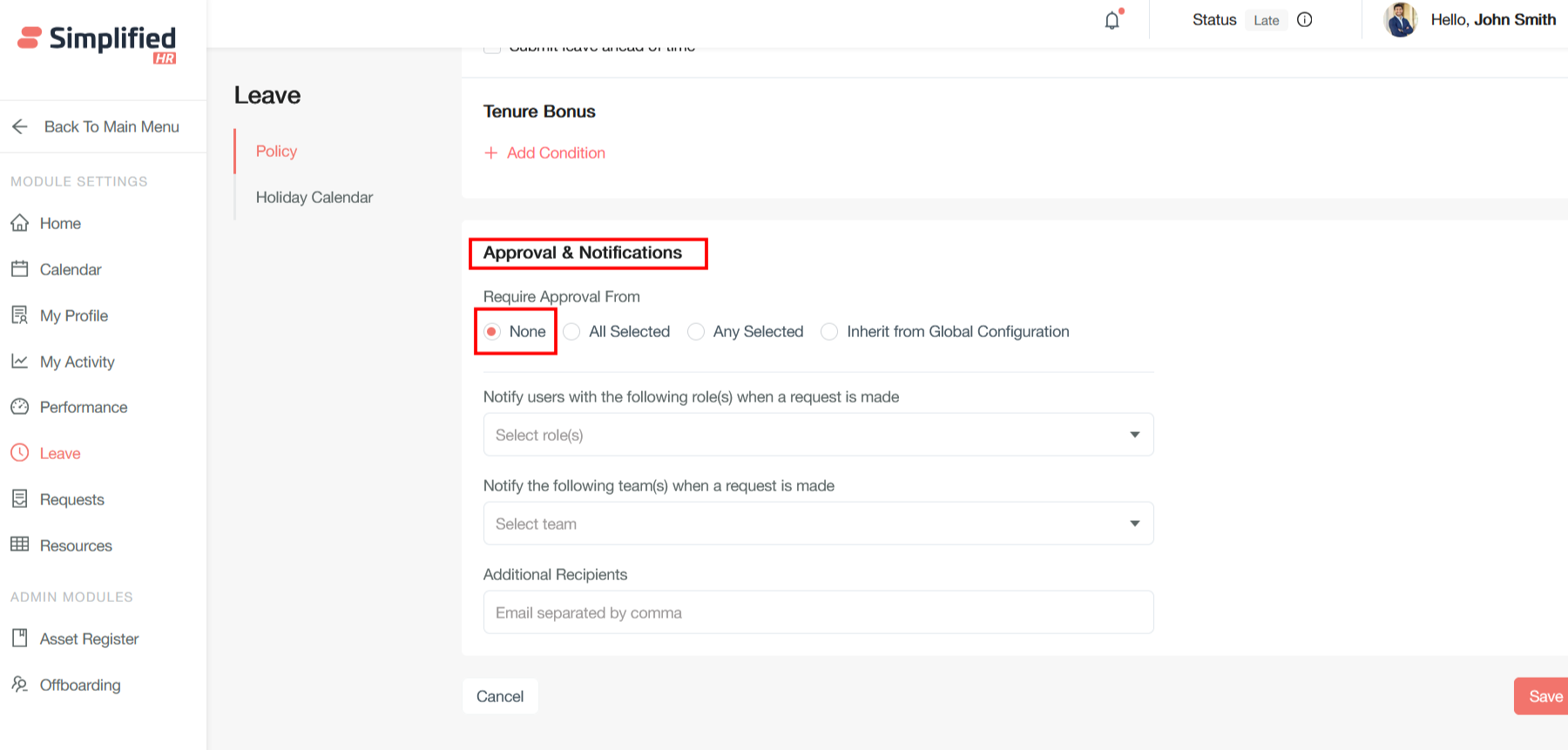
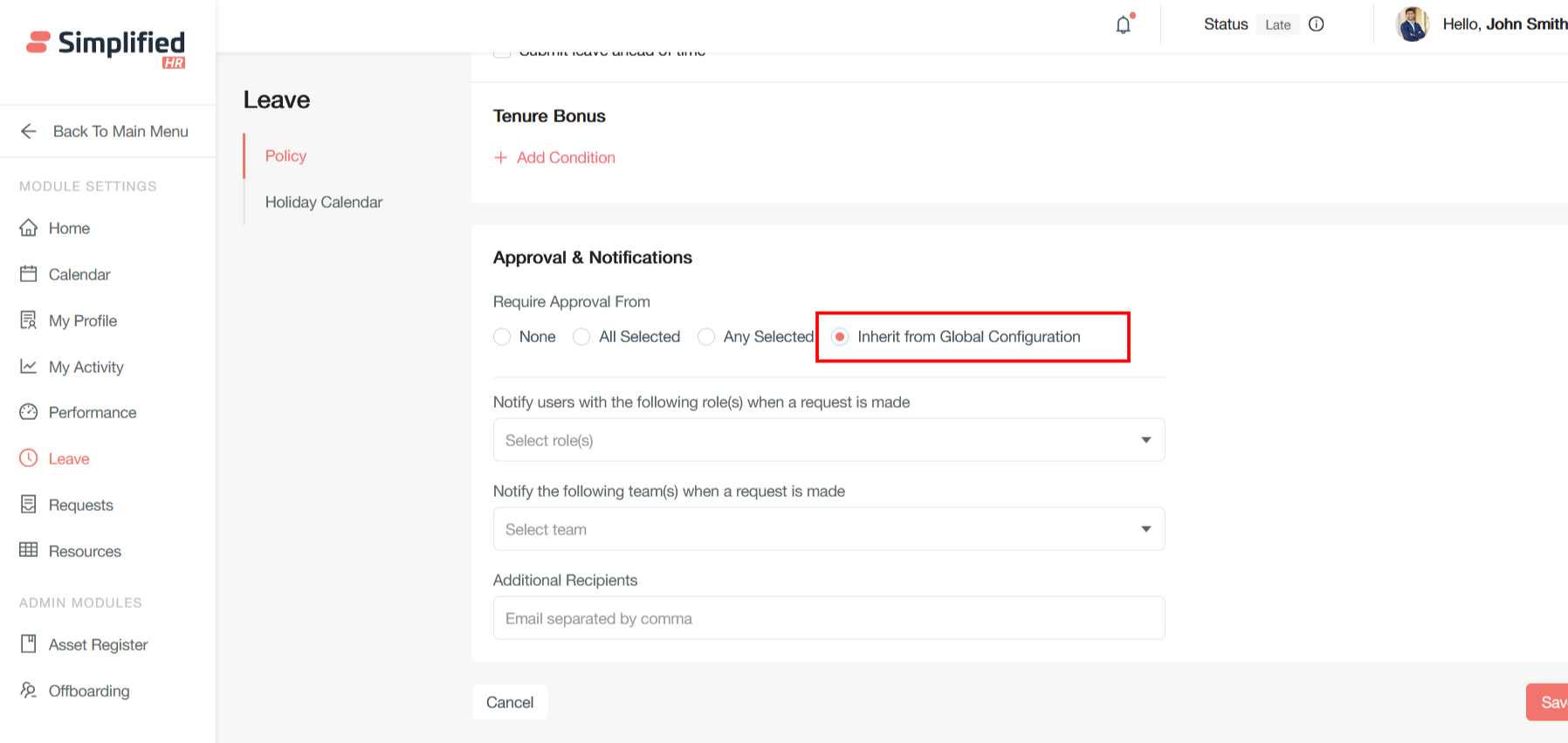
Four approval options determine who must approve a request and how it flows:
Configure No-Approval Leave
None: No approval required — requests are auto-approved upon submission, bypassing the workflow.
Configure Sequential Approval
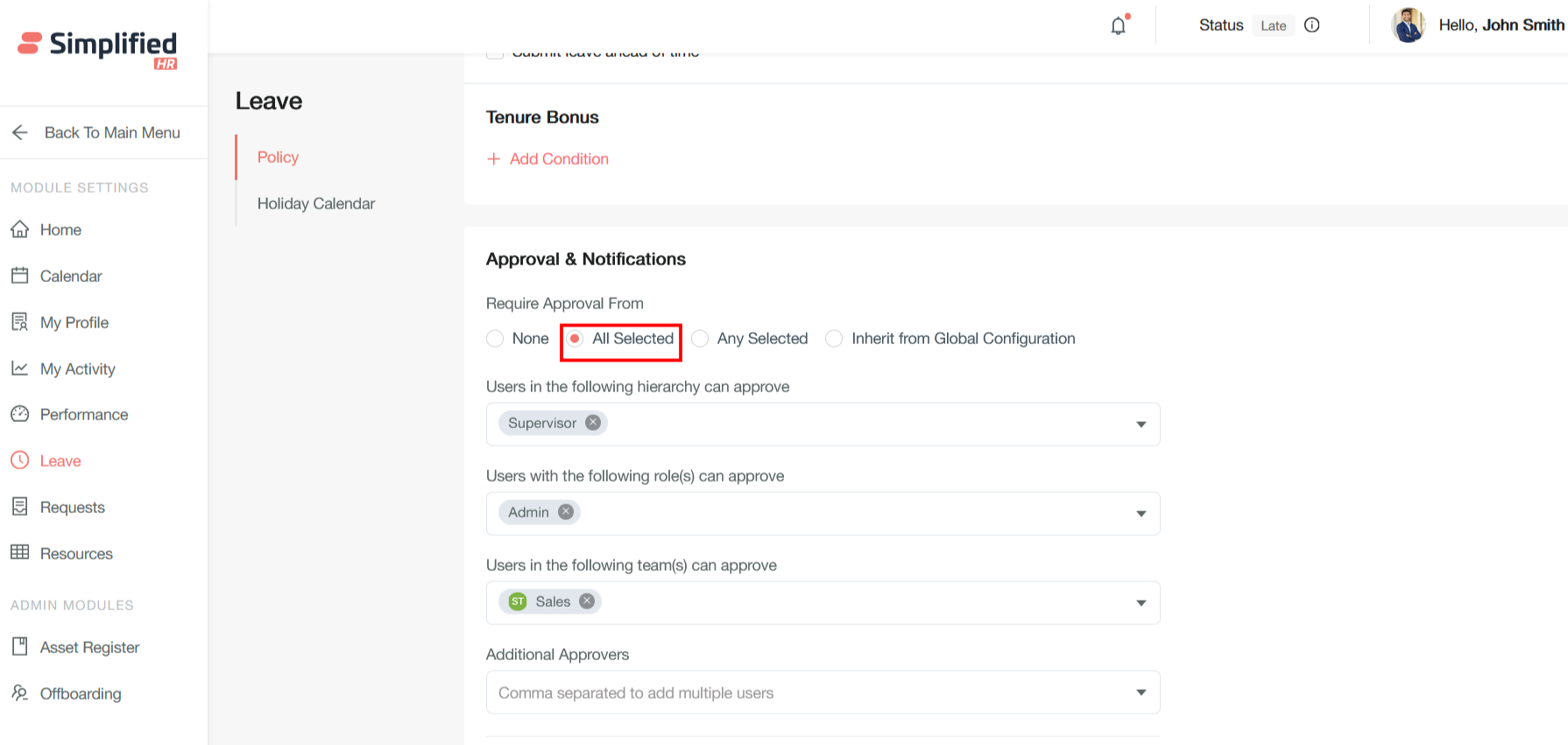
All Selected: All designated approvers must approve, in sequence, before the request is finalized.
How it works:
-
Leave Request goes to all approvers.
-
Once approved by one approver, it automatically routes to the next approver, keeping the leave in Action Taken status.
-
Process continues until every selected approver has approved.
-
If any approver rejects, the entire request is denied.
Configure Parallel Approval
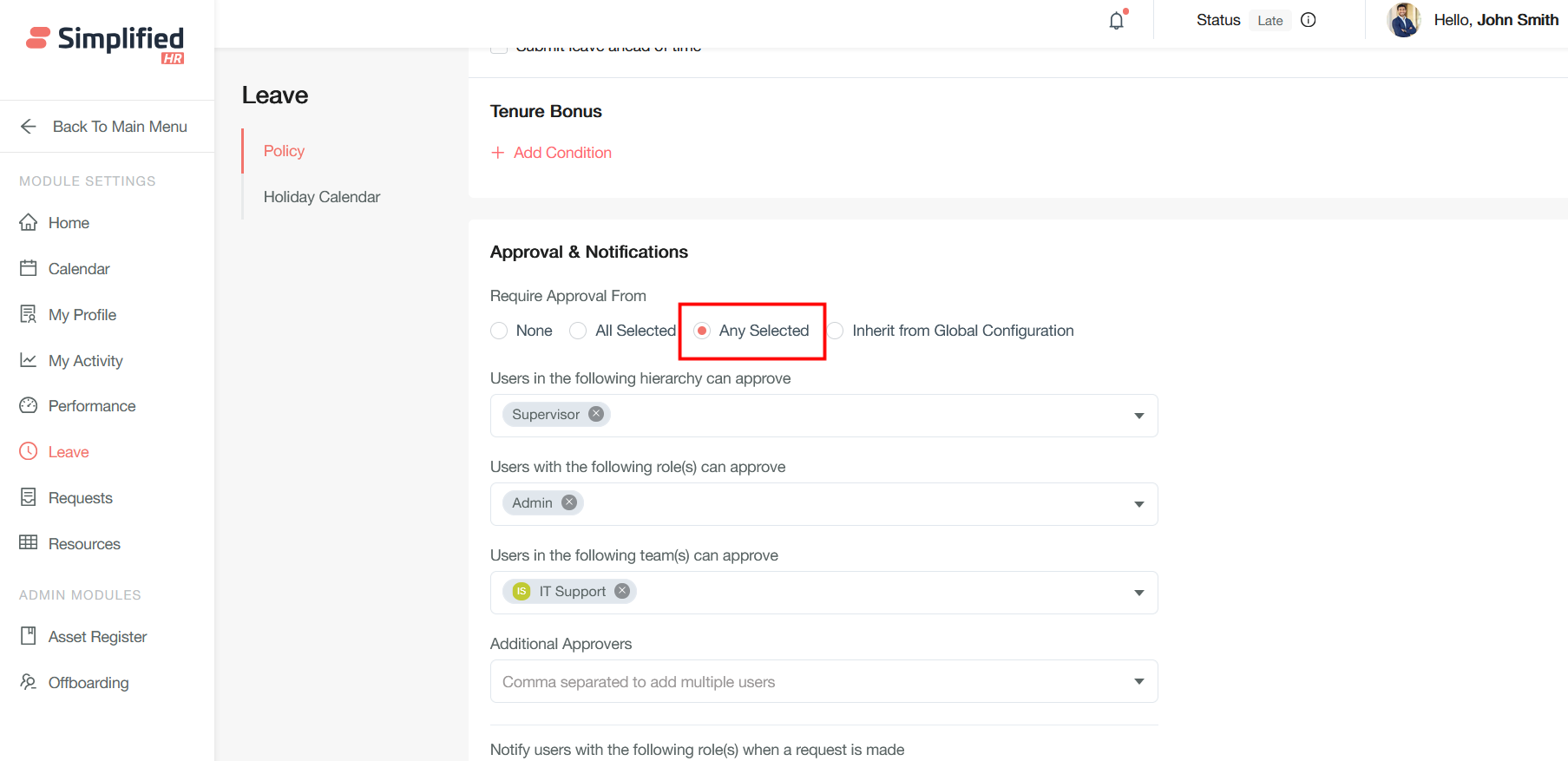
Any Selected: Any one of the selected approvers can approve — a parallel workflow where all receive it at once, but only one approval is needed.
How it works:
-
Leave Request is sent to all selected approvers at once.
-
First approver to respond determines the outcome.
-
Once one person approves/rejects, the request is finalized.
-
Other approvers are notified of the decision.
Inherit Global Approval Configuration
Inherit from Global Configuration: Uses the org's default approval settings at the policy level, ensuring consistency. Changes to global settings auto-update all inheriting accruals.
Configure Leave Notifications
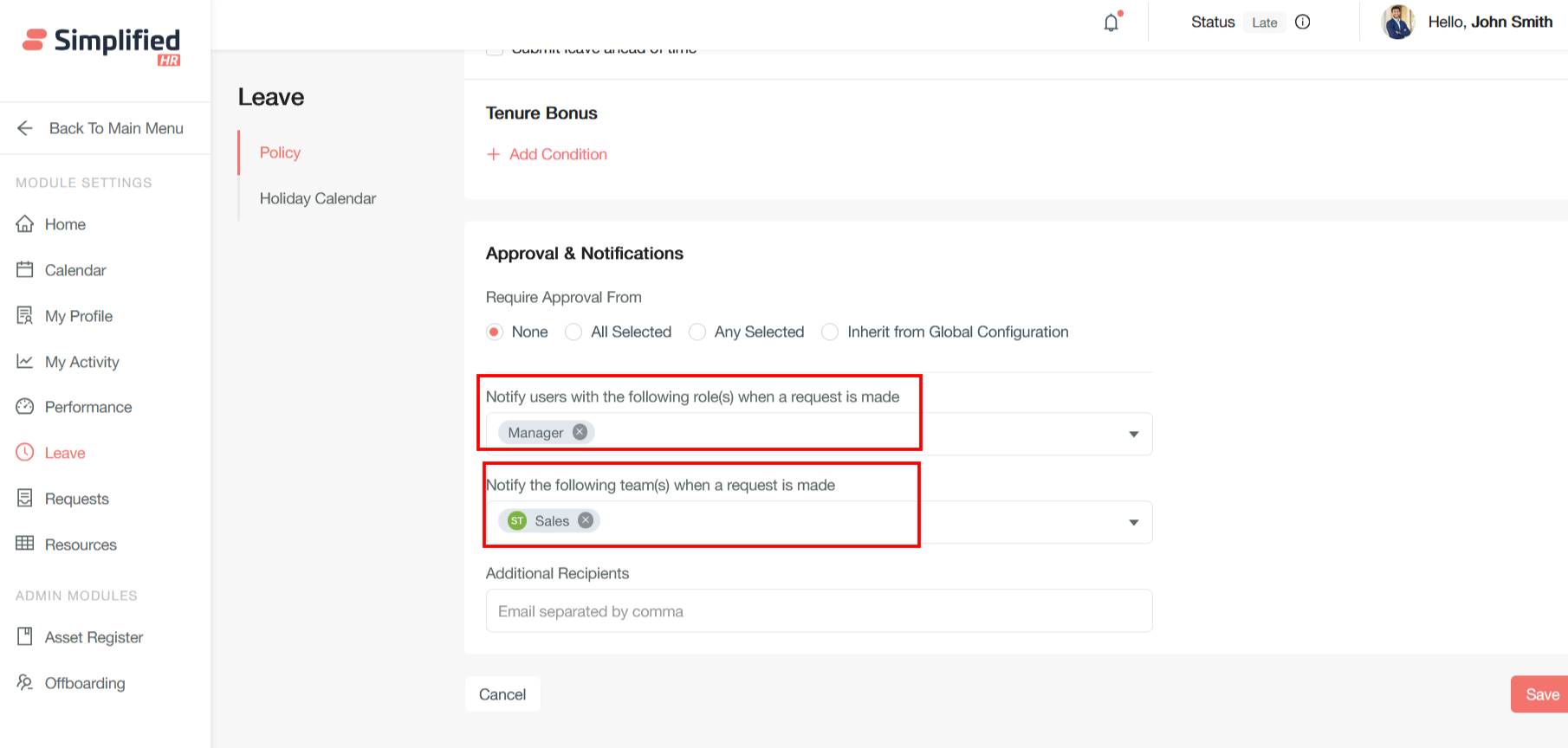
"Notify users with the following role(s) when a request is made": Sends automatic notifications to all users who hold specific organizational roles whenever a new request is submitted.
"Notify the following team(s) when a request is made": Sends notifications to entire predefined teams or groups when requests are created.
Save Leave Policy as Draft
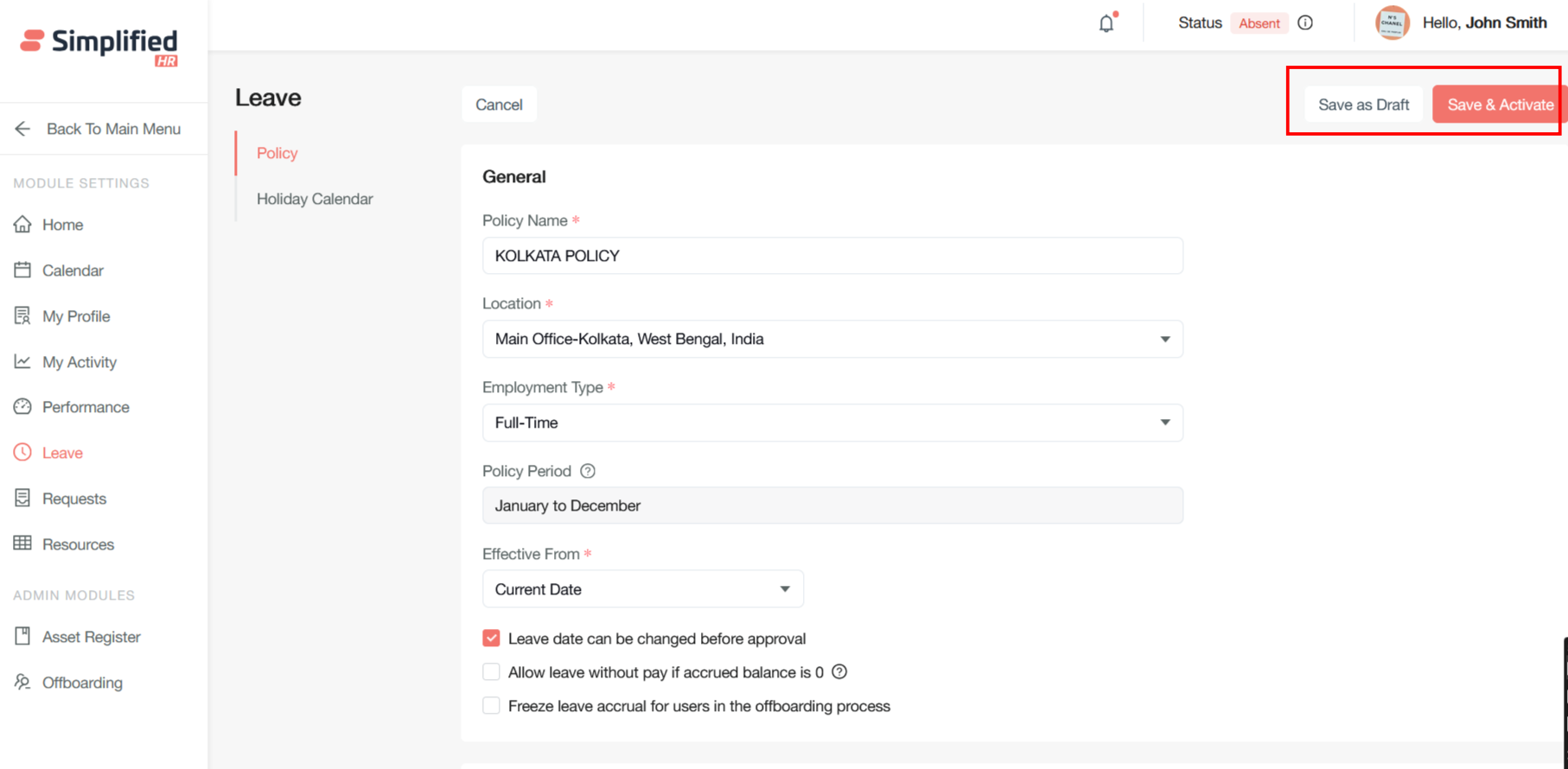
Use the Save Draft button to make the policy a draft for future editing.
Activate Leave Policy
Click the Save & Activate button to activate the policy. Once a leave policy is saved and activated, it enters an active status that implements strict editing restrictions to maintain data integrity and compliance. It becomes operationally live and begins affecting employee leave calculations, balances, and entitlements.
Edit Active Leave Policy
Once a leave policy is activated, it becomes operationally live, and most configuration affecting leave calculations, balances, and entitlements becomes restricted.
Important: Exception: The Notification and Approval section remains editable, as these settings don't affect leave calculations, balances, or entitlements.