Employee → Work Journal
Overview
The Work Journal module helps you document daily work activities, maintain productivity records, and track progress over time.
Important: Work Journal is a premium feature that requires a Pro subscription and must be enabled by an administrator.
Access Work Journal
You can access Work Journal from:
Create EOD Journal
When permitted to submit EOD (End of Day) entries, an EOD card appears in your Work Journal section.
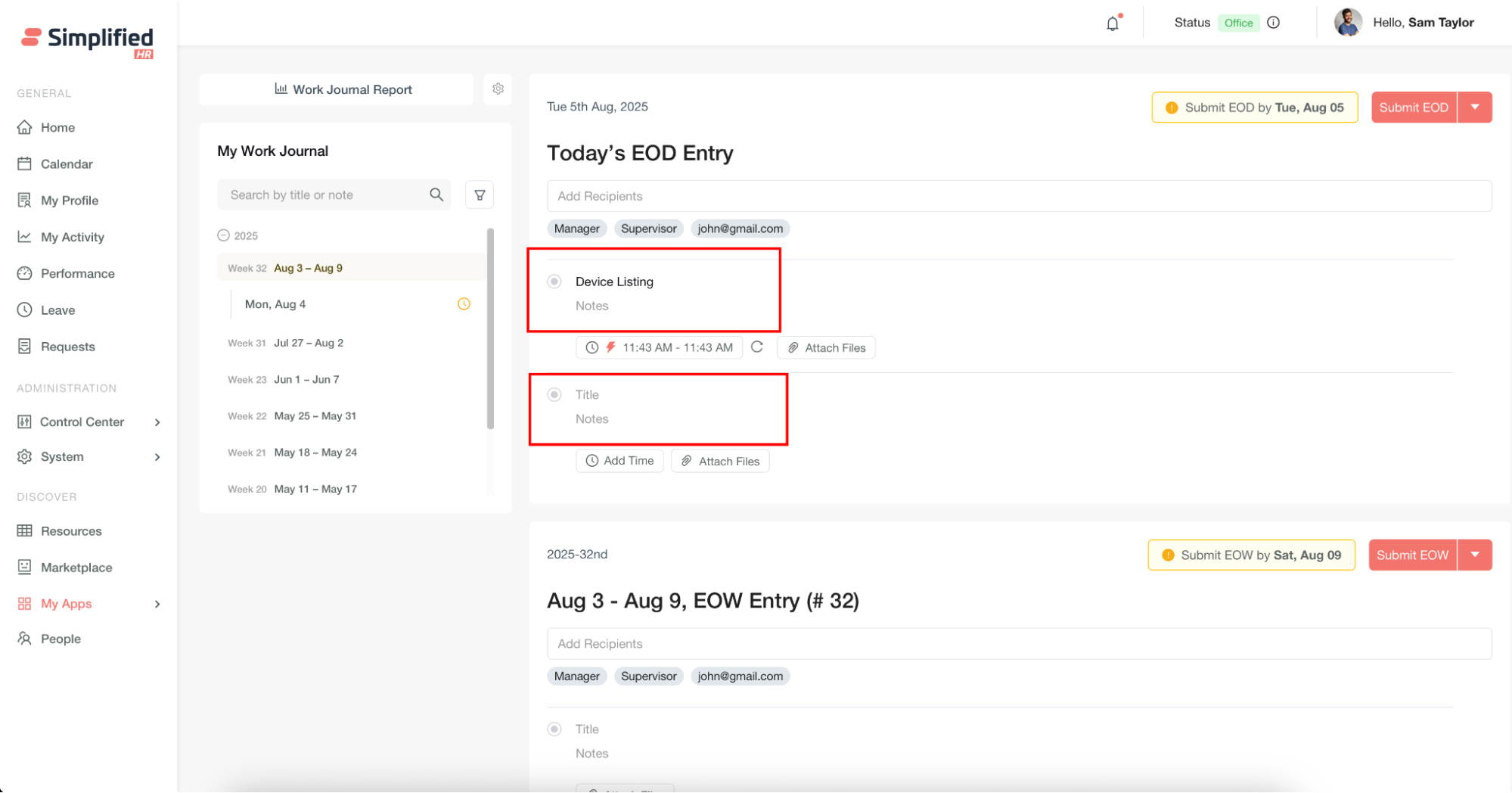
Add EOD Title and Notes
Manual entry:
-
Add a descriptive title for your entry.
-
Enter detailed notes about your work activities.
-
Ensure both title and notes contain meaningful content before submitting.
Add Manual Time to EOD
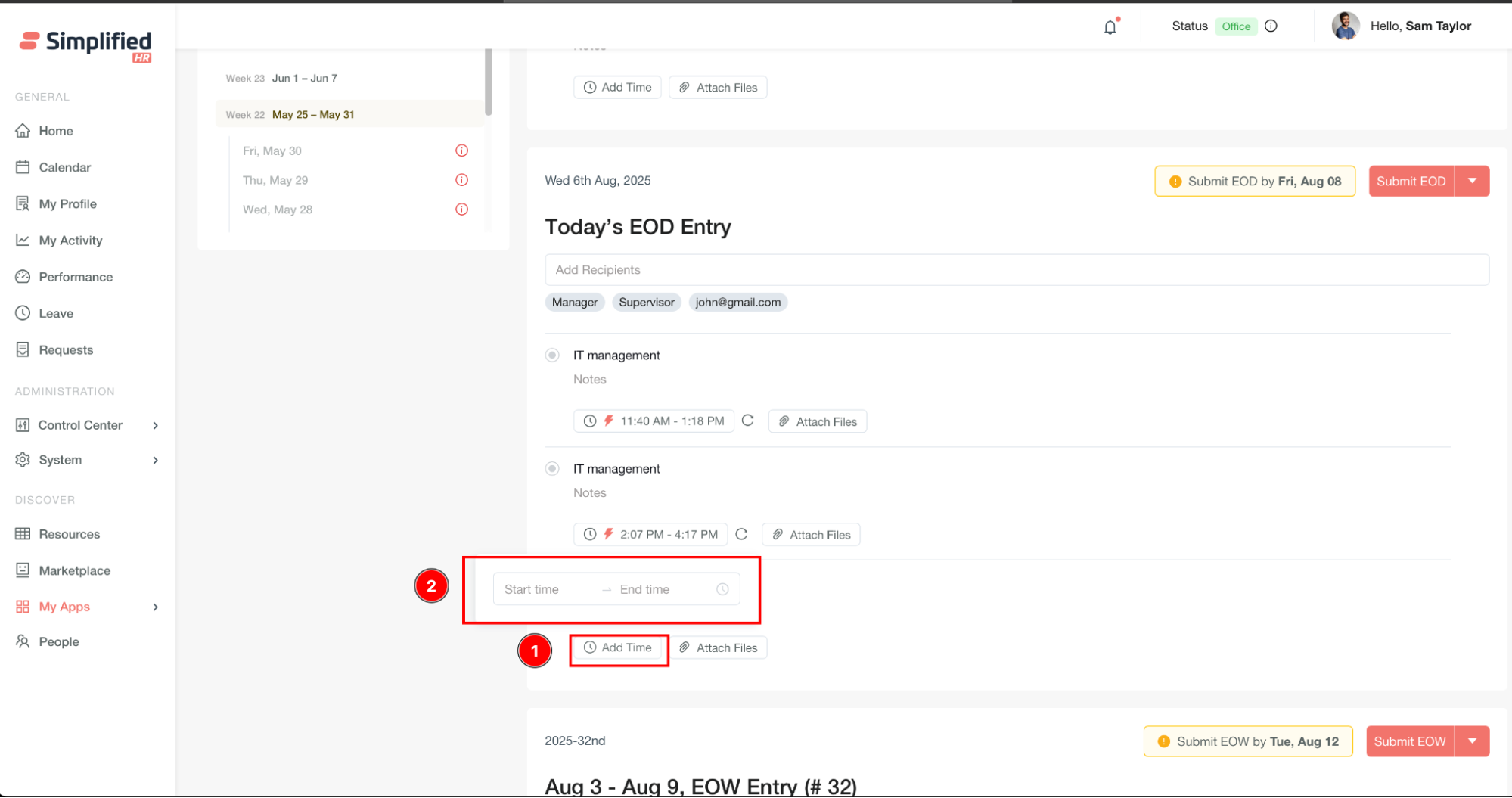
To log additional work not tracked through the desktop app:
-
Click Add Time.
-
Enter Start Time and End Time manually.
Retrieve Recent Tracked Time
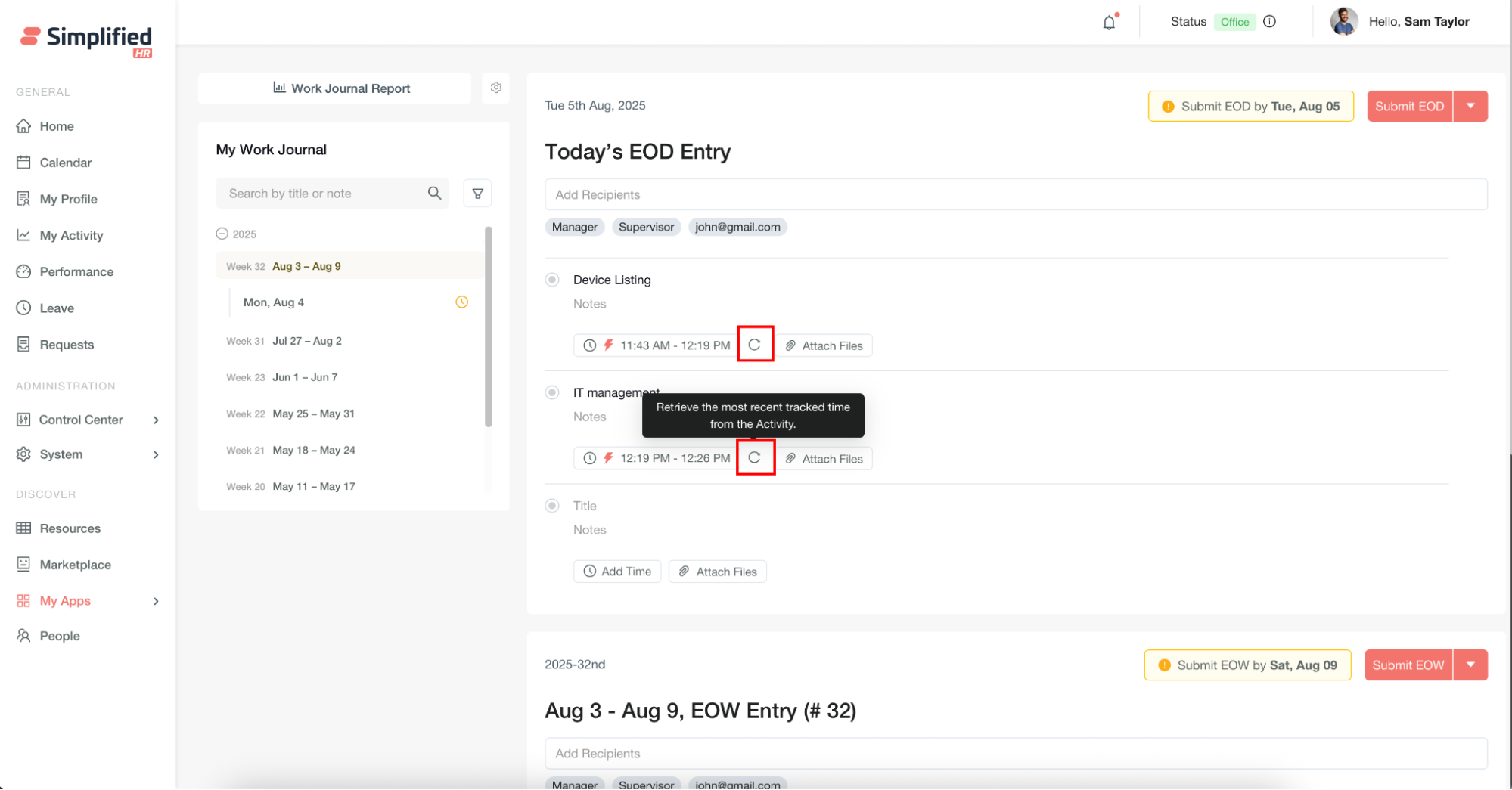
Click the Refresh button to pull the most recent tracked time from your Activity log.
Use Desktop Time Tracking
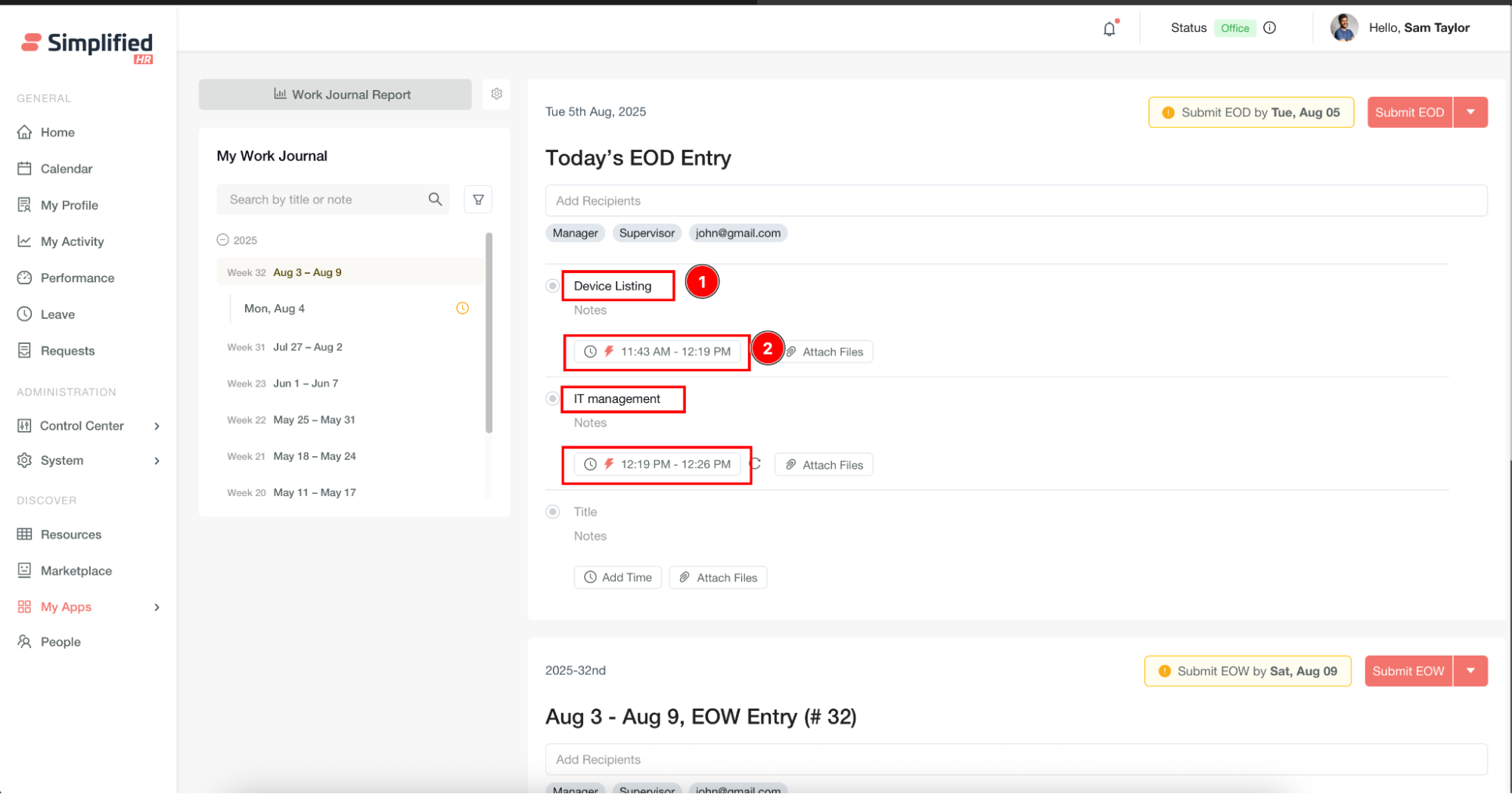
If you use the Desktop Application for time tracking, the system automatically populates:
Track Multiple Projects in Work Journal
Multiple projects appear as separate title entries with their respective tracked times.
Attach Files to Work Journal
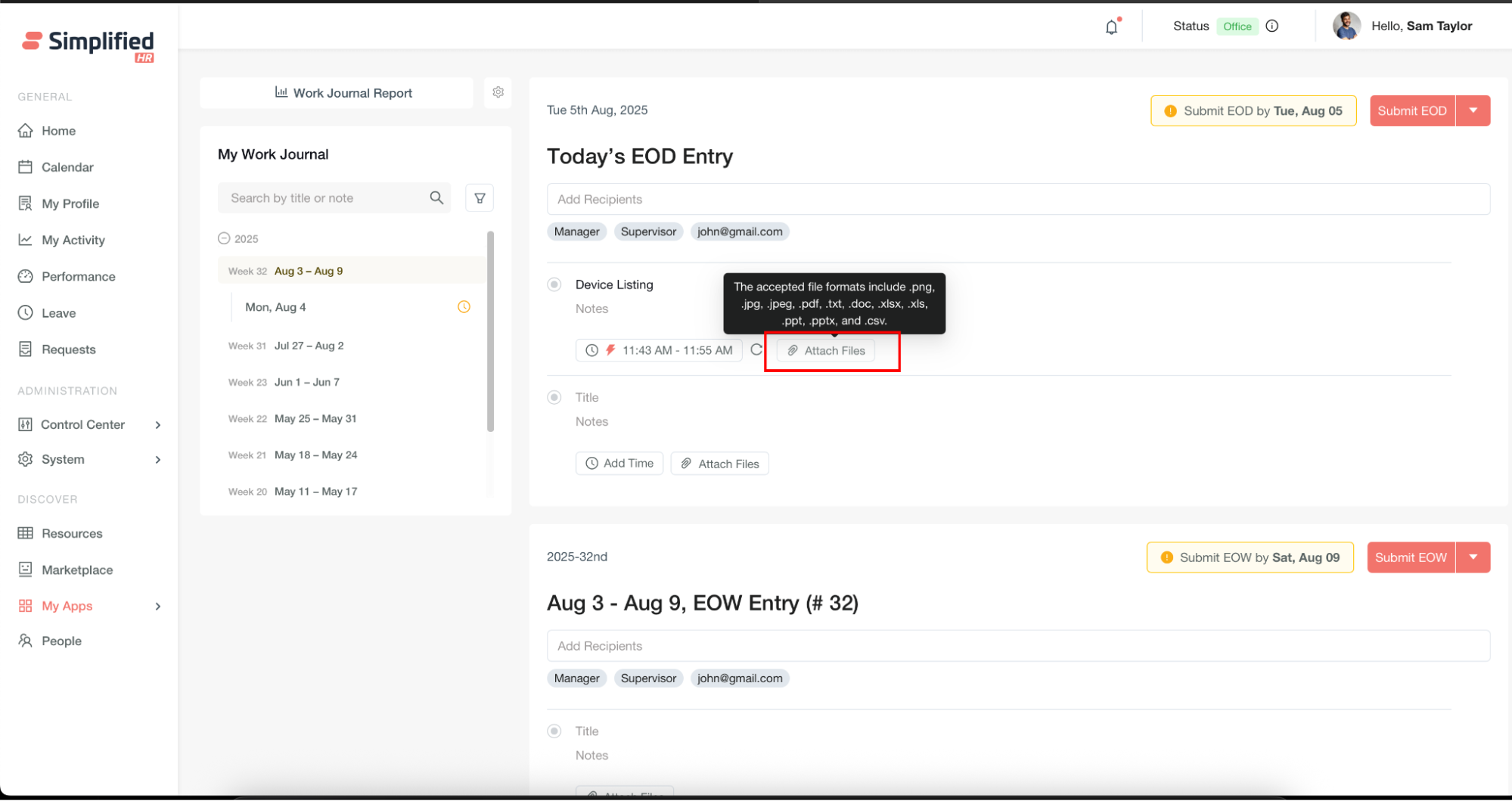
Attach relevant files to your Work Journal entries. Supported formats include:
Images
Documents
-
.pdf
-
.txt
-
.doc
-
.xlsx
-
.xls
-
.ppt
-
.pptx
Data
Submit EOD Journal
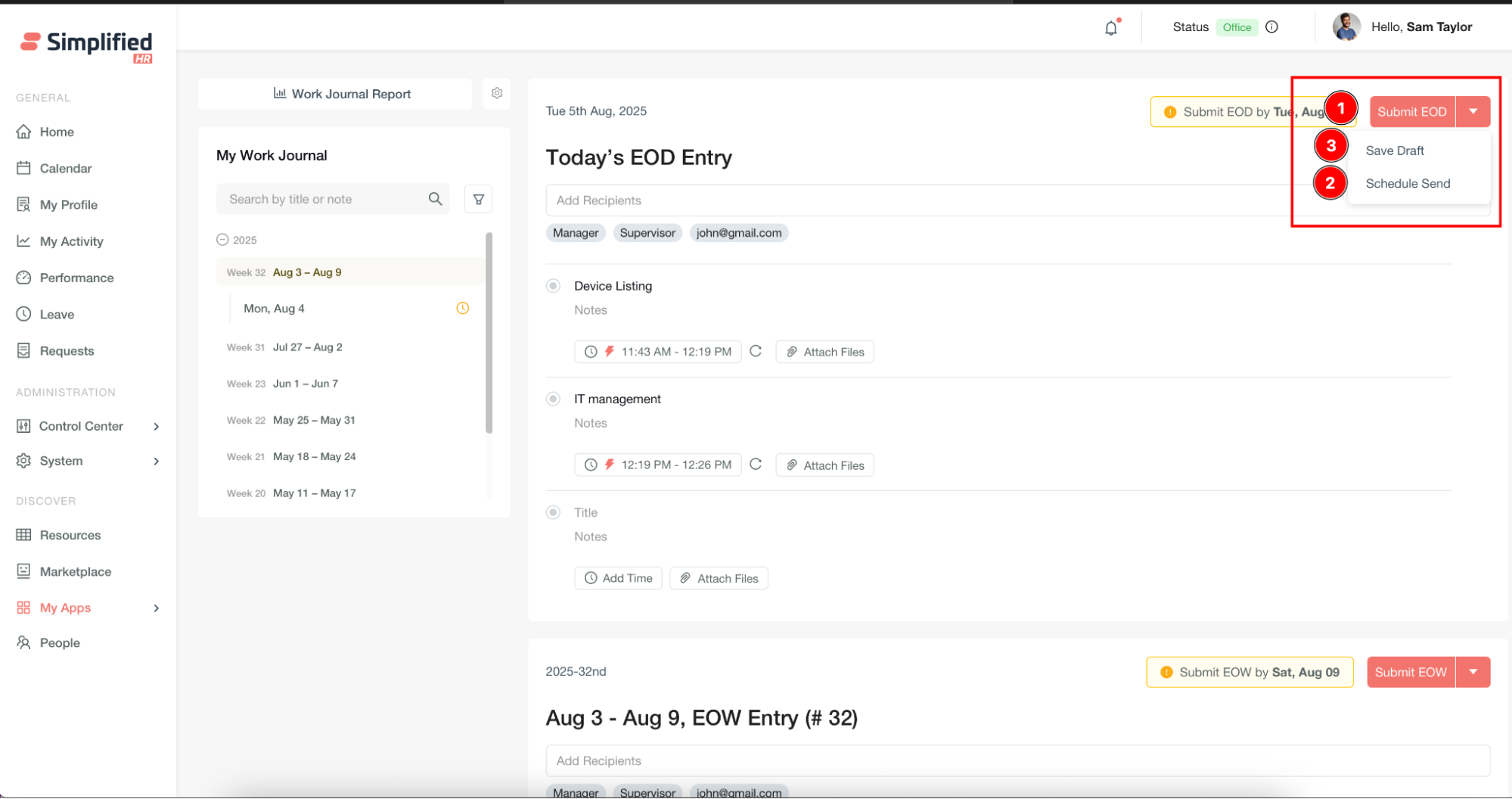
Submit EOD: Immediately submit the journal entry.
Schedule EOD Submission
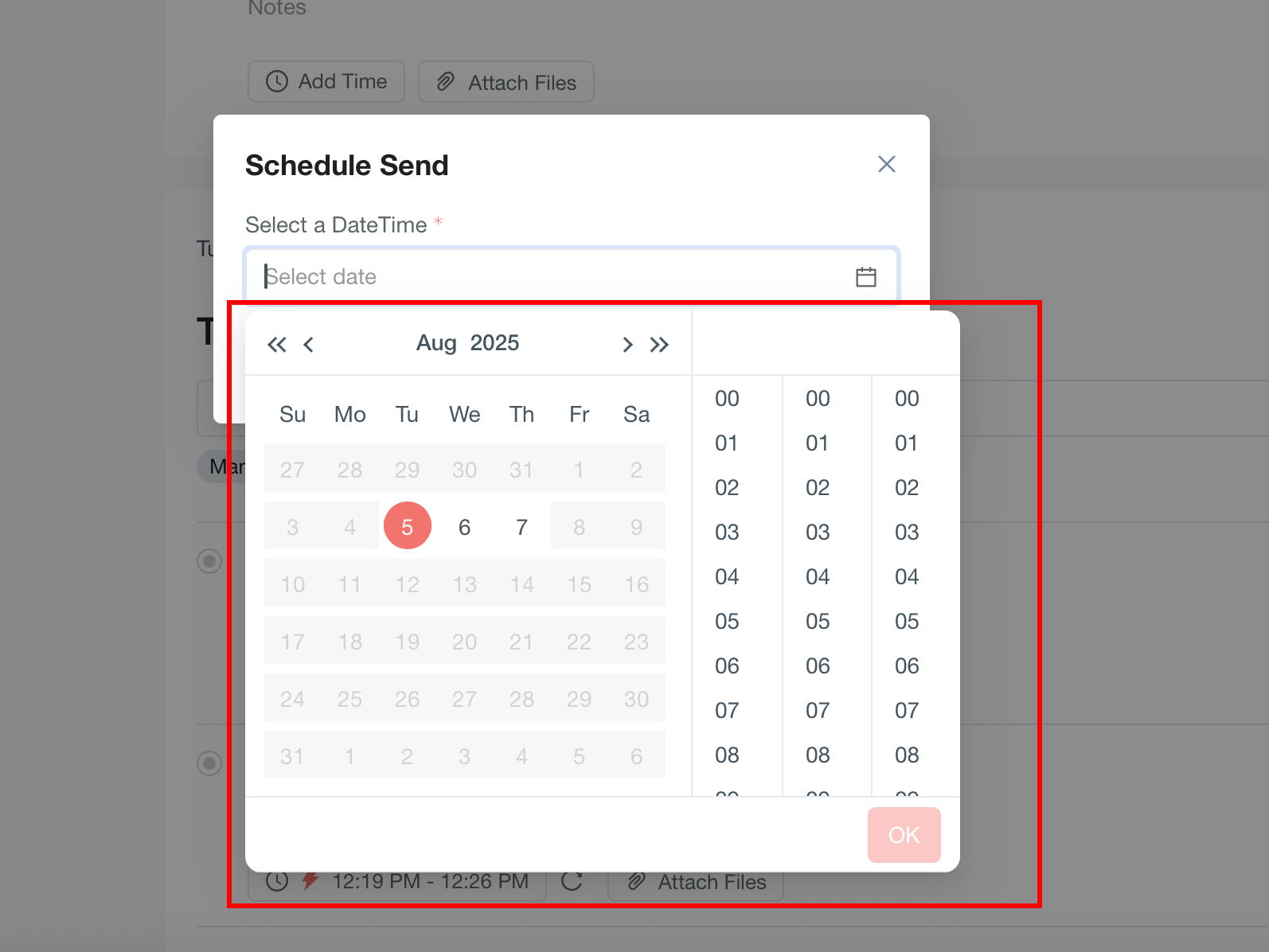
Schedule Send: Schedule the entry for automatic submission later.
- Select a date and time within the configured submission window.
[ ]
]
-
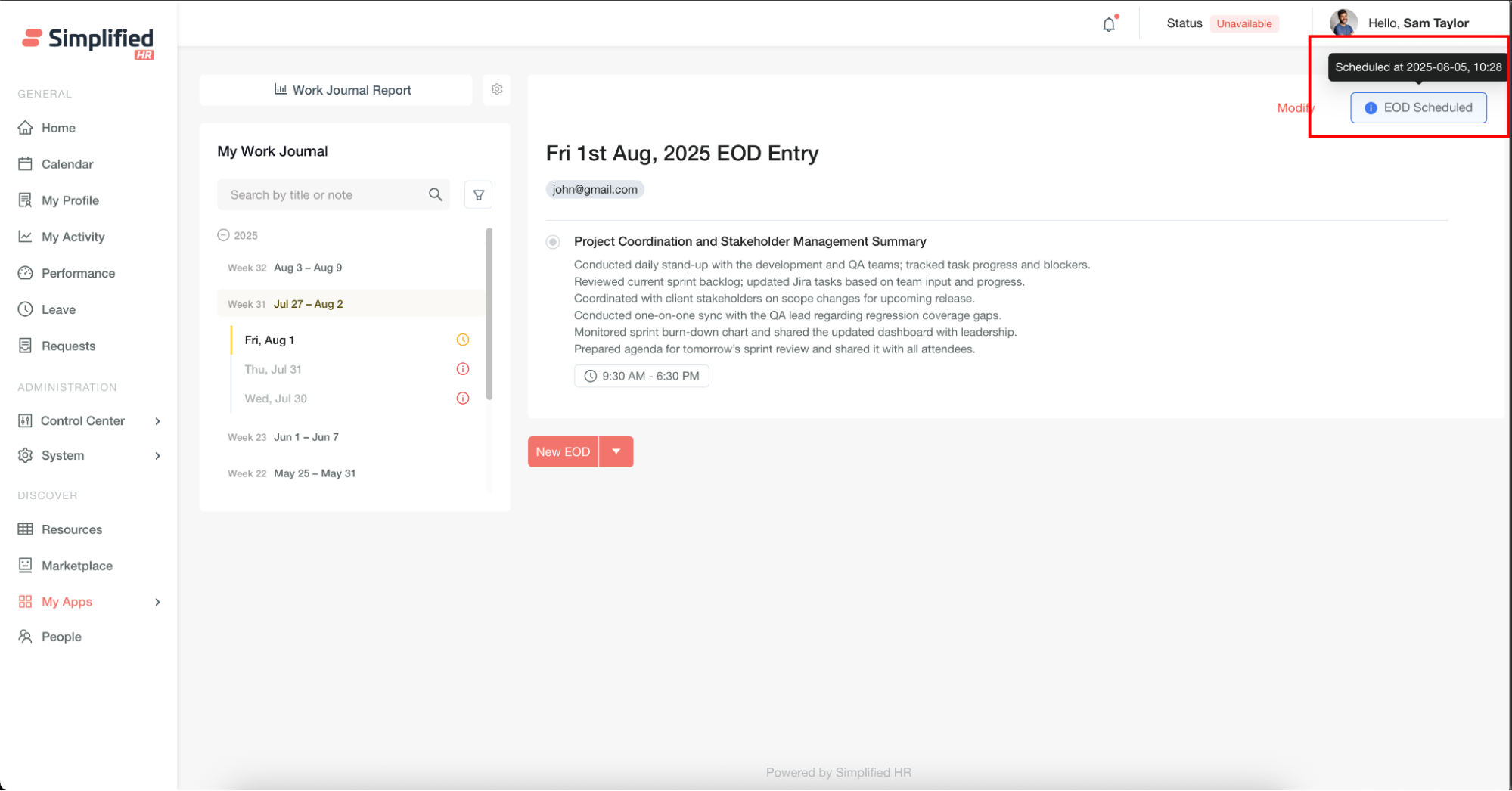
The system displays "EOD Scheduled" status.
-
Hover over the status to view the scheduled submission time.
Save EOD as Draft
Save as Draft: Save without submitting.
Important: No notifications are sent for saved drafts.
Create EOW Journal
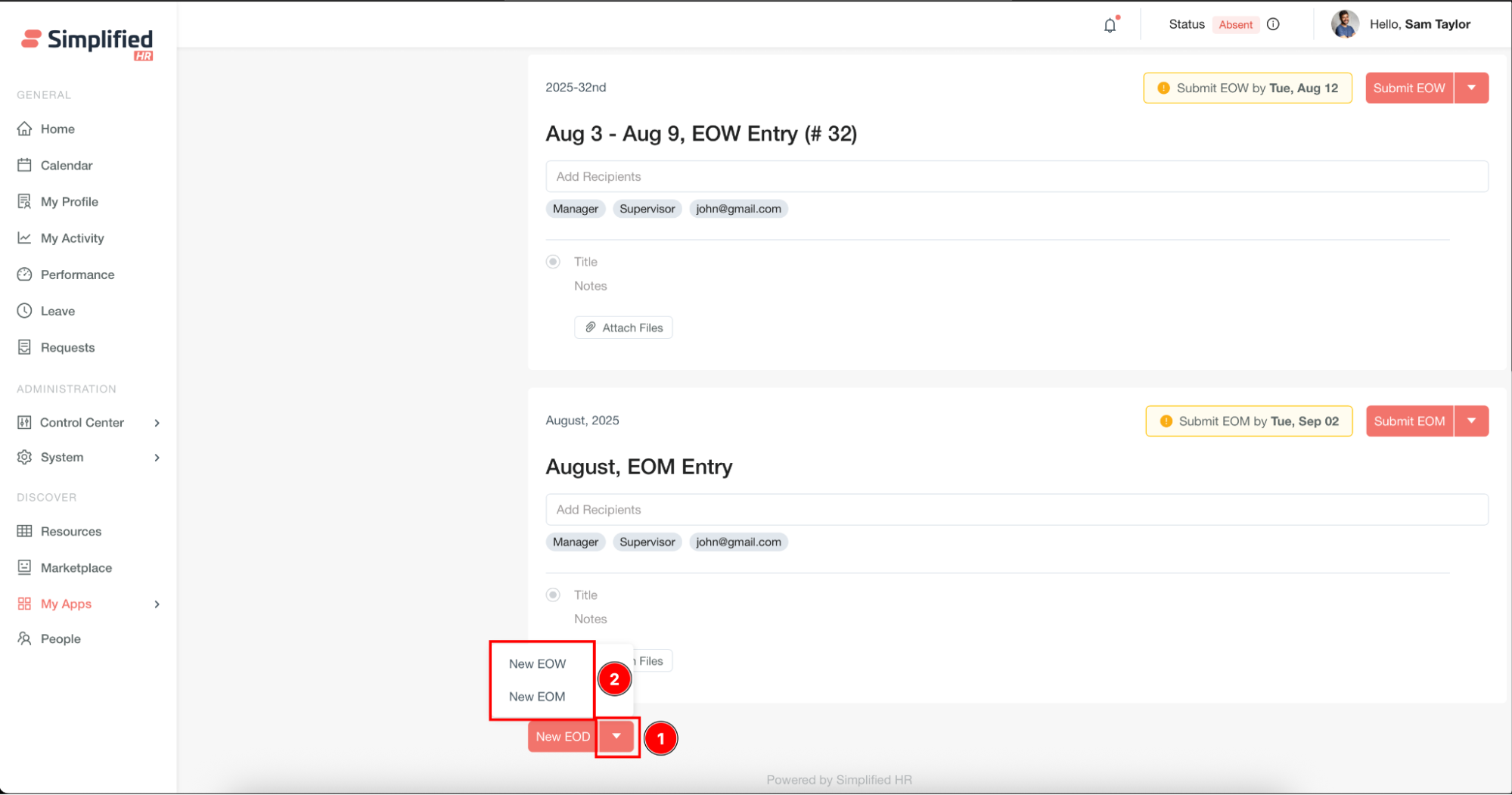
End of Week journals follow the same process as EOD entries, with submission deadlines based on your configured windows. Create a new entry by clicking New EOW.
Create EOM Journal
End of Month journals follow the same process as EOD entries, with submission deadlines based on your configured windows. Create a new entry by clicking New EOM.
Understand Journal Availability
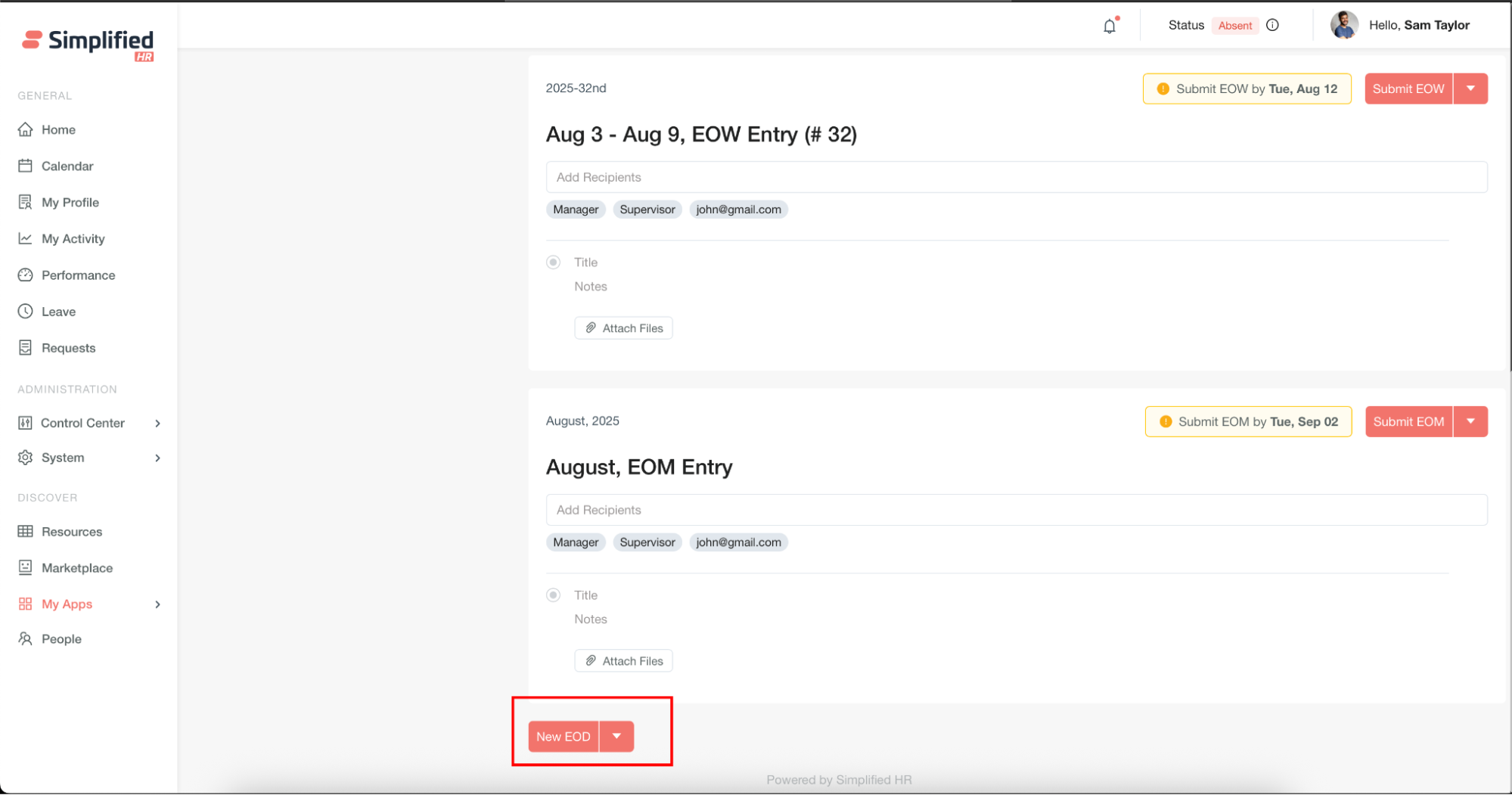
The visibility of the New EOD, New EOW, and New EOM buttons depends on your configuration settings in Job Title Settings or User Settings.
Modify Submitted Journal
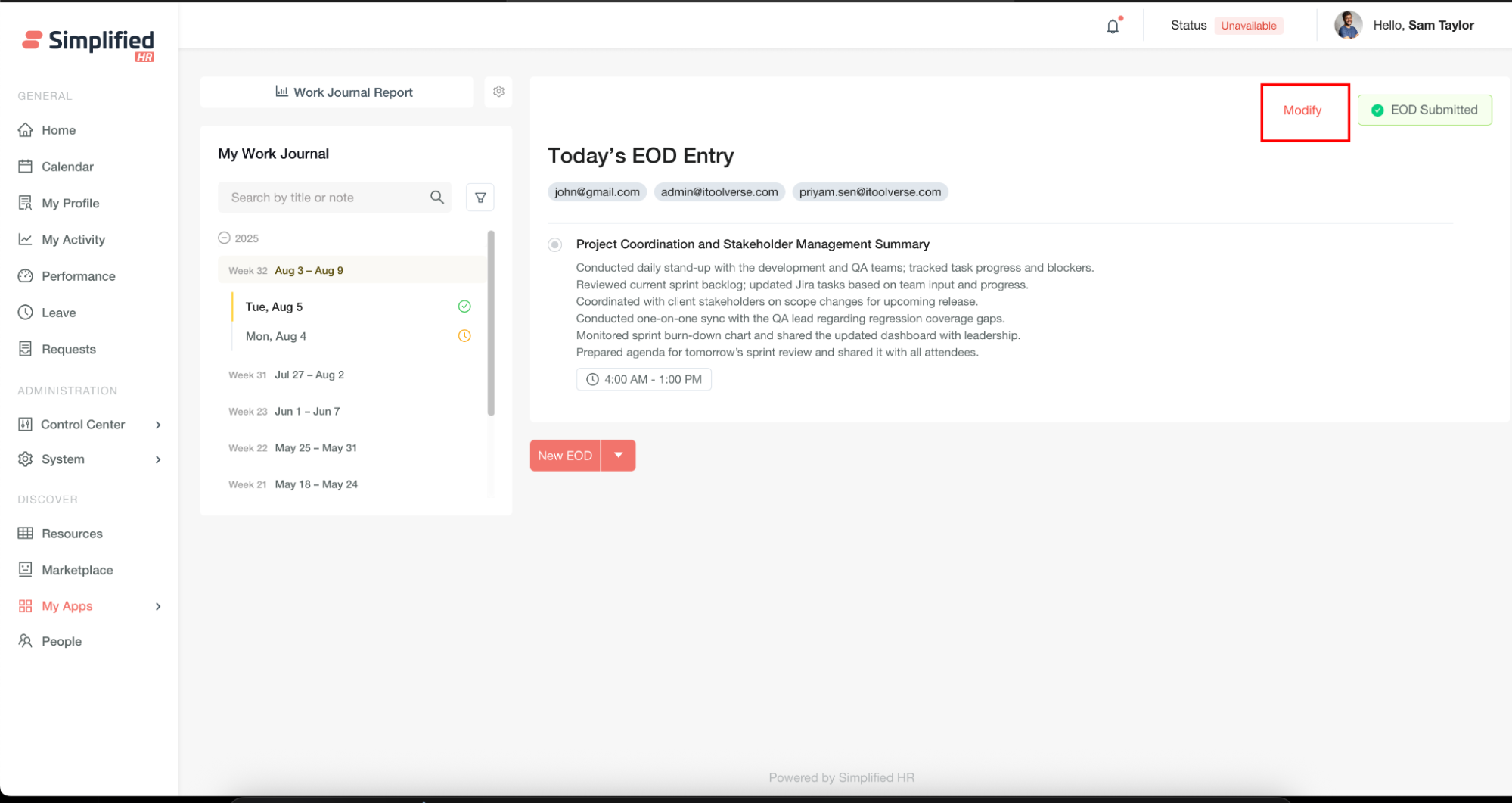
You can modify submitted journals within the configured Modification Window.
Understand Read-Only Journals
After the Modification Window expires, entries become read-only.
Receive Submission Confirmation
The system sends notifications via both the Notification Centre and email. User notifications confirm successful submissions.
Understand Recipient Notifications
Configured recipients receive alerts when entries are submitted.
Understand Draft Notifications
Important: Draft entries do not trigger notifications.
Receive Pending Journal Reminder
Depending on administrator notification configuration, you may receive reminder notifications directly when an EOD, EOW, or EOM entry is pending.
View Journal Overview
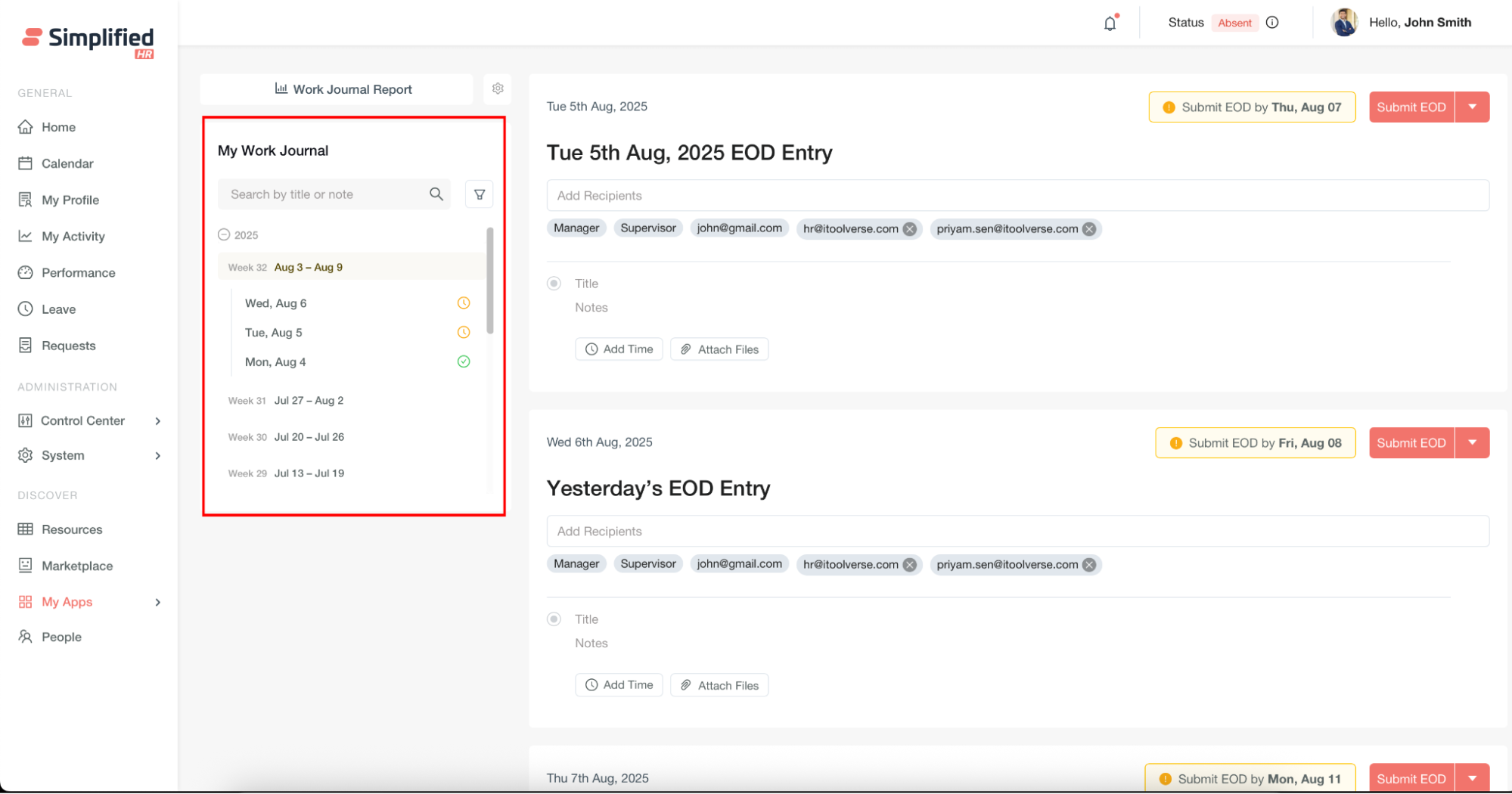
The Overview section provides a comprehensive view of your Work Journal activity with colour-coded status indicators.
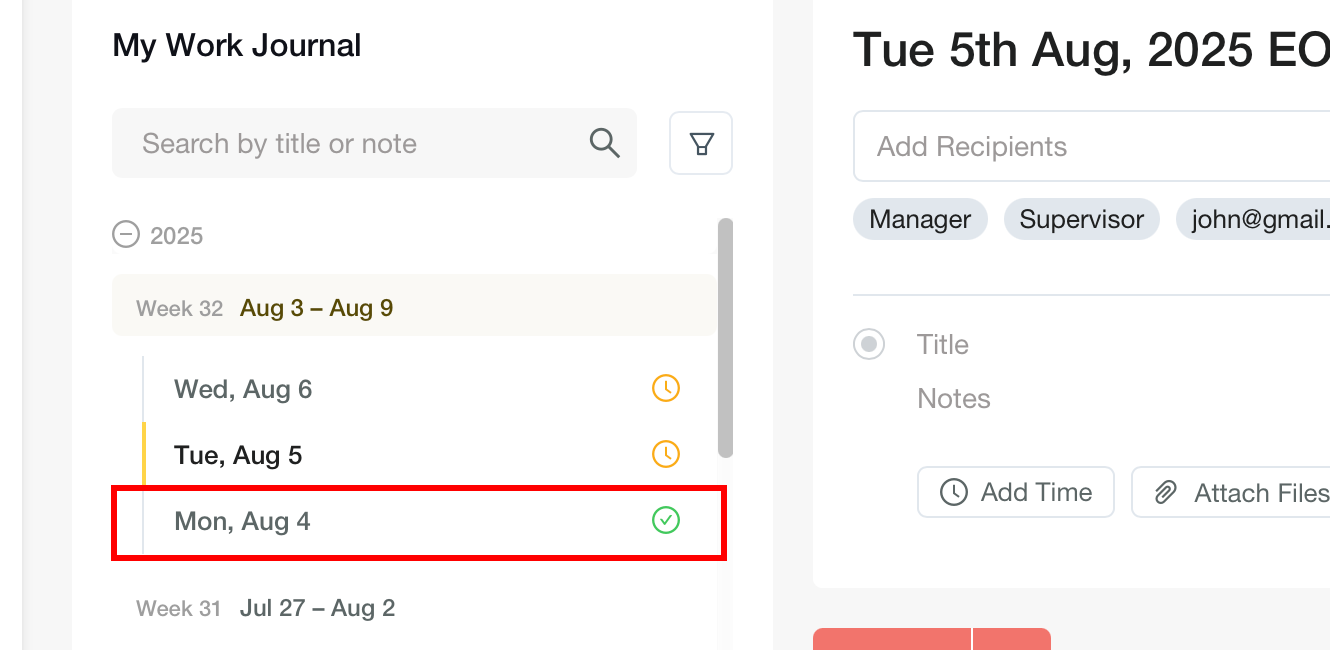
Understand Submitted Status
Green icon: Journal submitted successfully.
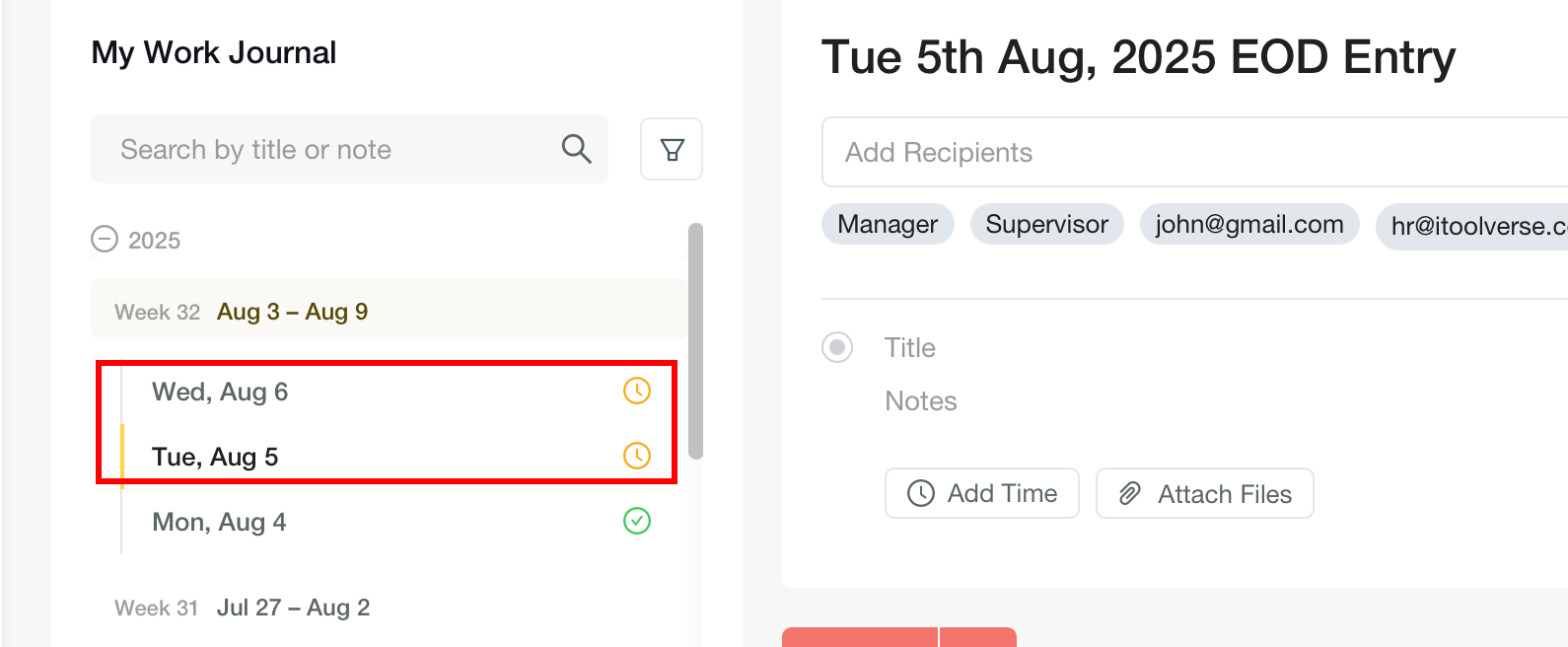
Understand Pending Status
Yellow icon: Journal pending submission.
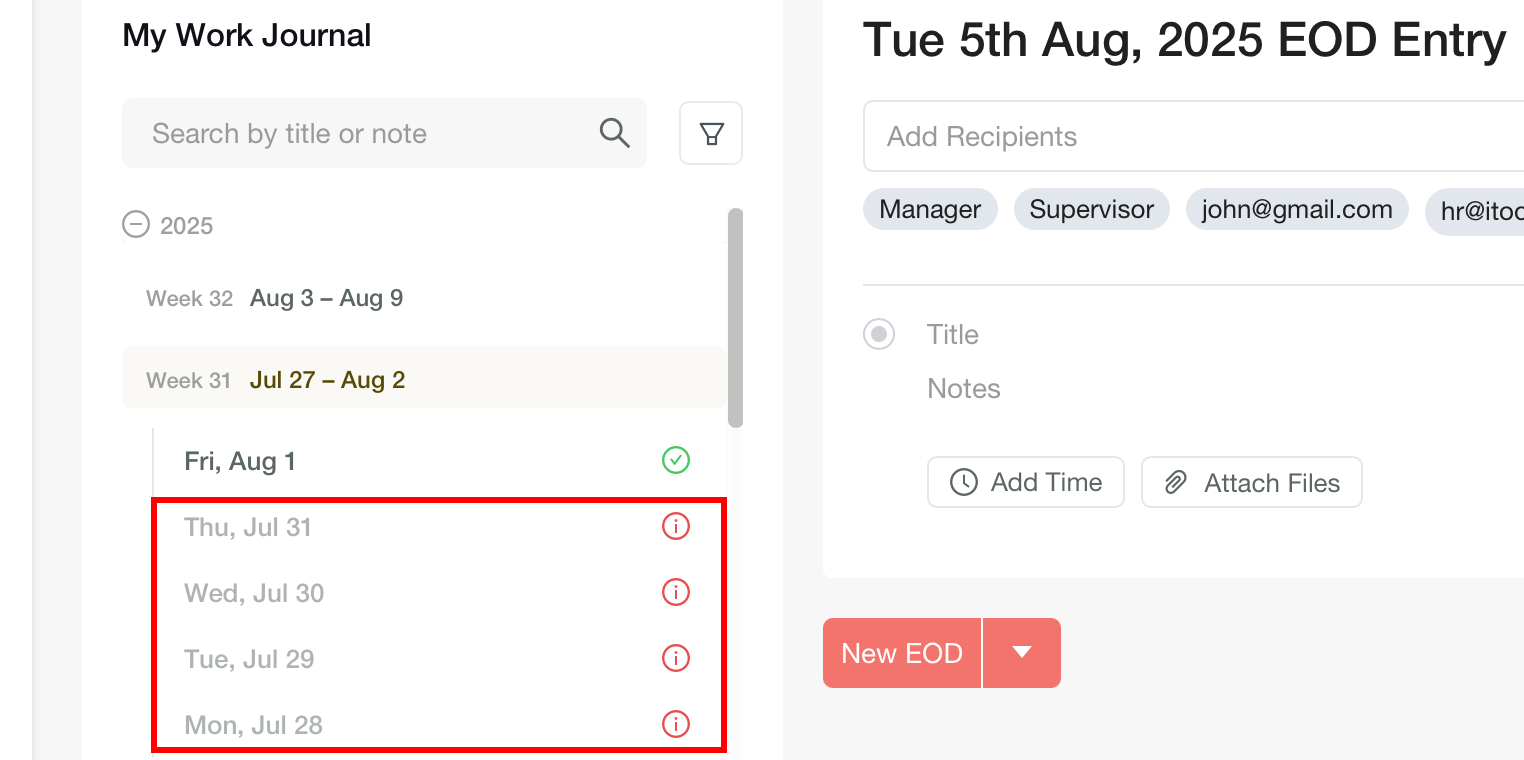
Understand Missed Status
Red icon: Journal submission missed.
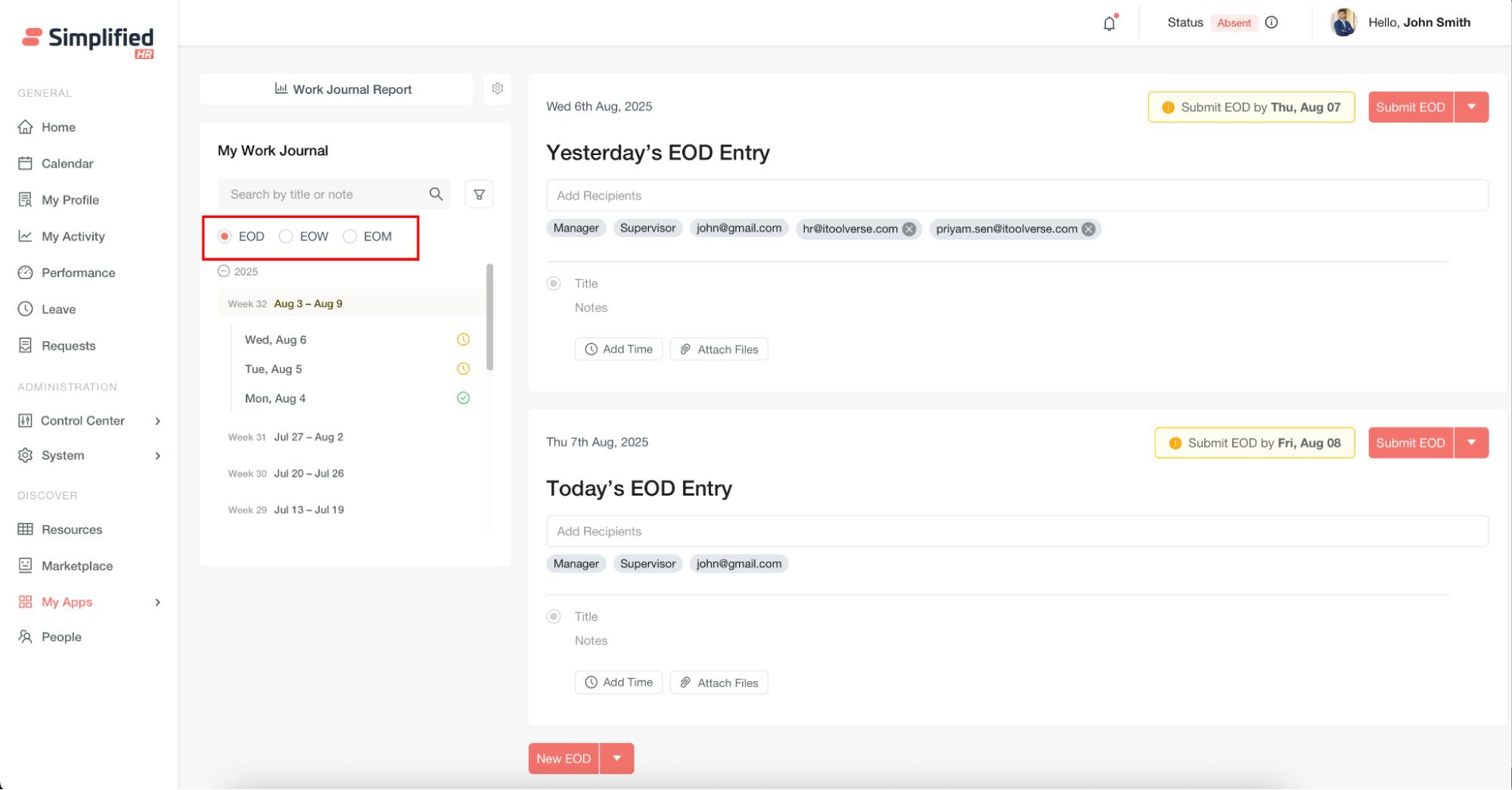
Switch Between EOD EOW and EOM
Use the radio buttons at the top to toggle between EOD, EOW, and EOM views.
Important: Radio buttons only appear when data exists for that journal type.
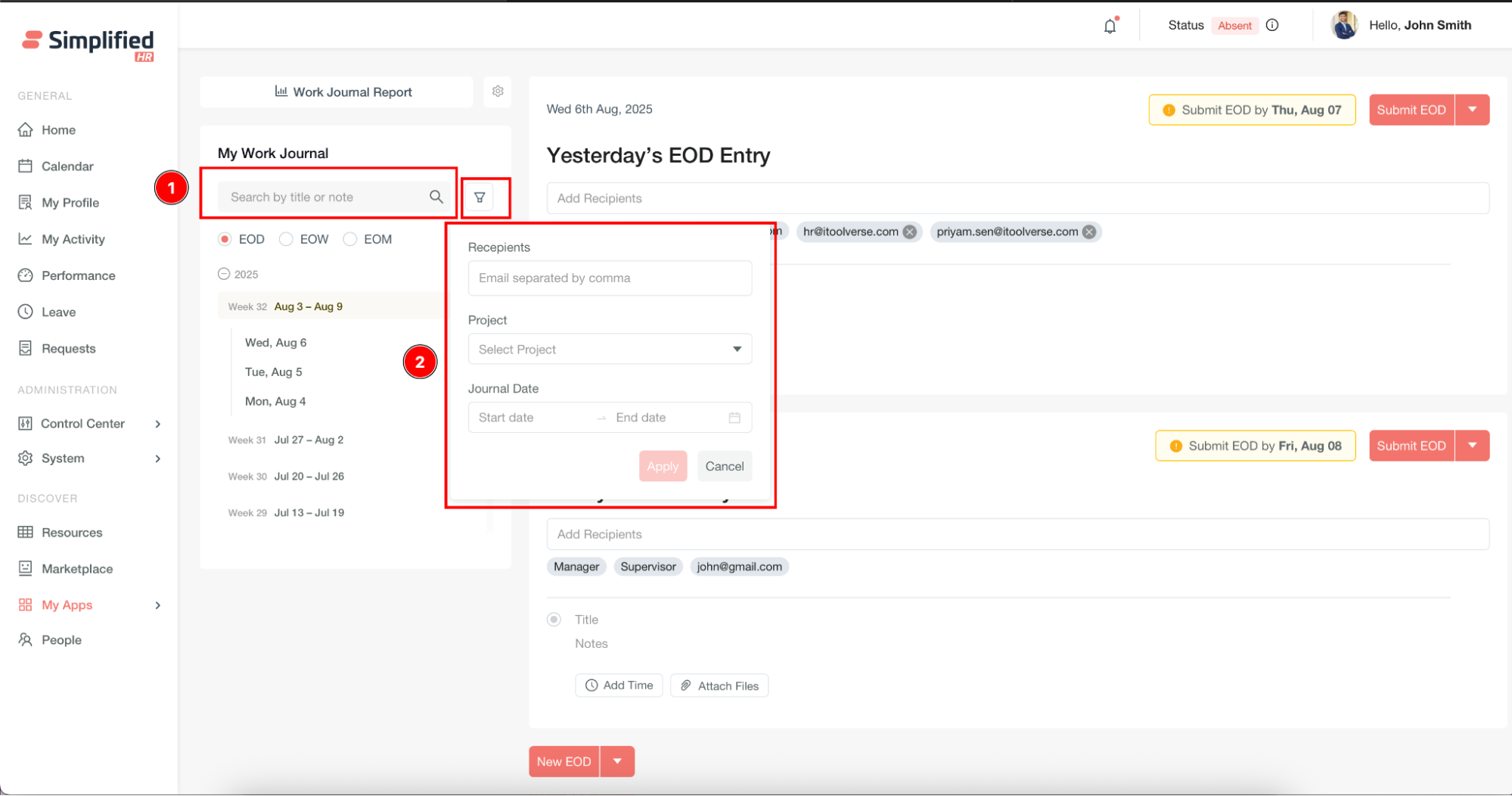
Search Journal Entries
Search field: Filter entries by typing keywords from the Title or Notes fields.
Filter Journal Entries
Advanced filters: Refine results using:
-
Recipients
-
Project
-
Journal Date
Clear Journal Filters
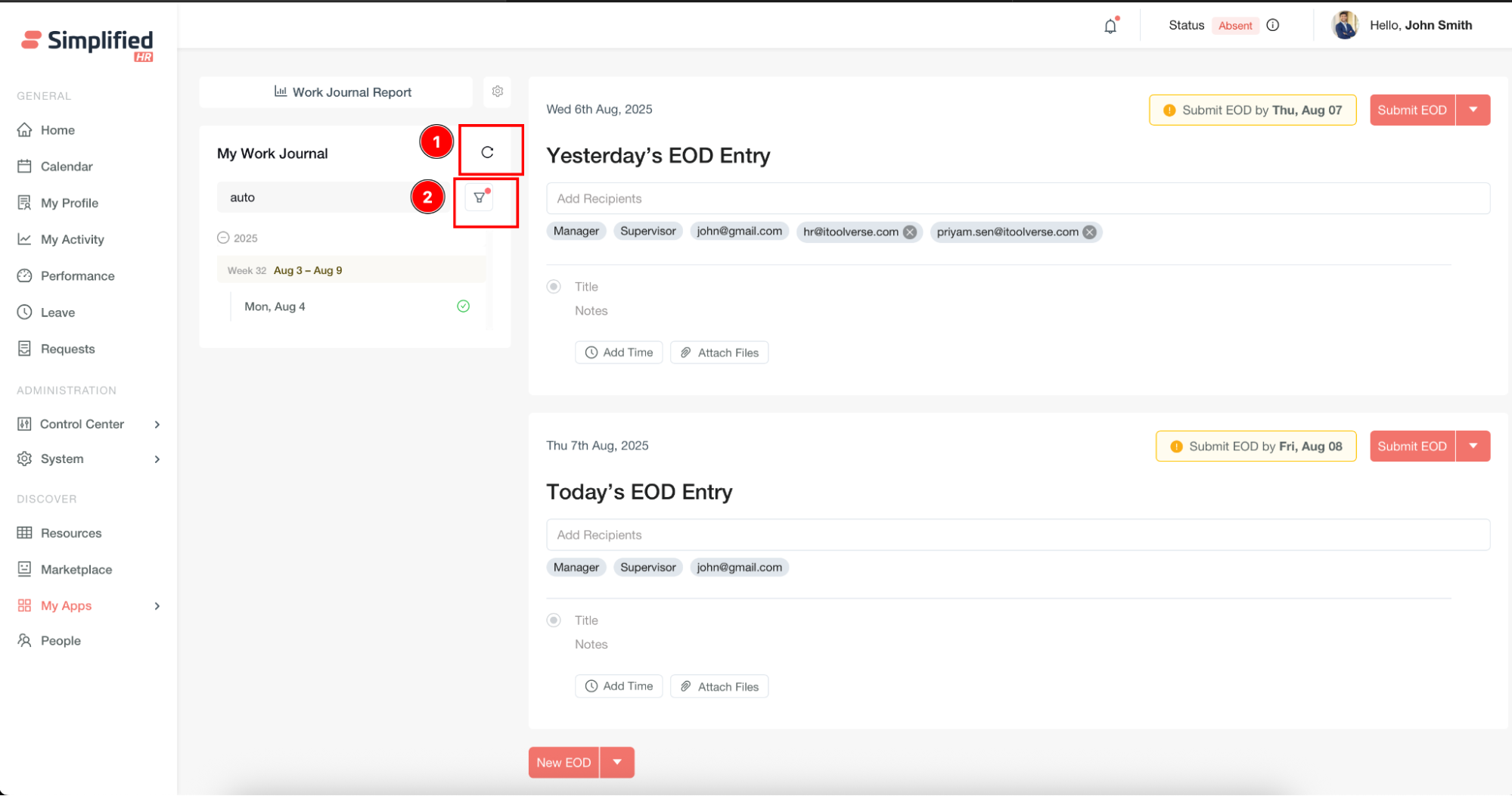
After applying filters, use the Clear button to reset.
Important: Active filters are indicated by a red dot on the filter icon.
Create Additional Journal Entries
Use the New EOD, New EOW, or New EOM buttons at the bottom of the Work Journal page to create additional entries as needed.