Employee → Signature Maker
Overview
The Signature Maker enables comprehensive digital or electronic signatures for HR documents and workflows. Organization-provided email signature templates are made available to you based on your team assignment, and — where enabled by an administrator — you can personalize certain signature elements.
Access My Email Signature
After a template is saved by an administrator, the signature becomes available in the My Email Signature section for users who are assigned to the appropriate team.
Important: Team members see only relevant signature templates, based on their team assignment.
View Team Email Signature
Team Email Signature is displayed for the team members.
Understand Team-Based Signature Access
Access levels:
-
Team-wise access: You can view or use signatures only for your assigned team(s).
-
All-team access: If you have access to all teams, you can view or use signatures for all teams.
Customize My Signature
When the administrator has checked the "Allow editing" checkbox, you can modify your individual signature within the template framework configured by the administrator.
Select Allowed Signature Fields
When "Allow User Selection" is enabled by the administrator, you can customize certain signature elements after the template has been configured.
Edit My Signature
You can modify your existing signature template through the dedicated edit button, which opens the template editor — available when editing has been enabled by the administrator.
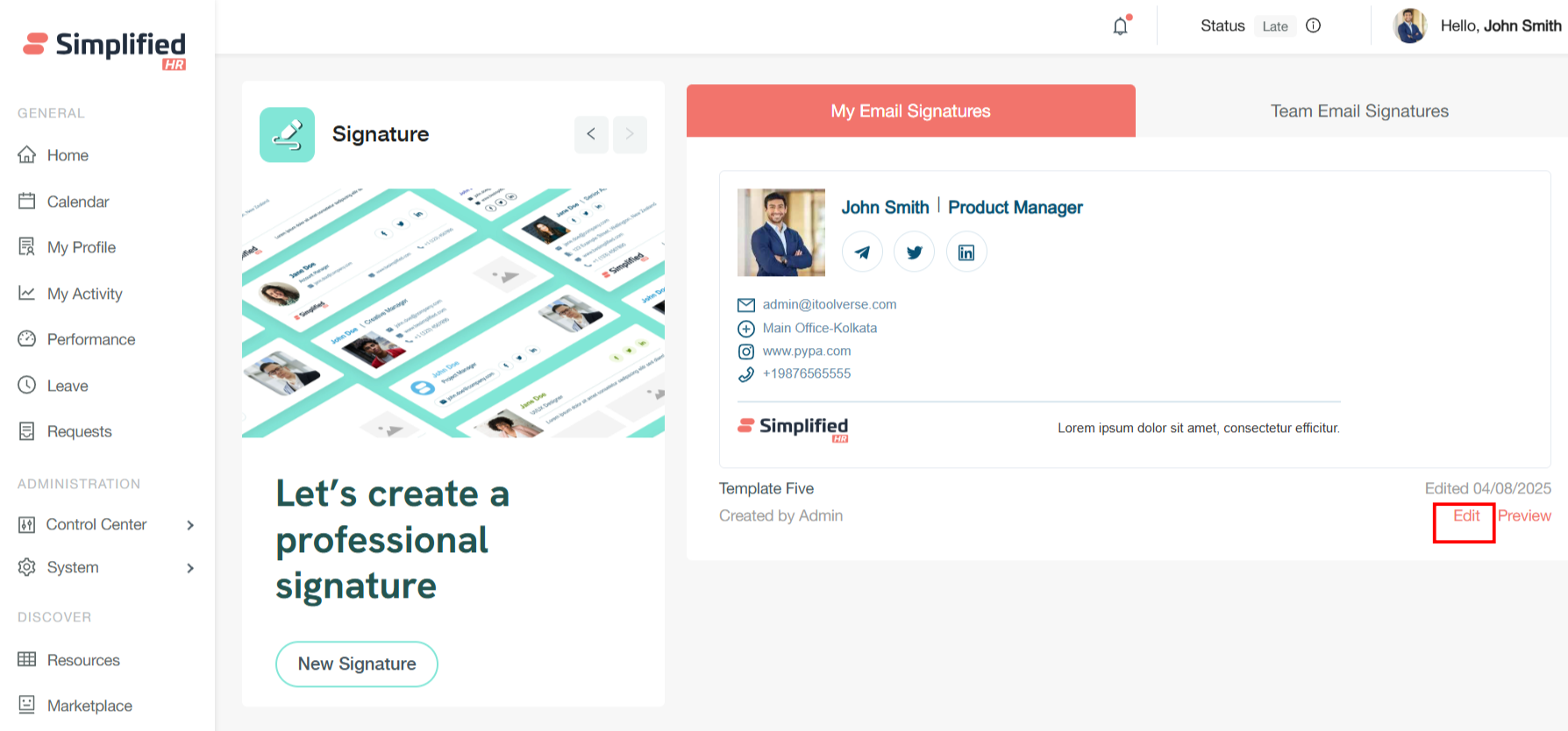
Create My Customized Signature
"Created by Me": You can use the admin's template and customize or modify it according to your own needs, then use that customized version.
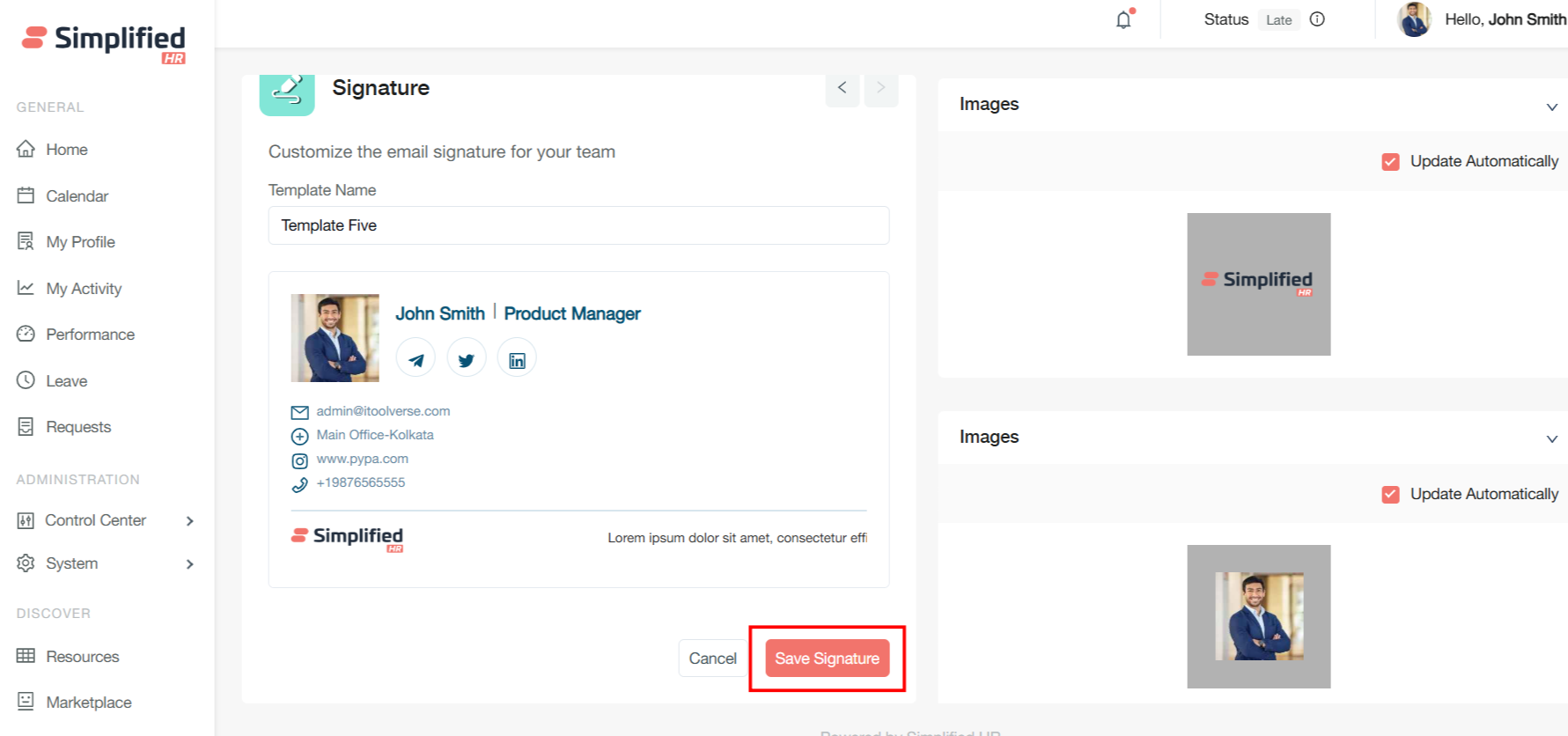
Manage Created by Me Signature
Distinction:
-
Created by Admin: Signatures/templates generated and managed centrally by administrators for team members to use.
-
Created by Me: Your personalized, customized version based on the admin-provided template.
Delete My Customized Signature
If your "Created by Me" template is deleted, only your user-specific template is removed.
Important: The original "Created by Admin" template and the main template remain intact and continue to be available; deleting your customized version does not delete the admin's template.
Preview My Signature
Click the preview option to display a sample template with realistic data.
-
Review the signature appearance across different screen sizes and formats.
-
Test visual elements including images, colors, and text formatting.
-
Verify link functionality and social media integration.
Close Signature Preview
Click the cross (X) button to exit the preview modal and return to the template management interface.
Copy Signature to Clipboard
You can copy the template using the Copy to Clipboard option, for use in supported email environments.
Download Signature
You can download the template in HTML/PNG format:
View Dynamic Signature Information
Configured fields automatically display your employee information within the signature, based on the underlying template configuration:
-
Job Title — your current position.
-
Location — your assigned work location.
-
Employment Type — your employment status (full-time, part-time, contract, or consultant).
-
Team — your department or team designation (footer field).
-
Work Email — your work email address (footer or link text field).
Important: These values are controlled by the configured template and your underlying employee information — they are not manually typed into the signature by you unless the administrator has enabled editing or user selection for that field.