Employee → Easybook
Overview
The Easybook Dashboard is your central interface for booking seats within your organization. This comprehensive and interactive platform allows all team members to create, manage, and track seat reservations.
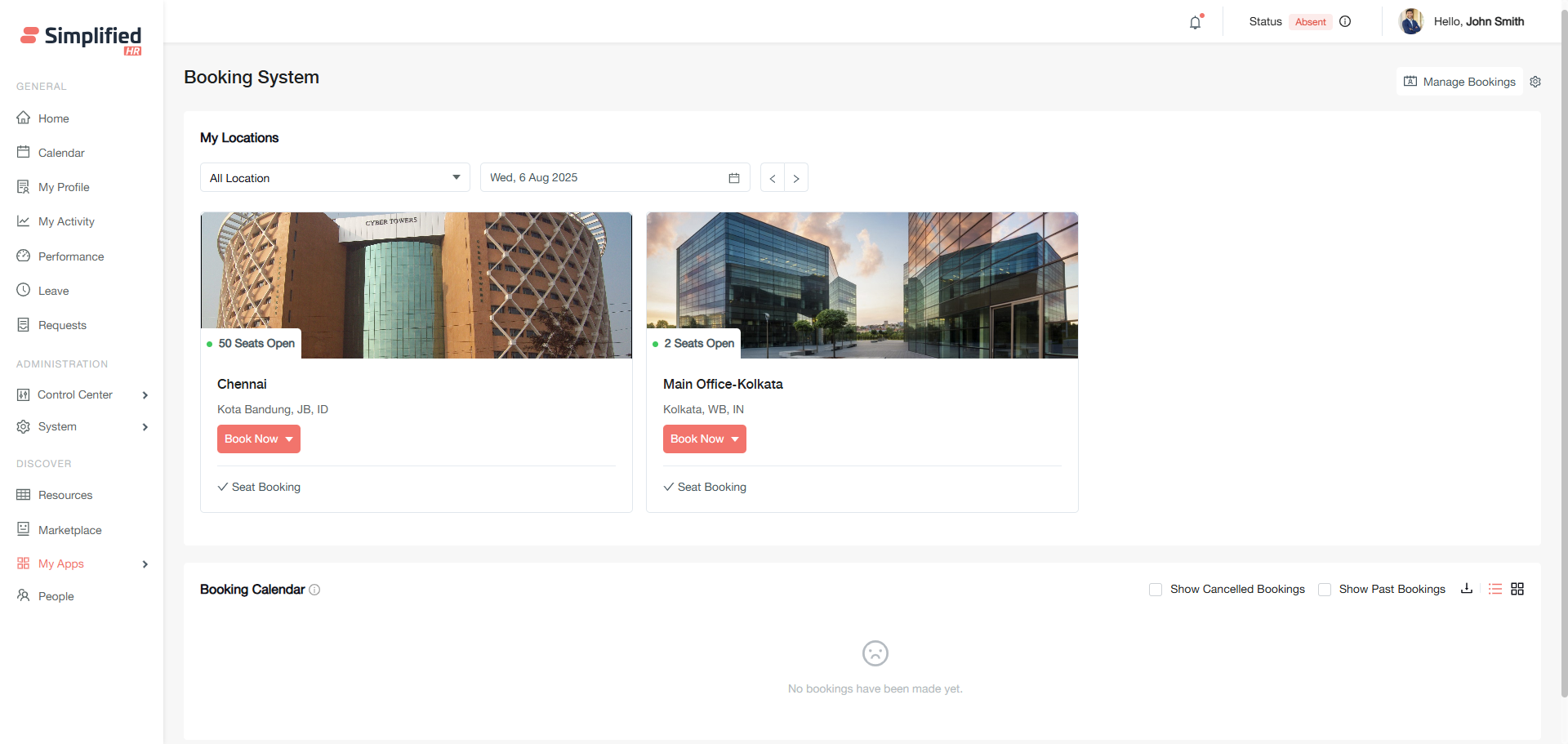
Access Easybook
Access Easybook through My Apps in the navigation menu.
Booking Prerequisites
-
You must have access to the Easybook app in your organization.
-
Your user account must have appropriate permissions for seat booking.
-
Booking locations and spaces must be configured by your administrator.
-
You should understand your organization's booking approval workflow.
Understand Booking Types
There are three available booking types:
-
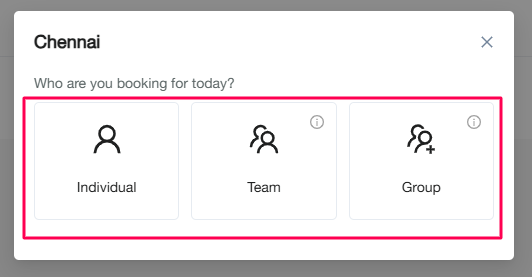
Individual/Myself: Book a single seat for yourself only.
-
Team: Book seats for multiple members from your associated team, including them as invitees.
-
Group: Book seats for any members across your organization, inviting any active organizational member.
Create Individual Booking
Book a single seat for yourself only. You can reserve one seat at a time using this option.
Create Team Booking
Book seats for multiple members from your associated team. You can include team members as invitees in your reservation.
Create Group Booking
Book seats for any members across your organization. This option allows you to invite any active organizational member.
Understand Booking Owner and Invitees
Booking owner: The primary person for whom the booking is created.
-
Dashboard bookings: When you create a booking from the Easybook Dashboard, you automatically become the booking owner.
-
Admin-created bookings: When administrators create bookings through Manage Booking, they can assign or select the booking owner.
Invitees: Additional members added to Team or Group bookings who will share the reserved space.
-
If a Team or Group booking is done by a non-admin booking owner, booking acceptance is required from the invitee(s), either from the accept/reject email or from the booking dashboard.
-
If a Team or Group booking is done by an organization owner, admin, or similar role booking owner, no acceptance is required from the invitee(s); the booking is auto-accepted and confirmed.
View My Locations
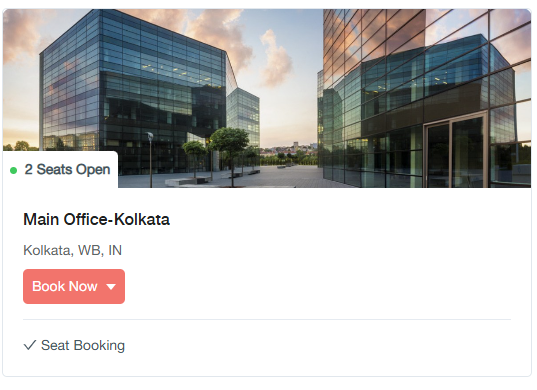
The My Locations section displays all available booking locations in an easy-to-browse thumbnail format. Each location displays:
-
Location image: Visual representation of the space.
-
Location name: Facility title and address.
-
Available seats: Color-coded availability status.
-
Amenities: Current booking options (typically "Seat booking now").
Understand Location Availability Status
-
Green: All configured seats available (shows "Open").
-
Yellow: Some seats booked (shows "Open") or location paused (shows "Booking paused").
-
Red: All seats reserved (shows "Fully Booked").
Filter Locations by Country
Country filter: Filter locations by country (configured during location setup).
Check Availability by Date
Date navigator: Check availability for current and future dates (defaults to current date).
Start Seat Booking
Seats can be booked with a simple Booking modal experience and also from a visual booking interface.
-
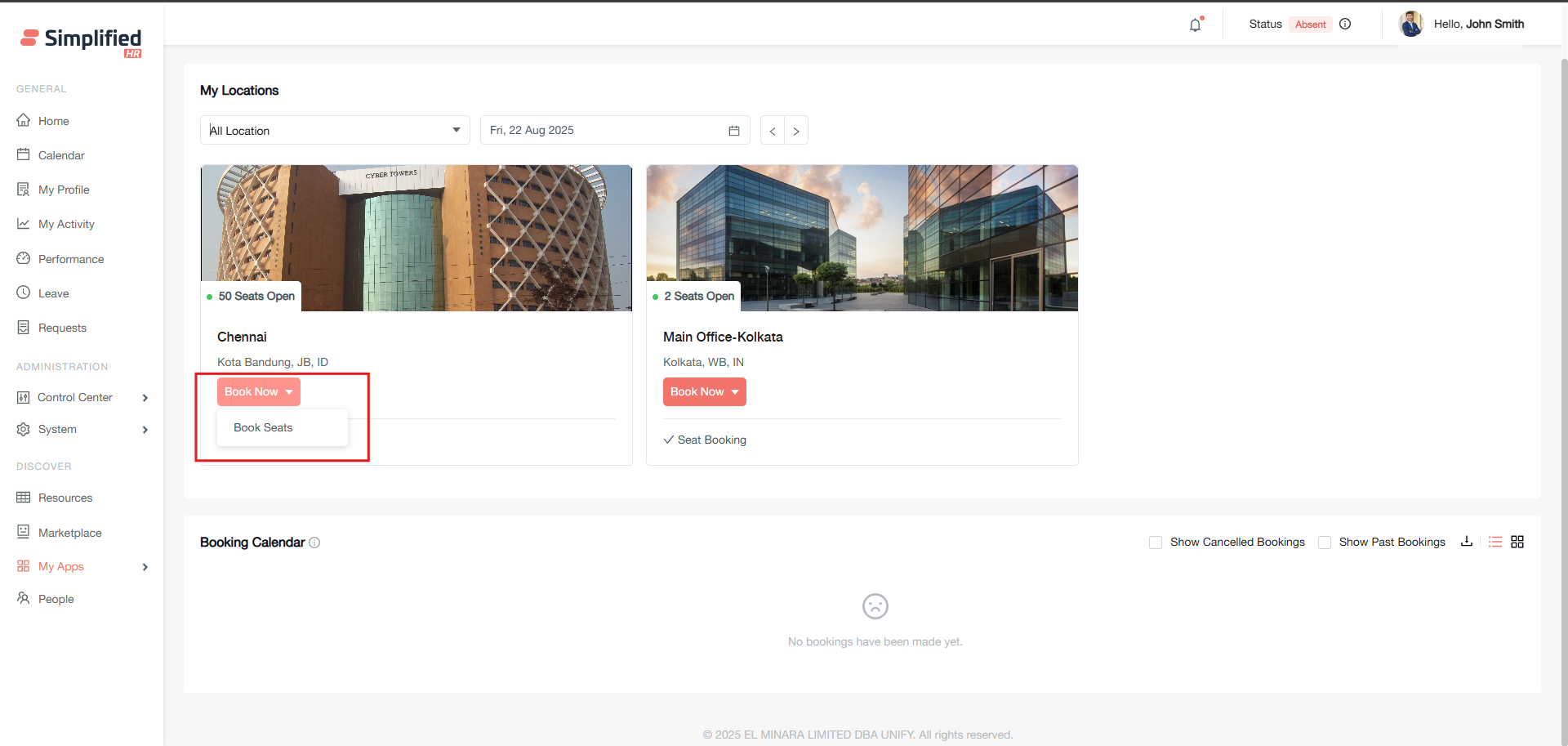
Locate the Book now button on your desired location.
-
Hover over the button and click Book Seats.
-
Select your booking type: Individual, Team, or Group.
Complete Booking Form
-
Add booking title (optional): Enter a descriptive name for your reservation.
-
Booking owner confirmation: You are automatically set as the booking owner for dashboard-created bookings.
-
Select date: Choose your reservation date (defaults to current date or last navigated date).
-
Choose spaces: Select from available options based on your booking type.
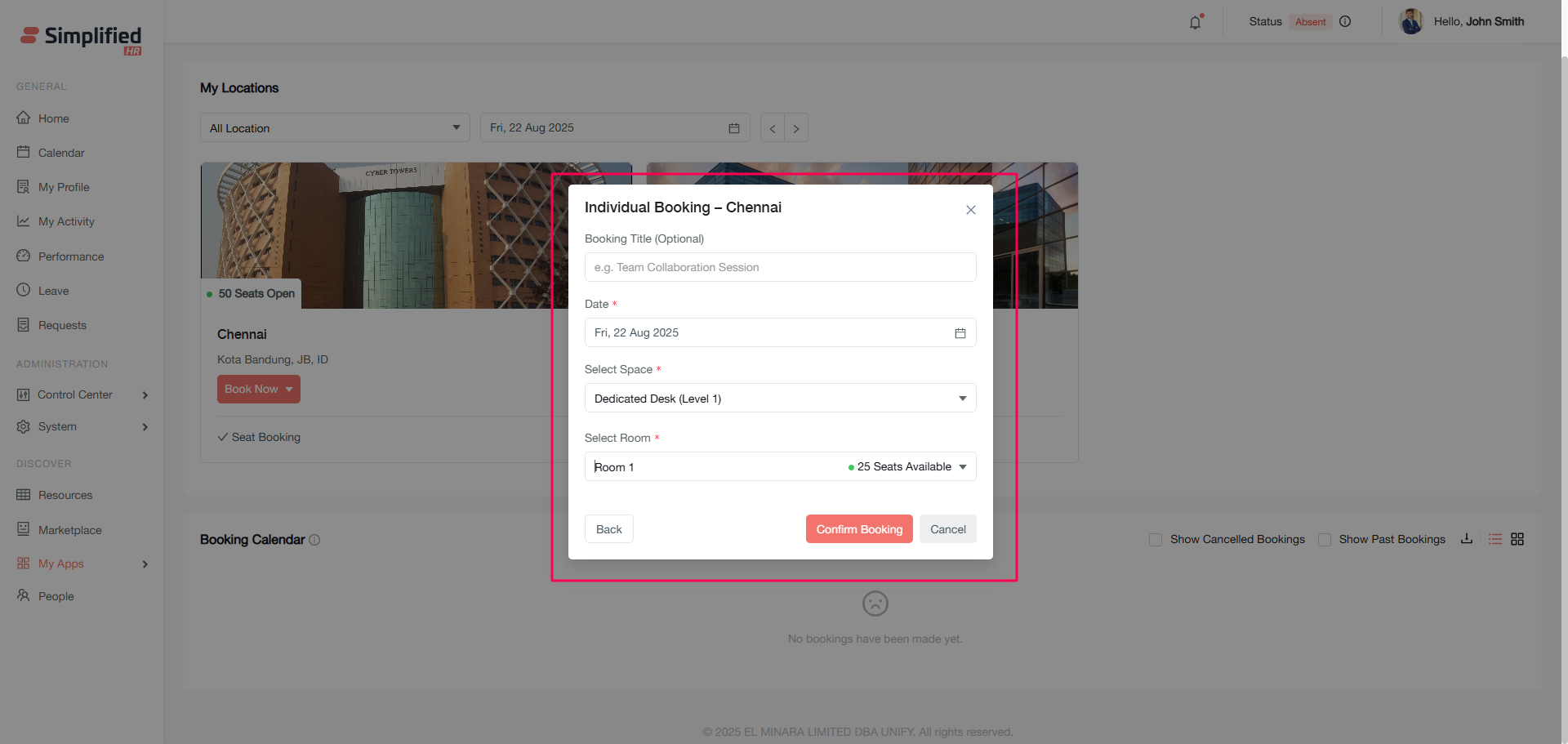
Select Space for Individual Booking
Select one space and one room only — a simple, streamlined selection process.
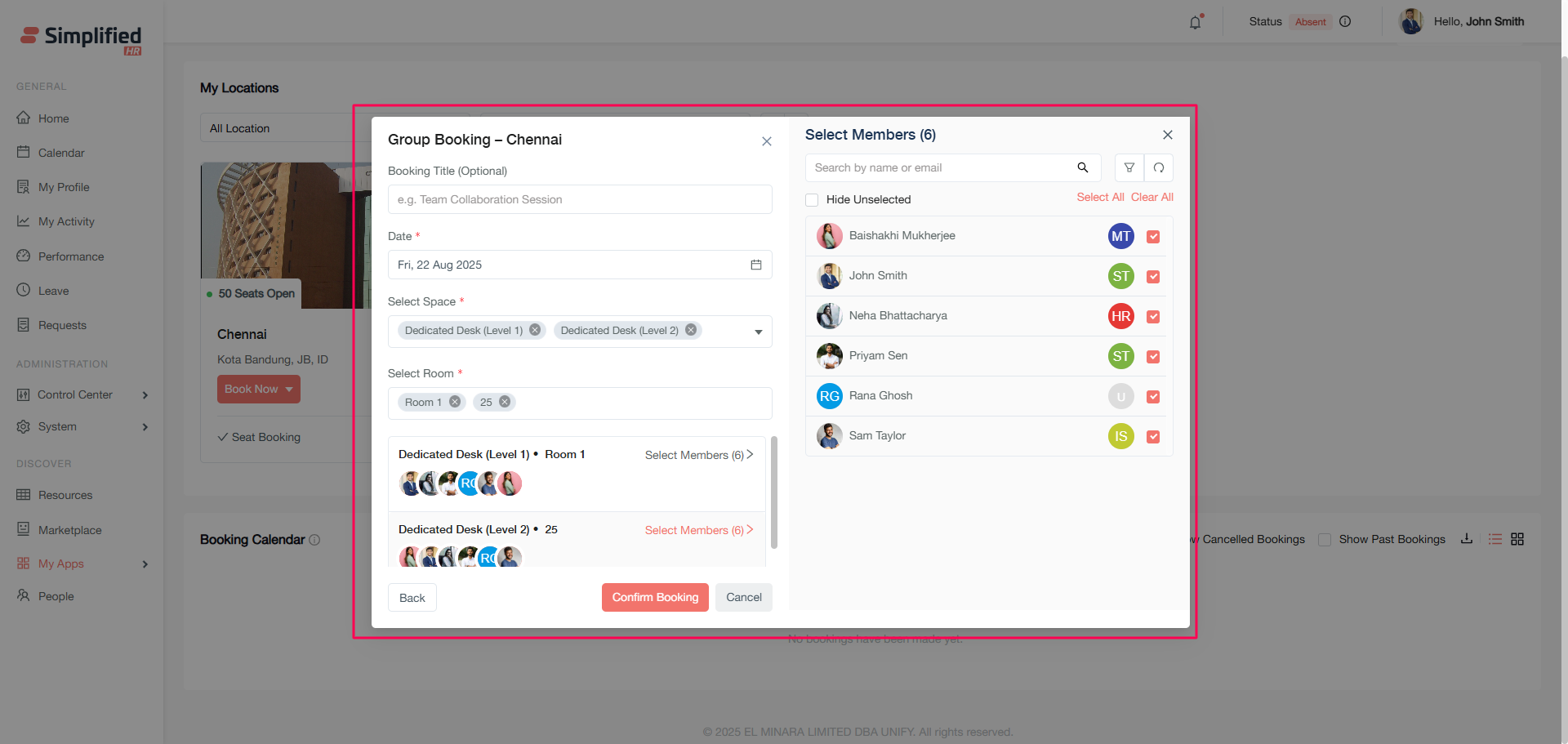
Select Spaces and Rooms for Team Booking
-
Select multiple spaces and rooms simultaneously.
-
Search and select specific spaces/rooms.
-
Add invitees and assign them to specific spaces/rooms.
-
Use search functionality to find invitees quickly.
Select Spaces and Rooms for Group Booking
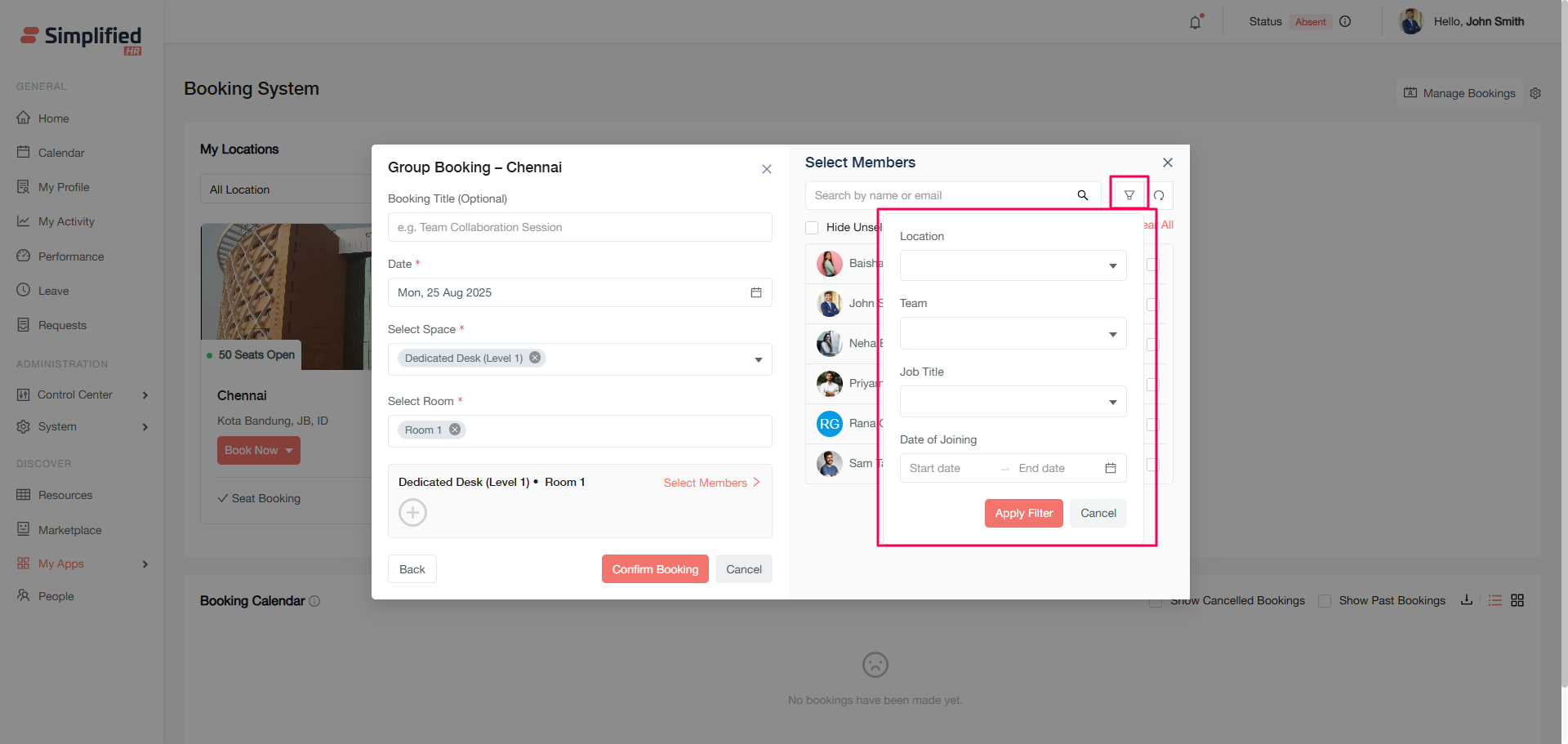
Same as Team bookings: select multiple spaces and rooms, and add invitees. For Group bookings, filter invitees by:
-
Location
-
Team
-
Job title
-
Date of joining range
Search and Select Invitees
Use the search functionality to find invitees quickly for Team or Group bookings.
Filter Group Invitees
For Group bookings, filter invitees by Location, Team, Job title, or Date of joining range.
Confirm Seat Booking
-
Click Confirm Booking after making all selections.
-
A success modal confirms your reservation.
-
Notifications and emails are sent to all involved members.
Use Visual Booking Interface
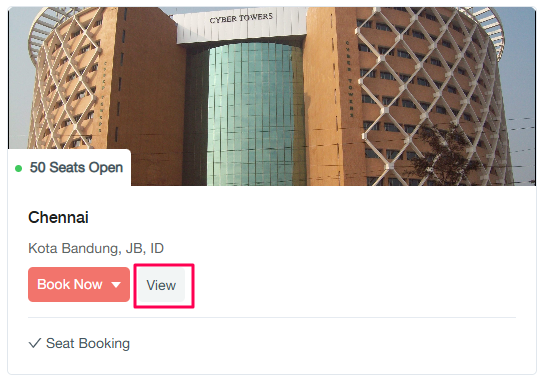
The visual booking interface (View UI) provides an enhanced booking experience when administrators have configured visual elements such as spaces, rooms, and floor plans. This interface allows you to see the physical layout of your workplace while making seat reservations, offering the same booking functionality as the standard dashboard but with additional visual context.
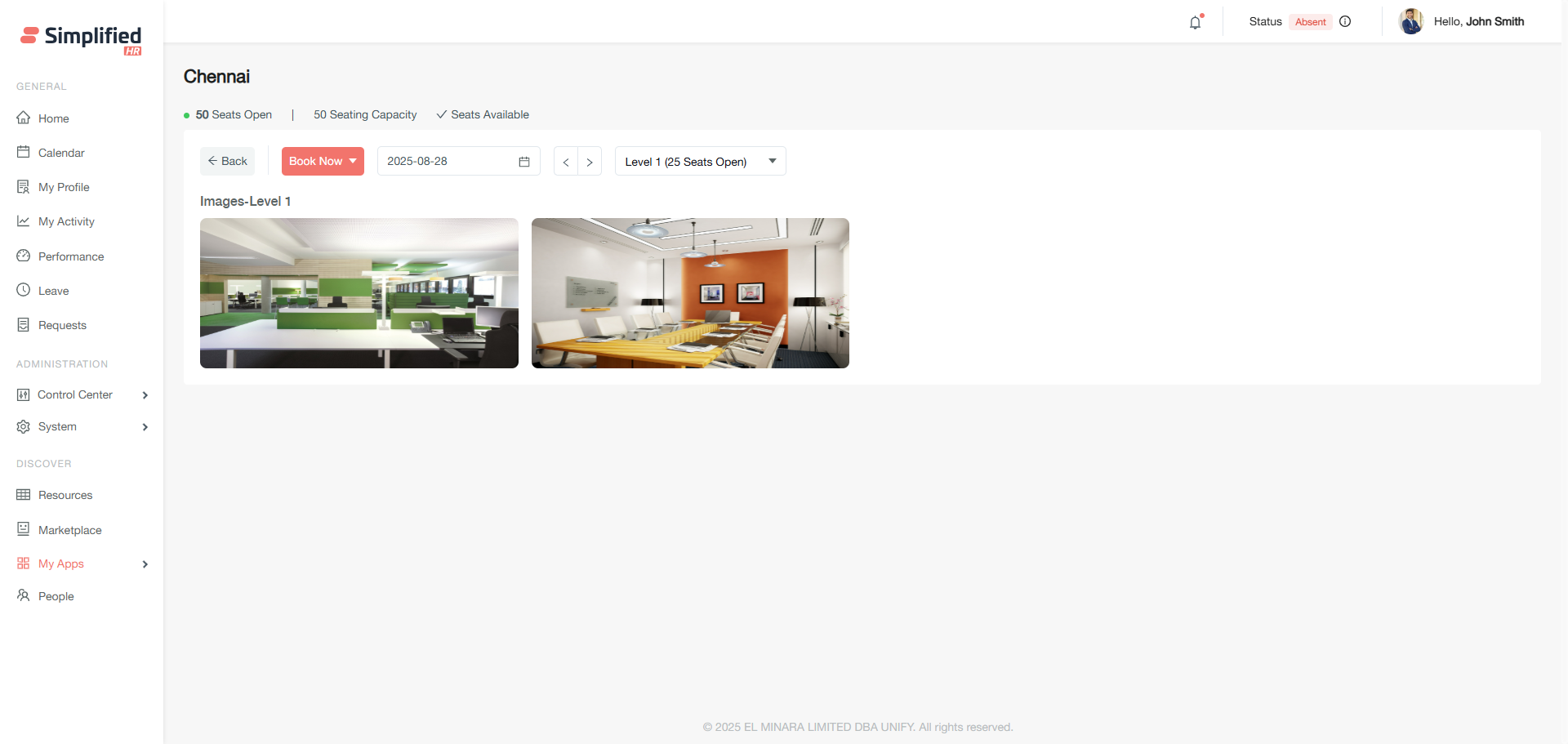
Benefits:
-
Enhanced location awareness — see exact room locations, understand proximity to amenities and colleagues.
-
Improved booking accuracy — visual confirmation of selected spaces and rooms, reduced booking errors.
-
Better user experience — intuitive interface matching the physical workspace, easy navigation between floors.
Switch Floors in Visual Booking
-
Use the level selector to switch between different floors.
-
Each level displays its configured spaces and rooms.
-
Availability updates automatically when changing levels.
View Room Details
- Click on individual rooms to see capacity and availability.
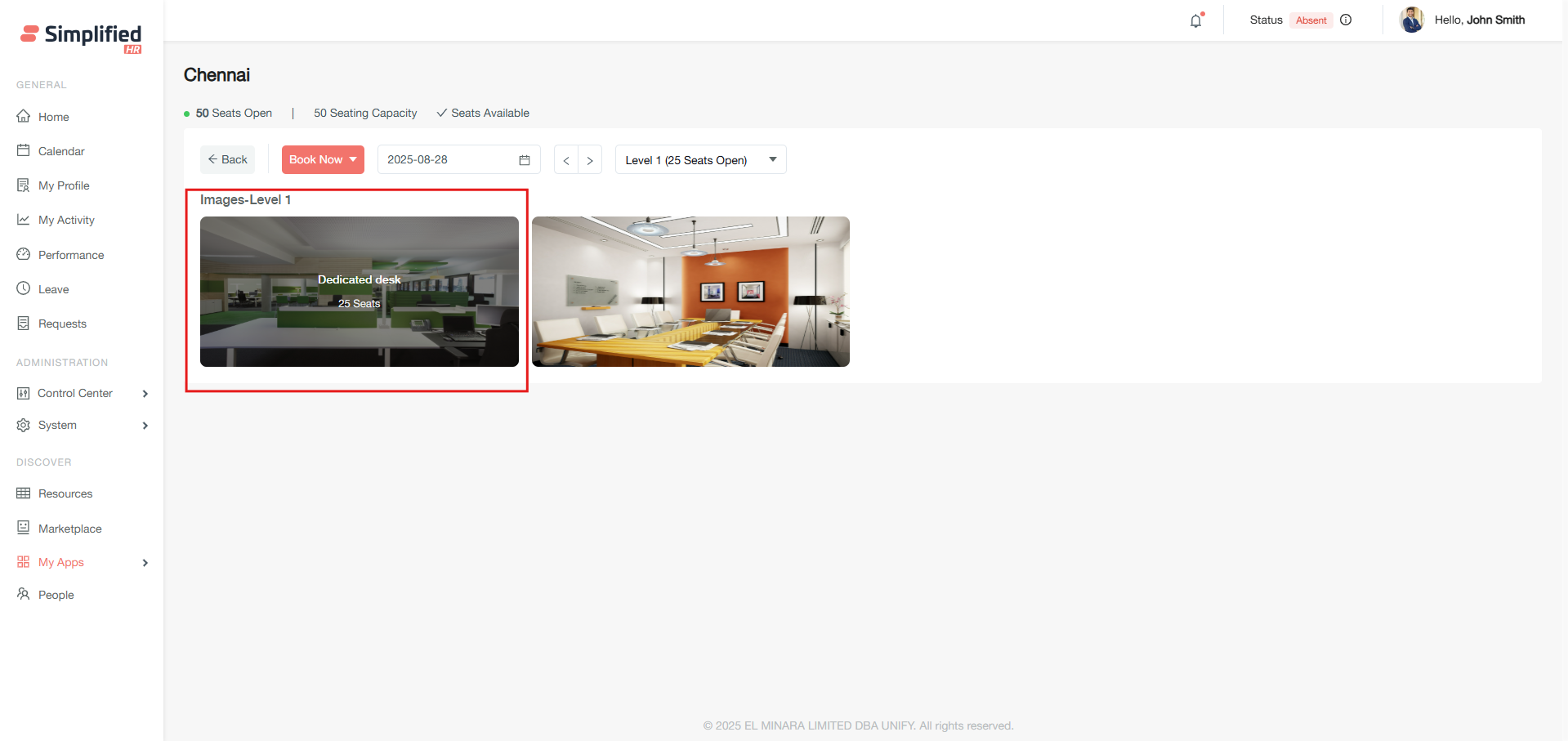
- Room information includes space type, seat count, and current status.
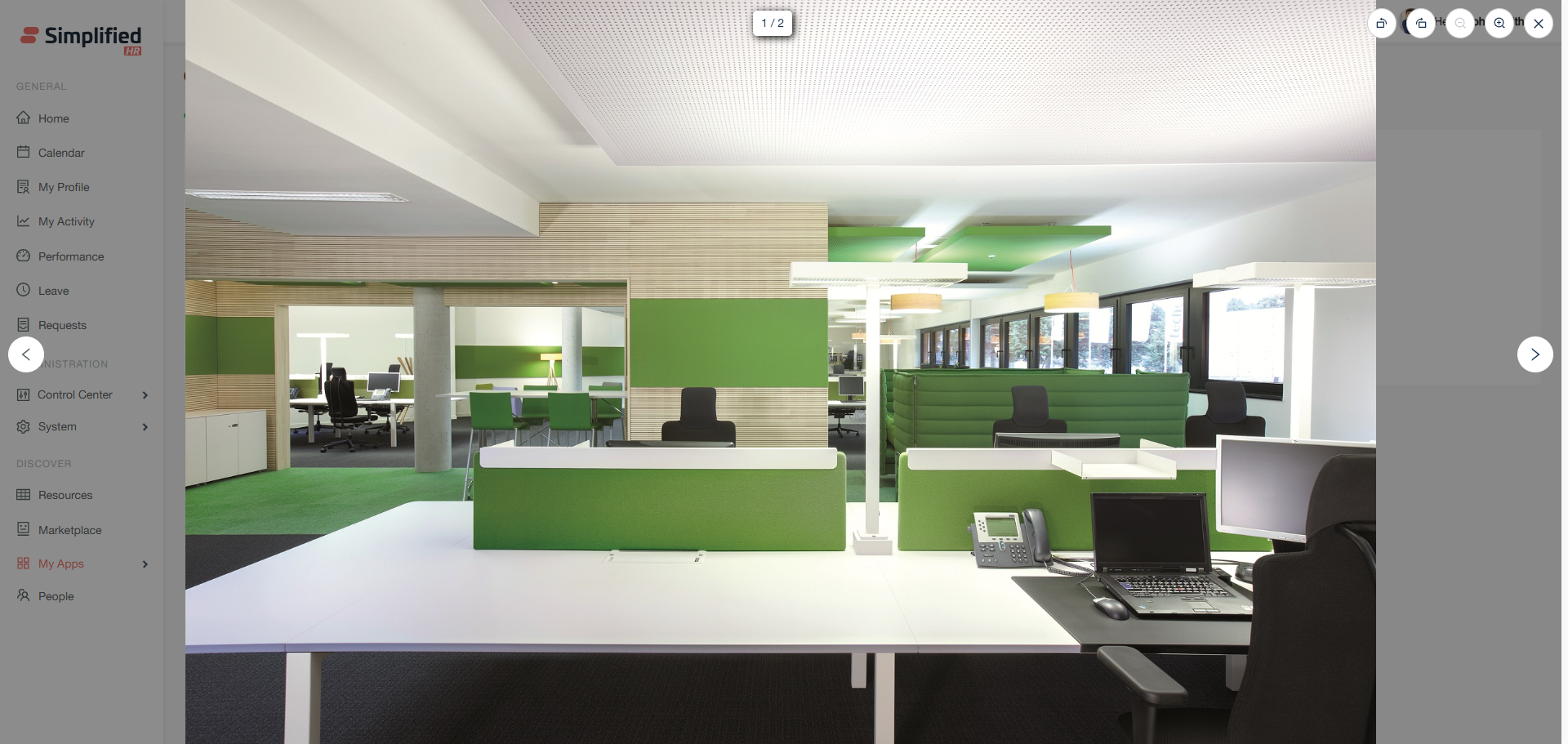
- Booking restrictions and amenities are displayed when relevant.
Select a Room from Visual Layout
The visual interface lets you click on rooms directly within the floor plan to view details and make your selection.
Important: Visual booking availability depends on administrator configuration of visual elements; it is not guaranteed for every location.
View Booking Credit Balance
When selecting credit-enabled spaces, the system displays your available credit balance. Credits reset based on your administrator's configuration (daily or monthly).
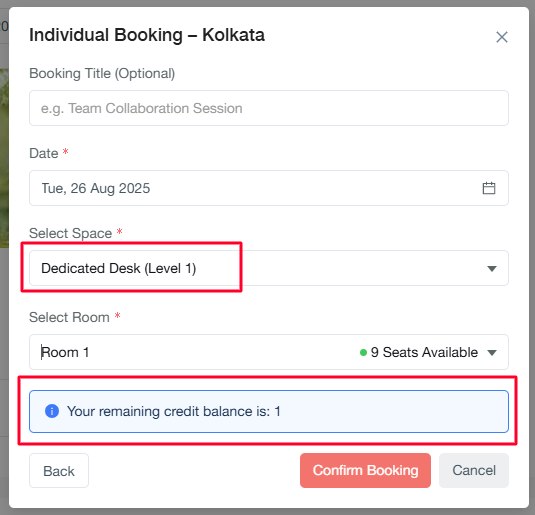
Example configurations:
Important: Credit restrictions don't apply to owners, administrators, or similar roles.
Understand Credit Consumption
-
One credit is consumed per booking.
-
Modifying booking dates also consumes credits.
-
Modifying spaces, floor, and room in an existing booking does not consume credits.
Understand Credit Restrictions
Credit limits depend on administrator configuration (daily or monthly limits, or custom credit groups).
Understand Location Access
You can only book locations configured for your team.
Understand Space Restrictions
Team bookings: You can only add members from your associated team. Group bookings: You can invite any active organizational member. Space availability may also be restricted by job title, as configured by your administrator.
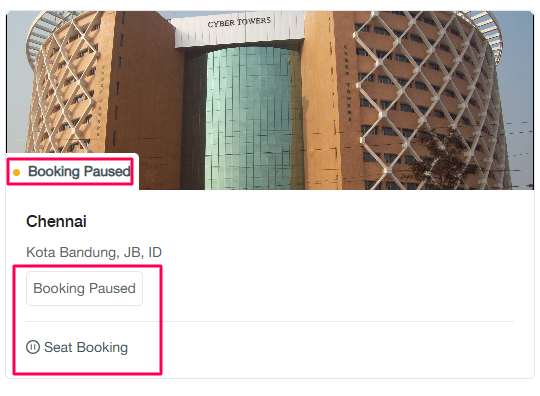
Important: Booking is restricted for all members from the dashboard for paused locations.
Understand Booking Limits
Your booking access depends on several factors, including space booking limits, future-booking restrictions, and your credit balance — all configured by your administrator.
Understand Auto-Approved Bookings
Auto Approve enabled:
-
Individual bookings (non-admin users): Booking is automatically approved and immediately appears in your booking calendar.
-
Team/Group bookings (non-admin users): The booking owner sees the approved booking in their calendar; invitees must accept to see their confirmed booking, or may reject the invitation.
-
Admin bookings: All booking types are automatically approved with no additional approval required from admin or invitees.
Understand Team and Group Invitee Acceptance
Invitees must accept to see their confirmed booking in the calendar, or reject the invitation as per their choice. Acceptance/rejection can be done from the accept/reject email or from the booking dashboard.
Understand Requires Approval
Requires Approval enabled:
-
Non-admin bookings outside assigned locations: Individual, Team, or Group bookings appear in Pending Approval and require administrator approval before appearing in the calendar. Invitees see bookings in Pending Approval until they accept/reject.
-
Admin bookings: Automatically approved regardless of location, and immediately available in the booking calendar.
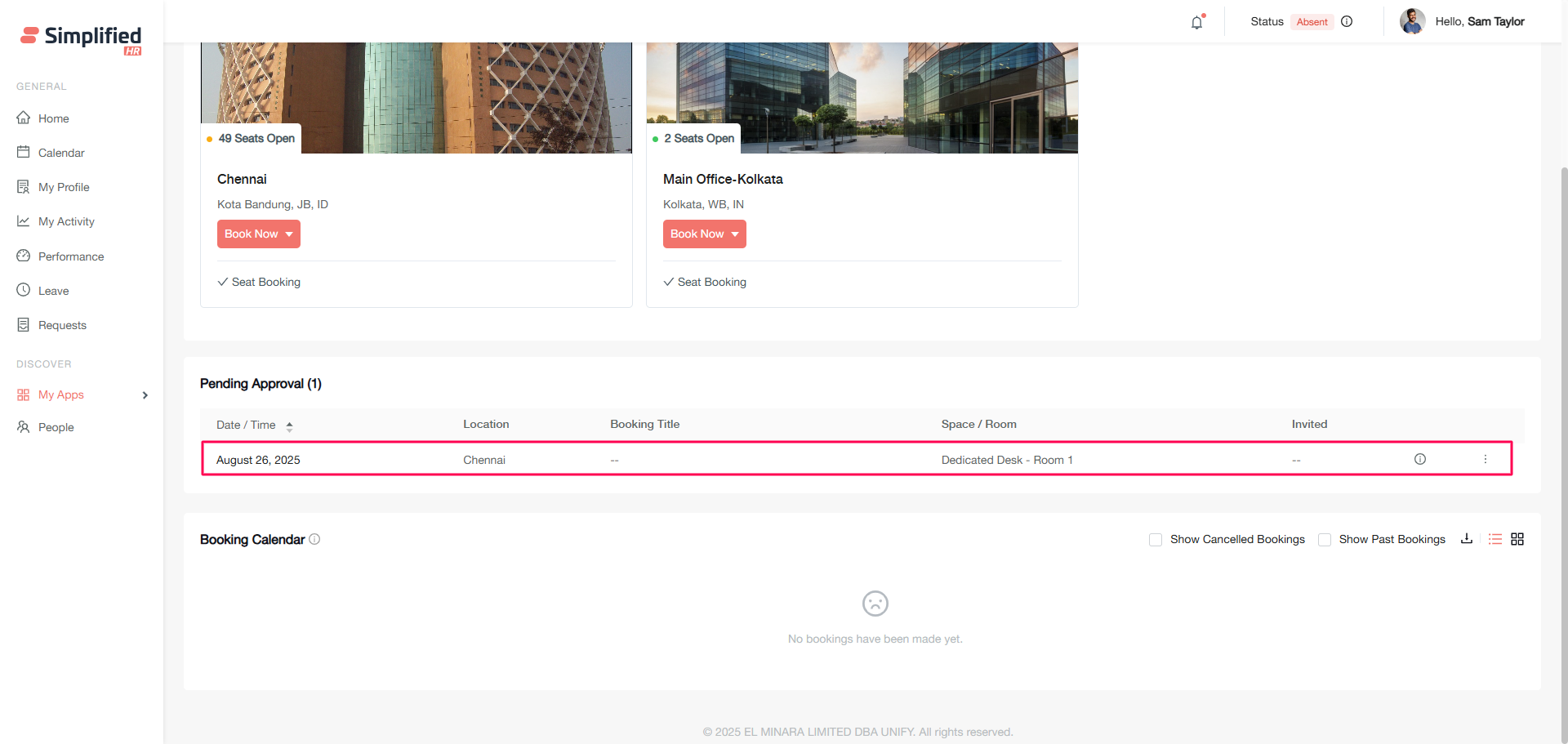
Accept Booking Invitation
Accept an invitation either from the accept/reject email or from the booking dashboard.
Reject Booking Invitation
Reject an invitation either from the accept/reject email or from the booking dashboard.
Understand Past-Date Invitation Restrictions
Important: Past-date bookings cannot be accepted by invitees.
View My Bookings
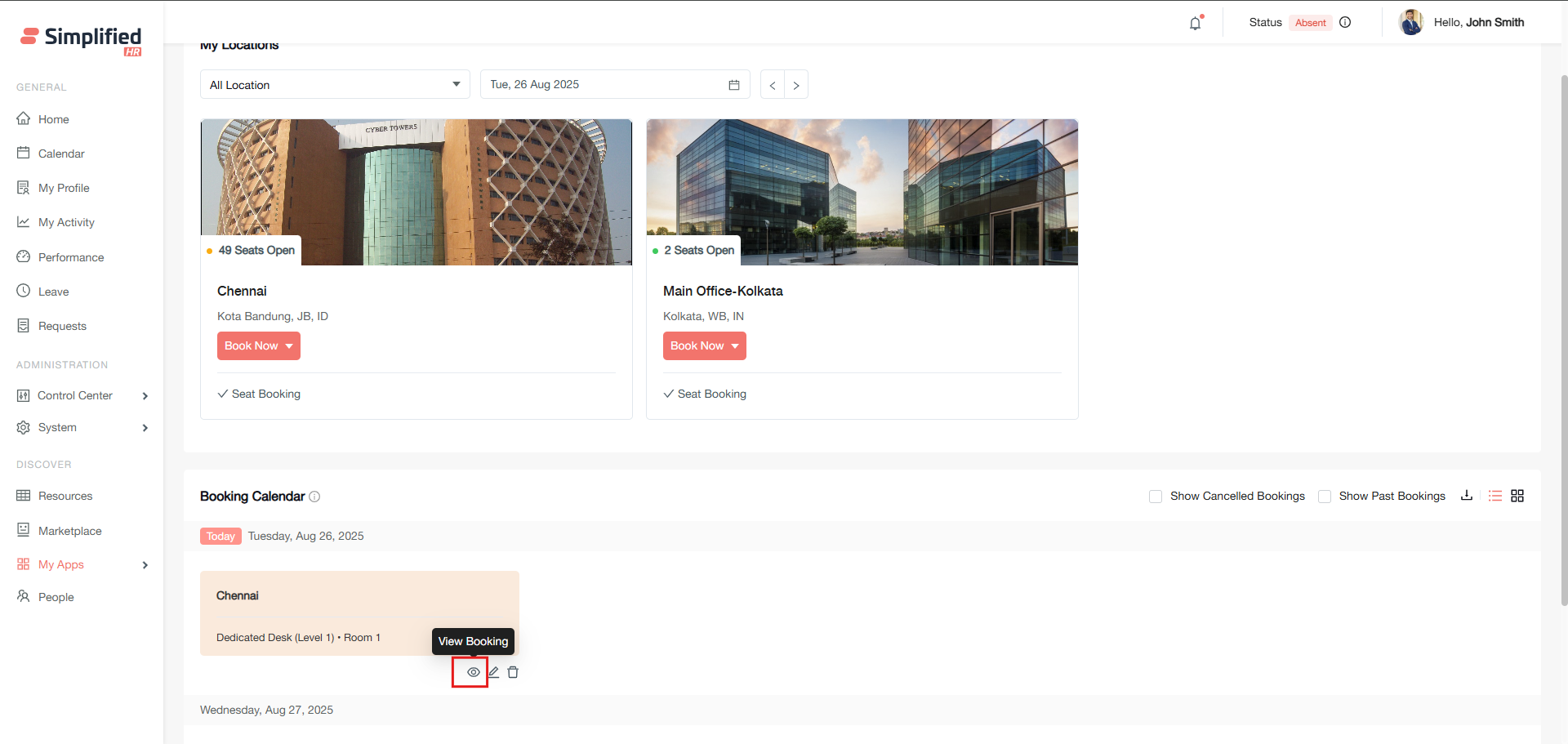
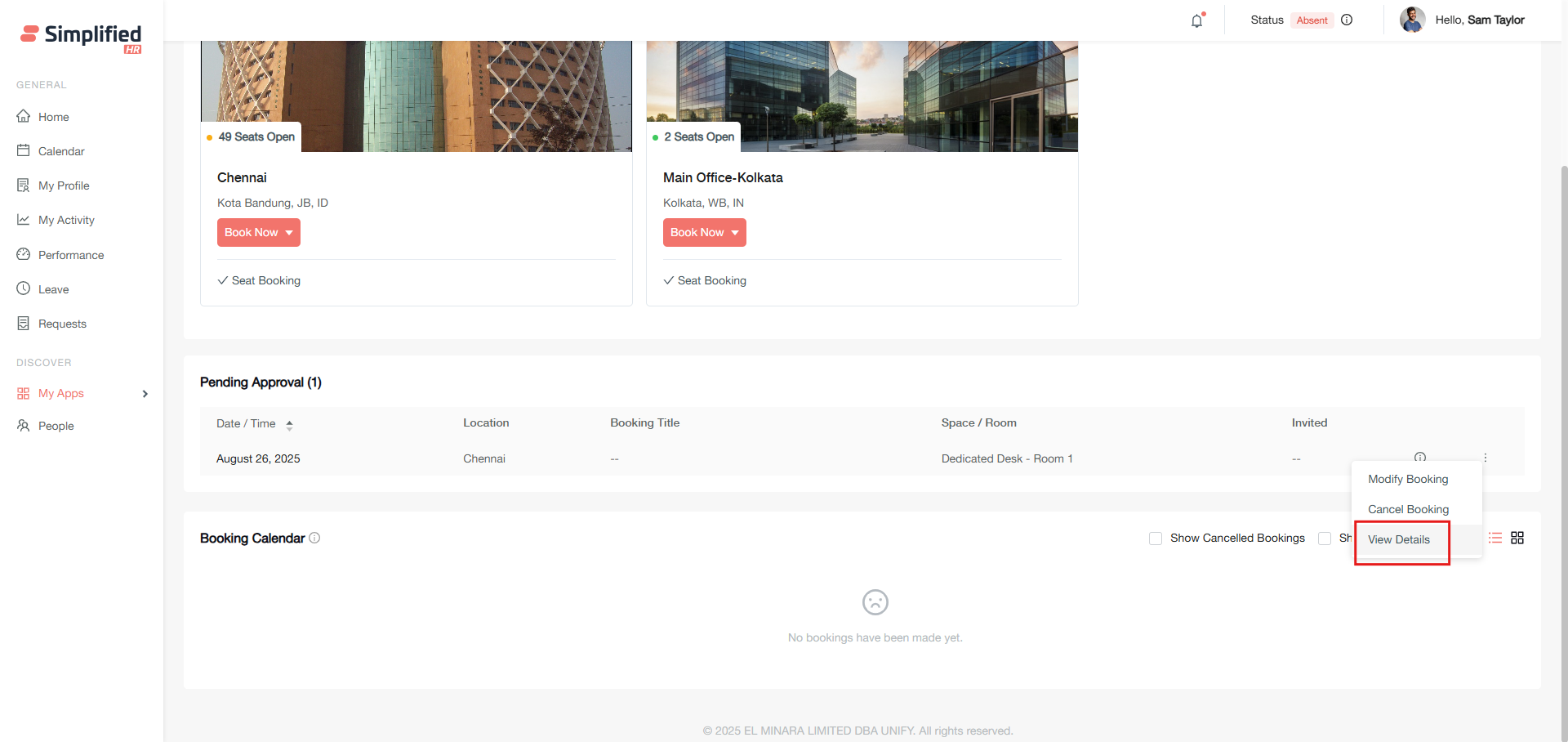
Access your booking details from two locations:
View Booking Details
View details shows comprehensive booking information, including associated members and space/room information.
Understand Booking Owner
-
Dashboard bookings: When you create a booking from the dashboard, you automatically become the booking owner.
-
Admin-created bookings: When administrators create bookings, they can assign or select the booking owner.
Modify My Booking
You can modify both approved and pending bookings, with access from different locations based on booking status:
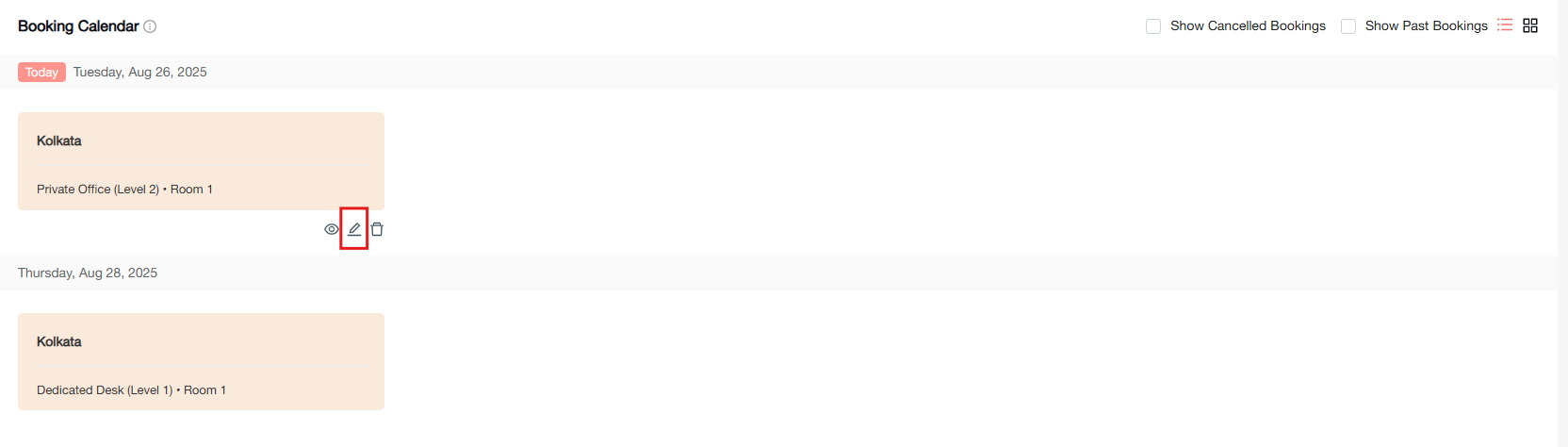
-
From the booking calendar (approved bookings): click the edit/modify icon.
-
From the pending approval card (pending bookings): click the modify option.
-
Update the required information in the booking form.
-
Click Modify booking.
A confirmation message validates the update.
-
Only booking owners can modify reservations.
-
Invitees cannot update bookings created by others.
-
Past-dated bookings cannot be modified.
Understand Booking Modification Rules
-
Credit logic applies when modifying configured spaces.
-
Modifications to date, space, or rooms may require re-approval.
-
Team/Group booking changes require invitee re-acceptance.
-
Admin modifications don't require additional approvals.
Cancel My Booking
Remove bookings from either your calendar or pending approval card:
- From the booking calendar: click the delete booking icon.
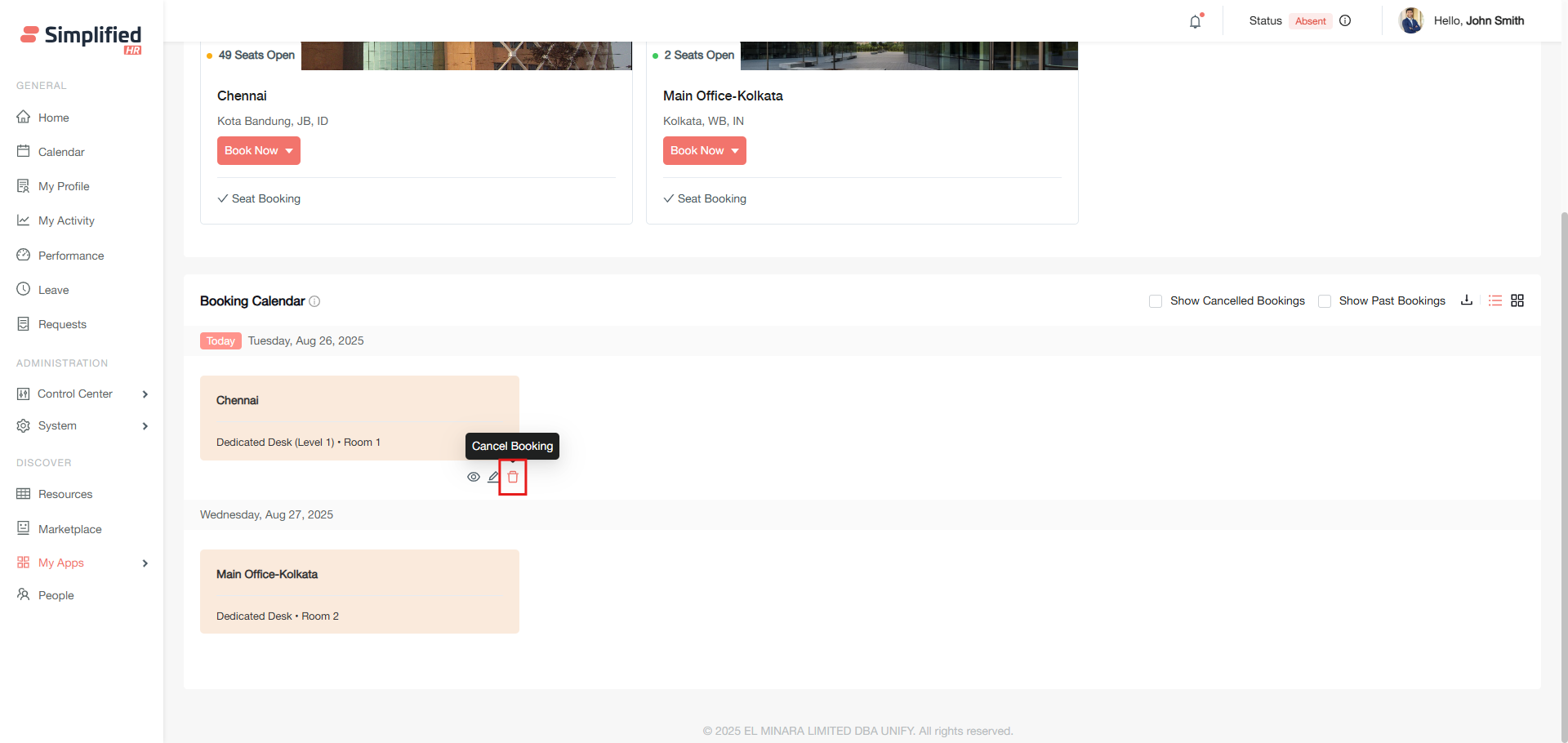
-
From the pending approval card: click the delete option.
-
Confirm deletion in the modal dialog.
-
Click Delete.
A success message confirms the cancellation.
Understand Cancellation Rules
-
Past bookings cannot be deleted by any user.
-
Credit refunds are applied for configured spaces based on admin settings.
-
Booking owner cancellation removes the entire Team/Group booking.
-
Invitee cancellation removes only their portion.
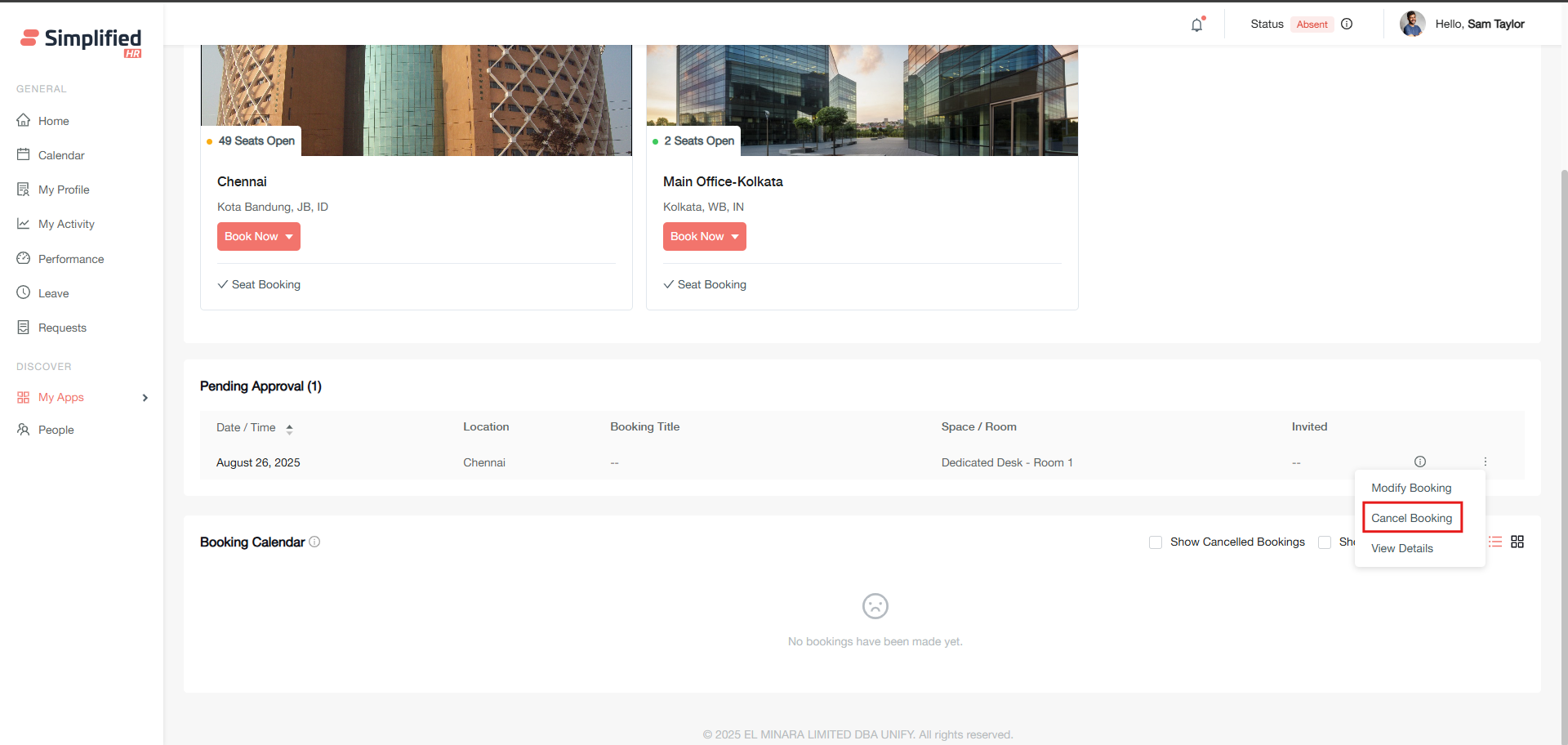
- All involved parties receive cancellation notices.
Use Booking Calendar
The Booking Calendar displays all your approved reservations and provides management tools for your bookings:
-
Persistent view: Remembers your last visited view (List or Calendar).
-
Booking actions: View, modify, and delete options for each reservation.
-
Permission-based access: Modify options only appear for booking owners.
-
Historical data: View past and cancelled bookings.
-
Export functionality: Download your booking data when needed.
Use List View
Displays bookings as individual thumbnail cards for easy access. This view shows the upcoming 10 days of bookings from the current date.
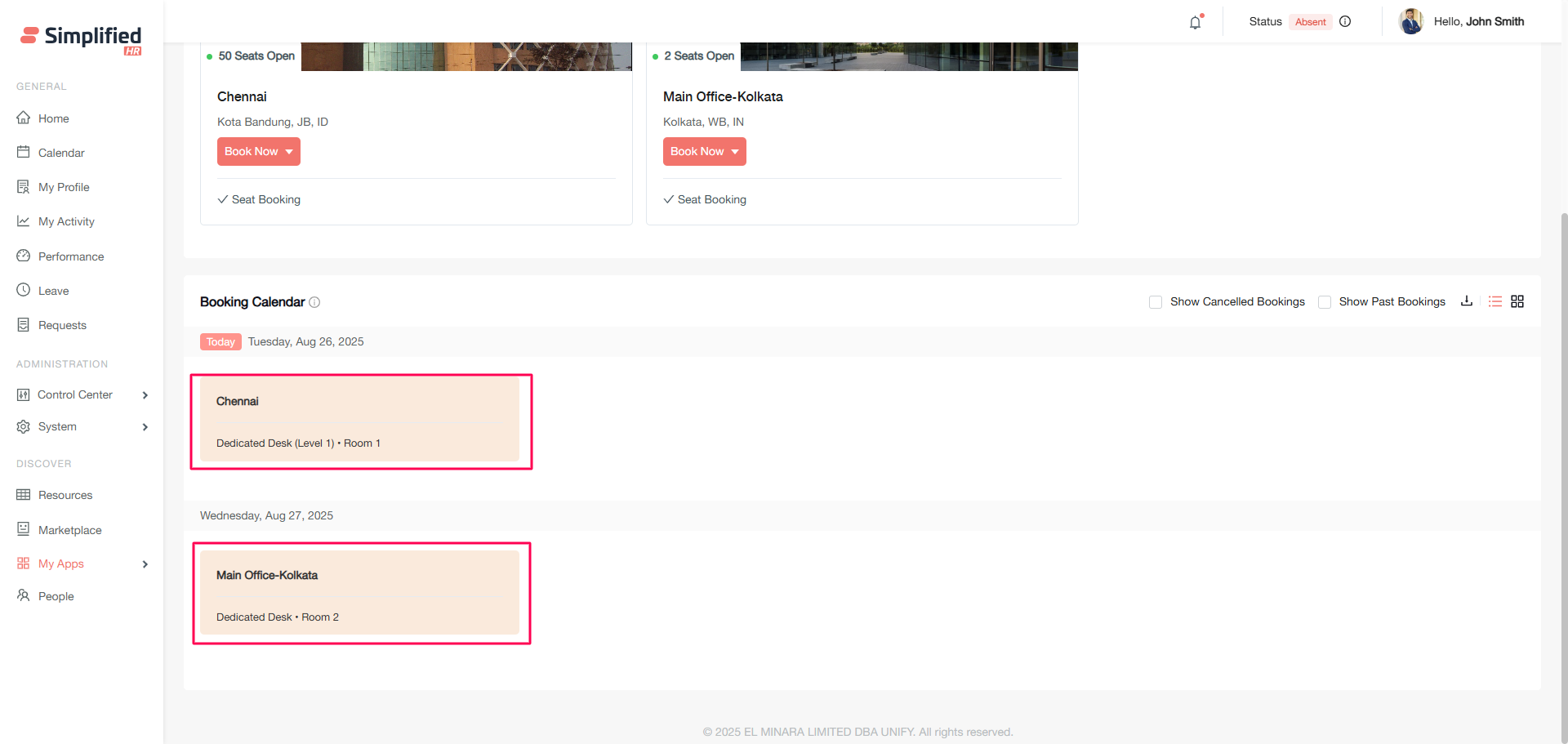
Important: To see bookings beyond 10 days, switch to Month view.
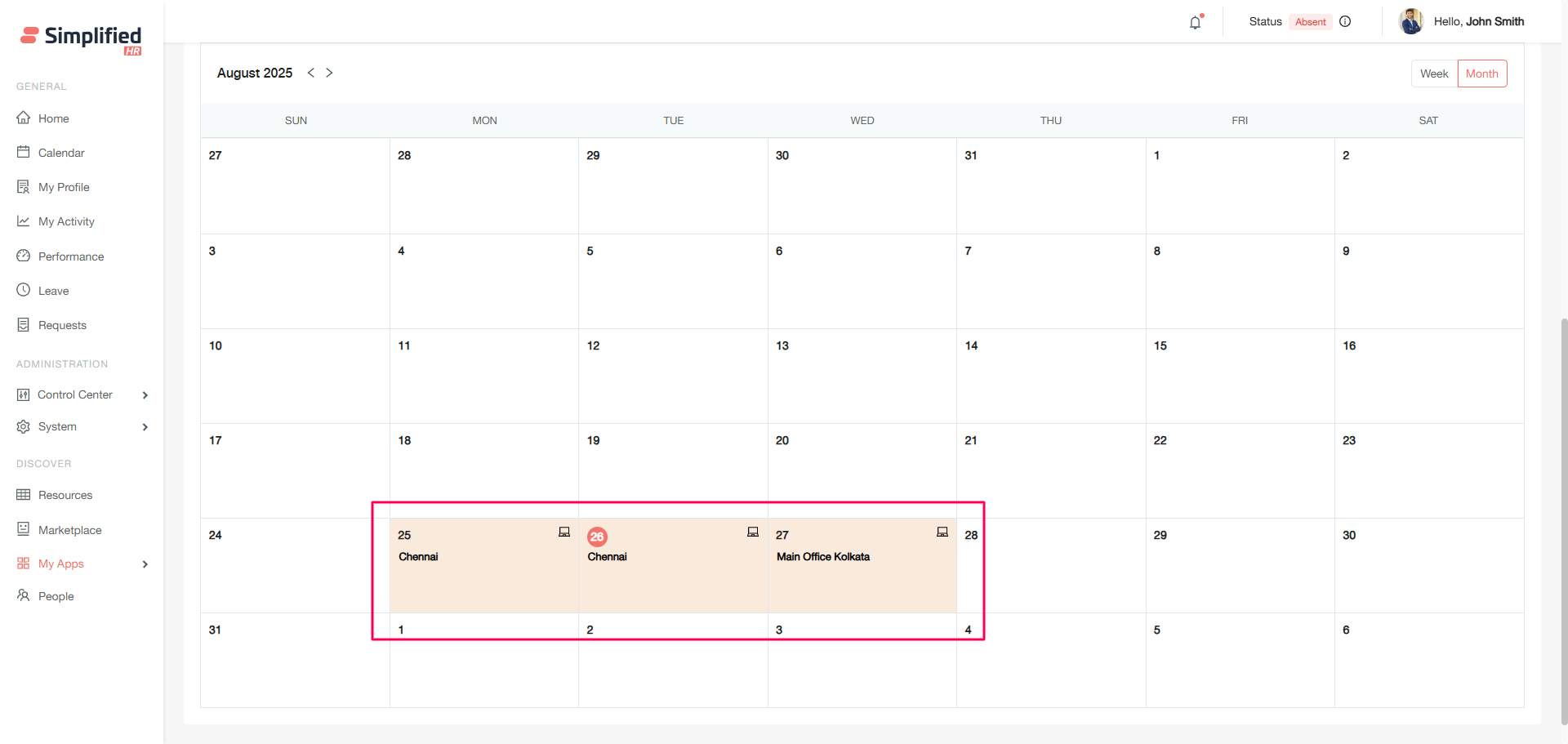
Use Month View
Month view: Overview of the entire month with all bookings visible.
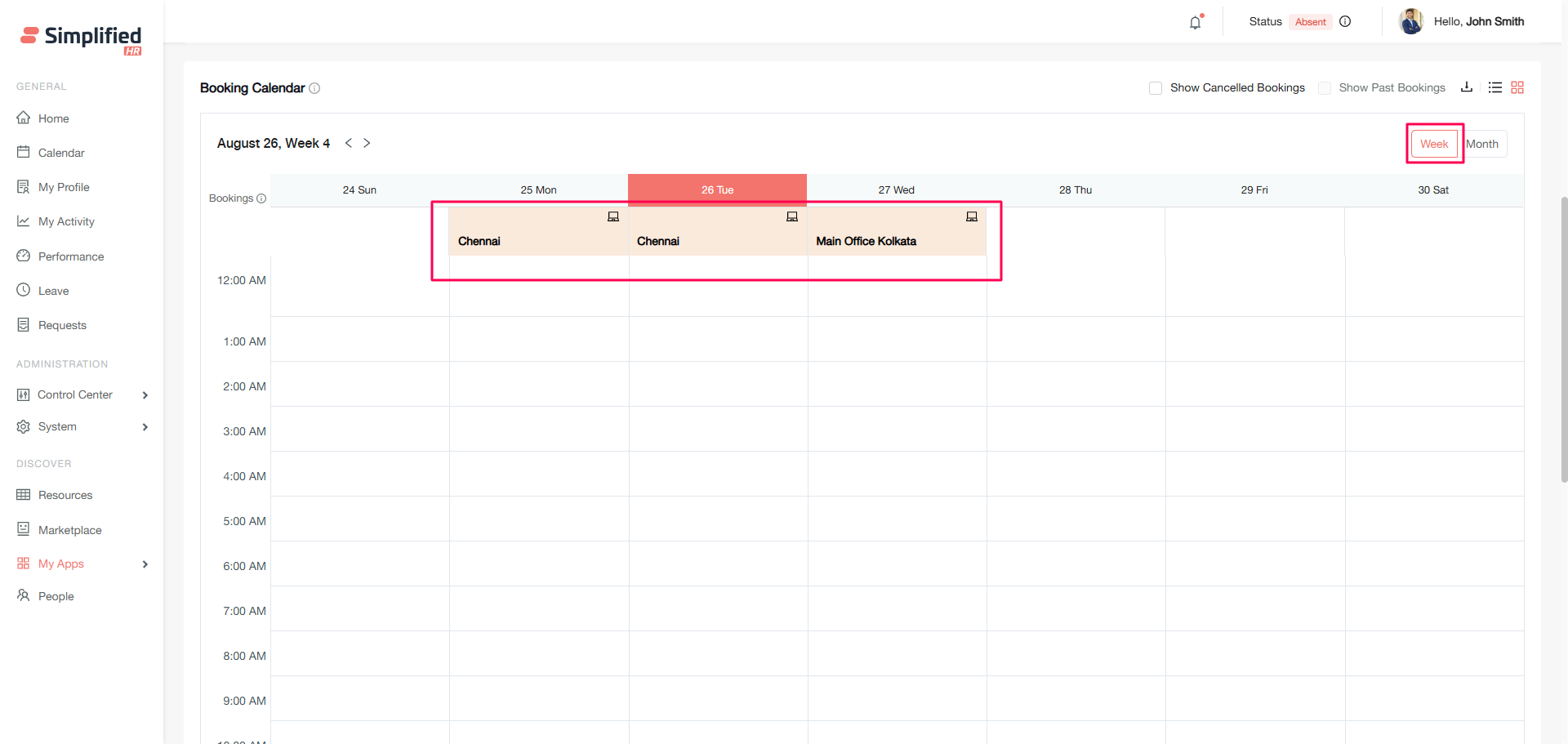
Use Week View
Week view: Detailed weekly schedule with expanded booking information.
Navigate Booking Calendar
Month/week navigator: Browse past and future bookings.
View Cancelled Bookings
Show cancelled bookings: Toggle to view cancelled reservations.
Export My Booking Data
Export function: Download all your booking data for your records.
Receive Booking Notifications
Notifications and emails are sent to all involved members after booking actions, based on your organization's notification settings.
Receive Booking Reminders
Reminder emails are sent according to the timing configured by your administrator. These reminders include check-in and cancellation options for Easybook.
Receive Approval Notifications
Notification and email confirmations are sent automatically when a booking is approved. Notification and email with rejection reasons are sent automatically when a booking is rejected.
Receive Cancellation Notifications
All involved parties receive cancellation notices when a booking they are part of is cancelled.
Cannot See Booking Locations
Verify your team assignment and location permissions.
Cannot See Future Bookings
Switch to Month view.
Cannot Book a Room
Check whether your job title is allowed to book the specific room.
Booking Limit Reached
Check the space limit with your admin, and also check whether you already have a booking on the same date.
Credit Balance Not Updating
Check if spaces are credit-enabled and review your allocation.
Booking Pending Approval
Contact your administrator about approval workflows.
Cannot Modify Booking
Ensure you're the booking owner and the booking isn't past-dated.
Invitee Not Receiving Notification
Verify their email settings and active status.