Employee → Offboarding
Overview
Offboarding requests are the formal initiation of an employee's departure process from an organization. This process involves multiple stakeholders and automated workflows to ensure a smooth, compliant, and secure transition.
Understand Offboarding Process
Based on the source article, the employee-facing flow is:
-
Request Offboarding via My Profile.
-
Enter departure information (notice period, exit date, reason, resignation statement).
-
Submit the request.
-
The request is reviewed and approved/declined by an administrator.
-
Offboarding details become available via View Details.
-
The employee may withdraw the request when circumstances change.
-
Offboarding tasks/checklist (added by the administrator) are associated with the departure.
-
The administrator finishes the offboarding process once requirements are satisfied.
Request Offboarding
-
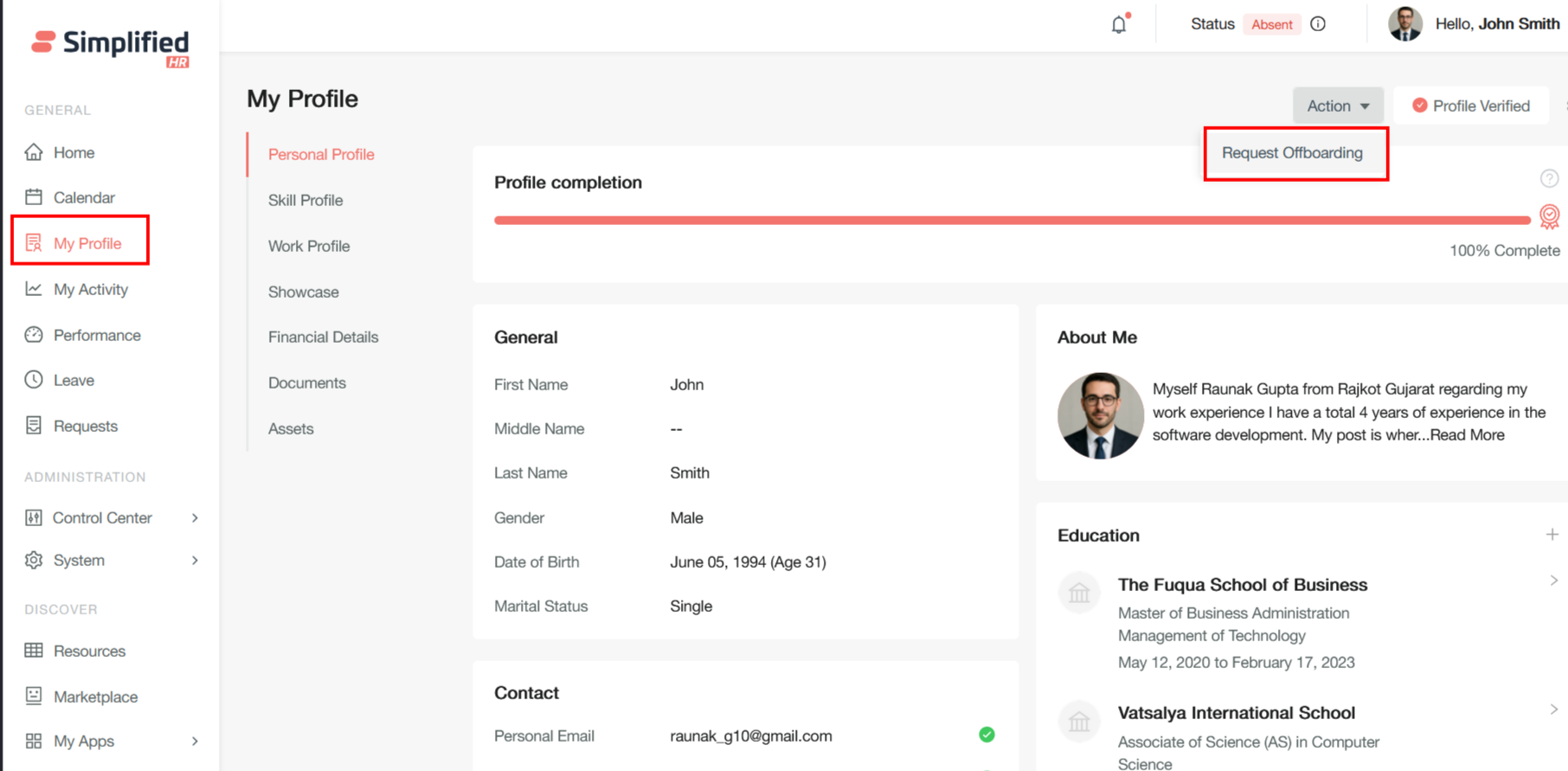
Navigate to the My Profile section.
-
Click the Action button.
-
Click Request Offboarding.
-
Complete the form that appears.
-
Submit the request.
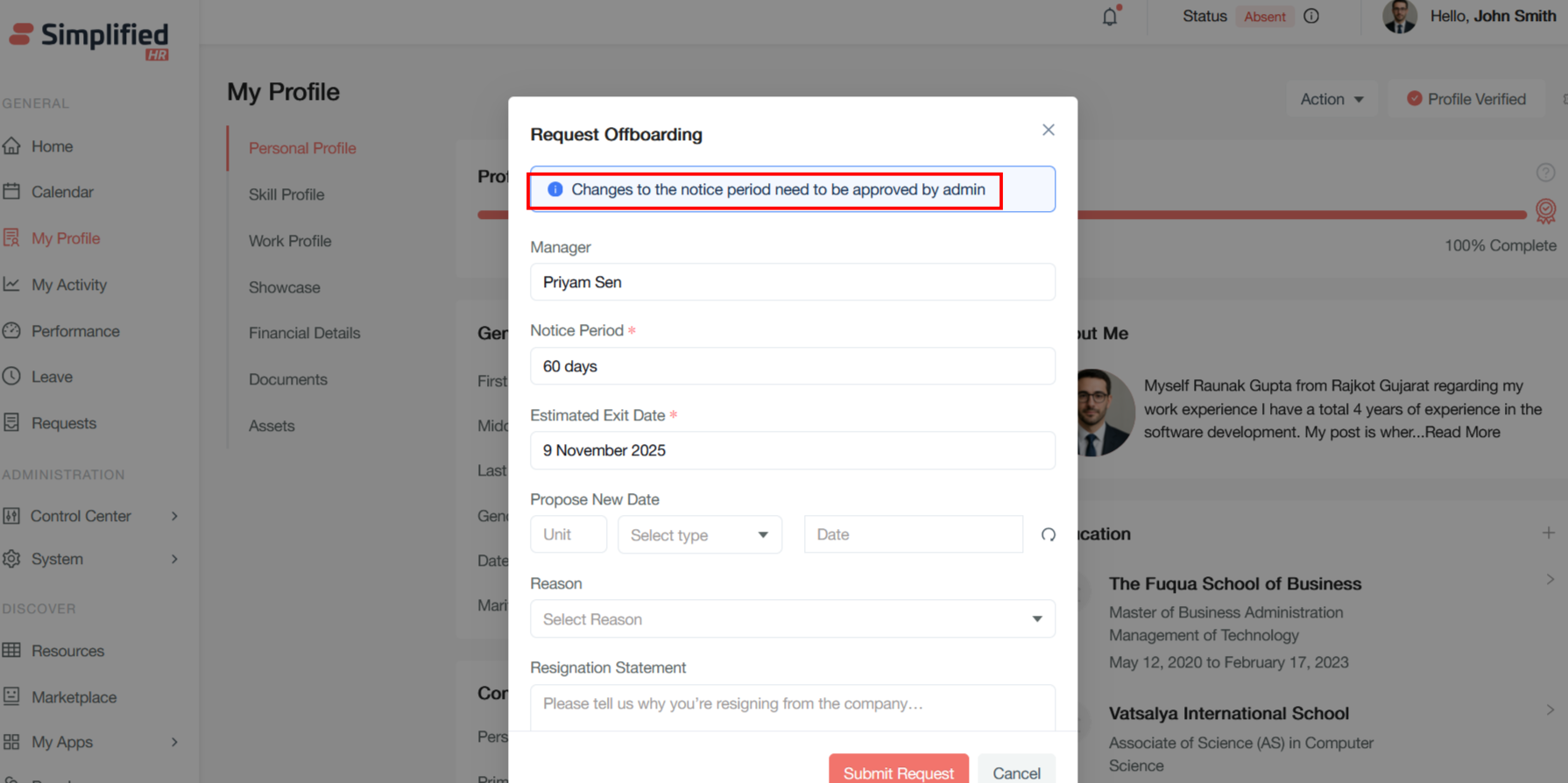
A Request Offboarding pop-up modal will appear, displaying the request form.
Understand Request Offboarding Form
The form includes:
- Administrative Notice: A blue information banner stating "Changes to the notice period need to be approved by admin."
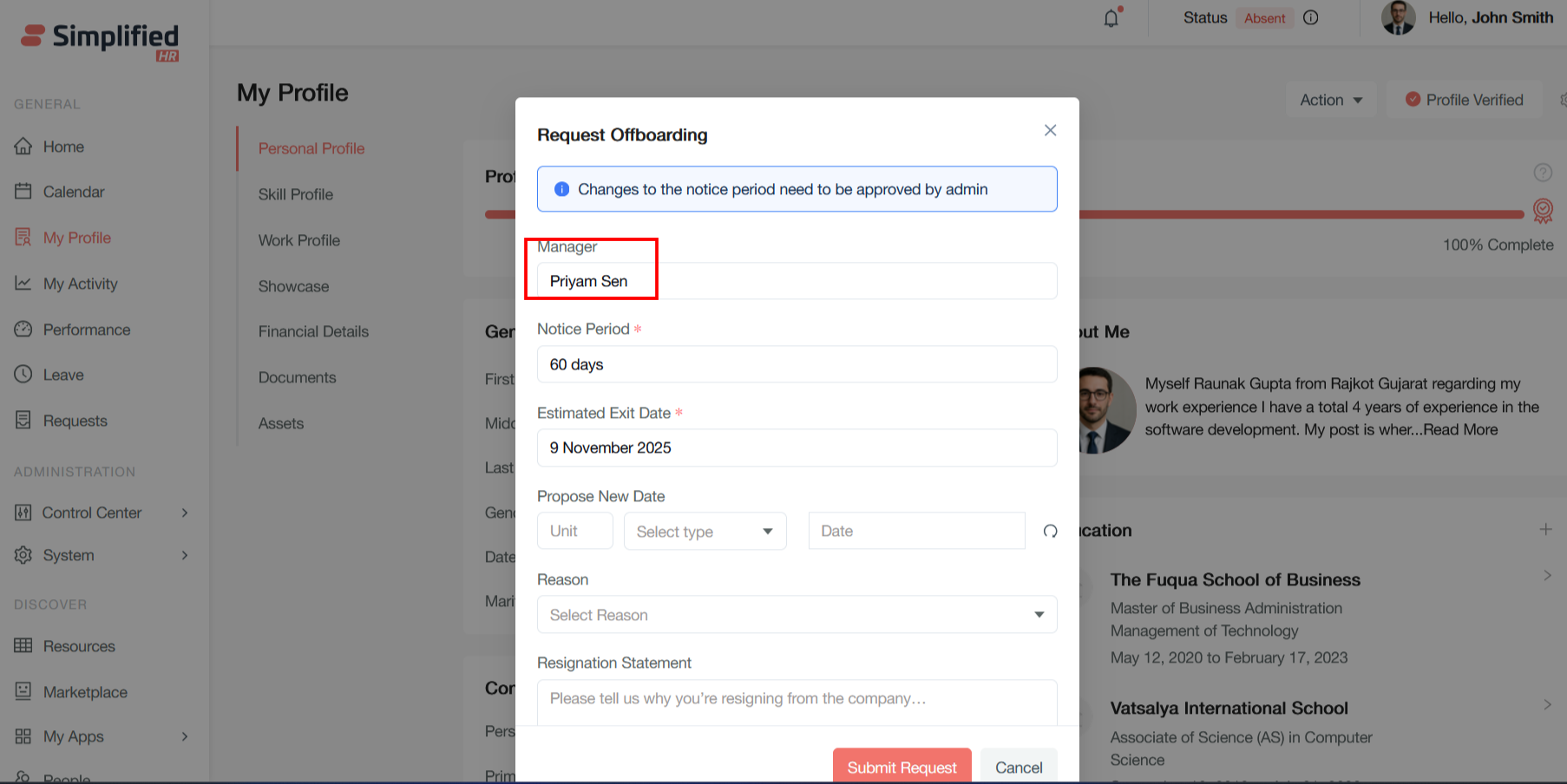
- Manager: The respective manager's name, used for approval workflow routing and stakeholder notification.
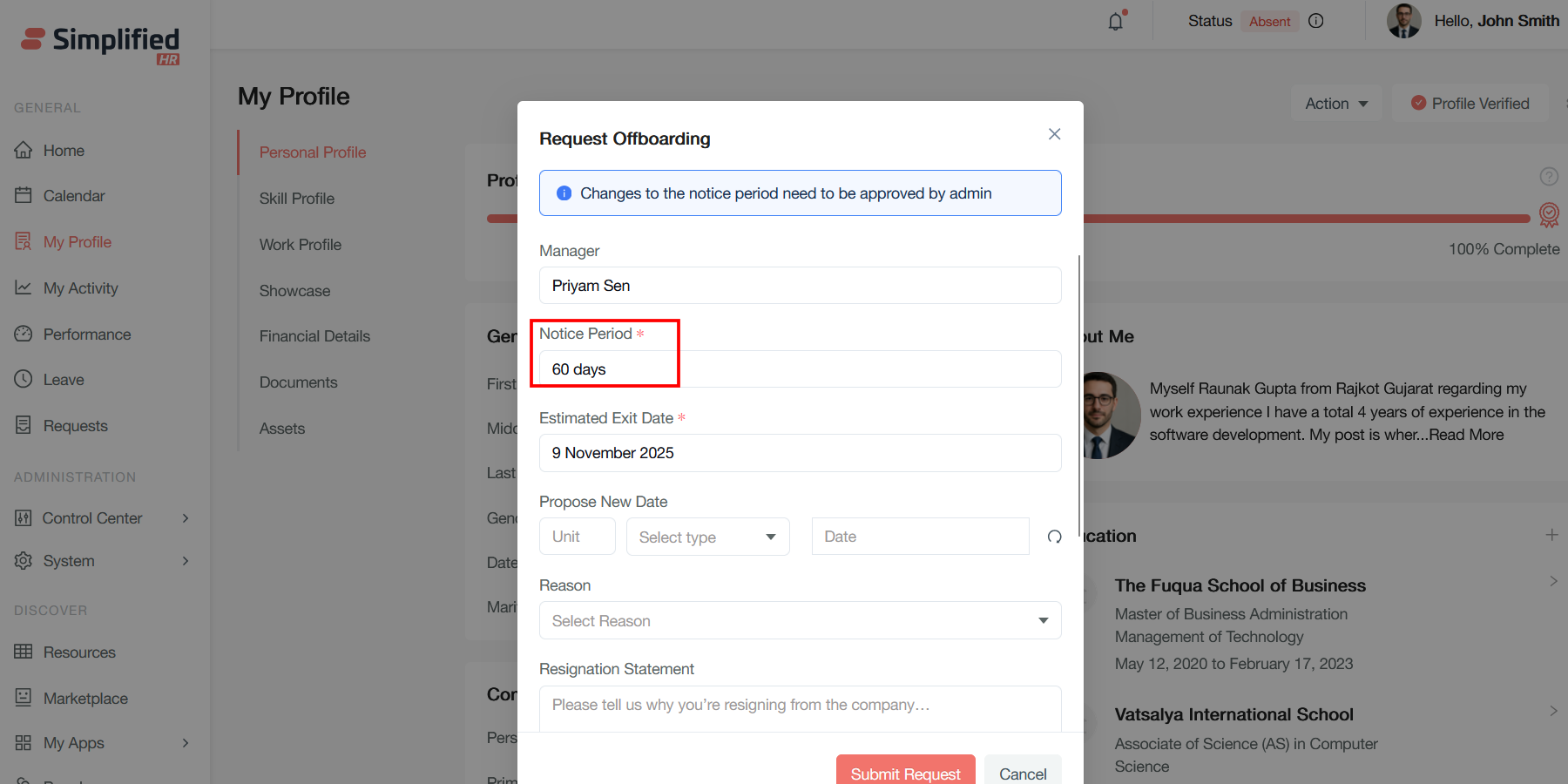
- Notice Period (Required): The number of days defined in the user's work profile, establishing the mandatory waiting period between resignation submission and final exit date.
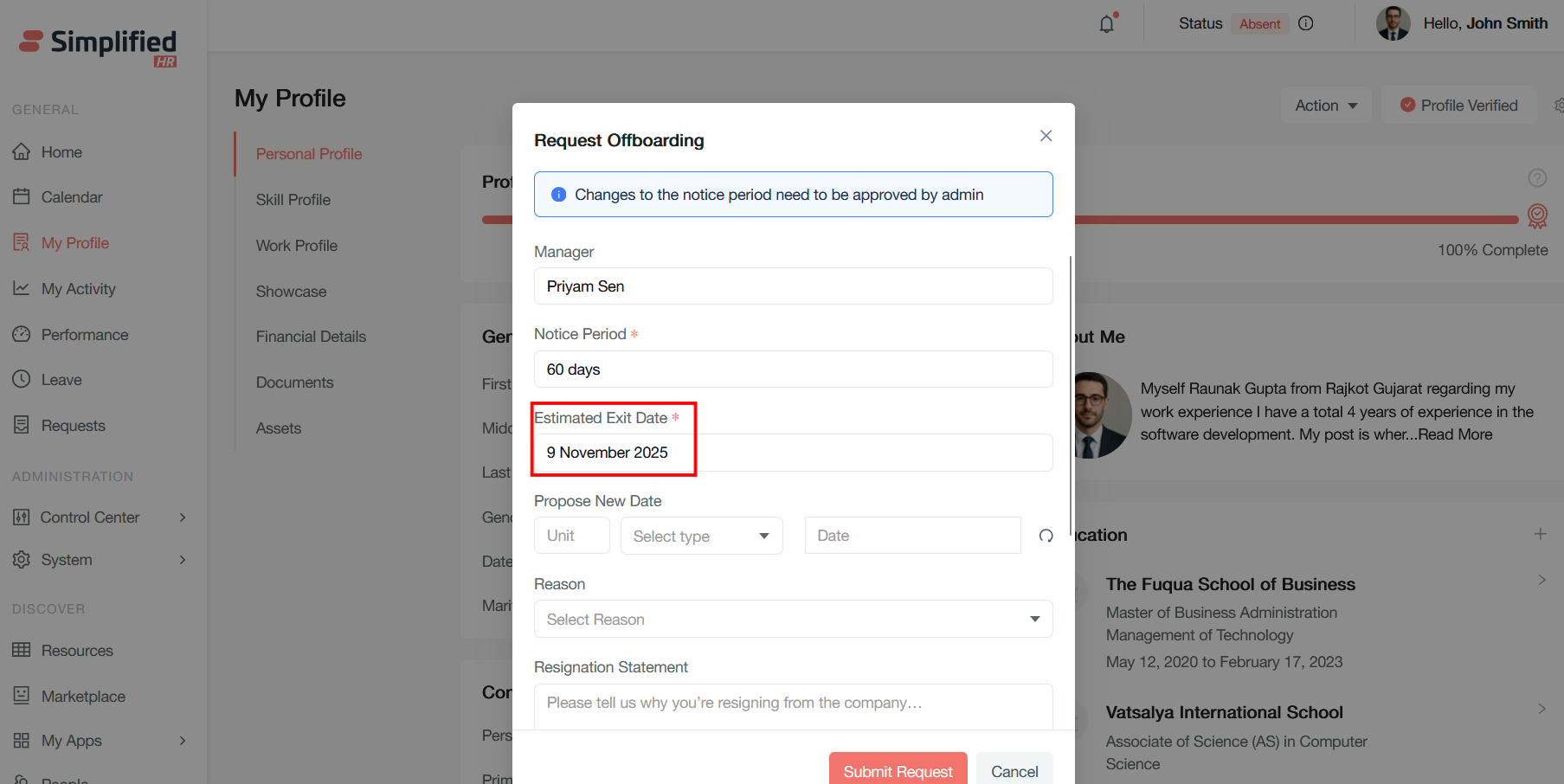
- Estimated Exit Date (Required): The last working day, calculated as per the notice period; provides a timeline for offboarding activities and resource planning.
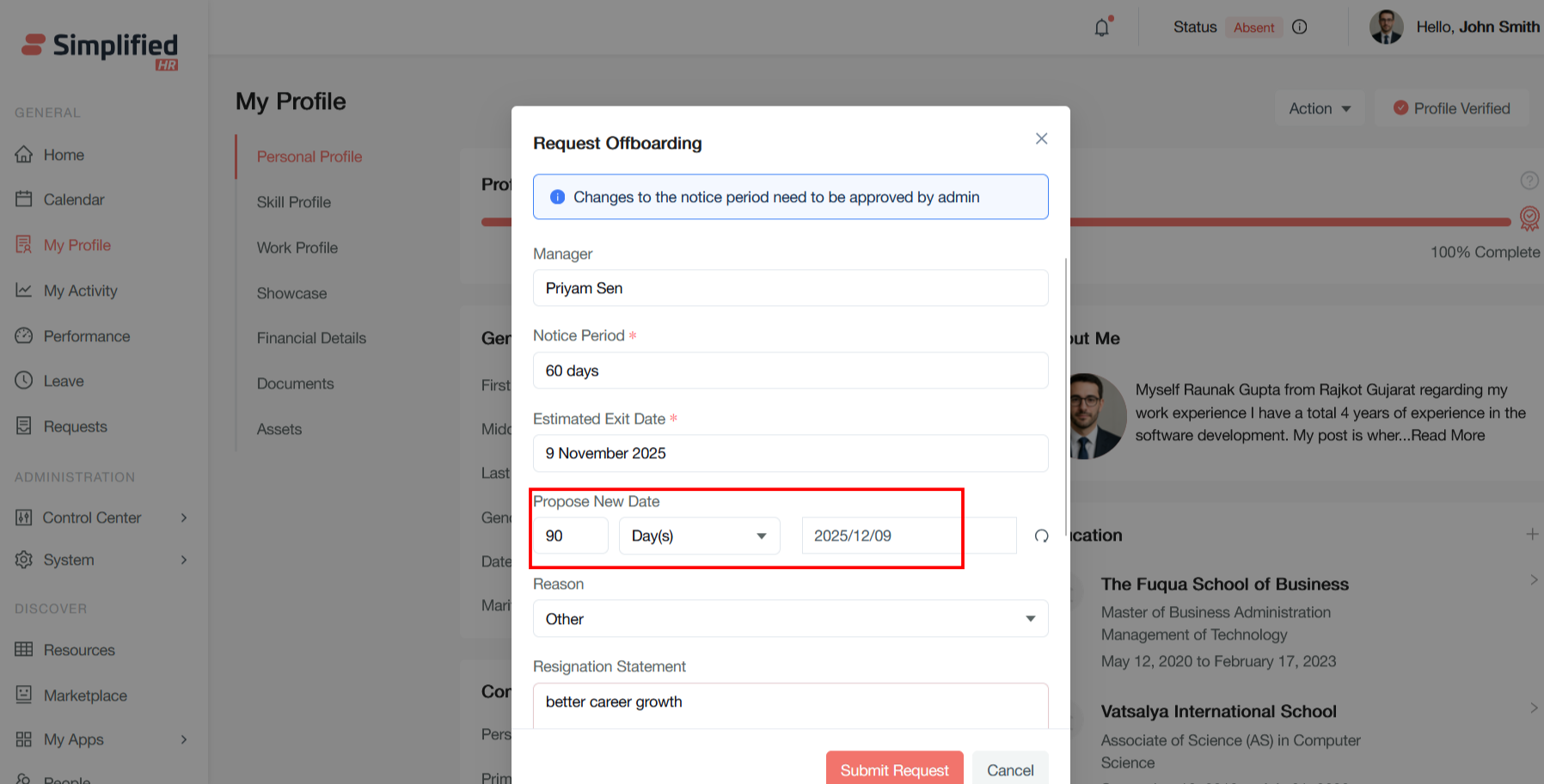
- Propose New Date: Numerical input for a proposed timeline adjustment, a Select Type dropdown (days, weeks, months), and a specific calendar date picker for an alternative exit date.
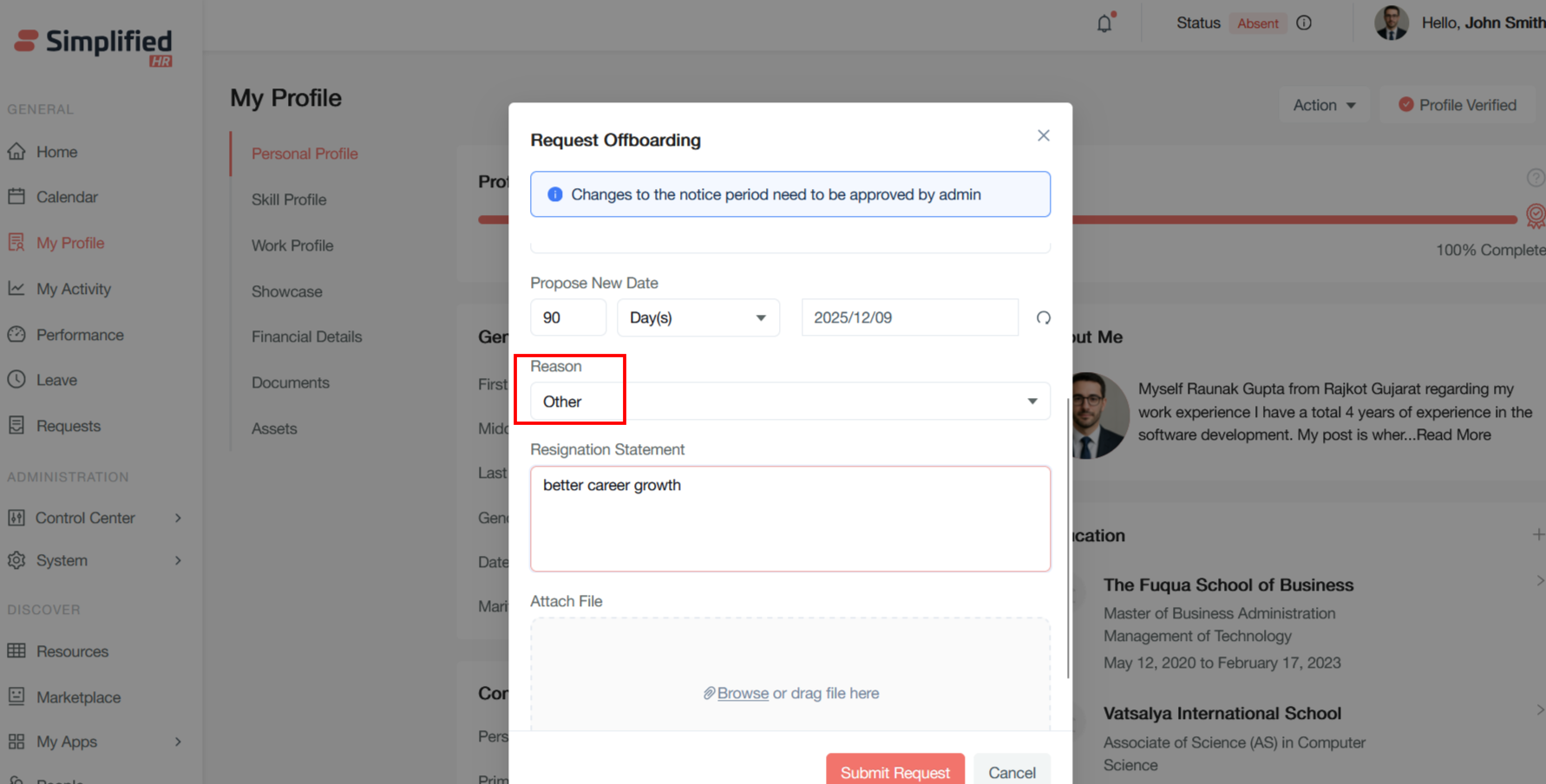
- Reason (Dropdown): Categorizes the type of departure (e.g., resignation, termination, retirement) for HR analytics and compliance reporting.
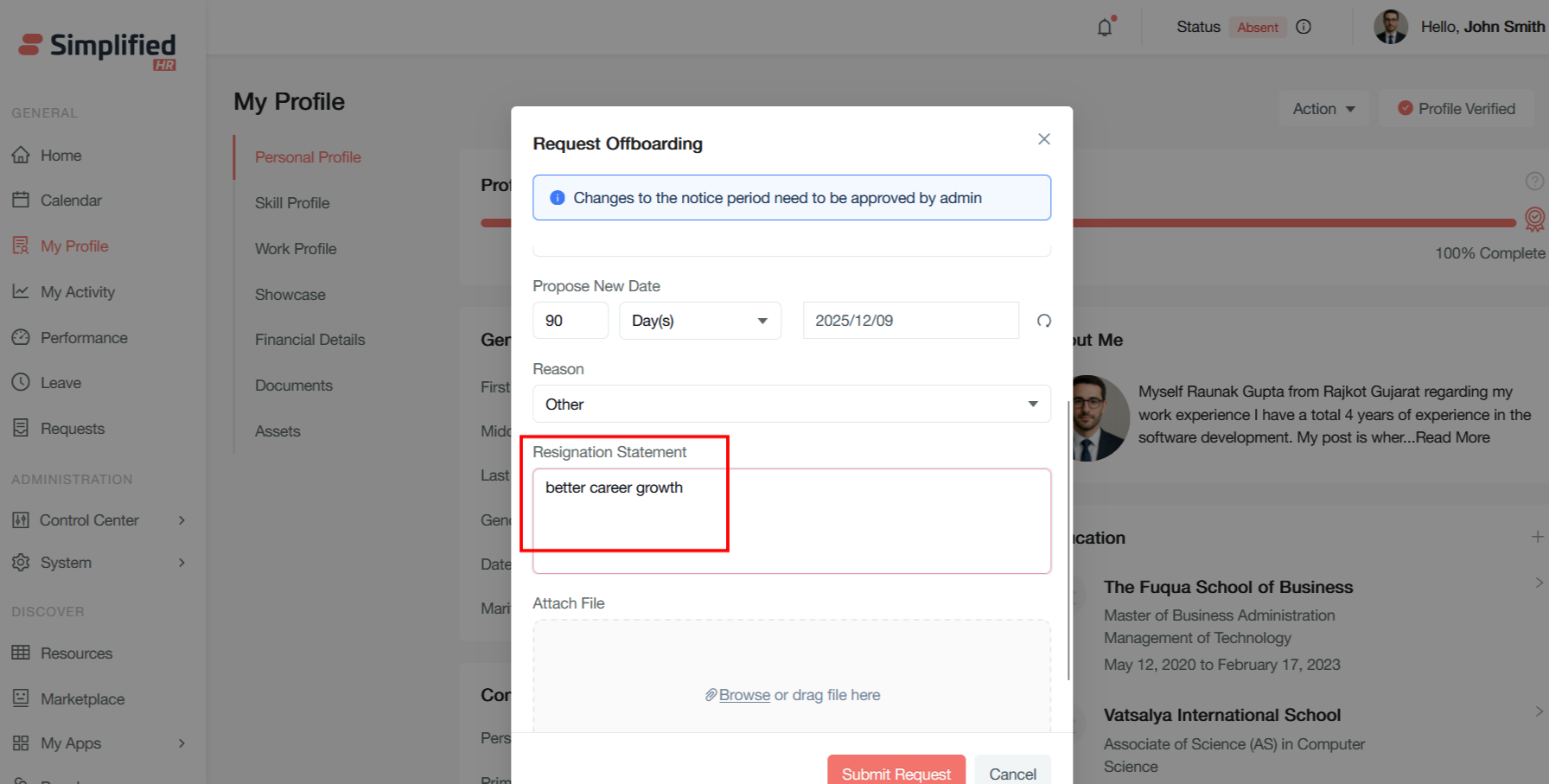
- Resignation Statement (Text Area): Placeholder text reads "Please tell us why you're resigning from the company..."; captures a detailed explanation for the departure decision.
- Submit Request: Finalizes and submits the offboarding request to the approval workflow.
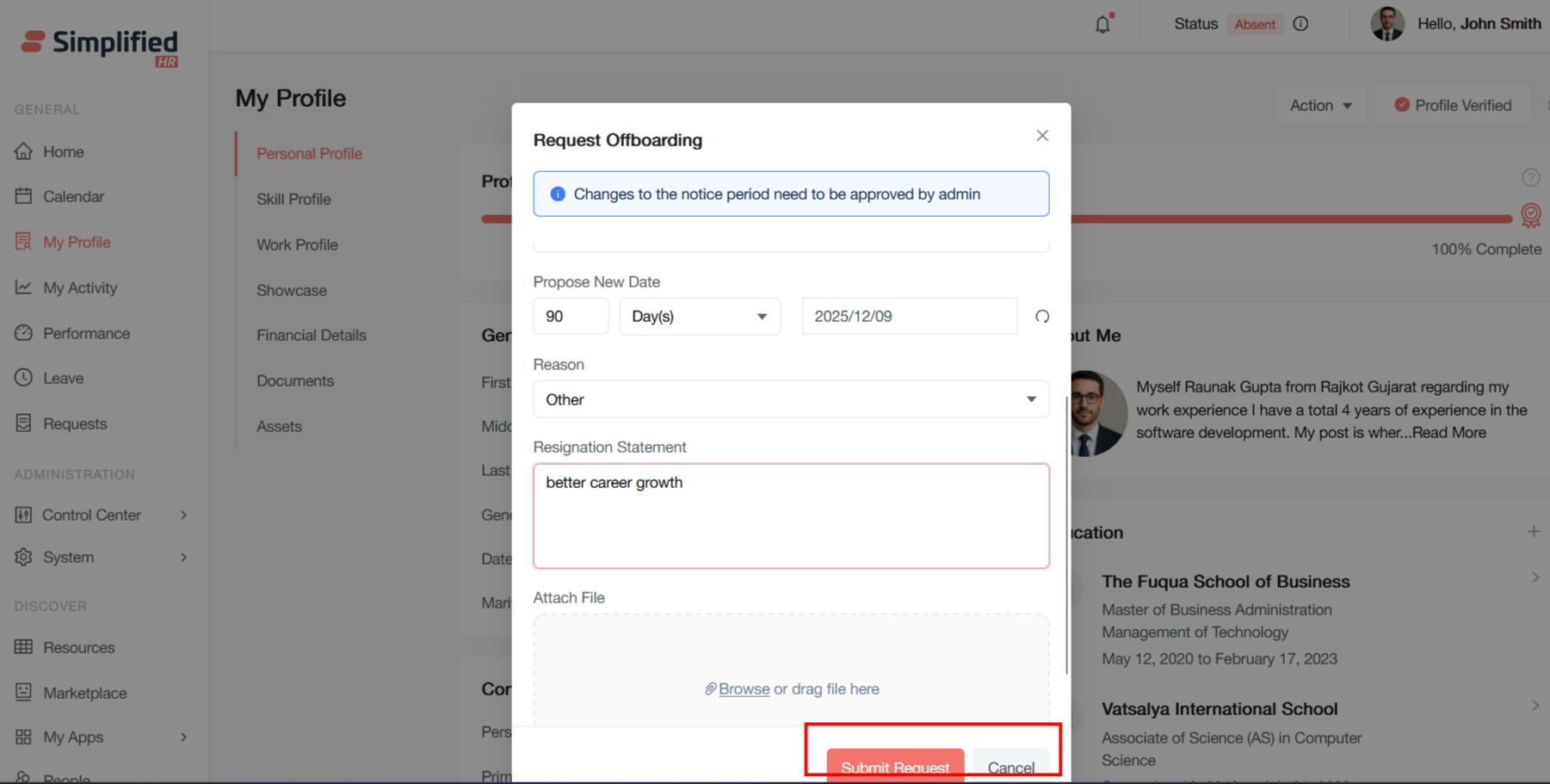
- Cancel: Abandons the current request without saving any information.
View Assigned Manager
Manager: Identifies the reporting manager or supervisor of the employee requesting offboarding; used for approval workflow routing and stakeholder notification.
Understand Notice Period
Notice Period (Required): The number of days defined in your work profile, specifying the standard notice period you must serve — establishing the mandatory waiting period between resignation submission and final exit date.
Understand Estimated Exit Date
Estimated Exit Date (Required): Your projected last working day, calculated based on the notice period, providing a timeline for offboarding activities and resource planning.
Propose New Exit Date
Propose New Date lets you request modifications to your standard exit timeline:
-
Unit field: numerical input for the proposed timeline adjustment.
-
Select Type dropdown: choose the time unit (days, weeks, months).
-
Date field: specific calendar date picker for the alternative exit date.
Example: If you want to leave the organization early or late compared to your calculated exit date, you can request or propose a new exit date.
Request Early Exit
You can propose an earlier departure date using the Propose New Date fields.
Note: A new exit date is subject to approval or rejection.
Request Extended Exit Date
You can similarly propose a later departure date using the Propose New Date fields.
Note: A new exit date is subject to approval or rejection.
Understand Exit Date Approval
Note: Proposing a new date triggers the admin approval workflow for timeline changes. Changes to the notice period need to be approved by admin — proposed changes do not automatically become the approved exit date.
Select Offboarding Reason
Reason (Dropdown): Categorizes the type of departure (e.g., resignation, termination, retirement) for HR analytics and compliance reporting.
Enter Resignation Statement
Resignation Statement (Text Area): Captures a detailed explanation for your departure decision, providing feedback for organizational improvement and exit interview documentation.
Submit Offboarding Request
-
Complete the required information in the form.
-
Review the request.
-
Click Submit Request.
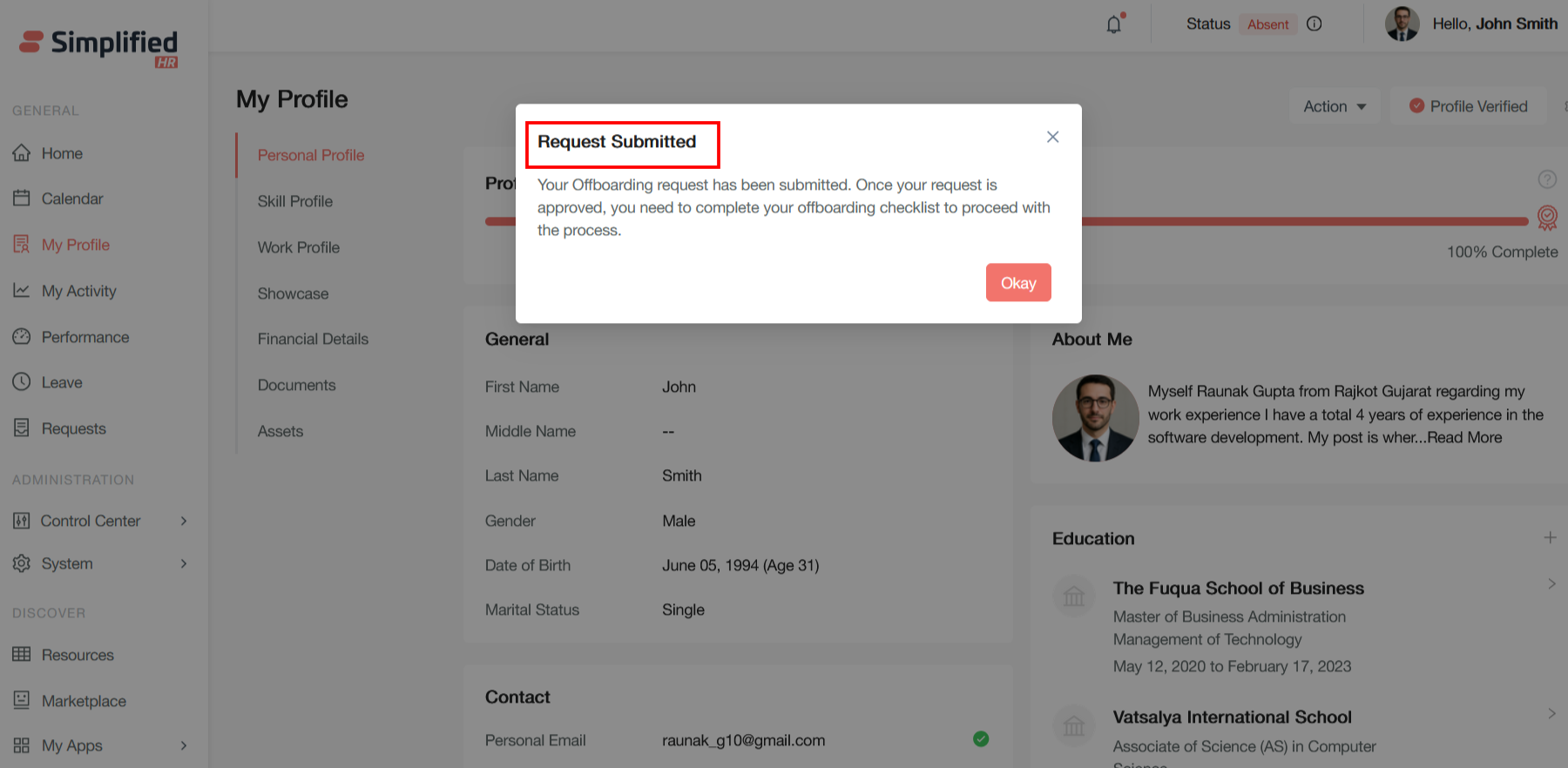
A request submission confirmation pop-up will appear after submitting the offboarding request.
Cancel Offboarding Request Submission
Cancel abandons the current request without saving any information.
View Submitted Offboarding Details
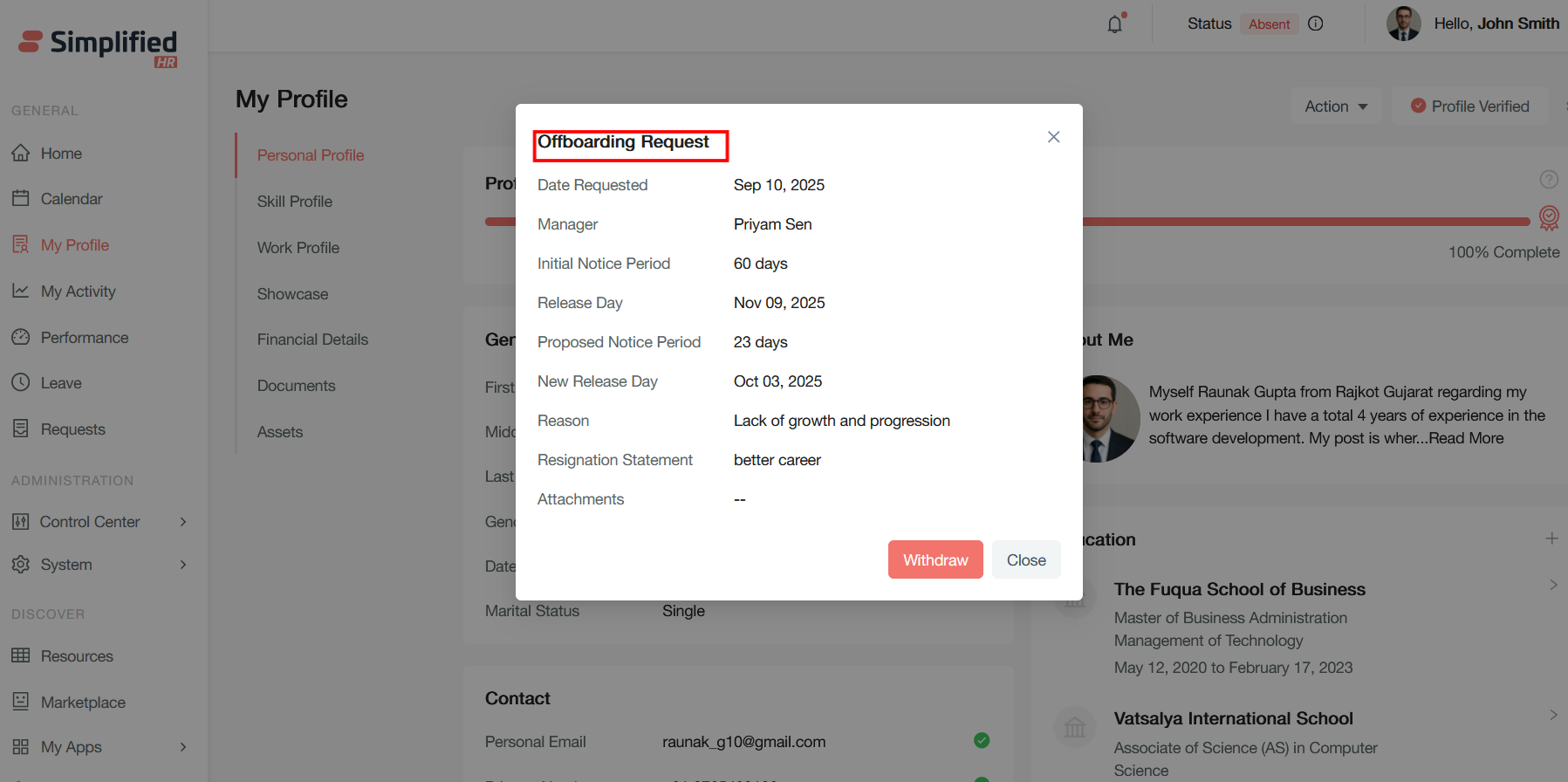
A details section page will appear, in the View Details section, with all the information of the offboarding request.
Withdraw Offboarding Request
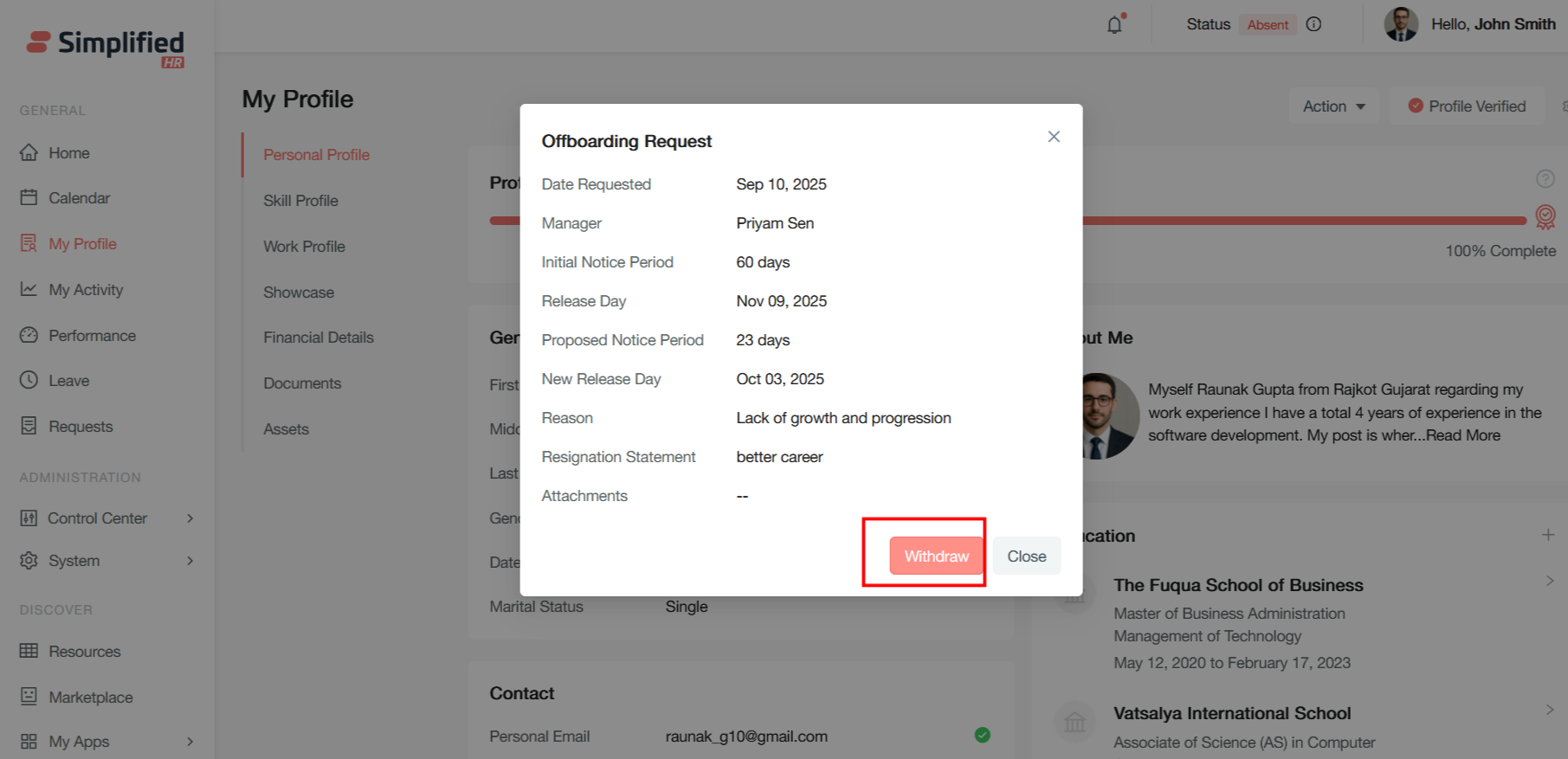
Withdrawing or cancelling an offboarding request allows you to reverse the departure process when circumstances change. This functionality is essential when you decide to stay or when departure timelines need adjustment.
Enter Withdrawal Reason
- Provide a withdrawal reason.
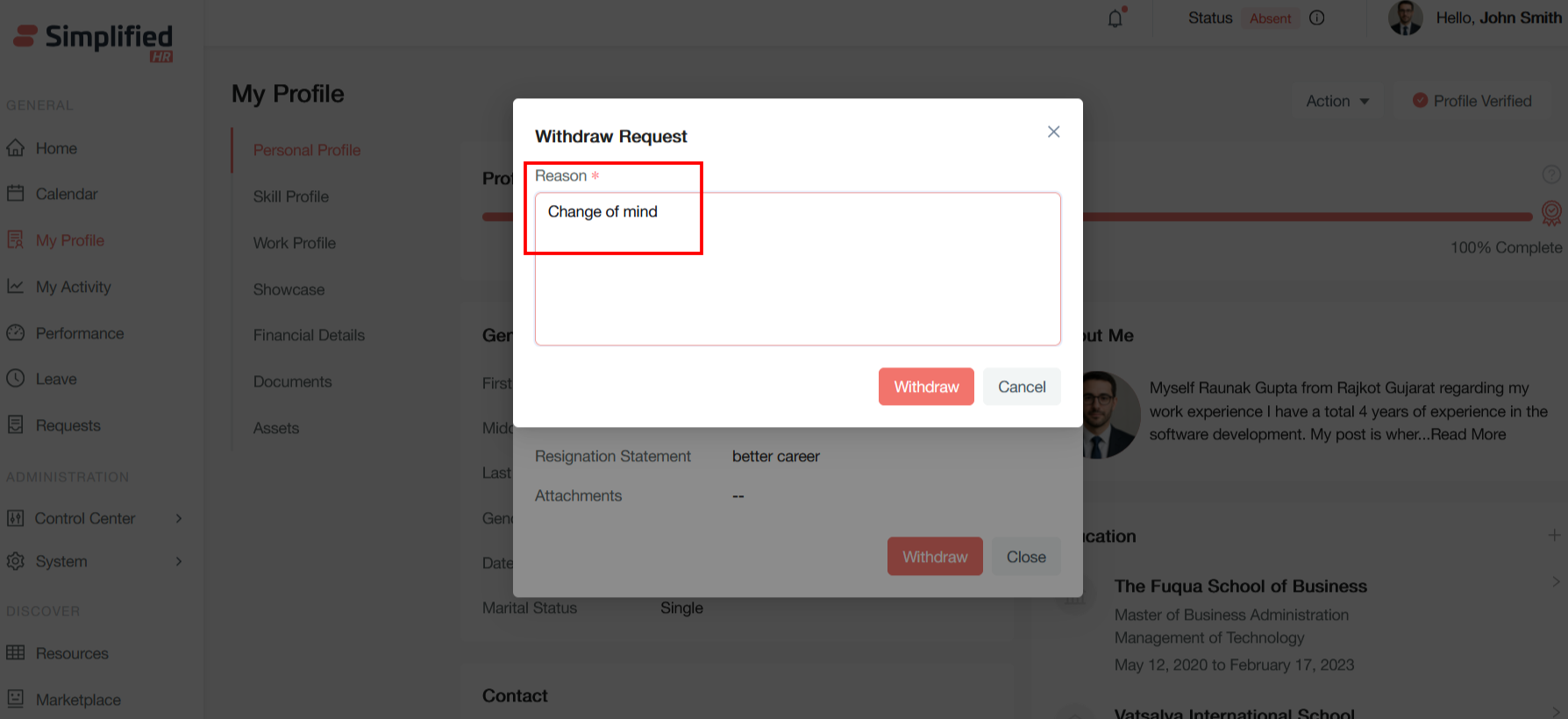
- Click the Withdraw button.
Understand Offboarding Withdrawal
Withdrawal can be used when:
-
You decide to stay with the company.
-
Departure circumstances change.
-
The offboarding timeline needs to be reversed.
Note: The source does not document that withdrawal automatically restores every employee status or access; it describes withdrawal as reversing the departure process, without detailing every downstream system effect.
View Offboarding Details
The View Details section displays offboarding information, including:
-
Requester
-
Request Date
-
Manager
-
Date of Joining
-
Employment Type
-
Team
-
Job Title
-
Location
-
Initial Notice Period
-
Initial Exit Date
-
Proposed Notice Period
-
New Exit Date
-
Checklist/tasks
-
Offboarding status
Understand Offboarding Status
Statuses documented in the source that are relevant to your process:
-
Active
-
In Progress
-
Pending
-
Pending Review
-
Completed
View Offboarding Checklist
The checklist which was added by the administrator is displayed in the details section, showing the tasks associated with your departure.
Complete Offboarding Task
Note: The source describes checklist and task creation, assignment, and monitoring entirely from the administrator's side (via Control Center). It does not document a specific employee-facing control for marking a task as complete, so this is not represented as a confirmed employee capability here.
Understand Task Verification
Some tasks may require verification before being considered complete. Pending Review can indicate that verification/approval is required from a supervisor, HR administrator, or other authorized personnel — a specific verifier is not identified for every task.
View Task Attachments
Tasks may have supporting files, forms, or instructions attached that the assignee might need to complete the task successfully.
Add Task Notes
Note: Adding notes to offboarding tasks is described in the source as an action available from the administrative checklist/task management menu (Control Center). The source does not establish that non-admin employees have this capability, so it is classified as Admin-only rather than assumed for Employee.
Understand Offboarding Completion
The administrator finishes the offboarding process (Finish Offboarding) after all required checklist/offboarding requirements are completed.
Understand System Access Revocation
Once the administrator confirms Finish Offboarding:
-
System login privileges are revoked.
-
The employee is removed from active employee lists and directories.
-
The profile is retained as an archived/historical record, accessible for compliance and reference purposes.
Note: This is an administrative finalization action — the employee does not perform this step themselves.
Cannot Change Approved Exit Date Directly
Note: Proposed exit-date changes are subject to administrative approval; you cannot change the approved exit date directly yourself.
Cannot Finalize Offboarding
Note: The employee does not perform the final Finish Offboarding action — this is an administrator-only step.
Cannot Manage Other Employees
Note: Administrative offboardee-management capabilities — such as adding an offboardee on someone else's behalf, managing the Offboardees list, or accessing another employee's full offboarding management view — are not documented as available to employees.
Admin vs Employee → Offboarding Responsibility Summary
Capabilities available to both roles:
-
Request own offboarding — Yes (Admin) / Yes (Employee)
-
View notice period / exit date — Yes (Admin) / Yes (Employee)
-
View offboarding details — Yes (Admin) / Yes (Employee)
-
View checklist — Yes (Admin) / Yes (Employee)
Capabilities available to Admin only:
-
Add offboardee on behalf of others
-
Review, Accept, or Decline offboarding requests
-
Change the manager on a request
-
Approve an exit-date change
-
Add a checklist or custom task
-
Update the offboarding status
-
Cancel offboarding (the admin-side action, distinct from Employee withdrawal)
-
Finish offboarding
-
Export offboarding data
-
View the archived/offboarded record
Capabilities available to Employee only:
-
Withdraw own offboarding request
-
Propose a new exit date (Admin involvement here is "as applicable," since approval of the proposal is an Admin action, not a competing right to originate the proposal)
Shared action with different roles:
- System access revocation via Finish Offboarding — the Admin performs this action; the Employee is the subject of it.
Note: Where the source does not describe a capability for Employees (e.g., updating status, admin-style cancellation, export, or viewing the archived record), it is marked as not documented for Employee rather than assumed unavailable or available.