Admin → Offboarding
Overview
Offboarding requests are the formal initiation of an employee's departure process from an organization. This process involves multiple stakeholders and automated workflows to ensure a smooth, compliant, and secure transition.
Understand Offboarding Lifecycle
Based on the source articles, the offboarding process generally follows these stages:
-
An offboarding request or record is initiated (by the employee via Request Offboarding, or directly by an administrator via Add Offboardee).
-
The request is reviewed and Accepted or Declined by an administrator.
-
A checklist is added for the offboardee (default and/or custom tasks).
-
Checklist tasks are completed and monitored.
-
The offboarding status is updated as the process progresses (Active → In Progress → Pending / Pending Review → Completed).
-
The administrator selects Finish Offboarding once all checklist requirements are satisfied.
-
The employee's system access is revoked and their record becomes an archived, historical offboarded-user record.
Access Offboarding
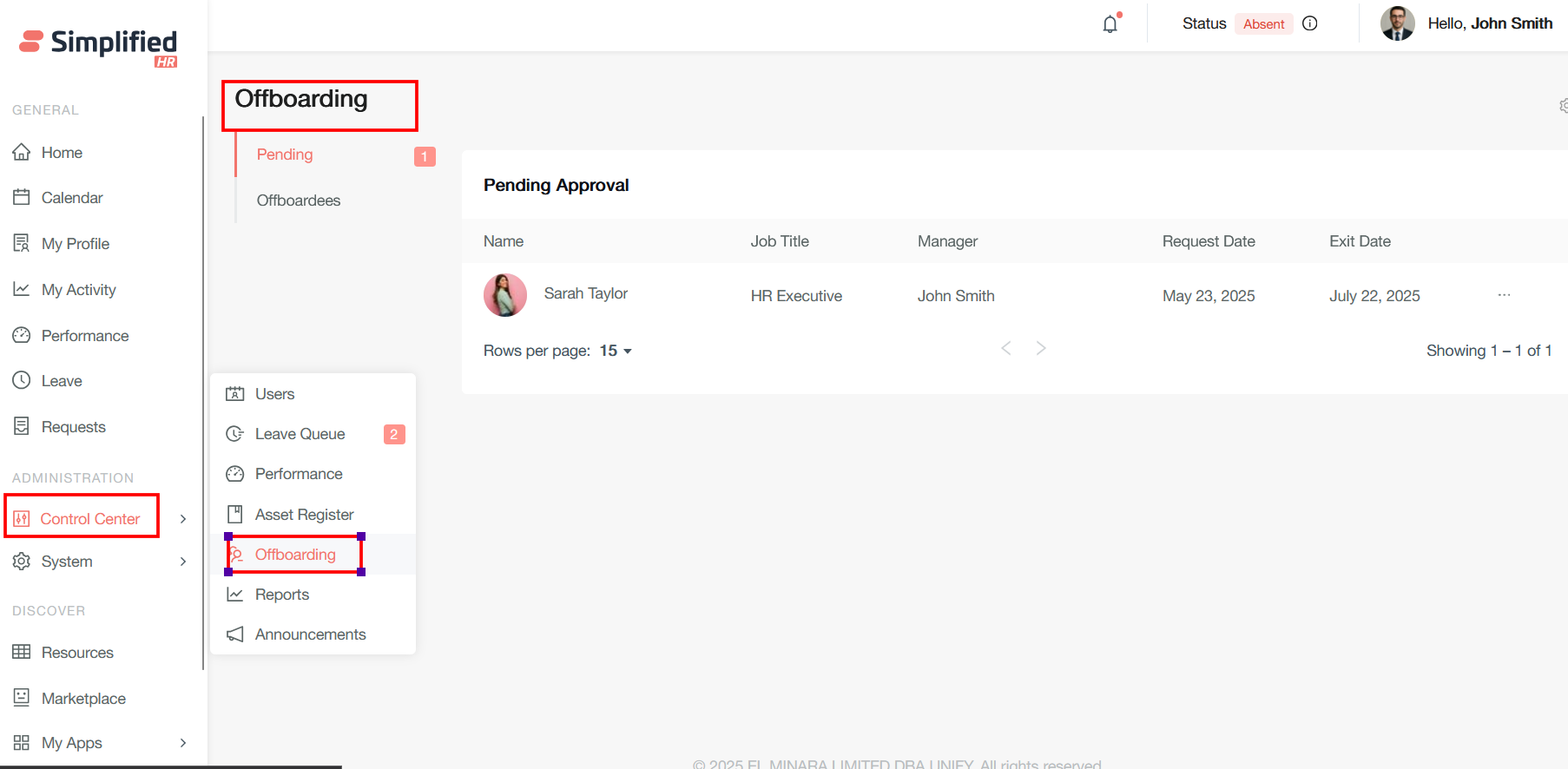
For the approval process, navigate to Control Center > Offboarding, where all the approval requests are submitted.
View Offboarding Requests
Administrators can access submitted offboarding requests and manage the departure process from the Offboarding section of Control Center.
View Offboarding Details
In the View Details section, the admin can get all the information about the offboardee.
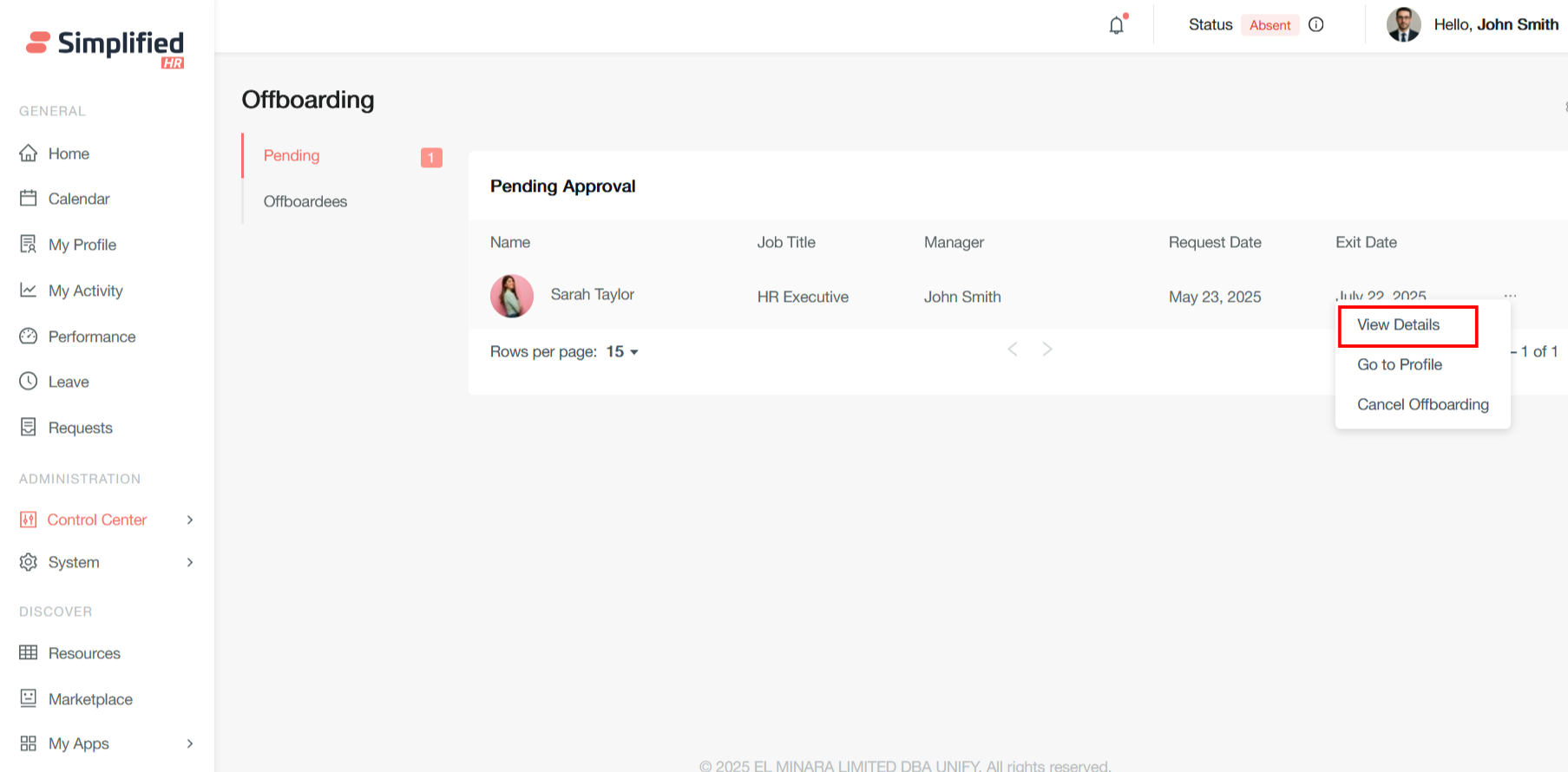
Information available includes:
View Requester Information
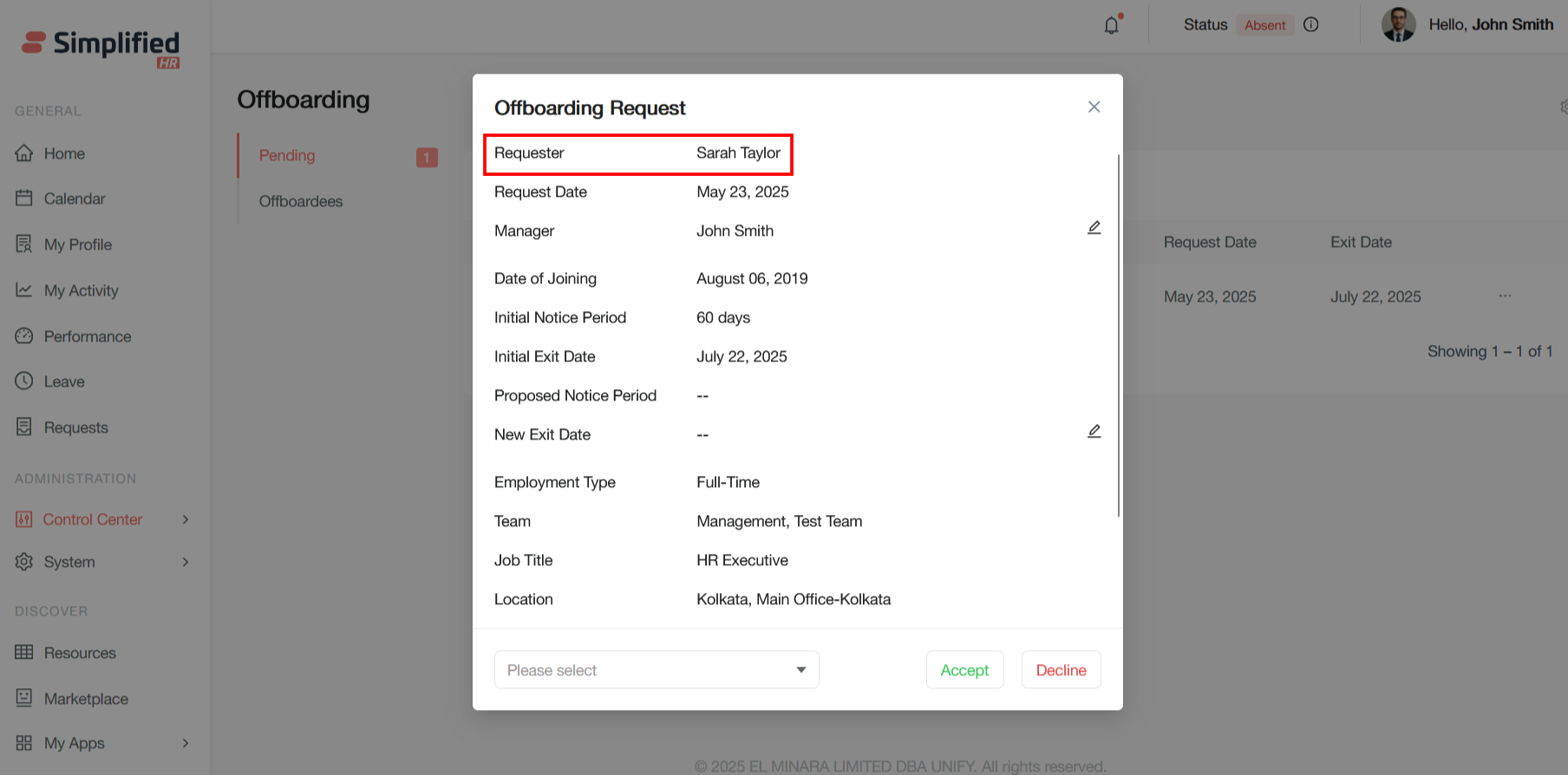
- Requester: The employee who is initiating the offboarding process — this is the person requesting to leave the organization.
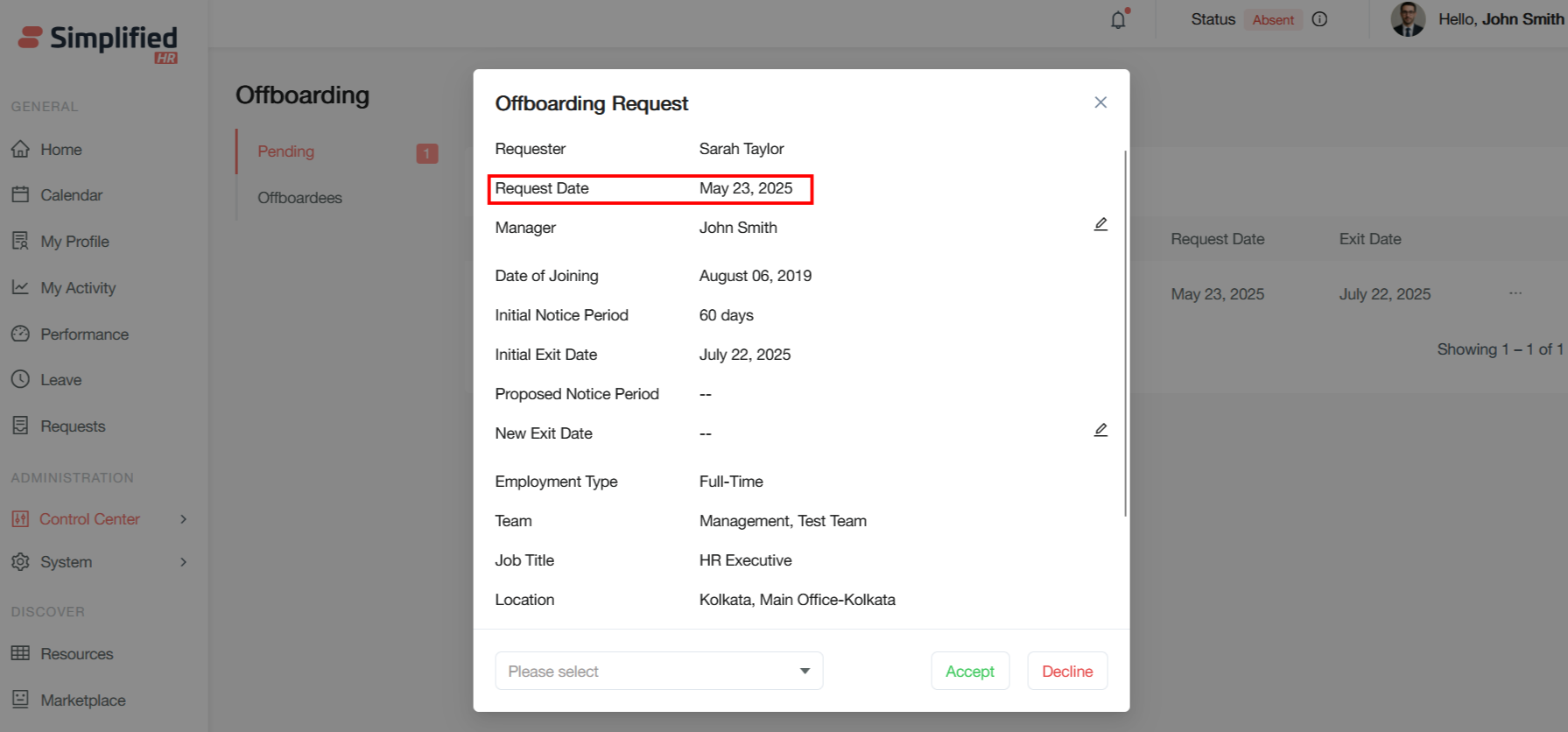
- Request Date: The date when the offboarding request was submitted; this marks the official start of the offboarding process.
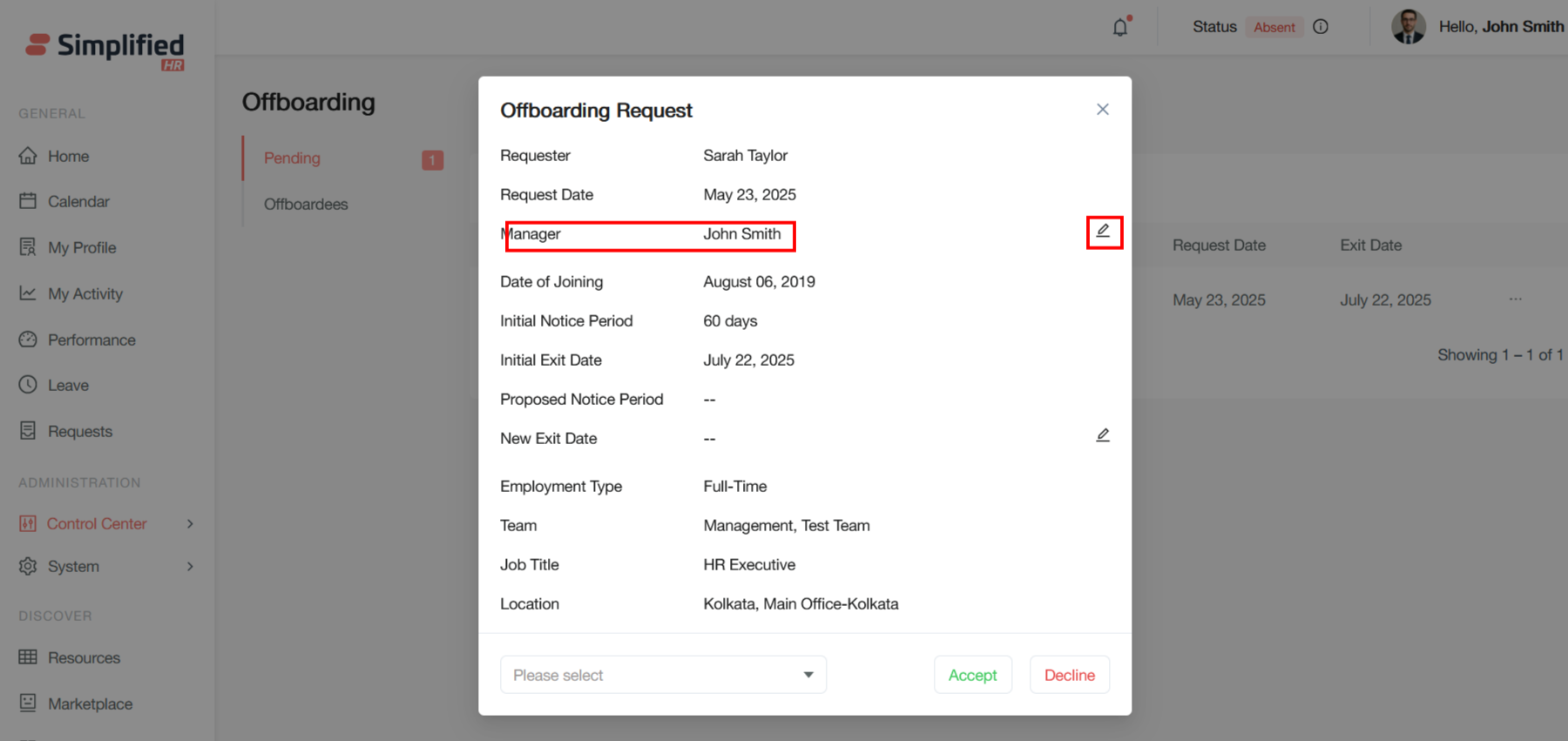
View Manager Information
Manager: The direct supervisor or manager of the employee requesting offboarding. This person typically needs to approve or review the request.
Note: This field is editable — the admin can switch the manager if required.
View Employment Information
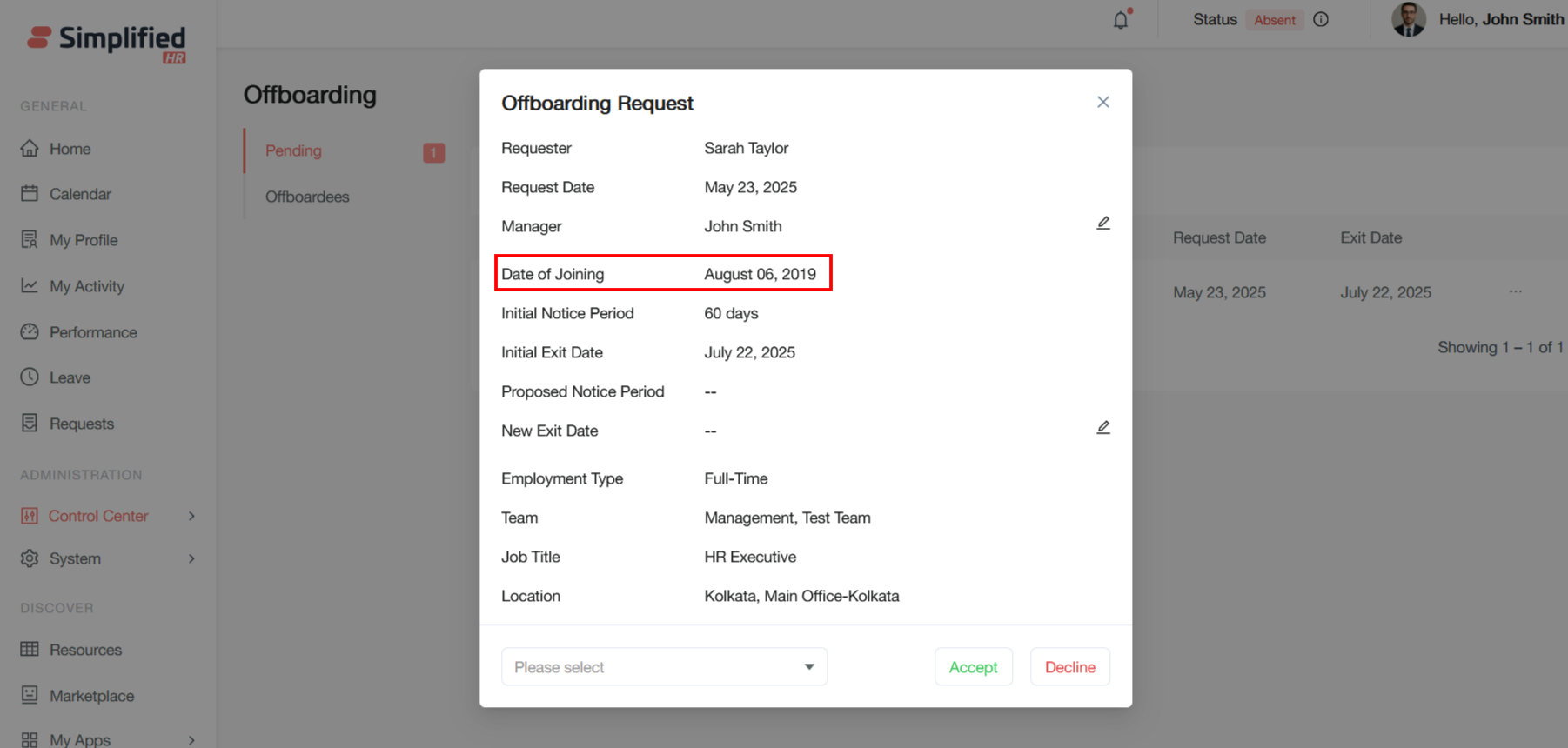
- Date of Joining: The original start date when the employee joined the company. This helps calculate tenure and may impact notice period requirements or benefits.
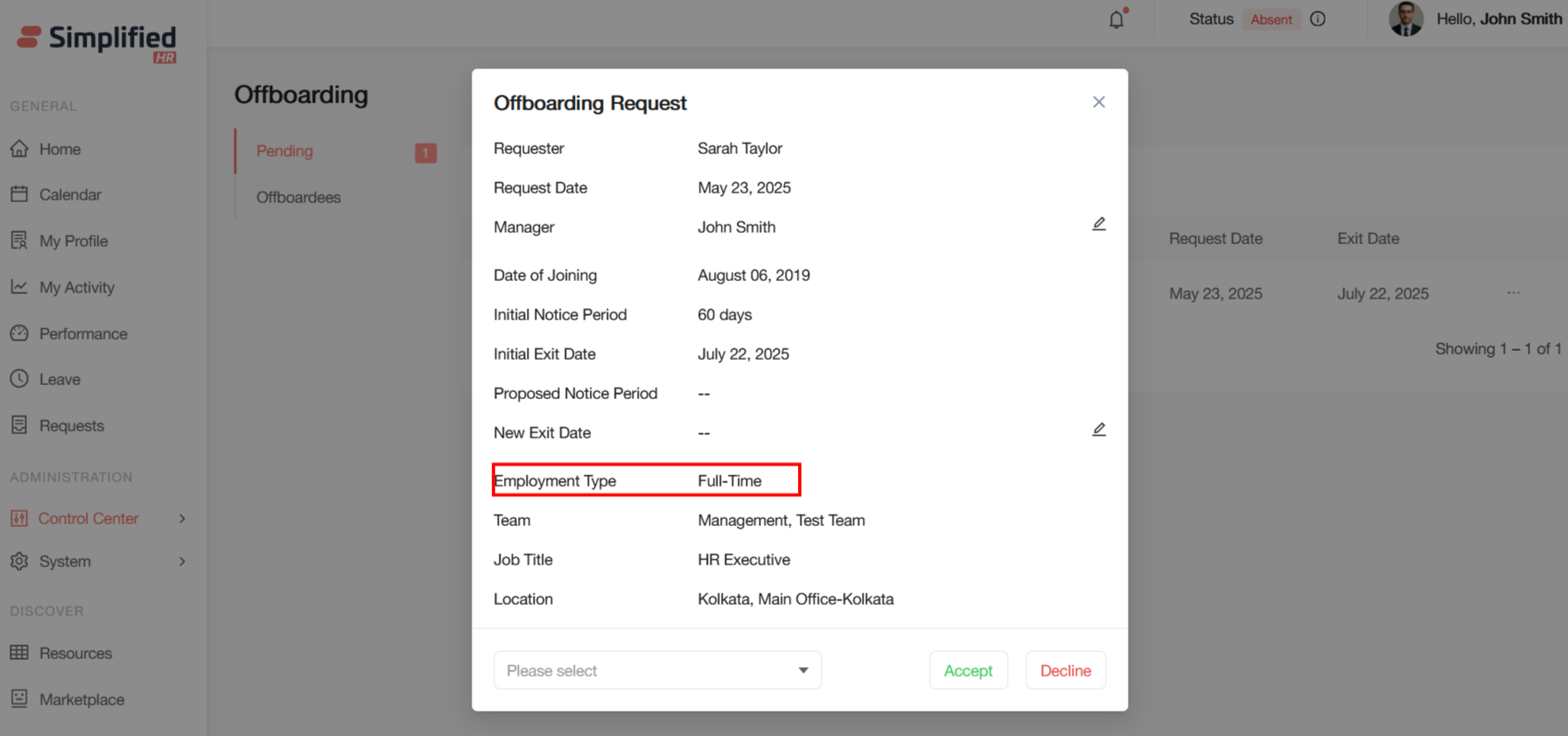
- Employment Type: The classification of employment (e.g., Full-Time, Part-Time, Contract). This affects offboarding procedures and final settlements.
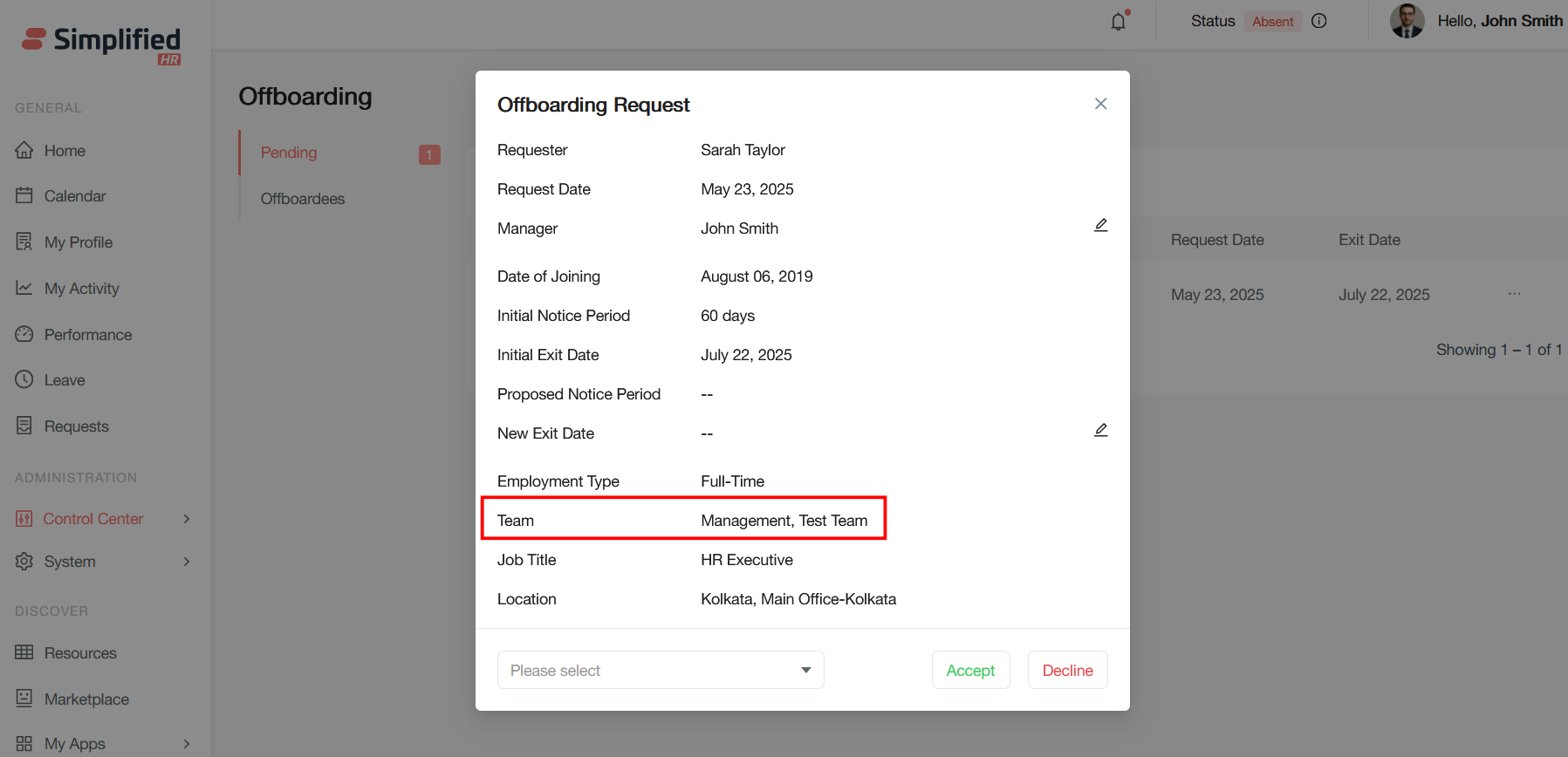
- Team: The department or team(s) the employee belongs to. Note for reassigning responsibilities and access revocation.
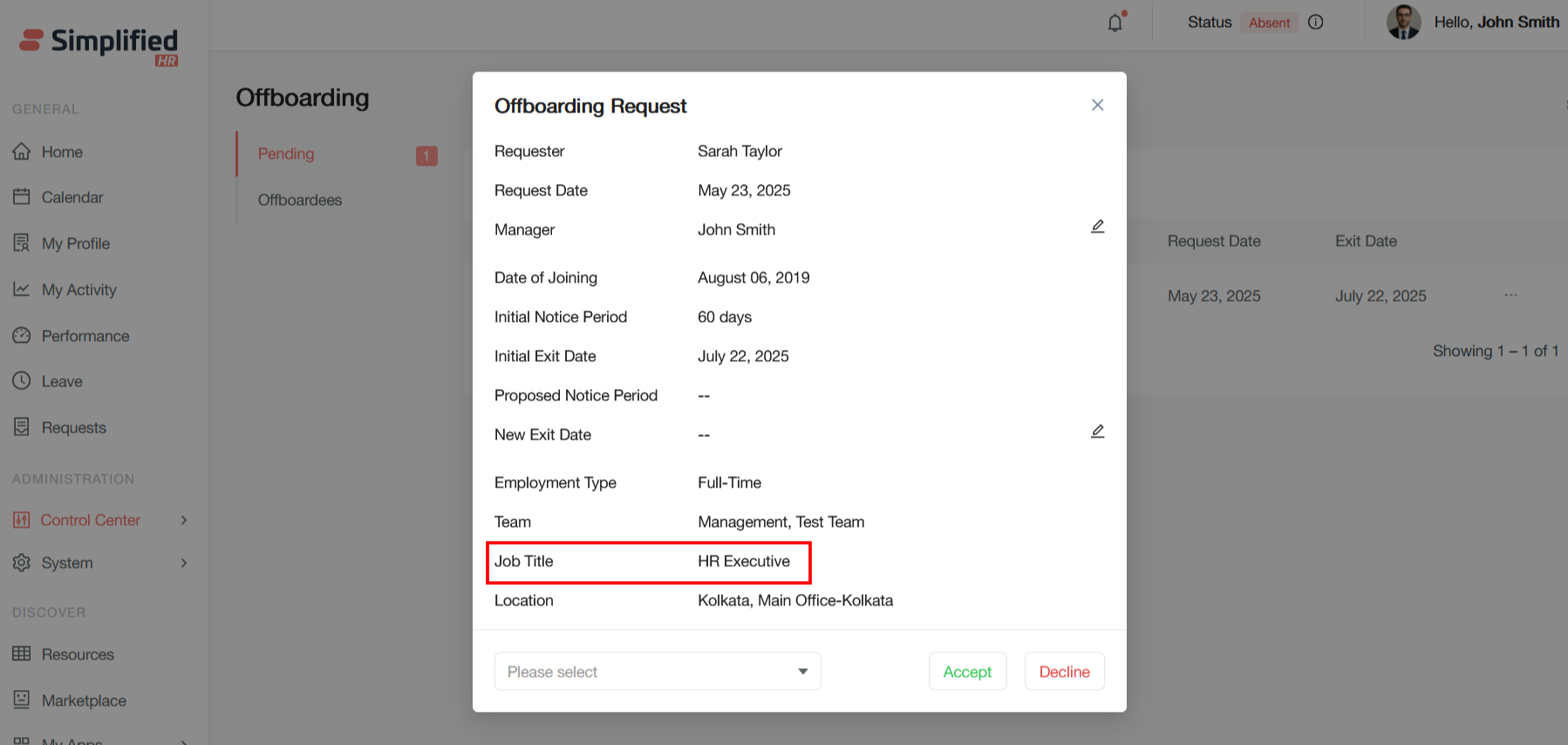
- Job Title: The employee's current position. This helps determine handover requirements and replacement planning.
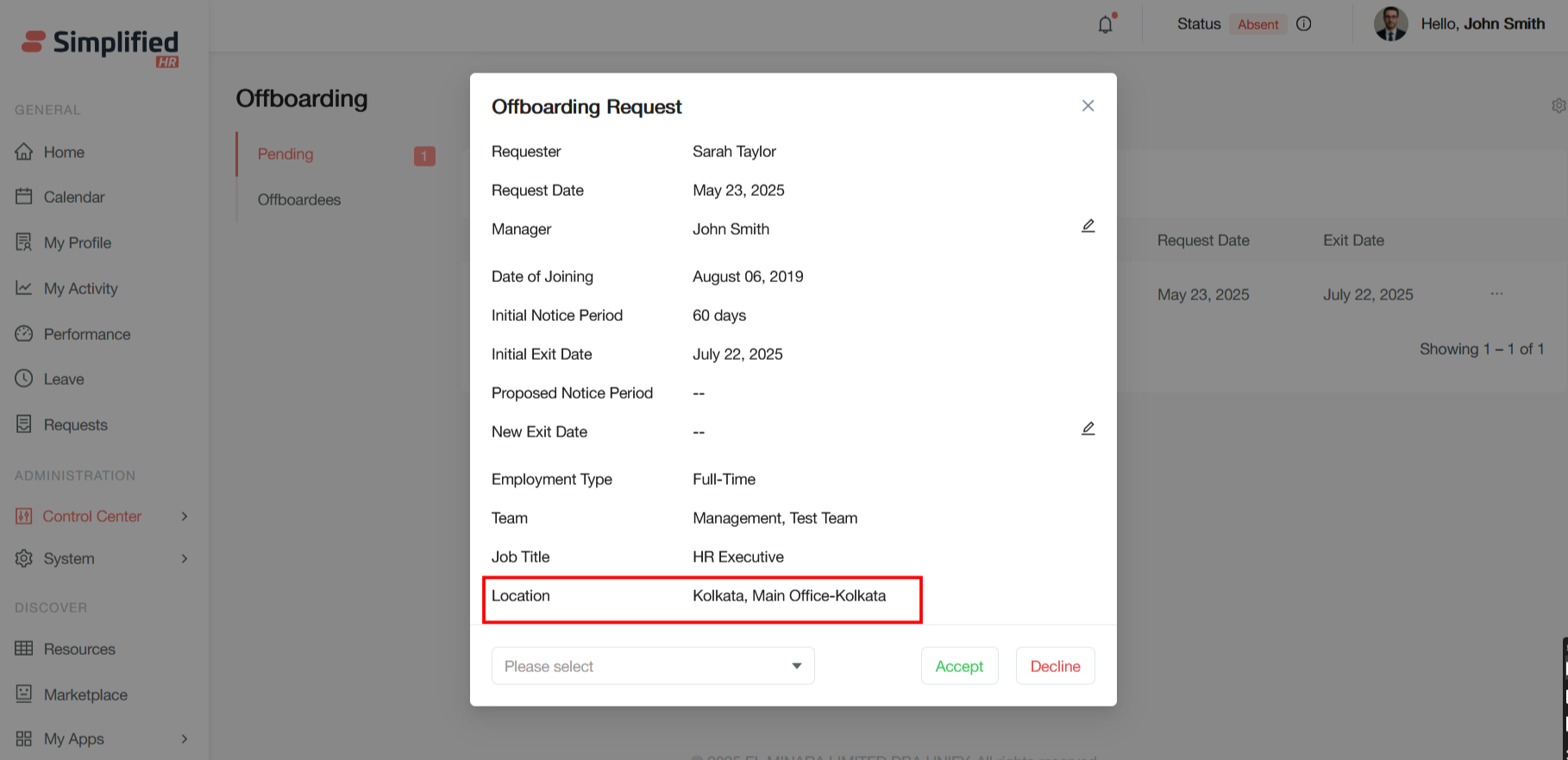
- Location: The employee's work location. Relevant for asset return, final paperwork, and exit interviews.
View Initial Notice Period
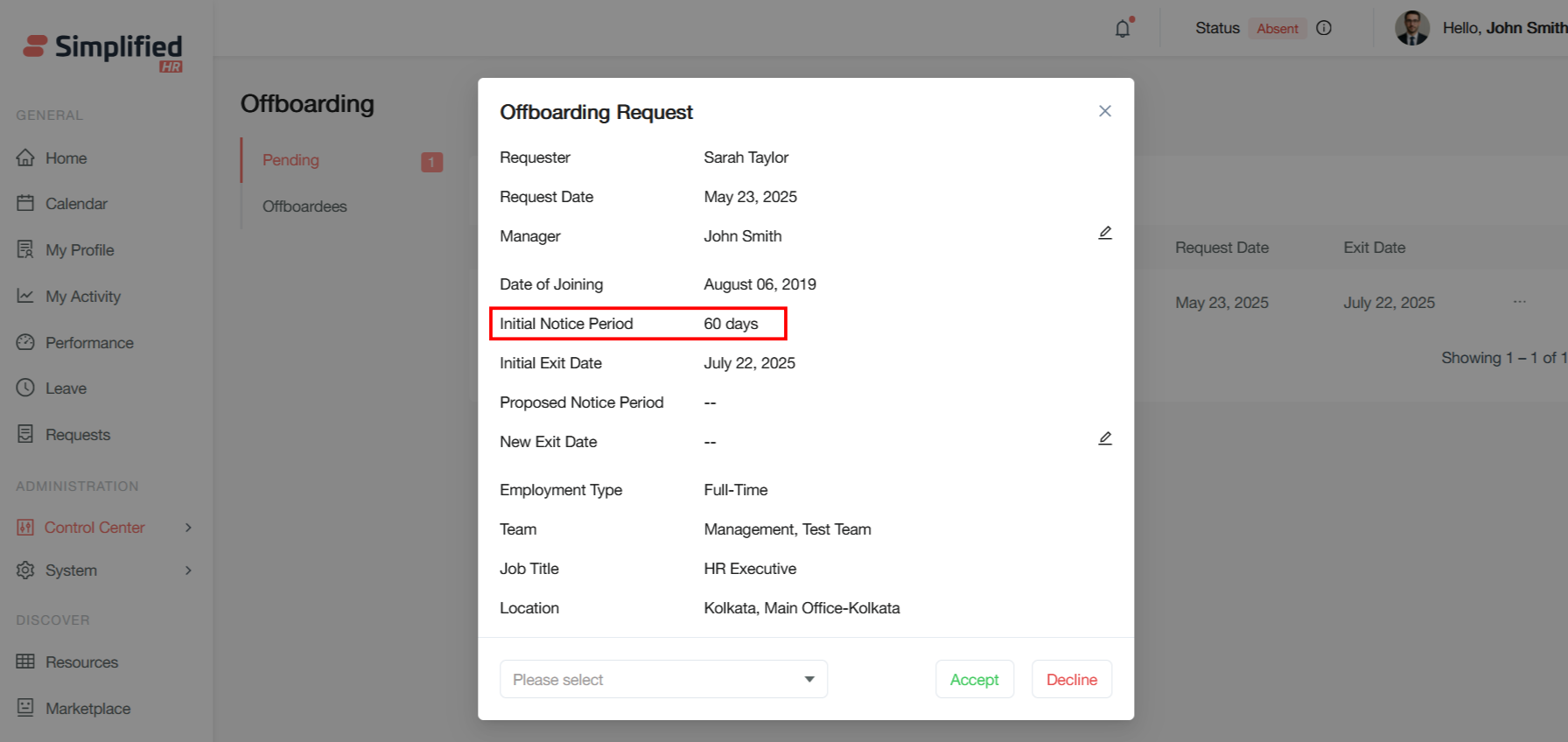
Initial Notice Period: The standard notice period as per company policy or employment contract, mentioned in the user's work profile. This is the default requirement.
View Initial Exit Date
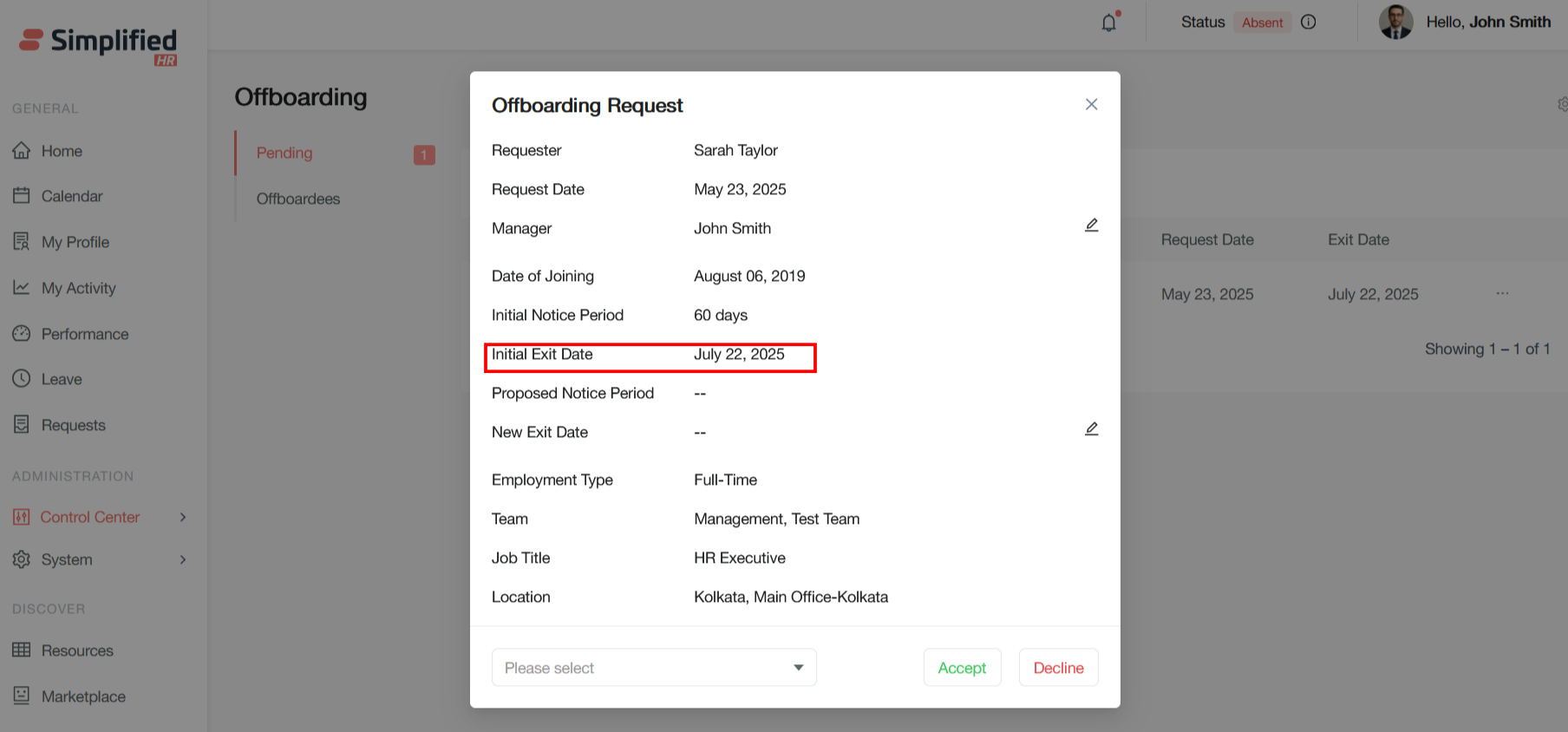
Initial Exit Date: The calculated last working day, based on the request date and initial notice period.
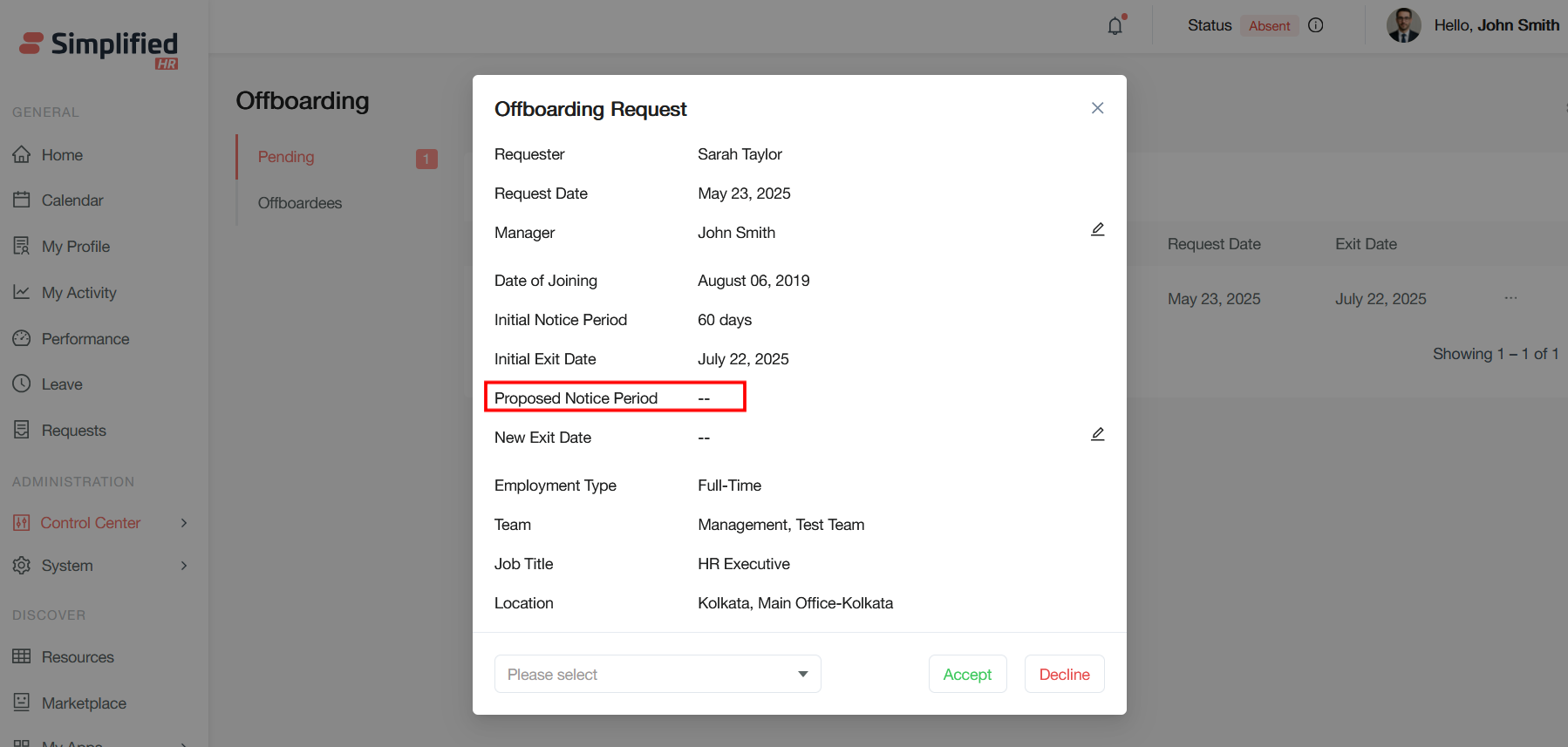
Review Proposed Notice Period
Proposed Notice Period: A field for requesting a different notice period. The employee or manager can propose an alternative.
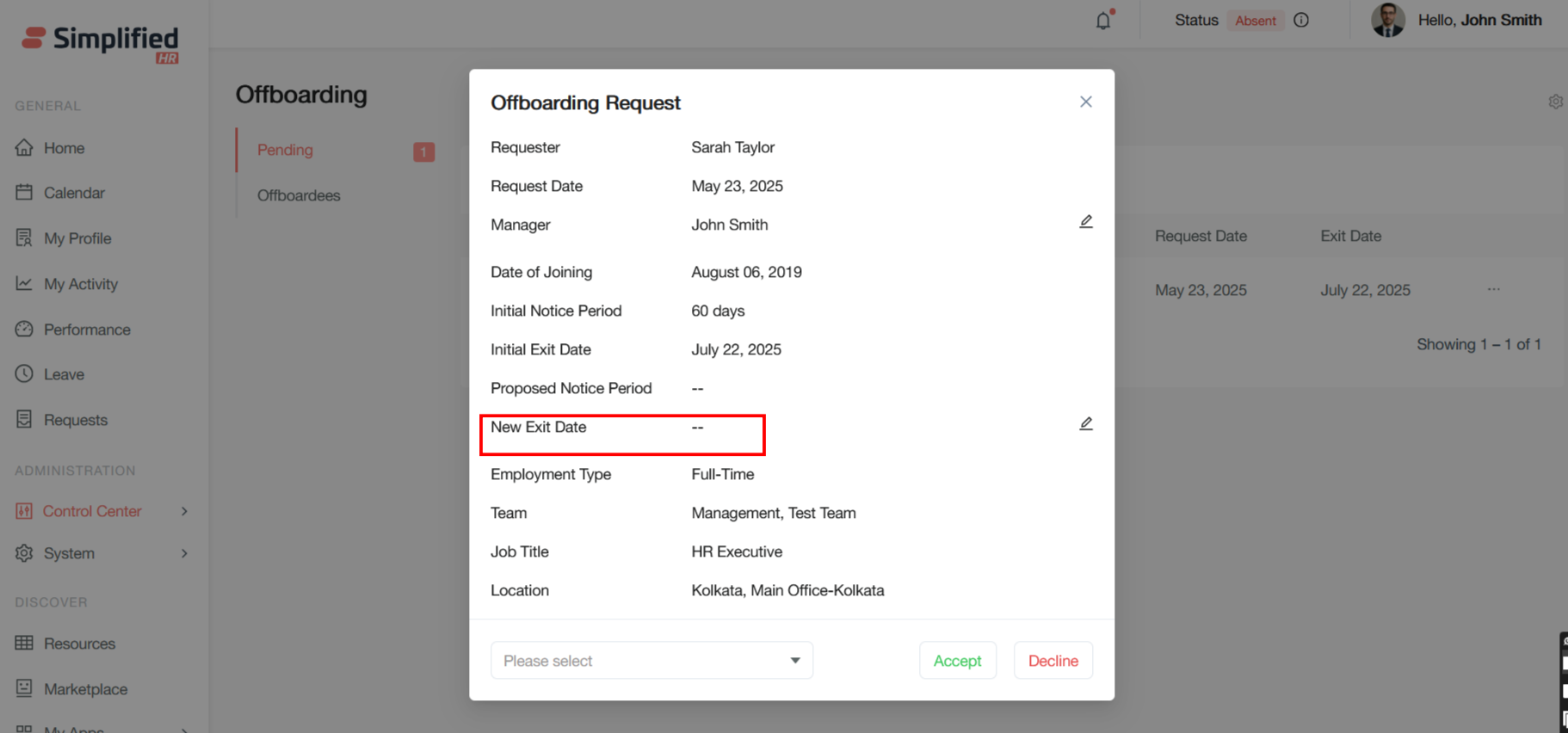
Review New Exit Date
New Exit Date: The last working day can be revised or modified, even if the proposed notice period is approved.
Approve Notice Period Change
Note: Changes to the notice period need to be approved by admin, as stated in the Request Offboarding form's administrative notice banner.
Review Offboarding Request
Offboarding approval is a critical workflow stage that ensures proper authorization and oversight before an employee's departure process begins. Offboarding approval requires completion of comprehensive checklists to ensure all critical tasks are addressed before an employee's departure is finalized.
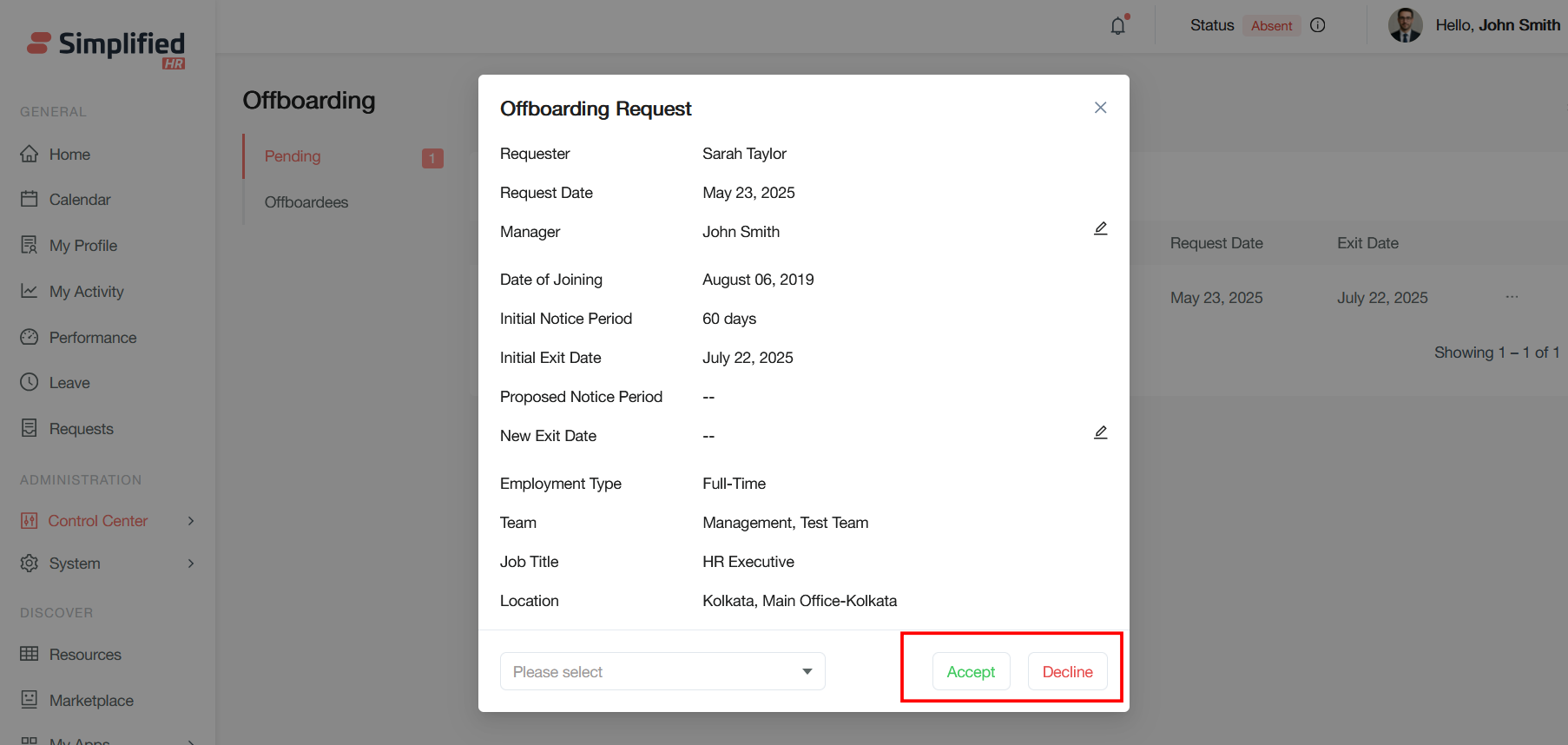
Accept Offboarding Request
Accept/Decline buttons allow the manager or HR to approve or reject the offboarding request.
Note: Once an admin adds a checklist and accepts the offboarding of the user, the user record is displayed under the Offboardees section with active status.
Decline Offboarding Request
Accept/Decline buttons allow the manager or HR to approve or reject the offboarding request.
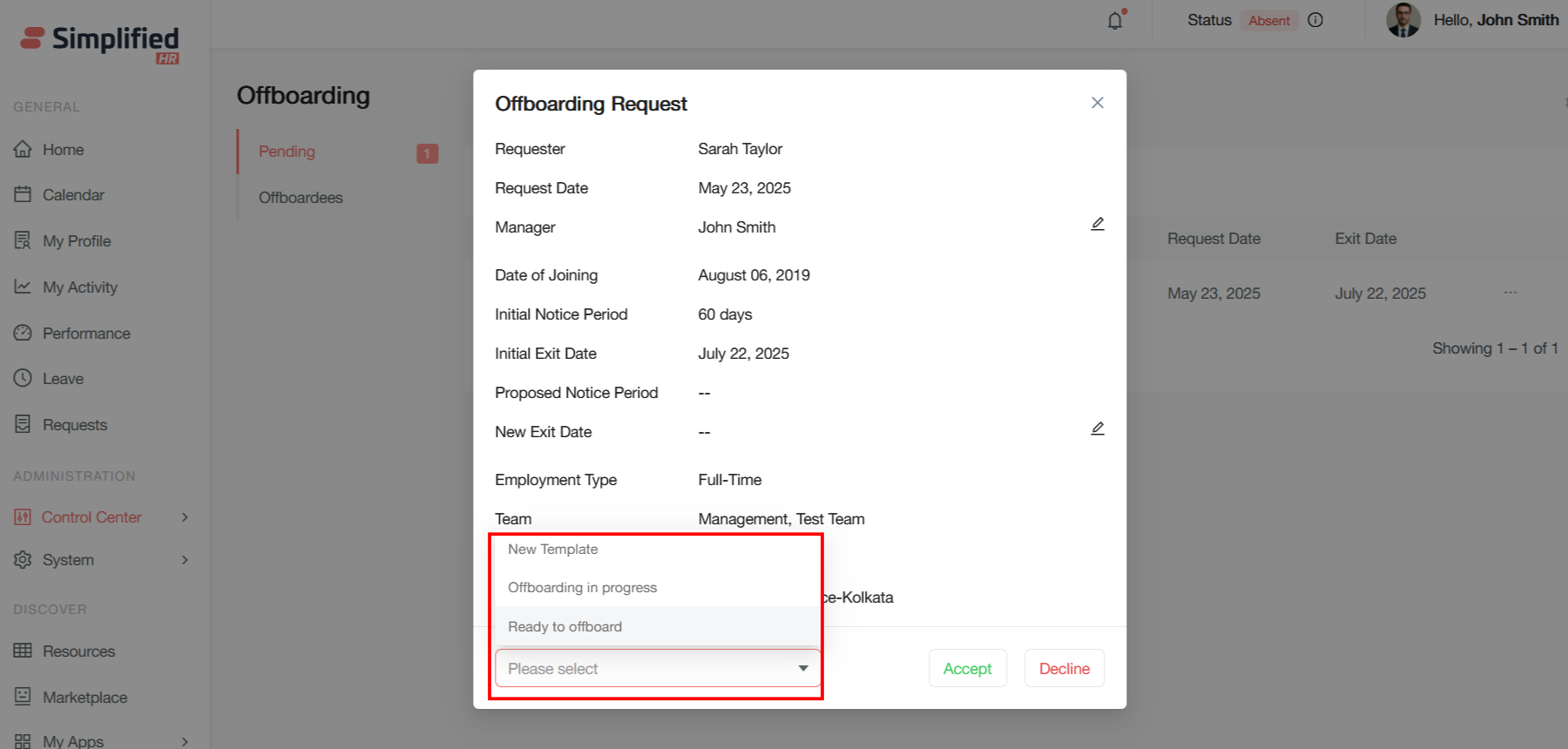
Add Offboarding Checklist
A dropdown menu ("Please select") is the checklist task that the admin selects for the offboardee to complete before they leave the organization.
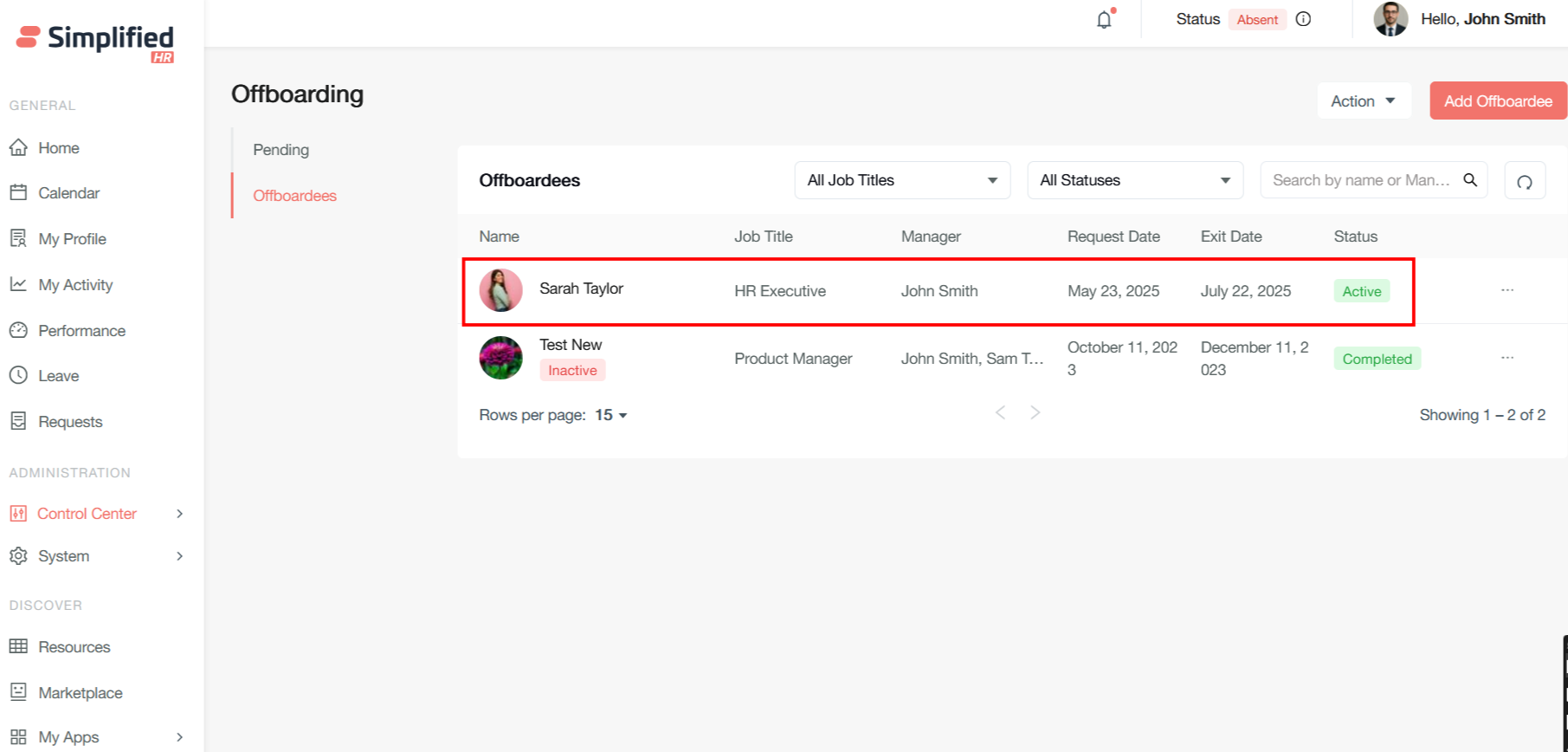
View Offboardees
Once an admin adds a checklist and accepts the offboarding of the user, the user record is displayed under the Offboardees section with active status.
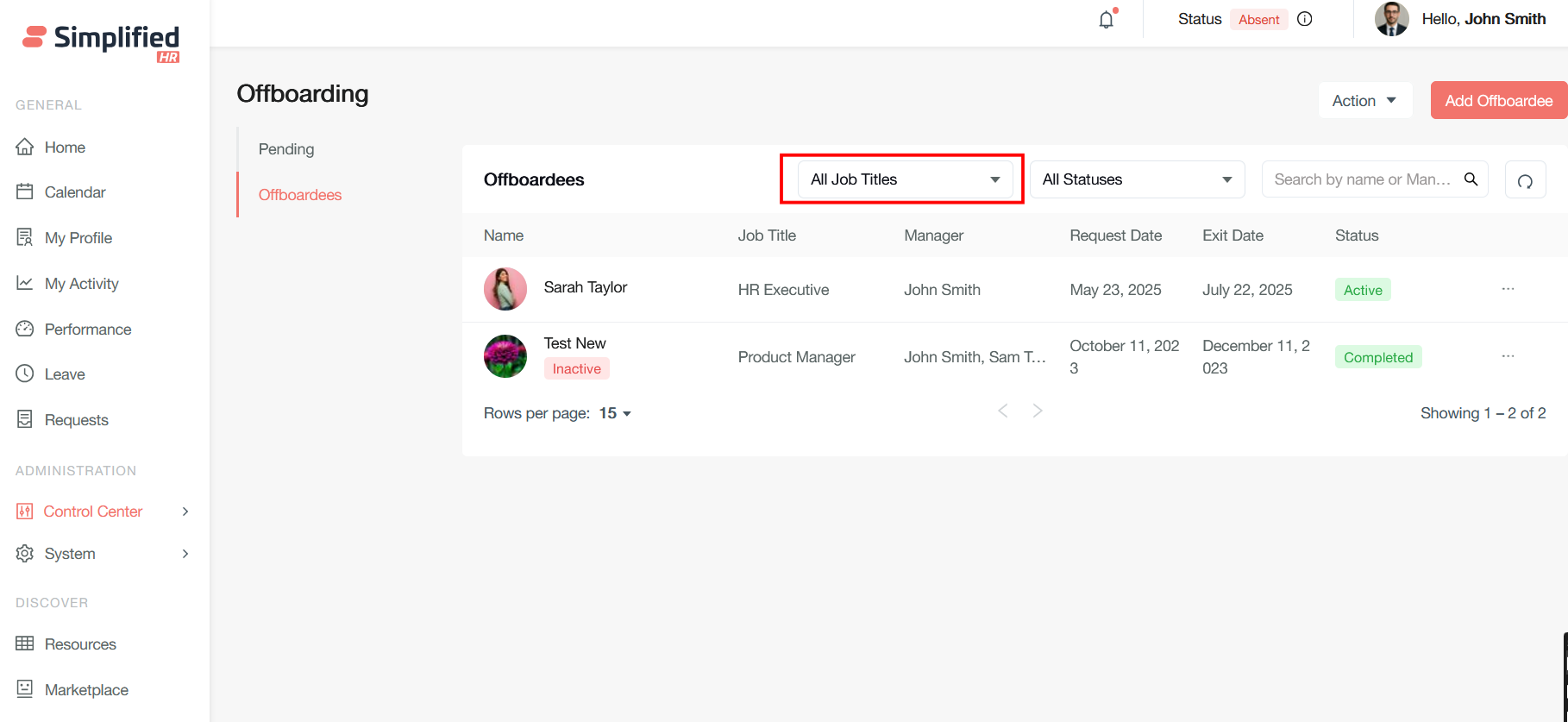
Filter Offboardees by Job Title
The All Job Titles dropdown allows you to narrow down the offboardees list by specific job positions or roles, so you can focus on offboarding for specific roles instead of viewing all departing employees.
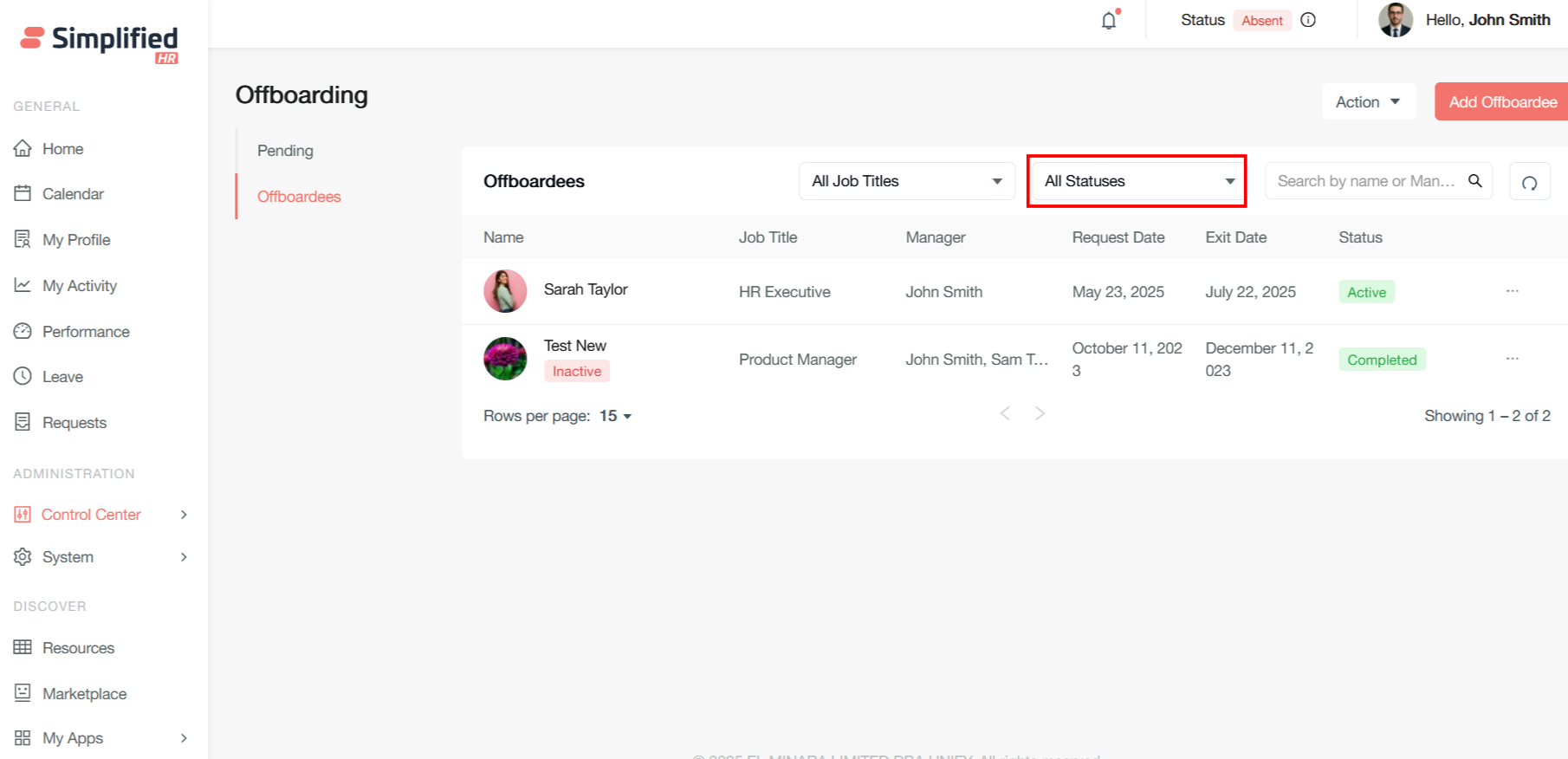
Filter Offboardees by Status
The All Statuses dropdown lets you sort offboardees by their current offboarding status.
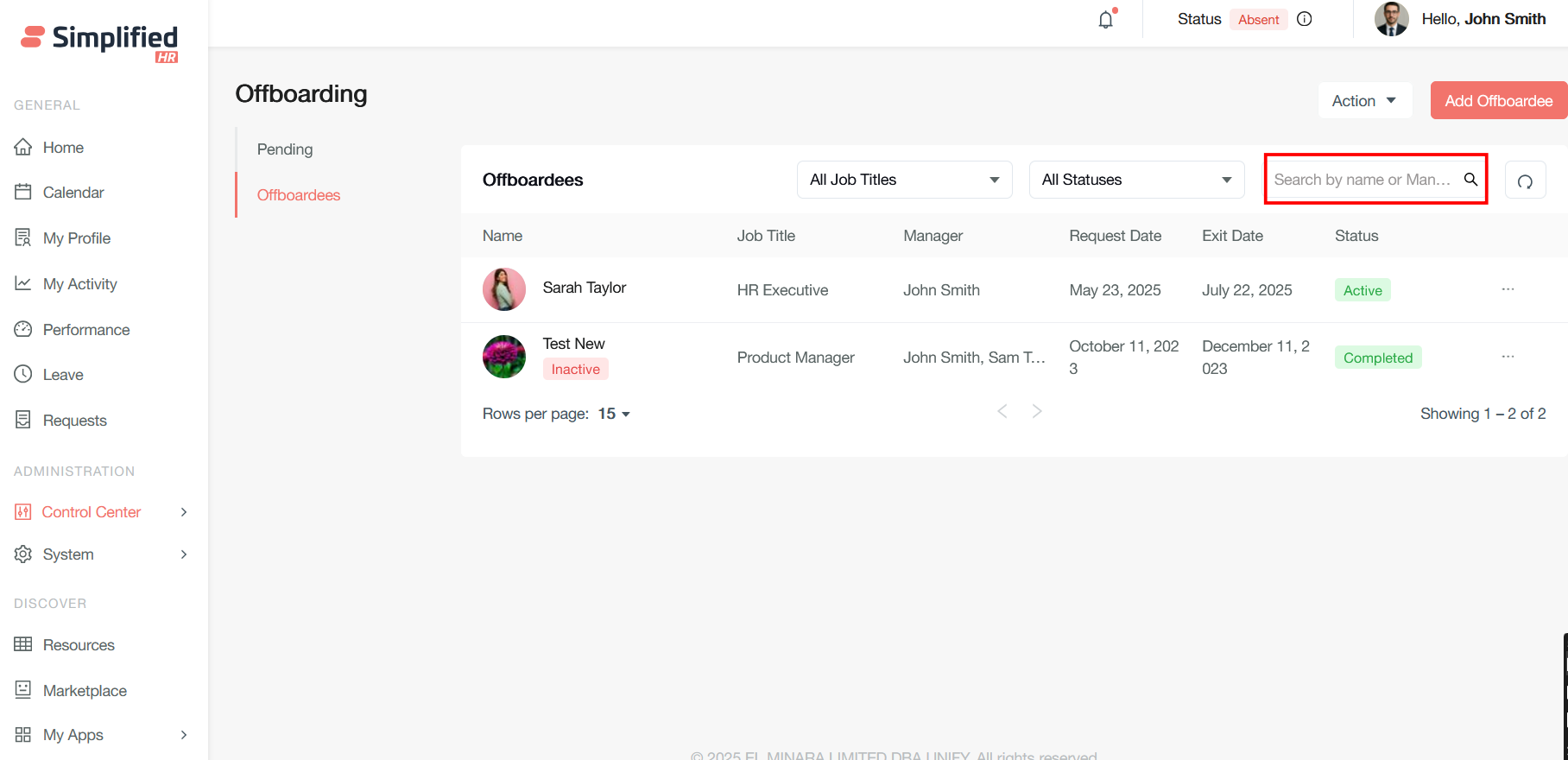
Search Offboardees
Search by name or manager: find specific offboardees by their first or last name, or search for all offboardees under a specific manager.
View Offboardee Profile
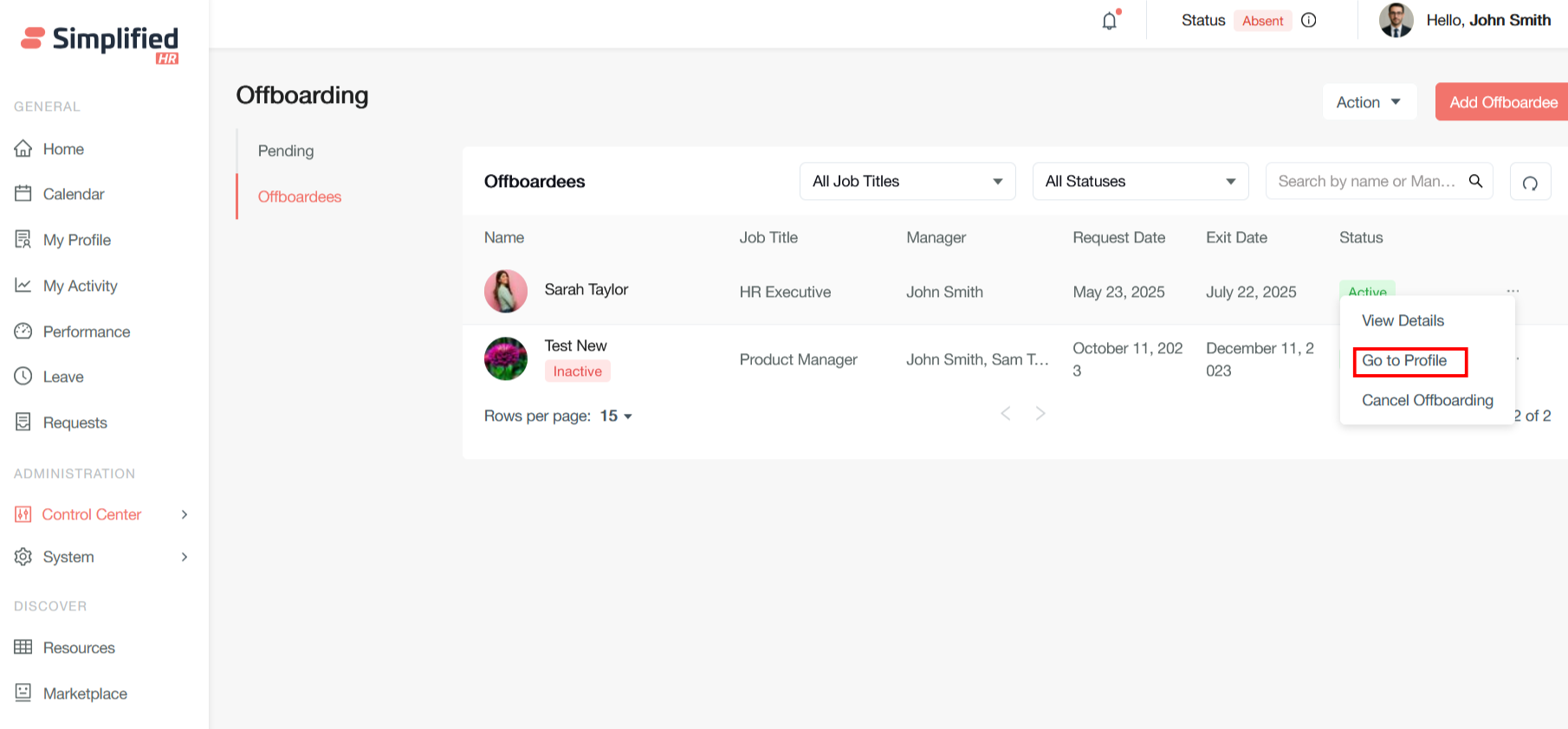
Go to Profile navigates to the employee's full HR profile, providing access to their complete employment record beyond just offboarding information — useful for reviewing full employment history, personal details, or other HR-related information during the offboarding process.
Cancel Offboarding
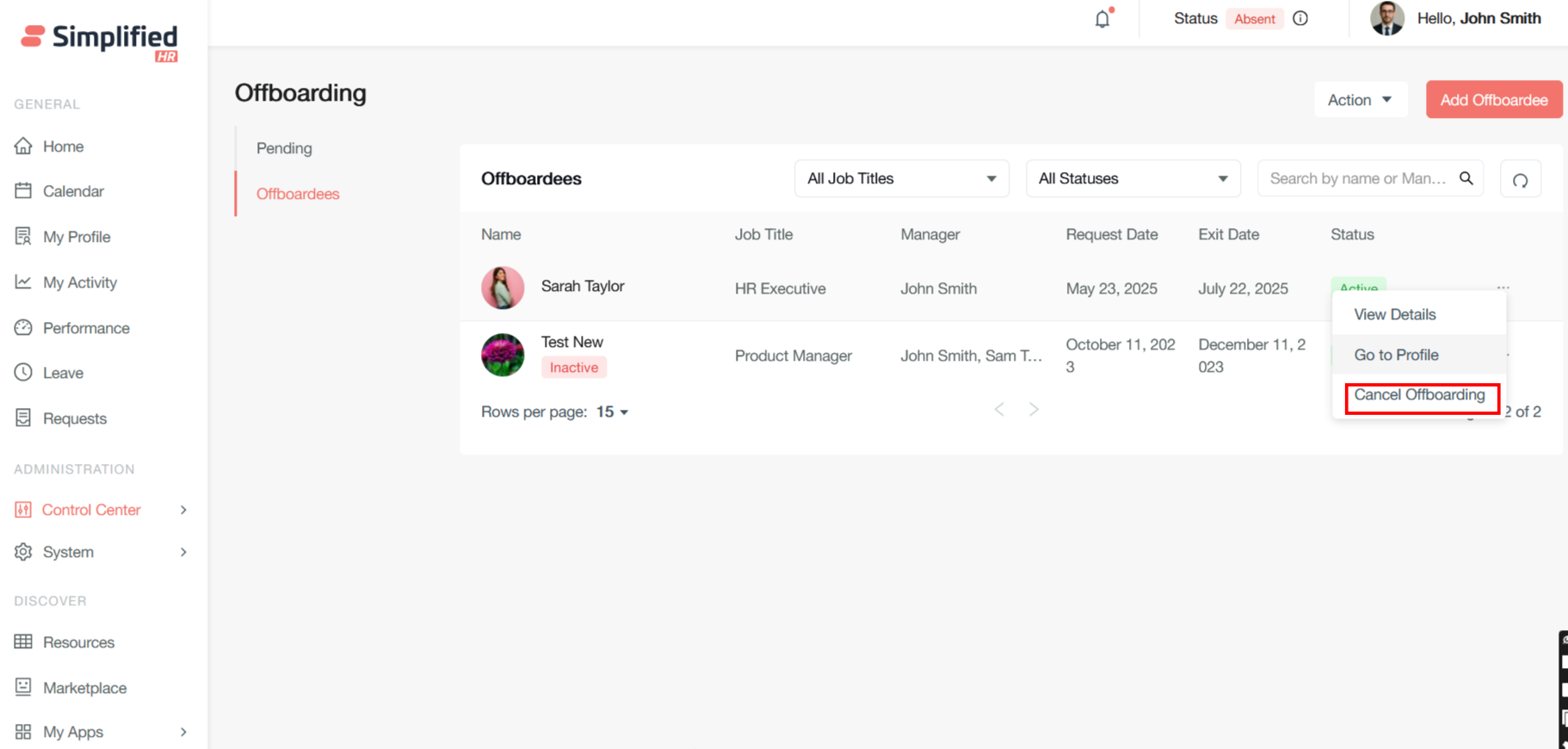
Cancel Offboarding allows HR administrators to halt or reverse the offboarding process. This menu appears when you click the three dots (⋯) next to an individual employee record.
Situations where this may be used:
-
An employee decides to stay with the company.
-
There was an error in initiating the offboarding.
-
The departure is being postponed.
-
Management wants to retain the employee.
Add Offboardee
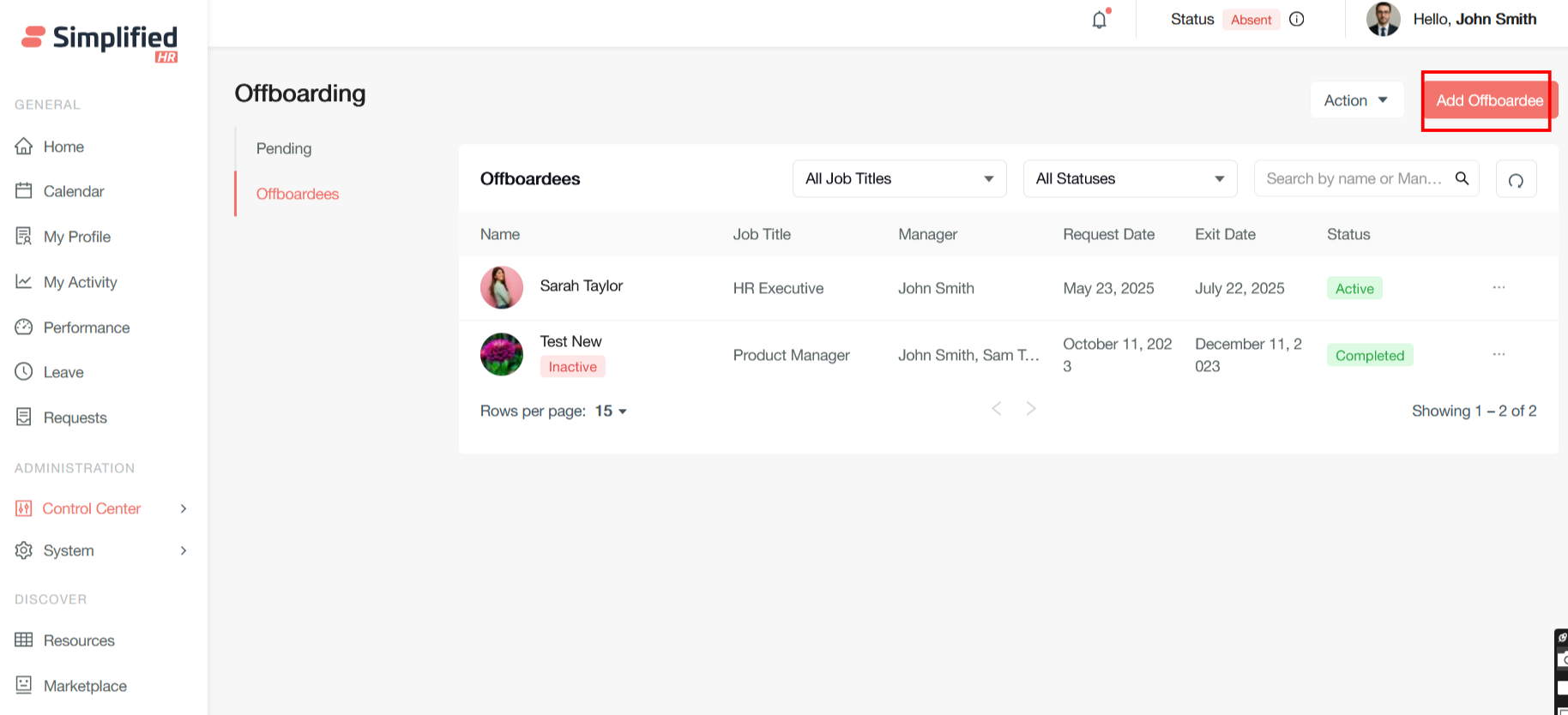
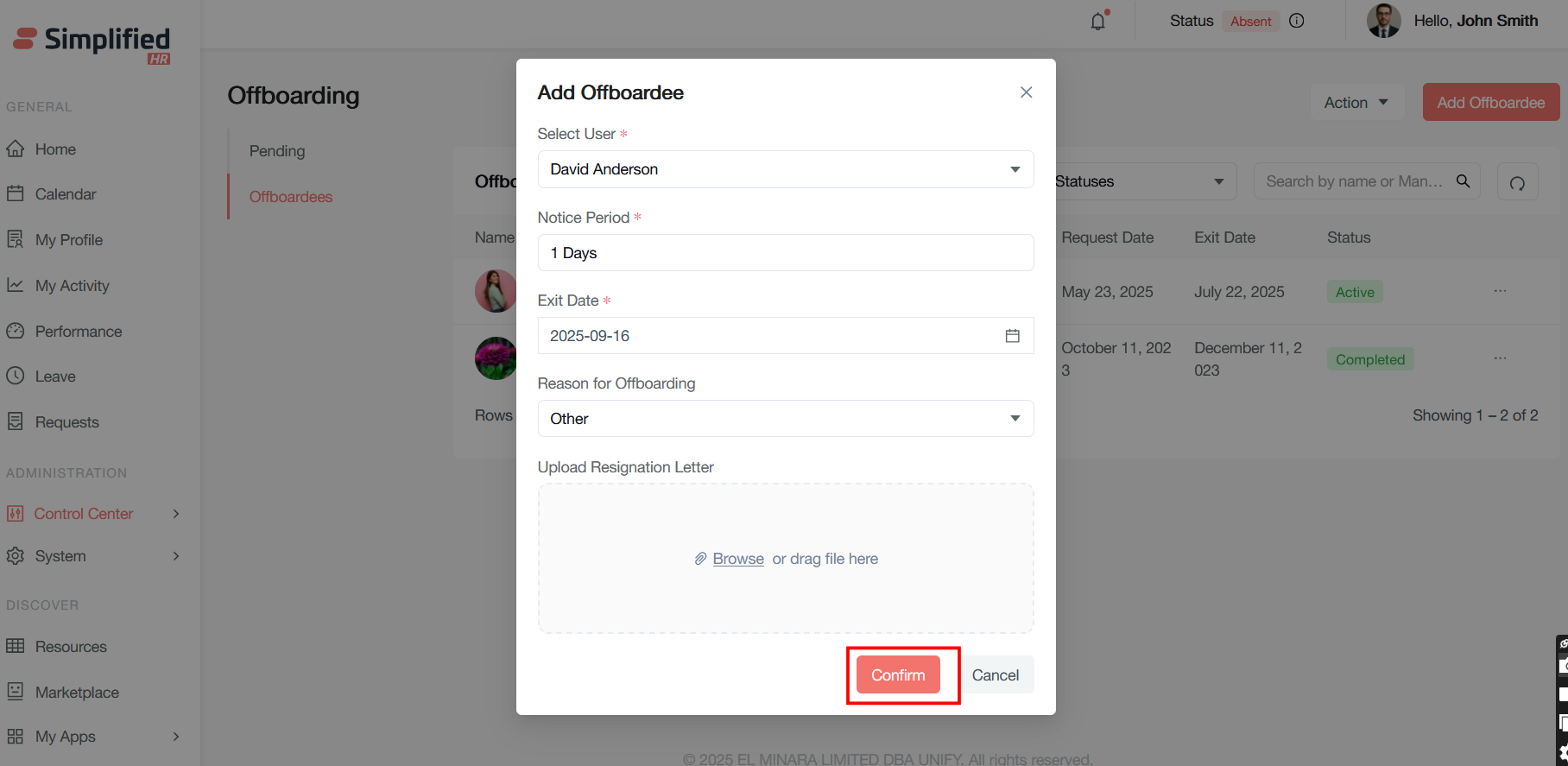
Admin can directly add an offboardee by clicking the Add Offboardee button.
Note: If any offboarding is raised previously by the member or added by the admin, and thereafter not cancelled or rejected, then raising a duplicate offboarding request will be restricted.
- Click Add Offboardee.
-
Select the employee (Select User field).
-
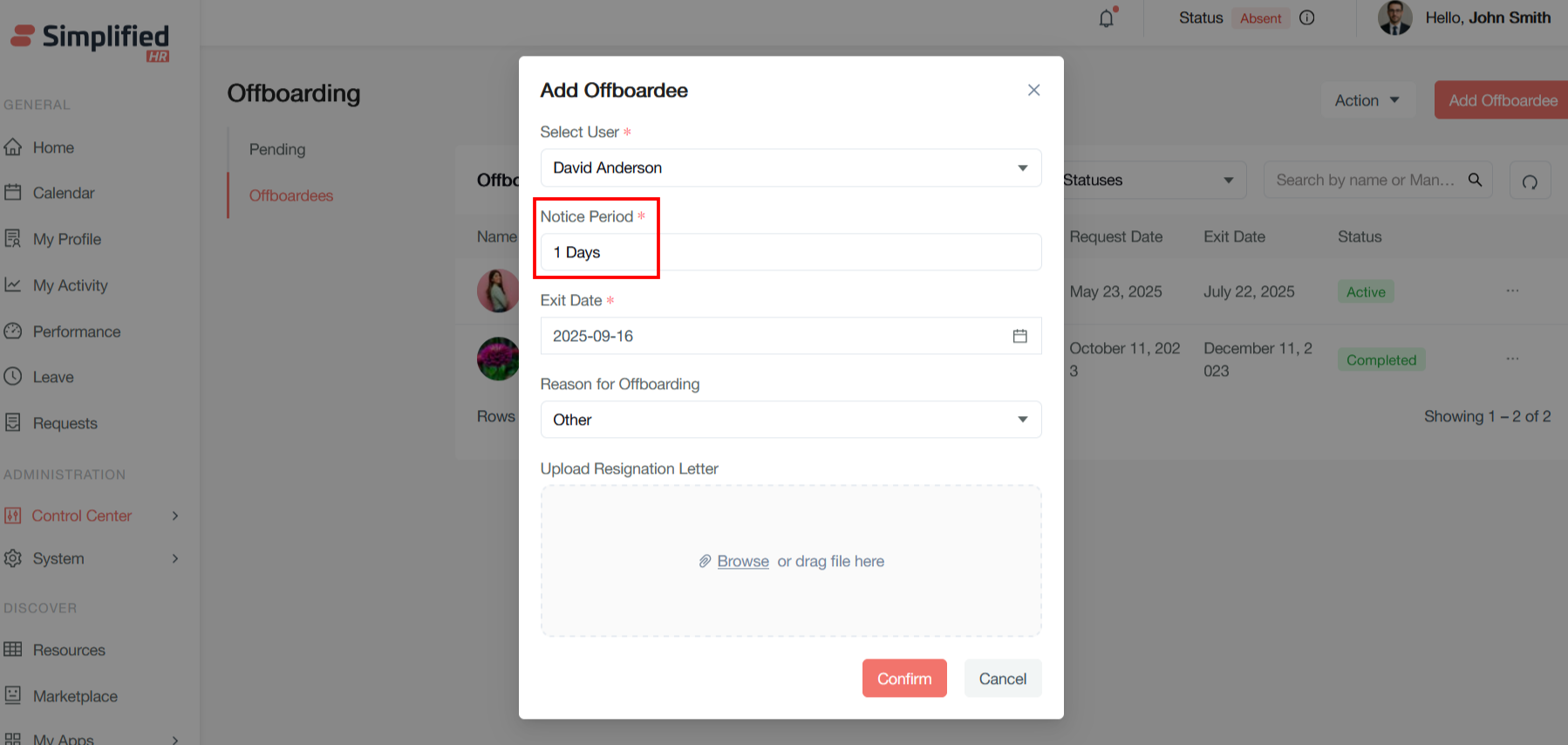
Enter Notice Period.
-
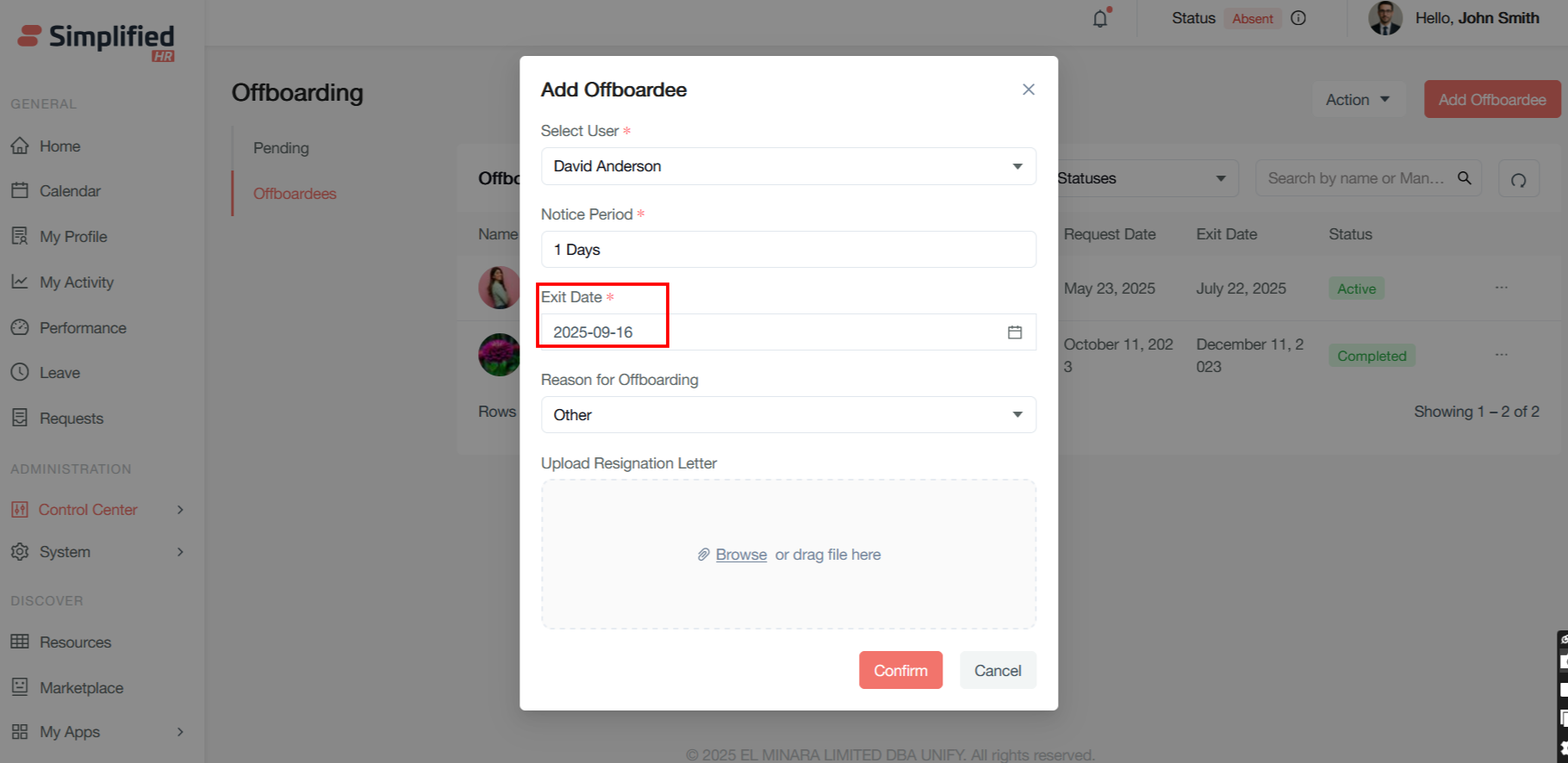
Enter Exit Date.
-
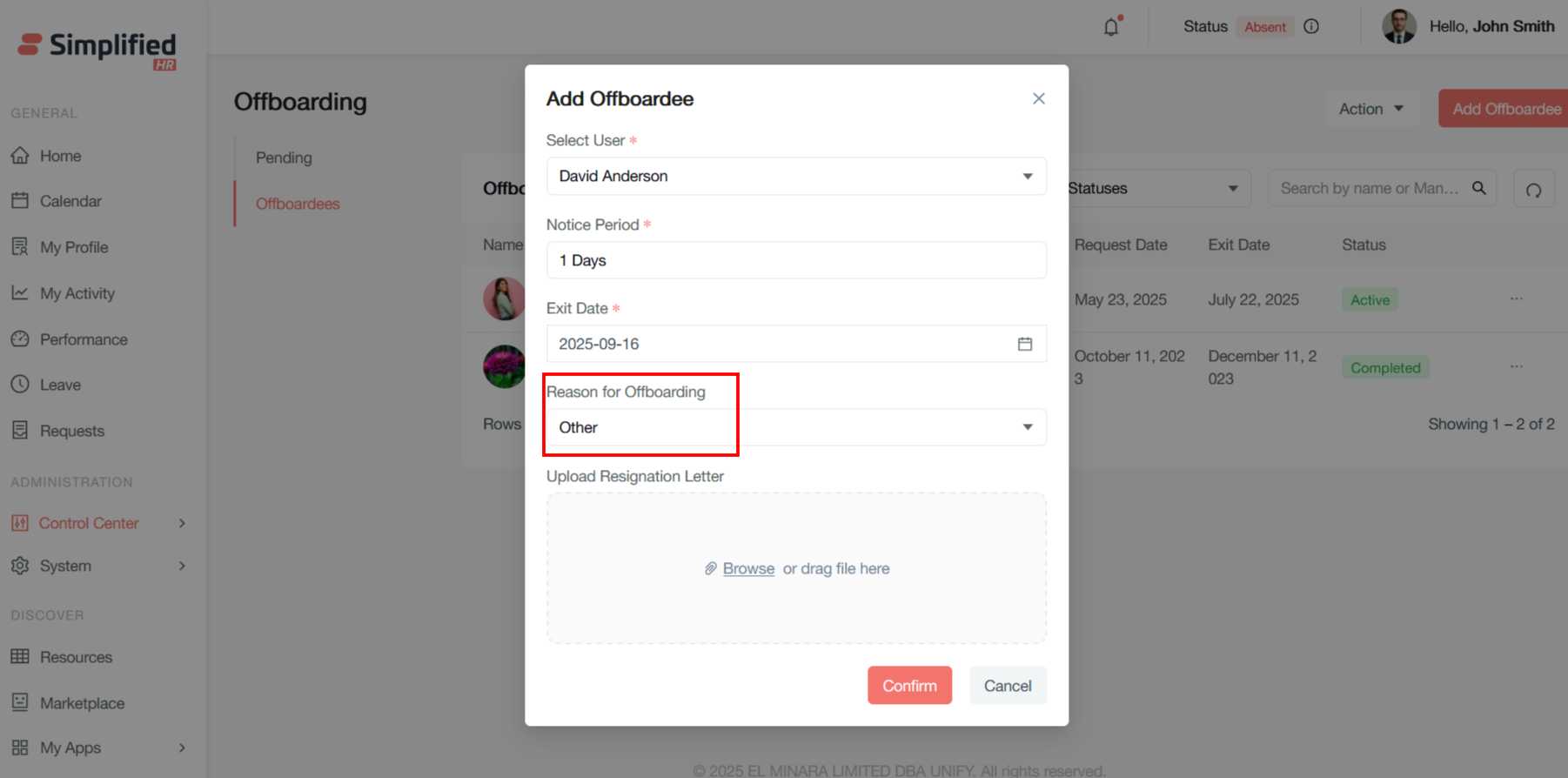
Select Reason for Offboarding.
-
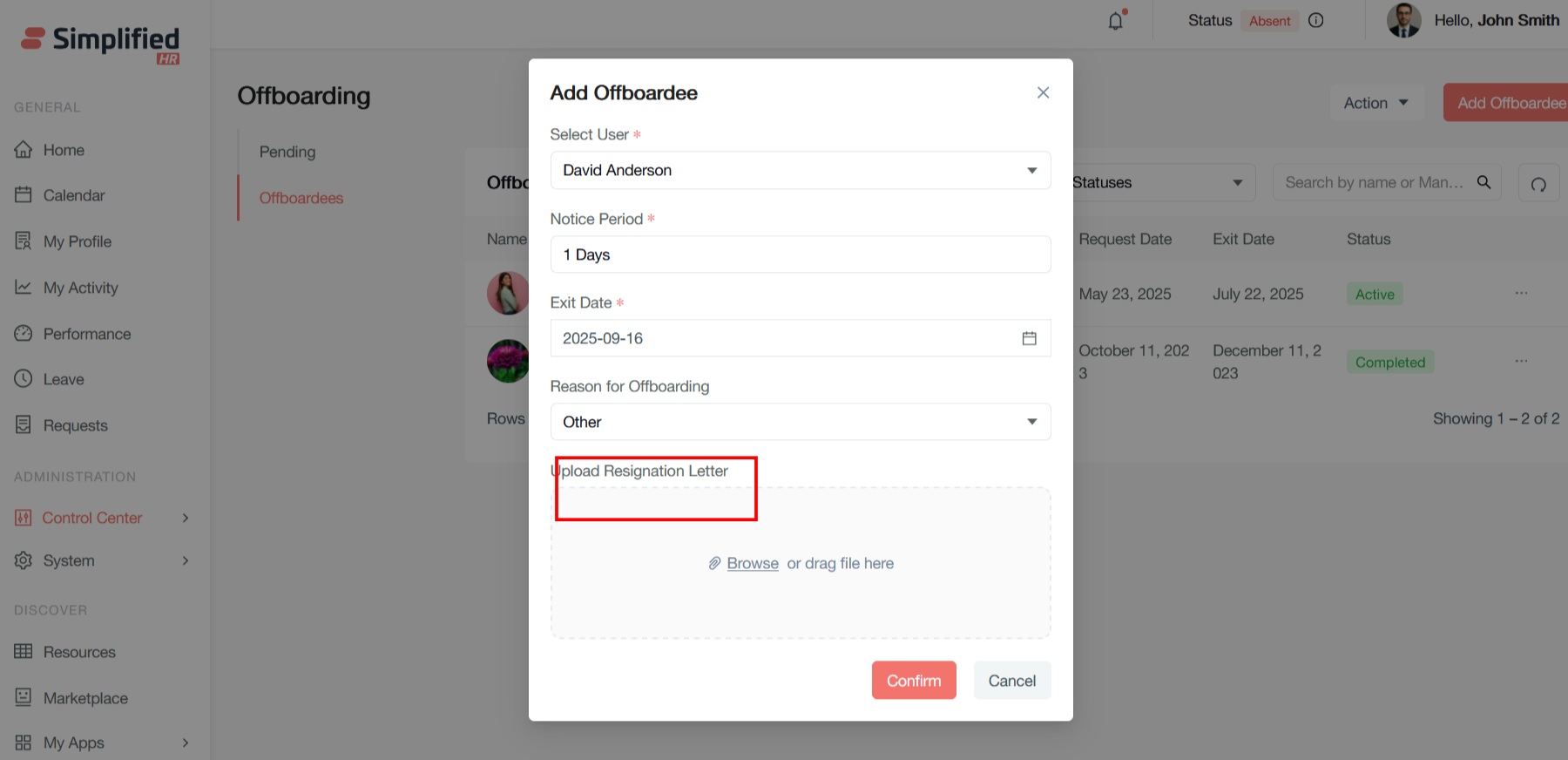
Upload the resignation letter or relevant documentation.
-
Click Confirm.
Select Offboardee
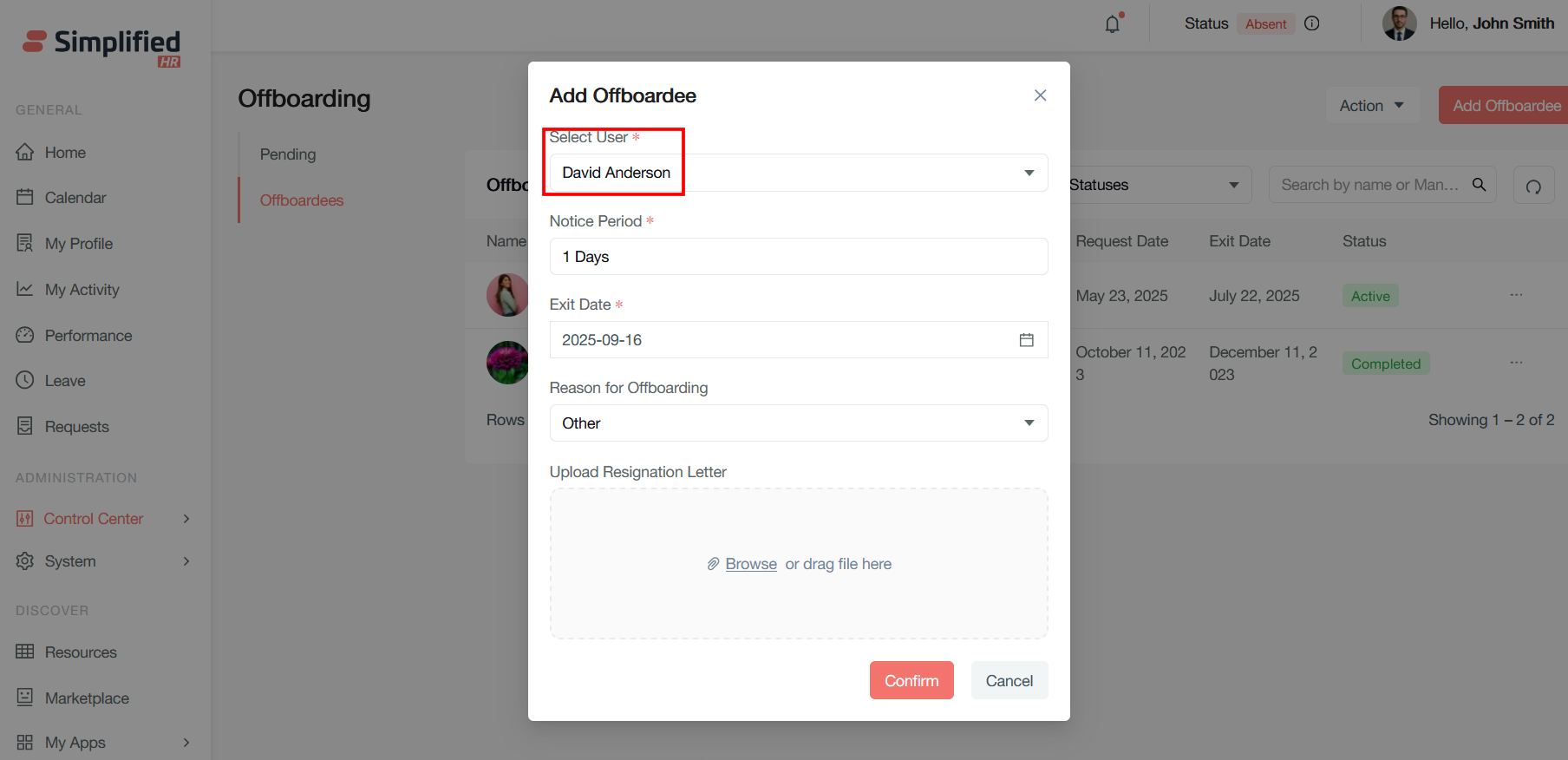
Select User (Required): This dropdown field allows you to choose which employee is being offboarded. This links the offboarding process to the specific employee's HR profile and ensures all departure activities are tracked under their record.
Set Offboarding Notice Period
Notice Period (Required): Shows the duration between when the employee gave notice and their actual departure date. This field helps HR teams plan the transition timeline and determines how much time is available for knowledge transfer and handover activities.
Set Offboarding Exit Date
Exit Date (Required): The specific date when the employee's employment will officially end. This date triggers various automated processes and determines when benefits, access, and other employment-related items should be terminated.
Select Reason for Offboarding
Reason for Offboarding: This dropdown field categorizes why the employee is leaving.
Upload Resignation Letter
Upload Resignation Letter: Attach the employee's formal resignation letter or termination documentation. This creates a digital record of the formal departure documentation for legal and compliance purposes.
Confirm Add Offboardee
Confirm initiates the offboarding process with the entered information, creating the offboarding record.
Cancel Add Offboardee
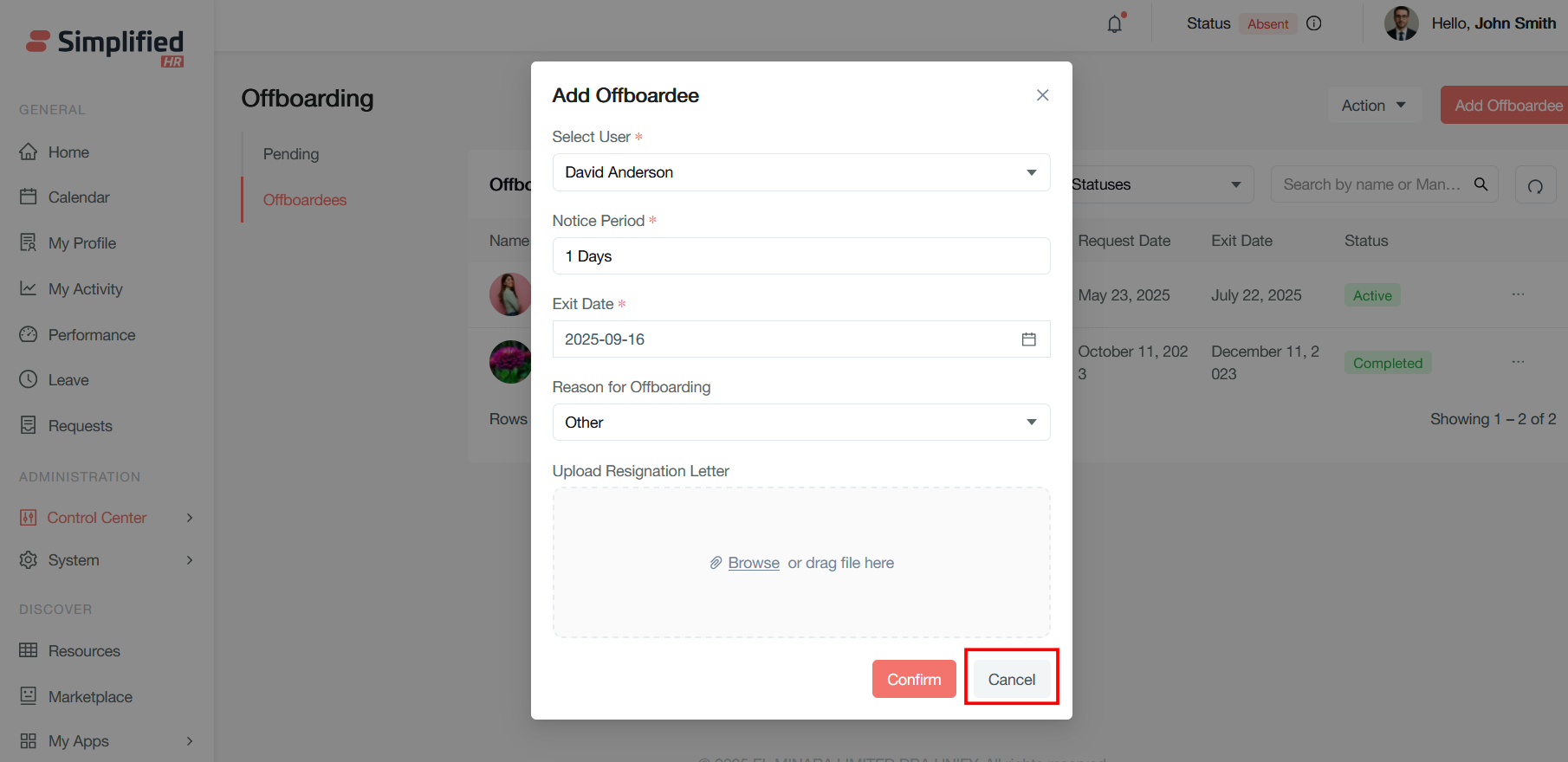
Cancel discards the form without creating an offboarding record, returning to the previous screen.
Prevent Duplicate Offboarding
Note: If any offboarding is raised previously by the member or added by the admin, and thereafter not cancelled or rejected, then raising a duplicate offboarding request will be restricted.