View Offboarding Checklist
View Details allows you to access comprehensive information about a specific offboardee's departure process.
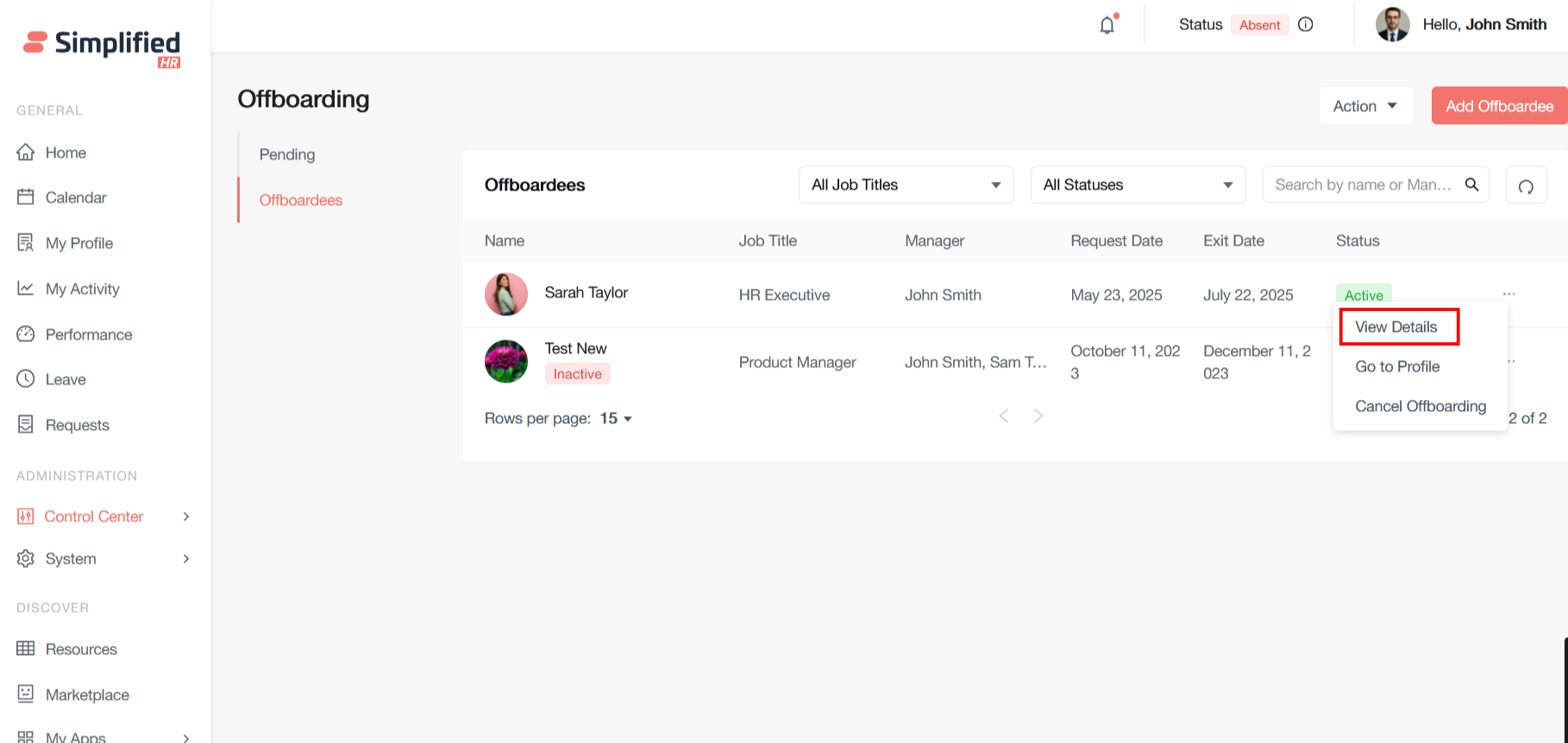
The checklist added by the administrator is displayed in the details section.
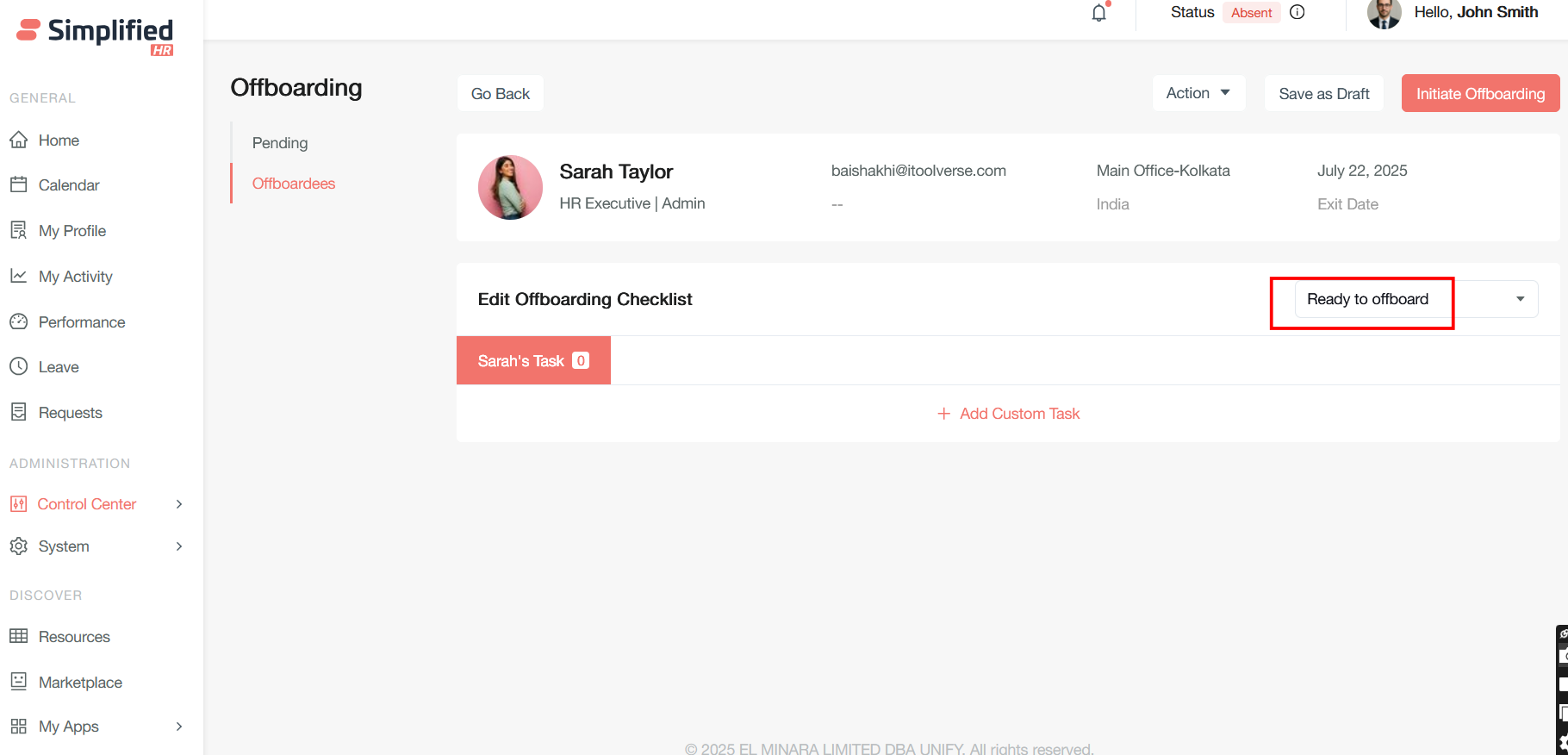
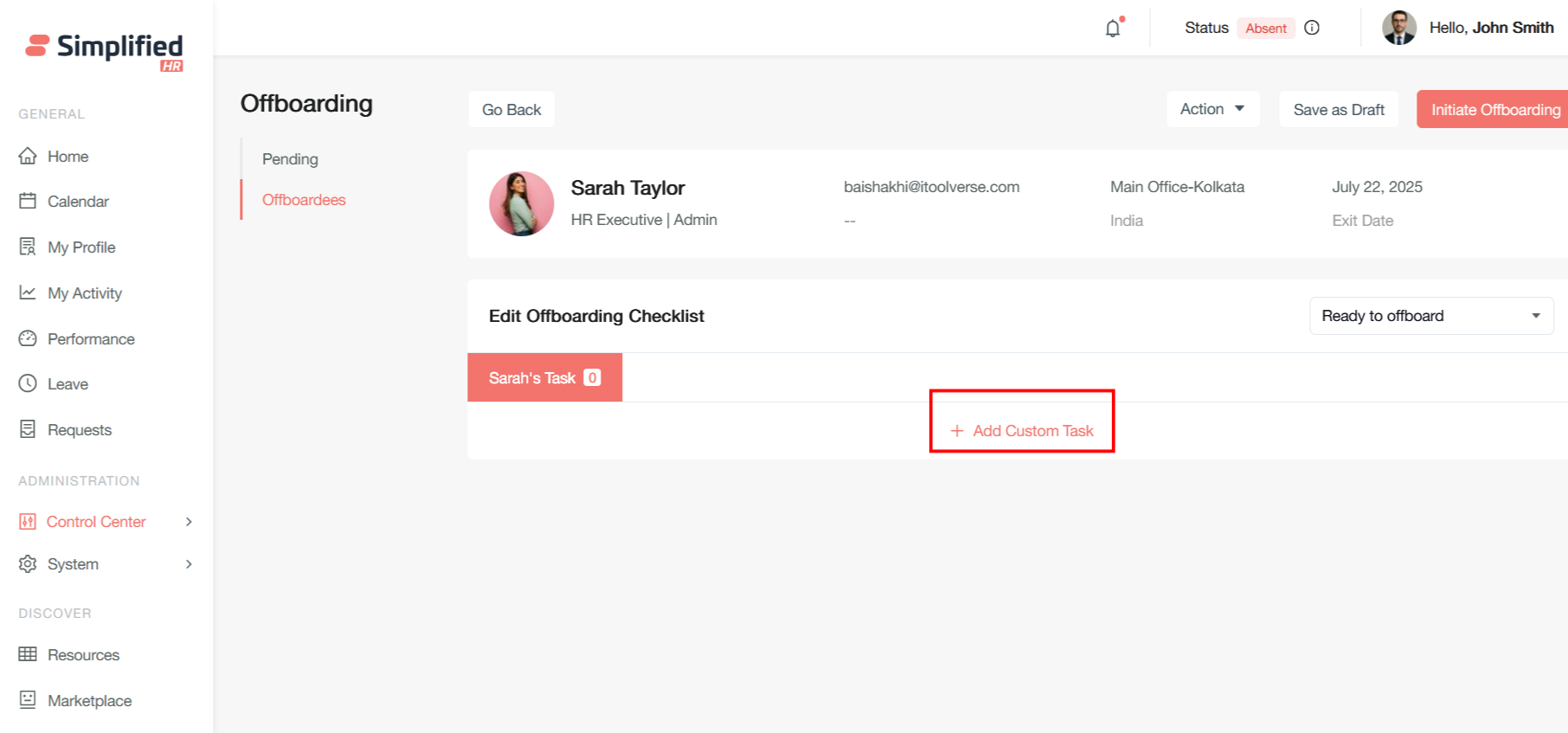
Add Custom Checklist Task
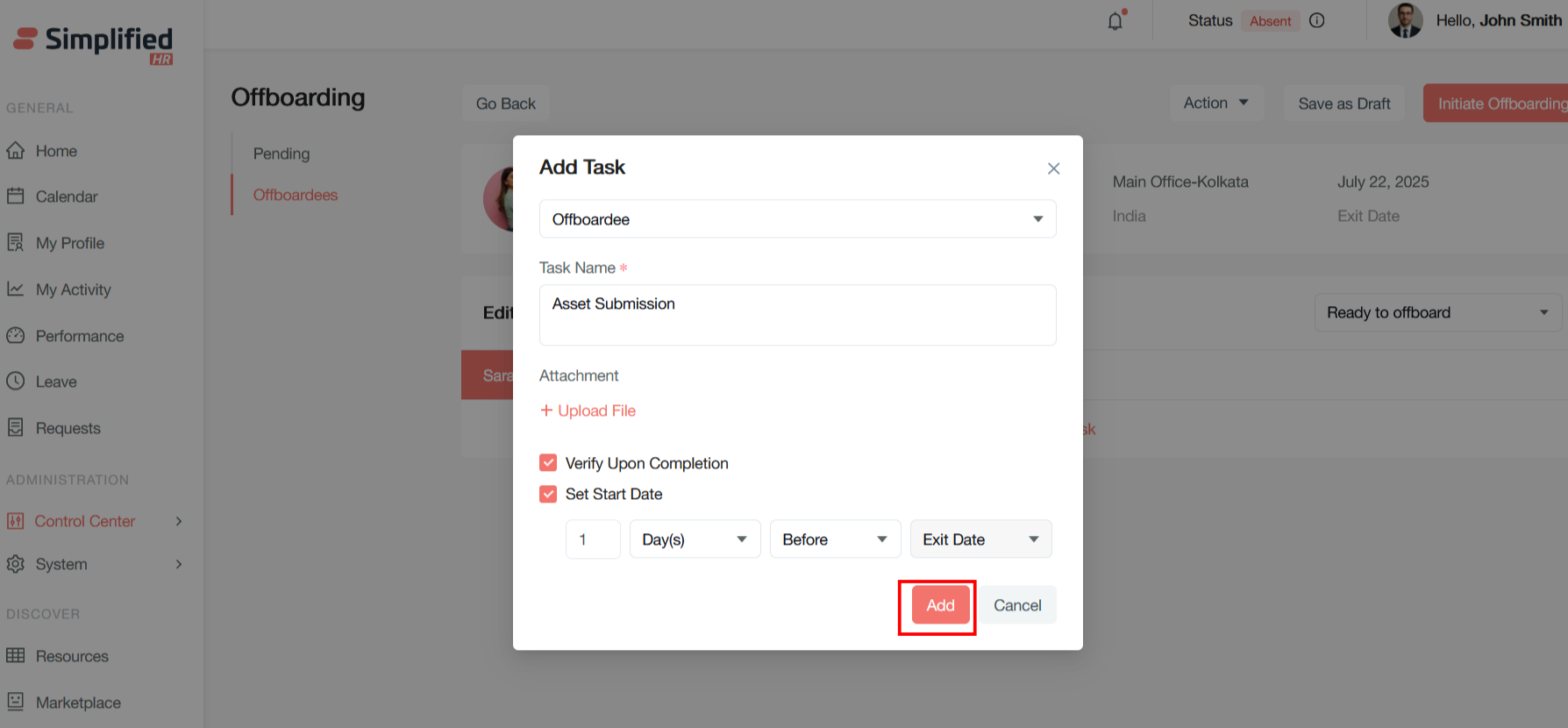
Administrators can add a custom checklist by clicking the Add Custom Task button, which opens the Add Task modal.
-
Click Add Custom Task.
-
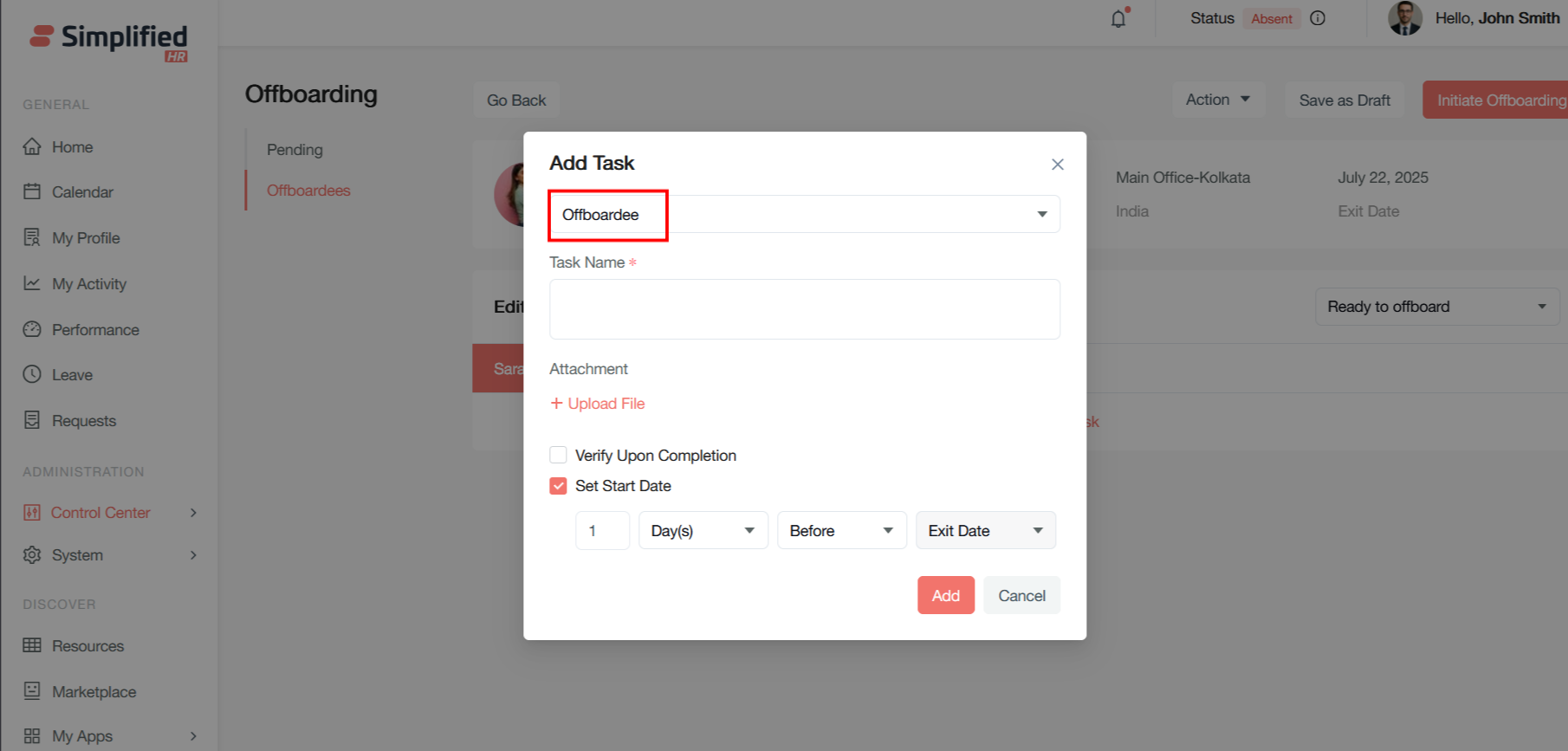
Select the Offboardee.
-
Enter the Task Name.
-
Add an attachment if required.
-
Configure Verify Upon Completion if applicable.
-
Configure Set Start Date if required.
-
Click Add.
Select Offboardee for Custom Task
Offboardee (dropdown): Lets you select which departing employee this task should be assigned to, linking the task to a specific offboarding case.
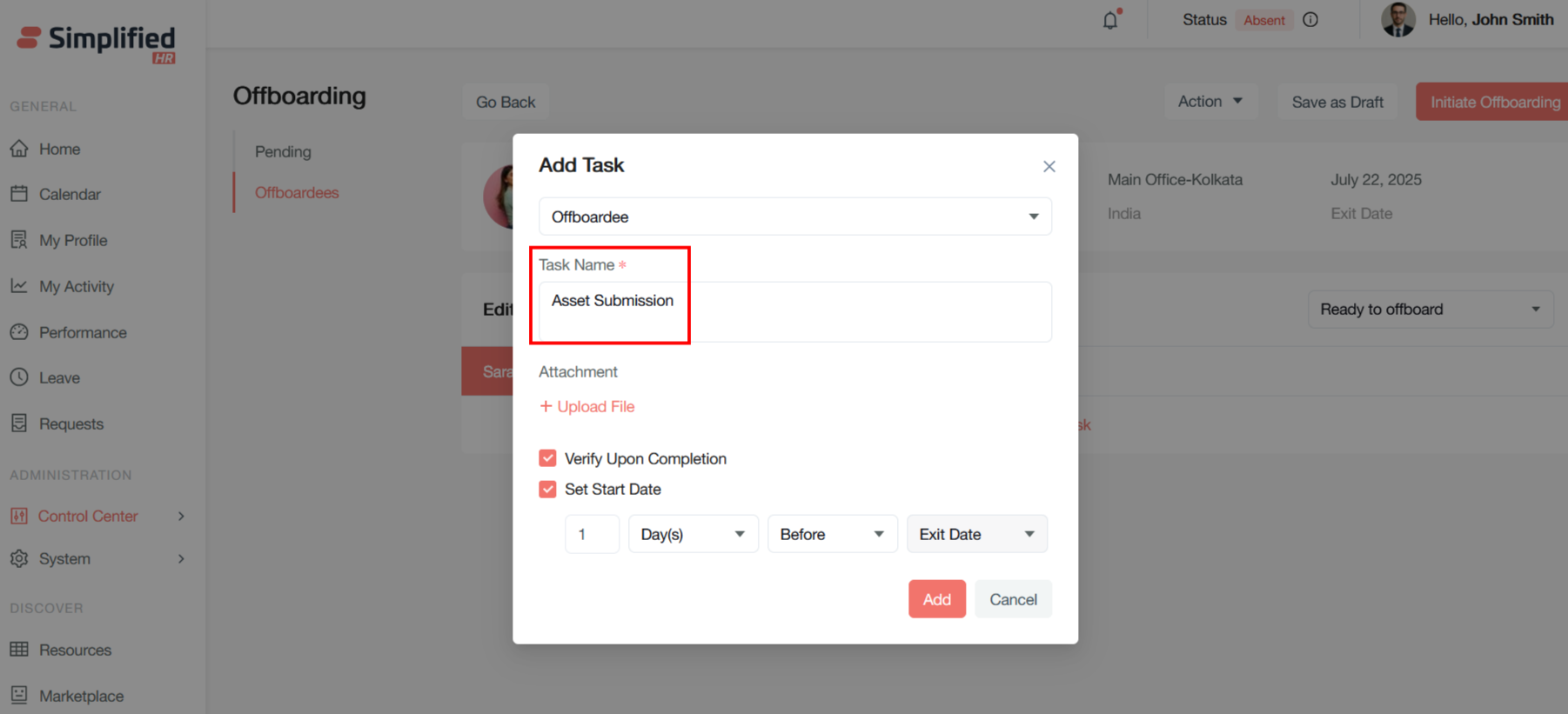
Enter Custom Task Name
Task Name (Required): A text field where you enter the specific task description, such as "Return laptop," "Complete knowledge transfer," "Submit final timesheet," or "Clear security access."
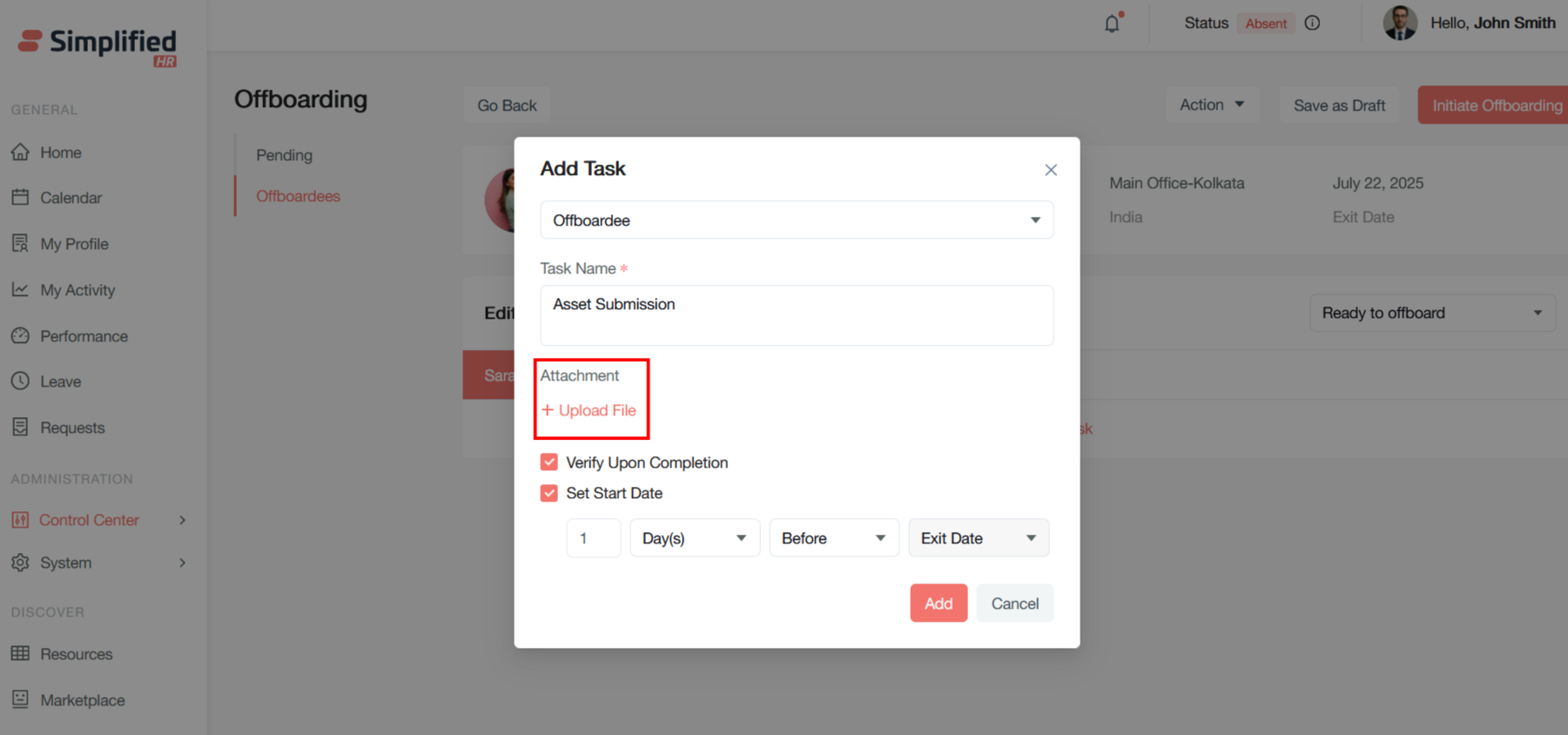
Add Task Attachment
Attachment: Allows you to attach relevant documents, forms, or instructions related to the task, via the + Upload File button.
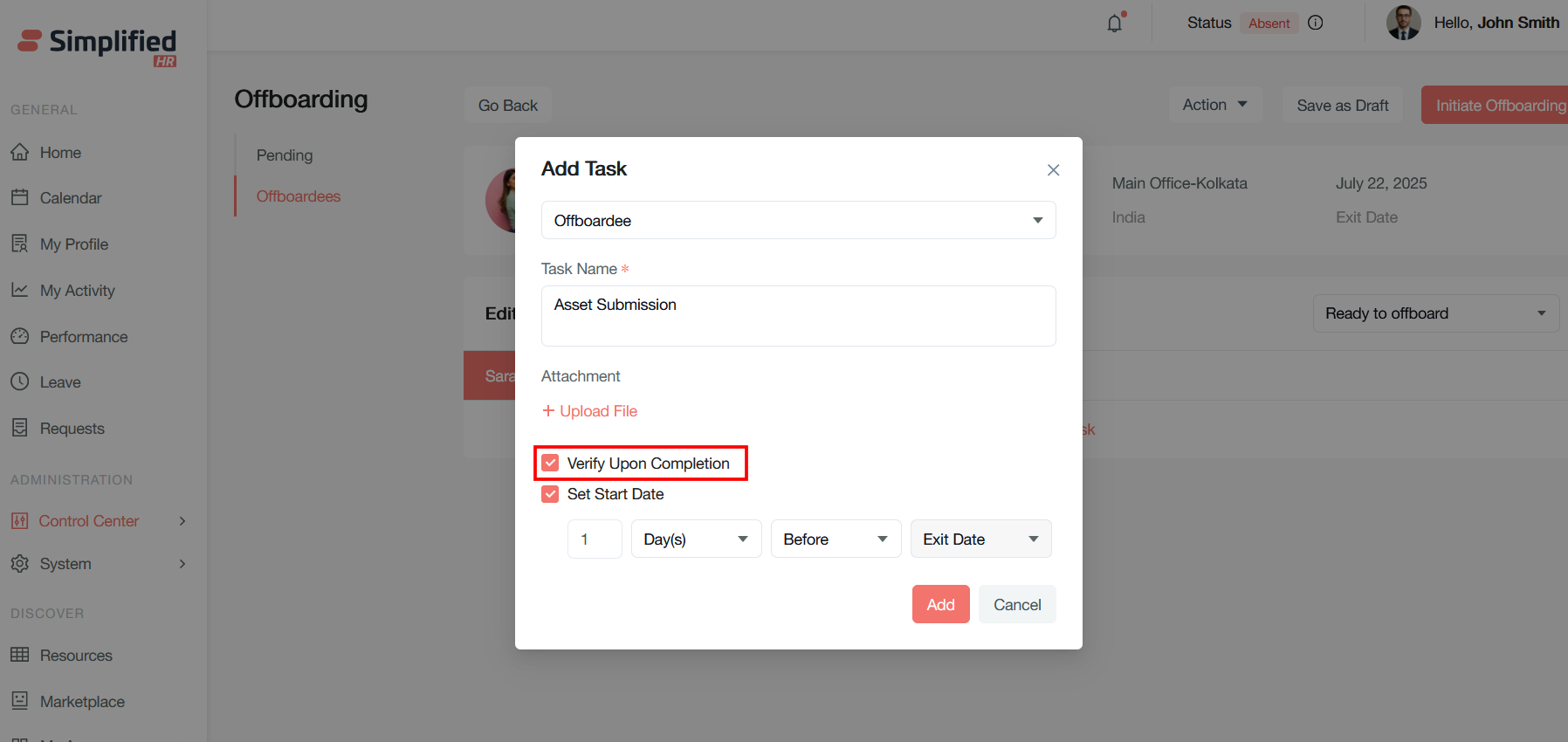
Configure Verify Upon Completion
Verify Upon Completion: When enabled, this option adds an extra layer of oversight, requiring additional verification or approval before the task is marked as complete for critical offboarding tasks.
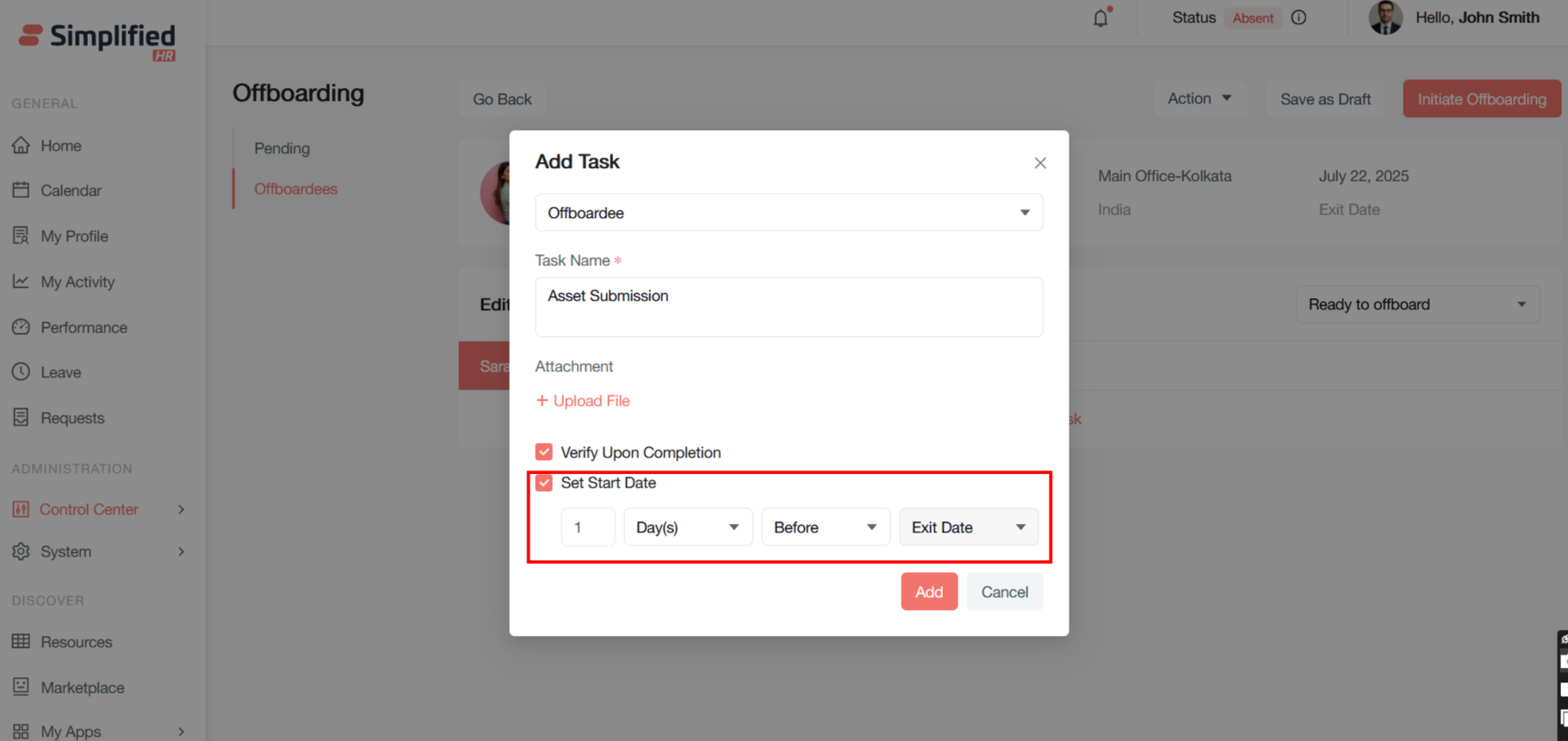
Configure Task Start Date
Set Start Date: Specify when this task should become active/available to work on, rather than making it immediately available. When enabled, the following timing fields appear:
-
Number field: numeric value for the timing calculation.
-
Time unit dropdown: e.g., Day(s).
-
Before/After: whether the task should start before or after the reference point.
-
Reference point: e.g., Exit Date — the anchor date for the timing calculation.
Schedule Task Relative to Exit Date
Documented example: "1" Day(s) "Before" "Exit Date" — meaning the task will start 1 day before the employee's exit date.
Add Custom Task
Add creates the task with the specified configuration and adds it to the selected offboardee's task list.
Cancel Custom Task Creation
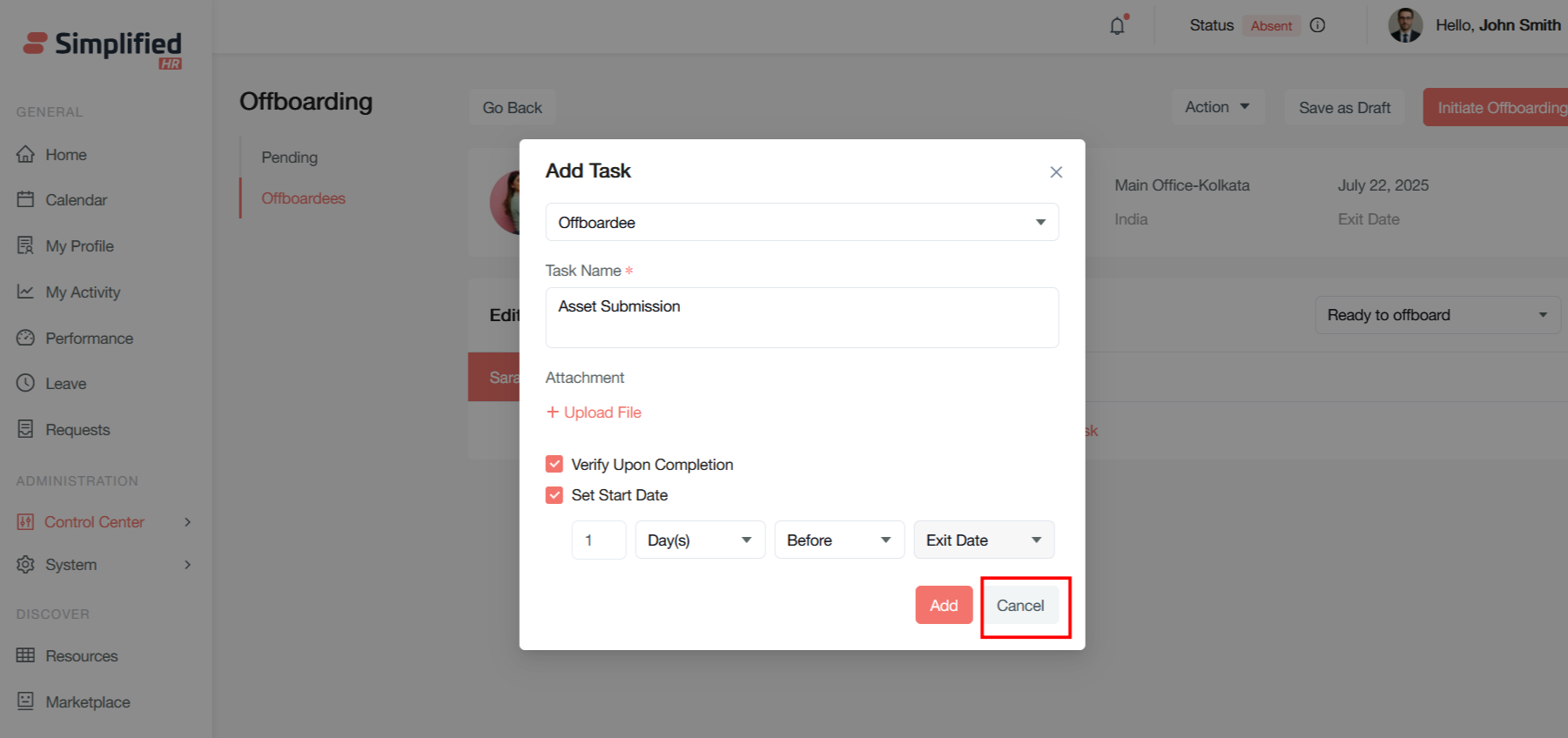
Cancel discards the form without creating the task and returns to the previous screen.
Add Note to Offboarding Task
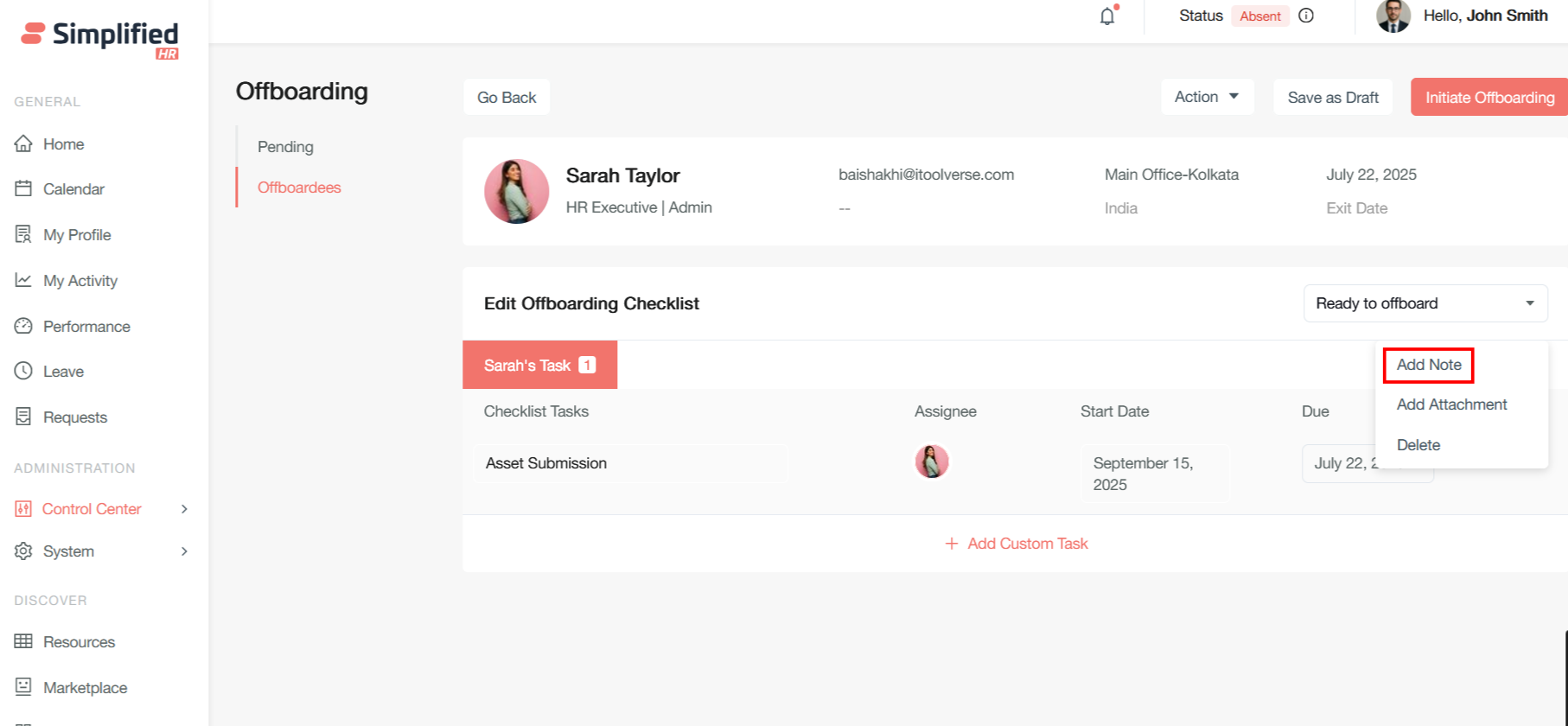
Add Note allows you to attach text-based notes or comments to the current offboarding task or employee record — useful for adding context, instructions, progress updates, or Note reminders.
Add Attachment to Offboarding Task
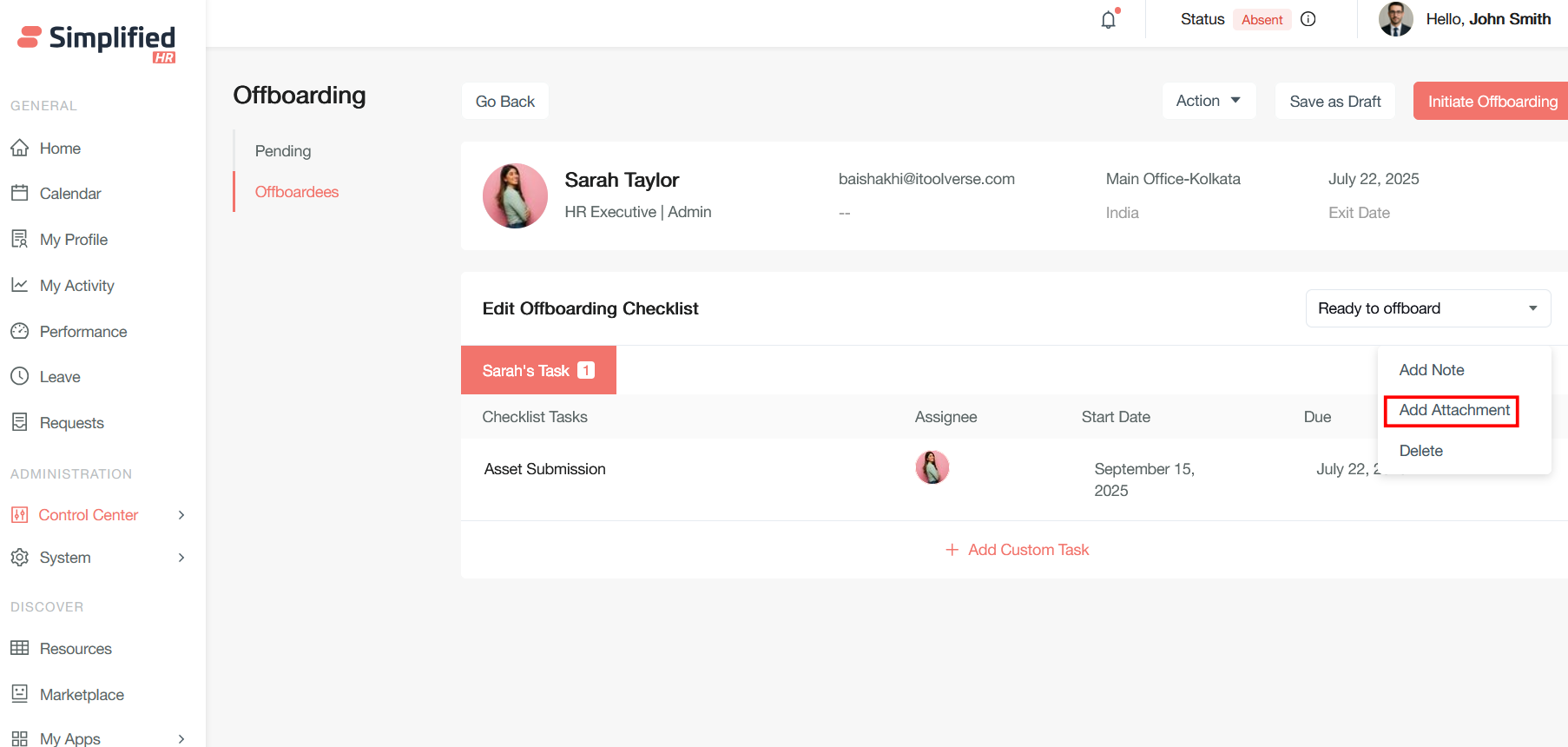
Add Attachment enables you to upload and attach files or documents to the current task or item.
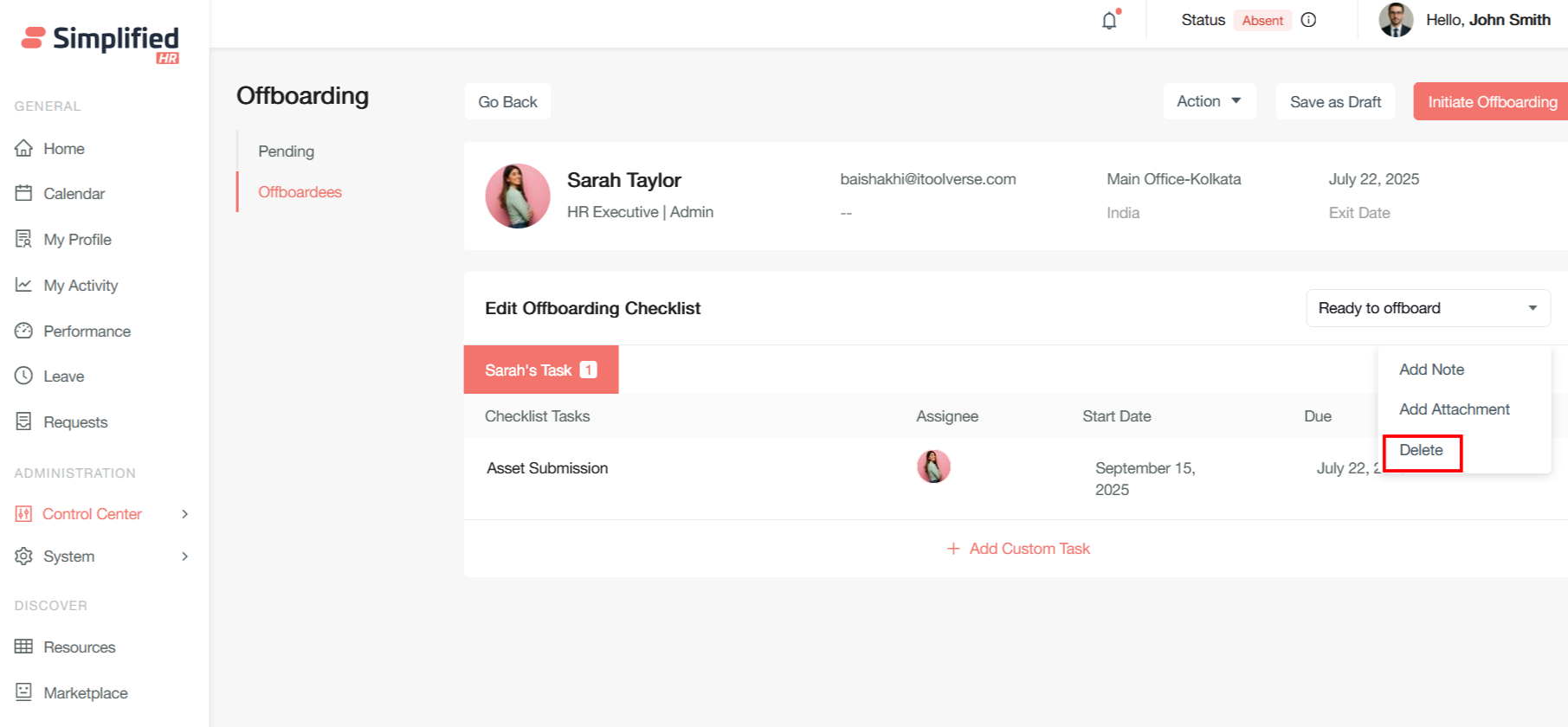
Delete Custom Checklist Task
Delete Custom Checklist allows you to remove the current custom checklist item entirely from the system.
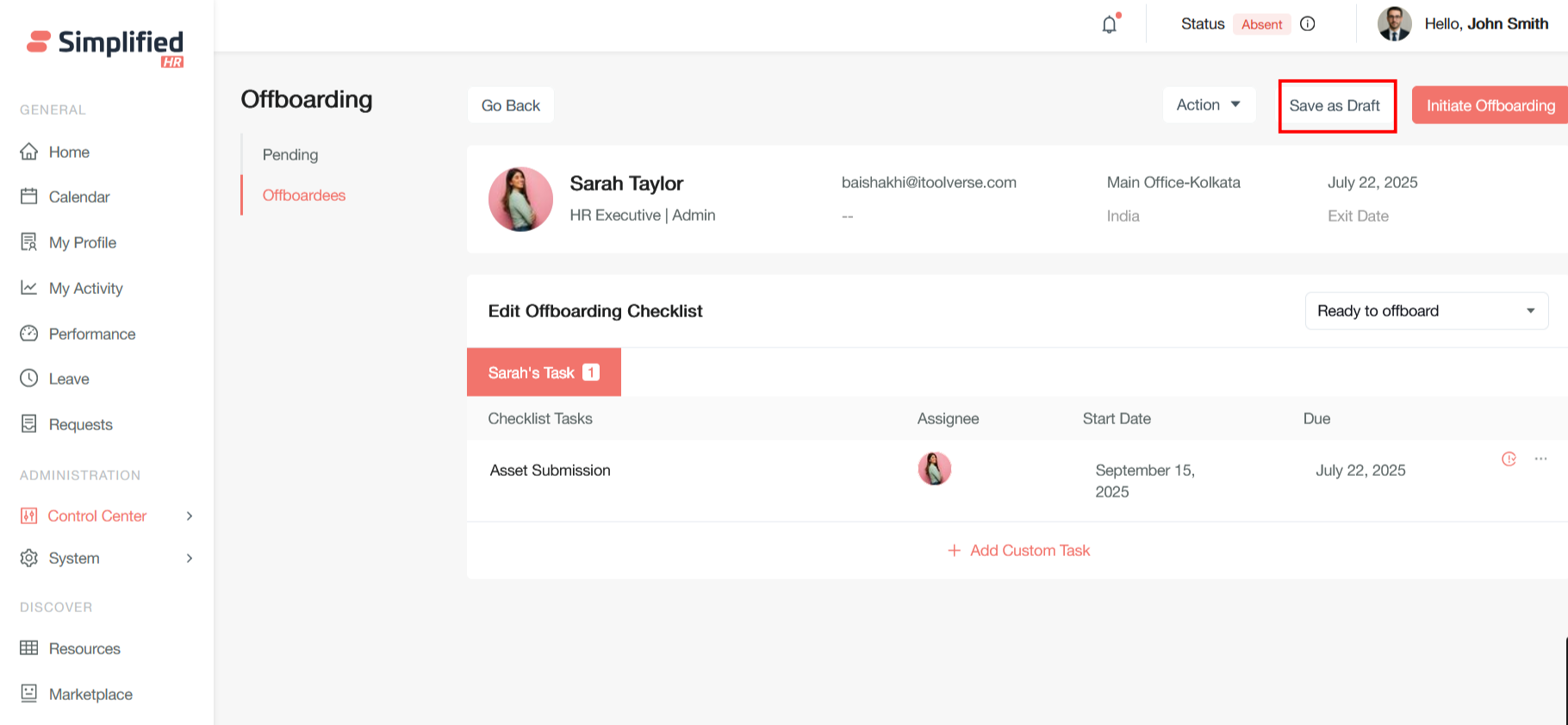
Save Offboarding Work as Draft
Save as Draft allows saving work in progress without finalizing it.
Understand Offboarding Statuses
The source documents the following statuses:
-
Active
-
In Progress
-
Pending
-
Pending Review
-
Completed
Update Offboarding Status
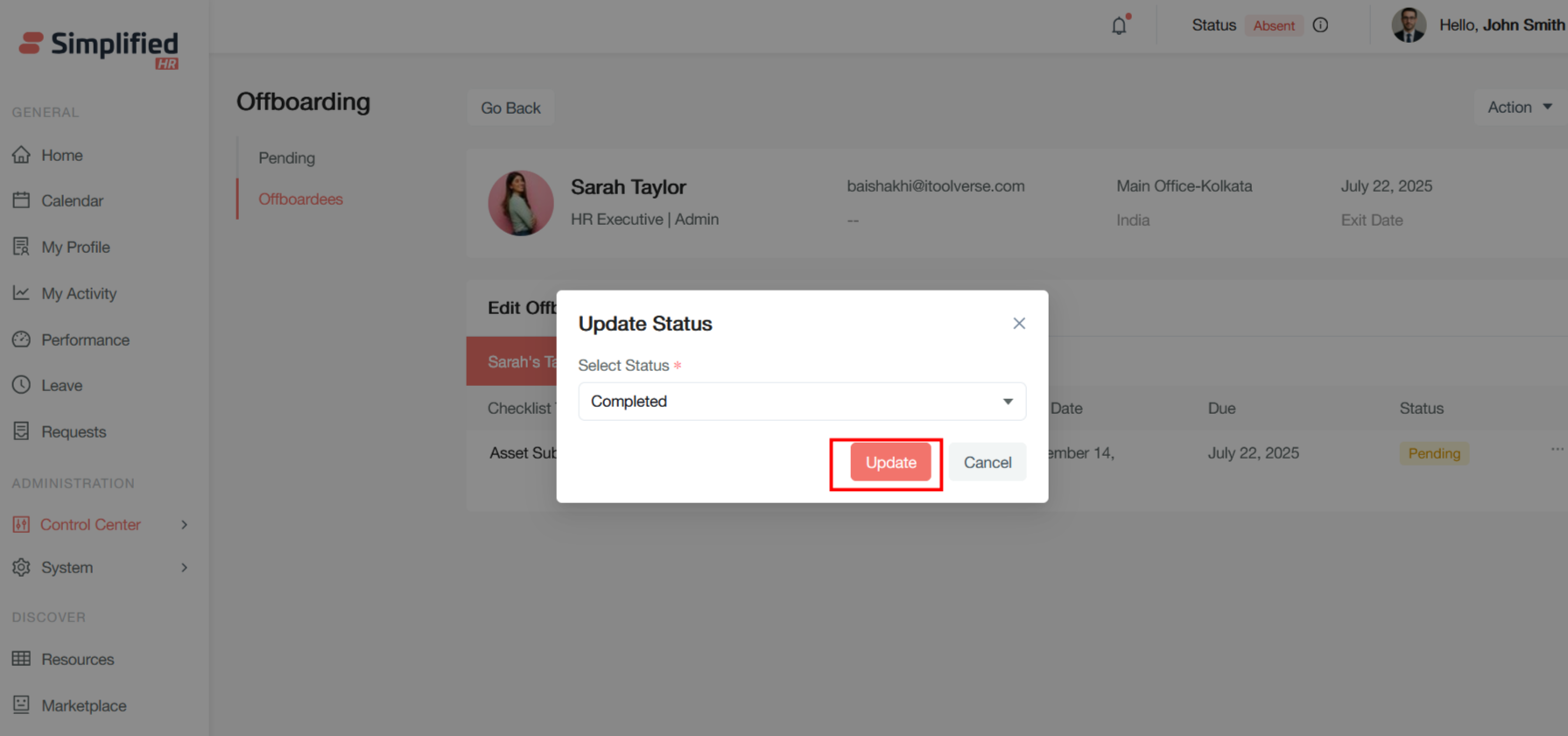
This modal dialog allows HR administrators to manually change an employee's current offboarding status.
- Select Status (Required — red asterisk): choose from all available offboarding statuses.
-
Click Update to apply the status change.
-
Alternatively, click Cancel to discard the change, or the Close (X) button to exit without making changes.
Note: The required field validation ensures that a valid status is always selected before the update can be applied.
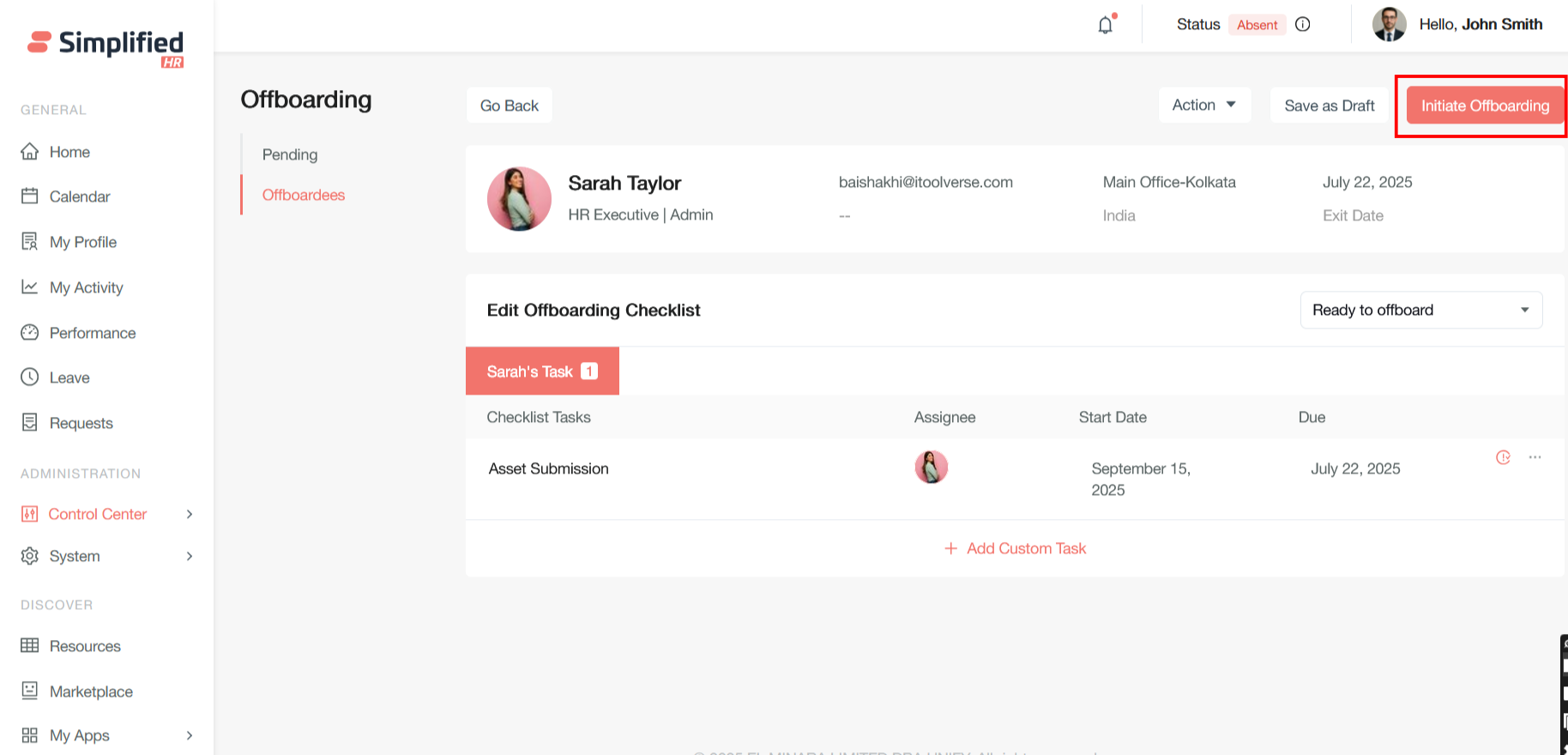
Click on Initiate Offboarding button as a primary action button to start new offboarding processes.
Understand In Progress Status
After Initiate Offboarding is clicked, the status changes from Active to In Progress.
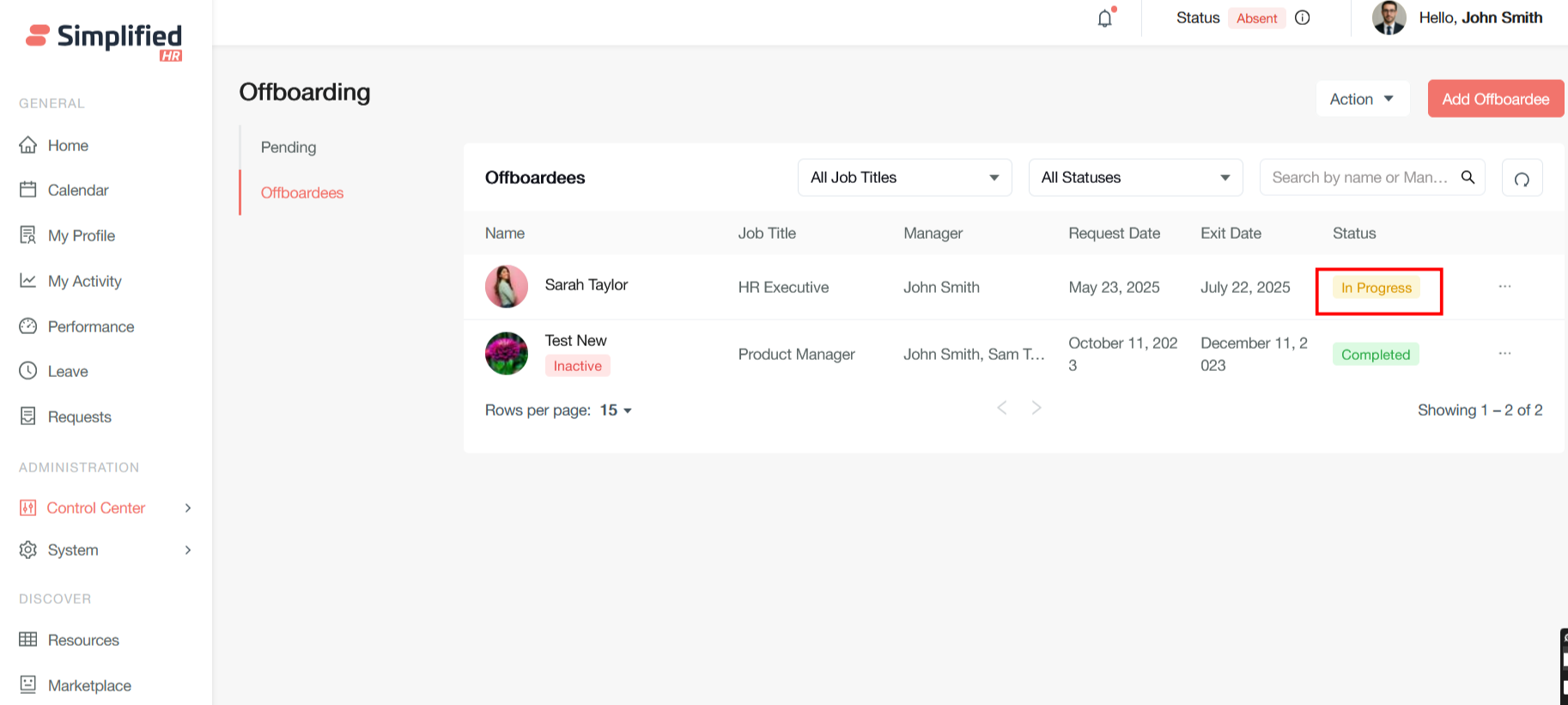
The admin should monitor checklist completion in real-time by tracking individual task status changes. For critical offboarding processes, verification steps may be implemented before final completion, and some tasks may require supervisor approval or HR validation before being marked as truly complete.
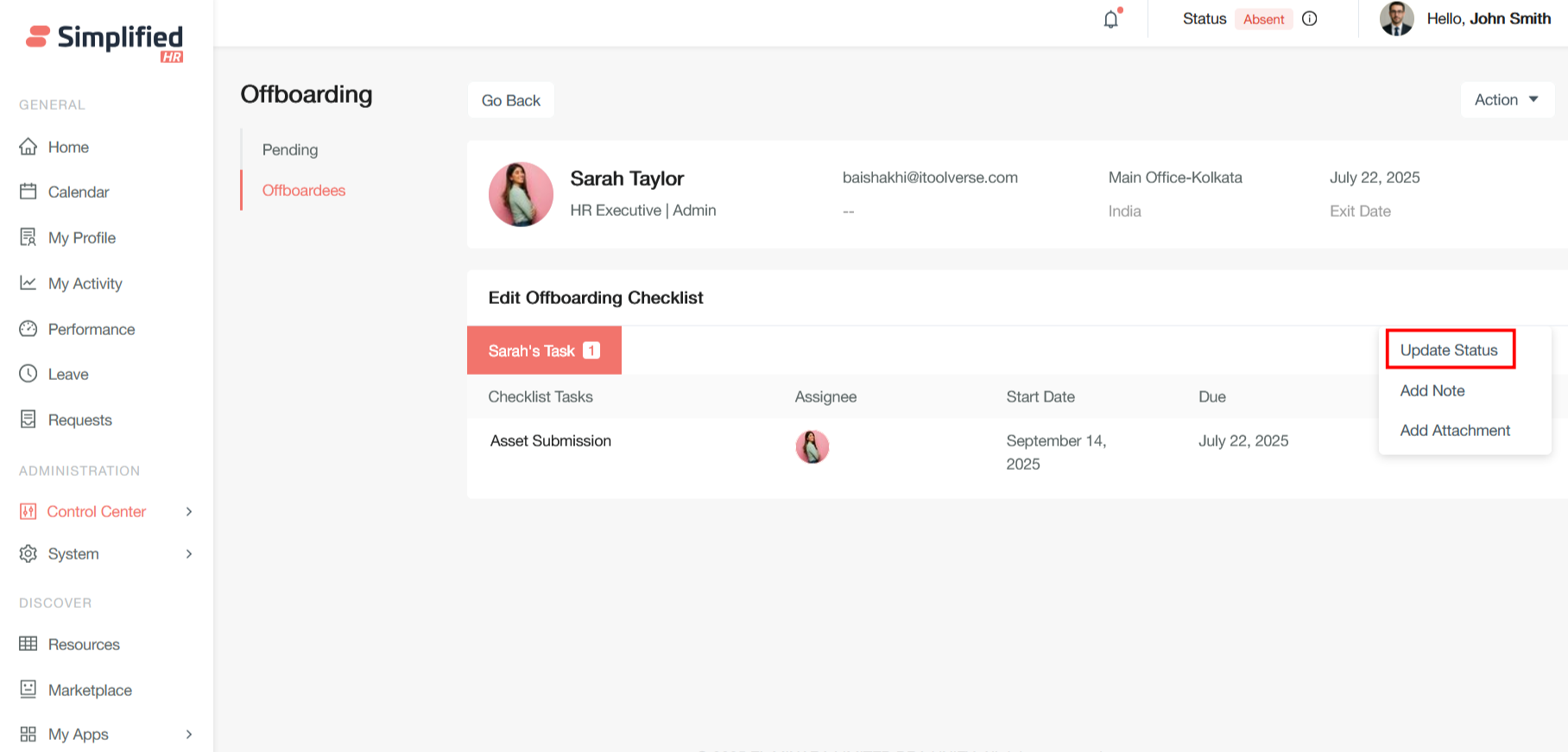
Understand Pending Status
Pending is the initial status when an offboarding case is created but tasks are still in progress. Employees in this status have active departure processes with outstanding items that need completion.
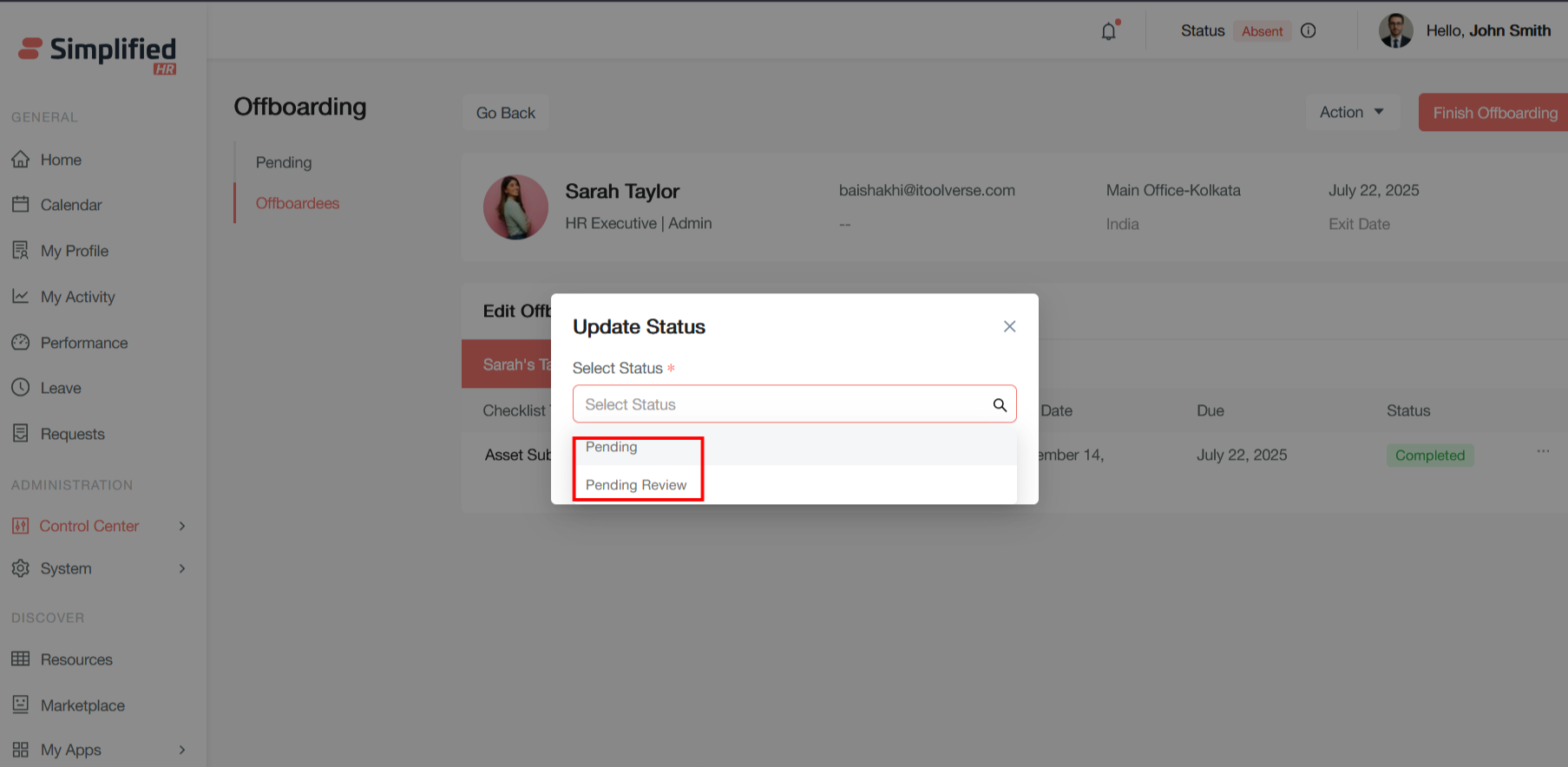
Understand Pending Review Status
Pending Review indicates that an offboarding case or specific task has been completed by the assignee but requires verification, approval, or assessment by a supervisor, HR administrator, or other authorized personnel before being marked as fully complete.
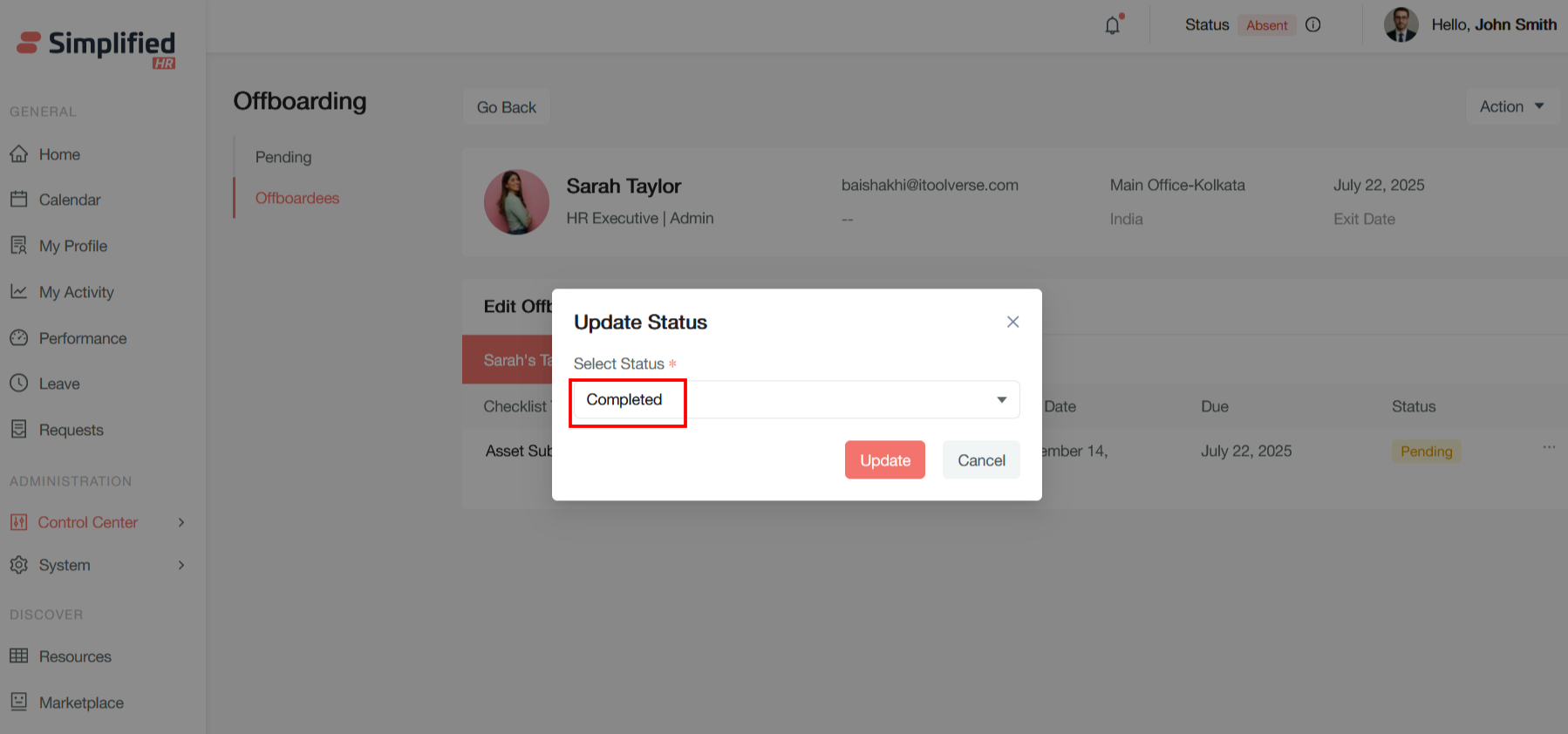
Set Completed Status
Updating the status to Completed indicates that all offboarding requirements have been satisfied and the employee's departure process is finalized.
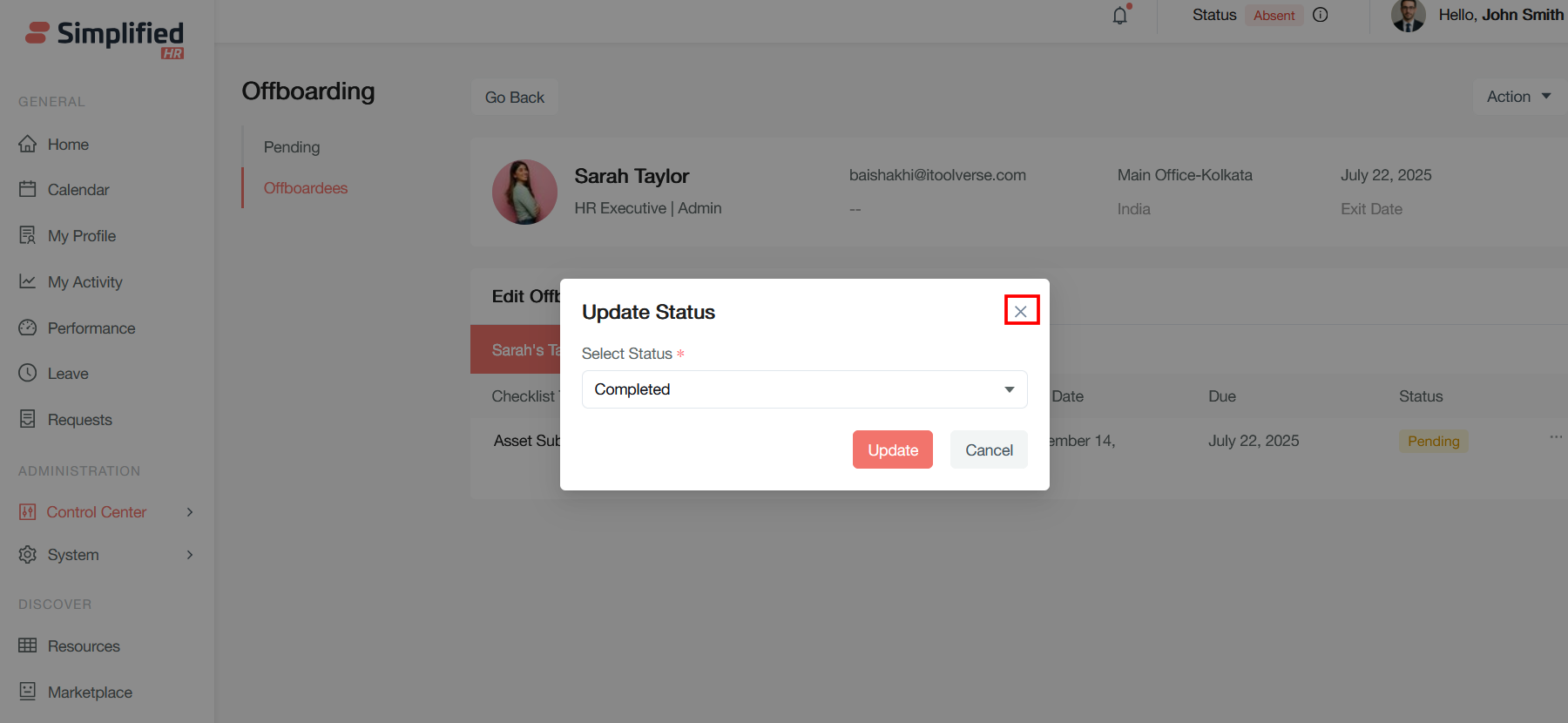
Close Button (X)
Located in the top-right corner, this closes the dialog without making any changes to the current status
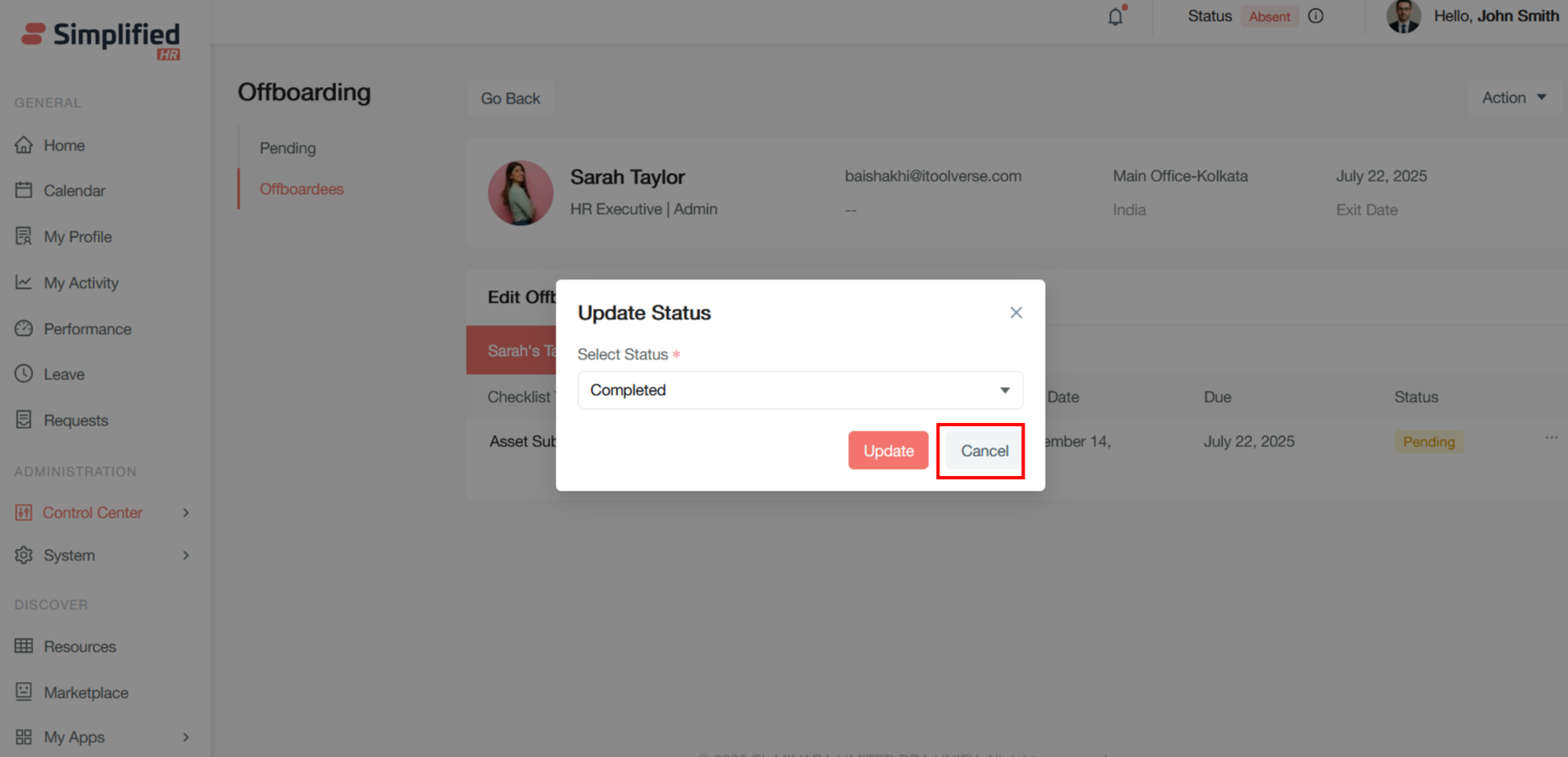
Cancel Status Update
The Cancel button discards any changes and closes the dialog without updating the employee's status, returning to the previous screen.
Validate Required Status
A valid status must be selected (indicated by a red asterisk) before the update can be applied, maintaining data integrity within the offboarding workflow.
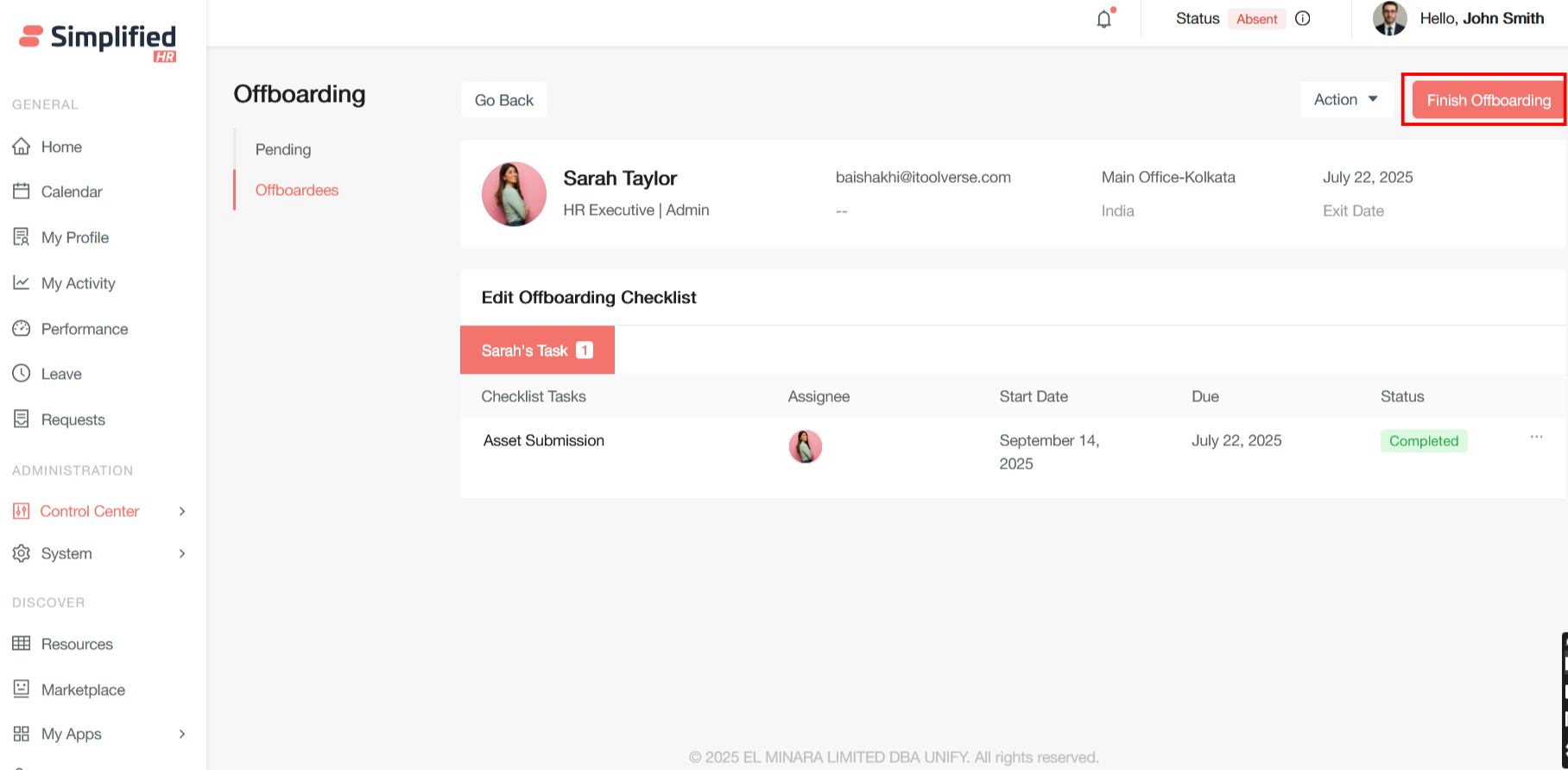
Finish Offboarding
The prominent Finish Offboarding button allows manual status transitions when appropriate, providing flexibility for handling exceptions or special circumstances that may not follow standard automated workflows.
Click Finish Offboarding to finish the offboarding of the employee after completing all the checklist items for offboarding.
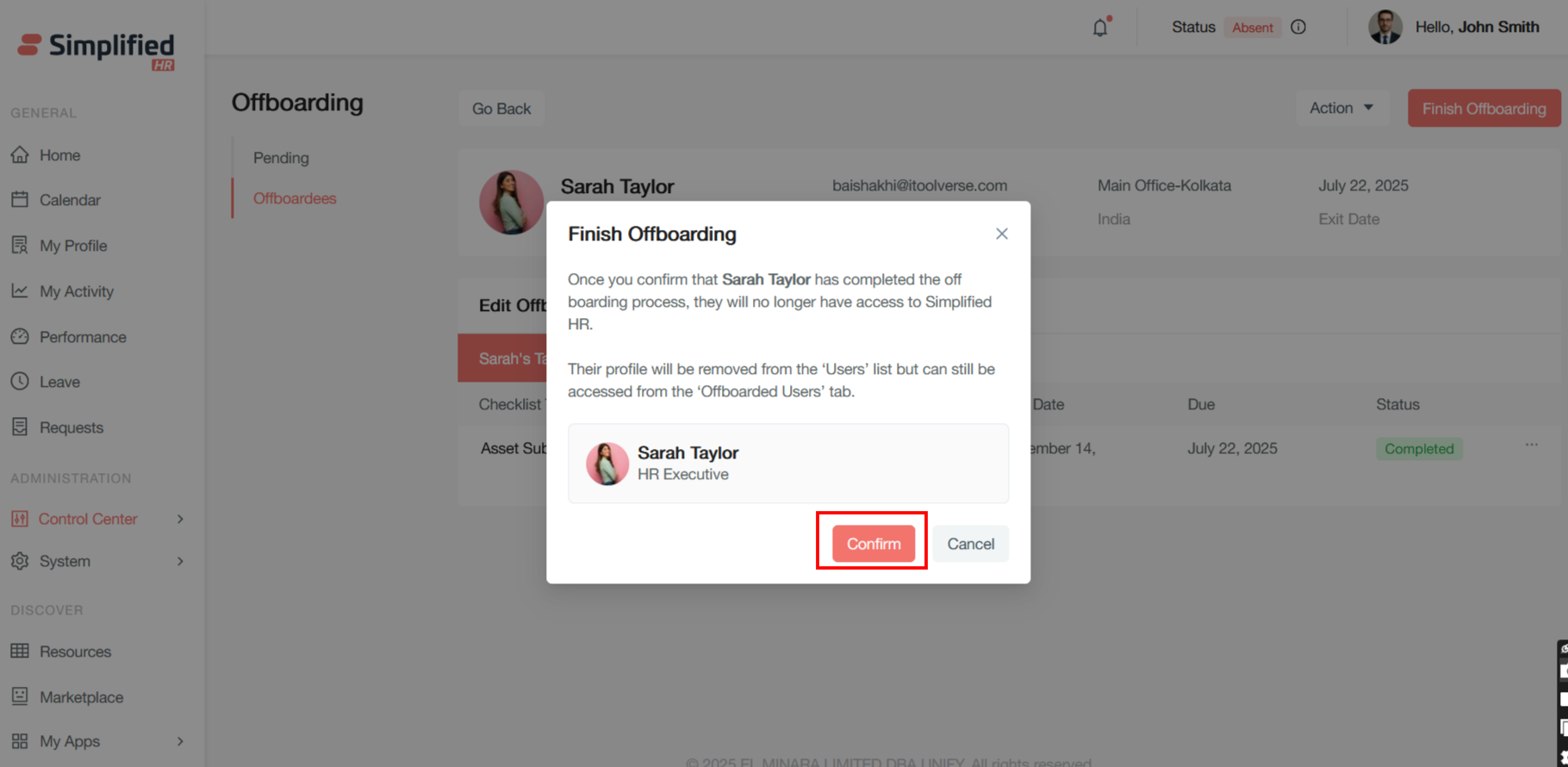
Confirm Finish Offboarding
- Click Finish Offboarding.
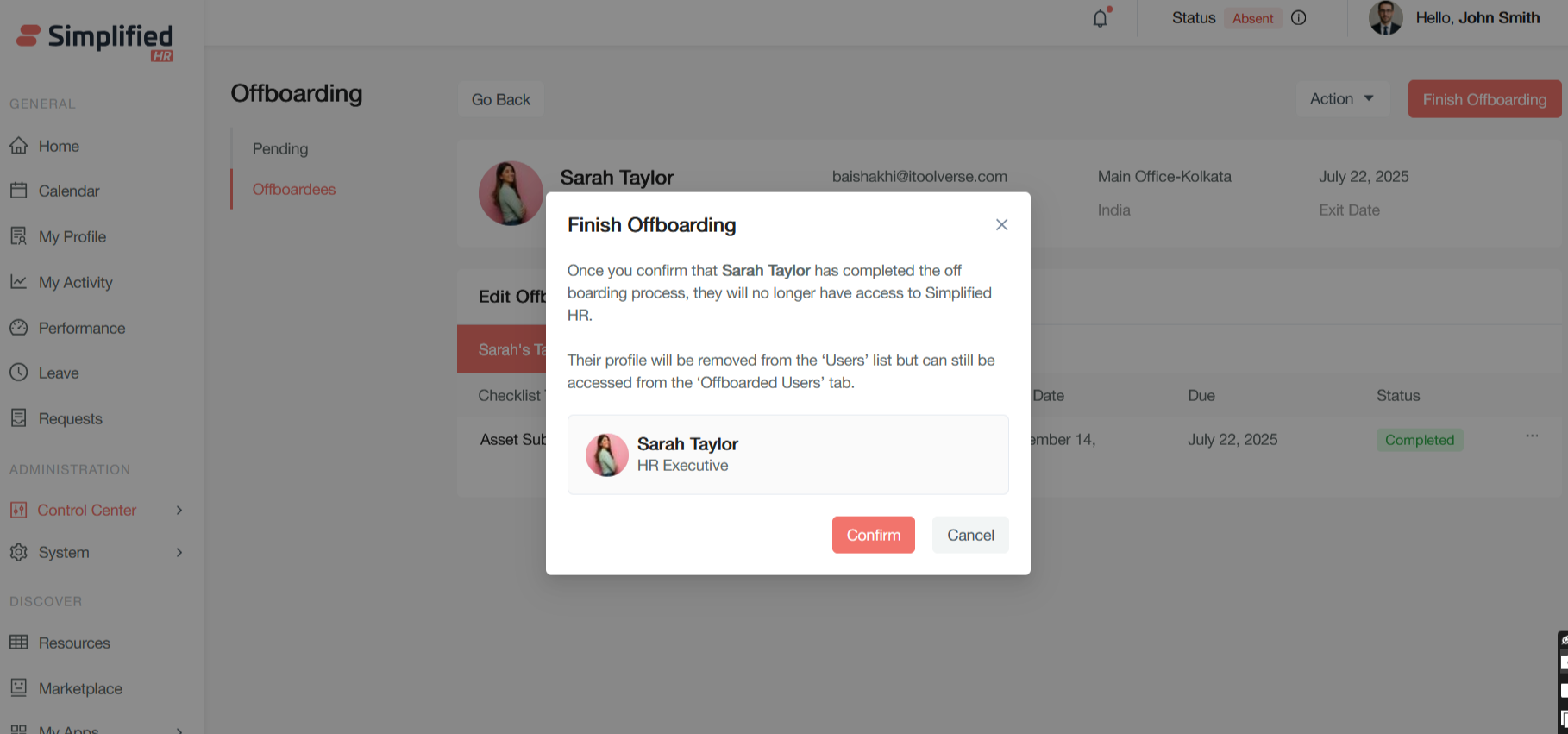
- A confirmation pop-up modal appears.
-
Review the warning: the employee will lose all login privileges and ability to interact with the HR system.
-
Click Confirm to finish offboarding.
Once Finish Offboarding is confirmed, the employee's offboarding is completed.
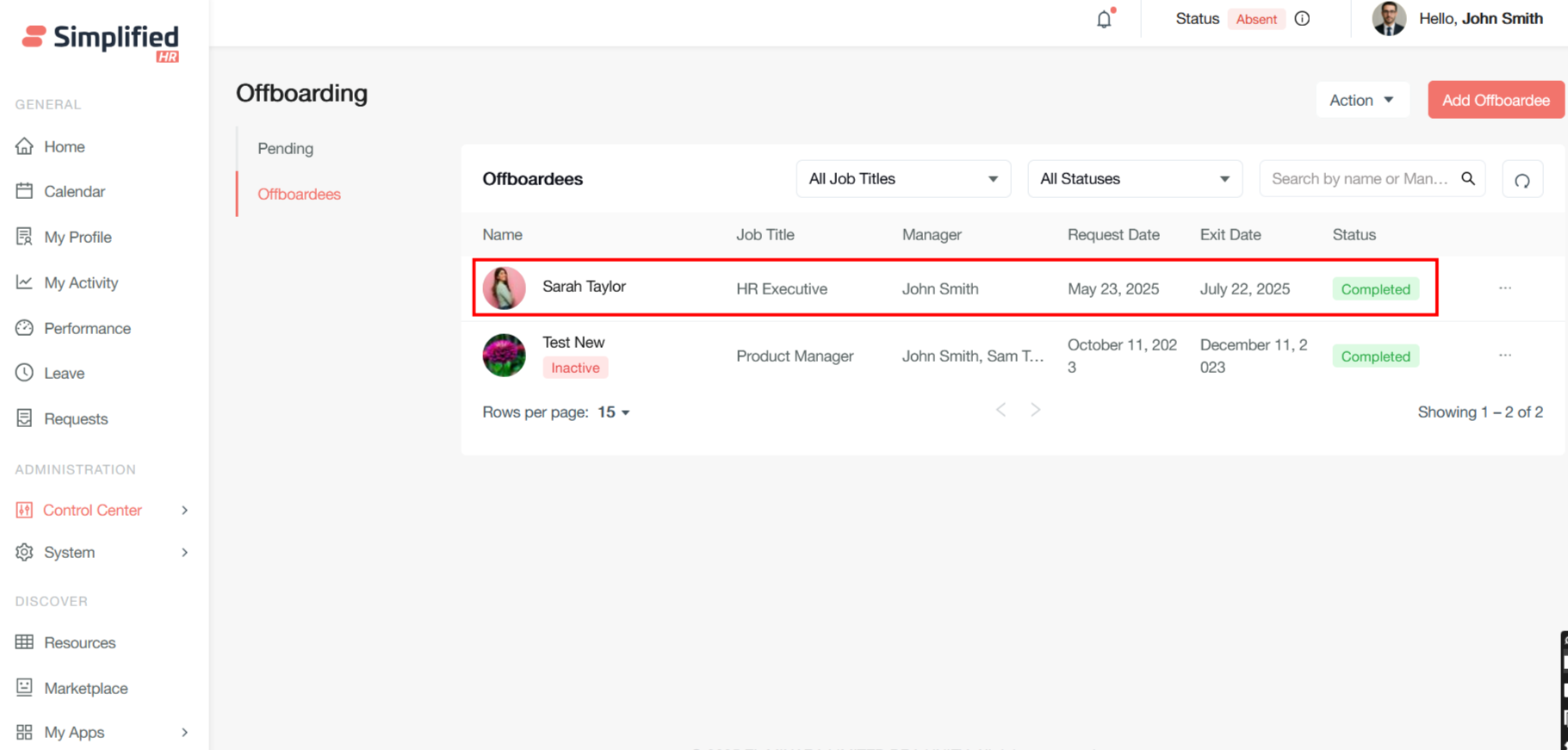
Understand Finish Offboarding Impact
After confirmation:
-
Active removal: The profile disappears from active employee lists and directories.
-
Archival access: The profile remains accessible for historical reference, compliance, and reporting purposes.
-
Segregated storage: Offboarded users are maintained separately from active employees, preventing confusion while preserving records.
Understand Offboarded User Archive
Once confirmed, the employee transitions from being an active employee with system privileges to being a historical record in the offboarded users archive. This ensures clean separation between current and former employees while maintaining necessary records for compliance, reference, and potential future rehiring scenarios.
Note: The source describes "potential future rehiring scenarios" as a reason records are retained, not as a confirmed automatic restore/rehire feature. No automatic restoration functionality is documented.
Understand Finality of Finish Offboarding
Note: Finish Offboarding represents the point of no return in the offboarding process. This step causes complete system access revocation for the employee. The dialog's design emphasizes the permanence of this action through clear warning language and prominent visual confirmation of the affected employee.
Export Offboarding Data
An Export option is available for offboarding data, allowing you to extract employee departure information for reporting, compliance, and analysis purposes.
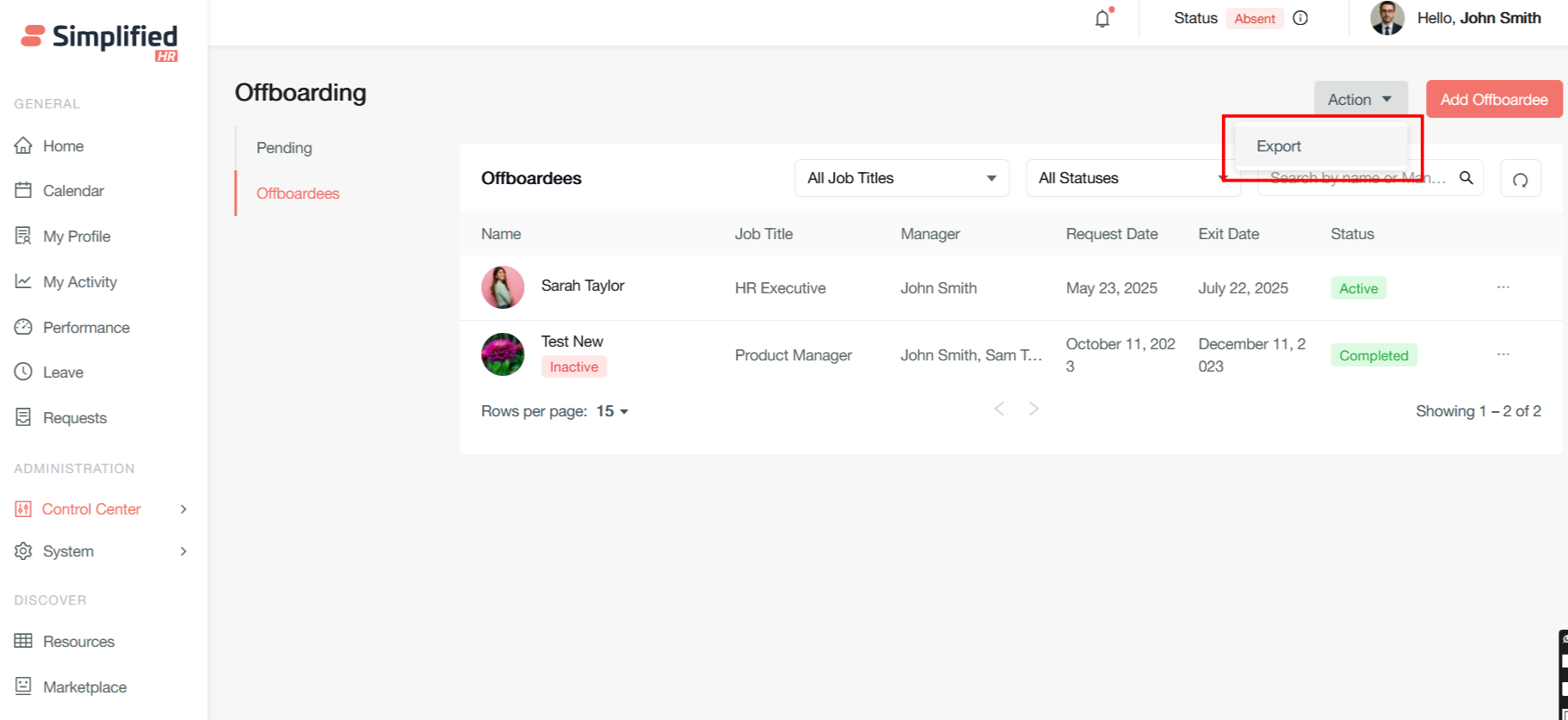
Note: The source describes CSV as the export format and generically mentions that such exports "typically include fields like employee names, departure dates, offboarding status, assigned tasks, and completion tracking." This is described in general terms in the source rather than as a confirmed, exact field list — treat the specific field set as illustrative rather than guaranteed.