Describes the Team section of the admin : Members and Roles.
Overview
-
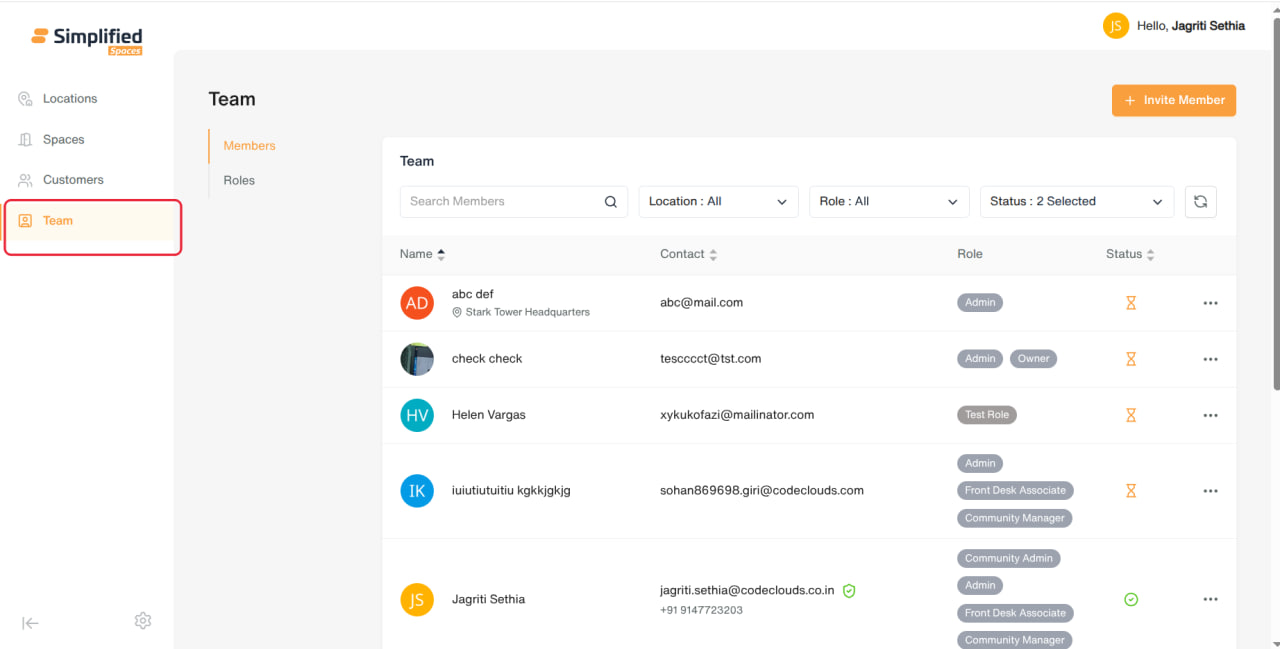
Entry point: Main menu → Team.
-
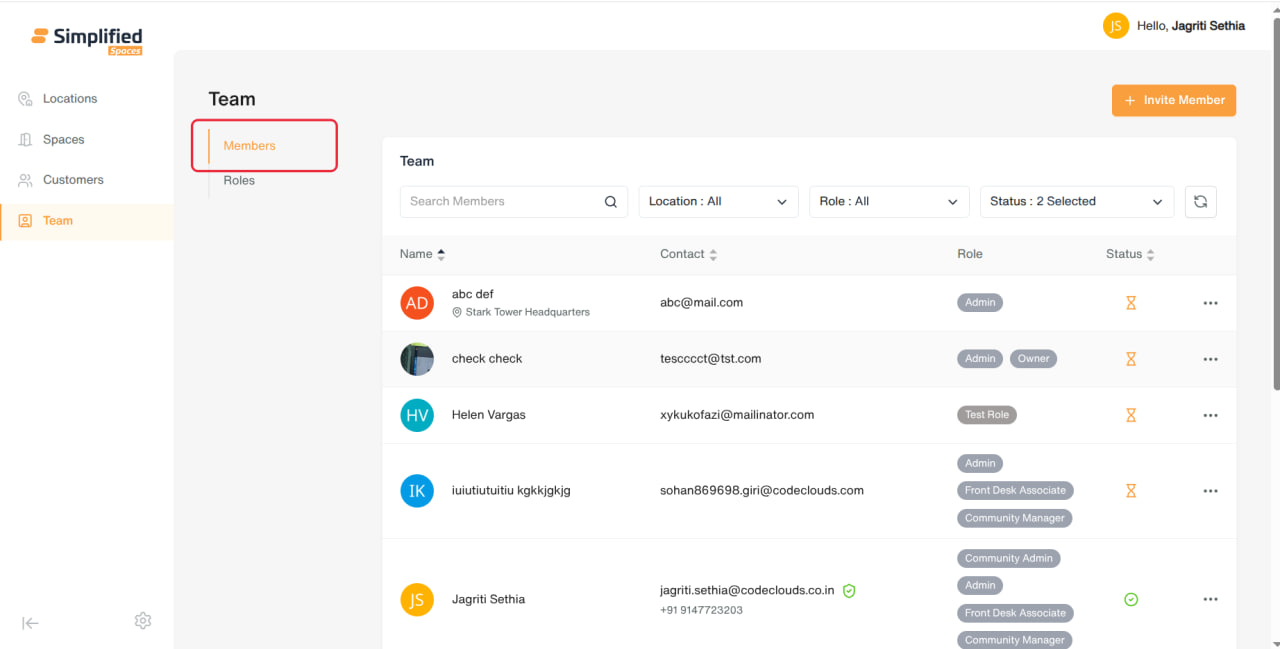
Sub-sections: Members, Roles.
-
Members — manage staff/operator user accounts: invite, edit, deactivate, delete.
-
Roles — define named permission sets (what a role can view/add/edit/delete across modules) and assign them to members.
-
Members and Roles work together: every member is assigned one or more Roles, and a Role's permissions determine what that member can do throughout the app.
1. Members
Viewing the list
-
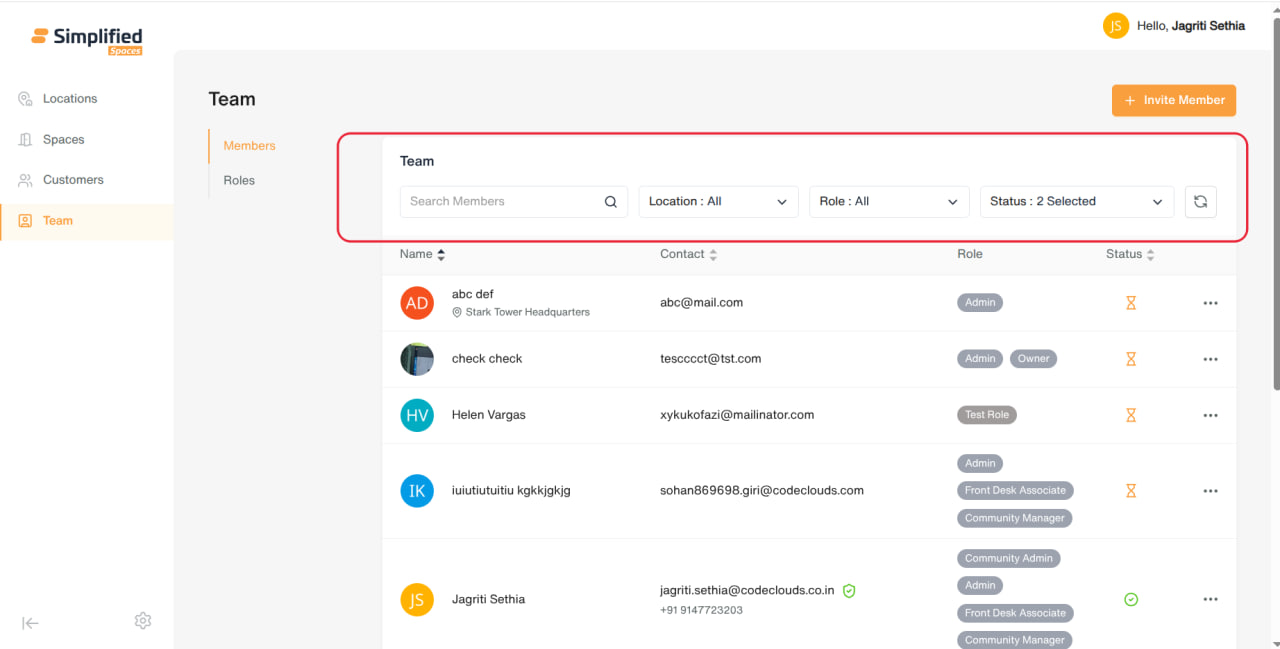
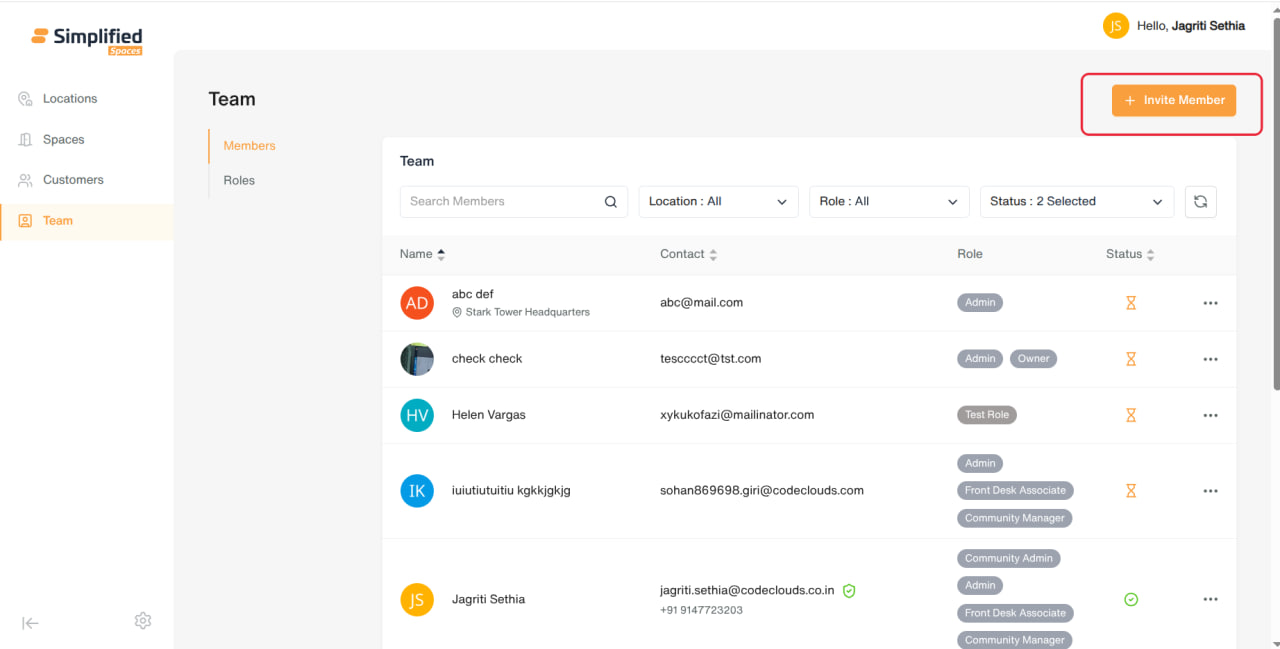
Search box: Search Members
-
Filters: Location (multi-select), Role (multi-select), Status (Active / Deactivated / Invitation Pending — Active + Invitation Pending shown by default)
-
Columns:
-
Name — avatar, name, assigned location(s) (shows "Multiple locations" if more than one)
-
Contact — email and phone, with a shield/check icon if email and/or SMS verification is enabled
-
Role — one or more role tags (colored)
-
Status — icon with tooltip: Active, Invitation Pending, Deactivated (shows who deactivated and when), Deleted (shows who deleted and when)
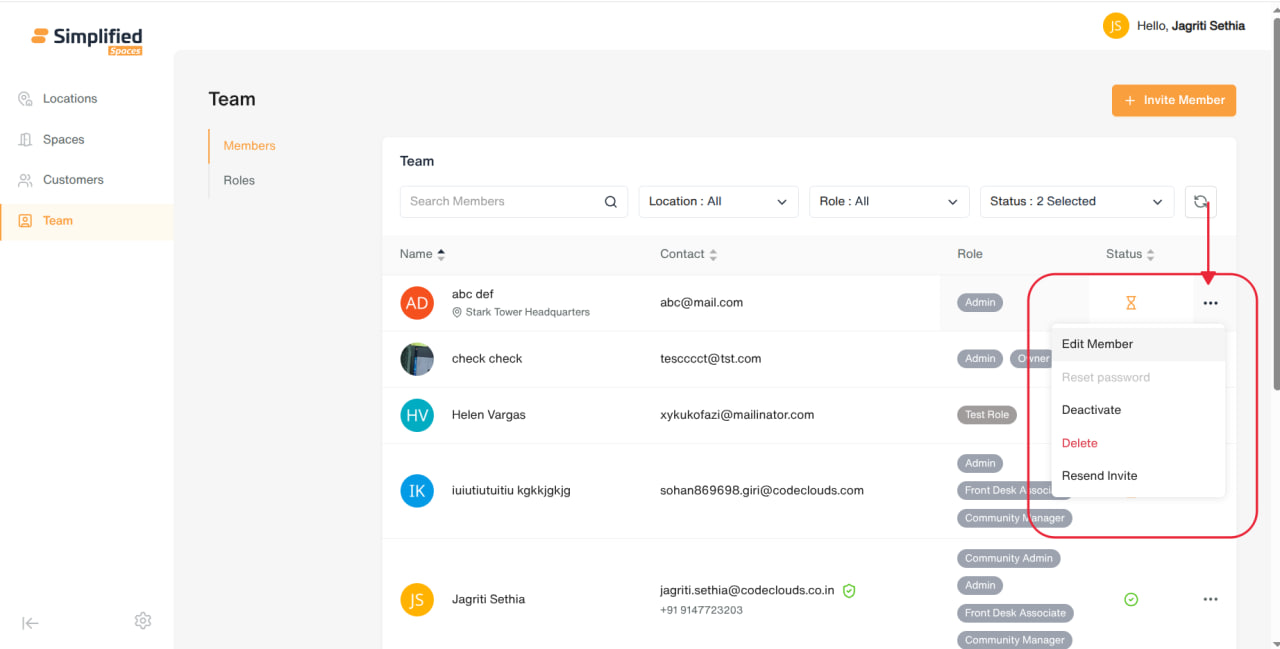
- Row menu: Edit Member, Reset Password (not yet available), Deactivate, Delete, and Resend Invite (only shown while status is Invitation Pending). Menu is disabled for deactivated members.
Inviting a Member
-
Click Invite Member.
-
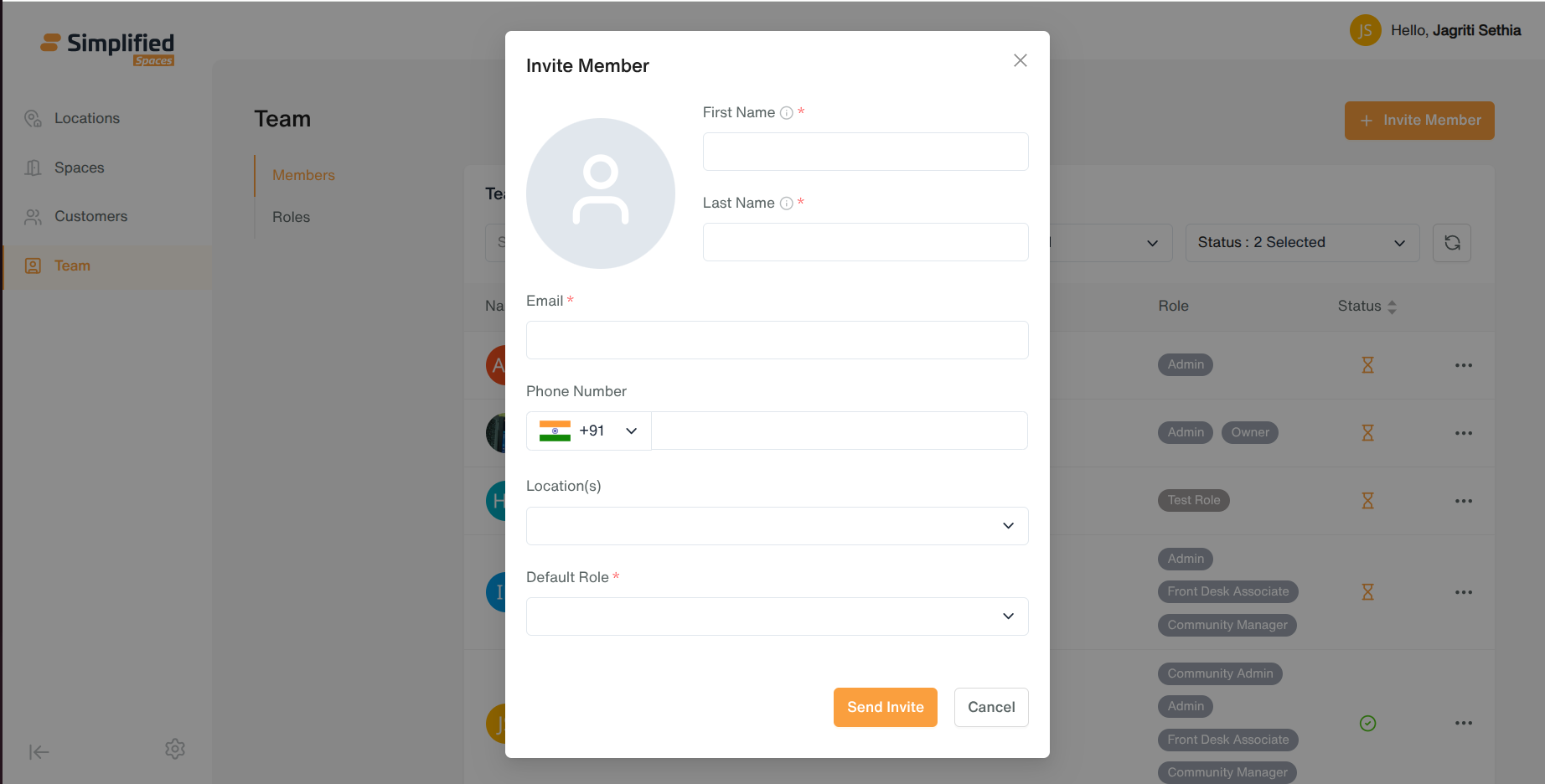
Fill in:
-
Profile photo (optional)
-
First Name* (letters only), Last Name* (letters only)
-
Email* (required, must be a valid email)
-
Phone Number (optional)
-
Location(s) — multi-select, which location(s) this member is tied to
-
Default Role* (required, multi-select — can assign more than one role)
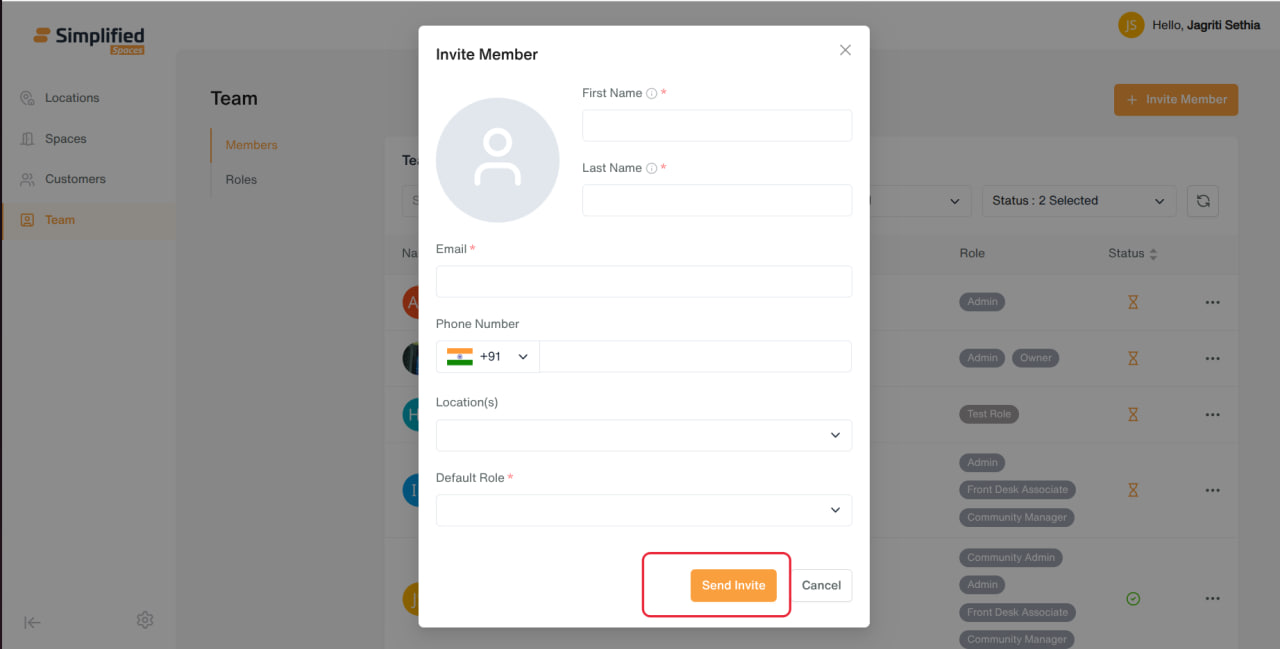
- Click Send Invite — the member receives an invitation to set up their account; their status shows as Invitation Pending until they accept.
Editing a Member
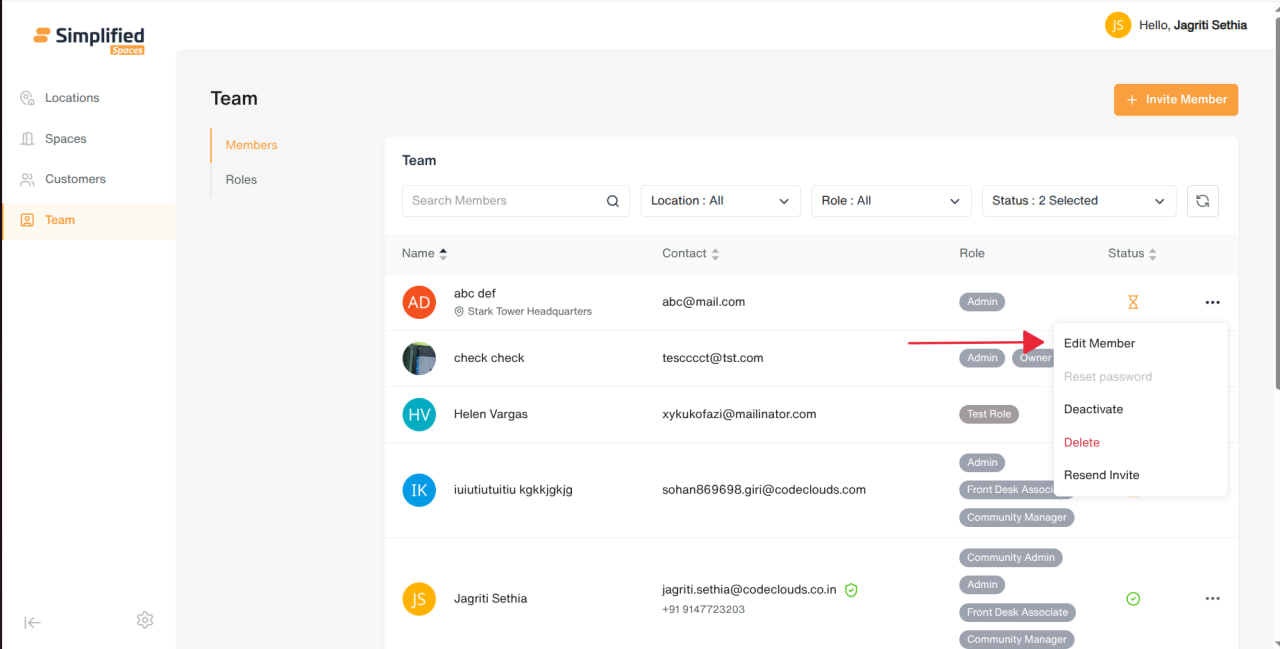
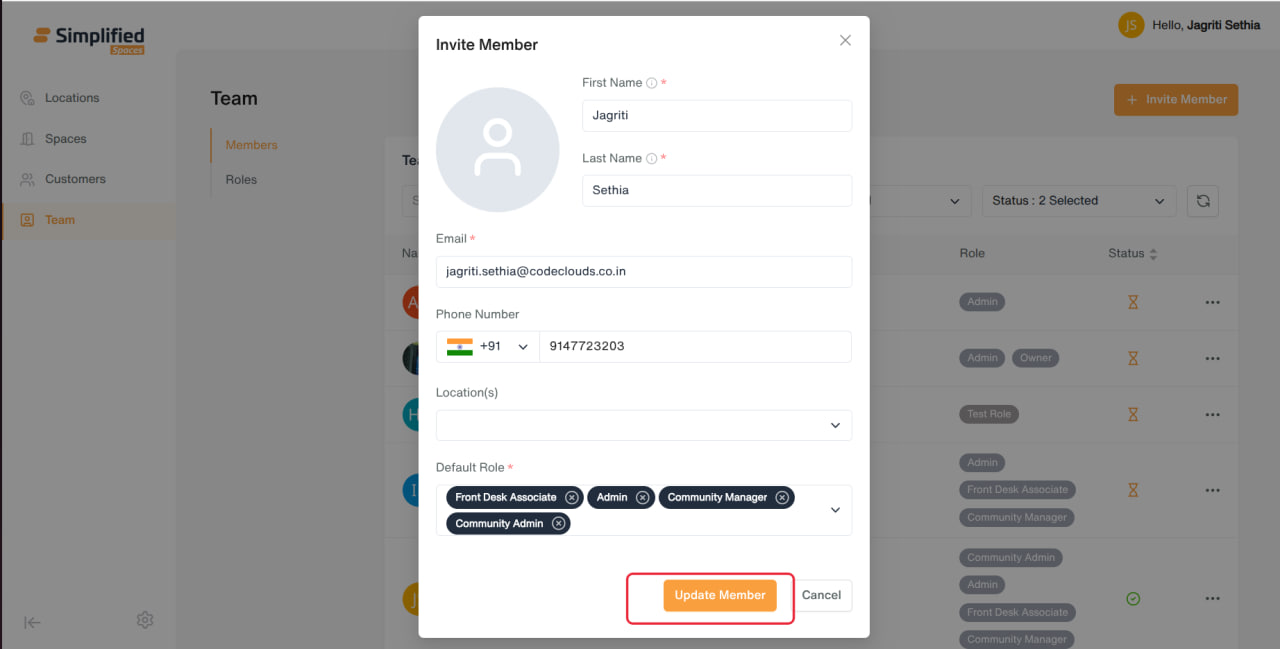
- Row menu → Edit Member → same form, pre-filled → button label changes to Update Member.
Resend Invite
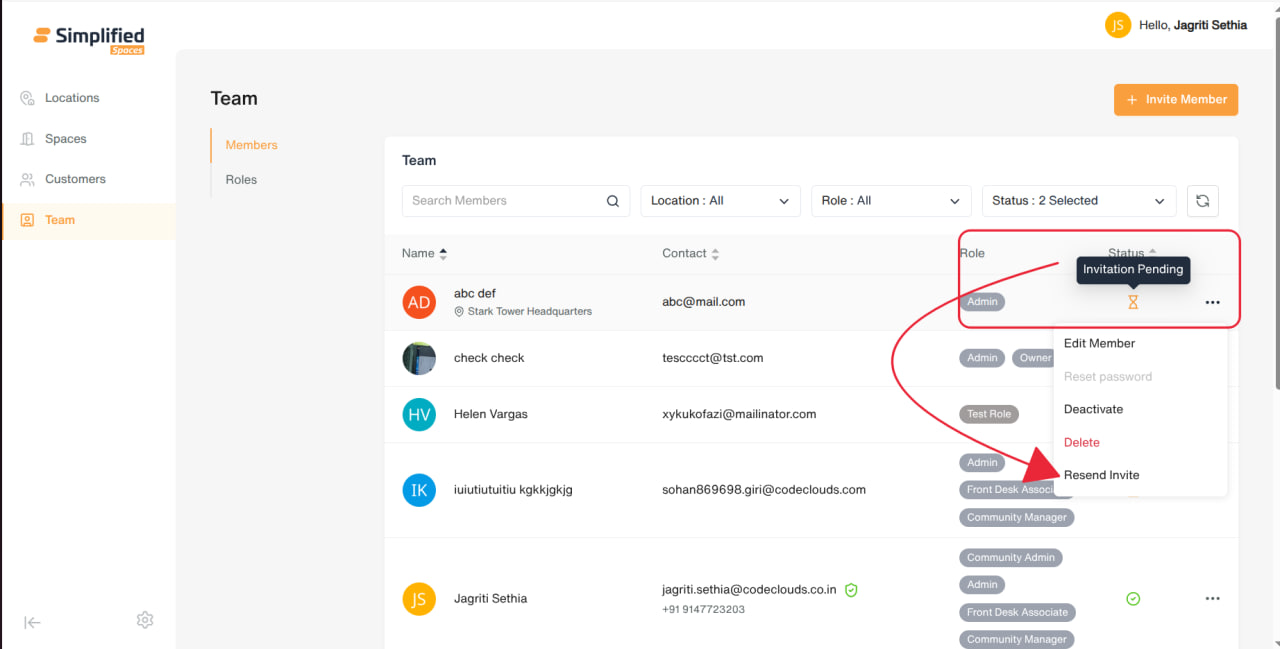
- Available only while a member's status is Invitation Pending — resends the invitation email/link.
Deactivate / Delete
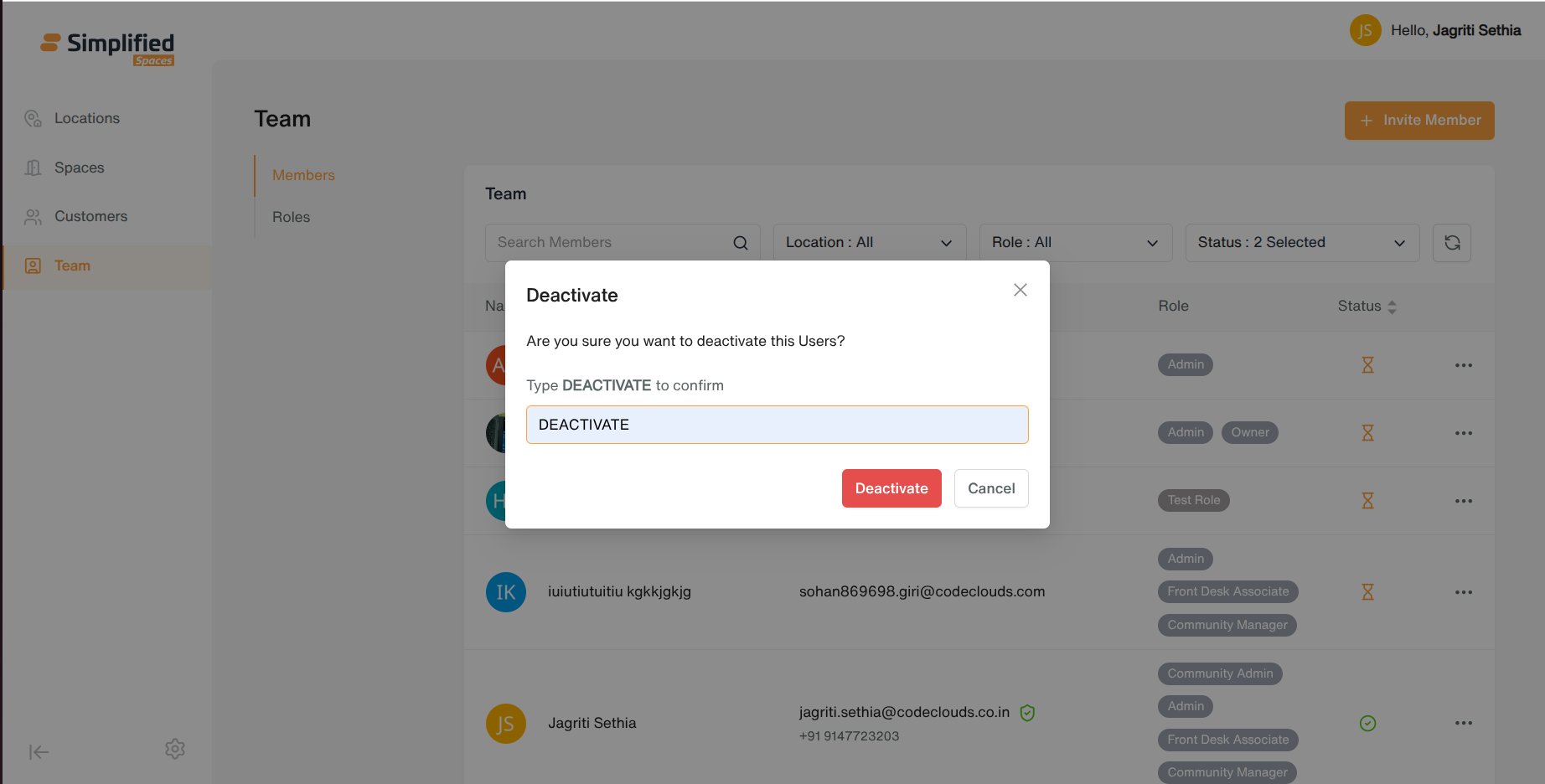
- Row menu → Deactivate — disables the member's access while keeping their record and history.
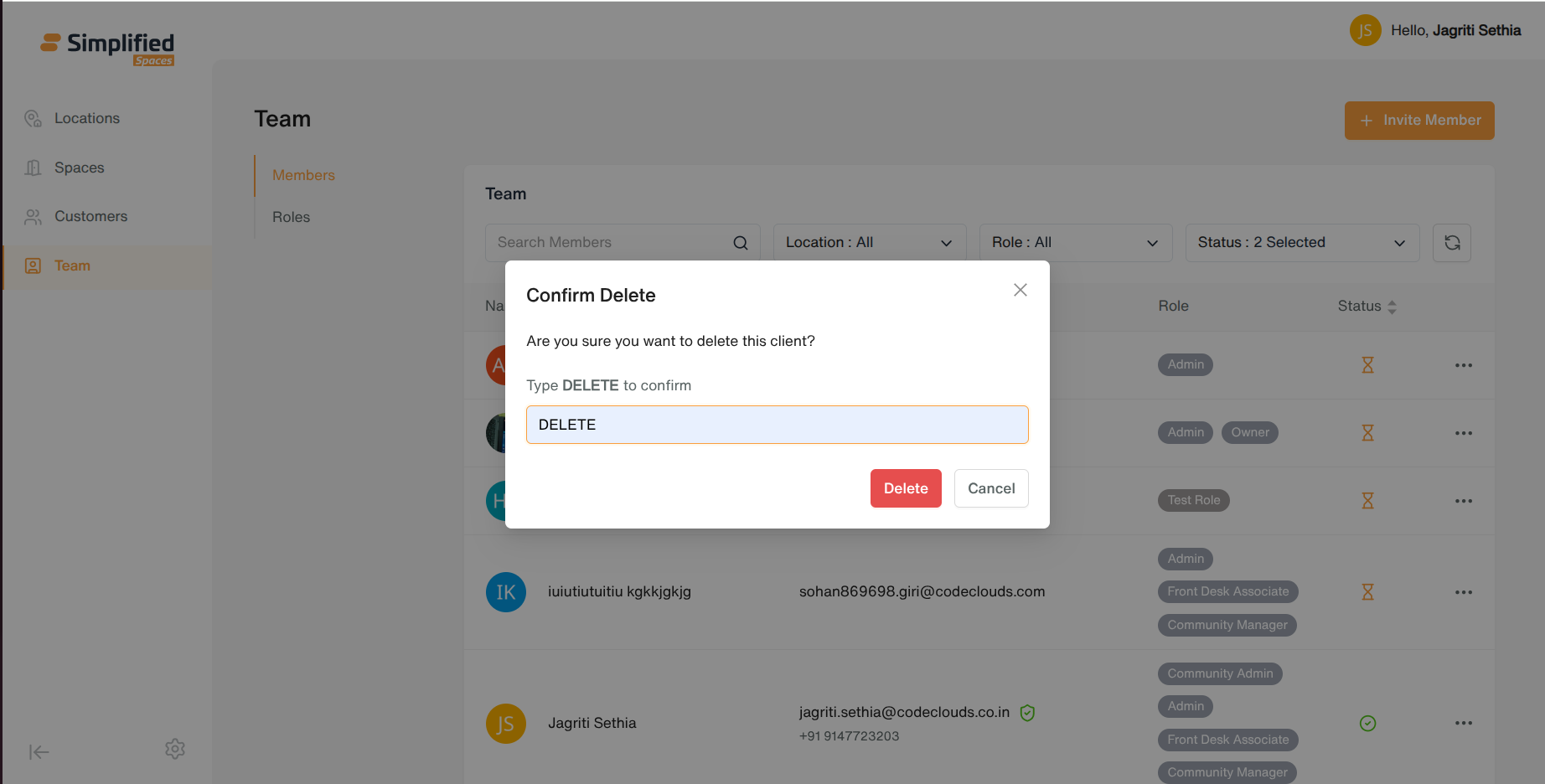
- Row menu → Delete — permanently removes the member (confirmation required).
2. Roles
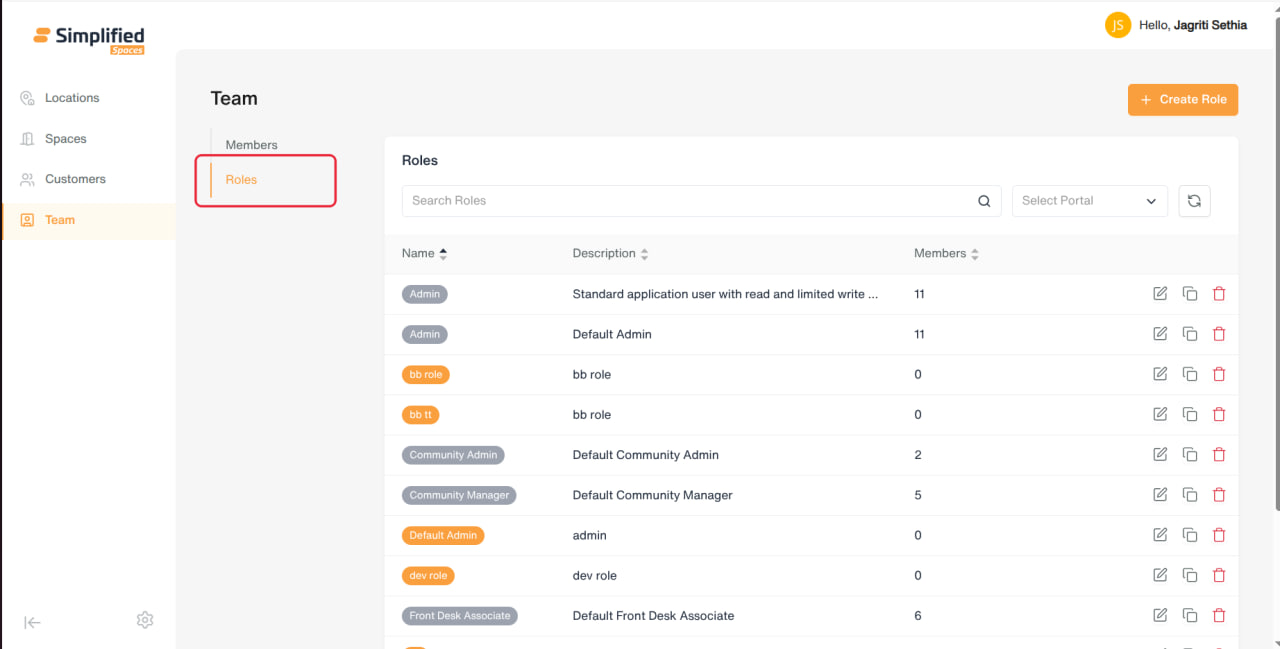
Viewing the list
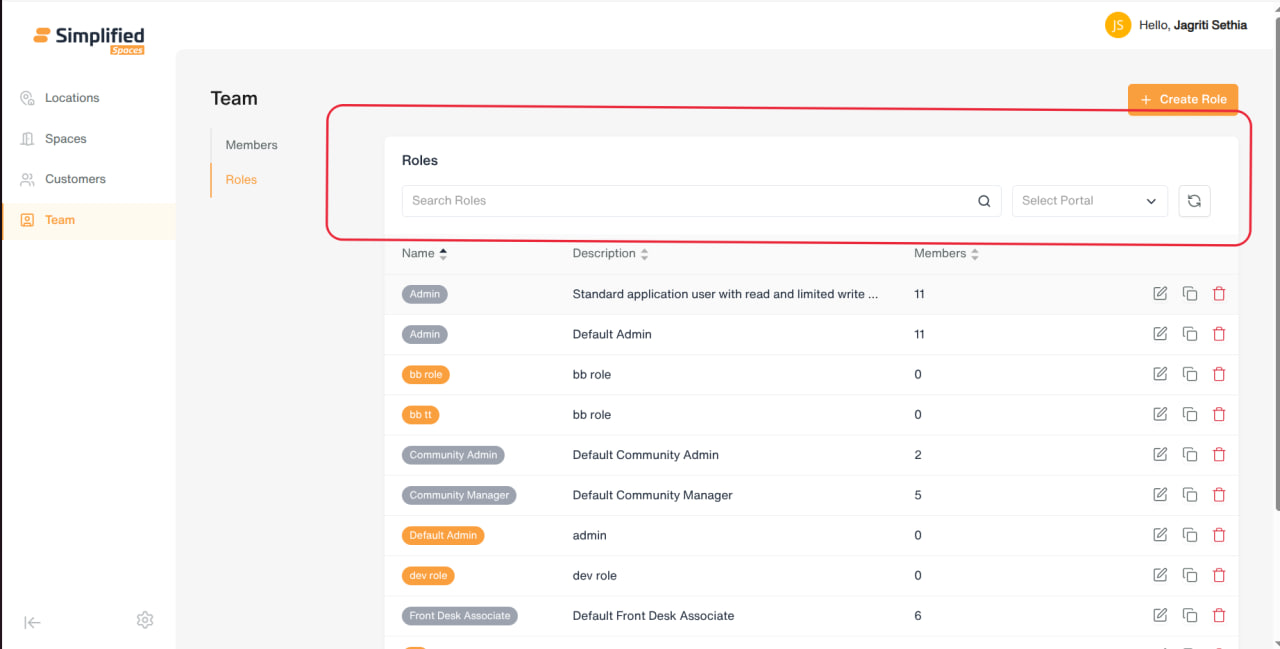
-
Search box: Search Roles
-
Filter: Select Portal — Operator Portal (staff roles) or Member Portal (customer-facing roles)
-
Columns: Name (colored tag), Description, Members (count of people currently assigned this role)
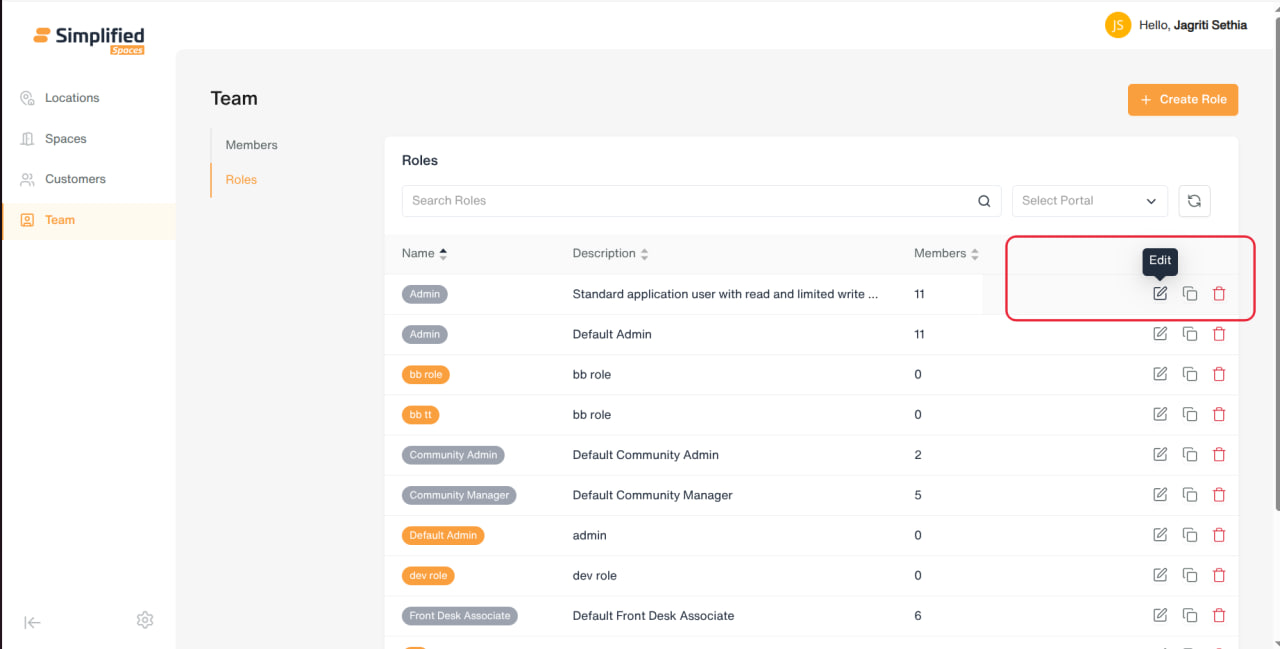
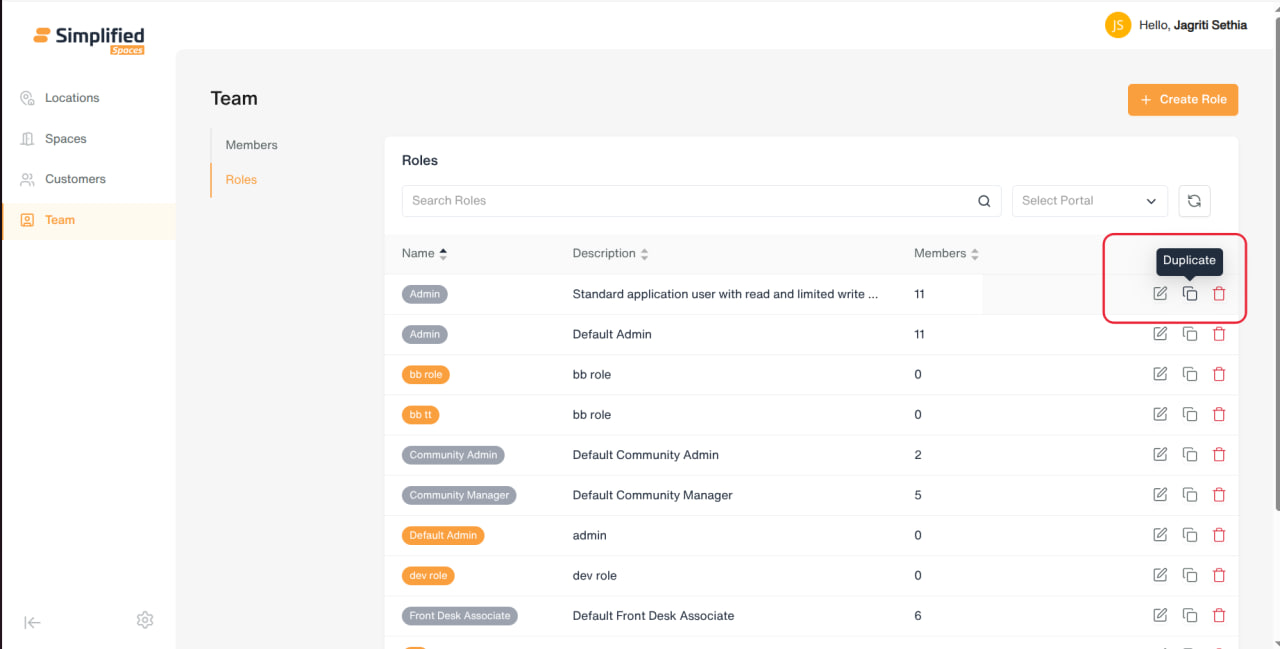
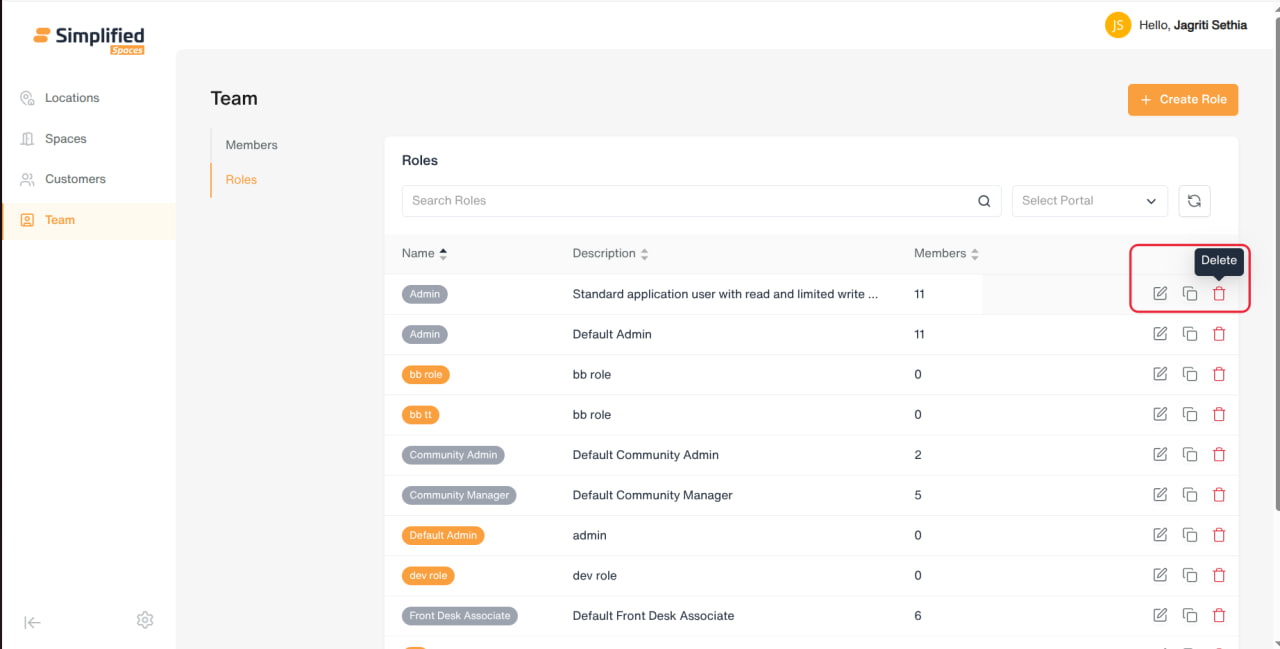
- Row actions: Edit, Duplicate (not yet wired up), Delete
Creating a Role
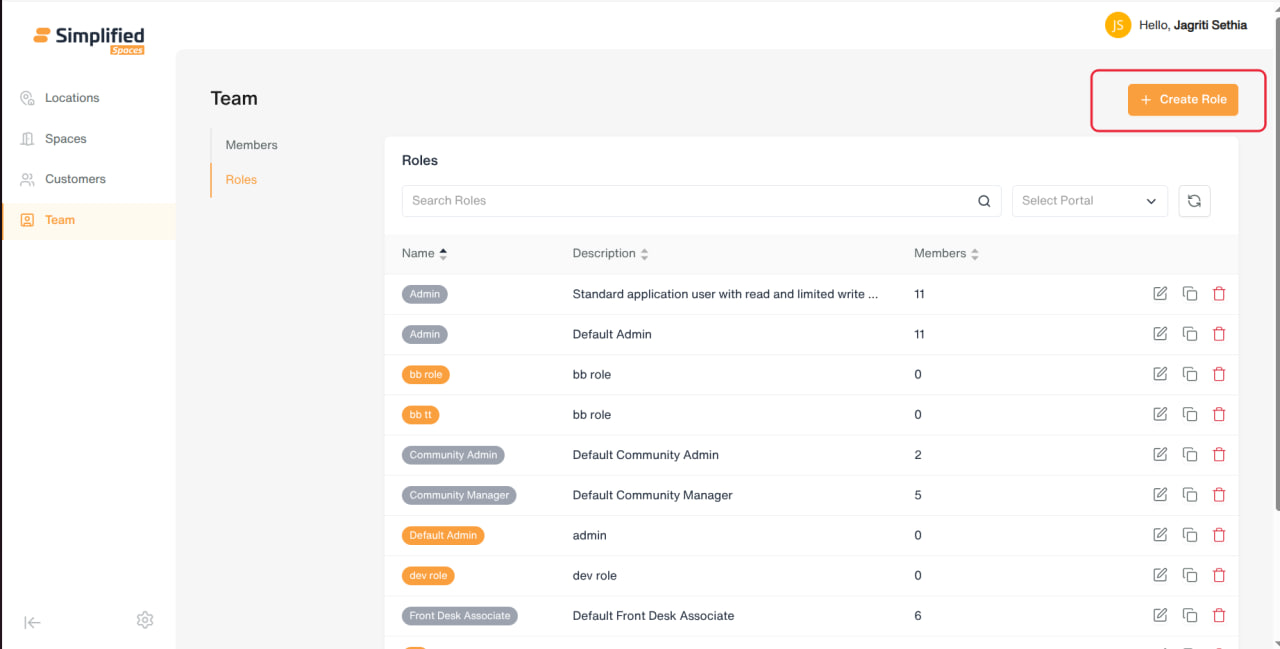
- Click Create Role.
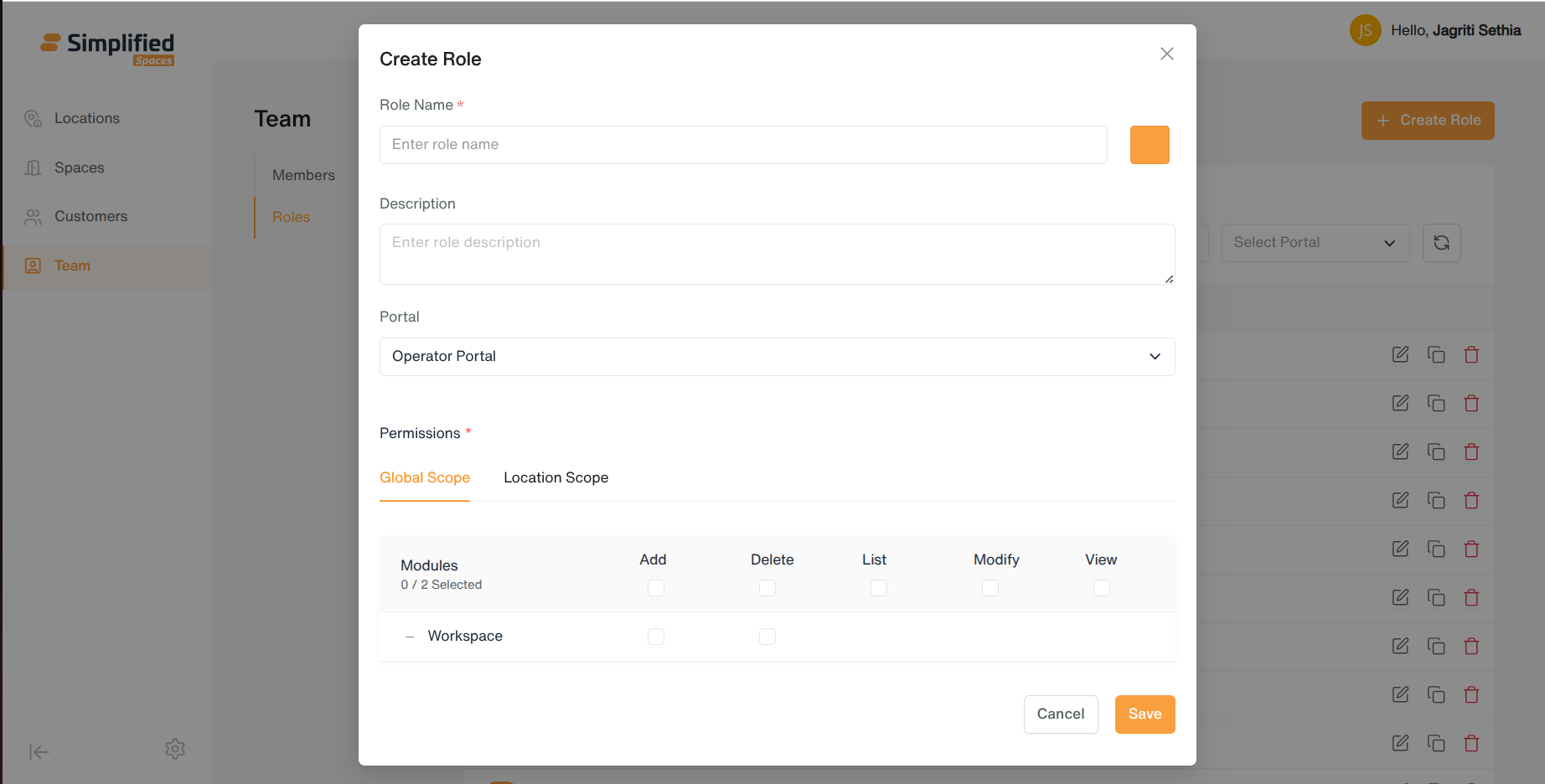
- Fill in:
- Set Permissions* (required) using the permissions matrix:
-
Grouped into tabs by scope — for Operator Portal roles: Global Scope (org-wide permissions) and Location Scope (permissions limited to specific locations); for Member Portal roles: User Scope and Store Scope.
-
Each tab shows a tree of modules/sub-modules (e.g. Locations, Bookings, Tickets) with columns for each action type (e.g. View, Add, Edit, Delete).
-
Check individual module+action boxes, or use the column header checkbox to grant/revoke an entire action across all modules in that scope at once.
-
A running count shows how many permissions are selected out of the total available.
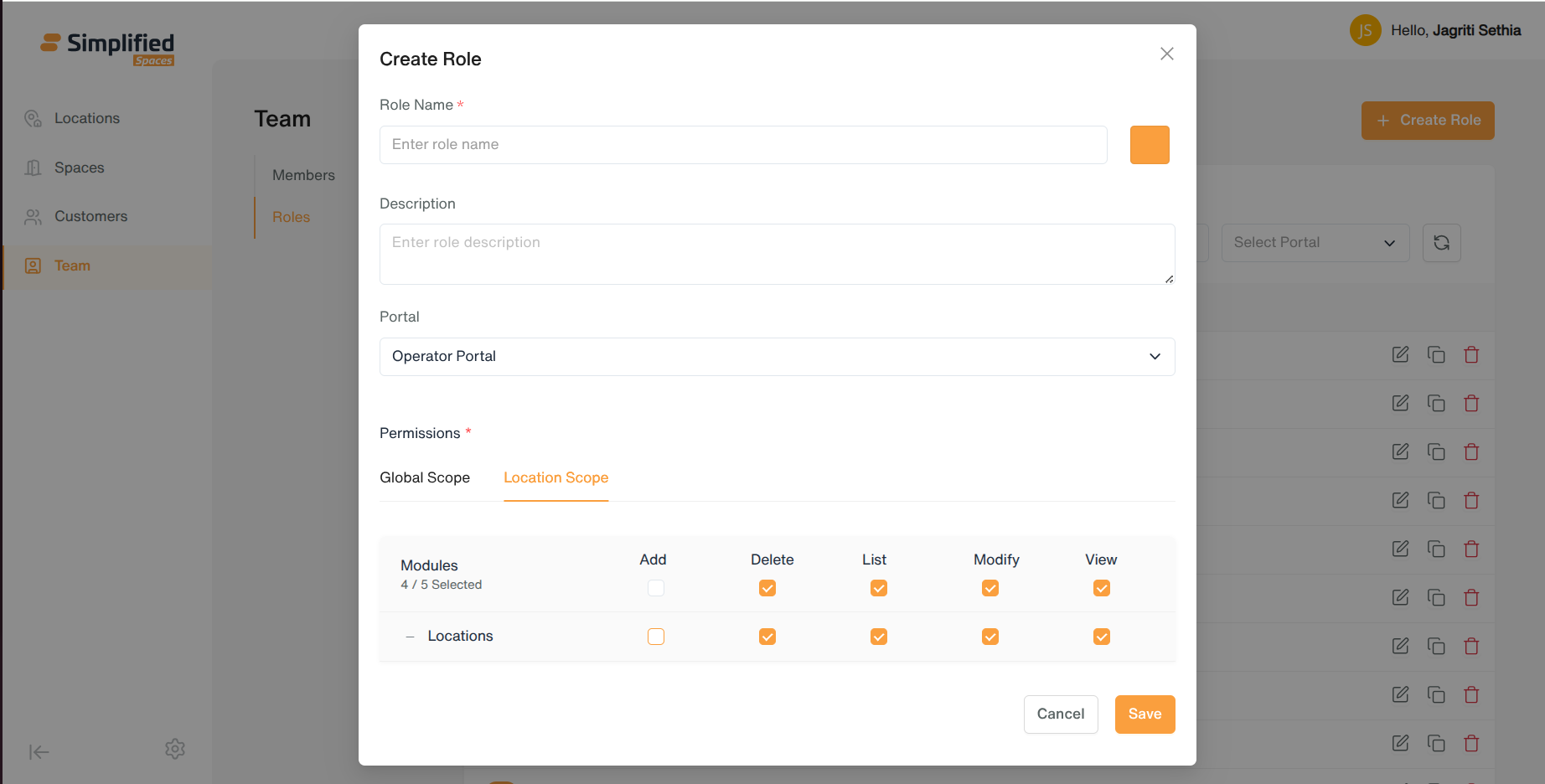
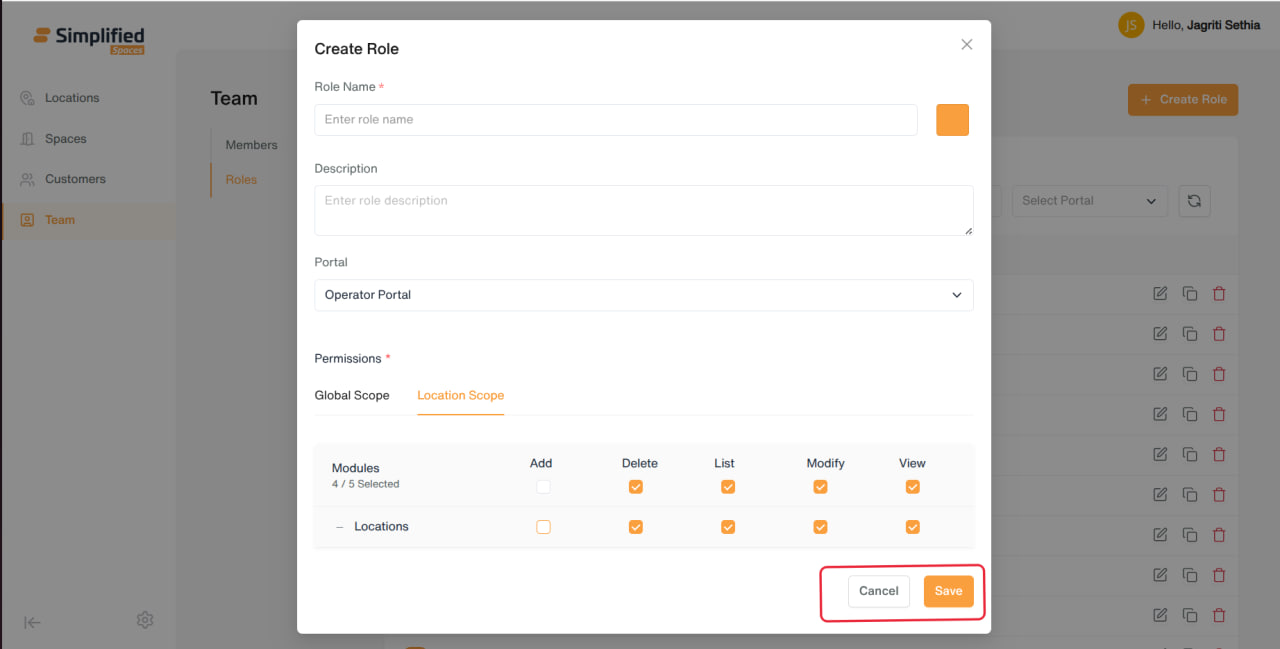
- Click Save.
Editing a Role
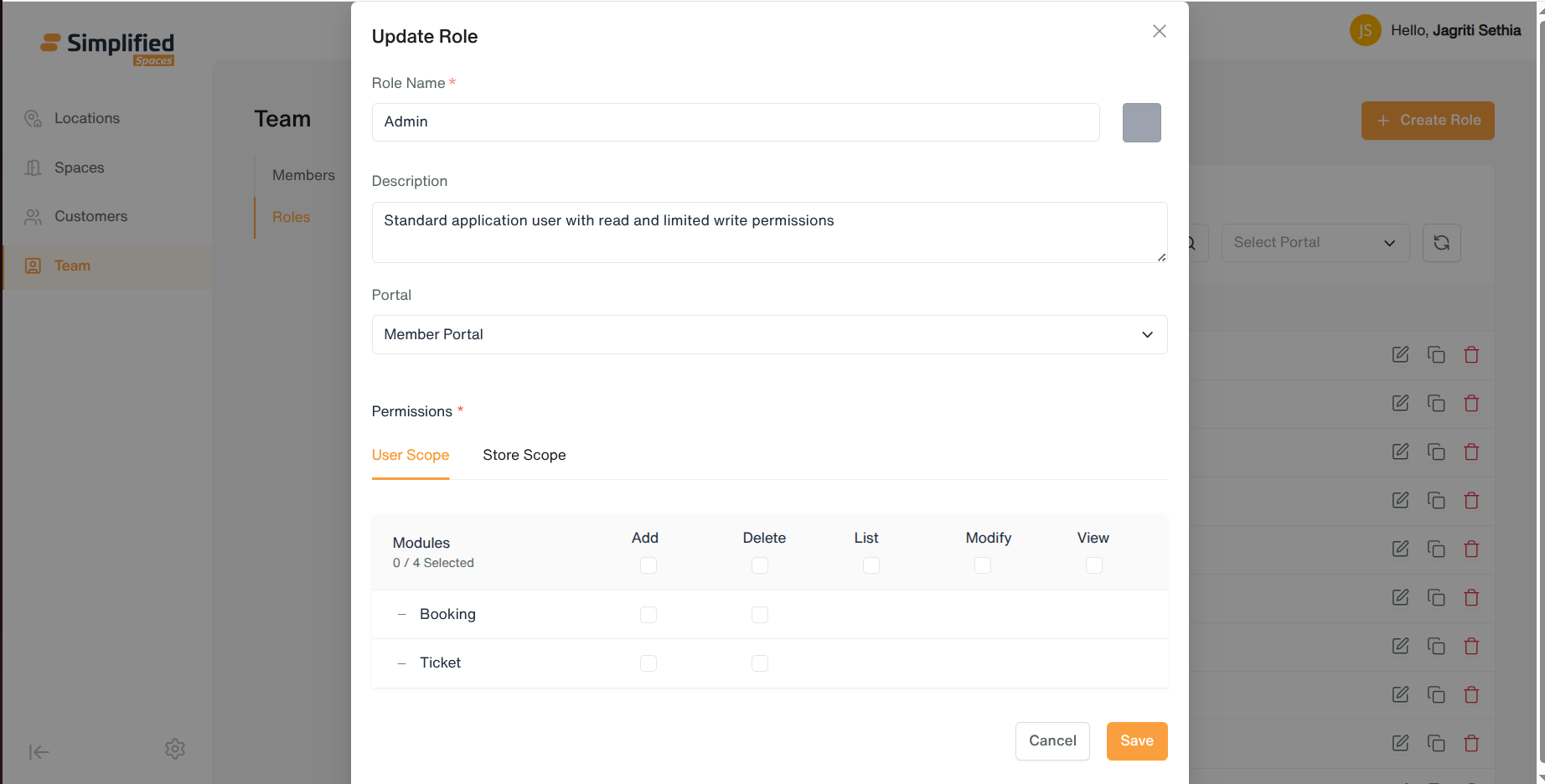
- Row menu → Edit → opens the same form, pre-filled with the role's current name, description, color, portal, and permission matrix → update and Save.
Duplicating a Role
- Row action exists in the menu but is not yet functional in this build.
Deleting a Role
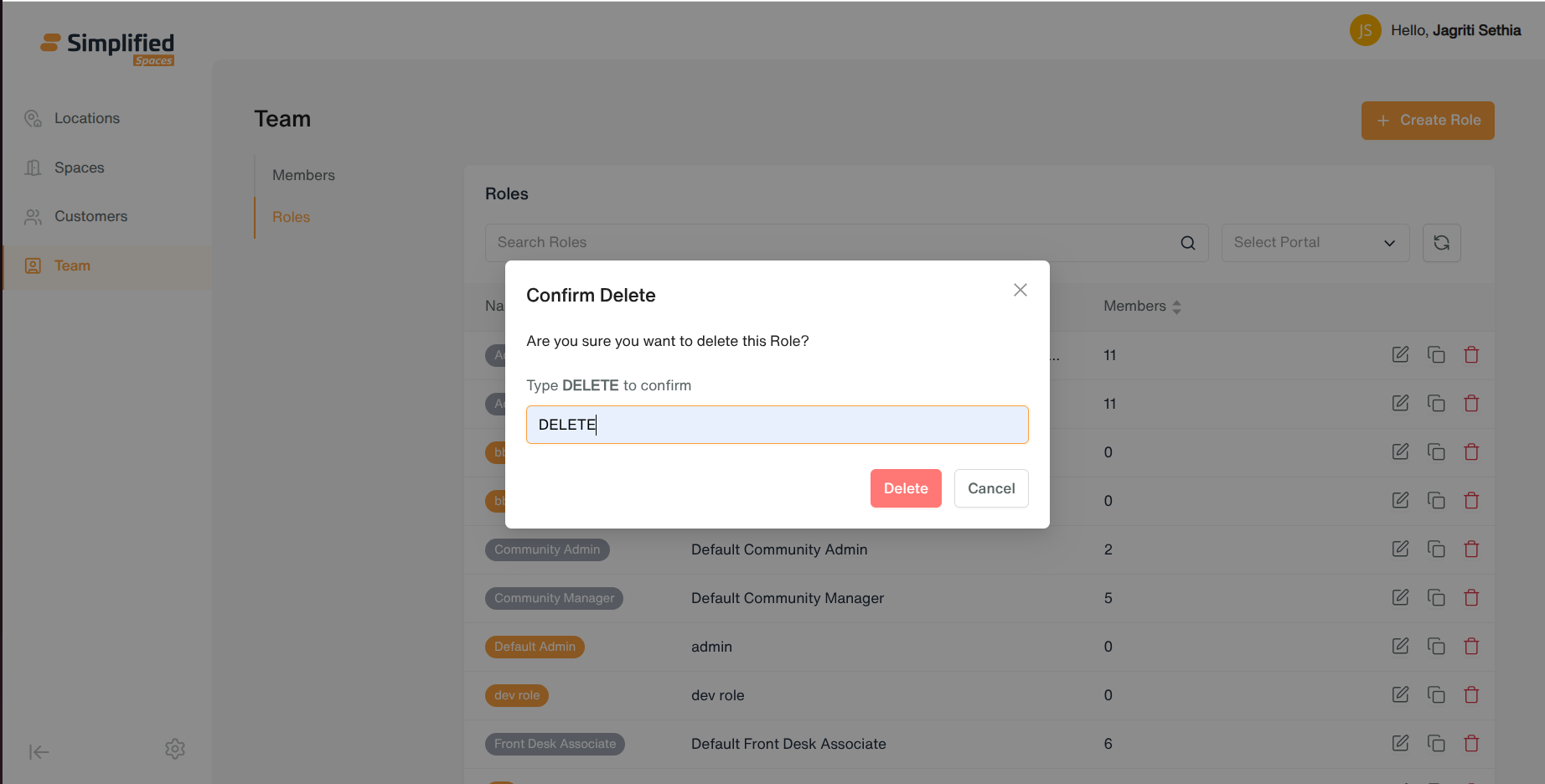
- Row menu → Delete → confirmation required → role removed. (Roles still assigned to members should be reassigned or unassigned first — check member count before deleting.)
General Notes
-
A member can be assigned multiple roles; access is the combination of all assigned roles' permissions.
-
Role permissions are scoped — Operator Portal roles control what staff can do across the whole org (Global Scope) or within specific locations (Location Scope); Member Portal roles control what end-customers can do for themselves (User Scope) or their company (Store Scope).
-
Every Delete action requires confirmation before it takes effect.
-
What a specific admin can see or do in the Team section itself is also governed by their own assigned role's permissions.