Describes the Customers section of the admin app: Clients, Leads, and Requests.
Overview
-
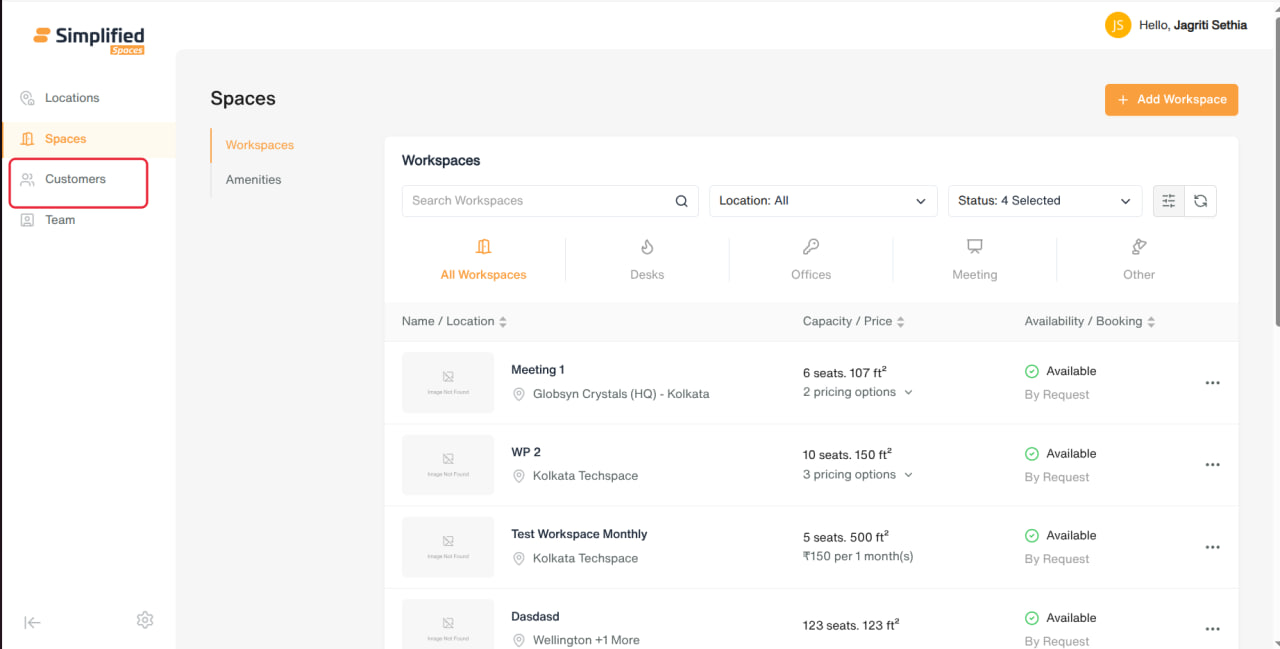
Entry point: Main menu → Customers.
-
Sub-sections: Clients, Leads, Requests.
-
Clients — manage active tenant companies/individuals: their team members, bookings, visitors, tickets, invoices and notes.
-
Leads — track prospects before they become clients, with notes and activity history, and a “Convert to Client” step.
-
Requests — a combined inbox of pending Booking Requests and Ticket Requests across all clients, for quick approve/decline or triage without opening each client individually.
1. Clients
Viewing the list
-
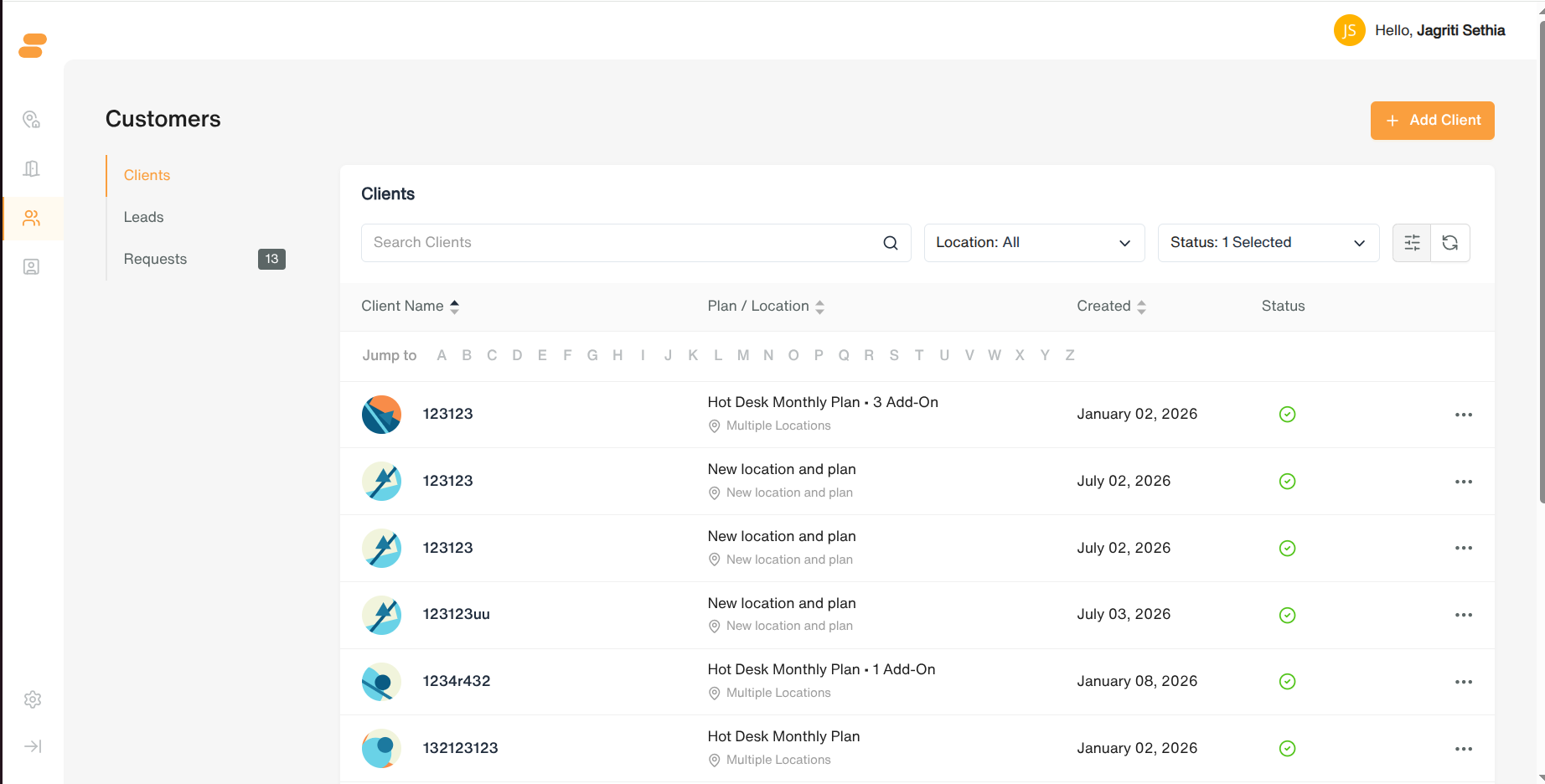
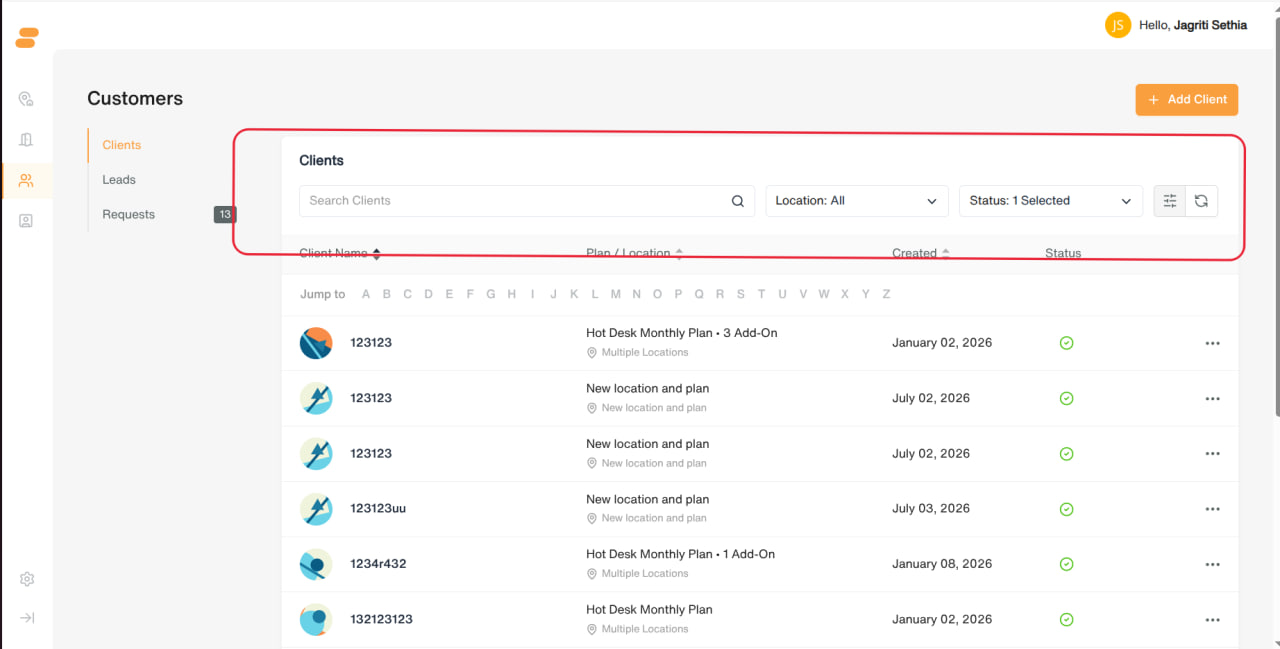
Search box: Search Clients
-
Filters: Location (multi-select), Status (Active / Deactivated / Deleted — Active shown by default)
-
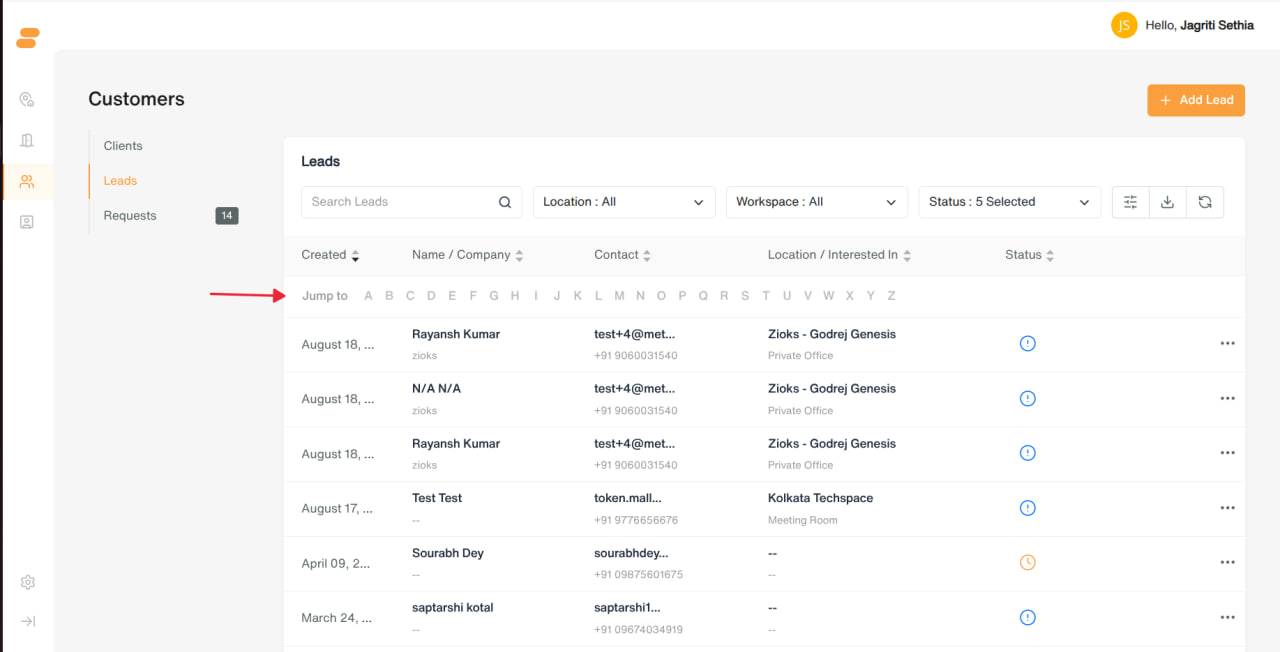
A–Z jump row to quickly filter by starting letter of name
-
Columns: Client Name, Plan / Location, Created date, Status (with icon: Active, Deactivated, Deleted, Pending, and a separate “Invitation Pending” indicator)
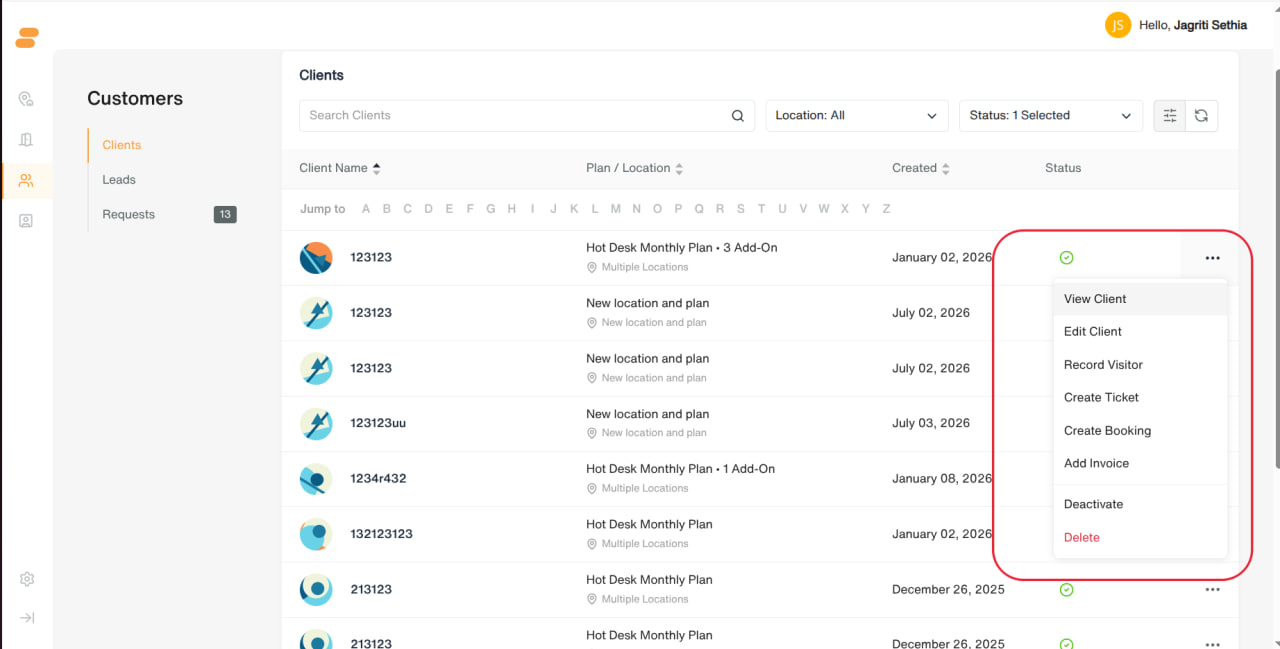
- Row menu: View Client, Edit Client, Record Visitor, Create Ticket, Create Booking, Add Invoice, then Deactivate, Delete (menu is disabled for already deactivated/deleted clients)
Adding a Client
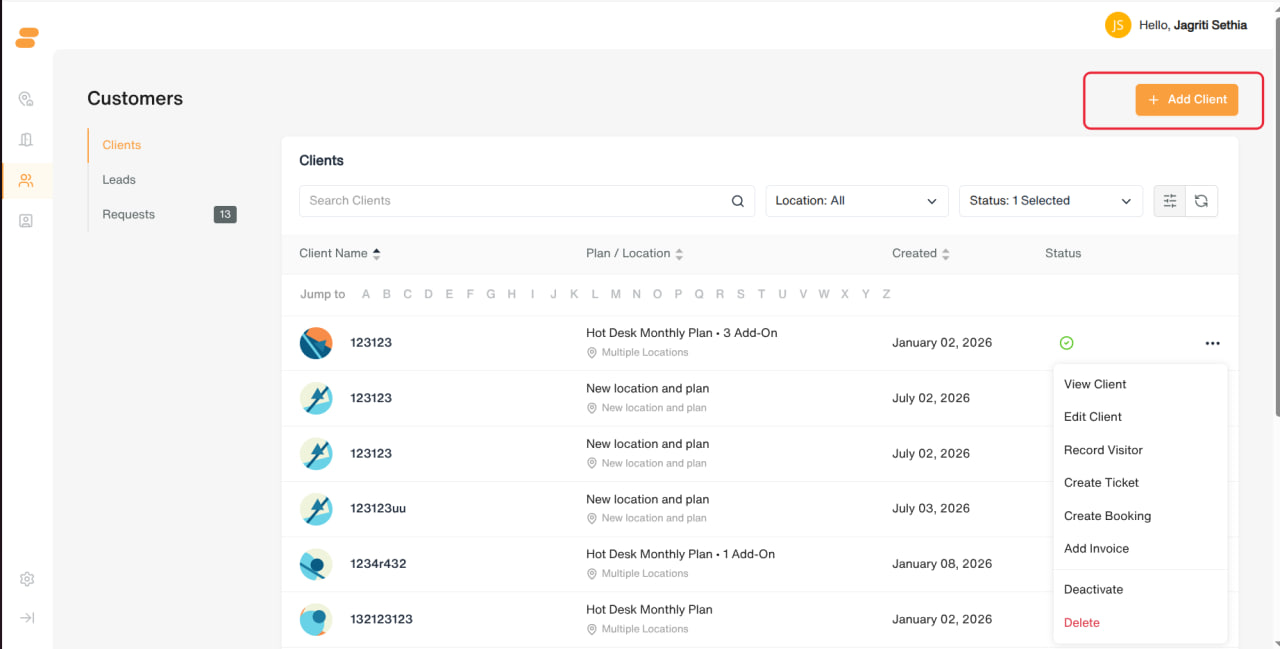
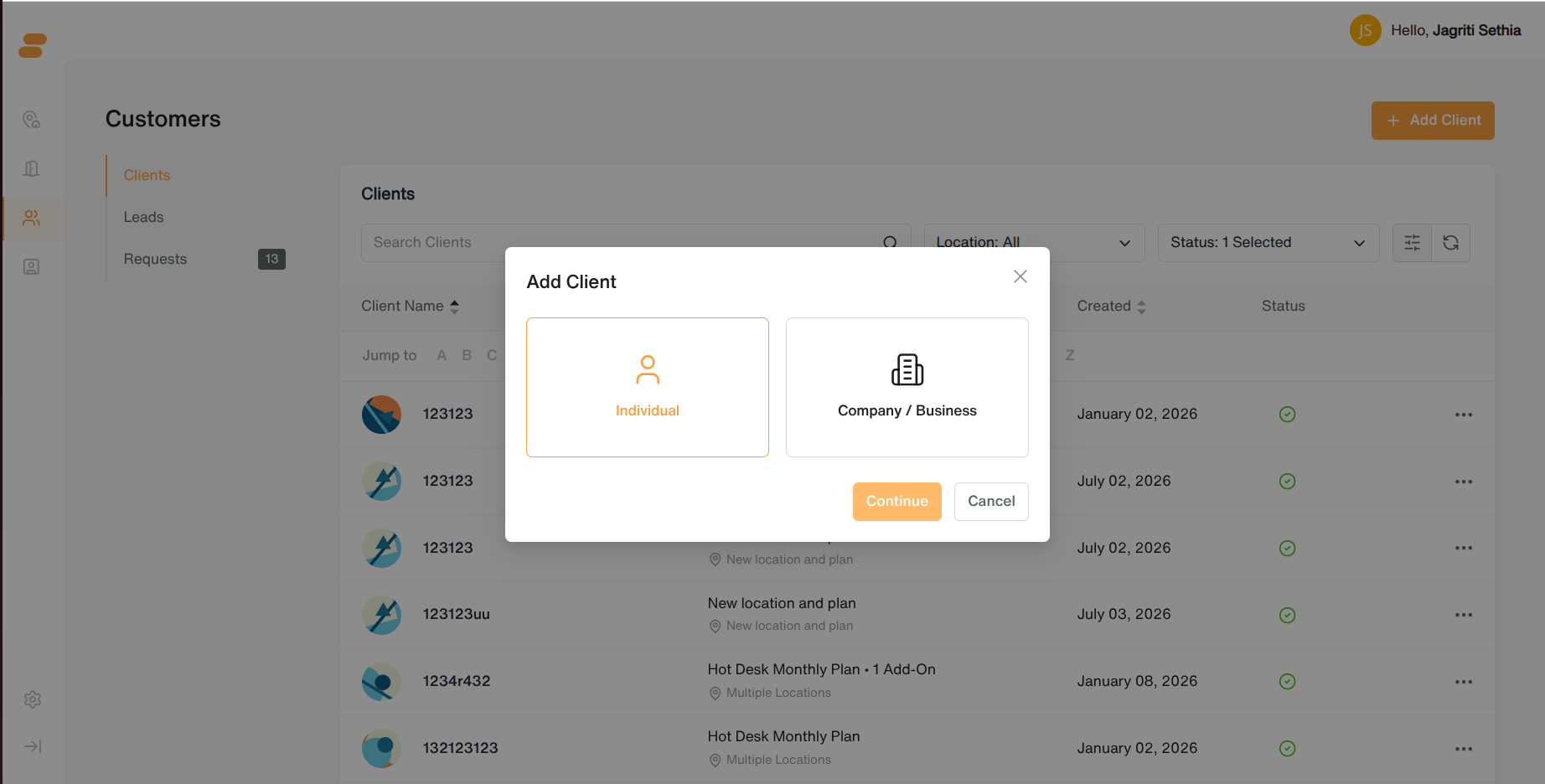
- Click Add Client → choose client type: Individual or Company / Business.
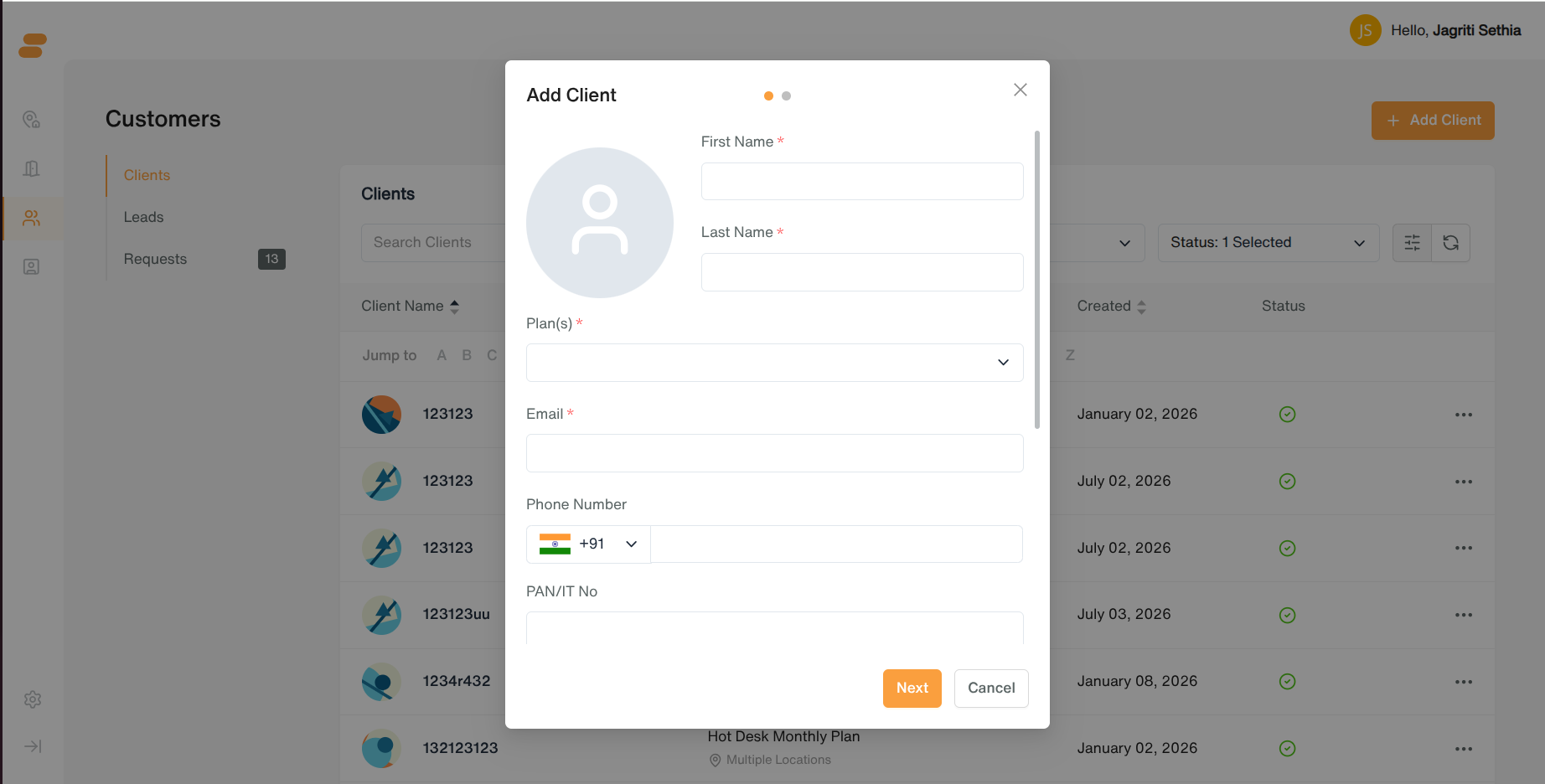
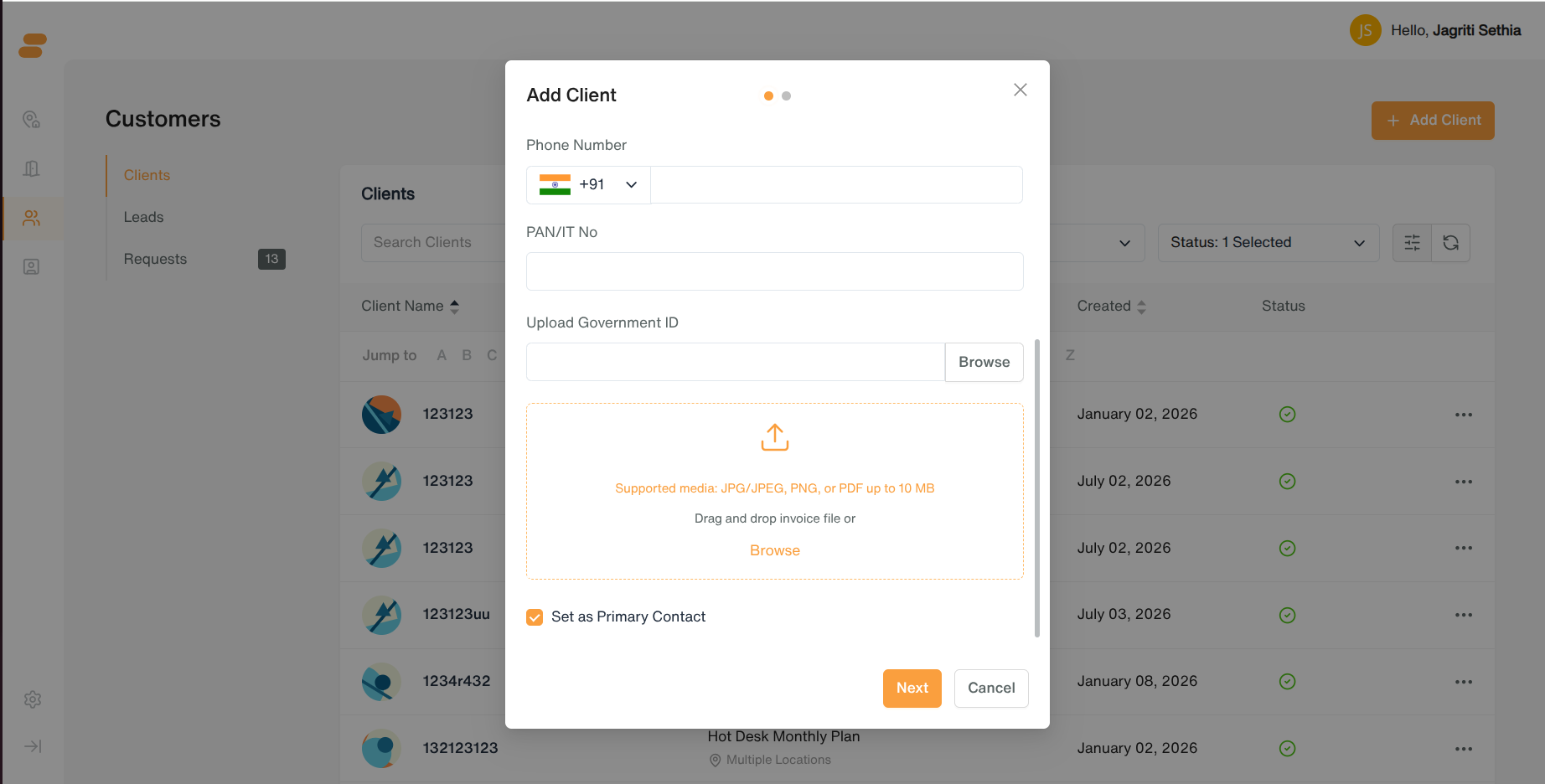
- Step 1 – Client Info:
-
Individual: First Name*, Last Name*
-
Company: Legal Company Name*, Brand Name* (plus a contact person’s First/Last Name)
-
Plan(s)* (multi-select, required)
-
Email* (required), Phone Number
-
If Individual: Government ID section — PAN/Tax ID number and an ID document upload
-
“Set as Primary Contact” checkbox (checked by default)
-
Profile image (optional)
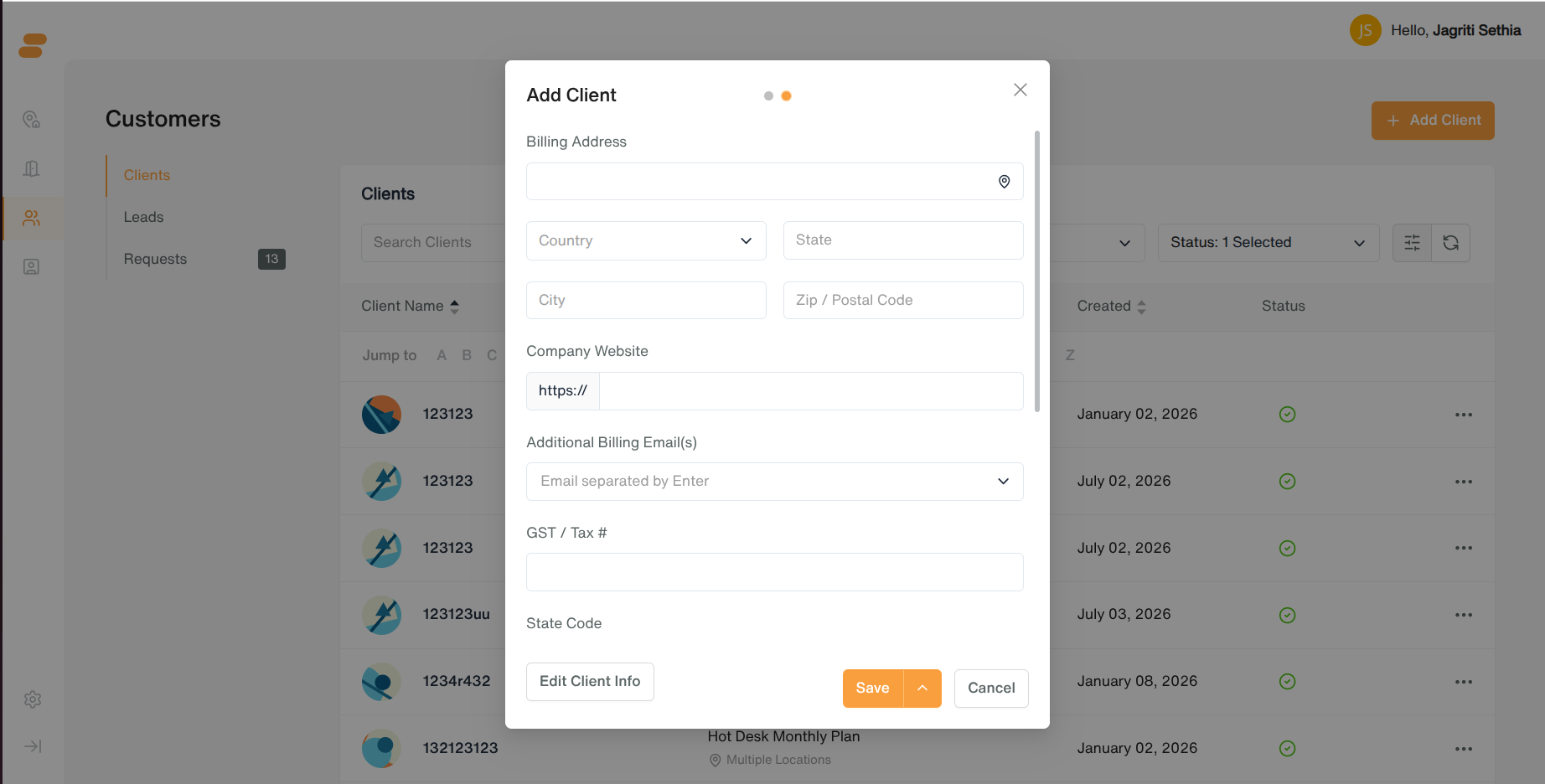
- Step 2 – Additional Info:
-
Billing Address (address autocomplete), Country / State / City / Zip
-
Company Website, Additional Billing Email(s), GST/Tax Number, State Code, Customer ID, LinkedIn, Internal Note
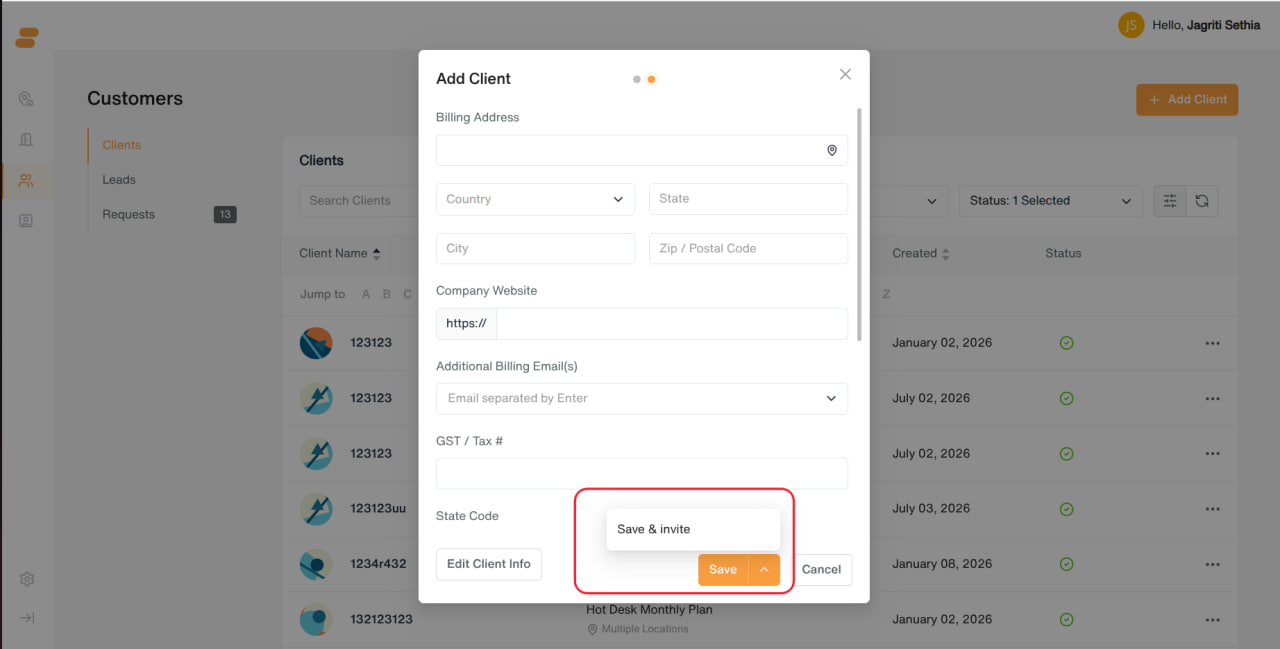
- Save, or Save & Invite to also send the client a login invitation.
Editing a Client
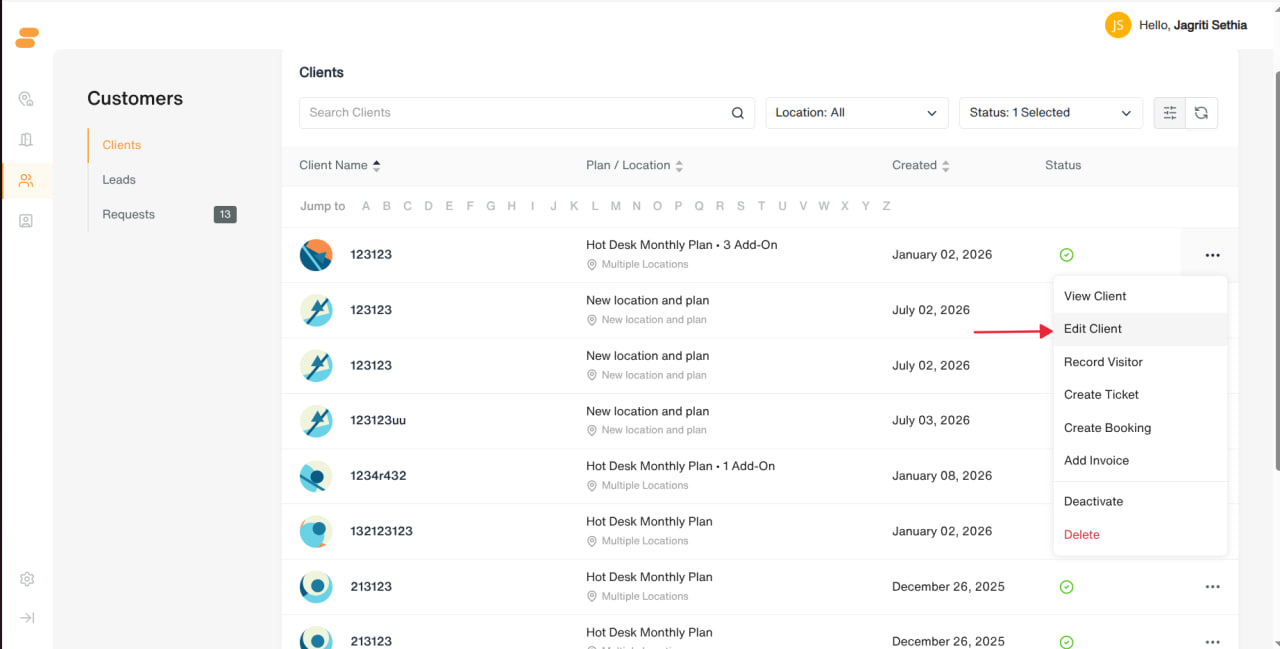
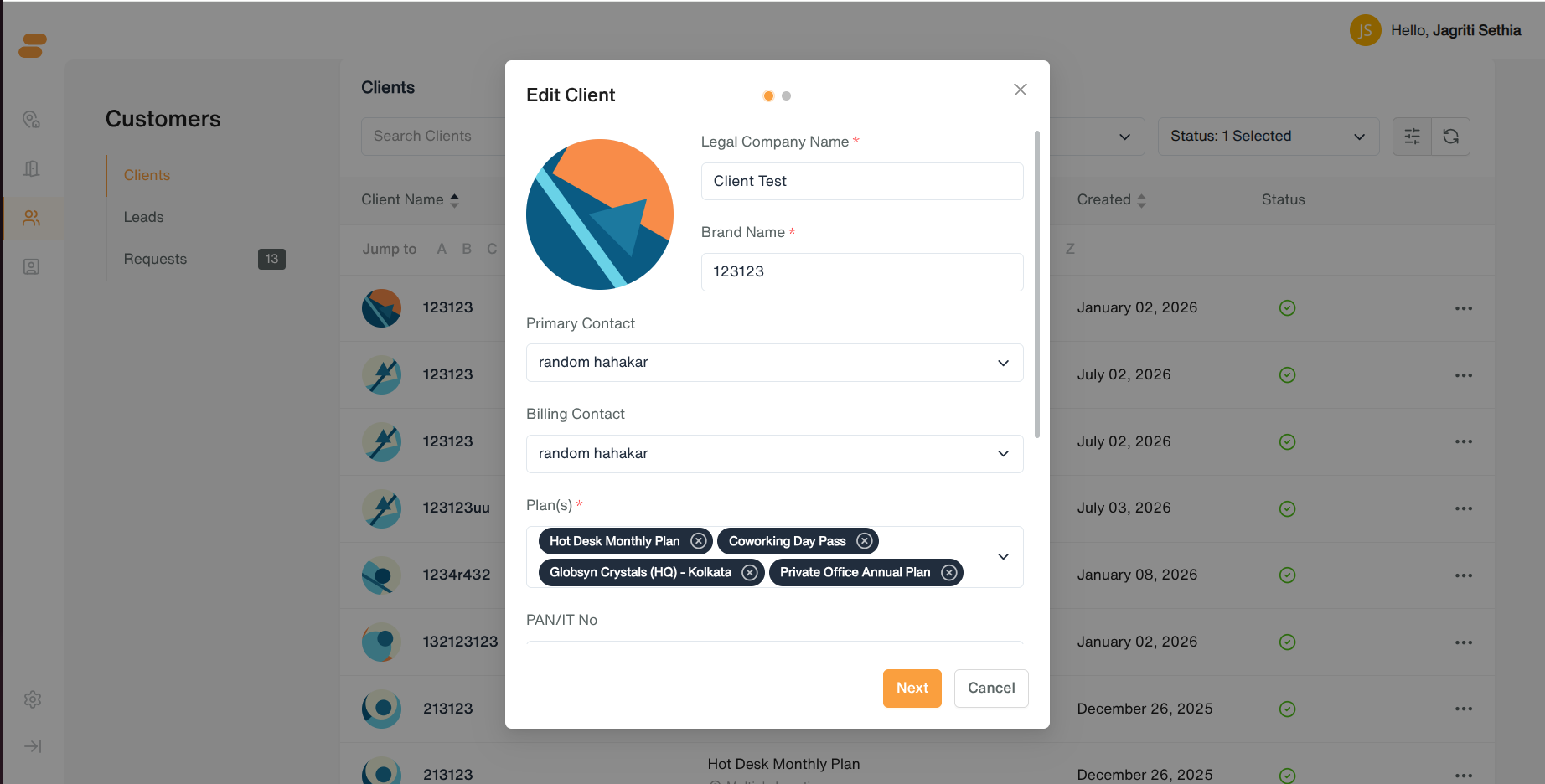
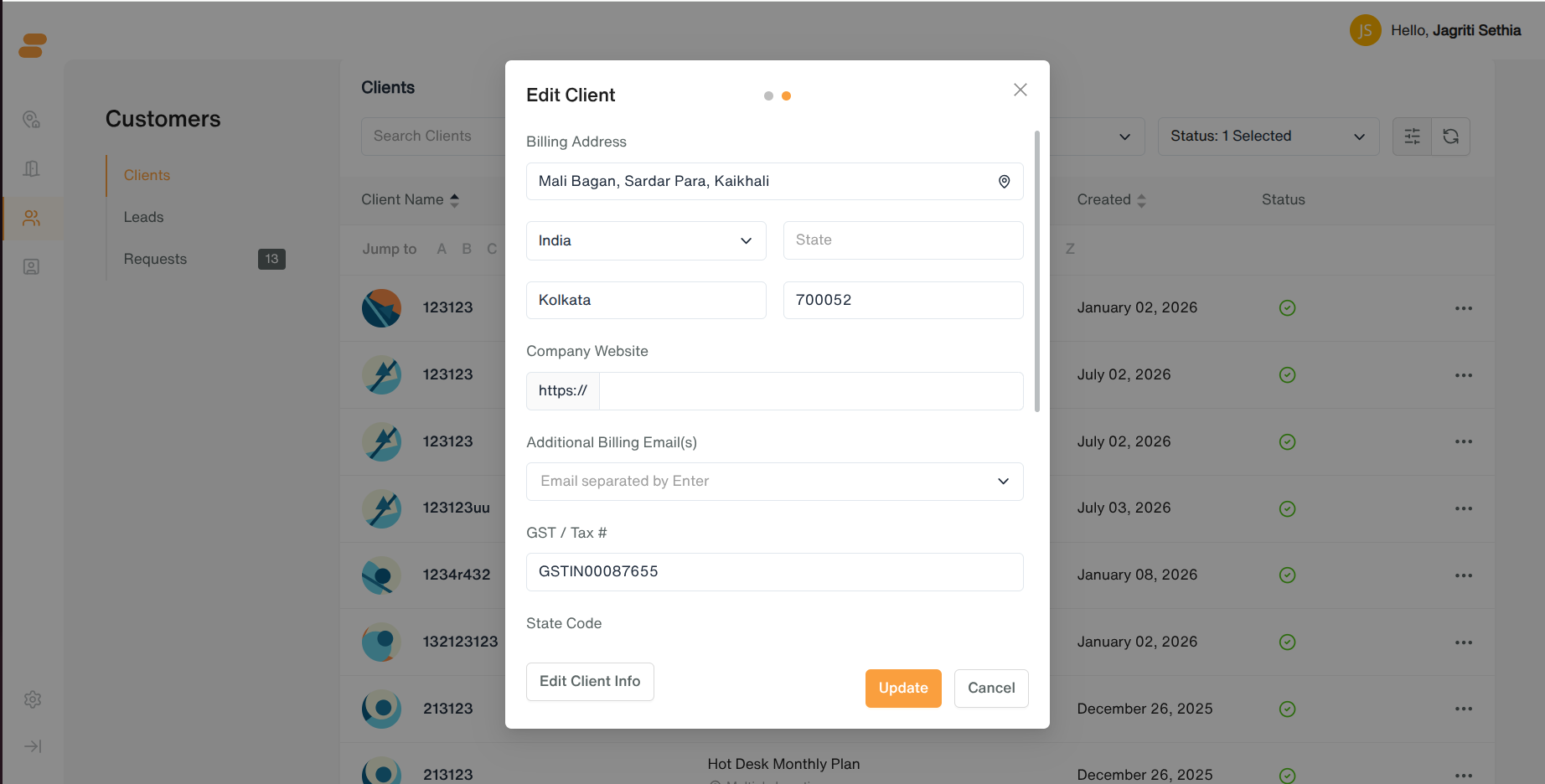
- Row menu → Edit Client → same two-step form, pre-filled. Edit mode also lets you pick a Primary Contact and Billing Contact from the client’s existing team members.
Deactivate / Delete
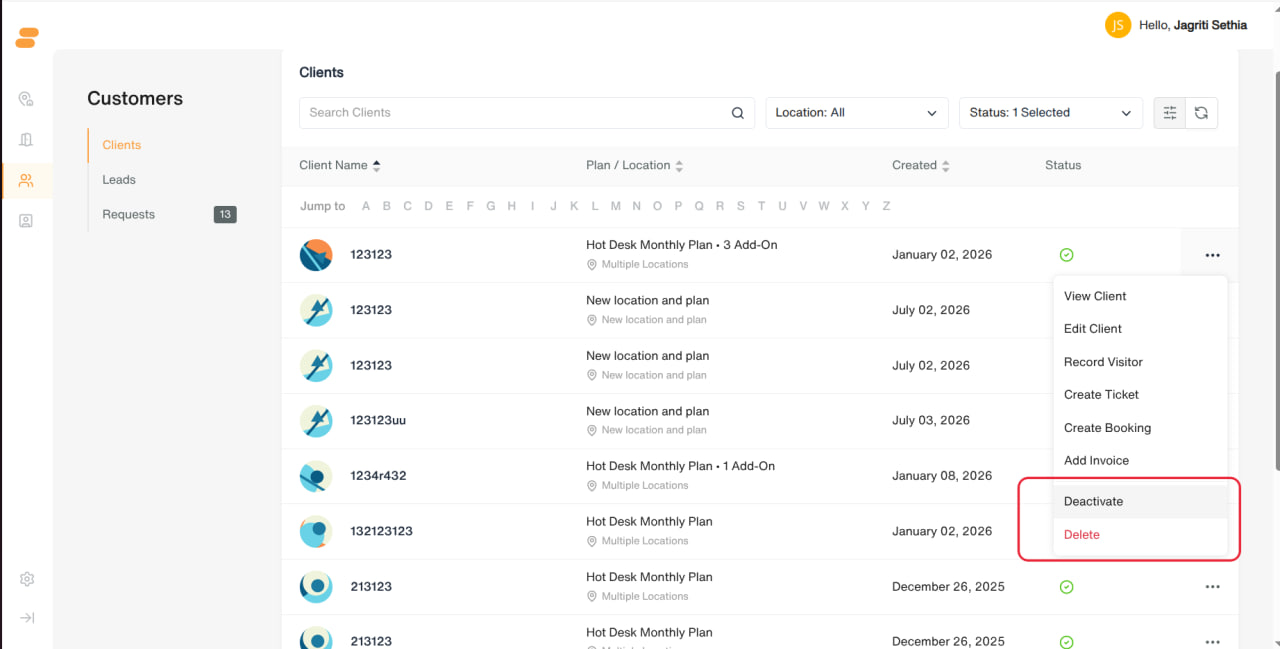
- Row menu → Deactivate — keeps the client’s data but marks them inactive.
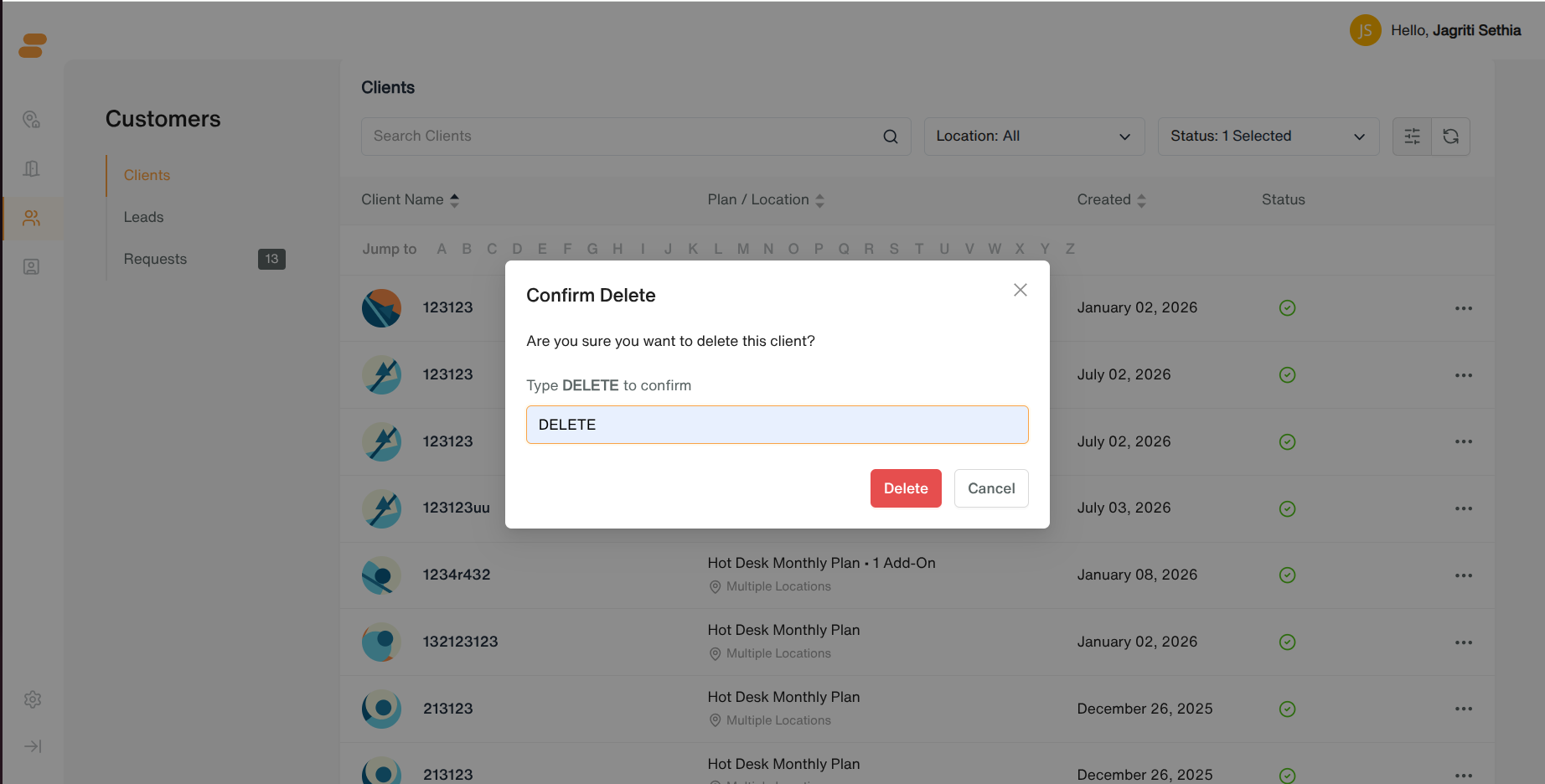
- Row menu → Delete — permanently removes the client (confirmation required).
Client Detail Page — Tabs
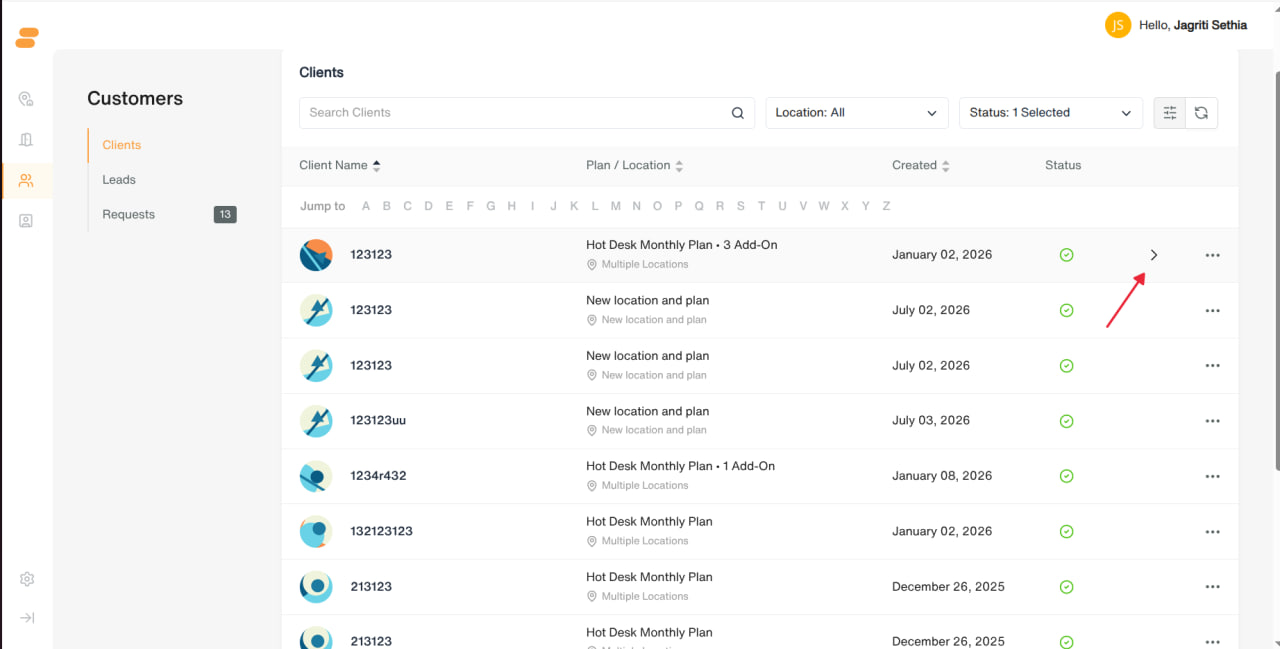
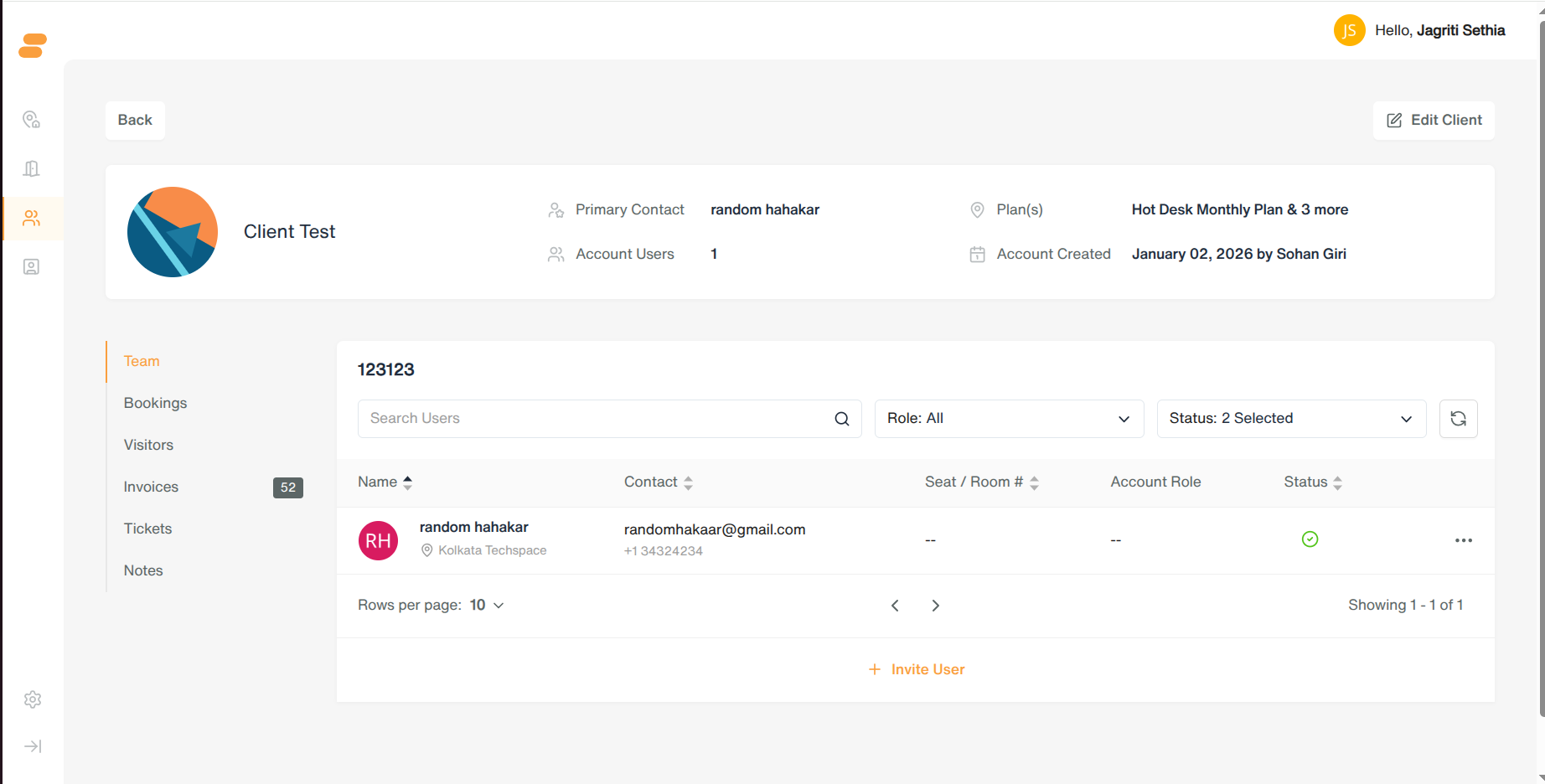
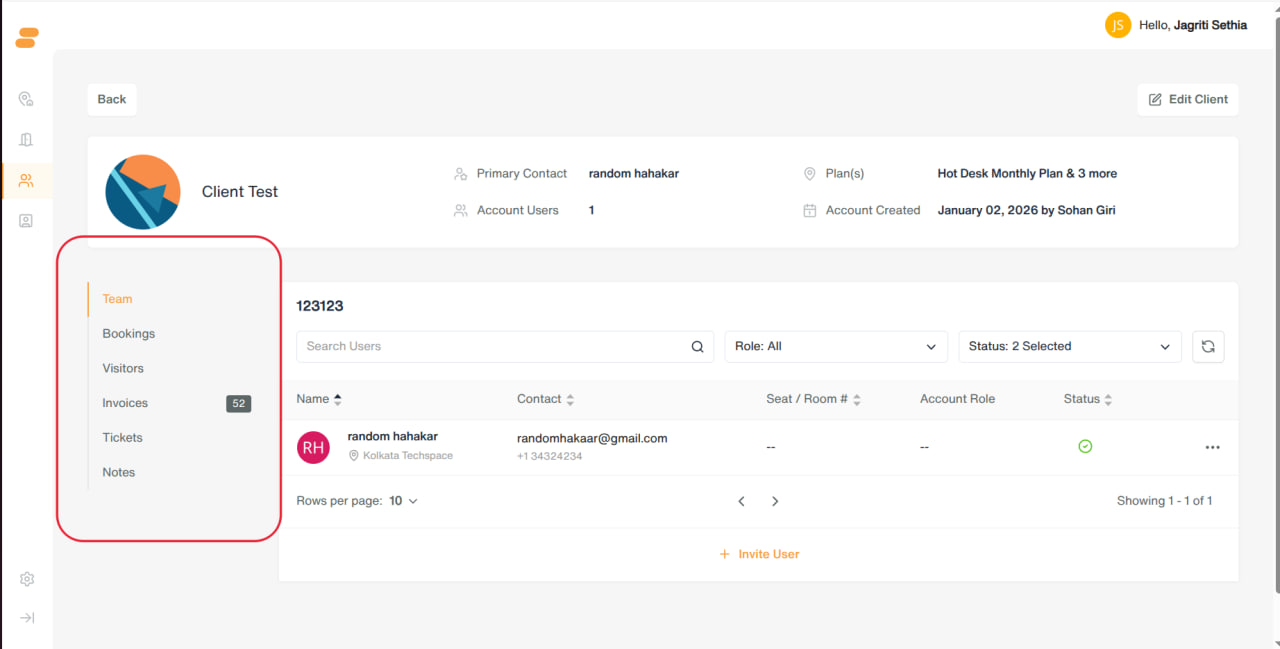
Opening a client (View Client, or clicking the row) shows a header summary (total users, seats allocated, credits remaining, workspace plans, join date, next renewal date, payment status) and these tabs:
Team
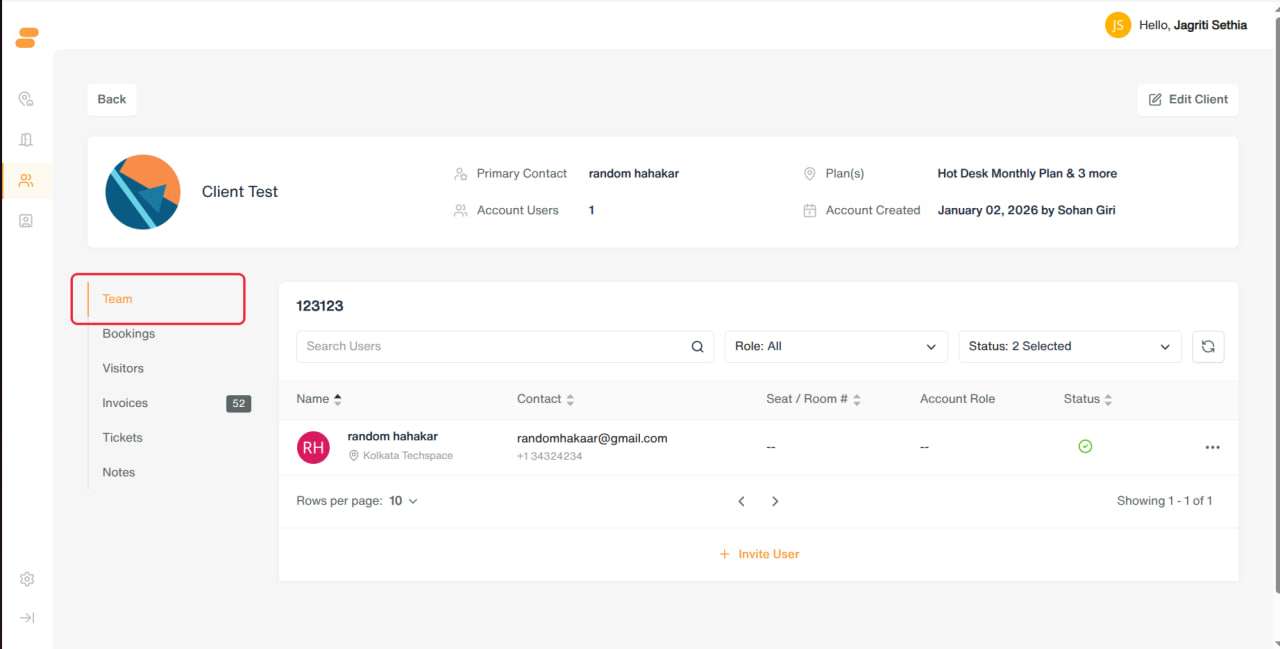
- List of the client’s team members: name, contact, seat/room number, account role, status.
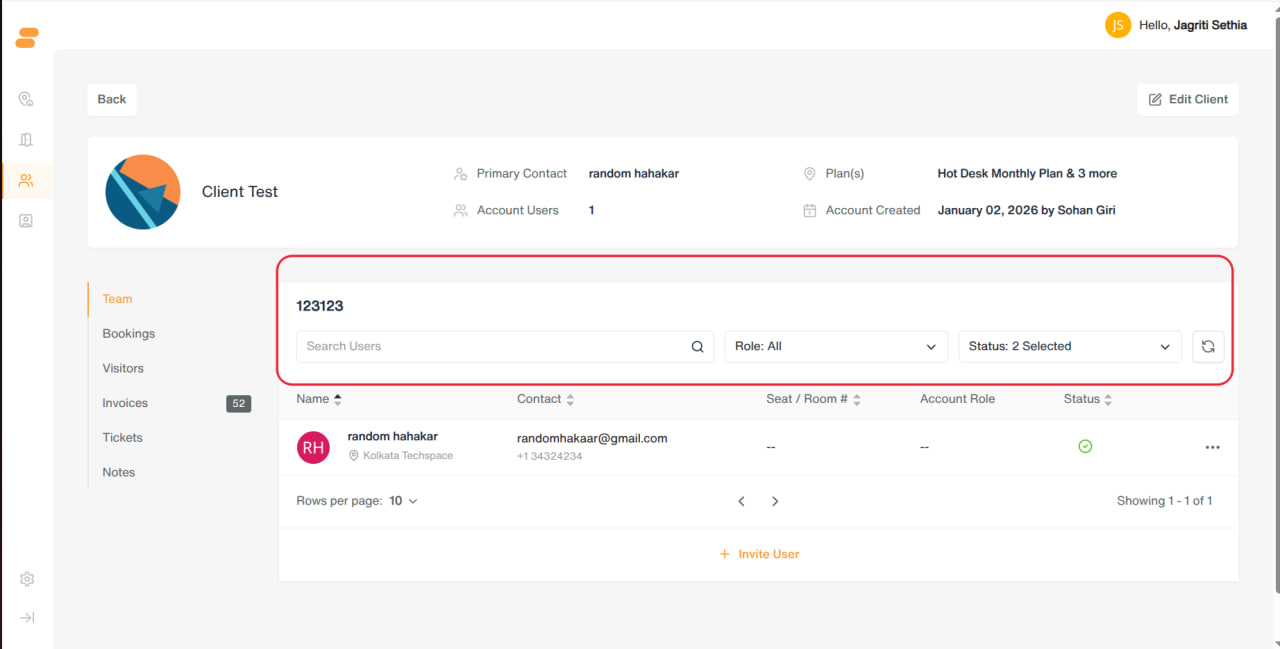
- Filters: search, role, status (defaults to Active + Invitation Pending).
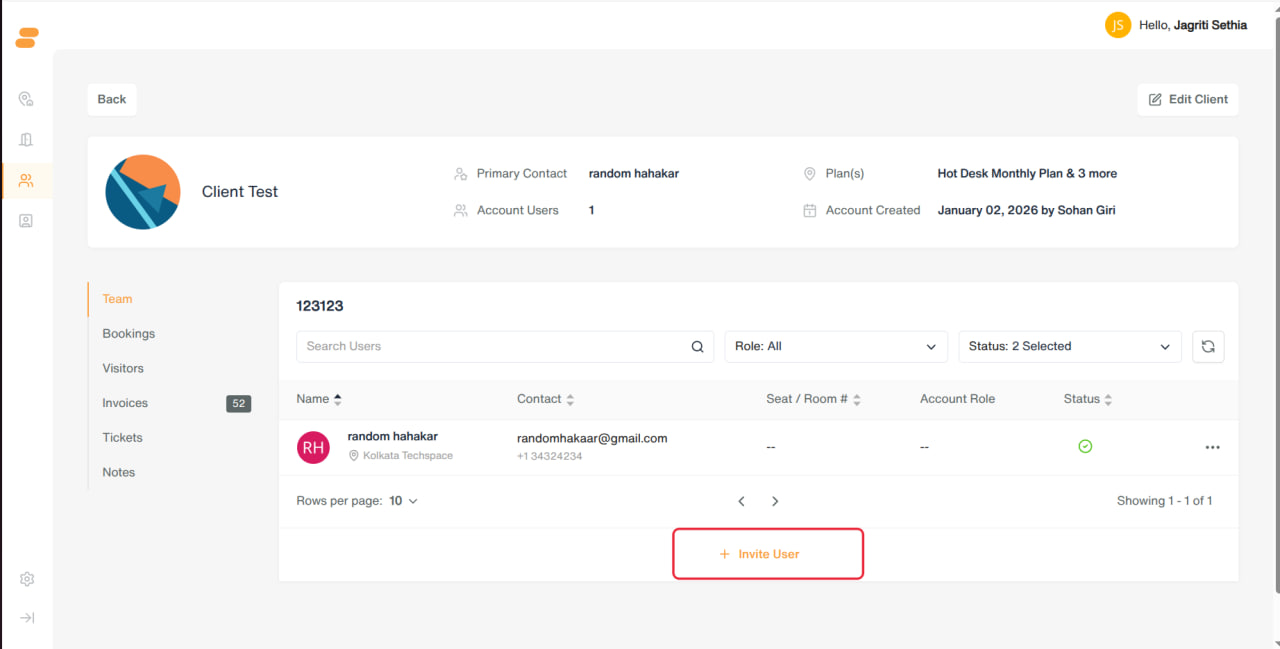
- Invite User — add a new member: profile image, First Name*, Last Name*, Email*, Phone, Primary Location* (required), Account Role* (required, multiple allowed), Seat/Room number.
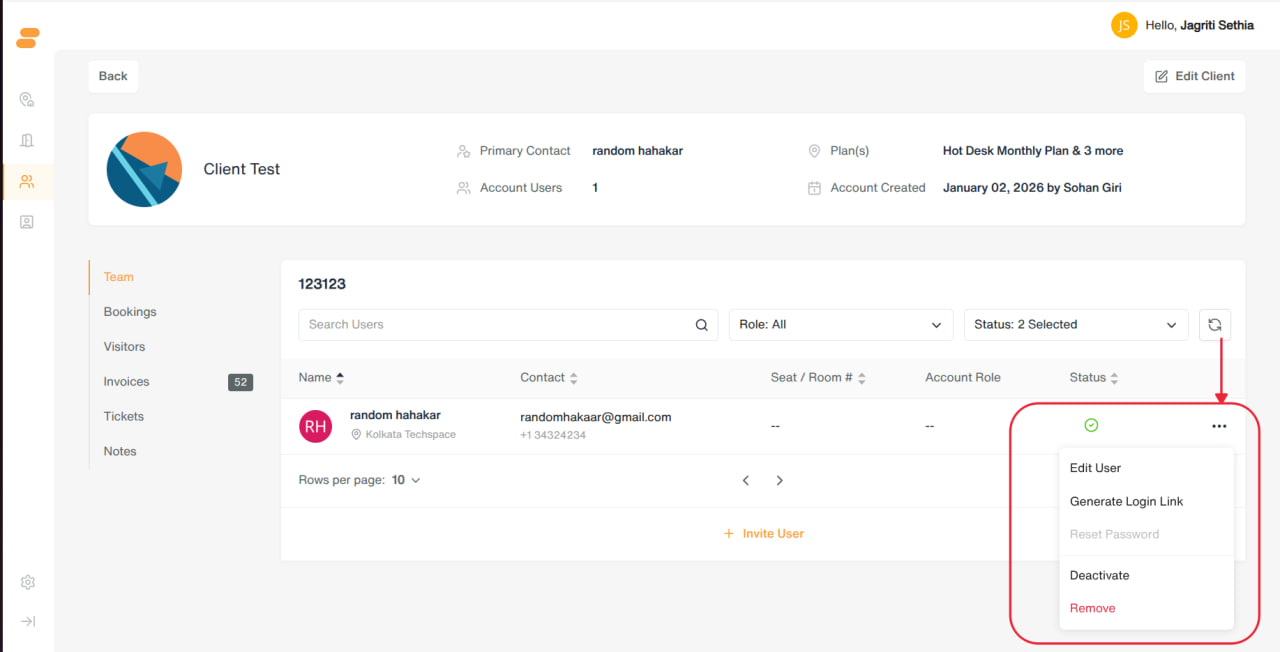
- Row actions: Edit User, Generate Login Link (one-time magic link, copyable), Resend Invite / Cancel Invitation (if invite pending), Deactivate, Remove.
Bookings
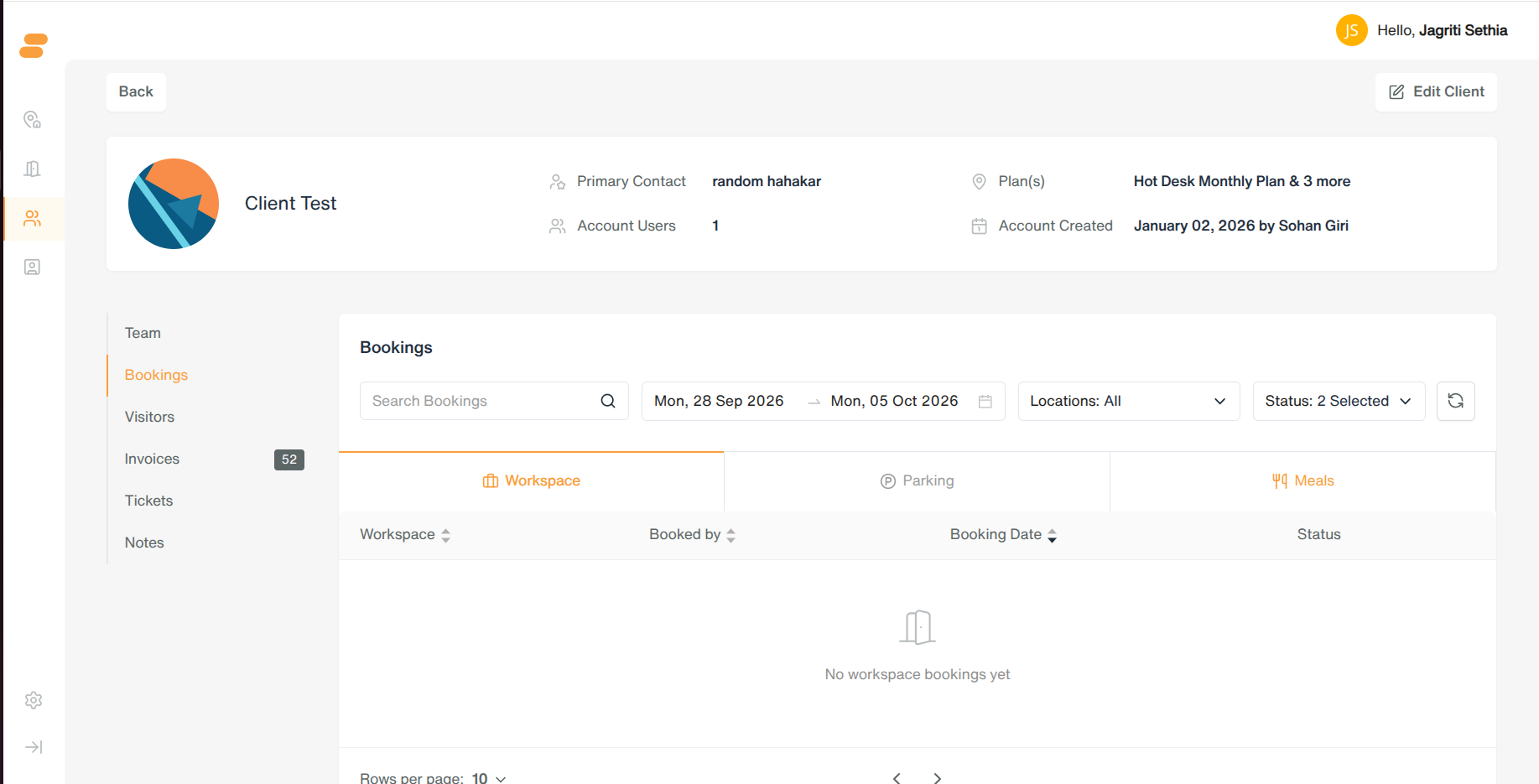
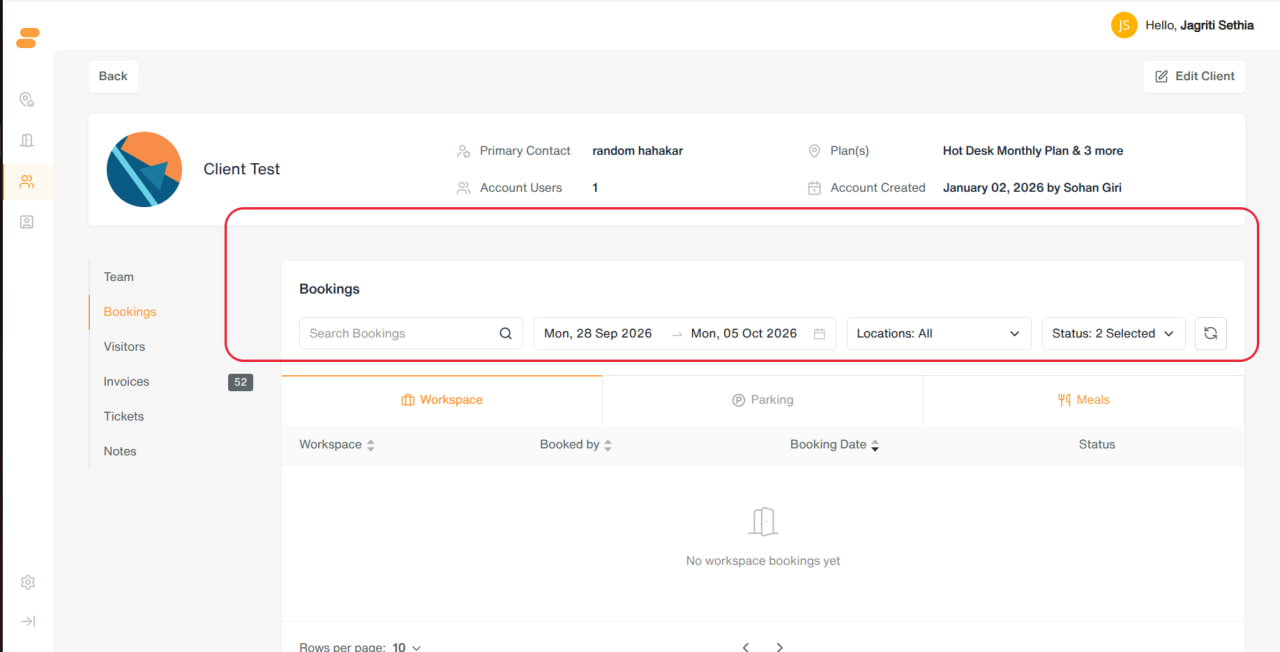
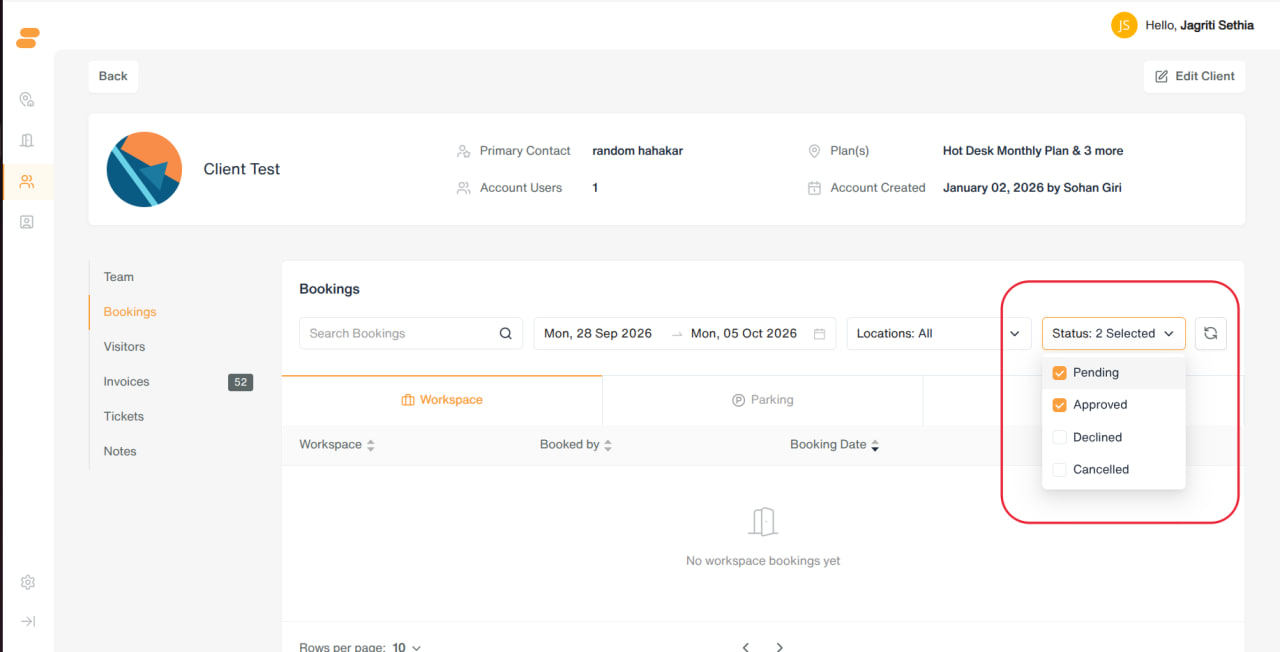
- Calendar/list of the client’s workspace bookings. Filters: search, date range (default today +7 days, max 30 days), location, status (Pending/Approved/Declined/Cancelled — defaults to Pending+Approved).
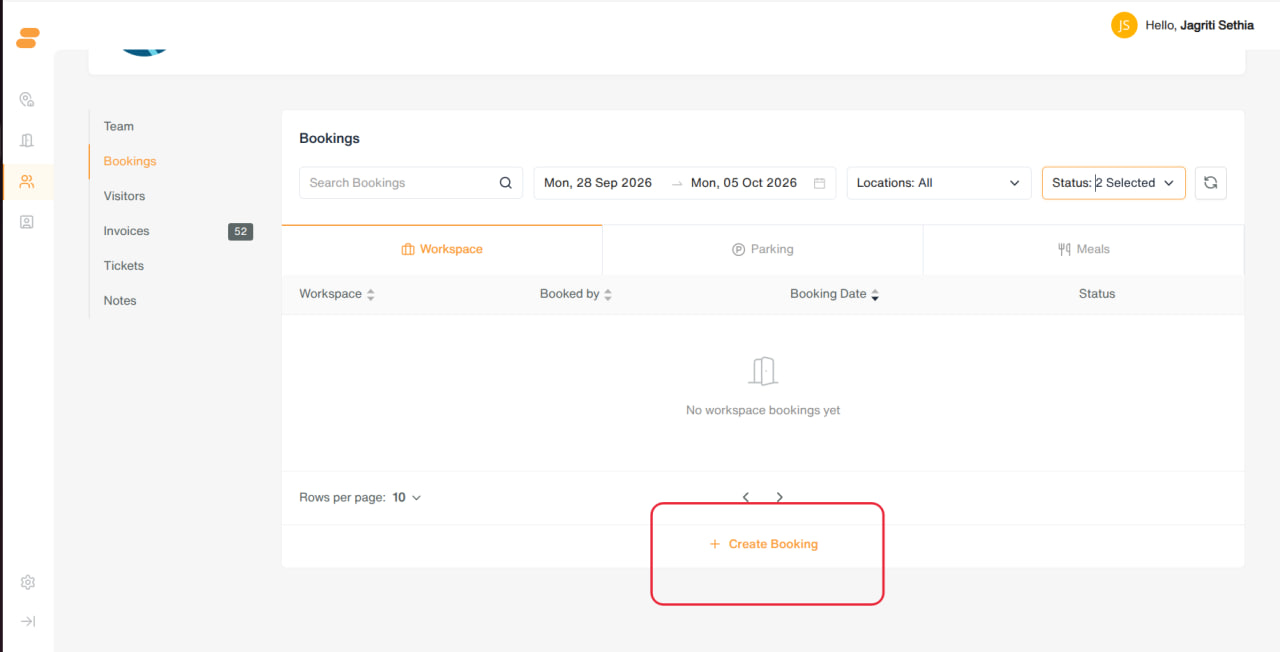
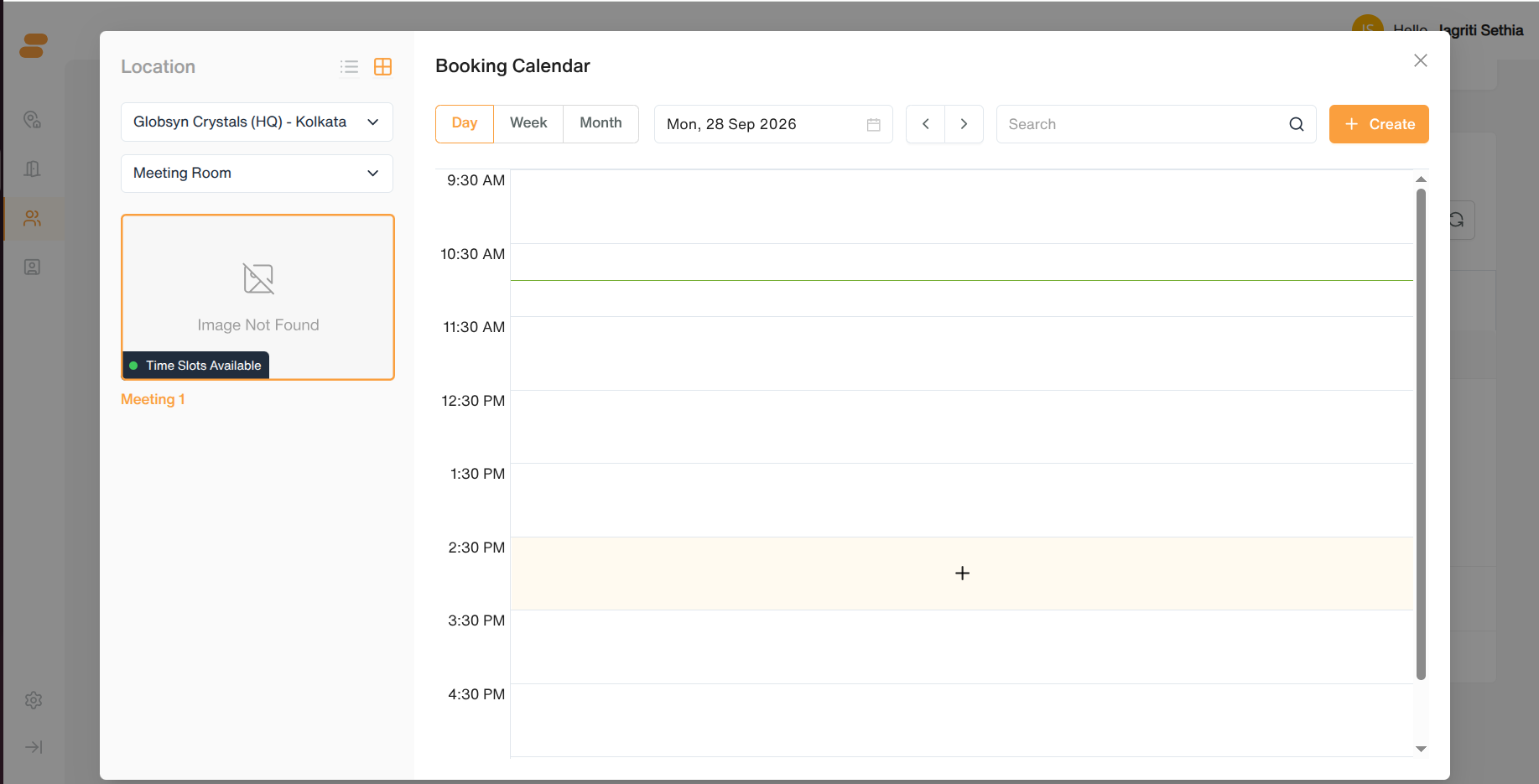
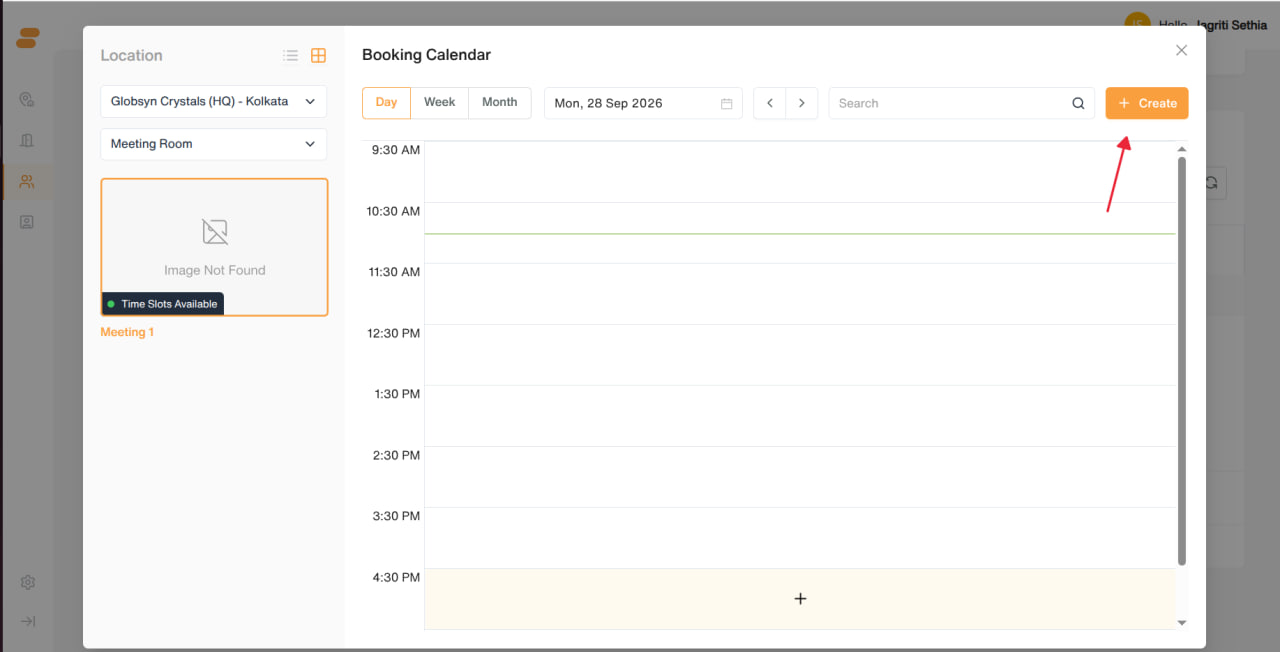
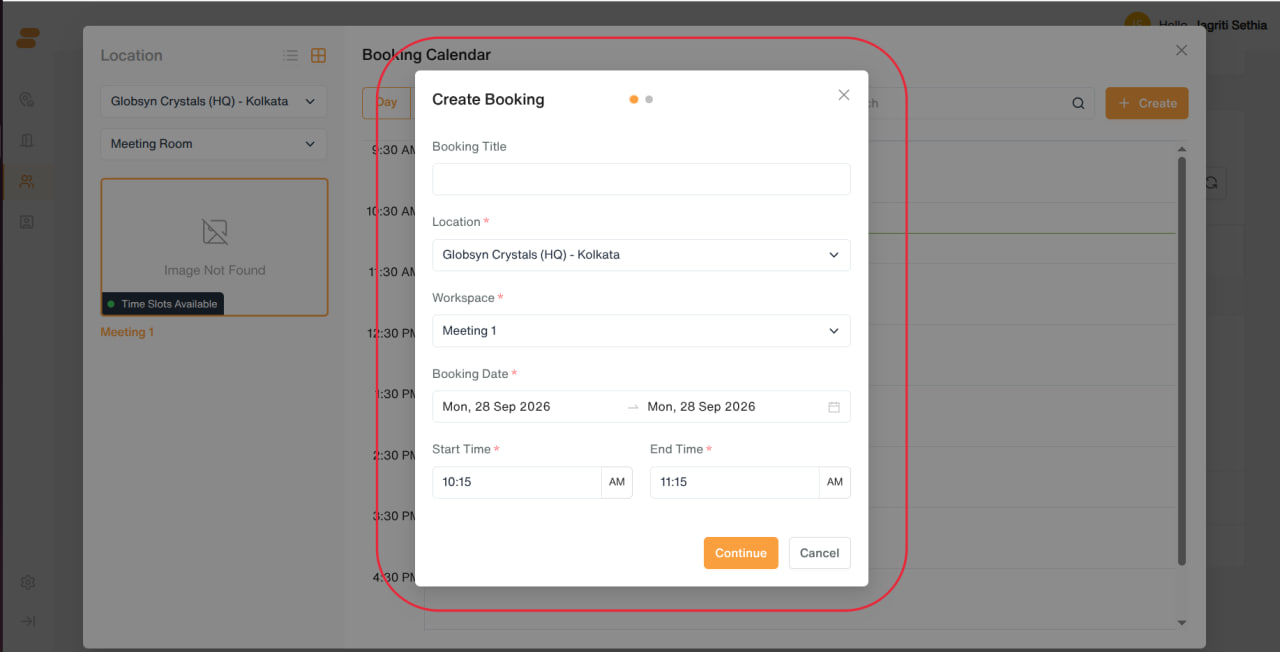
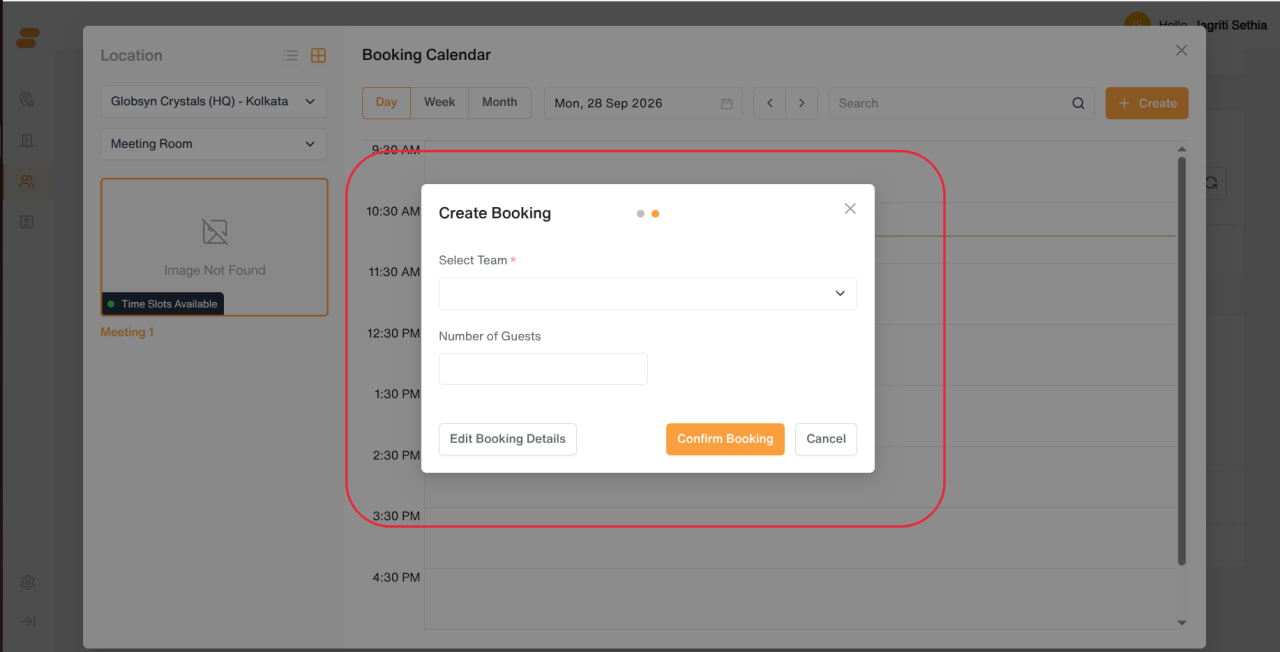
- Create Booking → choose booking type (Workspace / Parking / Meals) → pick workspace & date/time → add invitees → submit.
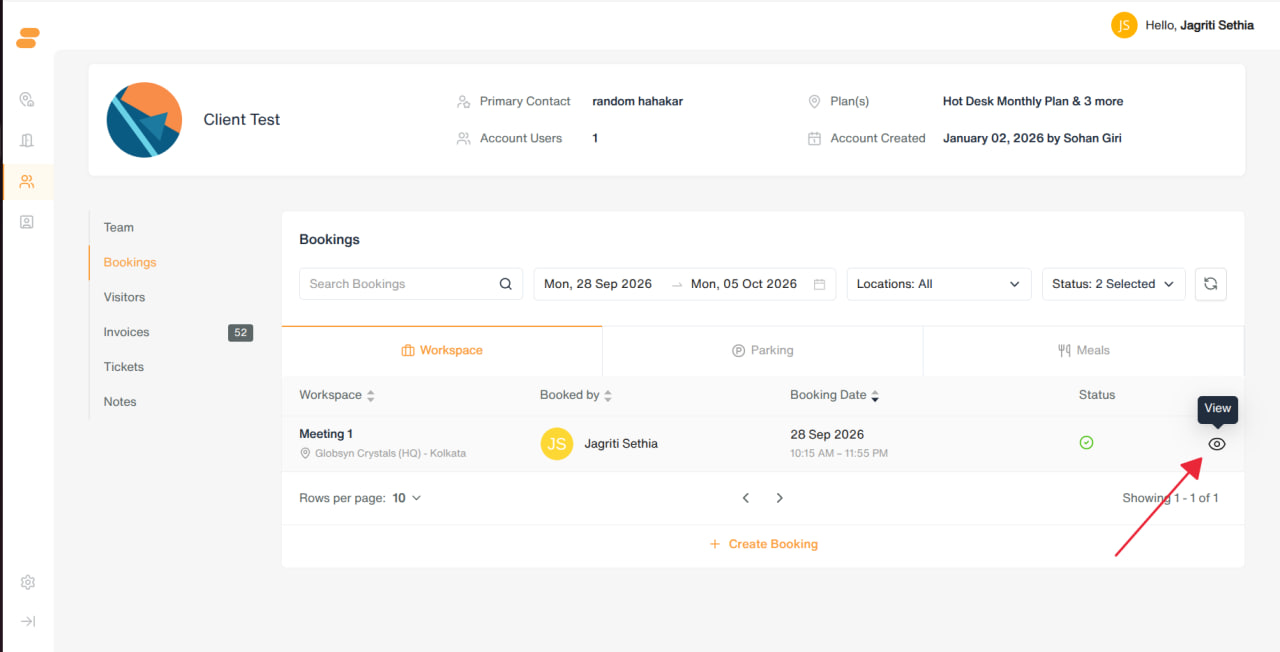
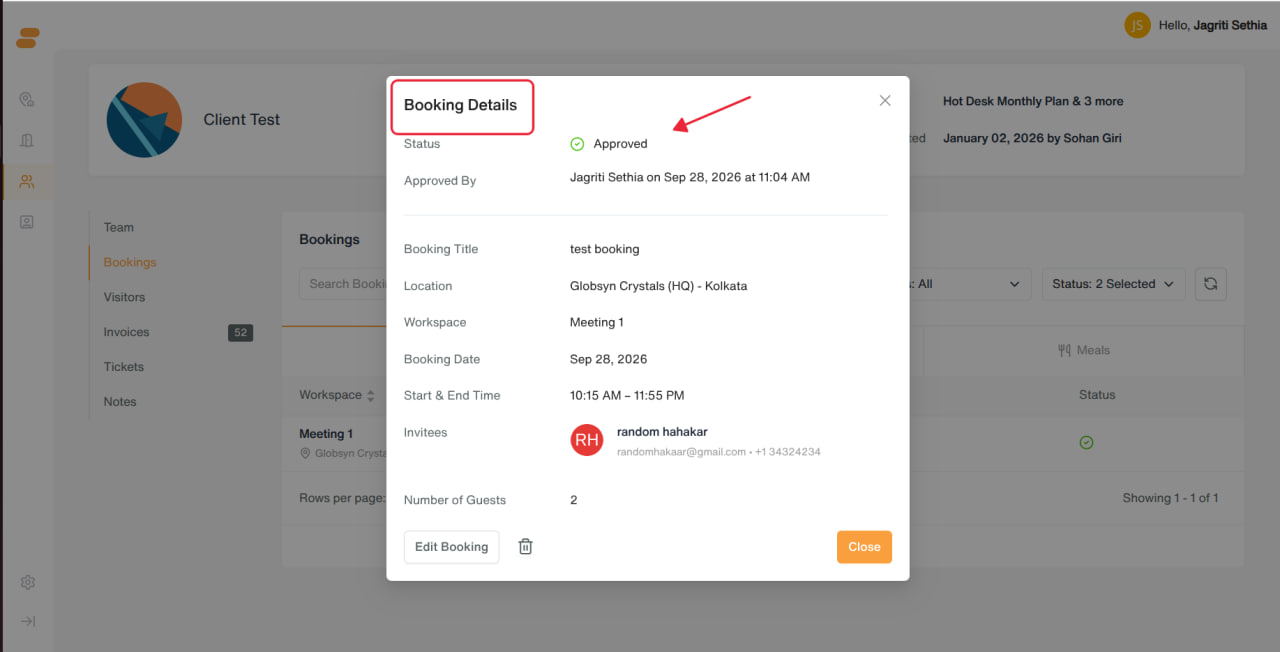
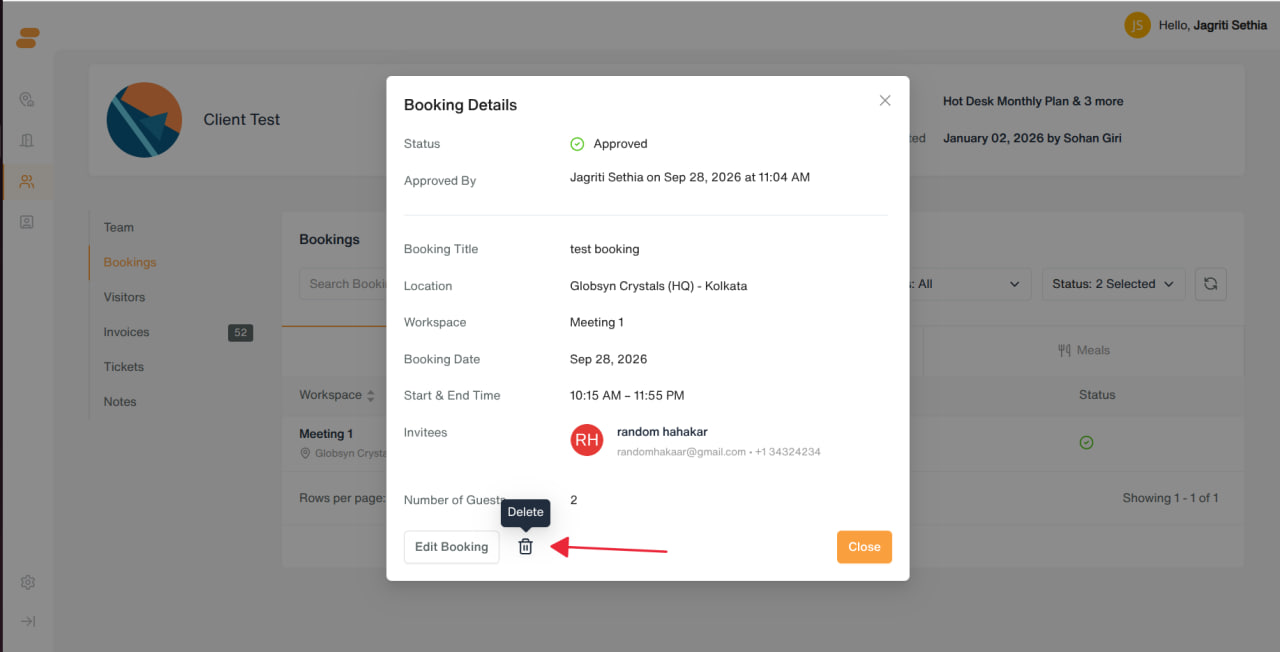
- Details view: Approve, Decline (reason required), Cancel/Delete.
Visitors
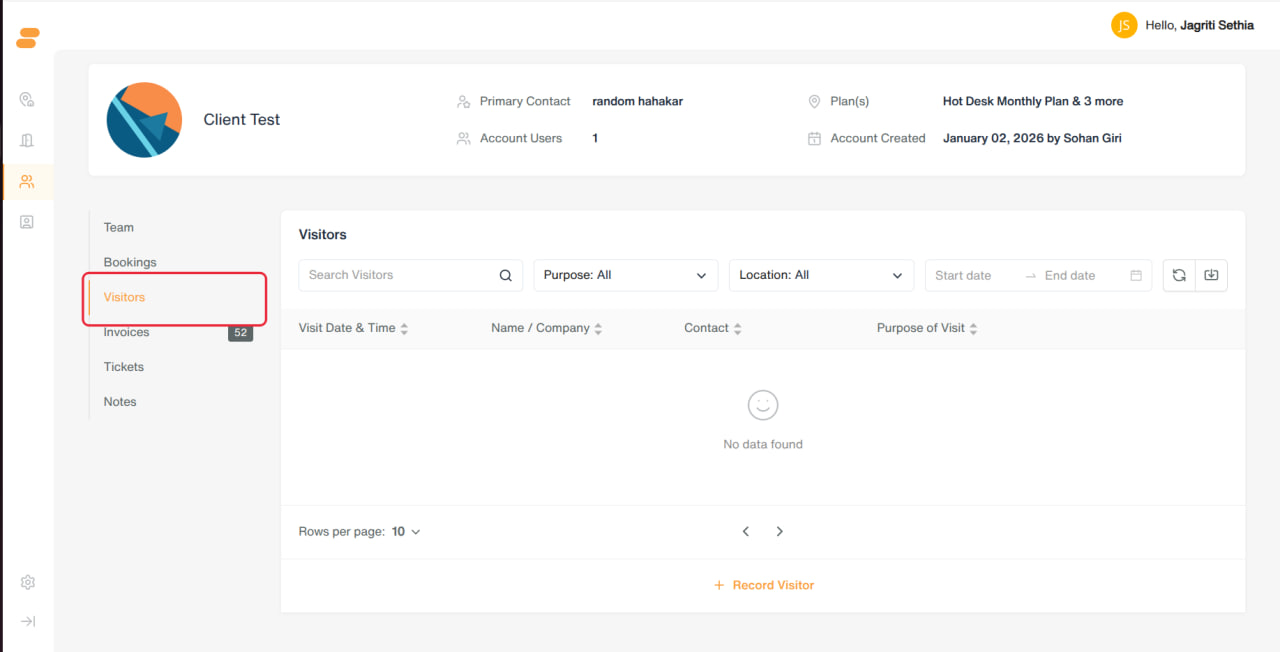
- Visitor check-in records: visit date/time, name/company, contact, purpose (Official, Meeting, Interview, Vendor, Walk-In, Other).
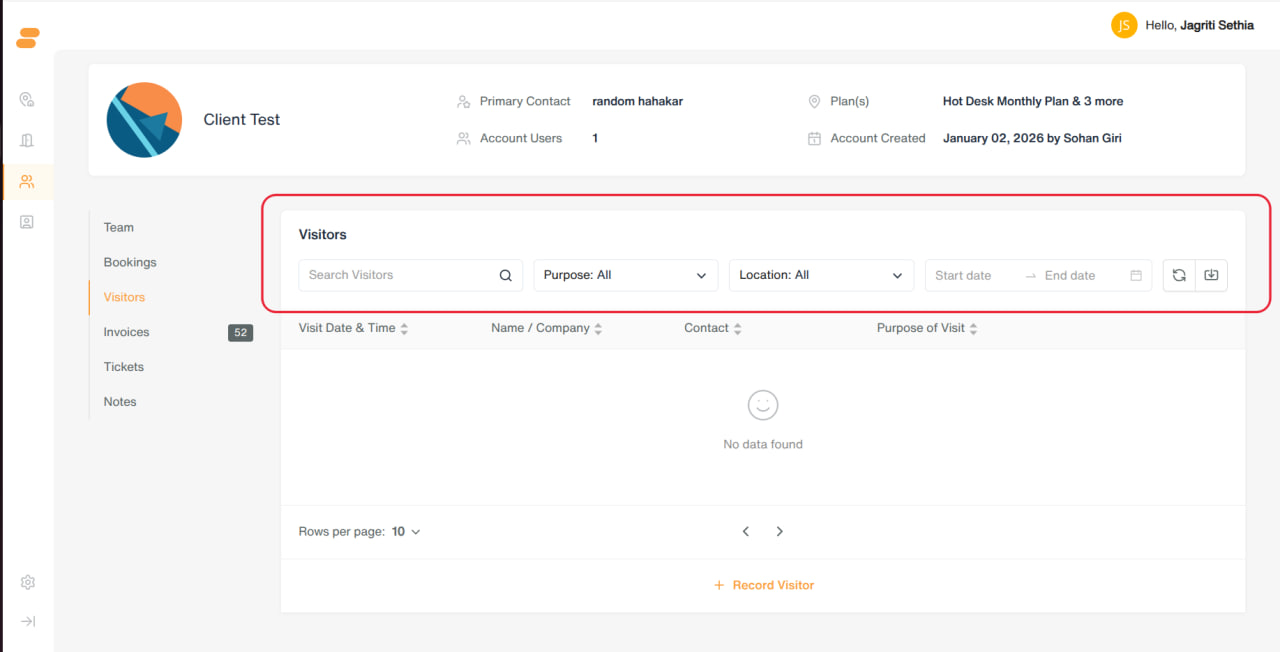
- Filters: search, purpose, location, date range. Import for bulk visitor upload.
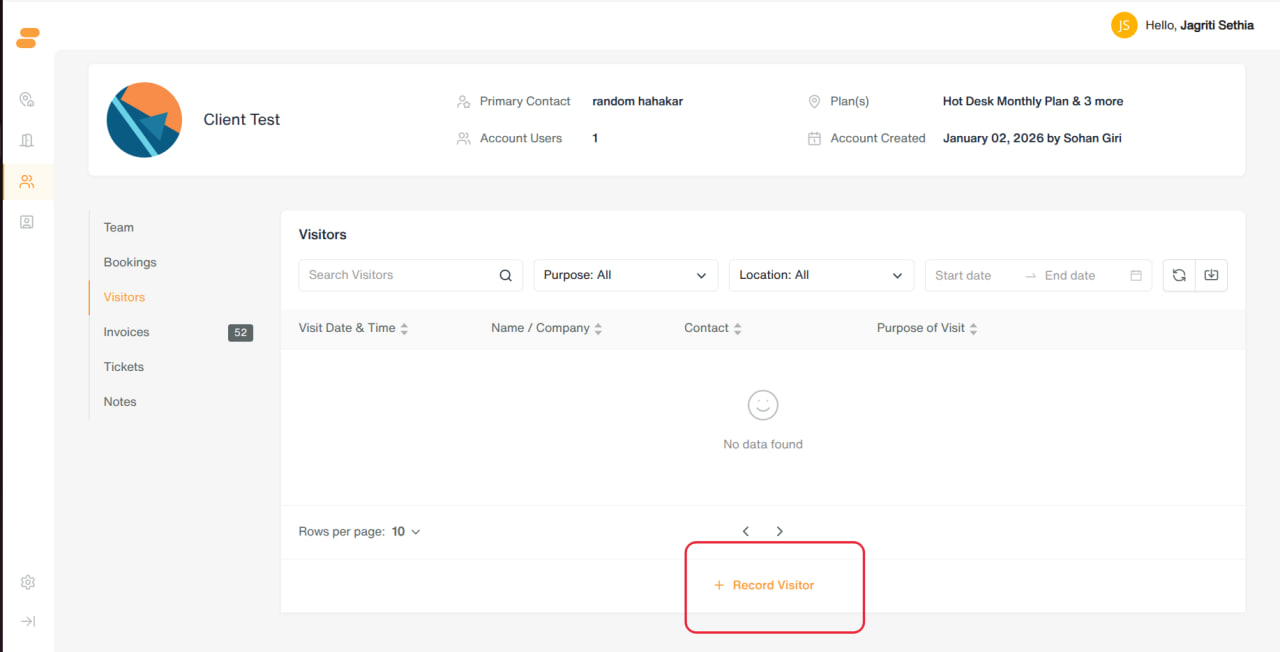
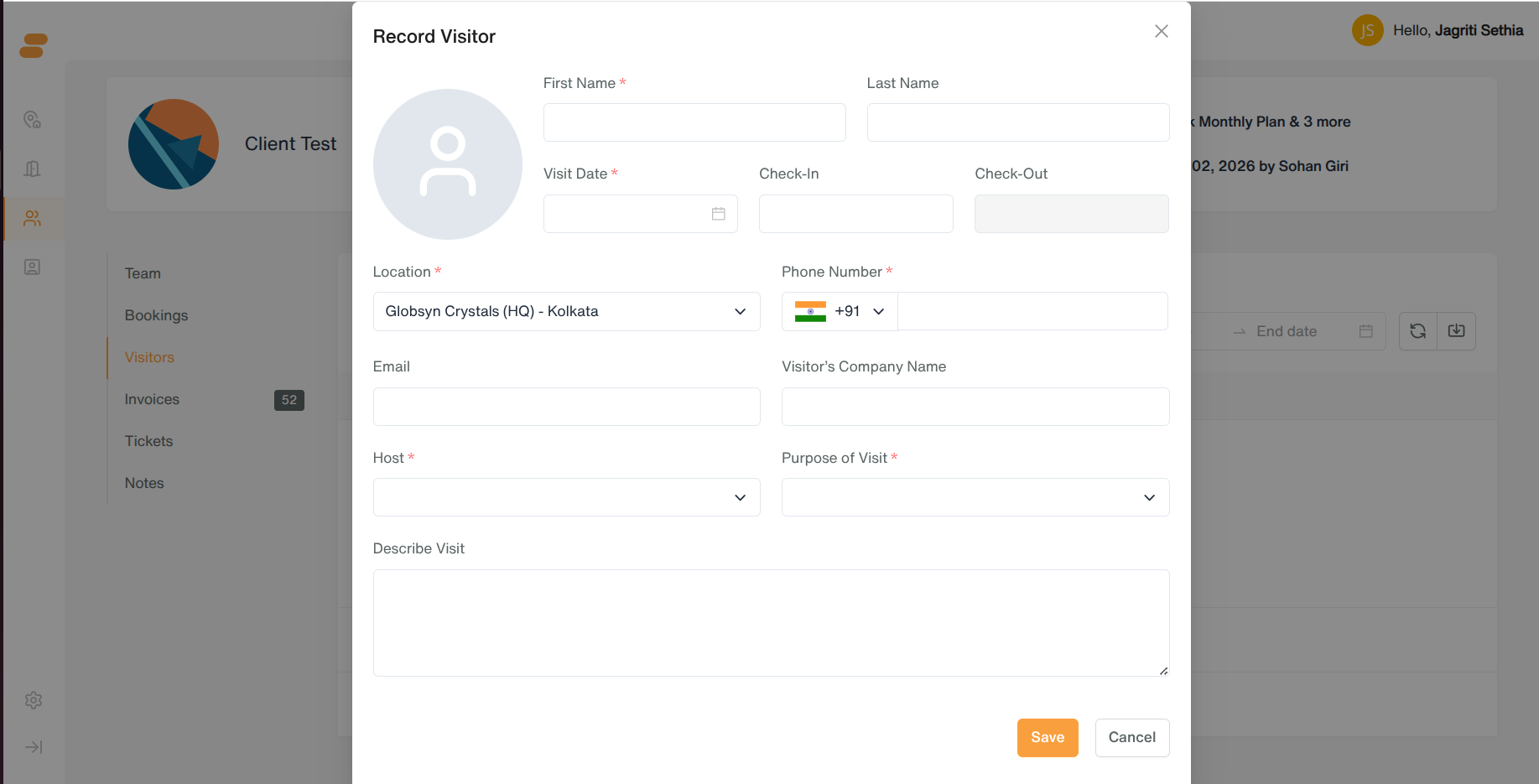
- Record Visitor → name, visit date*, check-in/out time, location*, phone*, email, company name, host*, purpose*, description.
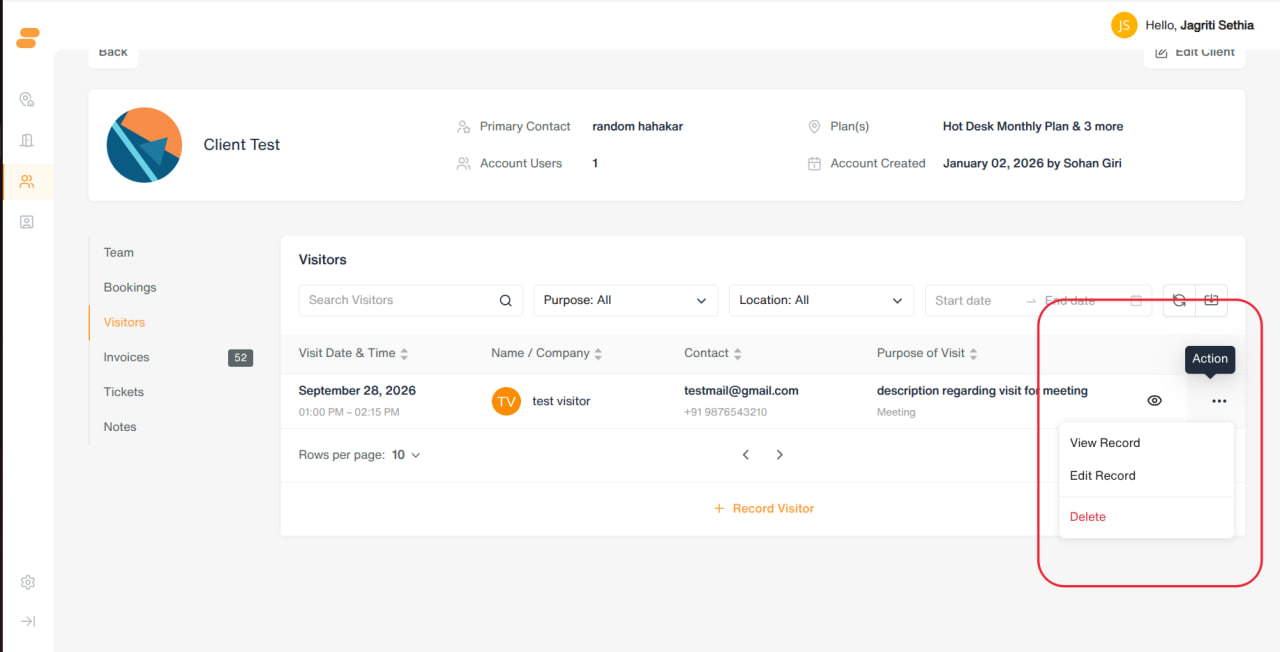
- Row actions: View Record, Edit Record, Delete.
Tickets
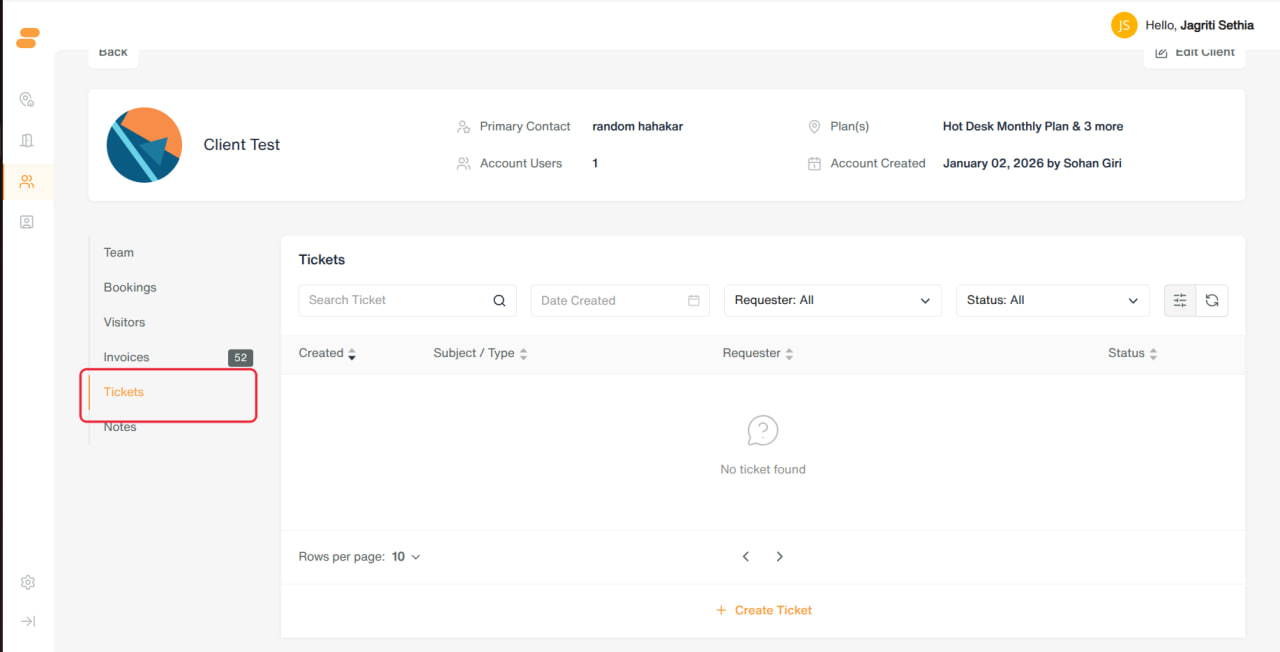
- Support tickets raised by/for this client: created date, subject/category, requester, status (New, Open, In Progress, On Hold, Resolved, Closed, Re-opened).
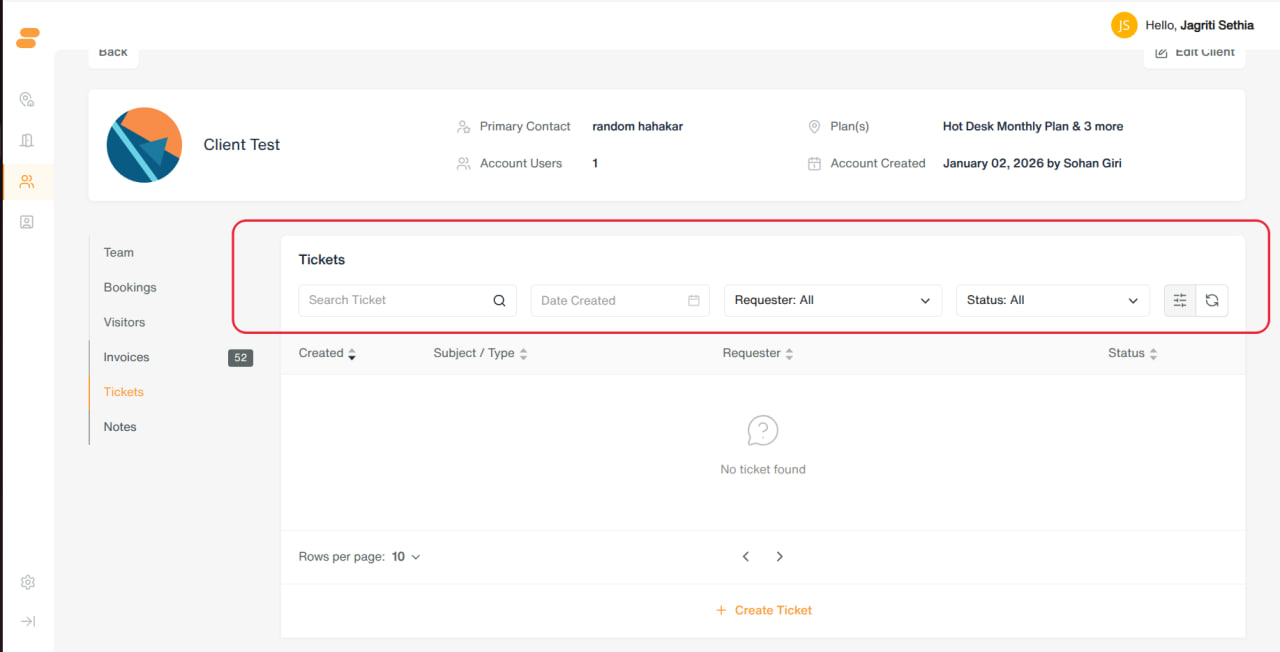
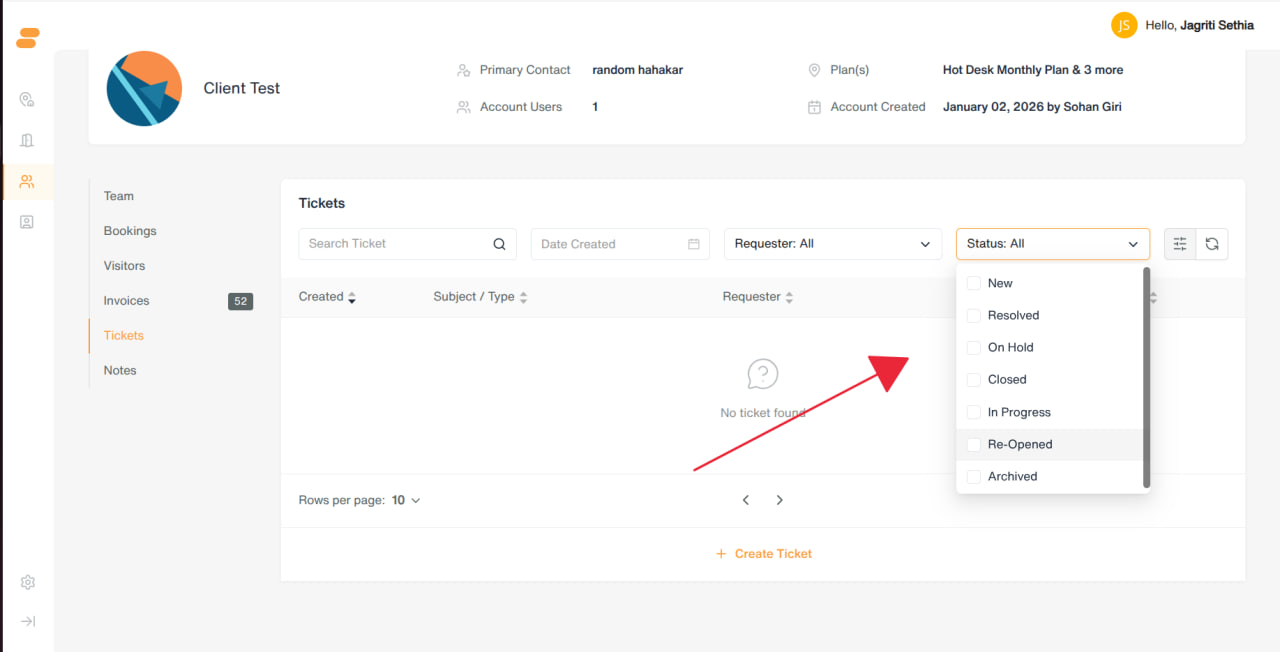
- Filters: search, date created, requester, status.
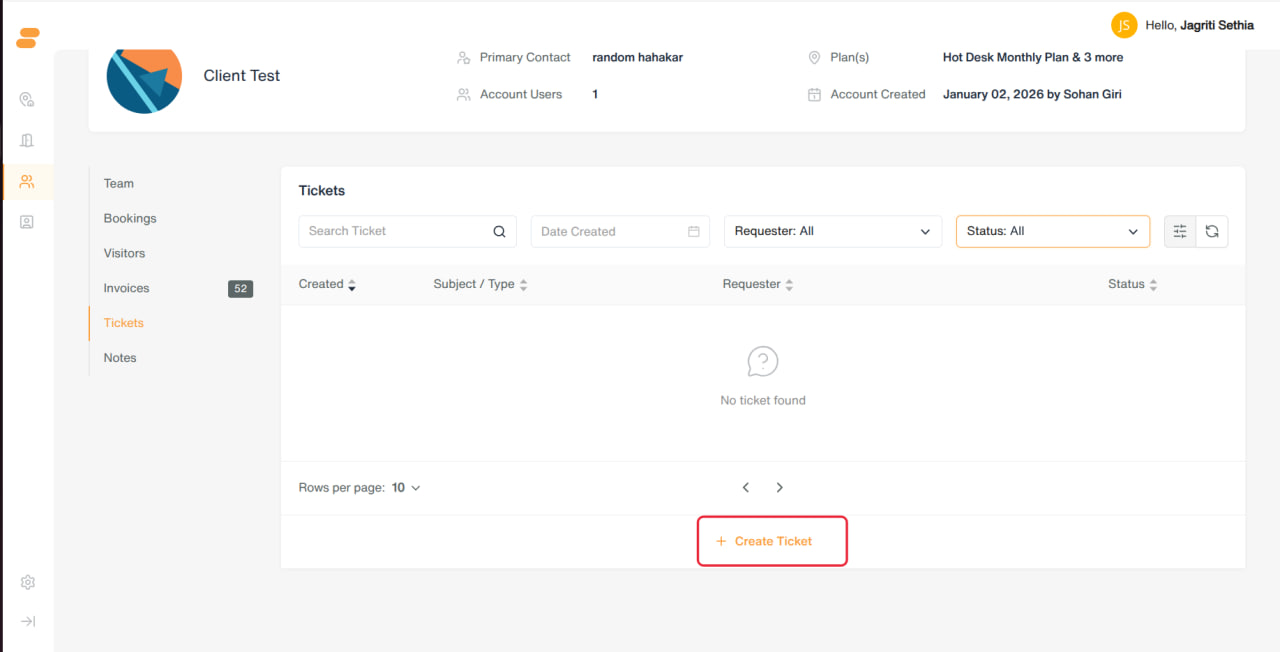
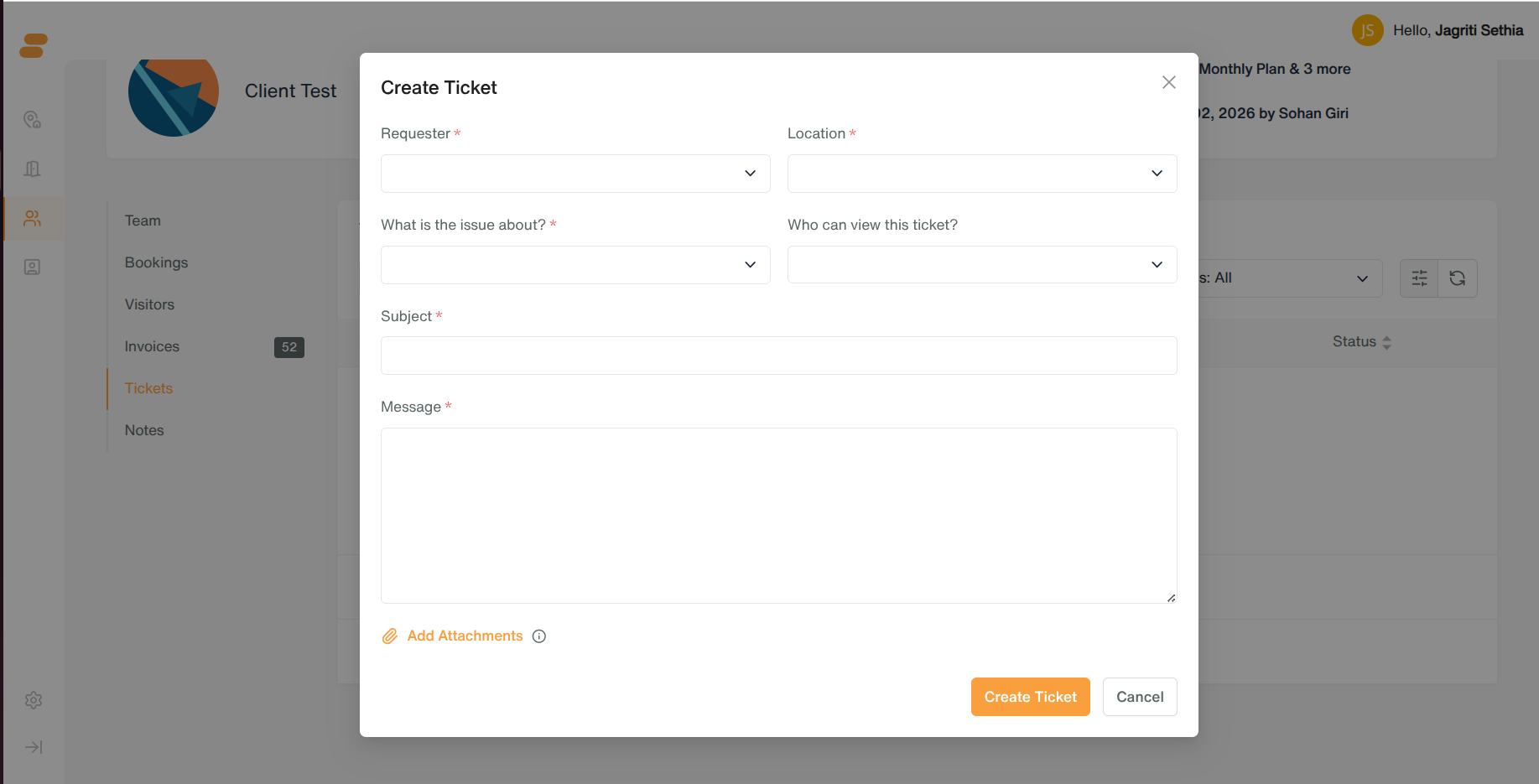
- Create Ticket → select category, requester, subject, message, attachments, sharing.
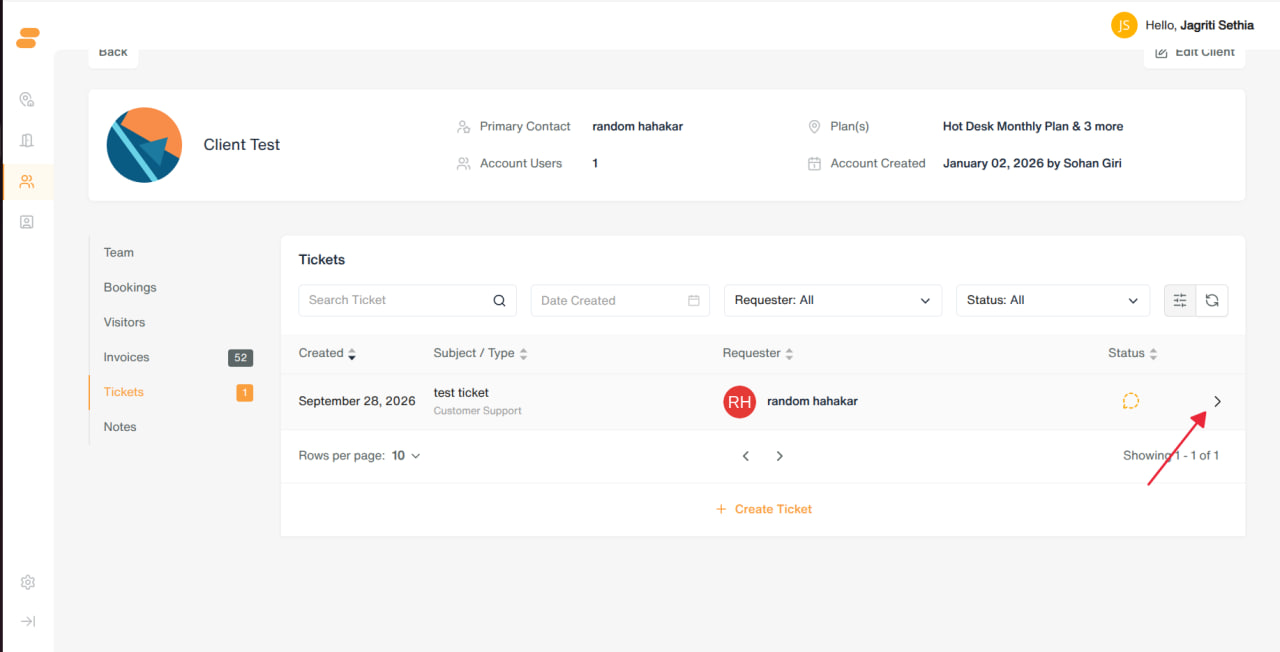
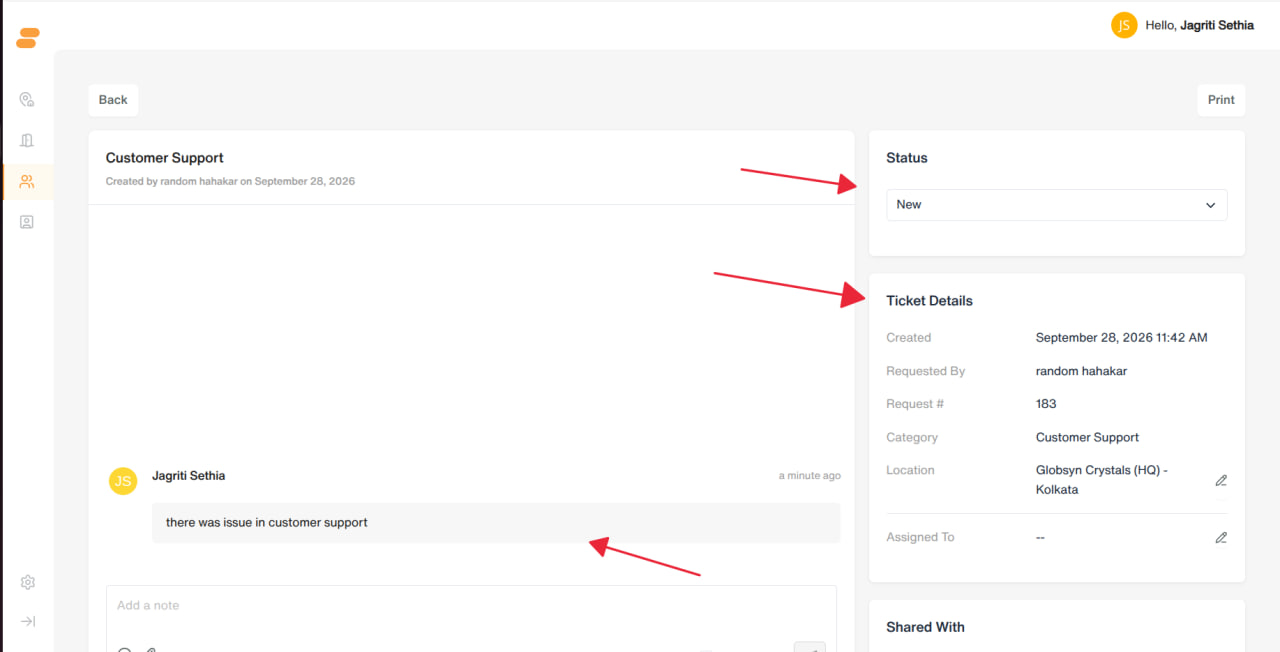
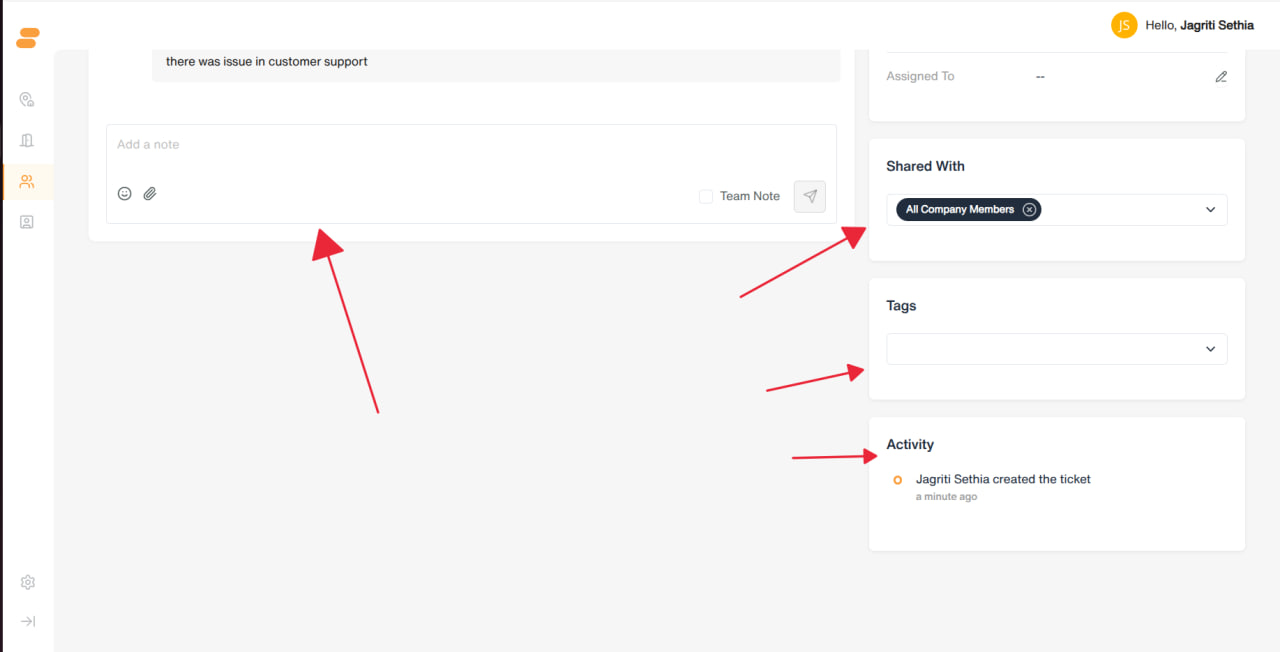
- Clicking a ticket opens its detail/chat page.
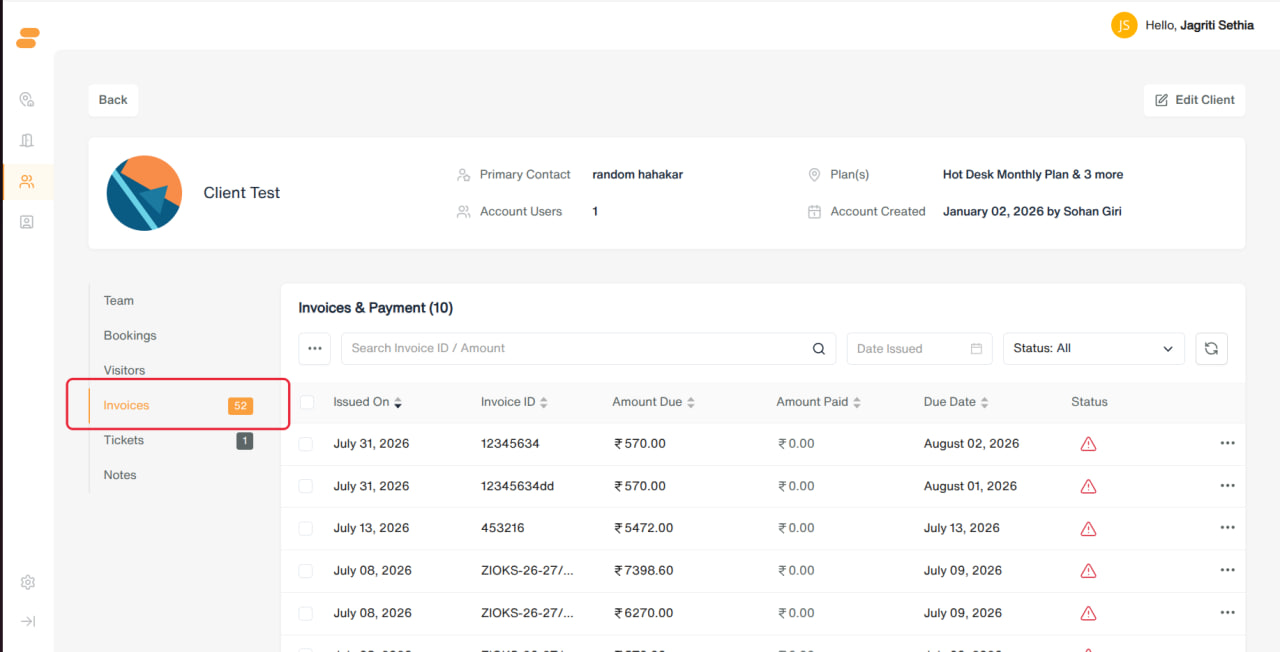
Invoices & Payments
-
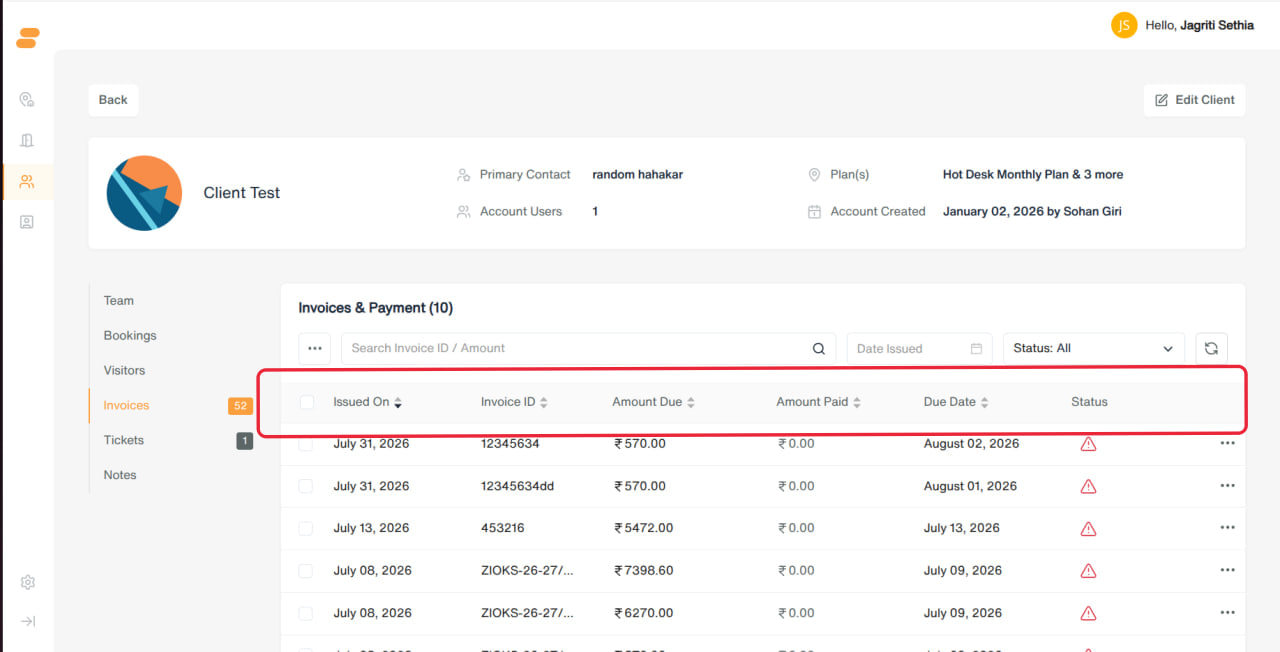
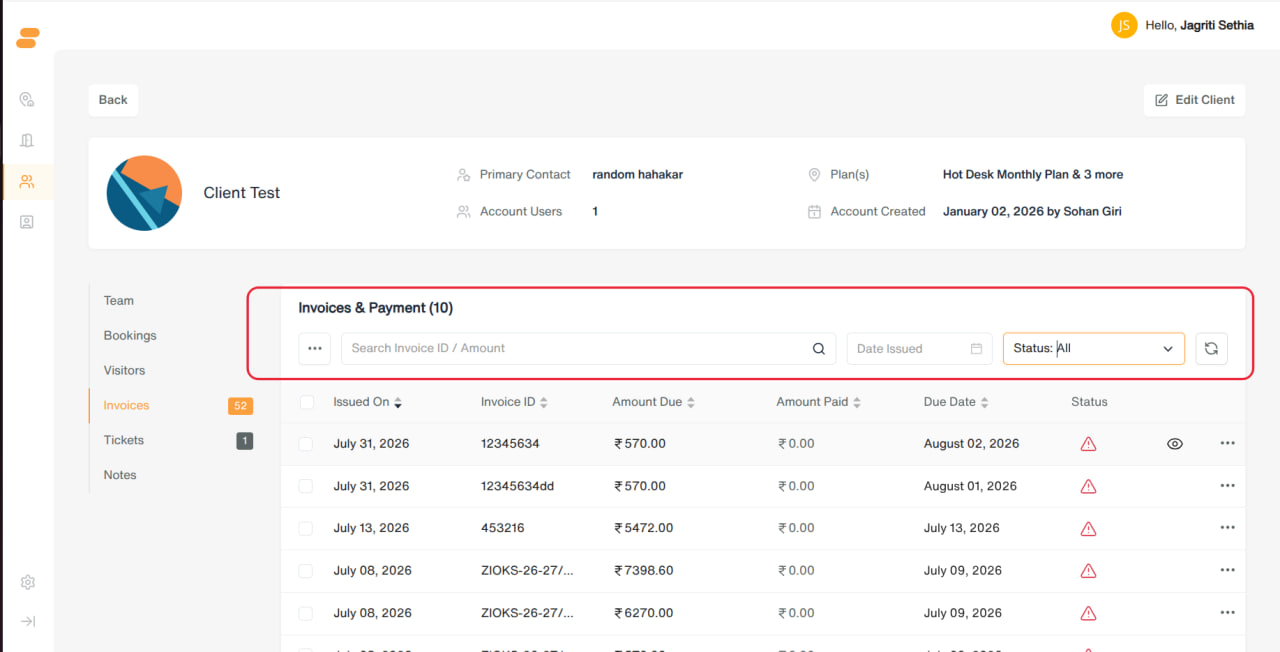
Two tables:
-
Invoices & Payments — issued date, invoice ID, amount due/paid, due date, status (Draft, Unpaid, Partially Paid, Paid, Overdue, Scheduled, Voided, Refunded, Transferred, Archived).
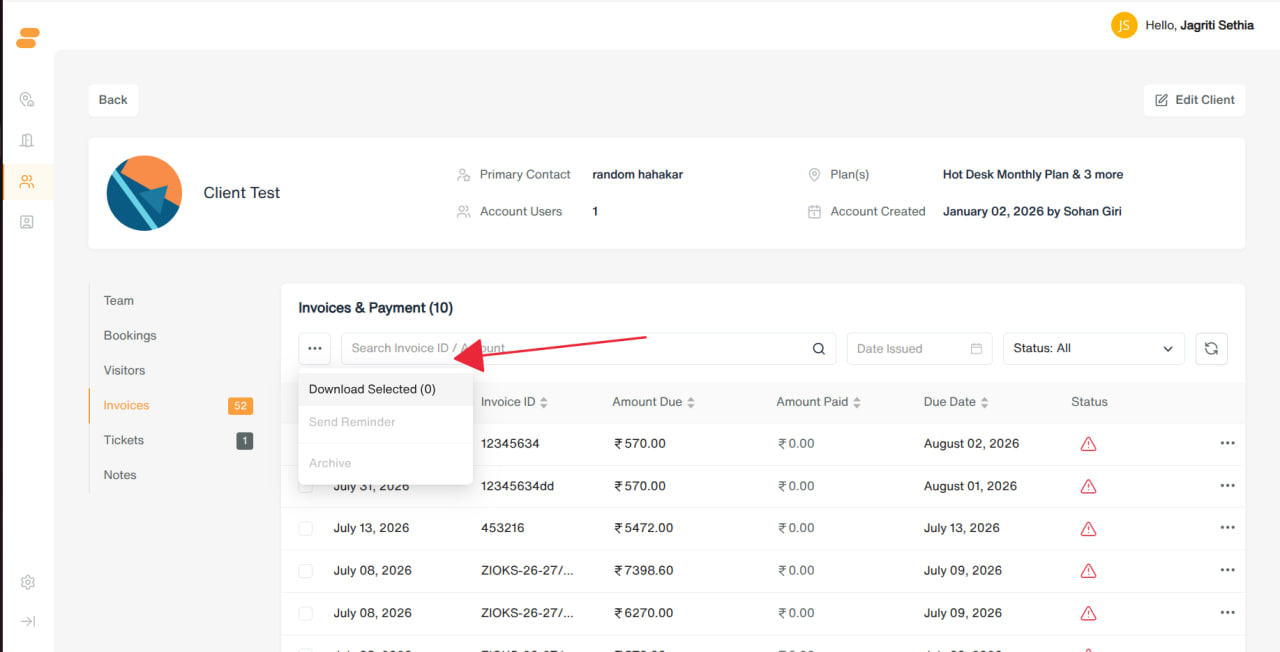
- Bulk actions: Download Selected, Send Reminder, Archive.
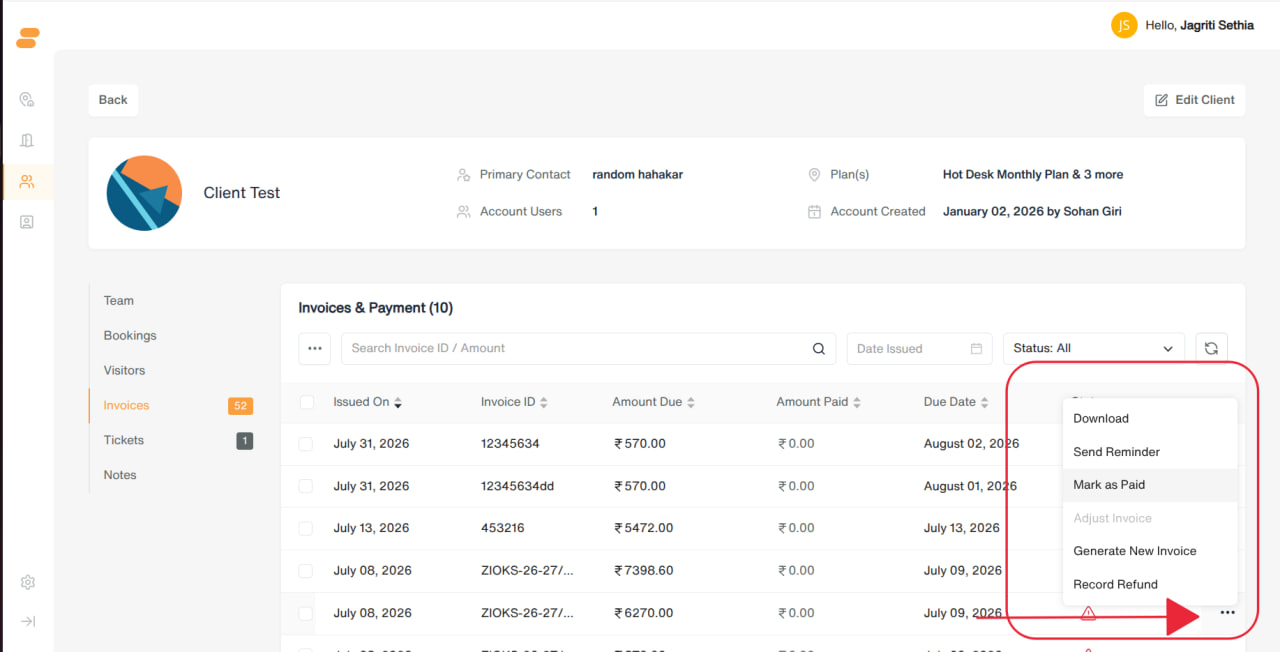
- Row actions (vary by status): Download, Send Reminder, Mark as Paid/Unpaid, Generate New Invoice, Record Refund, Void Invoice, Archive, Delete, Continue Editing, Send Now, Reschedule.
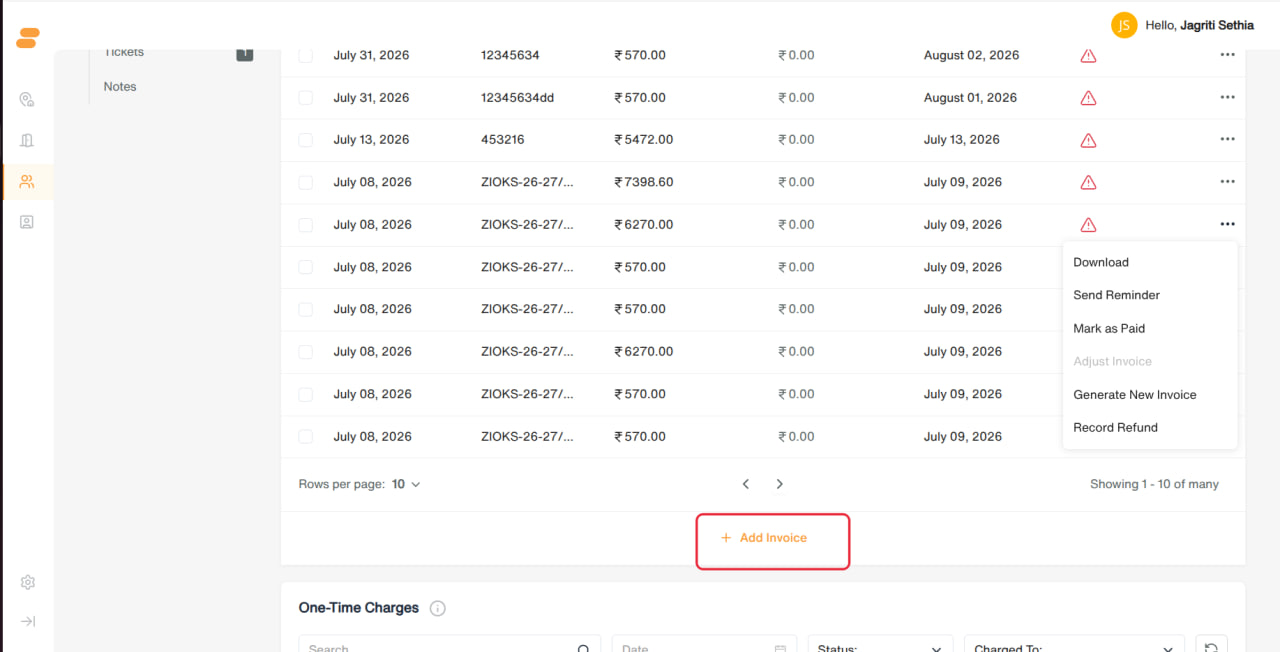
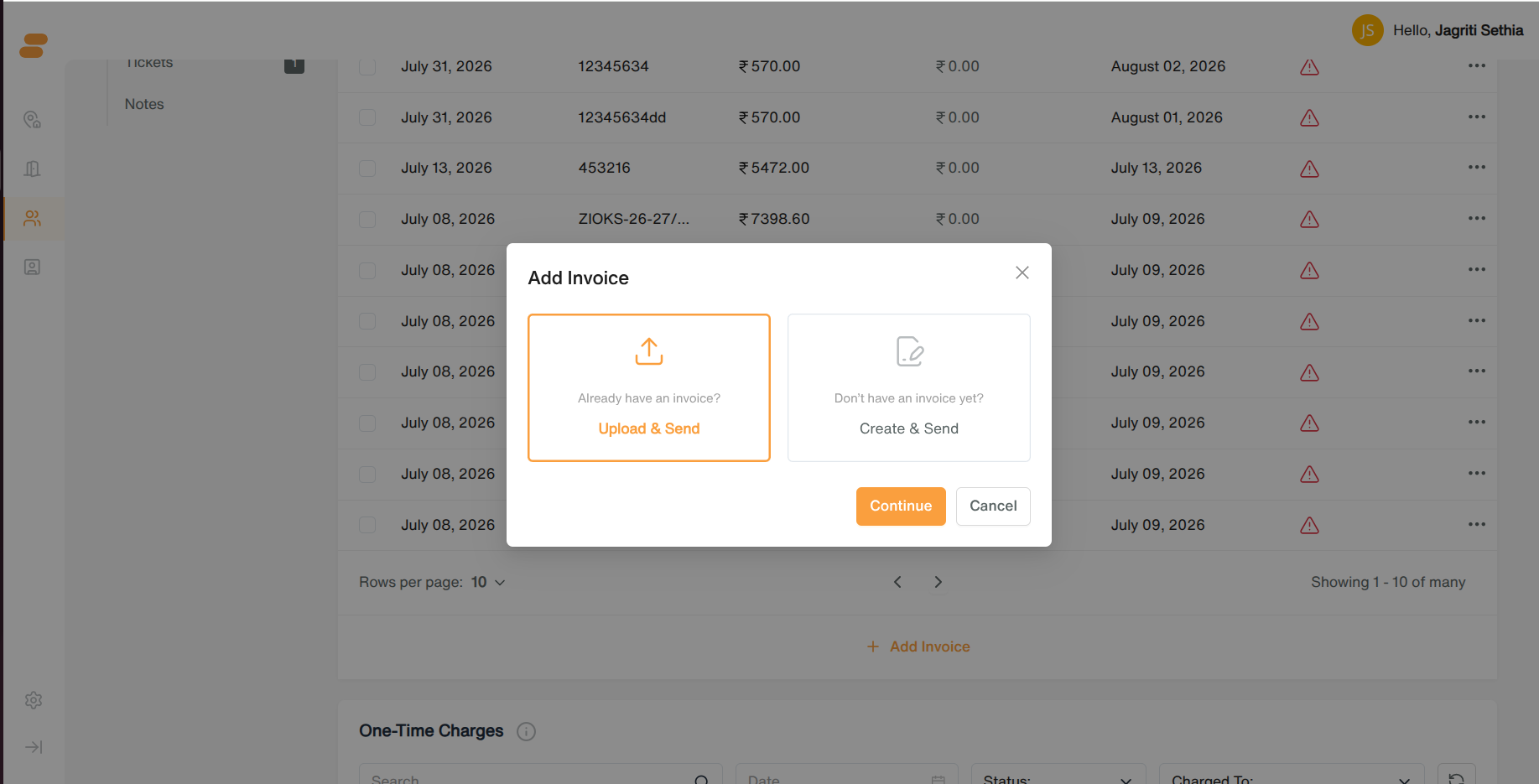
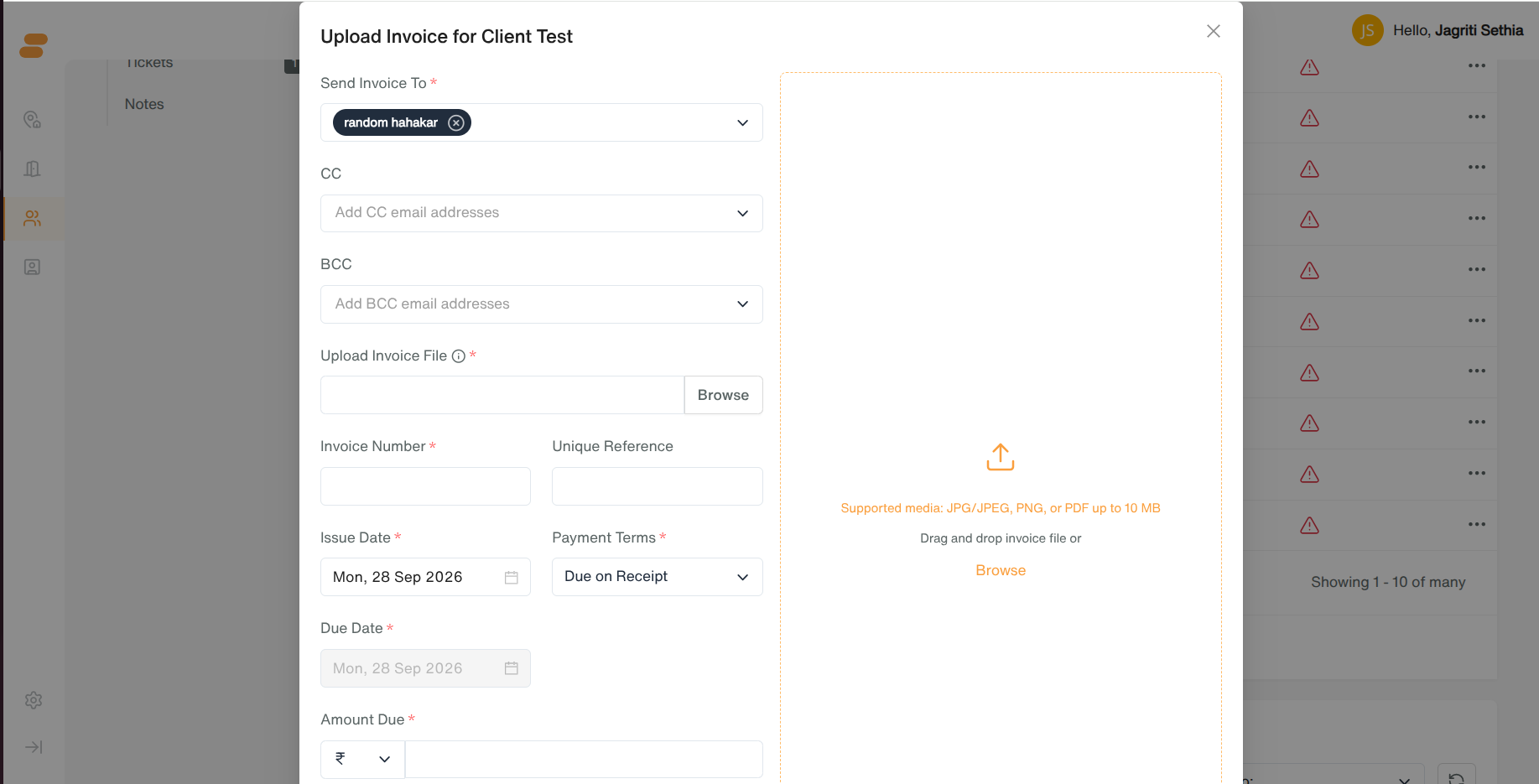
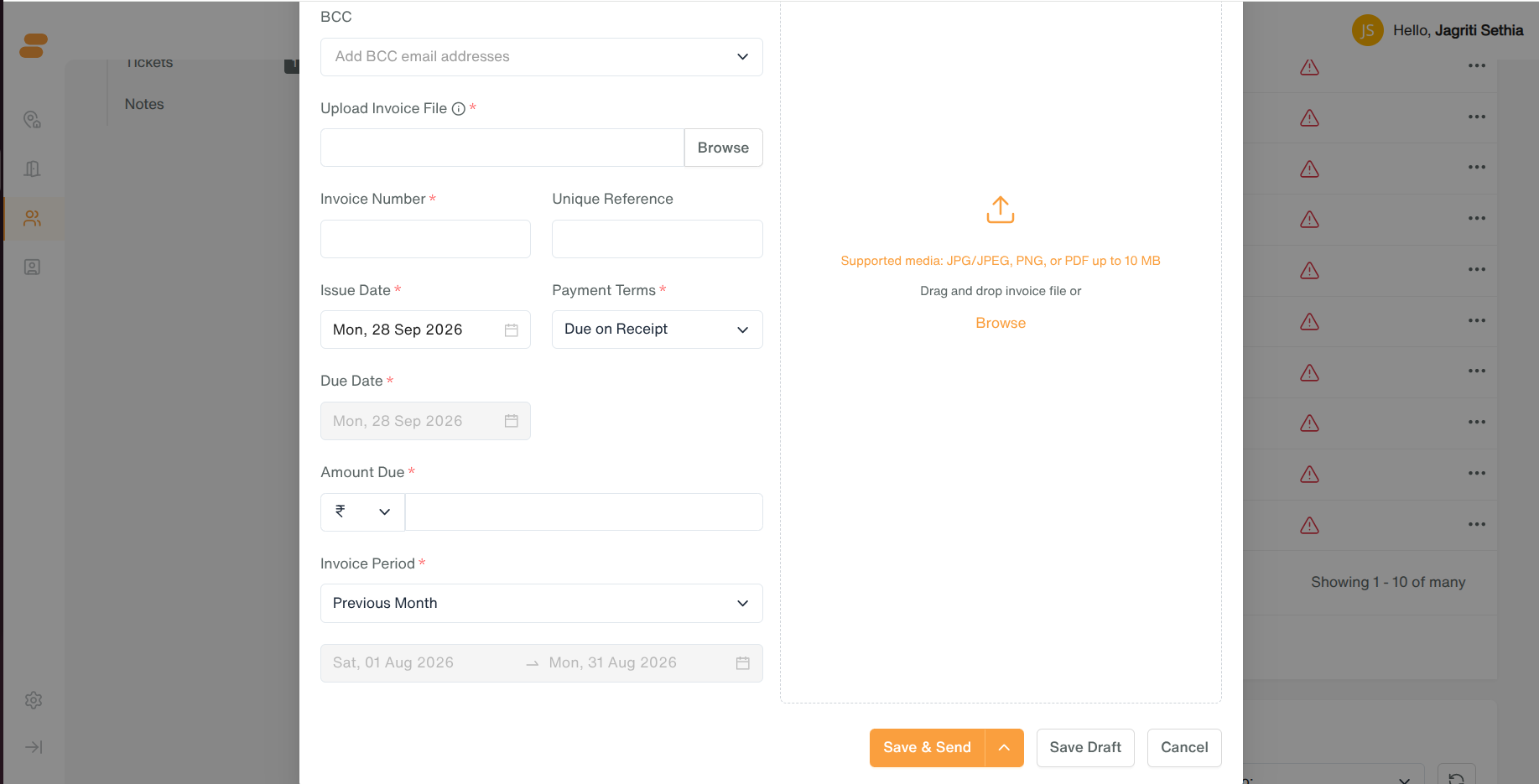
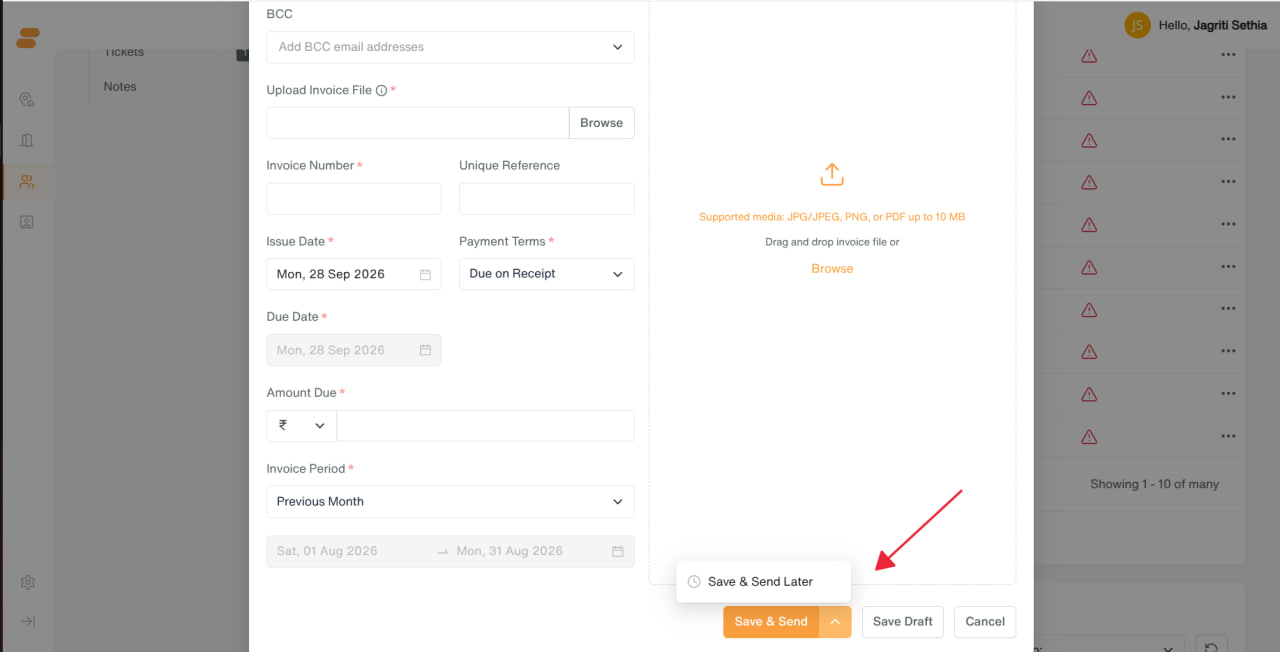
- Add Invoice → choose Upload & Send (attach an existing invoice file) or Create & Send (build one: recipients, CC/BCC, plan, invoice number, billing period, issue/due date, payment terms & method, line items with workspace/frequency/quantity/price/discount/tax). Options to Save & Send, Save & Send Later (scheduled), or Save Draft.
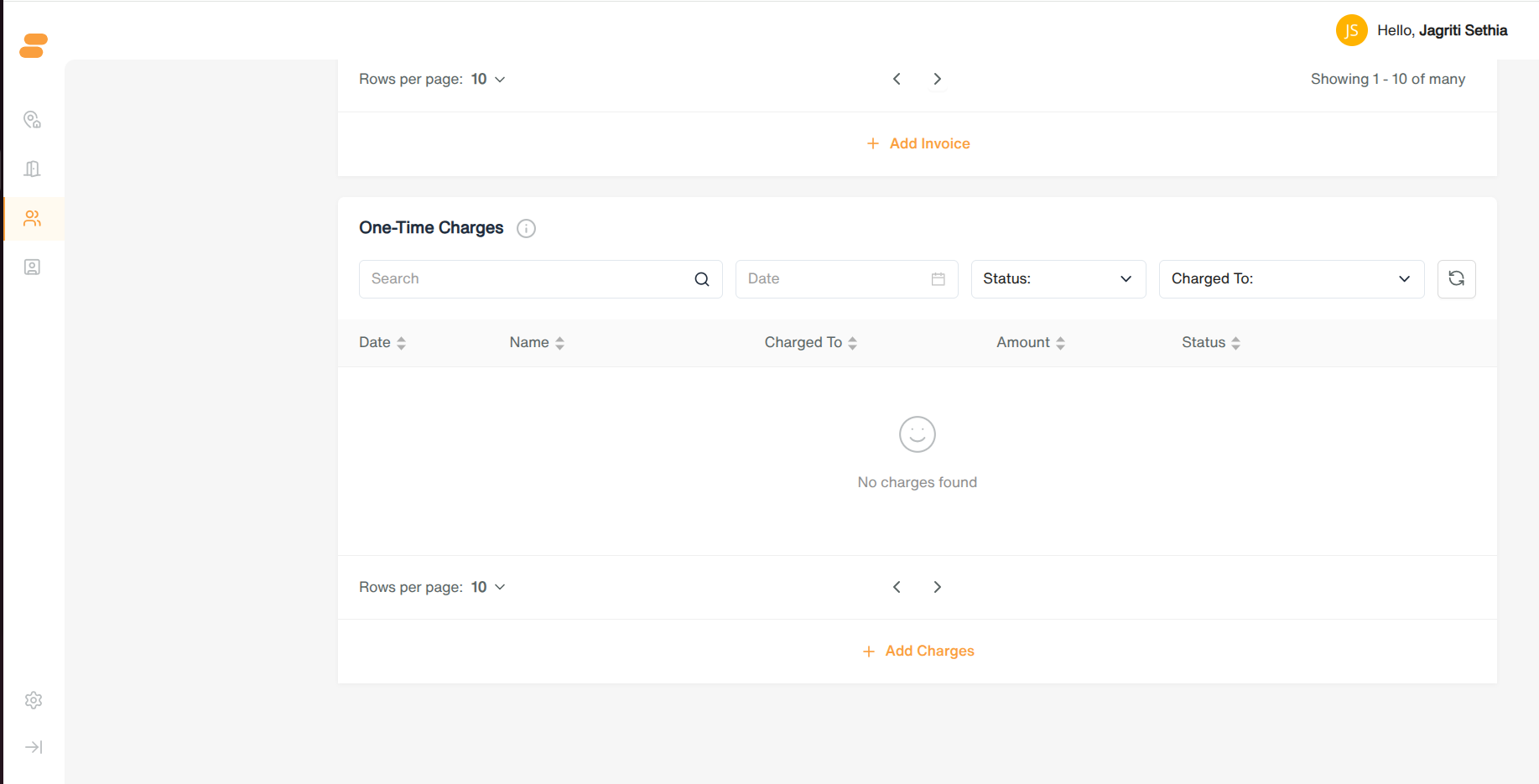
- One-Time Charges — date, name, charged-to member(s), amount, status.
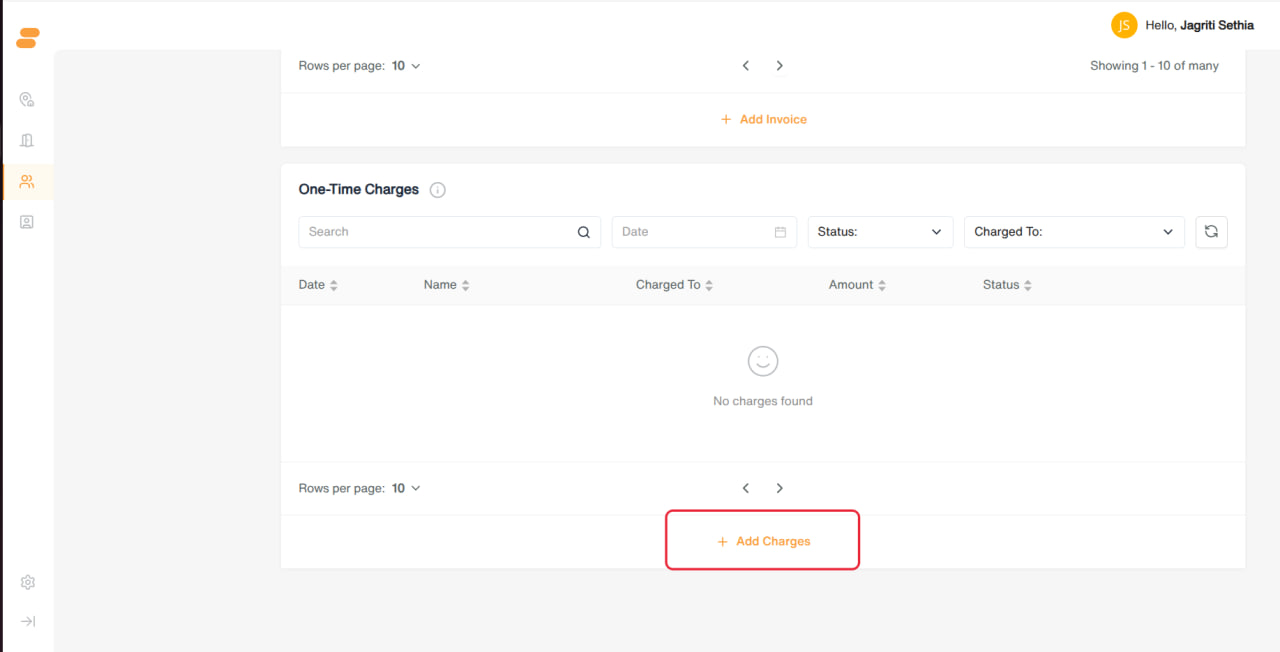
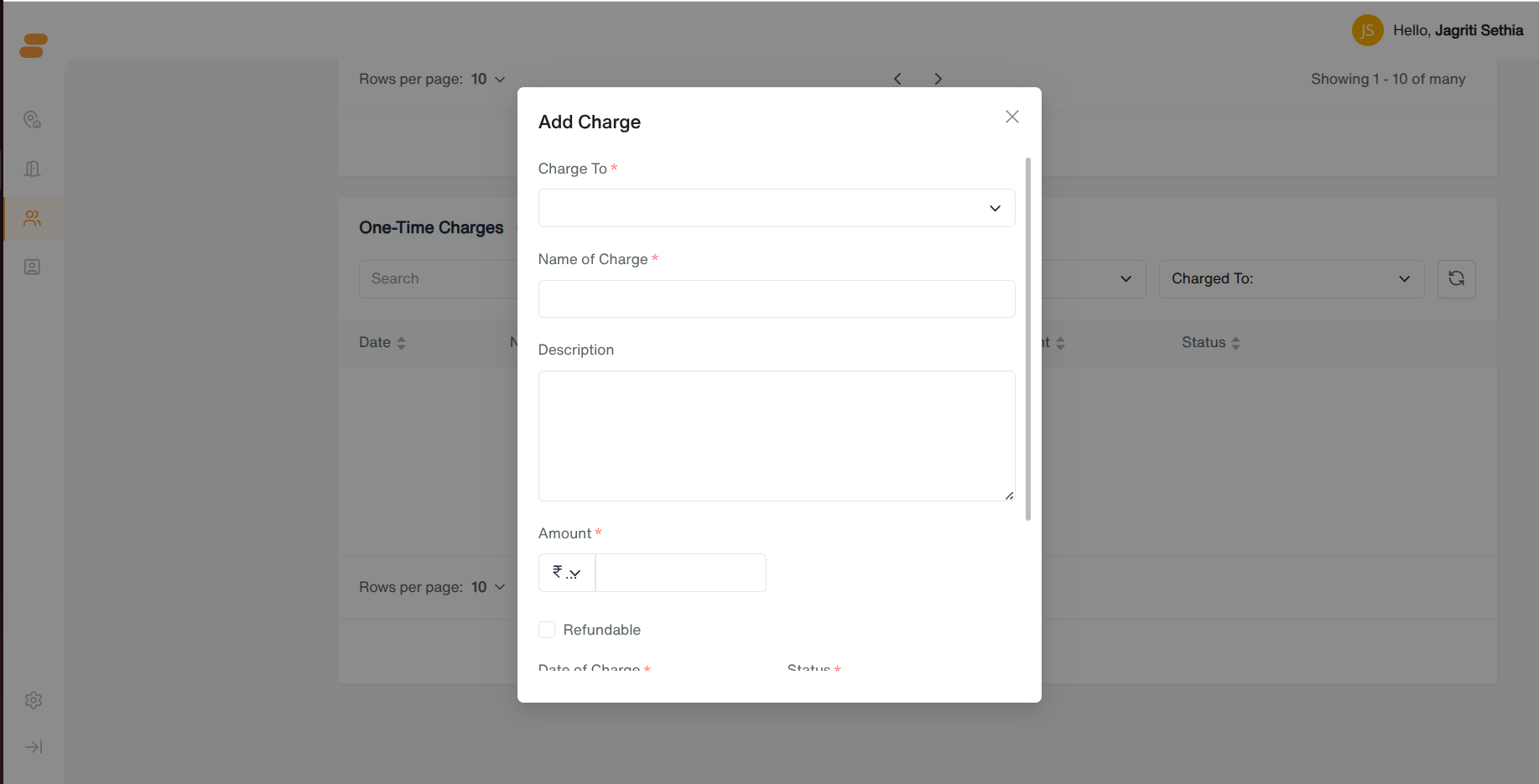
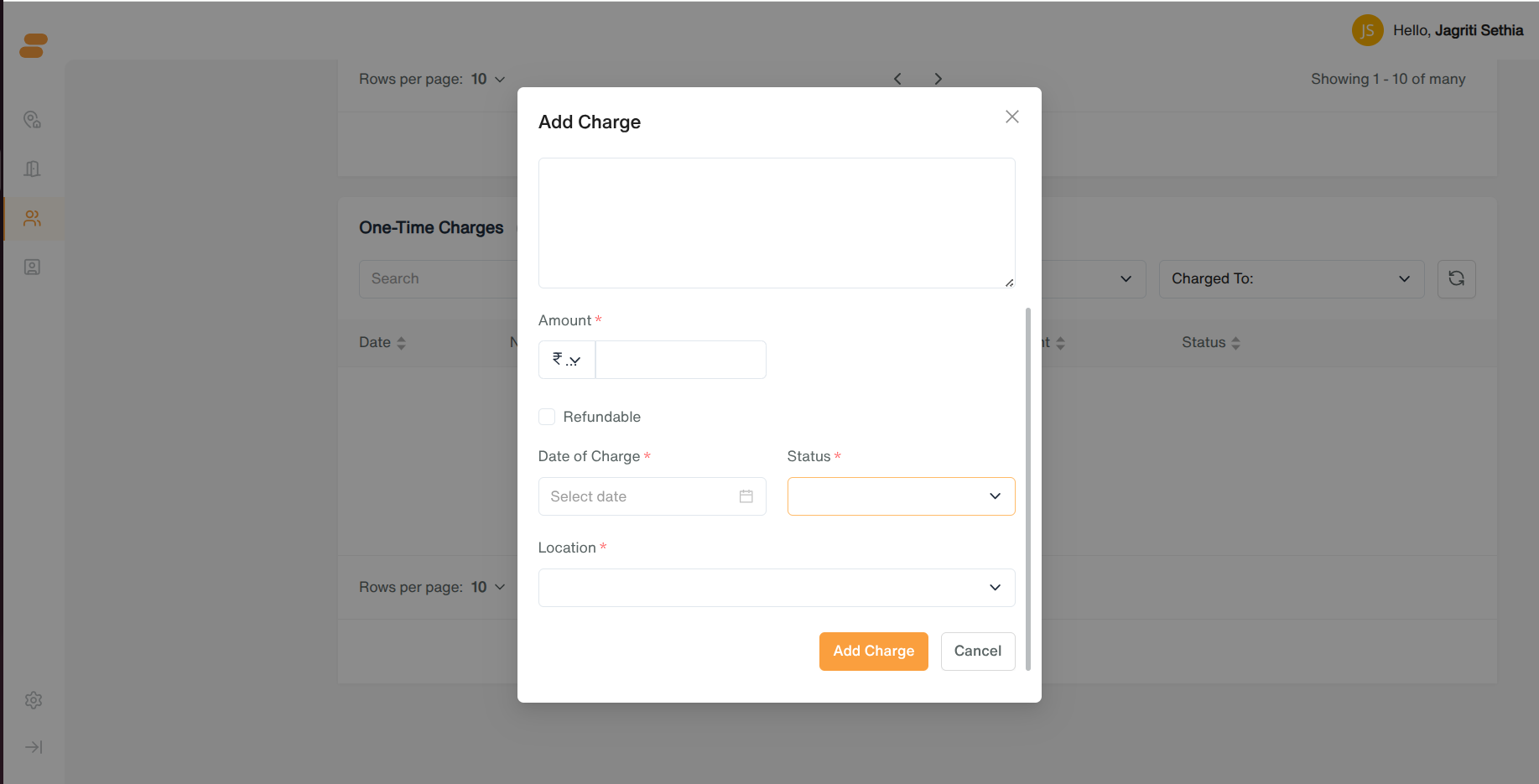
- Add Charges to create a one-off charge.
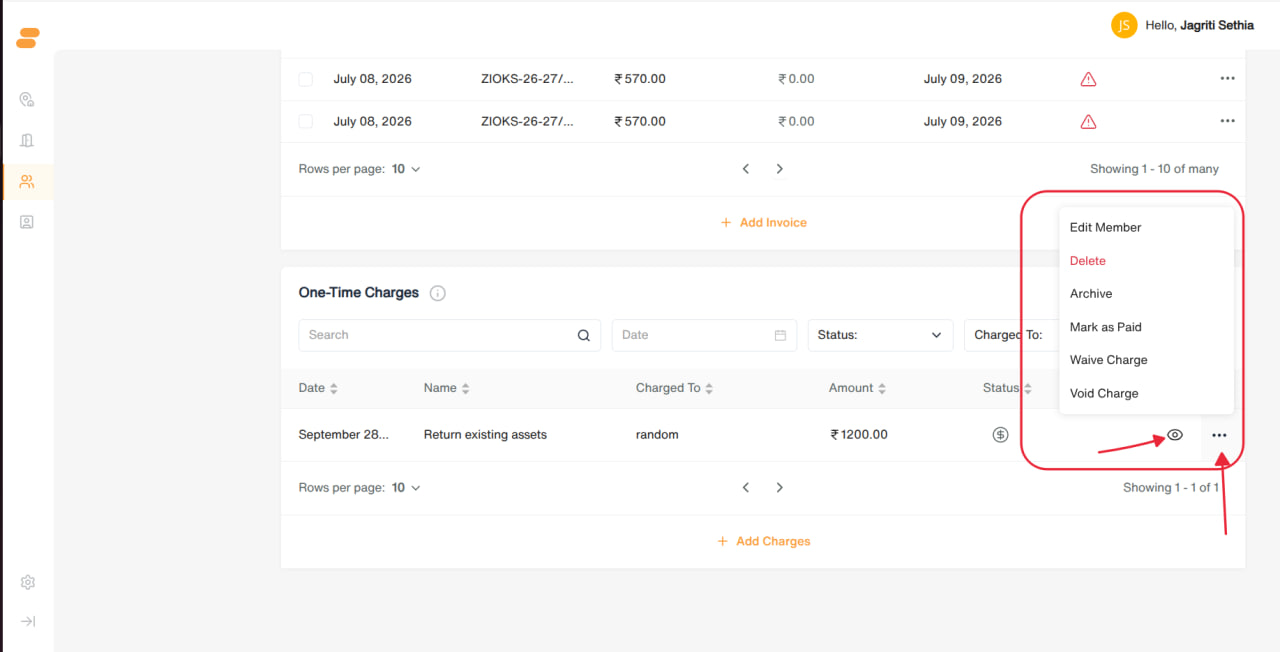
- Row actions (vary by status): Edit, Delete, Archive, Record Refund, Mark as Paid, Waive Charge, Void Charge.
Notes
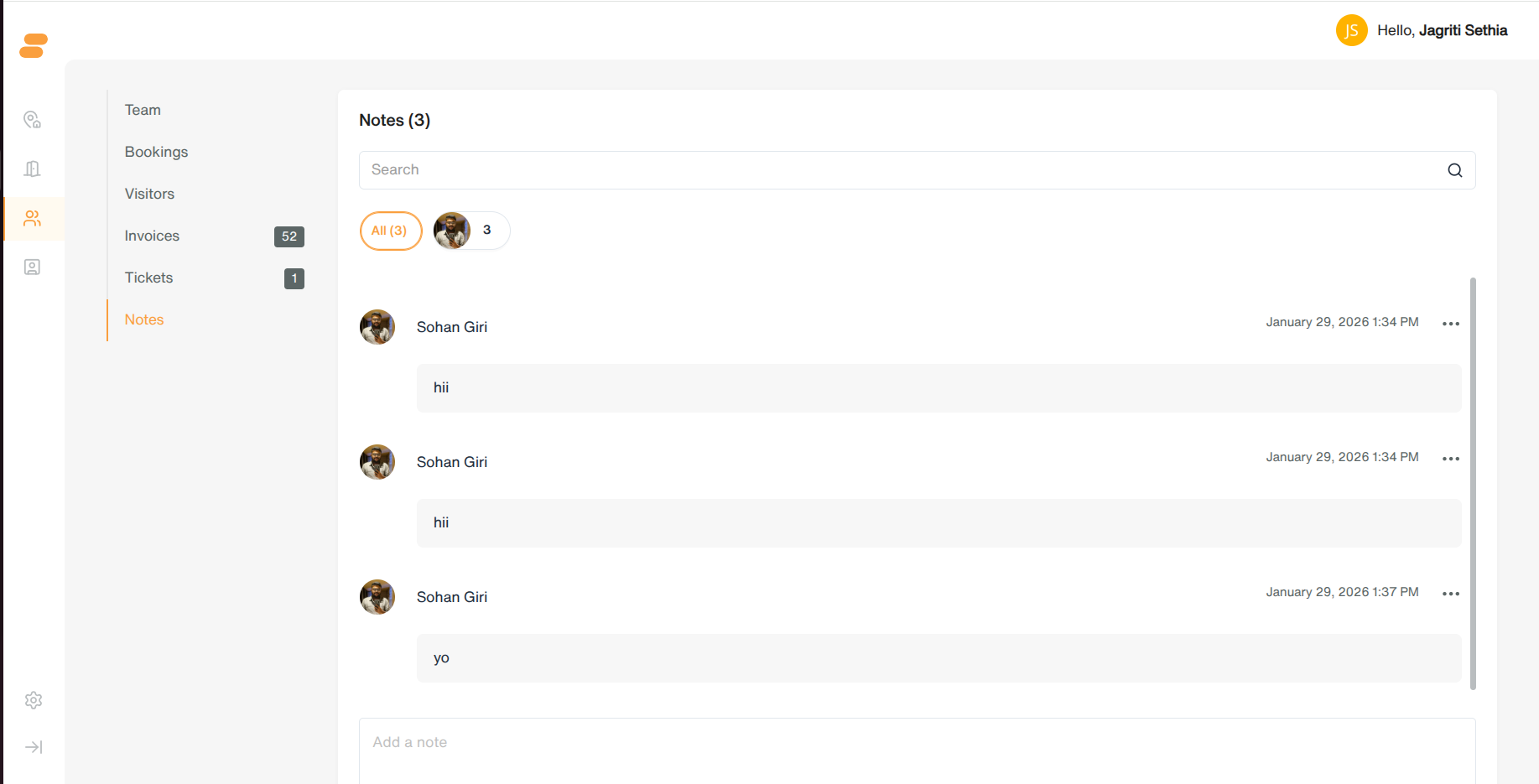
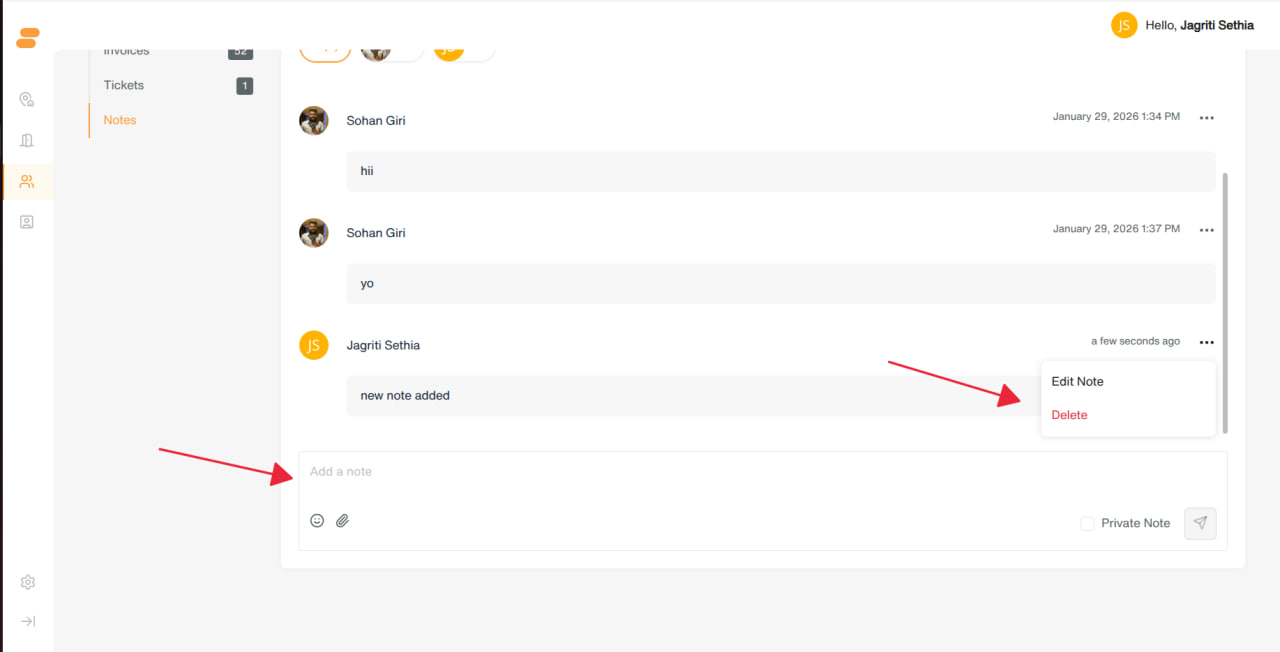
- Chat-style internal notes feed on the client. Search and filter by author. Add a note from the box at the bottom; edit/delete your own notes.
2. Leads
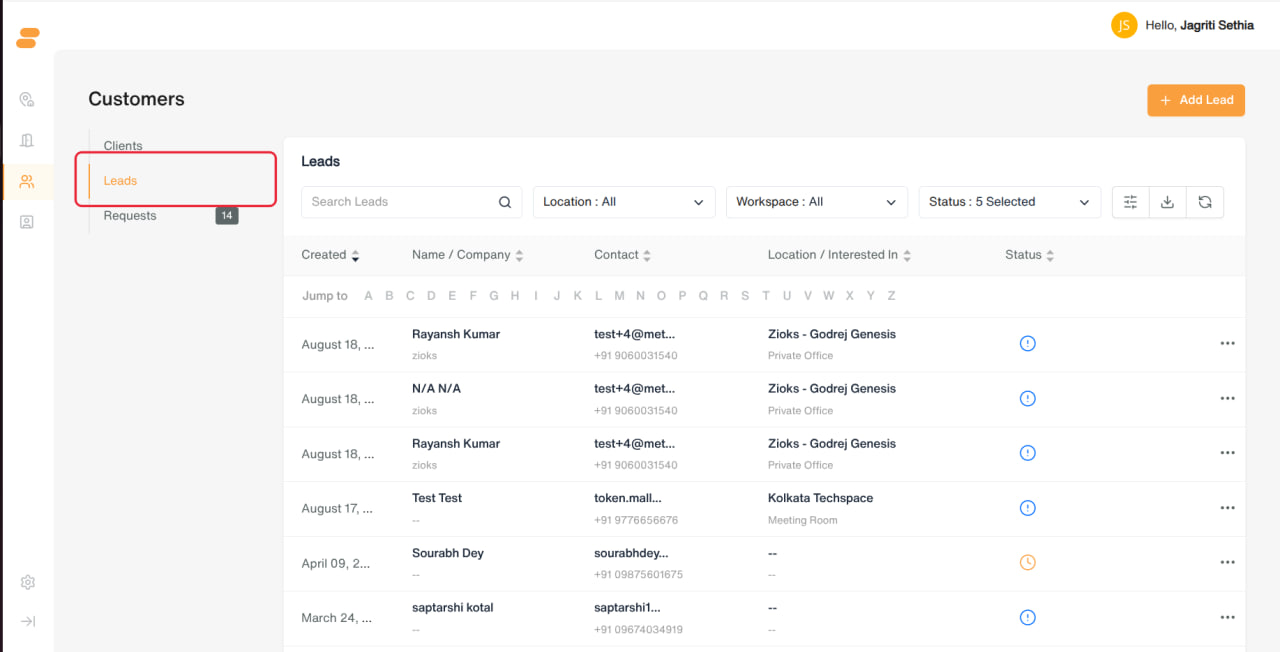
Viewing the list
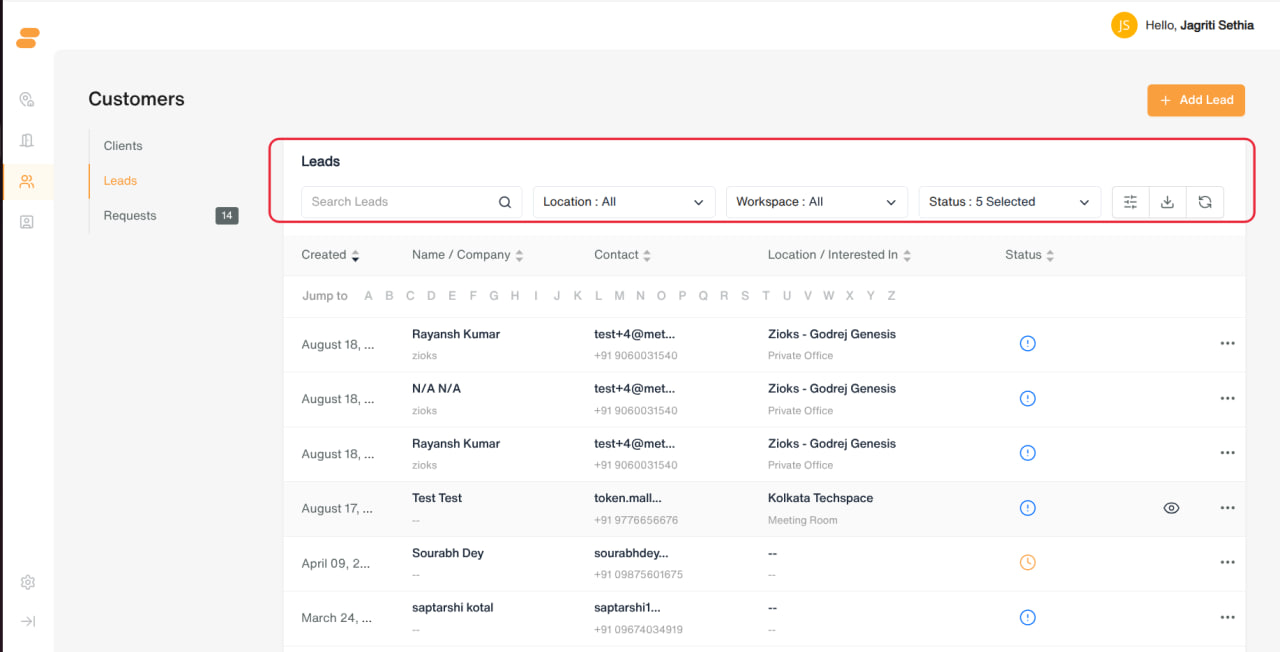
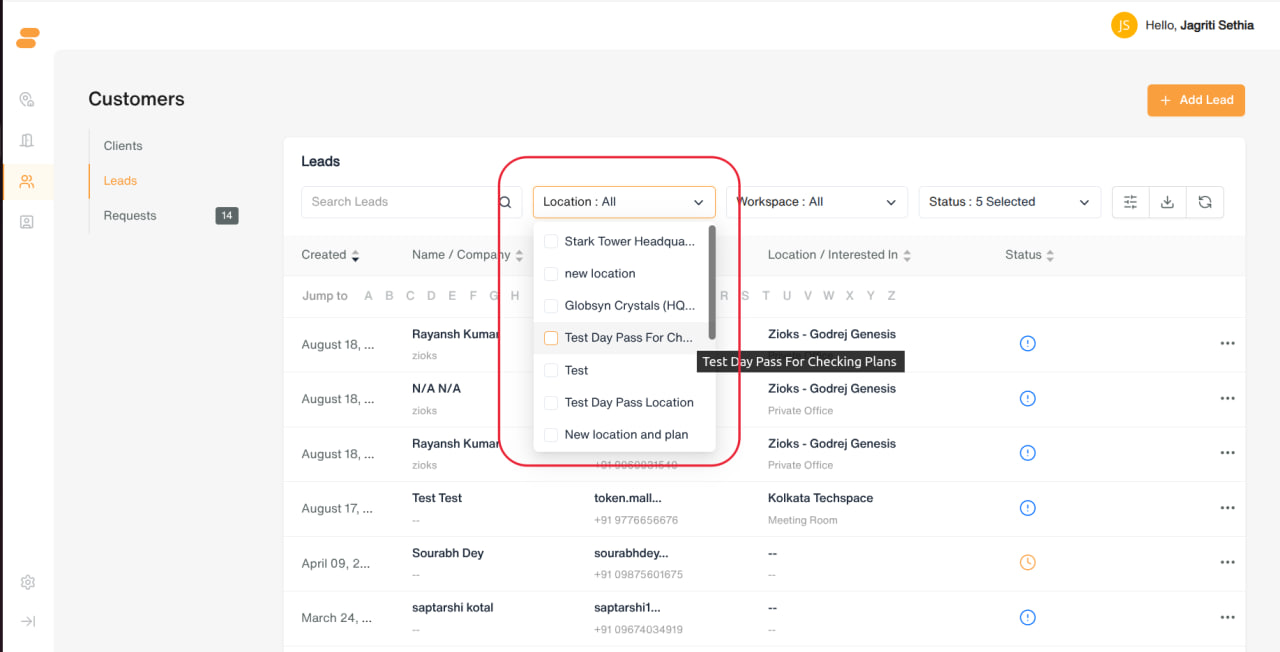
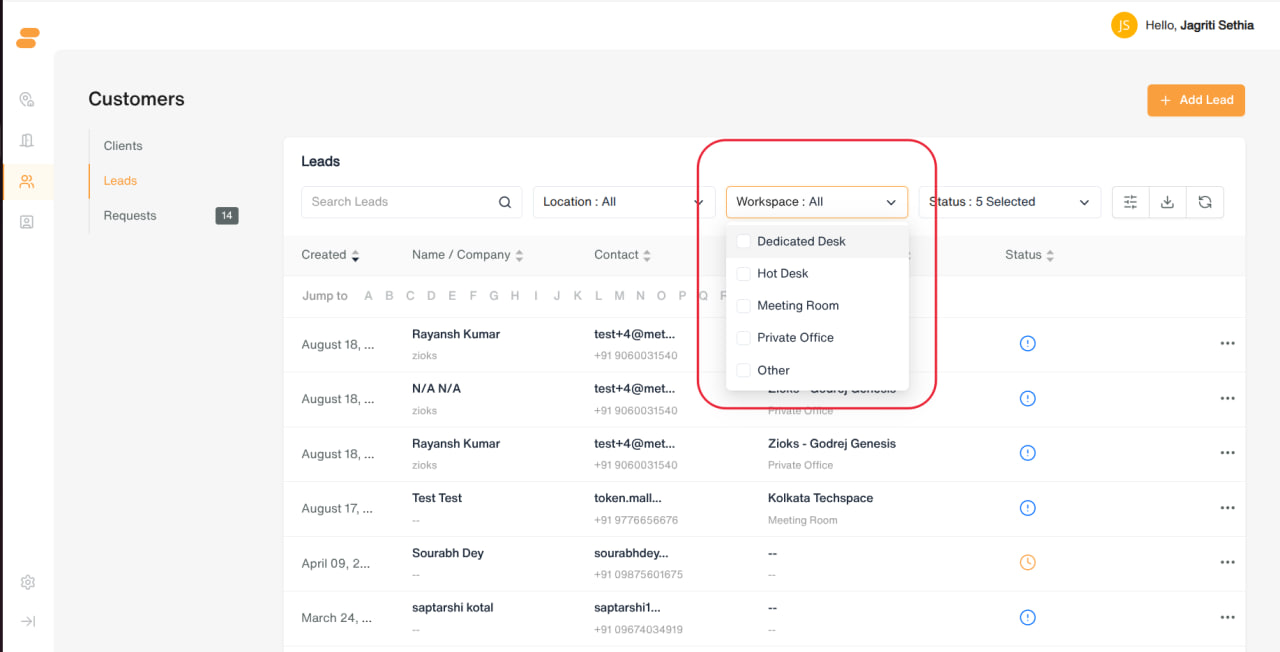
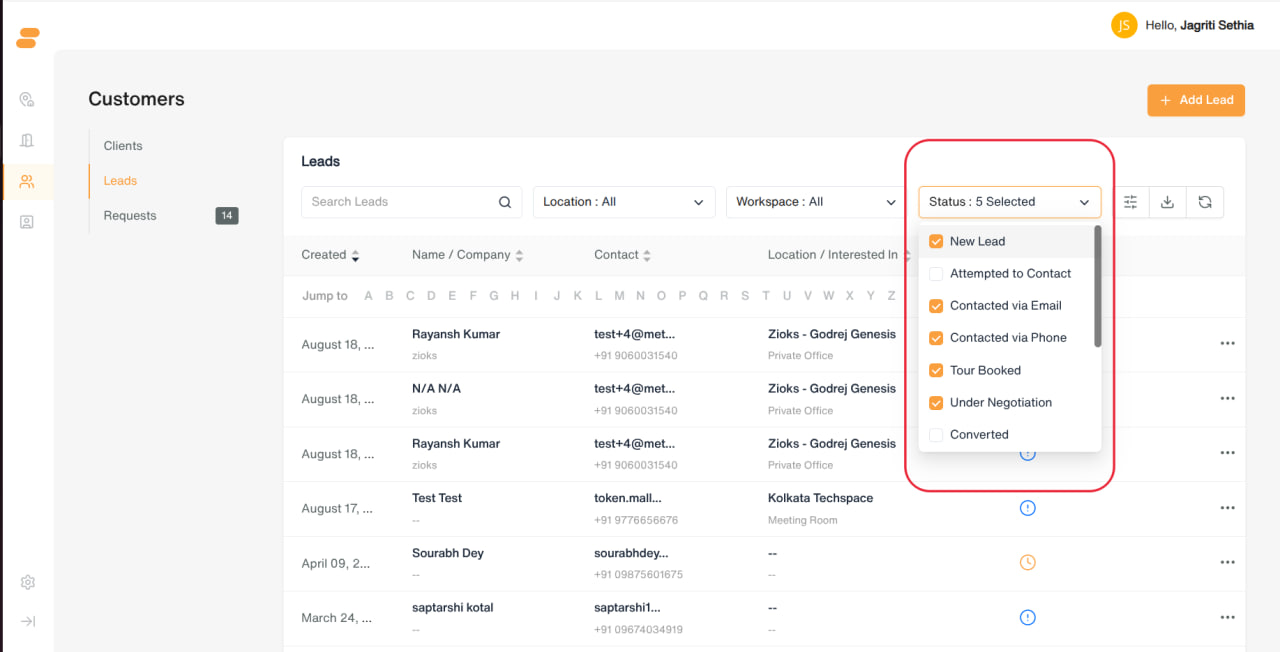
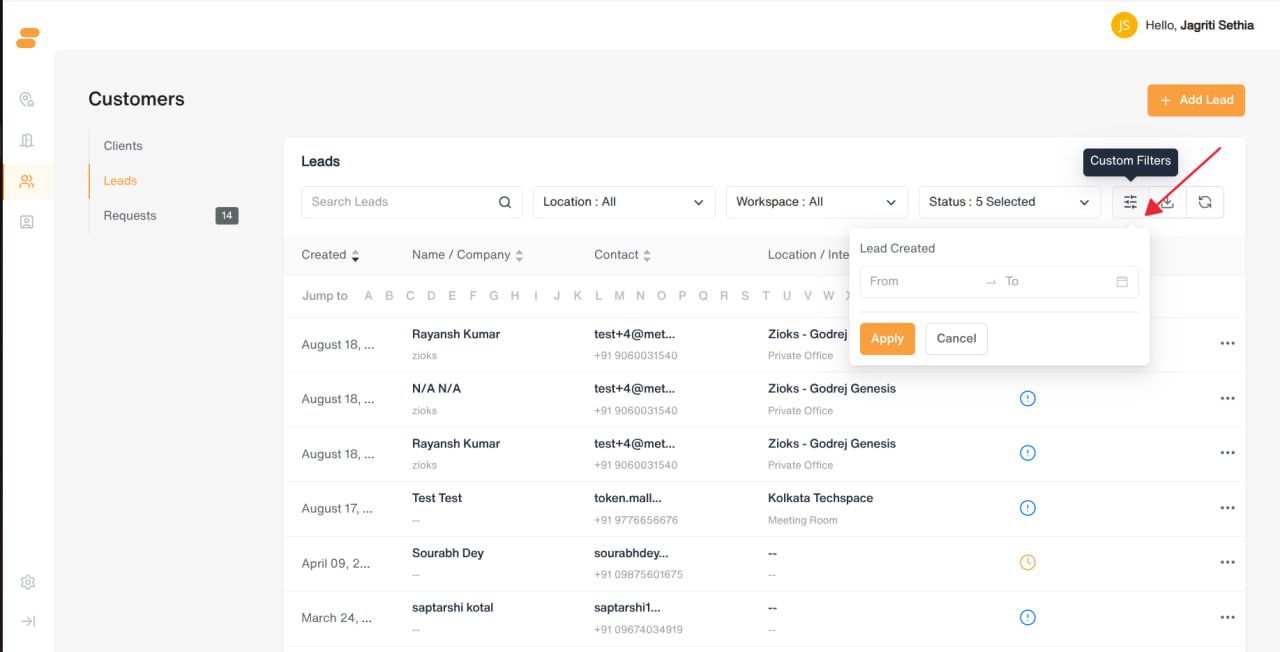
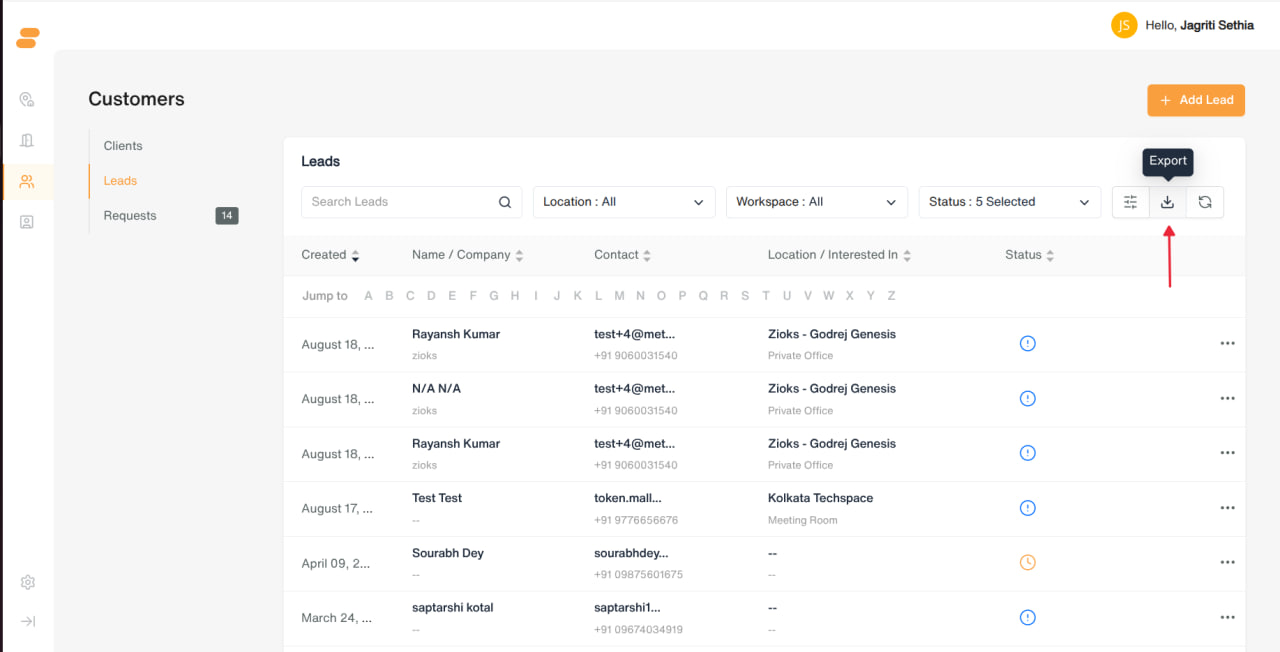
- Filters: Location interest (multi), Workspace interest (multi), Status (multi — defaults to New Lead, Contacted via Email, Contacted via Phone, Tour Booked, Under Negotiation; Archived hidden by default), Custom Filters (date range), Export (download as CSV)
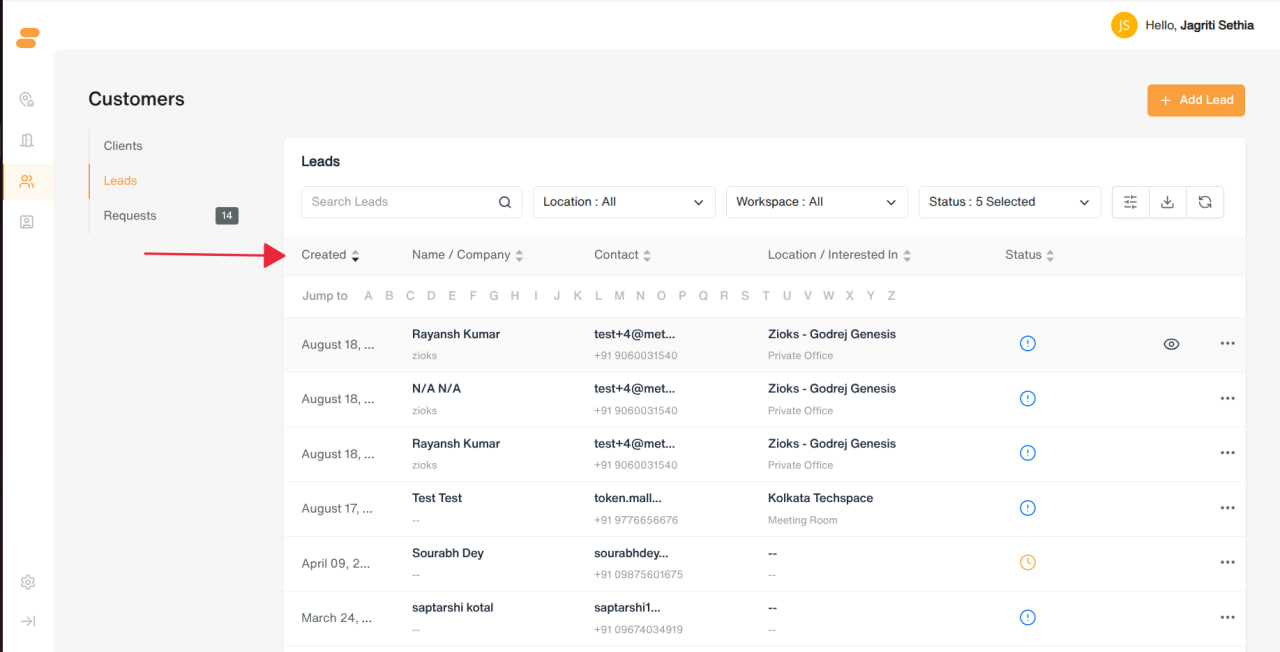
- Columns: Created date, Name/Company, Contact, Location/Workspace interest, Status, Notes (count, opens quick notes popup), View Details, row action menu
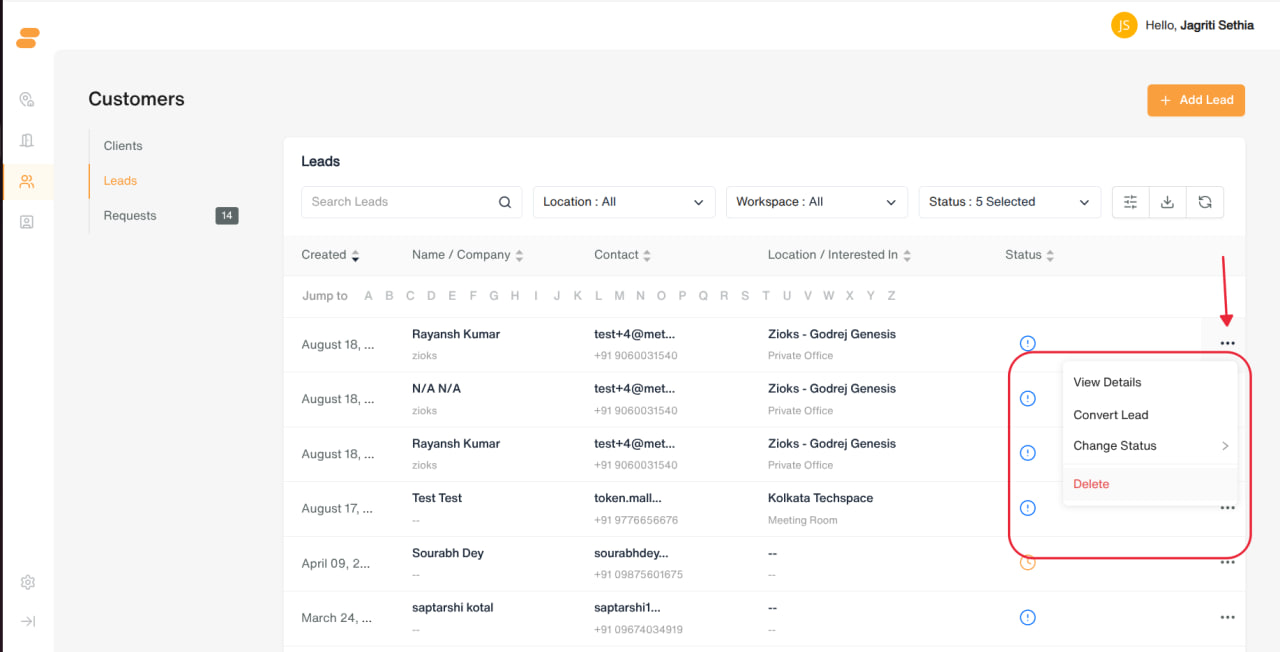
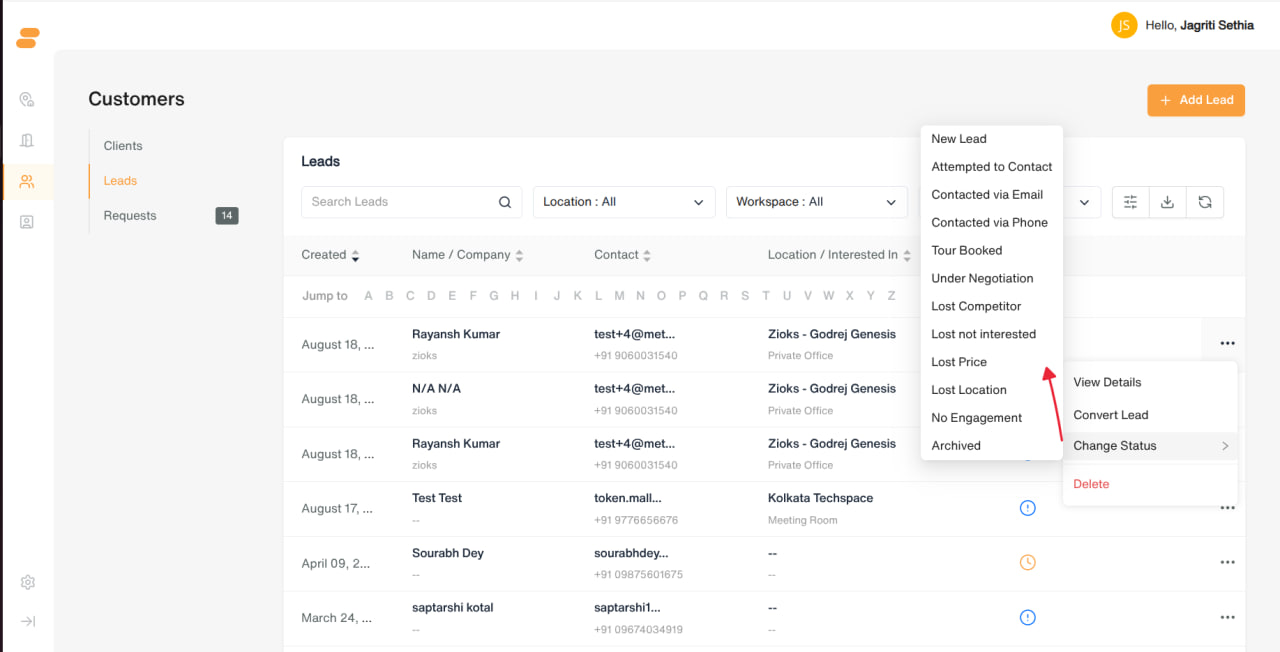
- Row menu: View Details, Convert Lead, Change Status (any status except Converted), Delete
Adding a Lead
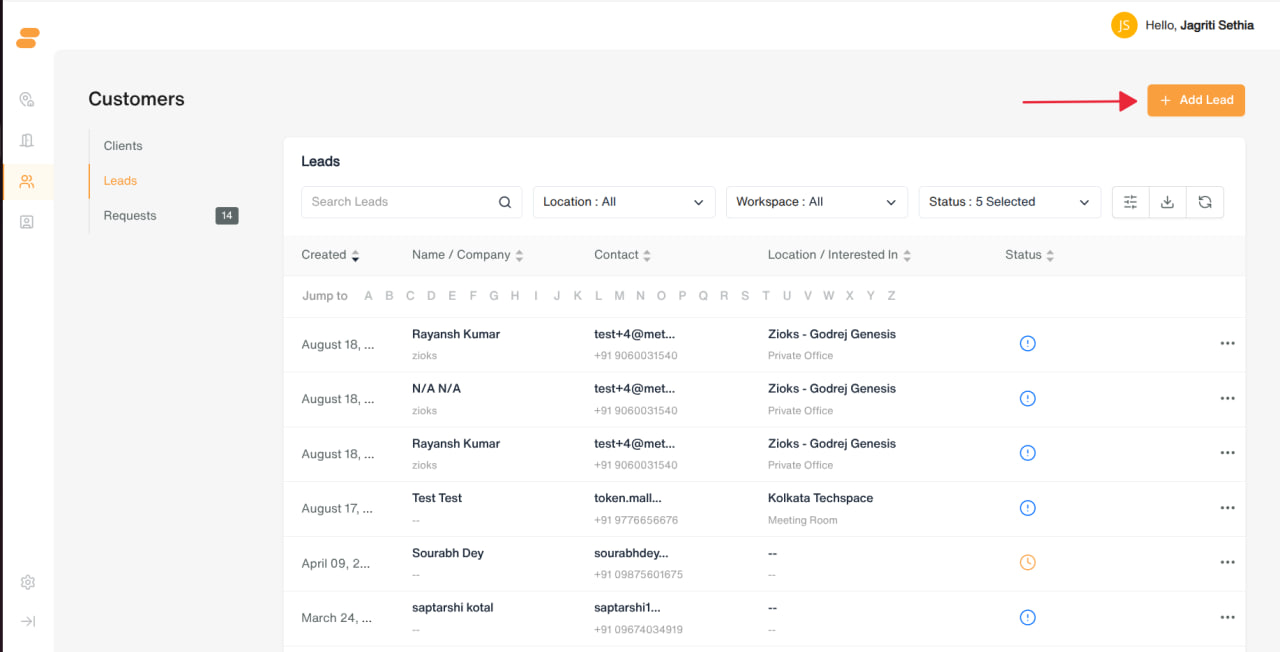
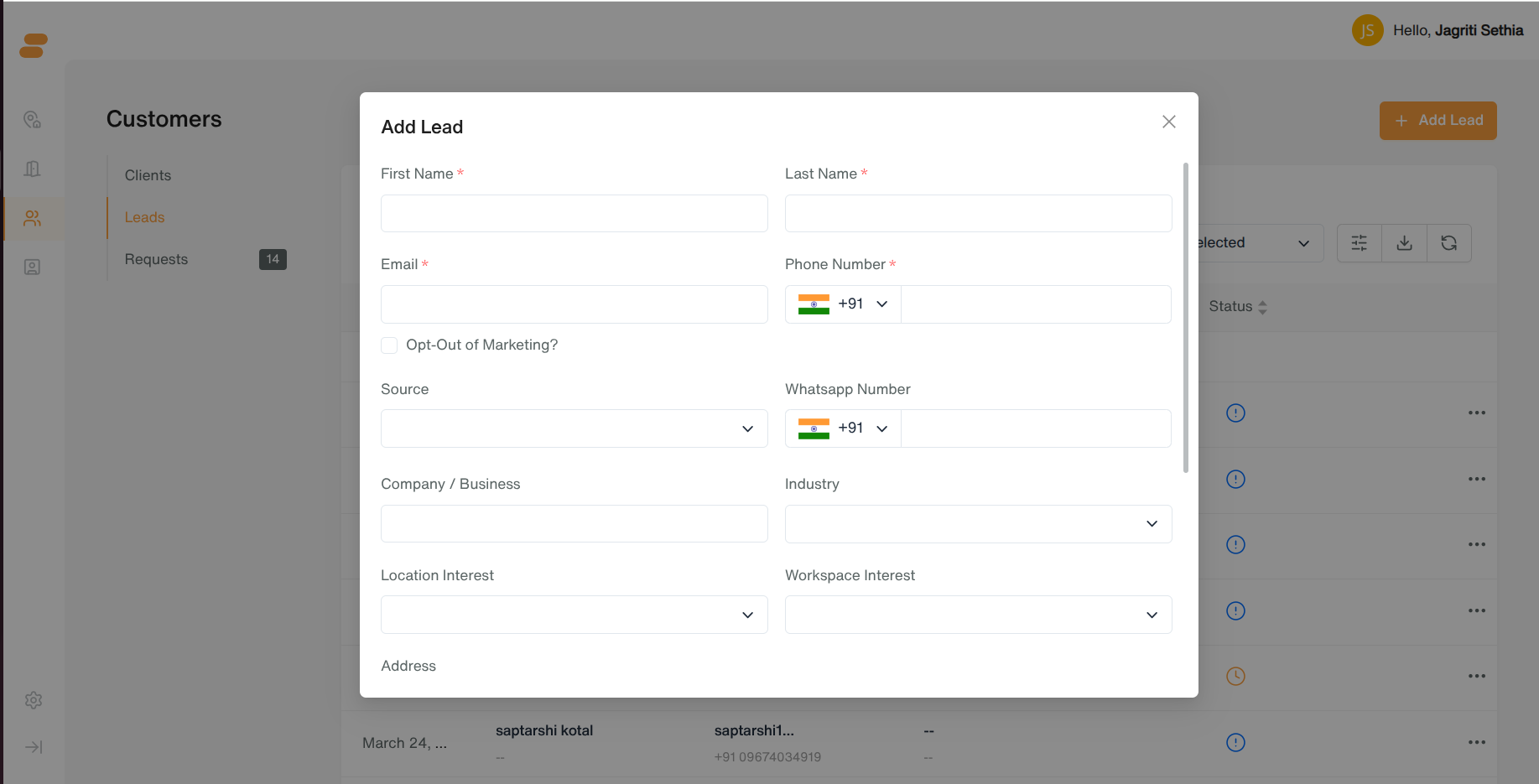
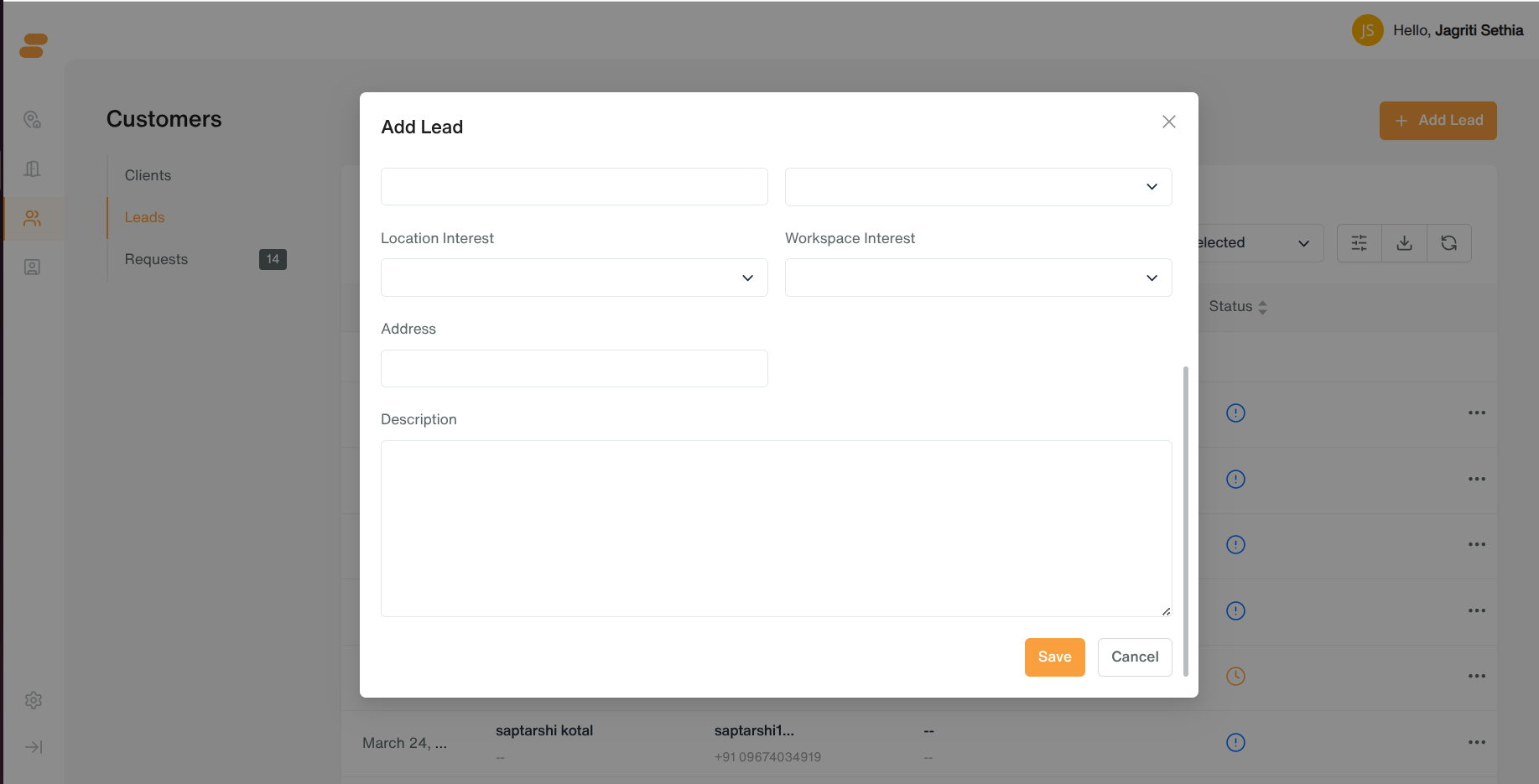
Click Add Lead, fill in:
-
First Name*, Last Name*, Email* (with “Opt-Out of Marketing?” checkbox), Phone Number*
-
Source (Website, Cold Call, Referral – Employee, Referral – External, Walk In, Advertisement, X/Twitter, Facebook, Instagram, Partner, Other)
-
WhatsApp Number, Company/Business, Industry (dropdown — ASP, ERP, Government/Military, Large Enterprise, MSP, SME, Systems Integrator, and more)
-
Location Interest (multi-select), Workspace Interest (multi-select: Dedicated Desk, Hot Desk, Meeting Room, Private Office, Other)
-
Address, Description
Save the lead.
Lead Statuses
New Lead, Attempted to Contact, Contacted via Email, Contacted via Phone, Tour Booked, Under Negotiation, Converted, Lost – Competitor, Lost – Not Interested, Lost – Price, Lost – Location, No Engagement, Archived.
Quick Notes popup
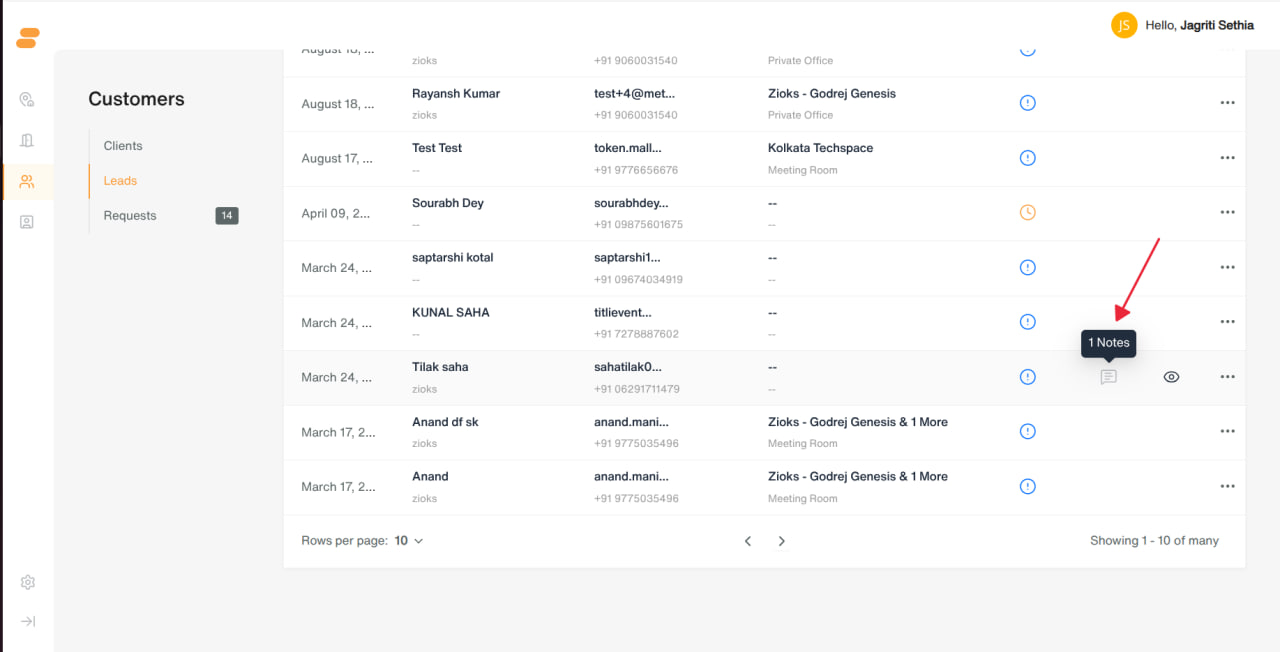
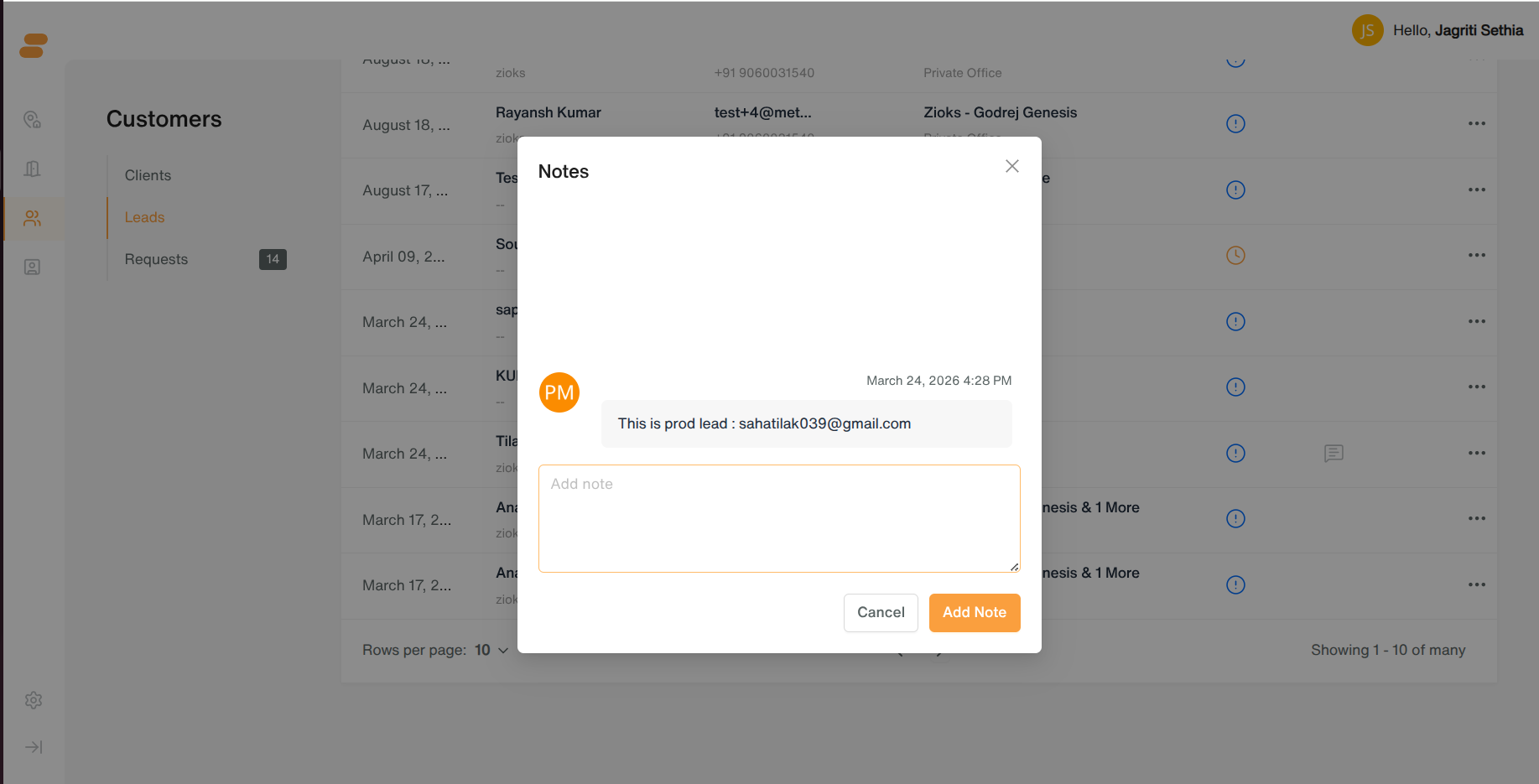
- Click the notes icon on a lead row → view/add/edit/delete notes for that lead without leaving the list.
Quick View popup
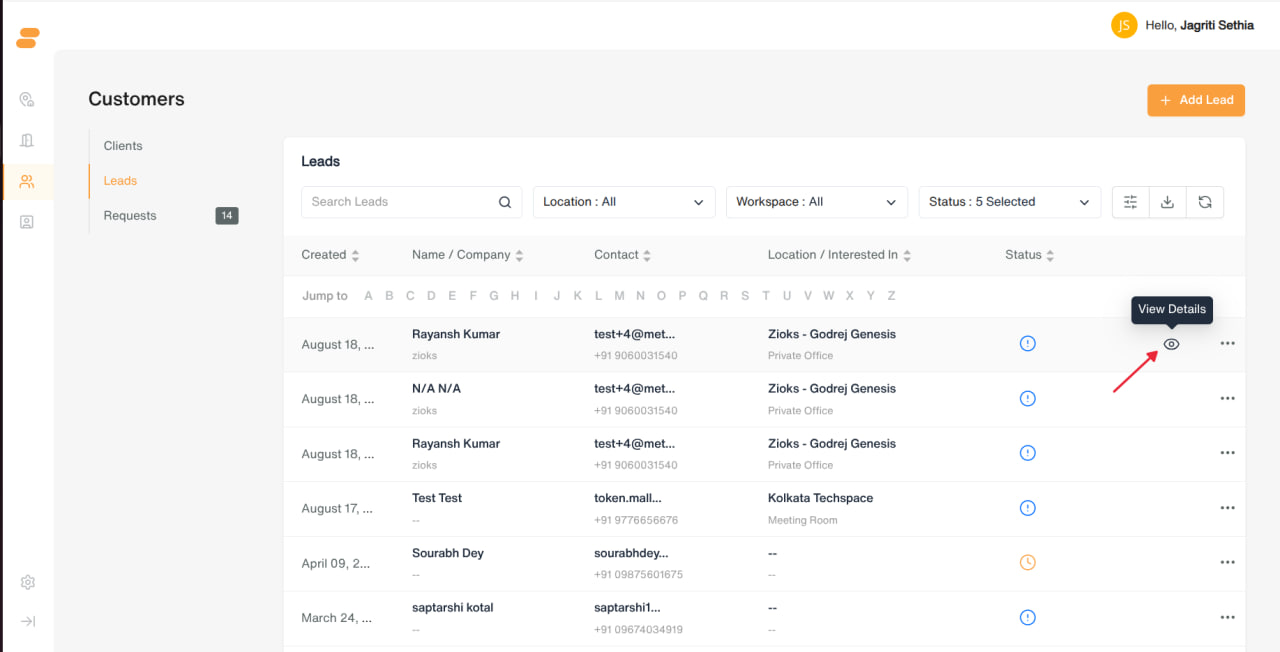
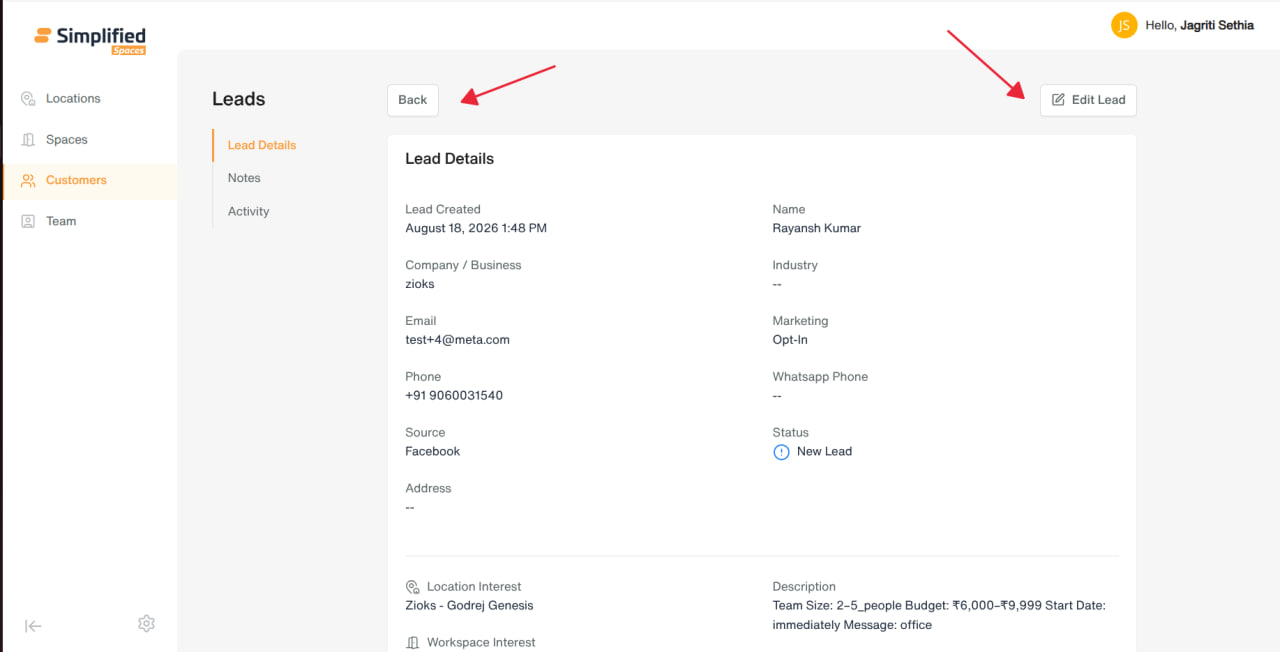
- Click the eye/View Details icon → read-only summary of all lead fields, with an Edit Lead shortcut.
Converting a Lead to a Client
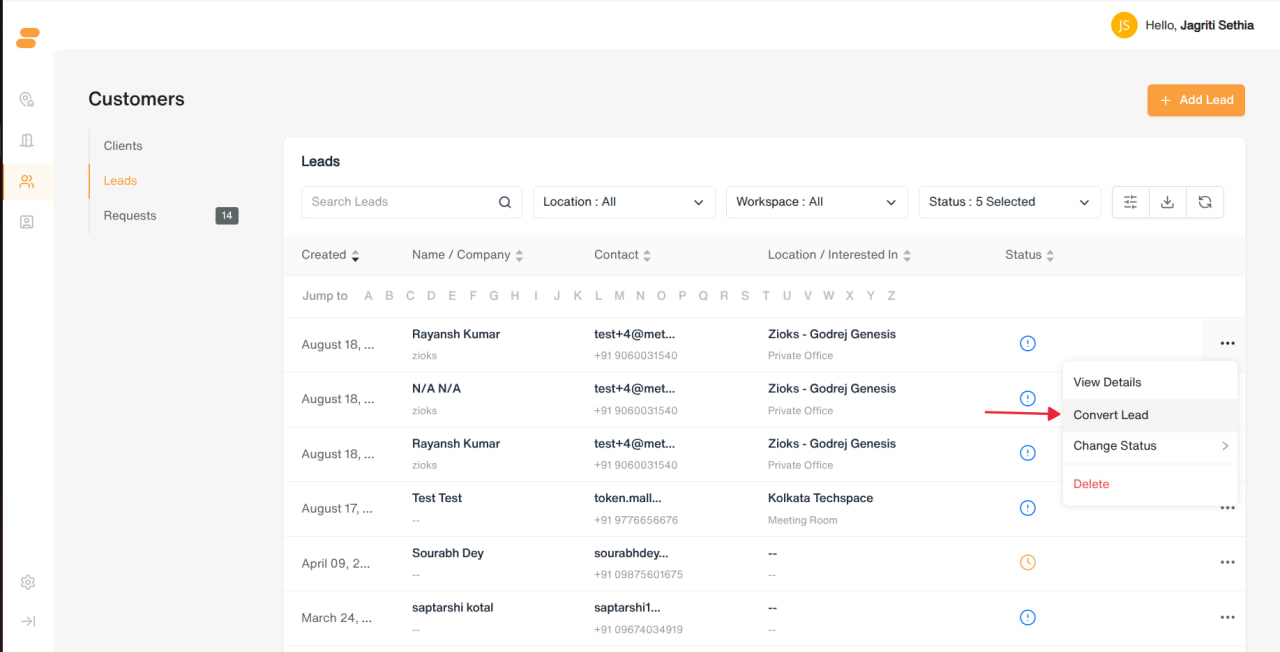
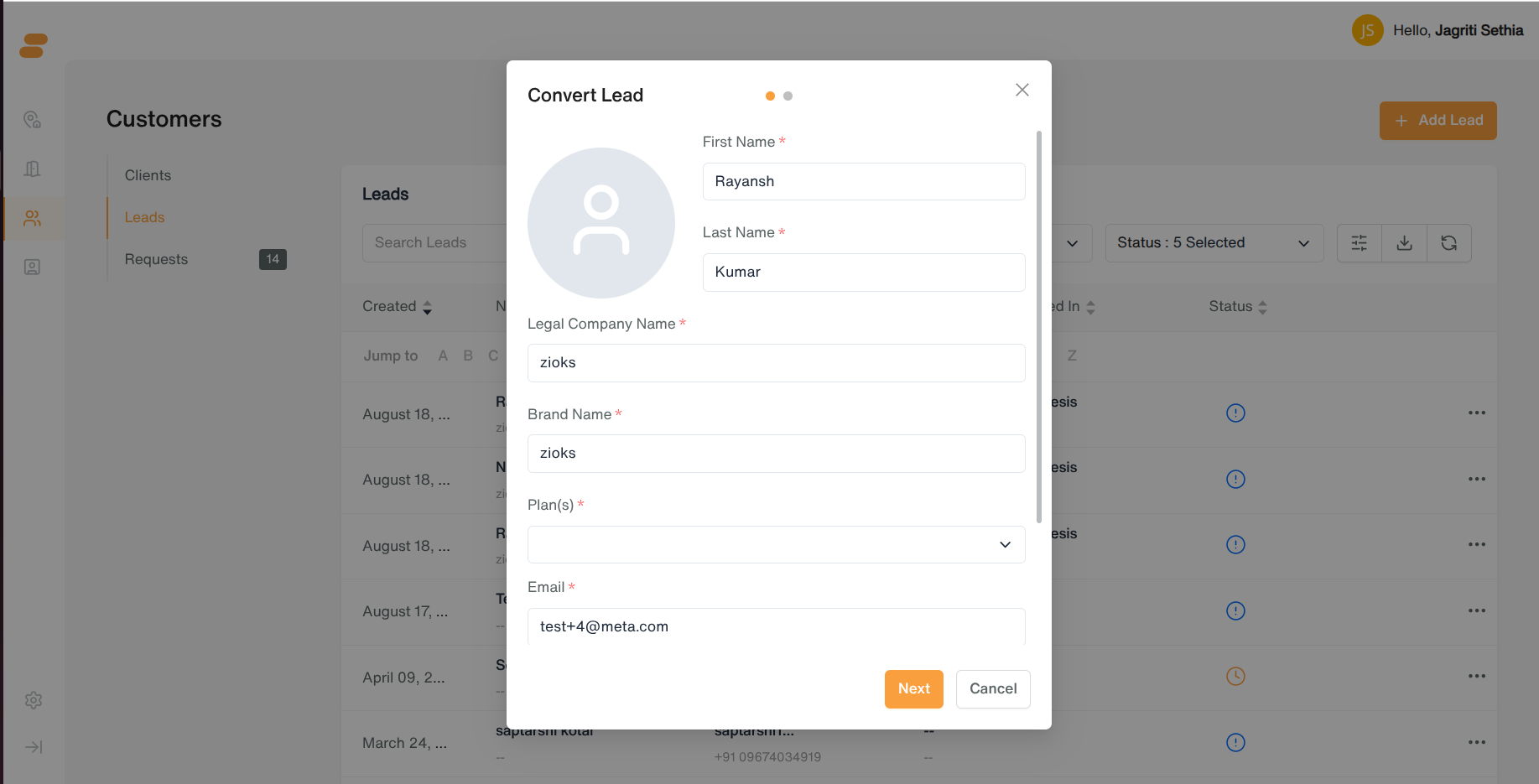
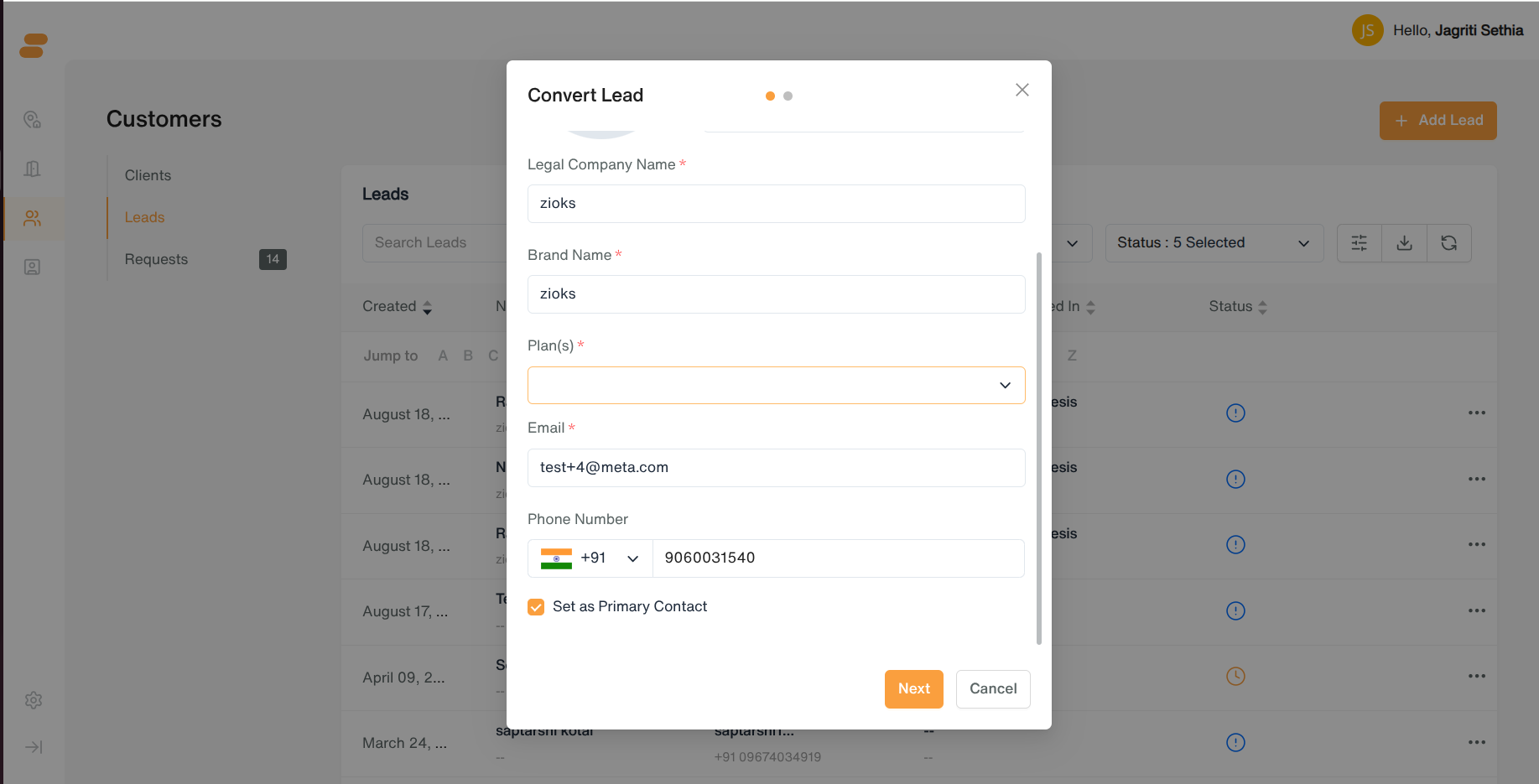
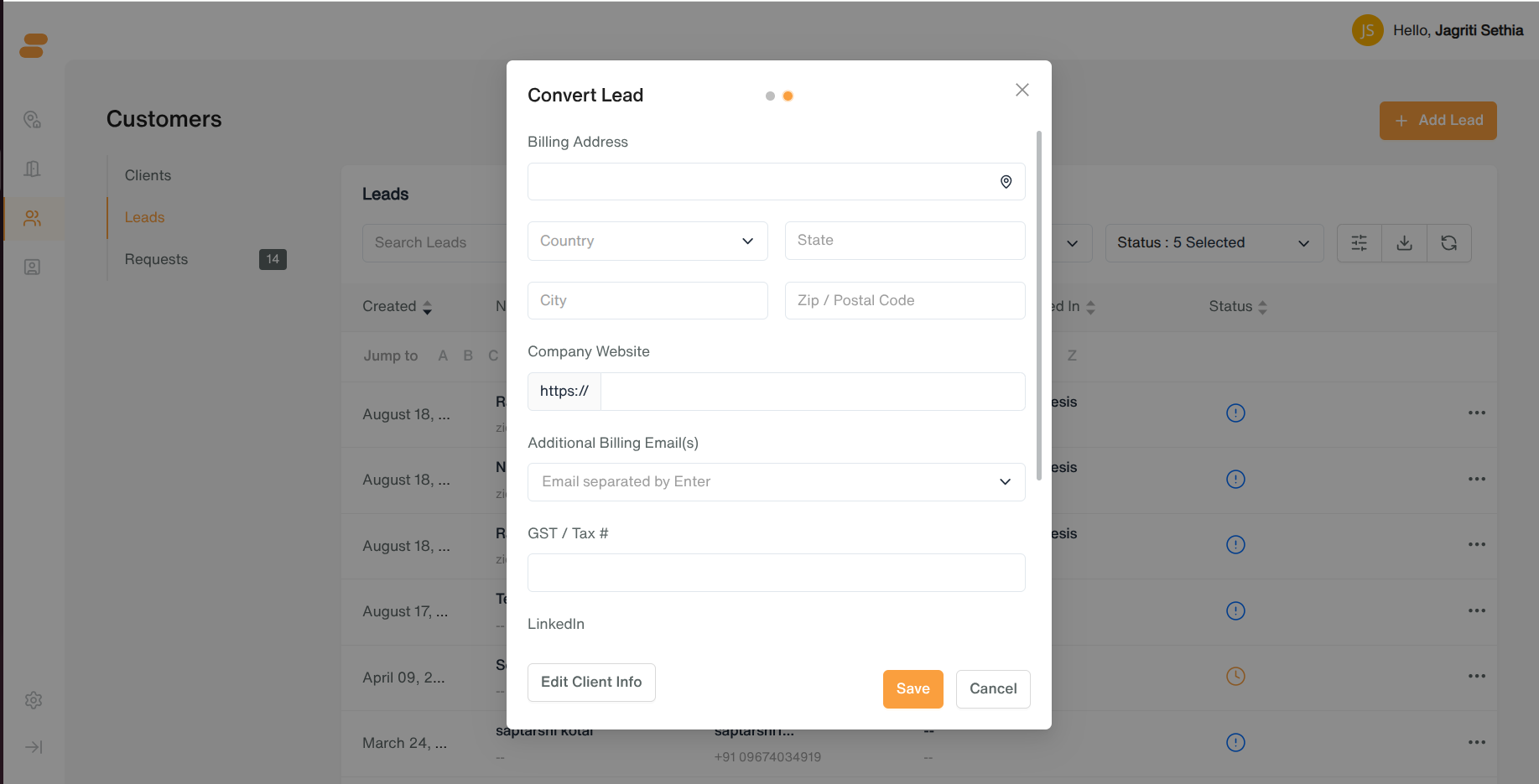
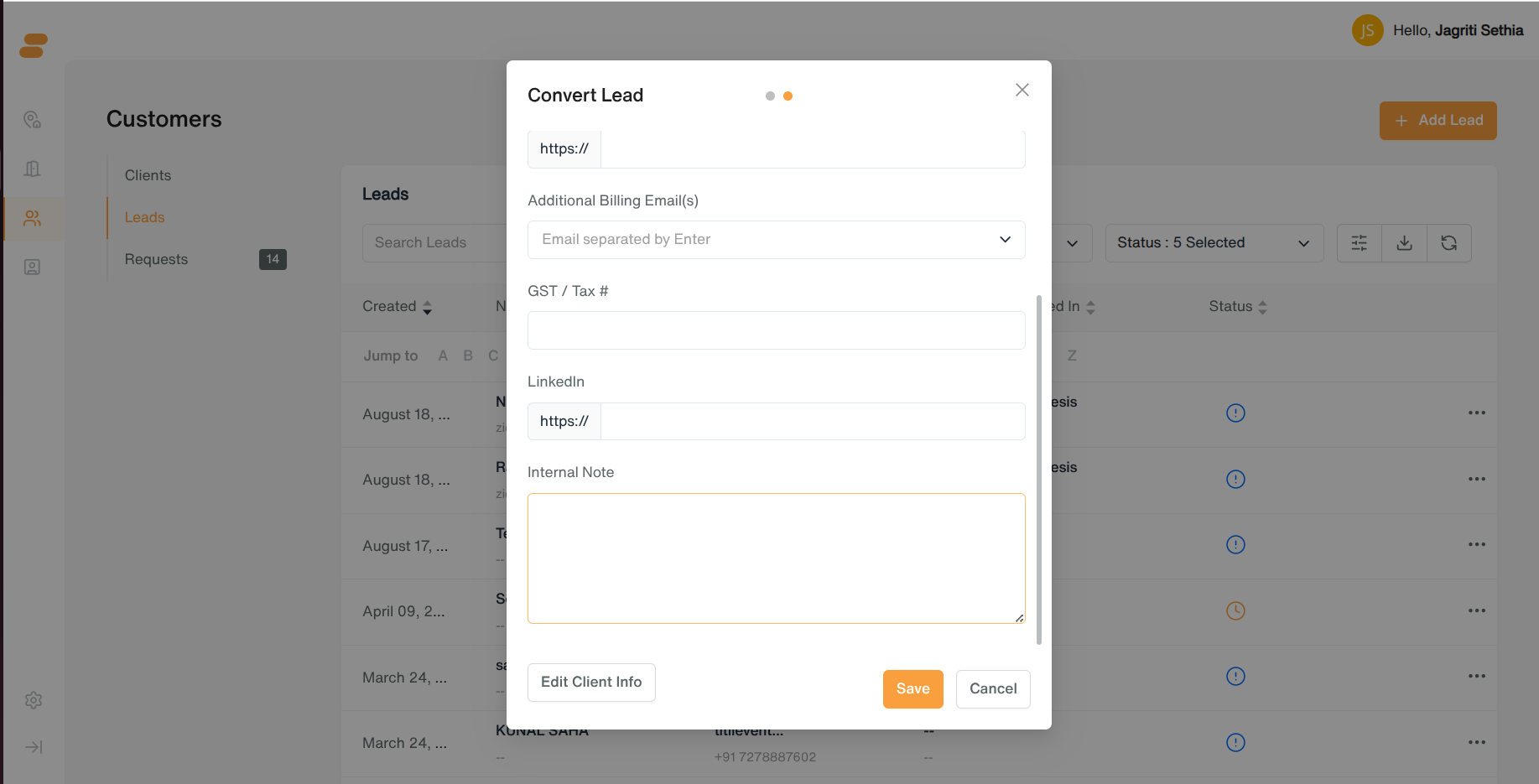
- Row menu → Convert Lead opens the same two-step Add Client flow, pre-filled from the lead’s info (name, company, contact) — just confirm/complete plan selection and additional info, then submit. The lead’s status automatically changes to Converted.
Lead Detail Page
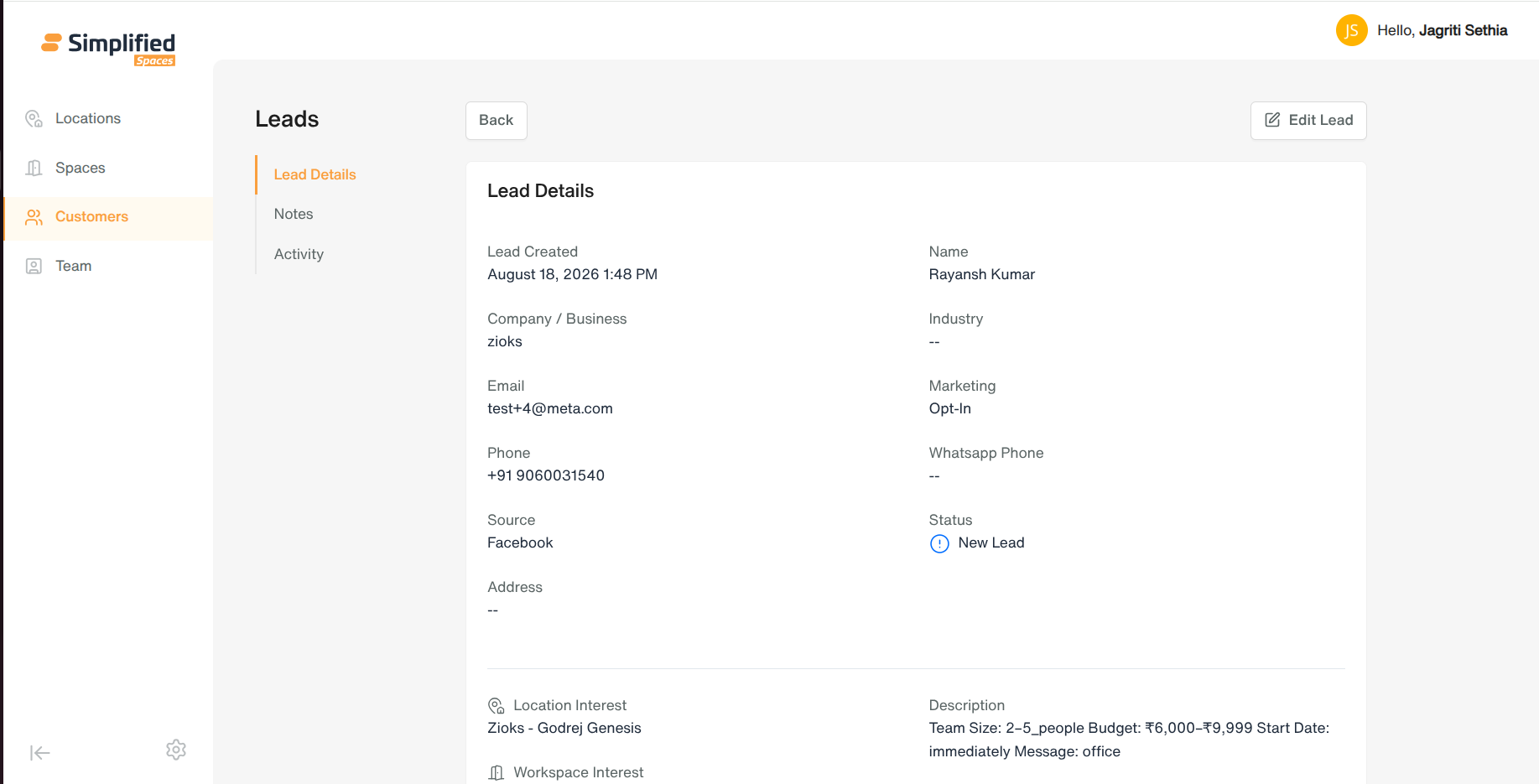
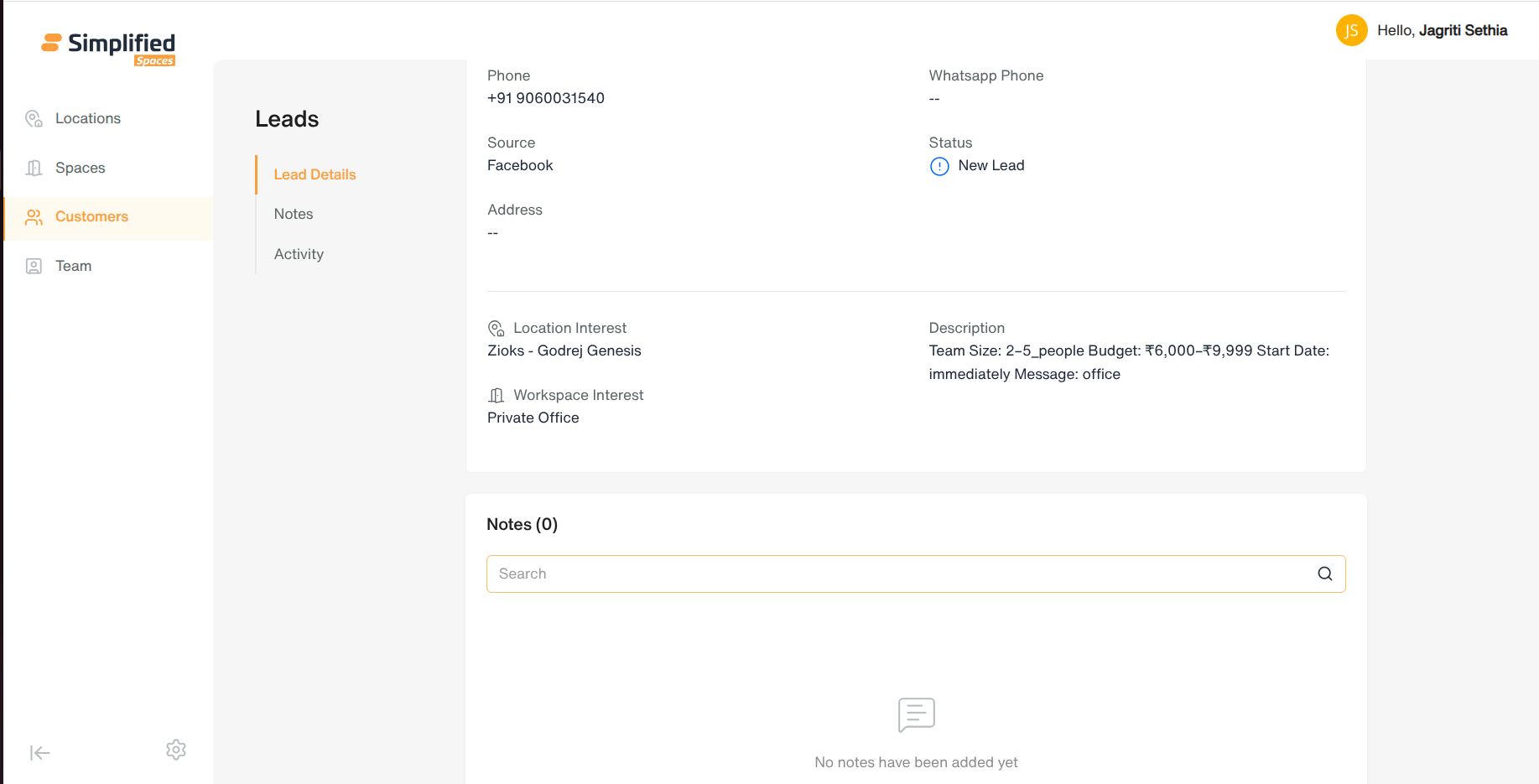
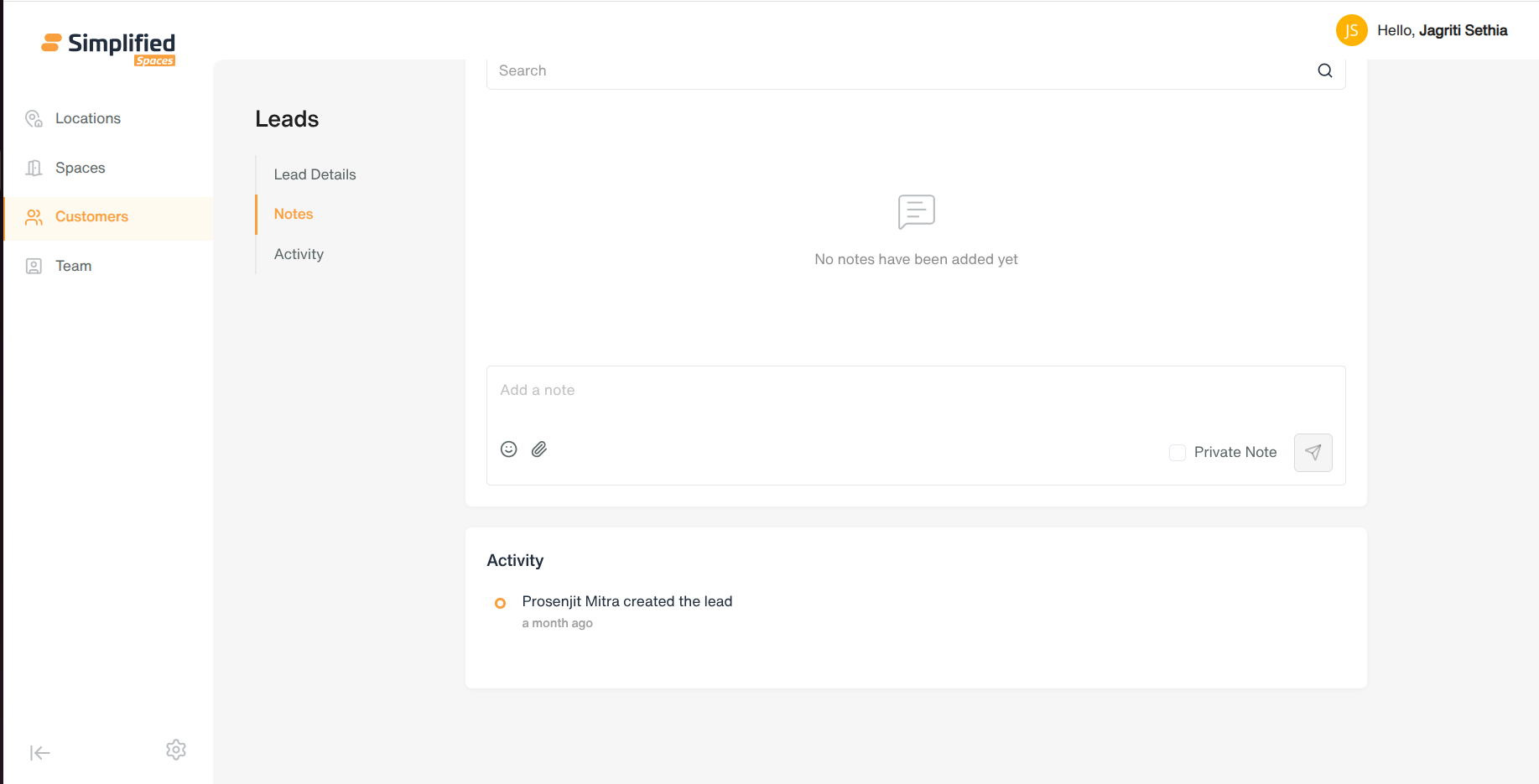
Opening a lead (View Details, or the lead’s own page) shows three sections:
-
Lead Details — full read view of all fields, with an Edit Lead button to edit in place.
-
Notes — same chat-style note feed as Clients, scoped to this lead.
-
Activity — a read-only, timestamped history of everything that happened to this lead (status changes, edits, etc.).
3. Requests
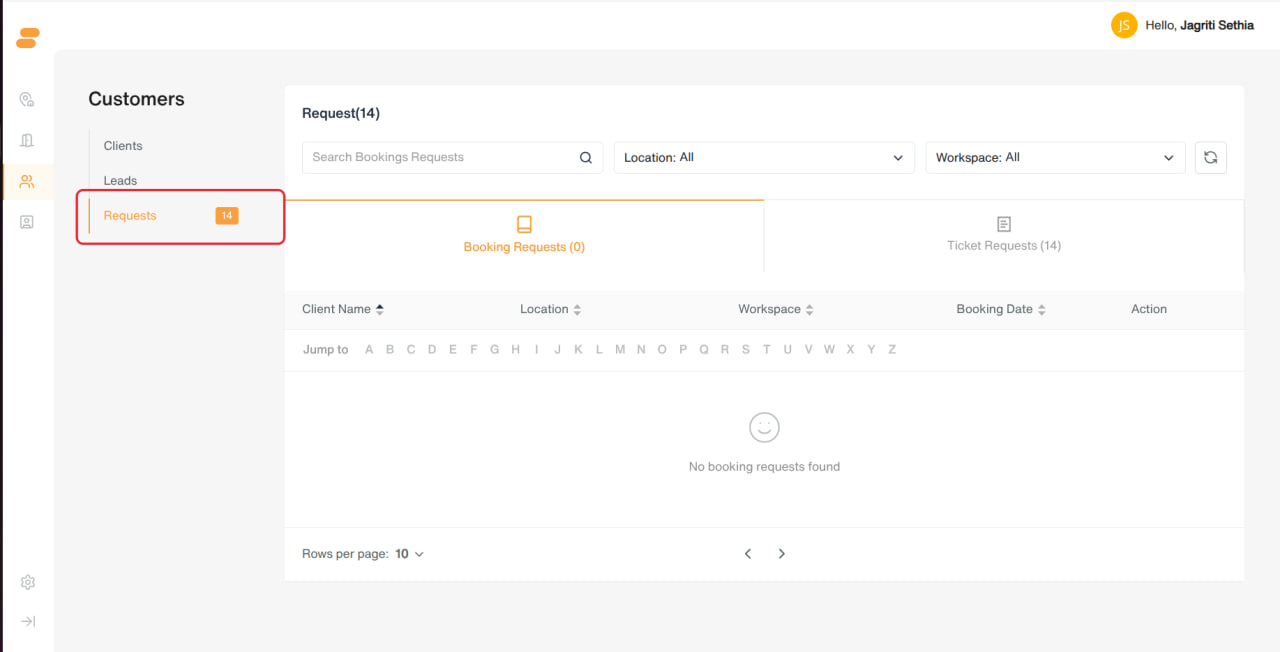
A combined queue of items awaiting admin action, shown as two tabs.
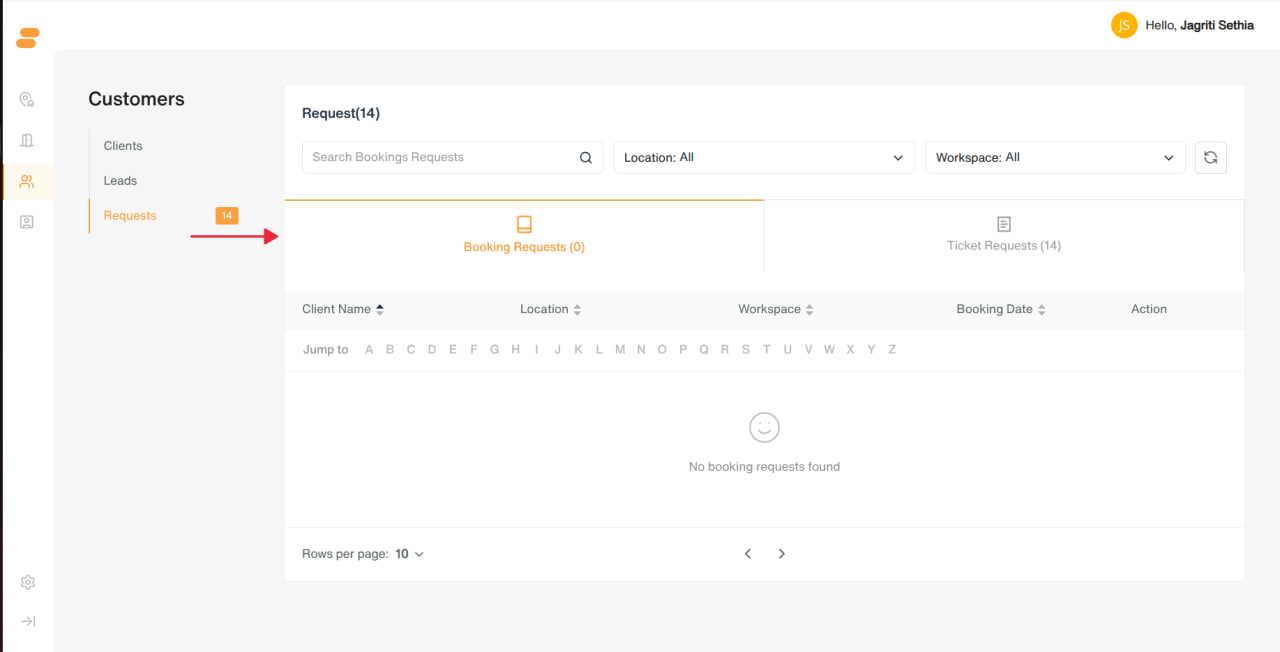
Booking Requests
-
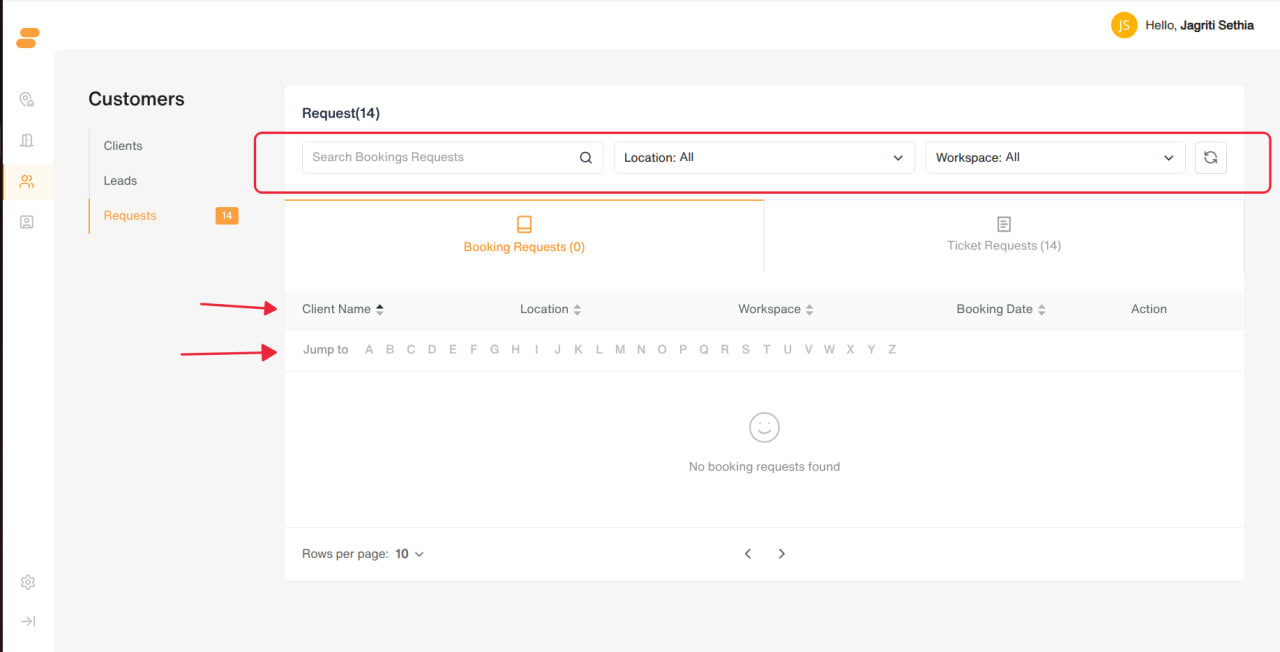
Filters: search, location, workspace, A–Z jump.
-
Columns: Client Name, Location, Workspace, Booking Date/Time, and inline Approve / Decline buttons.
-
Row menu: View Details, Edit Booking.
-
Approve confirms the booking immediately; Decline requires entering a reason.
Ticket Requests
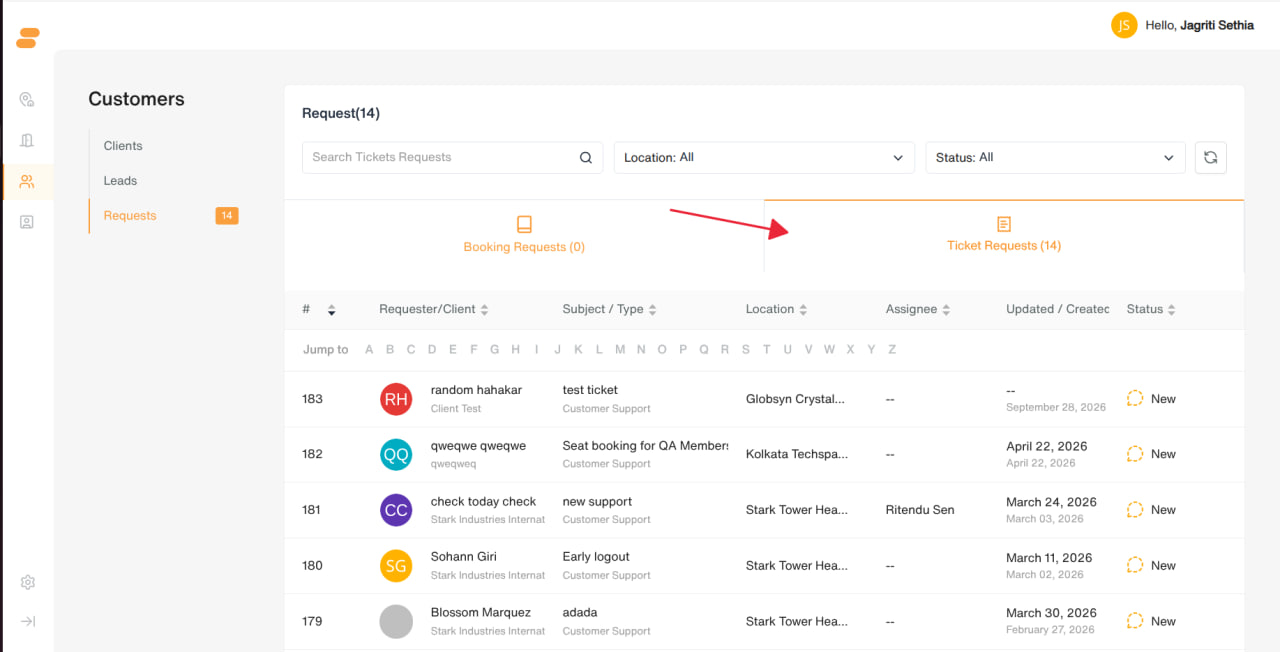
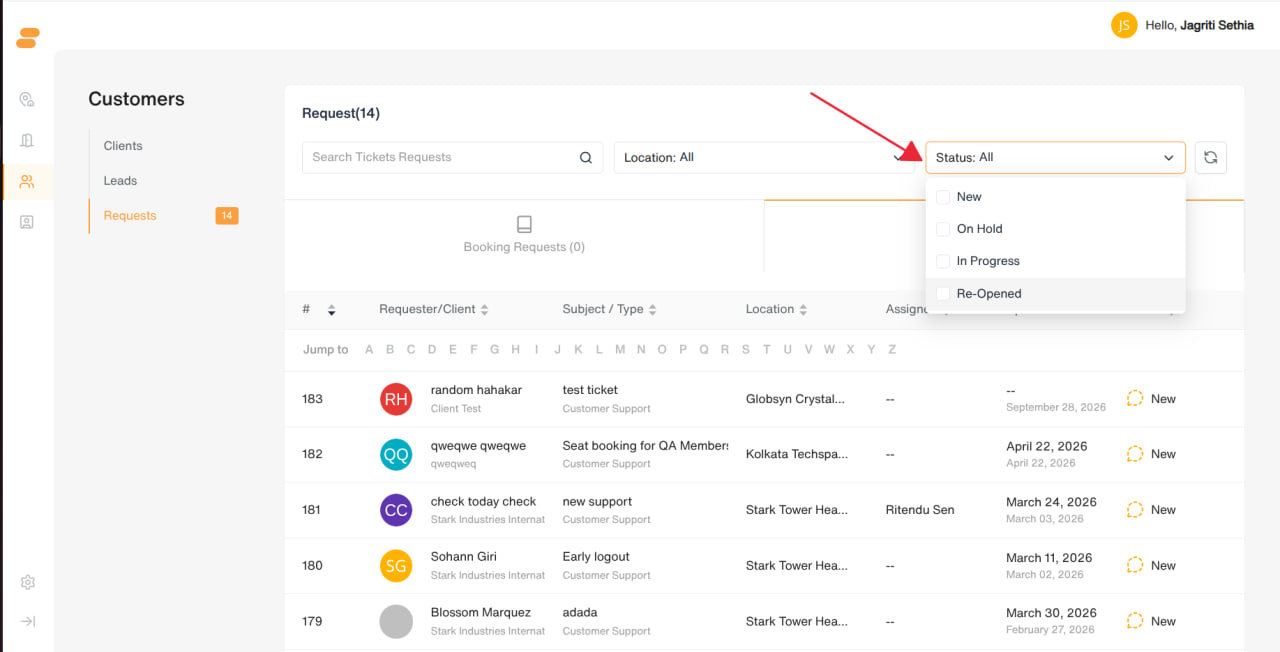
- Filters: search, location, status (New, On Hold, In Progress, Re-Opened).
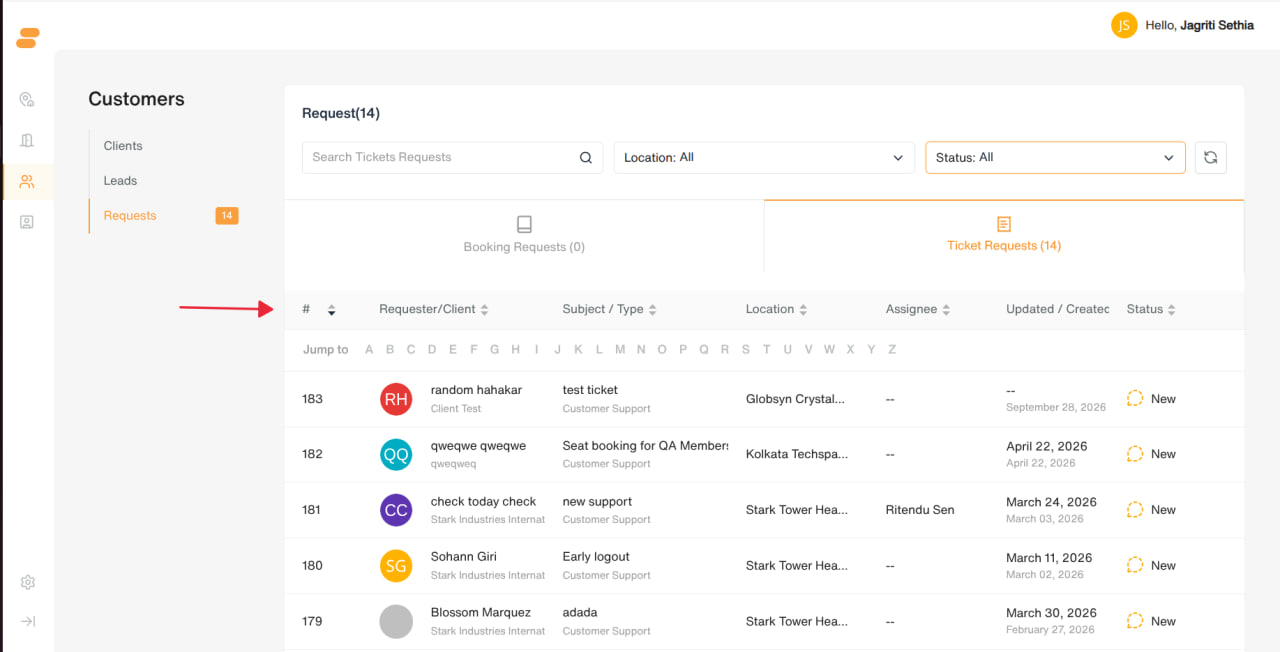
- Columns: #, Requester/Client, Subject/Type, Location, Assignee, Updated/Created dates, Status.
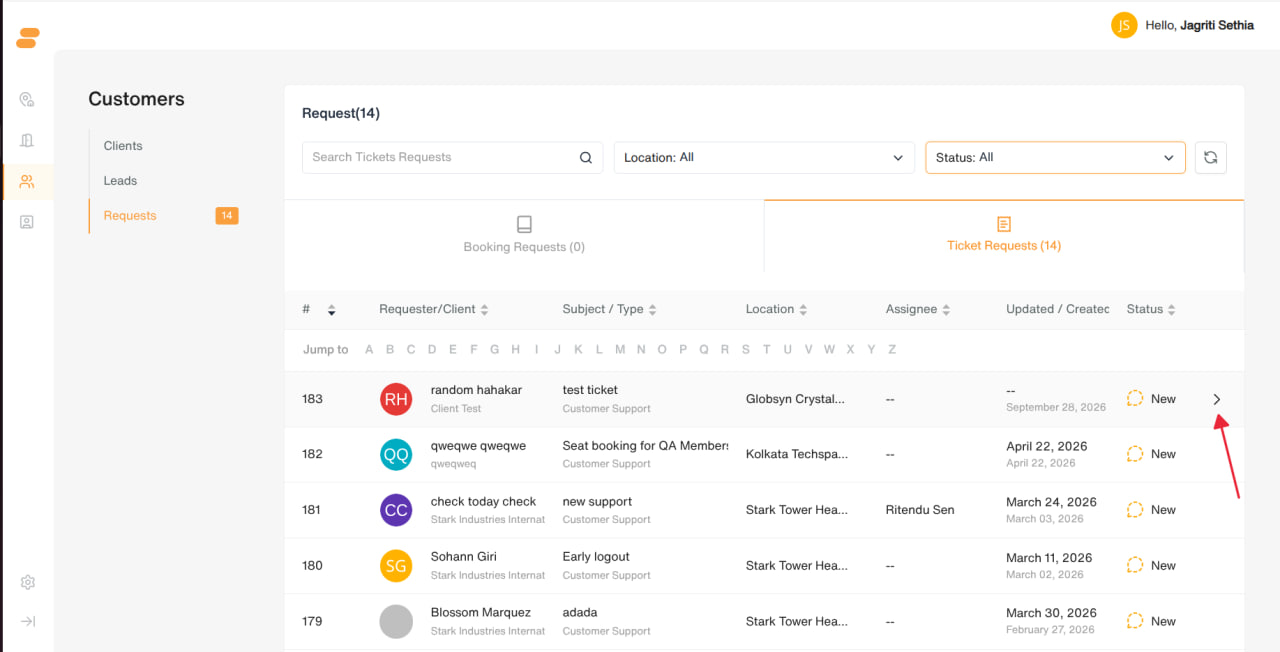
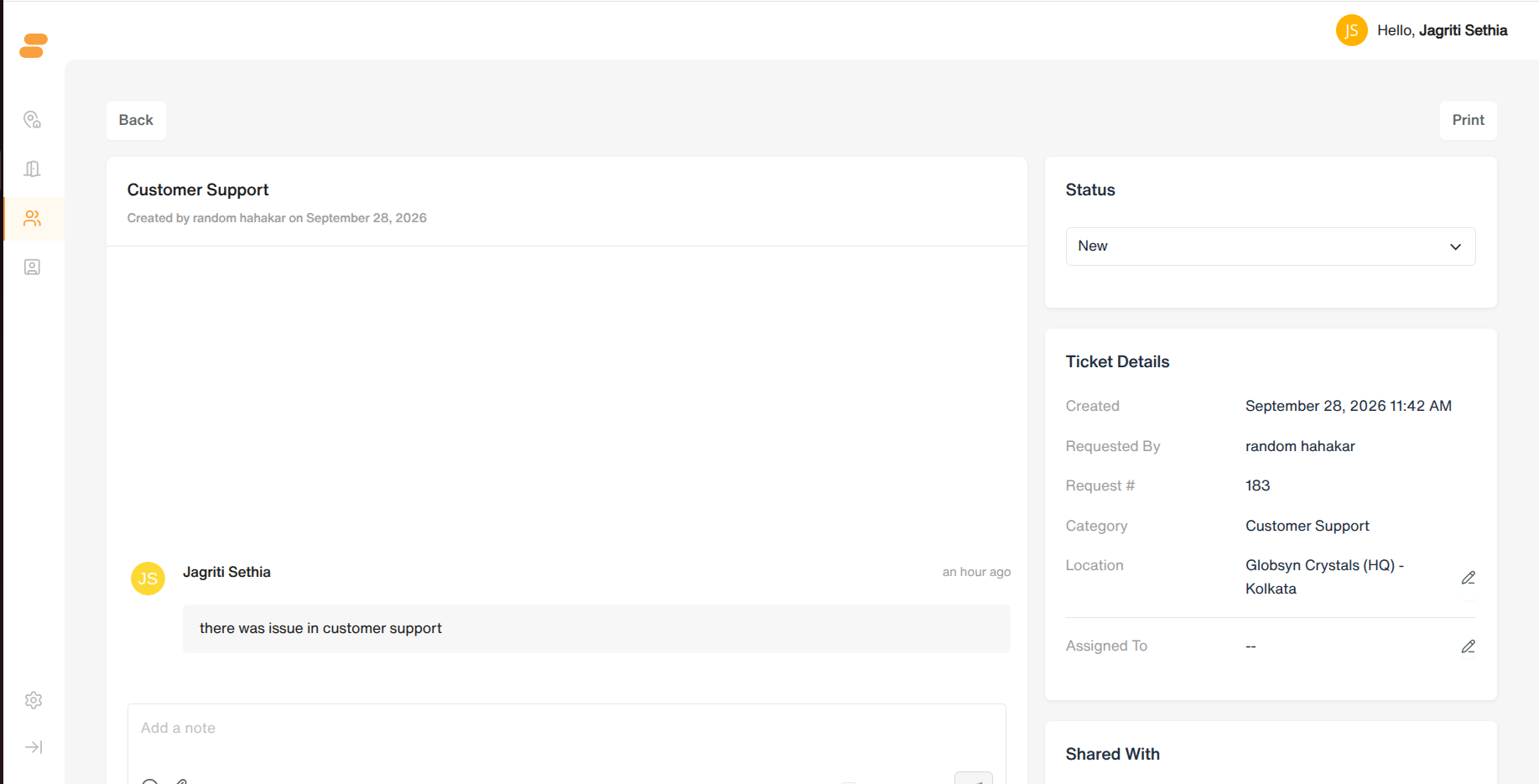
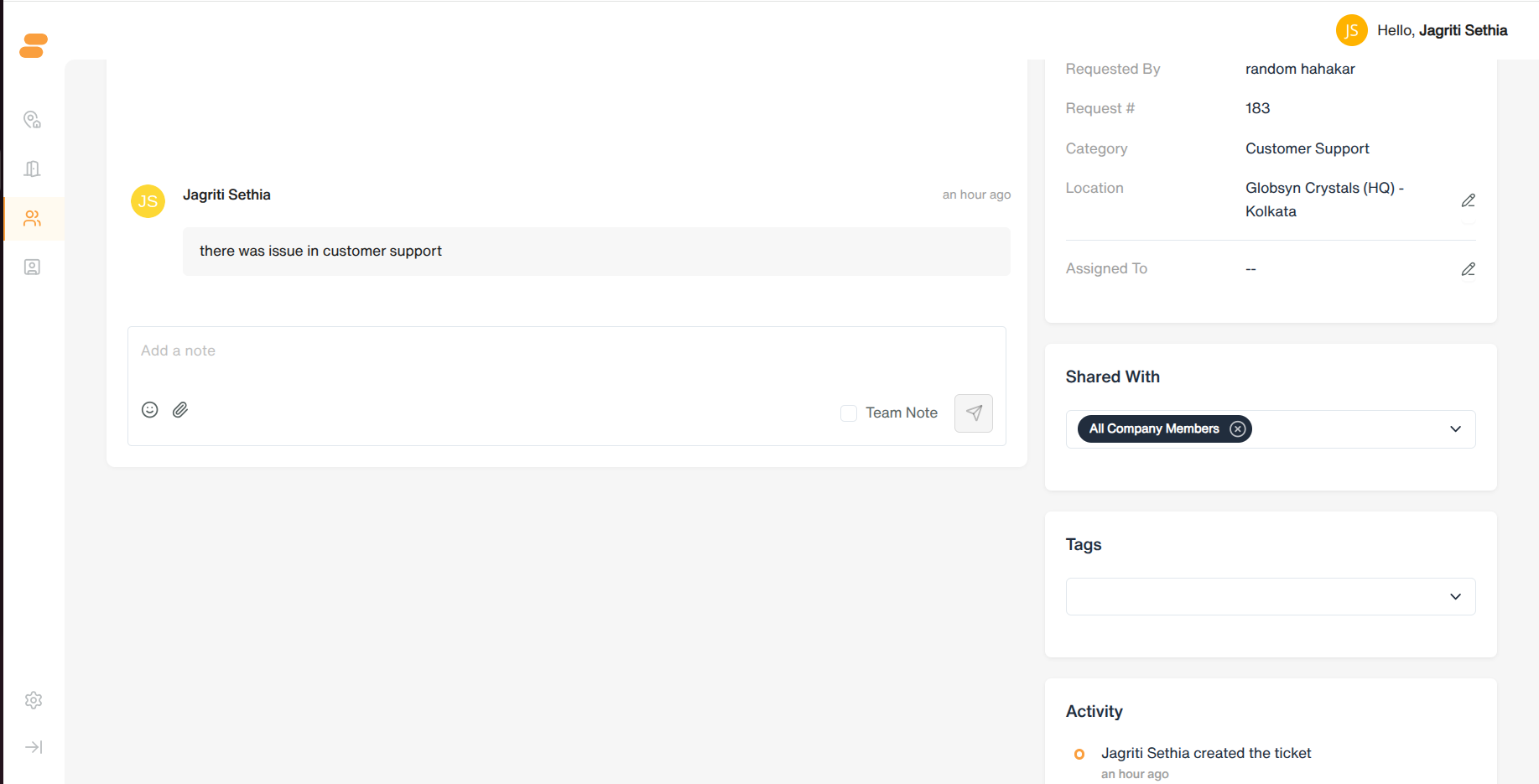
- Clicking a row opens that ticket’s full detail/chat page for the relevant client — this tab is really a cross-client filtered view into all open tickets, not a separate approve/decline flow.
General Notes
-
Every list in this section can be scoped/filtered by Location.
-
Delete/Deactivate actions require confirmation before taking effect.
-
Notes and Activity feeds appear consistently across Clients and Leads for a unified way to track history.
-
What a specific admin can see or do may still be limited by their assigned role/permissions.