Describes the Support section of the Member Portal — where you raise and track support tickets with your coworking location.
Overview
-
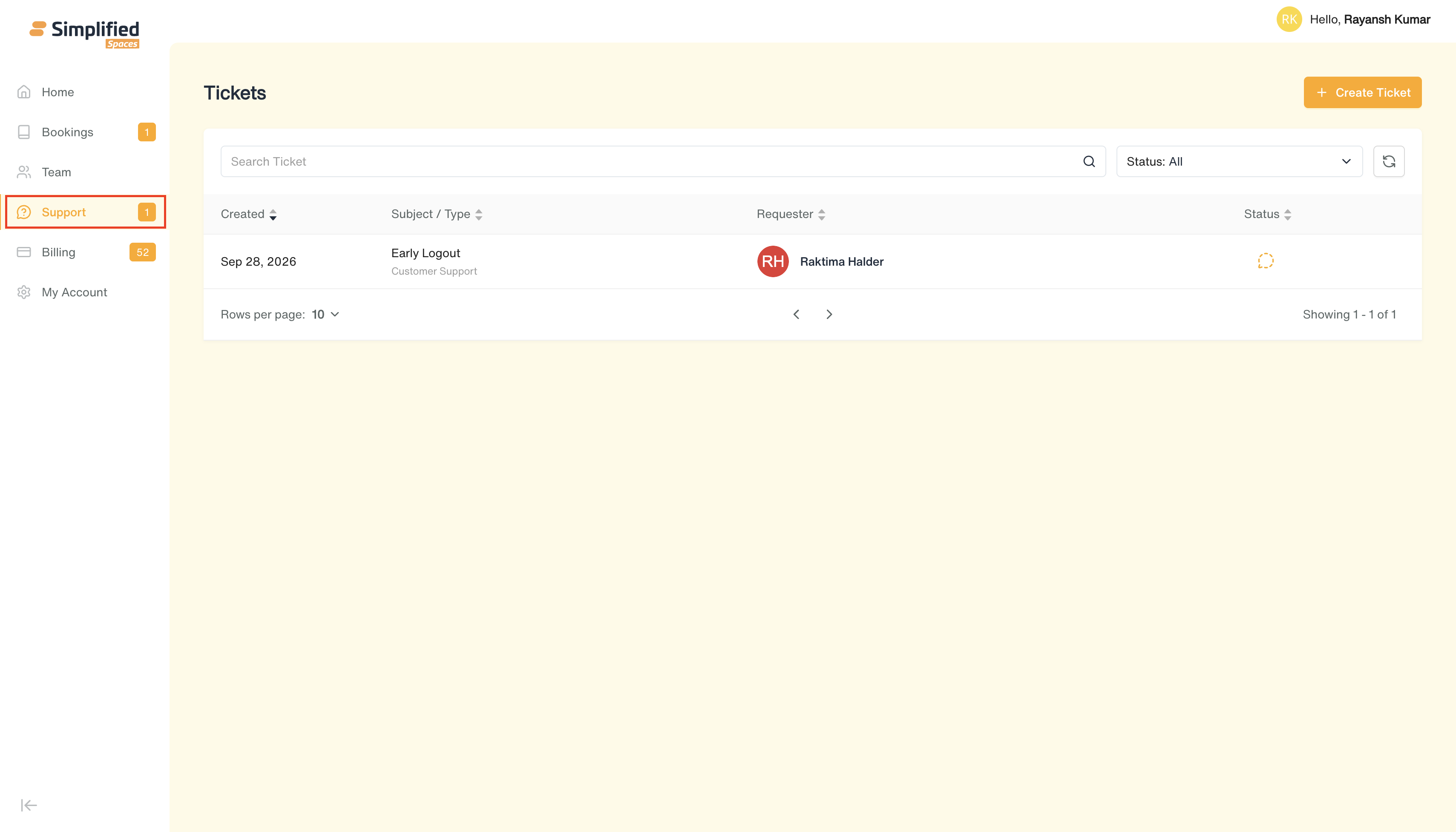
Entry point: Main menu → Support (only shown if your organization has the Tickets feature enabled).
-
Single page: a list of tickets, a Create Ticket button, and a detail page for each ticket (conversation, status, sharing, activity log).
-
As a member, you have a more limited set of actions than staff — you can create tickets, comment, and adjust who a ticket is shared with, but you can't reassign a ticket to a staff member or freely set any status; the available actions depend on the ticket's current state.
1. Viewing your Tickets
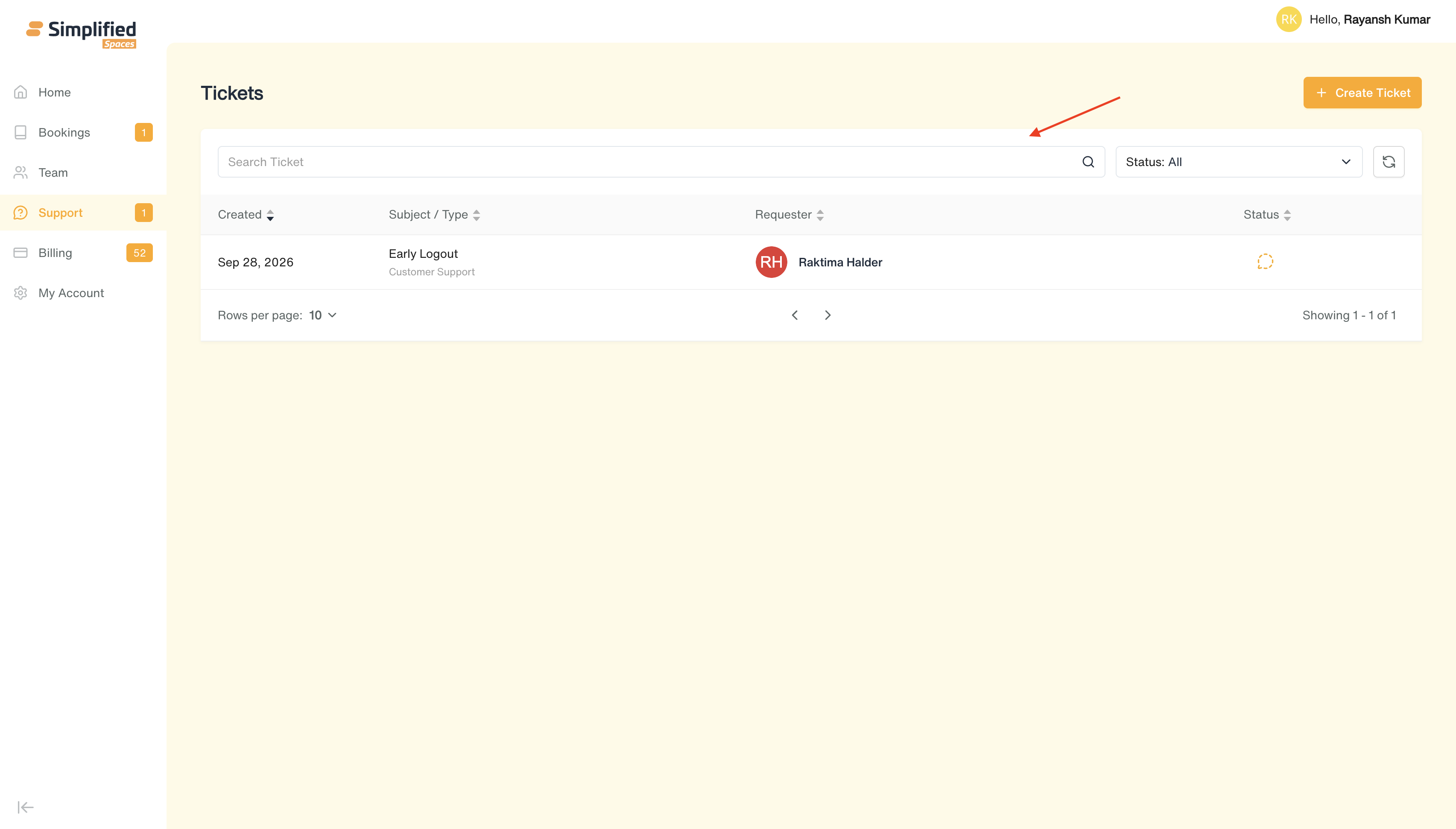
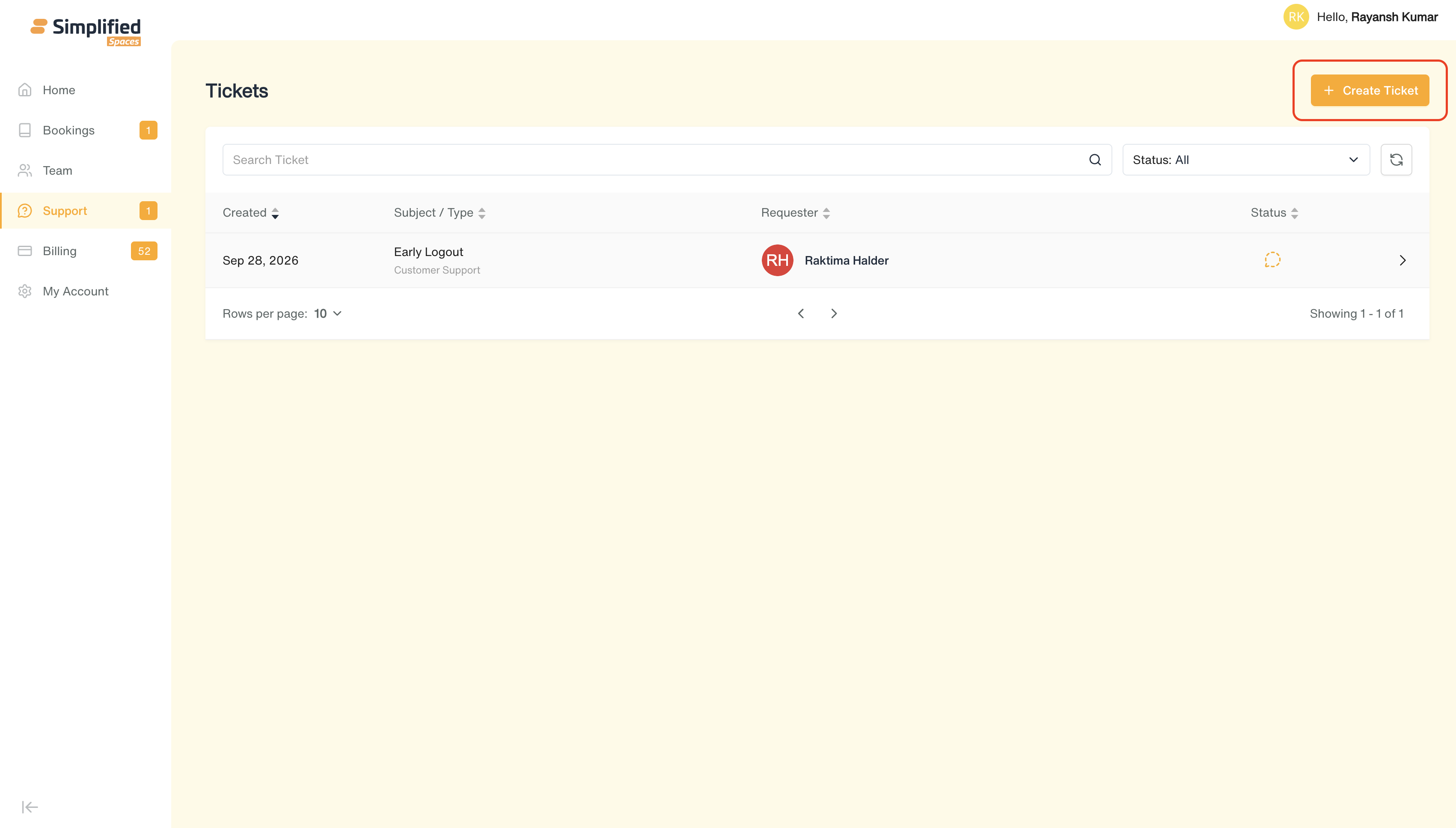
- Search box: Search Ticket
-
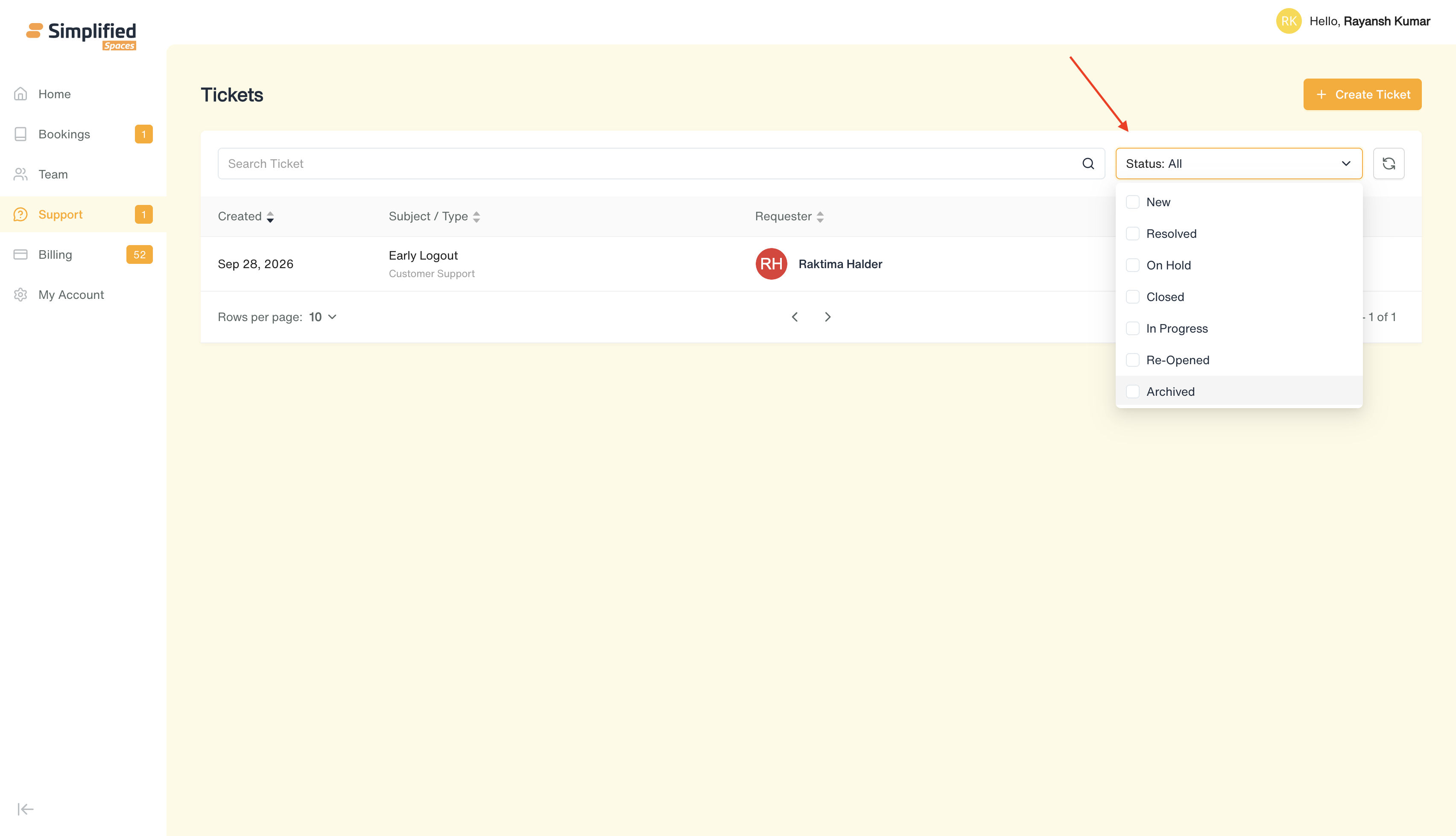
Status filter (multi-select): New, Resolved, On Hold, Closed, In Progress, Re-Opened (Archived tickets are hidden by default)
-
Reset button clears filters
-
Columns: Created date, Subject/Category, Requester (avatar + name), Status (icon with tooltip)
-
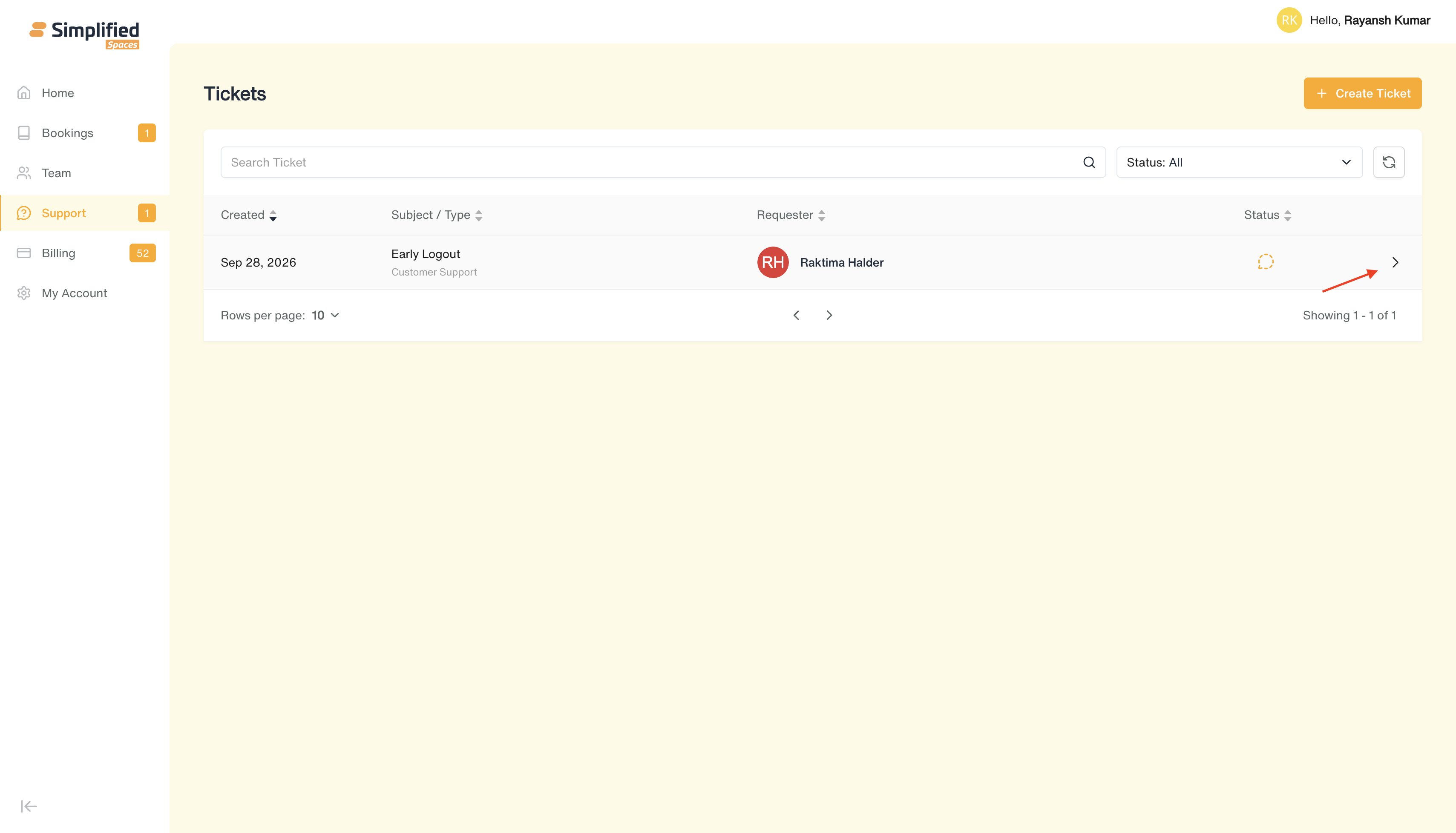
Click anywhere on a row to open that ticket's full detail/conversation page.
-
If you have no tickets, you'll see "No Ticket found."
2. Creating a Ticket
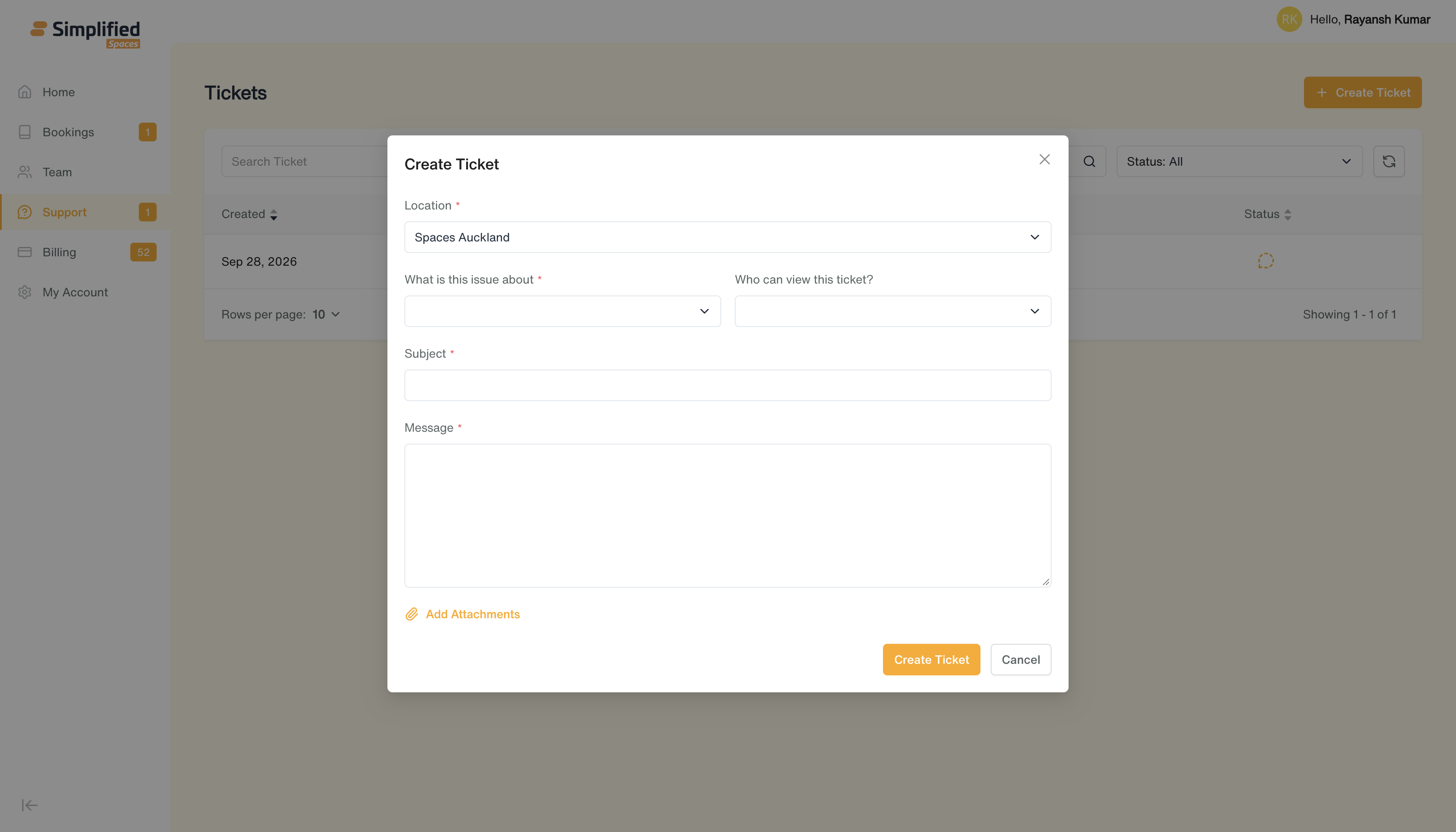
Click Create Ticket and fill in:
-
Location* (required) — which of your organization's locations this is about
-
What is this issue about?* (required) — pick a category
-
Who can view this ticket? (optional) — choose "All Company Members" or specific teammates to share visibility with
-
Subject* (required)
-
Message* (required)
-
Attachments (optional) — attach one or more files
Click Create Ticket to submit — it appears in your list as New.
3. Ticket Detail Page
Opening a ticket shows:

Conversation (left side)
-
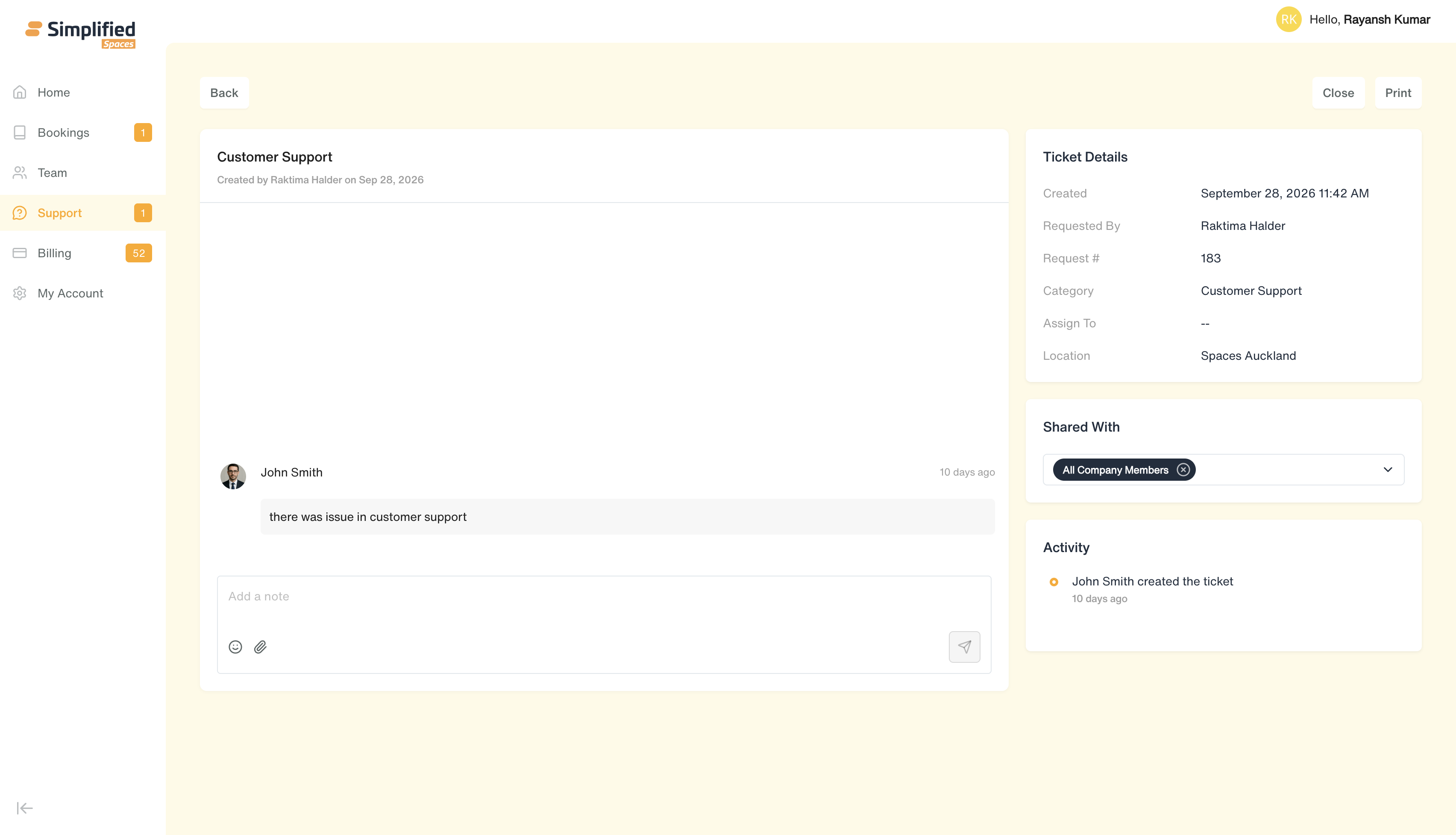
Header: category and who created the ticket, and when.
-
A scrollable message thread — your messages and any replies from the location team, each with sender, timestamp, and attachments (attached images can be previewed, any file can be downloaded).
-
Occasional internal "TEAM NOTE" messages may appear from staff — these are visible to you but you cannot create one yourself.
-
To reply: type in the message box at the bottom (with emoji and file-attachment options) and click Send.
-
You can't add new messages once a ticket is Closed, On Hold, or Resolved — the message box is hidden in those states.
Details (right side)
-
Ticket Details (read-only): Created date, Requested By, Request #, Category, Assigned To (if a staff member has been assigned), Location.
-
Shared With — you can change who can see this ticket (All Company Members, or specific teammates) at any time, except while the ticket is Closed, On Hold, or Resolved. Shows an avatar row of everyone currently sharing the ticket.
-
Activity — a read-only timeline of everything that's happened on the ticket (status changes, sharing changes, etc.).
Top bar actions
-
Back — return to the ticket list (or Home, if you arrived from the dashboard).
-
Close — appears once the ticket has been marked Resolved, letting you confirm it's done.
-
Reopen — appears if the ticket was closed and needs to be reopened.
-
Archive — available on some tickets (depends on the ticket's state) to file it away.
-
Print — print the conversation.
Note: as a member, you cannot reassign a ticket to a different staff member or set an arbitrary status yourself — those actions are handled by the location team. Your available actions (Close/Reopen/Archive) change based on the ticket's current status.
General Notes
-
Which tickets you can see depends on your account and whether a ticket was shared with you.
-
Ticket status controls what you can still do: once a ticket is Closed, On Hold, or Resolved, you can no longer add new messages or change who it's shared with (until it's reopened, where applicable).
-
Categories and locations shown when creating a ticket are specific to your organization's setup.