Describes the Team section of the Member Portal — where an organization's Admin manages their own team members.
Overview
-
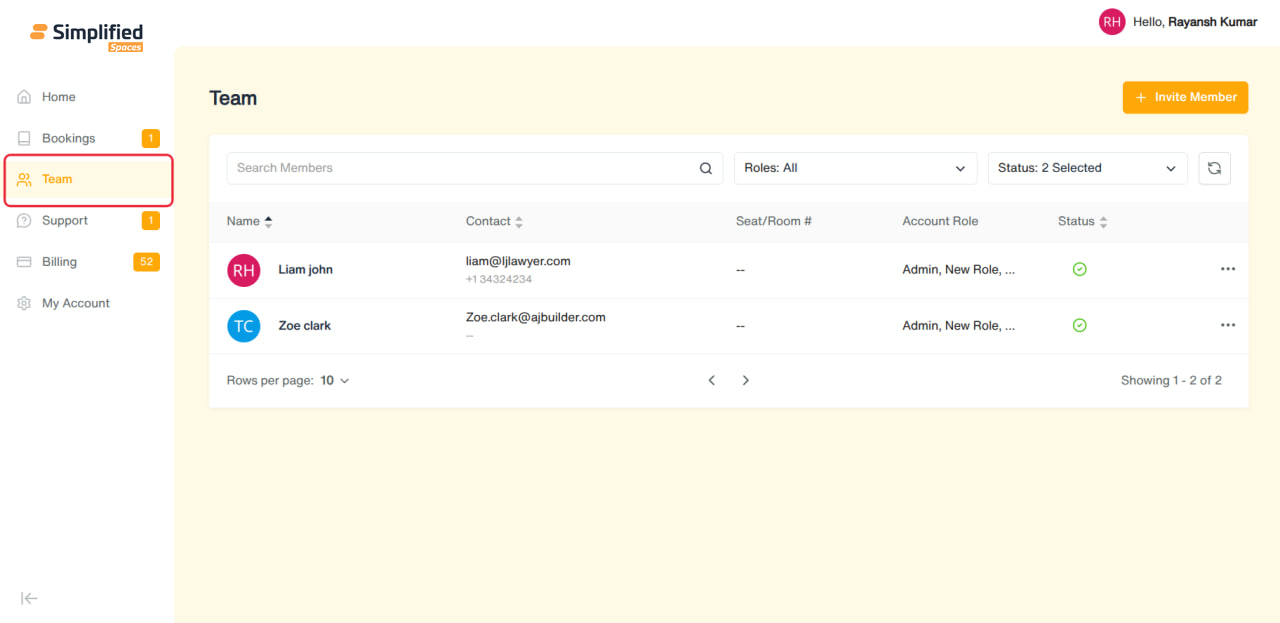
Entry point: Main menu → Team (only shown if your organization has the Members feature enabled, and typically visible to Admin-role members).
-
Team currently has one working area: Members. A "Roles" area exists in the code but isn't built out or linked in the menu yet — treat it as not available.
-
This is separate from the staff-side "Team" in the admin app — here you're only managing your own company's people, not the coworking operator's staff.
1. Members
Viewing the list
-
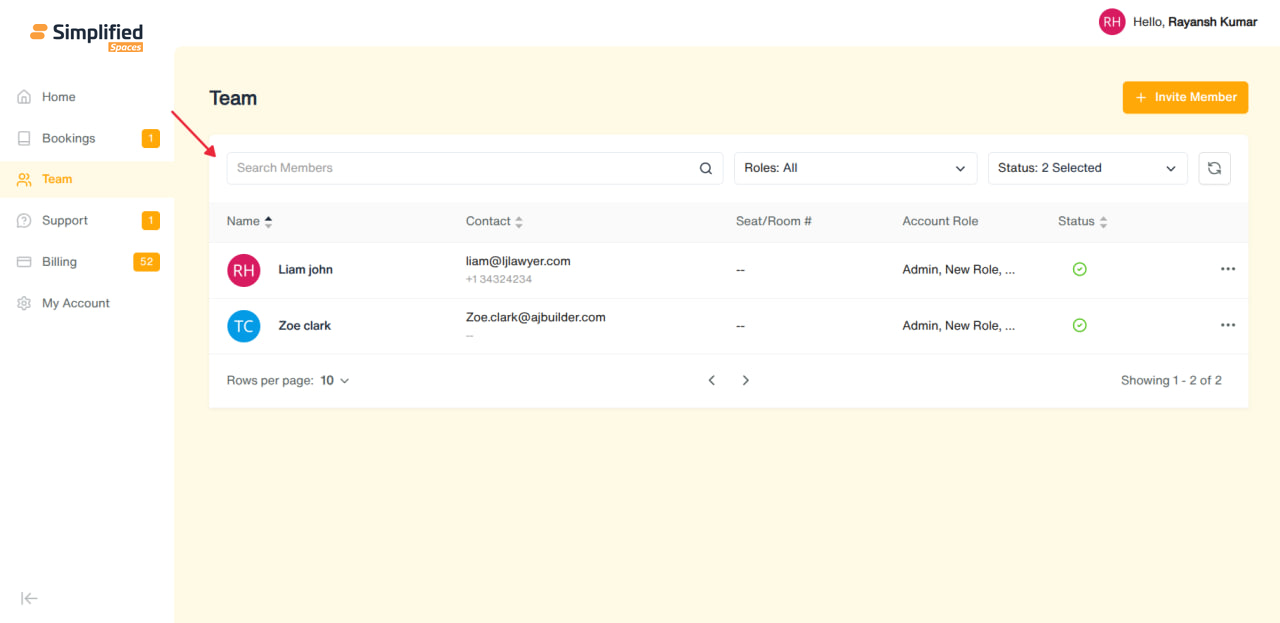
Search box: Search Members
-
Filters: Roles (multi-select), Status (Active / Deactivated / Invitation Pending — Active + Invitation Pending shown by default)
-
Reset button clears filters back to default
-
Columns: Name (avatar + name), Contact (email + phone), Seat/Room #, Account Role, Status
-
Status shown as icon with tooltip: Active, Invite Pending, User Deactivated
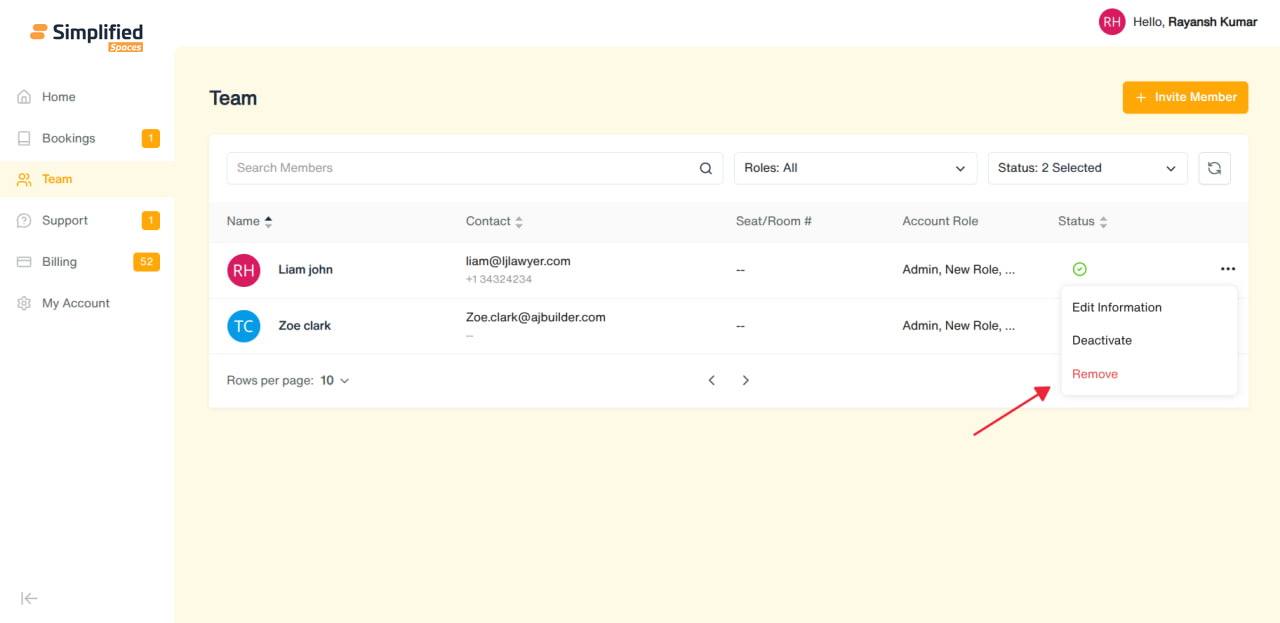
- Row menu: Edit Information, Deactivate, Remove, plus (only while status is Invitation Pending) Resend Invite and Cancel Invitation. Menu is disabled for deactivated members.
Inviting a Member
-
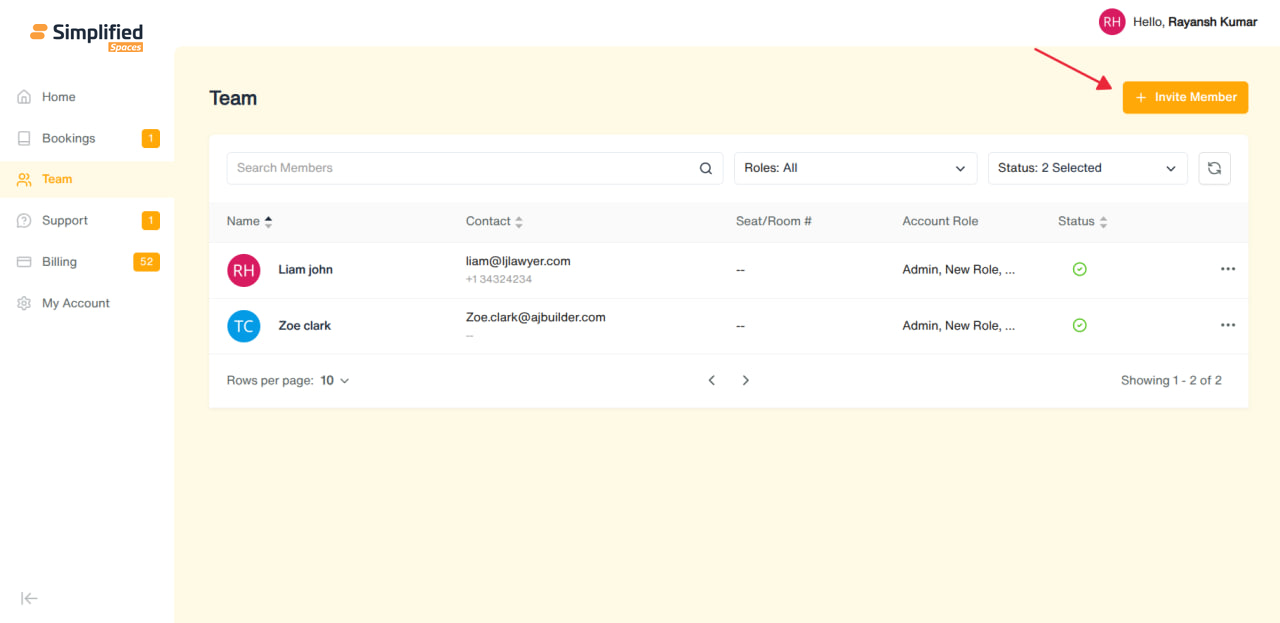
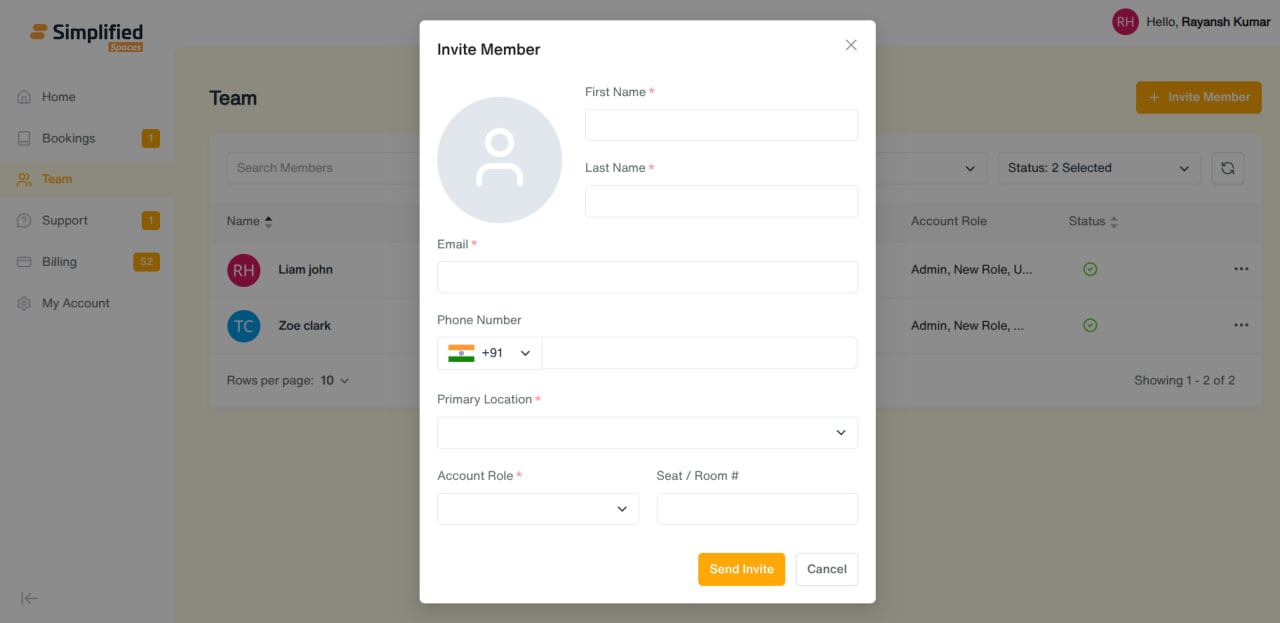
Click Invite Member.
-
Fill in:
-
Profile photo (optional)
-
First Name* and Last Name* (required)
-
Email* (required, must be a valid email)
-
Phone Number (optional)
-
Primary Location* (required — which of your organization's locations this member belongs to)
-
Account Role* (required, multi-select — you can assign more than one role)
-
Seat / Room # (optional)
- Click Send Invite — the new member receives an invitation; their status shows Invitation Pending until they accept.
Editing a Member
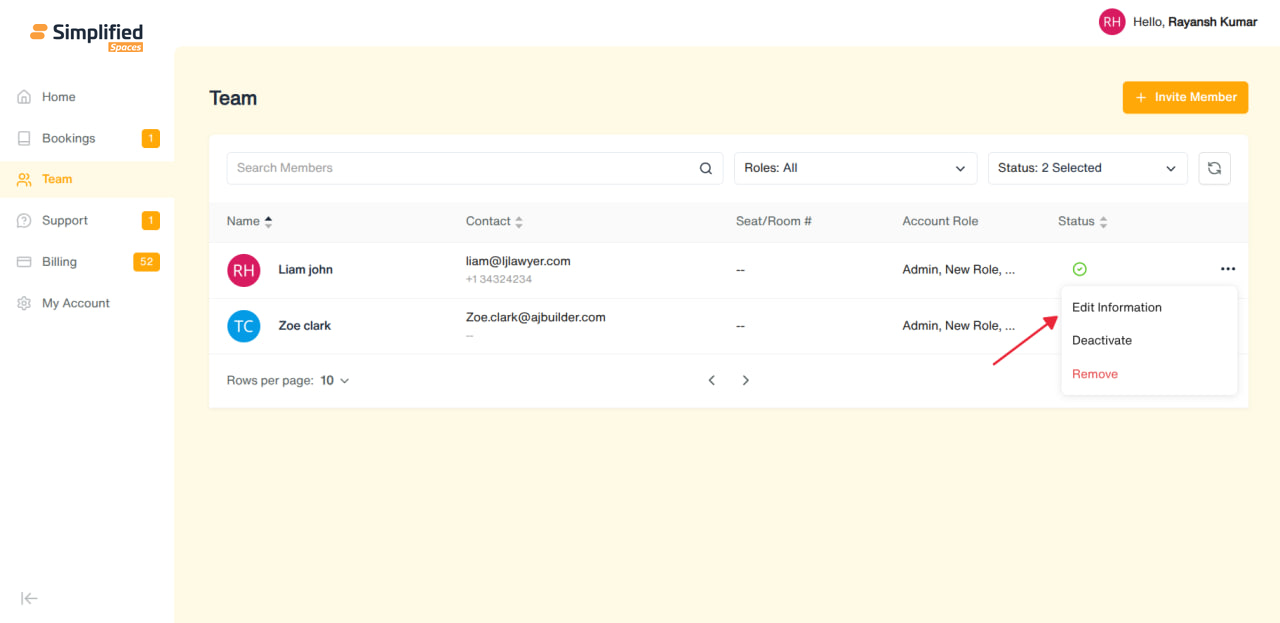
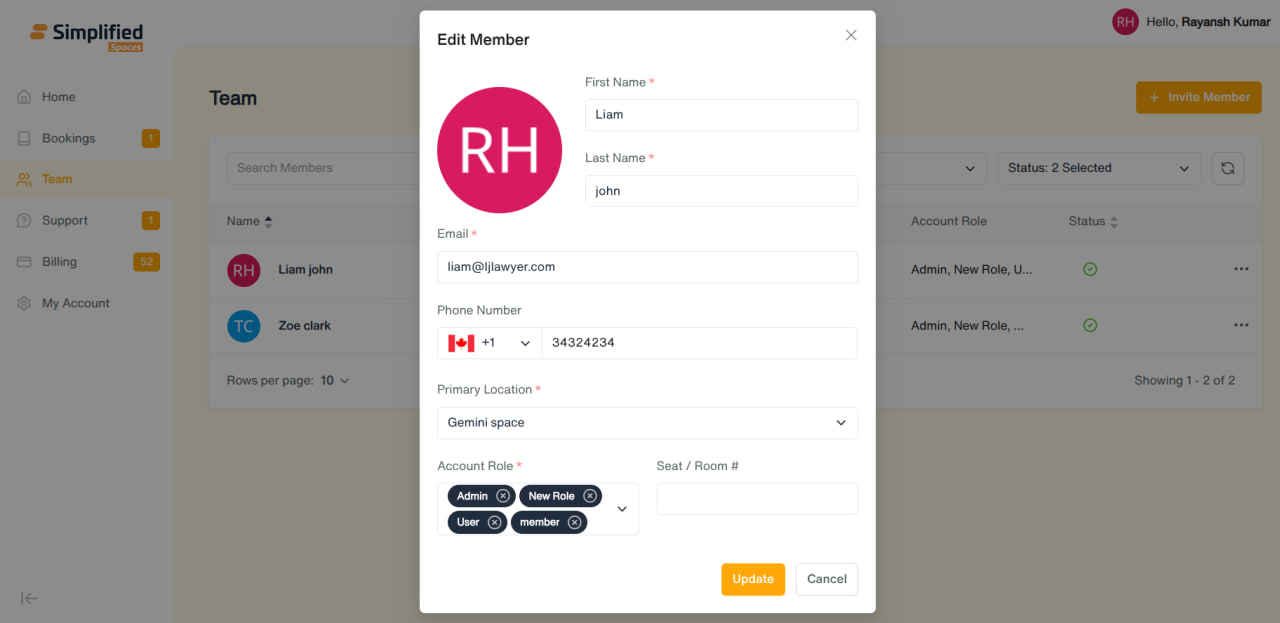
- Row menu → Edit Information → same form, pre-filled → button changes to Update.
Resend / Cancel Invite
- While a member's status is Invitation Pending, you can Resend Invite (send the invitation again) or Cancel Invitation (withdraw it).
Deactivate / Remove
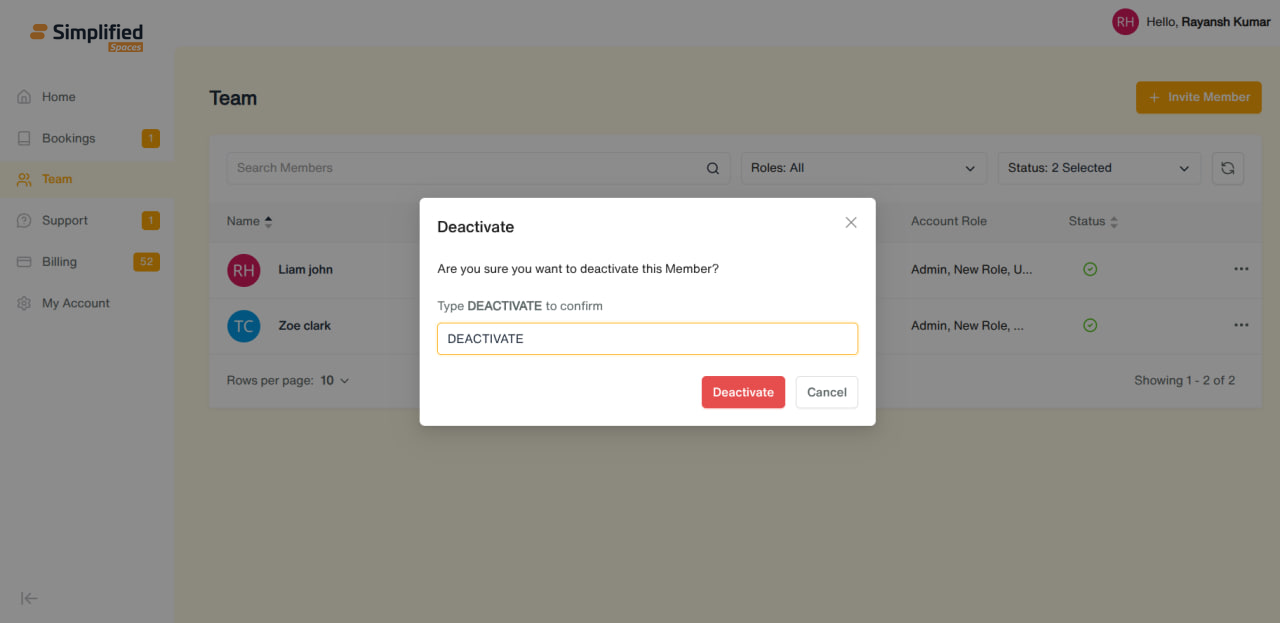
- Row menu → Deactivate — disables the member's access but keeps their record.
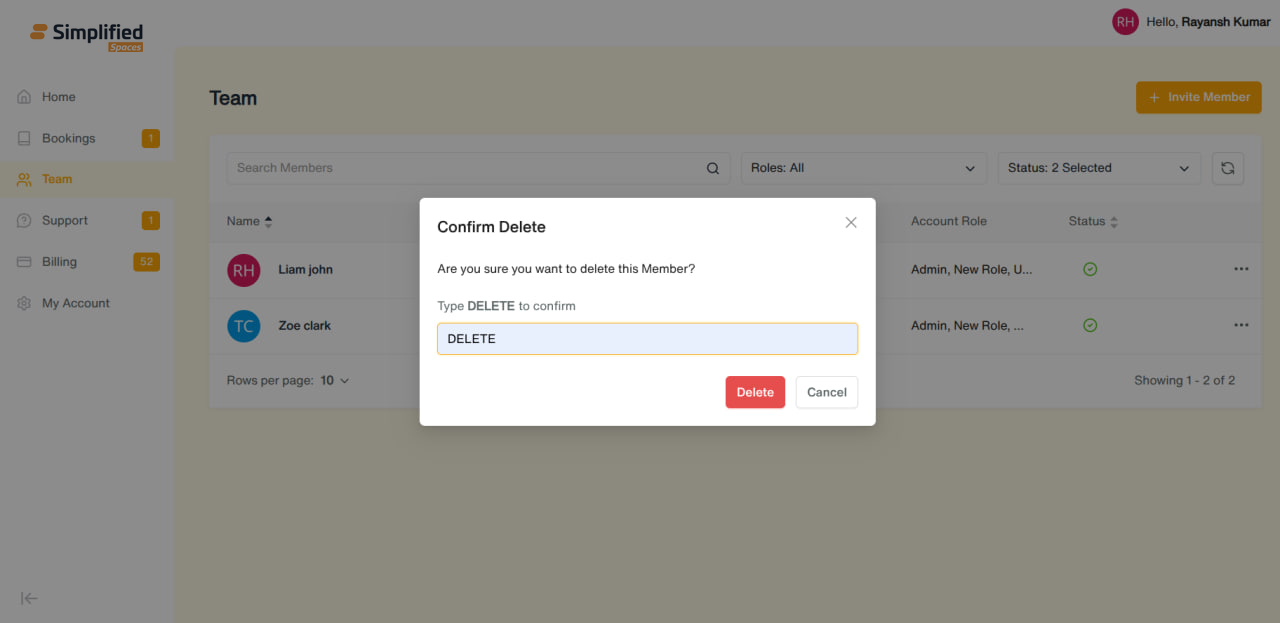
- Row menu → Remove — permanently deletes the member from your team (confirmation required).
General Notes
-
Only Admin-role members are typically able to manage the team (invite, edit, deactivate, remove); regular Users generally won't have access to this section.
-
Every Deactivate/Remove action requires confirmation before it takes effect.