Describes the Bookings section of the Member Portal — where you view and manage your organization's workspace bookings.
Overview
-
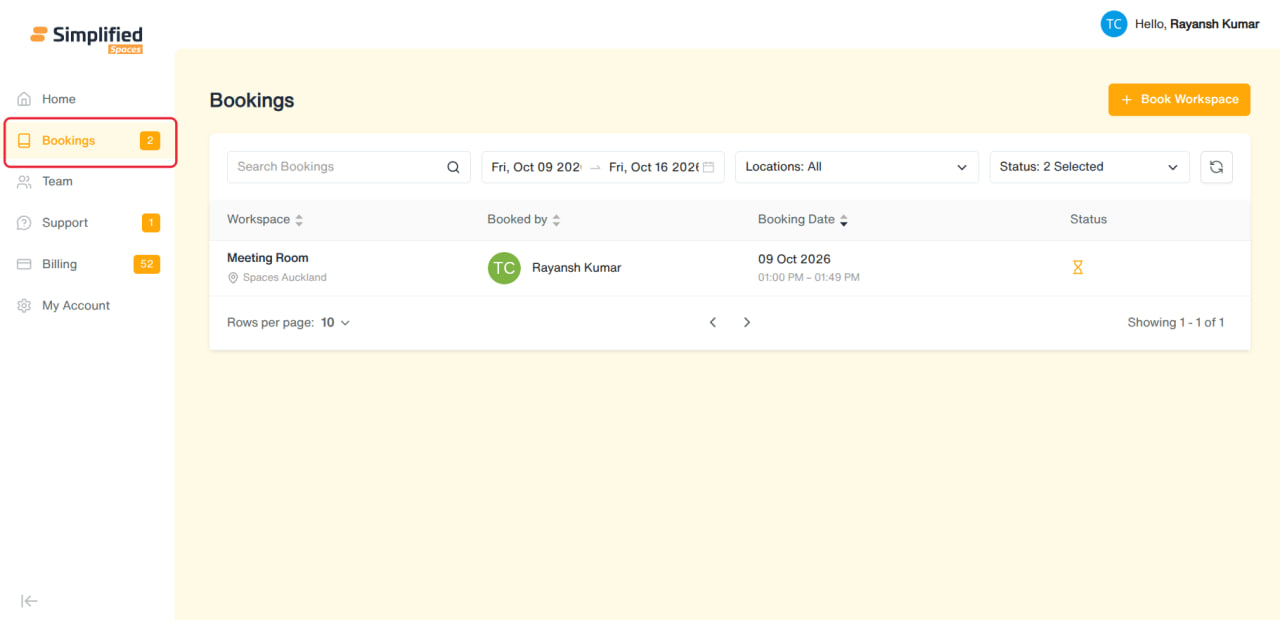
Entry point: Main menu → Bookings (only shown if your organization has the Booking feature enabled).
-
Bookings is a single page: a filterable list of bookings, plus a Book Workspace button that opens a calendar to create a new one.
-
Role difference: if you're an Admin-role member, you can browse and book across any of your organization's locations. If you're a regular User, you're limited to your own assigned location — the location is fixed and shown as plain text instead of a dropdown.
-
Only Workspace bookings are functional today. Parking and Meals appear as placeholder tabs/options in a couple of places but currently show "no reservations yet" — there's no way to actually create a parking or meal booking yet.
1. Viewing your Bookings
-
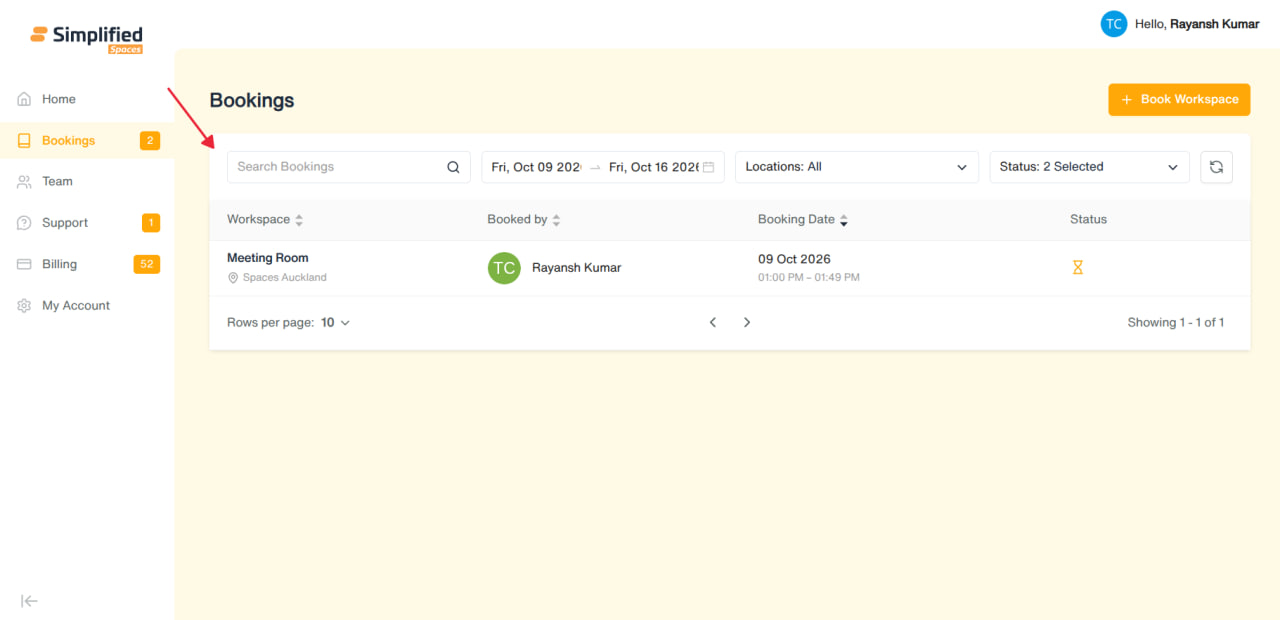
Search box to search bookings.
-
Date range filter — defaults to today through the next 7 days (bookings can only be made/viewed within a 30-day window).
-
Locations filter (multi-select) — Admins can filter across locations; regular users effectively only see their own.
-
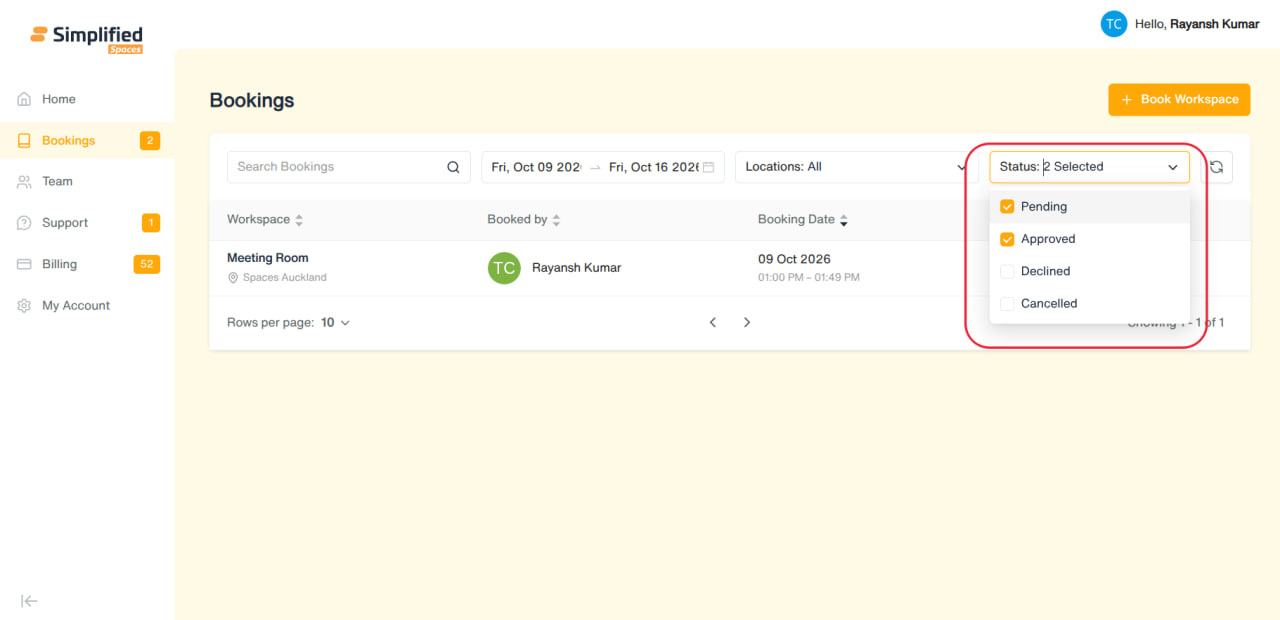
Status filter (multi-select): Pending, Approved, Declined, Cancelled — defaults to showing Pending + Approved.
-
Reset Filter button clears everything back to default.
-
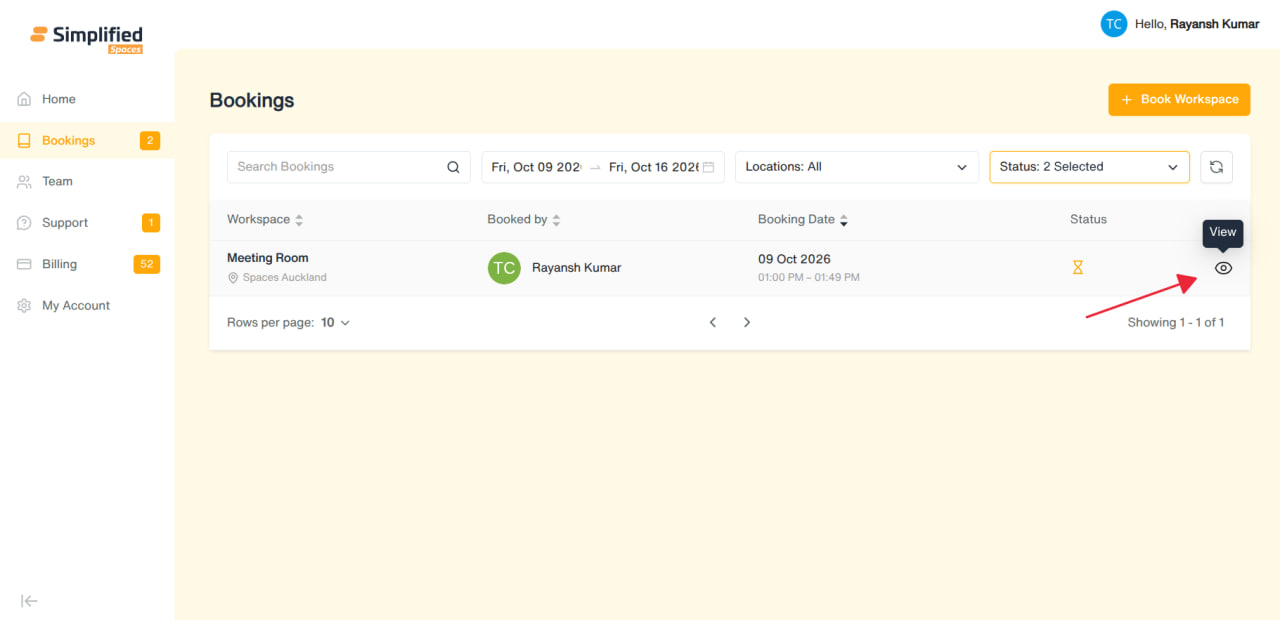
Table columns: Workspace (name + location), Booked By (who made the booking), Booking Date & Time, Status icon.
-
A small message-bubble icon appears next to the status if there's a decline reason attached.
-
Click the eye/View icon on any row to open that booking's full details.
-
If you have no workspace bookings, you'll see "No workspace bookings yet."
Status meanings
-
Pending Approval — hourglass icon, awaiting a decision from the location team.
-
Approved — green check, confirmed (shows who approved it).
-
Declined — red X (shows who declined it, and the reason if provided).
-
Cancelled — black X (shows who cancelled it).
2. Booking a Workspace
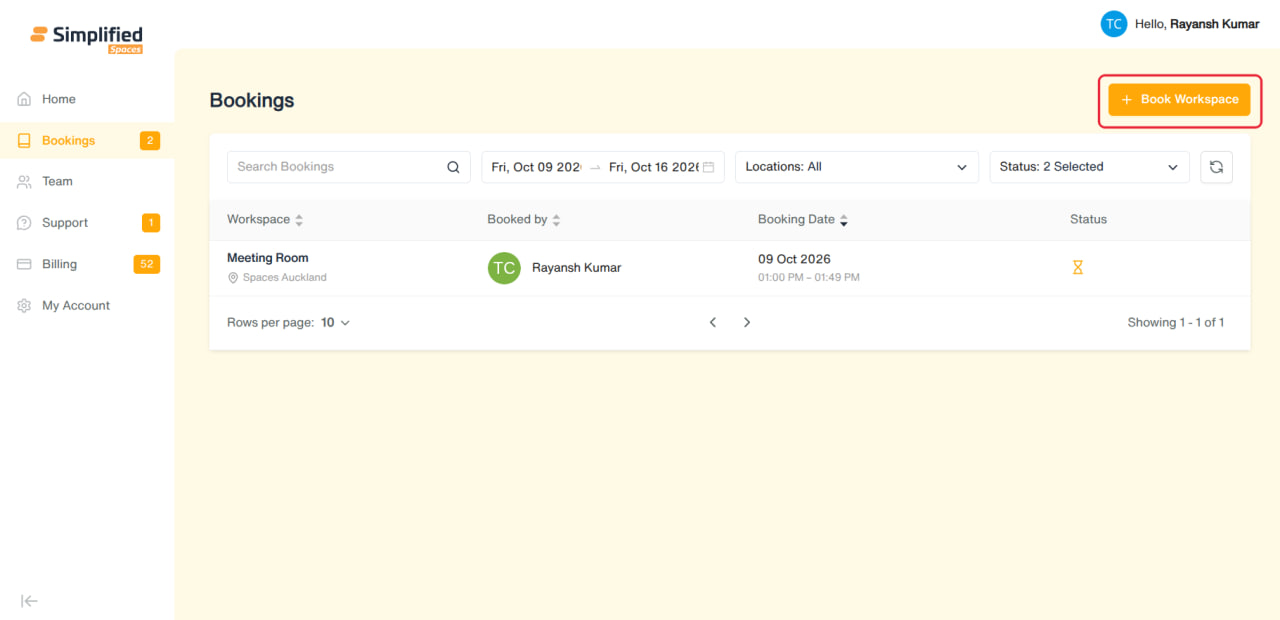
Click Book Workspace to open the booking calendar:
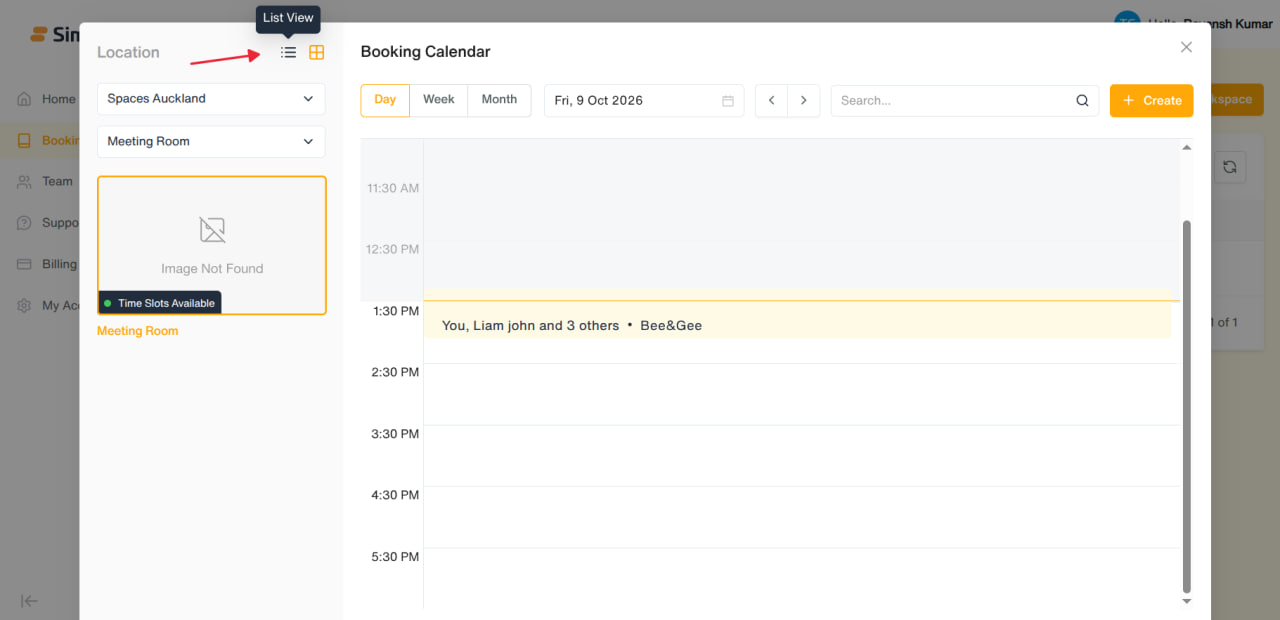
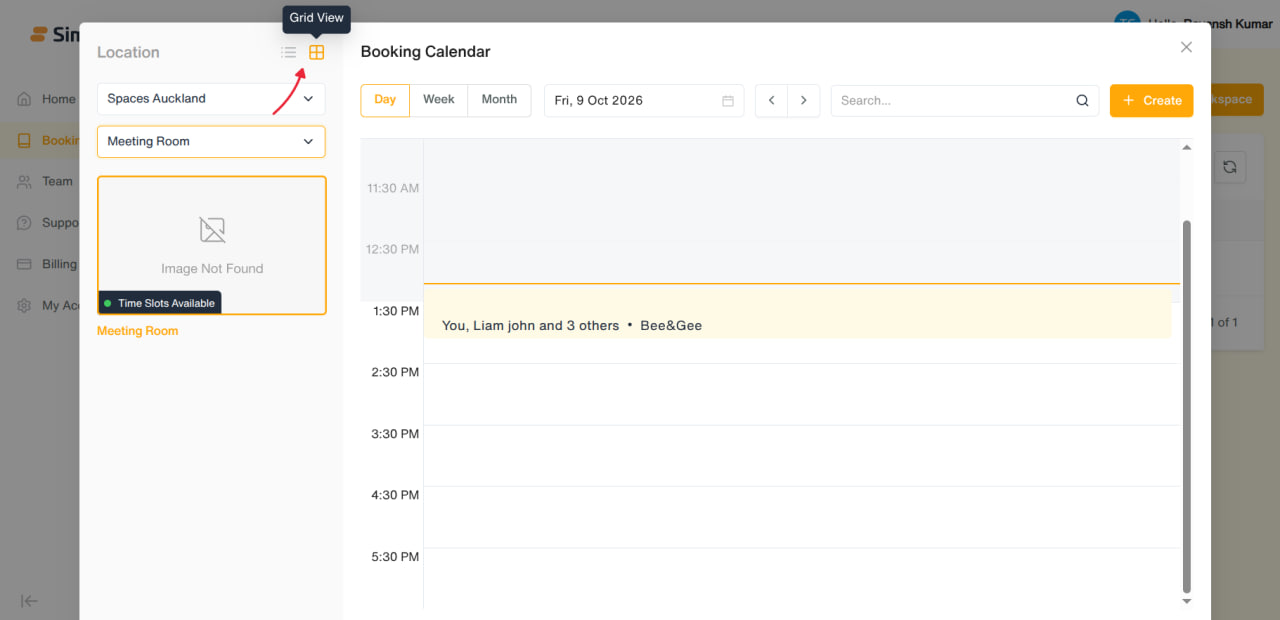
- Browse workspaces: switch between List view and Grid view of available spaces at your location.
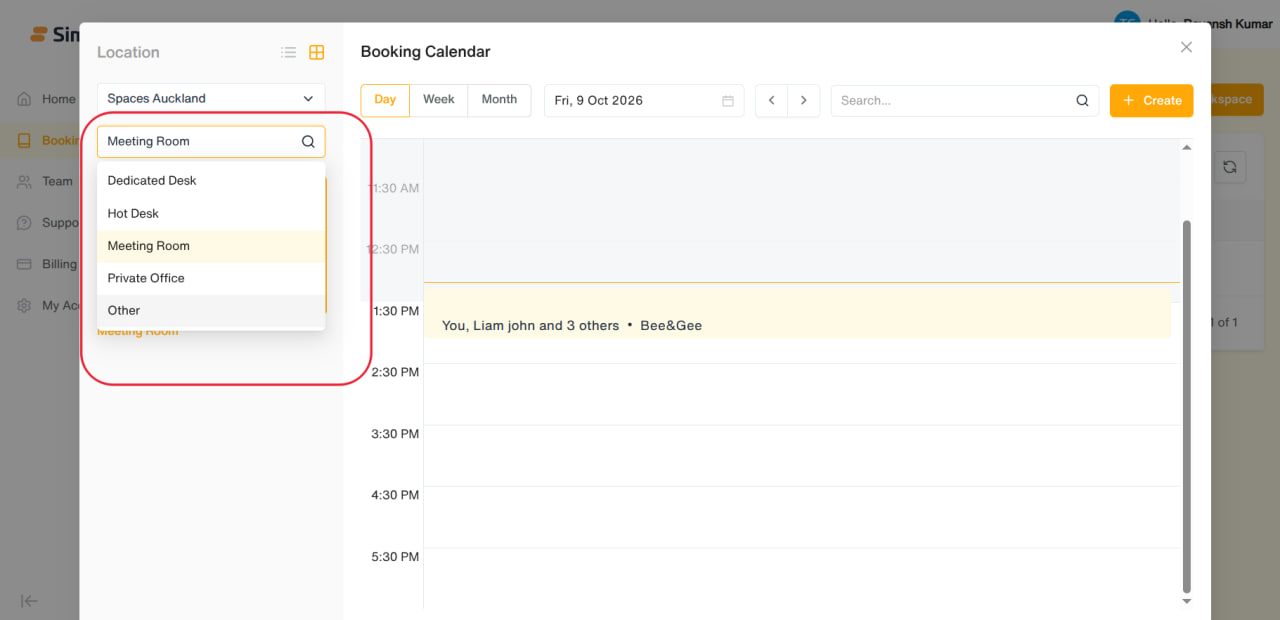
- Filter by workspace type: Dedicated Desk, Hot Desk, Meeting Room, Private Office, Other.
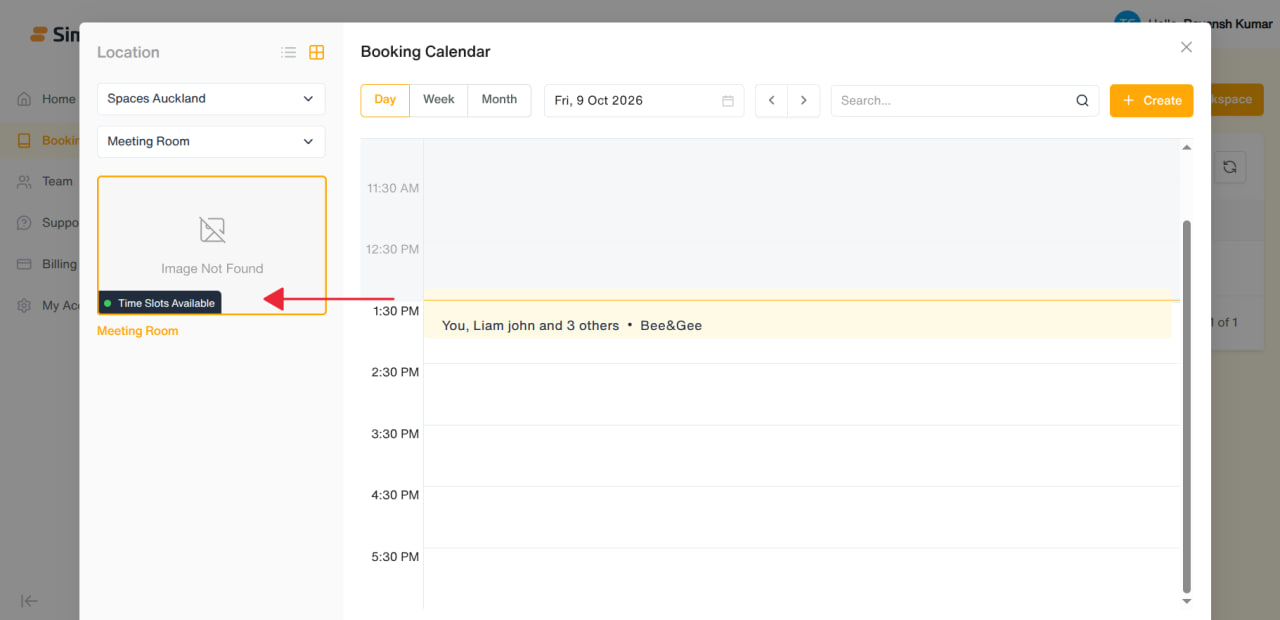
- Grid view shows each space with an availability badge — "Time Slots Available" / "No Availability" for meeting/conference rooms, or "N Seats Available" / "Booked" for desks.
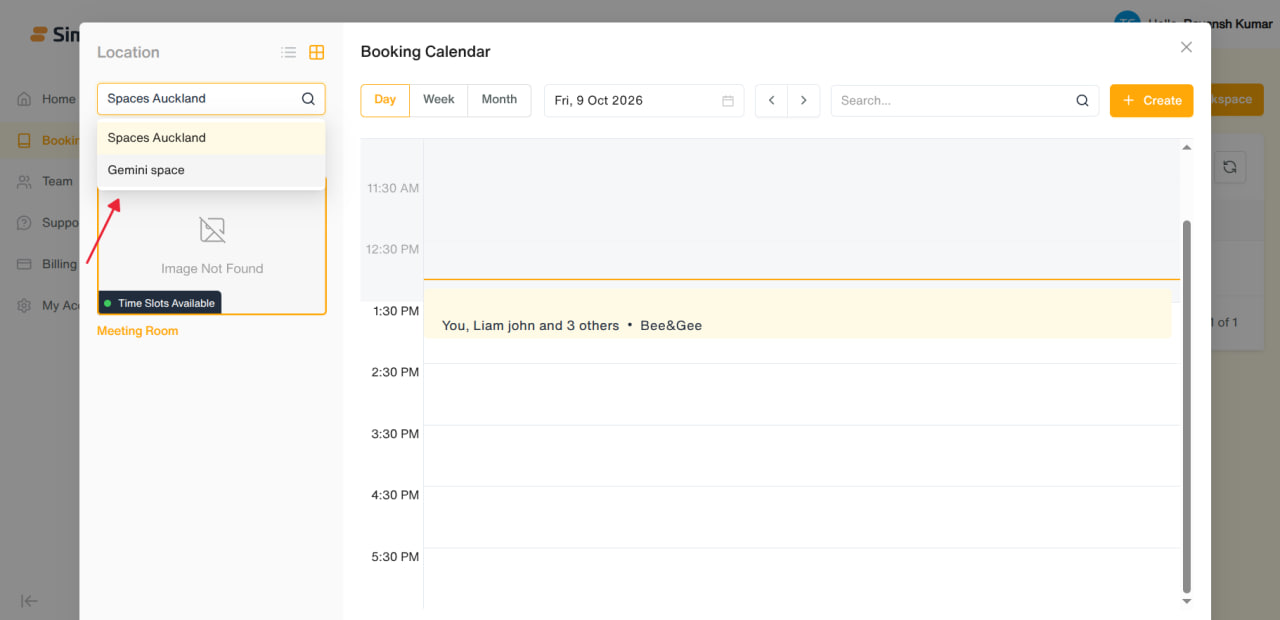
- Only workspaces marked as bookable appear here.
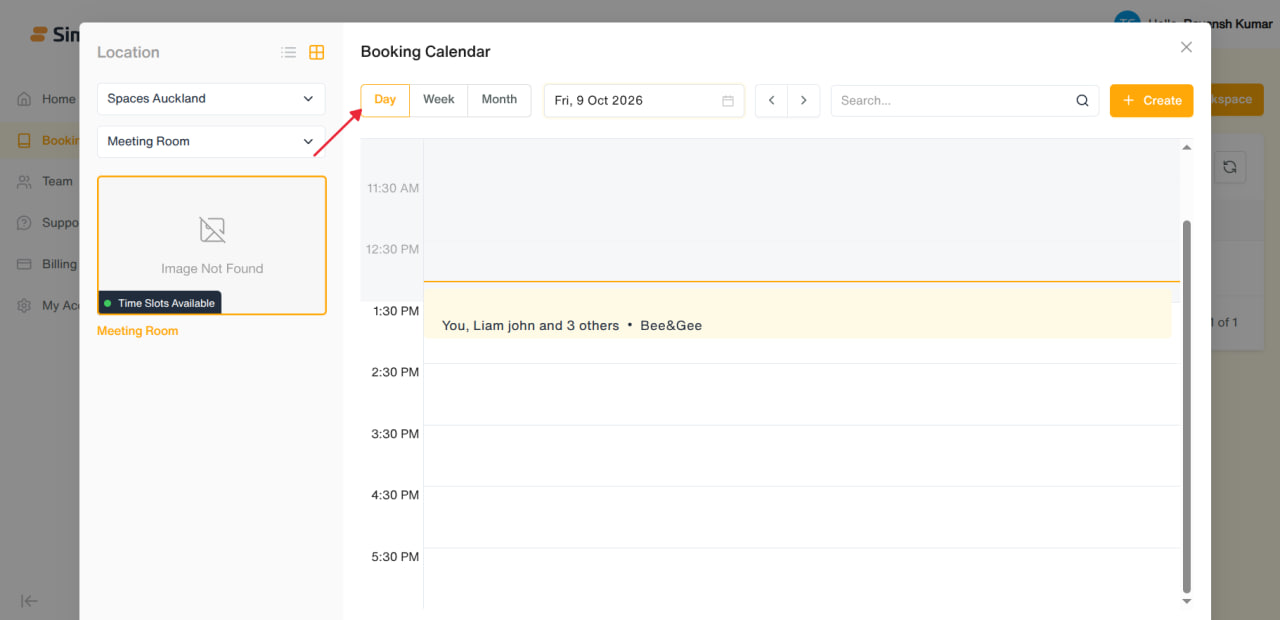
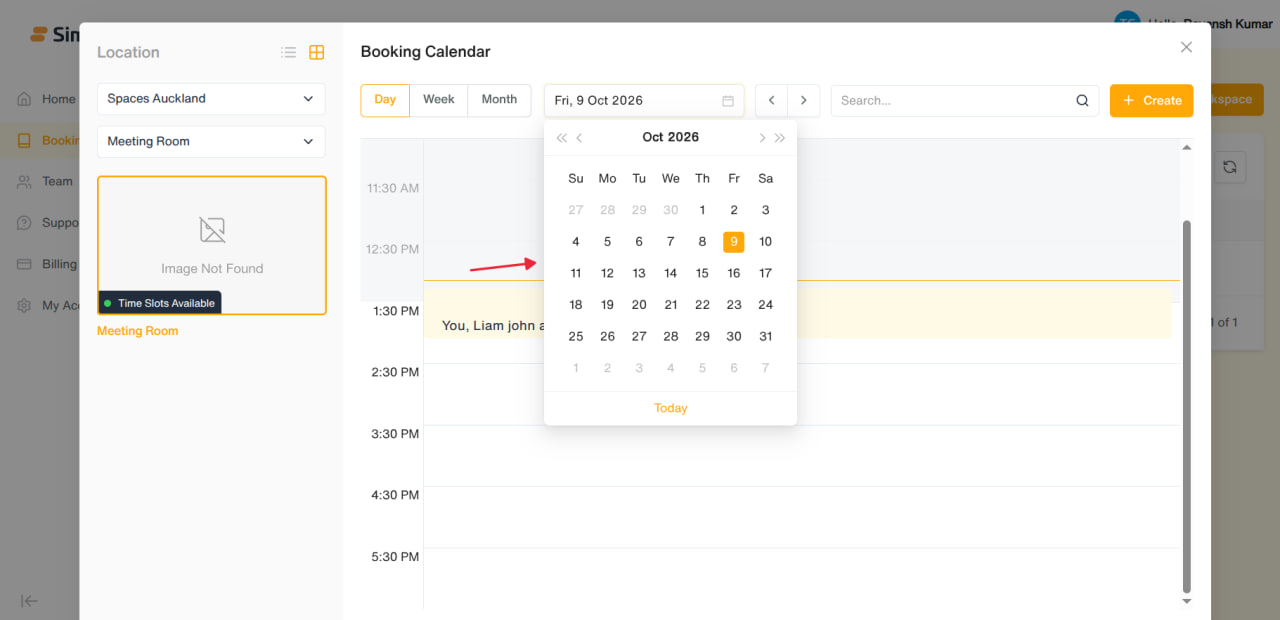
- Browse the calendar: switch between Day / Week / Month views, navigate with the arrows or date picker, and search.
-
Click an open date/time slot to start a new booking pre-filled with that slot.
-
Click an existing booking to view its details (in Week/Day view) or drill into that day (in Month view).
-
Past dates/times are greyed out and can't be clicked.
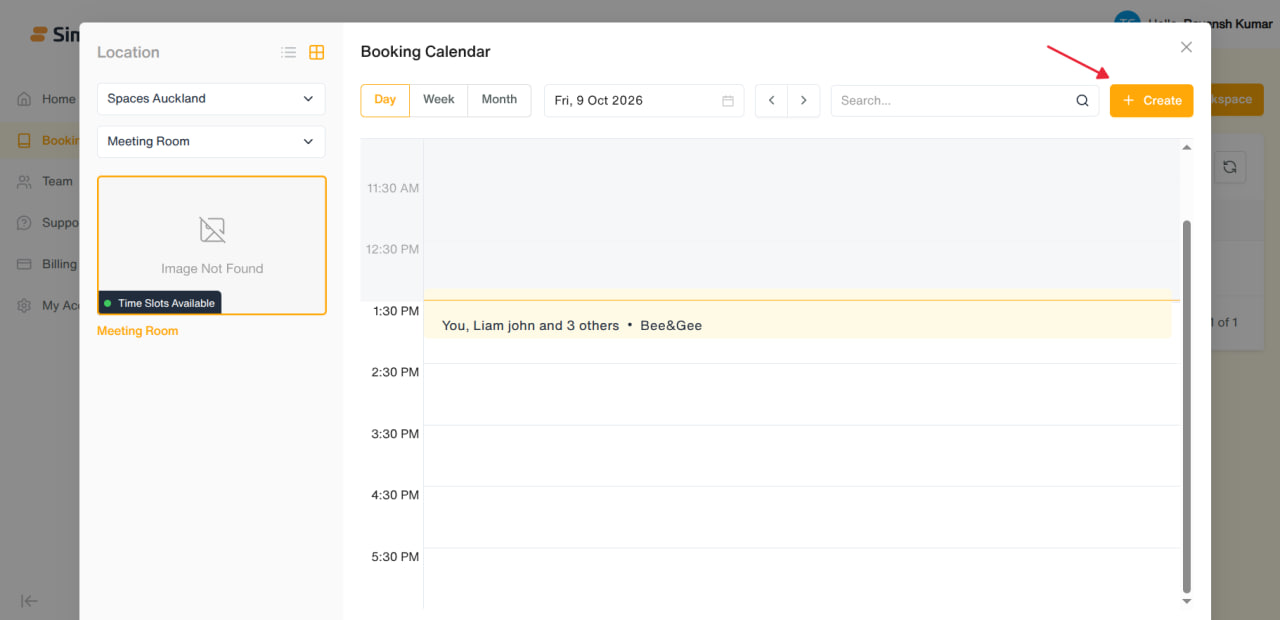
- Click Create (or an empty slot) to open the booking form.
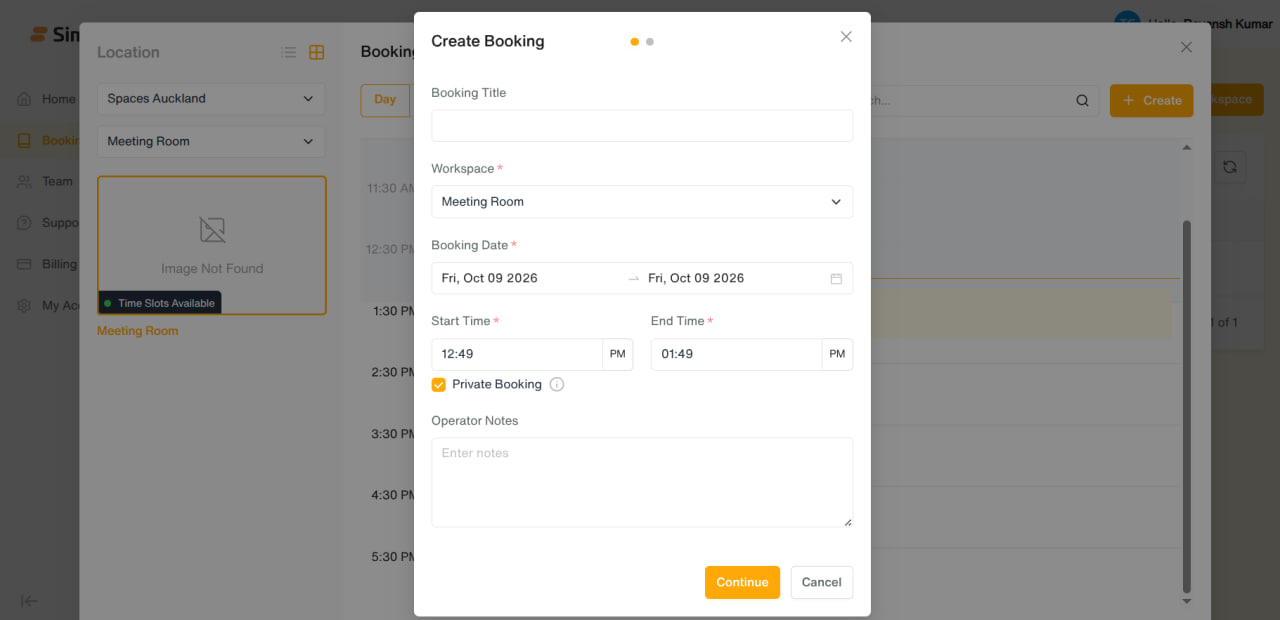
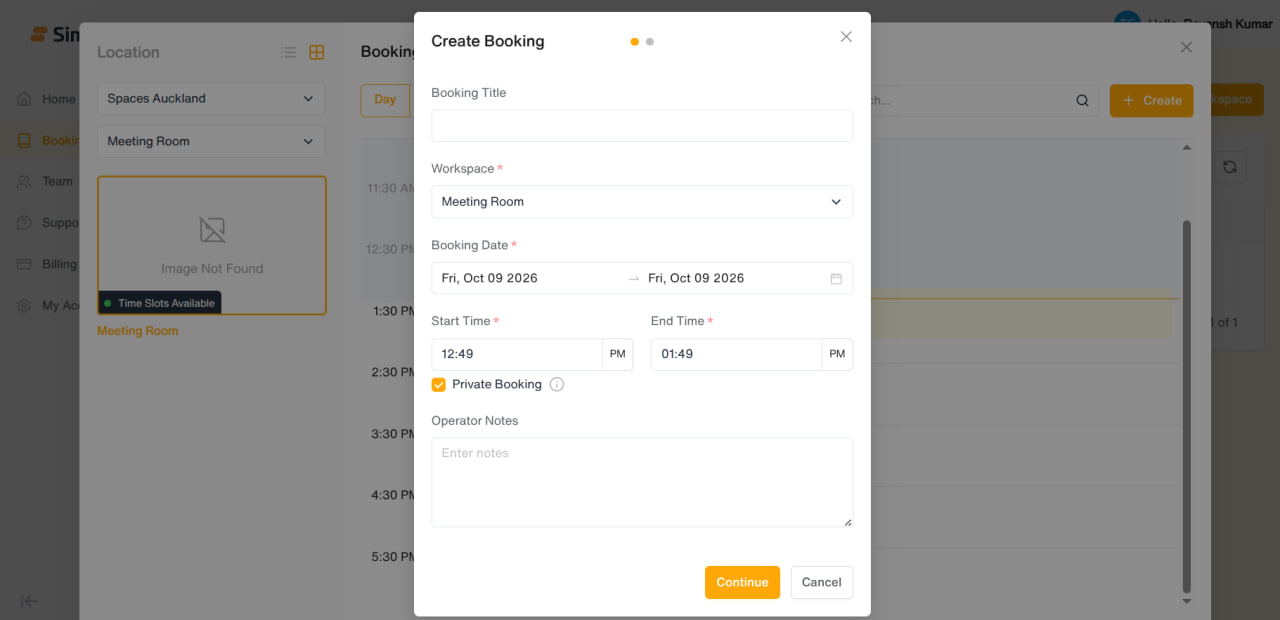
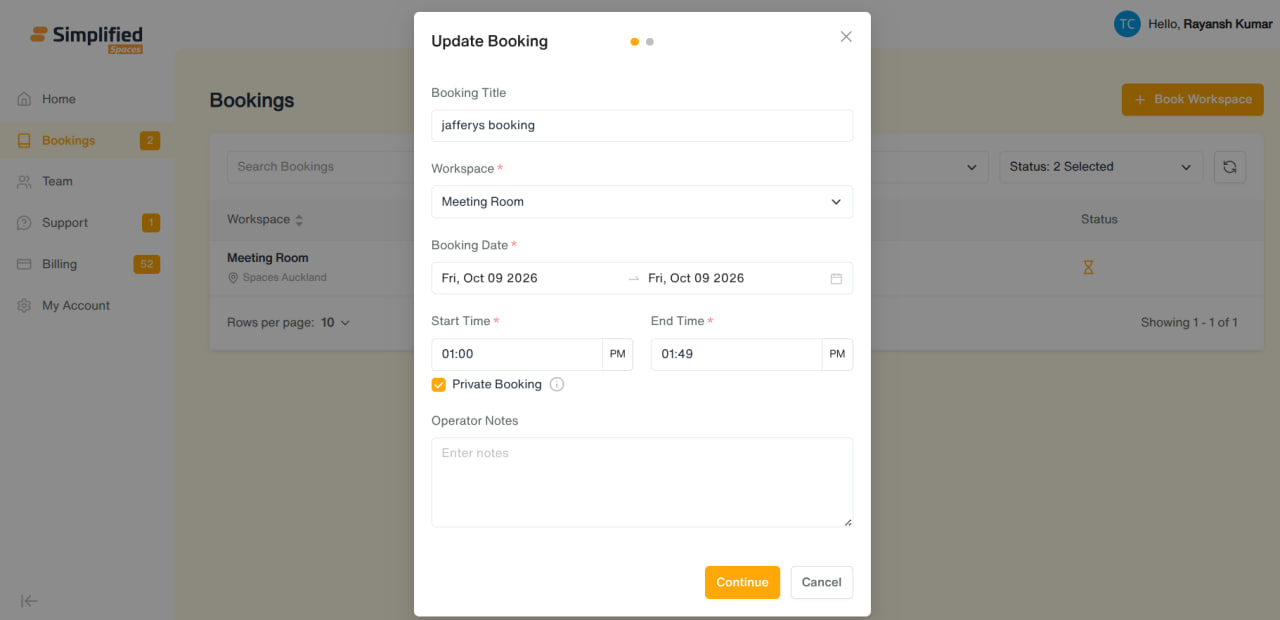
Step 1 — Workspace Details
-
Booking Title (optional)
-
Workspace* (required — choose from available bookable workspaces for your dates)
-
Booking Date* (required — pick your date range)
-
Start Time / End Time — only required if you're booking a Meeting Room or Conference Room
-
Private Booking checkbox — checked by default; when on, other members of your company can't see this booking on their calendar (except the account owner/managers)
-
Operator Notes (optional — a note to the location team)
Click Continue.
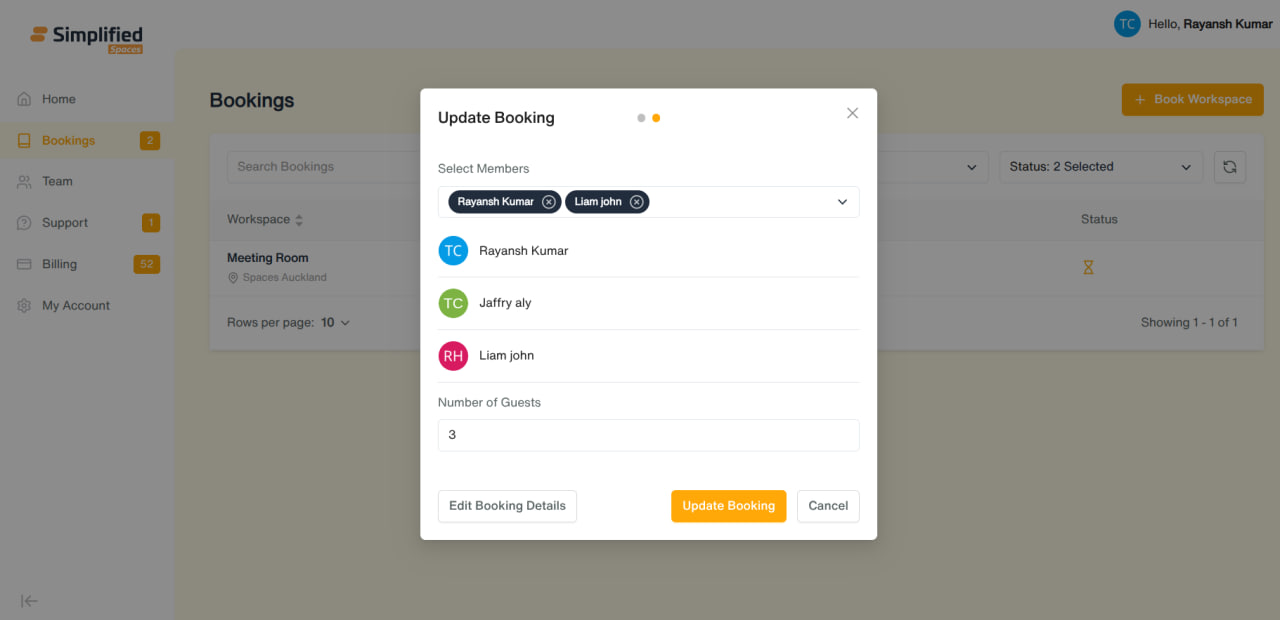
Step 2 — Invitees
Click Confirm Booking to submit. Your new booking appears in the list as Pending Approval until the location team approves or declines it.
3. Viewing / Editing / Cancelling a Booking
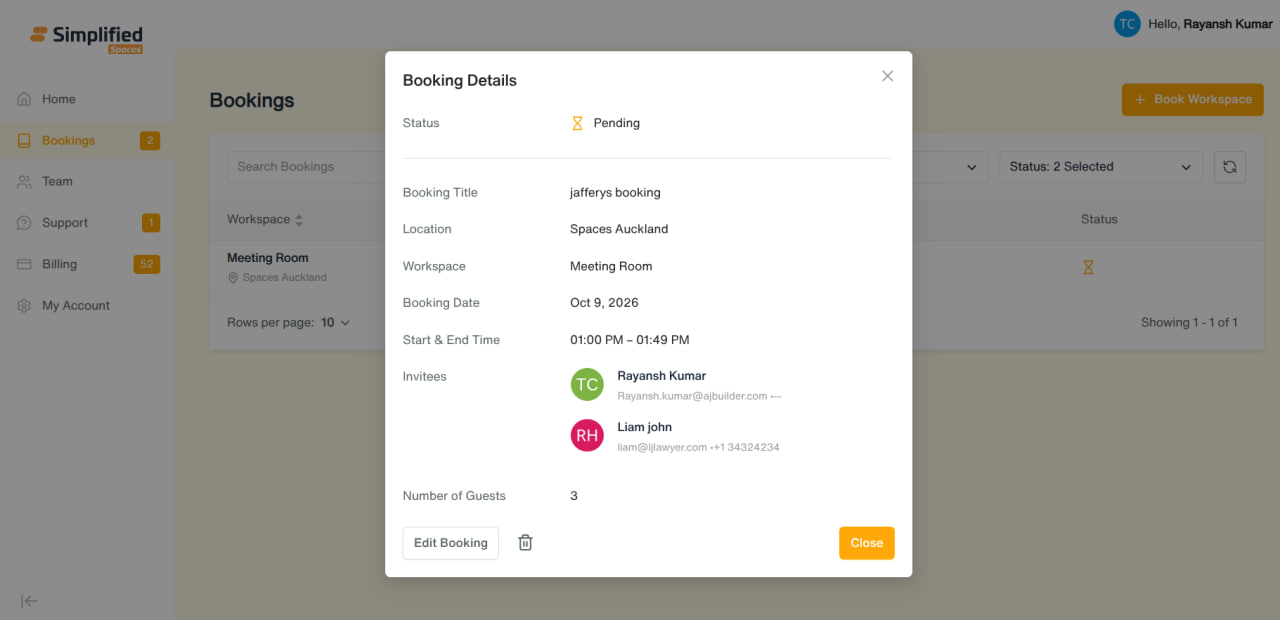
Click the view/eye icon on a booking to open its details:
-
Status, and who approved/declined/cancelled it and when
-
Decline reason (if the booking was declined)
-
Booking Title, Location, Workspace, Date, Start/End Time
-
Invitees (with contact info) and Number of Guests
Actions:
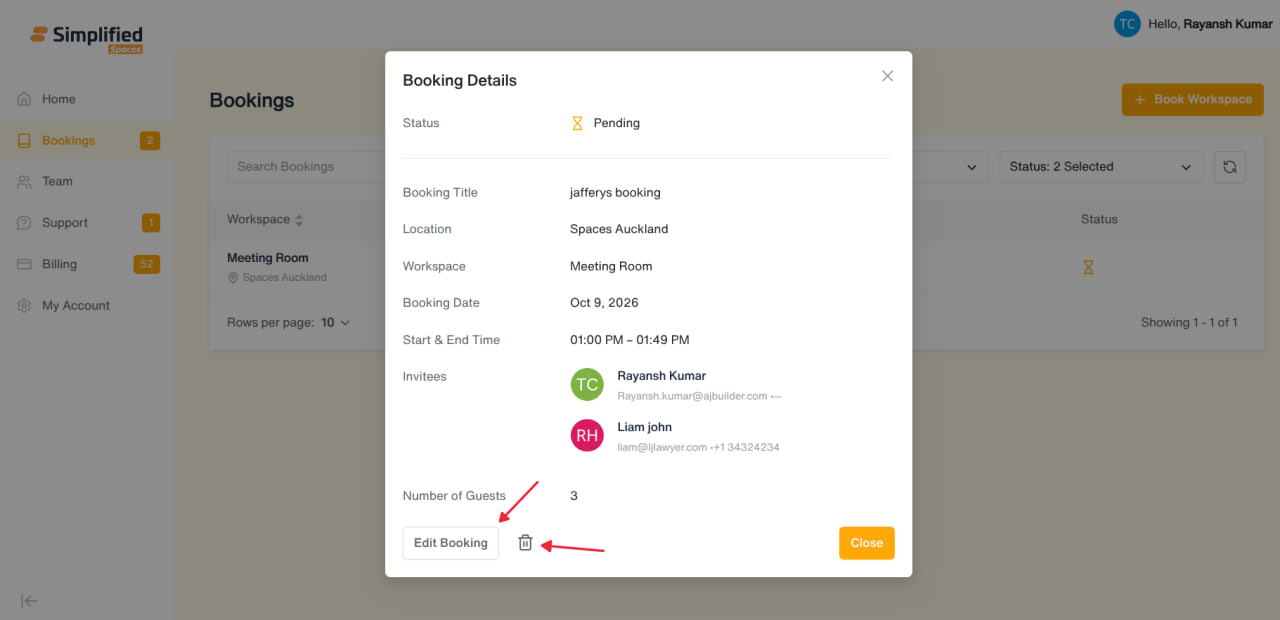
- Edit Booking — reopens the same two-step form, pre-filled, to change any details. Submitting updates the existing booking.
- Delete/Cancel (trash icon) — opens a confirmation popup; confirming cancels/removes the booking.
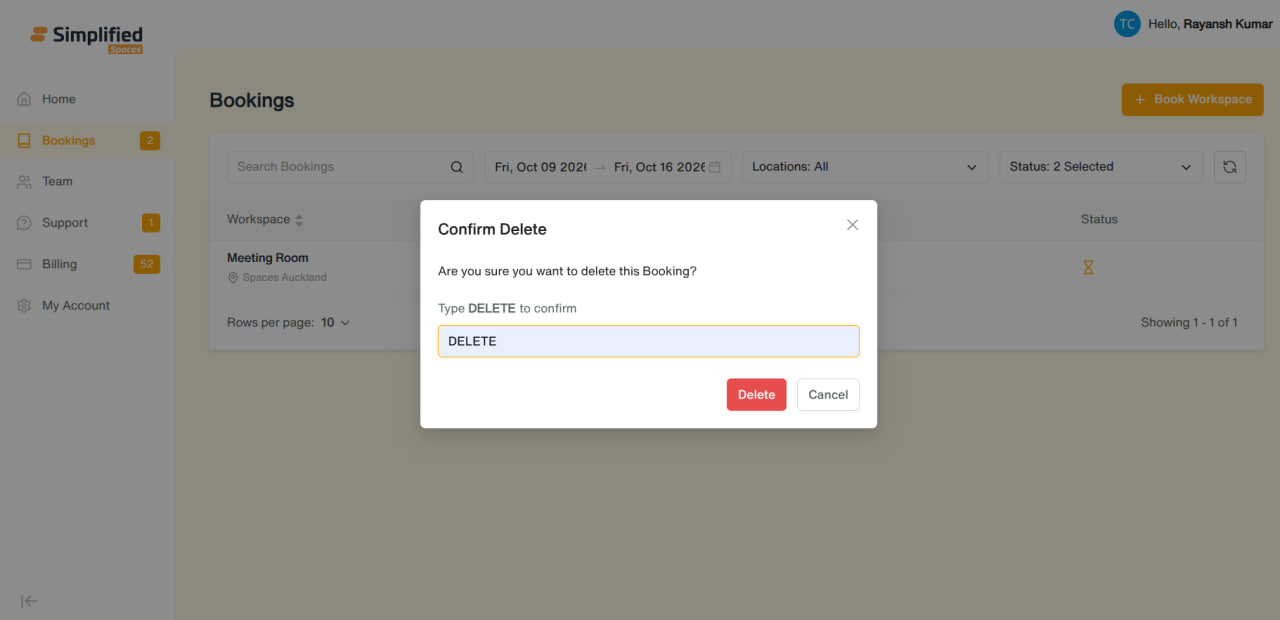
Note: as a member, you can only Edit or Cancel your own bookings — approving or declining a booking is done by the location's staff, not from this app.
General Notes
-
Bookings are always scoped to a location — Admins can act across locations, regular Users are limited to their own.
-
The 30-day date-range cap applies both to filtering the list and to how far ahead you can book.
-
Parking and Meals booking types are visible as options in places but are not yet available — treat them as "coming soon."