Describes the Home page of the Member Portal (the app clients/tenants use to self-serve) — the first screen a member sees after logging in.
Overview
-
Entry point: Logging in lands you on Home (also reachable via the Home icon in the left menu).
-
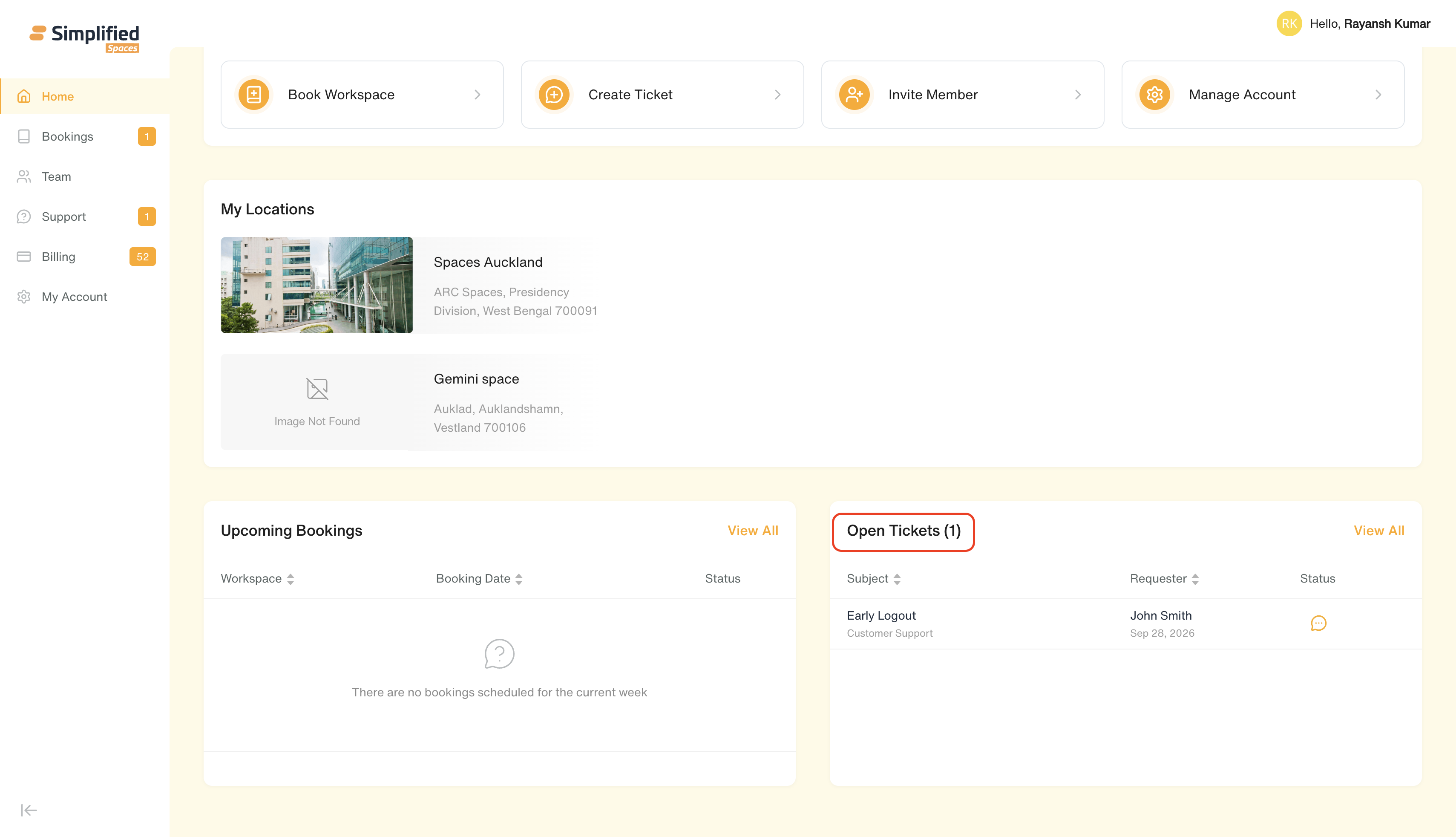
Home is a personal dashboard — a welcome banner, quick shortcuts, your location(s) info, and a snapshot of your upcoming bookings and open support tickets.
-
What you see here adapts to:
-
Your role — Admin (your organization's primary/admin user) sees a couple of extra shortcuts that regular Users don't.
-
Which features your organization has turned on — Booking, Team/Members, Tickets, Account — sections tied to a disabled feature simply don't appear.
1. Welcome Banner
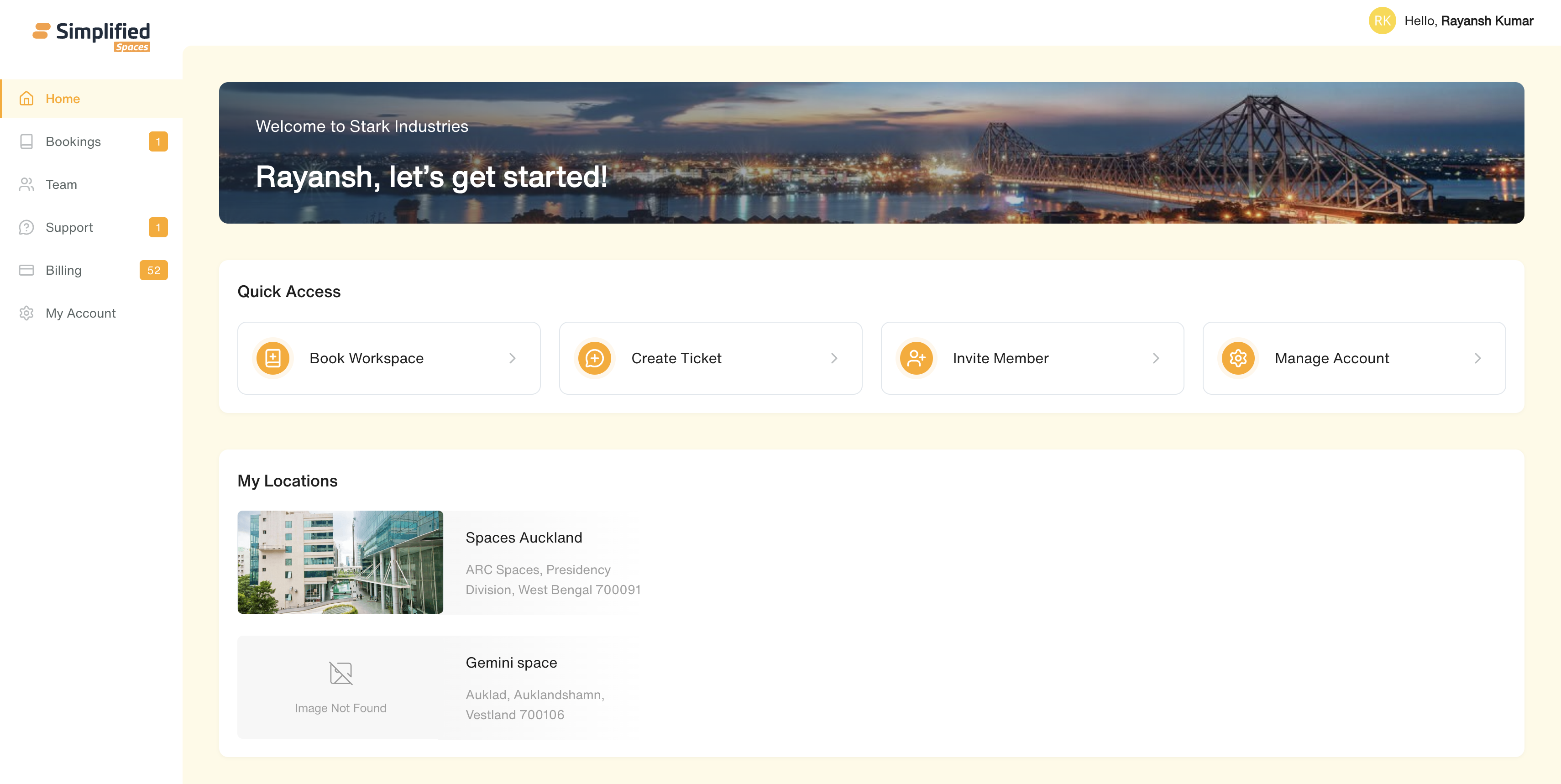
- Shows your organization/brand's banner image (or a default one), your organization's name, and a personal greeting with your first name (", let's get started!").
2. Quick Access
A row of shortcut tiles to jump straight into common actions (only shown if the related feature is enabled for your organization, and only shown to you if your role allows it):
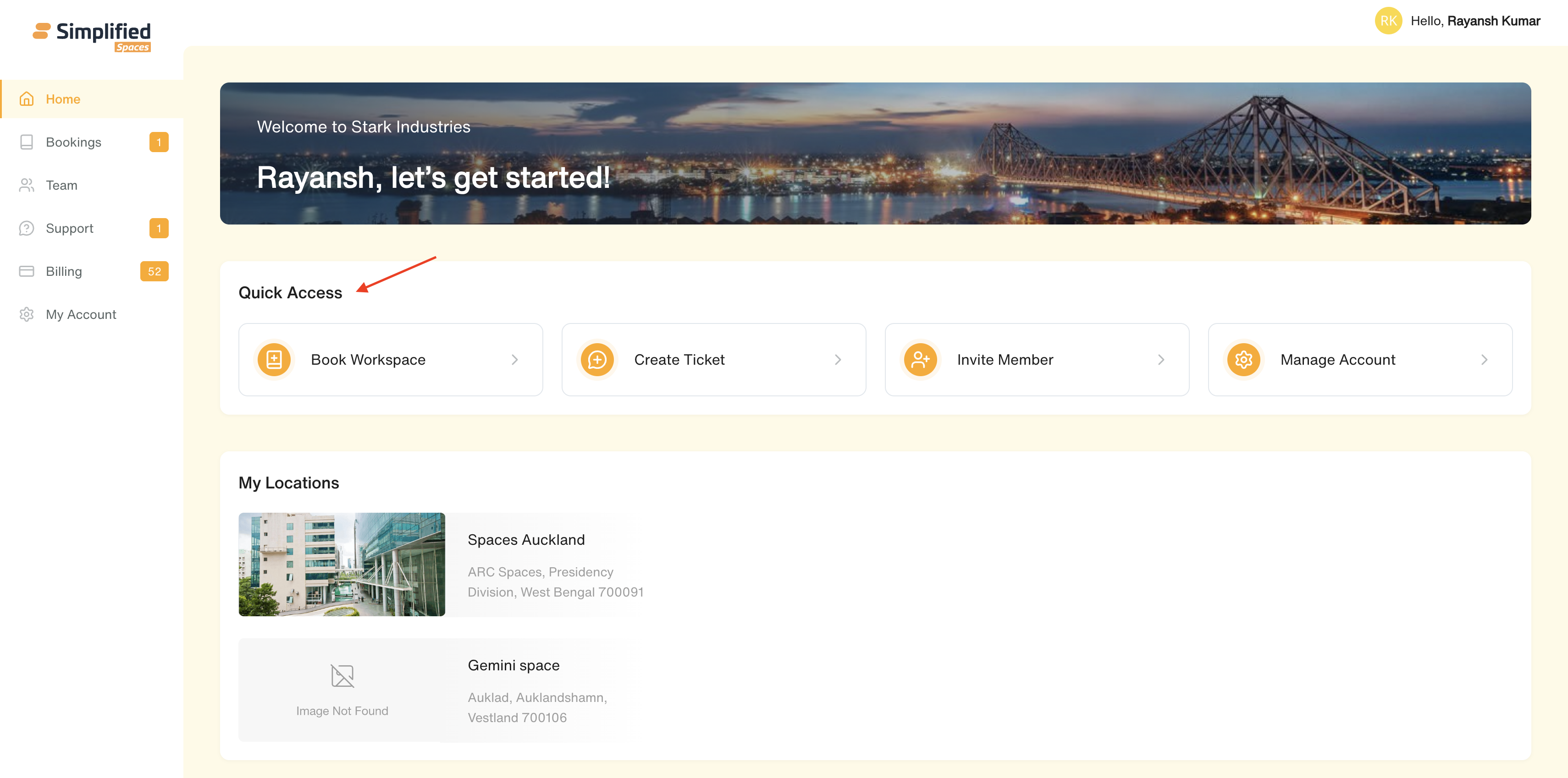
Shortcut
Takes you to
Who sees it
Book Workspace
Bookings page, with the booking form already open
Admin & User (if Booking is enabled)
Create Ticket
Support page, with the new-ticket form already open
Admin & User (if Tickets is enabled)
Invite Member
Team → Members page, with the invite form already open
Admin only (if Members is enabled)
Manage Account
My Account page
Admin & User (if Account is enabled)
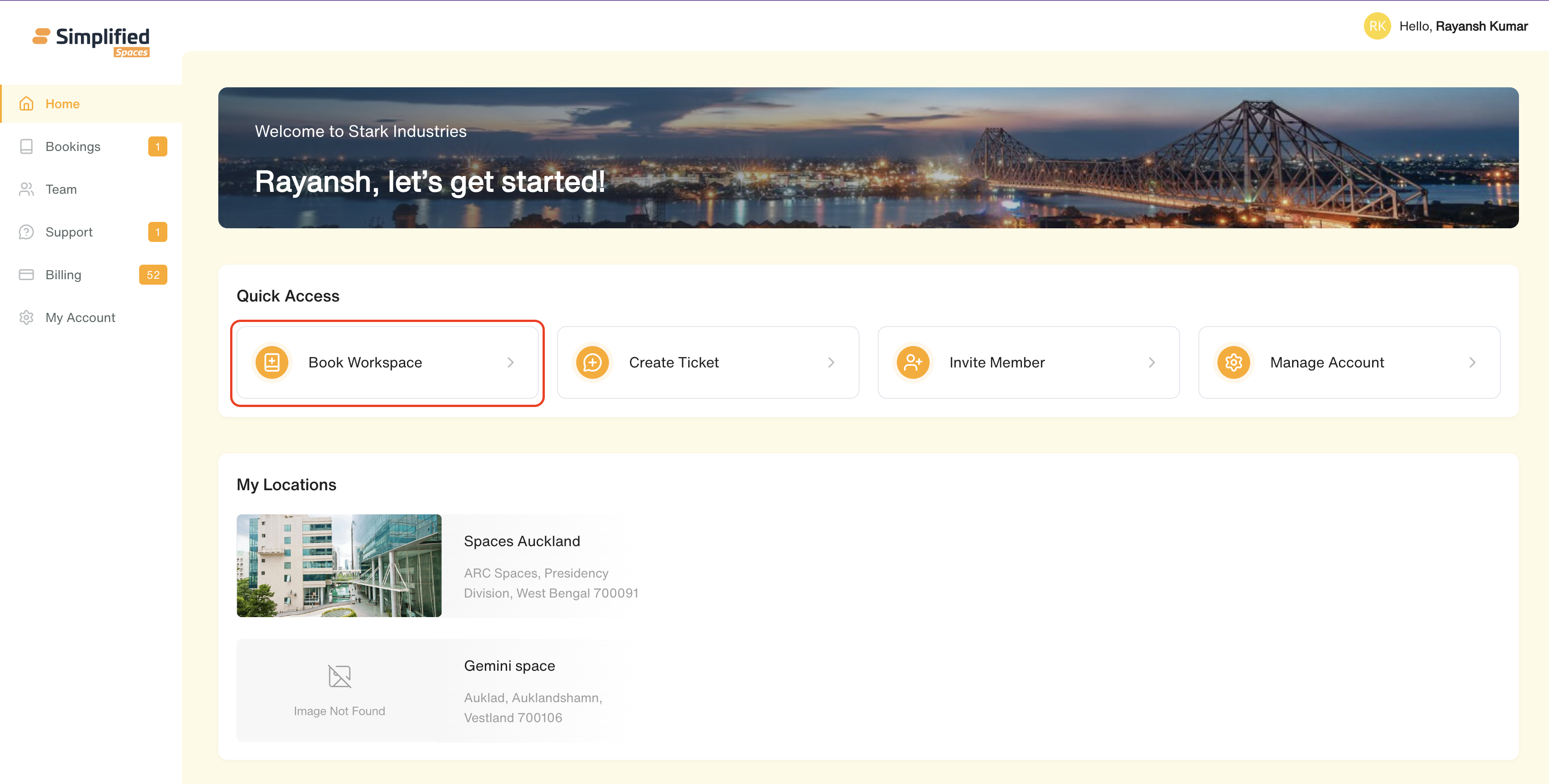
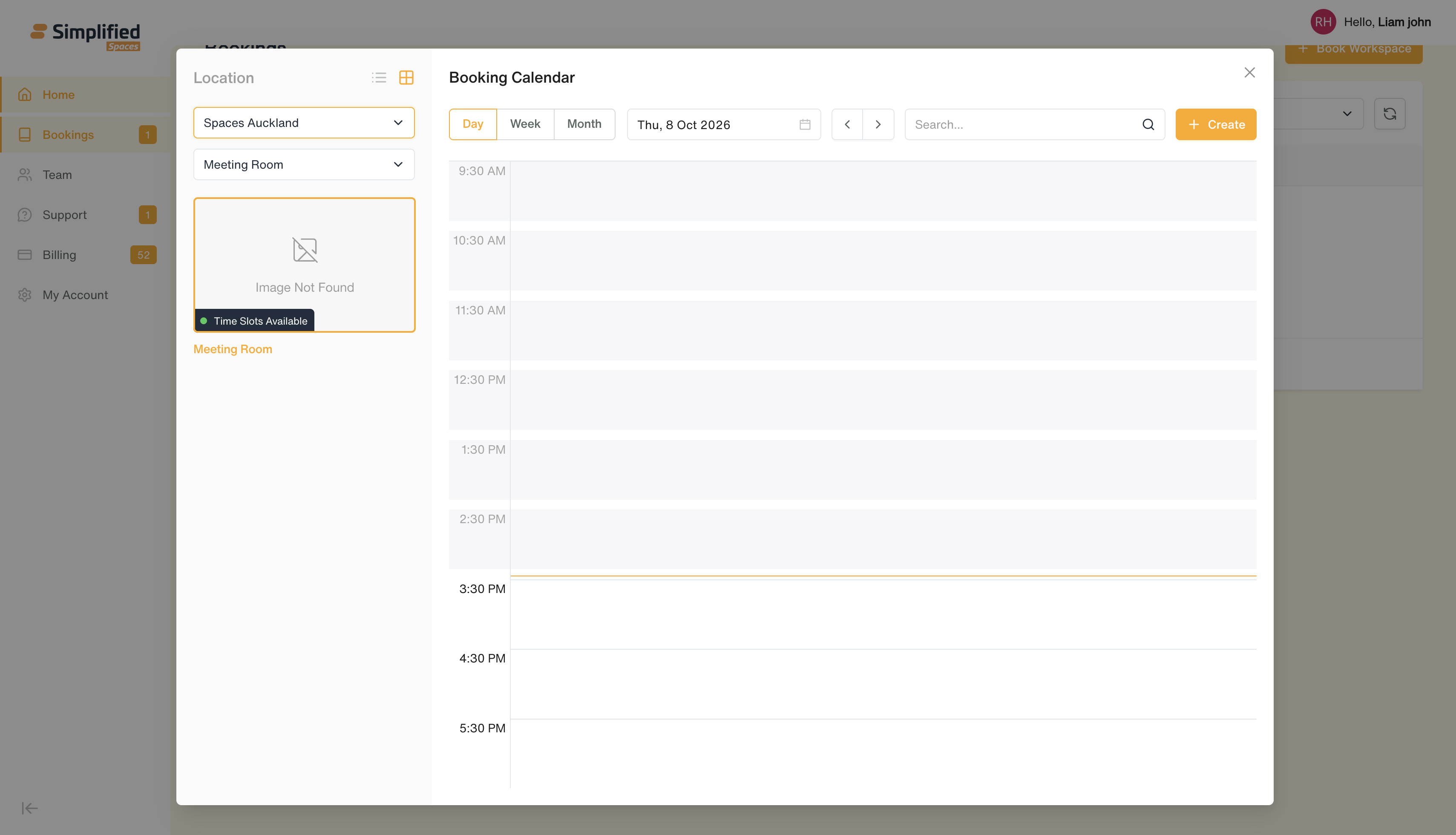
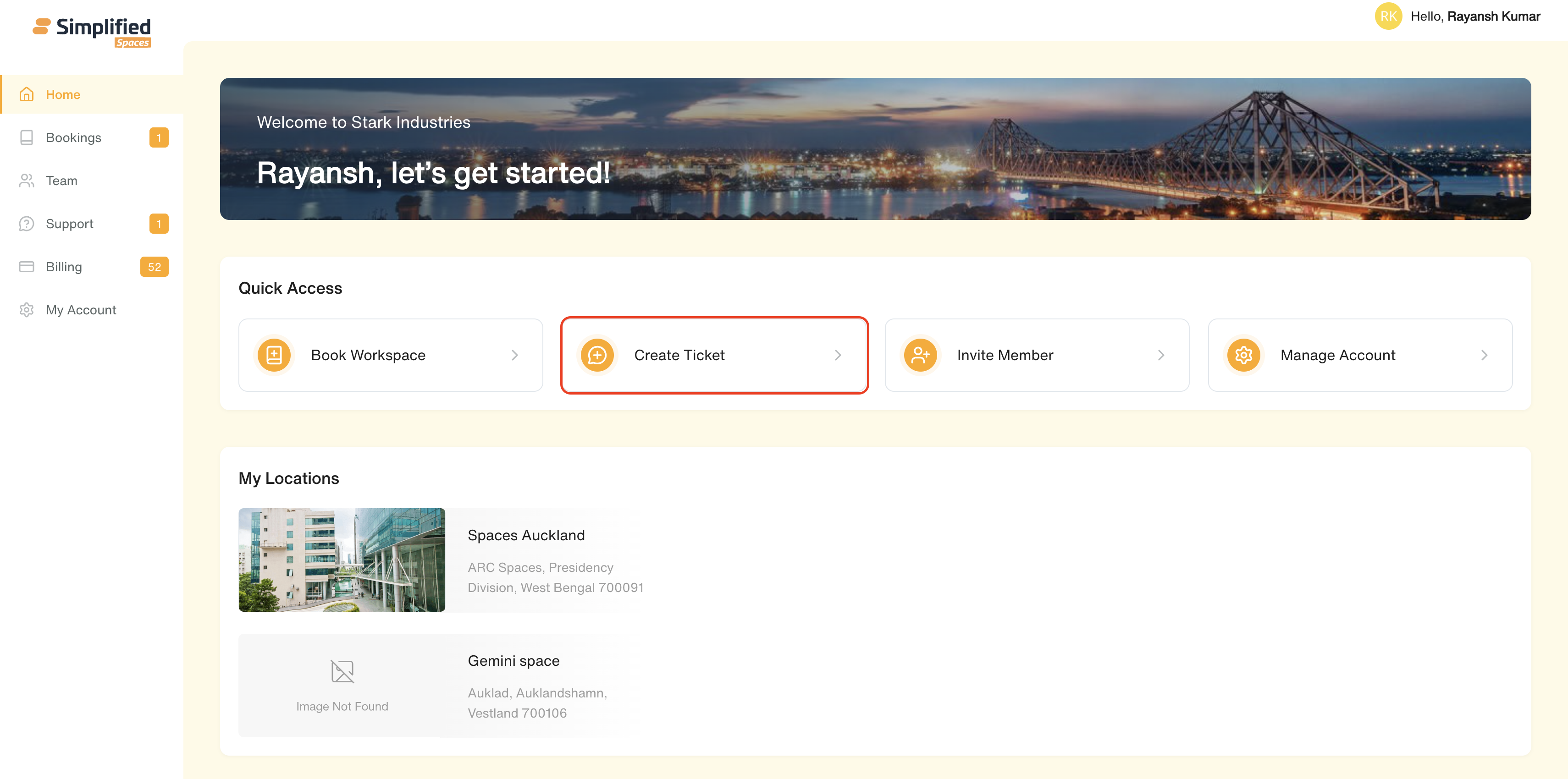
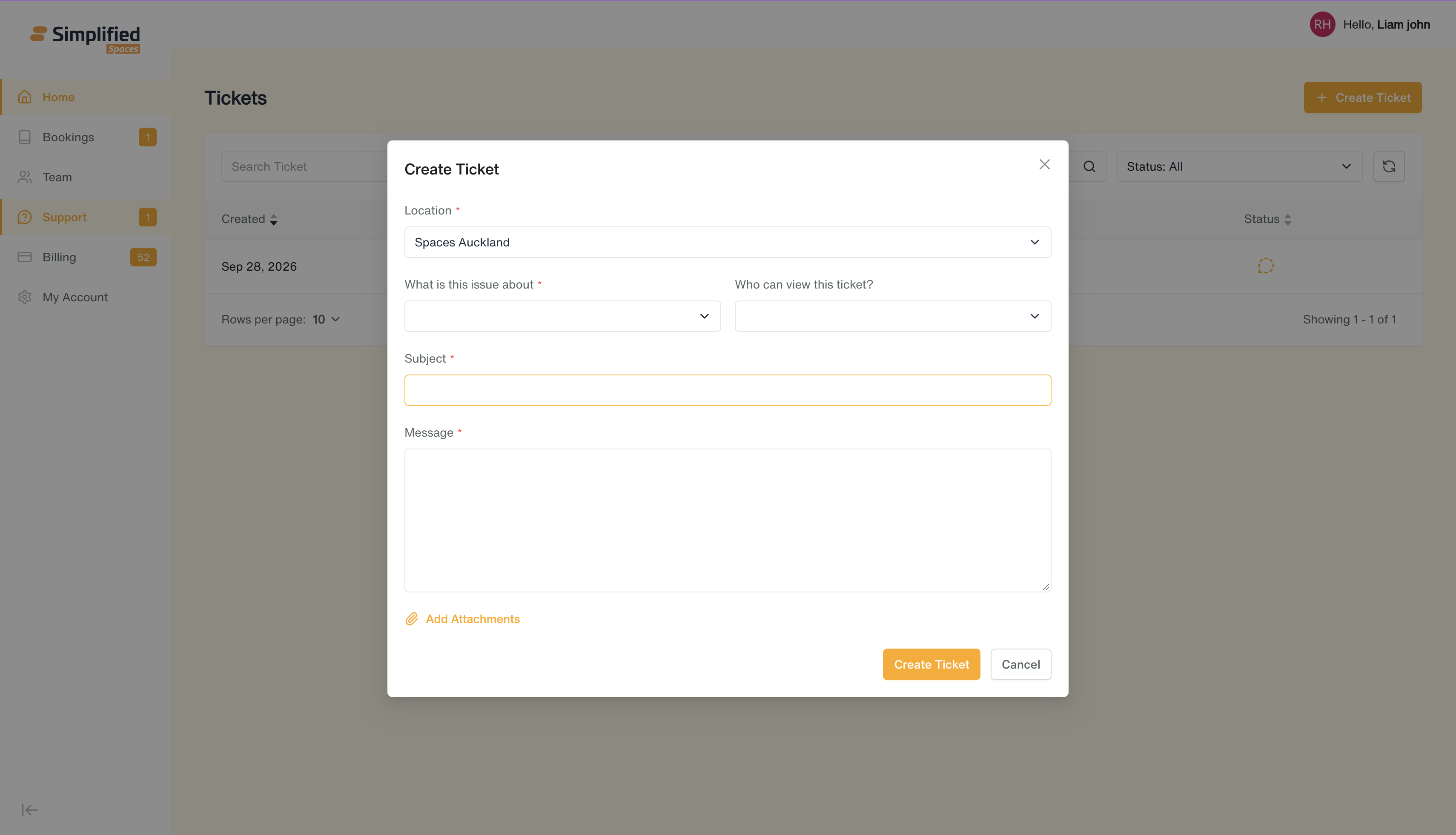
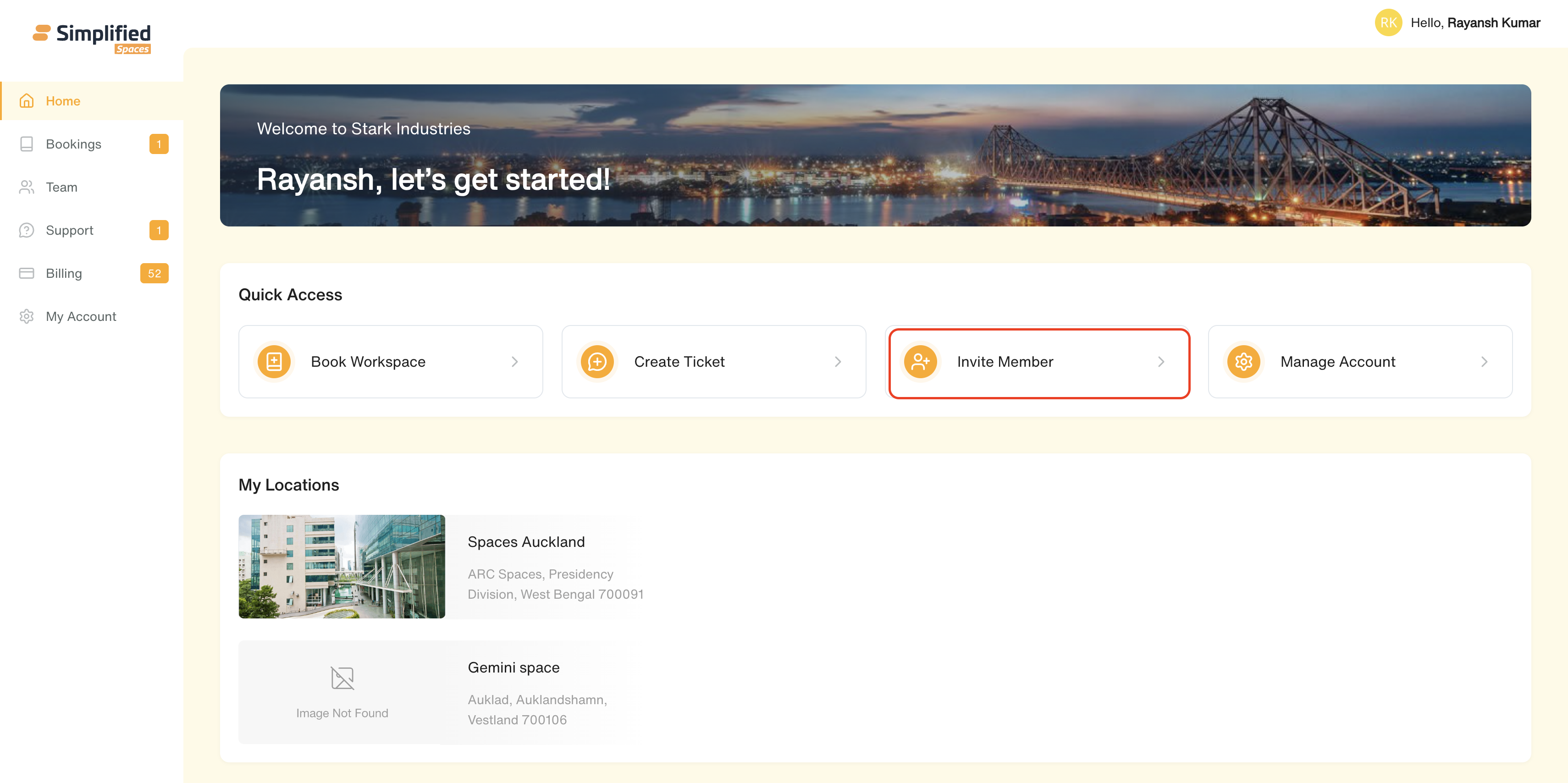
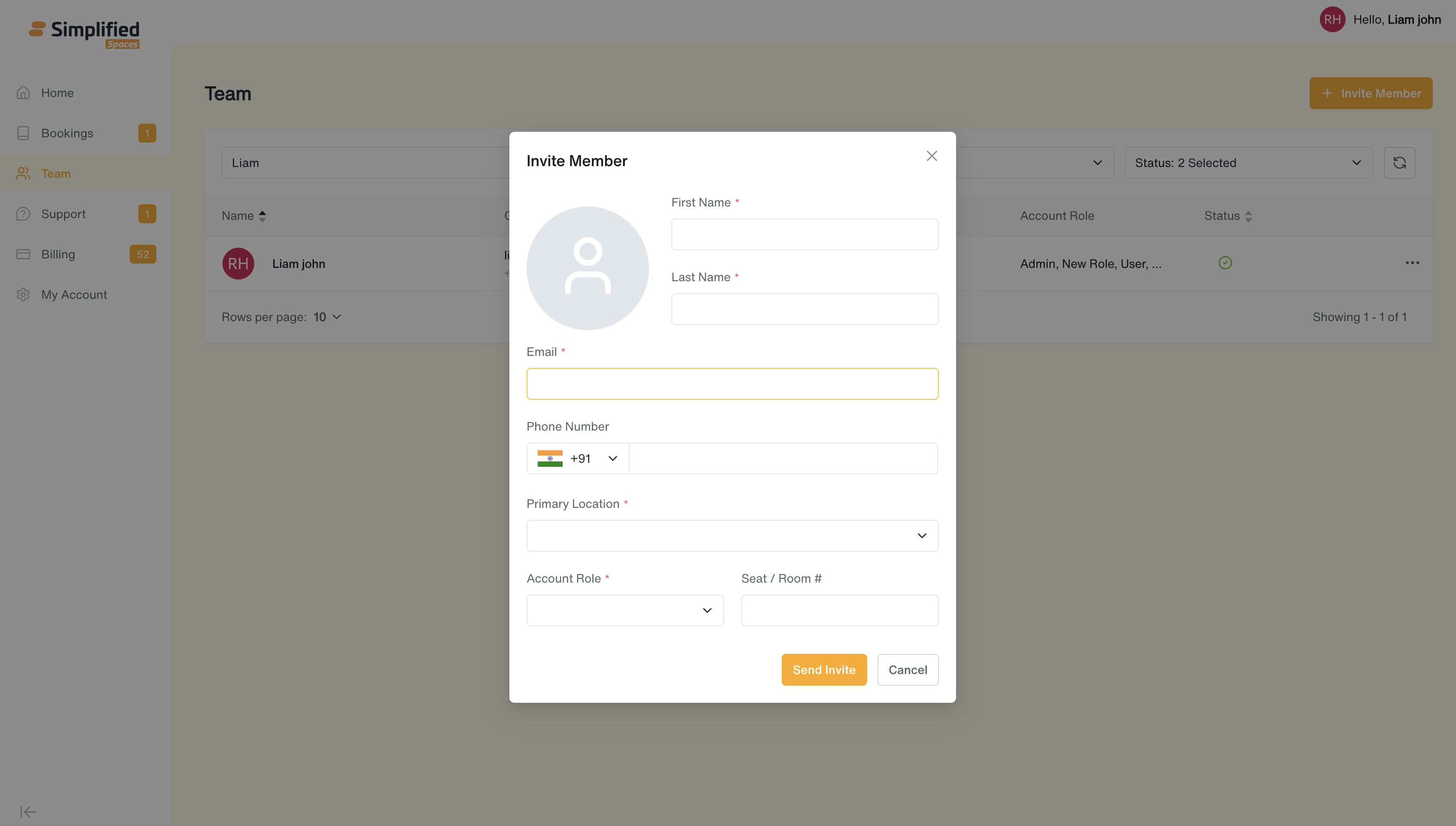
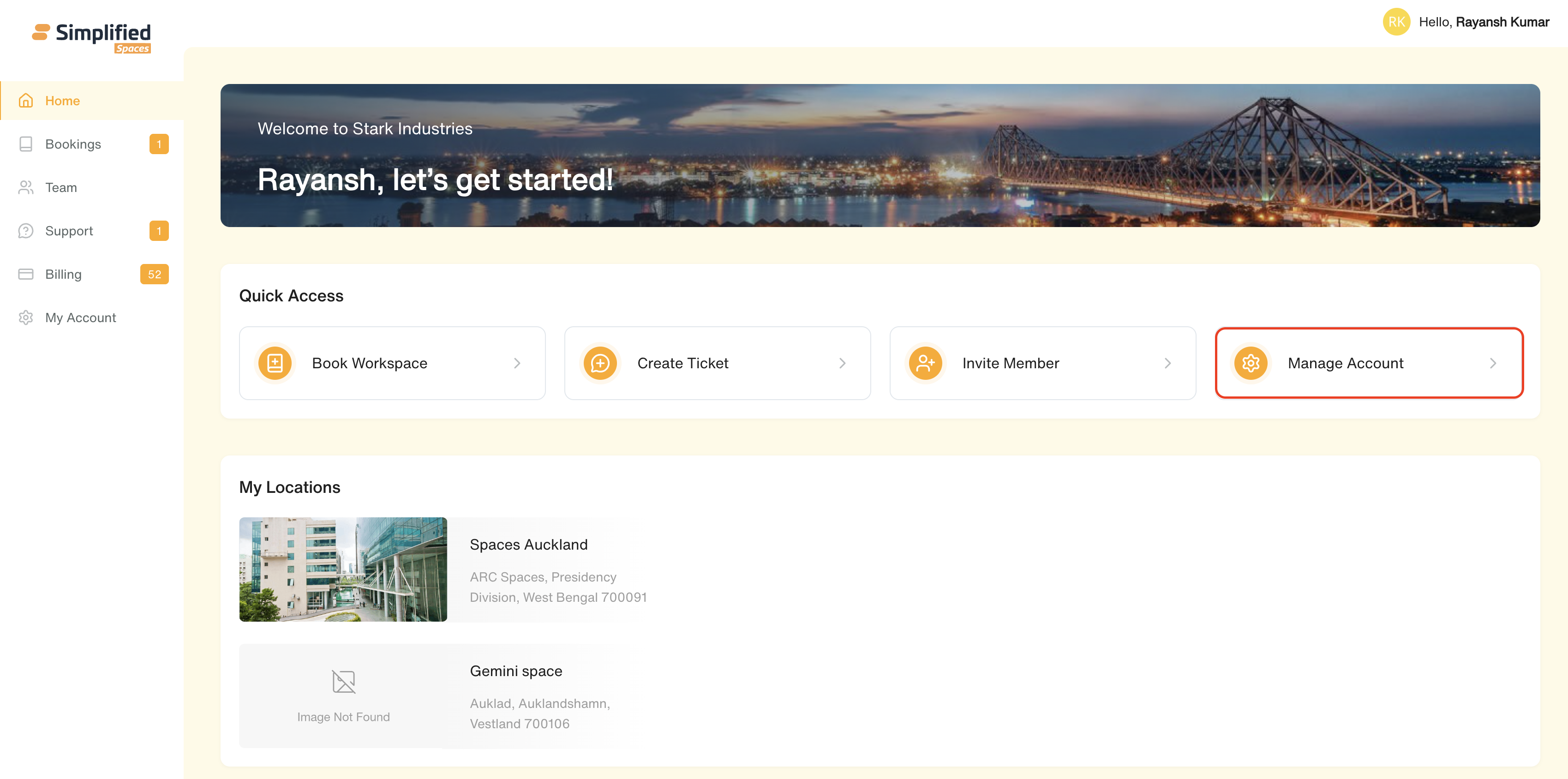
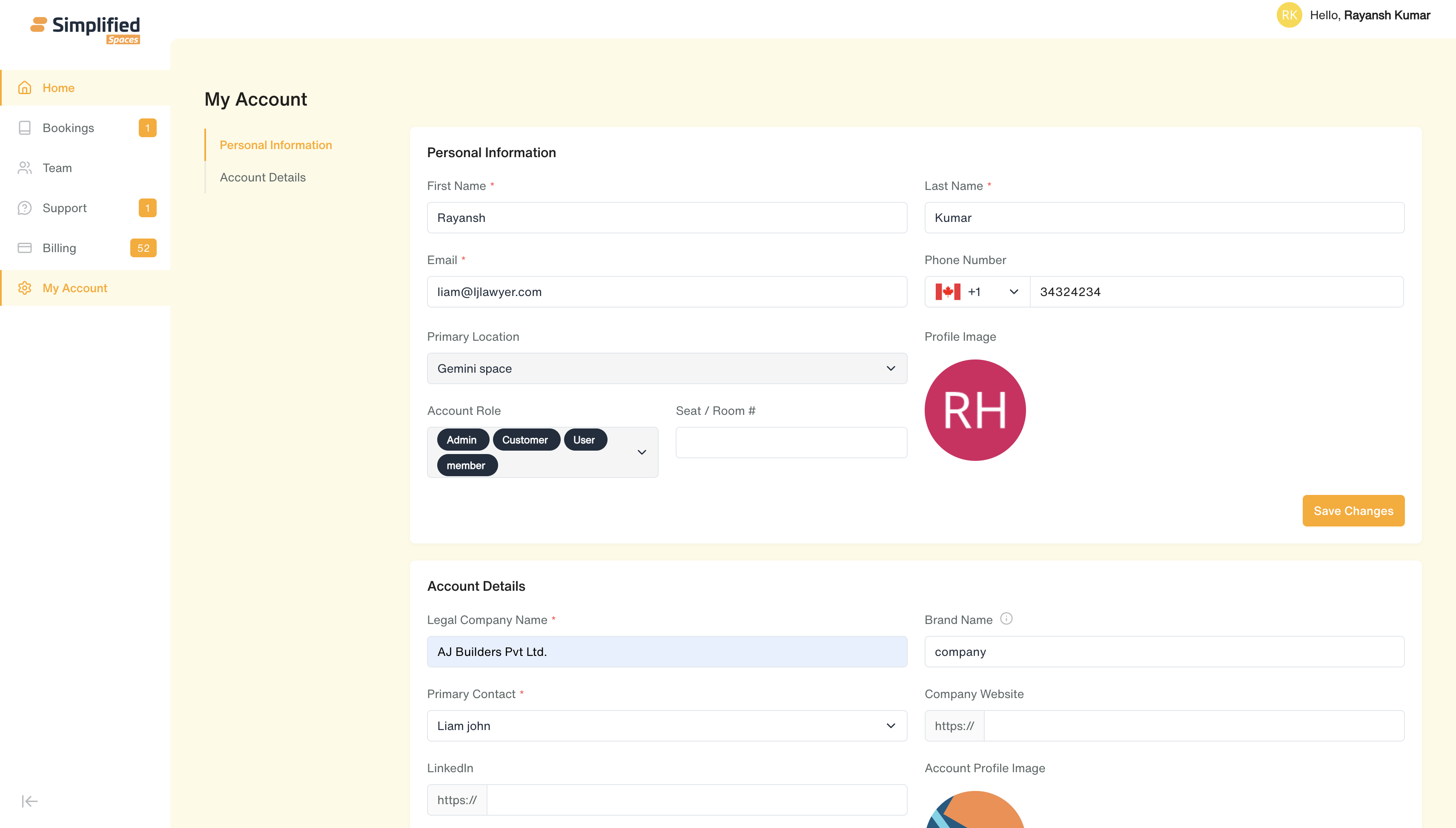
Clicking a tile takes you directly to that action instead of making you navigate and click "Add/Create" yourself.
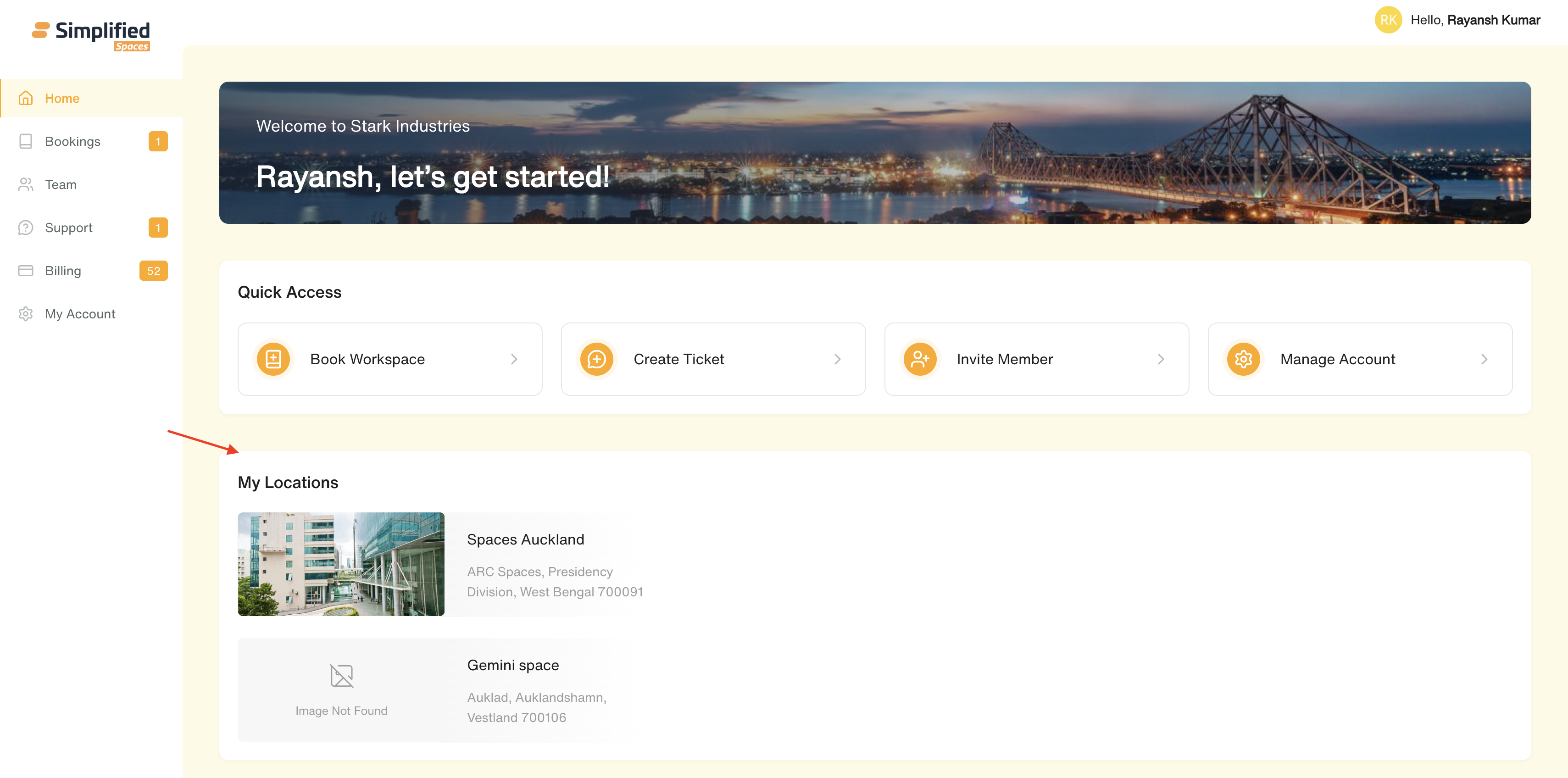
3. My Locations
-
Shows each location you belong to: its photo, name, and full address.
-
Alongside each location, shows the on-site contact team for that location, e.g. Billing and Sales contact and Community Manager — each with their photo/name and quick-contact icons:
-
Email icon — opens a new email to them
-
Phone icon — starts a phone call
-
WhatsApp icon — opens a WhatsApp chat with them
-
This is read-only — a quick way to see who to reach out to at your location(s), not something you edit here.
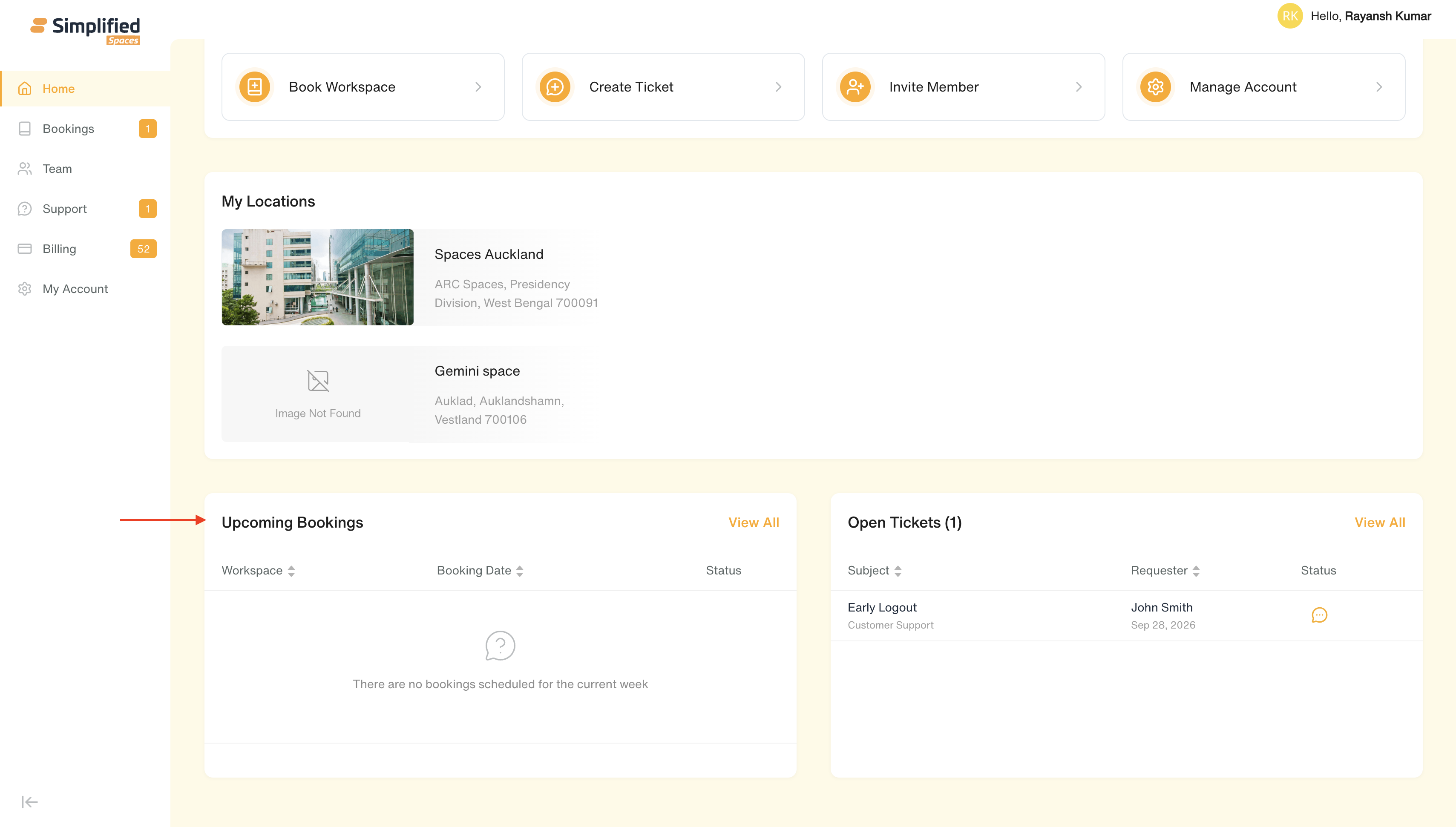
4. Upcoming Bookings (if Booking feature is enabled)
-
A small preview table of your next few workspace bookings (workspace name + location, booking date/time, and status).
-
Status shown as an icon: Approved (green check), Pending Approval (amber hourglass), Declined (red X).
-
Click View All in the card header to go to the full Bookings page.
-
If you have no bookings scheduled, a friendly empty-state message appears instead.
5. Open Tickets (if Tickets feature is enabled)
-
A small preview table of your organization's open support tickets (subject/category, requester + date raised, status).
-
Status shown as an icon: New or Open.
-
Click any row (or the arrow icon) to jump straight into that ticket's detail page.
-
Click View All in the card header to go to the full Support page.
-
If there are no open tickets, a friendly empty-state message appears instead.
General Notes
-
Home has no separate "sub-menu" pages of its own — it's a single dashboard screen that surfaces shortcuts and previews from other sections (Bookings, Team, Support, My Account).
-
Everything shown reacts to your organization's enabled features and your own role — if a feature is off, or your role doesn't include it, that section/shortcut is simply hidden rather than shown disabled.
-
Both preview tables (Bookings, Tickets) only show a handful of the most relevant items — use View All to see the complete list with full filtering.