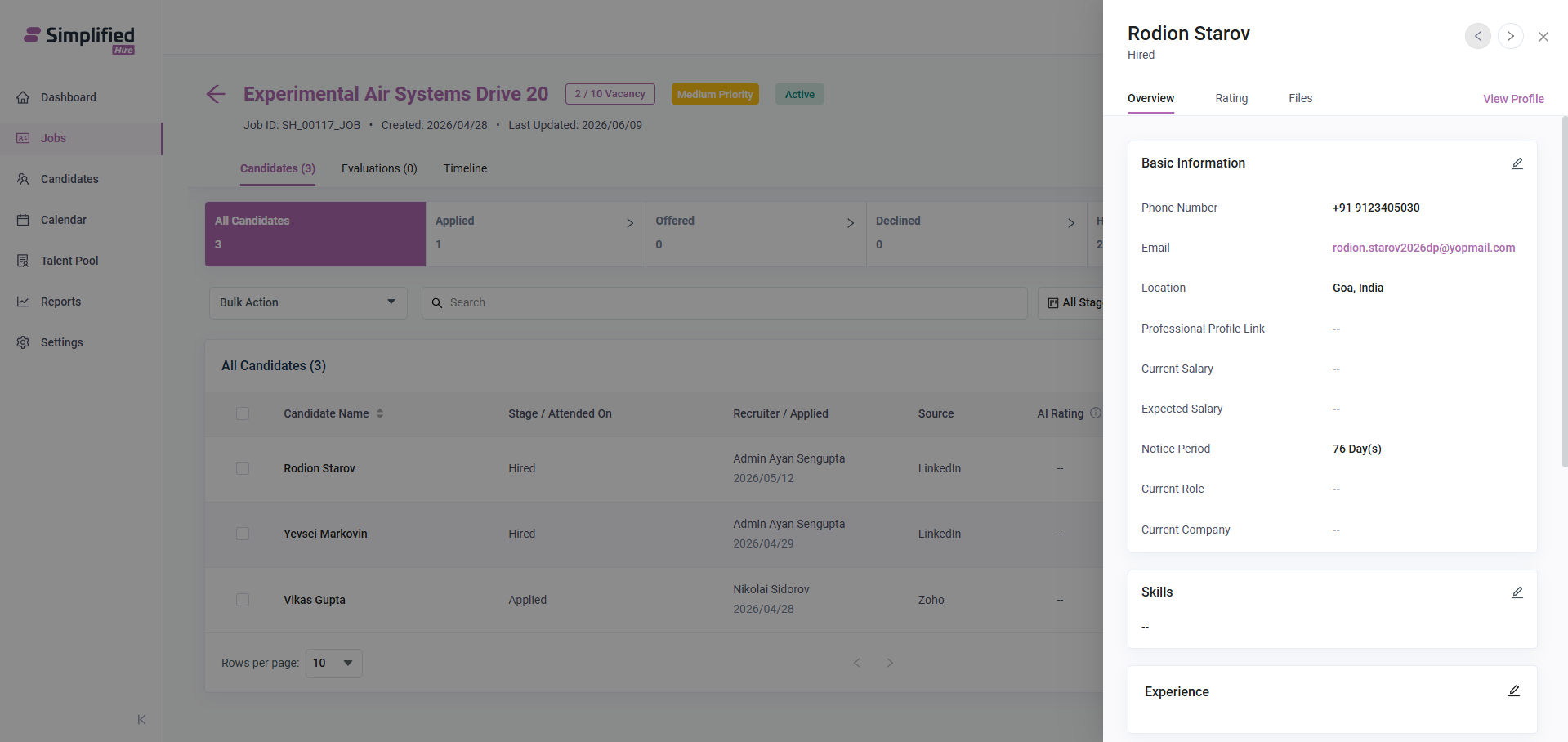
The Jobs page is where users can create, manage, search, filter, and review job postings in Simplified Hire. It displays all job records in a card-based layout and provides access to job creation, job details, candidate tracking, and job-related actions.
Common sections like the left menu and top profile header are available on the Jobs page, allowing users to navigate across the platform while managing job openings.
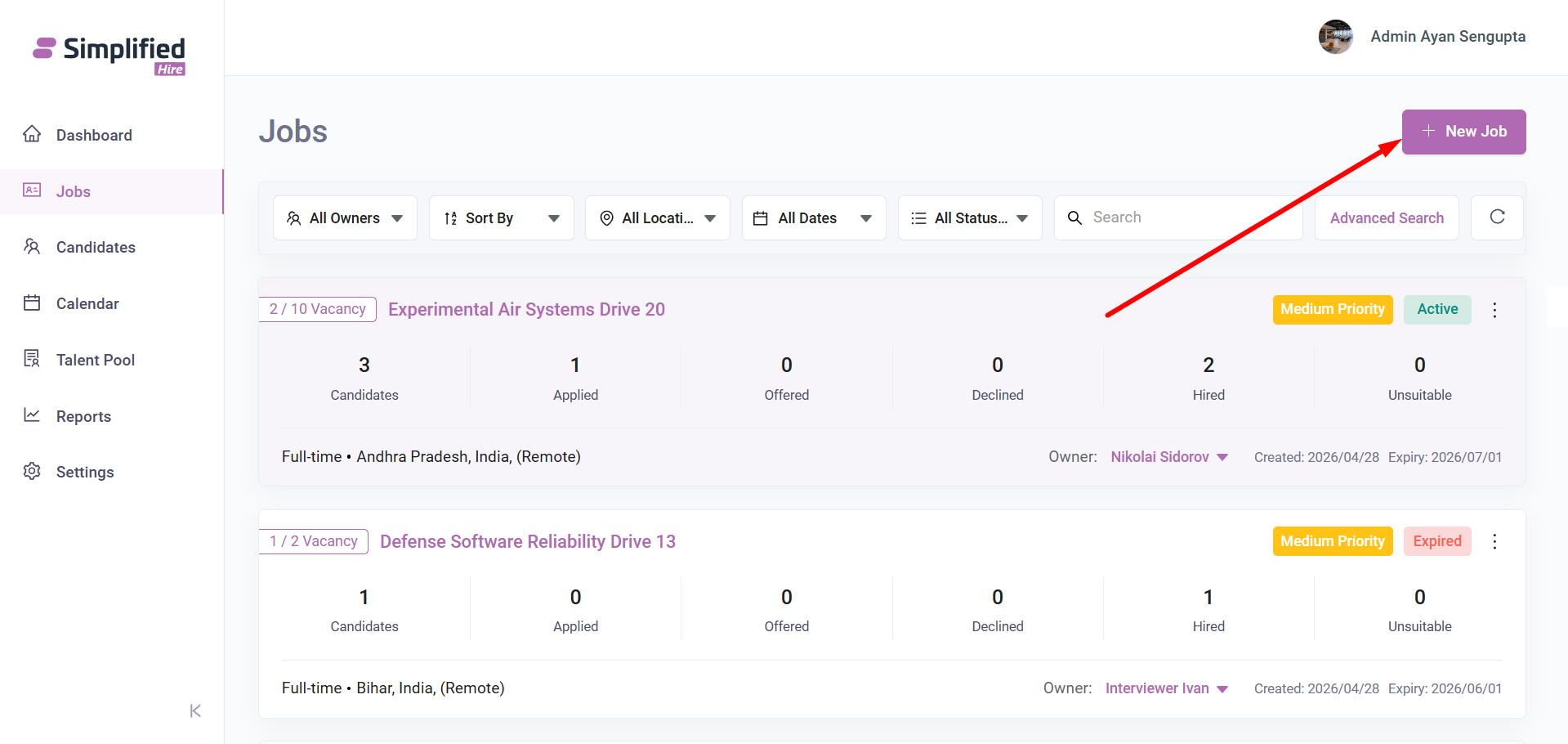
To access the Jobs page, log in to Simplified Hire and click on Jobs from the left menu.
Jobs Overview
The Jobs page displays all job postings in a card format. Each job card shows important information such as vacancy count, job title, urgency, status, candidate stage counts, employment type, location, owner, created date, and expiry date.
Users can create a new job, search existing jobs, apply filters, open advanced search, refresh the listing, and use pagination from the same page.
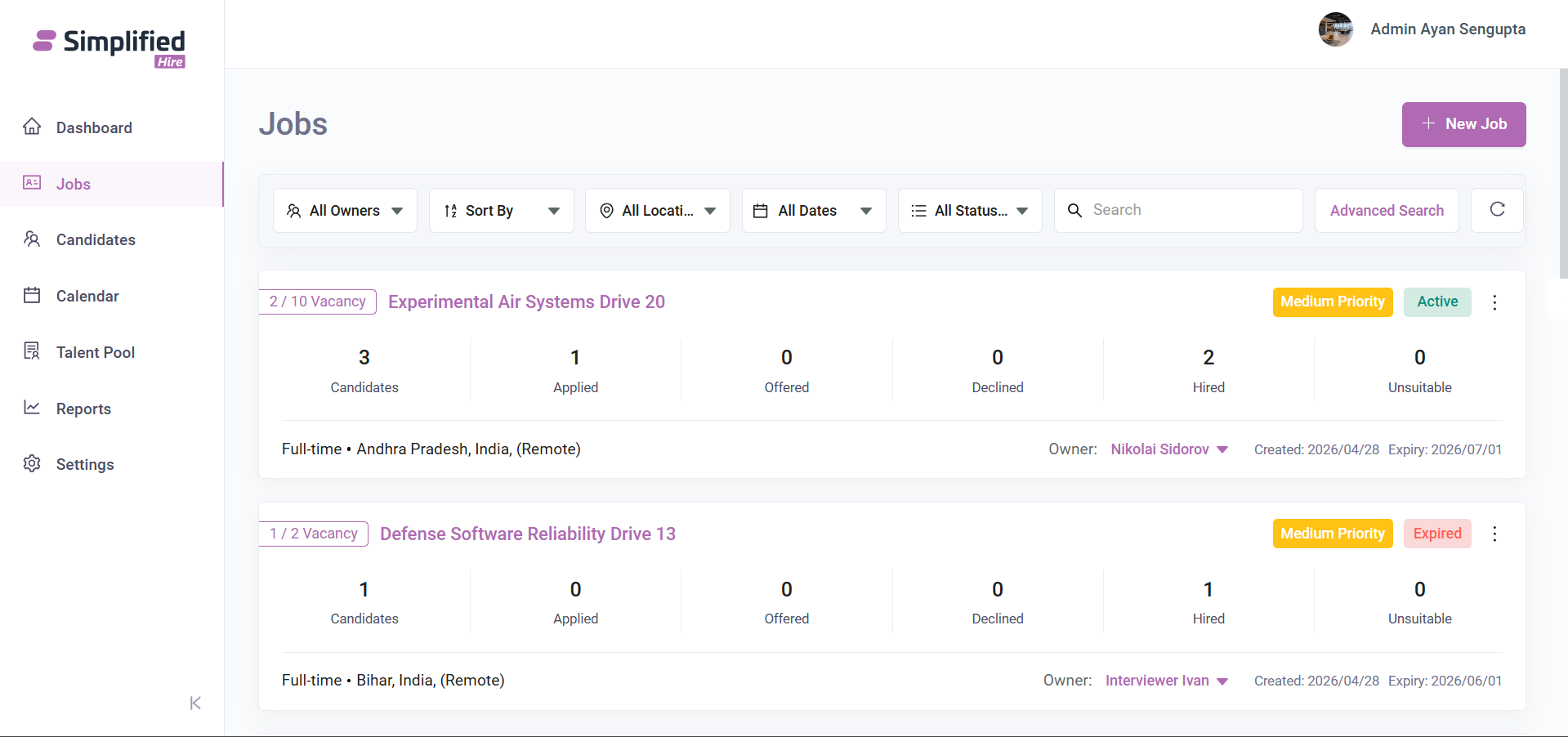
Jobs Filters and Search
The filter and search section is available at the top of the Jobs page. It helps users narrow down the job listing based on owner, sorting preference, location, date, status, search keyword, or advanced criteria.
The available options include:
· All Owners
· Sort By
· All Locations
· All Dates
· All Statuses
· Search
· Advanced Search
· Refresh
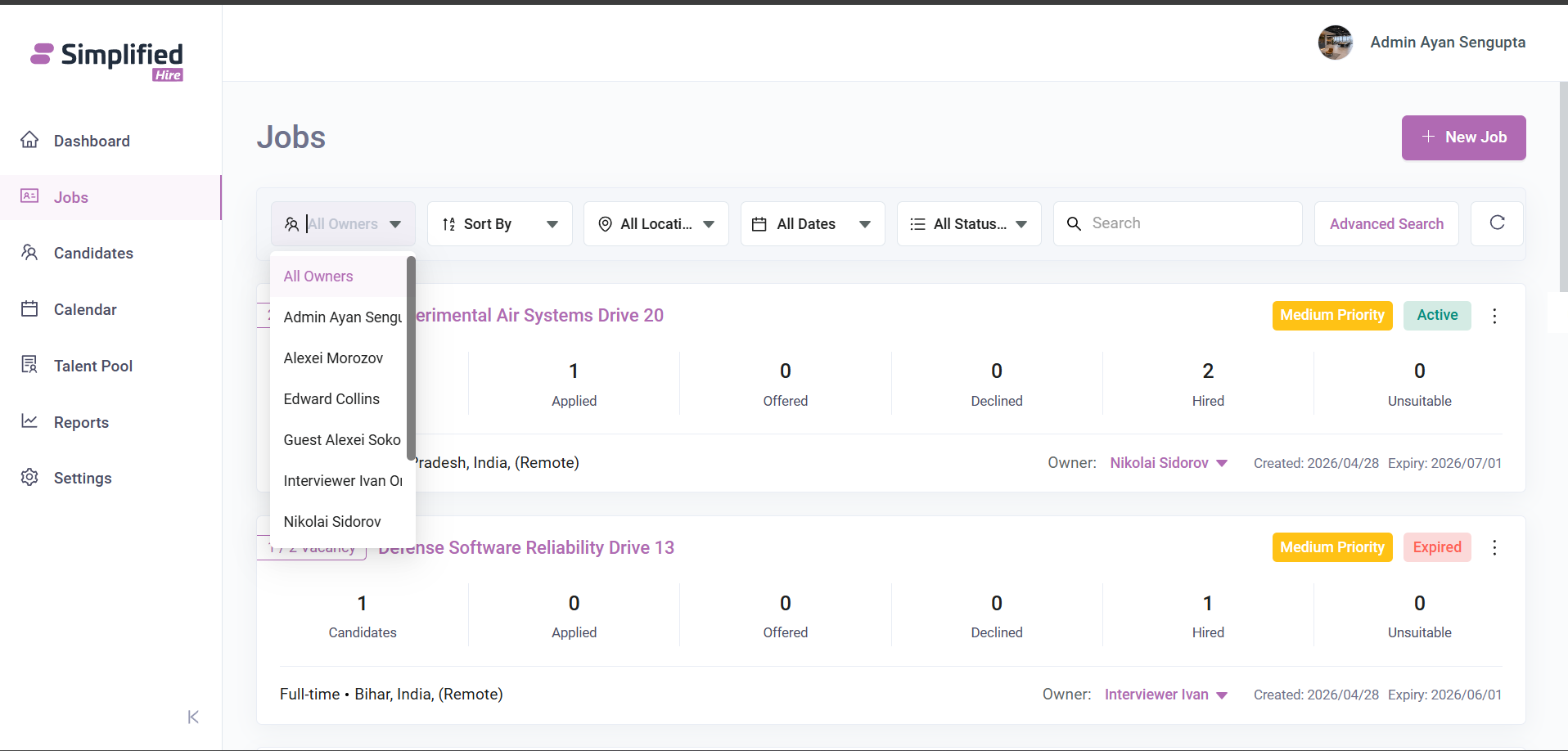
All Owners
The All Owners dropdown allows users to filter job postings based on the selected job owner.
The dropdown displays owner names such as:
· Admin Ayan Sengupta
· Alexei Morozov
· Edward Collins
· Guest Alexei Soko
· Interviewer Ivan
· Nikolai Sidorov
After selecting an owner, the Jobs page displays the job records assigned to that selected owner.
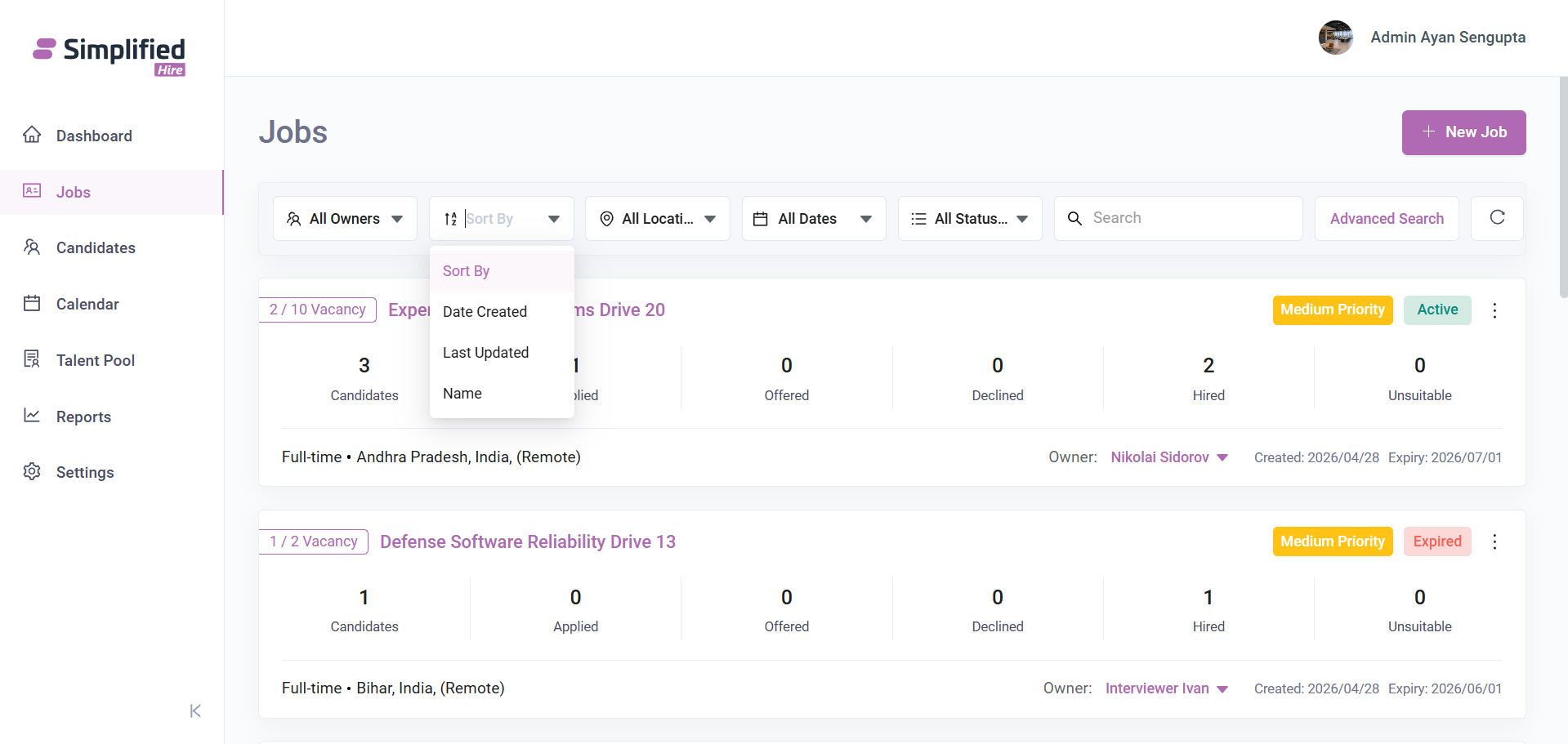
Sort By
The Sort By dropdown allows users to arrange the job listing in a specific order.
The available sorting options include:
· Date Created
· Last Updated
· Name
After selecting a sorting option, the job cards are arranged according to the selected value.
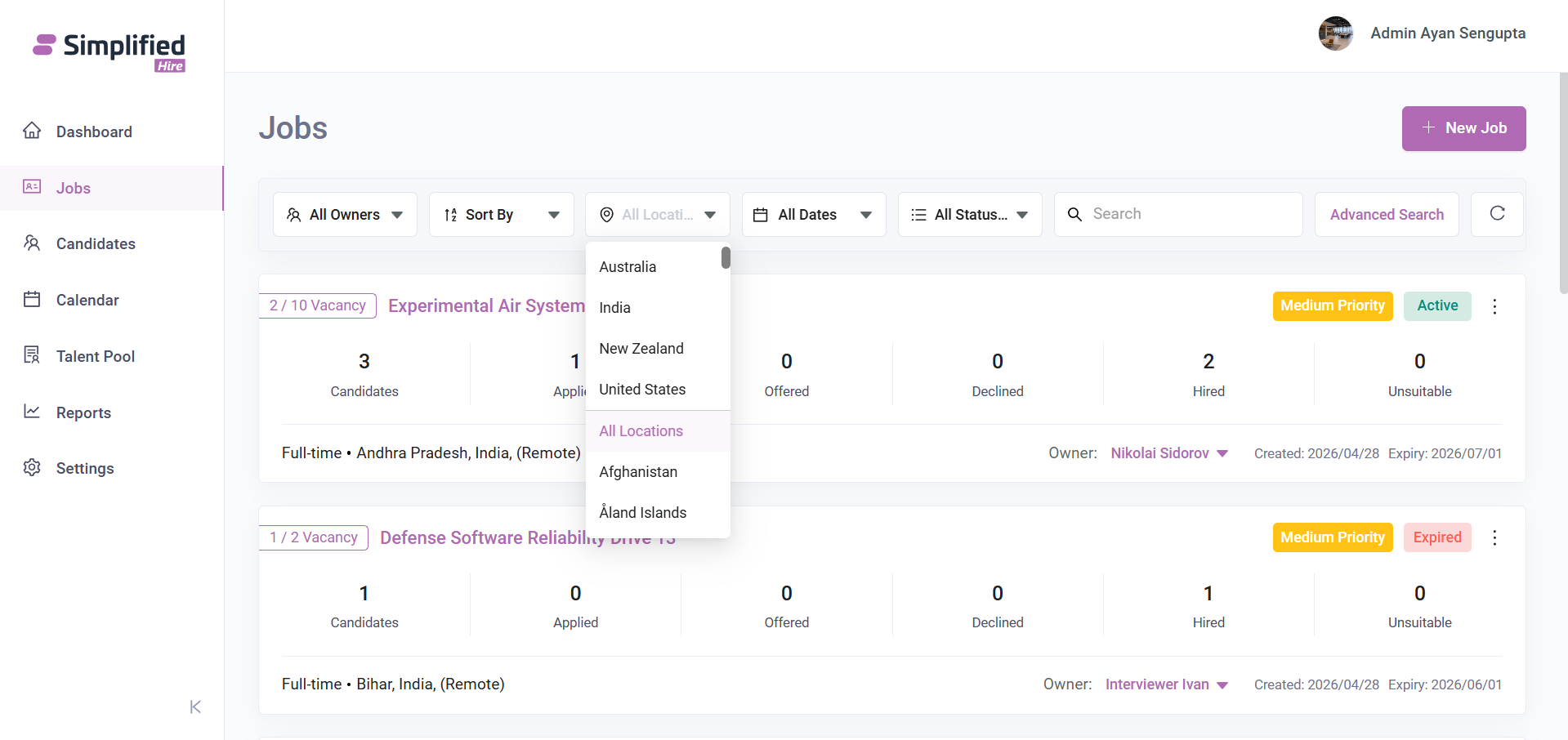
All Locations
The All Locations dropdown allows users to filter job postings based on location.
The dropdown displays location values such as:
· Australia
· India
· New Zealand
· United States
· Afghanistan
· Åland Islands
After selecting a location, the Jobs page displays job records related to the selected location.
All Dates
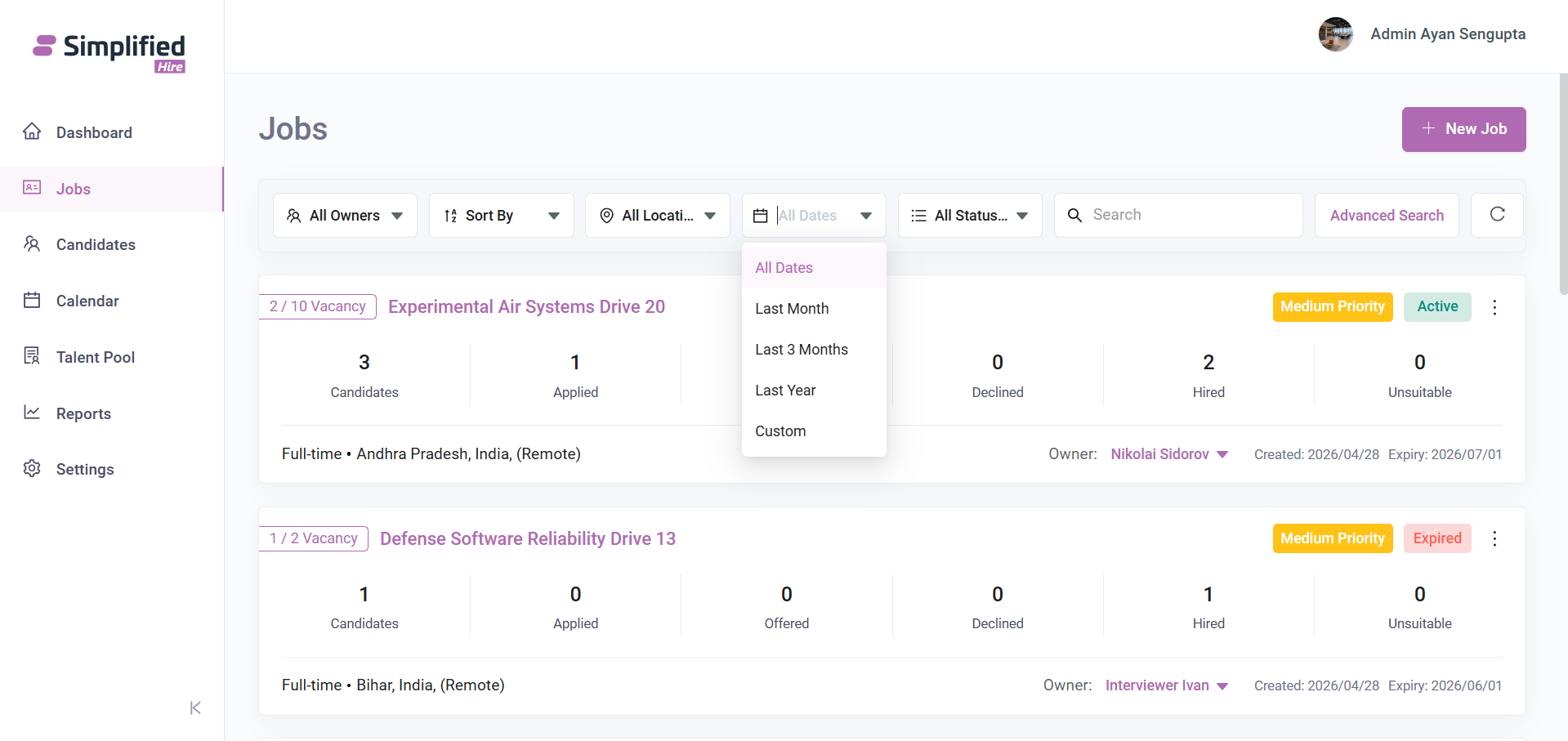
The All Dates dropdown allows users to filter job postings based on date range.
The available date filter options include:
· All Dates
· Last Month
· Last 3 Months
· Last Year
· Custom
After selecting a date range, the job listing updates according to the selected date filter.
All Statuses
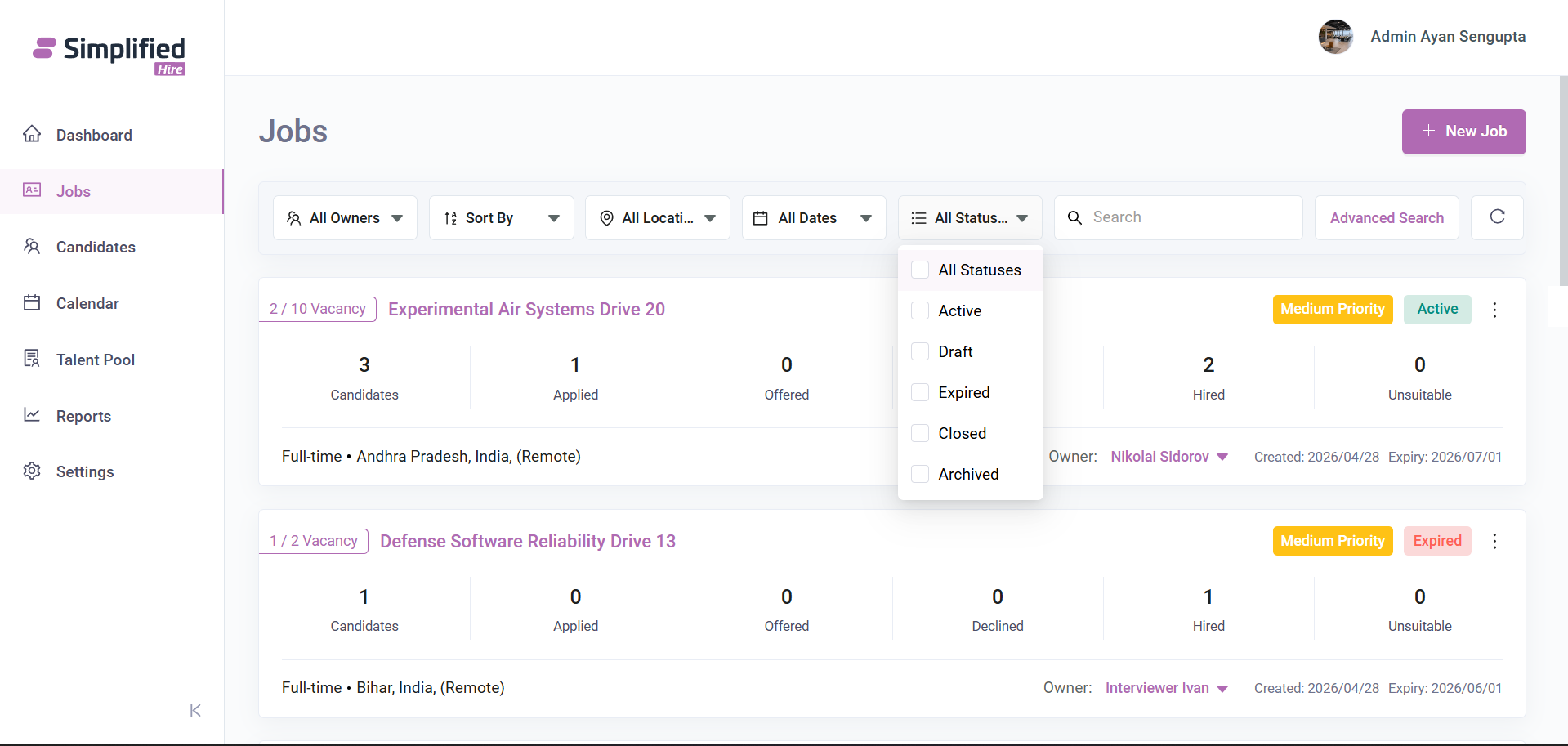
The All Statuses dropdown allows users to filter jobs based on one or more job statuses.
The status filter appears as a checkbox list and includes:
· All Statuses
· Active
· Draft
· Expired
· Closed
· Archived
After selecting one or more statuses, the Jobs page displays the matching job records.
Advanced Search
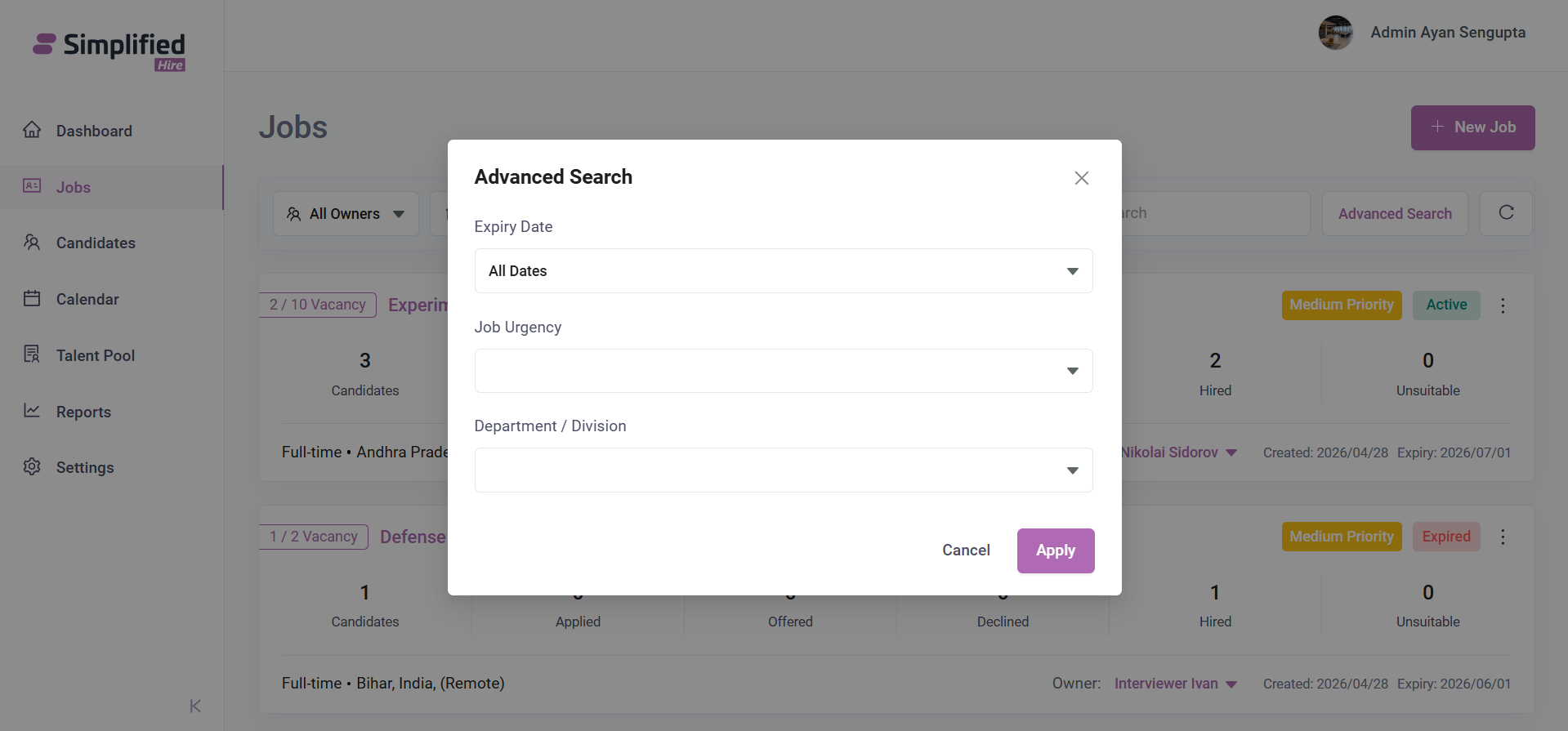
The Advanced Search button opens an advanced search popup for applying additional job filters.
The popup contains the following fields:
· Expiry Date
· Job Urgency
· Department / Division
The popup also contains a Cancel button, an Apply button, and a close icon. Users can apply the selected criteria or close the popup without applying changes.
Job Cards
Each job posting is displayed as a separate card on the Jobs page. The job card gives users a quick summary of the job and its current hiring progress.
A job card shows the following information:
· Vacancy count
· Job title
· Job urgency
· Job status
· Candidates
· Applied
· Offered
· Declined
· Hired
· Unsuitable
· Employment type
· Location
· Owner
· Created date
· Expiry date
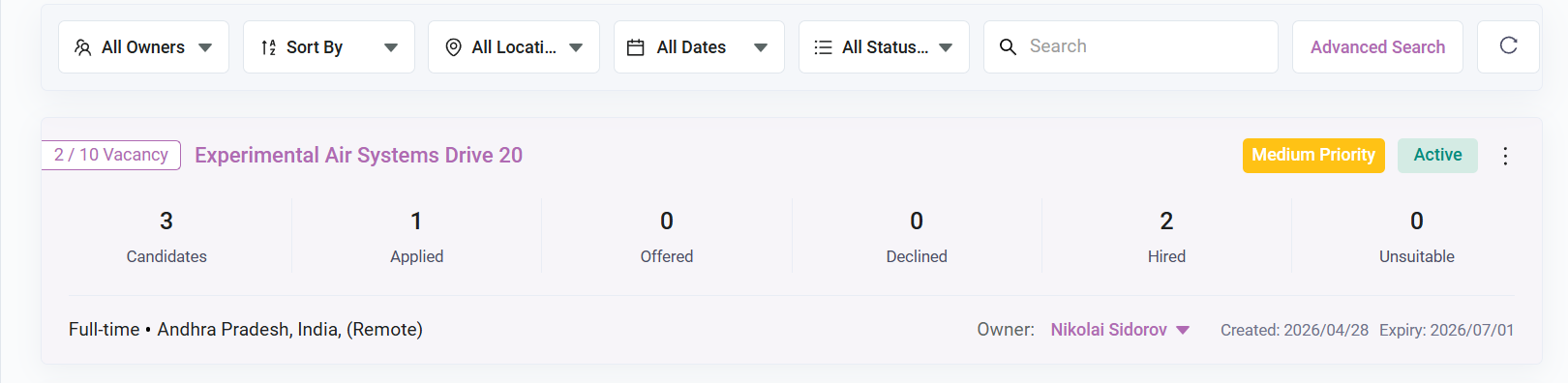
For example, a visible job card shows Experimental Air Systems Drive 20 with 2 / 10 Vacancy, Medium Priority, Active status, and candidate counts for Applied, Offered, Declined, Hired, and Unsuitable stages.
The lower section of the card displays employment type, location, owner, created date, and expiry date. Expired jobs are shown with an Expired status badge.
Job Card Actions
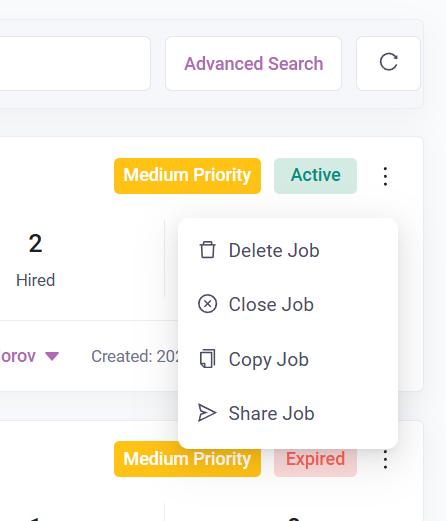
Each job card contains a three-dot action menu on the right side.
The visible actions include:
· Delete Job
· Close Job
· Copy Job
· Share Job
Users can open this menu to perform available actions directly from the job listing page.
Jobs Pagination
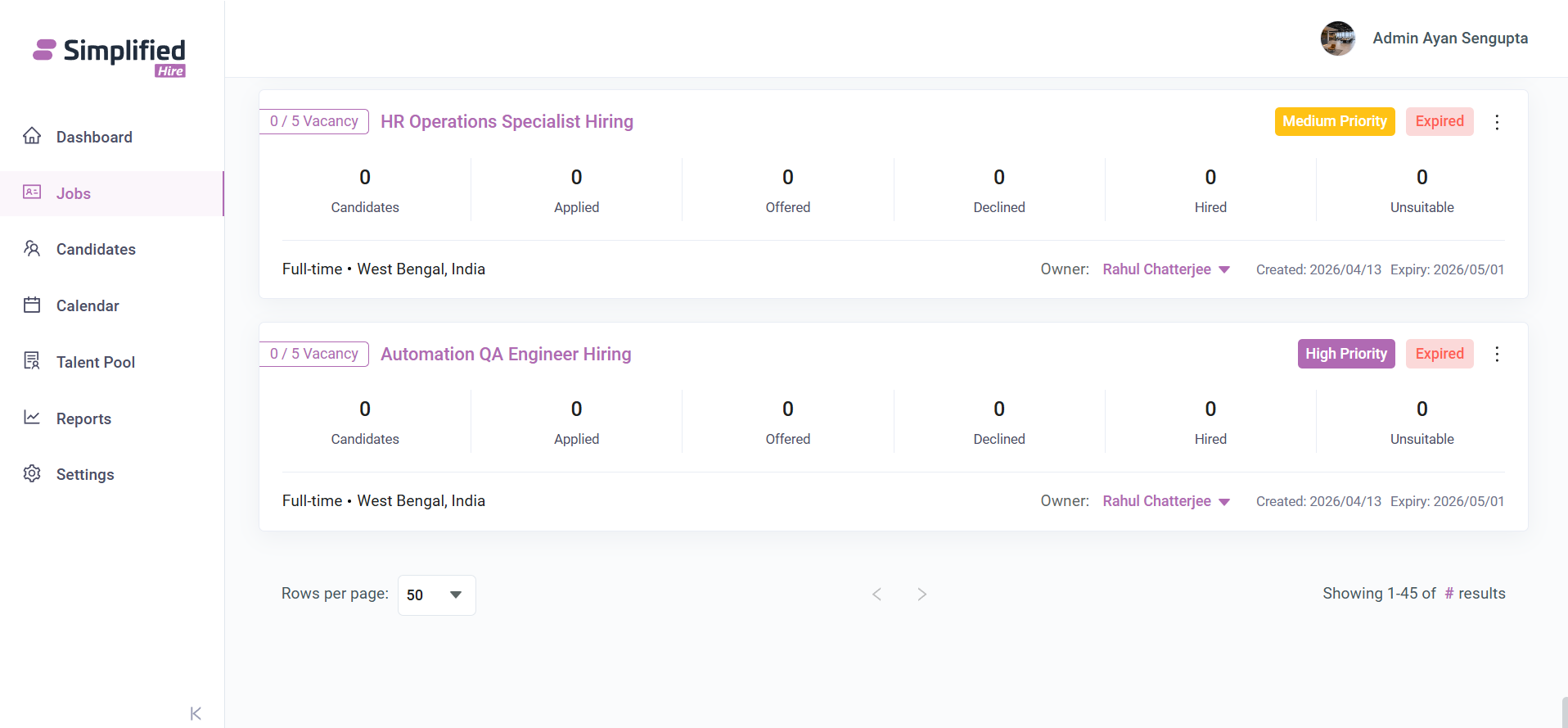
The Jobs page includes pagination controls at the bottom of the listing.
The visible pagination section includes a Rows per page dropdown, previous and next navigation arrows, and a result count display.
The screenshots show the row count selector set to 50 and the result count displayed as Showing 1-45 of # results.
New Job
Users can click the New Job button from the top right side of the Jobs page to start creating a new job posting.
The New Job flow is divided into the following steps:
· Job Posting
· Application Form
· Workflow
· Team Member
· Promote
The left-side stepper shows the current step and completed steps during job creation.
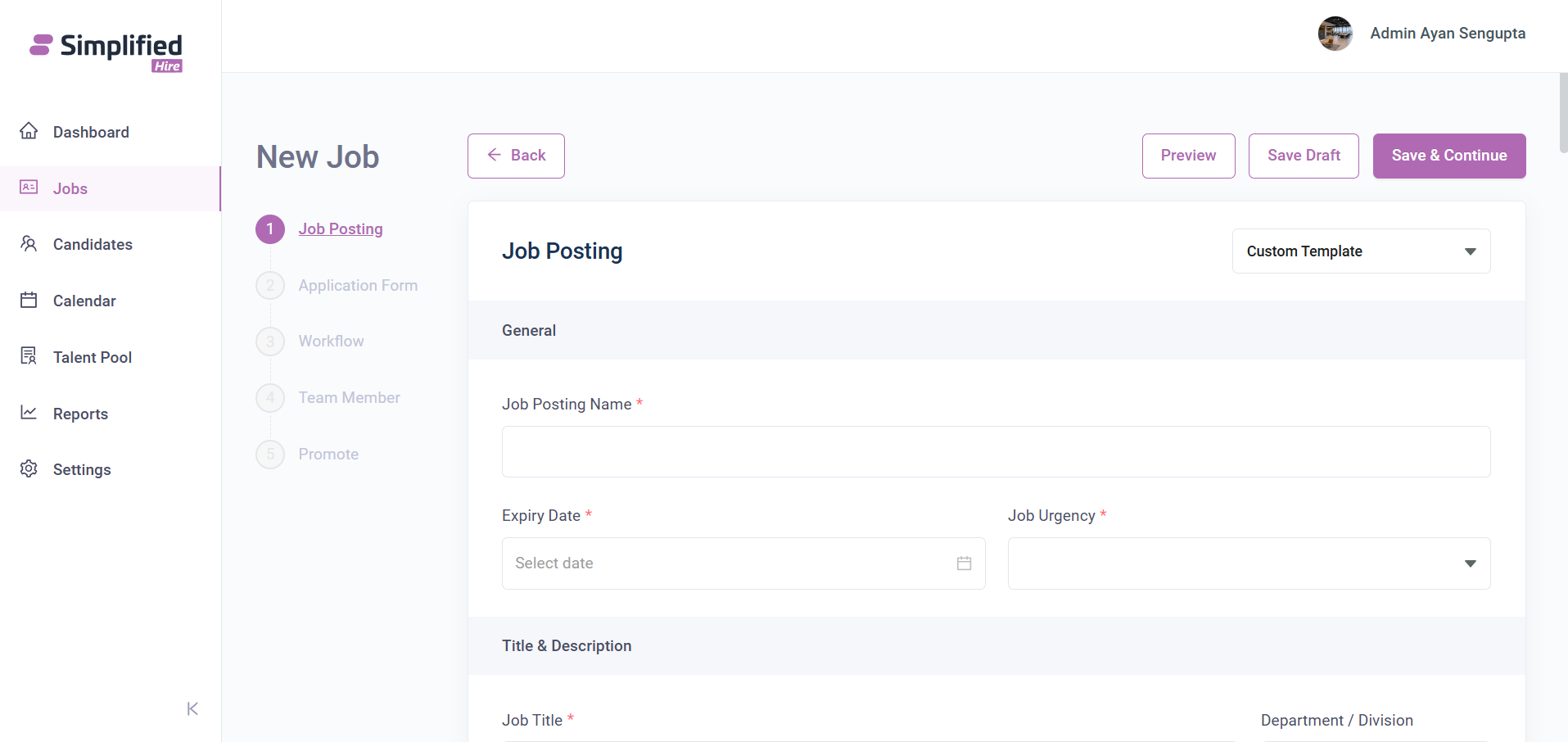
Job Posting
The Job Posting step is the first step in the New Job flow. This step is used to enter the main job details before moving to the application form and workflow setup.
The page contains a Back button, Preview button, Save Draft button, Save & Continue button, and a template dropdown showing Custom Template.
General
The General section contains the basic job posting fields.
The visible fields include:
· Job Posting Name
· Expiry Date
· Job Urgency
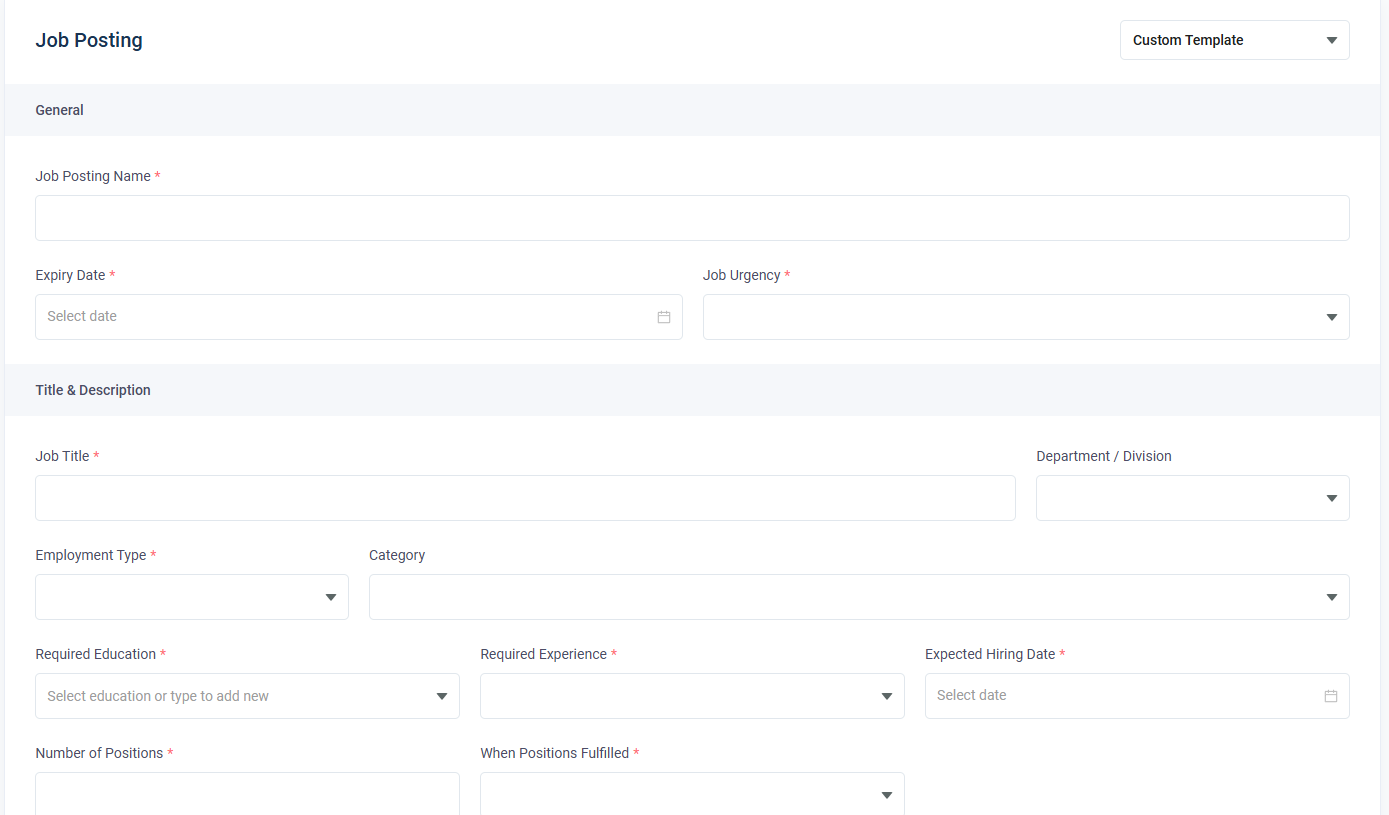
Title and Description
The Title and Description section contains the core job information that describes the role and its requirements.
The visible fields include:
· Job Title
· Department / Division
· Employment Type
· Category
· Required Education
· Required Experience
· Expected Hiring Date
· Number of Positions
· When Positions Fulfilled
· Job Description
The Job Description field includes a rich text editor toolbar for formatting the job description content.
Job Requirements
The Job Requirements section contains a rich text editor field where users can enter the requirements for the job role.
Benefits
The Benefits section contains a rich text editor field where users can enter the benefits offered for the job role.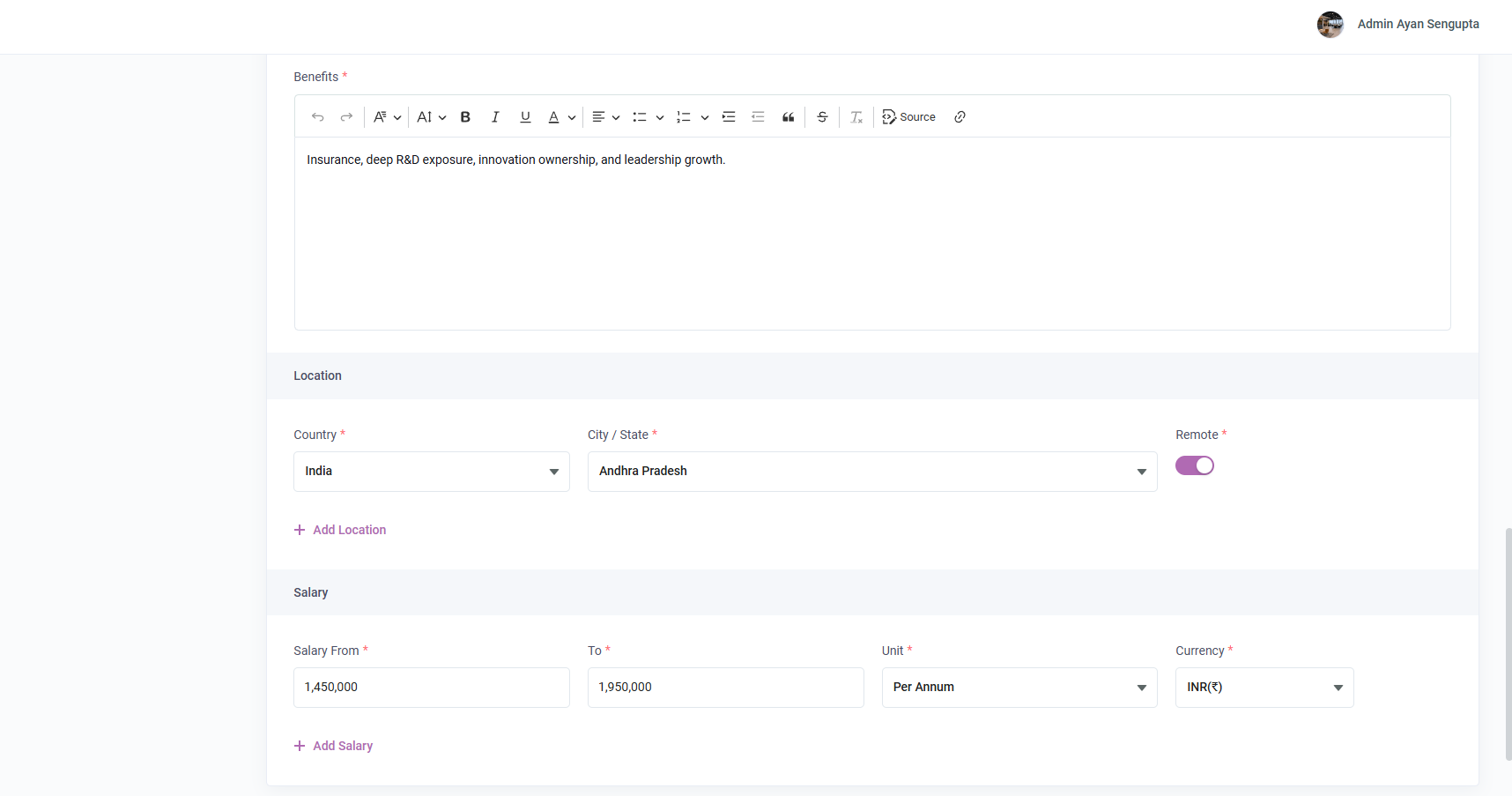
Location
The Location section allows users to define where the job is available.
The visible fields include:
· Country
· City / State
· Remote toggle
· Add Location
The screenshots show India selected as the country and the Remote toggle enabled.
Salary
The Salary section allows users to add salary details for the job posting.
The visible fields include:
· Salary From
· To
· Unit
· Currency
· Add Salary
The screenshots show INR(₹) selected as the currency.
At the bottom of the Job Posting step, users can select Save As Job Posting Template and then use Preview, Save Draft, or Save & Continue.
Application Form
The Application Form step is the second step in the New Job flow. This step is used to configure the candidate application form for the job.
The page contains a template dropdown showing Custom Template.
Personal Information
The Personal Information section contains candidate information fields that can be configured for the application form.
The visible fields include:
· First Name
· Last Name
· Email
· Phone Number
· Professional Profile Link
· Location
· Current Role
· Current Company
· Notice Period
· Current Salary
· Expected Salary
· Relevant Experience
· Total Experience
· CV/Resume
· Cover Letter
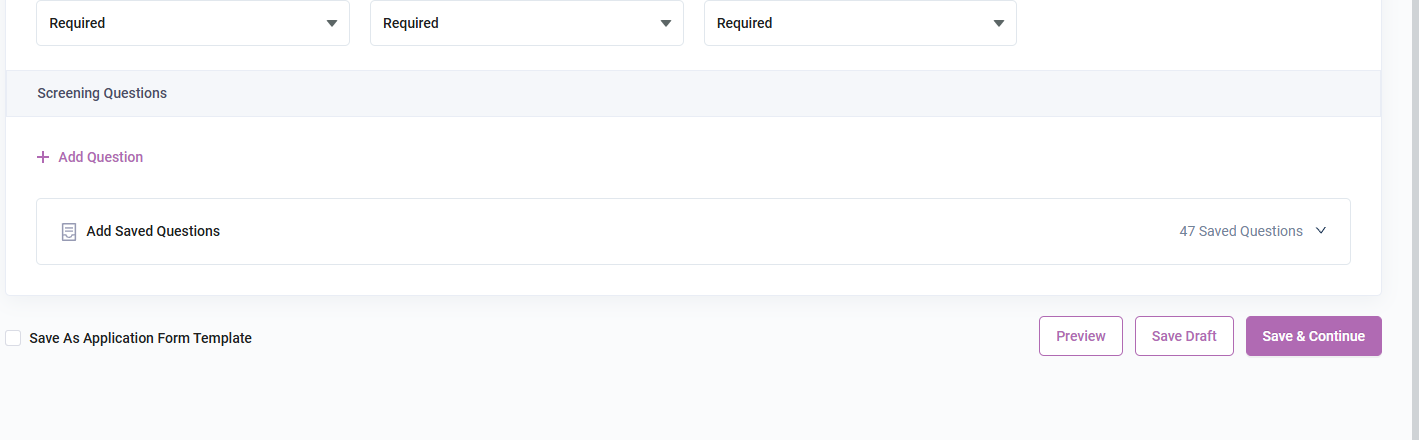
The fields are displayed with Required selection controls where applicable.
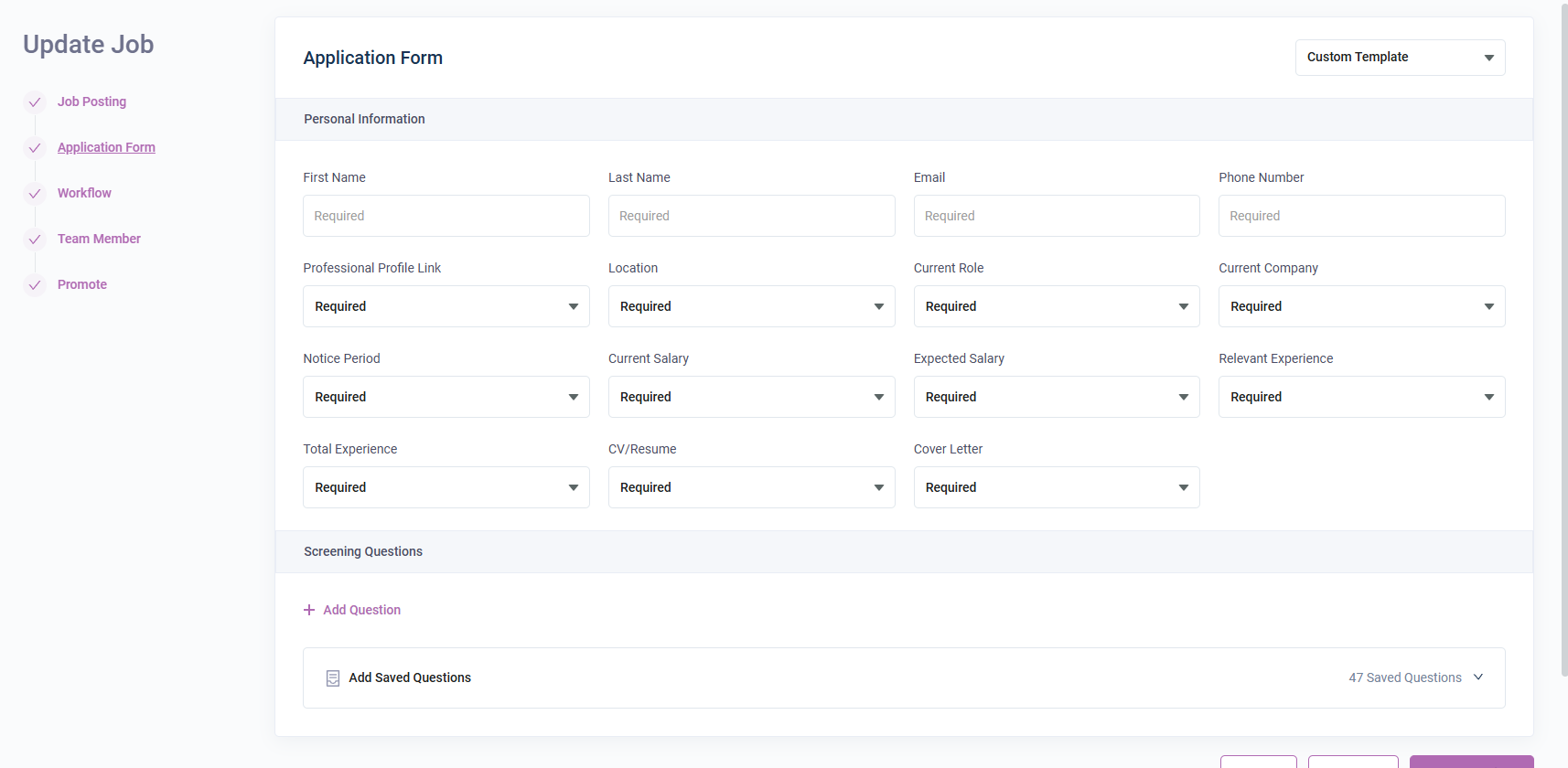
Screening Questions
The Screening Questions section allows users to add custom questions to the application form.
The visible elements include:
· Question input field with the placeholder Type your question...
· Question type dropdown showing Textbox
· Save Question checkbox
· Cancel button
· Add button
· Add Question link
· Add Saved Questions section
· Saved question count showing 47 Saved Questions
At the bottom of this step, users can select Save As Application Form Template and then use Preview, Save Draft, or Save & Continue.
Workflow
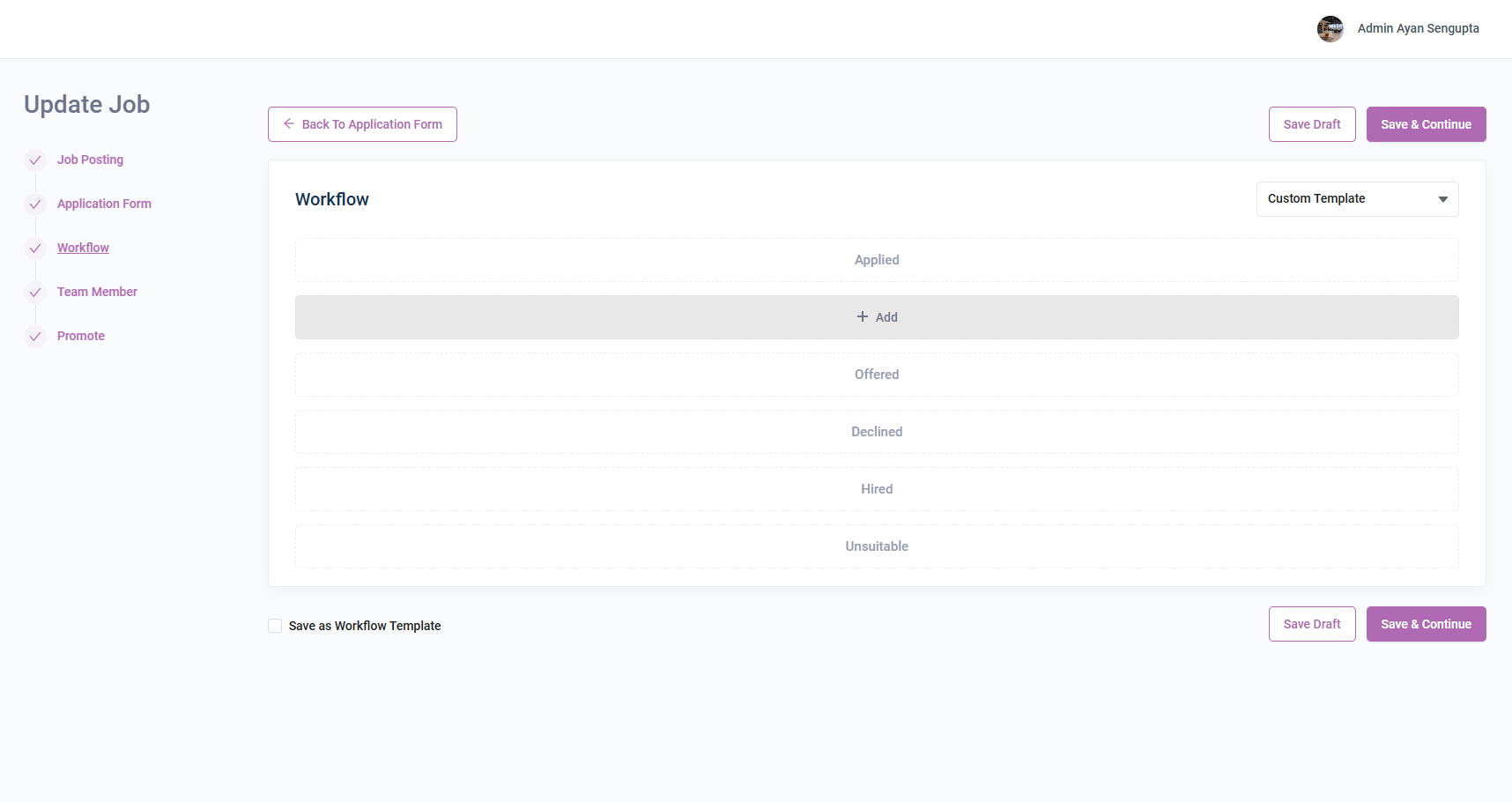
The Workflow step is the third step in the New Job flow. This step is used to define the candidate stages that will be used for the job.
The page contains a Back To Application Form button, a template dropdown showing Custom Template, Save Draft button, and Save & Continue button.
The visible workflow stages include:
· Applied
· Offered
· Declined
· Hired
· Unsuitable
An Add section is visible between workflow stages, allowing users to add another stage into the workflow.
At the bottom of the Workflow step, the Save as Workflow Template option is visible.
Team Member
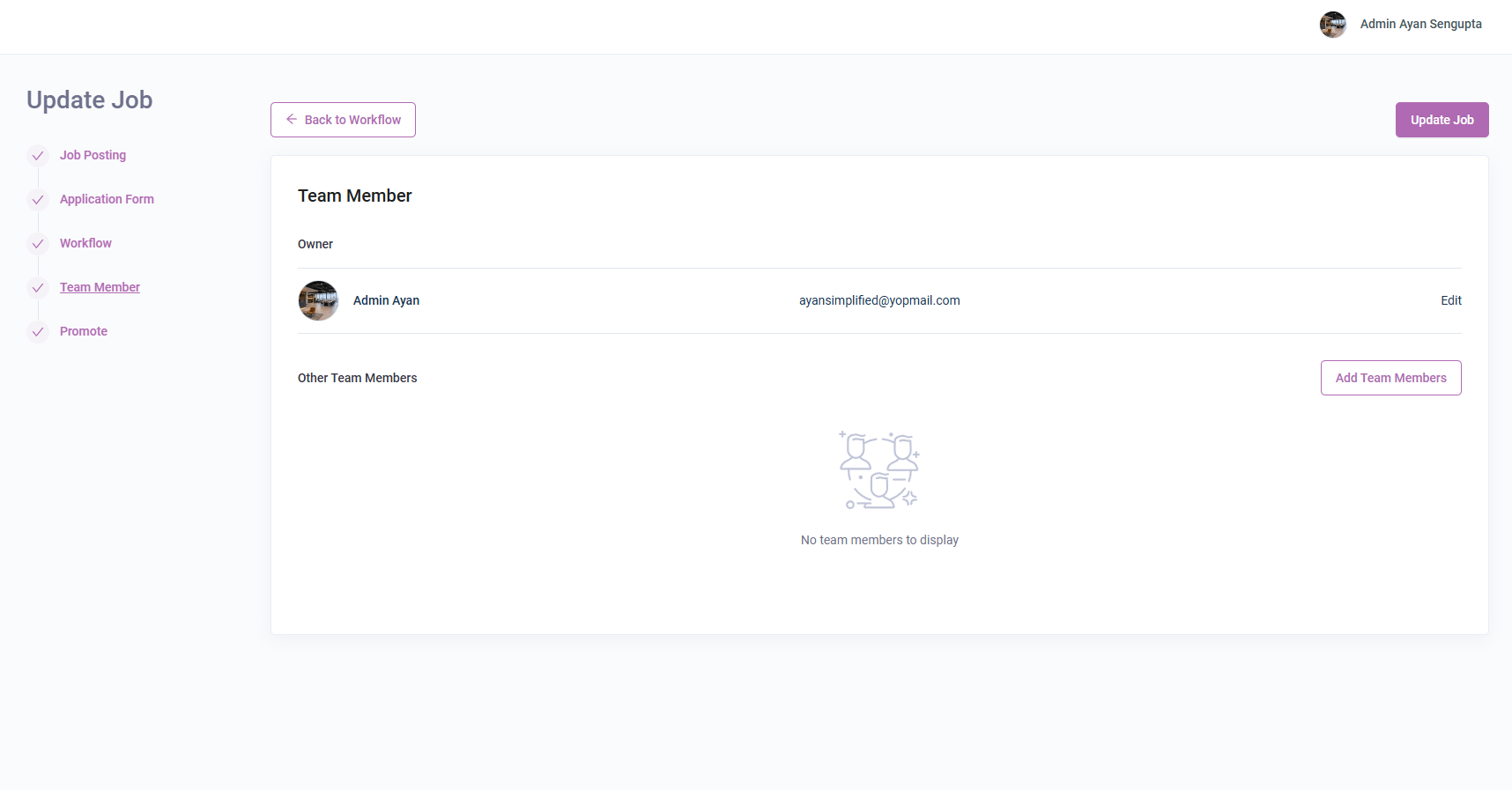
The Team Member step is the fourth step in the New Job flow. This step is used to review or update the owner and add other team members before creating the job.
The page contains a Back to Workflow button and a Create Job button.
Owner
The Owner section displays the current owner of the job.
The visible owner details include:
· Profile image
· Admin Ayan Sengupta
· [email protected]
· Edit option
Other Team Members
The Other Team Members section displays additional members assigned to the job.
The screenshot shows the message No team members to display and an Add Team Members button.
Job Details Page
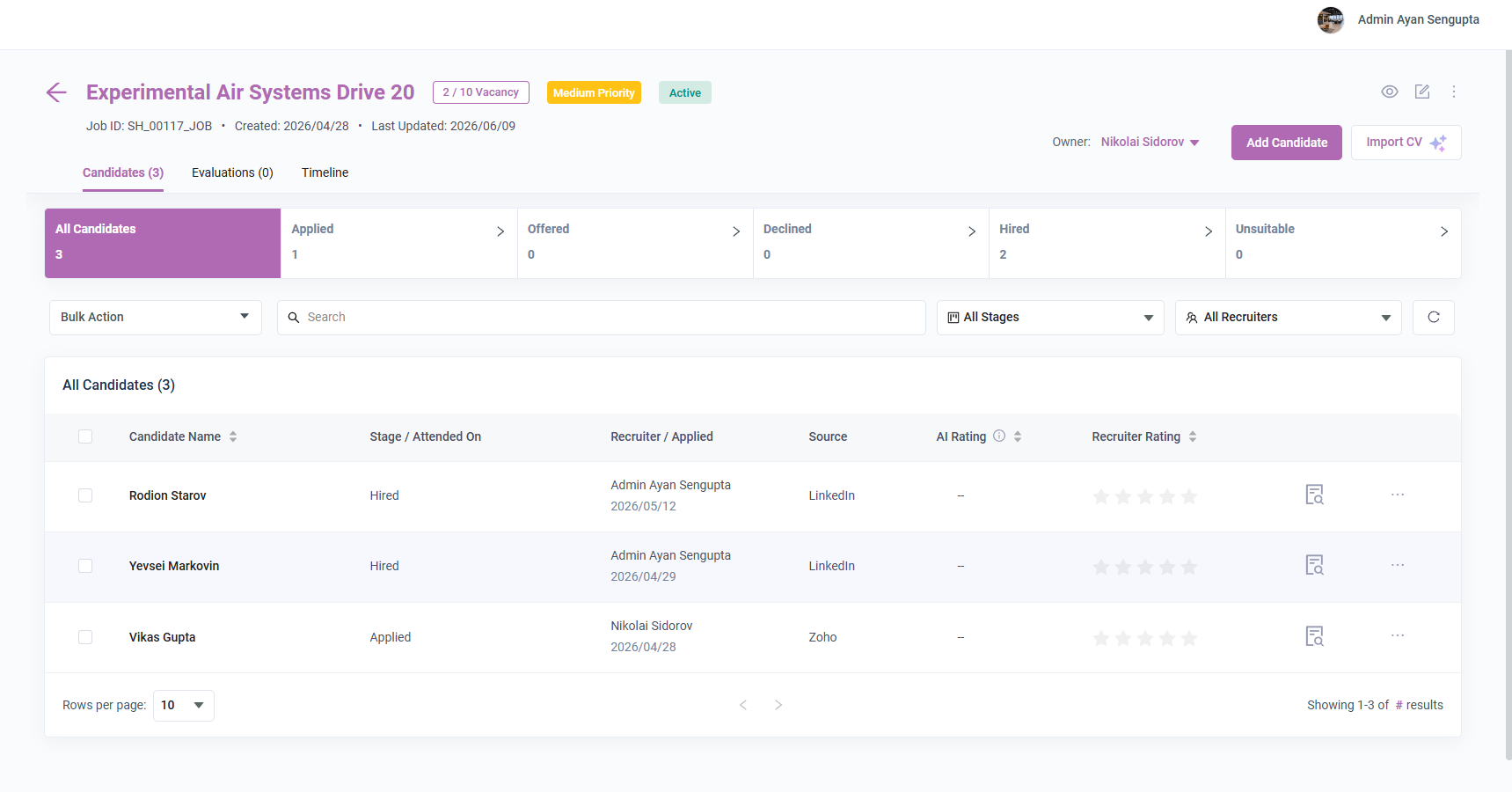
When a user opens a job, the Job Details page is displayed. This page shows the selected job information, candidate progress, and candidate list.
The header section displays:
· Back arrow
· Job title
· Vacancy count
· Job urgency
· Job status
· Job ID
· Created date
· Last Updated date
· Owner dropdown
· View icon
· Edit icon
· Three-dot action menu
· Add Candidate button
· Import CV button
The visible tabs on the Job Details page are:
· Candidates
· Evaluations
· Timeline
The screenshots show the Candidates tab content in detail.
Candidate Summary
The Candidates tab displays stage summary cards at the top of the page.
The visible summary cards include:
· All Candidates
· Applied
· Offered
· Declined
· Hired
· Unsuitable
Each card displays the candidate count for that stage.
Candidate Filters
The candidate listing contains filter and search controls for reviewing candidates attached to the selected job.
The visible controls include:
· Bulk Action
· Search
· All Stages
· All Recruiters
· Refresh
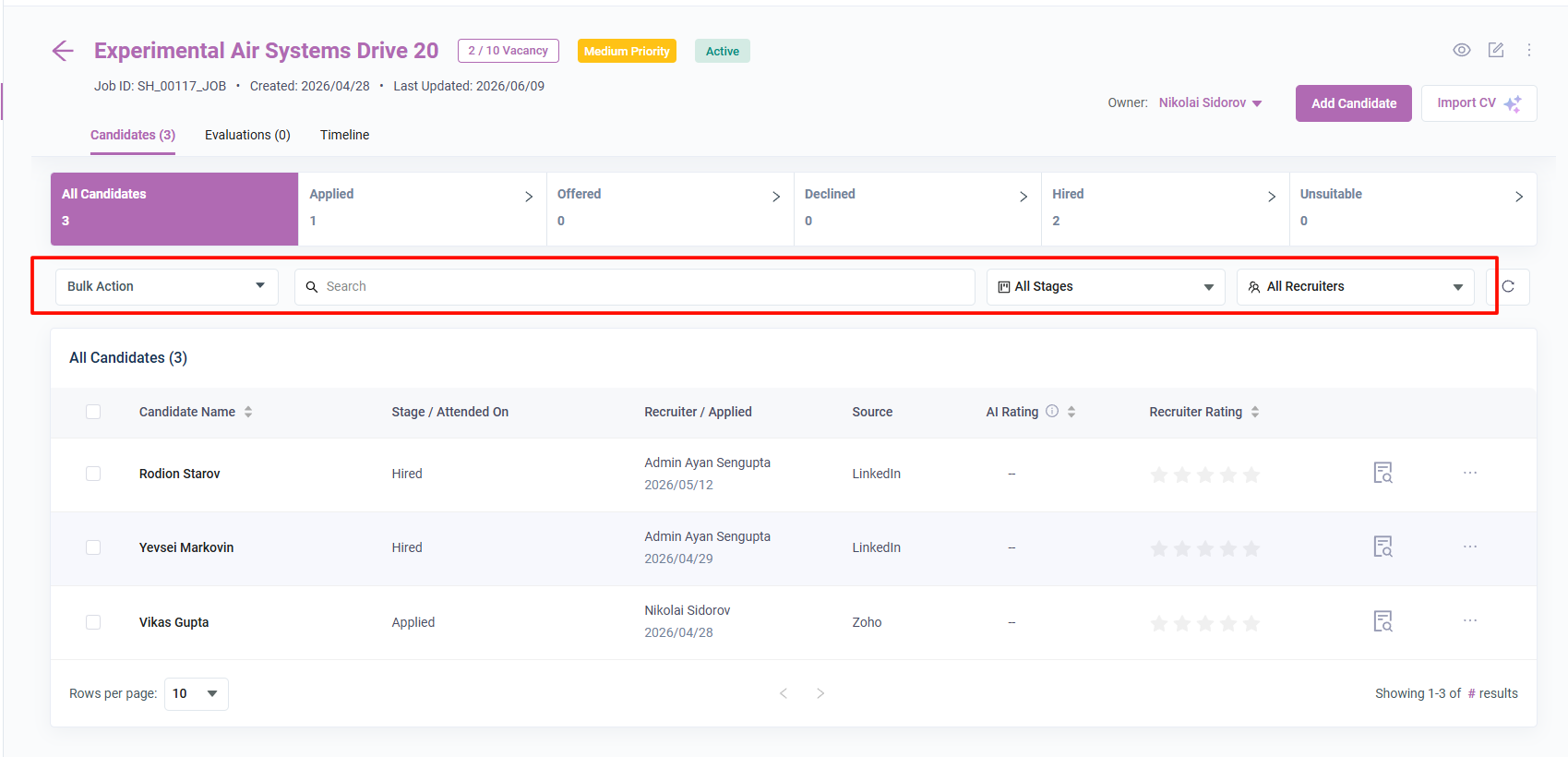
Candidate Listing
The candidate table displays candidate information related to the selected job.
The visible columns include:
· Selection checkbox
· Candidate Name
· Stage / Attended On
· Recruiter / Applied
· Source
· AI Rating
· Recruiter Rating
Candidate rows also show action icons on the right side of the table.
Job Preview
The preview icon opens a Preview popup where job information is displayed in read-only format.
The visible fields in the Preview popup include:
· Job title
· Expiry Date
· Job Urgency
· Job Title
· Department / Division
· Employment
· Category
· Required Education
· Required Experience
· Expected Hiring Date
· Number of Positions
The Preview popup also contains a close icon.