The Talent Pool page is where users can view, search, filter, add, and import talent records in Simplified Hire. Based on the provided screenshots, the page displays talent information in a table format together with multiple filter controls, an advanced search popup, an Add Talent form, and an Import CV/Resume screen.
Common sections like the left navigation menu and the top profile header are visible on the Talent Pool page, allowing users to move across Dashboard, Jobs, Candidates, Calendar, Reports, and Settings while working with talent records.
To access the Talent Pool page, log in to Simplified Hire and click on Talent Pool from the left menu.
Overview
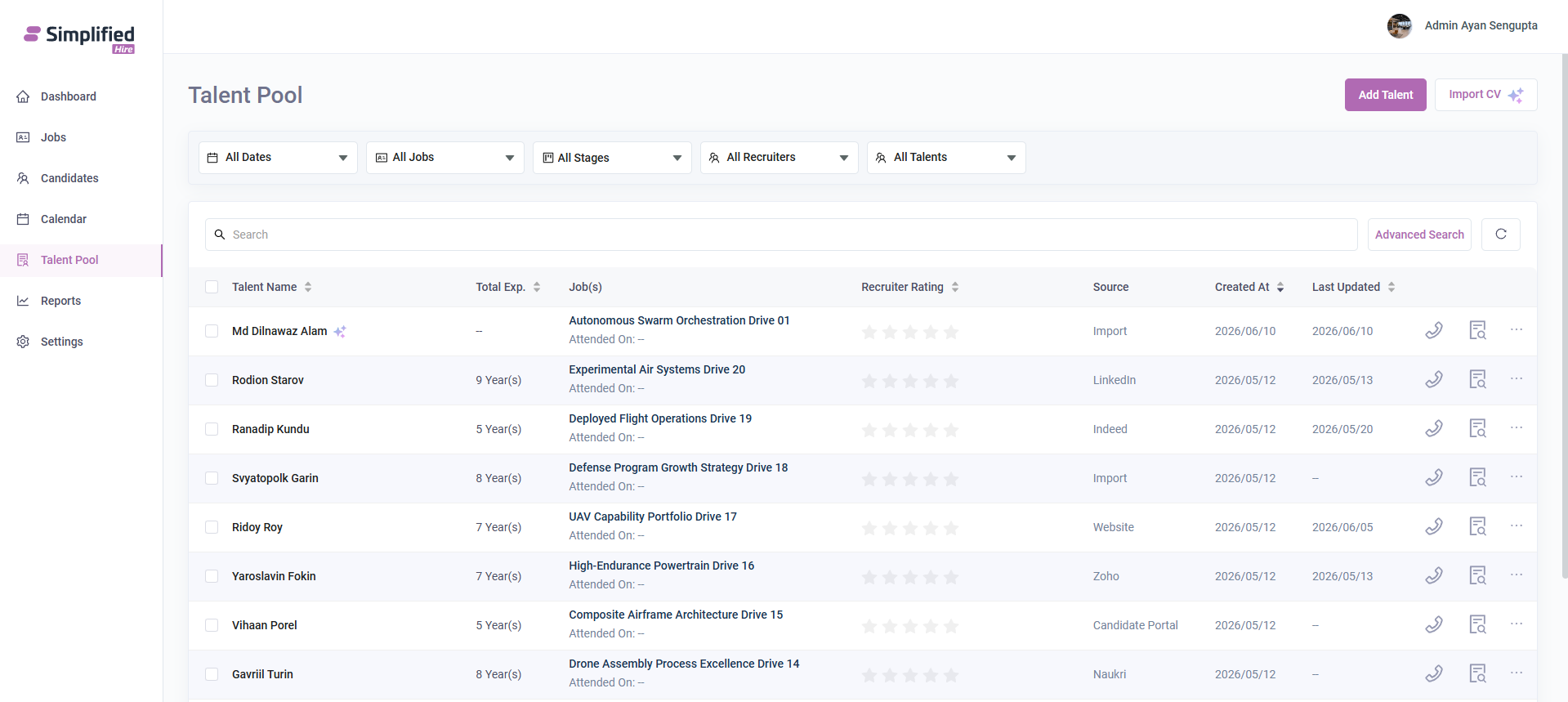
The Talent Pool page displays talent records in a tabular layout. The page includes top filter dropdowns, a search field, an Advanced Search button, a refresh button, an Add Talent button, and an Import CV button.
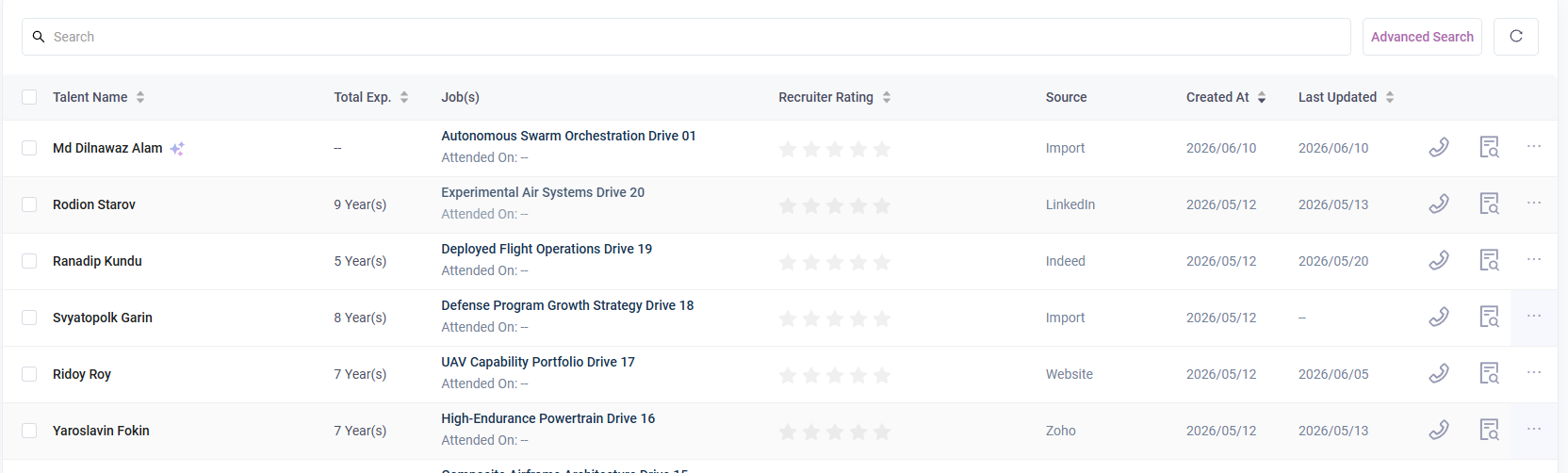
The visible table columns include Talent Name, Total Exp., Job(s), Recruiter Rating, Source, Created At, and Last Updated. Row selection checkboxes are also visible, along with row-level action icons on the right side.
Top Filters
At the top of the page, users can filter the talent list using the following visible dropdown filters:
-
All Dates
-
All Jobs
-
All Stages
-
All Recruiters
-
All Talents
All Dates
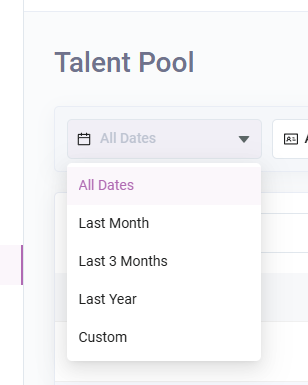
The All Dates dropdown allows users to filter talent records based on date range. The visible options are:
-
All Dates
-
Last Month
-
Last 3 Months
-
Last Year
-
Custom
All Jobs
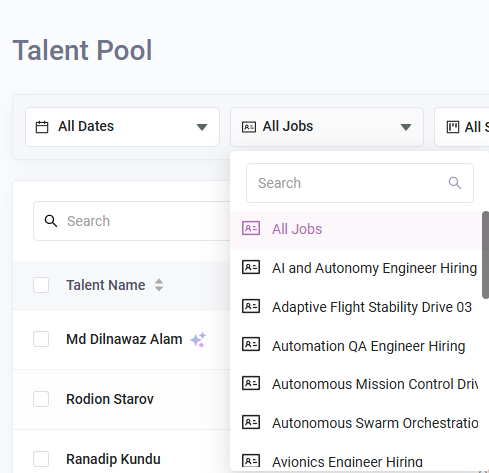
The All Jobs dropdown includes a search field and a list of visible job options. The visible options include:
-
All Jobs
-
AI and Autonomy Engineer Hiring
-
Adaptive Flight Stability Drive 03
-
Automation QA Engineer Hiring
-
Autonomous Mission Control Dri…
-
Autonomous Swarm Orchestration…
-
Avionics Engineer Hiring
Only the visible job values from the screenshots are documented here.
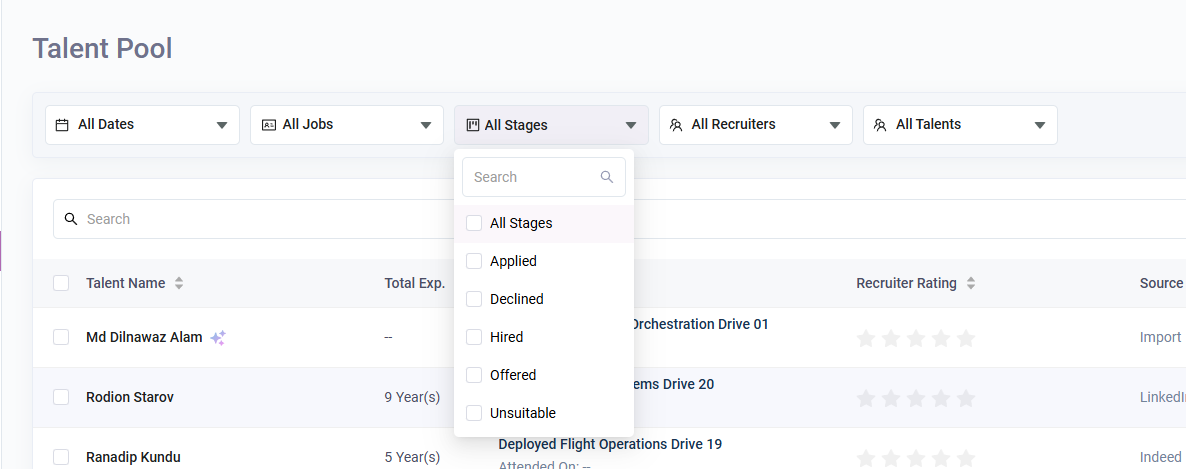
All Stages
The All Stages dropdown includes a search field and checkbox options. The visible stage options are:
-
All Stages
-
Applied
-
Declined
-
Hired
-
Offered
-
Unsuitable
All Recruiters
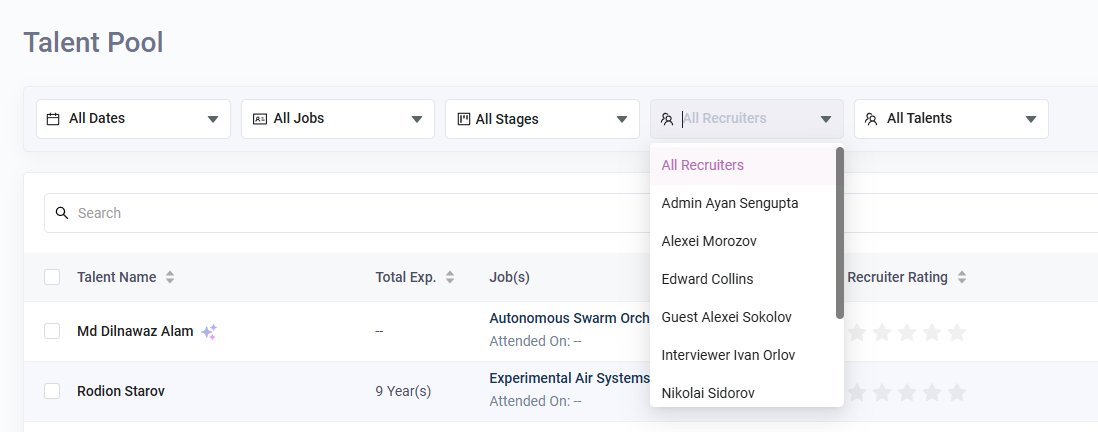
The All Recruiters dropdown allows users to filter talent records by recruiter. The visible recruiter options are:
-
All Recruiters
-
Admin Ayan Sengupta
-
Alexei Morozov
-
Edward Collins
-
Guest Alexei Sokolov
-
Interviewer Ivan Orlov
-
Nikolai Sidorov
All Talents
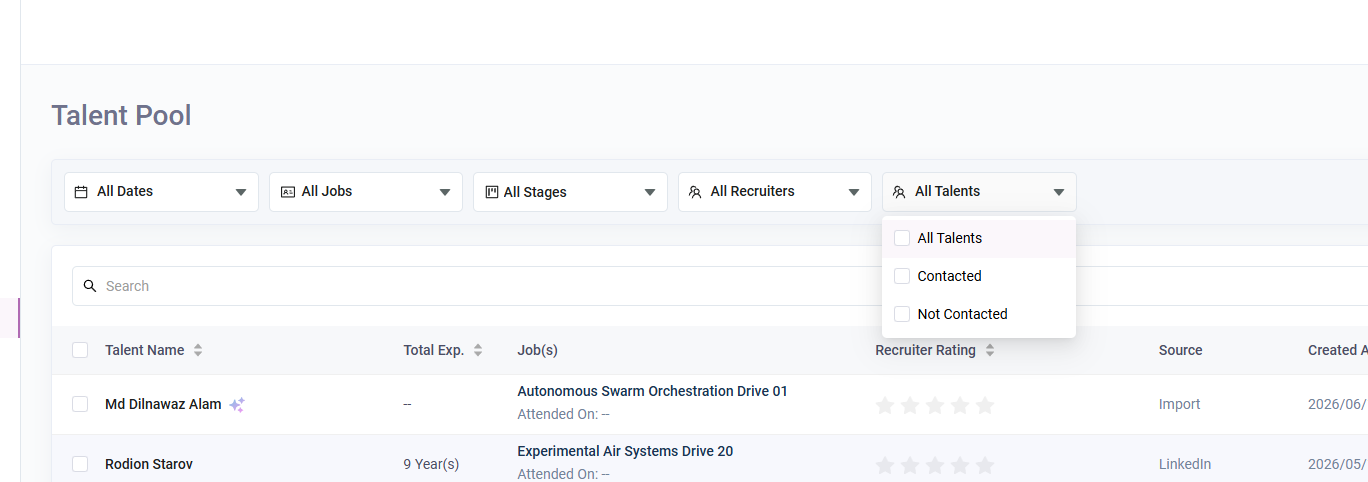
The All Talents dropdown includes checkbox options related to talent status. The visible options are:
-
All Talents
-
Contacted
-
Not Contacted
Search, Advanced Search, and Refresh
Below the top filters, the page displays a search field for searching talent records.
To the right of the search field, the page shows an Advanced Search button and a refresh icon button.
Talent Listing Table
The main listing area displays talent records in rows. Each visible row contains the following information:
-
Talent name
-
Total experience
-
Job name
-
Attended On value shown under the job name
-
Recruiter rating shown as star icons
-
Source
-
Created At date
-
Last Updated date
-
Row-level action icons on the right side
Visible talent examples from the screenshots include:
-
Md Dilnawaz Alam — Total Exp.: -- — Job: Autonomous Swarm Orchestration Drive 01 — Source: Import — Created At: 2026/06/10 — Last Updated: 2026/06/10
-
Rodion Starov — Total Exp.: 9 Year(s) — Job: Experimental Air Systems Drive 20 — Source: LinkedIn — Created At: 2026/05/12 — Last Updated: 2026/05/13
-
Ranadip Kundu — Total Exp.: 5 Year(s) — Job: Deployed Flight Operations Drive 19 — Source: Indeed — Created At: 2026/05/12 — Last Updated: 2026/05/20
-
Svyatopolk Garin — Total Exp.: 8 Year(s) — Job: Defense Program Growth Strategy Drive 18 — Source: Import — Created At: 2026/05/12 — Last Updated: --
-
Ridoy Roy — Total Exp.: 7 Year(s) — Job: UAV Capability Portfolio Drive 17 — Source: Website — Created At: 2026/05/12 — Last Updated: 2026/06/05
-
Yaroslavin Fokin — Total Exp.: 7 Year(s) — Job: High-Endurance Powertrain Drive 16 — Source: Zoho — Created At: 2026/05/12 — Last Updated: 2026/05/13
-
Vihaan Porel — Total Exp.: 5 Year(s) — Job: Composite Airframe Architecture Drive 15 — Source: Candidate Portal — Created At: 2026/05/12 — Last Updated: --
-
Gavriil Turin — Total Exp.: 8 Year(s) — Job: Drone Assembly Process Excellence Drive 14 — Source: Naukri — Created At: 2026/05/12 — Last Updated: --
-
Taras Lukashin — Total Exp.: 8 Year(s) — Job: UAV Test Range Assurance Drive 12 — Source: Indeed — Created At: 2026/05/12 — Last Updated: --
In the visible rows, the text “Attended On: --” appears under the job name.
Talent Row Actions
Each talent row contains action icons on the right side. The visible row actions include a contact icon, a quick view icon, and a three-dot menu.
Contact Icon and Contacted Status
The contact icon is available in each talent row. In the visible example, clicking the contact icon updates the talent as contacted.
After the contact action is performed, a success toast appears with the message:
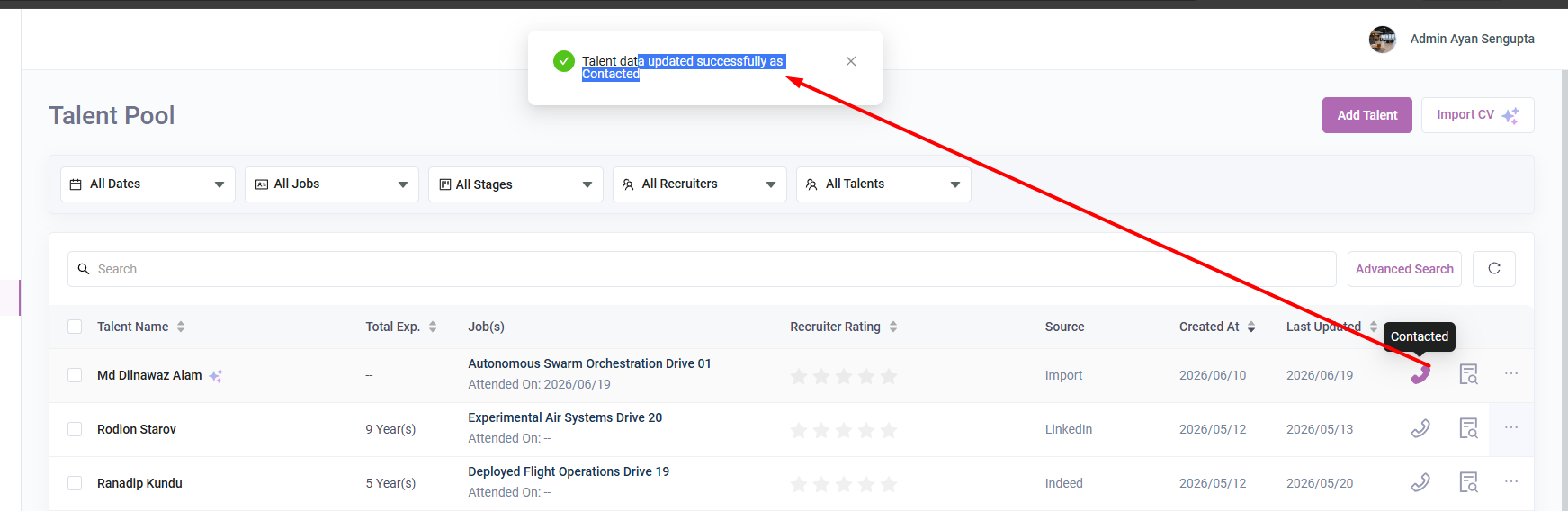
Talent data updated successfully as Contacted
The contacted row then shows the contact icon in highlighted purple color. A tooltip also shows the text Contacted when the user hovers over the icon.
In the visible updated row example, the Attended On value changes to 2026/06/19 and the Last Updated value also changes to 2026/06/19.
Three-Dot Action Menu
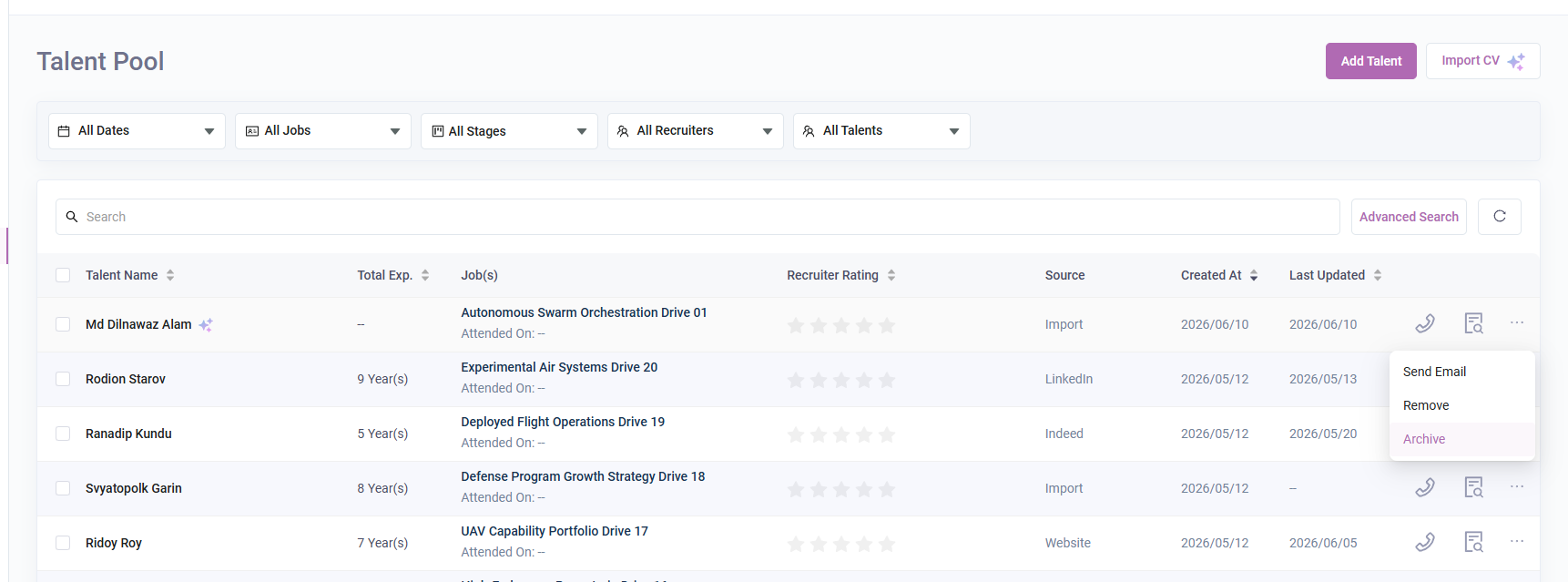
The three-dot menu opens additional actions for the selected talent row.
The visible menu options are:
-
Send Email
-
Remove
-
Archive
Talent Name Click
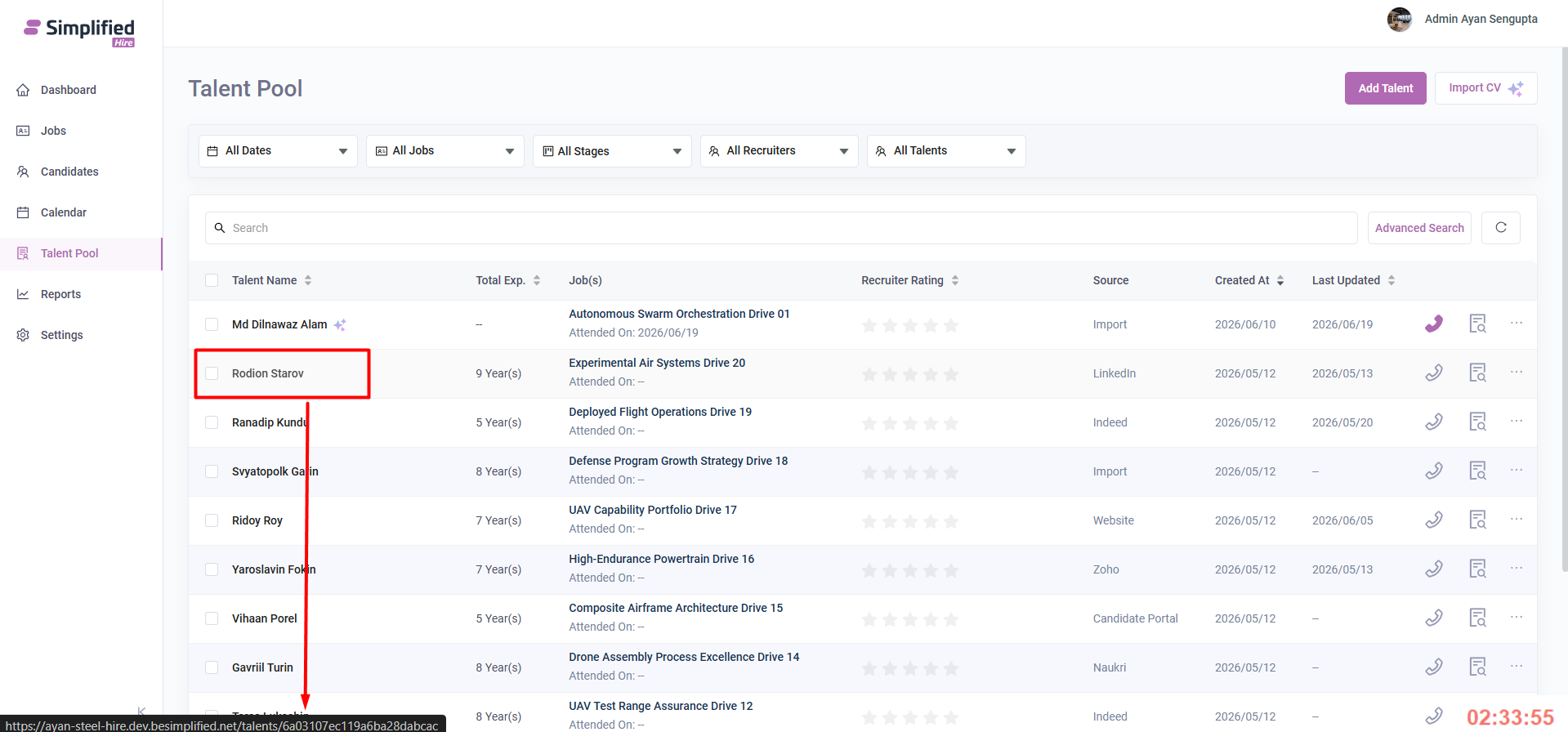
The talent name in the table is clickable. Clicking the talent name opens the full talent profile page for that selected talent.
The full profile page displays the talent name in the header along with profile initials and rating stars. The visible tabs on the full profile page include:
-
Overview
-
Jobs Applied
-
Event
-
Timeline
-
Files
The visible Overview section on the full profile page includes Basic Information such as Candidate ID, Owner, Phone Number, Email, and Email Opt-in. The page also displays a Files area, a Tag section, and the available file state shown as No Files Found.
Quick View Drawer
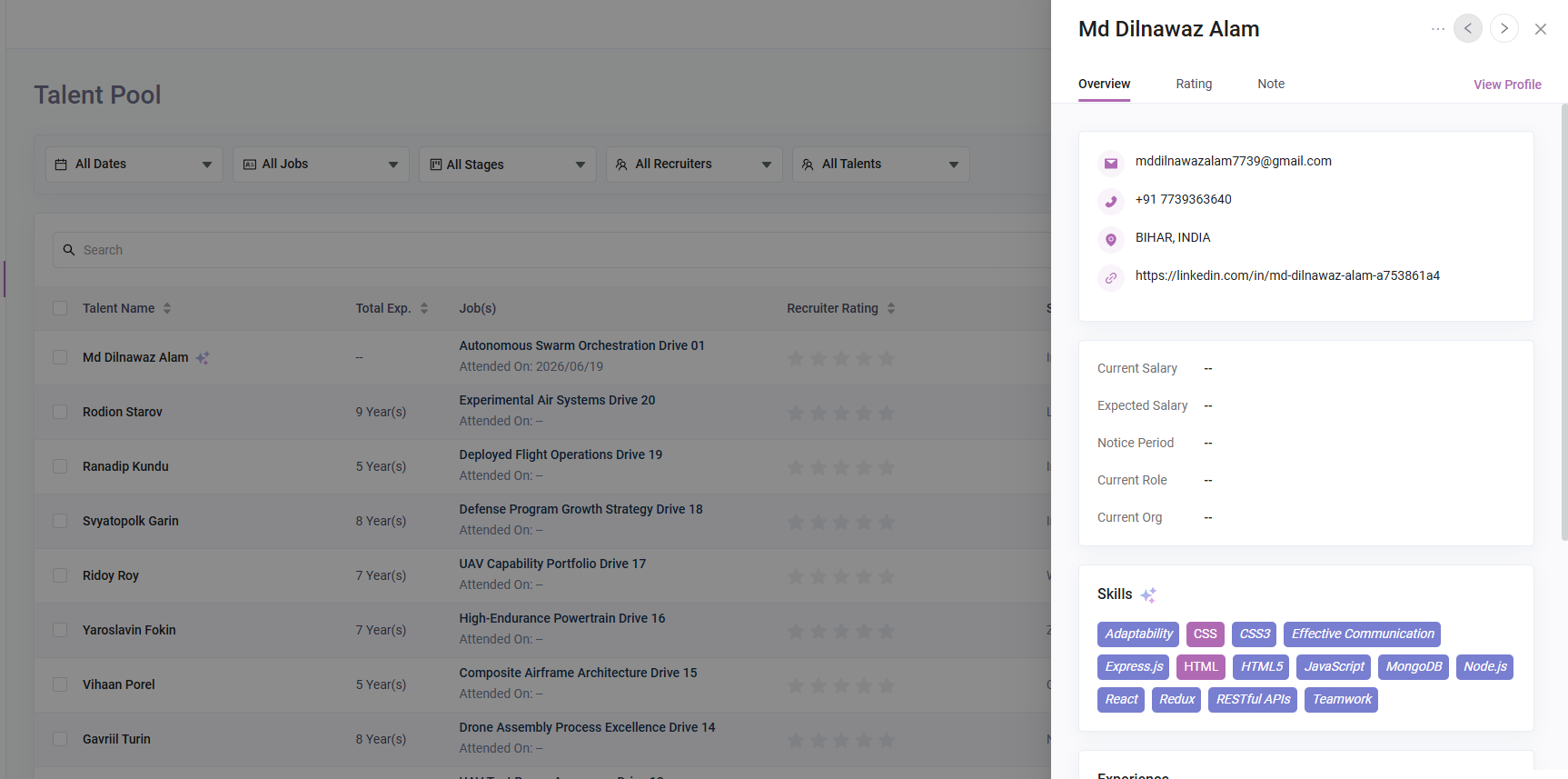
The quick view icon opens a right-side drawer for the selected talent. The drawer displays the talent name at the top with navigation controls, a close icon, and a three-dot menu.
The visible tabs in the Quick View drawer include:
A View Profile link is also visible in the drawer. This link is used to open the complete talent profile page.
Quick View - Overview Details
The Overview tab of the Quick View drawer displays visible contact and profile information for the selected talent.
The visible details include:
In the visible example, the drawer shows Md Dilnawaz Alam with email, phone number, BIHAR, INDIA location, LinkedIn profile link, salary fields, notice period, current role, current org, and skill tags.
Visible skill tags include Adaptability, CSS, CSS3, Effective Communication, Express.js, HTML, HTML5, JavaScript, MongoDB, Node.js, React, Redux, RESTful APIs, and Teamwork.
Advanced Search
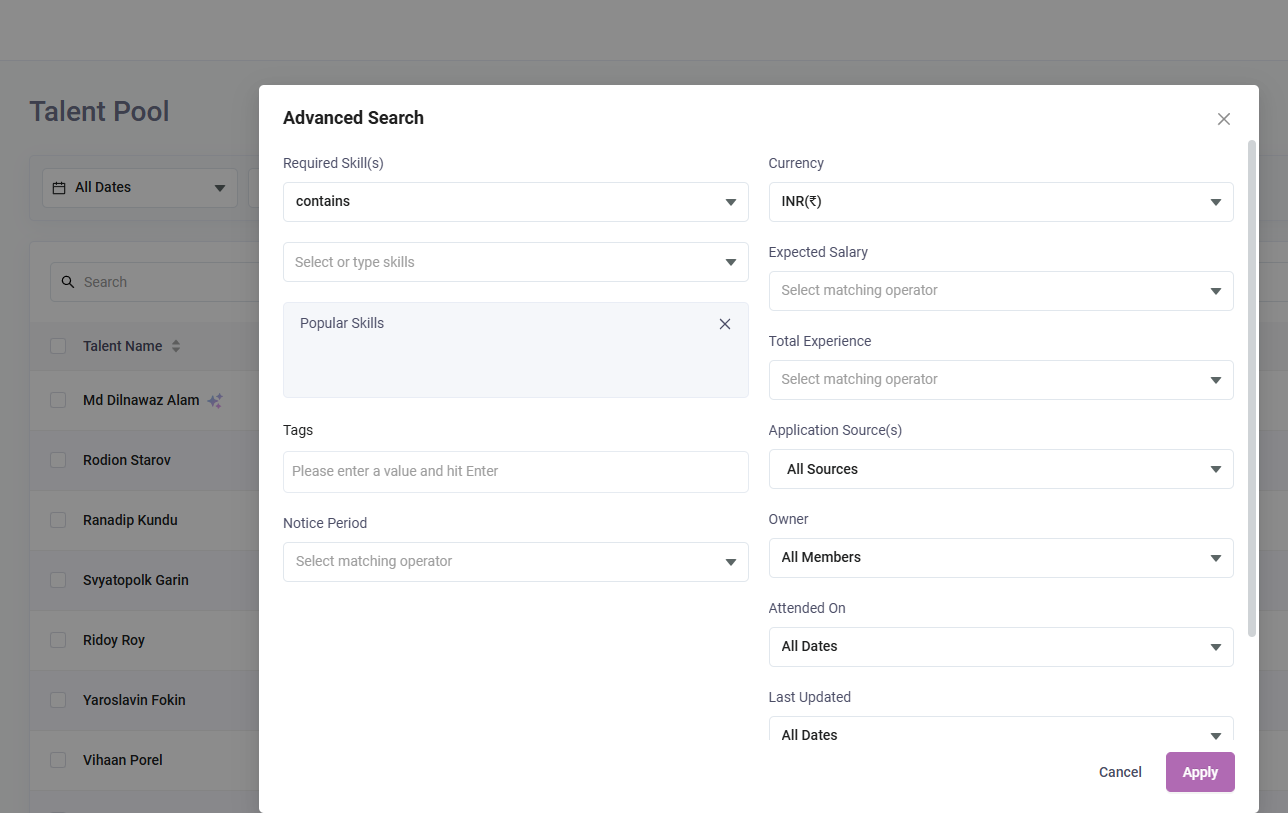
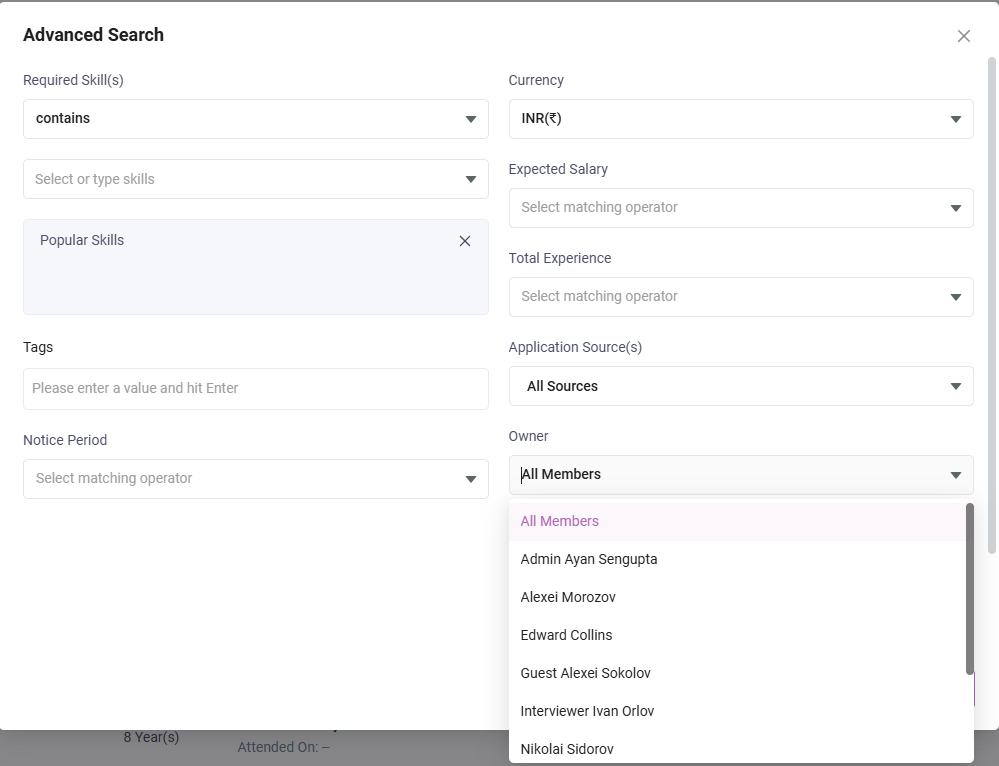
When the user clicks Advanced Search, an Advanced Search popup is displayed.
The popup contains multiple filter fields. Only the fields and values visible in the screenshots are documented below.
Required Skill(s)
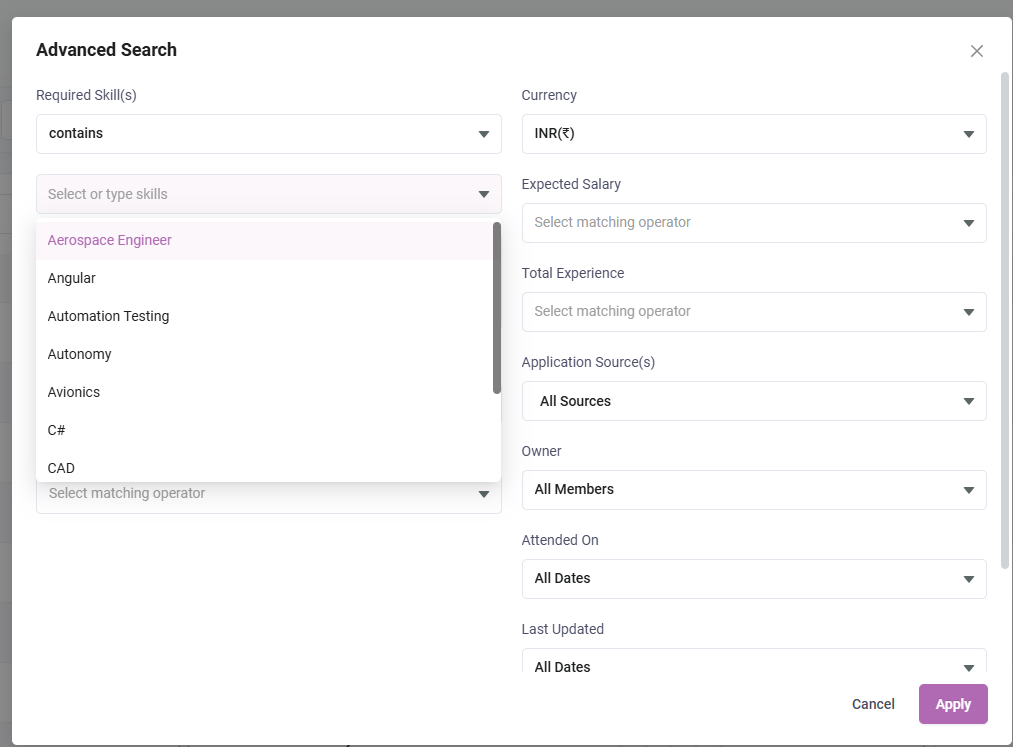
The Required Skill(s) section includes:
-
An operator dropdown with the visible selected value: contains
-
A skill selection field with the placeholder: Select or type skills
-
A visible suggestion list showing values such as Aerospace Engineer, Angular, Automation Testing, Autonomy, Avionics, C#, and CAD
-
A visible selected/selection area showing Popular Skills
Currency
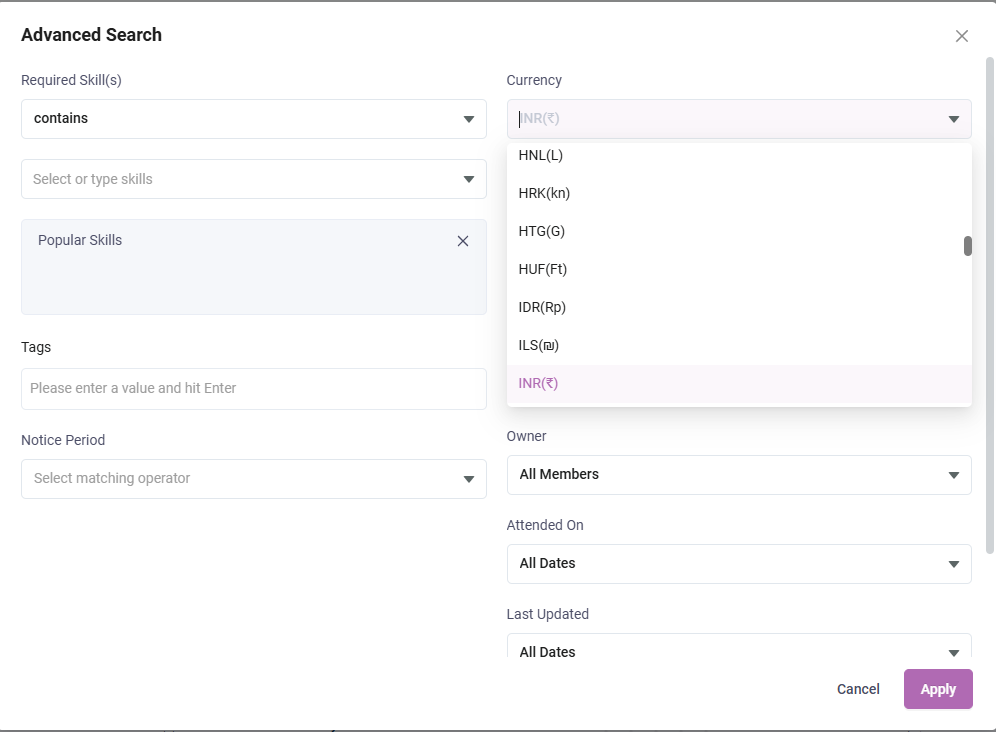
The Currency field is shown on the right side of the Advanced Search popup.
The visible selected value is INR(₹).
Visible currency values from the open dropdown include:
-
HNL(L)
-
HRK(kn)
-
HTG(G)
-
HUF(Ft)
-
IDR(Rp)
-
ILS(₪)
-
INR(₹)
Other Advanced Search Fields
The following additional fields are visible in the Advanced Search popup:
-
Expected Salary
-
Total Experience
-
Tags
-
Notice Period
-
Application Source(s)
-
Owner
-
Attended On
-
Last Updated
For Expected Salary, Total Experience, and Notice Period, the visible field state shows the placeholder “Select matching operator”.
Application Source(s)
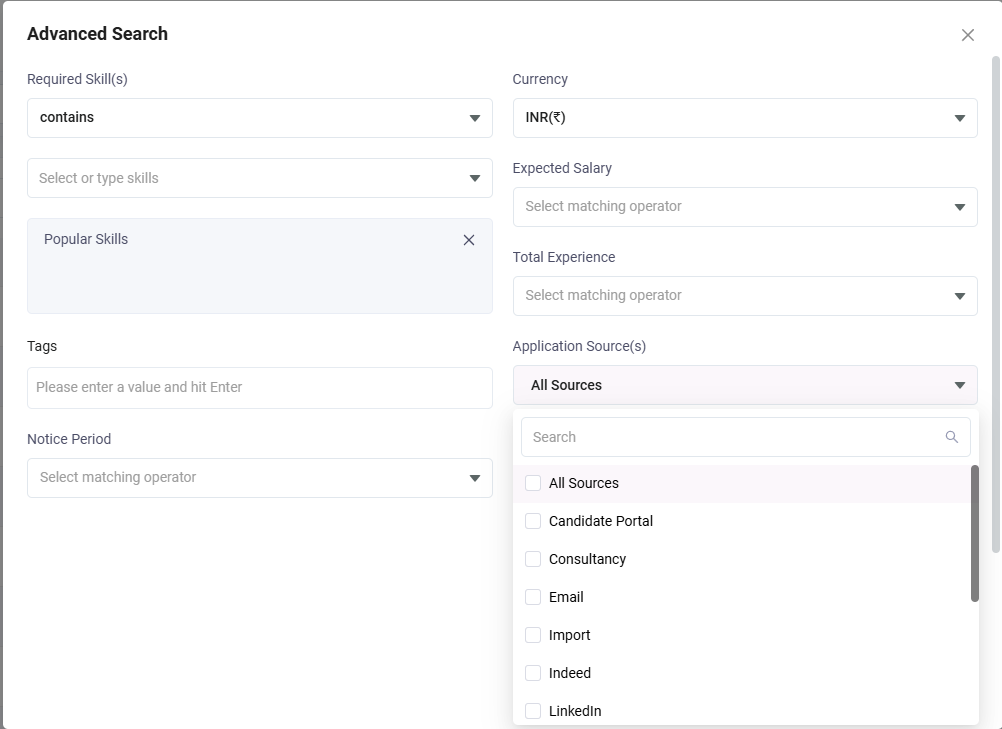
The Application Source(s) dropdown shows the selected value All Sources and includes a search field.
The visible options include:
-
All Sources
-
Candidate Portal
-
Consultancy
-
Email
-
Import
-
Indeed
-
LinkedIn
Owner
The Owner dropdown shows the selected value All Members. The visible owner options include:
-
All Members
-
Admin Ayan Sengupta
-
Alexei Morozov
-
Edward Collins
-
Guest Alexei Sokolov
-
Interviewer Ivan Orlov
-
Nikolai Sidorov
Attended On
The Attended On filter is visible in the Advanced Search popup. The visible options from the open dropdown are:
-
Not Attended
-
All Dates
-
Last Month
-
Last 3 Months
-
Last Year
-
Custom
The Last Updated field is also visible with the displayed value All Date,.
Advanced Search Actions
The popup includes the following action controls:
-
Apply
-
Cancel
-
Close (X) icon
Add Talent
When the user clicks Add Talent, an Add Talent popup form is displayed. The form is shown with a talent information section on the left and an Upload CV / Resume panel on the right.
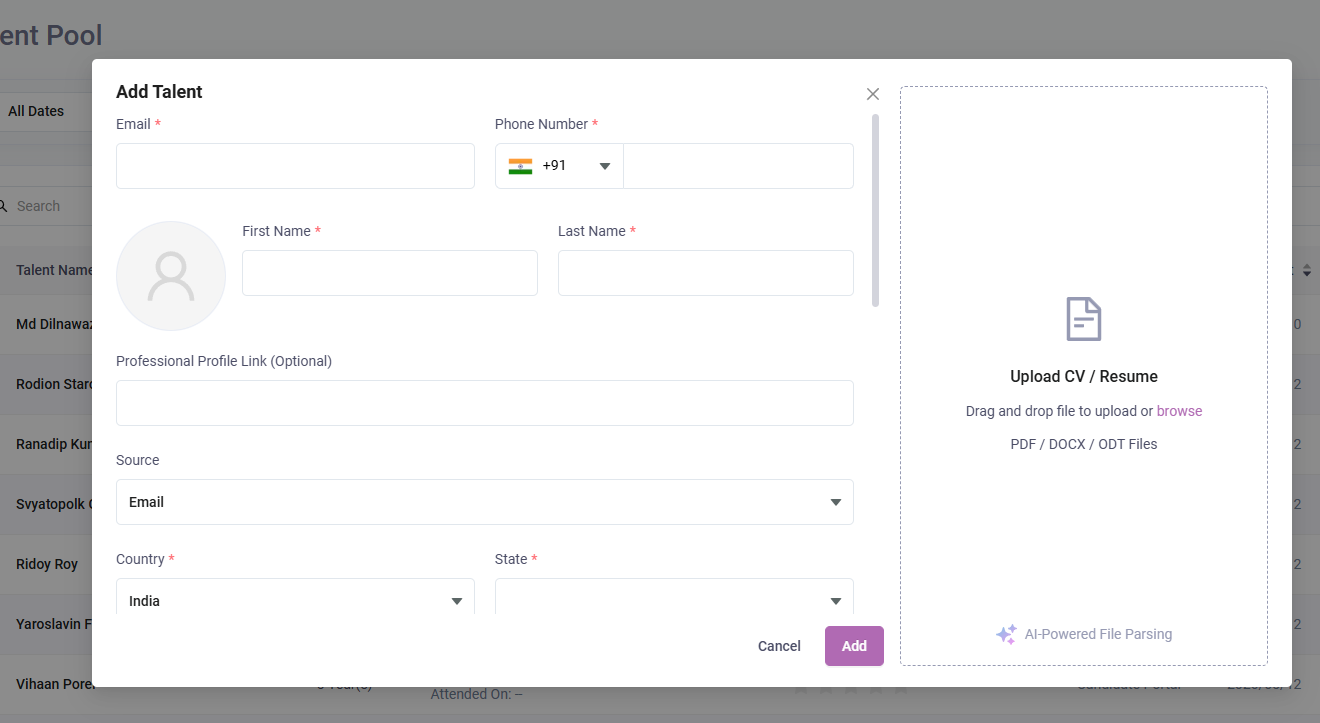
Add Talent - Basic Information
The visible fields in the upper part of the Add Talent form are:
The visible default values include Source = Email and Country = India.
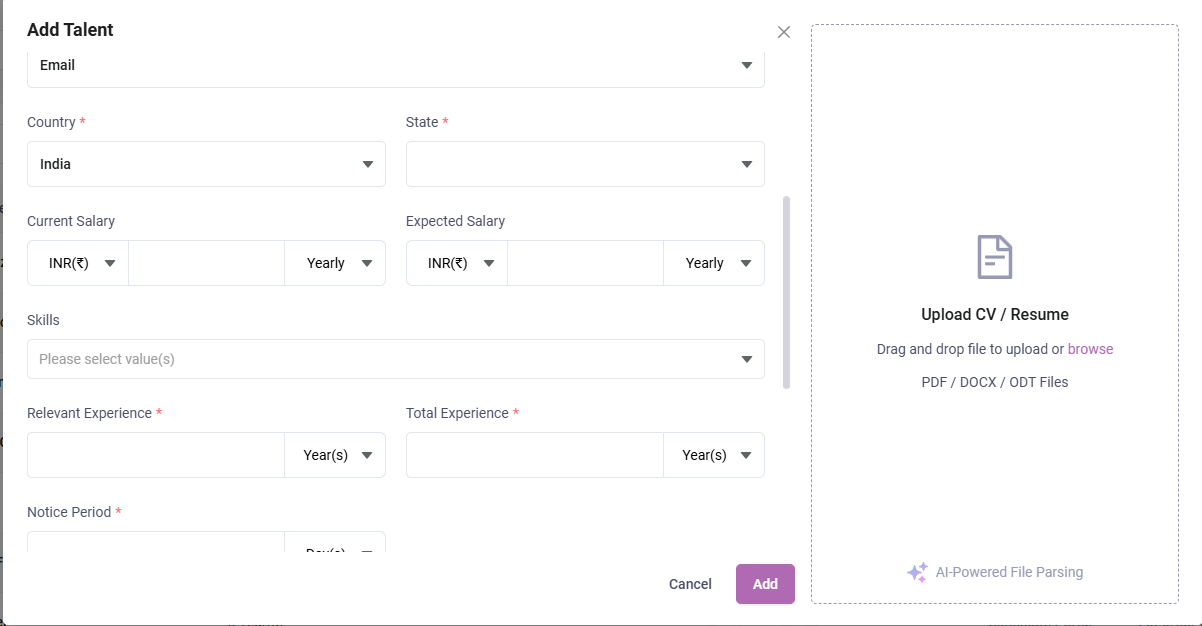
Add Talent - Salary and Experience
The middle section of the Add Talent form contains salary, skills, and experience fields. The visible fields are:
-
Current Salary
-
Expected Salary
-
Skills
-
Relevant Experience *
-
Total Experience *
-
Notice Period *
For Current Salary and Expected Salary, the visible currency value is INR(₹) and the visible period value is Yearly.
For Relevant Experience and Total Experience, the visible unit value is Year(s).
For Notice Period, the visible unit value is Day(s).
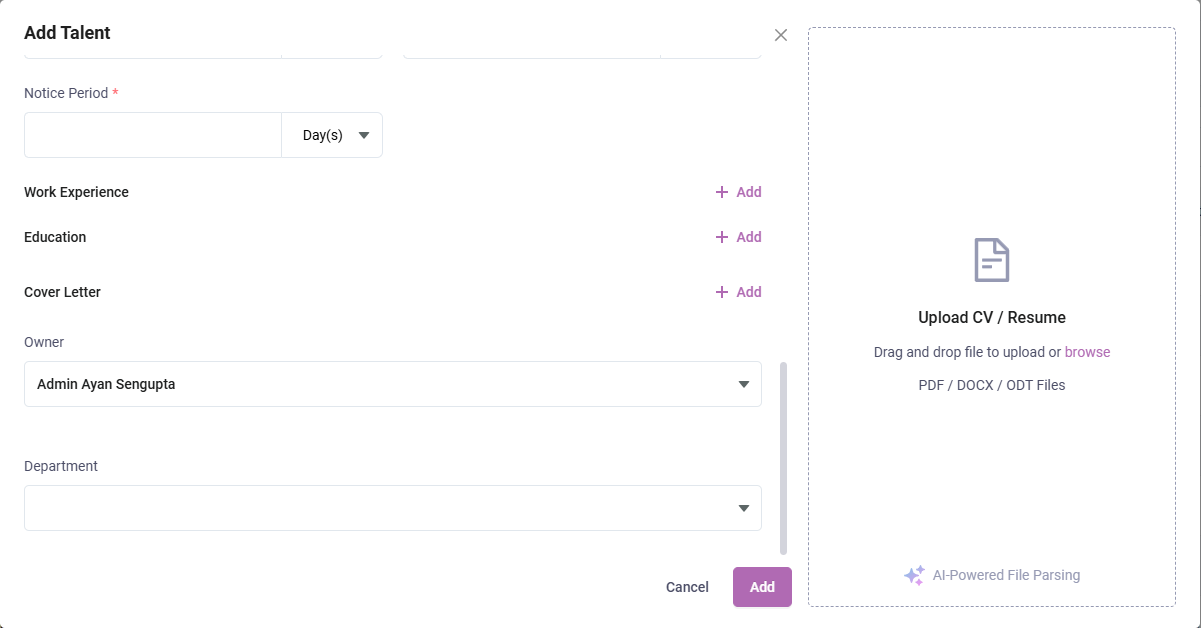
Add Talent - Additional Sections
The lower portion of the Add Talent form shows expandable/addable sections. The visible sections are:
-
Work Experience
-
Education
-
Cover Letter
Each of these sections shows a visible + Add action in the screenshots.
The form also shows the following additional fields in the lower part:
The visible Owner value is Admin Ayan Sengupta.
Add Talent - CV / Resume Upload Panel
The right side of the Add Talent popup contains a dedicated upload panel.
The visible text in the panel includes:
Add Talent Actions
The Add Talent popup includes the following visible action controls:
-
Add
-
Cancel
-
Close (X) icon
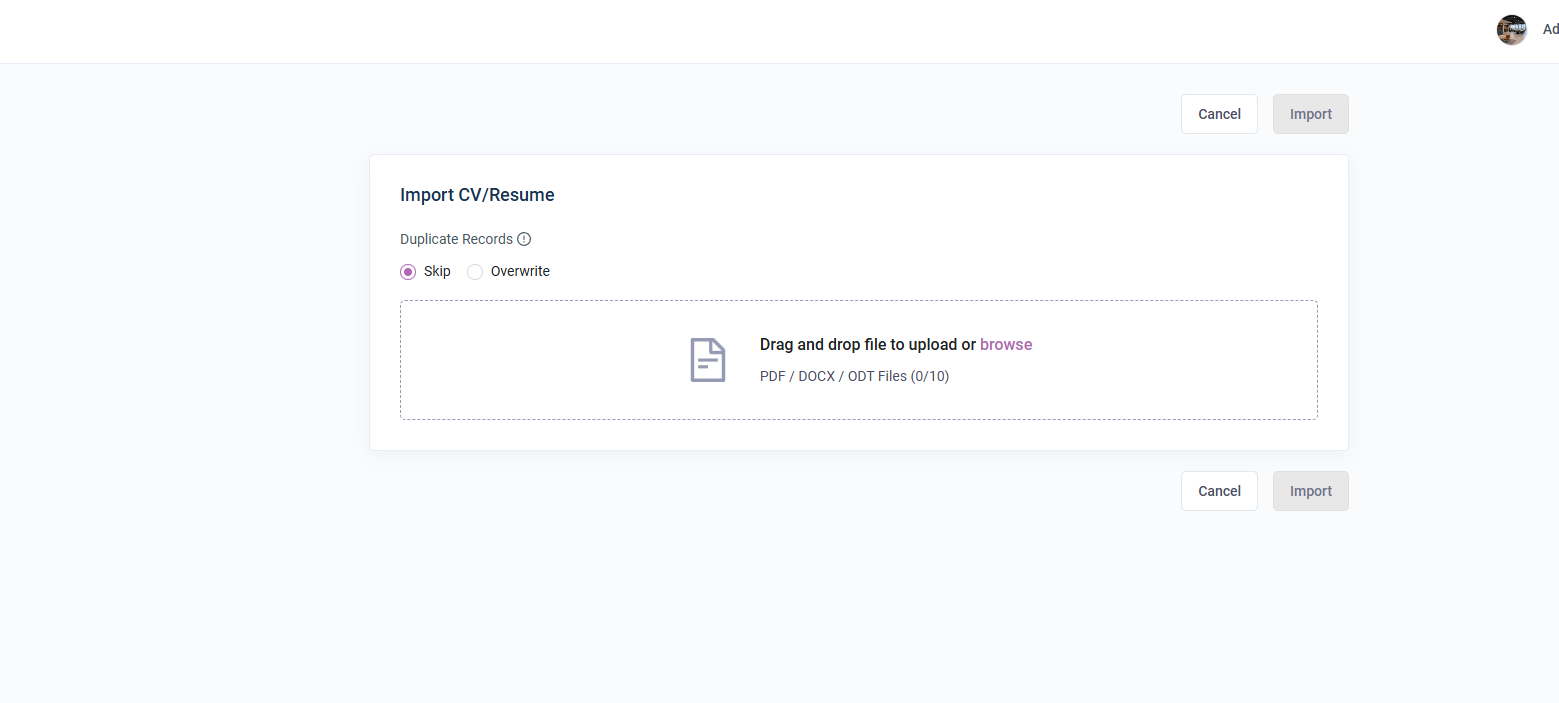
Import CV/Resume
The page also provides a separate Import CV screen, opened using the Import CV button from the Talent Pool page.
The visible elements on the Import CV/Resume screen are:
-
Title: Import CV/Resume
-
Duplicate Records with an info icon
-
Radio options: Skip and Overwrite
-
Upload area with the text: Drag and drop file to upload or browse
-
Allowed file types: PDF / DOCX / ODT Files (0/10)
-
Top action buttons: Cancel and Import
-
Bottom action buttons: Cancel and Import