The Calendar page is where users can view and manage scheduled interview events in Simplified Hire. It displays interview schedules in both calendar and list-style layouts and allows users to filter events by interviewer.
Common sections like the left menu and top profile header are available on the Calendar page, allowing users to navigate across the platform while reviewing scheduled interviews.
To access the Calendar page, log in to Simplified Hire and click on Calendar from the left menu.
Calendar Overview
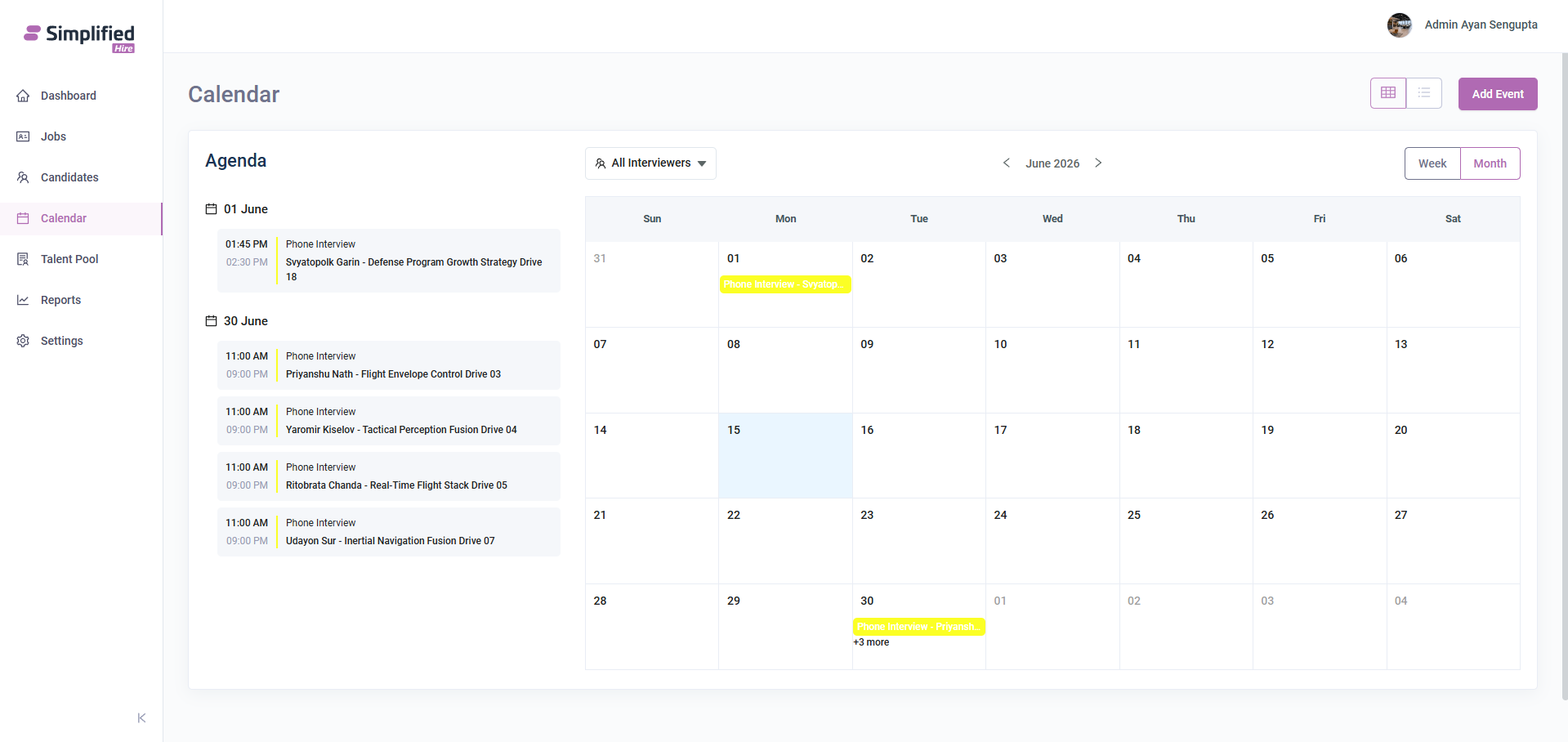
The Calendar page displays interview events together with an agenda panel. The page includes an Add Event button, view toggle icons, interviewer filter, month navigation, Week and Month view options, and the calendar event grid.
The agenda panel shows scheduled interviews grouped by date, while the calendar area shows the same interview events on their corresponding calendar dates.
 Agenda
The Agenda section appears on the left side of the Calendar page. It groups scheduled events by date and displays the interview time, interview type, candidate name, and job name.
In the visible agenda, events are shown for dates such as 01 June and 30 June.
Each agenda item displays the start time and end time on the left side, followed by the event type and the candidate-job information.
Visible agenda examples include:
-
01 June - Phone Interview - Svyatopolk Garin - Defense Program Growth Strategy Drive 18
-
30 June - Phone Interview - Priyanshu Nath - Flight Envelope Control Drive 03
-
30 June - Phone Interview - Yaromir Kiselov - Tactical Perception Fusion Drive 04
-
30 June - Phone Interview - Ritobrata Chanda - Real-Time Flight Stack Drive 05
-
30 June - Phone Interview - Udayon Sur - Inertial Navigation Fusion Drive 07
All Interviewers Filter
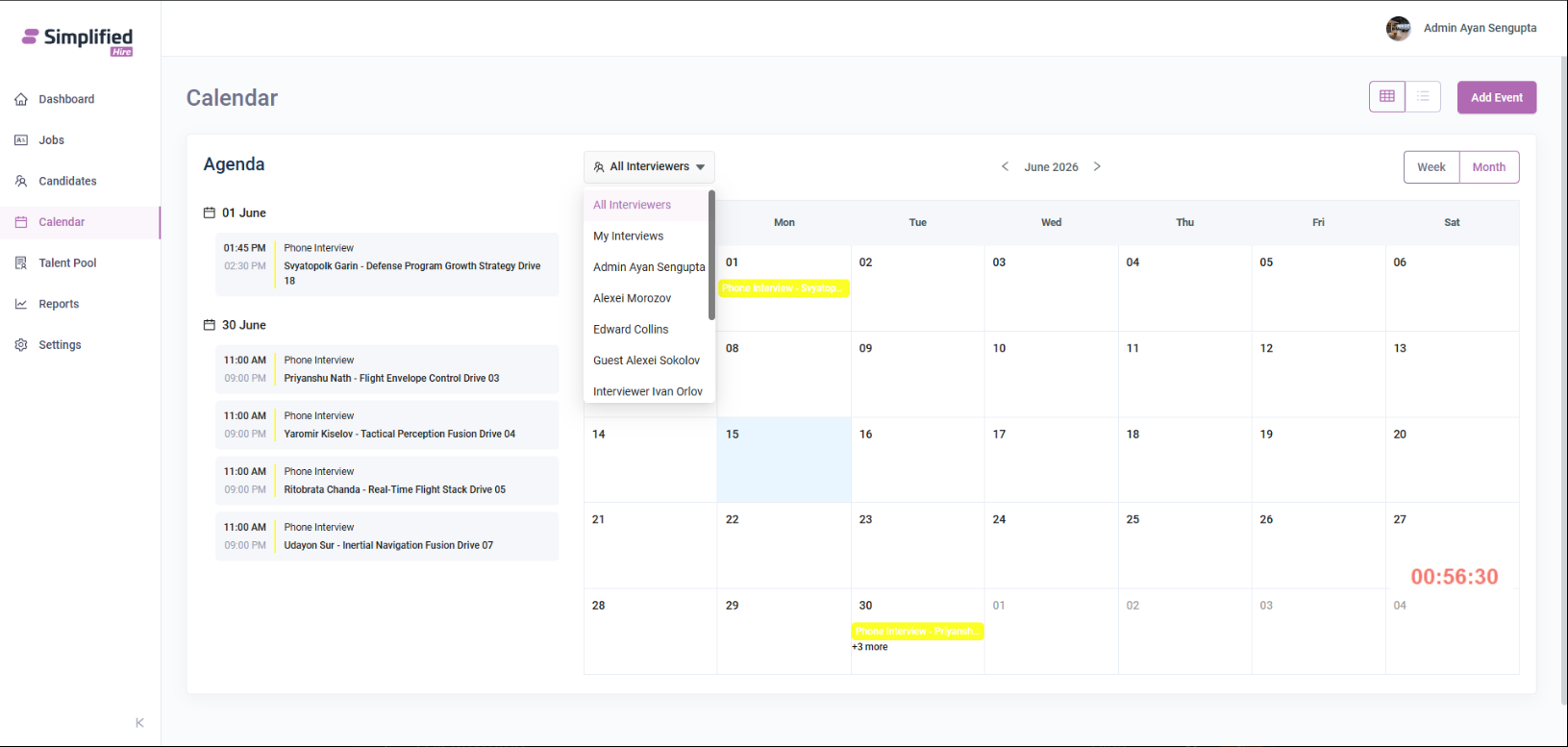
The All Interviewers dropdown allows users to filter calendar events based on interviewers.
The visible options include:
-
All Interviewers
-
My Interviews
-
Admin Ayan Sengupta
-
Alexei Morozov
-
Edward Collins
-
Guest Alexei Sokolov
-
Interviewer Ivan Orlov
After selecting an interviewer option, the Calendar page displays the interview events related to the selected interviewer filter.
Month Calendar View
The month calendar view displays events inside a monthly calendar grid. The visible month is June 2026.
Users can move between months using the previous and next arrow controls beside the month name.
The calendar grid displays the days of the week from Sunday to Saturday and shows event labels on the matching dates.
Interview events are displayed as highlighted event labels such as Phone Interview - Svyatopolk Garin and Phone Interview - Priyanshu Nath.
Week and Month View Options
The Calendar page provides Week and Month options on the right side of the calendar area.
In the visible screenshots, the Month option is selected and the monthly calendar grid is displayed.
The Week option is visible as a selectable option, but the week view content is not shown in the provided screenshots.
Event Details Popup
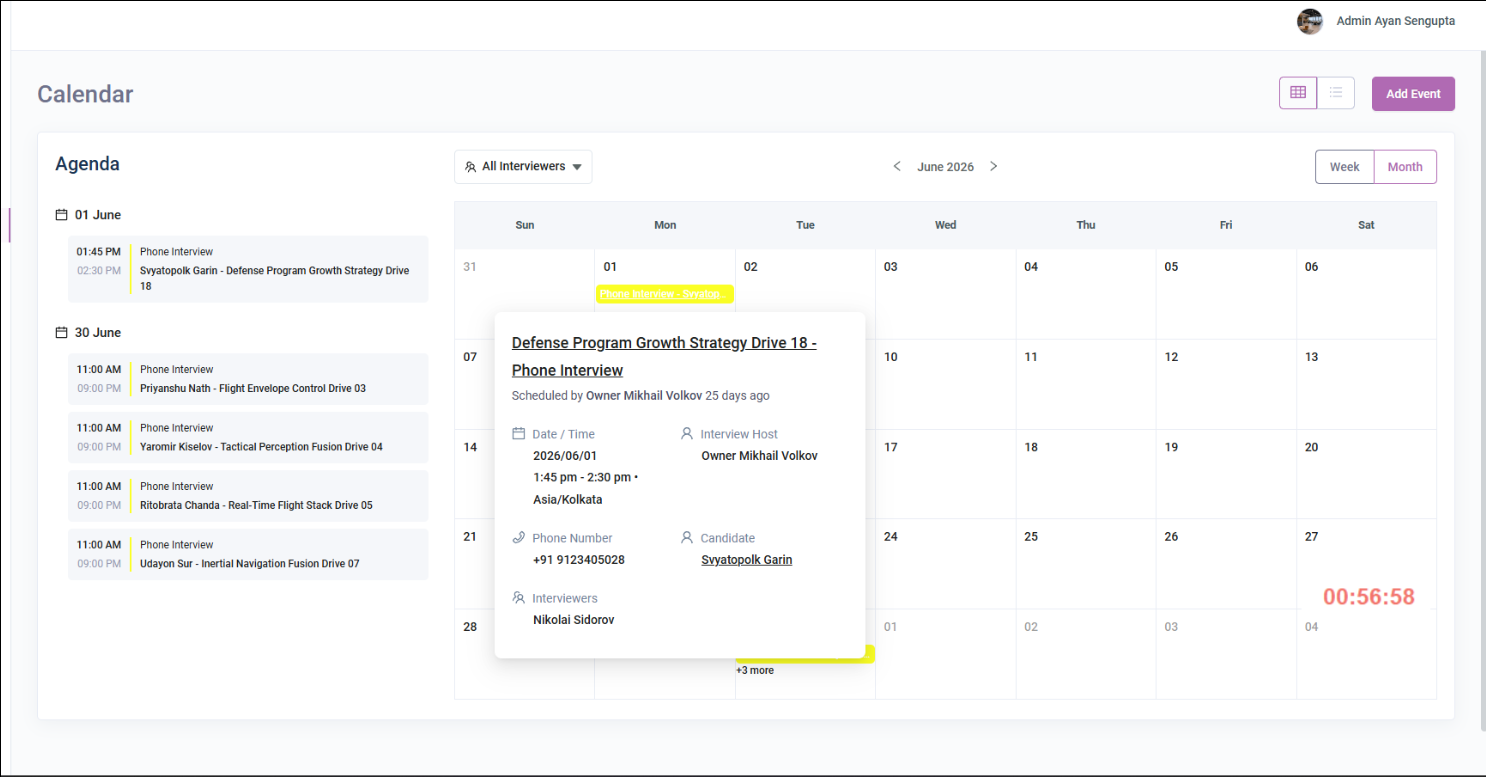
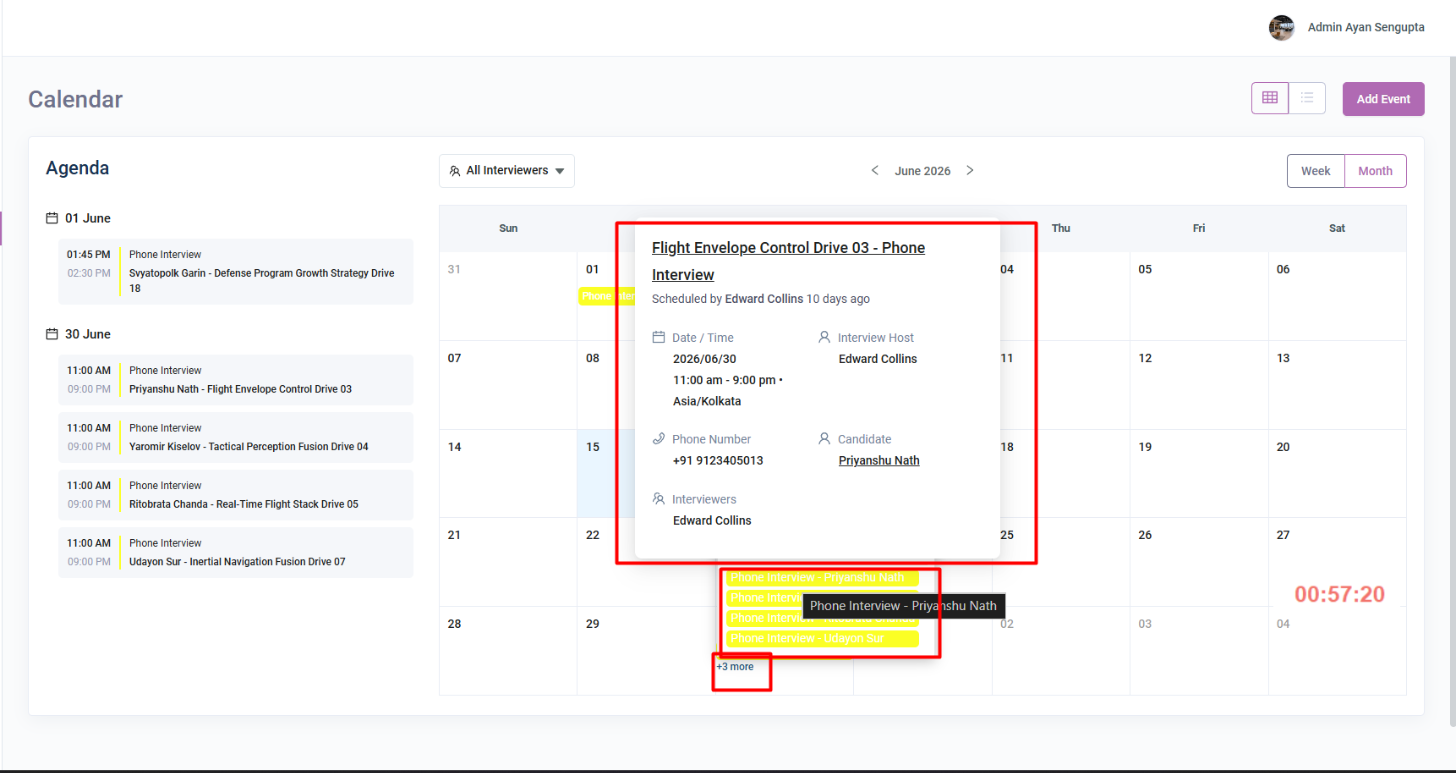
When the user hovers over an interview event from the calendar, an event details popup is displayed.
The event details popup shows information about the selected interview event.
The visible event details include:
One visible event popup shows Defense Program Growth Strategy Drive 18 - Phone Interview. It displays the schedule date as 2026/06/01, the time as 1:45 pm - 2:30 pm, the timezone as Asia/Kolkata, the interview host as Owner Mikhail Volkov, the candidate as Svyatopolk Garin, and the interviewer as Nikolai Sidorov.
Another visible event popup shows Flight Envelope Control Drive 03 - Phone Interview. It displays the schedule date as 2026/06/30, the time as 11:00 am - 9:00 pm, the timezone as Asia/Kolkata, the interview host as Edward Collins, the candidate as Priyanshu Nath, and the interviewer as Edward Collins.
Multiple Events on the Same Date
When multiple events are scheduled on the same calendar date, the calendar can show multiple event labels and a + more link.
In the visible calendar, the 30 June date contains multiple Phone Interview events. The calendar shows visible interview labels and a +3 more link.
When the +3 more link is opened, a compact event list appears for Tuesday, Jun 30. The list displays the available Phone Interview items for that date.
 Add Event
The Add Event button is available at the top right side of the Calendar page.
When the user clicks Add Event, the Add Event - Schedule popup is displayed.
Add Event - Schedule Popup
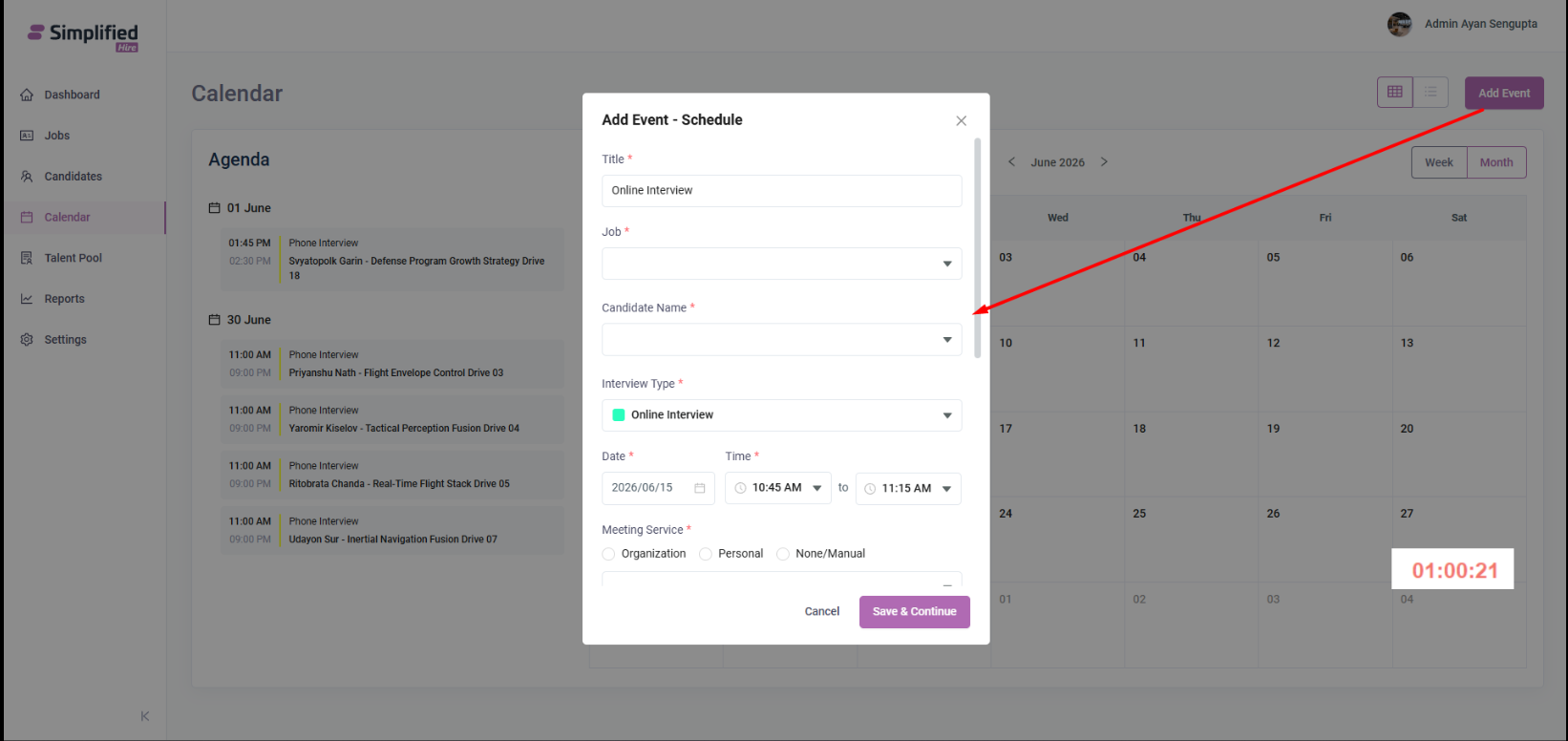
The Add Event - Schedule popup is used to create a new interview event from the Calendar page.
The visible fields include:
The popup also contains a Cancel button, a Save & Continue button, and a close icon.
Title, Job, and Candidate Name
The Title field is required. In the visible screenshot, the title is shown as Online Interview.
The Job field is required and appears as a dropdown field. The Candidate Name field is also required and appears as a dropdown field.
Interview Type
The Interview Type field is required. In the visible screenshot, the selected interview type is Online Interview.
Date and Time
The Date field is required and displays a date selector. In the visible screenshot, the date is shown as 2026/06/15.
The Time section is required and contains a start time and end time. In the visible screenshot, the time is shown from 10:45 AM to 11:15 AM.
Meeting Service
The Meeting Service section is required and provides radio button options.
The visible meeting service options include:
-
Organization
-
Personal
-
None/Manual
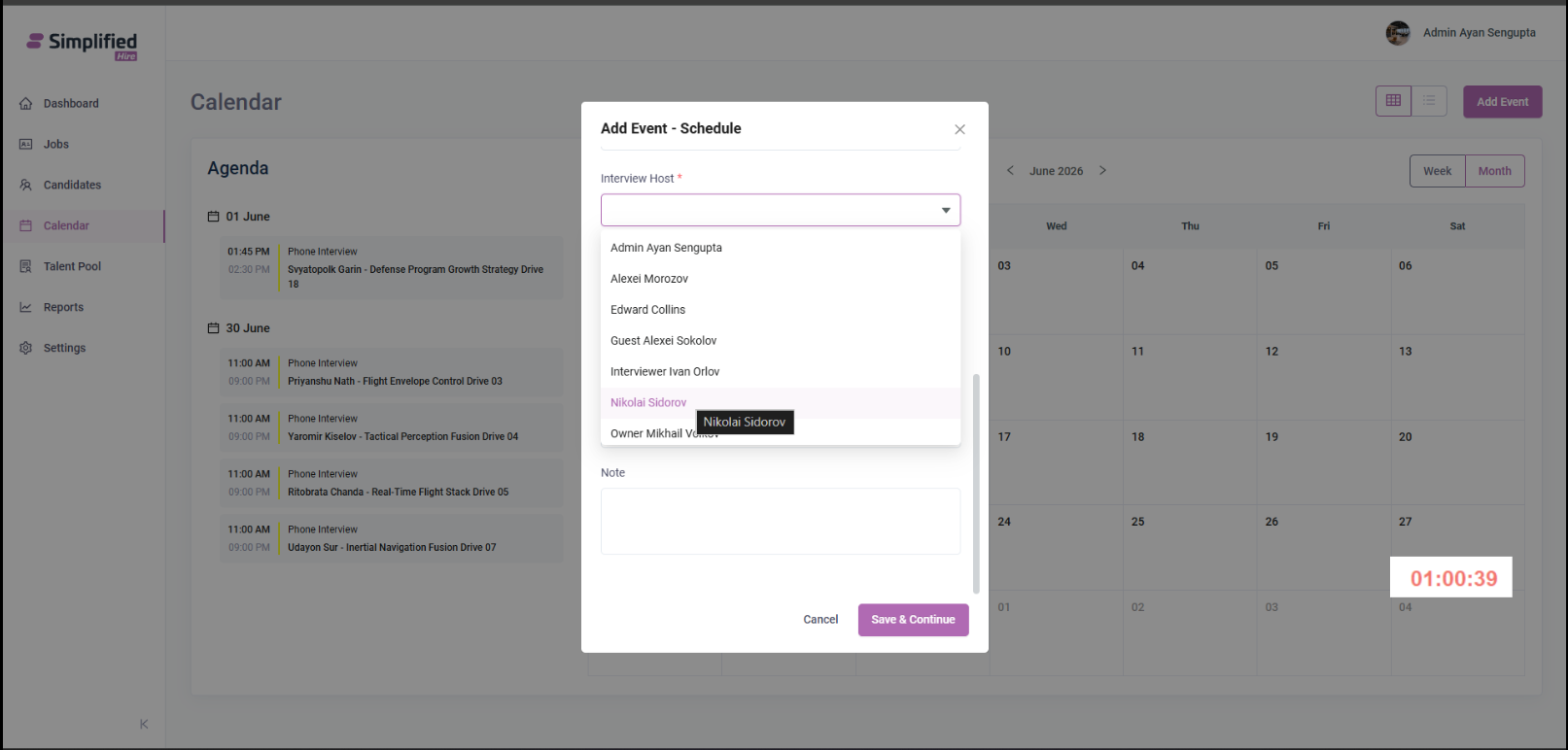
Interview Host
The Interview Host field is required and appears as a dropdown field.
The visible interview host options include:
-
Admin Ayan Sengupta
-
Alexei Morozov
-
Edward Collins
-
Guest Alexei Sokolov
-
Interviewer Ivan Orlov
-
Nikolai Sidorov
-
Owner Mikhail Volkov
Interviewer, Bcc, Evaluation Form, and Note
The Add Event - Schedule popup also contains an Interviewer(s) required field, a Bcc field, an Evaluation Form (For Interviewers) dropdown, and a Note field.
The Evaluation Form dropdown contains a Manage Templates option.
Evaluation Form Template
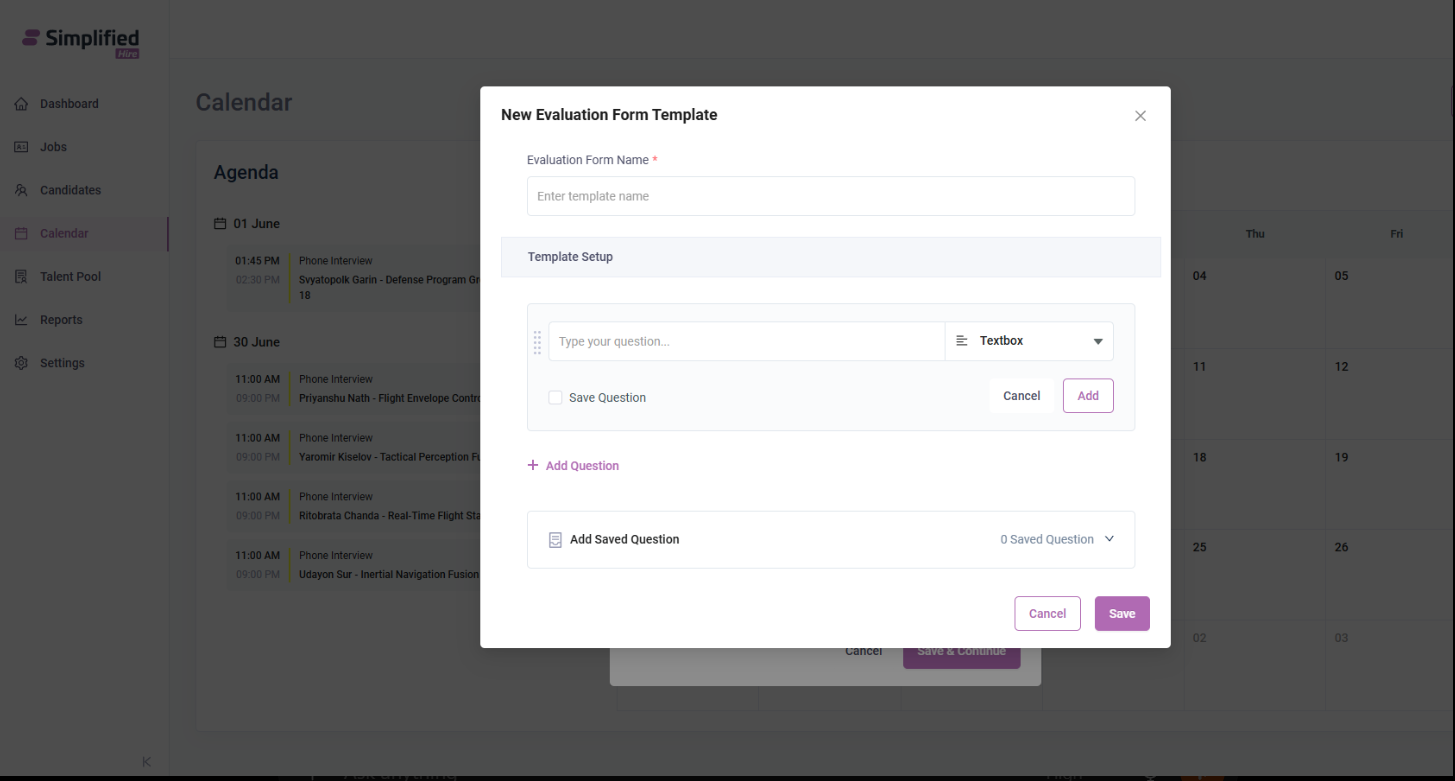
When Manage Templates is selected from the Evaluation Form section, the New Evaluation Form Template popup is displayed.
The visible fields and controls include:
-
Evaluation Form Name
-
Template Setup section
-
Question input field with placeholder Type your question...
-
Question type dropdown showing Textbox
-
Save Question checkbox
-
Cancel button for question entry
-
Add button for question entry
-
Add Question option
-
Add Saved Question section
-
Saved question count
-
Cancel button
-
Save button
-
Close icon
In the visible screenshot, the Add Saved Question section shows 0 Saved Question.
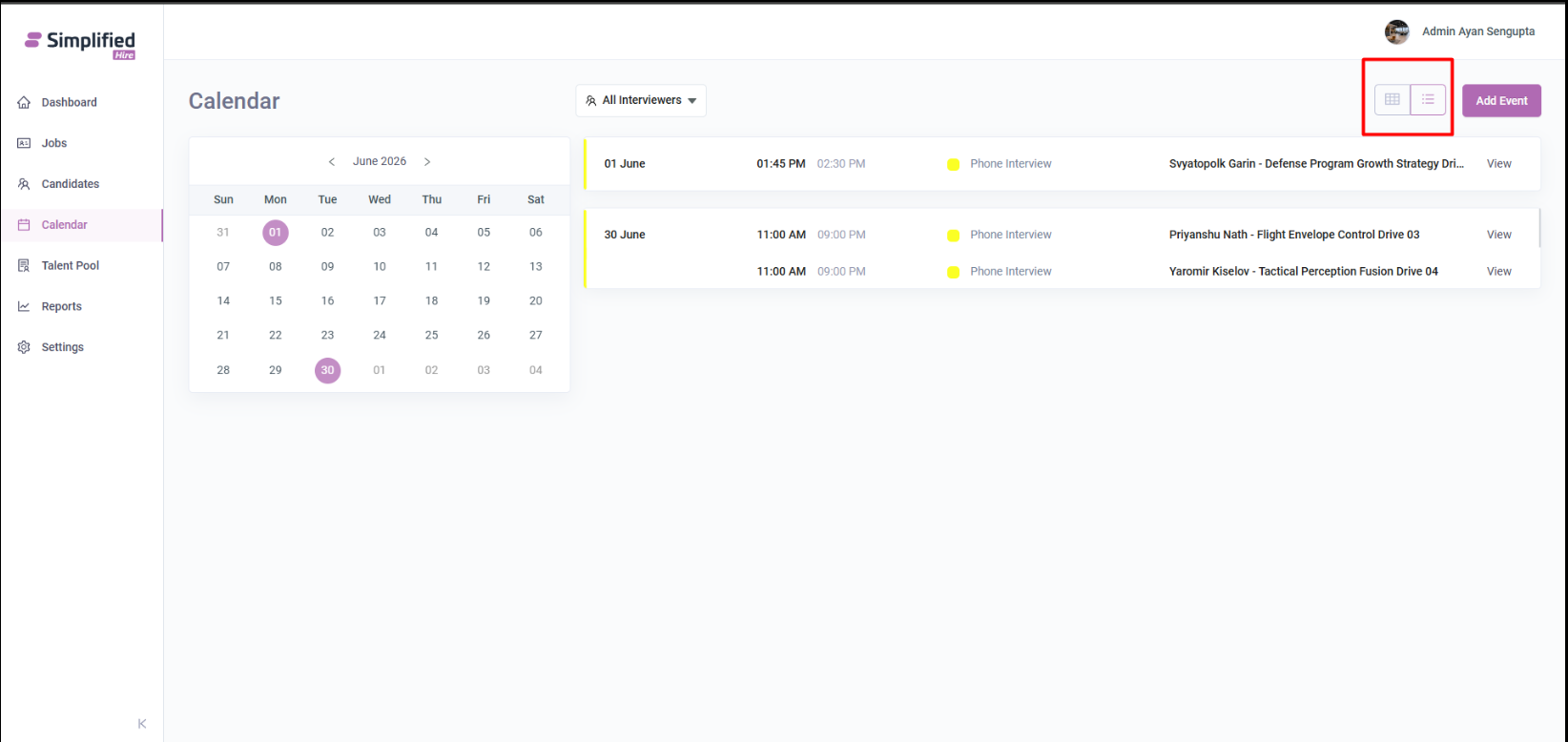
Calendar View Toggle
The Calendar page contains two view toggle icons near the Add Event button.
The calendar-grid icon displays the calendar layout. The list icon changes the page to a list-style view of scheduled events.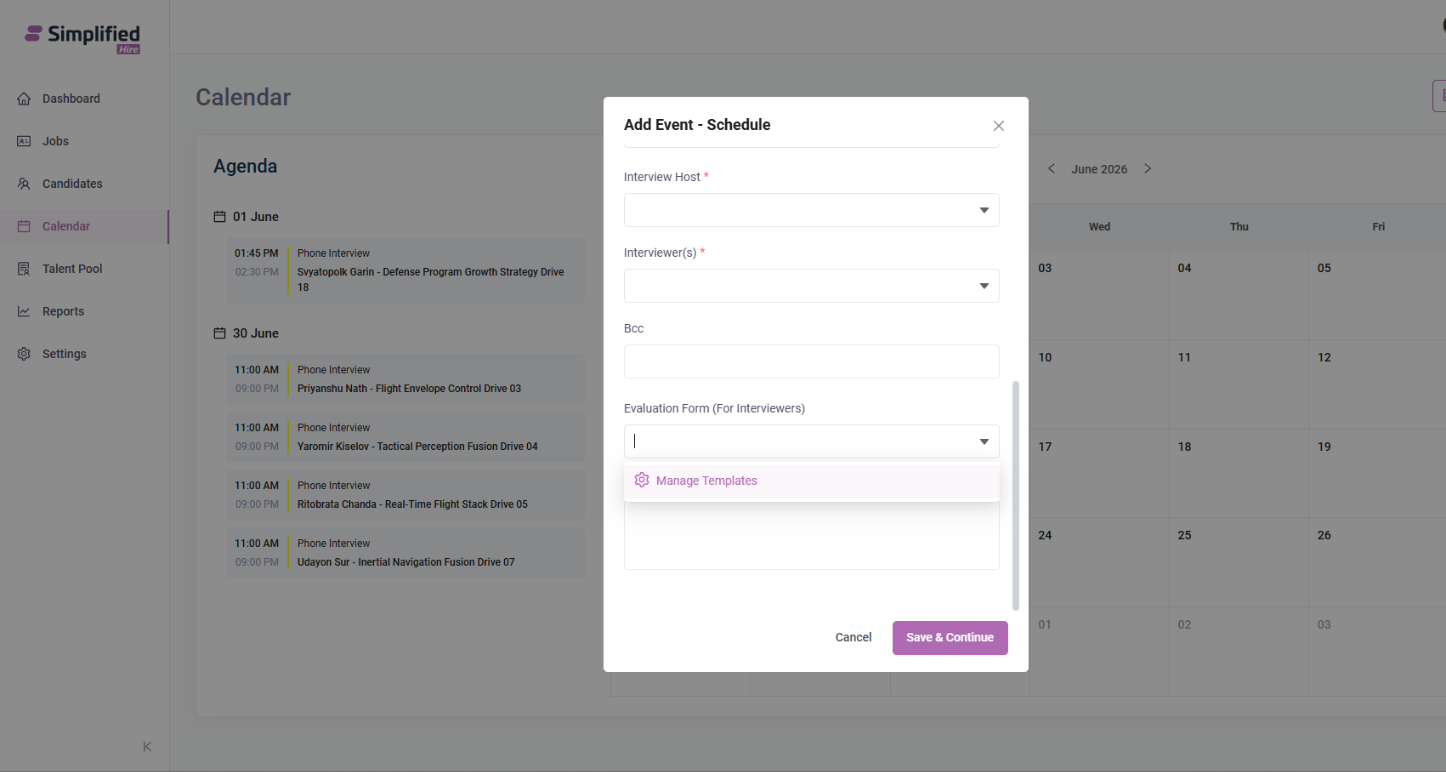
List View
The list view displays a compact month calendar on the left side and scheduled event rows on the right side.
The compact calendar shows the selected month and highlights dates that contain scheduled events, such as 01 and 30.
The event list displays each scheduled interview row with date, start time, end time, interview type, candidate-job information, and a View option.
Visible list view examples include:
-
01 June - 01:45 PM to 02:30 PM - Phone Interview - Svyatopolk Garin - Defense Program Growth Strategy Drive 18
-
30 June - 11:00 AM to 09:00 PM - Phone Interview - Priyanshu Nath - Flight Envelope Control Drive 03
-
30 June - 11:00 AM to 09:00 PM - Phone Interview - Yaromir Kiselov - Tactical Perception Fusion Drive 04
The View option is visible on the right side of each event row. The result of clicking View is not shown in the provided screenshots.